





© ROOT-NATION.com - Use of content is permitted with a backlink.

Changing your device’s GPS location can be useful for privacy, gaming, testing apps, travel research, and accessing region-locked content. Whether you want to spoof your GPS on iPhone, use a fake location on Android, or simply learn the safest method to change your location, this guide covers the most reliable options for iOS 26 and Android 16.
This article explains how to change your iPhone location without a VPN, how to change iPhone location for free, and how to use trusted location changer apps safely. All methods are verified to work on the latest systems.
TABLE OF CONTENTS:
Why Change Your Location on iPhone or Android?
Users often need to fake their GPS location on iPhone or Android for:
- Location-based games such as Pokémon GO
- Protecting personal privacy
- Testing geolocation behavior in apps
- Accessing features in region-restricted social apps
- Bypassing geographic content limitations
A reliable fake GPS tool makes it easy to explore virtual locations or maintain privacy with minimal effort.
How to Change Location on iPhone (iOS 26 Supported)
iOS does not allow users to modify GPS data directly. To safely fake your location, you’ll need a professional location-changing tool that works with the latest iOS version.
Method 1: Use a Professional Location Changer App (Recommended)
The easiest and most dependable option is to use iAnyGo app, which is built specifically for iPhone users who want to change their GPS location without relying on a VPN. iAnyGo works across Windows, macOS, Android, and iOS.
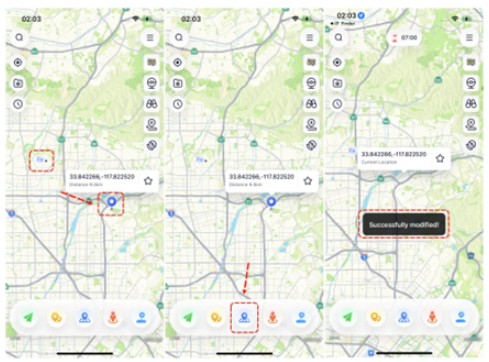
Steps to Install iAnyGo and Change Your iPhone Location
- Download and launch the iAnyGo iOS app via using iAnyGo iOS Assistant.
- Choose the “Change Location” feature.
- Type in the destination you want your device to show.
- Tap Start to Modify, and your iPhone’s GPS position will update instantly.
This method is ideal for:
- learning how to change your location on iPhone
- changing iPhone location without a VPN
- gaming and virtual exploration
How to Change Location on Android (Android 16 Supported)
Android offers more flexibility, making it easier to use a fake GPS app.
Method 1: Use a Fake Location App (Most Popular)
If you want a more stable and consistent spoofing experience, a dedicated tool like the PoGoskill app is a solid choice. It works on both Android and iOS and is widely used by mobile gamers. The Android version allows you to change your device’s GPS location with options such as single-point movement, multi-point routes, and joystick navigation.
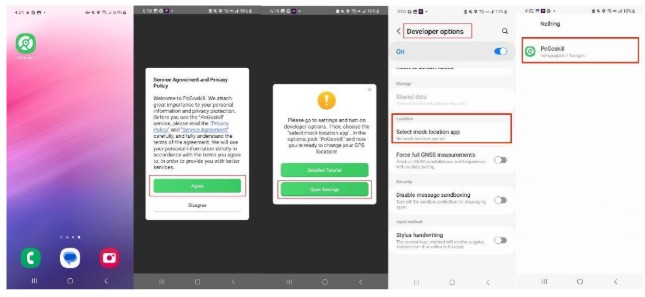
How to Install PoGoskill on Android
- Download PoGoskill from Google Play and agree to the required terms (Service Agreement and Privacy Policy).
- Open Settings > About Phone and tap the Build Number several times to enable Developer Options.
- In Developer Options, locate Select mock location app (or “Mock location”) and set PoGoskill as the default. This step allows the system to accept the GPS data provided by the app.
- After selecting PoGoskill as your mock app, launch it and you’ll gain access to features such as map search, joystick mode, custom routes, compass, timers, and a favorites list.
How to Change Your Location on Android
- Open PoGoskill to bring up the map interface and location tools.
- Search for a place using the map bar, drop a pin, or input exact coordinates for precise positioning.
- Tap Start, and your Android device will immediately switch to the new location.
This approach is perfect for:
- learning how to change location on Android
- testing region-based apps
- quick and stable GPS spoofing
Method 2: Change Location via VPN (Not Real GPS Spoofing)
VPN only changes IP location, not GPS. Apps like games, delivery apps, or social apps won’t accept this method. It does NOT work for users looking for how to change iPhone location without vpn – because VPN alone cannot modify GPS.
Best Practices for Safe GPS Spoofing
To ensure safe and stable use:
- Use trusted location-changer apps only
- Avoid unrealistic or rapid GPS teleportation
- Limit long-distance jumps, especially in games
- Disable mock location when not in use if necessary
Following these tips helps you avoid app security flags or account-related issues.
Frequently Asked Questions (FAQ)
Can I change my iPhone location for free?
Yes. Some desktop tools offer free trials or limited free modes. Xcode is also free, but it only provides temporary spoofing for development purposes.
Is a VPN enough to fake my location on iPhone or Android?
No. A VPN changes IP address only. Most apps rely on GPS, so you must use a real location-changer app.
Is it legal to use fake GPS apps?
Generally, changing your location is not illegal, but misusing it (such as cheating in games) may violate app terms.
Does spoofing work on iOS 26 or Android 16?
Yes. Modern tools like iAnyGo and PoGoskill support both systems.
Final Thoughts
Learning how to change your iPhone or Android location becomes simple when you use the right tools, such as the iAnyGo app or the PoGoskill app. Whether you’re trying to spoof your GPS on iPhone, use a fake location on Android, or install a dependable location-changer, just be sure the tool is safe and fully compatible with iOS 26 and Android 16.
With a trustworthy location changer, you can jump to any place worldwide in just one tap – safely and without limits.

. It covers free methods, paid location changer apps, and the powerful iAnyGo for iOS and PoGoskill for Android.)