





© ROOT-NATION.com - Use of content is permitted with a backlink.

Can you recover deleted files on Android without root access? Many people think rooting is the only way, but that’s not always the case. Rooting often exposes your device to unnecessary risks and isn’t practical for most users.
Fortunately, modern Android phones already provide several recovery options that don’t require root. Built-in tools, cloud backups, specialized apps, and data recovery software give you several ways to restore deleted files, and below we’ll show you several methods you can use.
TABLE OF CONTENTS:
Why Root Access Is Usually Required
If you’ve ever looked up ways to recover deleted files on Android, you’ve probably noticed that many guides talk about root access. But what does that even mean, and why do recovery tools keep asking for it?
By default, you only get access to the safe areas of your phone’s storage. This protects your data (and your phone) from sketchy apps that might try to mess with things they shouldn’t. The catch is that deleted files usually live in those “off-limits” areas. To dig deep enough to find them, recovery tools often need root access, which is like being the admin of your phone.
Now, here’s the problem: rooting isn’t as simple as pressing a button. It takes technical steps, it voids your warranty, and if something goes wrong, you can brick your device. Plus, once rooted, your phone becomes more vulnerable to malware because the normal security walls are weaker.
On top of that, your device must have been rooted before the data loss (not after) for root-based recovery tools to work. That’s why many people want recovery methods that don’t involve root.
How to Recover Deleted Files on Android Without Root
Now, let’s move on to the practical part. Here are the methods you can use to recover deleted files on Android without root:
Method 1. Check the Trash or Recently Deleted Folder
Many apps, like Google Photos or the default “Files” app, don’t delete items right away. Instead, they move them into a trash folder for 30–60 days.
- Open the app you were using.
- Head to Trash or Recently Deleted.
- Choose the files you need and click Restore.
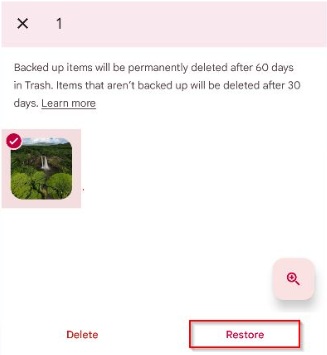
This is the easiest way to get your files back, but you need to act before the retention window runs out. Different apps have their own storage periods and rules, for example:
- Google Photos keeps deleted photos and videos for 60 days,
- while Files by Google usually holds items in Trash for 30 days.
- The Samsung Gallery app also retains deleted media for 30 days before permanent removal.
- And OneDrive stores deleted items in its recycle bin for up to 30 days, although large files may be cleared out sooner.
Method 2. Recover Files with PC Software (SD card only)
Usually, permanently deleted files are impossible to recover just with your phone. However, if your deleted files were on an SD card, you can connect it to your computer and run data recovery software like Disk Drill.
It’s great for SD card recovery because it supports various file systems used by Android devices (like FAT32 and exFAT) and handles scenarios ranging from simple accidental deletion to more complex cases involving corruption. For users who want a reliable, user-friendly solution to Android data recovery without root, this software stands out as one of the best choices.
Here is how to recover permanently deleted videos from an Android phone without root:
- Remove the microSD card from the phone and insert it into a card reader on your computer.
- Install Disk Drill for Windows or macOS from the official website and open it.
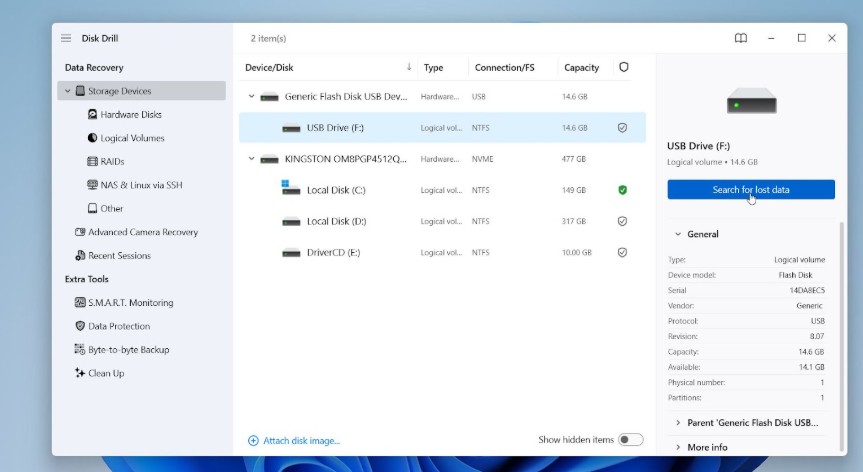
- Select the SD card and click Search for lost data. Let the scan finish.
- Use filters (Pictures, Video, Documents) to narrow results. Pay close attention to the preview – Disk Drill can show you almost anything your OS can open, either natively or with an installed viewer, including RAW images. That’s one of the reasons it’s often considered the best photo recovery app for Android without root.
- Preview files, tick the ones you want, then click Recover.
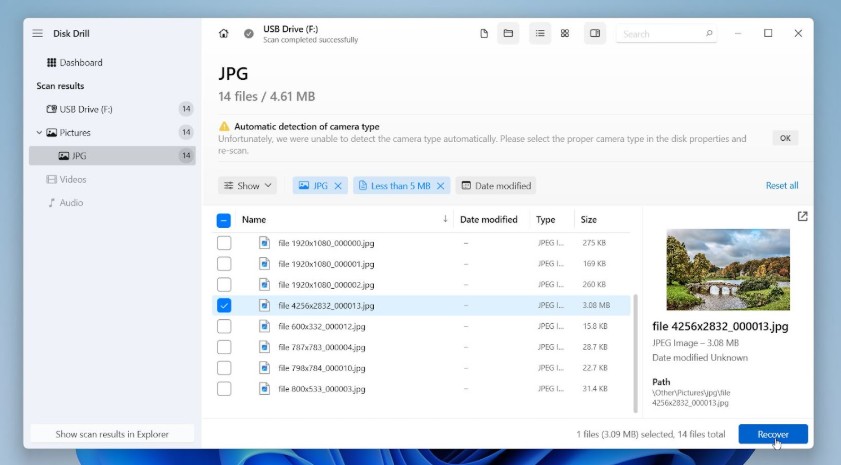
- Choose a different drive as the destination (not the SD card).
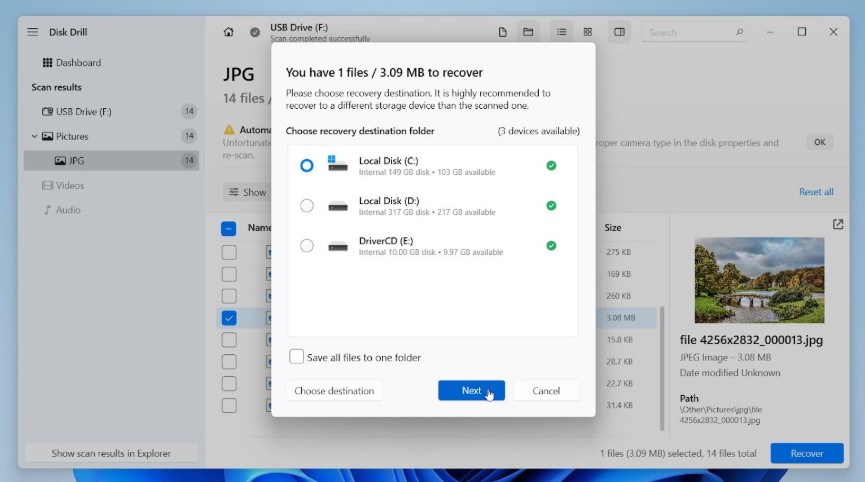
After you’ve recovered data to your computer’s internal drive or another external disk, take a moment to check your files.
Data recovery tools can also scan a phone’s internal memory, but as you already know, that usually requires root access. But since many of us keep important files, like photos and videos, on SD cards, data recovery software is still incredibly useful in these cases.
Method 3. Restore from Cloud Backups
Cloud backups are often lifesavers, especially when files are wiped after an app crash or mistaken deletion. It also works well when you need to recover data after a factory reset Android without root.
Services like Google Drive, OneDrive, Dropbox, and manufacturer-specific solutions (like Samsung Cloud or Xiaomi Cloud) quietly sync and store your data in the background. If you enabled backup settings beforehand, you may be able to restore everything from the cloud with just a few taps.
Do this to restore files using Google Drive. Other apps have a similar process:
- Open the Google Drive app. Tap the menu icon (three horizontal lines) or swipe from the left.
- Select Trash.
- Find your deleted file. Long-press to select it.
- Tap the three-dot menu on the top right, then choose Restore.
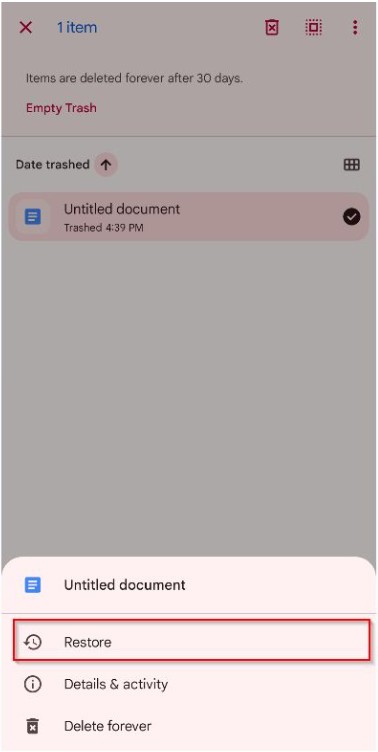
Keep in mind that different services store different types of data, so recovery depends on what was synced. You can also use them to backup app data on Android without root and choose what you want to include and what you don’t.
Method 4. Try Mobile Recovery Apps (No Computer)
How to recover deleted files on Android without a computer? Android recovery apps can be a convenient solution. They work directly on your device, scanning the accessible areas of storage to bring back deleted files. On unrooted devices, these apps can only scan accessible areas (cache, app-visible media). They’re handy for some quick media rescues, but results are very limited, so don’t expect much.
DiskDigger is the best video recovery app for Android without root on the Play Store, and it works on unrooted devices. The app focuses mainly on recovering photos and videos, making it perfect for quick rescues when you accidentally delete media files. Without root, it mainly finds compressed thumbnails and recently cached media, but it’s still worth trying.
Here’s how to use DiskDigger:
- Download DiskDigger from the Play Store.
- Open the app and choose Basic Scan (No root).
- Allow the app to scan accessible areas of your storage.
- Preview the found files and select the ones you want to recover.
- Save the recovered files either to your device or directly to cloud storage.
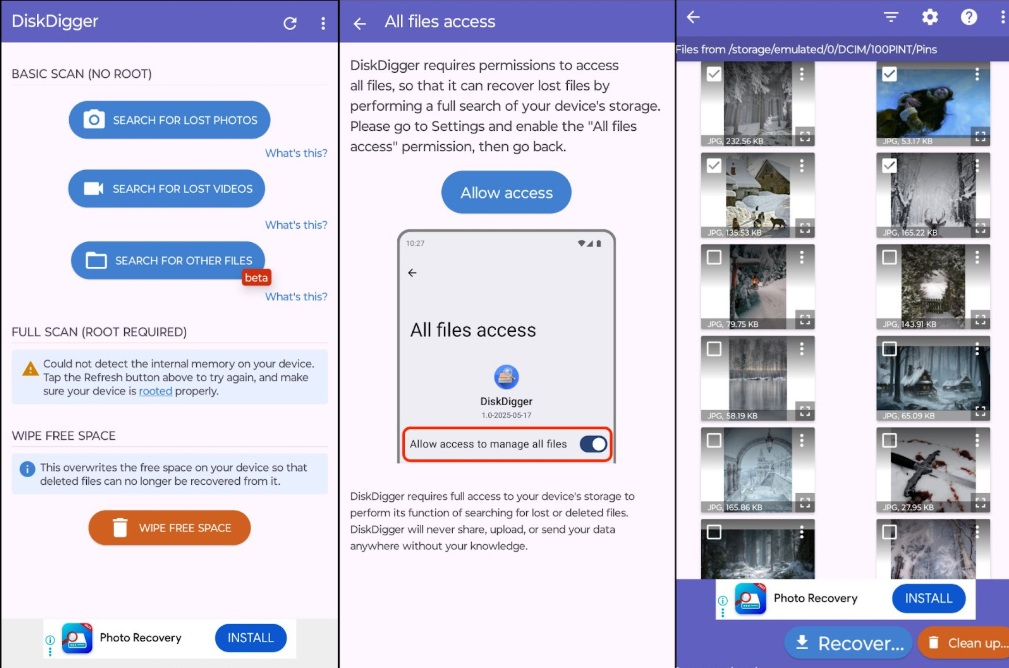
While many people consider DiskDigger the best recovery app for Android without root, it’s important to understand that without root access, any app you run directly on your device will deliver only modest results. We don’t like to repeat ourselves, but this limitation is worth stressing – these apps can usually recover cached lower-quality versions of your files; for anything more than that, your device would have to be rooted before the data loss occurred.
FInal Words
Root access gives you a better chance of recovery, but if you’ve never rooted your device and just lost some data, there are still reliable ways to get it back. Trash folders, cloud services, SD card recovery with desktop software, and mobile apps all provide reliable paths to restore files.
You just need to act quickly and select the method that matches your situation to improve the chances of success. If nothing works or your phone shows physical issues, professional recovery services may be your safest bet.
With these strategies, you can confidently recover files on Android without root access and avoid the risks of rooting altogether.

