





© ROOT-NATION.com - Use of content is permitted with a backlink.

If there are many duplicate HEIC photos on your device, you may have tried to use a dedicated app to get rid of them. But did you succeed?
There are good duplicate photo finders available, but only a few of them support HEIC photos. Relatively new and not very popular, the HEIC format is still not widely compatible.
In this article, I will show you how to use a HEIC duplicate finder to delete unnecessary HEIC duplicates. What if you have one photo in HEIC and the other in JPG in the same group of duplicates? Don’t worry. This article covers this situation as well.
TABLE OF CONTENTS:
How to use a HEIC duplicate finder to remove duplicates
The HEIC format is not very supported, but there is good news. Cisdem Duplicate Finder can work with photos in this format well. And this app can help users find and delete various types of duplicate files, such as photos, videos, audio files and documents, in the places like Mac, Windows, iPhone, iPad, Android, and external storage devices.
It is great that Cisdem Duplicate Finder can support all common image formats (including camera RAW formats), such as HEIC, JPG, PNG, GIF, WebP, BMP, TIFF, CR2, CR3, NEF, ARW, RW2, and DNG.
Below you will find how to use it on computers and phones.
On Mac and Windows
Step 1. Download and install this duplicate photo finder with HEIC support on your computer.
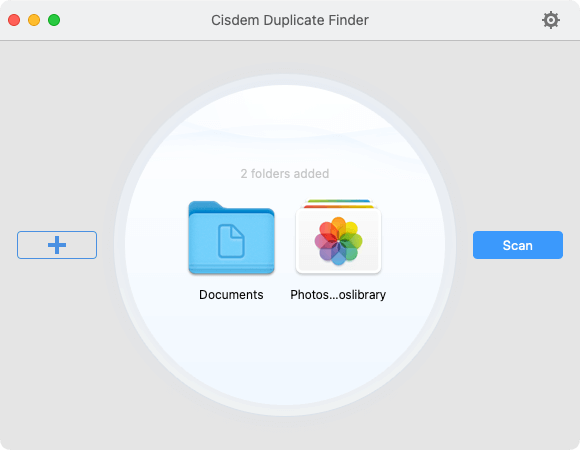
Step 2. Open the app. And then drag the folder(s) where duplicates exist into the app.
If you are a Mac user and that you want to manage the duplicates in your Photos app, add your Photos library instead.
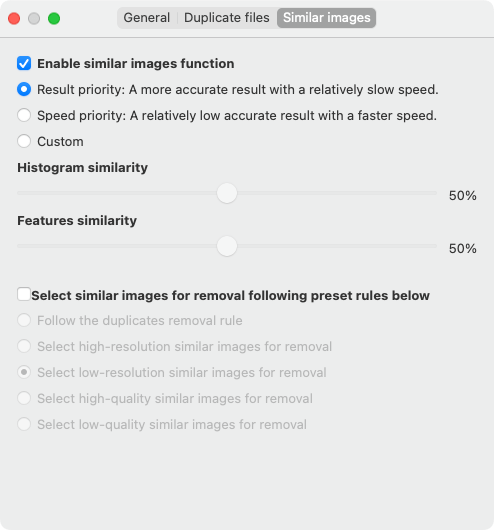
Step 3. Optionally, click the settings icon in the top right corner to go to Settings. There, enable the function to find similar images, if you want to find duplicate HEIC and JPG photos, i.e., one in HEIC and the other in JPG.
Step 4. Click the Scan button to start scanning for duplicates.
Step 5. Once it’s finished, the Image tab will list all the duplicate photos that have been found. In addition to HEIC duplicates, you are likely to see duplicates in other formats.
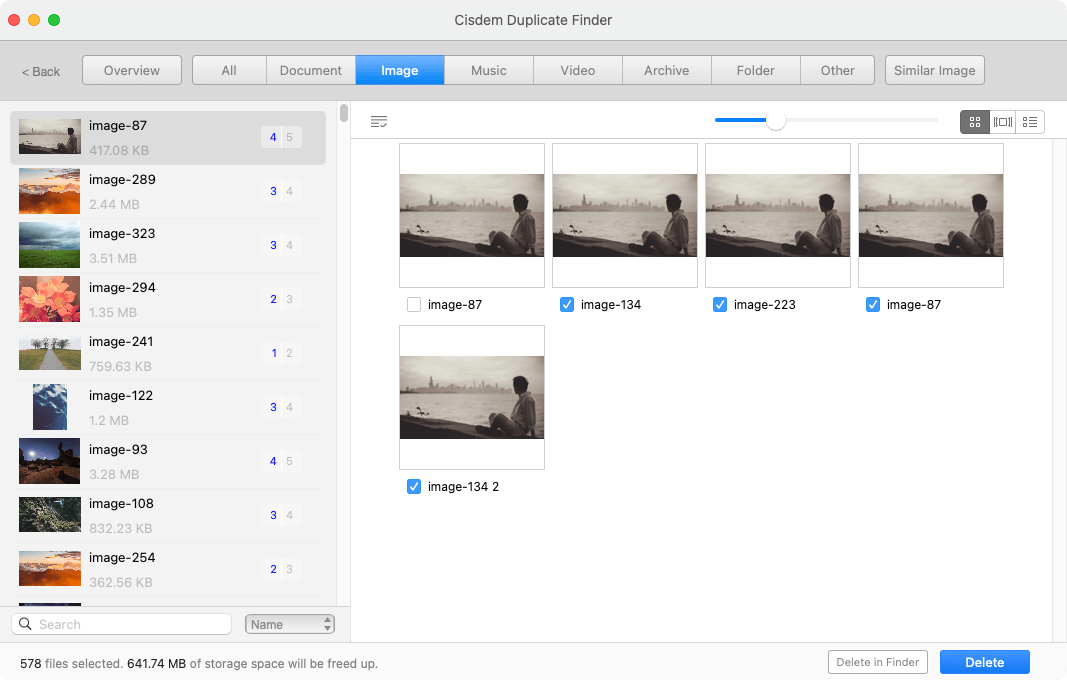
You can easily preview photos side by side or switch to the second or third view mode for photo information.
Step 6. In each set of duplicates (including those HEIC ones), the app automatically selects all but one item for removal. You can manually select or deselect files if needed.
Step 7. Click Delete and then confirm the deletion.
Now all selected files will go to the Trash or Recycle Bin, depending on your operating system.
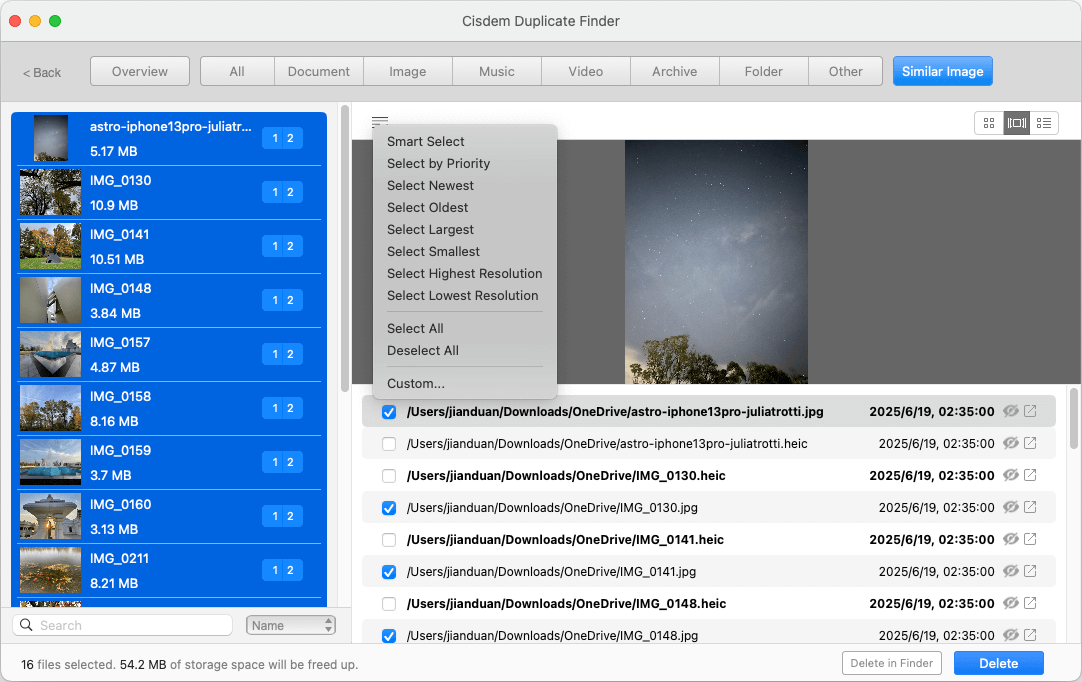
Duplicate HEIC and JPG photos are thought to be similar photos by this duplicate finder, and so automatic selection doesn’t apply to them. In each group, you can manually select the HEIC or JPG version for deletion based on your preference. Or, you can use the preset rules available. To apply a rule, first select the relevant groups on the left and then choose one of the following:
- Choose the Select Largest rule to keep the HEIC versions and delete the JPG versions.
- Choose the Select Smallest rule to keep the JPG versions and eliminate the HEIC versions.
Should I keep JPG or HEIC? If you have no idea which format to keep, the second part of this article can help you make a decision.
On Android
Step 1. Open Play Store. Search for and install Cisdem Duplicate Finder.
Step 2. Open the app.
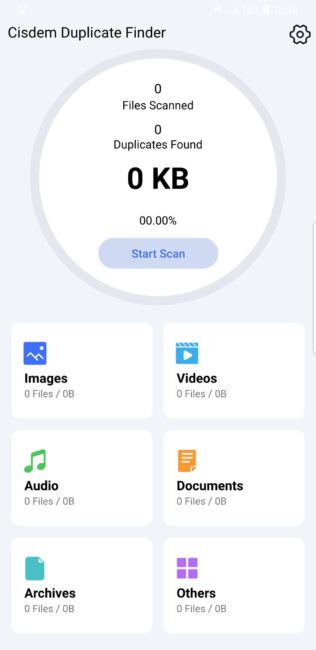
Step 3. Optionally, tap the settings icon in the top right corner if you want to customize settings. For example, you can enable or disable similar image identification. You can also set the scan to skip the folders specified by you.
Step 4. Tap Start Scan.
Step 5. Once the scan is done, tap Images to view HEIC duplicates and other exactly identical photos.
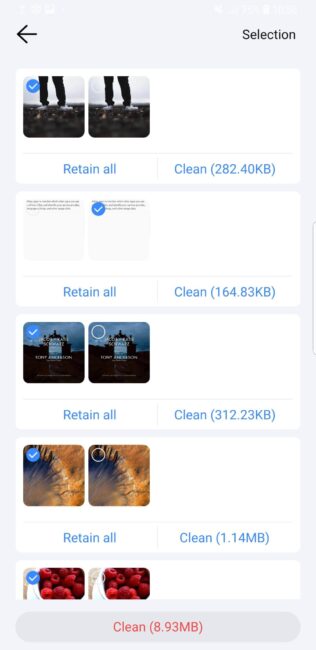
Step 6. Like on a computer, all duplicates are automatically selected for deletion, and you can make manual adjustments if needed.
Step 7. Tap Clean and then Confirm. This way, all selected photos will be deleted permanently.
On iPhone or iPad
Step 1. Open the App Store. Search for and install Cisdem Duplicate Finder.
Step 2. Optionally, customize settings based on your needs.
Step 3. Tap Start Scan.
Step 4. When the scan is complete, do one of the following:
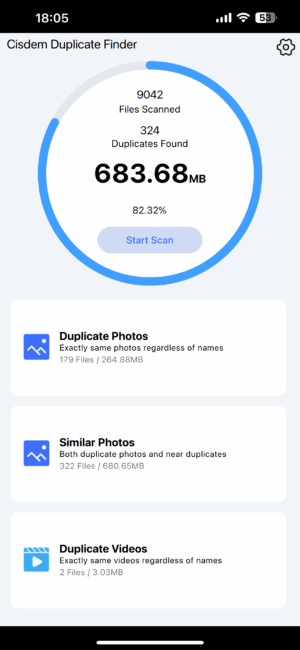
- Tap Duplicate Photos to manage duplicate photos (such as HEIC duplicates).
- Tap Similar Photos to manage to identical and similar photos, which may include duplicate HEIC and JPG photos.
Step 5. Since duplicates are automatically selected for elimination, you can quickly remove them by tapping Clean and then Confirm. Those selected items will go to the Recently Deleted album in the Photos app.
As for similar photos, you can select the wanted versions yourself.
Should you keep JPG or HEIC?
When it comes to HEIC duplicates, it’s usually easy to decide which to keep or delete since those photos are exactly identical. But what if you have a HEIC version and a JPG version of the same photo? Which should you keep?
Let’s look at this from two perspectives.
- Storage efficiency: Compared to JPG, HEIC is designed to deliver the same quality while taking up less space. I checked out seven groups of JPG and HEIC duplicates, and the HEIC versions used about less 30% storage than the JPG versions. It’s generally believed that HEIC photos are usually half the size.
- Compatibility: HEIC came out in 2017, and JPG come out in 1992, and the latter has a longer history. JPG is more widely compatible with operating systems and software. Although HEIC is become more and more popular relatively, it’s still not very widely supported. Here’s an example that is easy to see. these newer versions of macOS and iOS support HEIC, but Windows still doesn’t have built-in support for this format.
If you are in the Apple ecosystem and you also like photos that have smaller sizes, you can keep the HEIC versions. But if your storage space is enough and you need wide compatibility, keeping the JPG versions can be a better choice.
Wrapping up
Thanks to this HEIC duplicate finder, it can be easy and quick to remove duplicates in this format. Since the deleted duplicates will go to your device’s recycle bin or trash, it can be easy to restore files when needed. A duplicate-free photo library can make photo organization easier and improve photo browsing experience.

