© ROOT-NATION.com - Use of content is permitted with a backlink.
Every day, users store gigabytes of information on their computers: from work documents and databases to personal media archives. Despite the widespread use of cloud services, local storage devices (HDDs and SSDs) remain the primary location for storing important files.
However, working with digital data always carries the risk of data loss. Accidental deletion, software crashes, malware activity, or file system corruption can instantly block access to critical information. In such situations, the operating system’s built-in tools prove insufficient, and specialized software comes to the rescue.

TABLE OF CONTENTS:
A Comprehensive Approach to Data Recovery
The software market offers a multitude of utilities, but most of them are effective only for superficial analysis. If the partition structure is corrupted or a serious system failure has occurred, a professional-grade tool is required. An example of such software is iToolab RecoverGo Windows Data Recovery, designed specifically to tackle complex technical challenges.
The utility works effectively in the following situations:
- Data recovery after partition formatting, volume deletion, or hard drive damage.
- Retrieving data after critical OS failures (Blue Screen of Death, BSOD), failed updates, or virus attacks.
- Emergency assistance when you need to recover files after factory reset PC.
The program uses sector-by-sector scanning algorithms, which allow it to find even those data fragments that other utilities mark as unrecoverable.
Features and Supported Formats
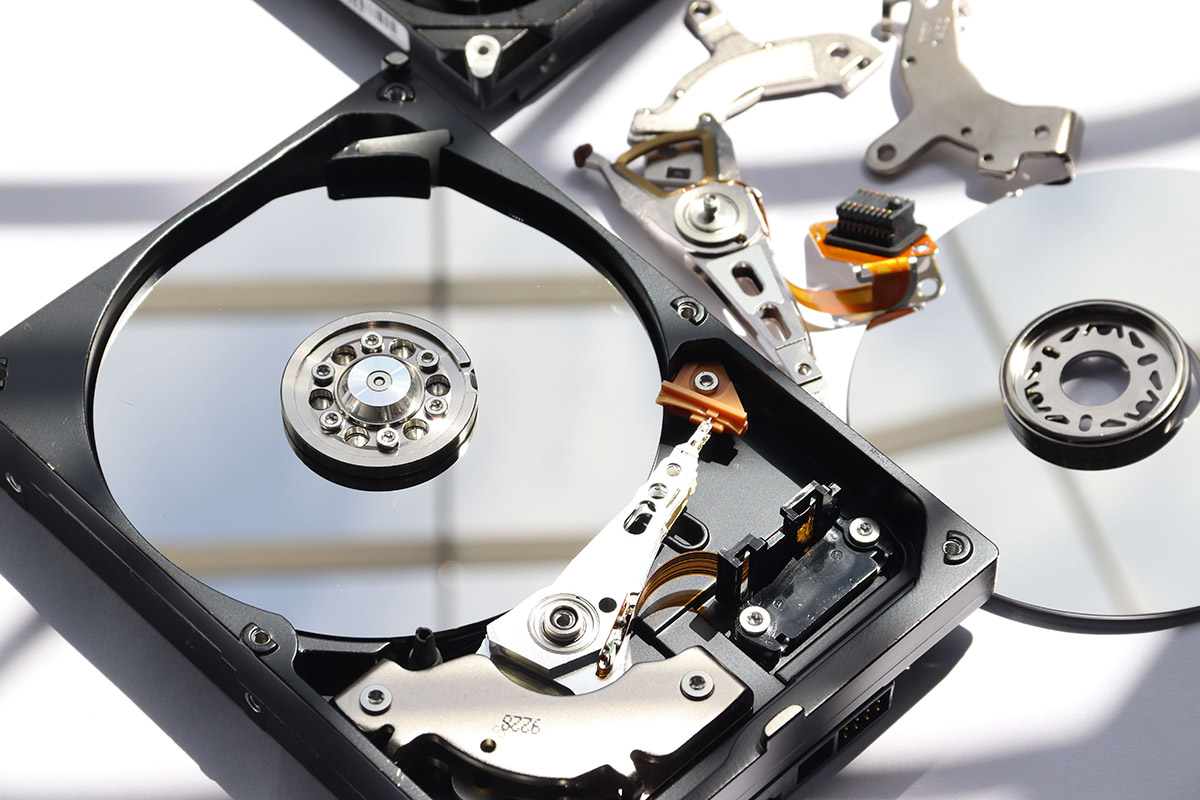
The software operates in Read-Only Mode during scanning. This means it does not alter the original structure of memory cells or magnetic tracks in any way, completely eliminating the risk of accidental data corruption during the search process. The utility supports all types of physical storage media: internal hard drives (HDD), external USB drives, memory cards (SD, microSD, CF), and flash drives.
High-speed solid-state drives (SSDs compliant with SATA and NVMe standards) are also supported. However, hardware-specific factors should be taken into account: if the TRIM function – which physically clears memory cells after files are deleted – was active on the SSD, the success of software-based recovery will depend on whether the operating system had time to execute this command.
The tool is cross-format and successfully recognizes over a thousand different file extensions. Below is a classification of the main supported data types:
- Photos and graphics: JPG/JPEG, TIFF/TIF, PNG, BMP, GIF, PSD, CRW, CR2, NEF, ORF, SR2, MRW, DCR, WMF, RAW, SWF, SVG, RAF, DNG, and others.
- Documents and web files: DOC/DOCX, XLS/XLSX, PPT/PPTX, PDF, CWK, HTML/HTM, INDD, EPS, TXT, XML, and others.
- Video: AVI, MOV, MP4, M4V, 3GP, 3G2, WMV, MKV, ASF, FLV, MPG, MPEG, RM/RMVB, and others.
- Audio: M4A, MP3, WAV, WMA, APE, MID/MIDI, RealAudio, VQF, OGG, AAC, etc.
- Email and archives: OST, PST, DBX, EMLX, EDB (from Outlook, Outlook Express, etc.), ZIP, 7Z, RAR, CAB, JAR, and others.
- Other specific formats: HLP, CHM, PZF, ICC, MHT, QPW, QXP, QPT, VEG, and others.

Installation and Operation Process
The utility is available for download on the developer’s official website. Installation is semi-automatic and does not require any specific skills on the user’s part. The program’s interface is intuitive and supports multiple languages, so you shouldn’t encounter any difficulties while using it.
Upon launch, the program greets the user with a simple interface, where the left navigation menu displays the type of target storage: Hard Drive or SD Card. In the main window, the utility prompts you to specify the desired search location: a specific local or external drive, or popular quick-access locations (such as the Recycle Bin, Desktop, or a specific folder). When you first launch the program, a Wizard will guide you through the process step by step.
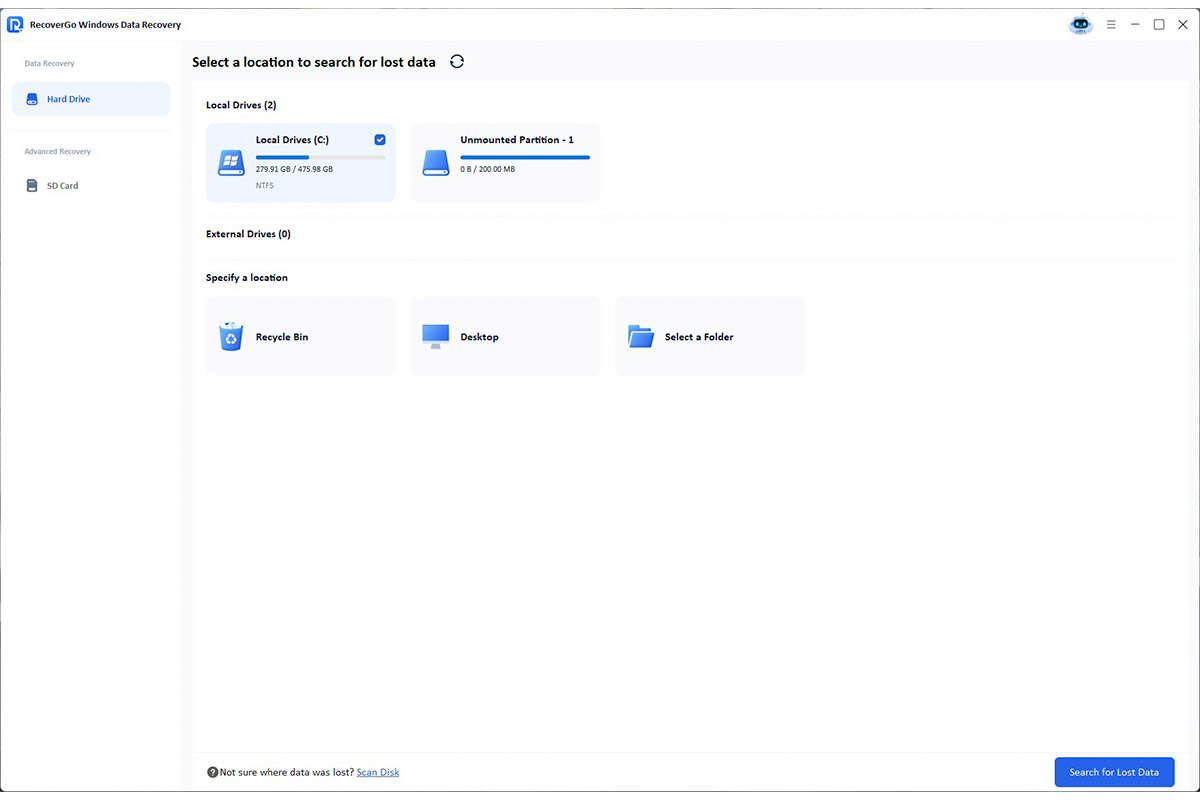
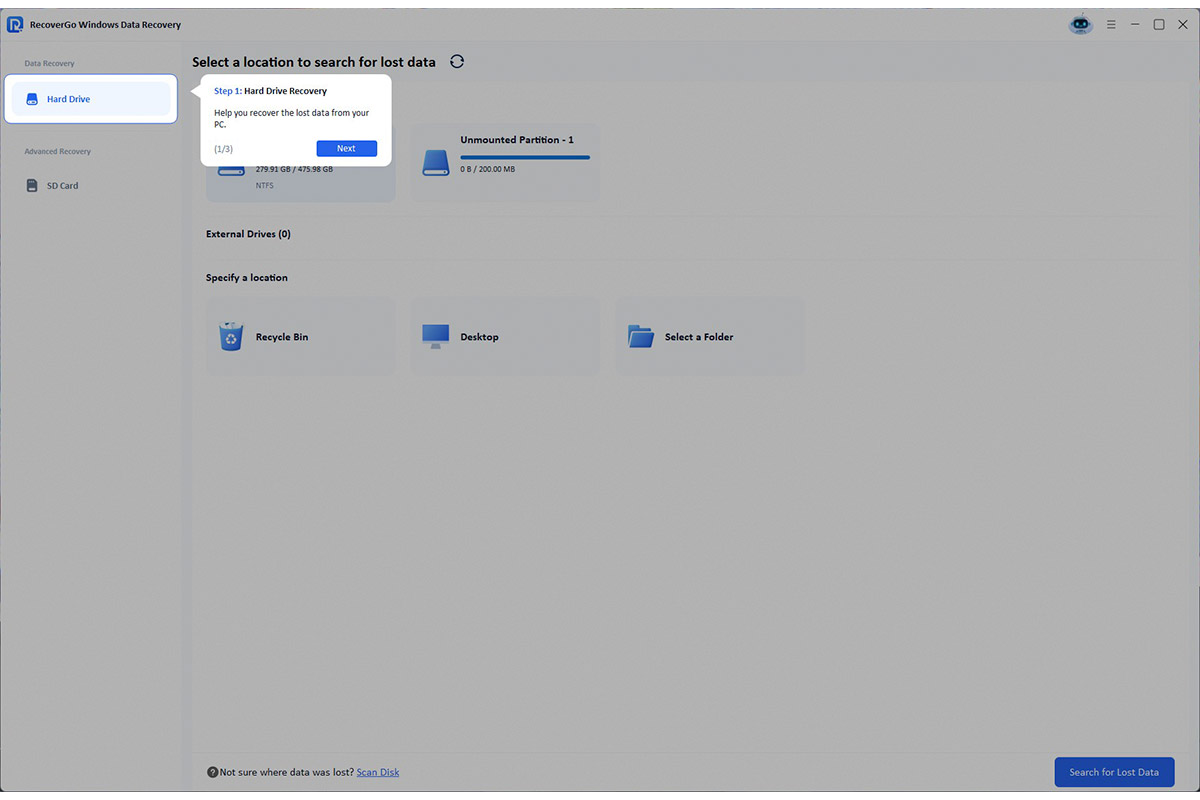
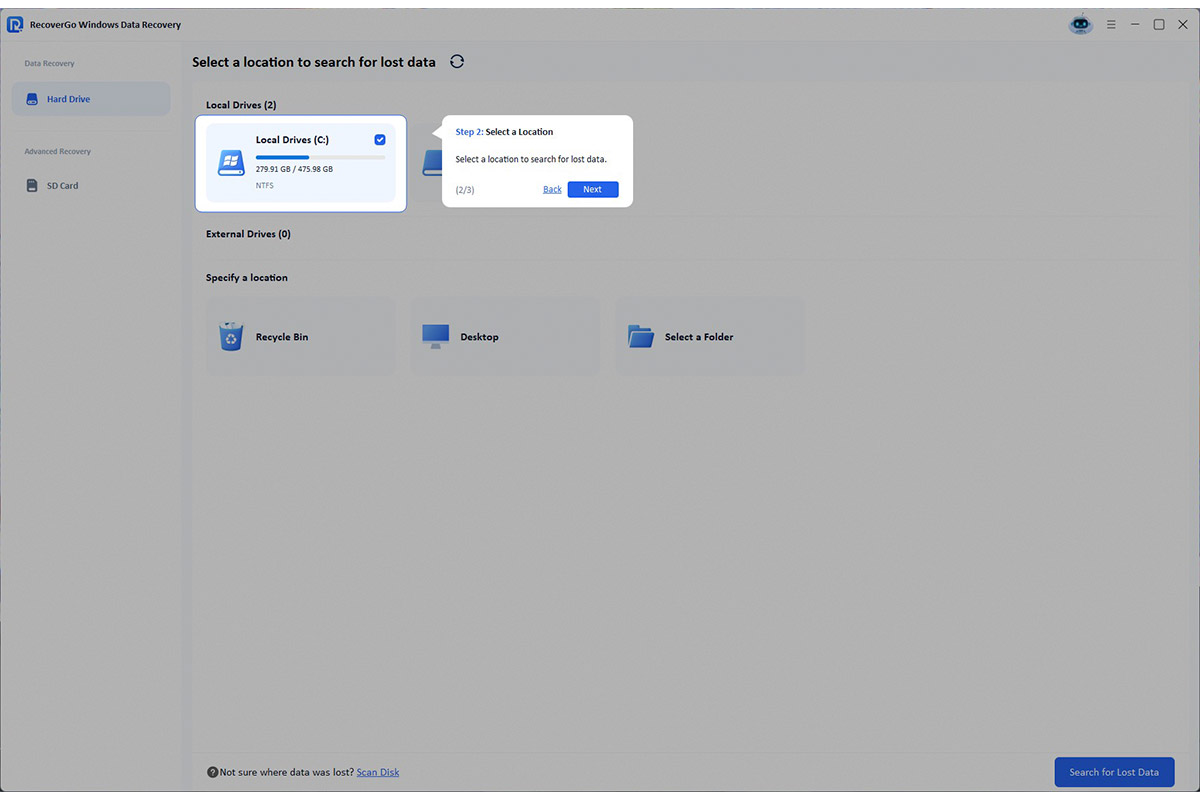
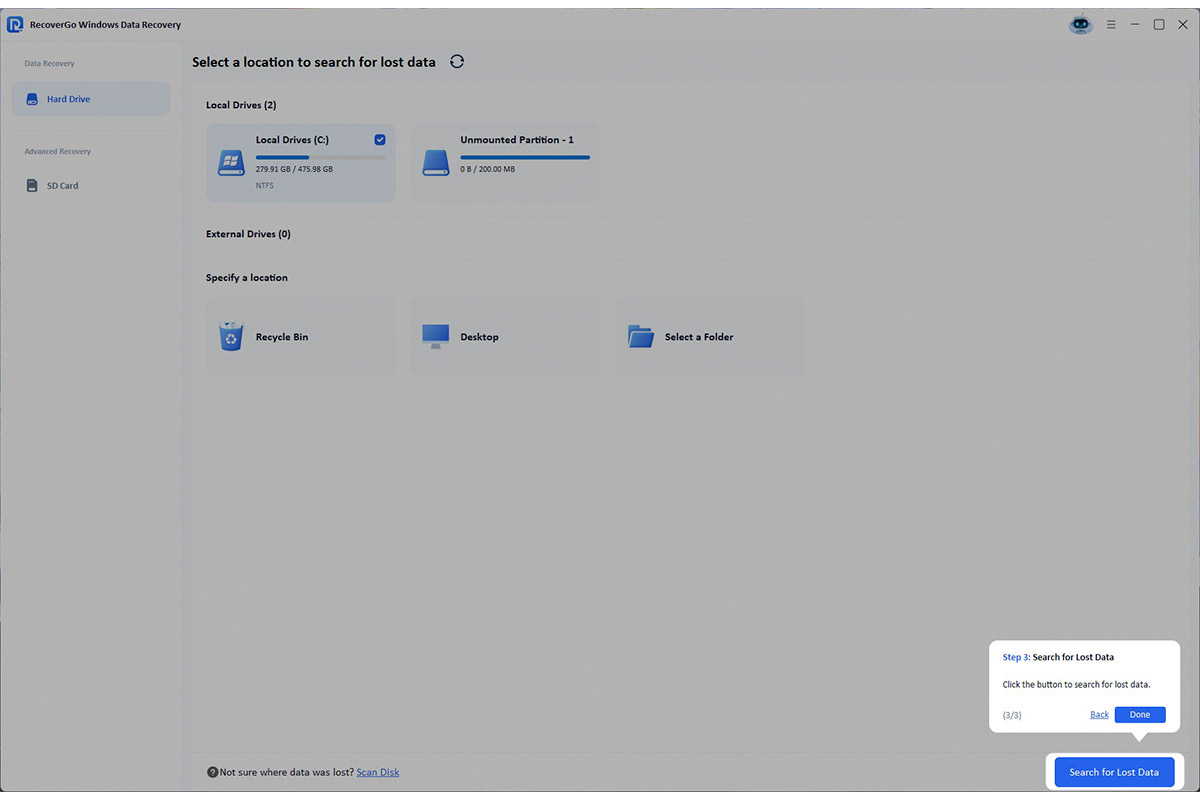
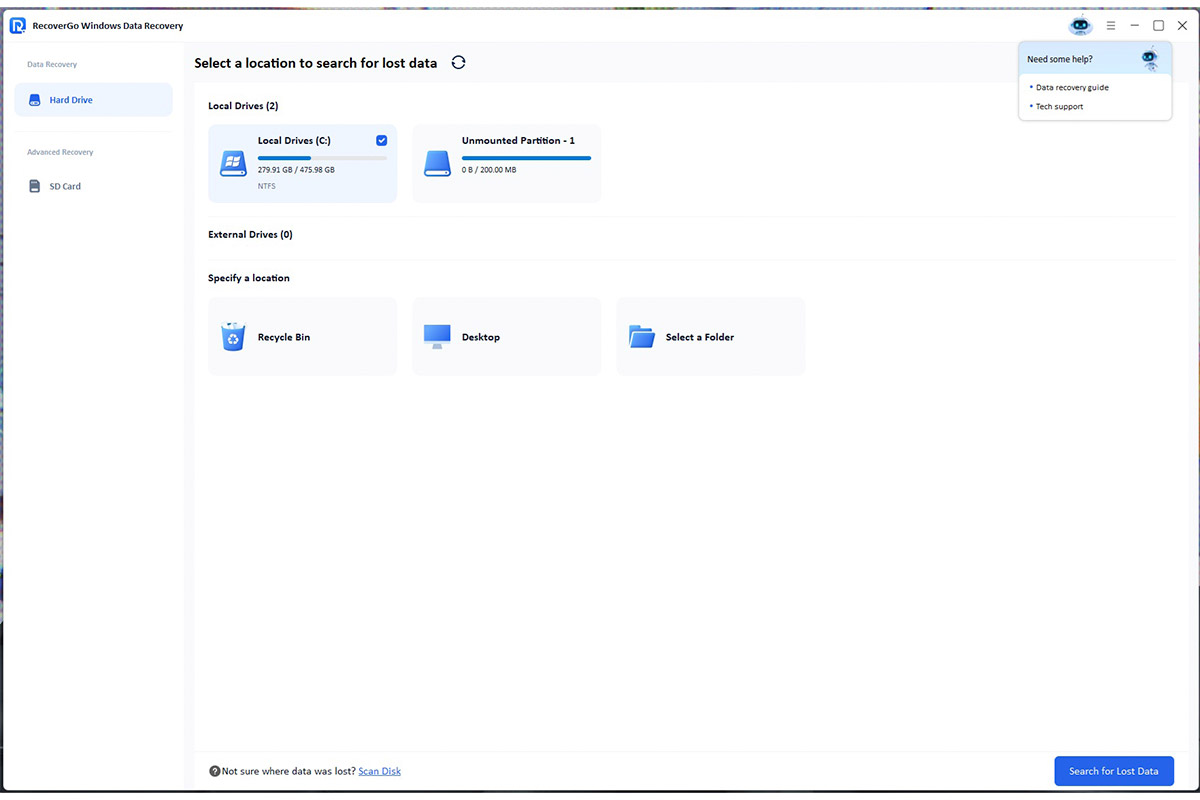
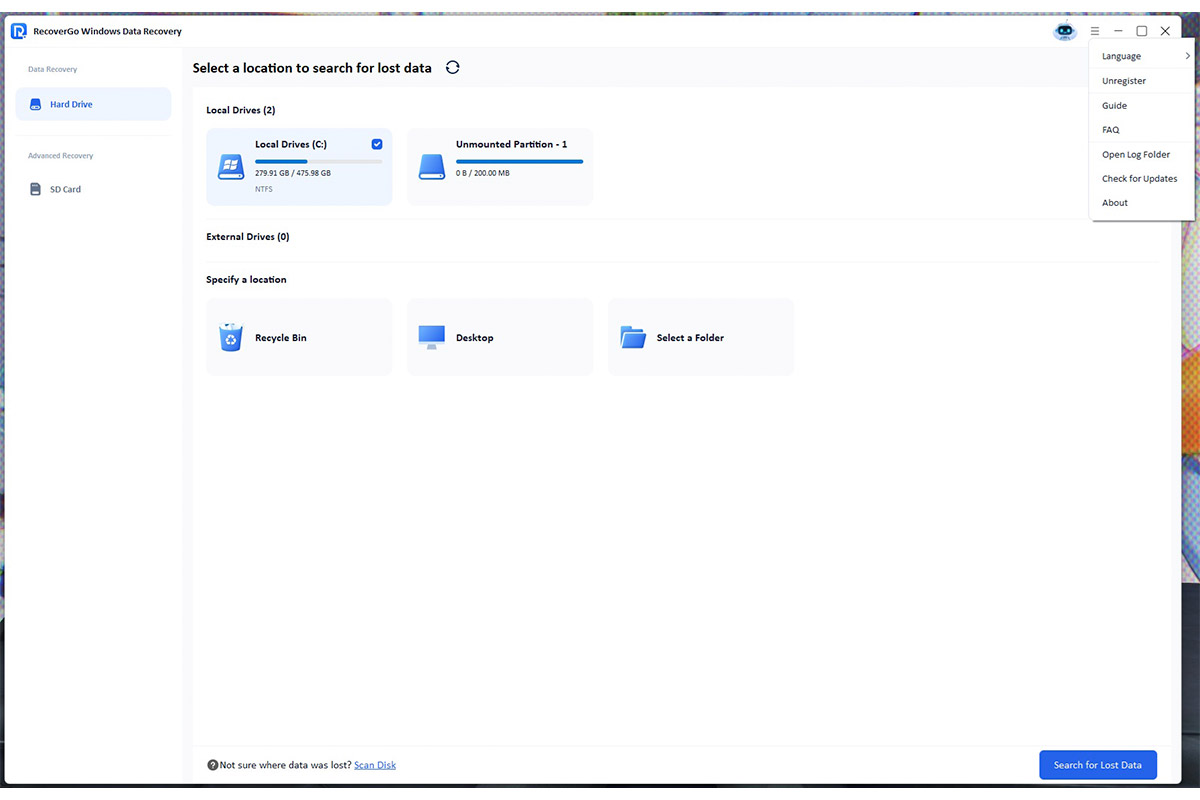
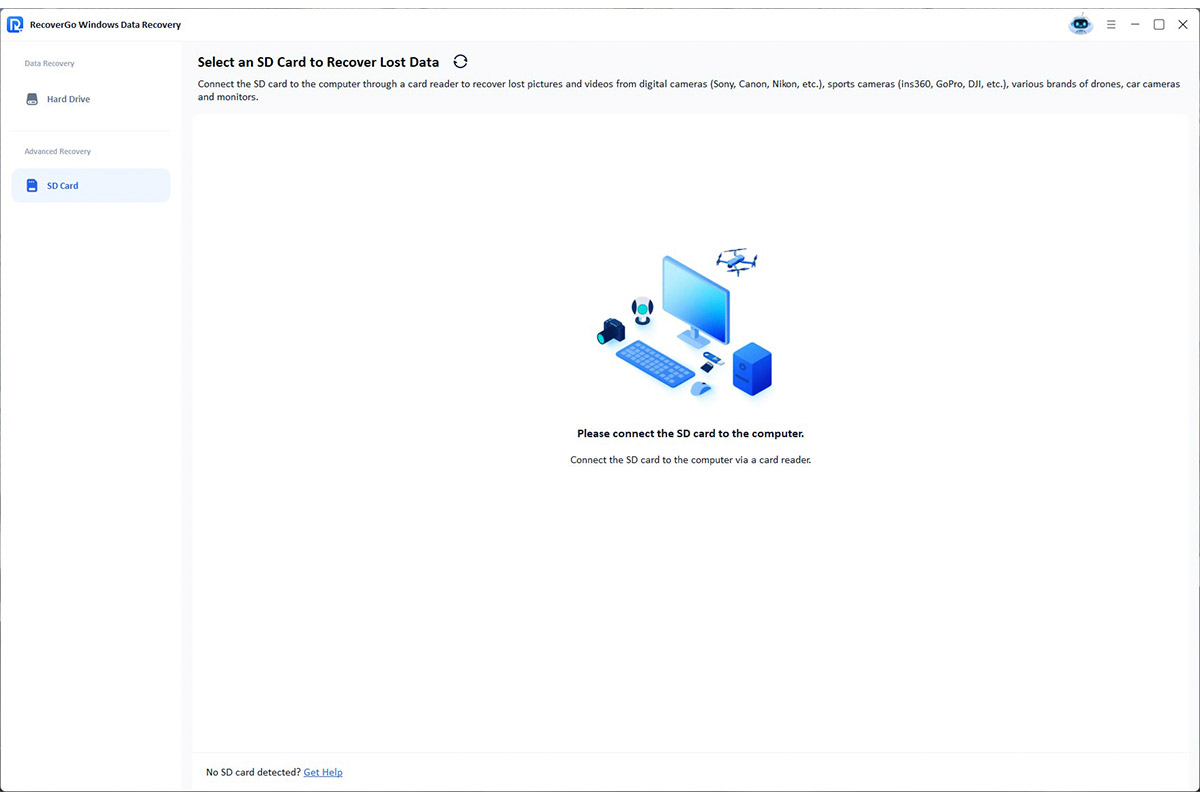
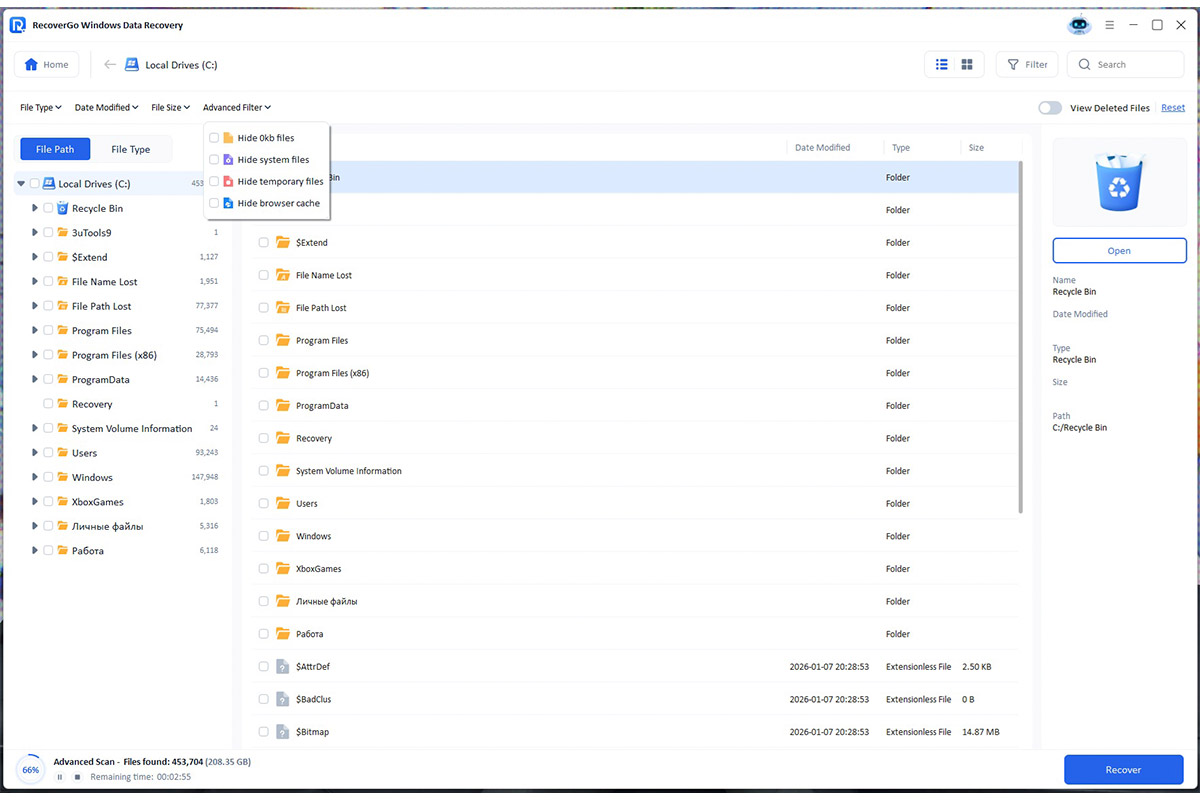
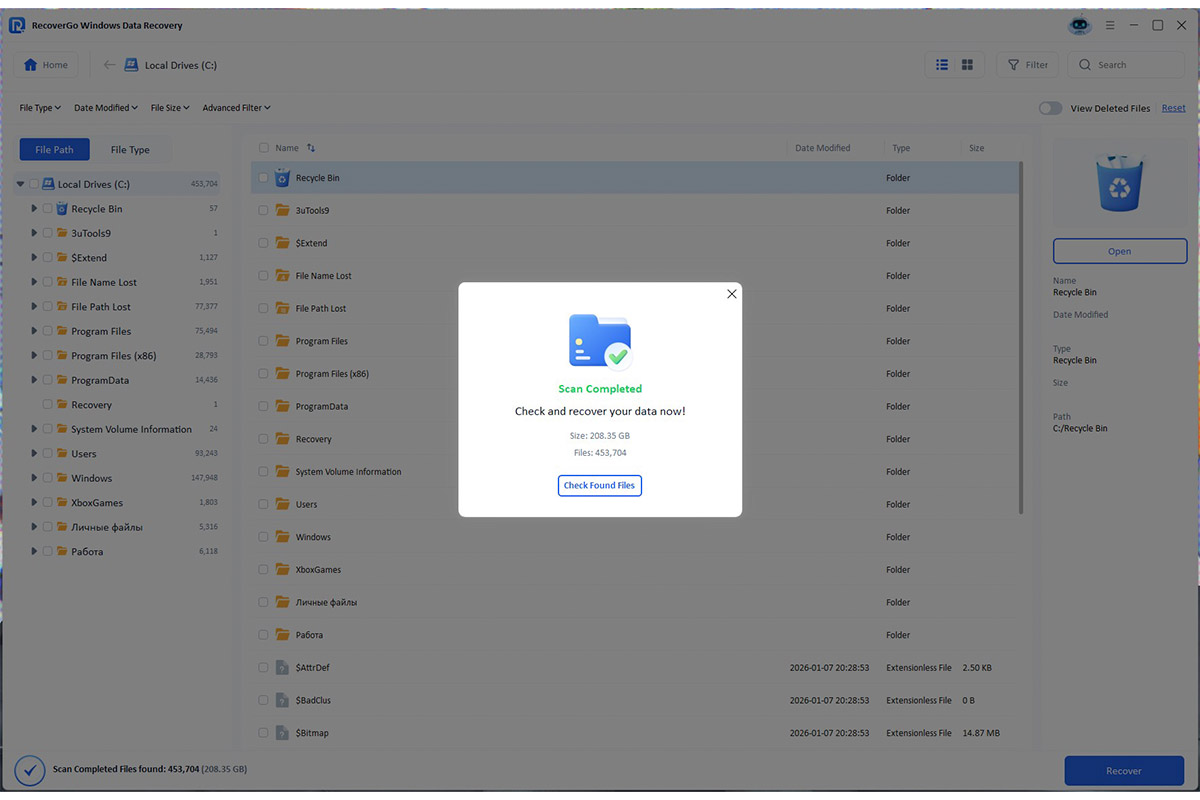
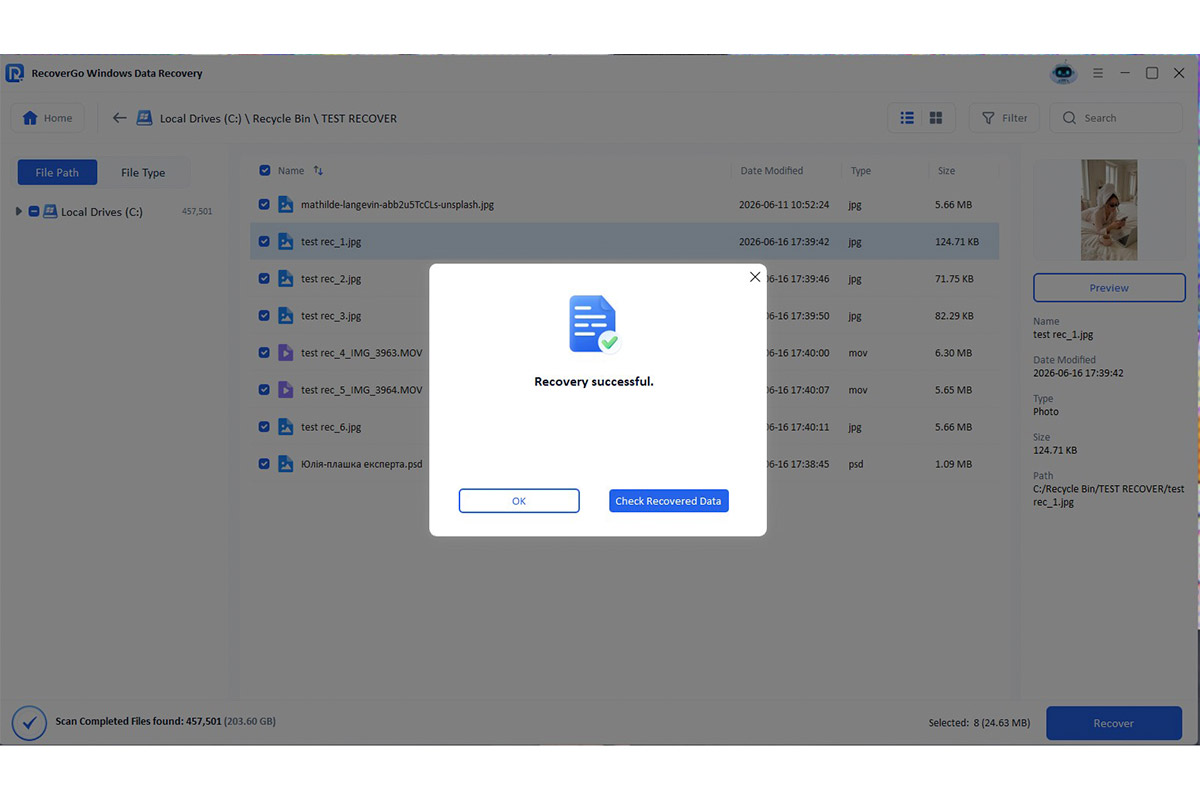
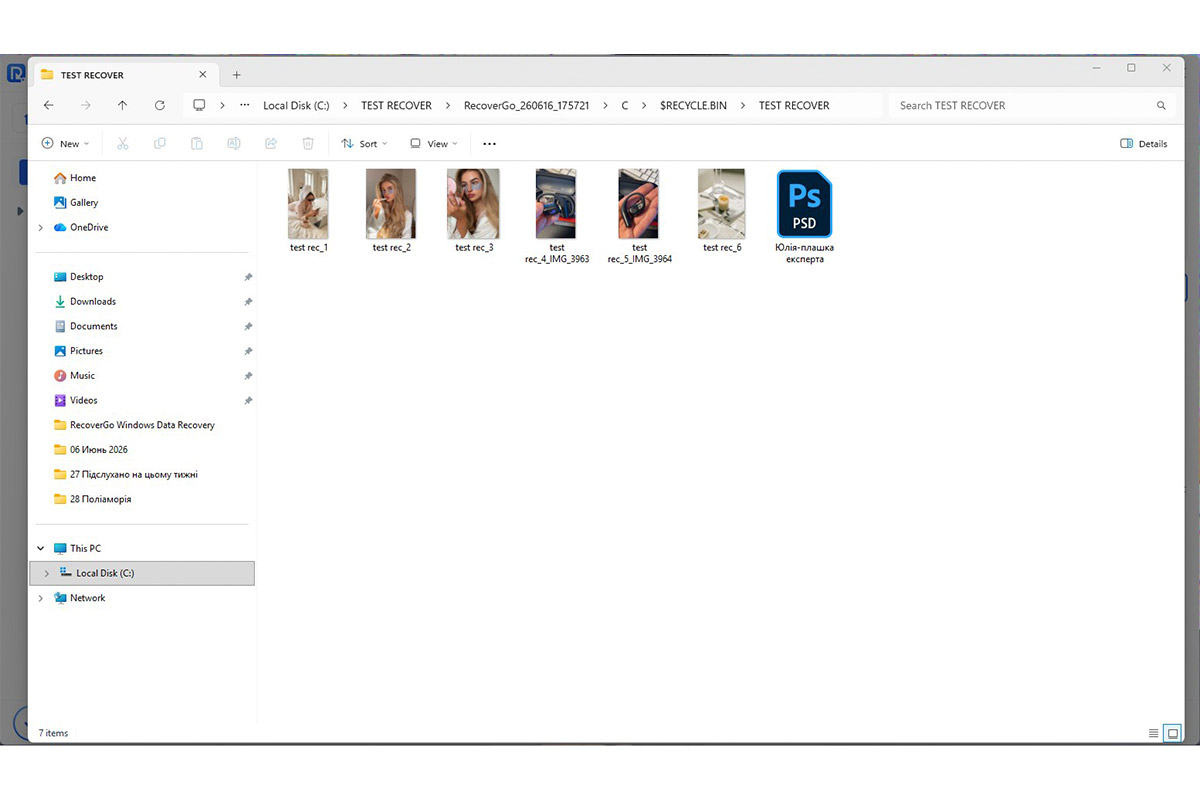
The file recovery process is quite simple. First, you need to select a storage device (hard drive, USB flash drive, or SD card) or a specific directory to scan, and then start the search for lost data by clicking the “Search for lost data” button. The program will analyze the specified location and display a list of found files on the screen. After that, all you have to do is select the files you need and click “Recover.”
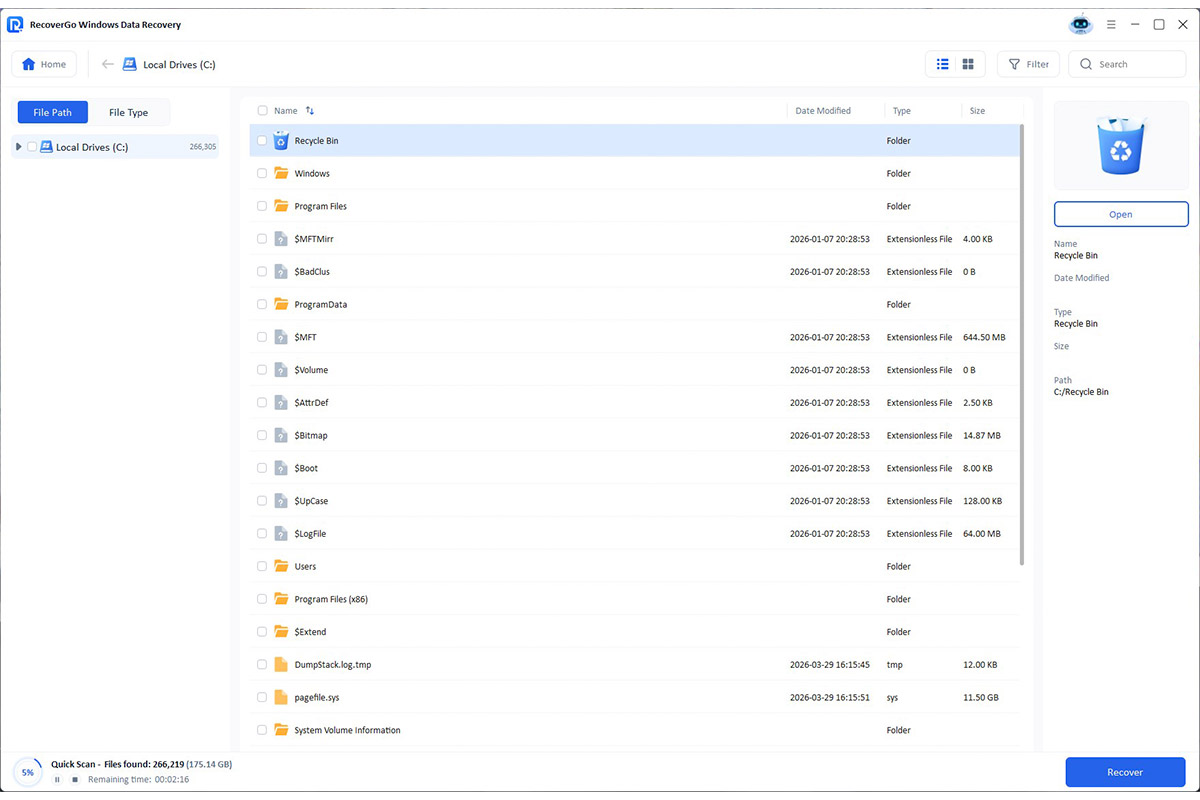
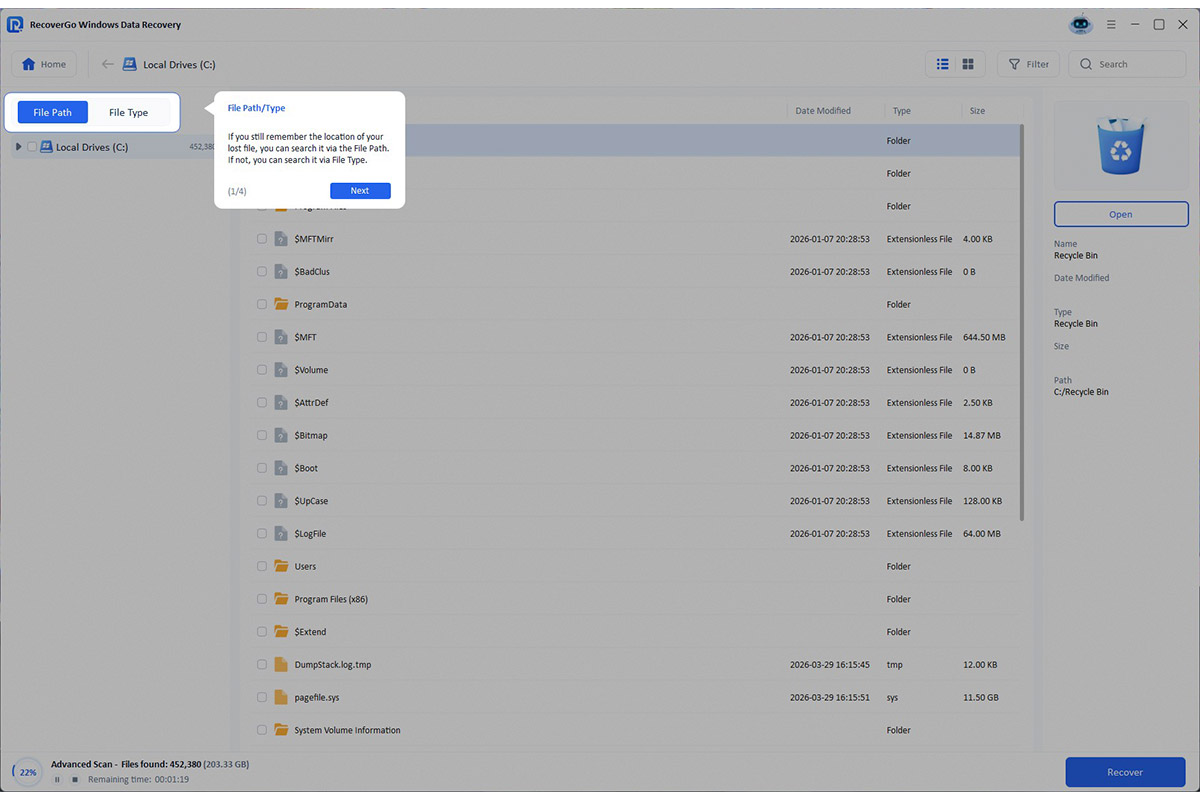
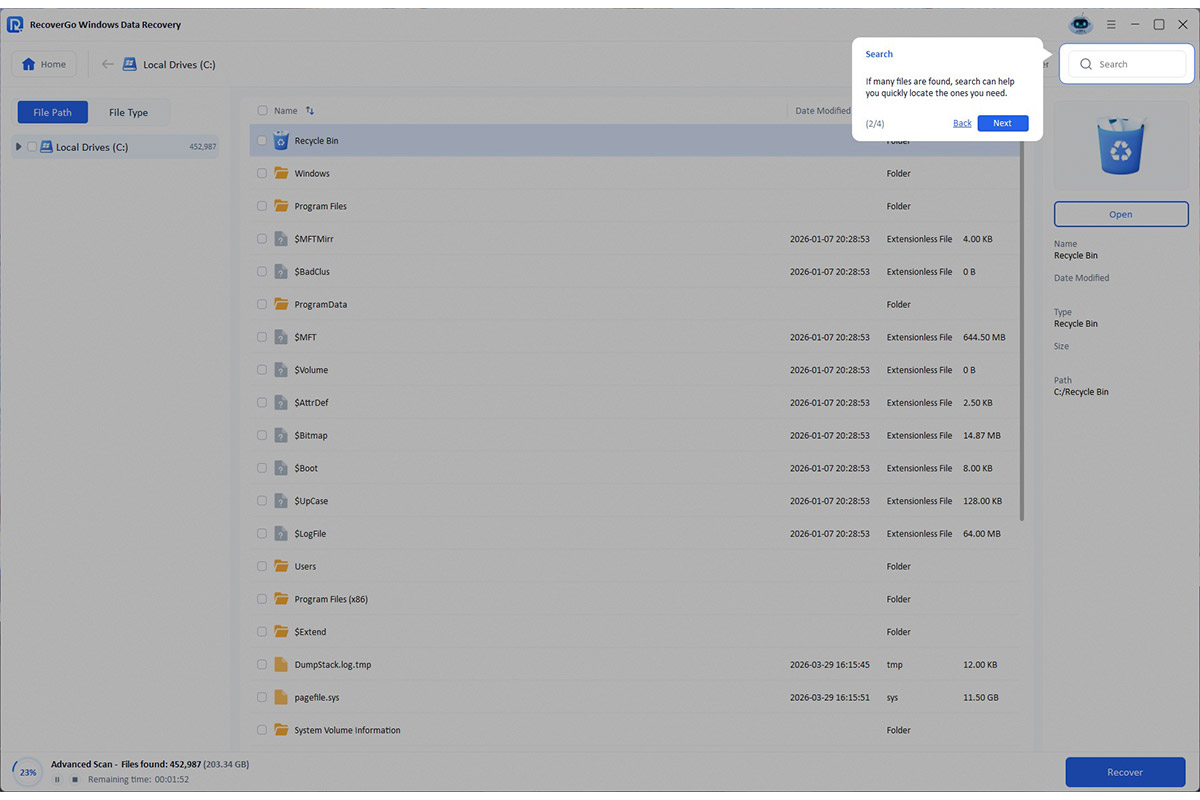
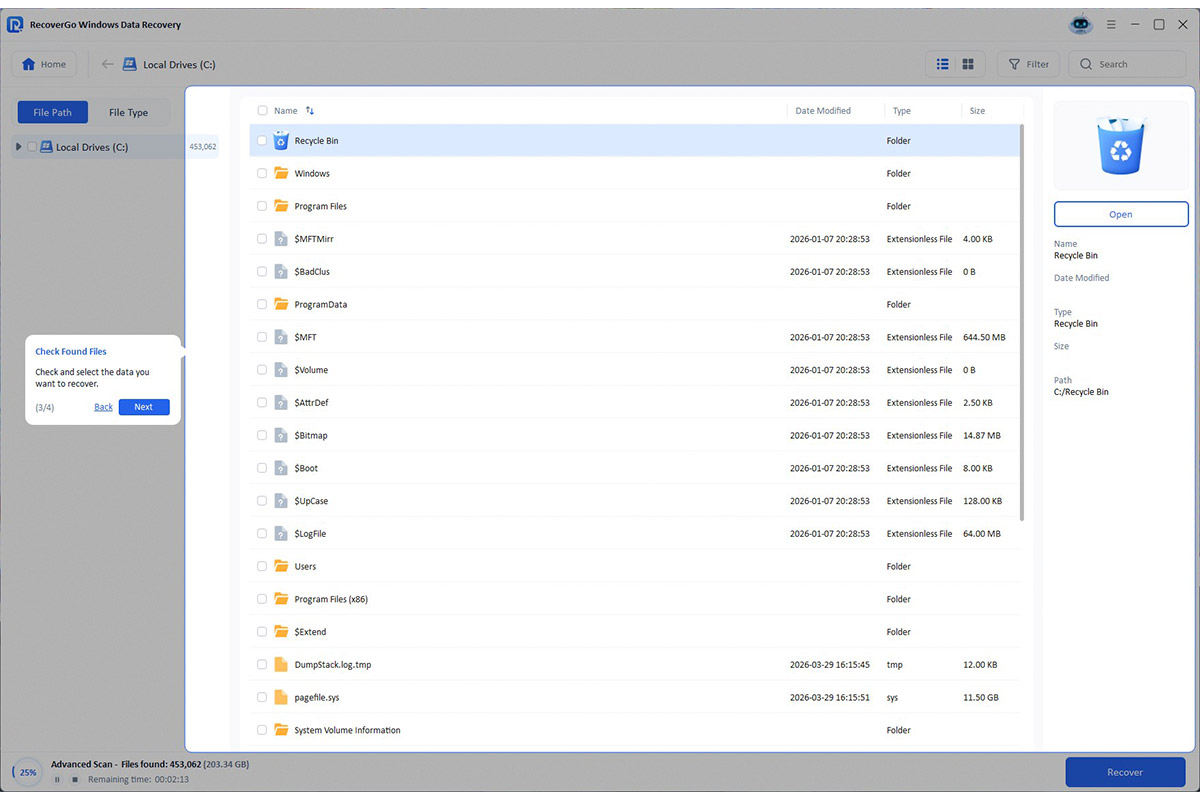
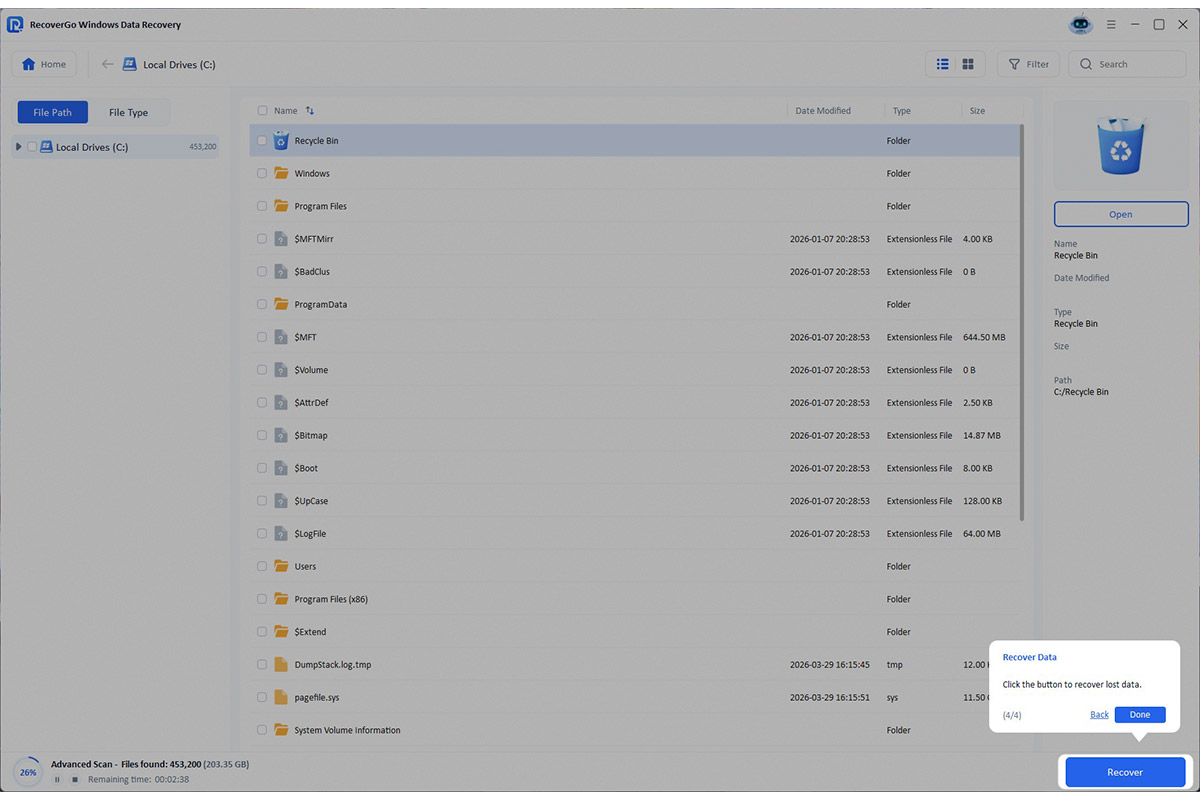
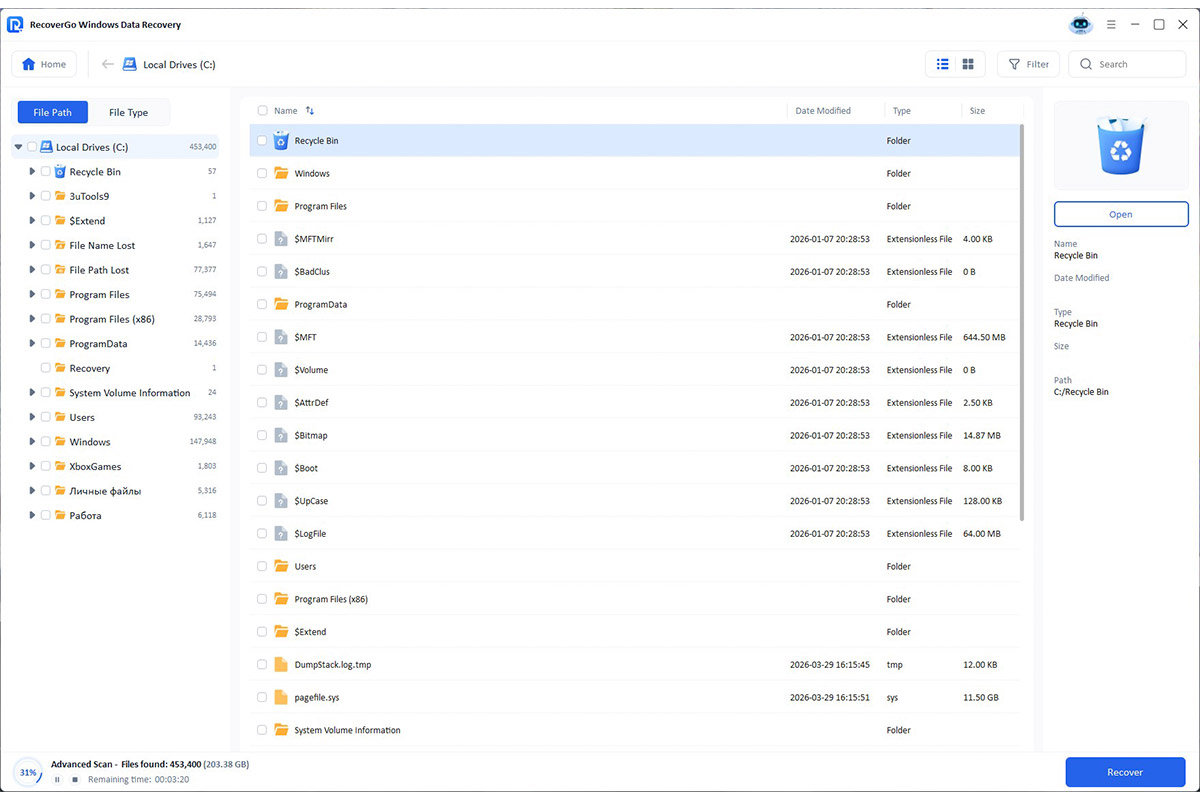
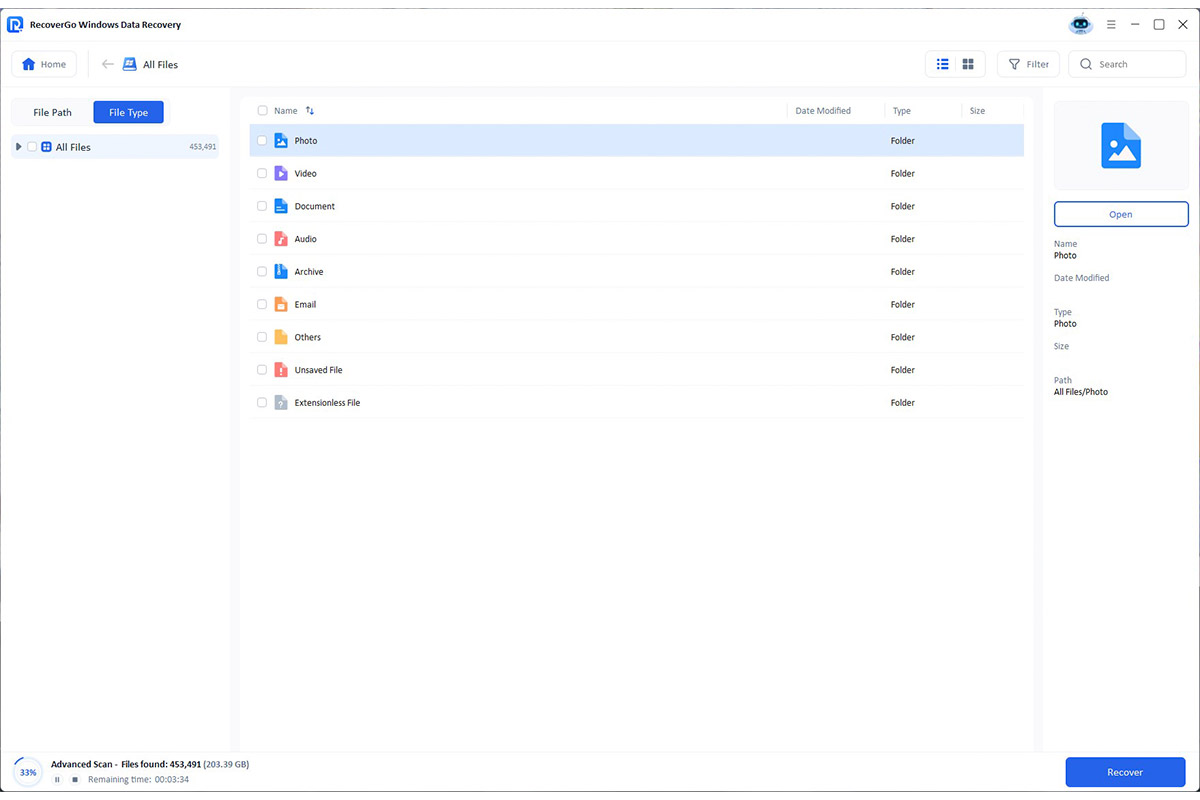
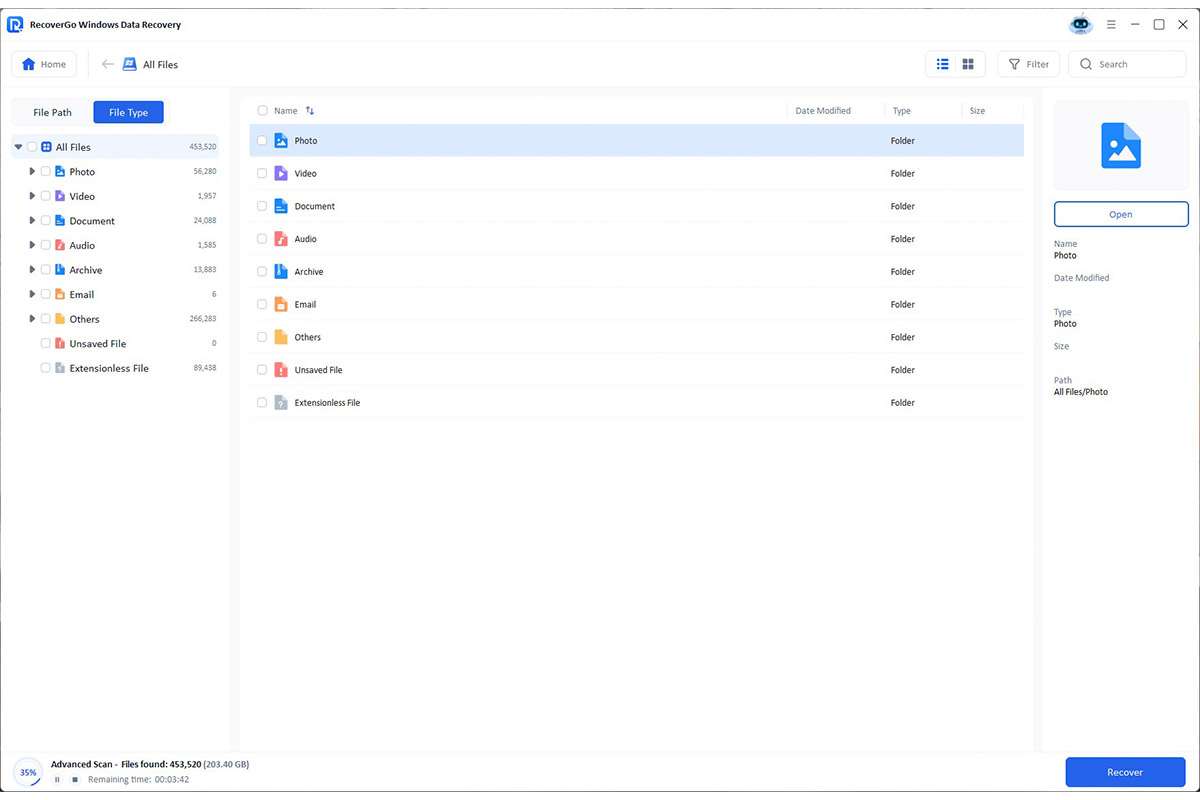
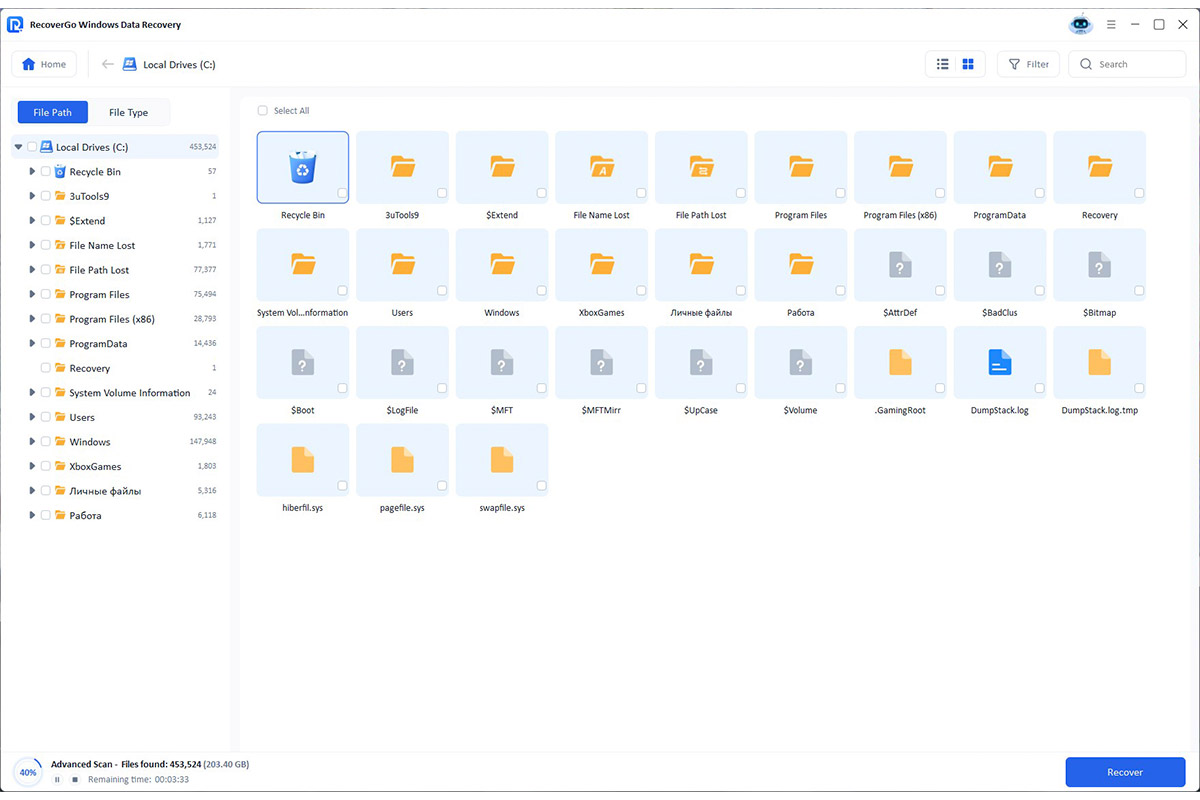
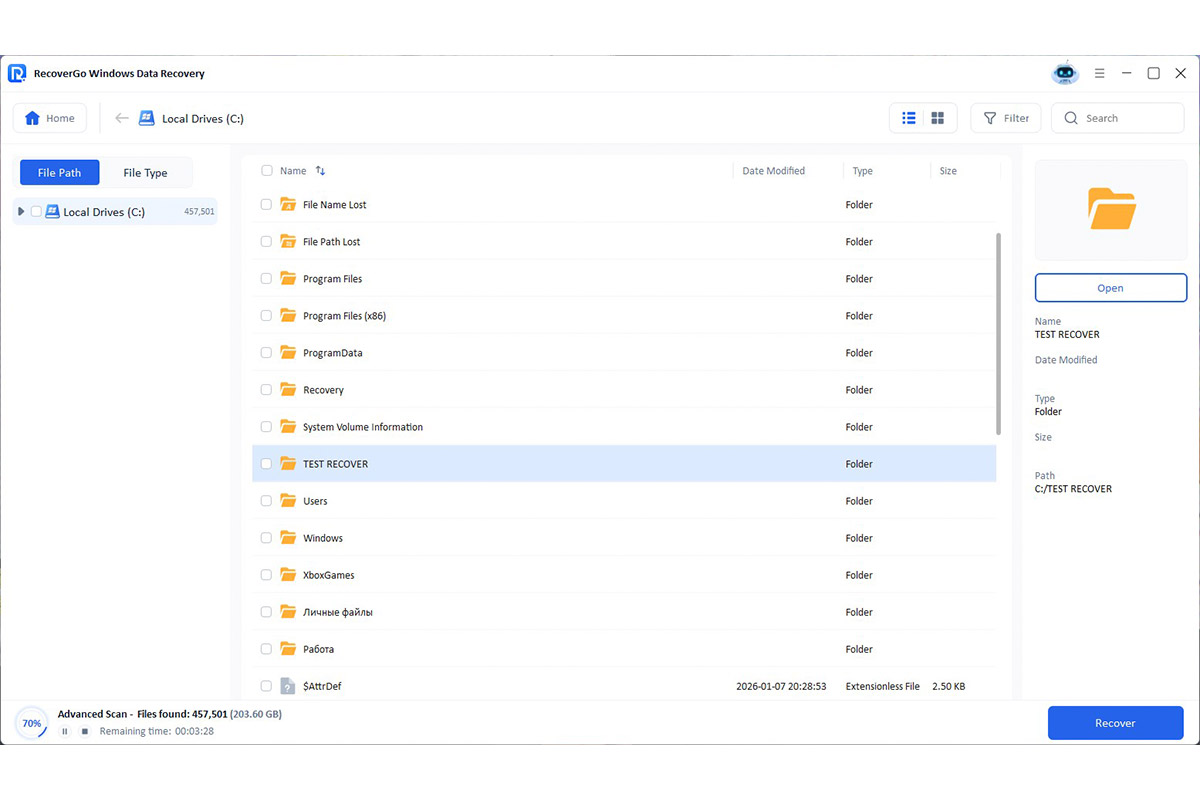
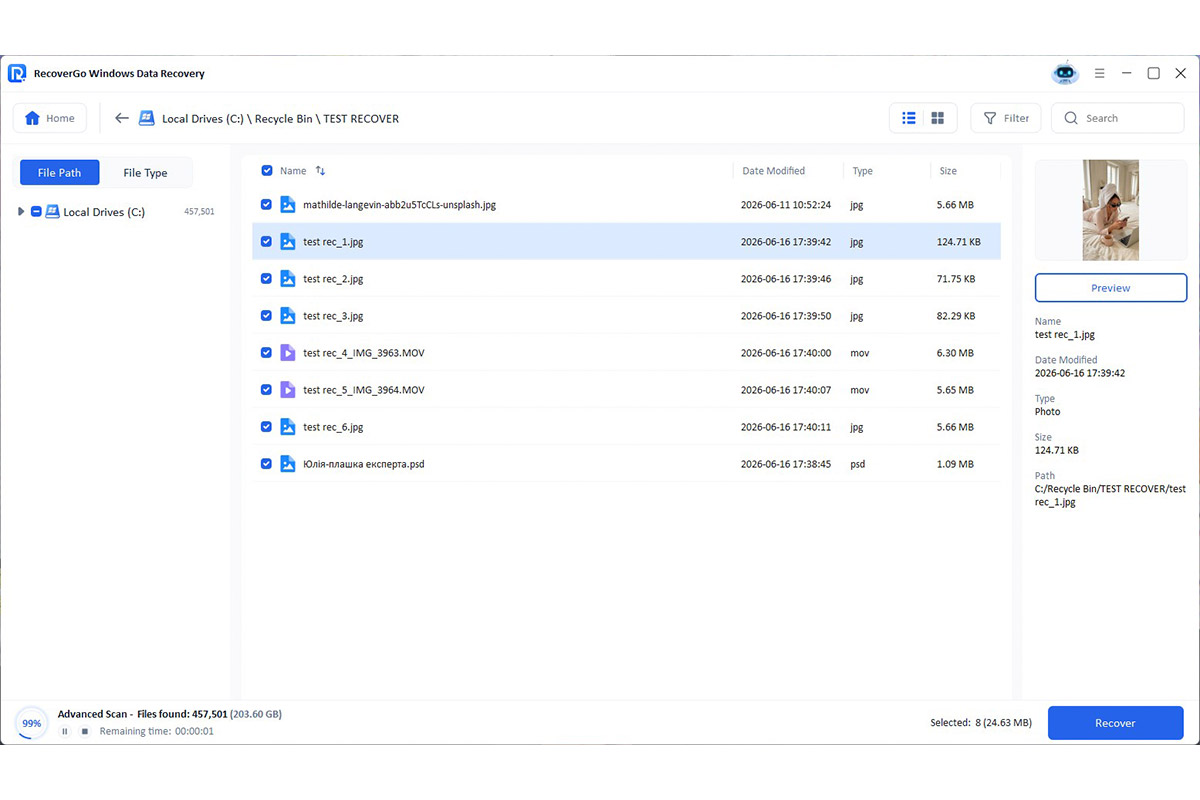
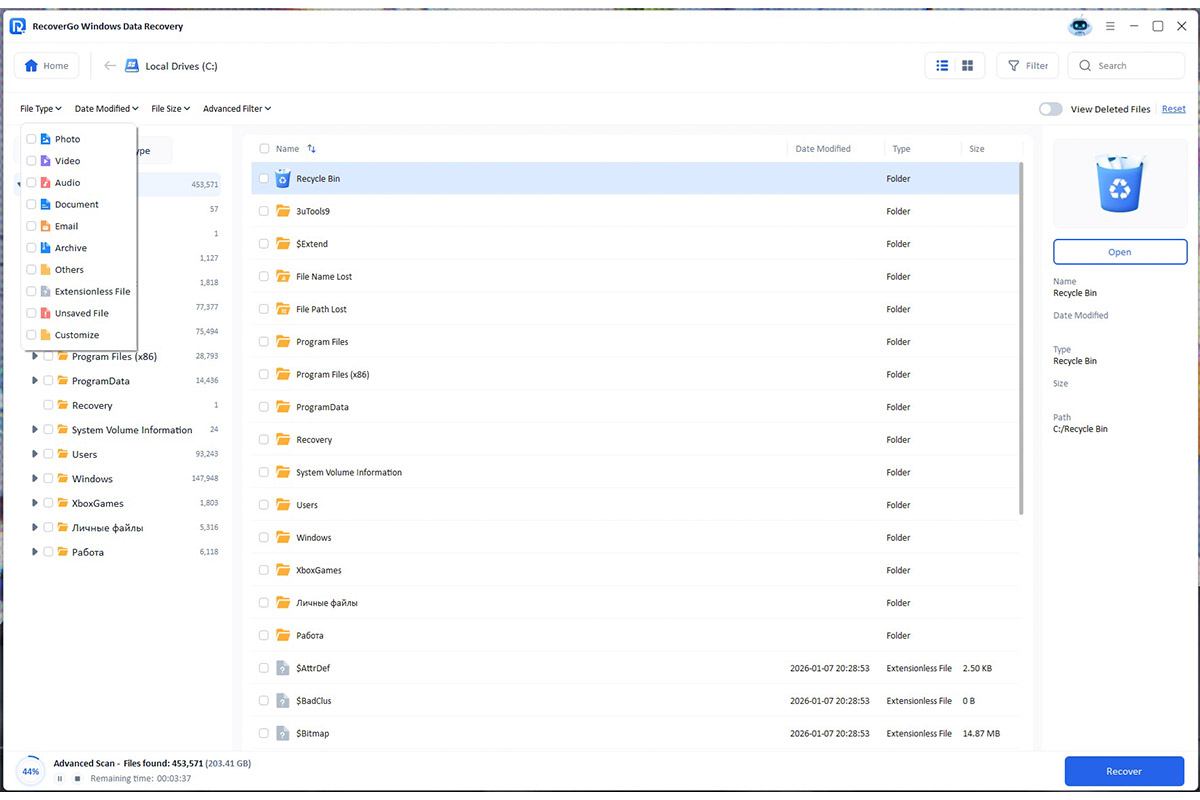
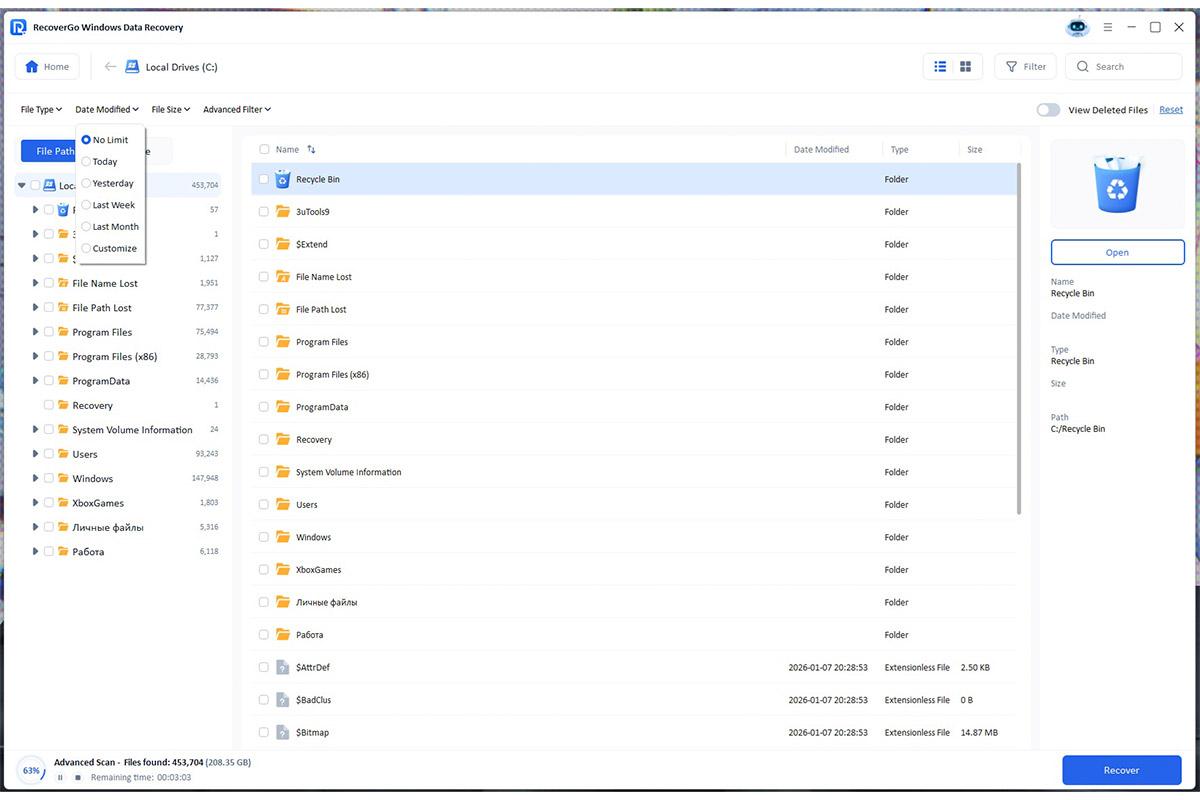
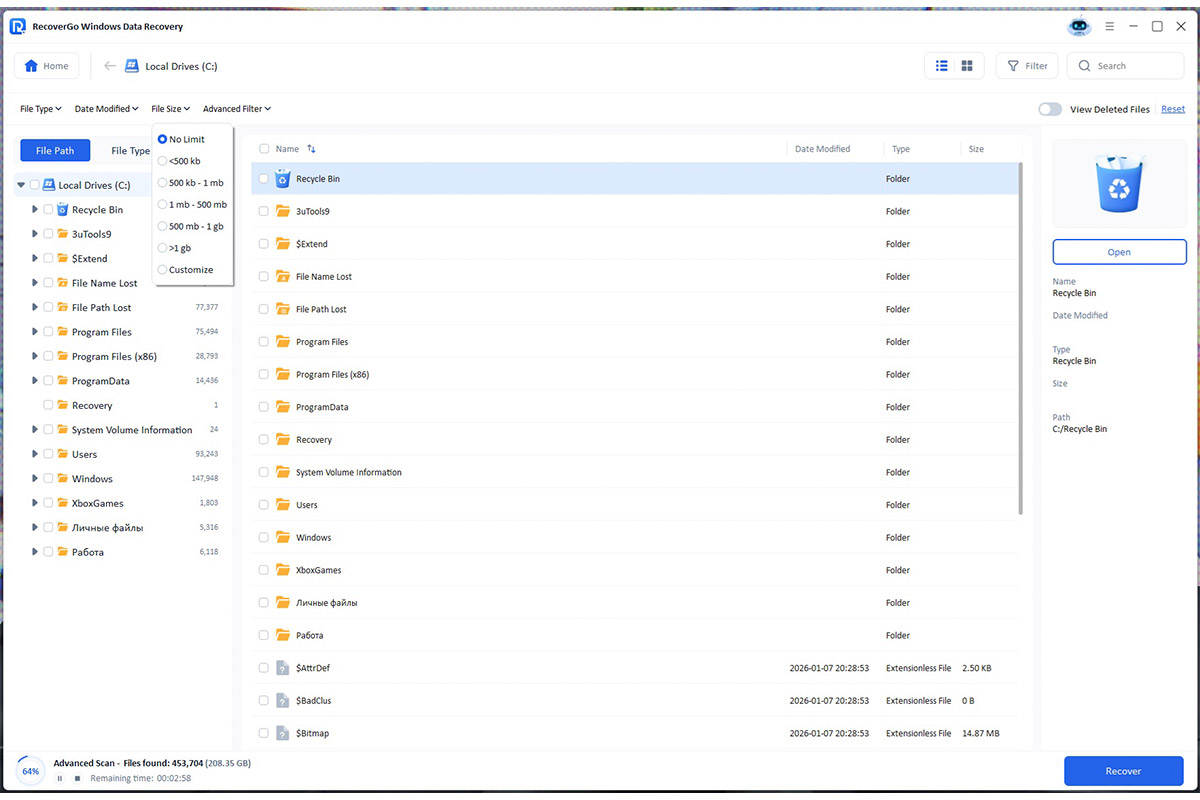
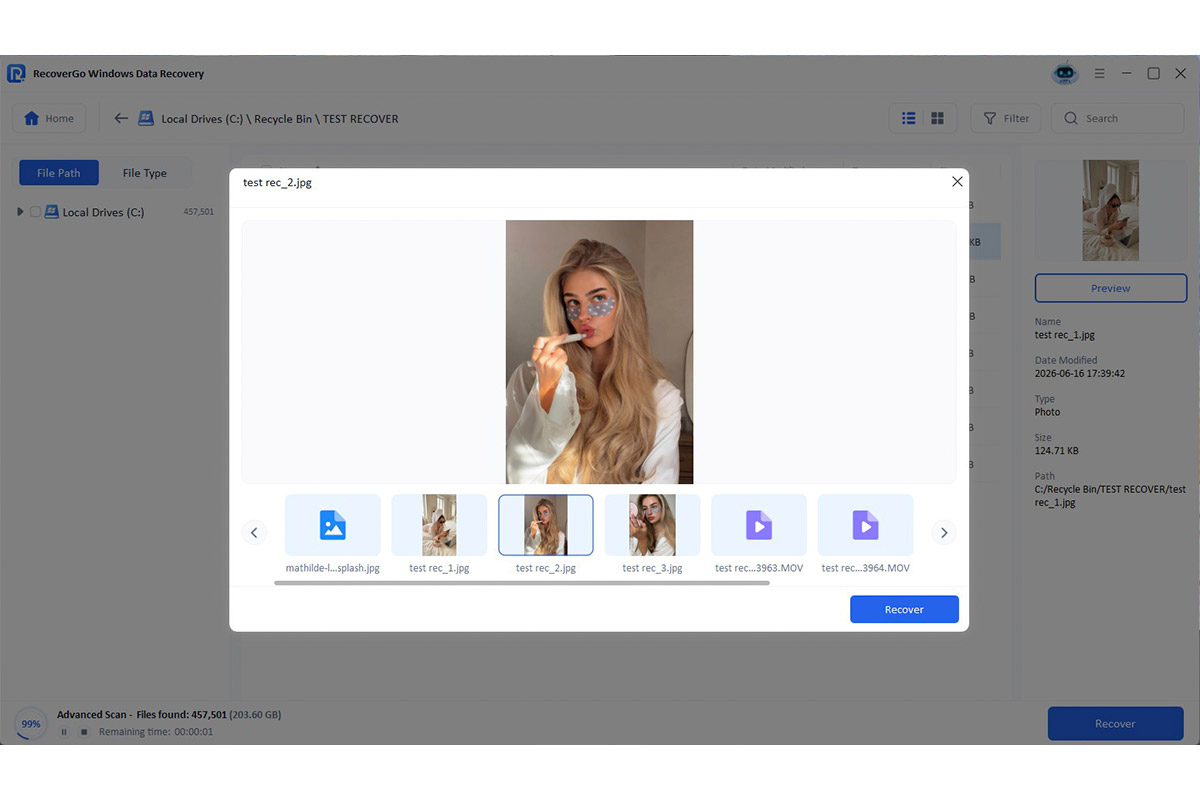
All detected files are automatically sorted by type in the built-in file manager. Users have access to a full folder view and convenient filters. The main advantage at this stage is the full-featured preview. You can open a document or image right in the program window to verify its integrity before starting the export.
Summary
iToolab RecoverGo Windows Data Recovery is a reliable and user-friendly tool that effectively helps in cases of unexpected data loss. Thanks to its deep-scan algorithm, the program handles scenarios of any complexity, restoring access to files on internal and external storage devices without wasting resources or time.