

© ROOT-NATION.com - Use of content is permitted with a backlink.

In today’s digital classroom, school projects are no longer just about poster boards and handwritten reports. Students are expected to create engaging multimedia presentations, short films, and educational videos. One of the simplest ways to make your school project stand out is by adding a professional-quality voiceover. If you’re wondering how to do this without expensive equipment or advanced editing skills, CapCut’s AI Voice Generator is your answer. This free and beginner-friendly video editor makes it incredibly easy to record or generate voiceovers that sound polished and clear. Whether you’re working on a history documentary, a science explainer, or a language assignment, adding a good voiceover can instantly boost the impact of your project.
TABLE OF CONTENTS:
Why Voiceovers Matter in School Projects
Before jumping into the steps, let’s quickly explore why voiceovers are so powerful for academic videos:
- Clarity and Engagement: A well-paced narration helps your viewers follow the content more easily than plain text or visuals alone.
- Professional Look: It gives your project a clean and polished edge, making it stand out from others.
- Better Grades: Teachers appreciate projects that demonstrate creativity and clear communication, exactly what a strong voiceover does.
What Makes CapCut a Great Tool for Voiceovers?
CapCut isn’t just another free editing tool. It offers a rich set of features that help users – especially students – produce impressive content without needing professional software. For voiceovers, it provides:
- Text to Speech AI: Generate high-quality narration from your script in different voices, languages, and tones.
- Voice Recording: Easily record your voice with background noise removal.
- Audio Editing Tools: Trim, adjust speed, and add effects like echo or reverb to enhance the audio’s dynamic range.
- No Watermarks: Unlike many other tools, CapCut keeps your final project watermark-free.
How to Add a Professional Voiceover to School Projects with CapCut
Step 1: Prepare Your Script and Import Your Video
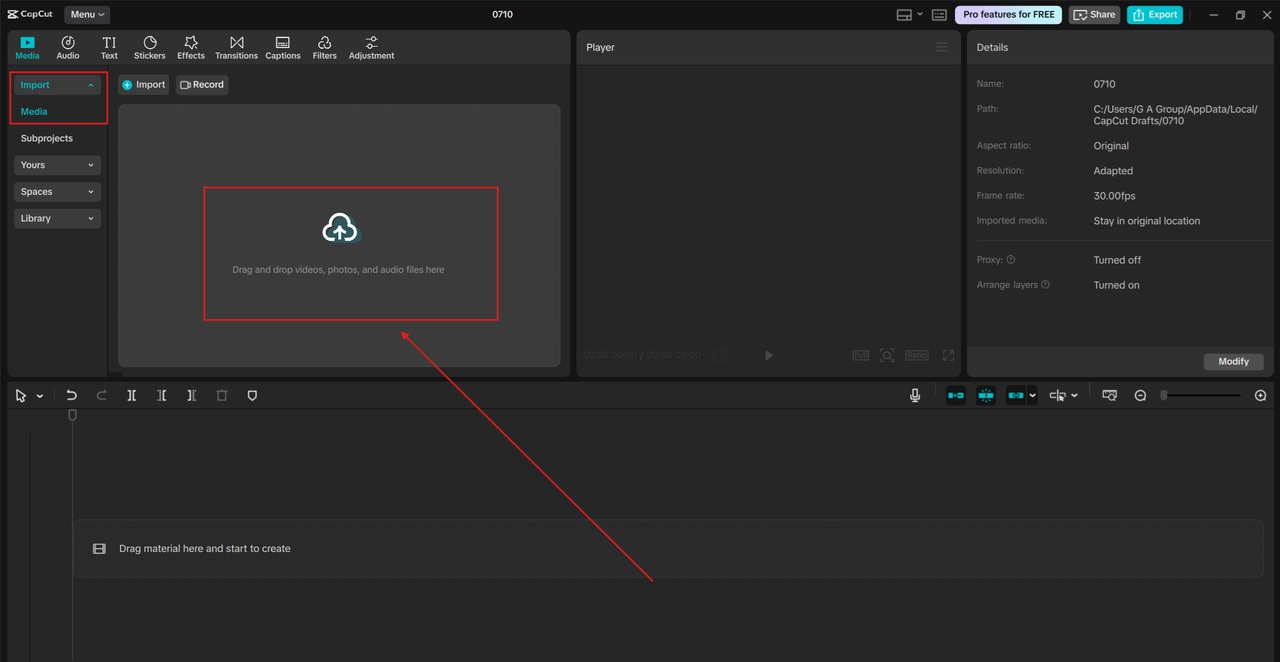
The first step is to write out what you want to say in your voiceover. A clear, well-written script helps keep your narration on track and ensures your message is easy to understand. Open CapCut on your desktop or mobile device. Import your school project video by clicking on “+ New Project” and selecting your media files. If you haven’t created the video yet, start editing your visuals first, then work on the voiceover. Keep your script simple, especially if your project is under 2–3 minutes. Aim for concise, clear sentences that align with the visuals.
Step 2: Add Voiceover Using Text to Speech or Record Your Voice
CapCut gives you two easy ways to add voiceovers – either record your own or use its built-in Text to Speech (TTS) feature.
Option A: Use Text to Speech
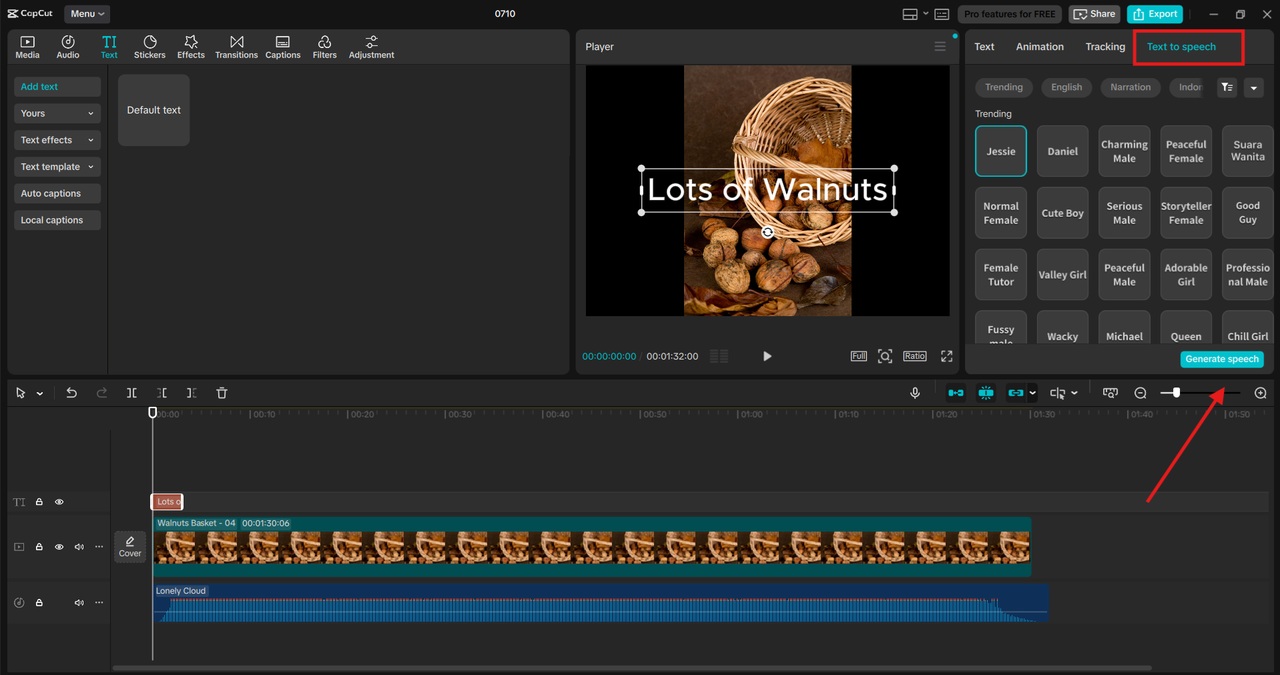
Click the “Text” tab, and select “Default Text”. Type or paste your script into the text box. Tap on “Text to Speech” and choose from a list of voice styles (male, female, robotic, etc.). Preview the audio and apply it to your video.
Option B: Record Your Voice
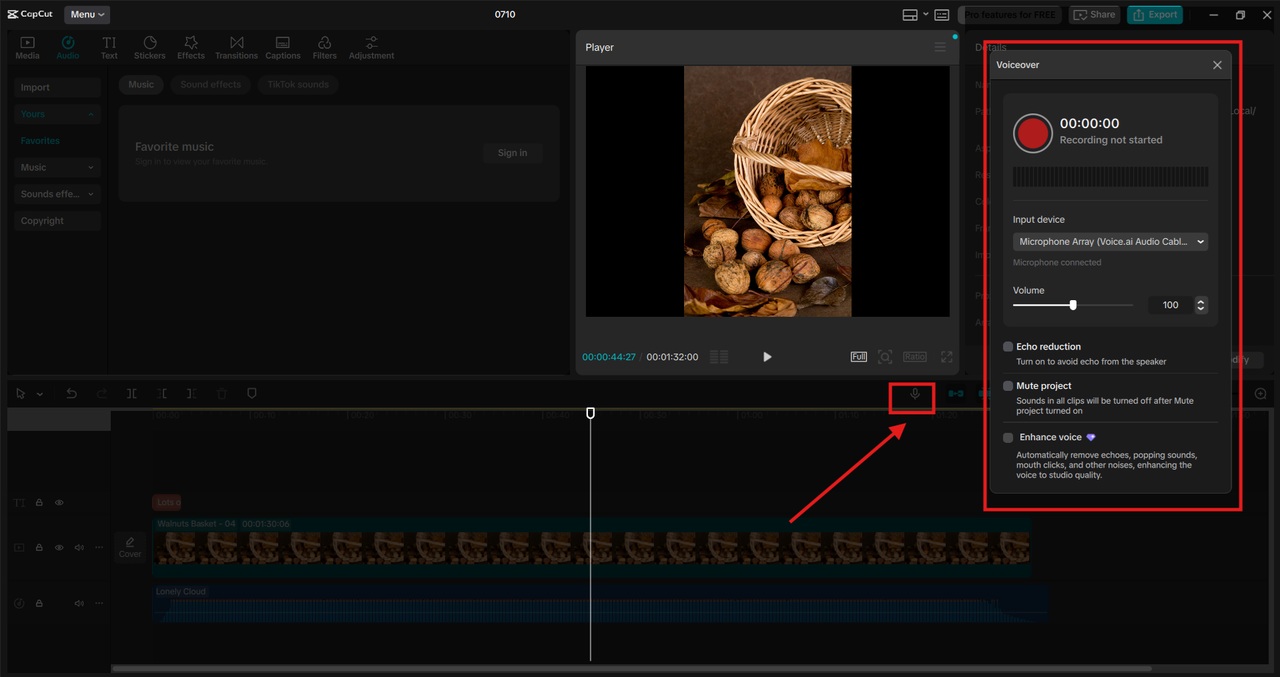
Go to the “Audio” section and select “Voiceover”. Hit the Record button and speak clearly into your microphone. You can pause and resume recording to match specific scenes in the video. If you make a mistake while recording, don’t worry. You can trim or re-record easily. For optimal results, try to record in a quiet space.
Step 3: Sync, Edit, and Polish Your Audio
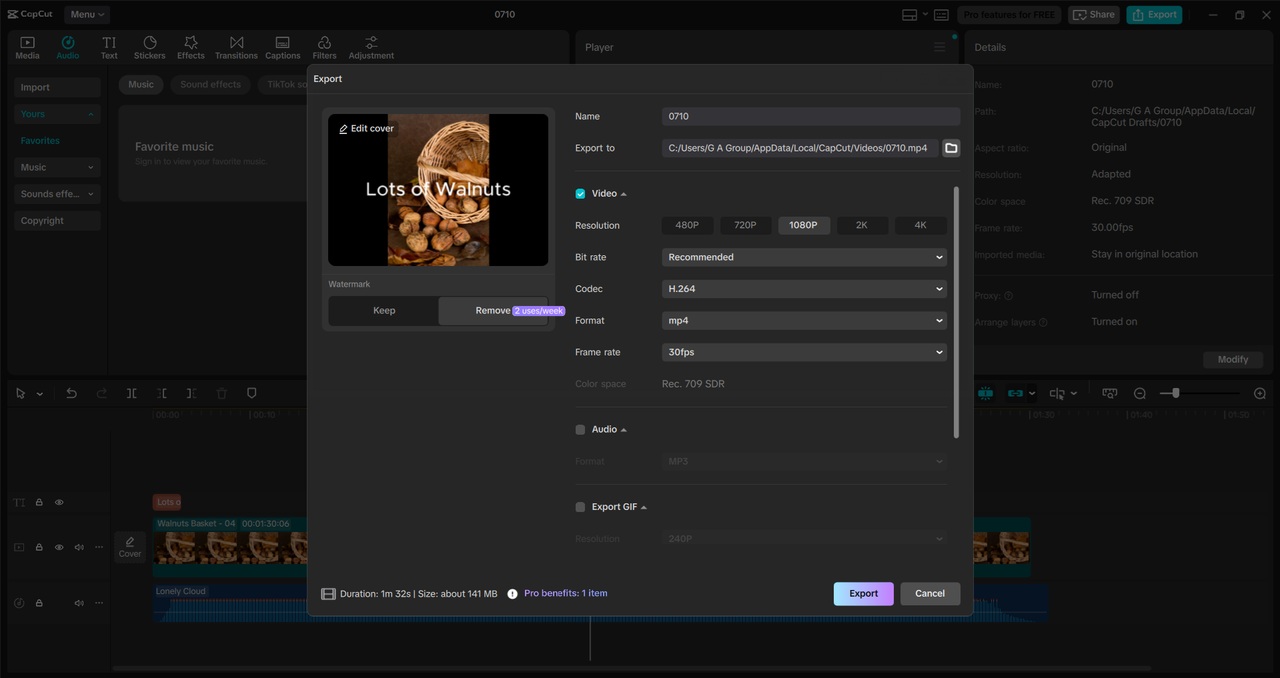
Once your voiceover is added, you’ll want to sync it with your video and fine-tune the sound. Drag and drop the voiceover track on the timeline to align it with your visuals. Use the “Split” and Trim tools to adjust timing. Lower the background music volume so your voice stands out. Use the “Volume”, “Fade In/Out”, and “Reduce noise” features to enhance clarity. Use AI Video Upscaler to enhance the quality of your video. When everything is perfectly synced, preview your video to catch any issues that may arise. Then export your finished school project in high resolution.
Pro Tips for Making Voiceovers Sound More Professional
Even if you’re just getting started with video editing, these simple tips can take your voiceovers to the next level:
- Use Emotion: Speak with expression to make the narration feel natural and less robotic.
- Pace Yourself: Avoid speaking too fast. Pauses help emphasize key points.
- Match the Tone: If your project is fun and light, let that tone be reflected in your voice. If it’s serious or scientific, go for a calm and informative tone.
- Practice Before Recording: Read your script aloud once or twice before you hit record.
Examples of School Projects That Benefit from Voiceovers
- History Timelines: Narrate important events while showing maps or images.
- Science Experiments: Explain each step clearly for better understanding.
- Book Reviews: Add your voice over a slideshow of key themes or scenes.
- Language Assignments: Practice pronunciation by recording in the target language.
- Group Projects: Let each group member record a part of the voiceover.
Conclusion
Adding a professional voiceover to your school project doesn’t have to be complicated or time-consuming. With CapCut, even beginners can produce quality narration using either their voice or AI-generated voices. In just a few steps, you can turn a basic video into a polished presentation that captures attention – and maybe even earns extra credit.
If you’re ready to level up your next school video, start experimenting with CapCut today. It’s free, fun, and a fantastic tool to help students create smarter, more impressive content.