





© ROOT-NATION.com - Use of content is permitted with a backlink.
Beyond the most well-known keyboard shortcuts, the Windows key hides a wide range of useful functions that many users are not aware of. We have gathered the most interesting ones to show how everyday interaction with Microsoft’s operating system can become faster, more convenient, and more efficient.
Most users open the Start menu and assume that this is the full extent of the Windows key’s purpose. The small logo in the corner of the keyboard is often perceived as purely utilitarian – a technical necessity rather than a productivity tool. However, this impression is misleading. Over decades of OS development, Microsoft has built an entire set of shortcuts into this key that can significantly speed up daily workflows. Many of them remain unknown not because they are complex, but simply because users rarely look for them.
Read also: Instructions, Guides, How To for Windows

We suggest taking a look at four such functions, each of which addresses a specific task – quickly, without unnecessary steps, and without the need for third-party software.
TABLE OF CONTENTS:
Clipboard as an Archive, Not a Single-Use Buffer
Most users think of the system clipboard as a temporary storage area for a single item: copy, paste, forget. This remains true only until you open the full clipboard history using the Windows + V shortcut.
What appears is not just a simple list. It is a chronological record of everything you have copied or cut during the current session: text fragments, links, code snippets, spreadsheet values. Each item is available for instant insertion into any input field. For analysts, editors, developers, and anyone who frequently moves content between documents, this feature transforms a repetitive cycle of re-copying into a convenient visual selection process.

Notably, Windows keeps this feature relatively hidden, without actively promoting it. Millions of people perform unnecessary steps every day – returning to the original document just to copy something they already copied – without realizing that the solution is literally two keys away.
Emoji Without a Smartphone: No Longer a Compromise
A persistent cultural habit has formed: emotional expression in messaging is largely considered the domain of mobile devices. A computer is associated with a formal tone and continuous text, while any attempt to insert a graphical symbol into a message typically turns into a browser search or copying it from a separate source.


The Windows + period (.) shortcut removes this contradiction. The panel that opens instantly provides a full emoji library, organized into categories and equipped with a search field. No third-party extensions and no additional browser tabs are required.
This is important not only for informal communication. In corporate chats, task comments in project management tools, and public posts on social media – anywhere where a more human tone matters – having direct access to visual symbols from the keyboard removes an unnecessary barrier between thought and expression.
Read also:Privacy as a Business Model: Proton Services and Efforts Toward a Surveillance-Free Internet
Locking Without Shutdown: A Difference That Saves Time and Data
Sleep mode, shutdown, and restart all involve a certain time and workflow overhead: closing applications, waiting for processes to finish, and then relaunching the system. But there are situations that require something different – stepping away from the workstation while leaving everything as it is, without allowing others to see the screen.
The Windows + L shortcut locks the session instantly. The screen goes dark and a sign-in window appears – nothing more. There is no forced closure of files or applications. All open documents, browser tabs, and ongoing processes remain intact in memory. Upon return, a PIN or biometric authentication is enough, and the workspace is restored within seconds.

For office environments, where a single unlocked computer can mean a data leak or unauthorized access to corporate systems, this shortcut is not a convenience but a basic element of digital security hygiene.
Read also:Windows 12: Five Changes Users Are Still Waiting For
Screenshotting with Surgical Precision: No Tools, No Waiting
Taking a screenshot is one of the most common actions in everyday digital work, and at the same time one where users often go through far more steps than necessary: searching for the “Snipping Tool” in the Start menu, pressing Print Screen and then opening Paint, or installing third-party utilities just to perform a basic selection.
The Windows + Shift + S shortcut opens a built-in screen capture tool directly over the current display. The cursor turns into a crosshair, allowing precise selection of only the required area of the screen. The selected fragment is automatically saved to the clipboard and ready to be pasted into any document, chat, or email client. Instantly, without intermediate files and without breaking the workflow context.
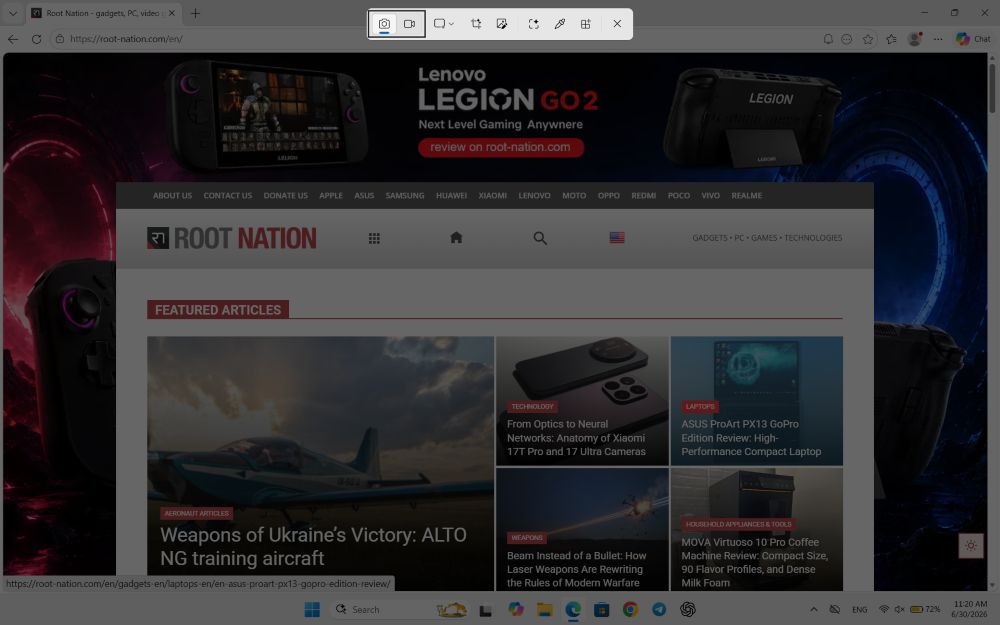

This feature has essentially made an entire class of auxiliary screenshot tools obsolete – at least for most everyday use cases.
Read also: NVIDIA N1 and N1X: The Moment Windows Has Been Waiting for for Twenty Years
The Logic of the Hidden
All four described functions share a common characteristic: they have existed within the system for years, yet remain practically invisible to the average user. Microsoft has not removed them or hidden them behind settings – they are available by default on any machine running Windows 10 or 11. However, the company has never made them part of active onboarding or promotional campaigns.
This raises an interesting question about how people acquire proficiency in software environments. Most operating system skills are not formally learned – they are formed incidentally: by observing a colleague, by searching at the moment of need, or through articles like this one. The operating system has long surpassed the level of a tool that can be fully mastered “from scratch” intuitively – while simultaneously remaining far more powerful than most users ever realize.

The Windows key is not just an entry point to a menu. It is a gateway to an interface that has been developed over years with real productivity scenarios in mind. Changing a habit only once is often enough – and returning to the old workflow quickly stops feeling necessary.
Read also:
- Five AI Cities: Inside the Emergence AI Experiment – Order, Chaos, and Survival
- How Wearables and AI Glasses Are Rewriting the Logic of Technological Civilization
- Your router is not only for Wi-Fi – here’s what else it can do
- Everything About NVIDIA RTX Spark: The Superchip Redefining Personal Computing

