





© ROOT-NATION.com - Use of content is permitted with a backlink.
I’ve been using Windows 11 since day one. Overall, I like the system, but some of the default settings are genuinely frustrating. Fortunately, most of them can be fixed quickly. Today, I’ll show you how.
Many experienced users aren’t thrilled with how Windows 11 is packed with intrusive default settings that drag down the user experience right from the start. The good news? You don’t have to just live with them.

Sure, it’s impossible to fit all of Microsoft’s “enhancements” into a single guide, but we can at least start with the most annoying ones. If you want your system to run smoothly – and not drive you up the wall – these settings are the first ones you should consider changing.
Read also: Everything Announced at Microsoft Build 2025
TABLE OF CONTENTS:
Intrusive and useless widgets
These widgets showing news, weather, and other “important” updates on the taskbar are the first thing I disable after installing Windows 11. If you’re not actively using them – and most people aren’t – they’re just visual clutter and a constant source of distraction. On top of that, they can put unnecessary load on the system, especially if you’re working with a lower-end PC or laptop.
Ideally, Microsoft would offer an option to skip them entirely – but, as usual, that’s not the case.
How to get rid of this intrusive thing:
- Right-click on an empty space in the taskbar.
2. Select Taskbar Options.
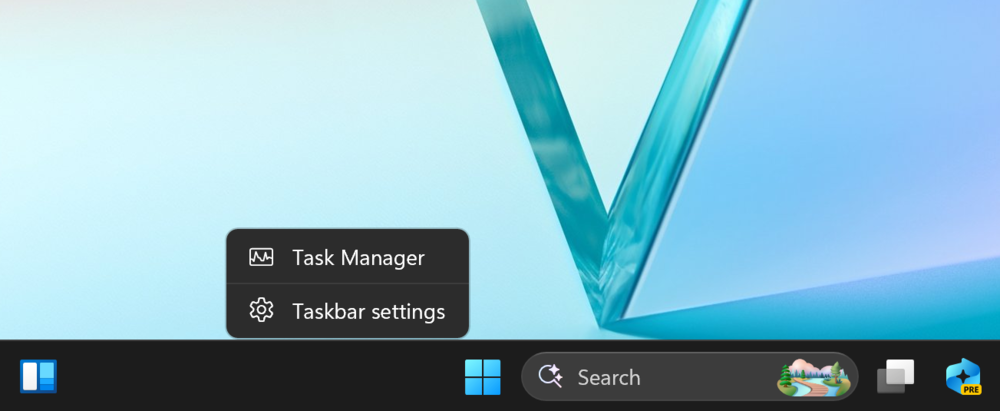
3. Find the Widgets option and simply turn it off.
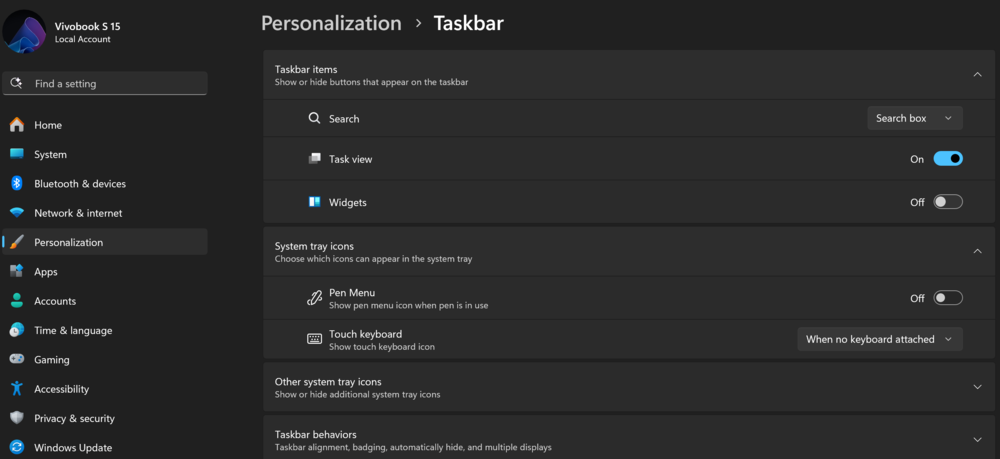
Done – one less source of annoyance and a few more system resources freed up for tasks that actually matter.
Read also: How Taiwan, China and the US are fighting for technological dominance: the great chip war
Auto-launching unnecessary software is a hidden evil
Right after startup, Windows often launches a bunch of background programs you might not even know are there. These apps load automatically, eating up system resources and slowing down boot time. The result? Your PC can feel sluggish – even if it’s running on solid hardware.
Sure, it’s sometimes useful to have certain apps ready to go, but most of them just get in the way. That’s why startup apps are the first thing worth checking and trimming.
How to disable auto-launch of unnecessary programs:
- Press the key combination Win + I to enter Windows 11 Settings.
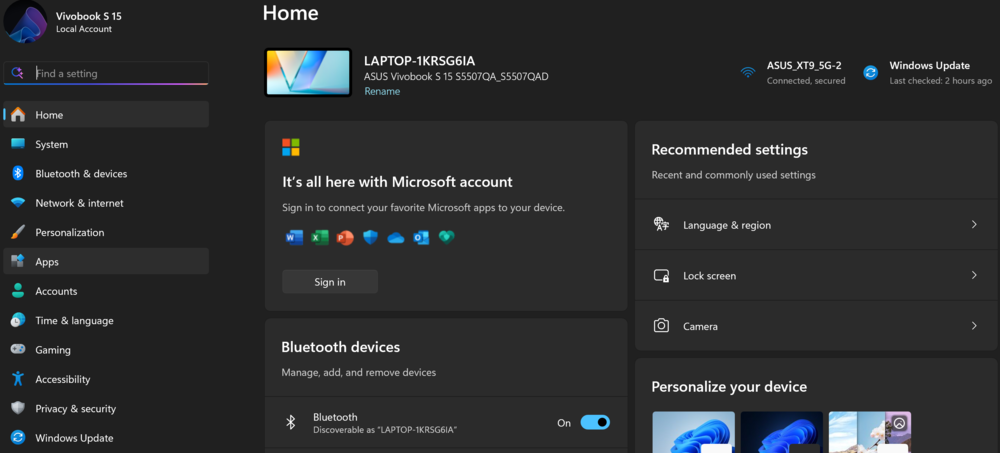
2. Go to Apps and find the Downloads section.
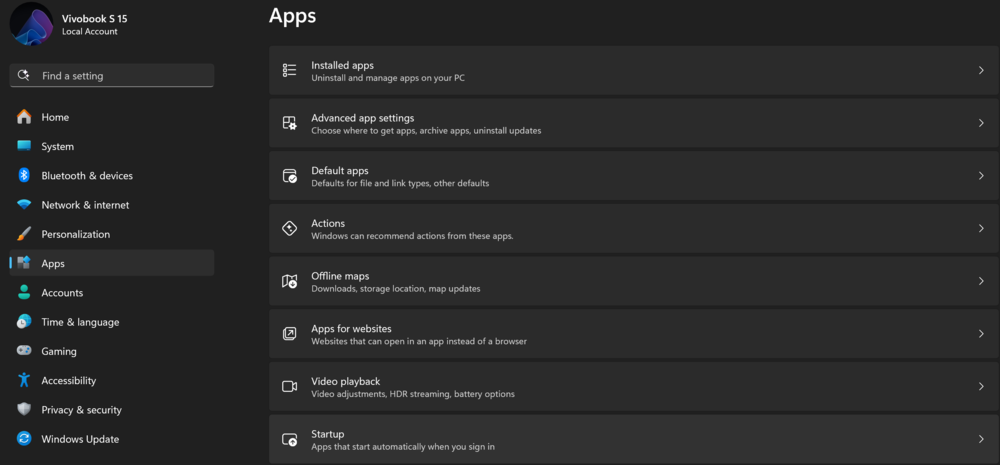
3. Here you will see a list of applications that start with Windows.
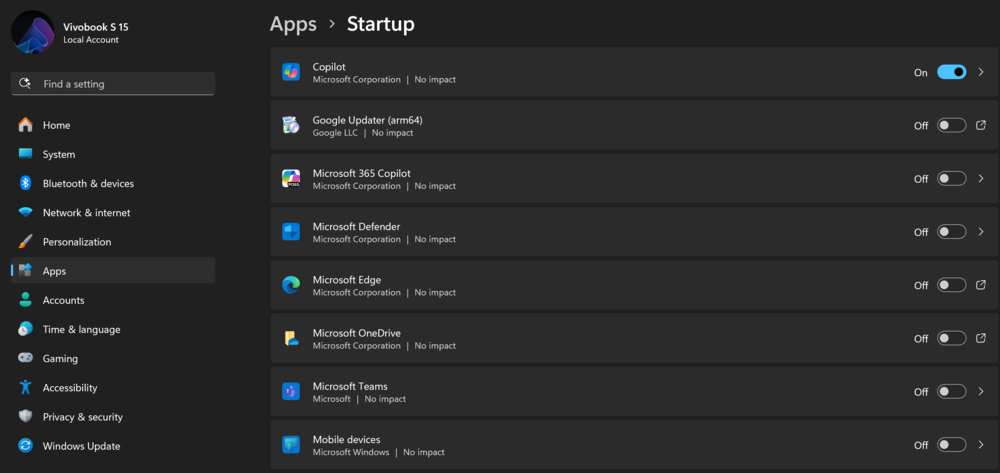
4. Switch off everything you don’t need. If you’re not sure, it’s better to turn it off than to leave it on.
A little advice: do not touch only the antivirus and drivers – the rest is under a big question mark.
Edge is the default browser
Microsoft really wants you to use Edge. And while the browser has improved, it’s still not everyone’s choice. Personally, I’ve long preferred Chrome or Firefox – and I see no reason to keep Edge as the default. But Windows 11, of course, sets it as the default automatically.
Thankfully, changing this only takes a few minutes. You don’t need any special skills – even a less experienced user can switch browsers without much trouble.
To do this, you need to follow a few simple steps:
- Open Settings by pressing the key combination Win+I.
2.From there, go to Applications and open the Default Applications subsection.
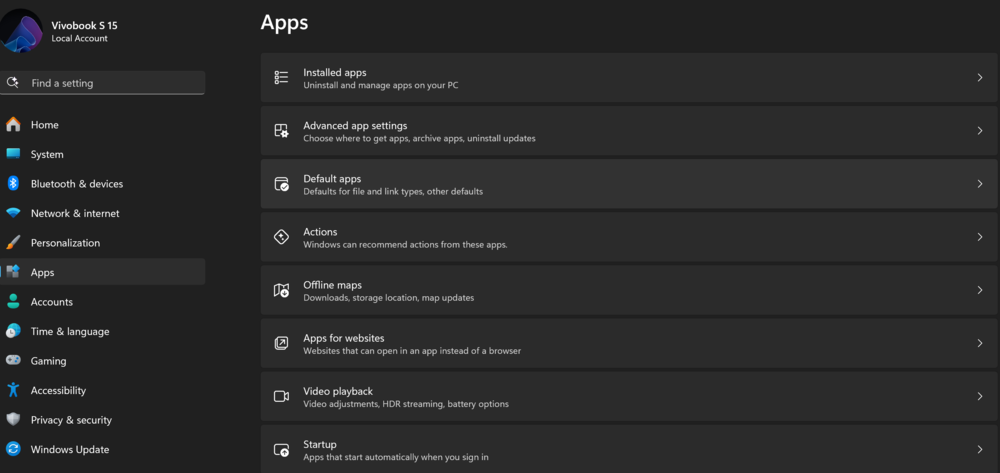
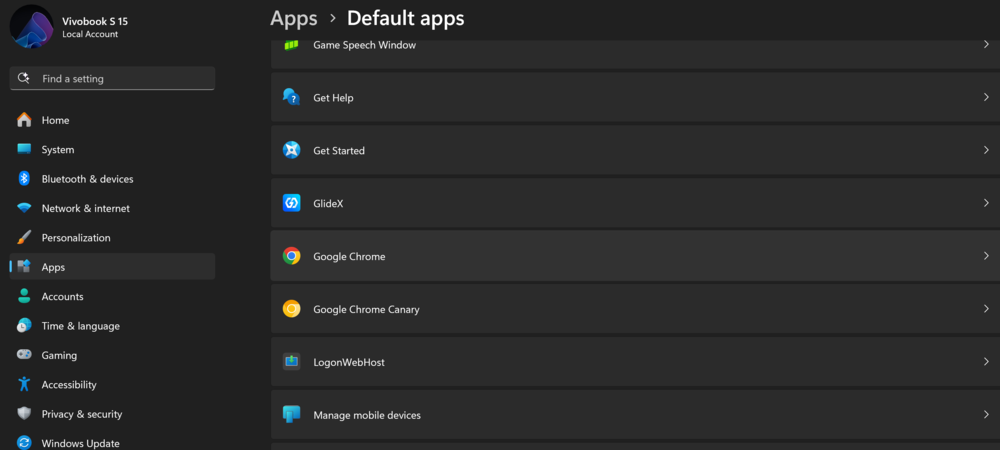
3. Find your browser in the list – for example, Chrome, Firefox or Arc.
4. Click Set as default. A tick will appear next to it, which means that everything is working.
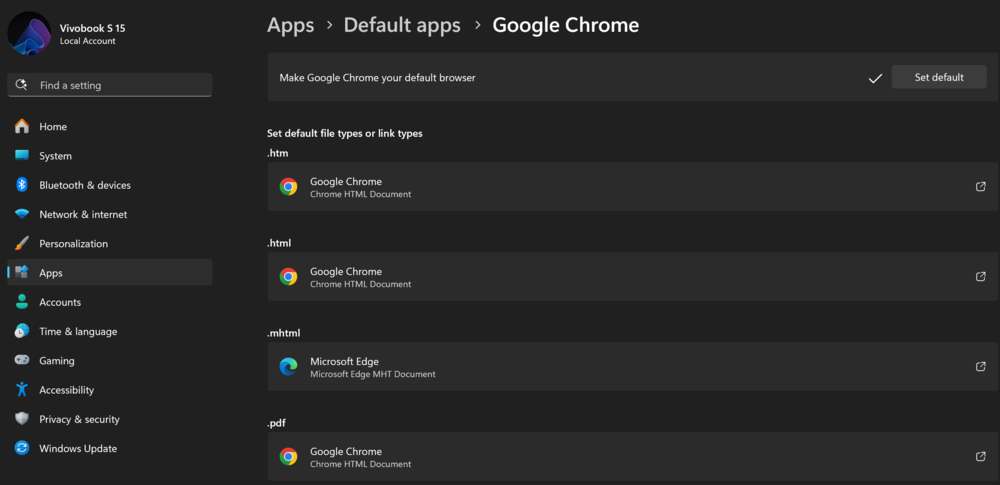
Here’s the catch: even after setting your preferred browser as default, Windows may still open certain file types – like PDF, HTML, or HTTP links – in Edge. So if you want to clean things up properly, scroll down a bit further on the same settings page and manually assign your browser of choice to each file type.
This way, you’ll fully remove Edge from your daily workflow. No more “Open in Microsoft Edge” prompts – and that’s just fine.
Read also: How to Reset All Network Settings in Windows 11
Annoying notifications that come from everywhere
Windows 11 can sometimes act like an overzealous assistant – constantly pinging you with updates, reminders, and alerts. You’re in the middle of something, and suddenly: “Update available,” “Check your security settings,” or “You haven’t opened Edge in a while…” Sound familiar? While notifications can be useful, the default settings tend to be more distracting than helpful.
The good news is, it’s easy to fix. A few simple tweaks are all it takes to stop those intrusive alerts from getting in the way.
To quickly turn off notifications while you’re working, you need to make a few simple settings:
- Press Win + N to open the Notification panel.
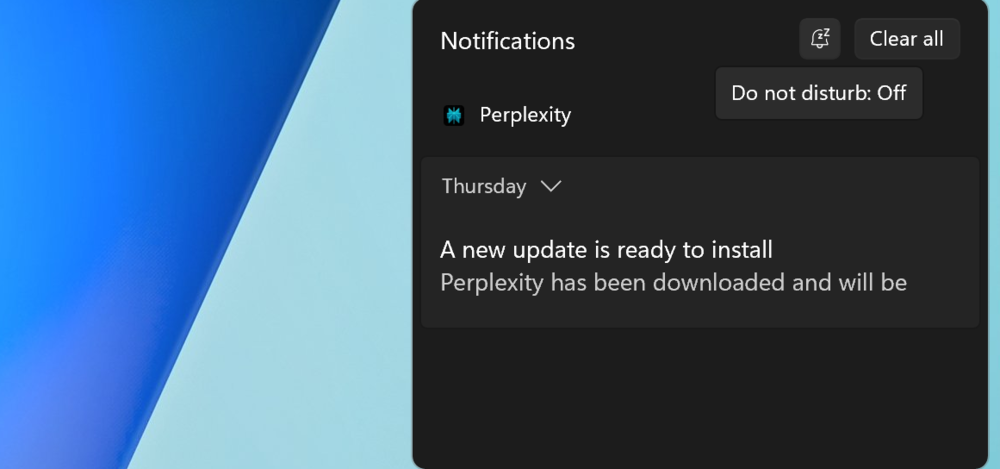
2. Click the bell icon in the upper right corner to activate the Do Not Disturb mode (the icon will turn blue).
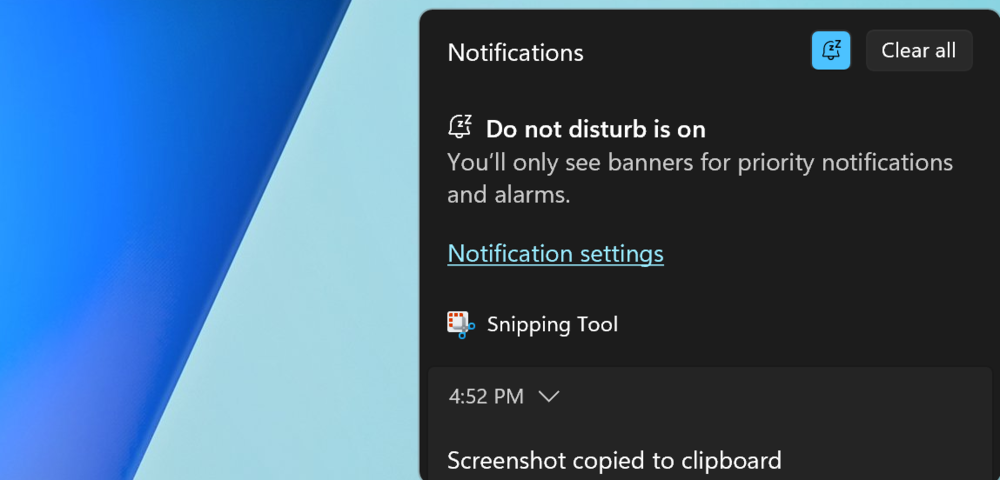
Now, nothing will interfere with my work, watching a video or writing an article, as in my case.
Want to tidy up for good? Here’s how to do it:
- Go to Settings.
2. Go to the System section and open the Notifications subsection.
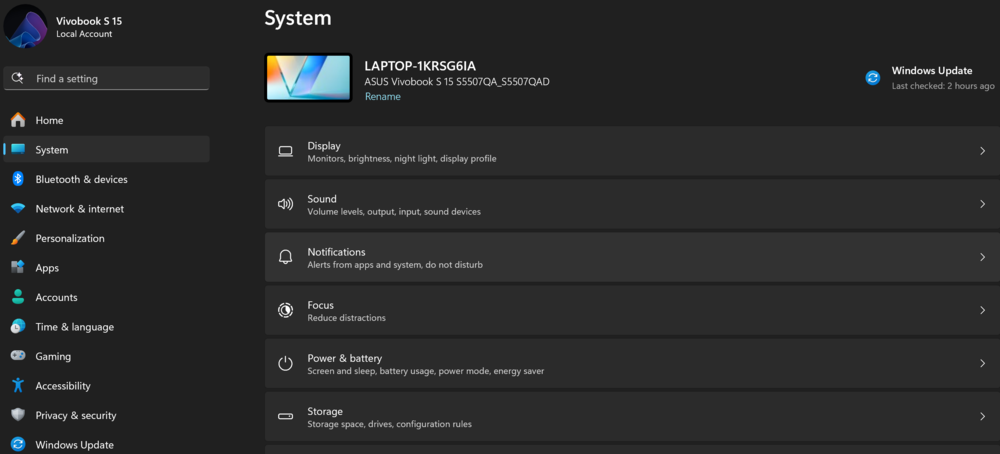
3. If you want complete peace of mind, just turn off the main Notifications switch.
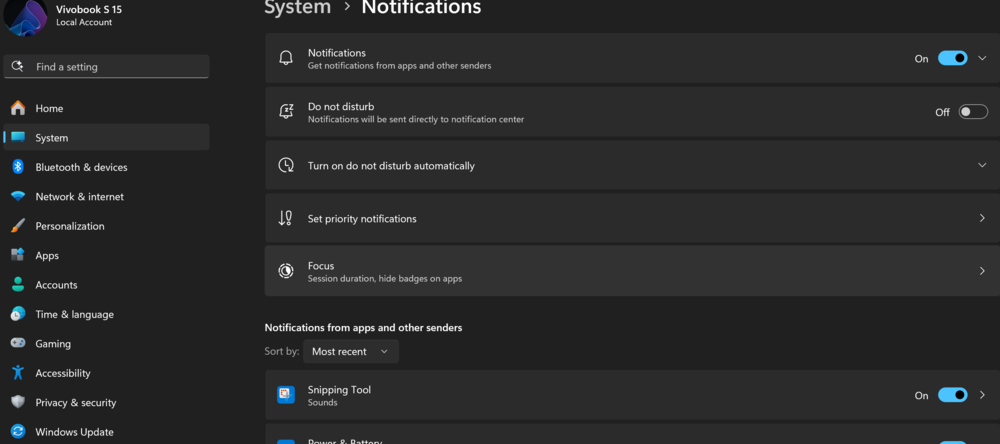
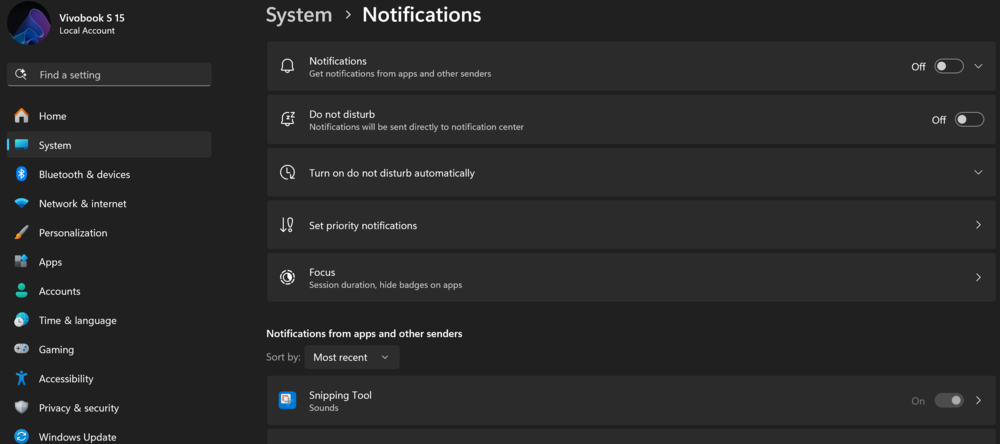
Alternatively, you can leave the main notifications switch on and just disable the noise manually – scroll down the list and turn off alerts from apps you don’t care about.
My approach? I keep only what actually matters – calendar, email, messaging apps. Everything else goes straight to the bin.
Read also: Tectonic Shifts in AI: Is Microsoft Betting on DeepSeek?
Forcing a Microsoft account is one more unnecessary step
Microsoft really wants you to use their account. During Windows 11 installation, it’s almost impossible to skip it – the process is designed so that you either give in or spend extra time navigating workarounds. Most people just agree to get through the setup faster. But if you don’t need that account, here’s some good news: you can easily disable it and switch to a regular local account that isn’t tied to the cloud.
To cancel your Microsoft account and switch to a local one, you need to:
- Press Win + I to go to Settings.
2. Go to the Accounts section and open the Your information subsection.
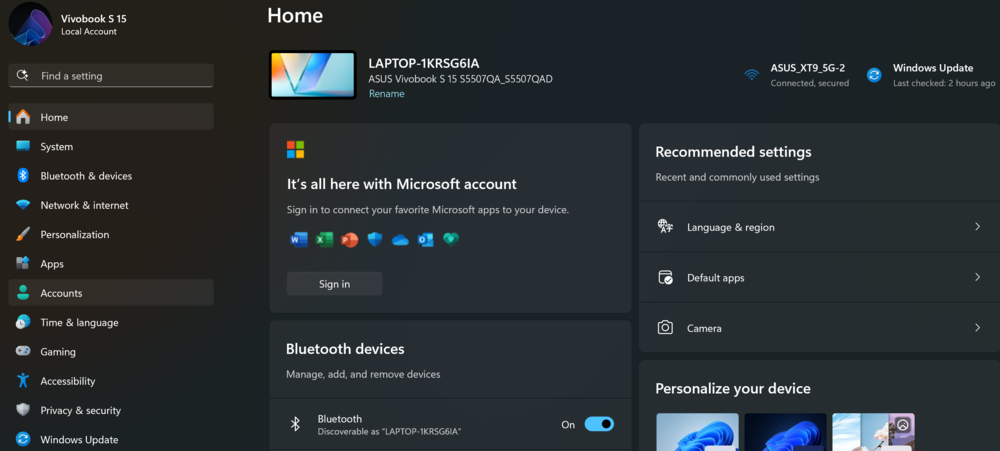
3. Find the Sign in with a local account option and click it.
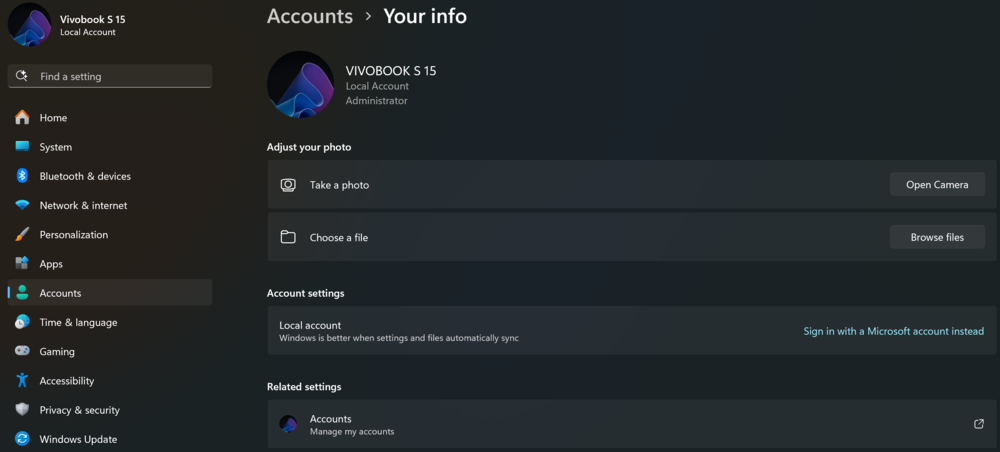
4. Then just follow the instructions – the process takes a couple of minutes.
Important: after switching to a local account, automatic synchronization with OneDrive, Microsoft Store, and other Microsoft online services will no longer be available. But if you don’t need those features, you’re not losing anything – just freeing your system from unnecessary control.
My approach: using a local account feels calmer and more secure, and there’s no tracking of what you run on your PC. You can always open Microsoft Store manually if needed.
Read also: Power saving modes in Windows 11: Which one to choose?
Windows updates on a limited internet connection – kill traffic to zero
Updates are useful – but only when you get to decide what and when to download. If you’re on a limited data plan or using mobile internet, Windows can easily burn through your entire allowance in the background without asking. And you’ll usually find out only after your data balance hits zero.
Fortunately, there is a way to put Windows back in its place. You can easily remedy this situation and save money and nerves.
To limit the use of the Internet for updates, you need to:
- Press Win + I to access Settings.
2. Go to the NetworkandInternet section. There, follow the path Wi-Fi – Manage known networks.
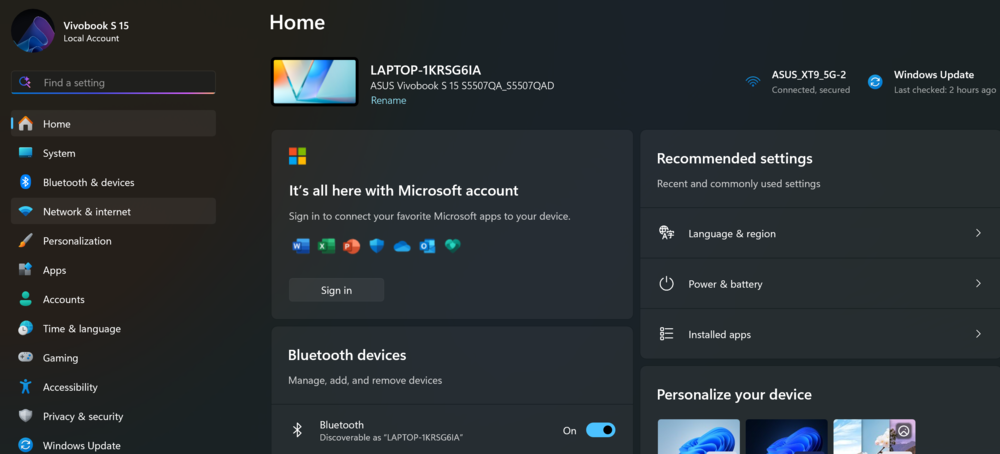
3. Select your network from the list.
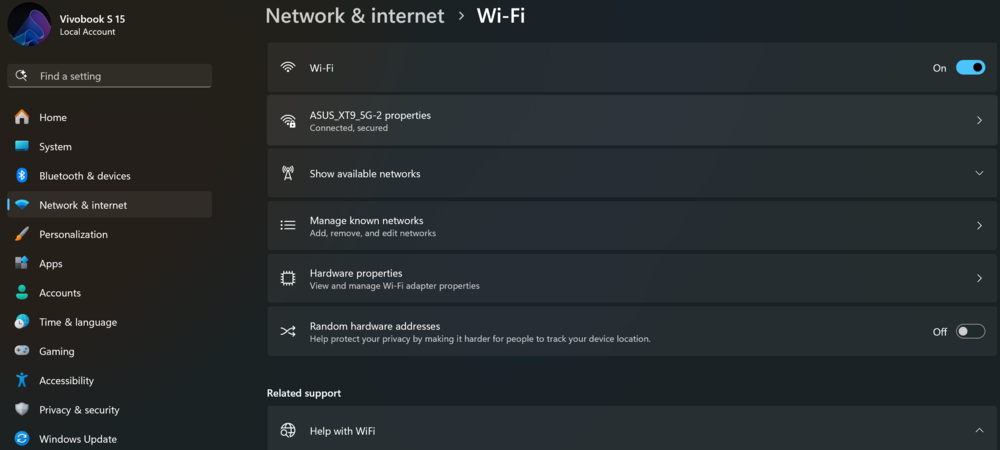
4. Turn on the Connection limit switch.
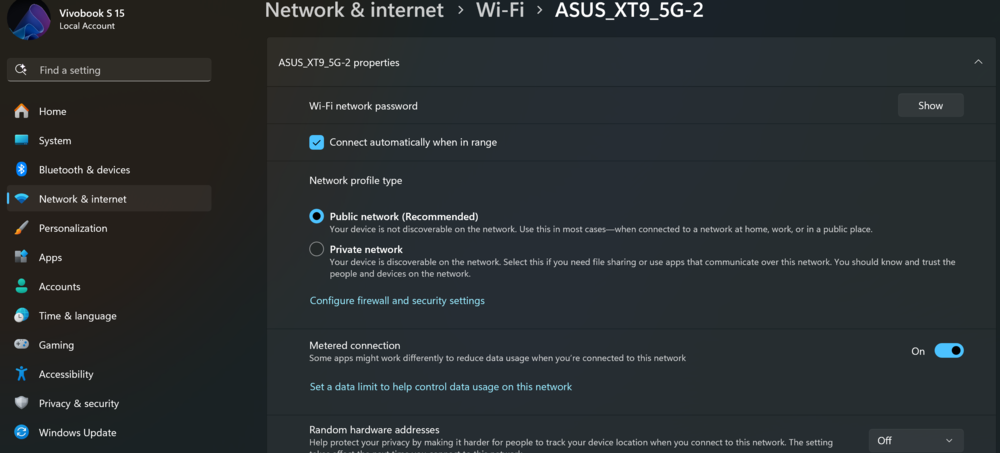
That’s it – Windows will now treat this connection as “metered” and stop downloading updates and background data without permission.
It’s worth noting that critical security patches may still get through – which is generally a good thing. But everything else, including Microsoft Store and OneDrive sync, will stay under control.
Here’s how I use it: when I’m on mobile data, I always enable the metered setting. And once I’m back on a proper Wi-Fi connection, I check for updates manually.
Read also: Everything About New Android 16: Changes, Improvements, and More Gemini Integration
Ads in the Start menu, on the lock screen and in Explorer – seriously, Microsoft?
Windows 11 is not just an OS, it’s also an advertising platform. Banners, ‘tips’, suggestions to install something from the Microsoft Store – all of this appears in places you don’t expect it: in the Start menu, on the lock screen, even in File Explorer. Is it annoying? Yes, it is.
The good thing is that you can quickly turn it all off. Here’s how:
Disable ads in the Start menu
- Open Settings by pressing the key combination Win+I.
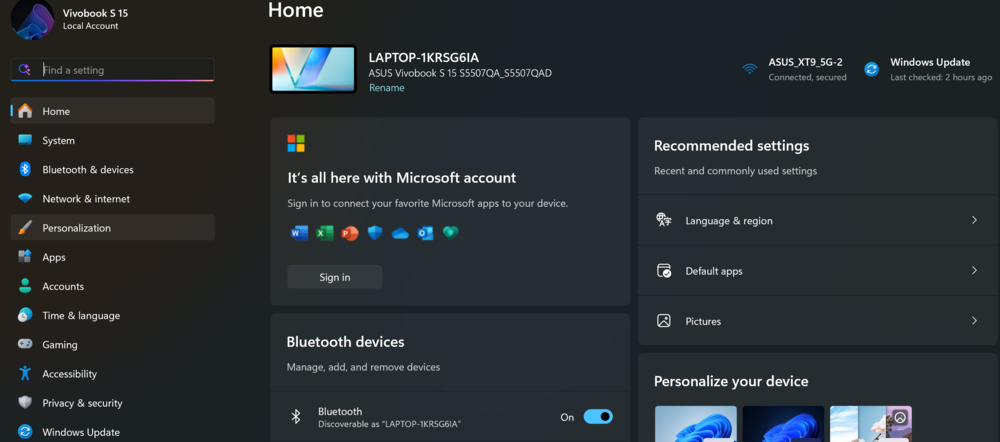
2. Go to the Personalisation section and open the Start sub-section.
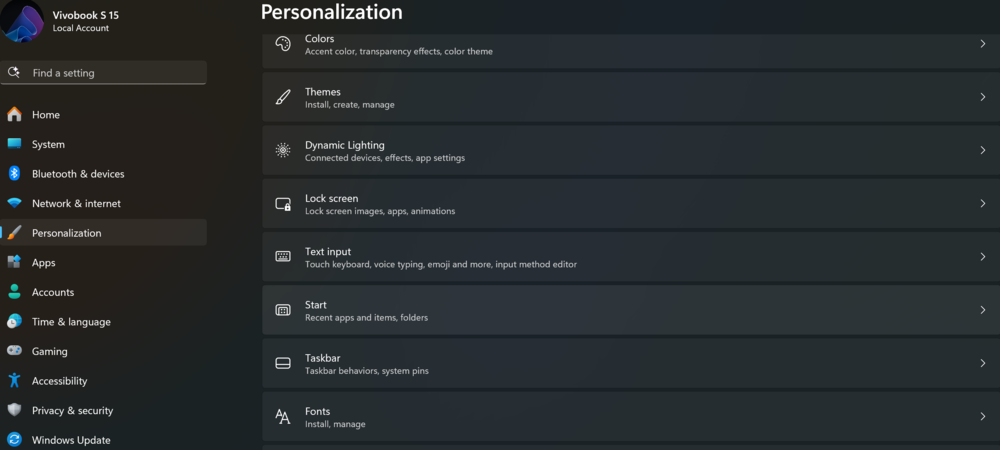
3. You need to turn off the Show recommendations for tips, shortcuts, new apps, and more switch.
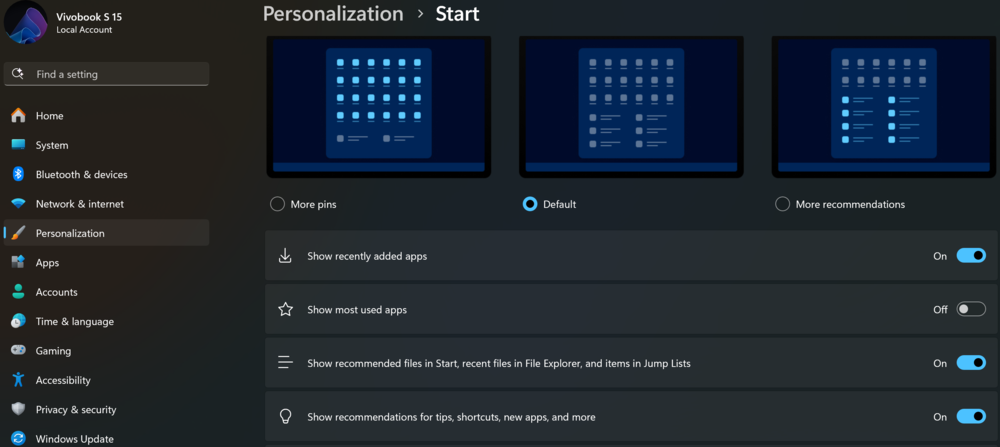
This will remove all the ‘recommended’ apps and ads that pop up after the system is installed.
Remove rubbish from the lock screen
- Open Settings by pressing the key combination Win+I.
2. Go to the Personalisation section and open the Lock screen subsection.
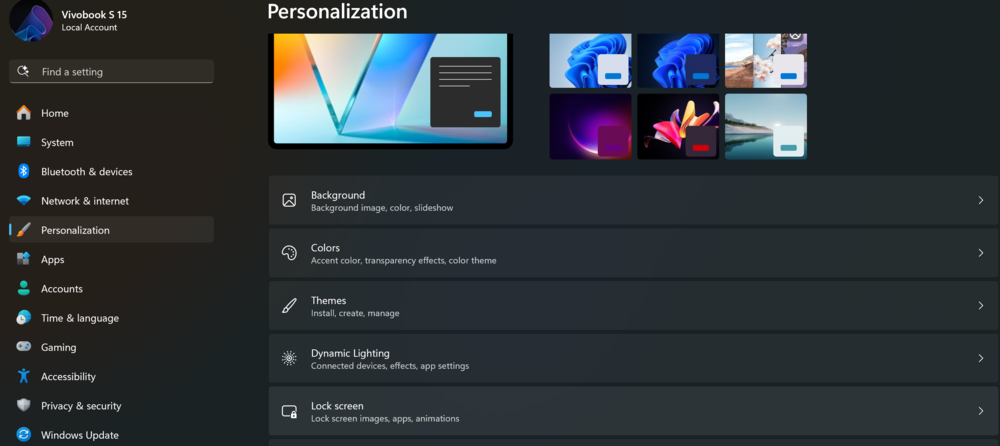
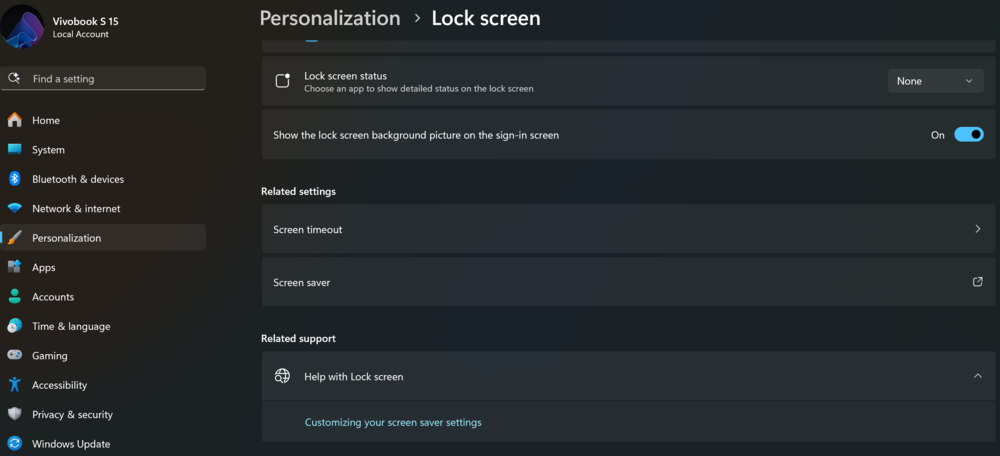
3. In the Lock screen status field, select the Not selected option.
4. So you should turn off Show fun facts, roasts, tips, and other information on the lock screen. Some people may not find it right away. You need to select the Picture option in the Personalise lock screen option, and then you will see it.
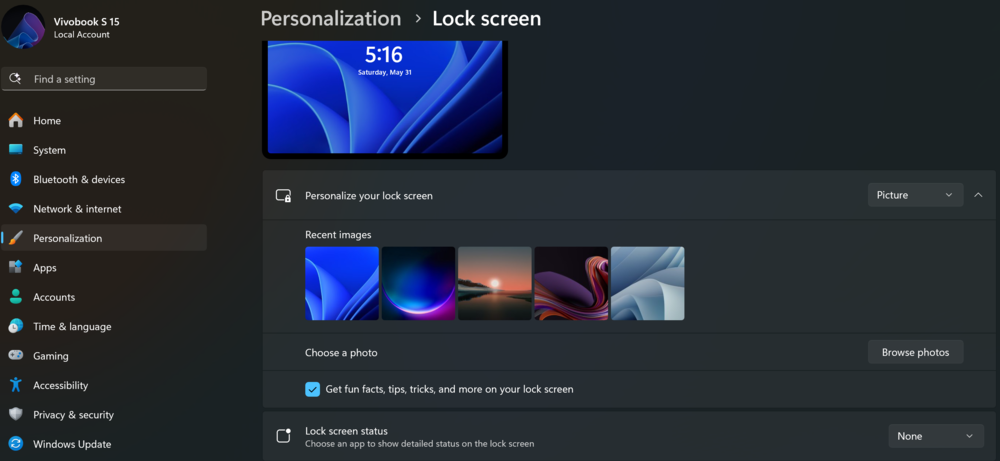
After all these manipulations, the lock screen will be clean – no ‘facts of the day’ and no news banners.
Read also: Civilization at Risk: Donald Trump’s Policies Are Undermining the Scientific World
Clean File Explorer from adware ‘notifications’
It is also quite simple to do and does not require any special skills. Here’s how:
- Press the key combination Win + E to open Windows Explorer.
2. Click the ellipsis in the top menu and choose Options.
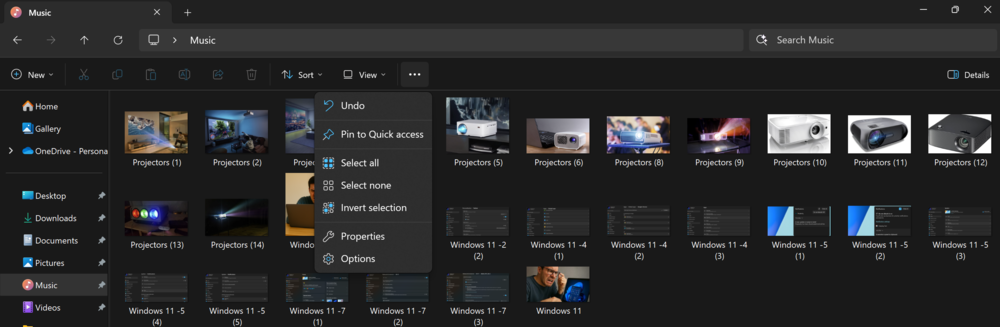
3. Click the Views tab.
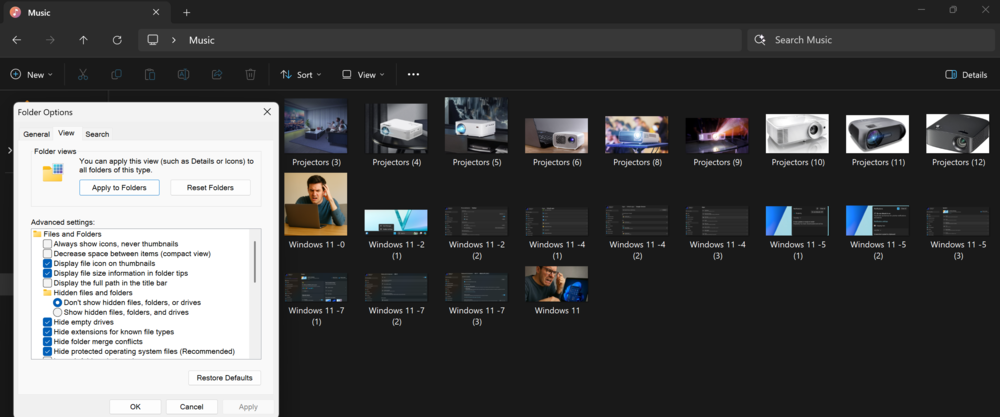
4. There, you should find the Show sync provider notifications option and uncheck it.
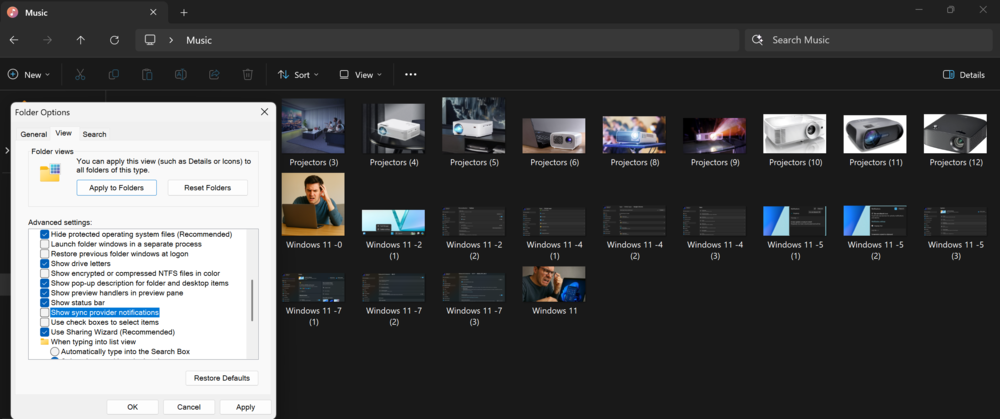
5. Confirm your action by clicking OK.
This will turn off the same banners that appear like ‘OneDrive is better for backups’ when you just search for a file.
My approach is simple: I decide what I need in my system and what I don’t. And advertising is definitely not on that list. Go through these settings and Windows will be much cleaner and less intrusive.
Despite all the shortcomings and annoying settings, I think Windows 11 is a pretty good operating system for desktops, laptops, and tablets. Perhaps someone will disagree with me. I’d be glad if you could share your impressions in the comments.
Read also:
- AI Hallucinations: What They Are and Why They Matter
- Are Noise-Canceling Headphones Harmful? Insights from Audiologists

