




© ROOT-NATION.com - Use of content is permitted with a backlink.

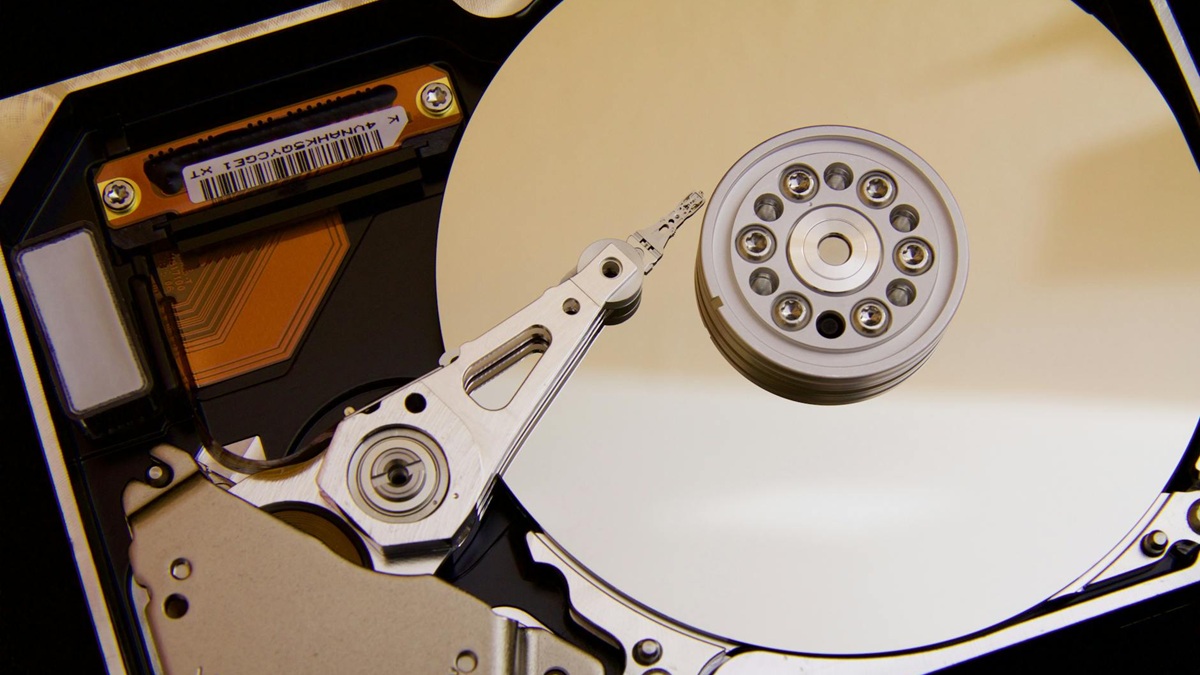
If you hear a sharp clicking noise coming from your drive, stop right away. Turn off your PC and take five minutes to read this article before you do anything else. Hard drive clicking is one of the most alarming symptoms a storage device can produce.
We’ll break down what hard drive clicking really means, how to classify the problem correctly, when a clicking hard drive fix is realistic, and when you should stop and protect your data.
TABLE OF CONTENTS:
The Difference Between Normal Clicking vs Failure Clicking
We hear this question all the time: Is that clicking normal, or is the drive about to die? The answer depends on the pattern, the volume, and what the drive does next. After all, hard drives are mechanical devices. They move parts. And moving parts make noise.

Manufacturers openly acknowledge that healthy drives can produce clicking-like sounds. For example, Western Digital explains that periodic clicking every few seconds can be part of normal behavior. Some drives perform preventive head movements. Helium-based models may also produce random clicking sounds during operation. That alone does not mean failure.
So, when should you be alarmed and seek how to repair clicking hard drive? From our experience, the context matters more than the sound itself. Here are the situations where clicking moves from “normal behavior” to “potential failure”:
- The first thing we look at is the character of the sound itself. If the clicking is loud, sharp, and perfectly rhythmic, that usually means more than normal head movement. A soft operational tick is common. But a repetitive knock every second or two often signals actuator reset cycles. In simple terms, the drive tries to read data, fails, and forces the heads back to retry.
- The next factor is timing. Did the sound appear suddenly? If a drive worked quietly for years and then starts to click out of nowhere, we treat that as a red flag. Mechanical devices do not change behavior without a reason. New noise almost always points to new stress inside the unit.
- We also see performance symptoms appear at the same time. If you notice slow file access, freezing windows, or long loading times alongside clicking, that combination is important. The drive may struggle to read certain sectors. The sound is the mechanical side of that struggle.
- Another point you should pay attention to is connection stability. Does the drive disconnect randomly? Do you see “drive not accessible” errors? Repeated mount and unmount cycles often indicate either internal resets or power and communication instability.
- Next, check diagnostics. If SMART alerts or CRC errors show up, do not ignore them. Even if files still open, clicking plus warning codes significantly raises the risk level. At that stage, the drive may operate on borrowed time.
- Finally, watch how the drive behaves under load. Light ticking while idle can fall within normal limits. But if the noise grows louder during file transfers, backups, or scans, that points to read instability. The harder the drive works, the more obvious the failure pattern becomes.
Did the drive fall? Did it face a power surge or moisture exposure? Clicking that begins after physical shock often relates to head misalignment or surface contact issues. That scenario rarely improves on its own. From our experience, no single symptom tells the whole story. But when two or three of these factors appear together, the risk shifts from “monitor” to “act immediately and search for a hard drive clicking fix.”
How to Fix Clicking Hard Drive
Let’s move on to practical tips with clicking hard drive. If you think your drive is failing, do not rush into fix hard drive clicking mode.
First, you need to understand why it happens. A hard disk clicking sound can mean several very different things. In some cases, the issue can be solved with hard drive repair software. In others, it signals head damage that no software can fix. The action you take depends entirely on the cause.
So before we move to solutions, let’s classify the problem correctly:
| Reason | What It Means | Possible to Fix at Home? | Risk Level |
| Loose / faulty data cable | Intermittent communication between drive and system | Yes, replace cable | Low |
| Insufficient power (USB drives) | Drive cannot spin or maintain stable voltage | Yes, change port / power source | Low–Medium |
| USB enclosure or bridge board issue | External electronics reset the drive | Sometimes, test direct connection | Medium |
| Firmware access issues | Drive cannot read service area properly | No, requires specialized tools | High |
| Read/write head failure | Heads cannot read platter data | No, mechanical repair required | Very High |
| Surface damage (media degradation) | Platter sectors become unreadable | Imaging + possible lab | Very High |
| Physical shock / drop | Head misalignment or platter contact | No, cleanroom repair likely | Very High |
Power, cable, and enclosure problems often look dramatic but remain relatively safe to test briefly. In those situations, replacing a cable or switching a USB port may solve the issue.
But aside from those simpler cases, most true hard drive clicking problems do not end with a quick fix. If the clicking comes from head instability, firmware access errors, or physical damage, the drive usually requires professional repair. Mechanical components do not recover on their own.
If your data is important and the drive is still readable, even with clicking, you may have a small window to act before total failure. And this is where you need to think carefully.
Make a Full Disk Image
If the drive still clicks but remains detected in Disk Management with correct size, the safest action is to create a full sector-level clone (also called a disk image). Standard file copying jumps across folders and small files. That forces rapid head repositioning. On a clicking drive, that increases wear and risk.
This approach is widely recommended in the data recovery community. This Reddit wiki on disk imaging and cloning explains why a byte-to-byte backup should come before any recovery attempt.
One way to do this on Windows or macOS is by using Disk Drill, and we prefer it here because it combines backup and recovery in one place. You create the sector-level image and then scan that same image inside the same interface. There’s no need to switch tools.
If hard drive clicking but still works, here’s how to proceed:
- Open Disk Drill, but do not start a normal scan.
- Select Byte-to-Byte Backup.
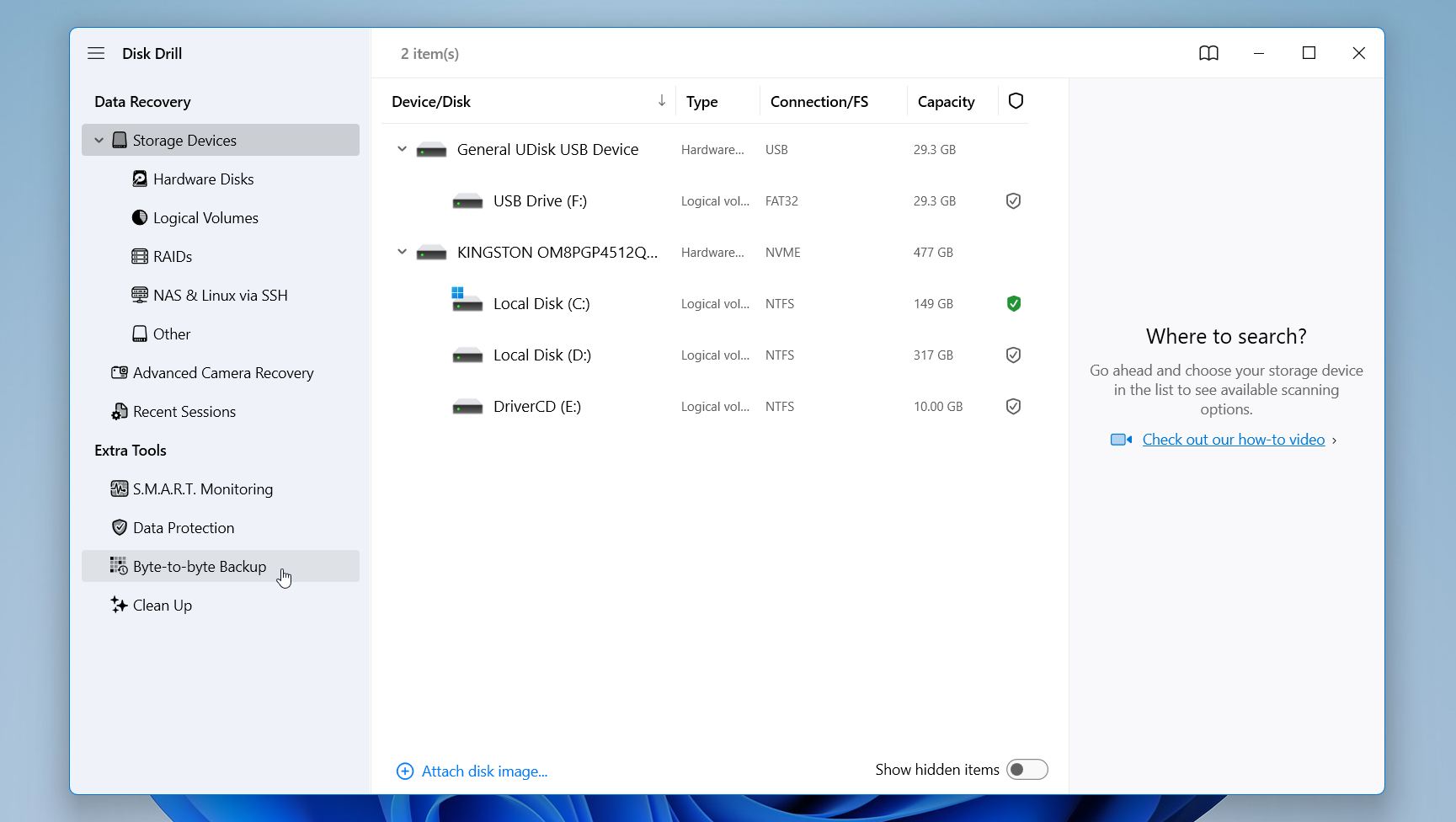
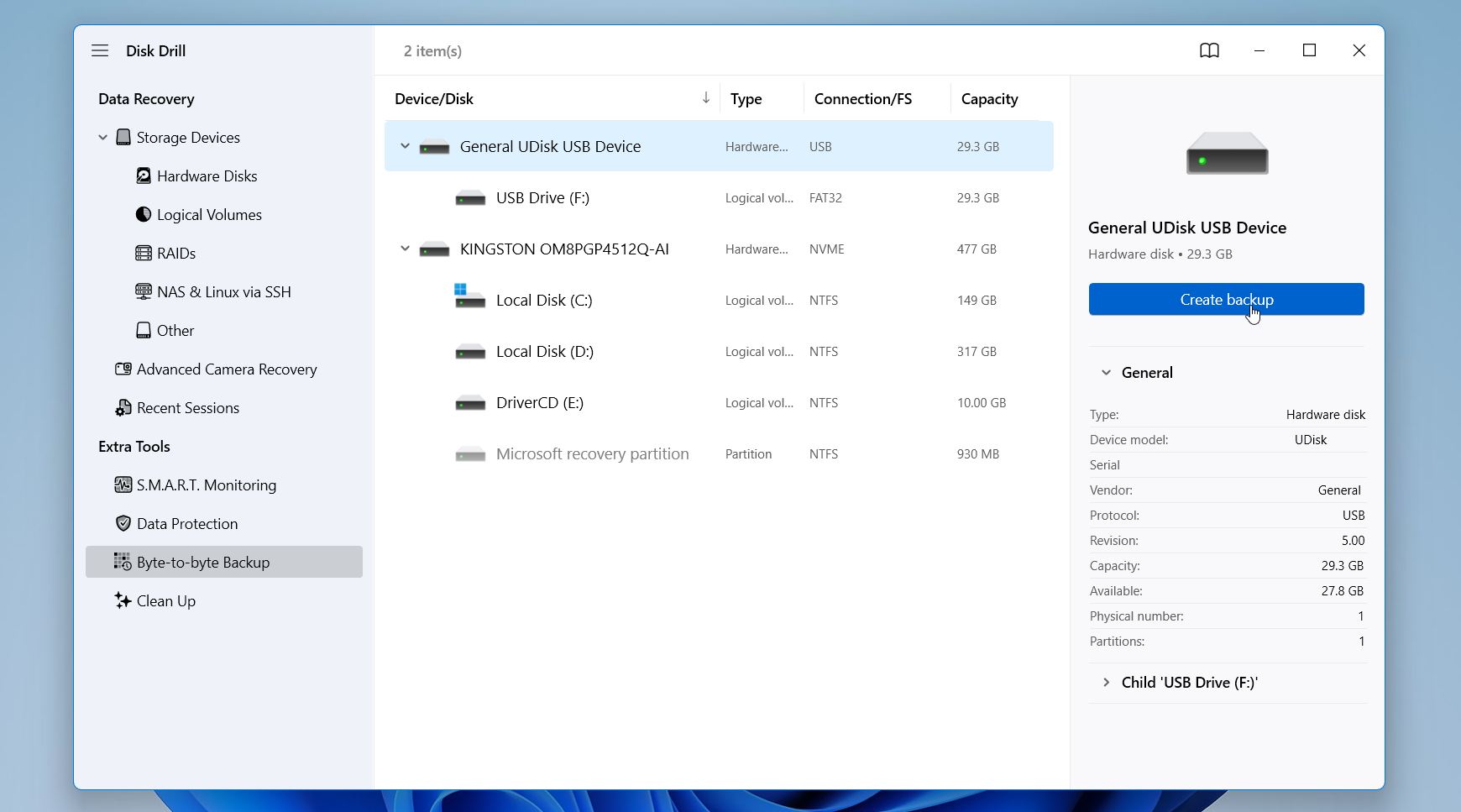
3. Choose the clicking drive as the source. Double-check the disk name and capacity to avoid mistakes. Click Create Backup.
4. Select a completely different healthy drive as the destination. Click OK.
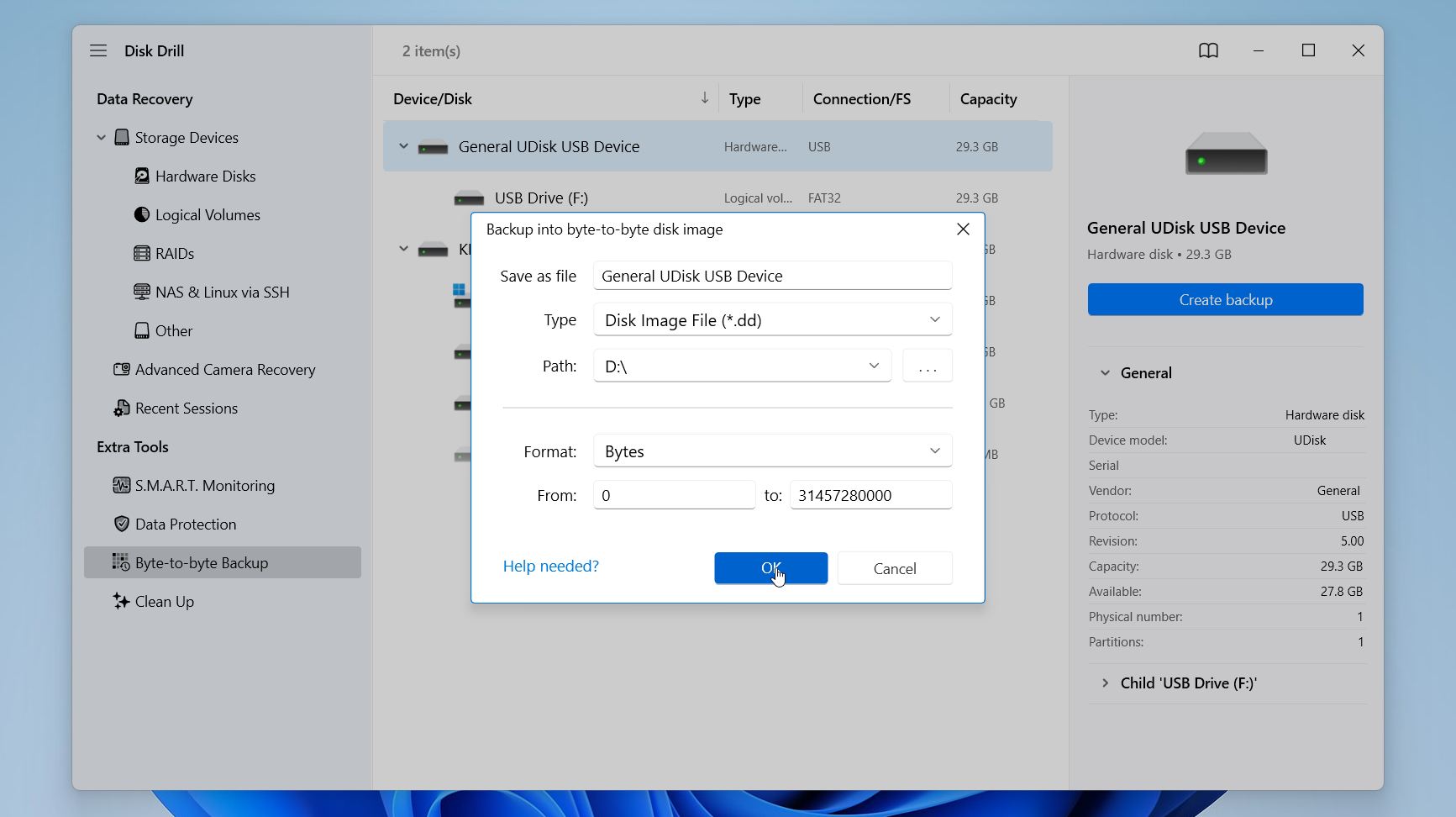
5. Start the imaging process and allow it to complete without interruption.
Important: If clicking becomes louder, more frequent, or the drive disconnects during cloning, stop immediately. Continued operation can worsen head or platter damage.
Recover Data From the Clone, Not the Original
Once the sector-level image is complete, the recovery phase begins, but now you are working in a controlled environment. At this point, the failing drive should be powered down or disconnected. You no longer depend on unstable hardware. Everything happens on the image file.
Here is how to recover data from clicking hard drive:
- Go back to Storage devices and choose Attach a disk image.
- Select the image file you created and choose Search for lost data.

3. If prompted, choose the recovery mode. For hard drives, we recommend the Universal Scan, since Advanced Camera Recovery works best with fragmented videos from cameras and drones.

4. Wait for the scan to complete. The software will display found files in real time. You can select the option Recover All right after the scan finishes. But if you look for something specific, you can use filters and search. Disk Drill also allows you to preview files.

5. Select the files you want to recover and click Next.

6. Choose a healthy storage device and click Ok.
On Windows, Disk Drill allows you to recover up to 100 MB of data for free. That gives you the opportunity to test data recovery before purchasing a license. If you only need a few important documents or photos, that free limit may be enough.
Closing Note
Hard drive clicking is a warning, not just a noise. In some cases, you can still recover data yourself if the drive remains readable. But clicking often signals mechanical failure, and the drive may not have much time left. Repeated power cycles and risky tests only increase the chance of permanent loss.
If the data is truly important, professional recovery is often the safer option. Specialized labs work in controlled environments and use dedicated hardware to access failing drives, replace damaged components, or repair firmware issues. They can perform data recovery on clicking hard drive. You can expect an initial diagnostic and then a quote, with costs typically ranging from several hundred to over a thousand dollars, depending on the damage. It is not cheap, but when the data cannot be replaced, it may be worth it.

