





© ROOT-NATION.com - Use of content is permitted with a backlink.
How much RAM does Windows 11 use? Is it possible to reduce its usage?
We are gradually approaching October 14, 2025 – the date when Microsoft will officially end support for Windows 10. With this, free security updates will also stop. Unless you plan to pay for the so-called Extended Security Updates program – which can be quite expensive – it’s wise to seriously consider switching to Windows 11 now.
But it’s not that simple. Windows 11 is a new, polished, and highly functional system – and like many modern technologies, it’s quite demanding on resources. For example, it requires at least 4 GB of RAM just to start up, which is four times more than the old, reliable Windows 10. However, don’t rush to think, “Oh, 4 GB is enough for me.” Yes, the system will boot, but once you open a browser with several tabs, run a messenger app, and maybe Word at the same time, you’ll notice things starting to slow down. And if you try to launch a game or Photoshop on top of that – you might want to have some calming tea nearby.
Read also: How useful the RTX 5070 Ti REALLY is?
TABLE OF CONTENTS:
How much RAM does Windows 11 need?
And here comes the eternal question: how much RAM do you really need? As always, it depends. If you use your PC for basic tasks like browsing the web, checking email, or light document editing, 4 GB might be enough – though it leaves no room for multitasking. But for more demanding tasks like video editing, graphic design, or modern gaming, 4 GB is simply insufficient. It won’t just be frustrating for you; it will strain the system as well.
A realistic minimum is 8 GB of RAM. This amount is enough for Windows 11 to run smoothly without freezing or lagging, and it won’t break the bank. If you want some extra headroom, 16 GB is ideal – your system will handle multitasking effortlessly, whether you’re listening to music, gaming, working on a paper, and have 27 Chrome tabs open all at once.
And a bit of practical advice: if you’re not ready to invest in more RAM just yet, start with some basic optimization steps. Disable unnecessary startup programs, close background processes you don’t need, and review your visual effects settings. Windows 11 offers flexible options – just spend some time exploring them.
Technology moves forward, and to keep up, it’s important to keep your PC in good shape. Remember: RAM is like coffee – the more you have, the better, especially with some margin to spare.
Read also: Seven Annoying Windows 11 Features – and How to Fix Them
How to reduce RAM usage in Windows 11
If Windows 11 is struggling due to low RAM, don’t rush out to buy a new memory stick just yet. Sometimes, a bit of system cleanup can be enough to ease the pressure.
Start with something simple but effective. Open Task Manager by pressing Ctrl+Shift+Esc. Go to the “Processes” tab and check which programs are consuming the most memory – even when you’re not actively using them. If you spot any apps running in the background that you didn’t open and that are eating up RAM, right-click on them and select “End Task.”
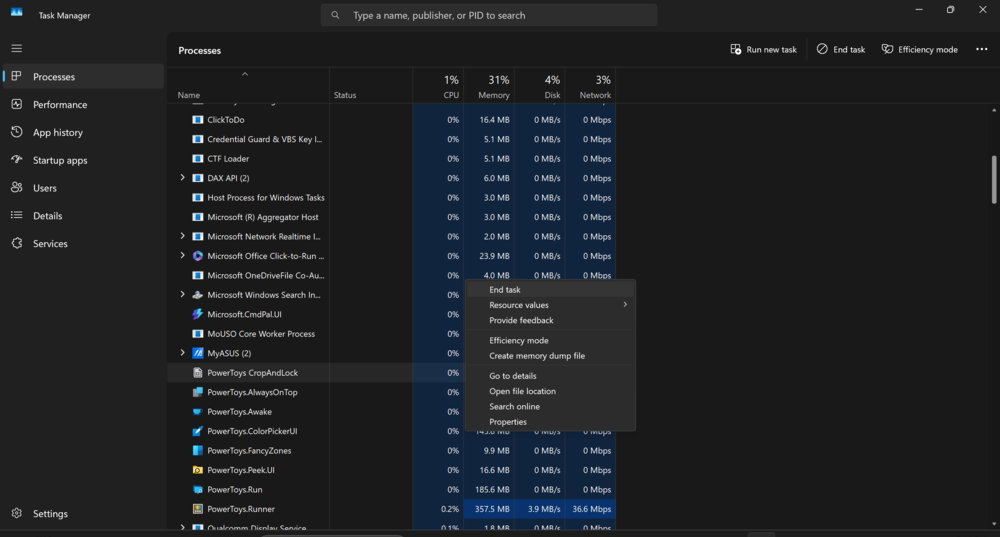
There’s also a gentler option called “Efficiency Mode.” Instead of completely closing a program, this mode tells it to “take a break,” reducing its load on the CPU and RAM without shutting it down entirely.
Next, check your startup programs. Many users don’t realize how many apps launch automatically when the system boots up, often before you’ve even blinked. In the same Task Manager, switch to the “Startup” tab and carefully review the list.
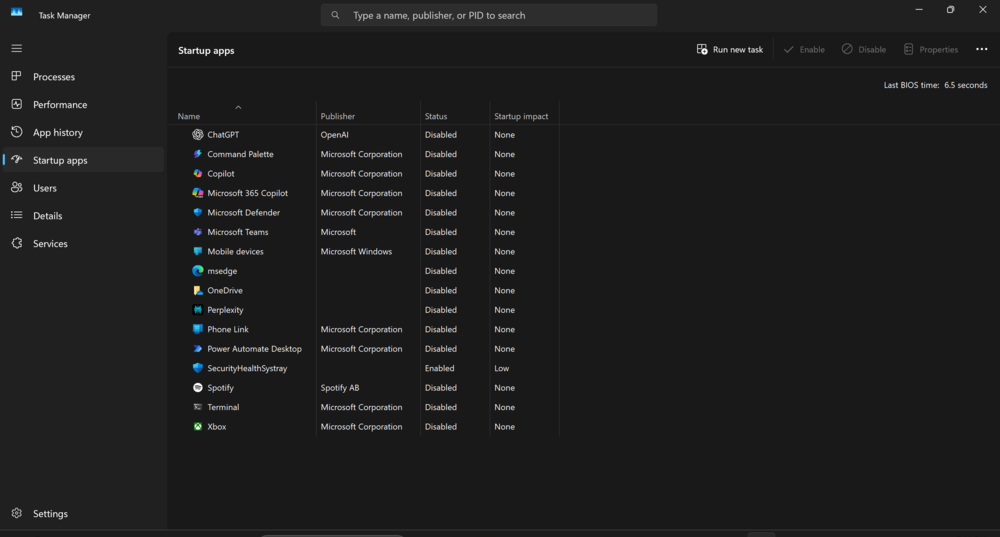
Anything you don’t need to start right after Windows boots – disable it without hesitation. This especially applies to messengers, updaters, media players, and all those “assistants” that mostly assist themselves.
Another useful tip is to prevent certain apps from running in the background. You can manage this by going to Settings → Apps → Startup, where you’ll see the list of programs that launch automatically when you sign in. Disable those you don’t need running all the time.
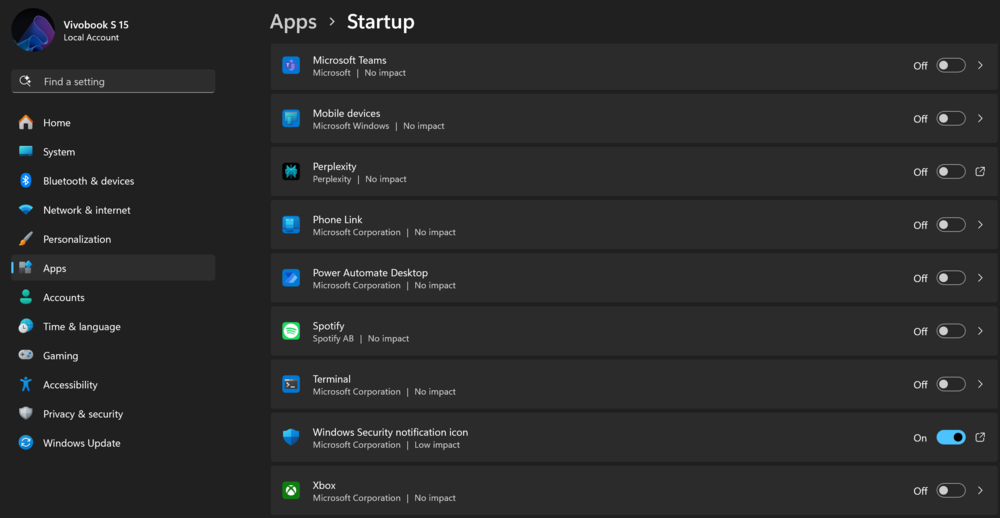
But be careful when disabling background activity for apps like OneDrive, Dropbox, or Google Drive – doing so will stop their synchronization. This means new files won’t upload, and you won’t receive notifications. For these programs, it’s better to leave background sync enabled.
Finally, take a look at the programs you use regularly. Many have lighter alternatives. For example, browsers: our tests showed that Chrome and Microsoft Edge consume a significant amount of RAM, especially with multiple tabs open. If you want to save resources, consider switching to Firefox, which has the lowest RAM usage among major browsers. Even better, try modern, lightweight browsers like Brave or Vivaldi – they’re efficient and less resource-hungry.
To sum up: speeding up Windows 11 doesn’t always require a new laptop. Often, simply freeing up resources on your current device is enough. Even better, customize your system settings to ensure it doesn’t waste resources unnecessarily.
Read also: Microsoft, how many more interns will decide what Windows should be?
Should I disable SysMain to reduce RAM consumption?
You’ve probably heard the advice: “Disable SysMain and your PC will fly!” But is this service really as harmful as some claim, and should you actually turn it off?
First, some facts. SysMain, formerly known as Superfetch, is a Windows system service designed to be “smart” by preloading frequently used programs into memory. The idea is simple: to make your favorite apps start quickly – unlike the slow launches common in Windows XP days.
There is a catch. If your computer has only 4 GB of RAM, SysMain’s “helpfulness” can backfire. The service aggressively caches and preloads data, which can end up consuming almost all available memory. As a result, the system struggles, the hard drive works overtime, and instead of speeding things up, everything slows down.
To check exactly how much RAM SysMain is using:
- Open the Task Manager (Ctrl+Shift+Esc)
- Click the Performance tab → select Memory.

3. Take a look at the Cached parameter at the bottom – that’s where you can see how much RAM the system reserves for things like SysMain.
Now, the key question: should you disable SysMain or not? If you have 8 to 16 GB of RAM or more, disabling it won’t make much difference. At best, you won’t notice any change; at worst, your programs might launch a bit slower. However, if you have 4 GB of RAM or less, it’s generally safe to disable SysMain. Doing so can free up system resources, making everyday tasks like opening a browser feel noticeably smoother.
How to turn off SysMain:
- Open the Start menu, type Services, and press Enter.
2. Locate SysMain in the list, then double-click it.
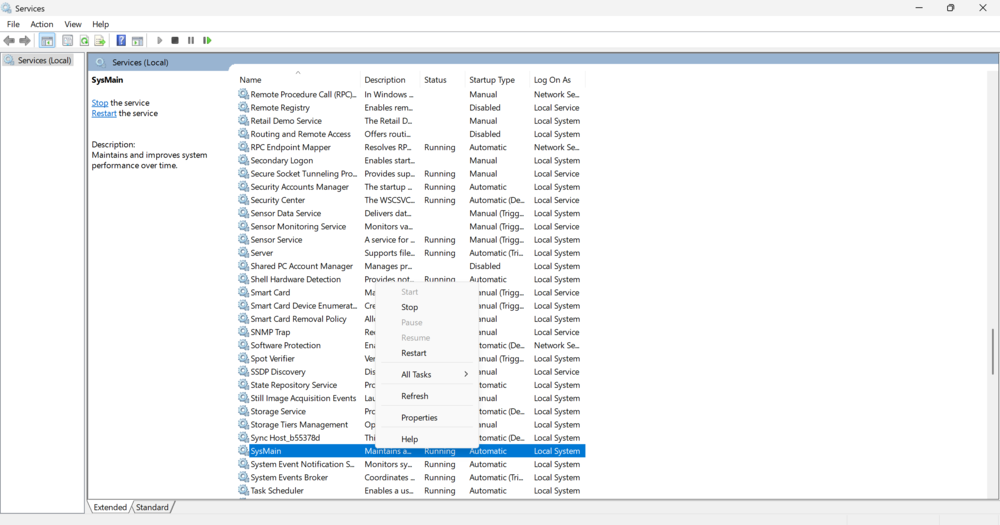
3. Click Stop, and in the Startup type field, select Off.
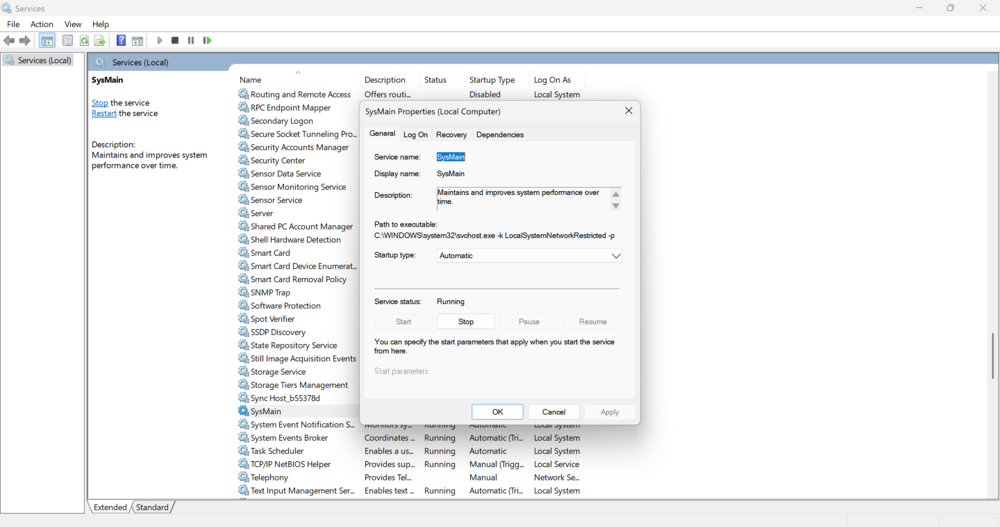
4. Click Apply – OK.
Done. The service will no longer consume system resources. However, be prepared for your favorite applications to take a couple of seconds longer to open – that’s the trade-off for freeing up RAM.
The conclusion is simple: SysMain isn’t inherently bad, but if your RAM is limited, it’s better to disable it and give your system some breathing room. Not everyone needs “smart optimizations”; sometimes, the best approach is simply to avoid getting in the user’s way.
Read also:

