




© ROOT-NATION.com - Use of content is permitted with a backlink.
We continue our «FAQ from AІ» section. The next question we asked the artificial intelligence was how to connect a phone to a Windows 11 computer. As always, we took its advice as a basis, checked its correctness, modified it a bit, and got a quite usable instruction. Here’s what we suggest you familiarize yourself with.
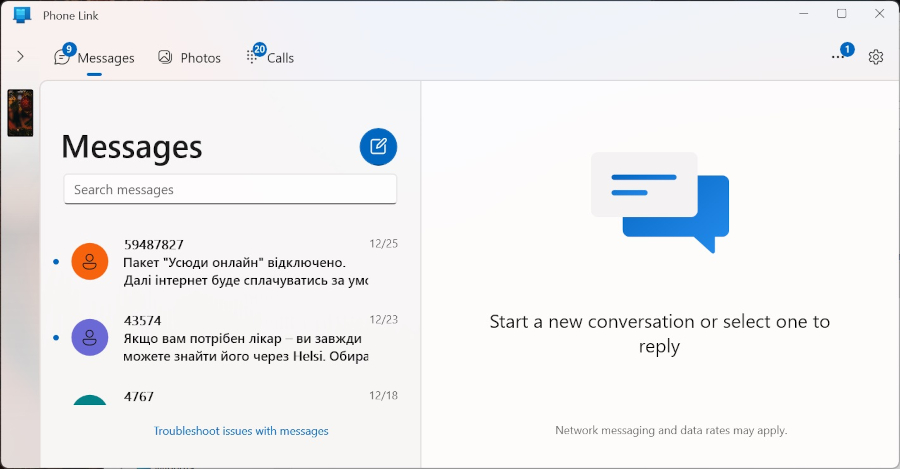
Via the “Connect with your smartphone” app
Using the Smartphone Connect app, you can synchronize your messages, photos, and calls between your devices. Here’s how to do it:
- Install the Smartphone Connect app on your Windows 11 computer.
- Install the Windows Connect app on your Android smartphone or use the pre-installed app on some Samsung devices.
- Launch both apps and sign in with the same Microsoft account.
- Scan the QR code on your computer screen with your phone’s camera to pair your devices.
Wired connection
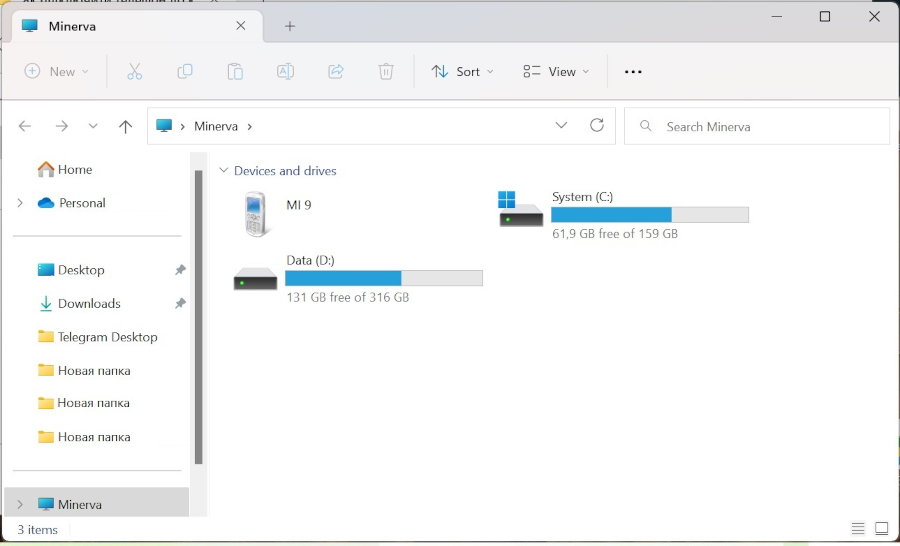
Another way is to use a USB cable to connect your phone to your computer. Follow these steps:
- Connect the USB cable to a computer port and a phone port.
- On your phone screen, select Drive mode (or File Transfer) to access the files on your device.
- On your computer screen, open Explorer and go to the “This Computer” section, where you’ll see your phone as a separate drive.
Given the choice between wired and wireless smartphone connections to a PC, users can choose the most appropriate option for themselves. For some, it is more convenient to use a cable and not bother with software, while others who believe that wires are a relic of the past can easily connect using Windows applications. As usual, we are waiting for your questions or suggestions regarding AI manuals in the comments.
Read also:
- FAQ from AI: How to show hidden folders and hide them in Windows 11?
- FAQ from AI: How to change the screen brightness in Windows 11?

