





© ROOT-NATION.com - Use of content is permitted with a backlink.
If you’ve ever had to look for a mouse or keyboard for work, there’s a good chance one of the Logitech MX models caught your eye. Maybe one of the MX devices is already sitting in your cart – or perhaps it’s already on its way to you. And that’s no coincidence. Although Logitech does not disclose how many devices it sells, it’s hard to argue with the fact that the MX series has become one of the most recognizable product lines among professional users. What Logitech can reveal is that around 80% of MX users work on Windows. And it’s specifically for them that the latest MX Master 4 brings an important update: it is the first productivity mouse with native support for advanced haptic feedback in Windows 11.
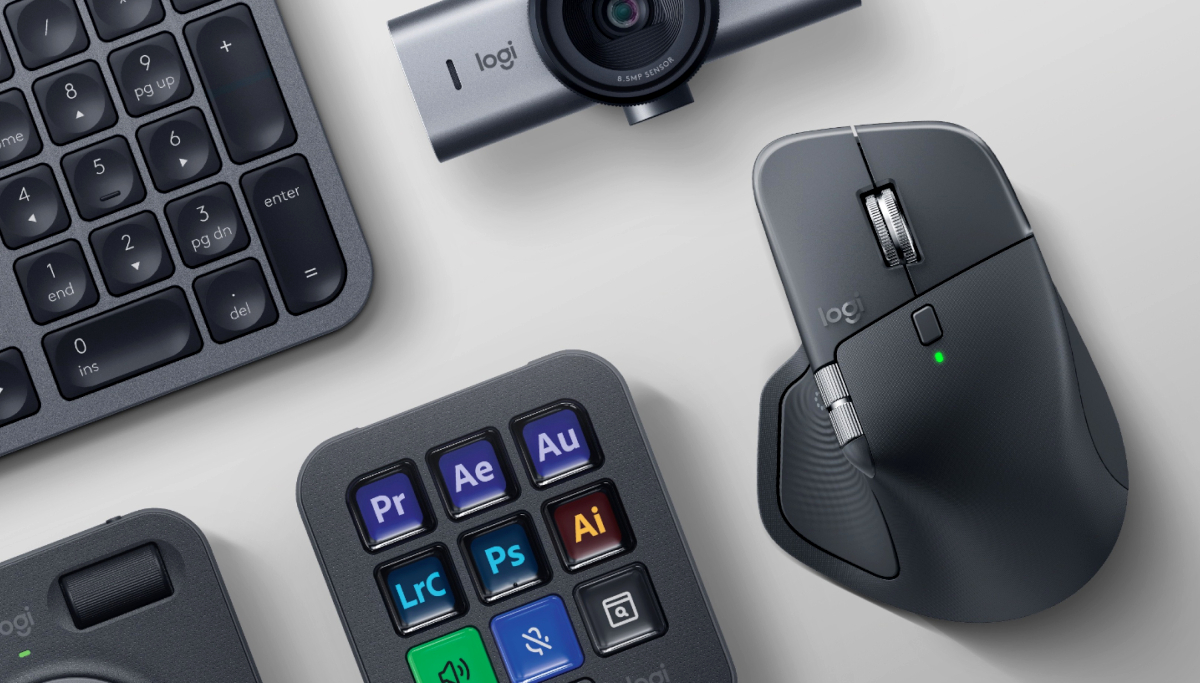
To mark the occasion, we’ve rounded up five reasons why Windows users – and not only them – should take a closer look at the Logitech MX ecosystem.
TABLE OF CONTENTS:
MX Mechanical: A Gaming Keyboard with an Office Alibi
Admit it: you’ve looked at the Logitech G915 and thought, “If only it had those same low-profile mechanical switches, but without all the unnecessary gaming aesthetics.” Something that wouldn’t make your boss suspect that “for work” is only half the truth. “We heard you,” Logitech seemingly thought, and added a low-profile mechanical keyboard to the MX lineup. No RGB: just white backlighting, just hardcore.

Everything else looks as though it was taken straight from a gaming model’s playbook. There’s the full-size MX Mechanical and the compact MX Mechanical Mini, along with three switch types: Tactile Quiet, Linear, and Clicky – so the entire office can hear just how diligently you’re working. Settings are handled through Logi Options+, rather than the gamer-focused G Hub. The cover story is still holding.
MX Brio: An Upgrade for Zoom, an Alibi for Twitch
Your boss may not approve of you streaming on Twitch during work hours. But they certainly won’t object to a good webcam for all those meetings managers love so much. With the MX Brio, no one will be asking, “What kind of potato are you filming this on?” It offers 4K resolution, a field of view of up to 90°, autofocus, two directional microphones with noise cancellation, and even a ¼-inch tripod thread.

They may not let you host Twitch-style streams of your meetings. But no one said your video calls couldn’t be just as polished as your favorite streamers’ broadcasts. And outside working hours, the MX Brio can even be used to feel like you’re behind the wheel of a massive truck and dream about life after IT. Our editor-in-chief, Yevhen, did exactly that. The experience was unforgettable. Almost as unforgettable as using the MX Master 4 with native haptic feedback in Windows.
MX Master 4: Windows You Can Actually Feel
Finally, Windows updates are bringing changes you can actually feel. Literally. Logitech and Microsoft have worked together to add enhanced support for haptic feedback. To enable it, you need Windows 11 with the March 2026 update or later, MX Master 4 firmware version 27.3.19, and the latest firmware for the Logi Bolt receiver. Everything can be updated through Logi Options+.
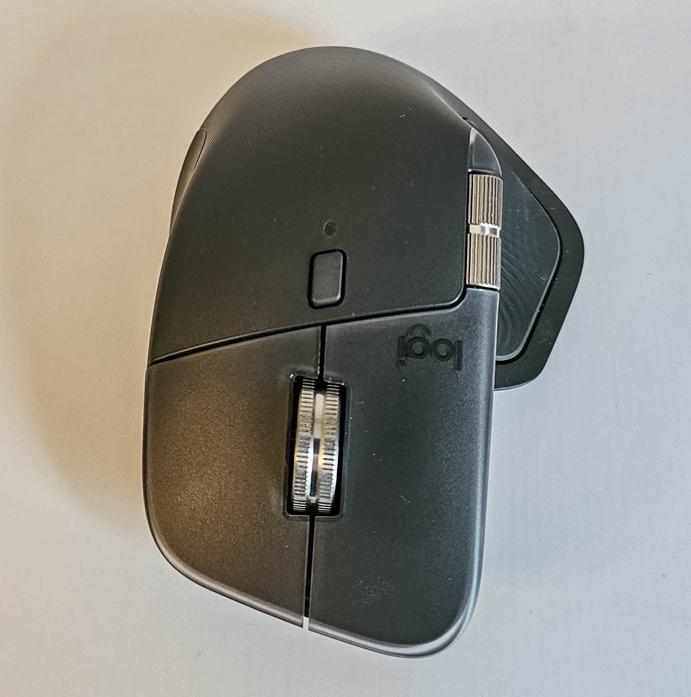
All set? Then you can safely uninstall Logi Options+: system-level haptic feedback is already handled by Windows. The mouse responds to object alignment in PowerPoint, window snapping and resizing – and this is only the beginning. There’s no need to bring haptic feedback into games. Personally, I’m waiting for it to make its way into Adobe Creative Suite. That’s where it could really come into its own.
Read also: Logitech MX Master 4 for Mac review: Logitech’s New Mouse Has Good Vibrations
Logi Options+: The Control Center for the Entire Ecosystem
Wait. You actually uninstalled Logi Options+? That was a test to see if you were paying attention. Install it again. And what you’ll find waiting for you is a treasure trove!
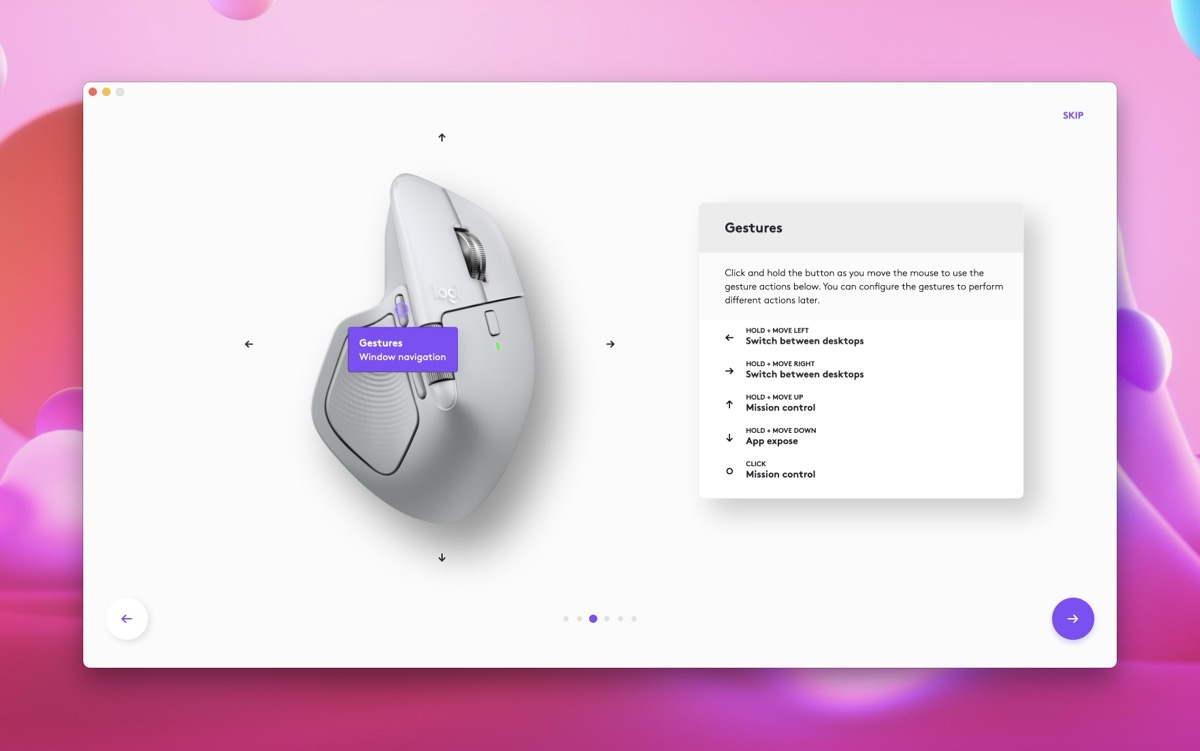
Need a macro so you don’t have to repeat the same sequence of actions manually? Create one with Smart Actions and assign it to a mouse or keyboard button. Need separate commands for Photoshop, Excel, and Spotify? No problem: Logi Options+ supports per-app customization and even offers ready-made presets for popular applications. Working with multiple computers? Freelancing on your personal machine while doing your main job on a corporate one? Flow lets you control both with a single mouse and even transfer files by simply dragging them from one screen to another.
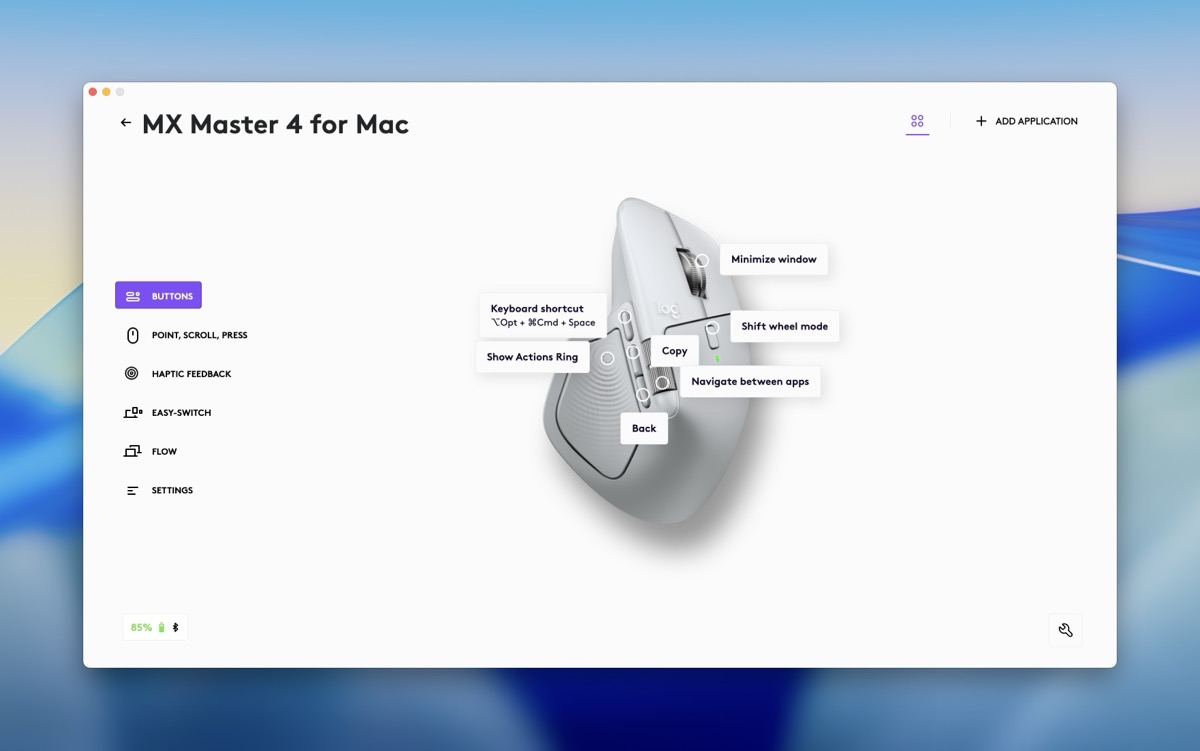
For the MX Master 4, this is where the real treasure trove begins. Actions Ring puts the tools you need right next to the cursor, while the Haptic Sense Panel lets you configure haptic feedback for different commands. All of it turns the mouse into a truly personalized productivity tool.

And this is where individual devices truly become an ecosystem. In a single Logi Options+ app, you can configure the buttons on the MX Master 4 and MX Mechanical, adjust the image settings on the MX Brio, control the brightness and color temperature of Litra lighting, and manage profiles and plugins for the MX Creative Console.

One place for your entire setup. Less time wandering through menus, and more time pretending that all these devices were purchased exclusively for work.
One Setup – Multiple Computers and Operating Systems
Part of the 20% “elite” who don’t have a Windows PC? No problem. Logitech MX devices and Logi Options+ also support macOS, while core functionality is available on ChromeOS, Linux, iPadOS, and Android. So go ahead and declare this the “year of the Linux PC” or finally give macOS a try – the MX ecosystem won’t let you down.
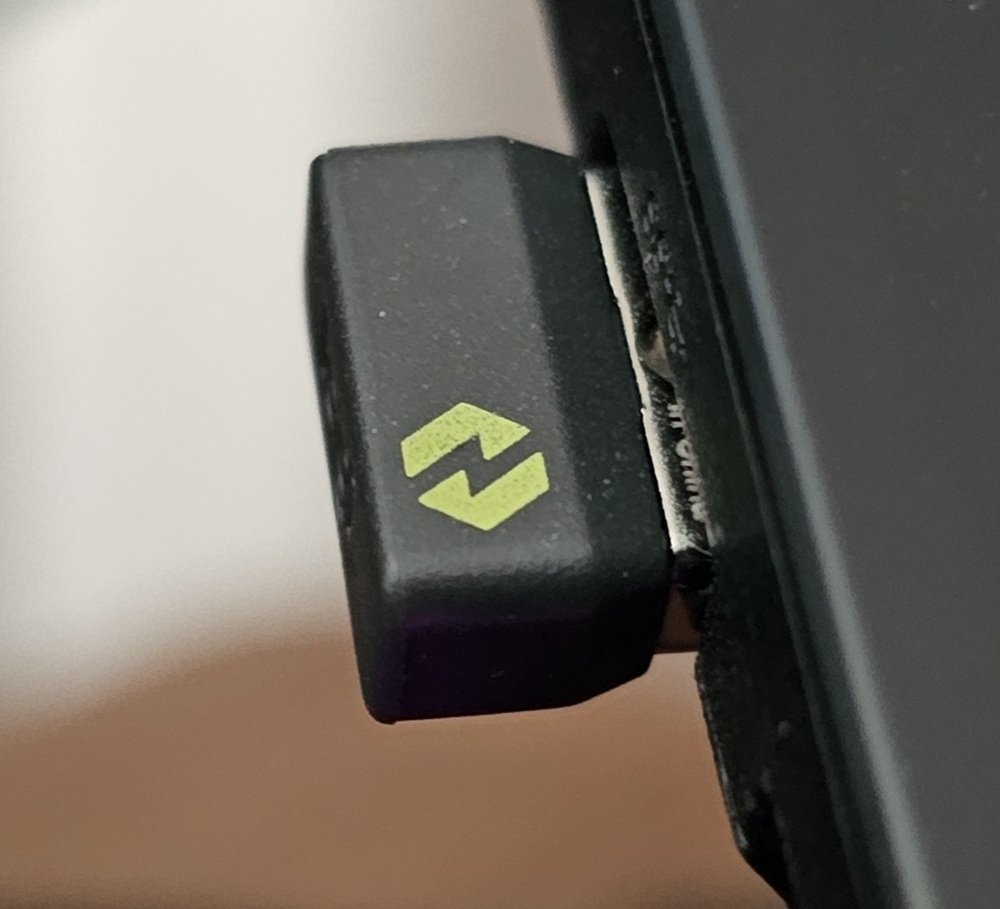
The MX Master 4 connects via Bluetooth Low Energy or the Logi Bolt receiver. The receivers are available in both USB-A and USB-C versions, so if your laptop manufacturer decided to usher in the future by ditching USB-A, Logi has you covered.
For Jedi who use multiple computers at the same time, there’s Easy-Switch with support for up to three devices. And a single Logi Bolt receiver can connect up to six compatible Logitech devices, so your mouse and keyboard don’t necessarily have to take up two separate USB ports.
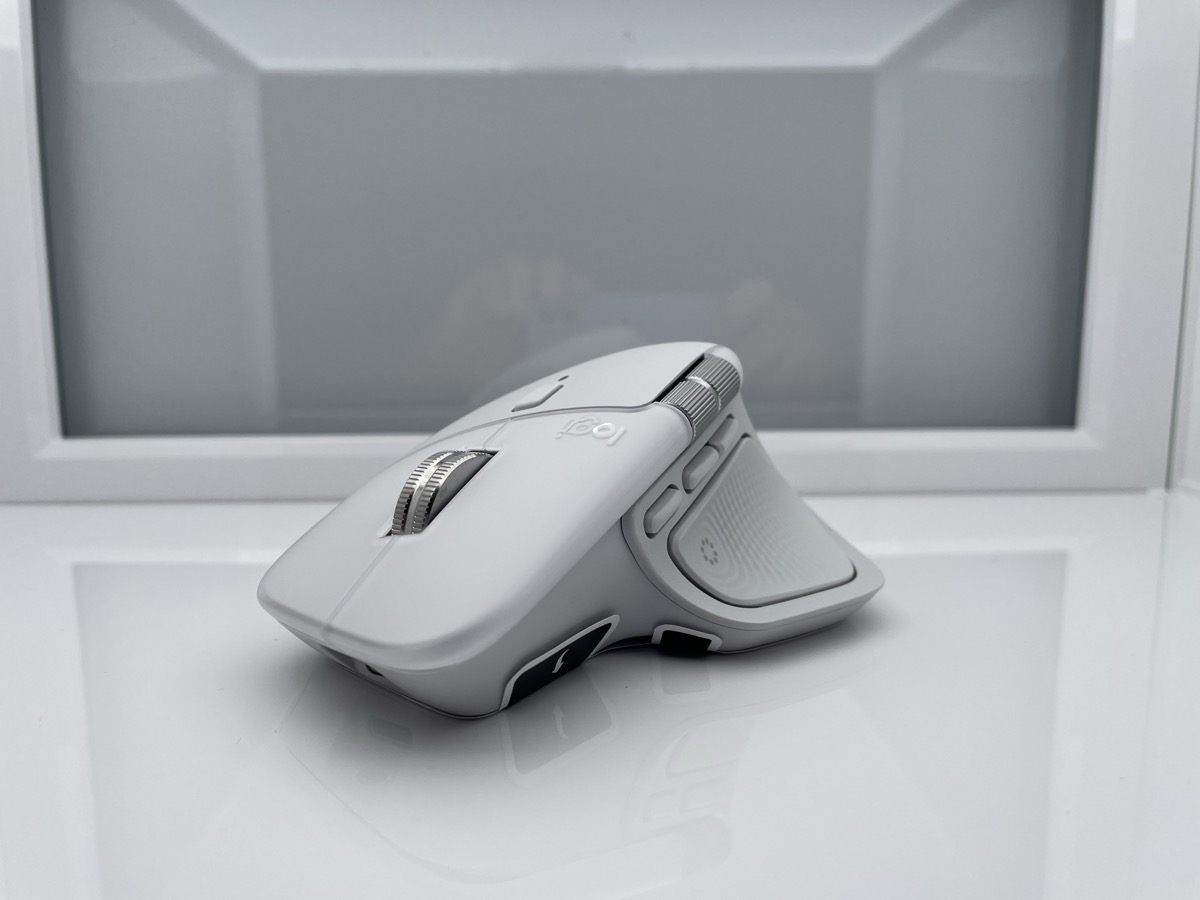
So whichever path you choose – the undercover gamer, the future truck driver, the Jedi who has discovered the power of haptic feedback, or the conqueror of multiple operating systems – there’s a Logitech MX device for your setup. And in Logi Options+, there’s a control panel where you can configure it all.
Using one of them? Tell us about your MX setup and your favorite features!
Read also: Logitech MX Master 4 Review: An update to the best professional computer mouse!

