




© ROOT-NATION.com - Use of content is permitted with a backlink.
It’s been a year since I started using two Logitech peripherals – the MX Keys S keyboard and the MX Master 3S mouse. Over that time, I’ve grown genuinely attached to the MX series. Today, though, I’ll focus on the MX Master mouse. After using it once, it’s hard to switch to anything else. In my view, it’s one of the best productivity-oriented mice available. That’s why I was particularly interested in testing the newly released Logitech MX Master 4, which debuted on September 30. In this review, I’ll take a closer look at the new model and compare it to its predecessor to see what’s changed and whether the updates make a real difference.
Read also: Logitech G321 Review: Entry-Level Wireless Gaming Headset
TABLE OF CONTENTS:
Logitech MX Master 4 Specifications
Here are the key technical specifications and features of the mouse, taken from Logitech’s official site. After that, we’ll see how well they hold up in real-world use.
Physical parameters:
- Mouse:
- Length: 128.2 mm
- Height: 88.4 mm
- Width: 50.8 mm
- Weight: 150 g
- Receiver:
- Length: 17.0 mm
- Height: 12.85 mm
- Width: 14.1 mm
- Weight: 0.97 g
Sensor Technology:
- Type: Darkfield high precision (most accurate, 5 times more accurate than a regular mouse)
- DPI range: 200–8000 DPI in 50 DPI increments (configurable via Logi Options+)
- Works on any surface, even glass
Buttons and wheels:
- Total: 8 buttons (left/right, Back/Forward, Actions Ring/Smart Actions, scroll wheel, middle button)
- MagSpeed scroll wheel (up to 1000 lines/second, +87% accuracy, +90% speed)
- Thumb wheel: yes
- Silent buttons (90% less noise)
Application for configuration:
- Logi Options+ (Windows/macOS)
- Support for Smart Actions, Actions Ring, plugins for third-party applications
Battery:
- Type: lithium polymer (500 mAh)
- Up to 70 days of operation on a single full charge 1 minute of charging = up to 3 hours of operation
- Can be used while charging
Connection type:
- Wireless technology: Logi Bolt USB-C receiver, Bluetooth Low Energy.
Wireless communication range:
- Up to 10 m (may vary depending on the environment and computer settings)
Read also: Logitech MK250 Wireless Combo Keyboard and Mouse Review
Positioning and price
There’s no doubt that the Logitech MX Master 4 is a flagship mouse designed for office, business, and professional use. Its price reflects that status – $136 at launch. Interestingly, it’s listed slightly lower on Amazon, around $120. While that may seem high for a computer mouse, it’s important to note that this isn’t a mass-market product. It targets users who need specific capabilities and a premium level of control. In this review, we’ll take a closer look at what features justify that price.
What’s in the box?
The Logitech MX Master 4 comes in a two-layer package. The outer sleeve features an image of the product along with key information, while inside there’s a plain brown box made of recycled cardboard with no additional markings.
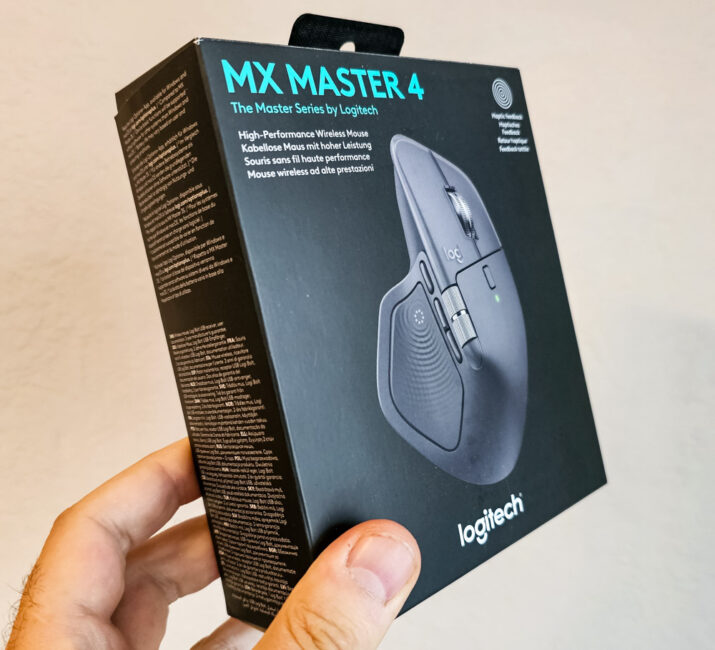

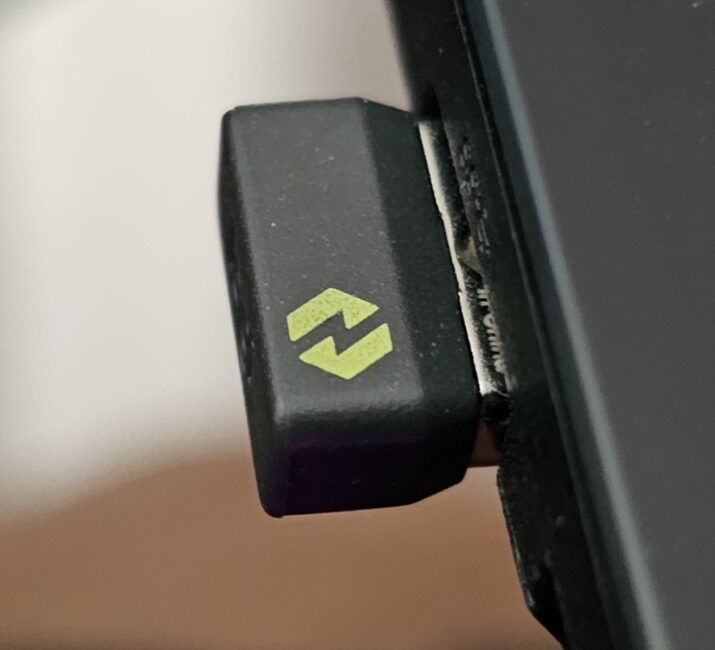
The package contents are quite minimal: the mouse itself, a compact Logi Bolt USB-C receiver, and user documentation. There’s no charging cable included. However, Logitech does provide a complimentary one-month subscription to Adobe Creative Cloud – a bonus that might appeal to the target audience for this device.
Design, materials, layout of elements, assembly
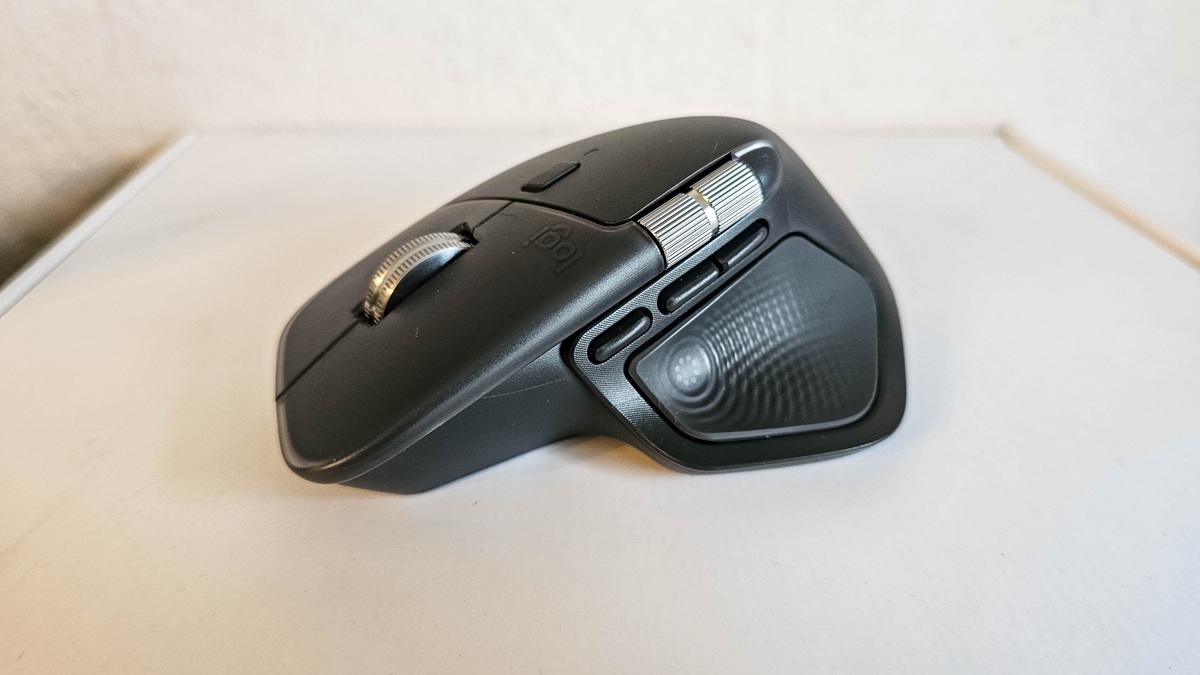
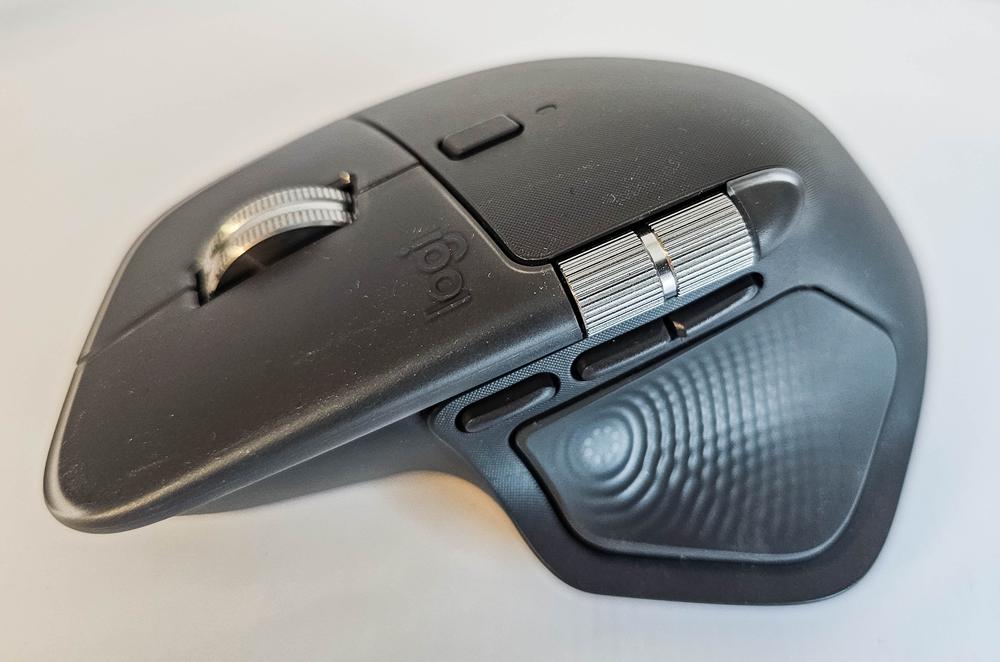
At first glance, the design of the Logitech MX Master 4 hasn’t changed significantly compared to the MX Master 3S. The overall shape and ergonomics remain essentially the same.
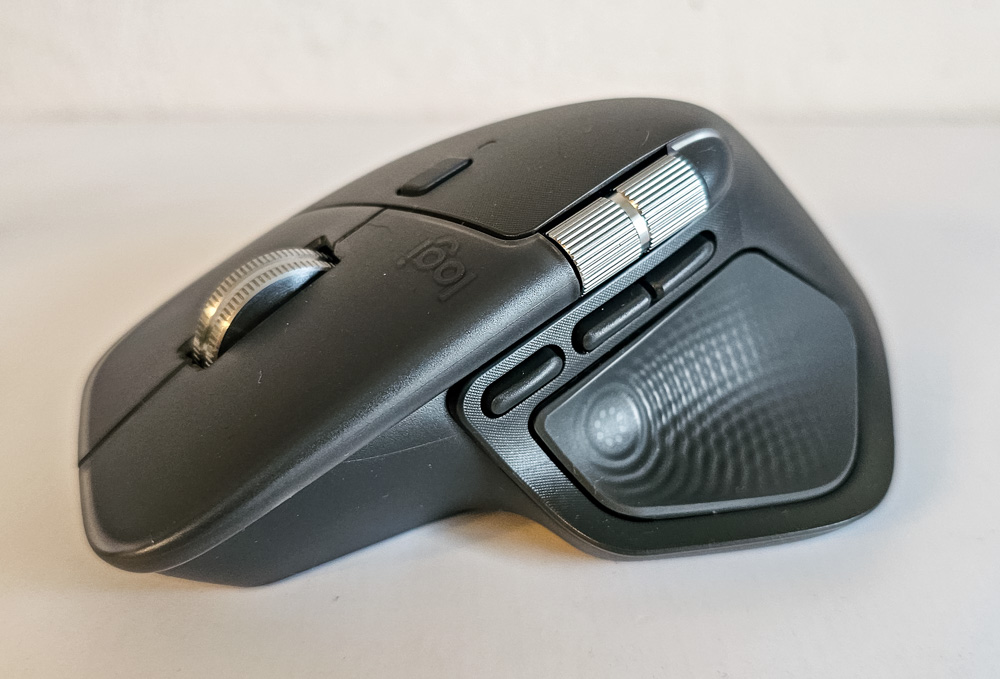
On closer inspection, there are many subtle differences between the two models, though they mostly represent variations on the same design rather than changes that alter the overall user experience. That said, there are some structural and functional refinements worth noting – I’ll cover those in more detail later.
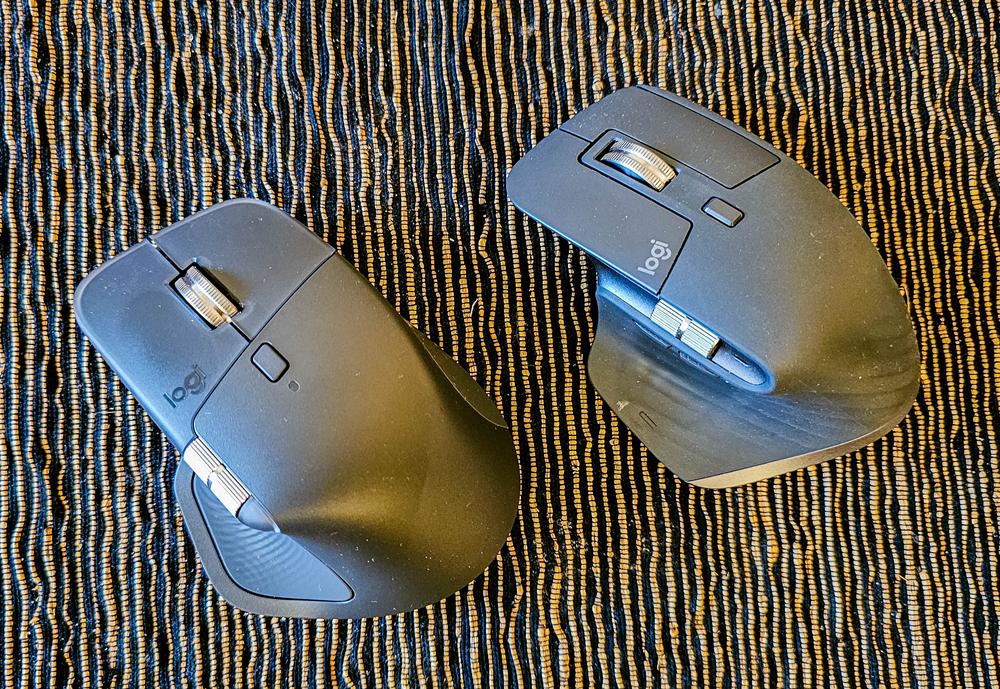
The materials used in the two models differ noticeably. The MX Master 3S featured a full soft-touch rubber coating on the top surface, while the new model primarily uses textured plastic that feels pleasant to the touch. Soft-touch material is now limited to the side areas – where the thumb, ring finger, and little finger make contact when lifting the mouse.
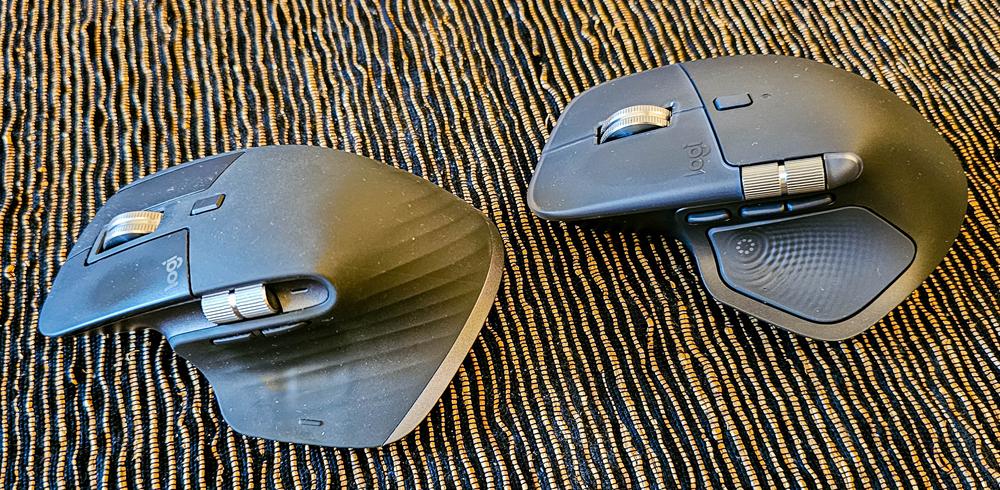
Overall, I fully agree with this design change. Soft-touch coatings tend to wear over time, becoming sticky and unpleasant to the touch, and they also lose their clean appearance. After a year of use, the MX Master 3S already shows noticeable wear marks – they don’t affect functionality, but they do detract from the look and feel of the device.
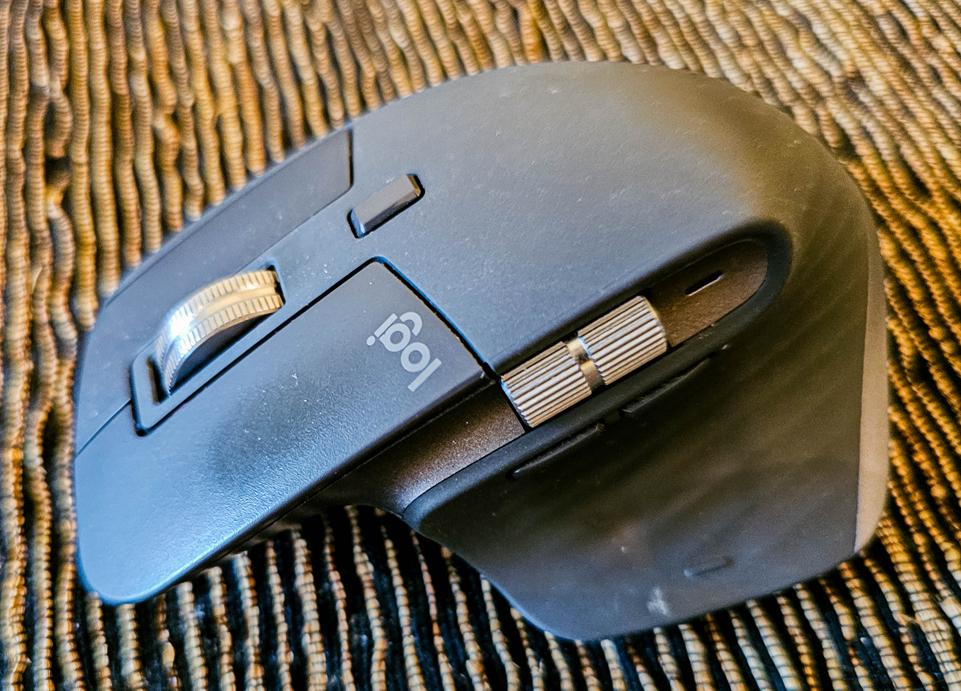
The main buttons have also been redesigned. On the previous model, they were made of smooth plastic, which over a year of use started to show wear and glossy spots where the fingers made contact. On the MX Master 4, the buttons feature semi-transparent matte plastic on top with an opaque layer underneath. It’s unclear whether this is a separate plastic layer or just a coated surface, but the result looks appealing, and it seems likely that durability has improved.
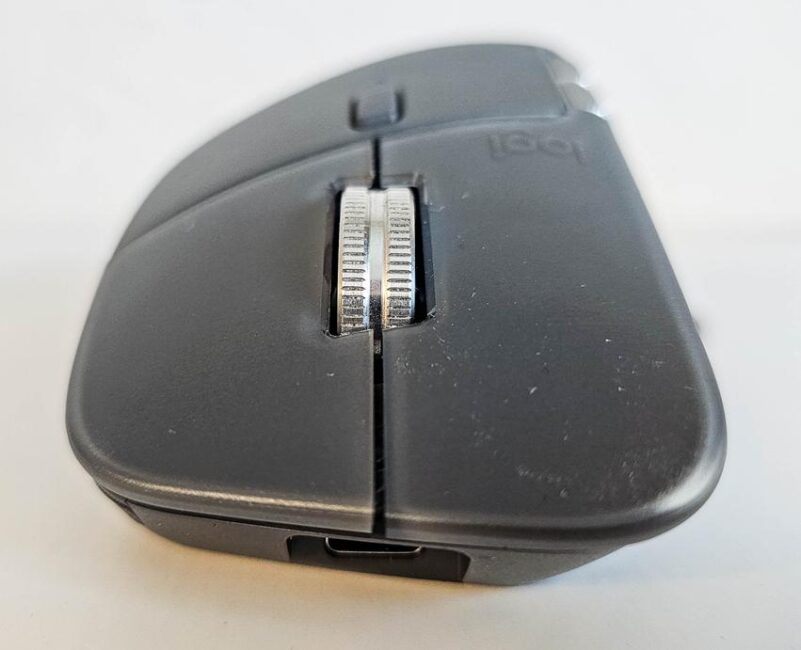
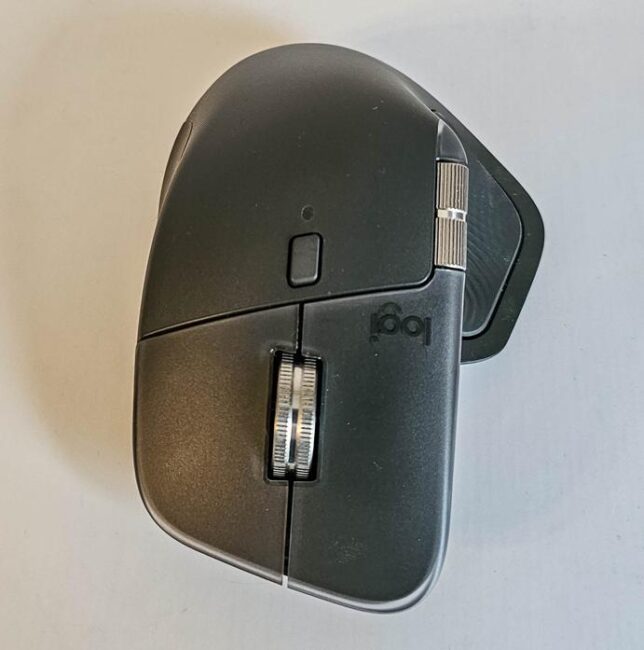
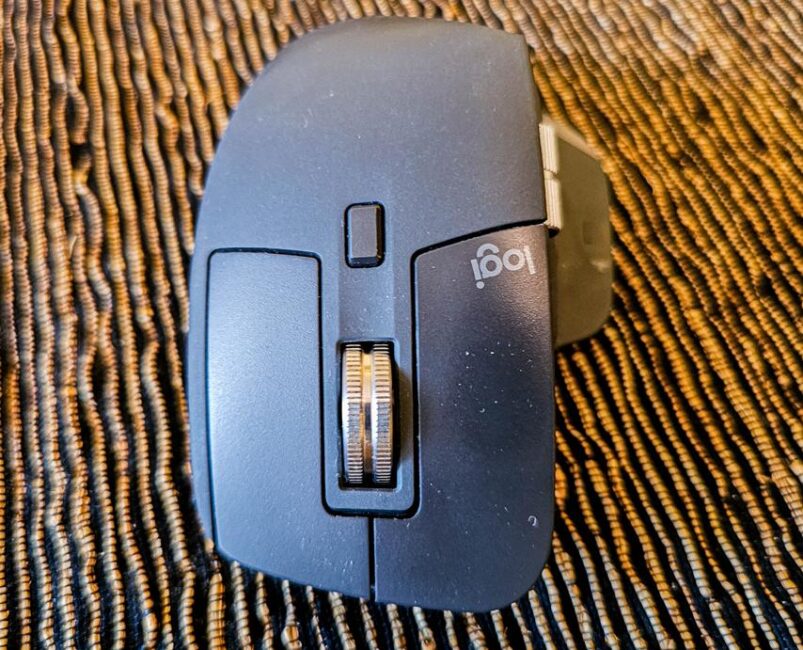
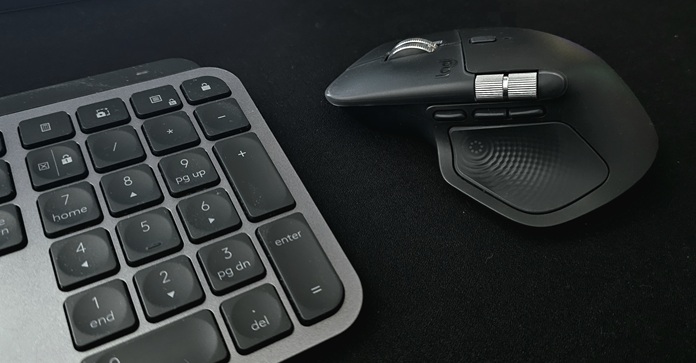
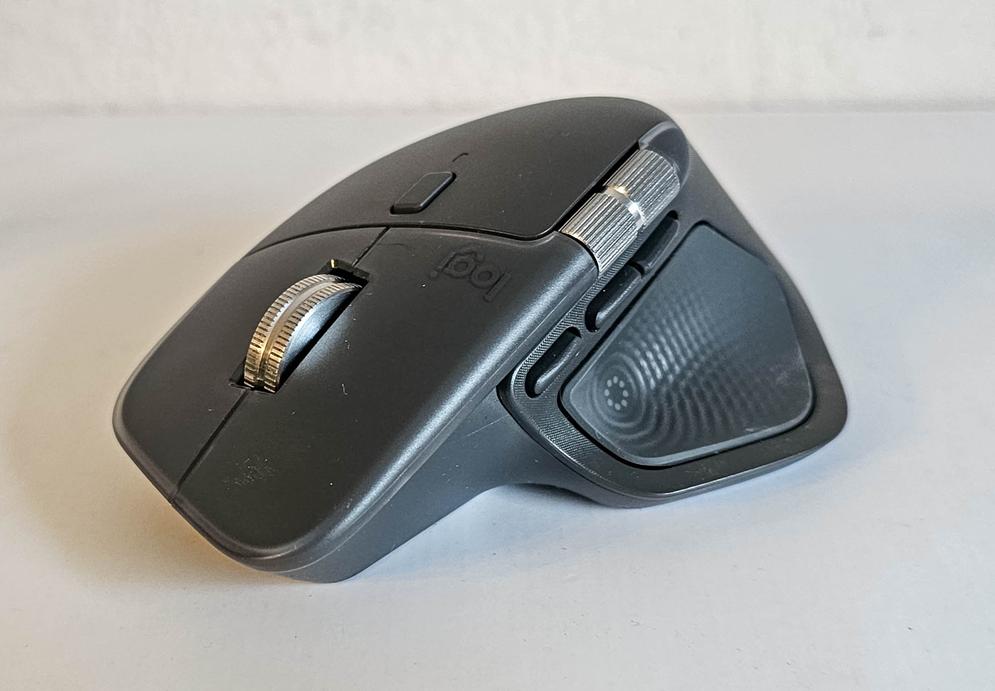
The central scroll wheel remains unchanged, still made of metal with the same construction and materials. Previously, there was a small plastic island surrounding the wheel; now it sits directly between the buttons. Behind the wheel is the mode-switch button, which toggles between ratcheted (step-wise) and smooth scrolling. There’s also an LED indicator for scroll mode and battery status – on the previous model, this was located next to the horizontal scroll wheel on the side. This repositioning seems practical, as the indicator is now visible from almost any angle.
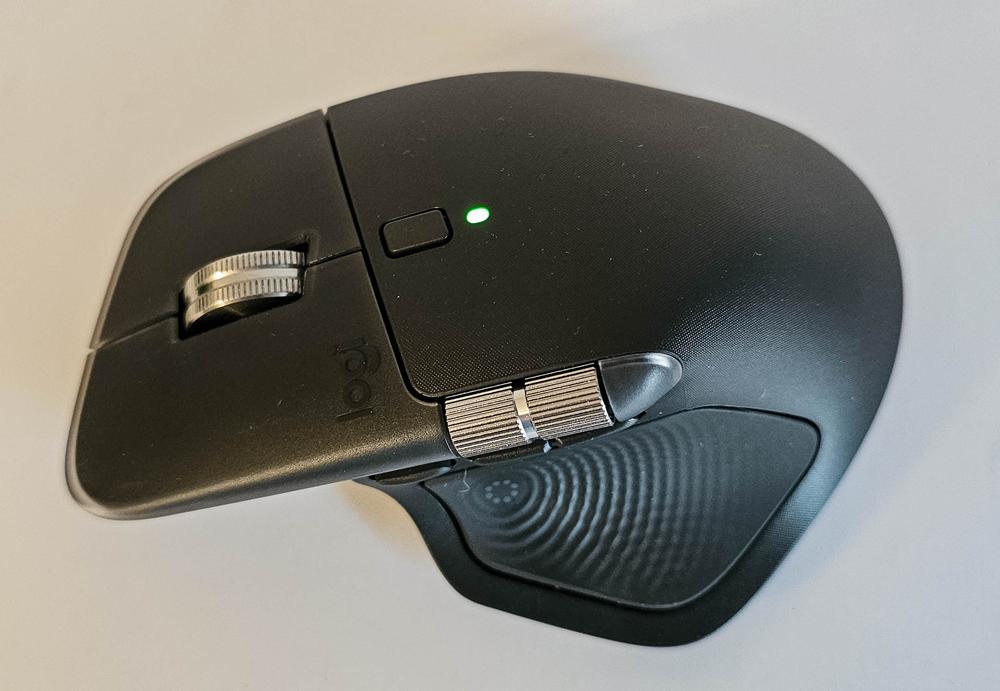
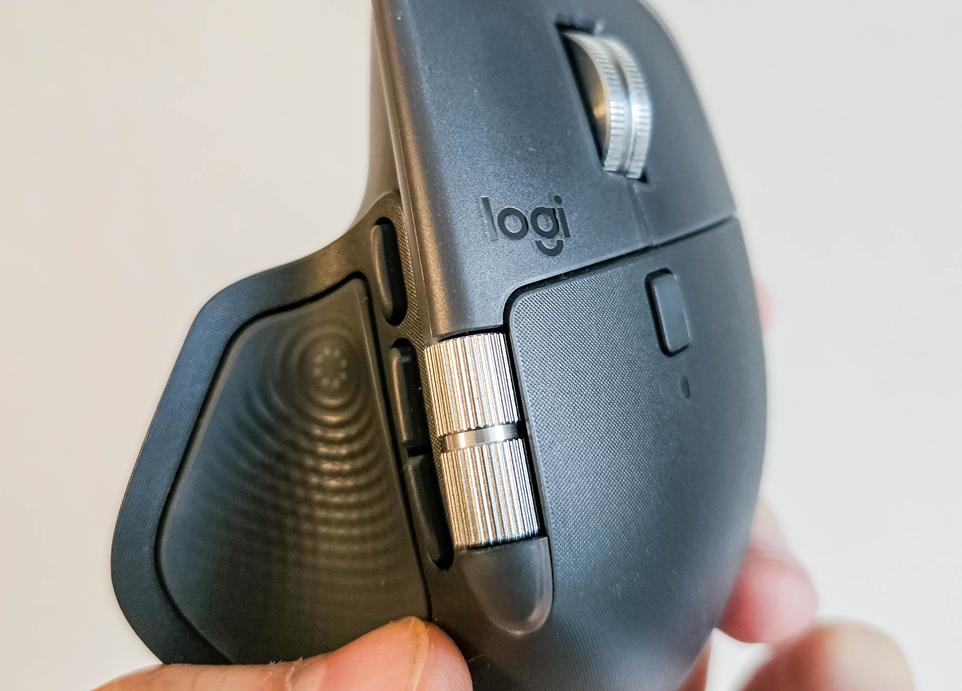
Next, on the left side, there’s the horizontal scroll wheel. Its construction and materials remain the same (metal wheel), but its placement has changed. Previously, it was slightly recessed in a groove; now it sits on a protruding axle that extends from the edge of the left button.
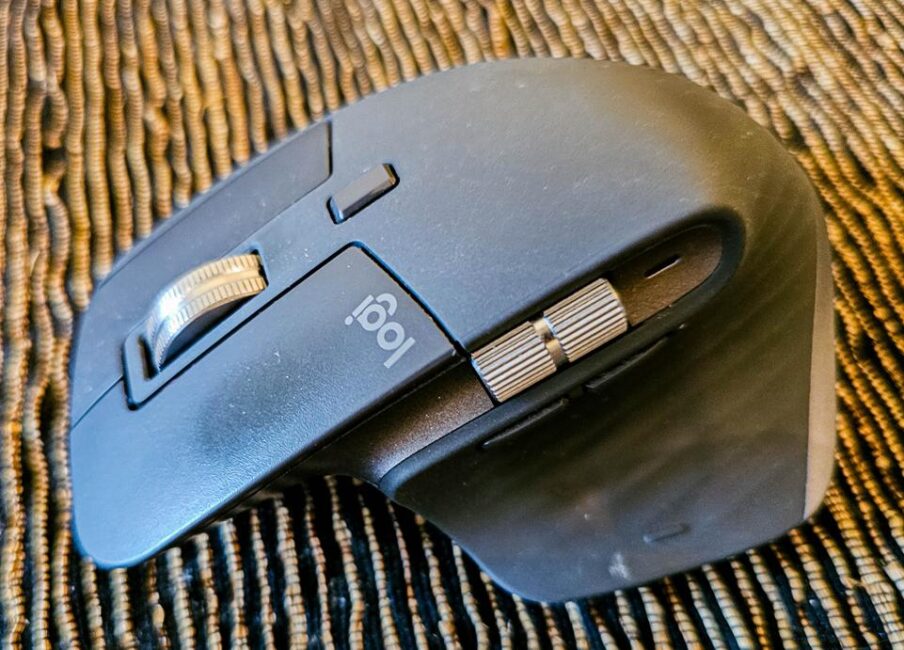
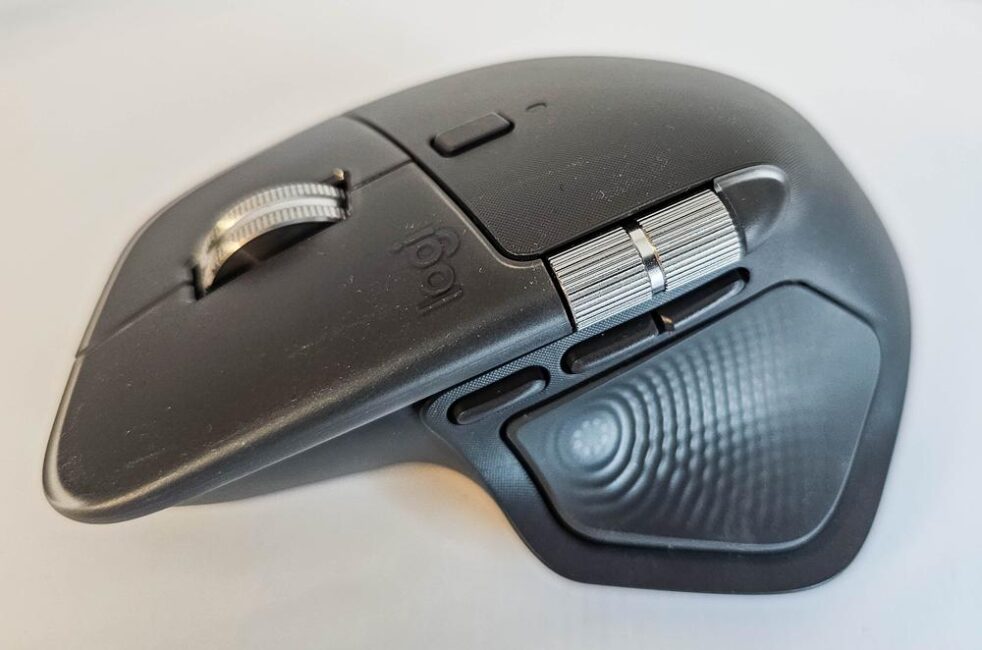
In my view, Logitech’s designers did a good job integrating the mouse’s shape with its functional elements in this area. It looks modern, feels pleasant to the touch, and the wheel spins very smoothly without any play.
For me personally, horizontal scrolling is rarely needed in most windows, so the wheel often goes unused – but it’s so satisfying to turn that I find myself spinning it anyway. The cool metal finish, combined with shallow horizontal grooves and a single deep vertical cut, gives it a sort of stress-relief spinner effect. Probably not the designers’ intention, but consider it a little bonus tip from me.
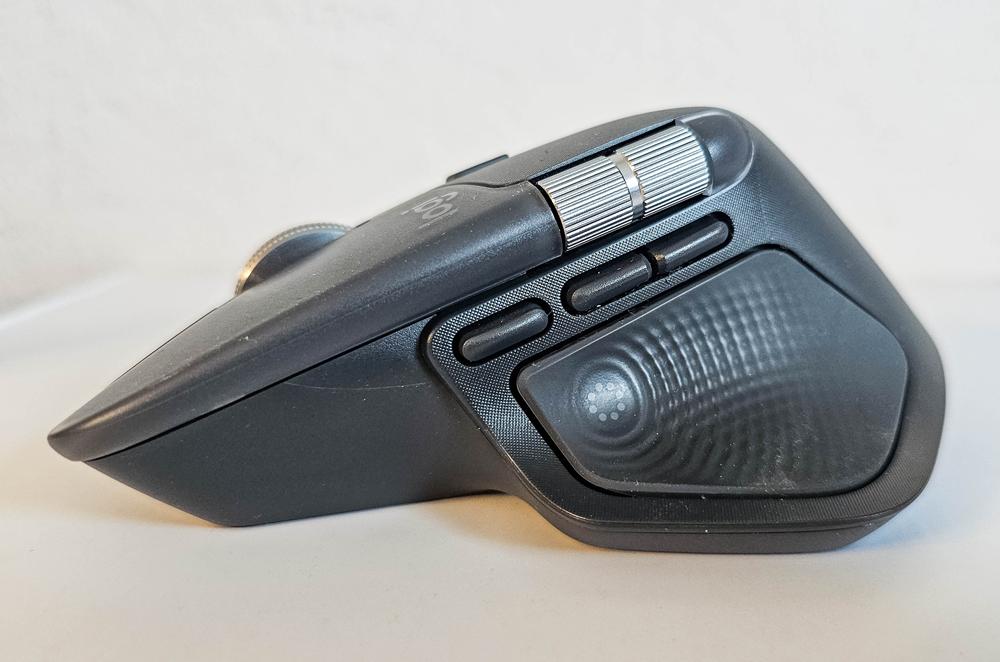
Below the scroll wheel, the MX Master 4 has three side buttons for the thumb – one more than the MX Master 3S. Is this an improvement? Certainly.
Additionally, there’s a large fully rubberized button with a haptic feedback motor – arguably the main standout feature of the new mouse. How this element functions and whether it meaningfully affects the user experience will be discussed later.
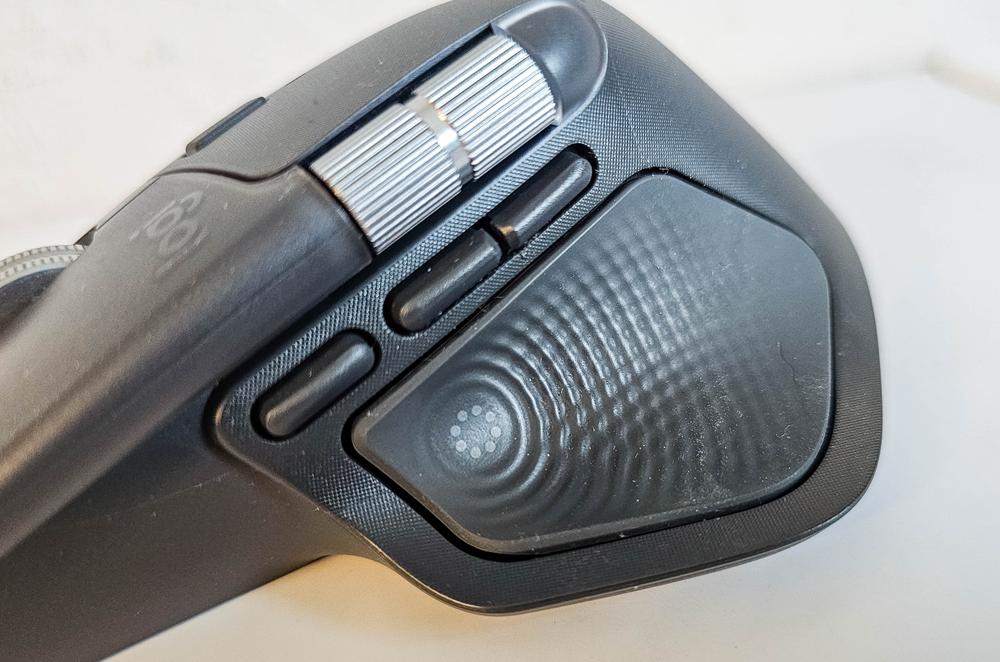
There’s also an improvement in this area compared to the previous model. On the older mouse, there was a small button hidden under the soft-touch surface at the bottom, which had to be pressed straight down. On the MX Master 4, this has been replaced with a large surface that can be gently pressed with the thumb, almost like squeezing the mouse. The button feels solid and actuates evenly across its entire surface, without tilting, as if it has side stabilizers. The actual sensor, however, is located near the front upper part of the button, within the area marked by a subtle ring.
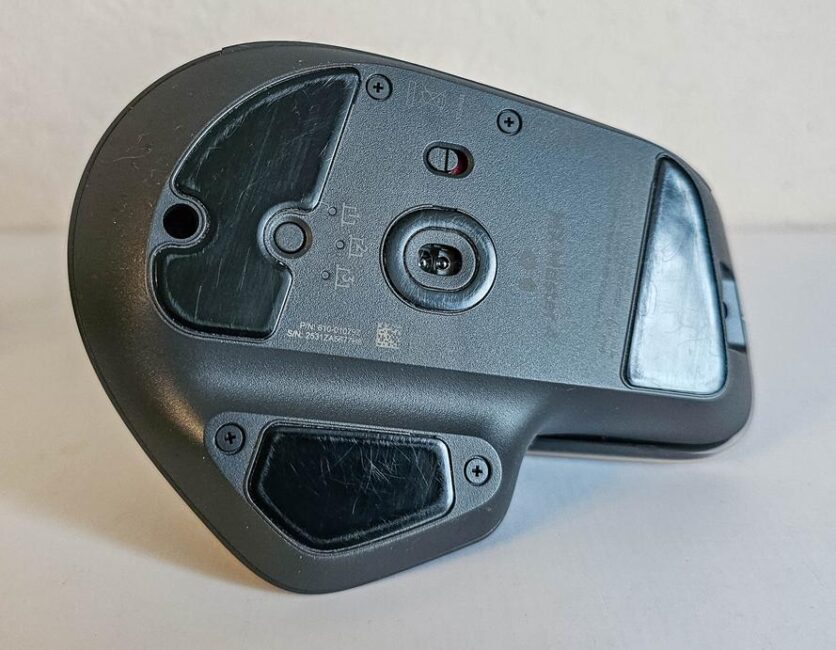
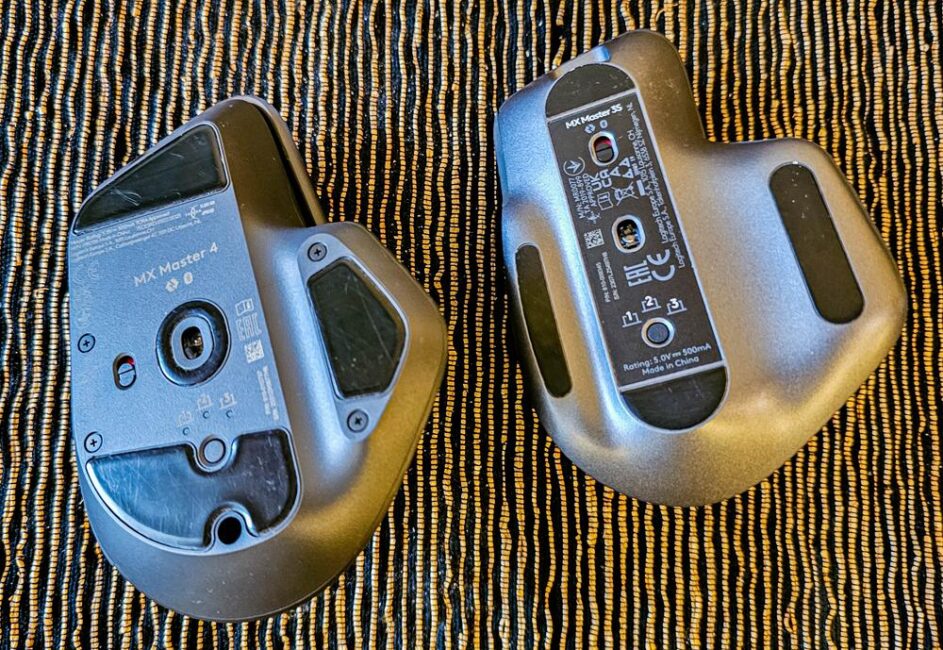
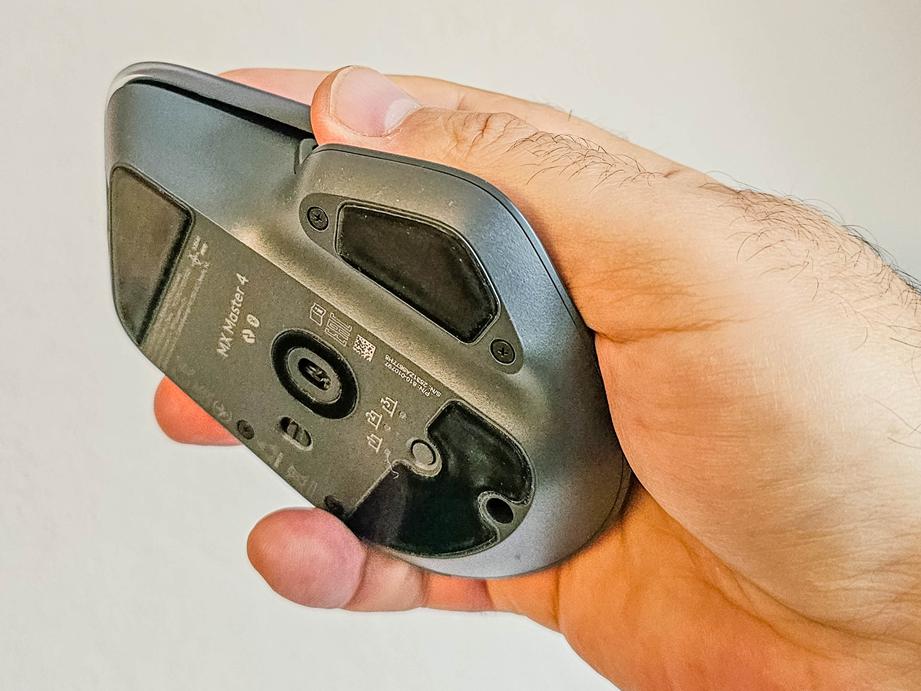
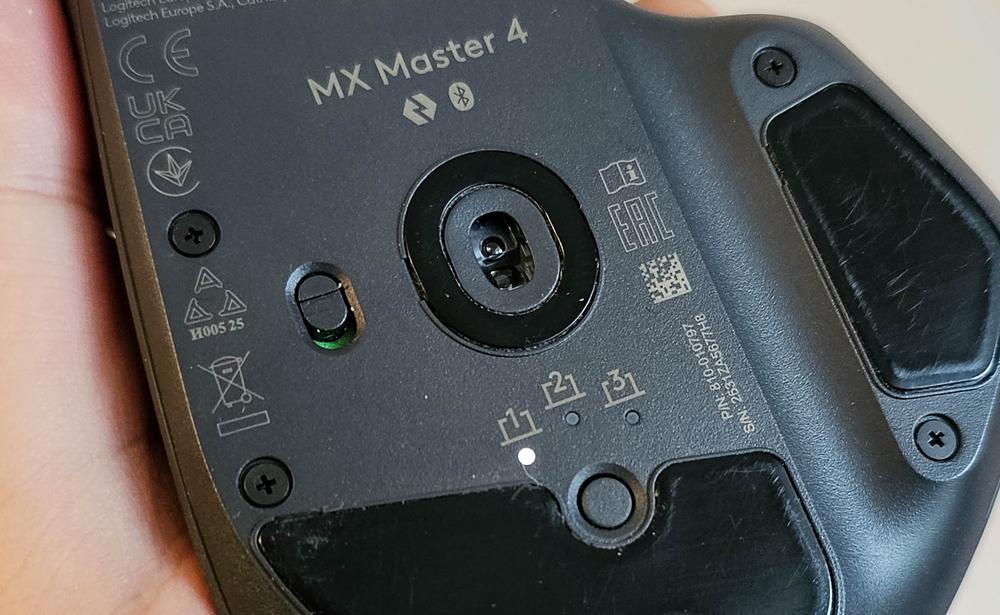
The bottom of the mouse is completely different. A key change is that Logitech has enlarged the existing feet on the MX Master 4 while removing the fourth side foot that was present on the previous model. However, a new circular foot has been added around the sensor. The button for switching between devices and initiating pairing remains the same.
As for the materials and build quality, there’s little to criticize. The MX Master 4 is a high-end device with precise assembly and a solid feel.


Read also: Logitech G522 Review: A Gaming Headset – and More
Ergonomics
Of course, comfort is highly subjective, so I’ll speak from personal experience. I have large hands, and I need a larger mouse. The Logitech MX Master 4 fits perfectly – just like its predecessor. It almost feels as if the mouse was molded to my hand. When I wrap my hand around it, there’s very little empty space between my palm and the device. The fit is excellent, and as a result, my hand doesn’t get tired even after extended use.
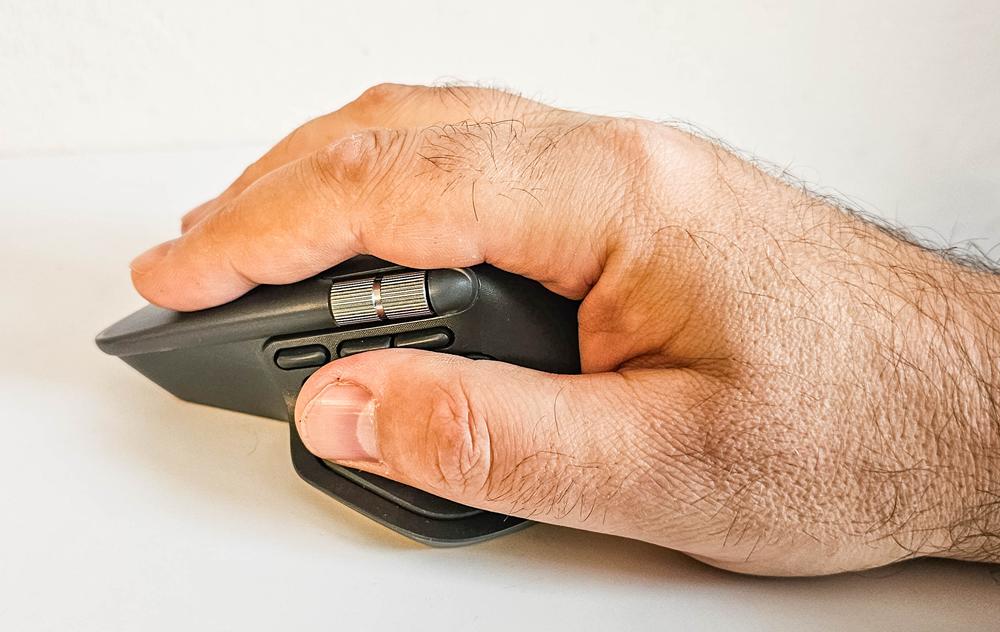
In practice, the mouse shape seems quite universal. I passed my MX Master 3S on to a relative, and it fit her smaller hand comfortably without any issues.
Of course, it’s still advisable to try the mouse in-store before buying. I’ve seen varied feedback on the ergonomics of the MX Master series. Most users are satisfied, but some find it too large or heavy. Personally, I find the weight just right.
The main buttons have a soft, short travel, and the new model is slightly quieter than its predecessor, though the click remains precise.
The side buttons are well separated and easy to locate by touch, making accidental presses unlikely.
However, the large haptic-feedback button under the thumb can sometimes be triggered unintentionally if the mouse is squeezed a bit too firmly, particularly when lifting it off the surface.
The mouse glides smoothly across a mouse pad and performs well on almost any surface. According to Logitech, the sensor even works reliably on glass desks.
In summary, I genuinely can’t think of a more comfortable mouse than the MX Master 4. It has even improved on its predecessor, which I previously considered perfect for my needs.
Read also: Logitech G Powerplay 2 Review: Gaming Mouse Pad with Wireless Charging
Features and settings in Logi Options+
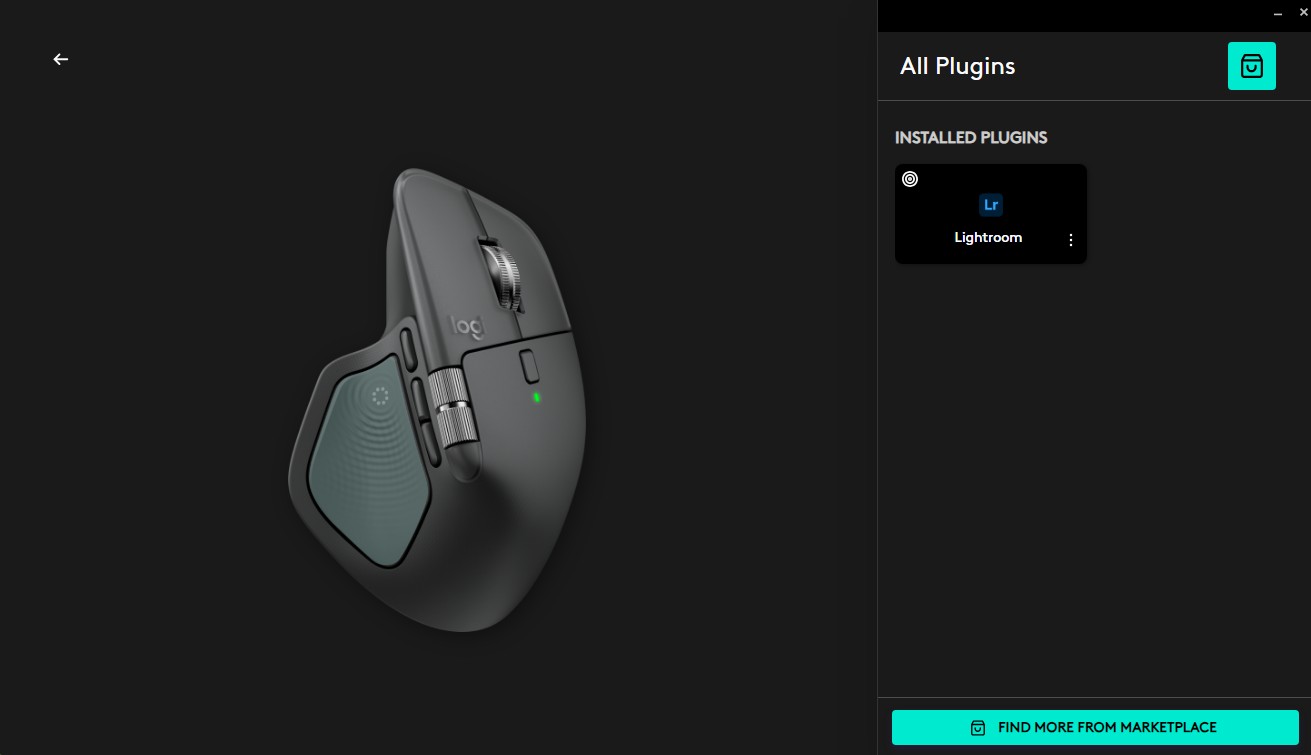
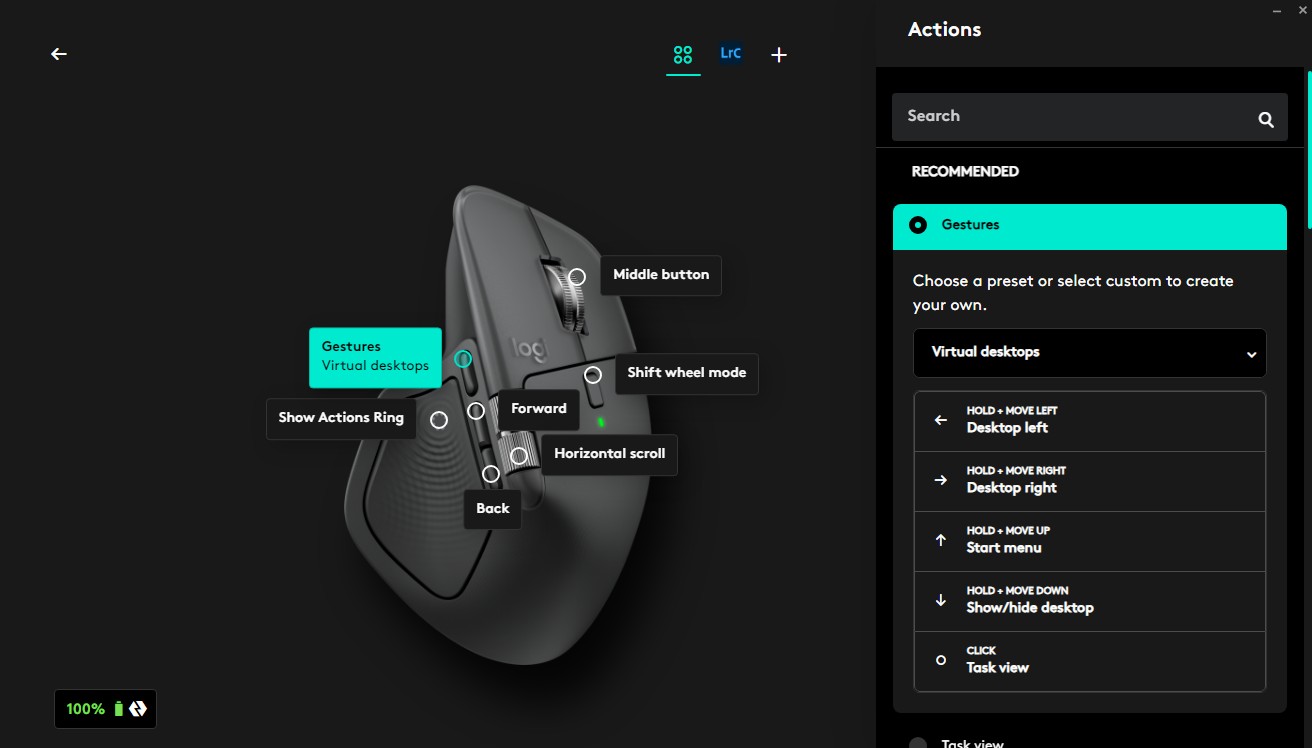
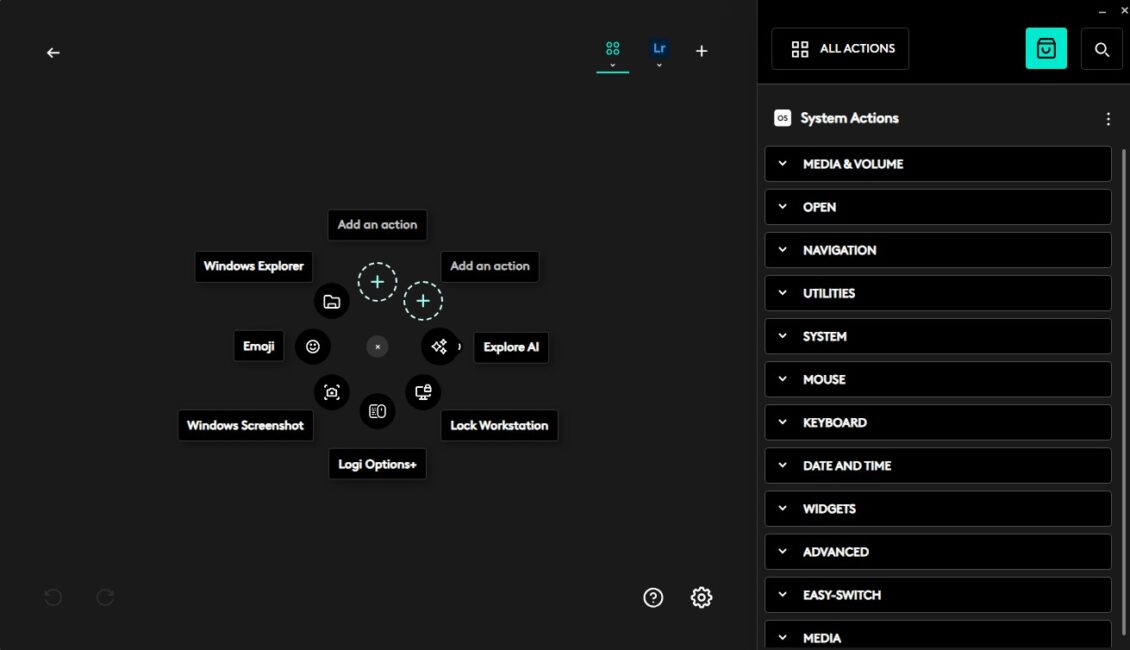
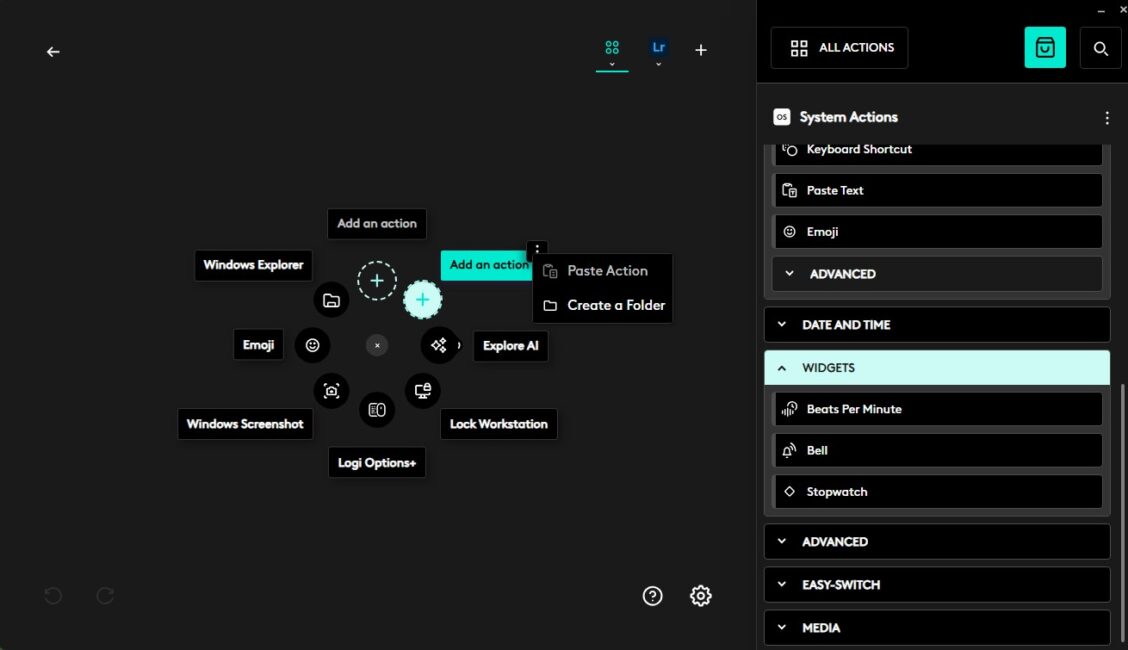
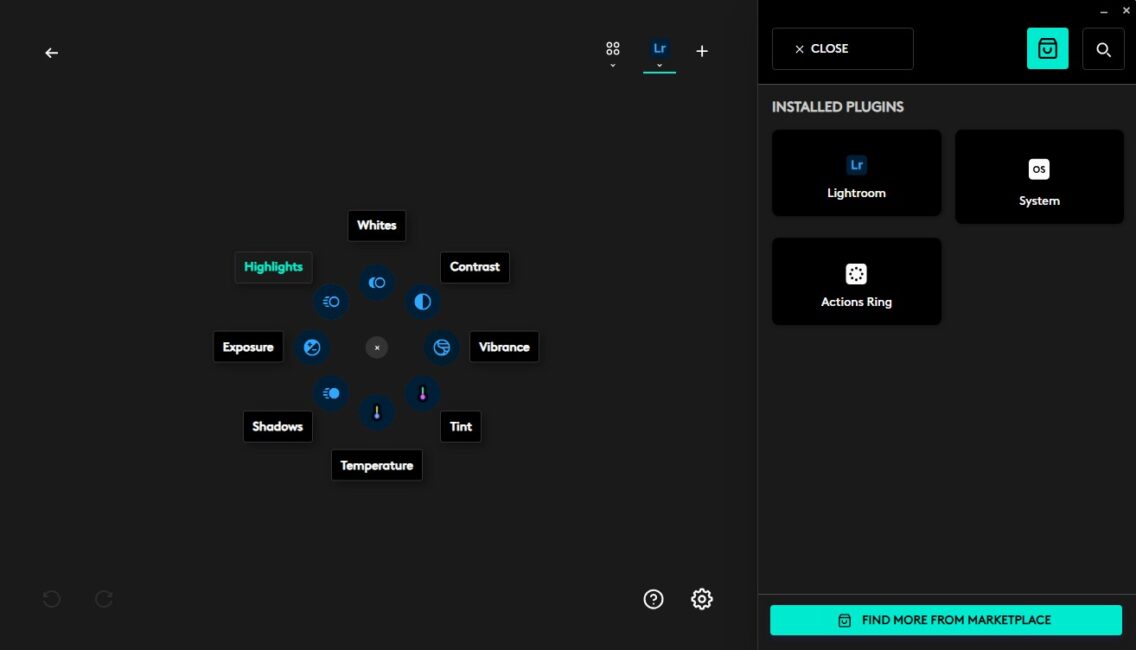
The key takeaway about the Logitech MX Master 4 – and the MX series in general – is that almost everything can be customized. The Logi Options+ app, used for configuring these devices, offers an extensive range of features and settings. To be honest, even I don’t fully grasp the need for such an extensive level of customization. Nearly any button can be assigned multiple functions, and with the addition of the large haptic-feedback thumb button, the mouse’s capabilities have increased further. It’s impossible to remember every option, but understanding the app’s logic allows you to navigate it reasonably well. The screenshot gallery below can help illustrate this process.


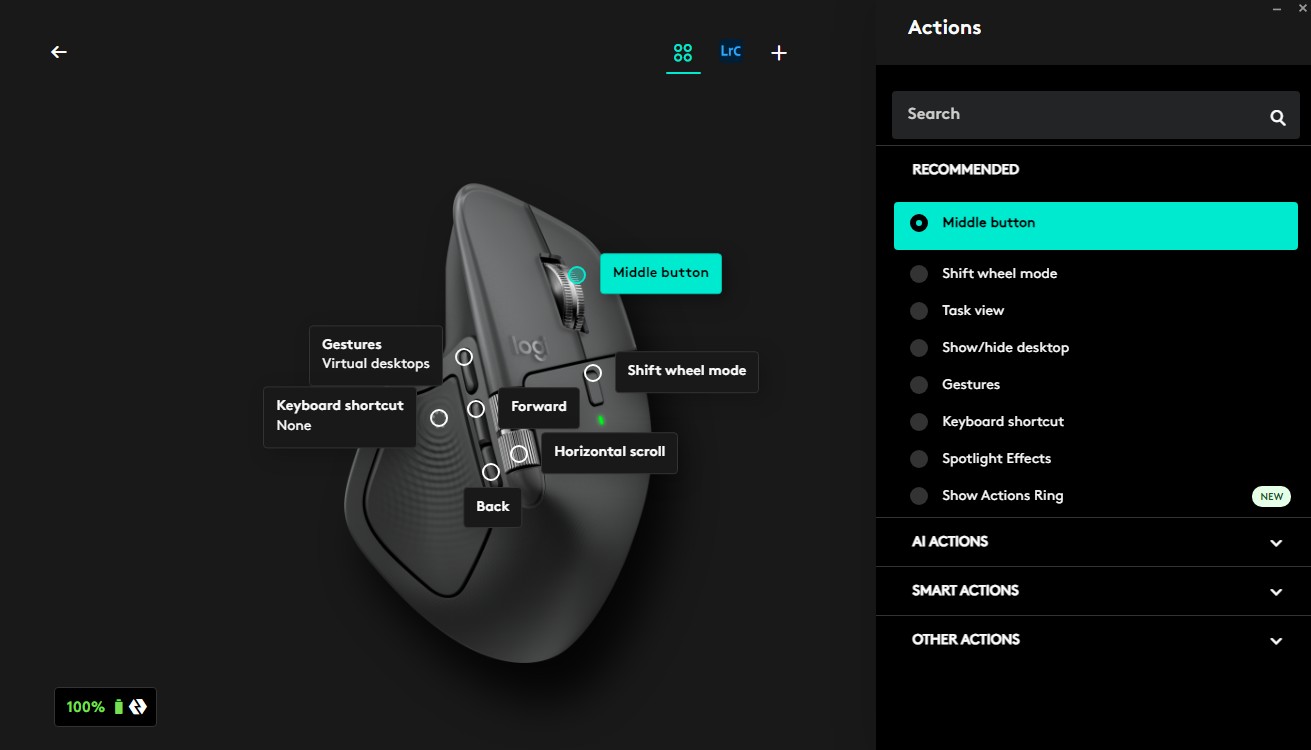


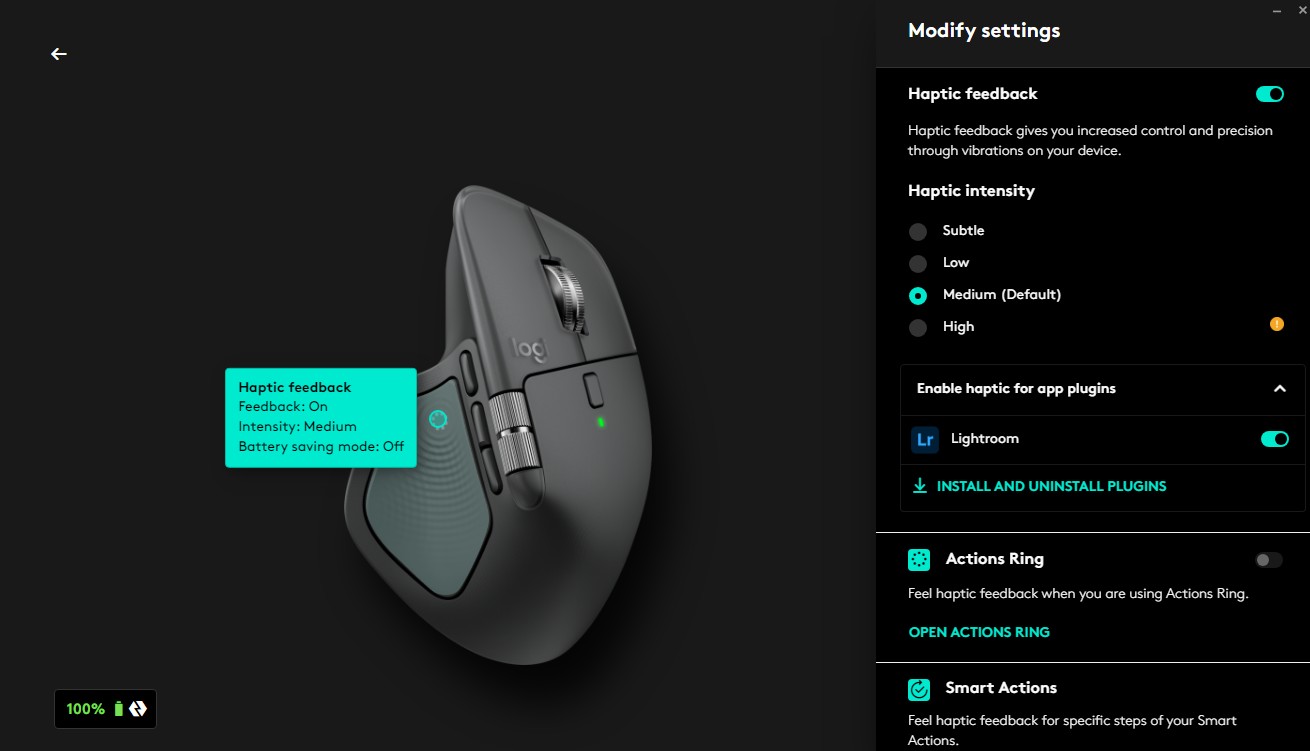
So, beyond standard mouse shortcuts – like showing the desktop, switching between active tasks, or navigating windows – you can assign any keyboard shortcut to the buttons. Additionally, you can create Smart Actions and AI Actions. This opens up a wide range of possibilities for customizing button functions to suit your workflow.




You can also create a Smart Ring – an on-screen circular widget with buttons for triggering various actions. The widget fully supports haptic feedback, so hovering over virtual buttons produces a vibration that simulates tactile response. Smart Rings adapt to different applications, giving you customized action sets depending on the software you’re using. To enable this, you need to install the corresponding application support plugin from the Logi Options+ repository.
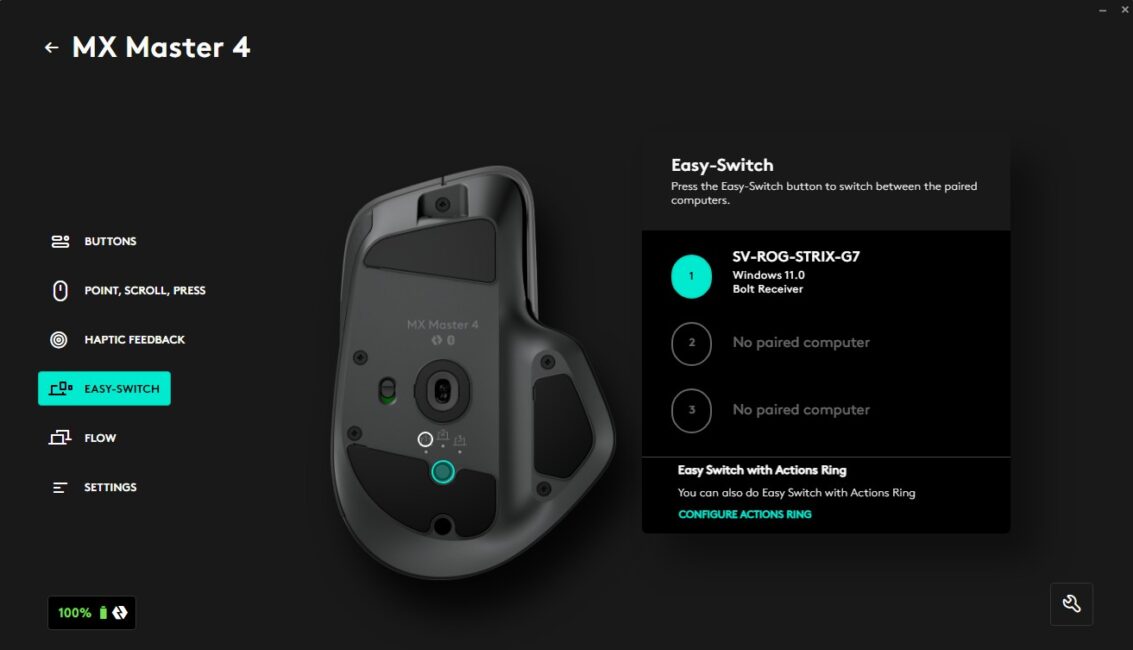
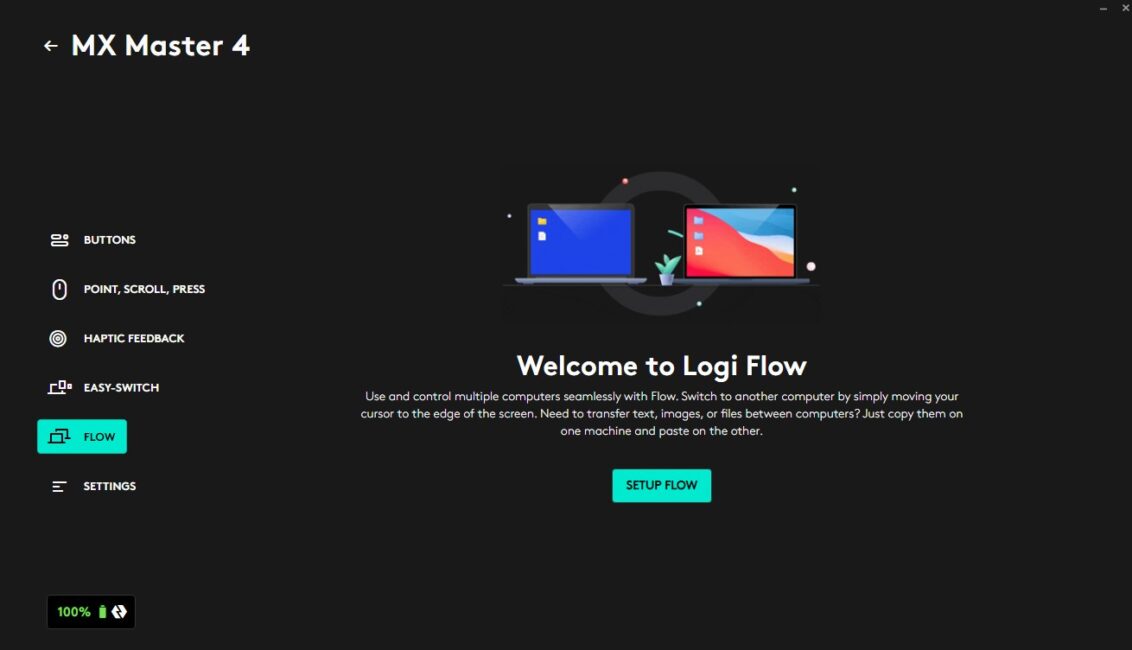
And that’s not all. In addition to quickly switching between the three devices the mouse is connected to, you can use it in Logi Flow’s seamless mode across multiple devices simultaneously – similar to extending a Windows desktop across multiple screens.
During use, you can easily transfer files, text, and images between multiple computers using simple copy-paste or drag-and-drop. Enabling this feature requires a separate setup process on each of the computers you want to connect.
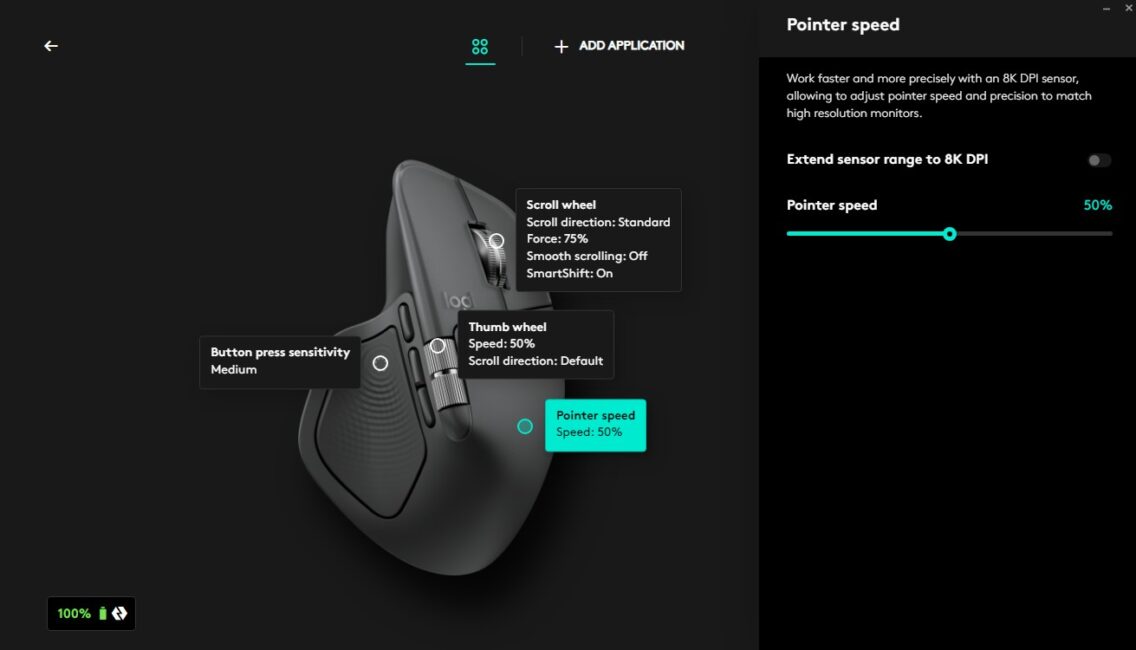
Of course, the app also allows you to adjust basic mouse settings, such as pointer sensitivity and speed, scroll wheel behavior, and button press delay. You can also check for updates and, if needed, update the app or the device firmware to access improved or corrected features and settings.
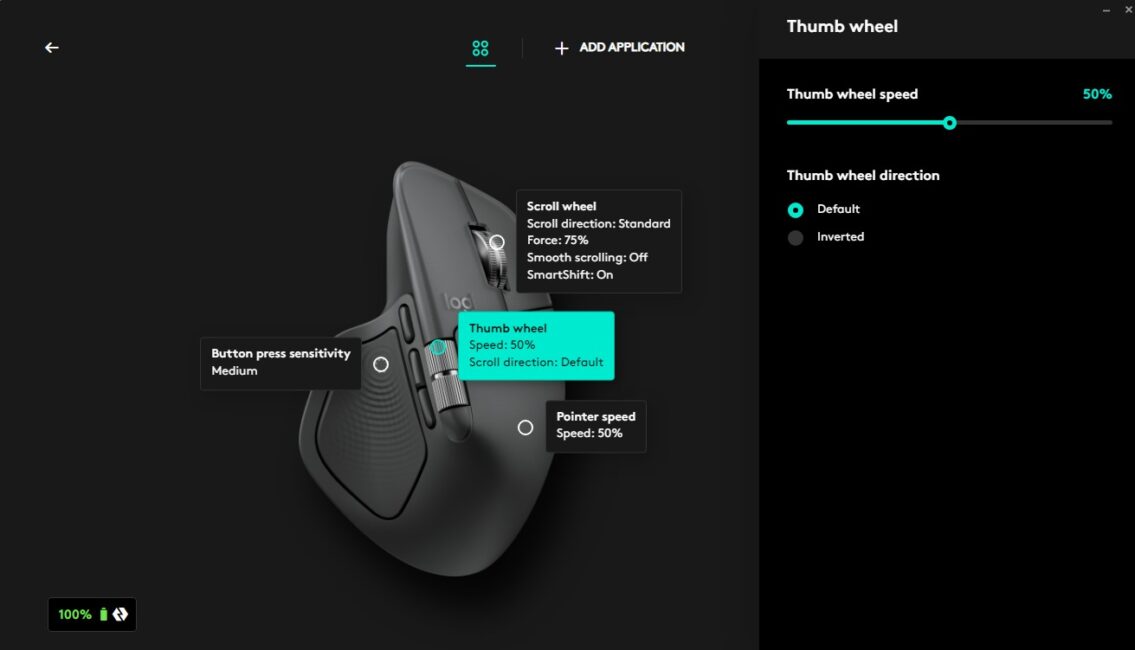
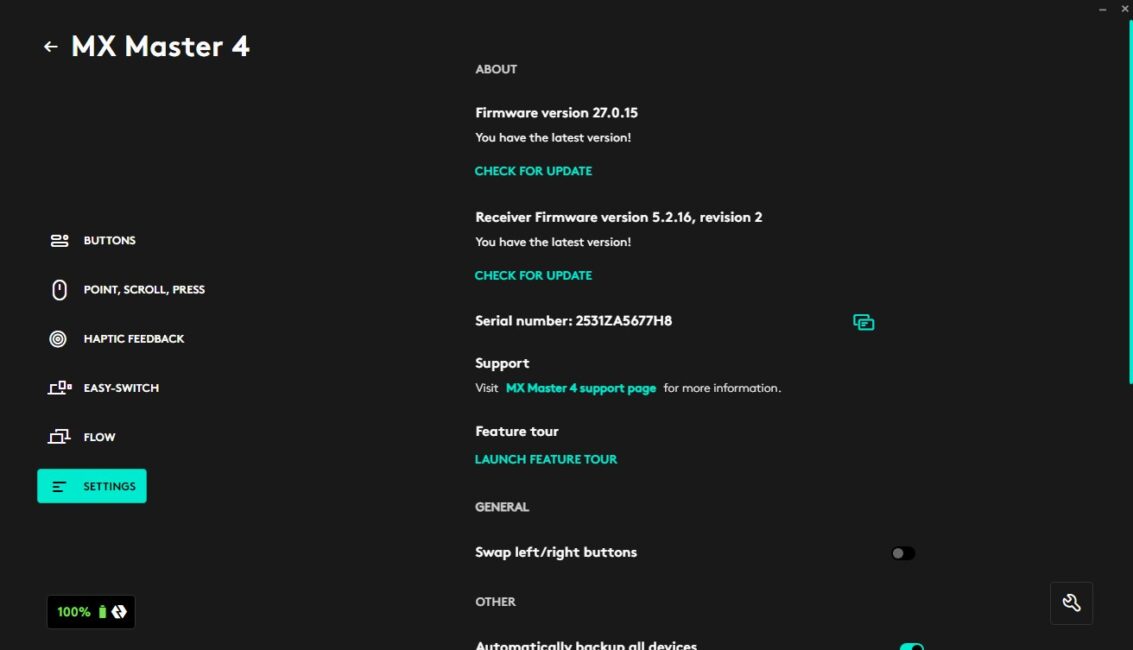
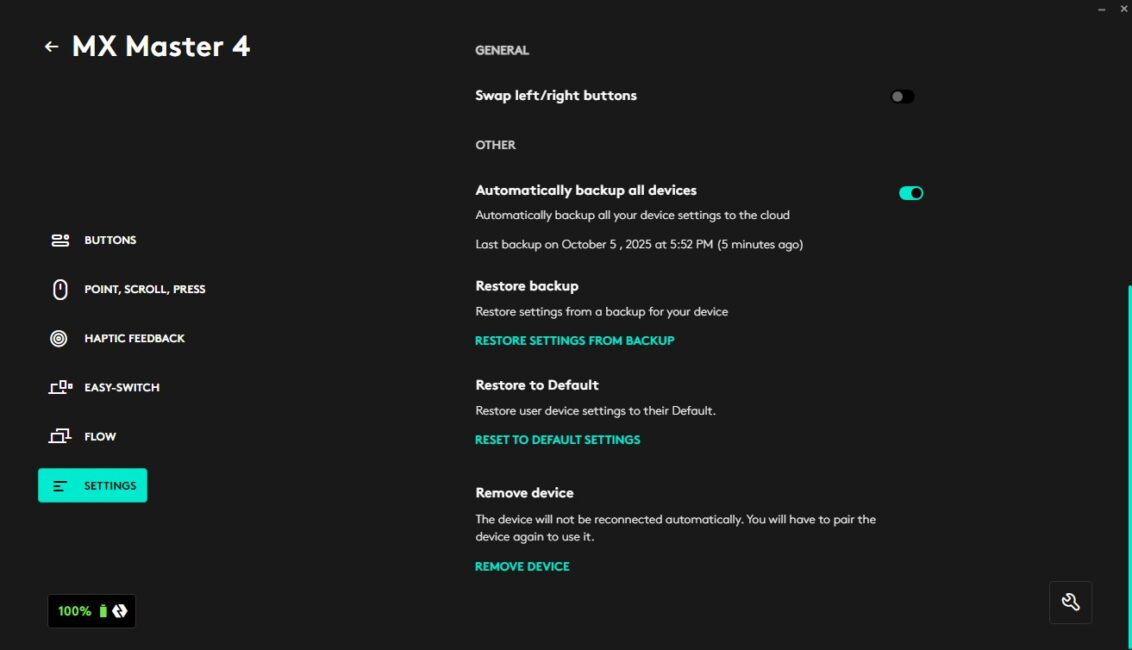
Conclusion on customization: The Logitech MX Master 4 is an advanced professional tool that can be tailored to individual preferences. While its functionality may seem extensive, it offers tangible benefits for workflow and clearly enhances productivity and efficiency when working on a computer.
Experience using Logitech MX Master 4
First, it’s important to establish the main criterion for evaluating the Logitech MX Master 4 in real-world use. The key point to understand is that this is not a gaming mouse. I want to emphasize this because I looked into reviews from actual users of the previous generation (there aren’t many reviews for the new model yet) to see what aspects drew negative feedback for the MX Master 3S.
It turns out that many users complain about poor performance in games or device failures after heavy gaming sessions. But the MX Master series isn’t designed for gaming. The mouse is precise but not fast – it lacks the high polling rate and low latency that are crucial for any gaming mouse. With an MX Master, you’ll likely notice input lag, especially in fast-paced games.
Additionally, professional mice are designed with different component lifespans and workload expectations than gaming mice. A key example is the emphasis on a quiet click: MX Master mice use soft switches rather than the more durable ones found in gaming mice. Consider how many clicks you make in a fast-paced shooter – in just half an hour, you might exceed the daily click count typical in graphic or video editing work. Using the mouse outside its intended purpose can lead to issues: intensive gaming can cause button controller failures, double-clicks, or misclicks.
That’s why I keep two mice on my desk – one for work, and one for gaming. The same principle applies to keyboards: I use two different ones depending on the scenario. So, for the purposes of this review, we won’t discuss gaming at all. The focus is entirely on professional, productivity-oriented use.

I’ve already shared some of my impressions regarding the ergonomics of the Logitech MX Master 4, since this is one of the main factors in overall satisfaction. Comfort and reduced hand fatigue are crucial for extended use, and in this regard, I find the mouse excellent. Of course, opinions may vary – if you think there’s a better work mouse, feel free to suggest it in the comments. I’m simply sharing my personal experience, and I’ve used a wide range of mice over the years.
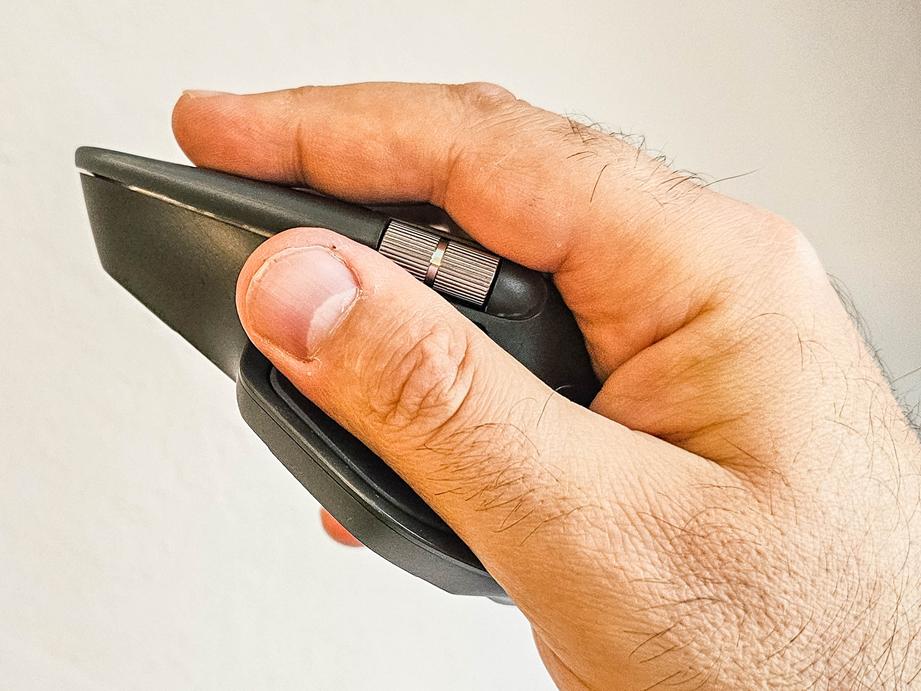
Based on my year of active use with the MX Master 3S, which showed no issues, I expect a similar experience with the MX Master 4, since the two mice are fundamentally very similar in practical use.
The main advantage of the mouse in a work context is its precision. In tasks like image editing that require pixel-level accuracy, the MX Master 4 performs exceptionally well.
The scroll wheel in the MX series also has a unique operating algorithm that takes some getting used to. Once accustomed, the fast, continuous inertial scrolling is very helpful for navigating large or “tall” files, such as spreadsheets with many rows.
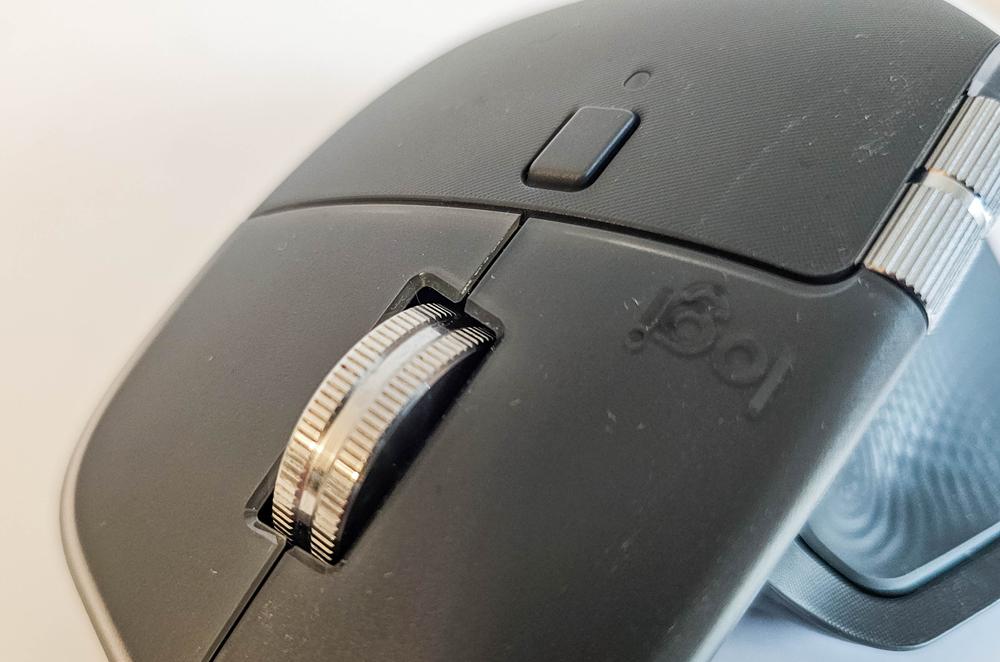
Another useful feature is the ability to assign custom actions to the side buttons, which can speed up routine tasks such as copying, cutting, and pasting text or files. You can also create multiple profiles for different applications, so button functions can vary depending on the software in use.
The only drawback I’ve personally encountered with the MX Master 4 is the occasional accidental activation of the large left thumb button with the haptic motor when I squeeze the mouse slightly harder. It’s ironic because this new button is promoted as the mouse’s main highlight. In my case, I ended up disabling it system-wide and using it only in Lightroom. Fortunately, the Logi Options+ app allows full customization, so you can easily turn off functions in scenarios where they’re unnecessary or get in the way.
Read also: Logitech MX Ergo S and Ergo M575S Trackballs Review
Battery life
Another important aspect of any wireless mouse is battery life. Logitech claims up to 70 days of use on a full charge, though that likely assumes only 3–4 hours of daily use. In practice, I recharge the MX Master 4 roughly every 2–3 weeks, which I consider a very reasonable result given my level of use.
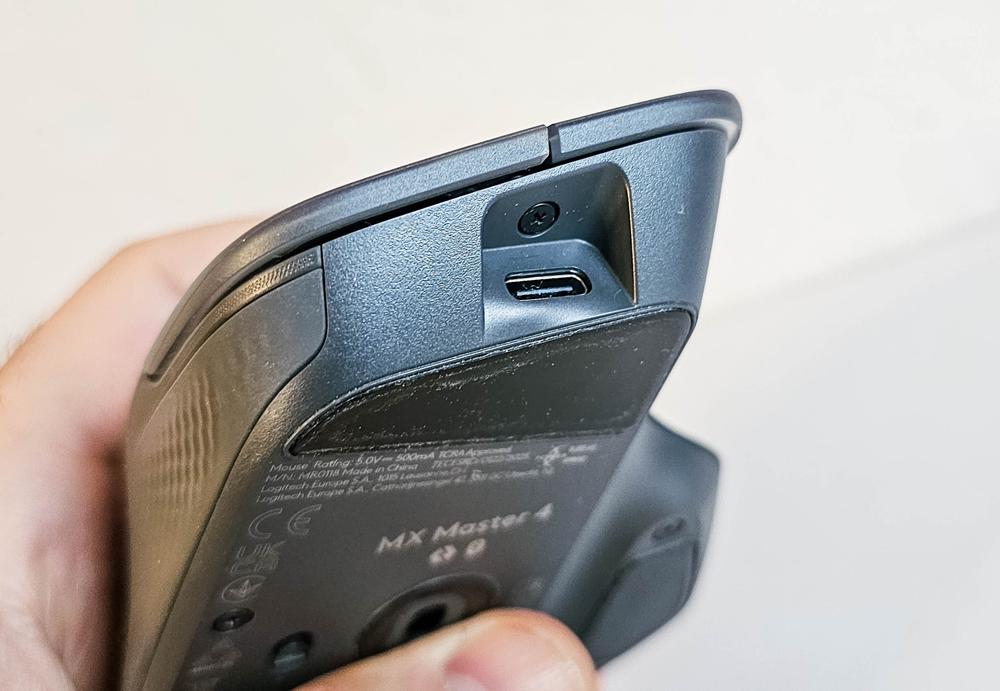
It’s convenient that the mouse can be used while charging. A one-minute charge provides up to three hours of battery life. Overall, charging is fairly quick via a standard USB port – in my case, through a monitor hub. From my experience, the mouse reaches a full charge in just over an hour, though I didn’t measure the time precisely.
Read also: Logitech G ASTRO A50 X review: Almost perfect console headset
Conclusions
To summarize the Logitech MX Master 4: this new professional mouse is an improvement over its predecessor. The update retains all the familiar strengths of the MX series while adding new advantages, such as the haptic-feedback button and the ability to create custom Smart Ring widgets for different workflows. I also appreciate the move away from a full soft-touch coating – the matte plastic looks more practical, doesn’t wear as easily, and feels nicer to the touch. Overall, the mouse appears more modern and refined, and the designers have managed to enhance what was already, in my view, an almost perfect device.
The only downside for me personally is that I often squeeze the mouse a bit too hard during use, which accidentally triggers the large side button. Fortunately, it can easily be disabled through the app – which is exactly what I did. In my case, this new feature turned out to be unnecessary, but you might find it genuinely useful depending on your workflow.
Is it worth buying? If you already own the previous-generation mouse and it’s still in good condition, I wouldn’t really recommend upgrading – the overall user experience is almost identical, and you might not feel a noticeable improvement. The only exception is if you specifically want haptic feedback and are sure that the Smart Ring widget will actually boost your productivity.
If you’re in the market for a new mouse and haven’t yet experienced the MX Master lineup, I can wholeheartedly recommend the Logitech MX Master 4. In my opinion, there’s simply no better professional mouse out there. Perhaps there’s no need to invent one – because it already exists. Give it a try!


Smart Ring is also released for previous version