





© ROOT-NATION.com - Use of content is permitted with a backlink.
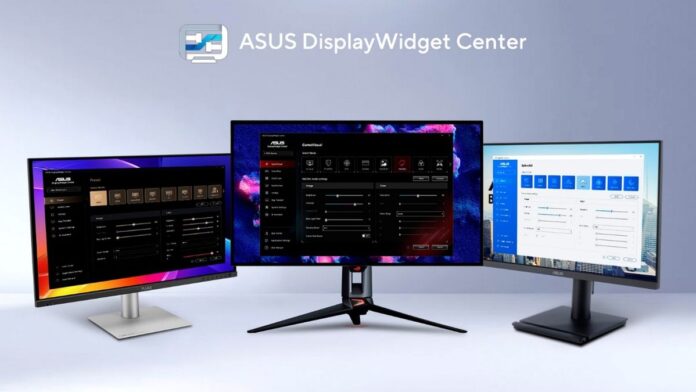
ASUS has announced a major update to the DisplayWidget Center software for managing ASUS monitors, which provides users with a more intuitive way to interact with compatible ASUS and ROG displays. The new version features AI-powered automation, enhanced personalization options, and broader device integration. At the same time, monitor control remains simple.
Read also: AERONAUT – everything that flies above the ground: aviation, UAVs and drones, rockets, and space
DisplayWidget Center is available for free download on the ASUS website and supports Windows 11 or later, as well as macOS on compatible devices.

The DisplayWidget Center update ushers in the era of AI agents. After installing the ASUS Display Control Command Line Interface (CLI) and Agent Skill, compatible AI agents can adjust monitor settings using natural language queries. Users can adjust brightness, color mode, color temperature, and the OLED Anti-Flicker feature without manually navigating through menu items. A single command can simultaneously change the settings of multiple compatible ASUS monitors.
Read also: Monitor Reviews
For esports players, the agent can analyze previous usage patterns and recommend a higher refresh rate, FPS, OLED Anti-Flicker, and optimal brightness level. Users can also instruct the agent to sync with their calendar and automatically switch profiles. For example, a morning profile with high brightness, a color temperature of 6500K, and the blue light filter turned off can automatically switch to an evening profile with reduced brightness, a color temperature of 4000K, and a higher level of blue light filtering.
DisplayWidget Center has gained two new AI-powered features. AI Visual, available on compatible ROG and TUF Gaming monitors, analyzes on-screen content in real time and applies the appropriate picture mode. AI Assistant supports both text and voice input, allowing users to adjust display settings, get answers to common product questions, and access help on monitor features through a user-friendly interface.

The updated App Tweaker lets you create personalized display settings for each application. The feature switches settings based on the active program, allowing you to create separate profiles with custom image and color settings.
Read also: ASUS Laptop Reviews

OLED Care now includes Boundary Detection, Outer Dimming Control, Global Dimming Control, and Pixel Cleaning, which help reduce the risk of burn-in and promote long-term panel protection. Users can manage these settings, run pixel cleaning, and set reminders.

The DisplayWidget Center update adds features designed for various display usage scenarios. Gamers can launch GamePlus directly from DisplayWidget Center, as well as open the OSD menu using a keyboard hotkey or a compatible controller. For content creators, the ColorSync feature helps maintain consistent color settings across multiple identical displays, while MacBook Brightness Control allows macOS users to adjust monitor brightness using familiar laptop keys.
Read also: Testing DLSS 4.5 on the ASUS GeForce RTX 5070 Prime: An Analysis of Its Versatility

ZenScreen users will benefit from the Auto Rotation feature, which detects the monitor’s orientation and switches between portrait and landscape modes. And the new Eye Care tools will help make long hours in front of the screen more comfortable. Support for multi-display management and keyboard shortcuts also helps boost the efficiency of daily workflows.
Read also: ASUS Zenbook A16 UX3607 Review: Bringing Qualcomm to Mainstream

In addition, ASUS DisplayWidget Center goes beyond monitor control. Users can configure virtual display settings and screen layout on the ROG XREAL R1 Gaming AR Glasses, or control function keys and run color calibration on the ProArt CaliContrO MCA02.

Read also: ASUS ZenScreen OLED MQ16FC Review: Portable OLED Monitor with Pass-Through Charging