© ROOT-NATION.com - Use of content is permitted with a backlink.
Today, I’m taking a look at the ASUS ZenScreen OLED MQ16FC. Launched this year, this portable monitor features a WUXGA resolution, an OLED panel, and pass-through charging, allowing it not only to draw power from a charger but also to charge a connected laptop at the same time. At first glance, the MQ16FC stands out as a compelling portable secondary display. It offers an easy way to expand your workspace while remaining compact enough to take virtually anywhere. But what makes it particularly interesting? Let’s take a closer look.
Read also: All monitor reviews
TABLE OF CONTENTS:
Specifications
- Model: ZenScreen OLED MQ16FC
- Screen size: 16″
- Resolution: WUXGA (1920×1200)
- Aspect ratio: 16:10
- Panel type: OLED (WOLED)
- Display finish: glossy
- Colour gamut: DCI-P3 95%
- Display colours: 16.7 million (8-bit)
- Colour accuracy: ΔE<2
- Brightness (typical): 300 cd/m²
- Contrast ratio (typical): 100,000:1
- Contrast ratio (HDR, max.): 100,000,000:1
- Response time: 1 ms (GTG)
- Refresh rate: 60 Hz
- Pixel pitch: 0.179 mm
- Display viewing area (H×V): 344.44×215.28 mm
- Viewing angle (CR≧10, H/V): 178° / 178°
- I/O ports: 2×USB-C (DP Alt Mode), 1×Mini HDMI, 1×3.5 mm audio jack
- Tripod socket: 1/4″
- Kensington lock: yes
- Monitor dimensions (W×H×D): 35.9×23.3×0.9 cm
- Monitor dimensions in packaging (W×H×D): 44.3×29.8×9.0 cm
- Monitor weight: 0.68 kg
- Total weight of monitor in packaging: 1.74 kg
- Proprietary software: ASUS DisplayWidget Centre
- Power consumption: operating mode 4.7 W; power-saving mode <0.5 W; off mode <0.3 W; operating voltage 100–240 V, 50/60 Hz
- Technologies and features: Flicker-Free, ASUS OLED Care, SPLENDID, Auto Rotation, QuickFit, HDCP, Low Blue Light, Power Pass-Through (max. 65 W)
- Certifications and standards: FSC MIX, TÜV Low Blue Light, TÜV Flicker-Free, Energy Star
- Package contents: monitor, ZenScreen carrying case, USB-C to USB-C cable, Mini HDMI to HDMI cable, power supply, MTS02D tripod socket kit, quick start guide, warranty card, microfibre cloth

Market Positioning and Pricing
The ASUS ZenScreen OLED MQ16FC is positioned as a portable monitor designed for everyday productivity, coding, and professional creative work. The latter deserves particular attention, as the display offers 95% DCI-P3 color gamut coverage, factory calibration with a color accuracy of ΔE < 2, and the deep, true blacks that are characteristic of OLED technology.
Compared to conventional portable IPS monitors, the MQ16FC carries a noticeably higher price tag. Within the portable OLED segment, however, it is one of the more affordable options currently available. At the time of writing, the monitor retails for approximately $287 / €253.
Package Contents
The monitor comes in a compact cardboard box, roughly comparable in size to the packaging of a typical laptop. Inside, the contents are neatly arranged across two cardboard trays for safe transport. The lower tray houses the monitor itself, while the upper one contains the included accessories.

The retail package includes:
- ZenScreen OLED MQ16FC monitor
- ZenScreen protective sleeve
- USB-C cable
- Mini HDMI to HDMI cable
- Power adapter with interchangeable plug heads
- MTS02D tripod mount kit
- Microfiber cleaning cloth
- User documentation and warranty card

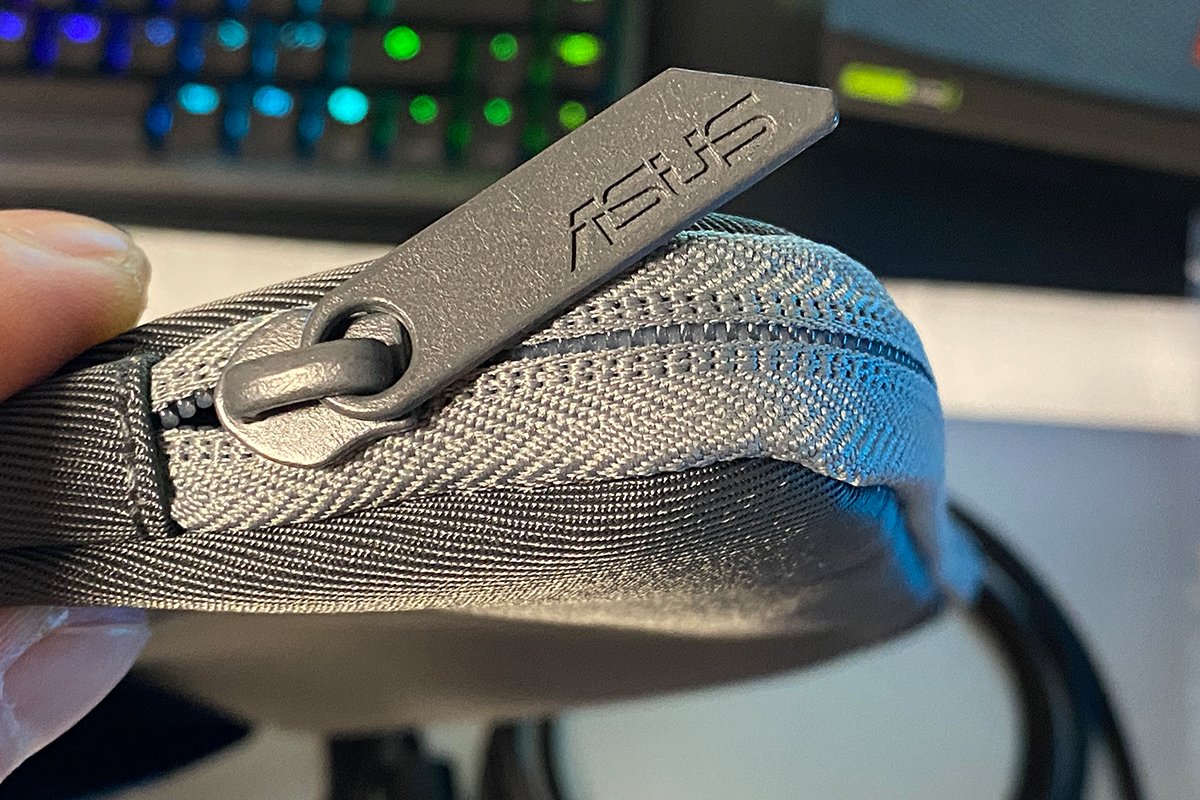
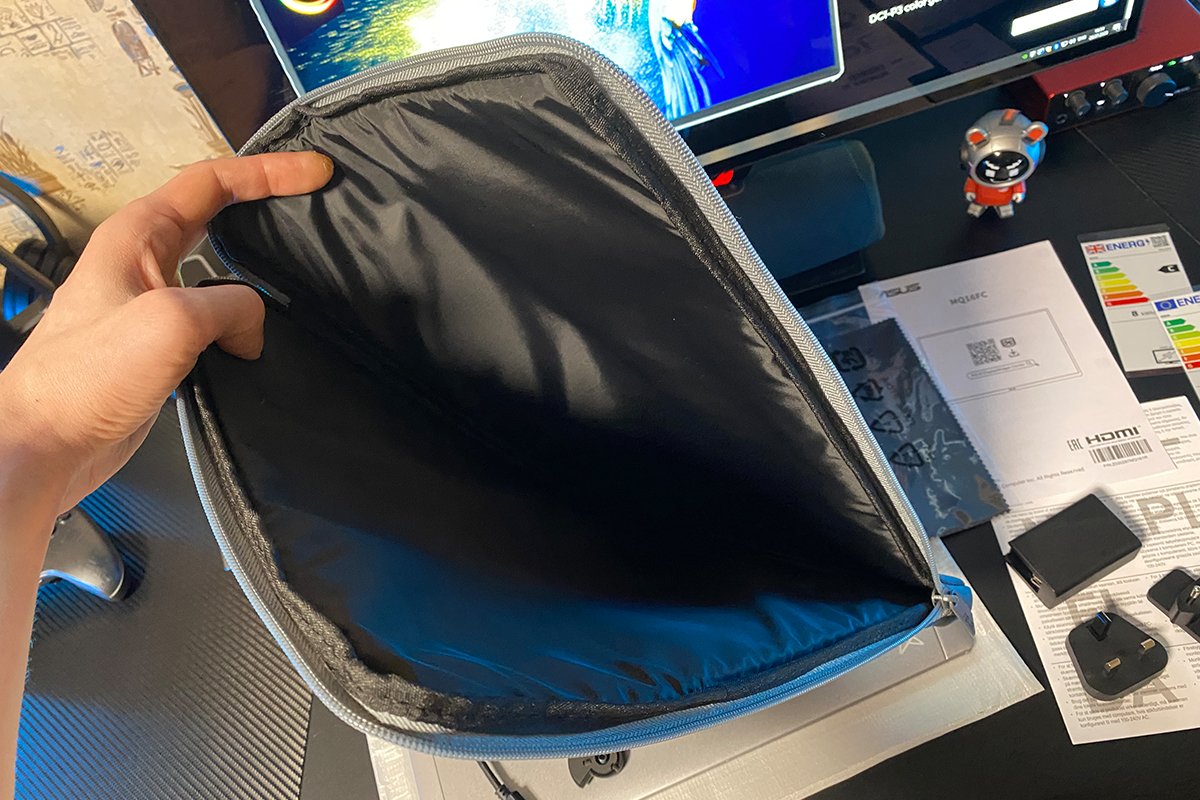
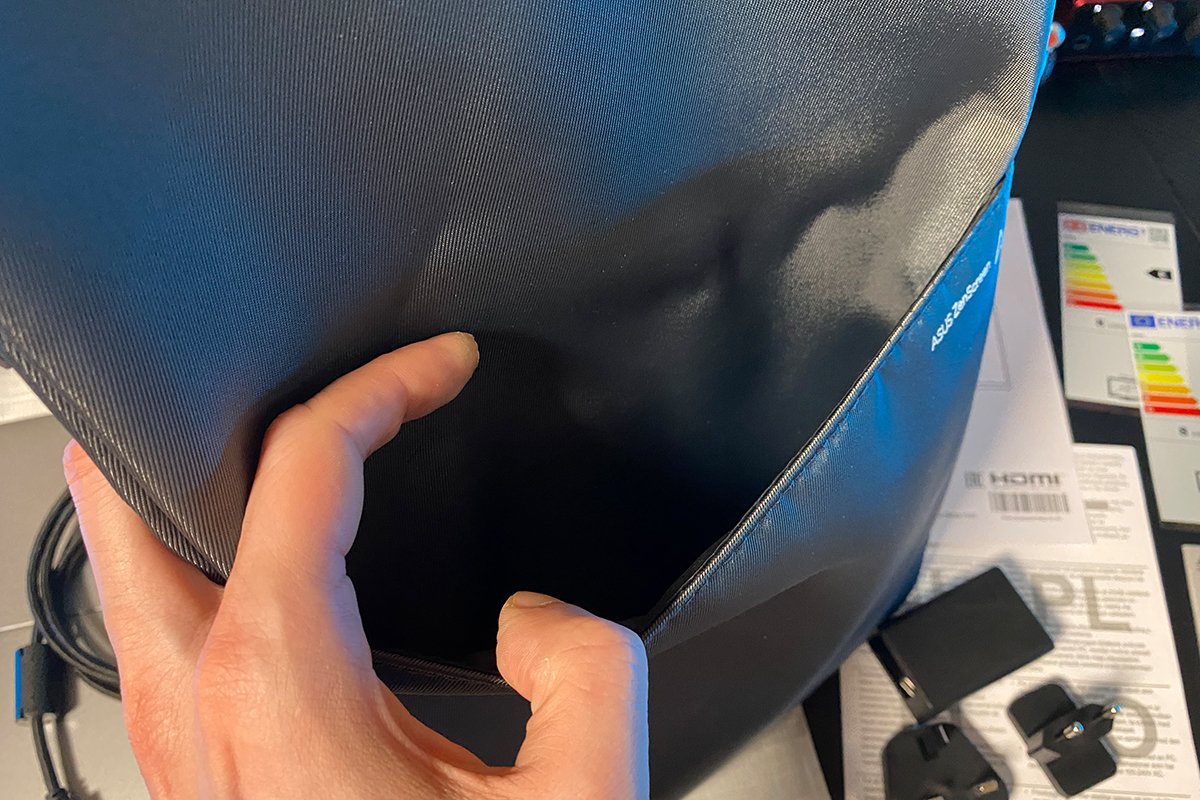
The included ZenScreen carrying case is designed as a zippered folio, featuring a durable woven exterior and a soft inner lining to protect the display. The main compartment accommodates the monitor perfectly, while a smaller accessory pocket provides space for the cables, power adapter, and other bundled items. Overall, the case is exceptionally well made. Its build quality leaves a strong impression, and it makes transporting the monitor – whether to the office or while traveling – both convenient and practical.
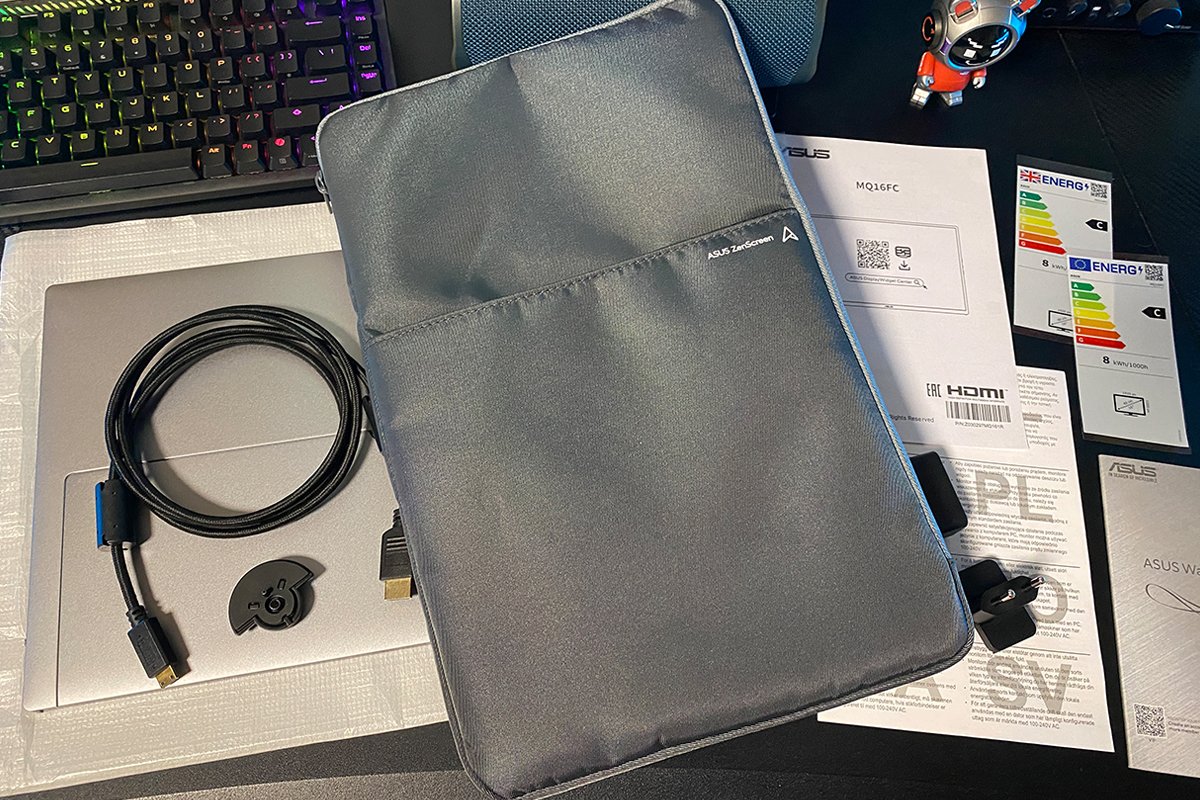

Both the USB-C and Mini HDMI cables measure 1.5 meters in length. They are thick, durable, and built to a high standard, featuring premium braided sleeving and substantial ferrite cores at both ends for improved signal integrity. Overall, the cable quality is excellent, and their length is sufficient not only for connecting the monitor to a nearby laptop but also to a desktop PC positioned under or beside a desk.

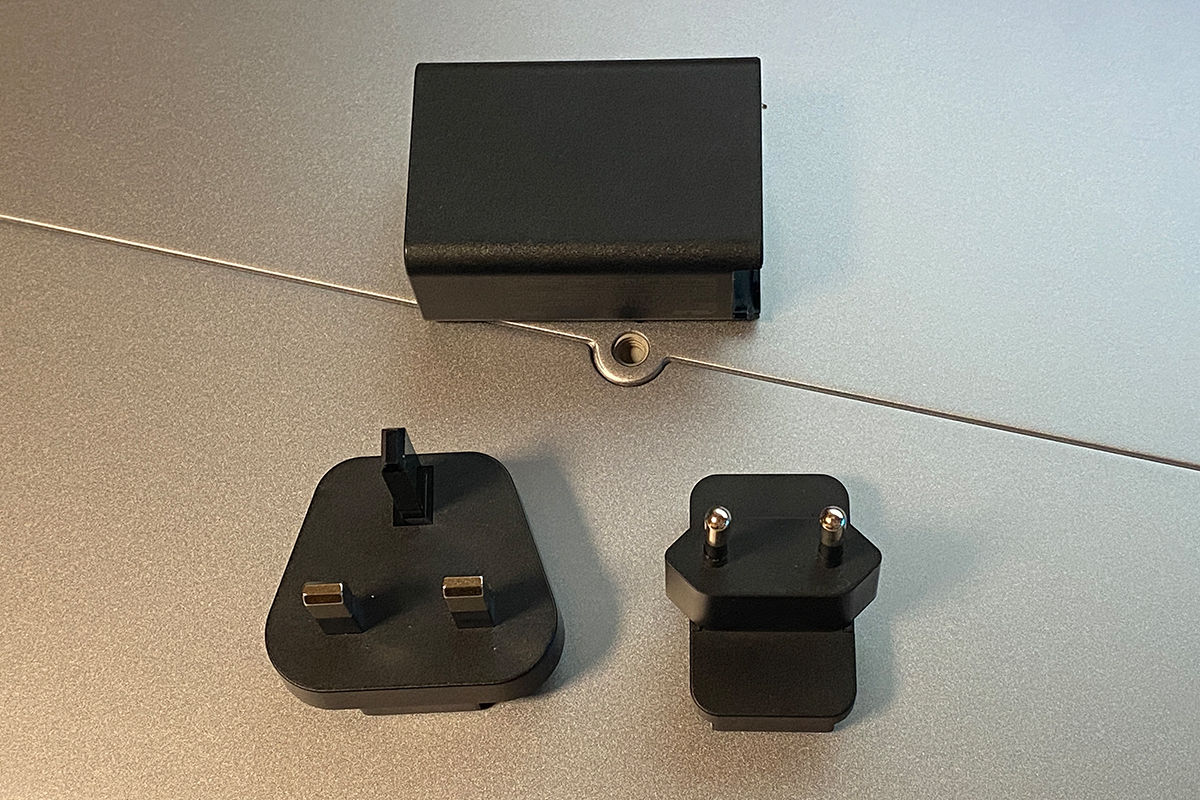
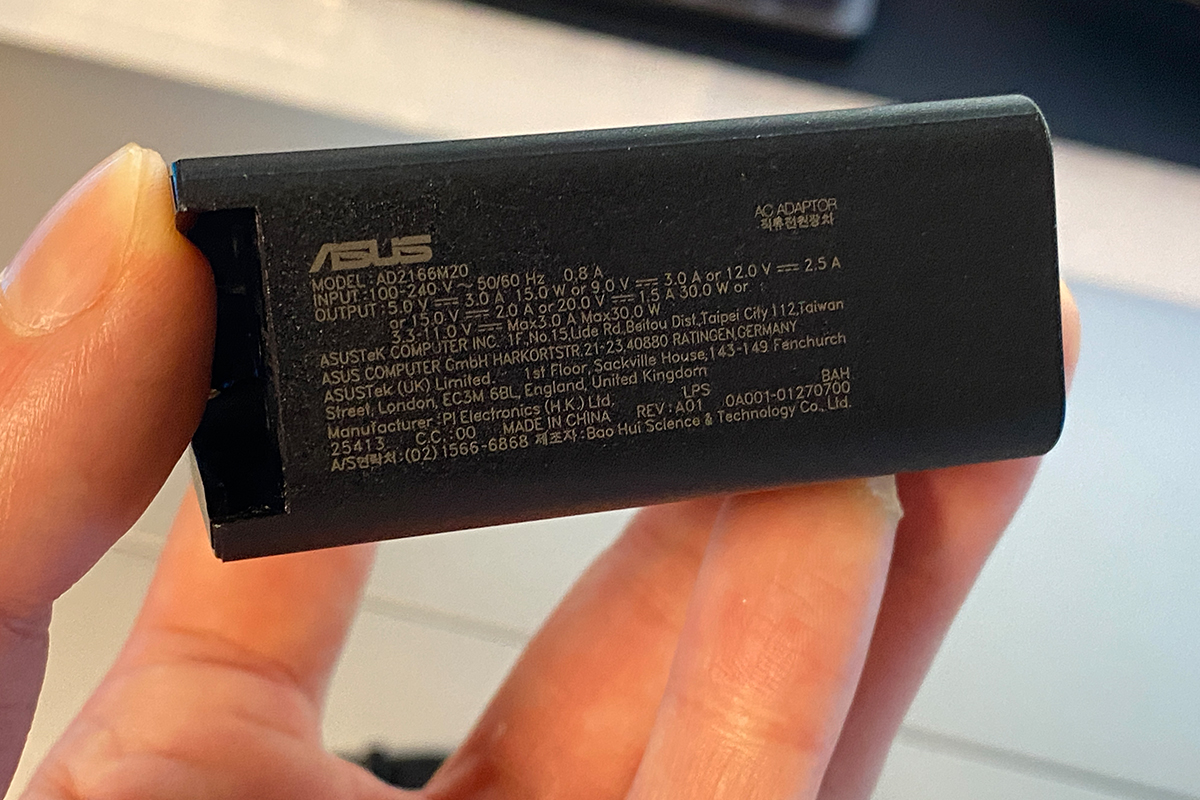
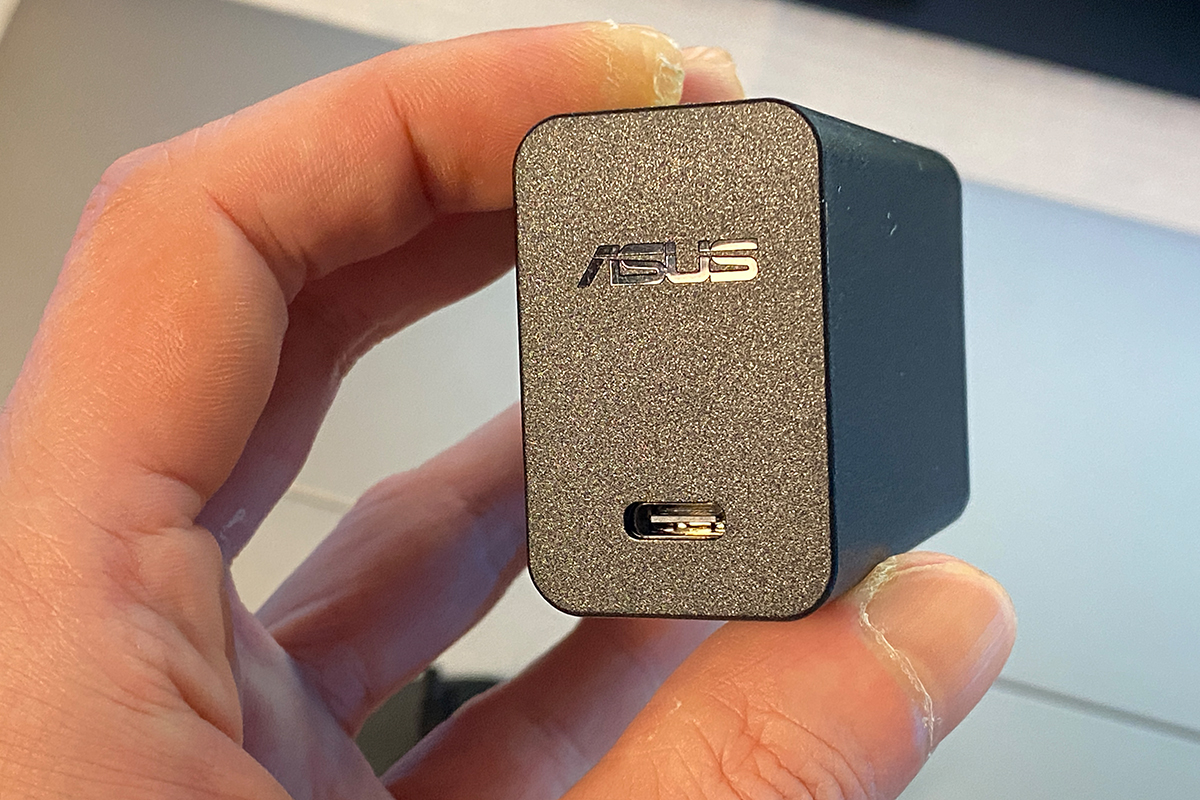
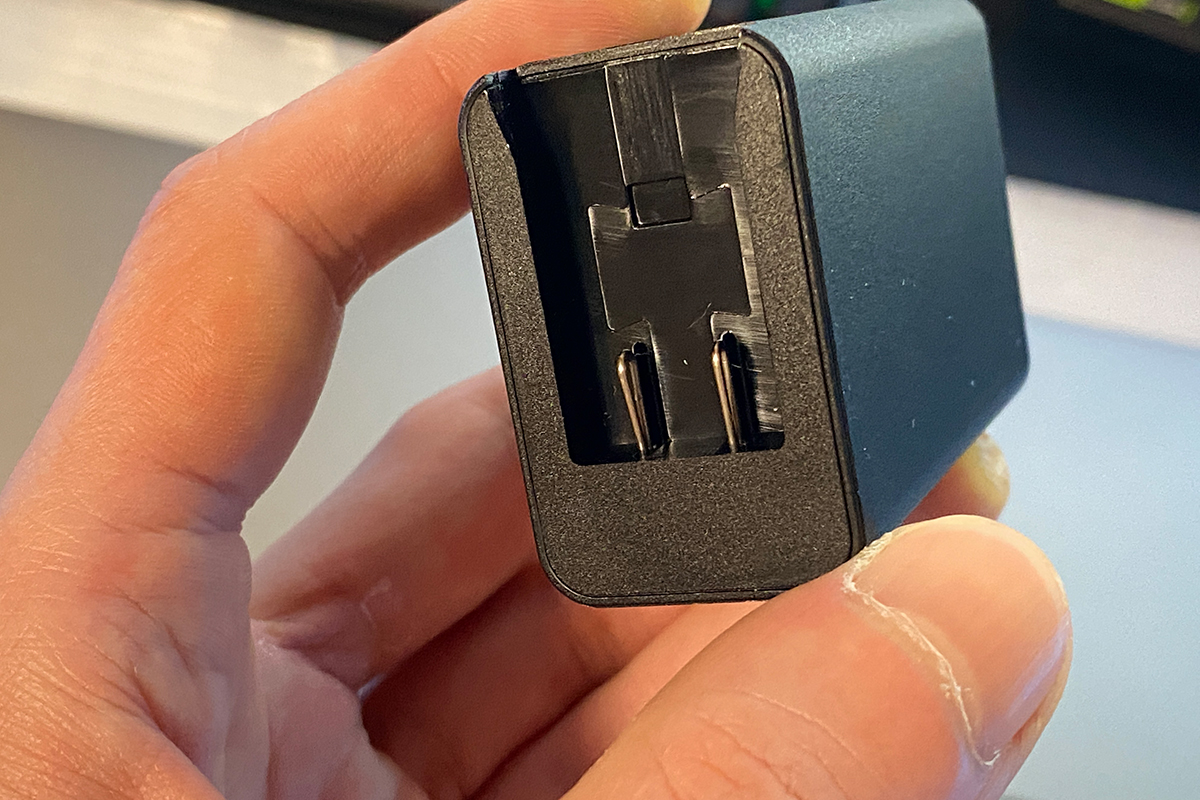
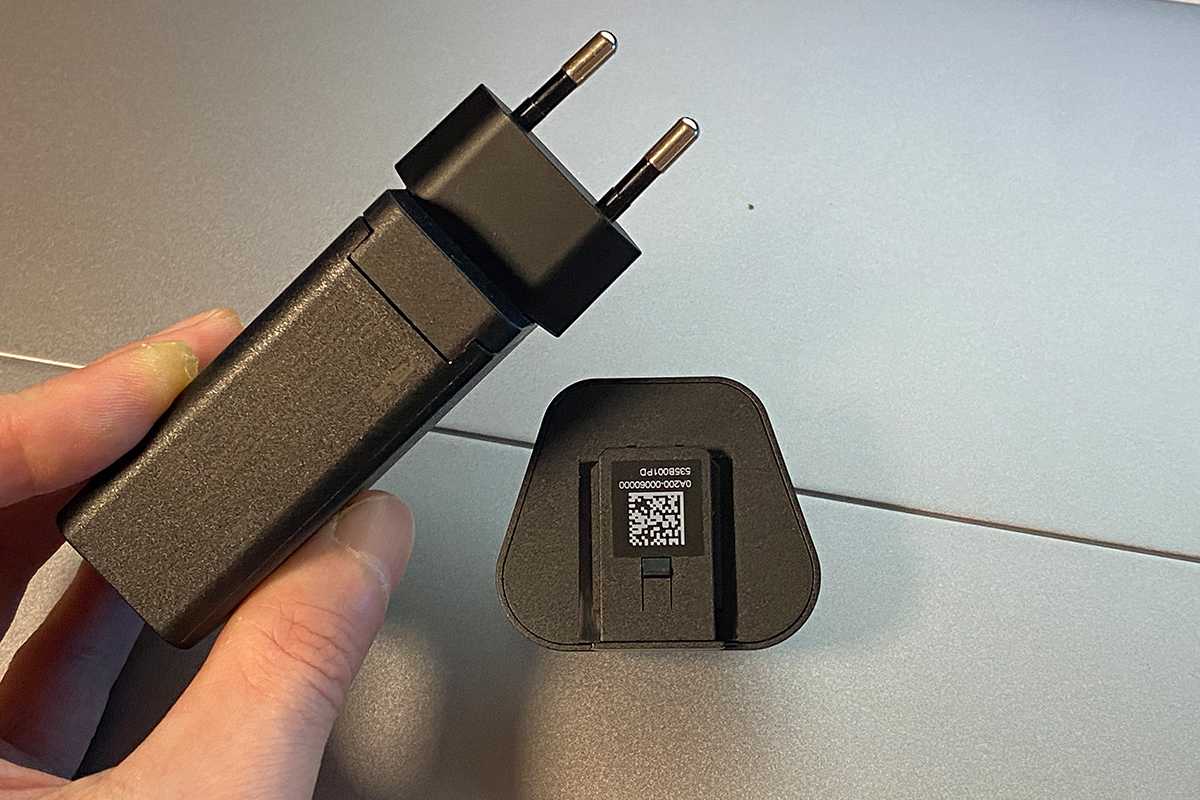
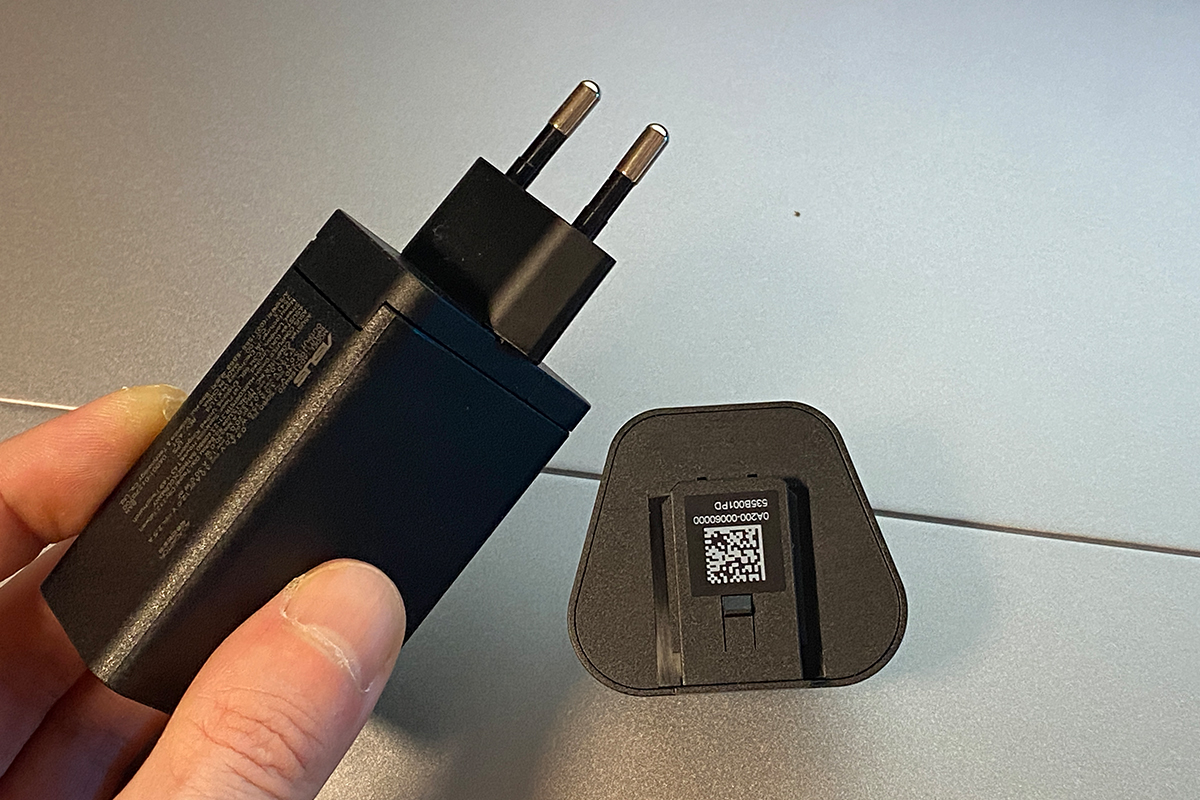
The bundled power adapter is rated at 30 W and comes with two interchangeable plug types: European and UK. It is also remarkably compact – smaller than many modern smartphone chargers despite being capable of powering the monitor.
The included MTS02D tripod adapter is a useful addition for anyone planning to mount the monitor on a stand or camera tripod. The rear of the display features a standard 1/4-inch threaded socket, and the adapter simply screws into place by hand – no tools or screwdrivers are required.
The tripod itself is not included in the package, unlike, for example, the ZenScreen MB229CF model. However, our display offers significantly better specifications and, importantly, is also more affordable. Therefore, finding and purchasing a suitable tripod separately should not be a problem.


The rest of the package contents are fairly standard: a soft microfiber cloth for cleaning the display, a warranty booklet in the form of a fairly substantial manual, and a user guide. Interestingly, the latter includes a QR code linking to the ASUS DisplayWidget Center software, as well as installation options and instructions for connecting the display.


Read also: ASUS ROG Strix OLED XG27AQDPG Monitor Review: 2K QD-OLED, 500 Hz, and 0.03 ms Response Time
Design, Ergonomics, and Build Quality
The monitor’s design is minimalistic and understated, but that is precisely what gives it a stylish and premium appearance: a slim metal chassis, a glossy OLED panel, a frameless construction, and a neatly integrated stand. In simple terms, the new ZenScreen OLED MQ16FC looks exceptionally refined and creates the impression of a truly premium device.


The monitor features a 16-inch display with a claimed screen-to-body ratio of 89%. Its overall dimensions are impressively compact at 35.9 × 23.3 × 0.9 cm, and the weight is equally modest at just 0.68 kg. In practical terms, this is a highly portable display in every sense of the word – compact enough to be smaller than most laptops while still providing a full-sized secondary workspace.


The monitor’s chassis and support stand are made from a high-quality aluminum alloy with a pleasant tactile finish. It feels slightly cool to the touch, adding to the overall premium feel and refined appearance of the display.

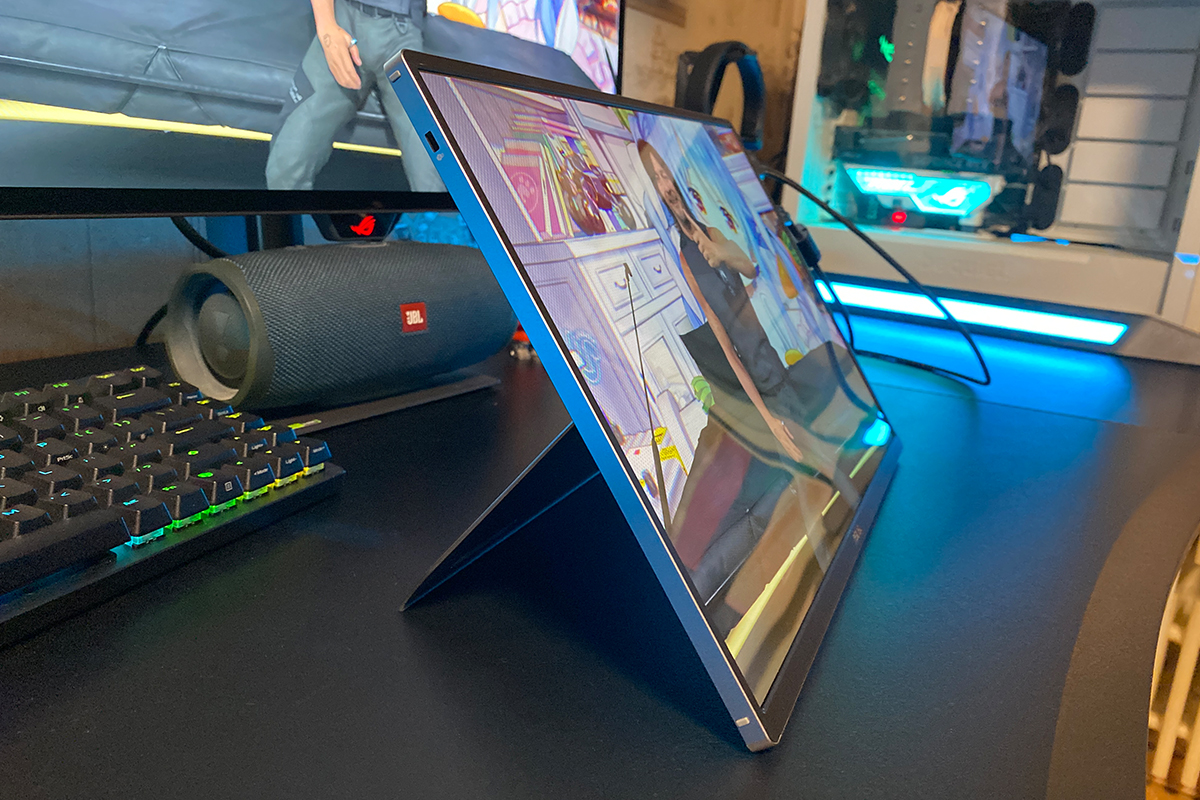
When folded, the built-in stand blends seamlessly into the rear panel of the monitor, appearing almost like an integral part of the chassis. When needed, it can be easily flipped out with a finger to position the monitor on a desk.

The stand offers several positioning options: it allows the monitor to be used in the traditional landscape orientation or rotated into portrait mode. The available installation positions and maximum viewing angles will be demonstrated in the photo below.
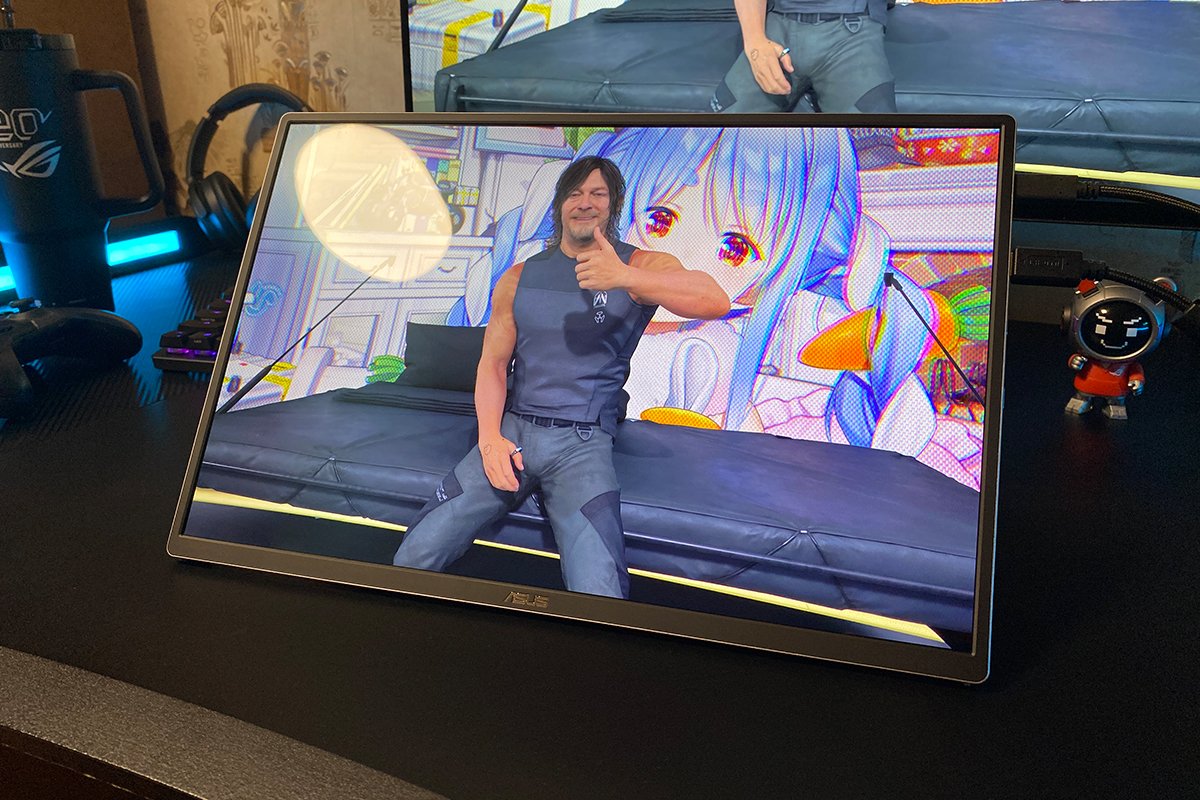
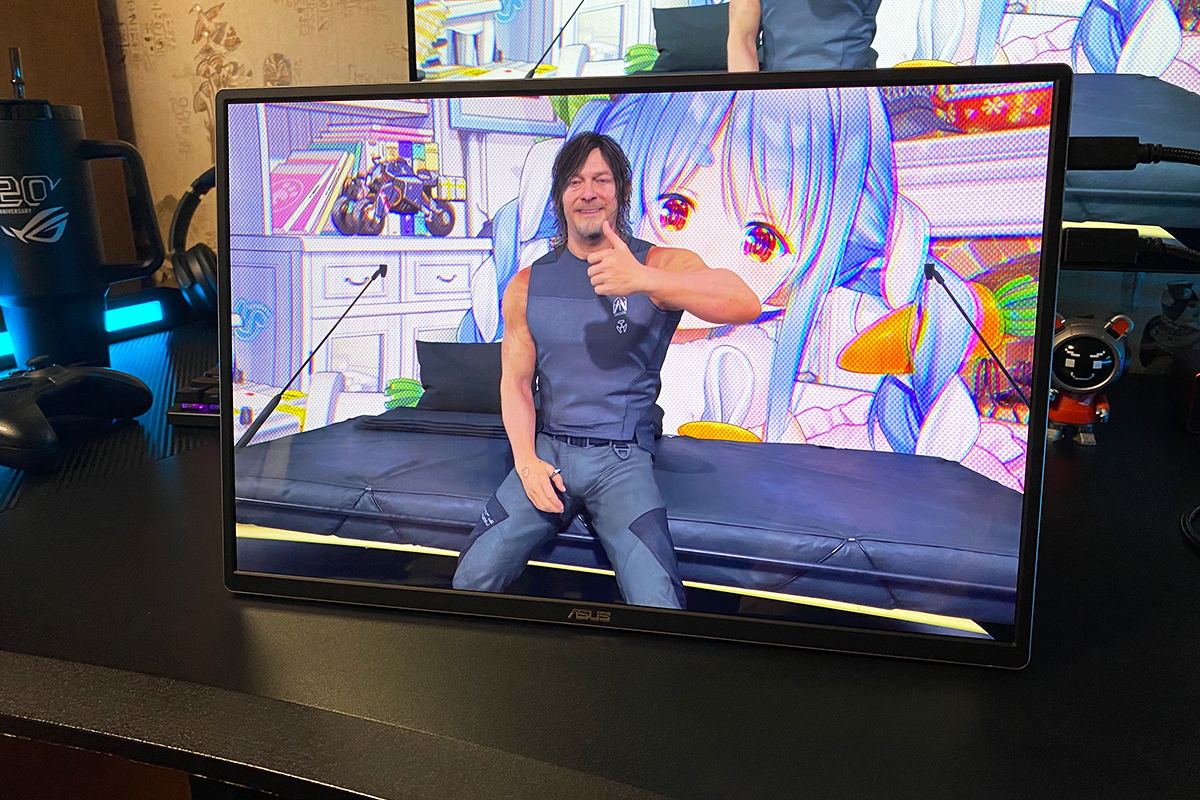
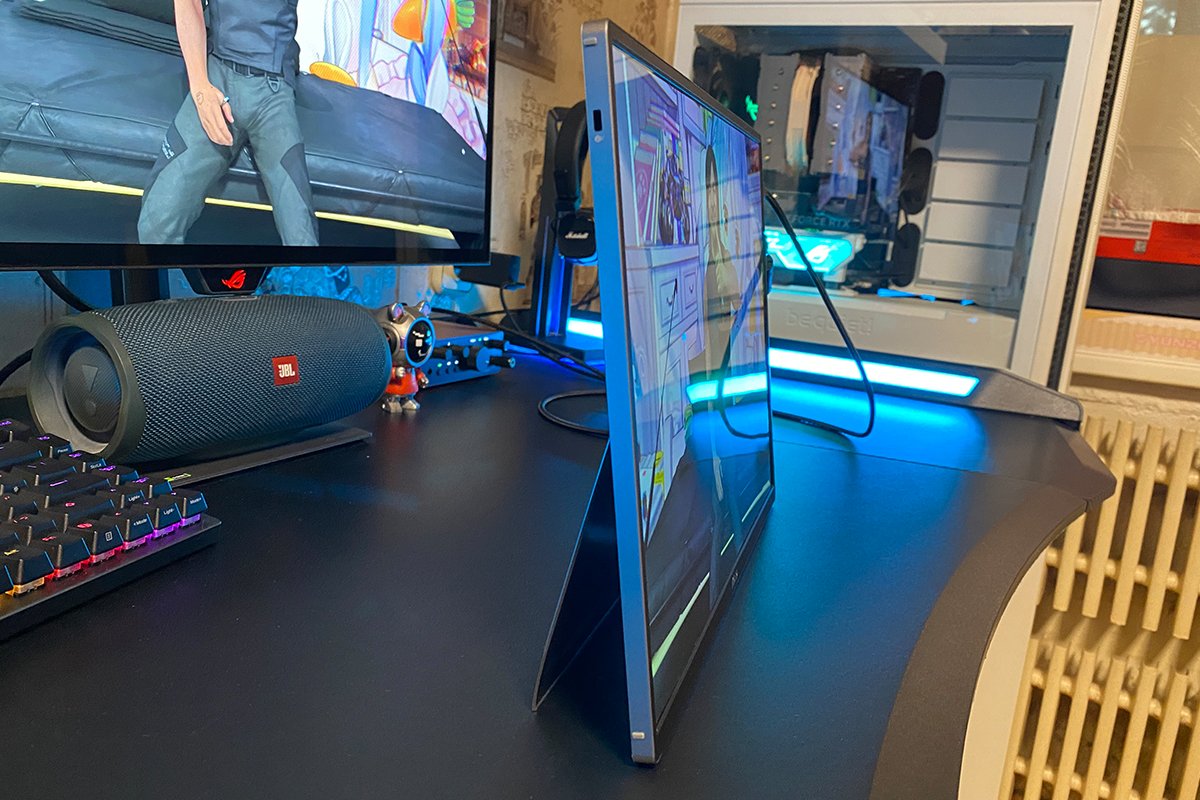

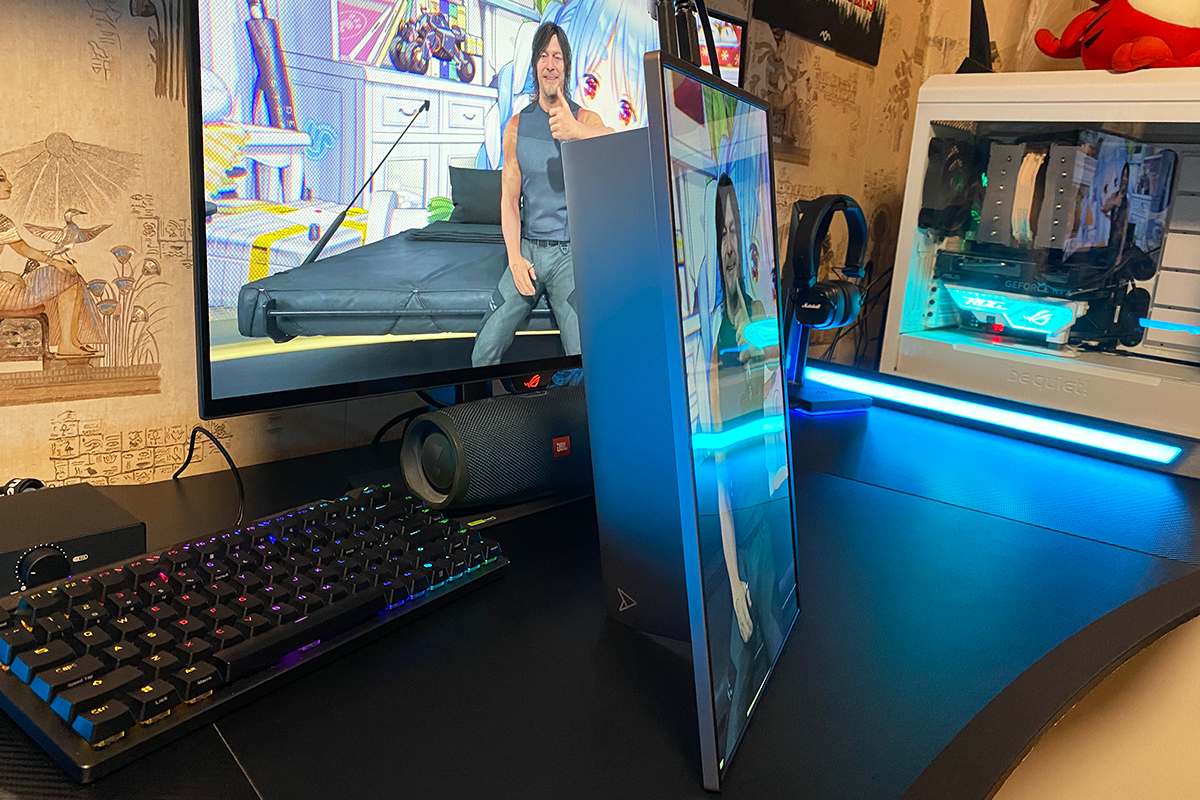
The majority of the front panel is occupied by the glossy 16-inch OLED display with ultra-thin bezels and a subtle ASUS logo positioned at the bottom center. Like all OLED panels, when powered off it resembles a black mirror, reflecting the entire surrounding environment. However, as soon as the display is turned on, the impression changes completely – the viewer is immediately greeted with a bright, vibrant, and highly contrast-rich image. More on the display quality in the next section.

The connectivity ports are located along the upper section of the right side edge of the display (when the monitor is facing you). The selection includes two USB-C ports with DisplayPort Alt Mode support, one Mini HDMI port, and a standard 3.5 mm audio jack for connecting speakers or headphones.

Both USB-C ports are fully functional: either one can simultaneously transmit video and receive power from a laptop through a single cable. However, the lower port, marked “65W MAX DCIN,” additionally supports pass-through charging. This means it can not only receive video input but also charge a connected laptop with up to 65 W of power.
However, this requires a more powerful third-party power adapter, as the included 30 W charger is intended solely for powering the monitor itself. With this setup, the connection process is straightforward: connect a higher-power adapter (for example, a 95 W charger to provide enough power for both the monitor and the laptop) to the upper USB-C port (standard DCIN), and connect the laptop to the lower USB-C port (65W MAX DCIN). The laptop will then receive the video signal through this connection while simultaneously charging.
ASUS also provides a dedicated video explaining this operating principle in a clear and visual way, which I will include below.
In addition to the connectivity ports, the right side panel also houses the monitor’s power button and the button for accessing the on-screen display menu. Positioned between them is a small joystick controller used for menu navigation and adjusting settings.

I assume you have already noticed this, but just to clarify: unlike, for example, the ZenScreen MB229CF, the ZenScreen OLED MQ16FC does not feature built-in speakers. Audio output is available only through connected headphones or external speakers via the 3.5 mm audio jack. Overall, this is not a significant drawback and is a reasonable design decision. The OLED model is not only more compact, but this type of display is typically used alongside a laptop, which already has its own built-in speakers that are usually sufficient for everyday use.
The monitor is built to a very high standard: the solid metal chassis feels robust, with no creaking or flexing anywhere. As mentioned earlier, it looks refined and premium. Most importantly for a portable device, it remains extremely lightweight. In terms of ergonomics, the conclusion is simple: it is highly convenient. This applies across the board – from carrying and transporting the monitor to connecting it and setting it up. The only minor complaint concerns the joystick used for controlling the built-in OSD menu. However, I will discuss this in more detail in the dedicated section.

Read also: ASUS TUF Gaming VG27AQML5A Monitor Review: 2K Fast IPS, 300 Hz, and New AI Modes
ASUS ZenScreen OLED MQ16FC Display
The MQ16FC is equipped with an 8-bit WOLED panel with a WUXGA resolution of 1920 × 1200, a 16:10 aspect ratio, a 60 Hz refresh rate, 95% DCI-P3 color gamut coverage, and a claimed color accuracy of ΔE < 2.
The pixel pitch is 0.248 mm, the response time is rated at 1 ms (GtG), and the visible display area measures 344.45 × 215.28 mm with viewing angles of 178° / 178°. The typical brightness is rated at 300 cd/m², while the static contrast ratio reaches 100,000:1, with a peak value of up to 100,000,000:1 in HDR mode.

The MQ16FC also includes a range of additional ASUS features and proprietary technologies designed to improve the overall user experience and reduce eye strain. The feature set may not be as extensive as on the MB229CF model, but all essential options are present: Flicker-Free, Low Blue Light, SPLENDID, ASUS Eye Care, and ASUS OLED Care.
Among the productivity-focused features, it is worth highlighting Auto Rotation and QuickFit. I have already covered most of these functions in my review of the ZenScreen MB229CF, so I will not repeat the details here and will instead briefly focus on the features that were not available in the previous model.
ASUS OLED Care is an integrated panel protection system designed to reduce the risk of OLED burn-in and extend the display’s lifespan. Unlike ASUS’s larger desktop OLED monitors, which offer a wide range of manual protection settings such as pixel cleaning and image shifting, the implementation here is much simpler. The OSD menu provides only a single option: “Screen Protection.”

Auto Rotation is a feature that automatically detects and adjusts the display orientation. As mentioned earlier, the MQ16FC can be used in both the traditional landscape orientation and portrait mode, with the latter being particularly useful for tasks such as writing text or working with code.

As for gaming features, the MQ16FC does not include any. Adaptive-Sync, GamePlus, and similar options are absent, as this model is not positioned as a gaming monitor and was designed primarily for productivity-oriented tasks. However, its response time is quite impressive, and it is worth noting that the MQ16FC will be noticeably faster in this regard than the previously mentioned MB229CF model.

The main highlight of the monitor, aside from the OLED panel itself, is its accurate color reproduction (ΔE < 2) and wide color gamut coverage (95% DCI-P3). This is the area ASUS has emphasized the most when positioning the MQ16FC as a productivity-focused display, particularly for professional graphics and content creation workflows.

In addition, the MQ16FC has been certified for compatibility with Mac devices. According to the manufacturer, it delivers reference-level color accuracy, supported by the new M-Mode P3 preset, which precisely synchronizes the monitor’s color palette with the color reproduction parameters used in macOS.

Overall image quality is excellent, which is exactly what one would expect from an OLED panel. The display delivers a bright, vivid, and highly contrast-rich picture with outstanding color reproduction and impressive depth. Pure whites, true deep blacks, a strong brightness reserve, and high contrast all contribute to a premium viewing experience.


In terms of image quality, the MQ16FC can generally be compared with more expensive ASUS gaming OLED models, with the main differences being its 8-bit panel and 60 Hz refresh rate. The difference between 8-bit and 10-bit color depth is not always noticeable and will vary from user to user. However, those who are accustomed to 10-bit OLED monitors will likely be able to recognize the difference, particularly in demanding color-critical workflows.
The refresh rate, however, is a much more noticeable factor. For example, I used this monitor as a secondary display alongside the new ASUS ROG Strix XG27AQWMG with an OLED panel and a 280 Hz refresh rate (its review will be published next), and the contrast between the two displays is immediately apparent. Dragging windows, navigating through Windows, and even something as simple as moving the mouse cursor from the primary screen to the secondary one all reveal a significant difference. Personally, I find 60 Hz on the MQ16FC somewhat limiting, and if this monitor featured a 120 Hz refresh rate, it could easily be considered an almost perfect portable display. As it stands, it is still a very good monitor. For productivity tasks, 60 Hz remains more than sufficient in most cases, but users who are accustomed to higher refresh rates will notice the difference right away.

The last points I would like to mention are the viewing angles and response time. However, there are no surprises here. The viewing angles are as wide as possible. Regardless of the angle, the image remains perfectly visible, with no noticeable changes in color accuracy, brightness, or contrast.

The response time, as I already mentioned, is quite good, and the monitor is even suitable for gaming. However, due to the limited 60 Hz refresh rate and the lack of gaming features such as VRR, it is not exactly an experience you would actively seek out.
And when you think about it, who would actually choose to play games on a portable monitor that was primarily designed for productivity and use as a secondary display? On the other hand, when it comes to movies or high-quality video content, the experience is completely different. Watching content on this monitor is a genuine pleasure, and it becomes even more impressive when HDR is enabled.

Read also: ASUS ROG Strix Morph 96 Wireless Review: Hot-Swap Functionality and Thoughtful Customization
On-Screen Display Menu
The settings menu can be accessed using the joystick or button located on the right side edge of the monitor. This is where I should immediately mention how “conveniently” the navigation through the settings is implemented. Put simply: not very convenient.
The issue is that the joystick has a rather deep press and provides little tactile feedback, while this inward click is used to select submenu items. In addition, joystick navigation itself (up/down) feels somewhat stiff, so when adjusting the monitor through the menu, you often have to hold the display in place with your other hand. Aside from that, there is nothing particularly unusual about the menu system.

Regarding the OSD itself, this is ASUS’s familiar proprietary menu system, commonly found in the company’s professional and business-oriented monitors. All available settings are organized into seven main sections: Splendid, Eye Care, Image, Color, Input Select, Favorites, and System Setup.

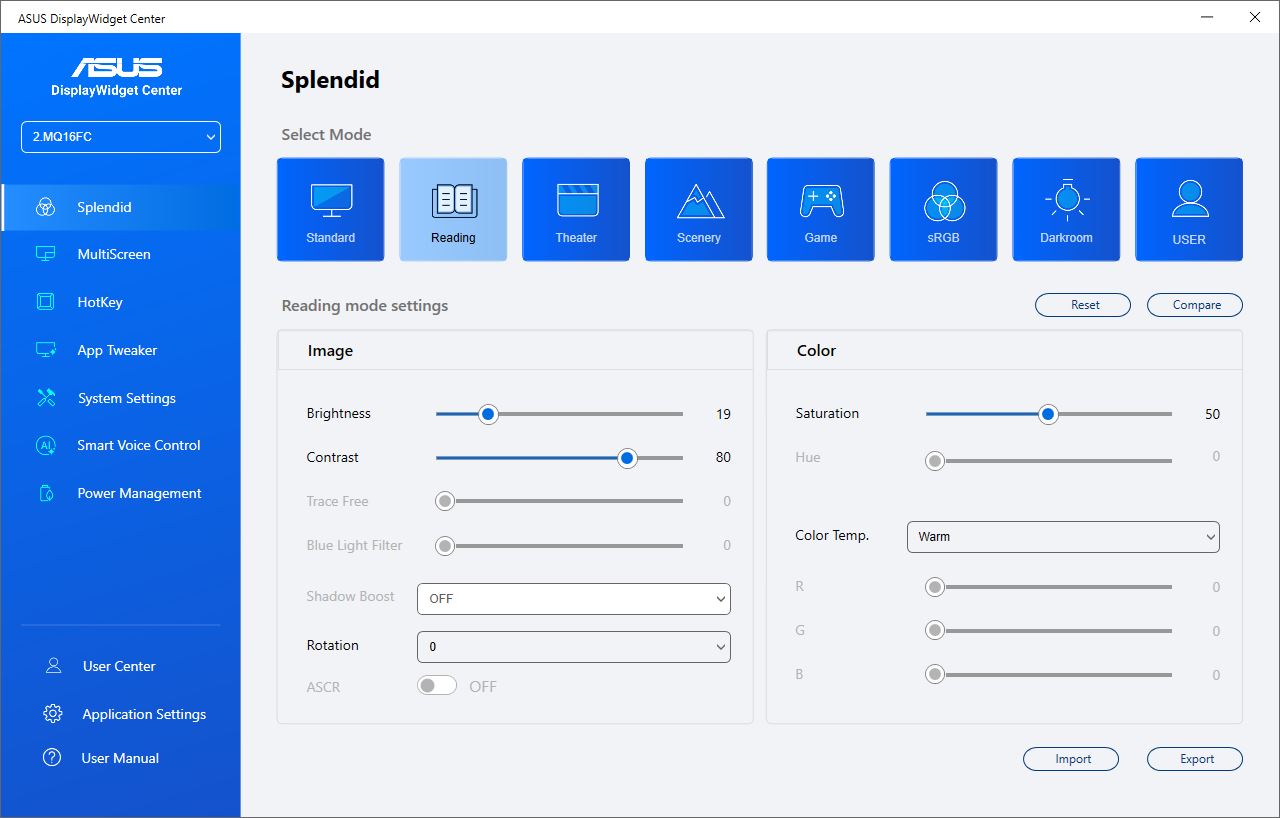
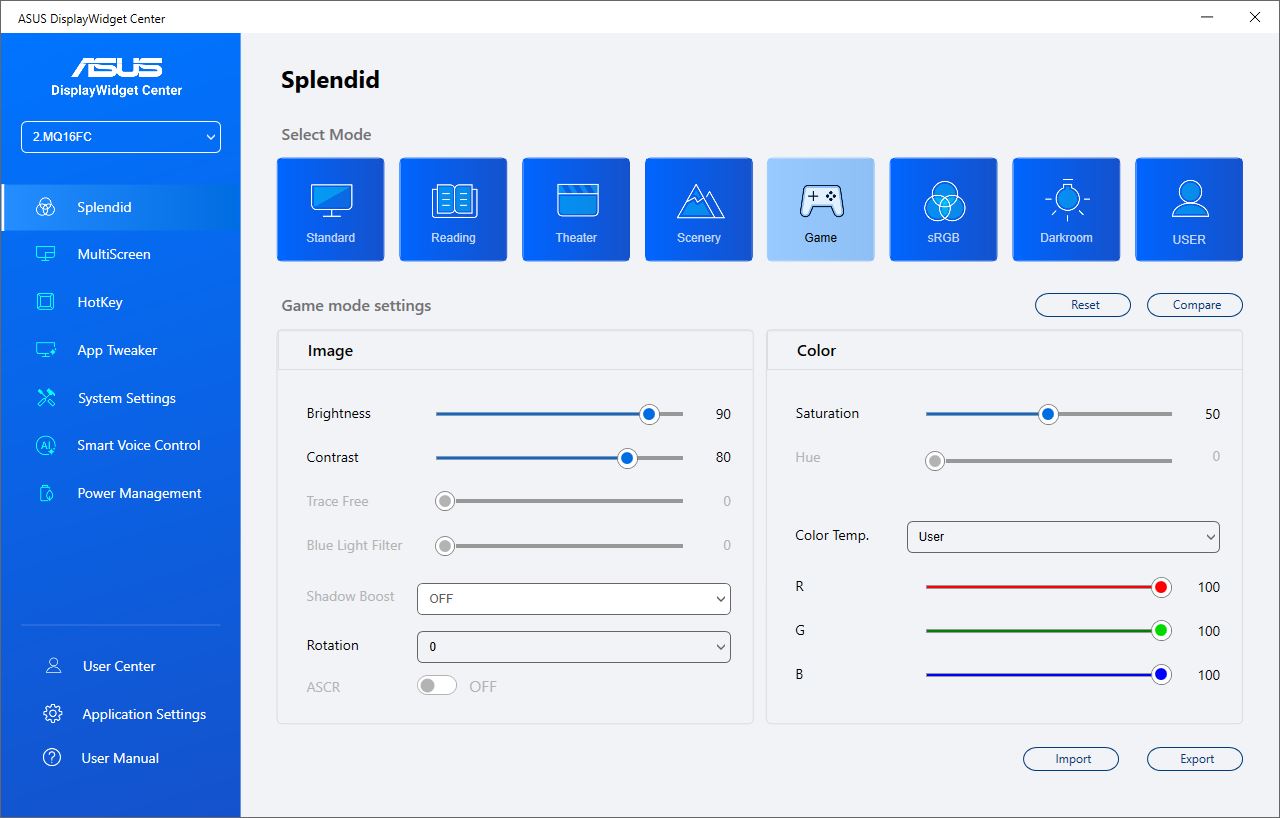
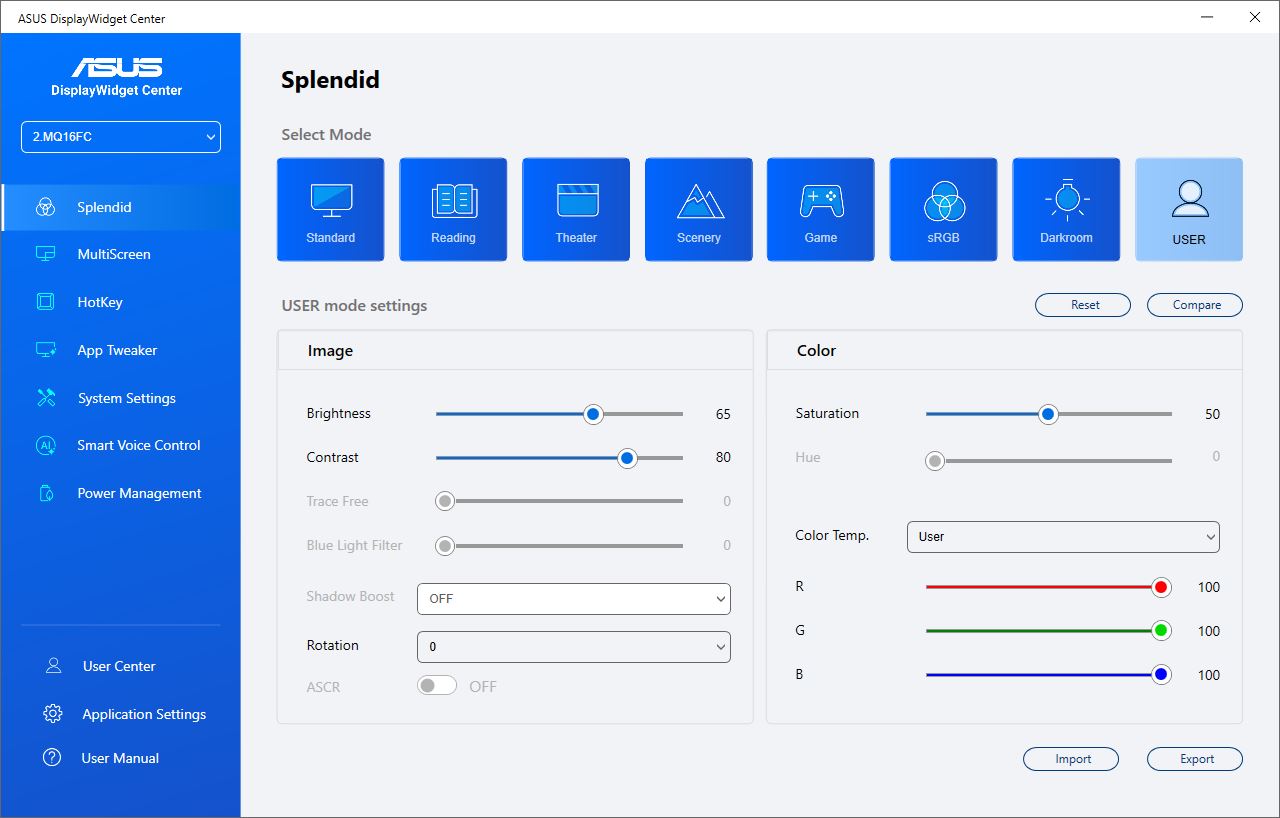
The “Splendid” menu contains seven preset image modes designed for different display usage scenarios, along with a customizable user mode. It is not possible to further adjust these preset modes directly through the monitor’s OSD menu, but the same settings can be modified without any issues using the proprietary DisplayWidget Center application.

The “Eye Care” menu contains settings for blue light filtering and color enhancement. The first option adjusts the intensity of the blue light spectrum, which is considered one of the factors that can contribute to eye fatigue during prolonged use. The second is a dedicated feature for users with color vision deficiencies (color blindness). It allows separate adjustment of red, green, yellow, and blue color intensity to make distinguishing different shades more comfortable.

The “Image” menu contains settings for brightness, contrast, sharpness, HDR, and display aspect ratio. To activate the HDR settings, HDR must first be enabled directly in Windows. By the way, there is an interesting detail here: the available HDR presets (Gaming, Cinema, Console) are the same as those found in ASUS’s more expensive desktop OLED monitors.

The “Color” menu includes settings for saturation, gamma, color space, and color mode.

In the “Input Select” menu, you can choose the video signal source. This section also includes an option to enable automatic input detection.

The “Favorites” menu allows you to assign quick-access functions, which can then be activated by moving the joystick up or down. Once again, it is worth mentioning that accessing these shortcut menus does not always work on the first attempt due to the joystick’s limited sensitivity. However, the quick-access functions are available, and with time, you can get used to both their activation and the joystick operation itself.
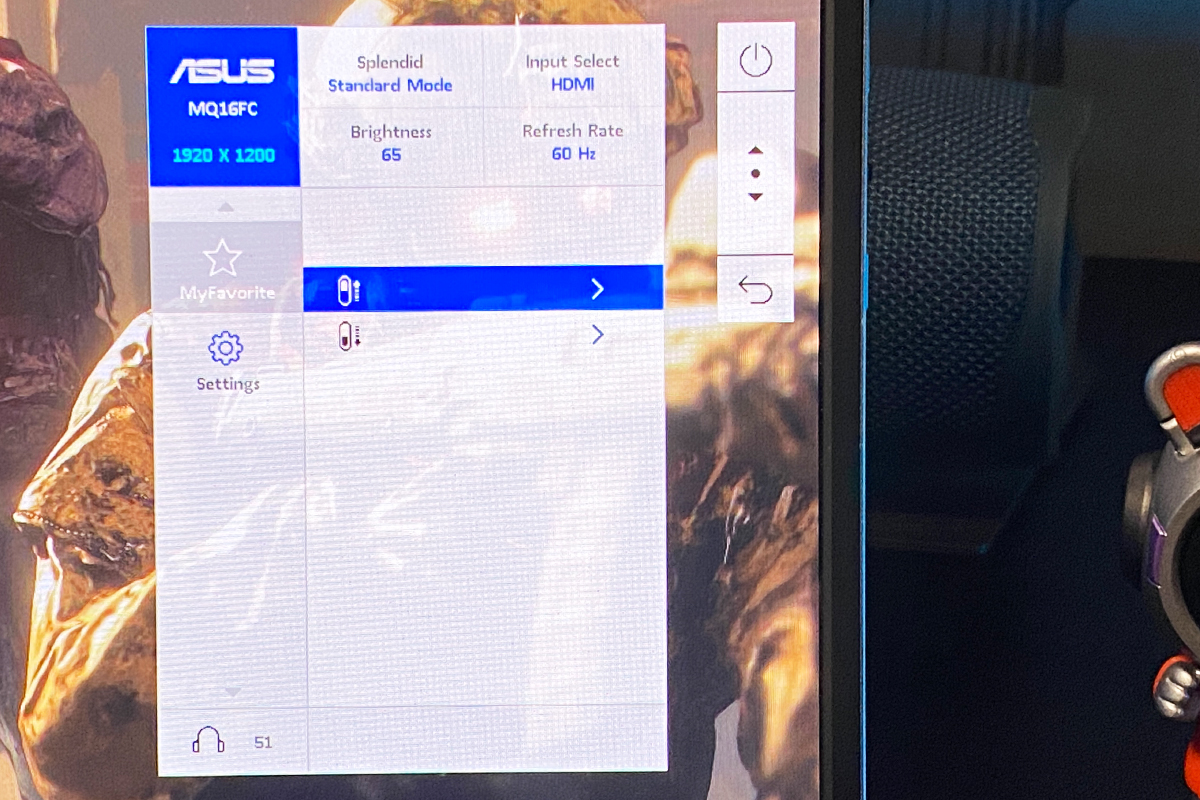
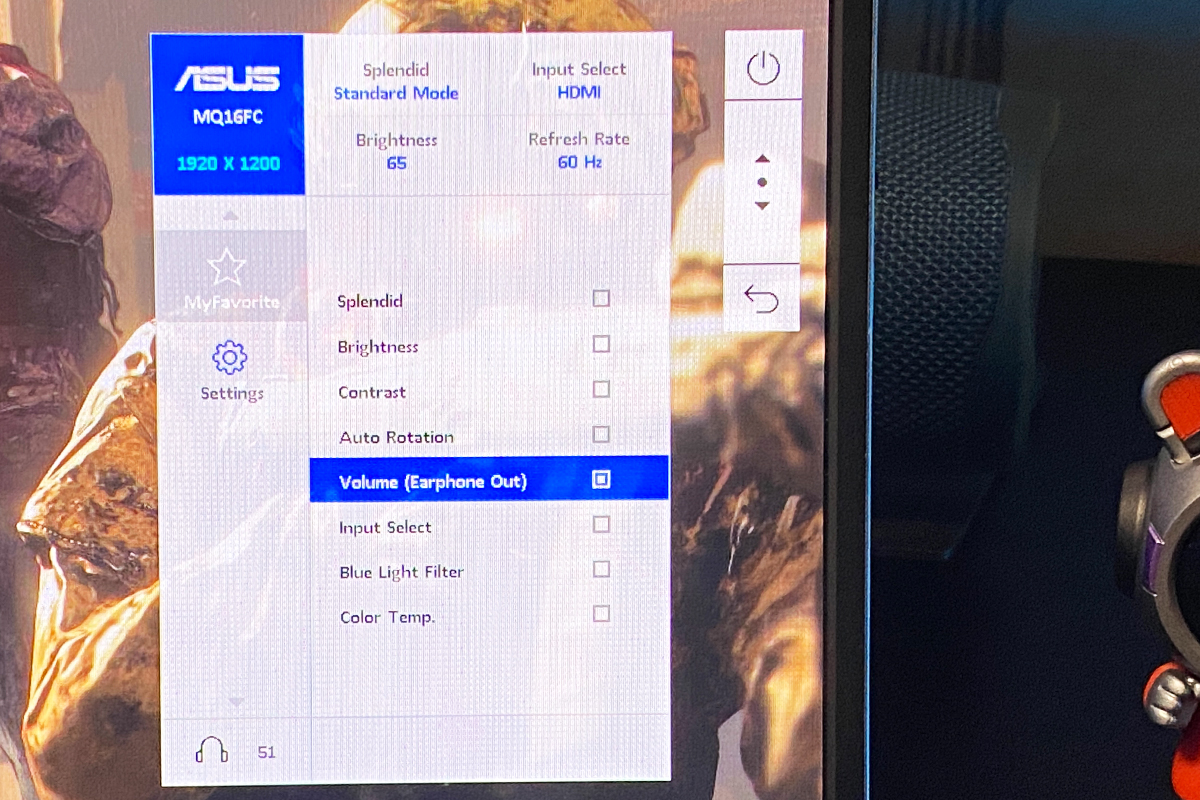
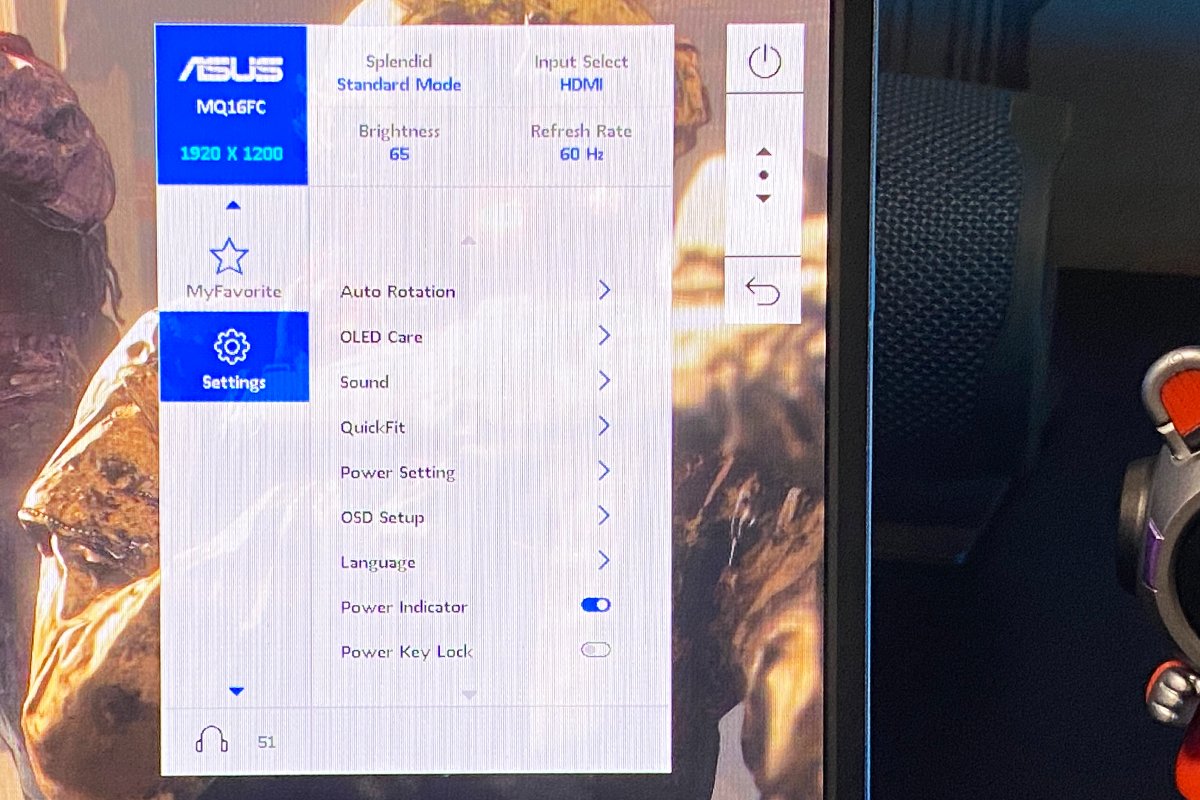
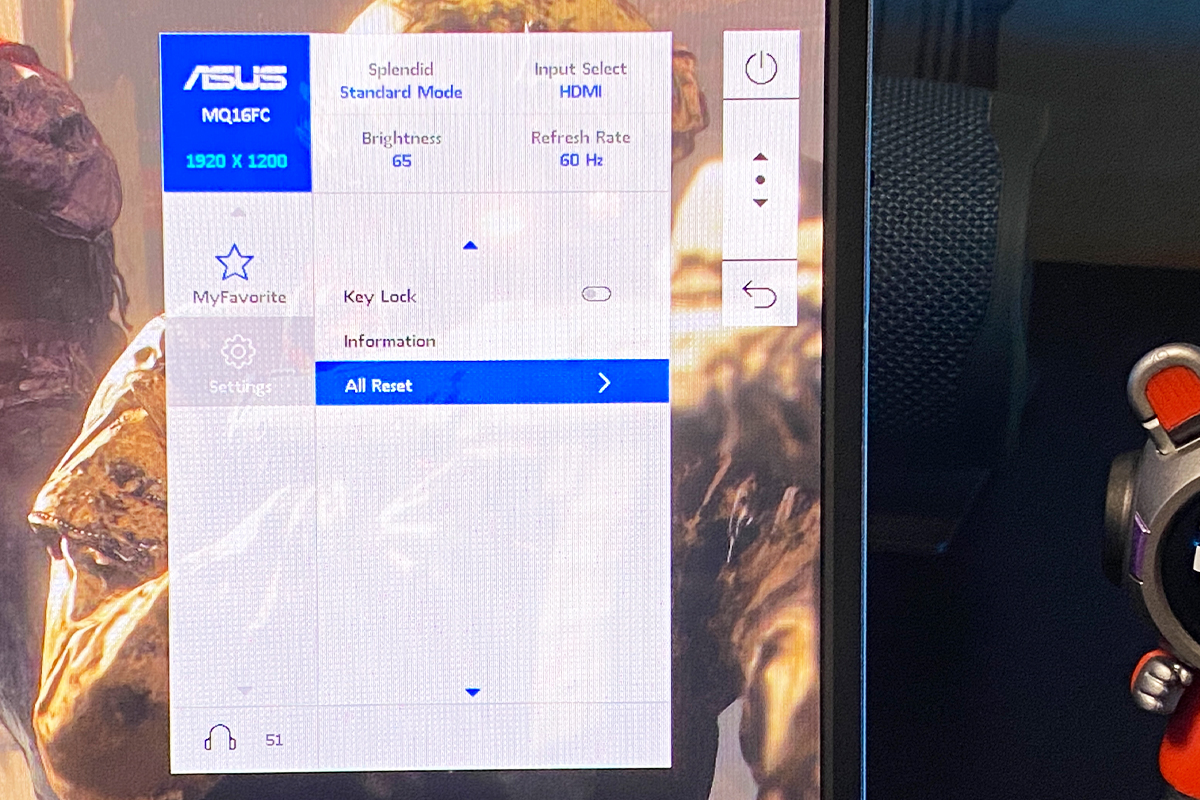
In the final “System Setup” menu, you will find all the remaining monitor settings: Auto Rotation, ASUS OLED Care, volume adjustment, QuickFit, power settings, and OSD configuration options. It also includes interface language selection, Kensington lock settings, and button lock functionality. This section also allows you to view complete display information, including the model name, aspect ratio, color settings, pass-through charging status, and firmware version. Additionally, you can perform a full factory reset of the monitor.
Read also: ASUS ROG Strix Aiolos SSD Enclosure Review: 20 Gbps and NVMe / SATA Support
ASUS DisplayWidget Center Software
More advanced monitor settings are available through the proprietary ASUS DisplayWidget Center application. By the way, when the monitor is connected for the first time, the PC will automatically suggest downloading and installing this software. If this does not happen, the application can be downloaded manually from the official ASUS website.

The application provides the same settings available in the monitor’s built-in menu, but it also includes several exclusive features, such as screen splitting, additional Splendid mode customization options, and hotkeys for controlling the display directly from a keyboard or gamepad. So, let’s take a closer look at all of them.
In the Splendid section, you can select a predefined image preset and further customize it according to your preferences: adjust brightness, contrast, and saturation, choose the color mode, and set the display rotation angle.
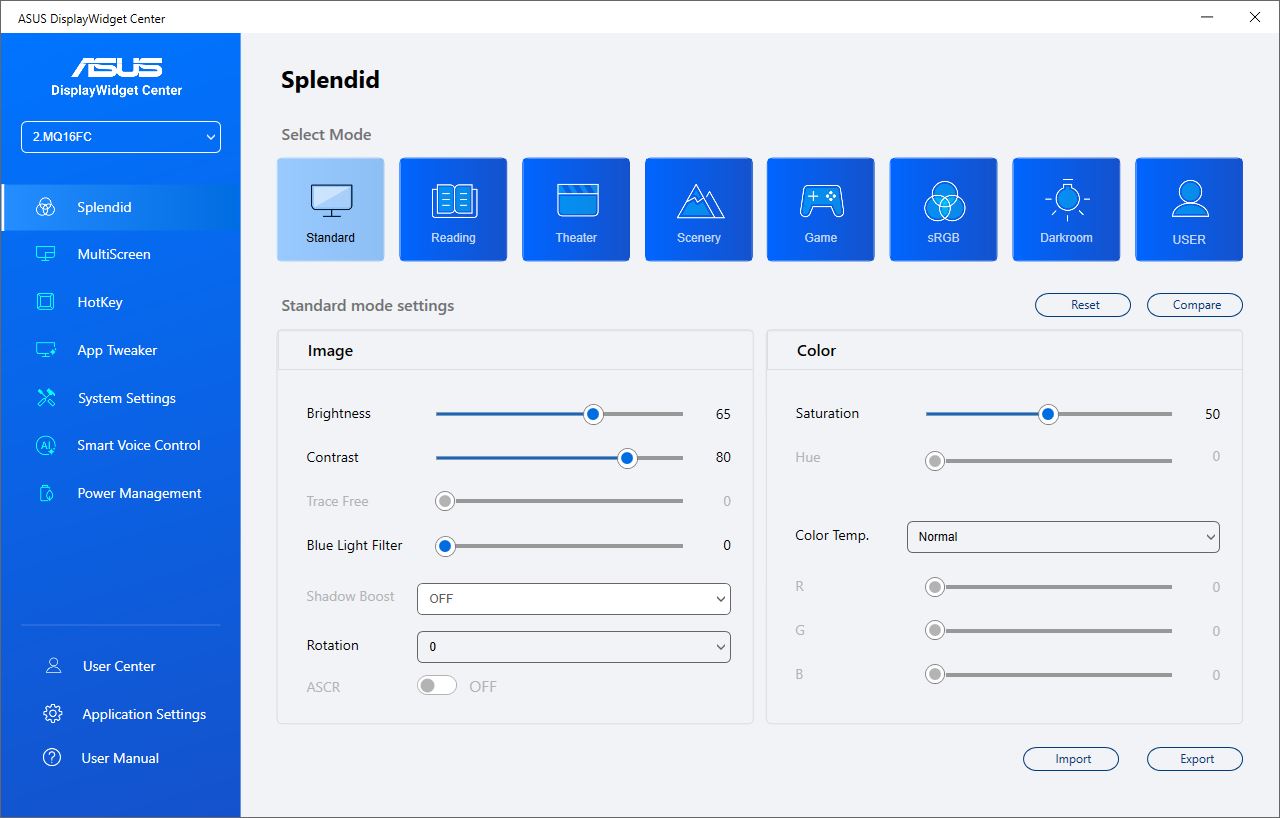
In the MultiScreen menu, you can divide the display into several independent areas. This is one of the exclusive features of DisplayWidget Center that is not available in the monitor’s built-in OSD menu.

In the HotKey menu, you can configure keyboard shortcuts for controlling the monitor. For example, you can quickly increase the brightness using a simple key combination without opening the application or accessing the OSD menu. As you can see, the display can also be controlled using a gamepad in addition to a keyboard. This is an interesting feature, especially since it was not previously available in the application.

In the App Tweaker menu, you can select specific applications and assign a dedicated display profile to each of them. For example, you can configure the monitor to automatically switch to the “Reading” preset whenever Microsoft Word is launched. By the way, the same principle can also be applied to games, allowing you to create individual display profiles that automatically activate when a specific game starts.

In the System Settings menu, you can enable HDR, activate the automatic Windows taskbar hiding feature, choose a color theme for the application itself, and configure the monitor’s power mode.

In the Smart Voice Control menu, you will find an experimental feature (currently in Beta) that allows the monitor to automatically adjust its settings based on your voice commands or text input from the keyboard. This section also allows you to select the input language required for the feature to work correctly.

The Power Management menu contains power consumption settings, which are especially relevant when the monitor is connected to a laptop running on battery power. Here you can enable power balancing to help preserve the laptop’s battery life, as well as activate automatic brightness reduction during periods of inactivity (when there are no active windows or cursor movement on the screen).

In the “User Center” menu, you can sign in to your ASUS account to access support services, register your device, and use other additional features. This section also allows you to view a brief report about the connected monitors.

In the “Application Settings” menu, you can configure the application itself. Here you can enable automatic software updates, choose the interface language and theme, activate automatic startup with Windows, and download a service log.

The final “User Manual” menu simply redirects users to the official ASUS website, where a video guide for the application is available.

The last thing worth mentioning is that after installing DisplayWidget Center, an additional monitor selection feature automatically appears when opening and dragging File Explorer windows in Windows. This is a very useful function that allows you to quickly distribute and pin windows to different displays instead of manually dragging them around. In short, the application is extremely practical and convenient, making it an absolute must-have installation if you own one – and especially two – ASUS monitors.
Read also: ASUS ROG Falchion Ace 75 HE Keyboard Review: Expanded Layout, Hotswap, 8000 Hz, and Gear Link
Conclusion
To sum up, the new ZenScreen OLED MQ16FC turned out to be an excellent device. In every aspect, it is a well-balanced portable monitor that can perfectly complement or expand an existing workspace setup. Its advantages include compact dimensions, low weight, a great package contents, stylish premium design, high build quality, and convenient installation and connectivity. Special attention should be paid to the outstanding image quality with accurate color reproduction provided by the OLED panel, as well as the useful Power Pass-Through charging feature. And, of course, the price deserves a mention as well. As already noted, compared with other portable OLED monitors, the MQ16FC remains a relatively affordable option in this segment.

As for the objective drawbacks of the model, I personally cannot point out anything significant apart from the somewhat inconvenient joystick used for navigating the built-in menu. However, even this is something you can get used to over time. Of course, ideally, it would have been nice to see a 10-bit OLED panel and a higher refresh rate – 120 Hz, for example. But these are more personal wishes rather than actual shortcomings and, essentially, minor details. The monitor already offers more than enough capabilities for most of the professional and everyday tasks it was designed for. So, the final verdict is simple: an excellent device that I can confidently recommend.
Where to buy ASUS ZenScreen OLED MQ16FC