© ROOT-NATION.com - Use of content is permitted with a backlink.
A few months ago, I told you about the IQUNIX EV63 – one of the Chinese brand’s flagship magnetic keyboards. It was my first experience with IQUNIX, and overall, I have to say, it was a pretty positive one. Naturally, that made me curious to try another keyboard from the brand, and now I have another interesting new model on my desk – the IQUNIX Magi75 Pro. The Magi75 Pro is a 75% mechanical keyboard housed in a slim aluminum body with an unusual design, low-profile keycaps, and versatile tri-mode connectivity. Other highlights include hot-swappable switches – something that is still relatively uncommon among low-profile models – and VIA support, which lets you customize and configure the keyboard extensively. But that is far from all the interesting features this model has to offer. I will cover those and everything else in detail in this review.
Read also: Gaming keyboard reviews
TABLE OF CONTENTS:
Models and Technical Specifications
To begin with – just a few words about the series itself. So, the IQUNIX Magi is a range of custom mechanical keyboards in slim aluminium chassis with low-profile keycaps. In fact, it is precisely the latter that constitutes the main feature of this series. The series itself currently consists, in essence, of a single model, which is available in various form factors and variants: Magi65, Magi65 Pro, Magi75, Magi75 Pro, Magi96 and Magi96 Pro. In turn, the keyboards differ in terms of their form factor, battery capacity and the multimedia panel – which features a scroll wheel and function keys on the Pro models.
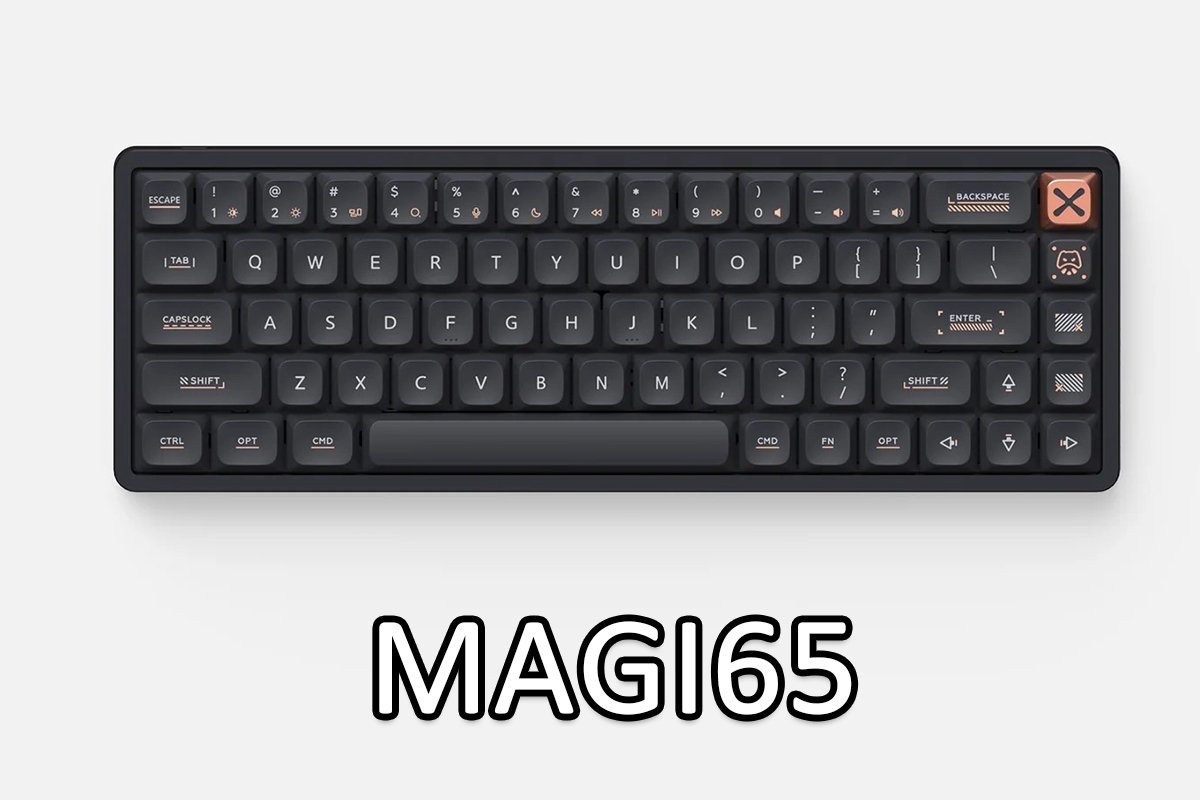
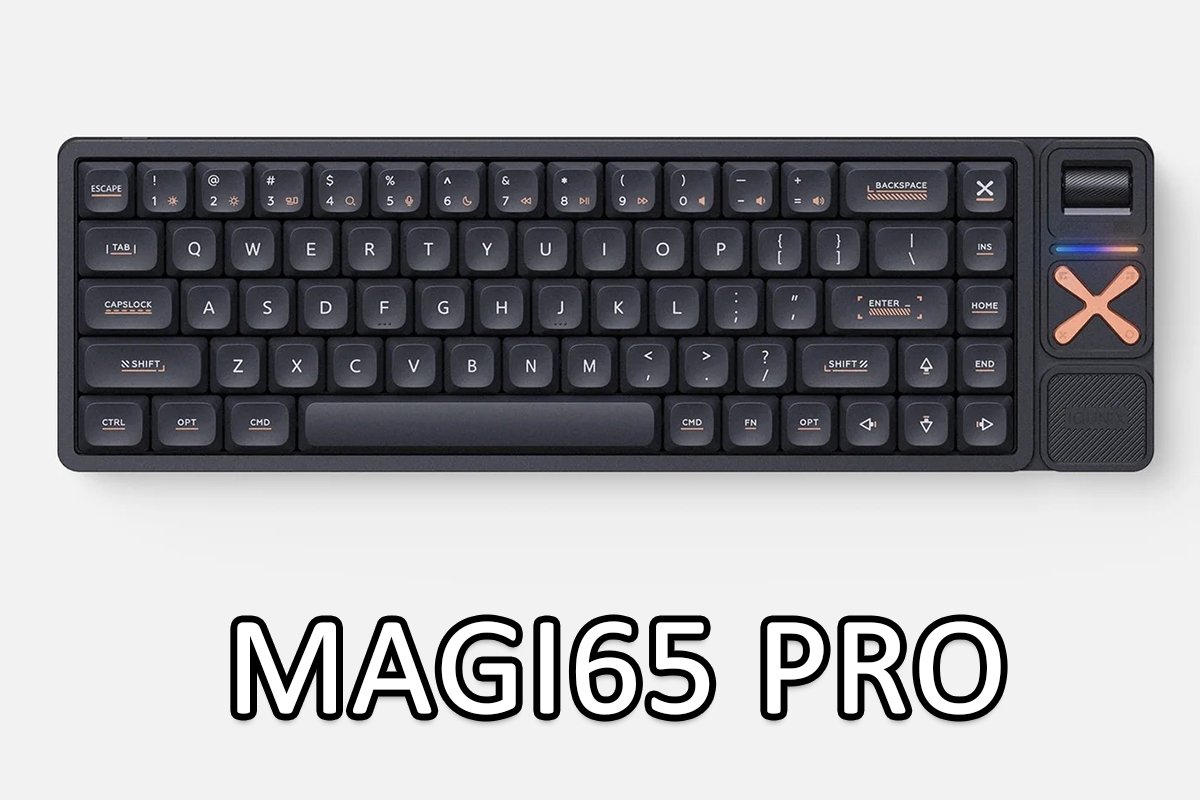
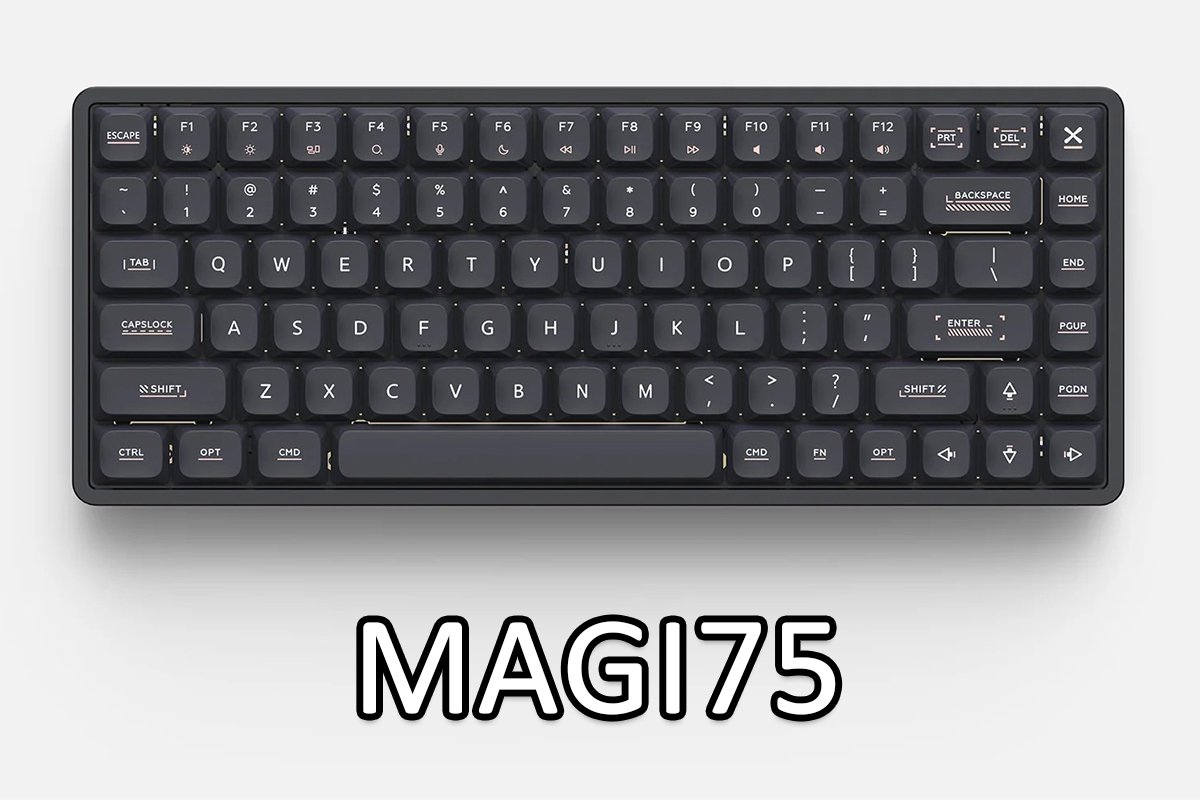
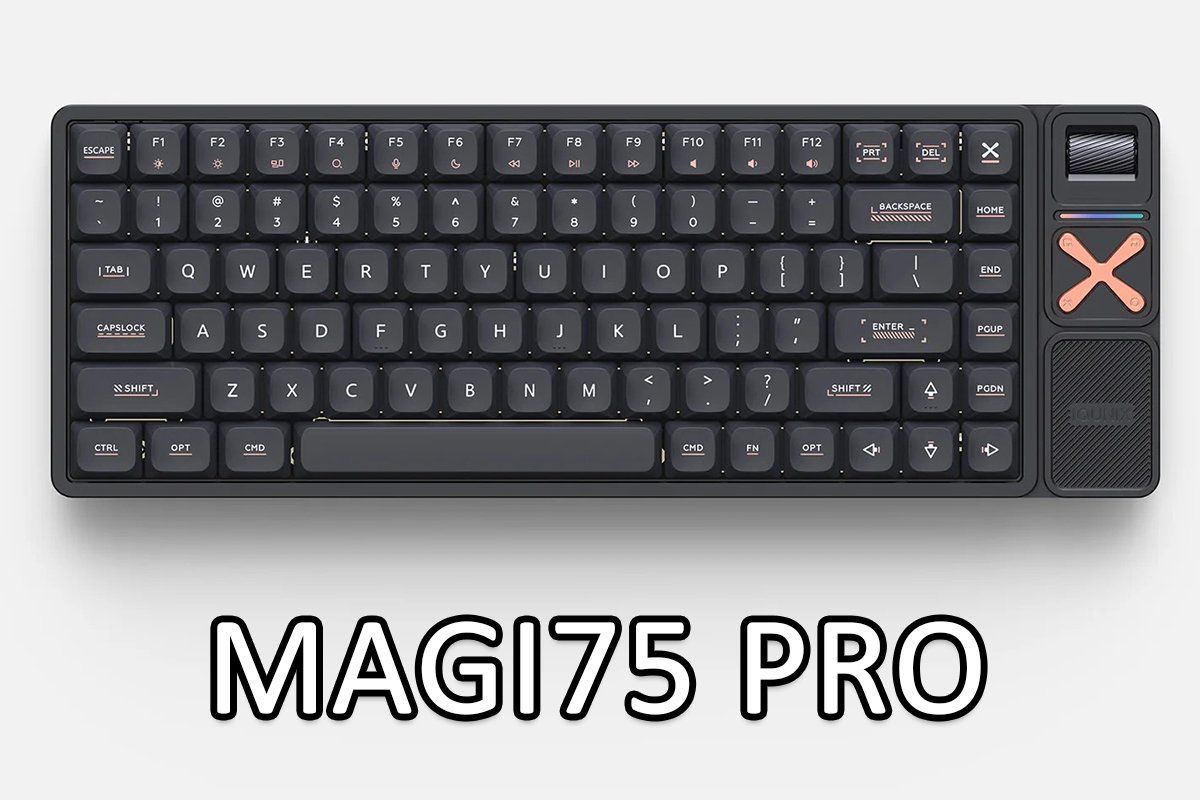
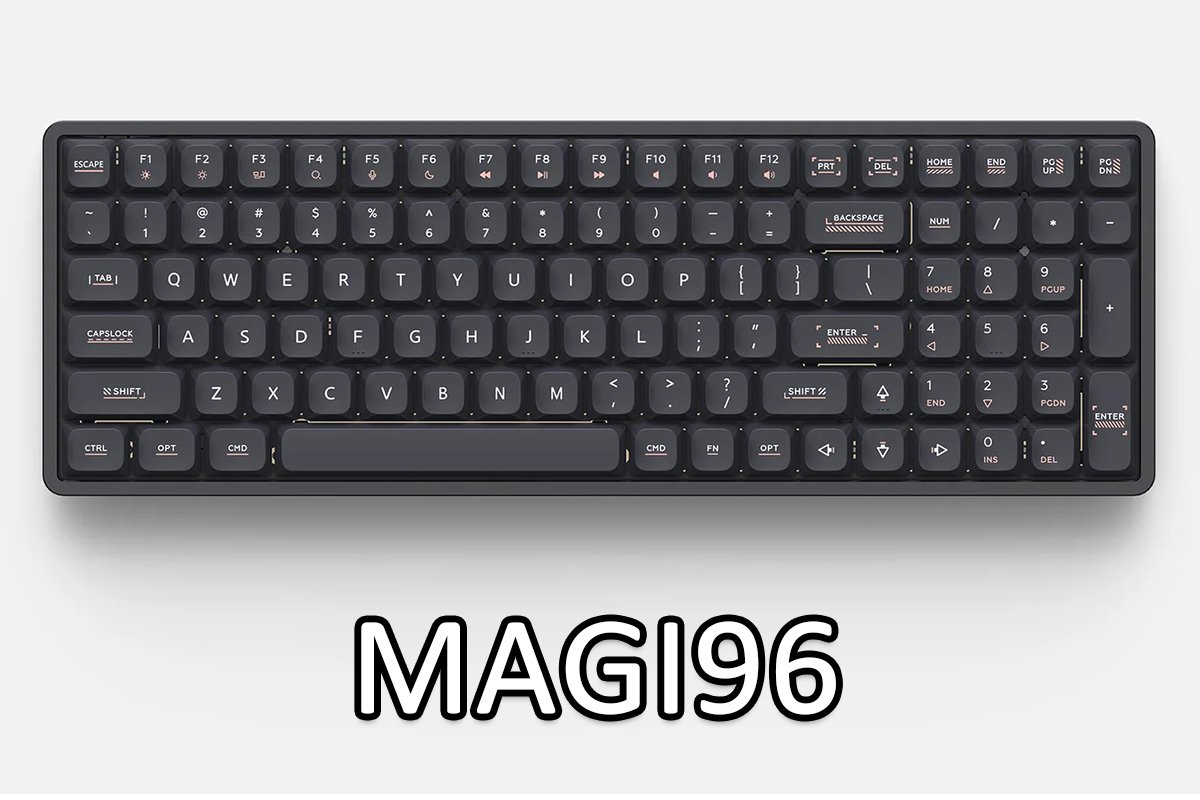
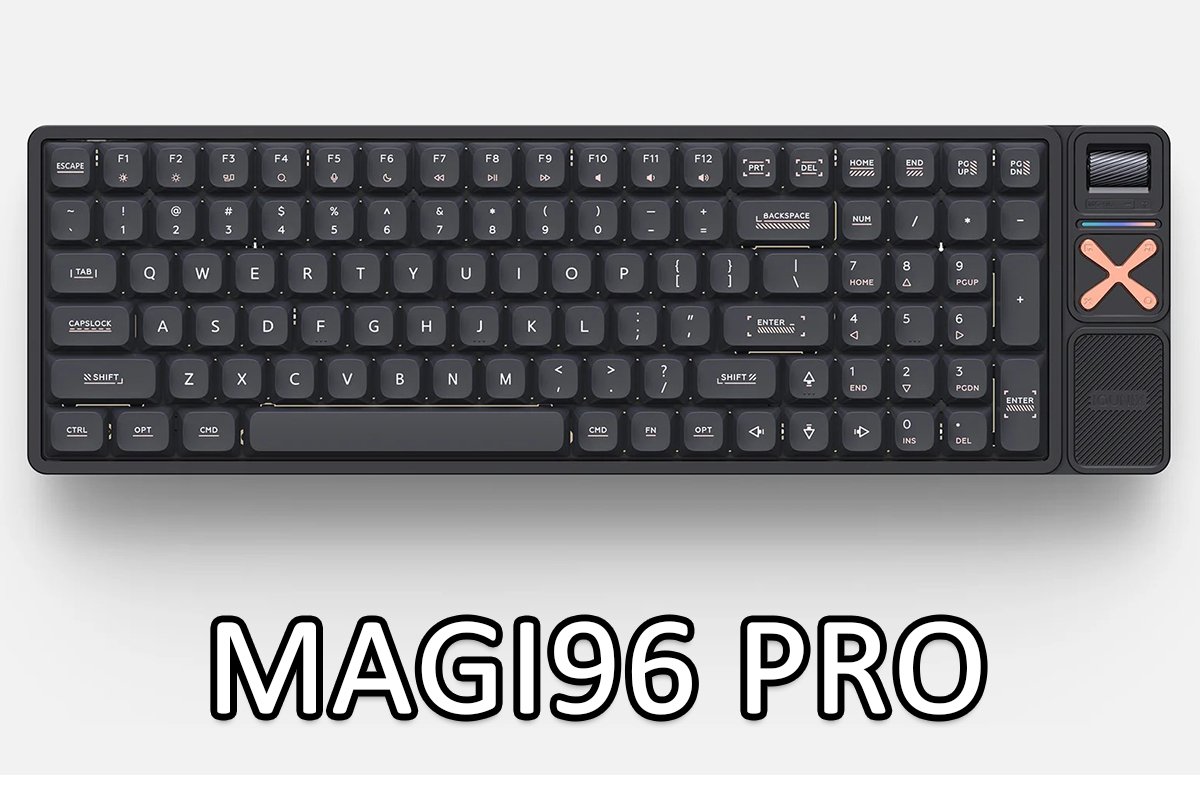
Detailed specifications, photos, and descriptions of the other models in this lineup can be found on the official IQUNIX website at the following links: Magi65 / Magi65 Pro, Magi75 / Magi96 / Magi96 Pro. Below, I’ll provide a brief overview of the key specifications of the model I’m actually reviewing – the Magi75 Pro. As you have probably already figured out, however, most of these specifications also apply to the other models in the series.
- Model: Magi75 Pro
- Layout: 75% (84 keys)
- Layout standard: ANSI, ISO
- Connectivity: Wireless (2.4 GHz RF, Bluetooth 5.1), wired (USB-C)
- Polling rate: 1000 Hz (USB, 2.4 GHz RF), 125 Hz (Bluetooth)
- Switches: Gold Red Switch
- Stabilizers: Plate-mounted
- Hot-swappable: Yes (3-pin sockets)
- Anti-ghosting: Full N-key rollover
- Mounting style: Le Tray Mount
- Case material: CNC-machined aircraft-grade aluminum
- Case finish: Anodized (Shadow Black), electrophoretic coating / E-Coating (Ochre White)
- Keycaps: Low-profile PBT with an oleophobic coating
- Backlighting: Per-key RGB (north-facing LEDs), decorative RGB strip on the multimedia panel
- Additional controls: Rotary encoder + 4 function buttons
- Customization software: VIA
- Compatible platforms: Windows, macOS, iOS, Android
- Battery: 4000 mAh Li-ion
- Battery life: Up to 10 hours with backlighting, up to 500 hours without backlighting, up to 80 hours with Immersive backlighting
- Cable: Detachable coiled USB-A to USB-C cable, 1.8 m
- Dimensions: 355.7 × 126.15 × 11.25 mm
- Weight: 1110 g
- Colors: Shadow Black, Ochre White
- Package contents: Keyboard, USB-A to USB-C adapter, USB-A to USB-C cable, 2.4 GHz RF wireless dongle, dual-purpose keycap/switch puller, set of additional keycaps, user manual, IQUNIX branded stickers, carrying case

Positioning and Price
The Magi75 Pro, like the Magi lineup as a whole, is positioned as one of IQUNIX’s low-profile keyboard offerings. It is aimed primarily at users who prefer low-profile keycaps and an ultra-thin, compact chassis.

IQUNIX also has another low-profile model in its lineup, the IQUNIX MQ80. In many ways, it can be considered a similar concept, but with a more restrained and conventional design. The MQ80 combines an 80% layout with a full CNC-machined aluminum body and the same Le-Tray Gasket Mount approach.
The price of the keyboard depends directly on the form factor and the specific version of the model. Below, I’ll simply list the current prices at the time of writing this review, along with links to the official IQUNIX website:
- Magi65 – $119 / €103
- Magi65 Pro, Magi75 – $139 / €120
- Magi75 Pro, Magi96 – $159 / €137
- Magi96 Pro – $179 / €155


Included Accessories
The keyboard comes in a branded zippered carrying case with a rigid internal frame and a pleasant fabric-covered exterior. In addition to the keyboard itself, the case also holds all of the included accessories.


In addition to the keyboard and carrying case, the package includes:
- USB-A to USB-C adapter
- USB-A to USB-C cable
- 2.4 GHz RF wireless dongle
- Dual-purpose keycap/switch puller
- Set of additional keycaps
- User manual
- IQUNIX branded stickers

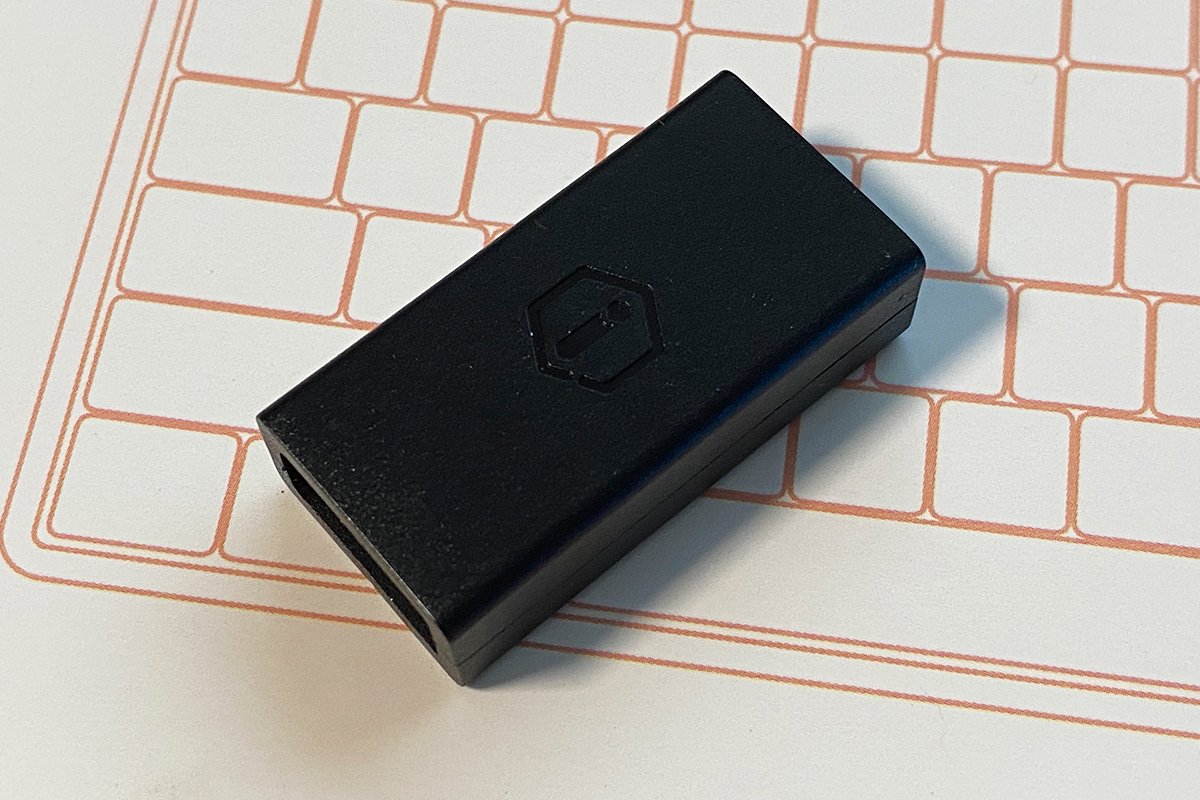
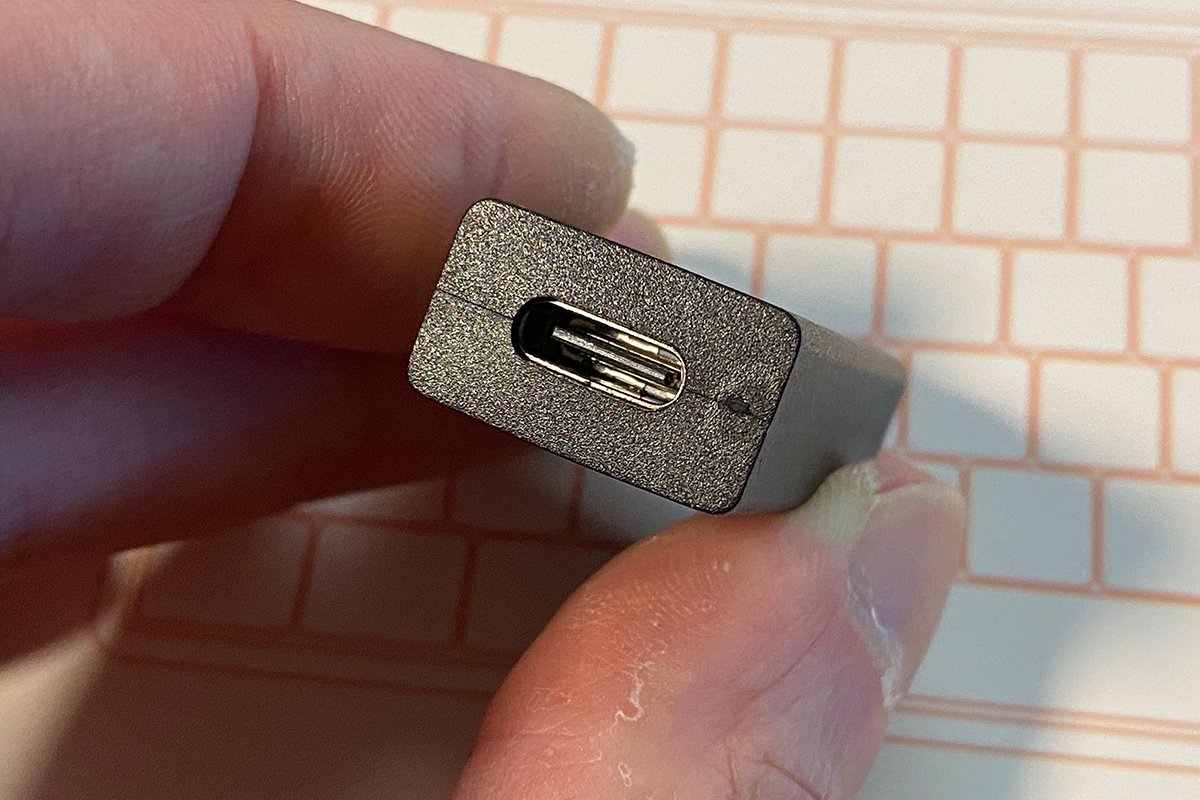
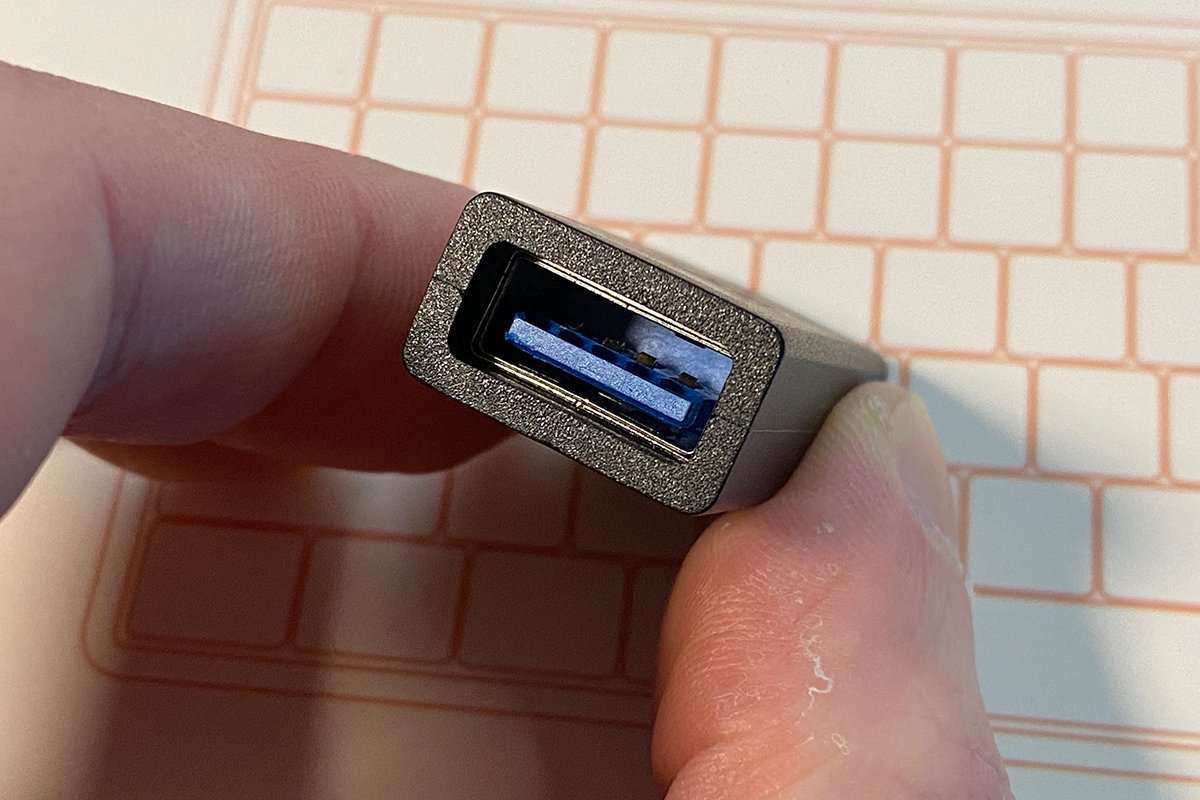
The USB-A to USB-C adapter is fairly standard. You’ll often find similar adapters included with ASUS keyboards, although this one does not have the metal retaining clip.
The detachable USB-A to USB-C cable is approximately 1.8 m long. It features a coiled section on one end, a high-quality fabric braid, a ferrite filter near the connector, and some rather cool, slightly unconventional proprietary connectors. In terms of flexibility, the cable is somewhat on the stiff side and tends to retain its shape. However, considering that the keyboard is wireless, I don’t see this as a significant issue.


The wireless dongle is stored in a dedicated compartment beneath a hinged metal plate featuring the IQUNIX logo on the multimedia panel. I’m mentioning this just in case, so you don’t spend too much time looking for it. By the way, the plate itself is held in place by fairly strong magnets. I have to admit, it’s quite an unusual and original solution.


The dual-purpose puller is fairly standard. One side is equipped with clips for removing keycaps, while the other has a tool for pulling out the switches. As is often the case, the keycap puller clips are somewhat too short, so removing longer keycaps with it may not be particularly convenient. Other than that, it’s a basic, standard puller.

There’s a generous selection of extra keycaps included in the box, to put it mildly. You get both standard and less conventional options, as well as a dedicated set of Mac-specific keycaps. Overall, I definitely give IQUNIX credit for the extra keycaps. This is exactly the kind of thing we like to see and are happy to approve.

The user manual comes in the form of a large folded cardboard sheet accompanied by a small, standard booklet. There’s nothing particularly interesting in the booklet, but I highly recommend taking a look at the cardboard sheet, as it provides a detailed overview of all the keyboard shortcuts and function key combinations.


And finally, there are the branded stickers. There’s not much to say about them, really – they’re essentially just a couple of standard IQUNIX logos that you can stick wherever you like.

What can I say – the IQUNIX Magi75 Pro’s package contents were genuinely impressive, especially compared with the rather bare-bones EV63. That said, they once again left out a couple of spare switches, which is a bit disappointing considering that the keyboard supports hot-swapping and uses fairly uncommon switches. Other than that, though, I have no complaints – the overall package is solid, and I’d even call it a good one.
Read also: XVX L75 Air Wireless Mechanical Keyboard Review: Versatile, Comfortable, Well-Built, and Stylish
Design, Ergonomics, and Build Quality
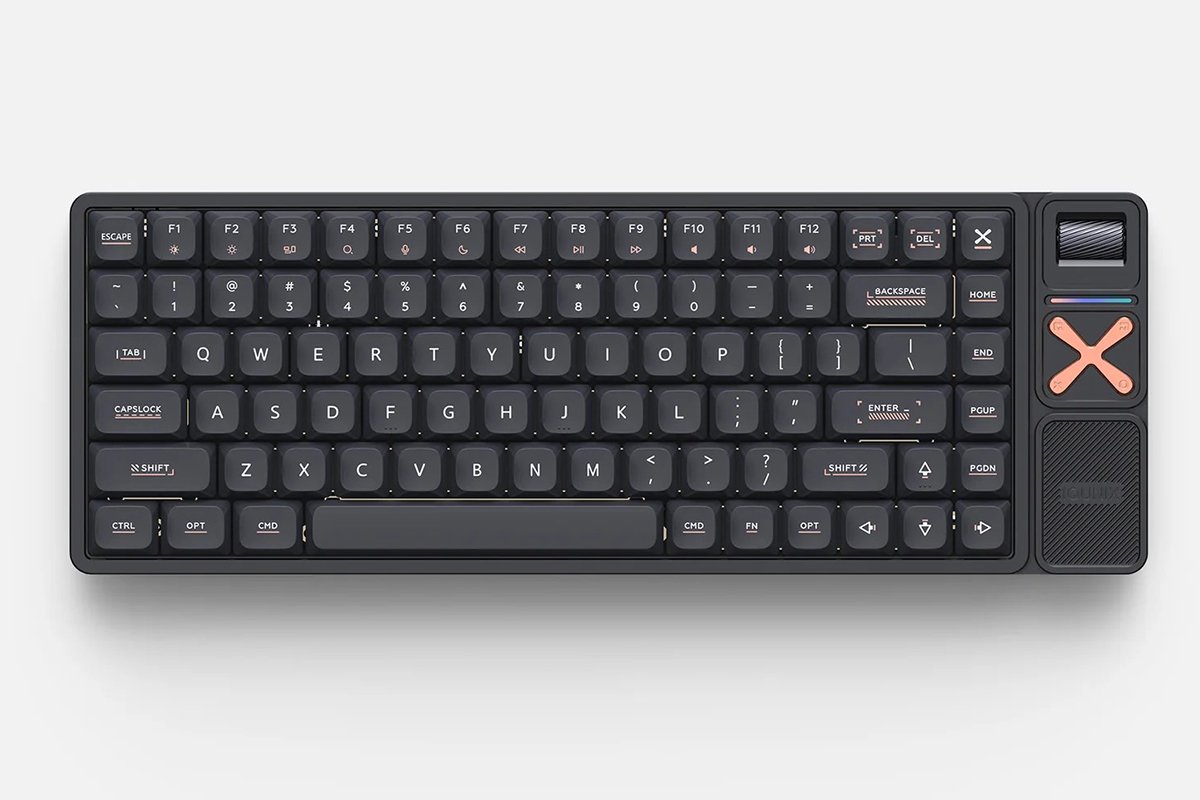
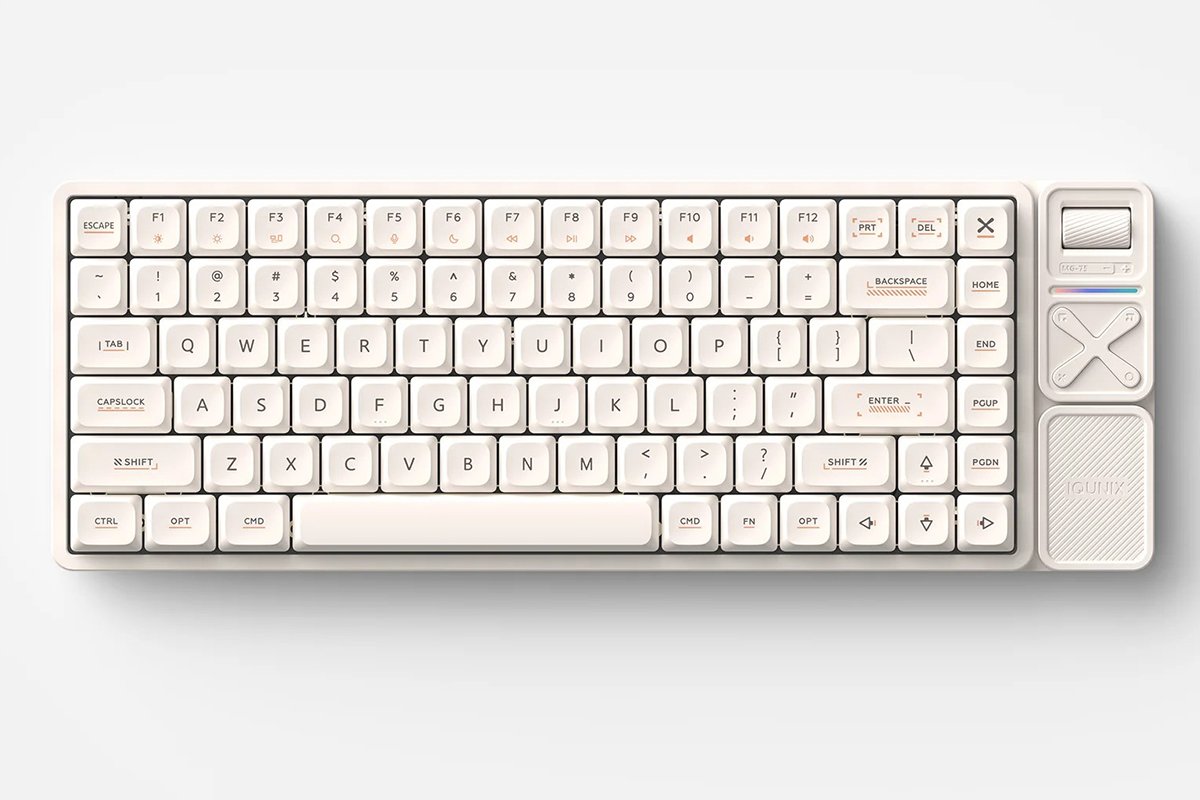
At first glance, the keyboard looks like a genuine premium low-profile custom board: a slim CNC-machined aluminum chassis, unusual low-profile keycaps, and a minimalist yet stylish set of legends. The original multimedia panel on the right adds another distinctive touch, although it is exclusive to the Pro versions. In short, the Magi75 Pro – and the lineup as a whole – looks very stylish, premium, and undeniably cool.


In terms of layout, the keyboard uses a typical 75% format with 84 keys. The only unusual feature is the continuous F-row. As you can see, the F-keys are positioned without the usual gaps between groups, which gives the entire layout a particularly compact and cohesive look.

I already mentioned that the Magi lineup is available in several form factors: 65%, 75%, and 96%. In addition to these standard versions, there are Pro models, which add a multimedia panel on the right with a rotary encoder and function buttons. Naturally, the dimensions and weight depend on the specific version. You can find the exact measurements of the other models at the links I provided above (Magi65 / Magi65 Pro, Magi75 / Magi96 / Magi96 Pro). The Magi75 Pro I’m reviewing here measures 355.70 × 126.15 × 11.25 mm and weighs 1,110 g.
One of the first things worth noting is the keyboard’s height – it is quite low thanks to the ultra-thin chassis and low-profile keycaps. This makes the model particularly appealing to those who prefer slim, low-profile keyboards.
As for the typing angle, it is relatively shallow and fixed. For users who are accustomed to a steeper keyboard angle, this could be a minor drawback. However, based on my own experience, I found the fixed angle of the Magi75 Pro to be optimal and very comfortable.


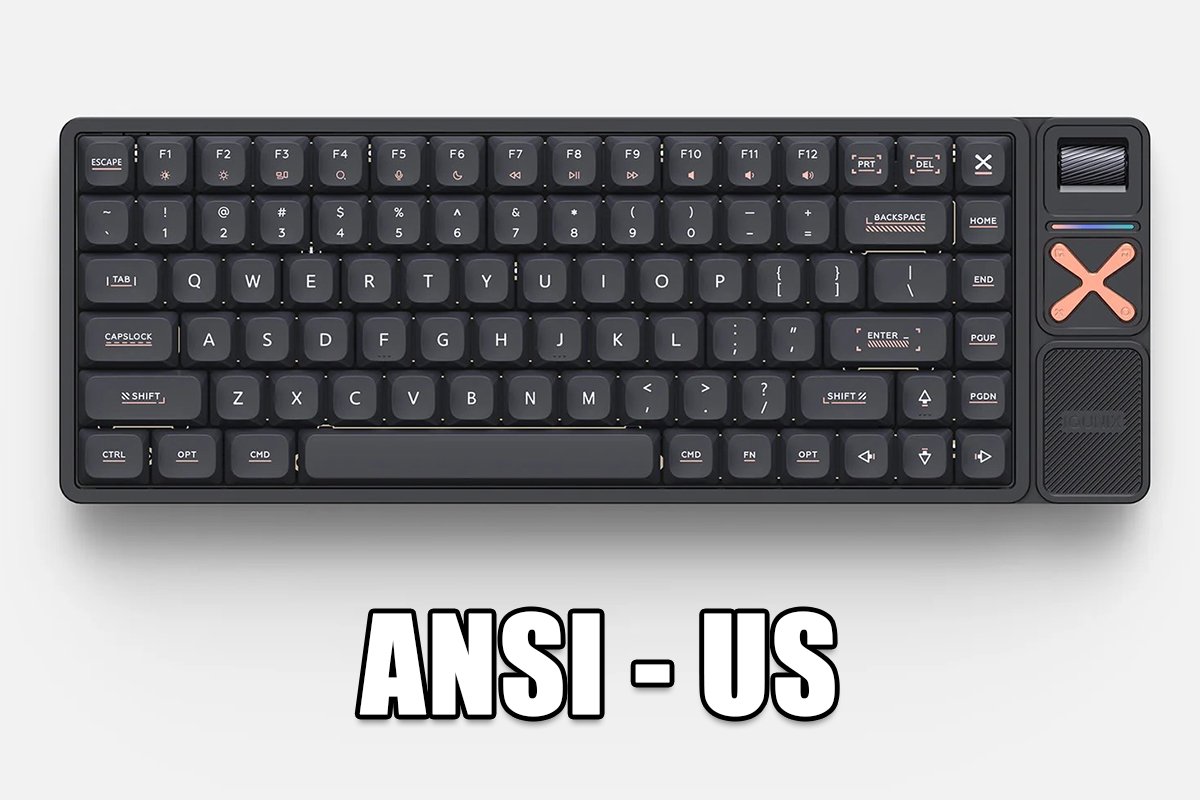
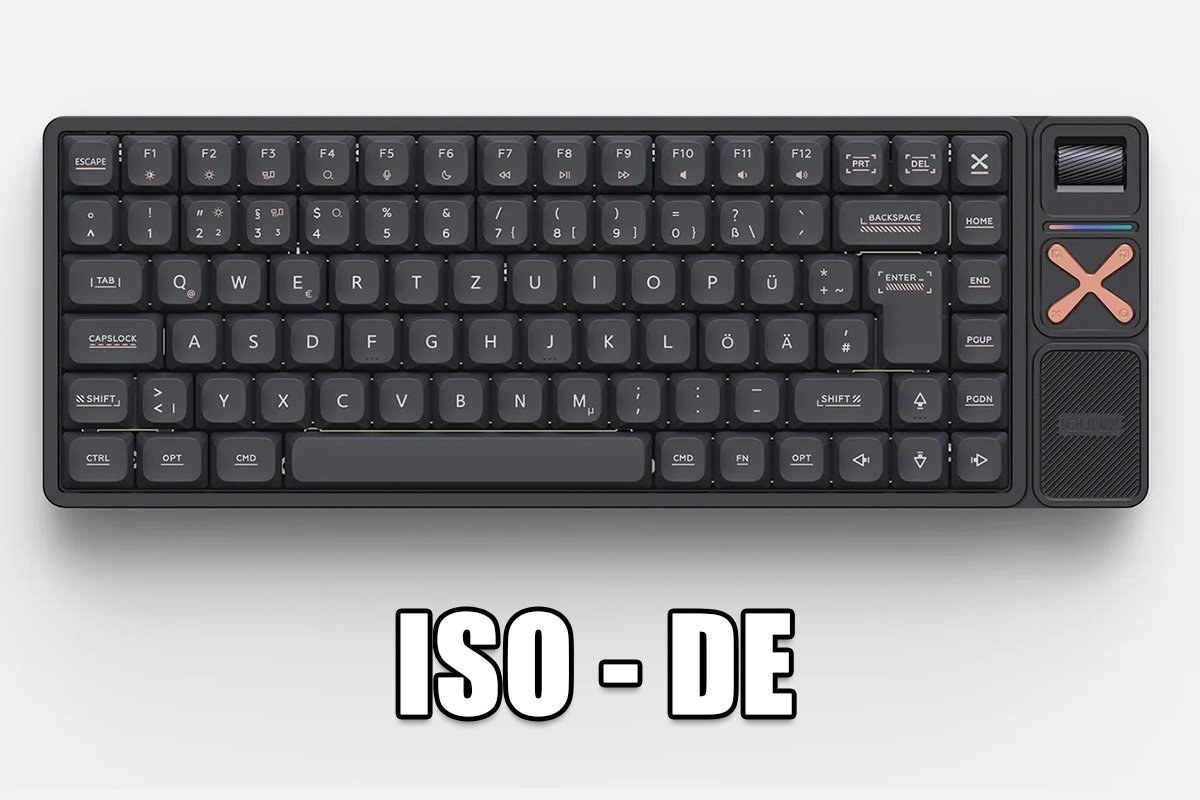
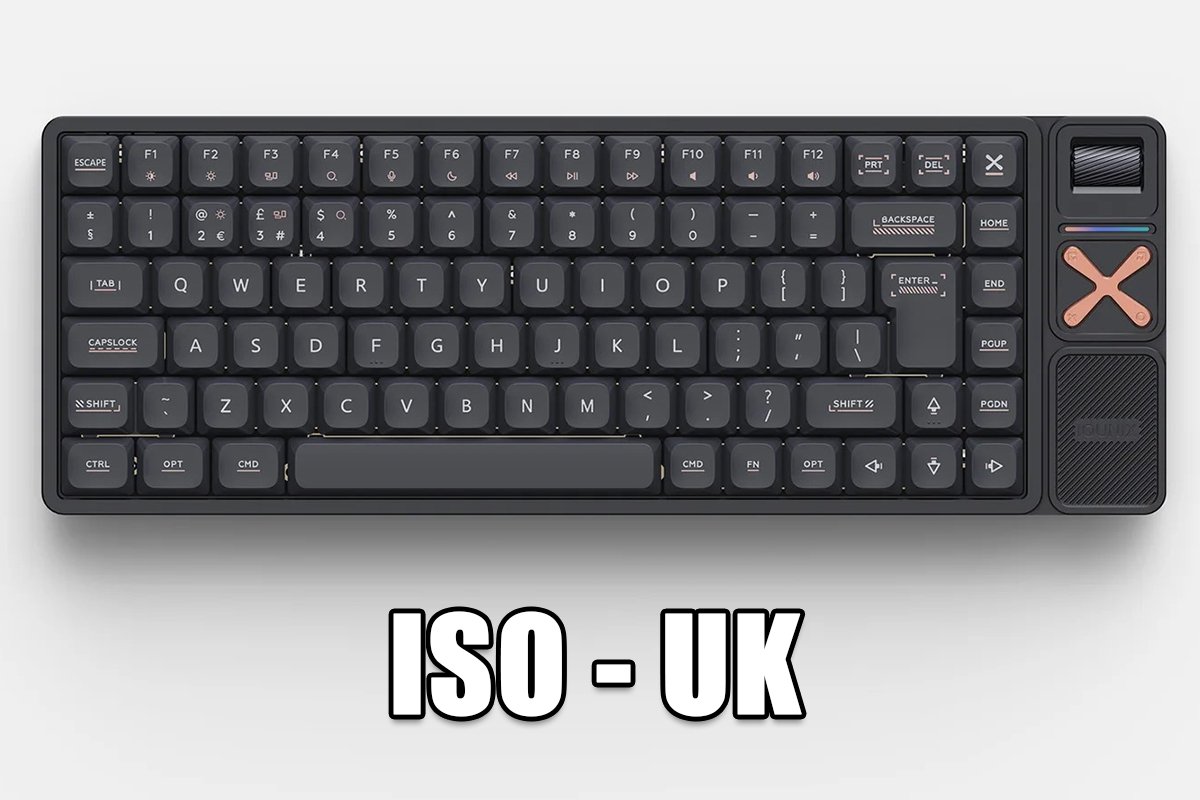
As for the layouts, the keyboard I’m reviewing uses the standard US ANSI layout. However, the Magi75, Magi96, and their Pro versions are also available in ISO-DE and ISO-UK layouts. According to the official IQUNIX website, the more compact 65% models, on the other hand, are available only with ANSI layouts.
As I mentioned earlier, all Magi models feature slim metal chassis made from aerospace-grade aluminum and precision-machined using CNC equipment. The case finish also varies depending on the color option.


For example, the Shadow Black models feature an anodized finish, while the Ochre White keyboards use an electrophoretic coating (E-Coating). And, as you’ve probably already gathered, the Magi lineup is available in just two color options: Shadow Black and Ochre White.
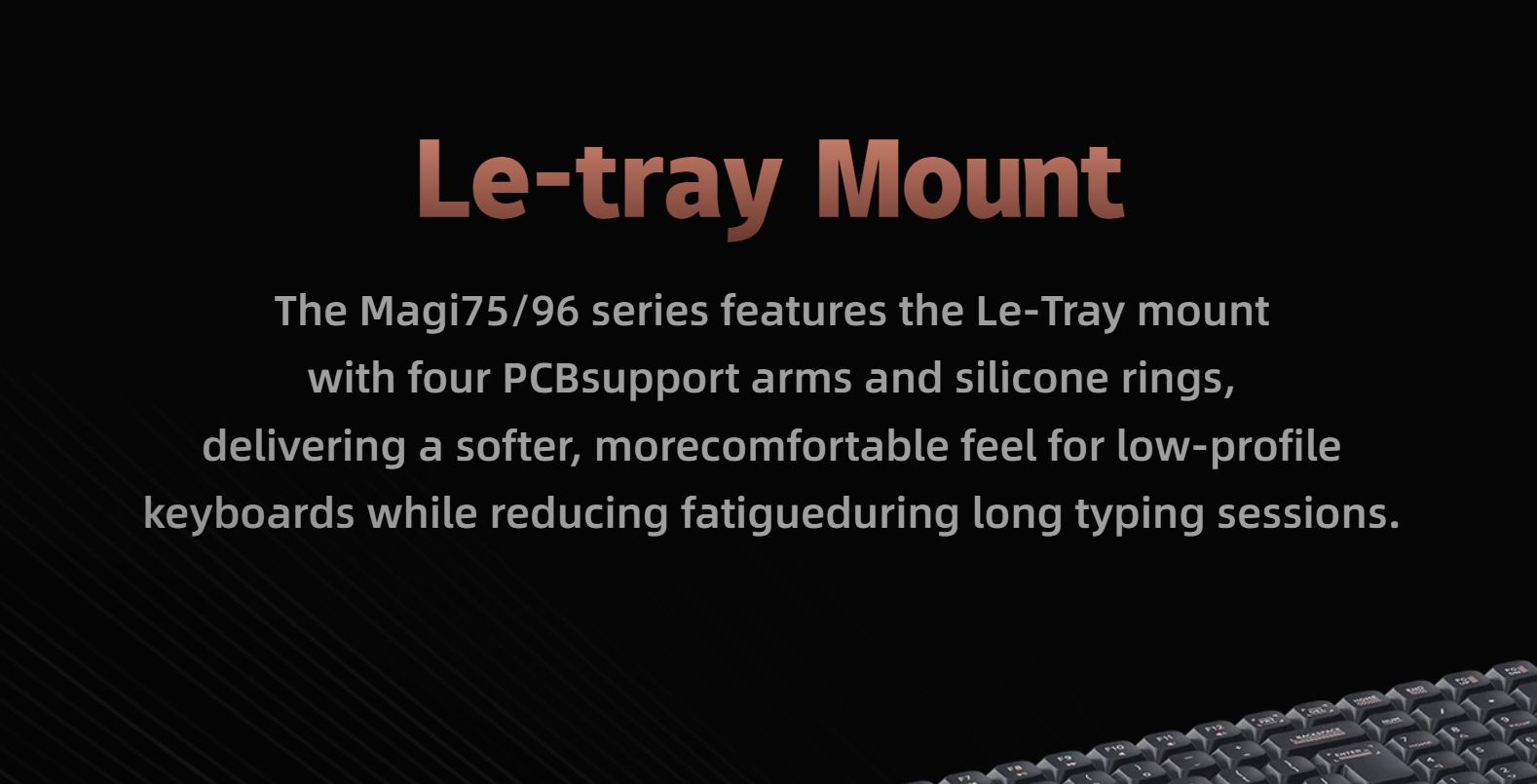
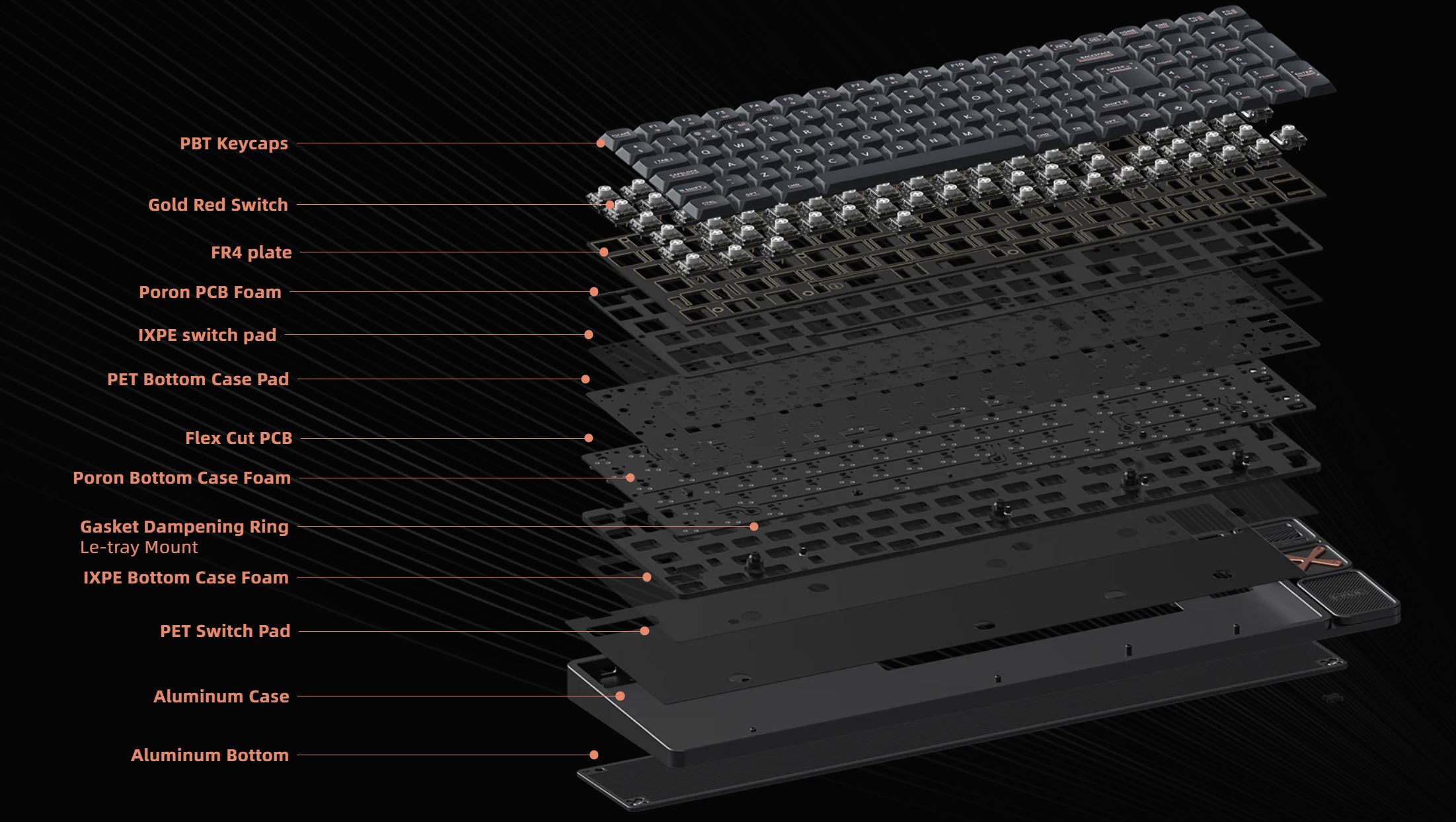
Internally, the keyboard uses a modified Le-Tray Mount architecture. Essentially, it is an enhanced Tray Mount design with additional vibration-damping elements. The concept is fairly straightforward: at its core, it uses a traditional Tray Mount, where the PCB rests on posts that extend directly from the bottom of the case. However, instead of screwing the PCB directly to rigid mounting posts, the Magi75 Pro uses four support legs fitted with special silicone rings. The result is something of a middle ground between a traditional Tray Mount and a Gasket Mount. The latter, incidentally, is physically difficult to implement in a low-profile keyboard due to the limited available height. The silicone rings help absorb unwanted vibrations and provide a slightly softer typing feel, while the overall construction remains stable and, most importantly for a low-profile design, very thin.
As I mentioned earlier, one of the key features of the Magi series is its low-profile PBT keycaps, featuring minimalist yet stylish legends and a special oleophobic coating. It helps resist fingerprints and prevents the keycaps from becoming dirty or developing shiny, worn-looking spots over time.

If you look closely, you’ll also notice that the keycap profile here isn’t quite a standard low-profile design either. On the Magi75 Pro – and across the Magi series in general – the keycaps have more rounded, less angular edges, which makes them feel slightly more comfortable under the fingertips. Below, I’ll include a side-by-side photo comparing the Magi75 Pro keycaps with those on another low-profile keyboard I own, the ASUS ROG Falchion RX Low Profile.


As for the keycap quality, it is excellent: thick, well-made plastic with no visible molding defects; a pleasant texture that is neither too rough nor completely smooth; comfortable sculpted surfaces that fit the fingertips nicely while typing; appropriately sized legends; and, of course, attractive prints that don’t look out of place or draw unnecessary attention, but instead complement the overall design concept. To be honest, despite their smaller size, I actually prefer the Magi75 Pro keycaps slightly over those on my ASUS keyboard.


Another key feature of the keyboard, and particularly of the Pro version, is the distinctive multimedia panel on the right, which houses a rotary encoder and four function buttons. By default, the encoder controls the volume, while the buttons are used to control media playback on the PC. However, if needed, you can remap both the encoder and the buttons to your liking using VIA.


In addition to the controls, the panel also features a small decorative RGB strip that acts as a separate lighting zone. In other words, it can be configured independently from the per-key backlighting: you can change its effects, brightness, speed, and other settings separately. The FN key combinations for controlling the lighting are listed in the included manual – the large folded cardboard sheet. It covers all the shortcuts for both the key backlighting and the decorative RGB strip.

At the very bottom of the panel, there is a metal plate with the IQUNIX logo, beneath which the included RF dongle is stored. However, I’ve already covered this feature earlier, so there’s no need to repeat myself and dwell on it again.

Overall, I have to admit that the idea of having a separate multimedia panel is original, unusual, and quite interesting. Personally, though, I would prefer a version of the keyboard without it. The rotary encoder can only be turned to adjust the volume. It cannot be pressed to mute the sound, unlike the familiar round encoders commonly found on other custom keyboards. The function buttons also require a somewhat firm press, which makes their actuation feel slightly less distinct.
The smart panel also takes up additional desk space, especially on the full-size Magi96 Pro. And, in my opinion, there’s another important point to consider: just look at how clean, minimalist, stylish, and well-balanced the keyboard itself looks without the panel. Overall, the panel is by no means a bad feature, and I’m sure some users will find it genuinely useful. Personally, however, I would opt for a Magi model without it – the 65% or 75% versions would be ideal choices. And, incidentally, the standard Magi65 and Magi75 without the multimedia panel are also slightly cheaper.

Since I’ve already mentioned the lighting, it makes sense to take a closer look at the key backlighting as well. Here, it uses north-facing LEDs, which, to be fair, is not particularly common either.

As for the backlighting, I’ll keep it brief: overall, it’s decent, but it could be a little brighter. In my opinion, the issue has less to do with the LEDs themselves and more with the low-profile construction. The keycaps are also non-shine-through, but that’s perfectly normal for custom keyboards with PBT keycaps. Overall, the backlighting is fine, but personally, I prefer using the keyboard without it. It looks more understated and premium that way, and, as a bonus, battery life increases significantly.


As I mentioned at the beginning, the keyboard supports three connection modes: USB, RF, and Bluetooth. But where is the mode switch, you might ask? Well, this is where one of the model’s rather inconvenient design choices comes in: the switch is hidden underneath the Caps Lock key. It’s a simple toggle that enables or disables the keyboard’s wireless mode. The problem is that the switch isn’t merely hidden – it is recessed very deeply into the case. As a result, it is extremely difficult to access and switch manually. In practice, you need something like a SIM ejector tool, a paper clip, or a similar narrow object to reach it.

Other than that, there are no issues with the wireless connections. Flip the switch to the upper position to enable the keyboard’s wireless mode, then use the following key combinations to switch between connected devices: Fn + 5 for wired mode, Fn + 4 for the 2.4 GHz RF channel, and Fn + 1/2/3 for the three Bluetooth devices. As always, all of these key combinations are listed in the included manual.

The last thing worth looking at in terms of design is the underside of the keyboard and the side edges of the case. The top case and most of the bottom are formed as a single piece. The only separate element is a small metal panel secured with two screws, which can be removed by simply unscrewing them.


As you can see, the keyboard has no conventional adjustable feet for changing the typing angle. Instead, there are only small rubber pads around the edges to provide better grip on the surface. That said, the keyboard sits firmly on the desk and doesn’t move around easily on its own. As for the typing angle, I’ve already mentioned that I find the fixed angle of the IQUNIX Magi75 Pro quite comfortable. However, users who are accustomed to raising their keyboards may find the setup somewhat unusual at first.

The keyboard’s side edges are perfectly straight and clean. I’d also like to point out that the case remains relatively thin along the sides, top, and bottom, without protruding excessively. Personally, I really like this approach to keyboard design. Overall, I think a slim case profile around the edges simply looks cleaner and more stylish.
The cable connector is located in the usual position on the top-left edge. Ideally, I would have preferred the port to be recessed slightly deeper into the case. That said, it’s not a major issue, and as long as you don’t deliberately put excessive strain on it, there shouldn’t be any problems.

The keyboard’s build quality is excellent. Thanks to its solid metal construction, the entire device feels sturdy, reliable, well-built, and almost monolithic. There is virtually nothing here that could creak or develop any noticeable play. At the same time, the keyboard remains remarkably thin.
As for ergonomics, I personally have very few complaints about the Magi75 Pro. The keyboard is quite comfortable and pleasant to use, and its compact dimensions mean it doesn’t take up much desk space. The rotary encoder is also convenient for adjusting the volume. The only ergonomic drawbacks I would point out are the somewhat stiff multimedia buttons on the panel and the wireless mode switch. While the buttons aren’t a major issue, the switch is genuinely awkward to access and operate. Fortunately, it’s something you rarely need to use – essentially, you turn wireless mode on once and forget about it. Still, its implementation is decidedly inconvenient, and that’s something worth pointing out.

Read also: Redragon K719 PRO Anime Edition Keyboard Review: Built to Make a Visual Impression
Switches, Stabilizers, Hot-Swap, and Typing
The Magi series keyboards are available with just one type of switch: low-profile Gold Red Switches. These are classic linear switches with a relatively light and smooth actuation.


The actuation force is rated at 40 (±10) gf, with a pre-travel of 1.2 (±0.30) mm and a total travel of 2.8 (±0.25) mm. The switches are rated for up to 50 million keystrokes.

With an actuation force of just 40 gf and a relatively short 1.2 mm pre-travel, the keys feel soft and almost effortless to press. At the same time, the total travel is reduced to 2.8 mm, compared with roughly 4 mm for standard full-size switches, which is typical for the low-profile segment. In practice, these switch characteristics, combined with the low-profile keycaps, provide an excellent balance. On the one hand, the keys are soft and easy to press, making typing faster and more comfortable. On the other, the actuation force and shortened travel are well balanced to prevent accidental keystrokes when you’re simply resting your fingers on the keys.

Although the keyboard comes with switches that offer excellent specifications, you’re not limited to using them exclusively, as the keyboard supports hot-swapping, allowing the switches to be replaced without soldering. The sockets here are 3-pin.
In general, it’s worth noting that in the low-profile segment, hot-swap is less about customization and experimenting with different typing characteristics – as is common with conventional custom keyboards – and more about serviceability. If a switch eventually fails, you can easily replace it without disassembling the keyboard or reaching for a soldering iron. That said, there’s nothing stopping you from experimenting with other compatible low-profile 3-pin switches. The main thing is to pay attention to the contact layout and make sure the switches are compatible with the sockets.

The keyboard uses plate-mounted stabilizers. Unlike screw-in designs, these are attached directly to the plate using clips rather than being secured with screws. From a maintenance perspective, this is a definite advantage: if you ever need to remove the stabilizers for cleaning or additional lubrication, you can simply pull them out from the top in a matter of seconds without disassembling the keyboard.
As for their performance, all of the longer keys feel excellent. They have a soft, smooth, and pleasant travel with no unwanted noise, and they don’t feel noticeably different from the shorter single keys. It’s also clear that the stabilizers are factory-lubricated. Overall, these are excellent stabilizers, and there’s really not much more to add.
And now for the most important part – the typing experience. As you’ve probably already gathered, it’s excellent: the keys have a soft, smooth, and quiet feel, with fairly good tactile feedback and virtually no unwanted noise. In my opinion, this is an ideal combination for fast and extended typing sessions.
The low-profile format works perfectly well for gaming too, but this ultimately comes down to personal preference and what you’re used to. Personally, I like to really feel the keys under my fingertips in fast-paced games, preferably with full travel. That’s why I found the Magi75 Pro less comfortable for gaming than for typing – especially compared with working on text, including writing this review. But as you can probably tell, this is purely a matter of personal preference and habits. For those who already prefer low-profile keyboards, the Magi75 Pro should work just as well for gaming.
Read also: 1stPlayer NEO87 Rome Keyboard Review: Blend of Modern Engineering and Vintage Design
VIA Configuration and Customization
Another important feature of the keyboard is full VIA support, which allows you to configure and personalize the device directly in your browser. Virtually everything can be customized and remapped to your liking – from individual keys and FN layers to the rotary encoder and multimedia buttons.

To connect the keyboard to VIA and access its settings, you need to follow a few simple steps.
First, download the appropriate JSON configuration file from the official IQUNIX website. Note that each form factor and layout has its own JSON file. In my case, it’s the Magi75 / ANSI configuration. IQUNIX provides separate files for the different Magi75/Magi96 variants and layouts.

Go to the VIA website (usevia.app), open the Settings tab, and enable the Show Design Tab toggle. This will make the Design tab appear.

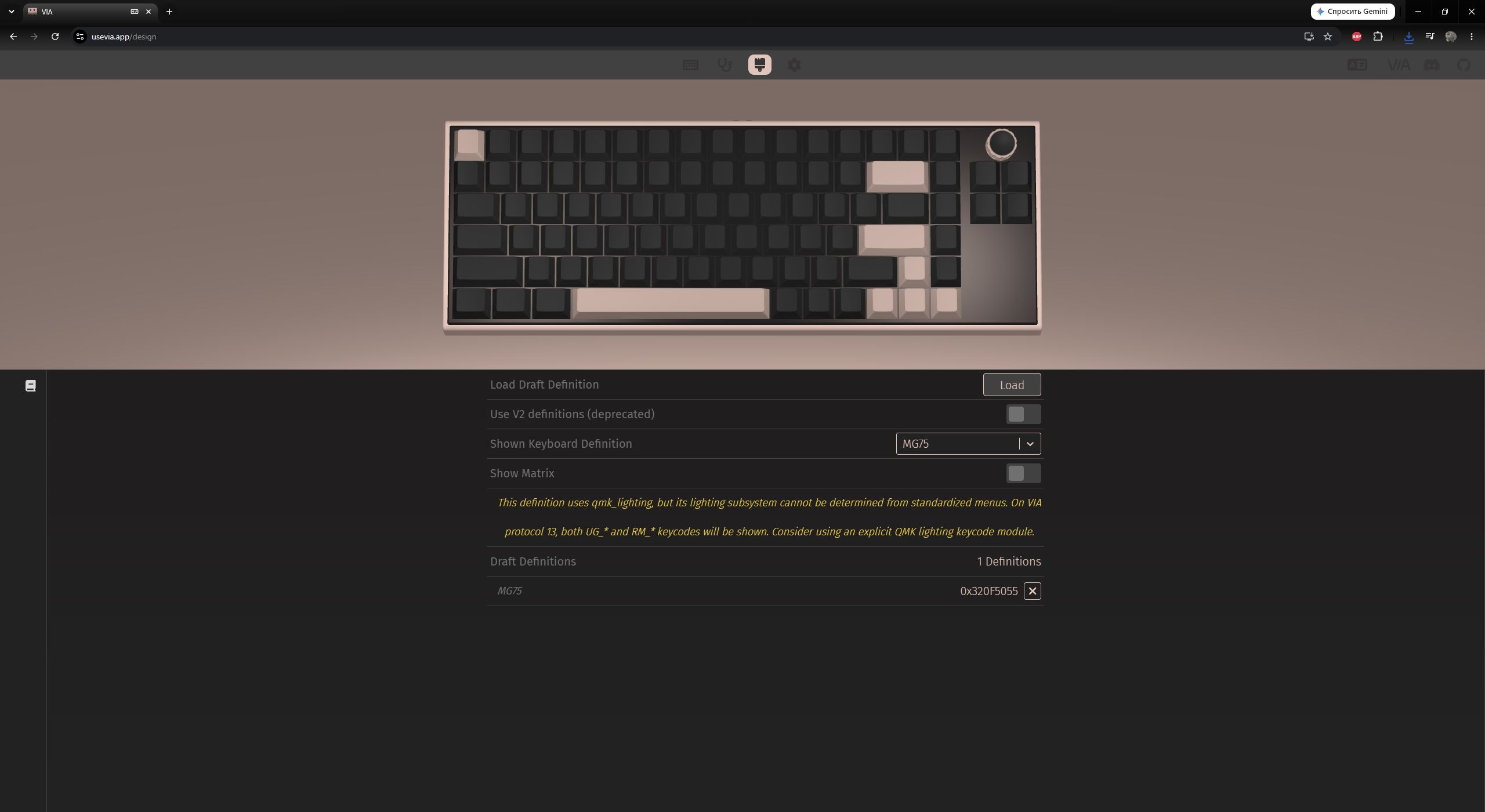
In the Design tab, load the JSON configuration file you downloaded earlier. You can either use the Load button or simply drag and drop the file into the browser window.

Once the JSON configuration file has been loaded, the keyboard layout will immediately appear in the Design tab.

Once the file has been loaded successfully, you can return to the VIA home page, where all that remains is to allow the browser to connect to the keyboard.

When granting connection access, you’ll notice that VIA recognizes both the keyboard itself and its RF dongle. However, it’s best to configure the keyboard in wired mode. There’s no need to touch the switch hidden beneath the Caps Lock key – simply switch to the wired channel using Fn + 5 on the keyboard itself.

One important thing to keep in mind is that connecting the keyboard to VIA may not work on the first attempt. In my case, I only managed to connect the keyboard and access its settings on the third try. I even had to try different browsers installed on my PC, including Chrome.
Here’s what happened: during the first attempt, after successfully loading the JSON file, VIA simply refused to recognize the keyboard correctly. In wired mode, the application couldn’t detect it at all, while in wireless mode, it identified it as an unknown “GMMK NUMPAD” device.
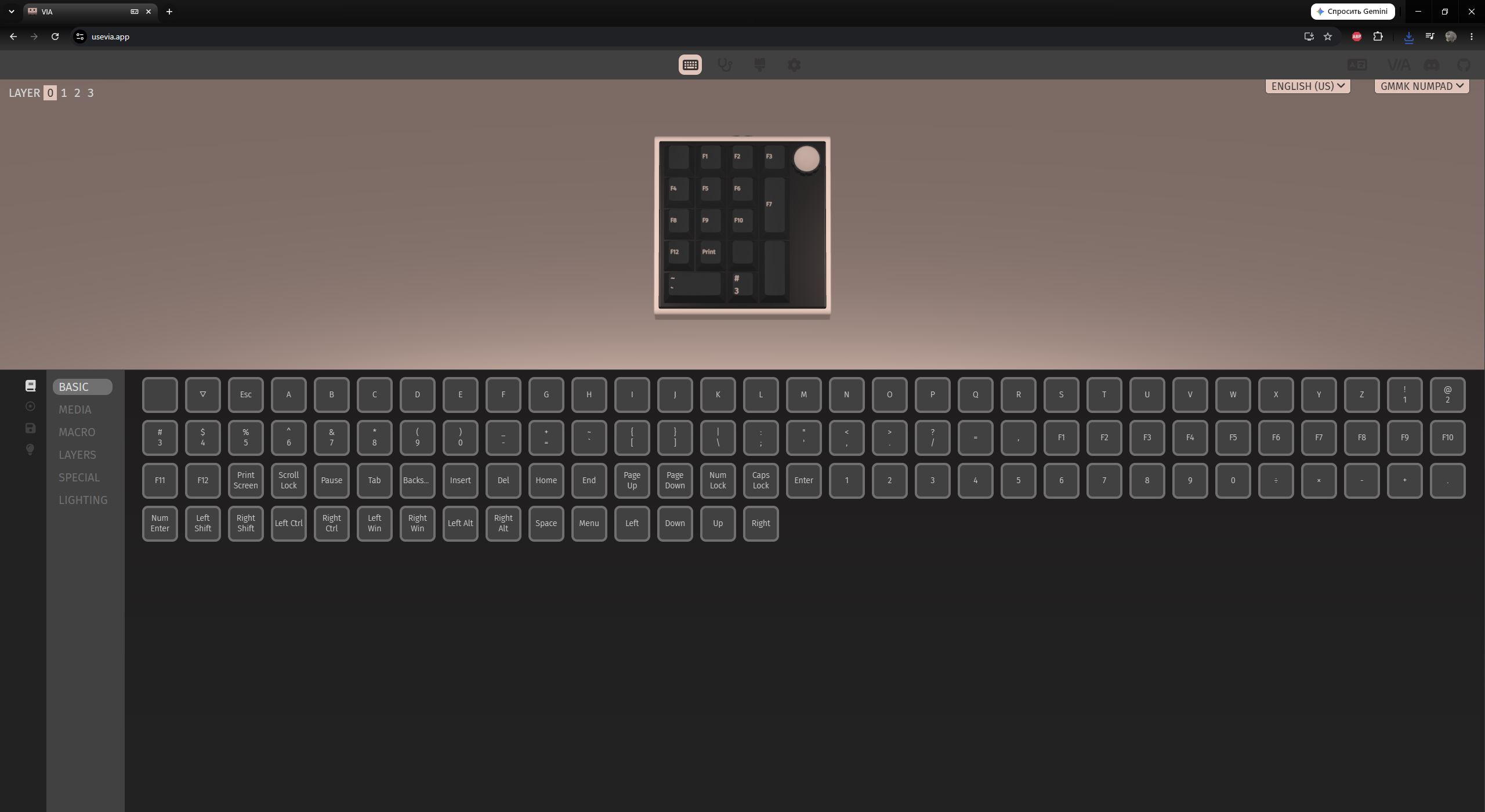
After trying the connection procedure several more times – including in incognito tabs and in another Chrome profile – I got the same result. I only managed to connect the keyboard and access the VIA settings on the third Chrome installation on my PC, which I had created separately for work quite some time ago.
Even then, there were some quirks: the VIA home page took a long time to load after the device had already been detected and recognized correctly. However, after refreshing the page several times in a row, I eventually managed to connect normally. From that point on, there were no further issues, and I could configure the keyboard without any problems.
I’m mentioning all this simply to point out that the IQUNIX Magi75 Pro does indeed support VIA and works with it normally once connected. However, I personally encountered some difficulties during the initial setup. Of course, you could argue that the browsers were to blame. But not long ago, I used those same browsers to connect and configure YUNZII keyboards, which also offer full VIA support, and I had no similar issues with them.
So, my conclusion is that the software side of the Magi75 Pro isn’t quite as smooth as it could be. That said, once you get past the initial connection issues, VIA works as expected and provides all the usual customization options. A small tip, then: if you run into similar connection problems, try clearing your browser cache, using an incognito window, or switching to a different browser. And yes, you only need to go through the connection procedure once – provided you’re not doing it in incognito mode, of course. Once the keyboard has been successfully connected, the browser and VIA remember the device, so you can access the settings later without having to load the JSON file again.
As for the actual customization options, you get the familiar VIA interface with all of its standard menus and sections. Let’s take a closer look at them. In the upper-left corner, you’ll find the keyboard’s four layers: Layer 0, Layer 1, Layer 2, and Layer 3.

Layer 0 is the default Windows keymap. Layer 1 is the corresponding Windows FN layer, activated while holding the Fn key. Layers 2 and 3 are intended for macOS: Layer 2 is the default macOS keymap, while Layer 3 is its corresponding FN layer.
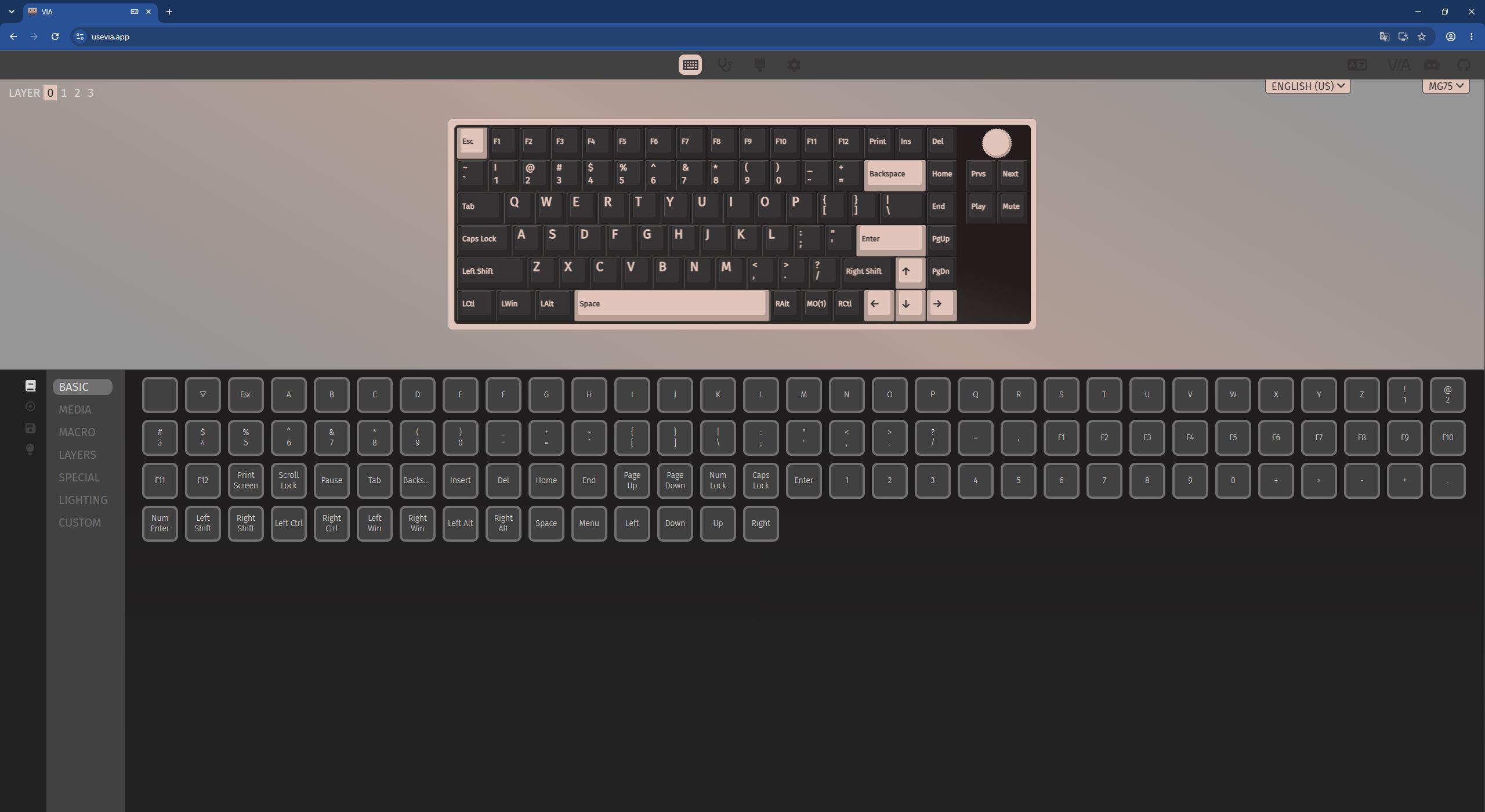
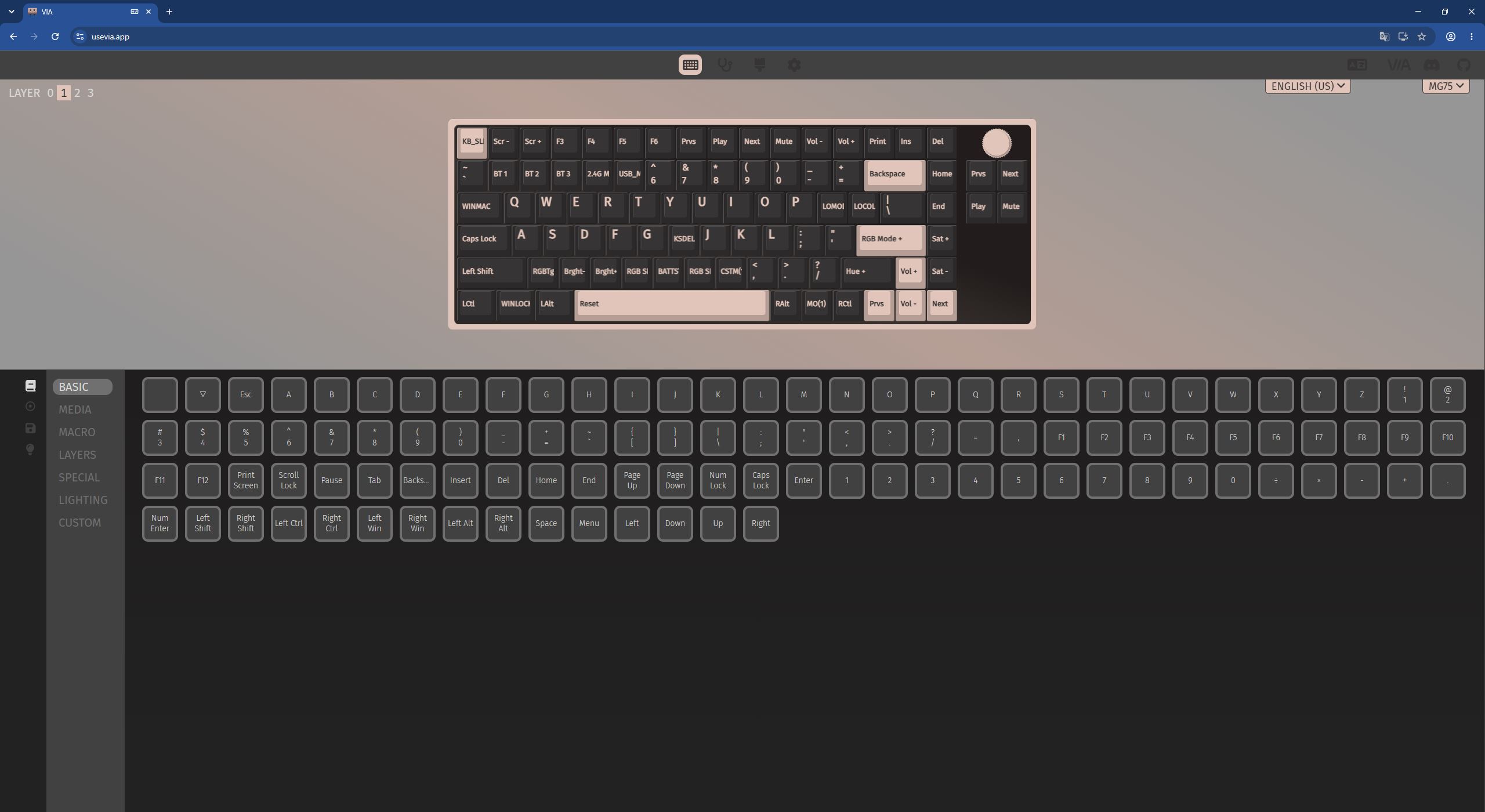
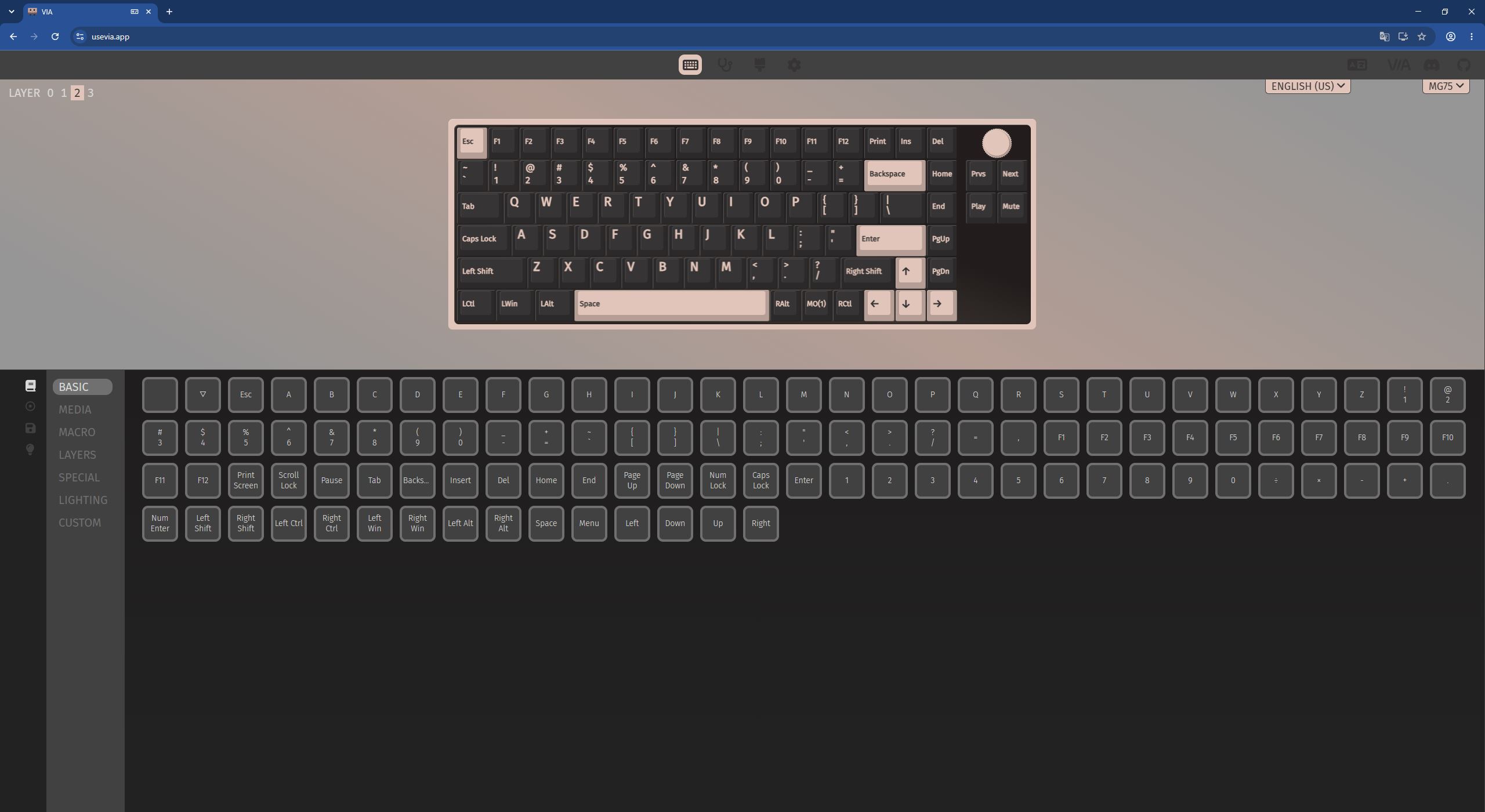
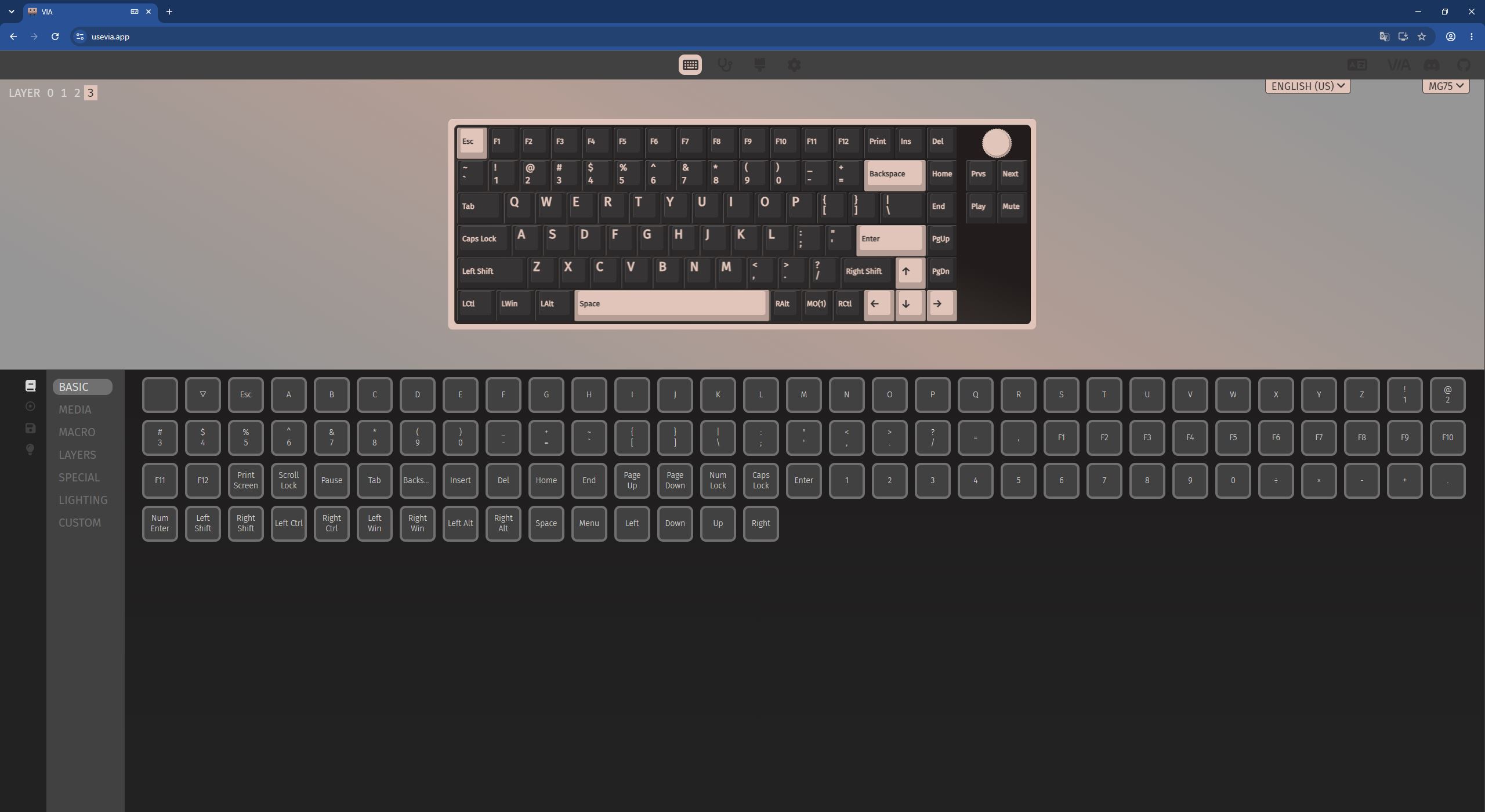
However, if you take a closer look at the layout of Layer 2 and Layer 3, it becomes clear that they are essentially identical to the default Layer 0. There are no Mac-specific key assignments configured by default.
The keyboard itself switches to and works in macOS mode without any issues, so my conclusion is that this part simply wasn’t fully implemented. That said, it’s not a critical issue, since VIA allows you to completely customize any of the layers yourself for macOS.
Next, we have the full keyboard layout. The process of remapping and editing is extremely straightforward: select the key or function you want to change in the layout, then choose the key or function you want to assign from the Keymap list at the bottom. That’s it – the keyboard responds to the changes instantly. There’s no need to save or apply anything manually.

As mentioned earlier, you can change and remap virtually everything – from simply swapping key assignments to creating complex macros, shortcuts, and custom functions. You can also reassign the functions of the rotary encoder and the multimedia panel’s function buttons.
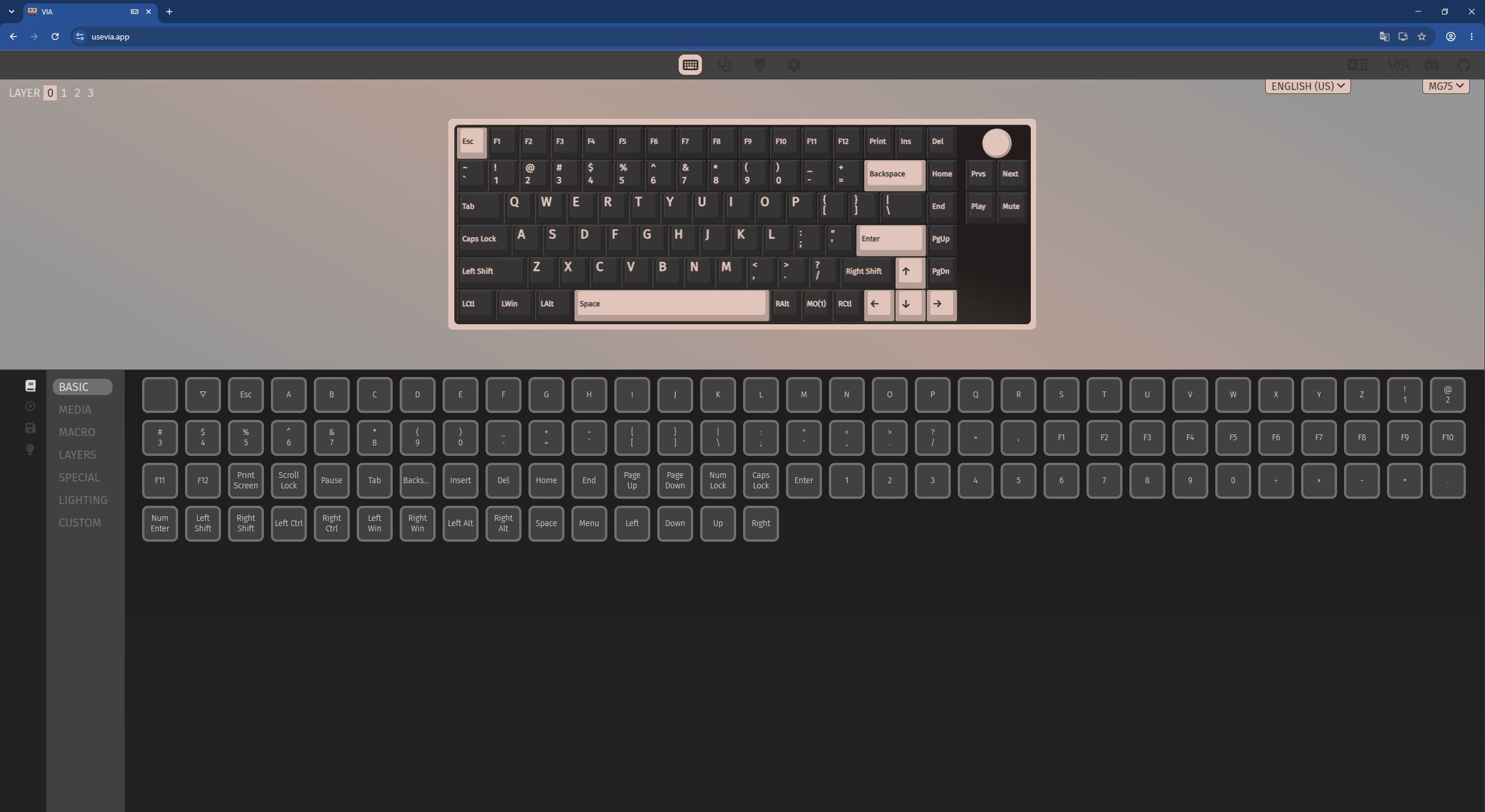
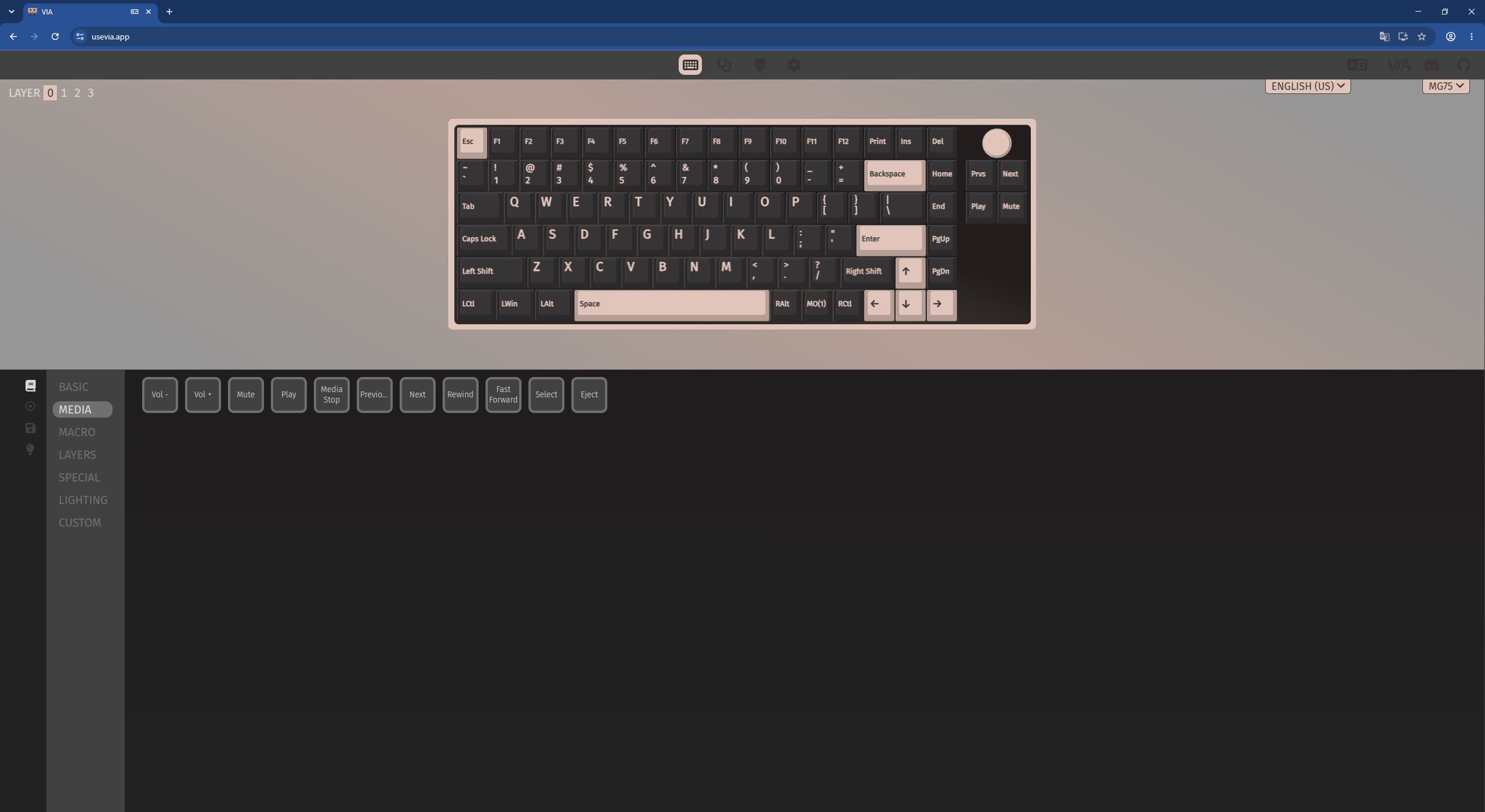
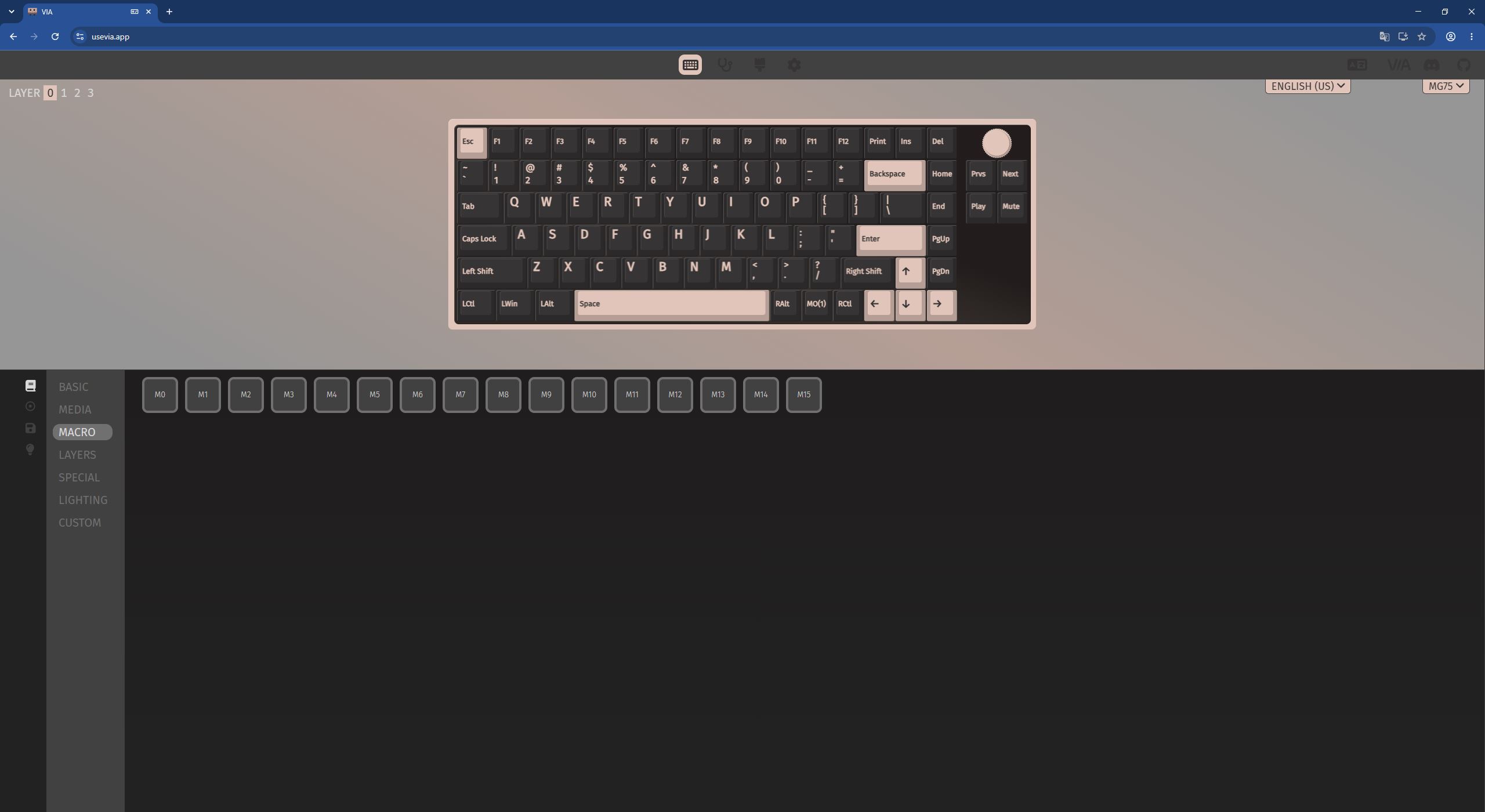
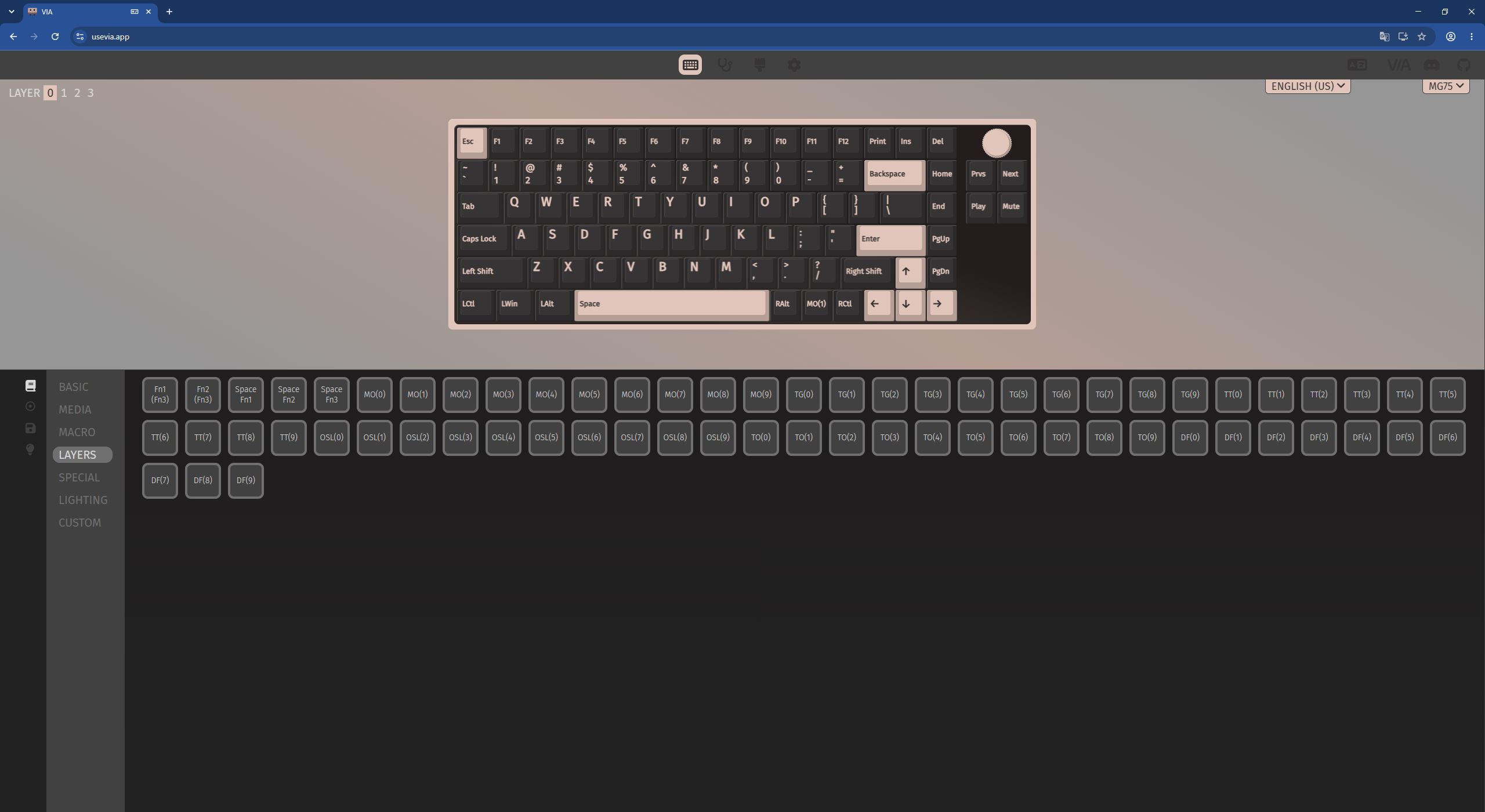
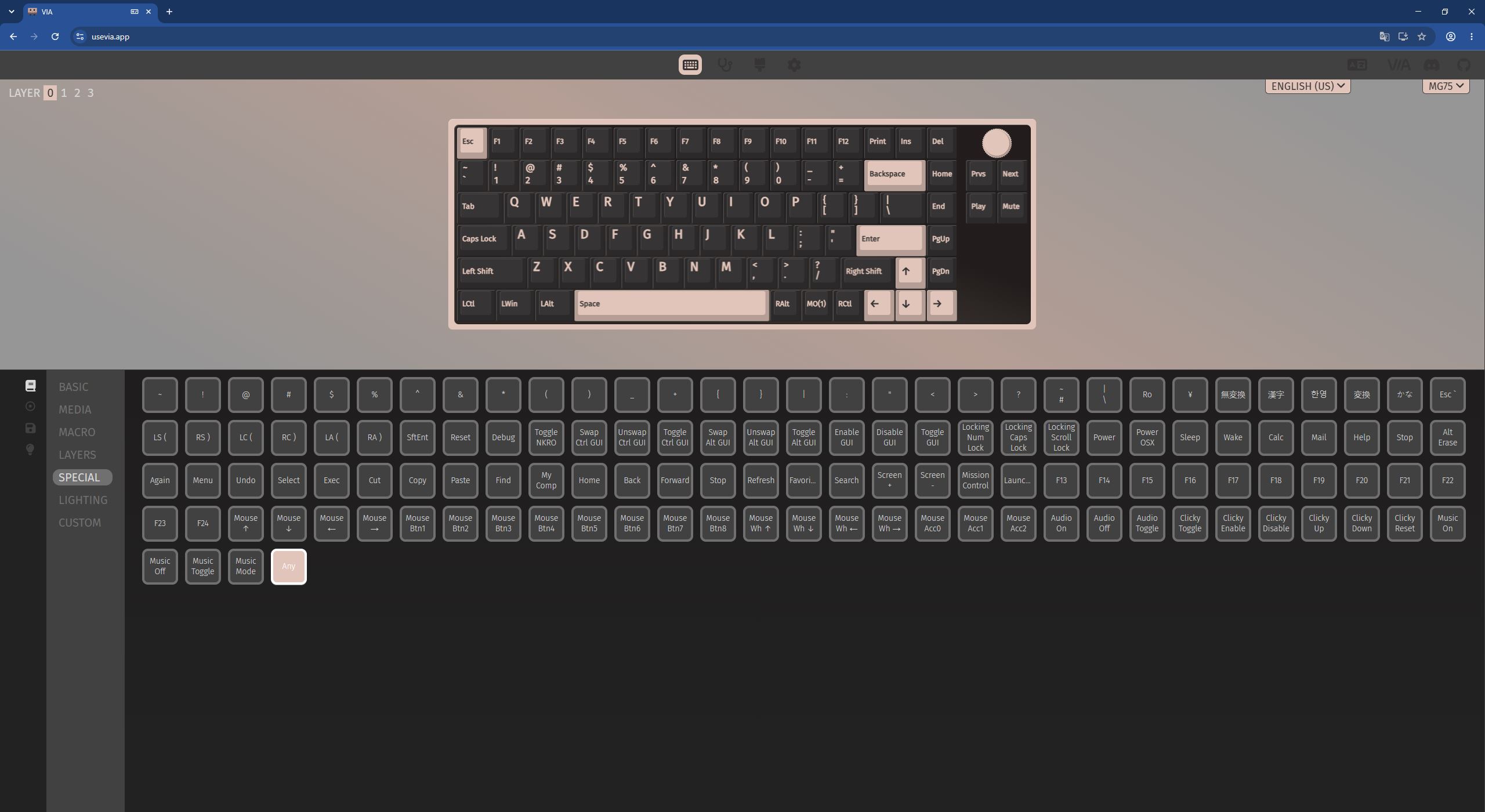
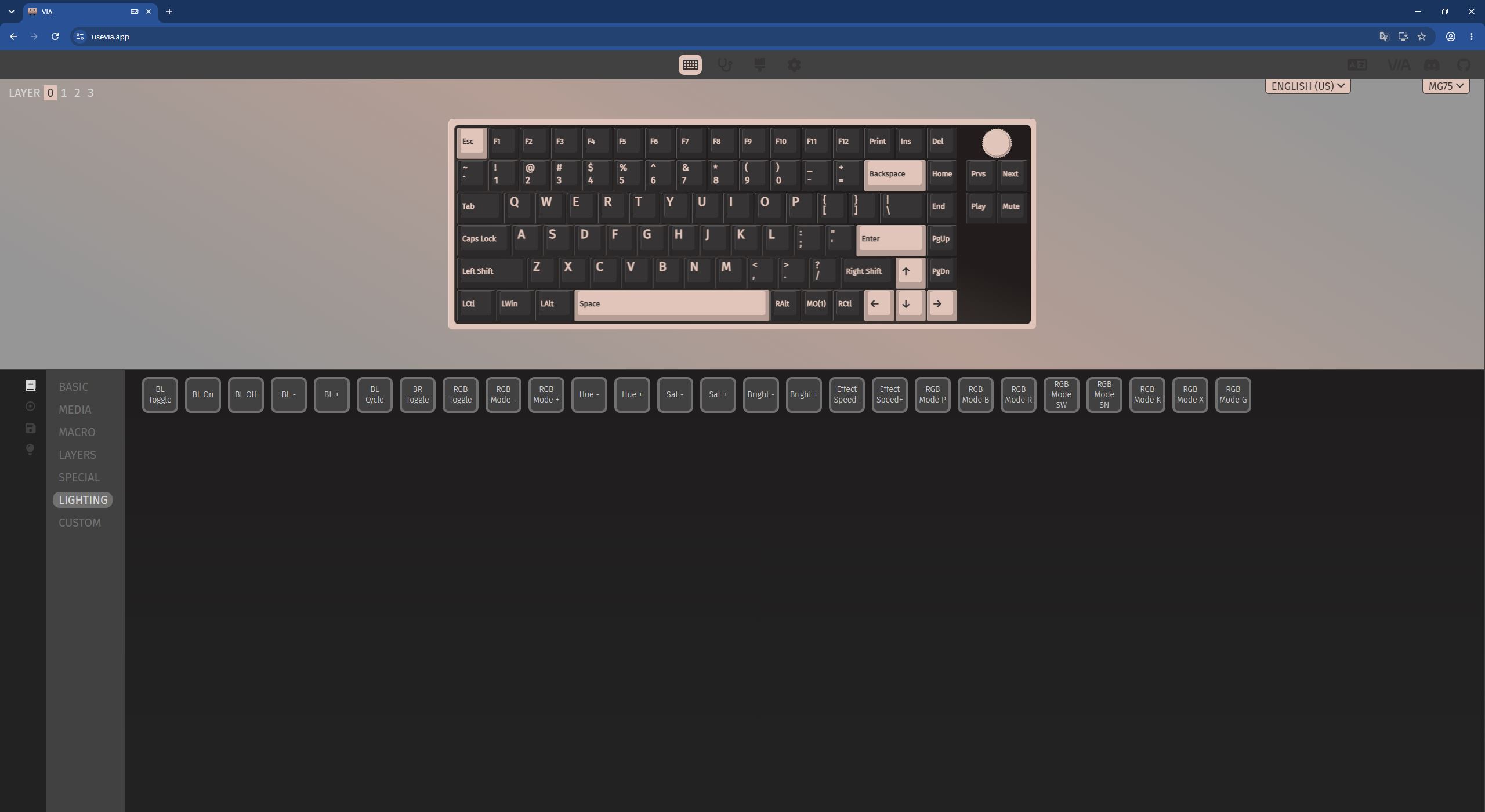
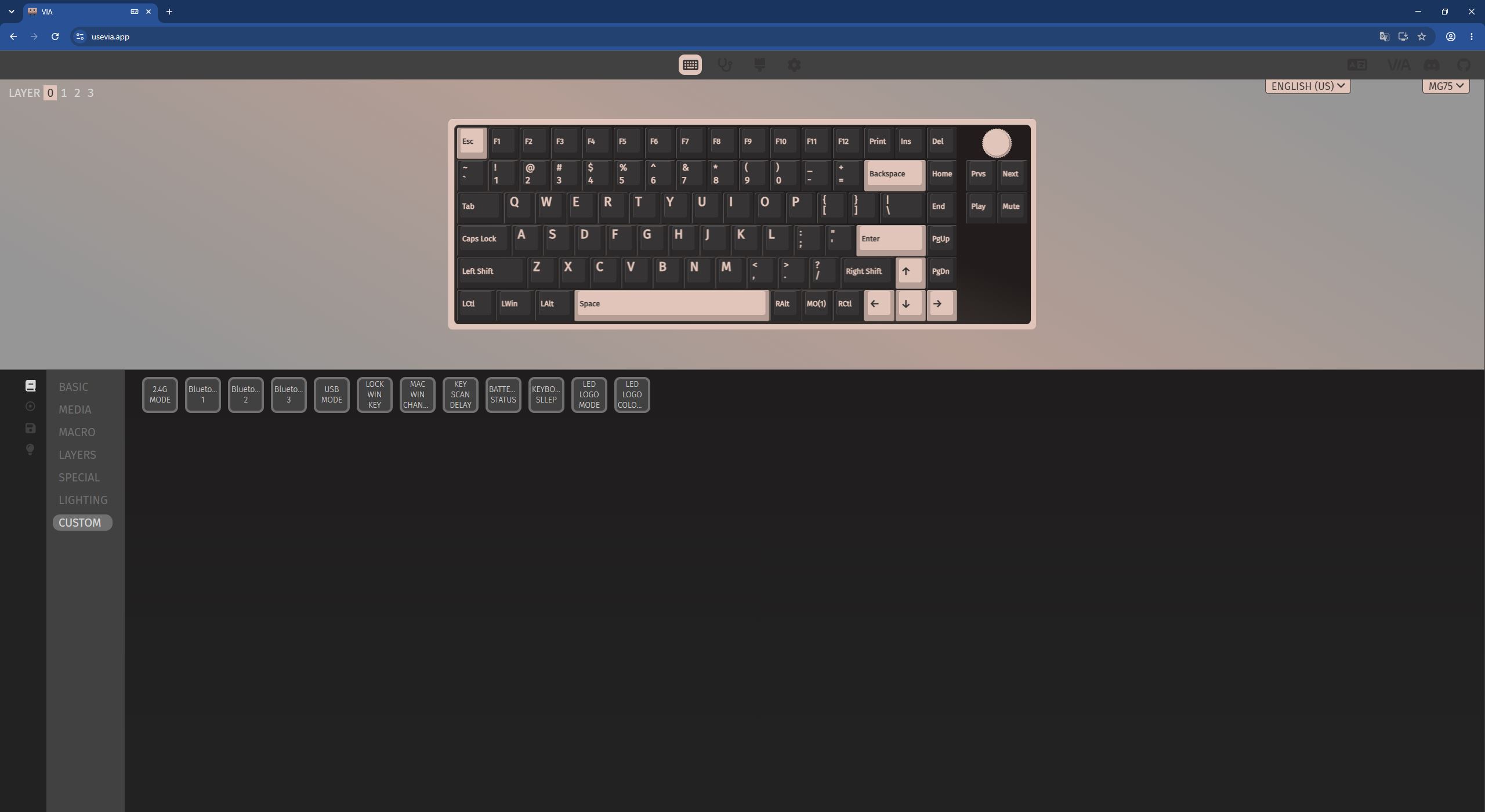
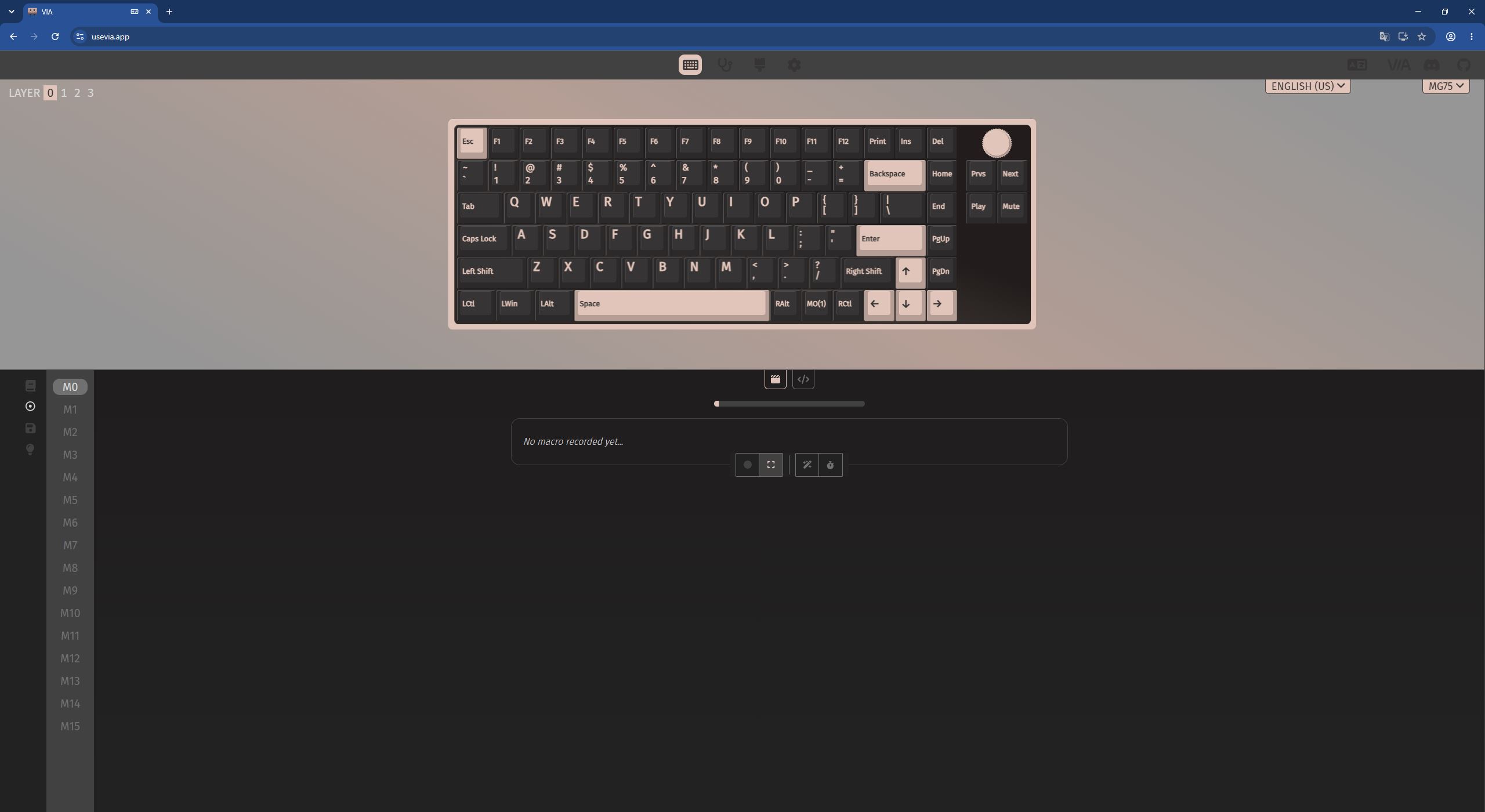
In the Save / Load menu, you can save and load your custom configurations and keymaps as ready-to-use JSON files.

The LIGHTING menu is where you configure the key backlighting. Just to clarify, this section contains settings only for the key backlighting. The decorative RGB strip on the panel beneath the rotary encoder can be configured exclusively from the keyboard using FN key combinations.

That covers the main configuration menus. There are also a few additional ones, so let’s go through them quickly. In the KEY TESTER menu, you can test the keys, layers, and FN functions.

The DESIGN menu is where you load the keyboard’s JSON configuration files. It also lets you view the key matrix and see a list of JSON files that have already been loaded.

The SETTINGS menu contains the technical settings for the VIA web application itself. Here, you can enable hidden tabs, change the interface theme, or enable the fast key assignment mode. The only setting that is particularly important here is Show Design Tab. Without enabling it, the tab for loading the keyboard’s JSON configuration file simply won’t appear.

Read also: Logitech G316 X 98 Keyboard Review: 8,000 Hz Polling, Hot-Swappable Switches, and Tactile Switches
Battery Life
The IQUNIX Magi75 Pro is equipped with a 4000 mAh battery. Incidentally, the full-size Magi96 and Magi96 Pro models use the same battery capacity. Sure, many users would probably like to see an 8000 mAh battery here, as has become increasingly common in custom keyboards. But, as you can imagine, a larger battery would also require a thicker chassis, potentially compromising one of the keyboard’s key design features. So, for a low-profile model like this, 4000 mAh seems like a perfectly reasonable, well-justified, and balanced choice.

According to the manufacturer, a full charge should provide up to 10 hours with the backlighting enabled, 500 hours without backlighting, or 80 hours with Immersive lighting. IQUNIX doesn’t specify exactly what “Immersive lighting” refers to, but as I understand it, this likely means the same decorative RGB strip beneath the rotary encoder on the multimedia panel.

“Ten hours with the backlighting on is not much,” you might say, and to some extent, you’d be right. However, from my own experience, relatively short battery life with RGB enabled is more or less the norm for keyboards in this segment. So, I have no particular complaints here.
To conserve battery power in wireless mode, the keyboard turns off the backlighting and enters sleep mode after 10 minutes of inactivity. Incidentally, there’s no way to change the sleep timeout through the software, which is one of the characteristics of QMK-based keyboards. The sleep timer is hard-coded into the firmware, so changing it would require flashing the keyboard with modified firmware.
Fortunately, 10 minutes is a perfectly reasonable and practical setting that most users probably won’t need to change anyway. More importantly, the keyboard wakes up instantly from sleep, regardless of how long it has been idle, without missing the first keystroke.
There’s no way to check the remaining battery level directly. Typically, keyboards like this have a shortcut that indicates the approximate charge level by illuminating the number row after pressing a specific FN combination. The Magi75 Pro does have a similar function – Fn + B. However, instead of illuminating the number row, pressing this combination simply makes the Caps Lock key flash white. As you can imagine, there’s no way to determine the remaining battery percentage from that, which is extremely inconvenient. My conclusion: this is yet another software-related feature that clearly wasn’t fully implemented.

Conclusion
To sum things up, I’d say that the IQUNIX Magi75 Pro – and the Magi lineup as a whole – turned out to be a rather interesting and original offering. It combines a compact low-profile form factor, a stylish design, premium materials and case finishing, solid build quality, and a very pleasant, smooth typing experience. The hot-swap support is also worth highlighting, as it’s not something you see particularly often in low-profile keyboards, along with full VIA support.
As for the multifunctional panel, yes, it’s convenient enough and certainly adds some character to the keyboard. However, as I mentioned earlier, I’d probably still prefer the more traditional Magi models without it. When it comes to battery life, I would of course have liked to see longer runtime with the backlighting enabled. Then again, figures like these are fairly typical for this segment. With the backlighting turned off, however, battery life increases several times over, making the numbers considerably more convincing.

The only objective drawbacks I can point to are some oddities in the software. In particular, there were issues with the initial VIA connection, along with a few minor shortcomings in the keyboard’s settings that appear to be rooted in the firmware itself.
As for the smaller points that could be considered debatable, there’s the extremely inconvenient mode switch hidden beneath the Caps Lock key and the lack of a couple of spare switches in the package. Other than that, the IQUNIX Magi75 Pro is an excellent keyboard that I can confidently recommend, particularly to fans of compact, slim low-profile models.
Where to buy IQUNIX Magi75 Pro