





© ROOT-NATION.com - Use of content is permitted with a backlink.
Today, let’s go over how to disable location tracking in Windows 11 – because it’s a matter of privacy, security, and maintaining control over your personal data.
Windows 11 and some of its apps collect location data to personalize services. That might sound helpful at first, but it also means your exact whereabouts can be used to build a profile of your habits – like where you live, work, or frequently visit.
It’s important to note that location tracking in Windows 11 runs in the background, which can have a slight impact on system performance and battery life – especially on laptops and tablets.
To limit how Microsoft and third-party apps access your location data, you can turn off location tracking in Windows 11. The system lets you disable this feature entirely or control it on a per-app or per-service basis. Here’s how to do it.
Read also: Seven Annoying Windows 11 Features – and How to Fix Them
TABLE OF CONTENTS:
How Windows 11 tracks your data
Like its predecessor, Windows 11 actively collects user data – often in the background and without direct user input. According to Microsoft, the primary purpose of this data collection is to improve system performance and enhance the overall user experience.
However, it’s important to understand exactly what data is being collected and how this process works in practice.
Geolocation
Windows 11 can determine your location using Wi-Fi, GPS, or your IP address. This information may be used not only by the system itself, but also by third-party applications – provided they have the necessary permissions.
Browser activity
If you’re using Microsoft Edge, the system may store your browsing history, search queries, and interactions with websites to personalize ads and suggestions. The same applies to other popular browsers as well.
Diagnostic data
Windows regularly sends diagnostic data to Microsoft – ranging from technical errors to system settings, installed apps, and their activity. Some of this data collection can be limited or turned off through the privacy settings.
Cookies and trackers
When using built-in Microsoft services or its browser, your device stores cookies. These files track user activity on websites and help build a digital profile of your behavior.
Activity in programmes
Third-party apps installed on Windows 11 can also request access to various types of personal data – including your camera, microphone, contacts, and location. It’s important to review the permissions granted to each app individually.
While Windows 11 collects data to improve its services, this process can sometimes be overly aggressive. To better protect your privacy, it’s worth reviewing your system’s privacy settings, disabling unnecessary services, limiting diagnostic data collection, and carefully managing app permissions.
Read also: What is DeepSeek and Why is Everyone Talking About It?
When to turn off location tracking
There are several reasons to disable location tracking in Windows 11. For one, if you’re concerned about privacy and don’t want the operating system or third-party apps to know your whereabouts. Or you might simply prefer that your PC doesn’t store location data at all.
Additionally, location tracking runs in the background and can impact battery life – especially on laptops. Turning off this feature may help extend your device’s battery runtime slightly.
It’s important to keep in mind that some apps relying on location data – like maps, weather, or nearby service finders – may not function properly if you disable location services.
Read also: Everything Announced at Microsoft Build 2025
How to completely disable location tracking
To turn off location services for all apps and features in Windows 11, you need to do some manipulations:
- Open the Settings menu by pressing Windows + I.
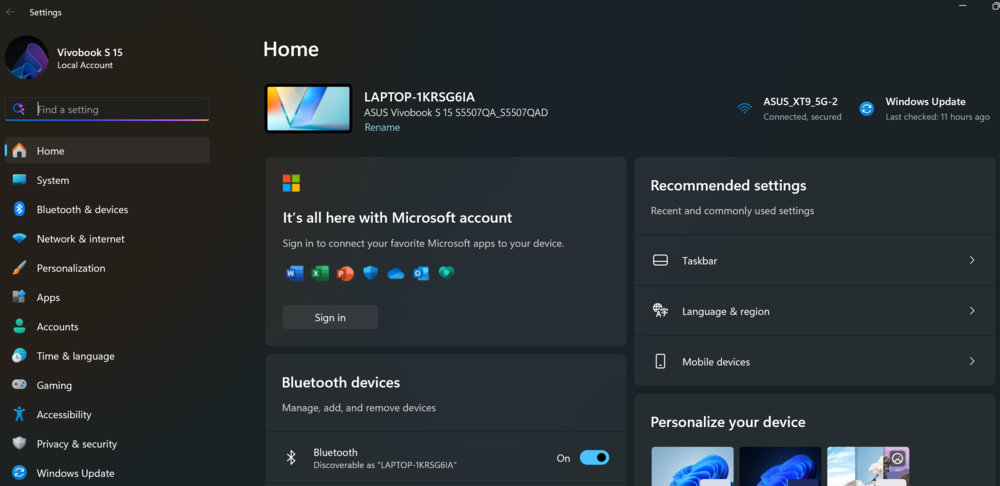
2.Next, in the left sidebar, select the Privacy and Security section.
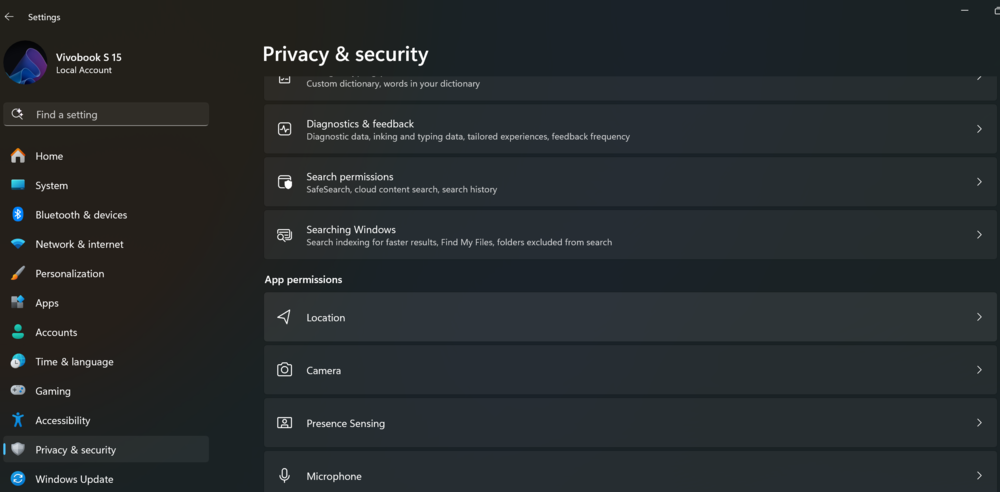
3. Next, scroll down on the right side to the App permissions section and click on Location.


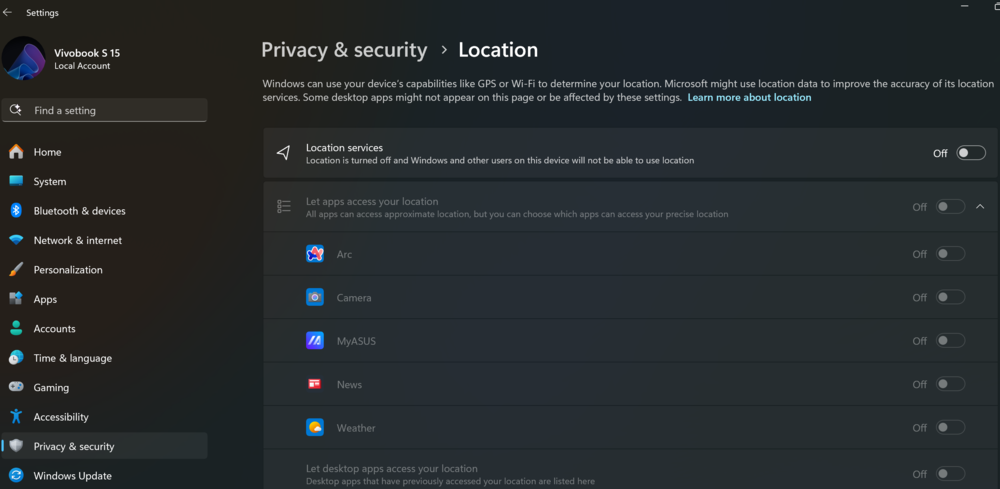
4. On the Location page at the top, turn off the Location Services switch.
This will completely disable location tracking on your PC, and no application will be able to use it.
All other settings on this page will become inactive, meaning you won’t be able to change permissions for individual apps while location services remain turned off.
To enable location tracking again, simply return to this section and switch the Location Services toggle back on.
Read also: How to remove the Windows 11 login password
How to disable location tracking for individual apps
If you don’t want certain apps to know where you are, you can easily disable their access to location services.
- Open Settings by pressing Windows key + I.
2. In the left menu, select the Privacy and security section.
3. On the right, tap Location.
4. In the Allow apps to access your location section, find the list of apps.
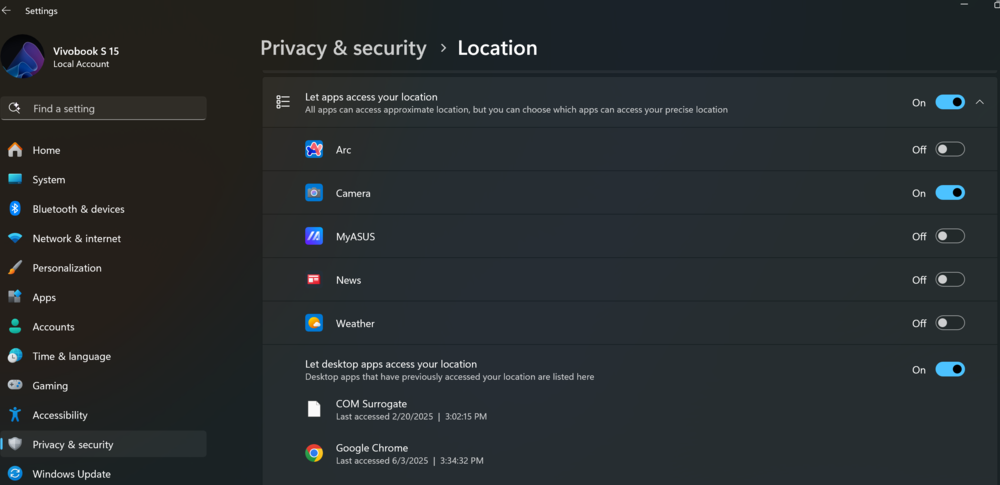
5. Turn off the switch next to each app that you want to prevent from accessing your location.
Done – the selected apps will no longer collect information about your location.
If you want to grant access again later, just turn on the corresponding switches.
Read also: Power saving modes in Windows 11: Which one to choose?
Quickly switch off geolocation in flight mode
Need to temporarily disable location services? The fastest way is to turn on Airplane Mode. In Windows 11, this instantly disables geolocation, Wi-Fi, and Bluetooth. Later, you can turn it back on with just one click.
Here’s how to do it:
- Press Windows + A to open the Action Centre.
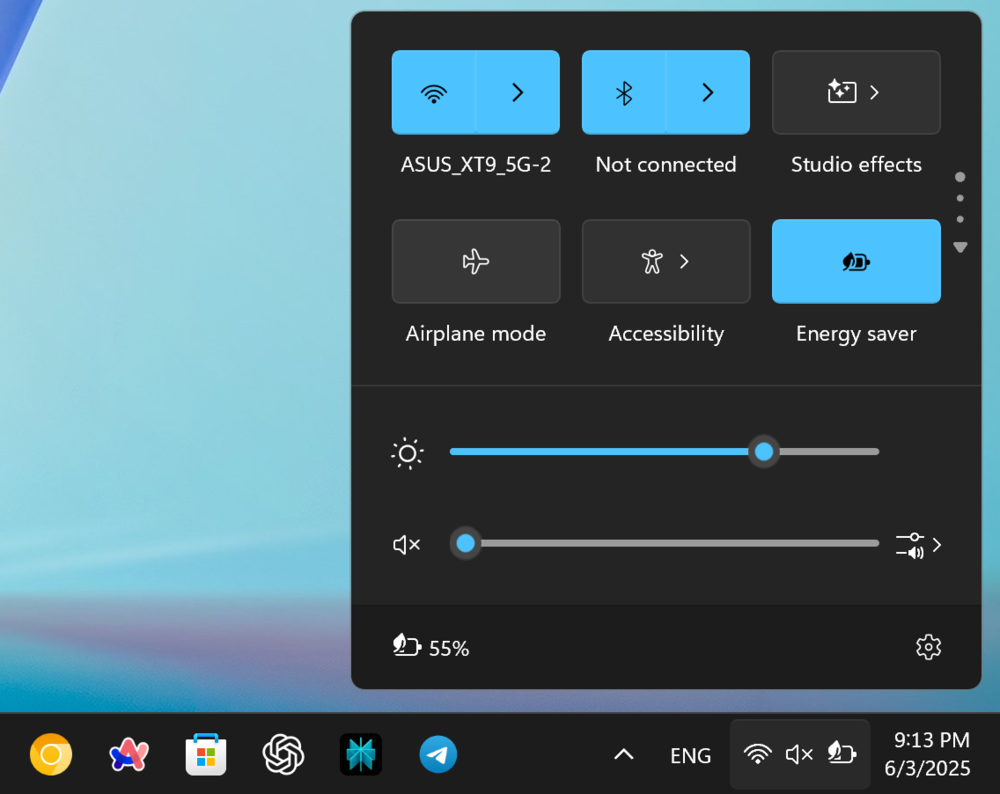
2. In the panel that appears, tap the Flight Mode tile.
3. The mode will be activated – the connection and geolocation will be disabled.
To return everything back, just tap Airplane Mode again – the system will instantly reconnect.
Read also: How Taiwan, China and the US are fighting for technological dominance: the great chip war
How to stop websites from tracking your location in Edge, Chrome, and Firefox
Don’t want websites to know where you are? You don’t have to turn off location services on your entire computer – you can just configure it in your browser.
Microsoft Edge
So, let’s start with Microsoft Edge. To prevent websites from tracking your location, you need to:
- Open Edge and click the three dots in the top right corner.
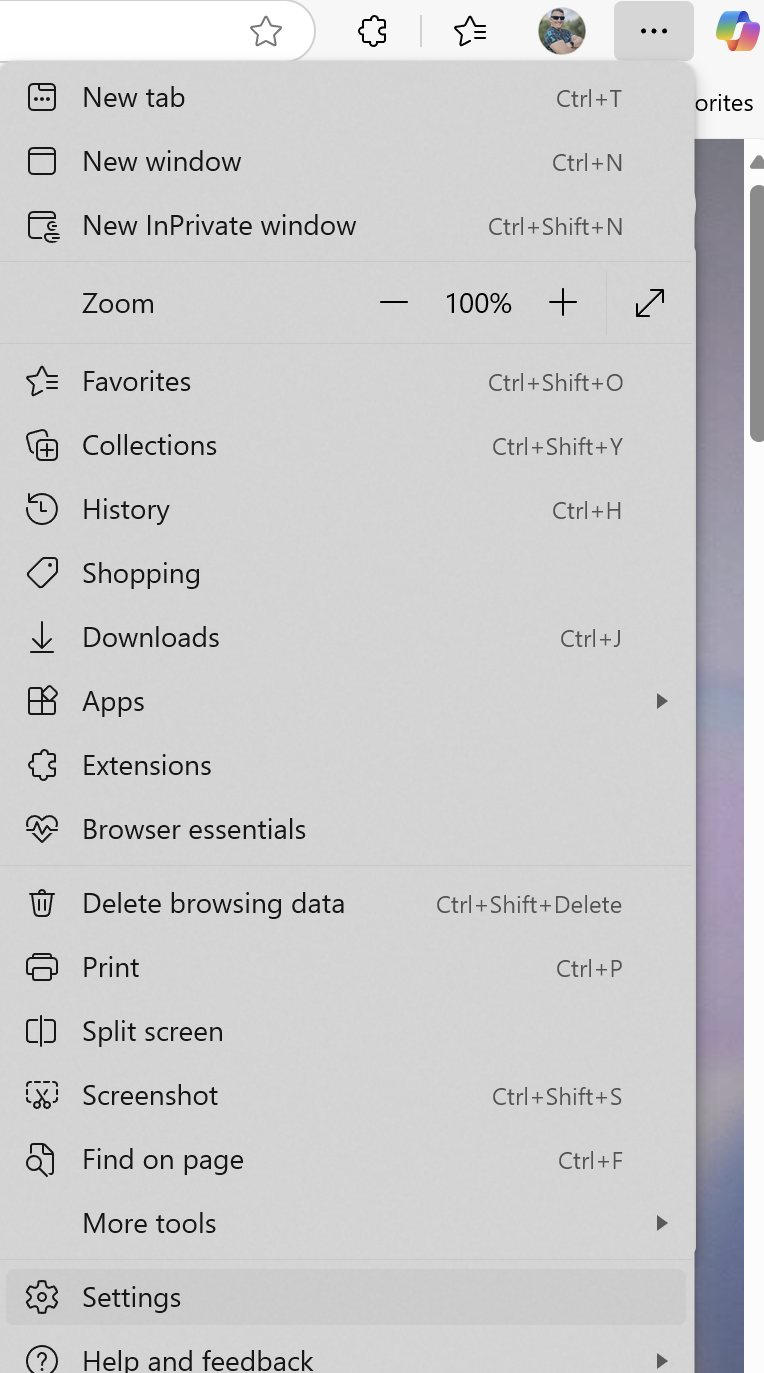
2. Select Settings.
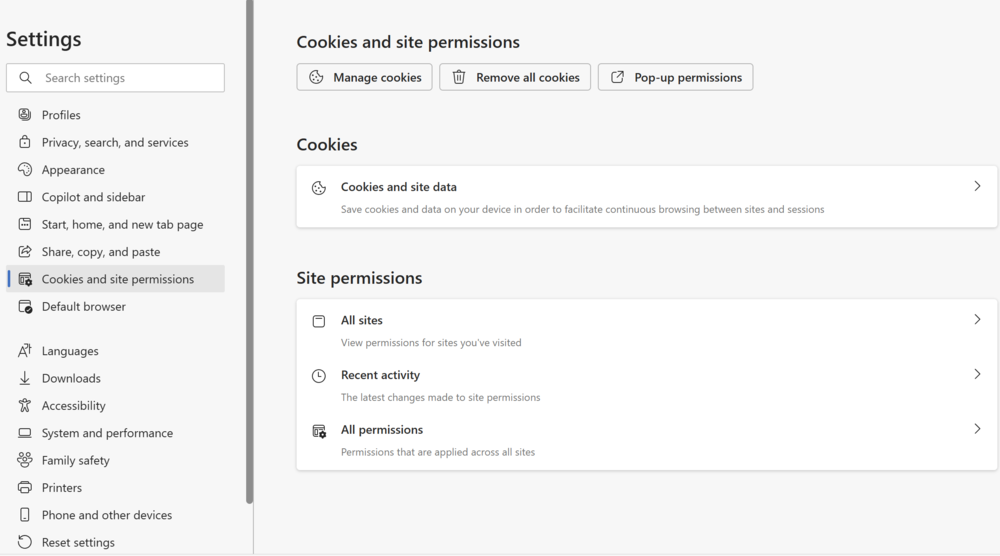
3. In the left menu – Cookies and website permissions.
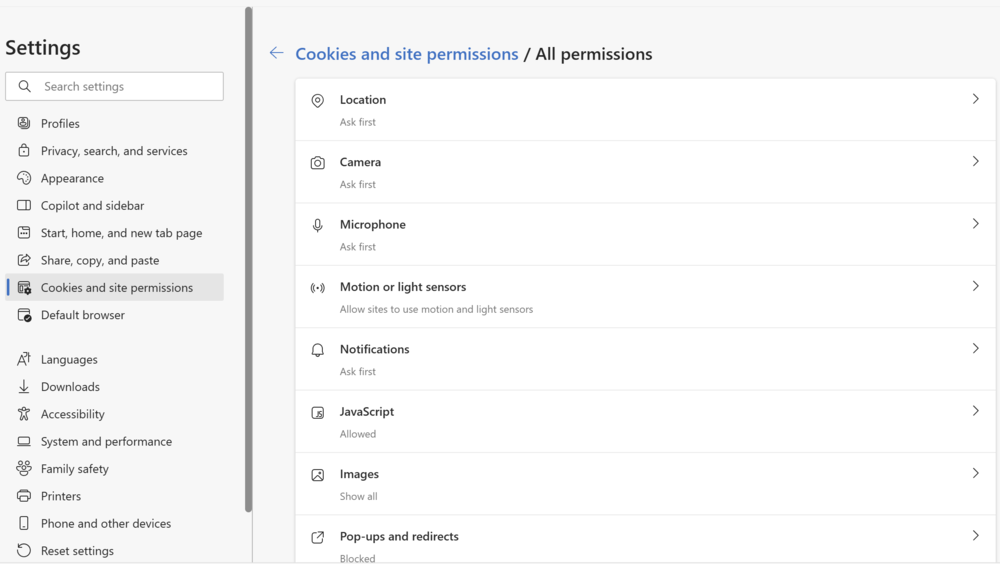
4. On the right, find All permissions – Location.

5. Turn off the Prompt before access switch (recommended).
Edge will now automatically block all requests from sites to access your location.
Google Chrome
Next up is the most popular browser at the moment, Google Chrome. You can do this in it too. To do this, you only need to make certain settings:
- Open Chrome and click the three dots in the upper right.
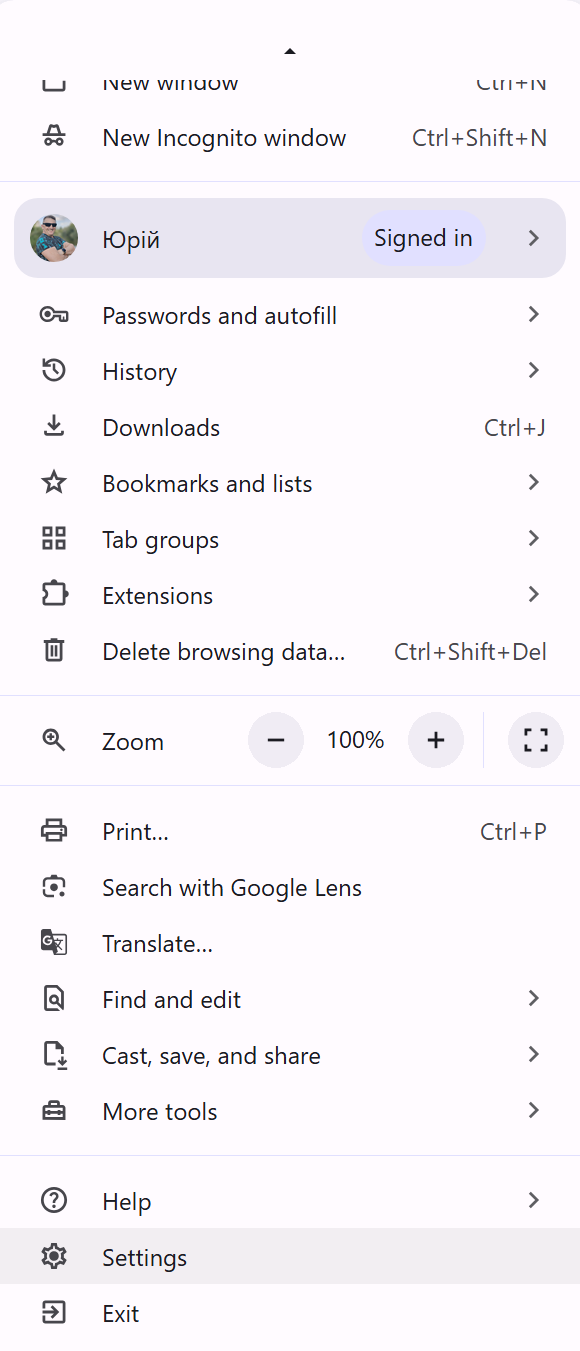
2. Go to Settings.
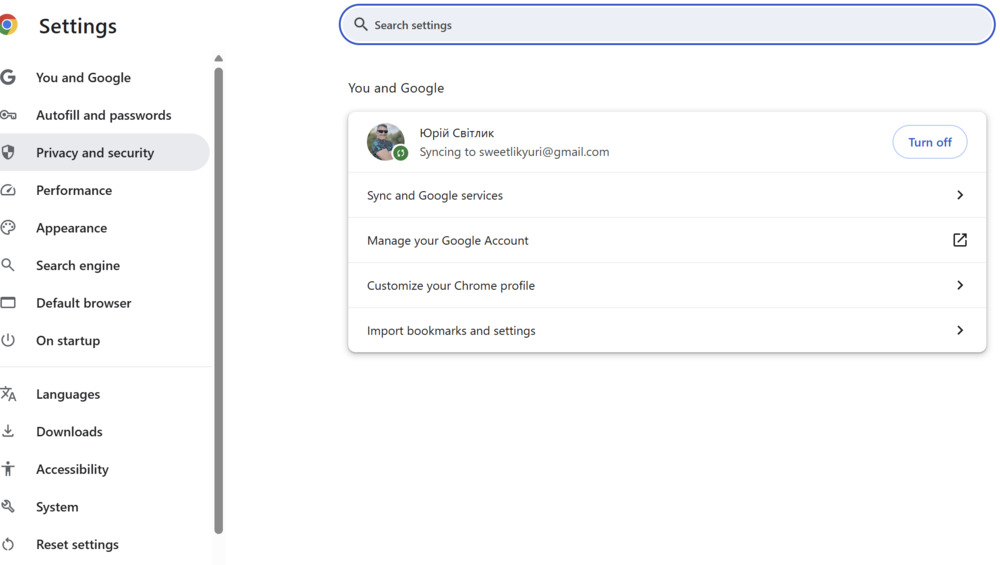
3. On the left, select Privacy and Security, then Site Settings.
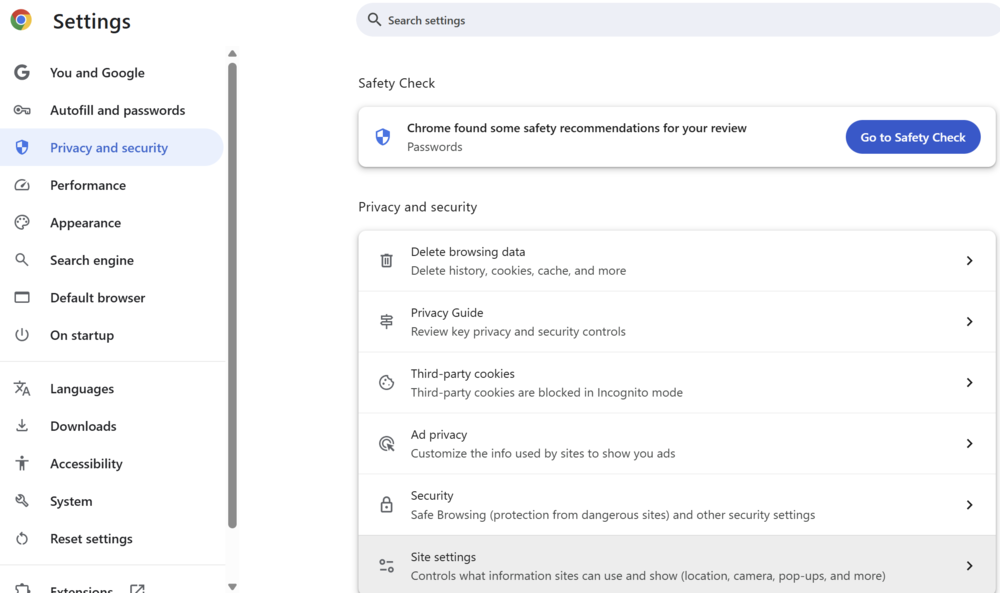
4. Tap Location.
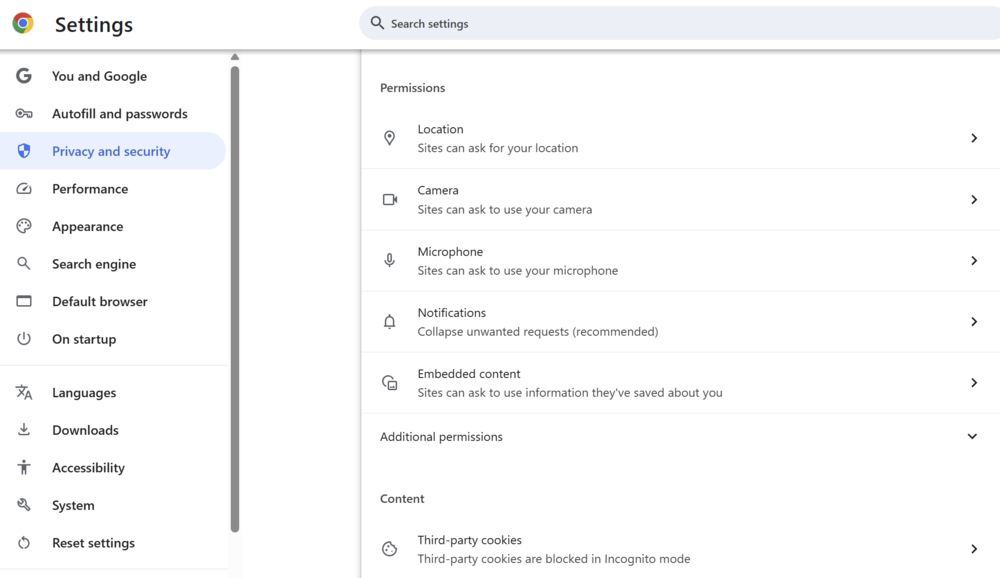
5. Turn on the Do not allow sites to see your location option.
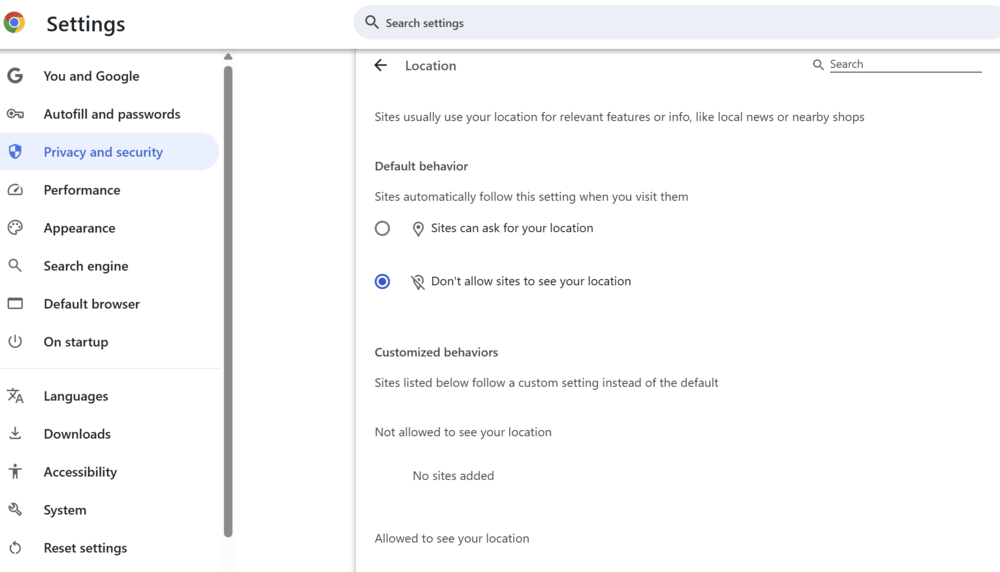
If you want to block access to specific sites only, use the Custom behaviour settings section on the same screen.
Mozilla Firefox
You can also prevent websites from tracking your geolocation in Mozilla Firefox. To do this:
- Launch Firefox and open the menu (three lines) in the upper right corner.
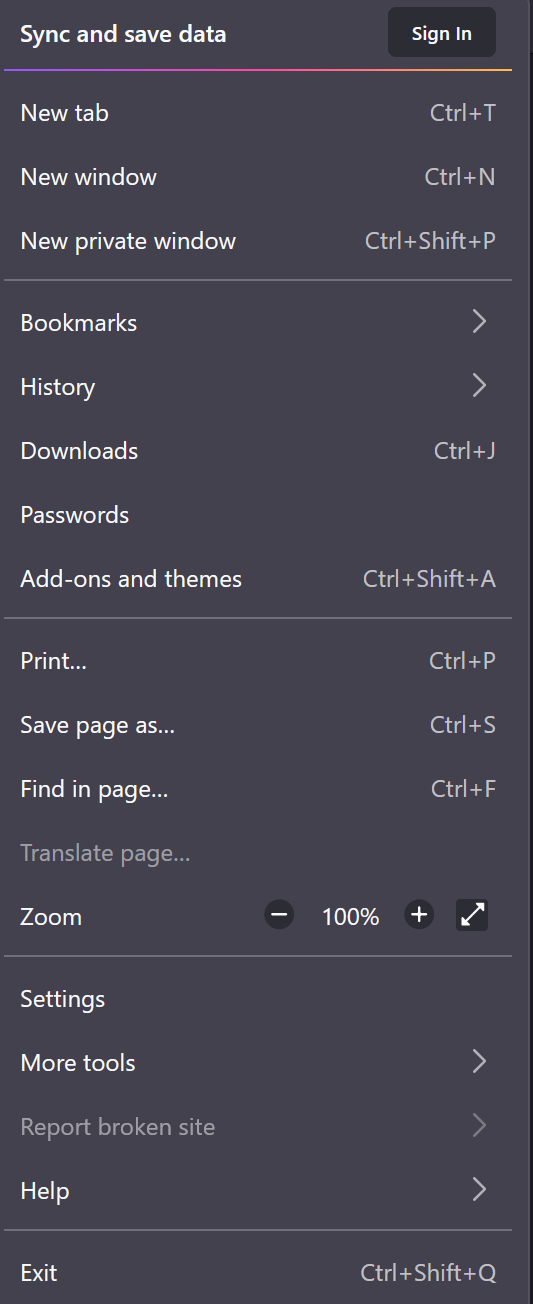
2. Go to Settings.
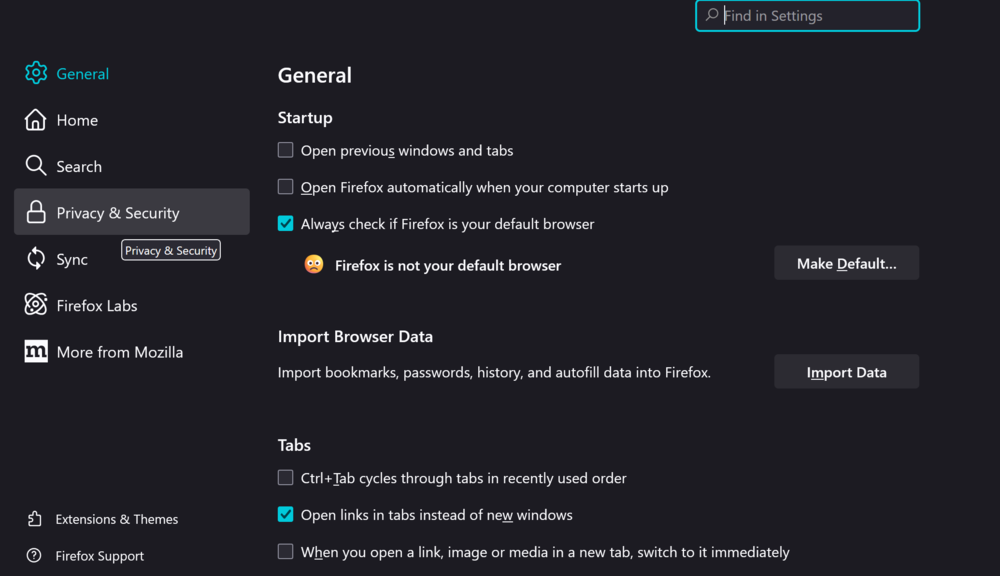
3. Select Privacy and security on the left.
4. Scroll down to the Permissions section.
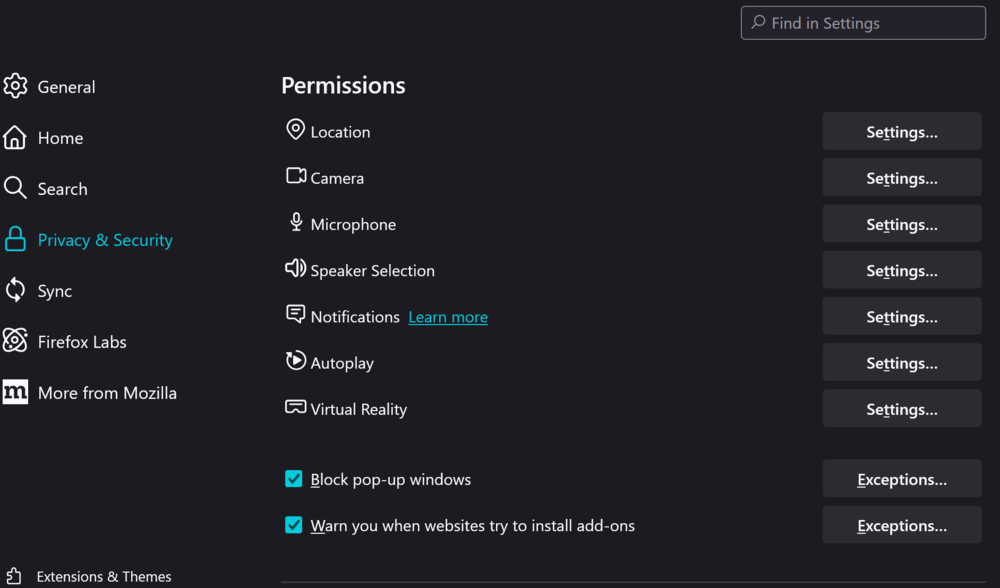
5. Next to Location, select Settings…
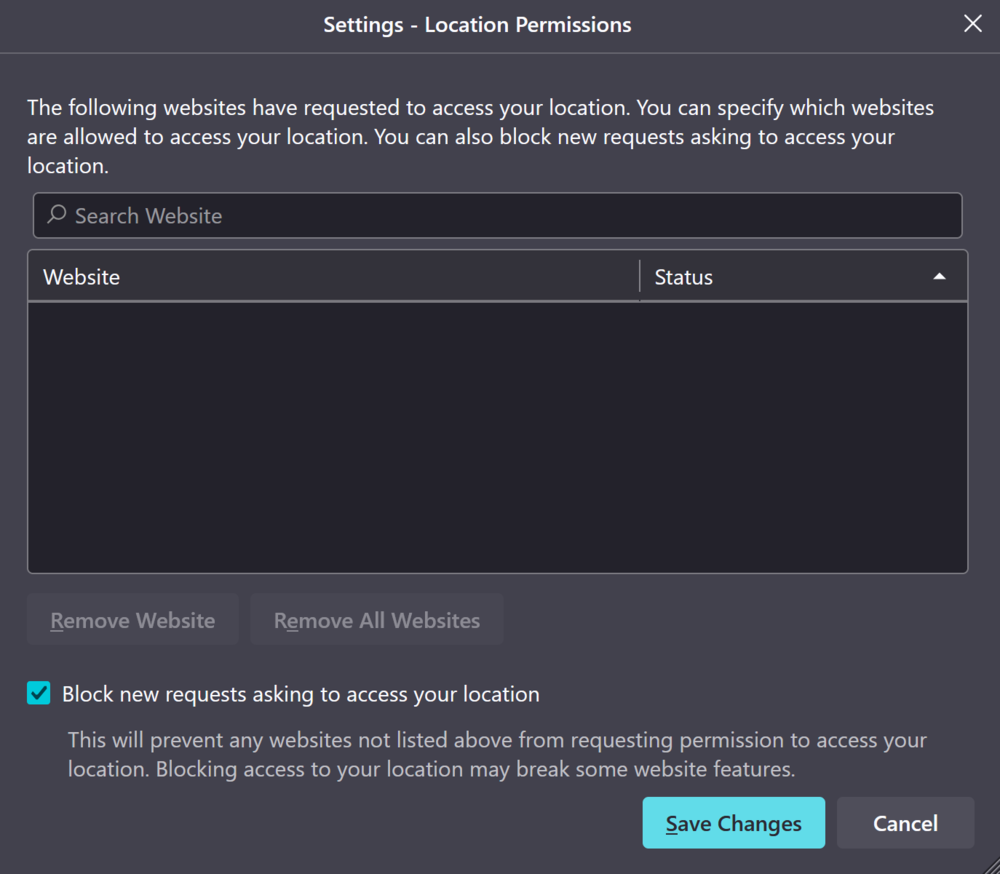
6. In the window that appears, tick Block new requests for access to your location, then click Save changes.
Now your browser will no longer share your location data without your permission. If you change your mind, you can easily switch it back on using the same settings.
Read also: ERNIE Bot: What’s Behind China’s AI Success
How to clear location history in Windows 11
If location services were previously enabled on your computer, Windows 11 may have kept a record of your movements. To remove this data and improve your privacy, it’s a good idea to clear your location history.
Here’s how to do it:
- Press Windows + I to open Settings.
2.In the left menu, select Privacy and security.
3. On the right, open the Location section.
4. Scroll to the Location history section.
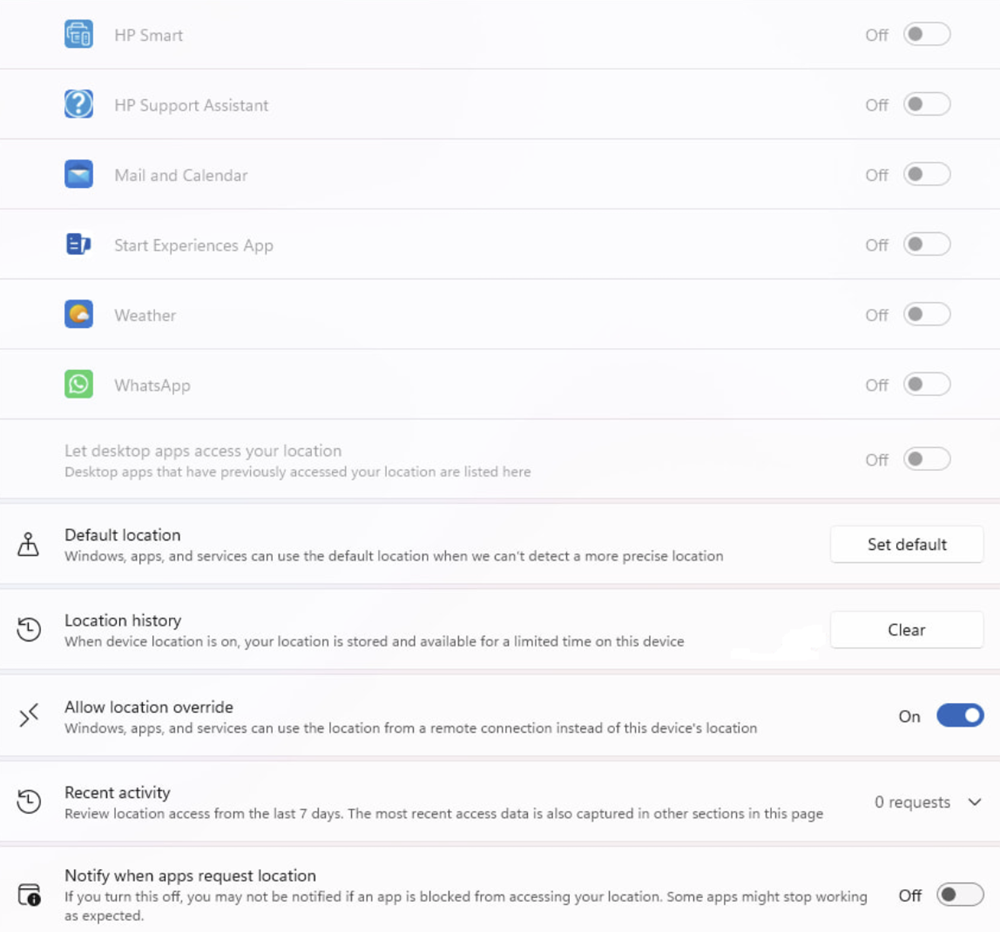
5. Click the Clear button.
6. A checkmark appears next to it, indicating that the history has been successfully deleted.
This step helps reduce the amount of personal data the system may have stored about you.
Tip:
For greater control over your privacy, check the settings under Privacy & security. Here, you can manage permissions for the camera, microphone, notifications, and even background apps.
Read also:
- Civilization at Risk: Donald Trump’s Policies Are Undermining the Scientific World
- AI Hallucinations: What They Are and Why They Matter
Why disable location tracking in Windows 11
Location tracking in Windows 11 can be useful – for example, to get accurate weather forecasts, find nearby places, or navigate more easily. Still, there are valid reasons why many users choose to disable it.
Your location is sensitive data. When location services are enabled, both Windows and installed apps can access and store this information regularly. Turning the feature off helps reduce the risk of unauthorized data collection.
Some apps, including web browsers, may use location data to build a profile of your behavior. If you’d rather not have systems analyzing where you go and how often, it’s safer to keep location tracking turned off.
Disabling location tracking is a straightforward way to improve privacy, enhance security, and regain control over what the system and apps know about you. If you don’t rely on services that need your location, it makes sense to turn it off.
Read also:
- Techno-feudalism – A New Form of World Order
- Panama Canal: History of Its Construction and Basis of U.S. Claims

