





© ROOT-NATION.com - Use of content is permitted with a backlink.
Let me clarify – I’ve already done both written and video reviews of cooling pads. The issue, however, is that most of those were older models. They helped reduce heat to some extent, but they didn’t solve the problem entirely. These pads weren’t designed to handle the kind of extreme heatwaves that are once again expected to hit both Europe and Ukraine.

TABLE OF CONTENTS:
How laptop cooling works
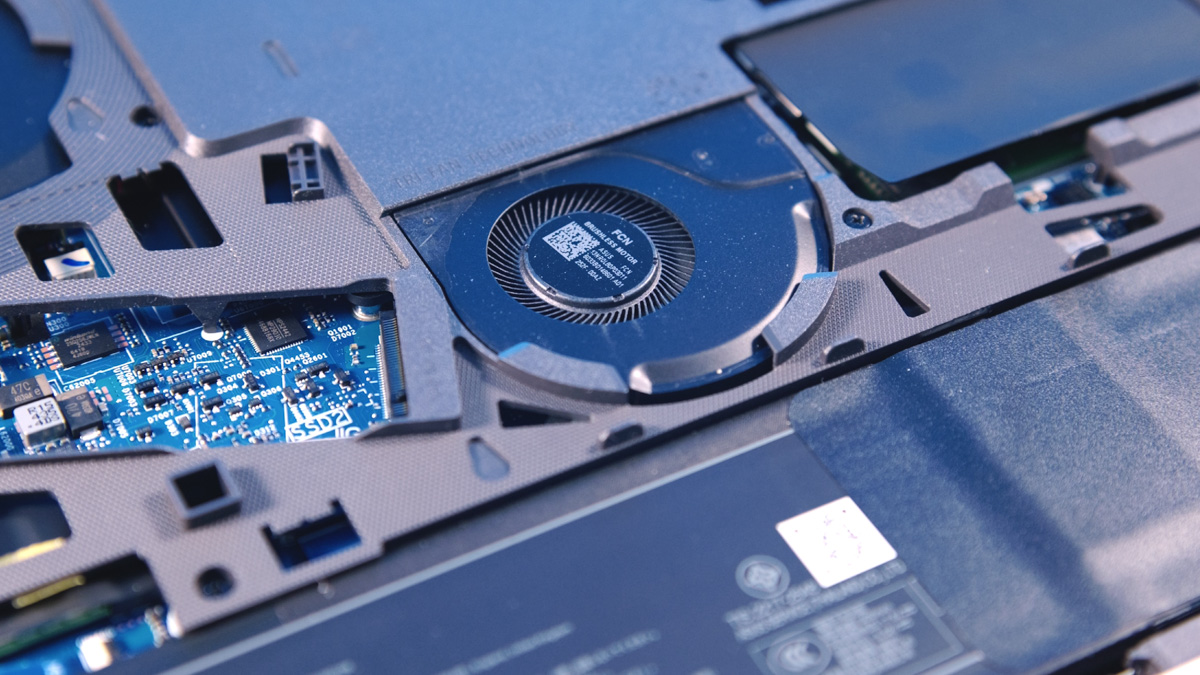
Before diving into specific cooling pads, it’s worth explaining why they work in the first place. Most modern gaming laptops follow a standard cooling layout: air is drawn in through a vent on the bottom and expelled either through the sides or the back. Alternative designs exist, but they’re far less common. One notable exception is laptops that don’t use fans at all – like the MacBook Air, whether it’s the Intel version or the one with Apple Silicon.
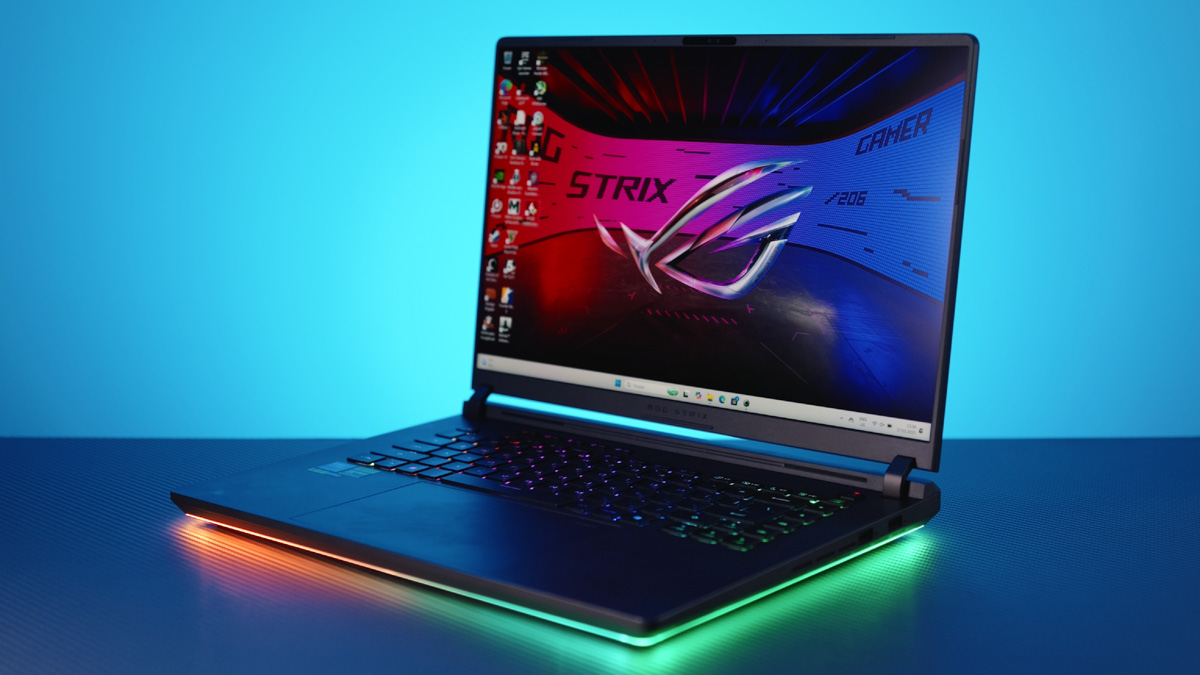
Another key point is that modern laptops are equipped with current-generation processors and graphics cards. These components are designed to perform better when they have effective cooling – meaning the cooler they run, the faster and more efficiently they operate.
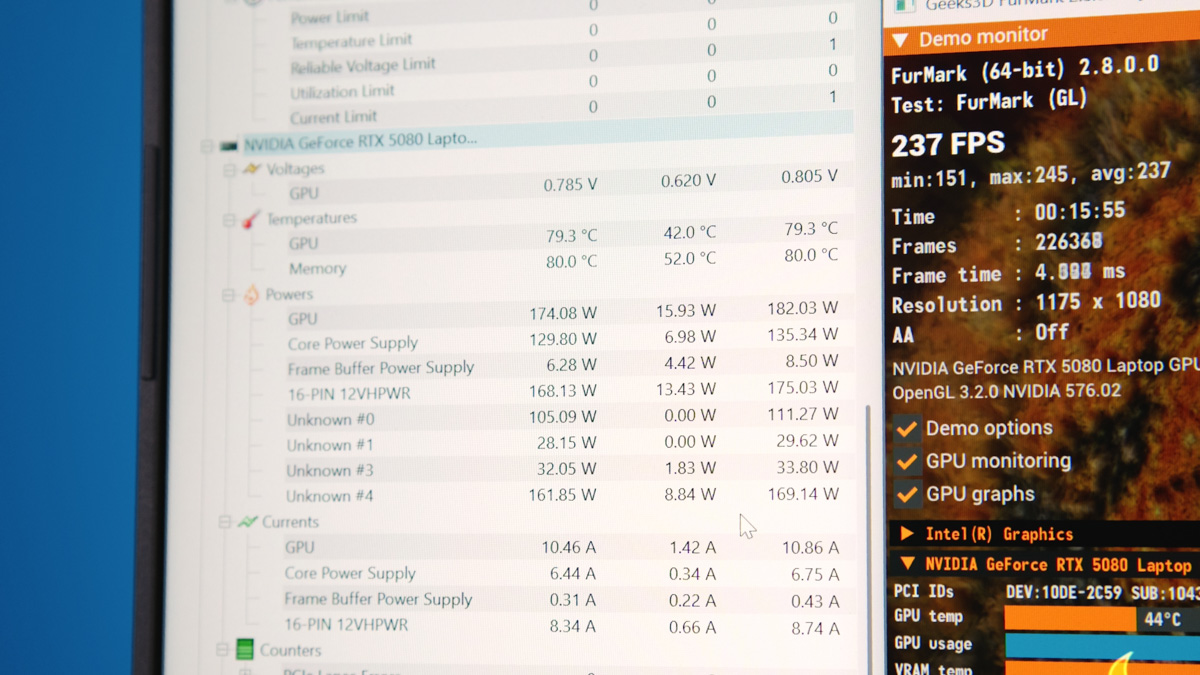
Sometimes this leads to surprisingly counterintuitive situations – like when reducing a GPU’s clock speed actually improves gaming performance. The reason? Lower clocks can generate less heat, allowing the GPU to stay within a more stable temperature range and avoid thermal throttling. While this effect is less pronounced in laptops compared to desktops, the underlying trend still holds.
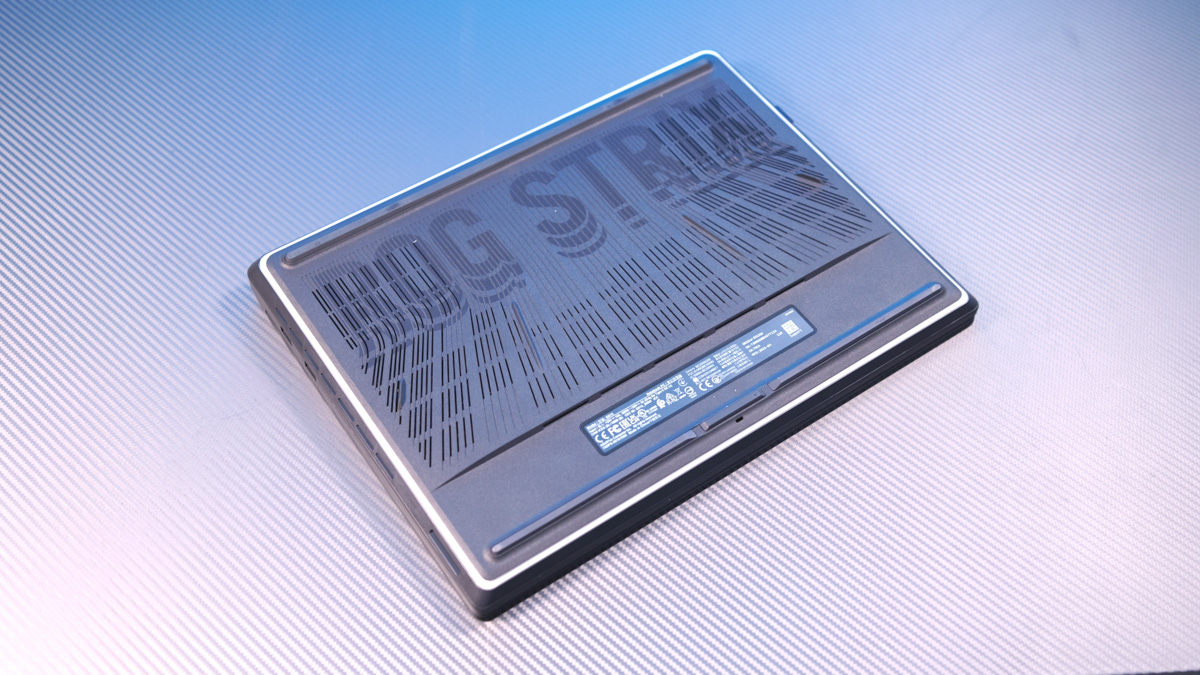
It’s also important to remember that laptop manufacturers always design or choose chassis that can handle the heat output of the processors and graphics cards they include. In other words, even high-performance gaming laptops are built with thermal limits in mind – none of them are going to melt under load.
Where can we improve?
This brings up three key issues. First, I’ve tested laptops running 24-core Intel processors paired with an RTX 5080 Mobile GPU. In one case, the laptop came with a 380W power adapter, but the chassis could realistically dissipate only around 240–250 watts of heat from both the CPU and GPU combined. And that’s despite the fact that the system had three cooling fans.
The second issue stems directly from the first. Yes, manufacturers ensure that internal components won’t overheat to the point of failure. However, peak performance steadily drops as temperatures rise. In that same laptop, for example, the processor had to throttle its power consumption from over 150 watts down to just 45 watts when both the CPU and GPU were active.
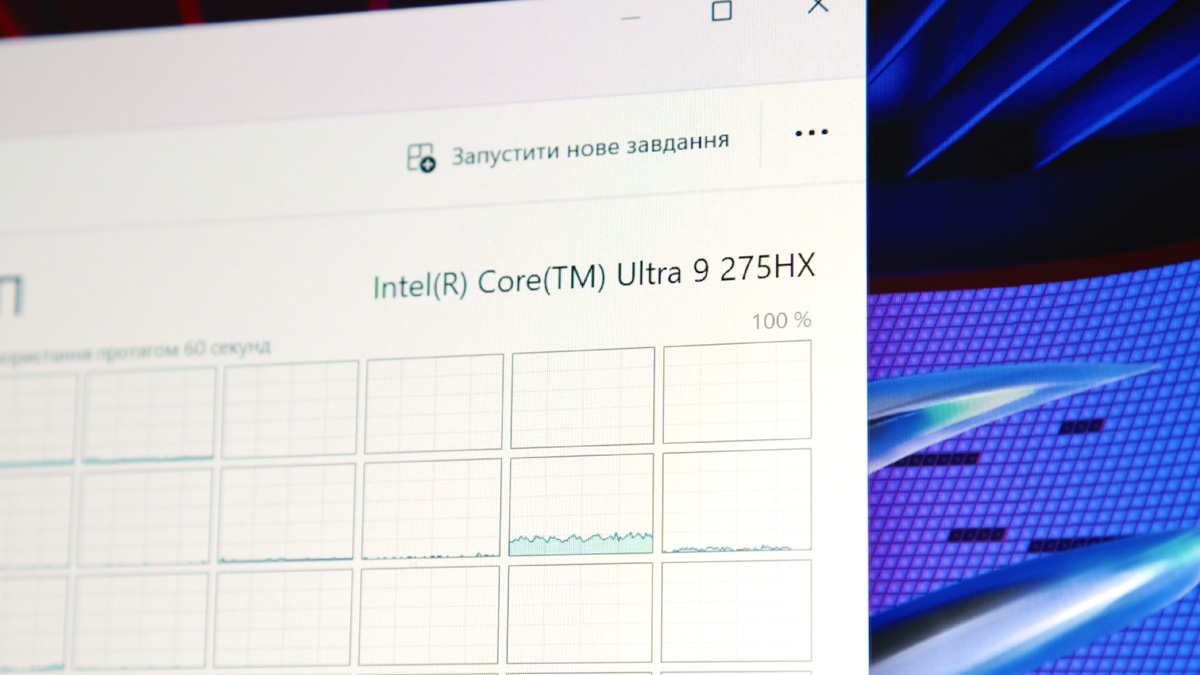
The third problem might not show up right away. Manufacturers don’t typically account for how the laptop chassis will perform under unexpected conditions – like sustained 40°C ambient temperatures or clogged, dust-filled fans. Laptops aren’t tested for those scenarios, but after a year or two, dust buildup – and other factors – are almost inevitable.
About the coasters themselves
All of this can be partially addressed with a basic cooling pad. You don’t necessarily need to lift the entire laptop off the desk – sometimes just raising the back edge is enough. Even this small adjustment improves airflow, which helps reduce the chances of overheating. This is especially relevant because placing a laptop directly on a desk – or worse, on a bed with sheets – limits air intake. Cooling pads help eliminate these restrictions.

Next, you need to decide whether you want a passive or active cooling pad. If you prefer a passive solution, something like the OfficePro line might suit your needs. For active cooling, models like the GamePro CP870 are worth considering. This particular model was part of our previous reviews, but it’s worth revisiting its key features.
The CP870 includes eight 70mm fans that spin up to 2400 RPM, two USB ports, an LCD display showing fan speed, RGB lighting, and adjustable tilt control.
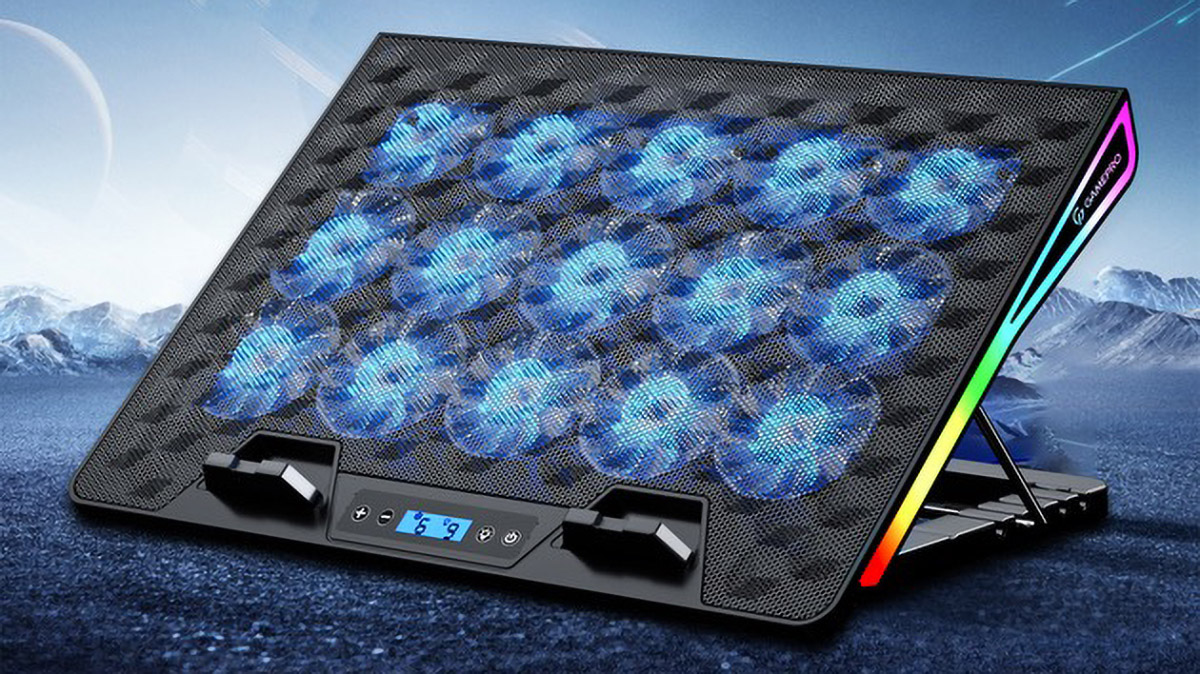
A small insider tip: toward the end of the month, the GamePro CP1140 will hit the market, featuring 15 fans – each 60mm in size – with speeds up to 2300 RPM. This significantly improves the likelihood of directing airflow to the laptop’s intake vents, no matter where they’re located. That said, it will be important to test its real-world effectiveness once it’s available.
Conclusions
Cooling pads with active fans won’t turn your laptop into a frozen block that doesn’t need its internal fans running. However, in an industry where billion-dollar companies compete over every megahertz of CPU and GPU performance, even flagship laptops can benefit from pads like the GamePro.
Whether it’s improved tilt angles or additional airflow from fans that are either more numerous or more effective than those built into the laptop doesn’t really matter. What’s important is that if your laptop is overheating, there are practical ways to help manage the temperature.
Read also:
- Logitech G Powerplay 2 Review: Gaming Mouse Pad with Wireless Charging
- Nubia V70 vs. Nubia V70 Max: Budget Phones for the Detail-Oriented Buyer
- YUNZII AL80 Review: Wireless Aluminum Keyboard with Display

