© ROOT-NATION.com - Use of content is permitted with a backlink.
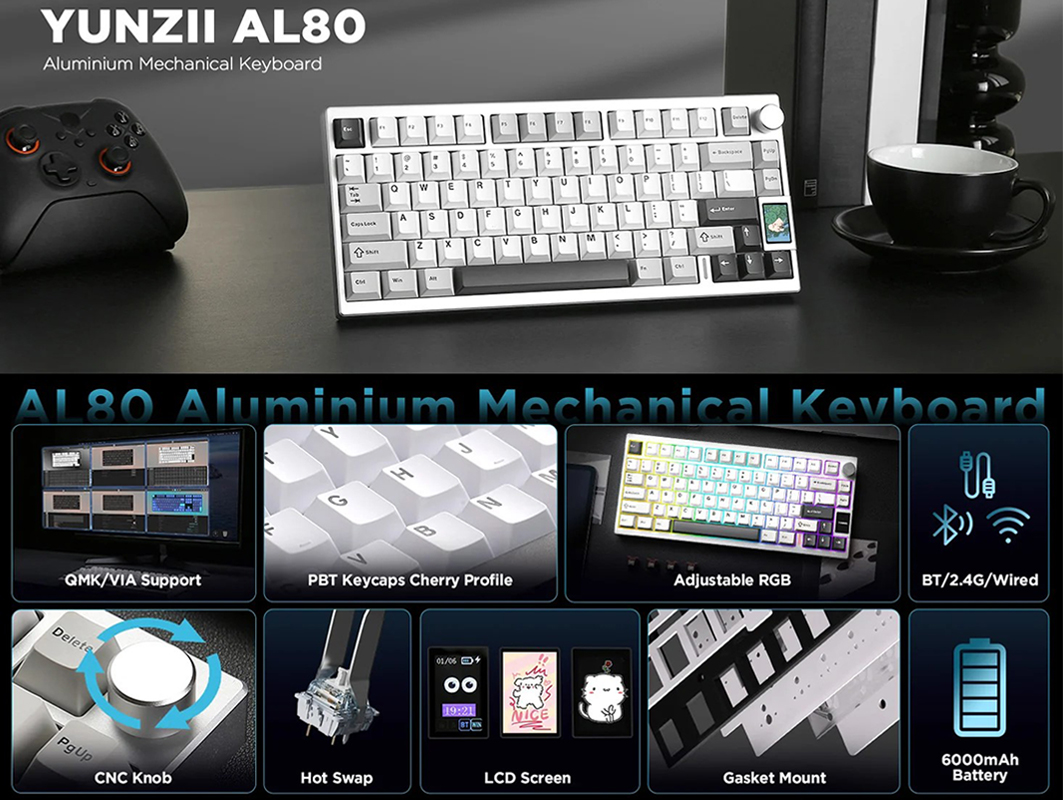
Recently, I talked about the YUNZII AL65 – a solid wireless mechanical keyboard from the Chinese brand YUNZII, featuring a fully aluminum hollow chassis and vibrant RGB lighting. You could say that model is somewhat of the flagship in YUNZII’s aluminum lineup. Today, I’m reviewing another new addition from the series – the YUNZII AL80. This latest model is a wireless 75% mechanical keyboard, also with a full aluminum body, but now it includes an LCD display and a control wheel.
Other features are basically the same as the previous model: three connection modes, customization support via QMK/VIA, a gasket mount design, hot-swappable switches, pre-lubed switches and stabilizers, very nice double-shot PBT keycaps, excellent typing experience, and a reasonable price. I’ve had plenty of time to use the keyboard, so ahead of the full review, I can say the YUNZII AL80 is a solid choice for anyone looking specifically for a 75% layout or a reliable 75% base for further customization. I’ll go into more detail about what I liked about this model and what sets it apart in the full review.
TABLE OF CONTENTS:
Specifications
- Model: YUNZII AL80
- Format: 75%
- Number of keys: 80 keys
- Connection: wireless (RF 2.4 GHz / Bluetooth); wired (USB-C)
- Switches: YUNZII Cocoa Cream V2 Linear Switch; Gateron Zero Linear Switch
- Hotspot: Yes (3-way and 5-way switches are suitable)
- Construction: Gasket Mount
- Anti-Ghosting: yes
- #KRO: N-KRO
- Keycaps: Double-Shot PBT Cherry Profile Keycaps
- Backlighting: RGB keys (southern LEDs), indicator on the body
- Multifunctional wheel: yes (volume control)
- LCD display: 3 display modes
- Setup and firmware: setup via QMK/VIA, LCD application (Windows)
- Supported platforms: Windows, MAC, Linux, Android, iOS, Nintendo Switch, XBOX
- Battery: 6000 mAh
- Autonomy: 36 hours with backlight on, 96 hours with backlight off
- Full charge time: 12 hours
- Cable: detachable USB-A to USB-C 1.8 m long
- Body material: CNC aluminium
- Dimensions: 314.45 x 137.70 x 41.10 mm
- Weight: 1.44 kgModel features: Gasket Mount, hotspot, built-in memory, QMK/VIA configuration, pre-lubricated switches and stabilisers, RGB backlighting, all-aluminium body, multifunction wheel, LCD display
- Package contents: keyboard, detachable USB-A to USB-C cable, 2-in-1 remote control (for keycaps and switches), two spare switches (as in the keyboard), 2.4 GHz RF wireless dongle, alternative keycap set (includes a set of keys for MAC), blister dust cover, user manual (book and cardboard spread)
Positioning and price
For those who might be hearing about the YUNZII brand for the first time, here’s a quick introduction. YUNZII is a group of keyboard enthusiasts based in China who design and release mechanical keyboards along with various accessories. Their products are mainly distinguished by solid build quality and affordable pricing. Additionally, some of their models stand out with quite original designs. In my previous reviews, I’ve often mentioned that I appreciate both the brand’s approach and the devices themselves. That’s why I always look forward to checking out new releases from YUNZII with particular interest.
For example, this was the case with the YUNZII AL series – keyboards housed in fully aluminum cases. A few months ago, I got acquainted with this lineup, and since then, my perspective on regular plastic keyboards has changed quite a bit. The “metal” devices offer a noticeably different experience – better typing feel, improved build quality, and overall a more pleasant feel during use. The YUNZII AL80 model we’re looking at today fits right into this category.
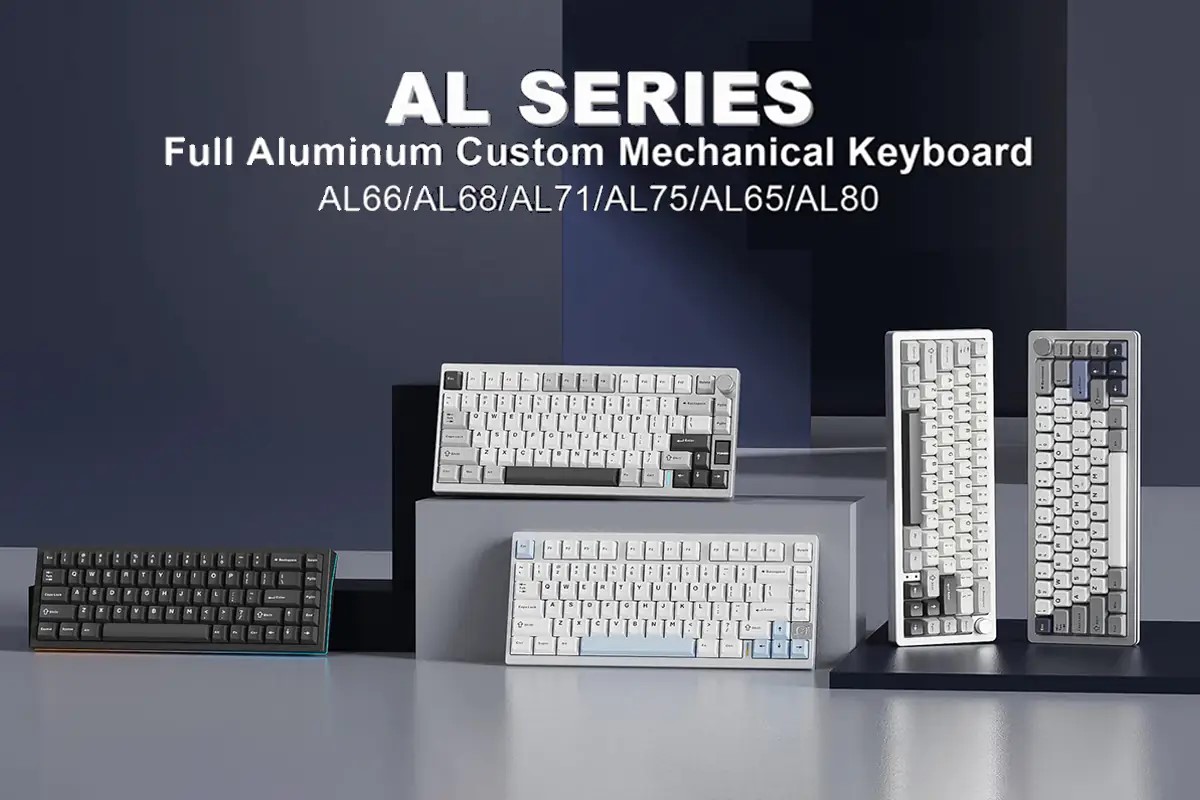
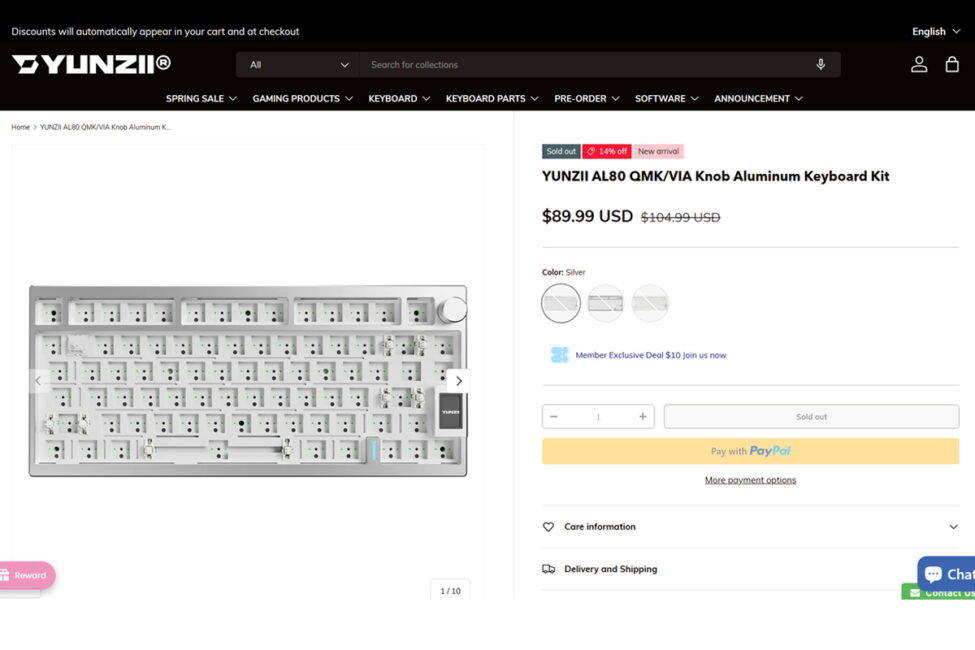
As I’ve mentioned several times already, the AL80 is a new model in the lineup that has only recently become available for purchase. It’s not the most expensive keyboard in the series, but it’s also not the cheapest – a solid mid-range option, so to speak. You can buy the device on the official YUNZII website or on AliExpress. The official site lists the keyboard at $109.99 / €97, while on AliExpress it’s a bit cheaper at $102.81 / €90. Honestly, for a device of this caliber, that’s quite affordable. So you could say it’s another great value-for-money pick.


By the way, besides the ready-to-use keyboard, YUNZII also offers a custom kit based on the AL80 – the YUNZII AL80 Keyboard Kit. It has the same internals but comes without switches or keycaps. It’s priced lower – $89.99 / €79. Essentially, it’s a great foundation for further customization and experimentation.
Package contents
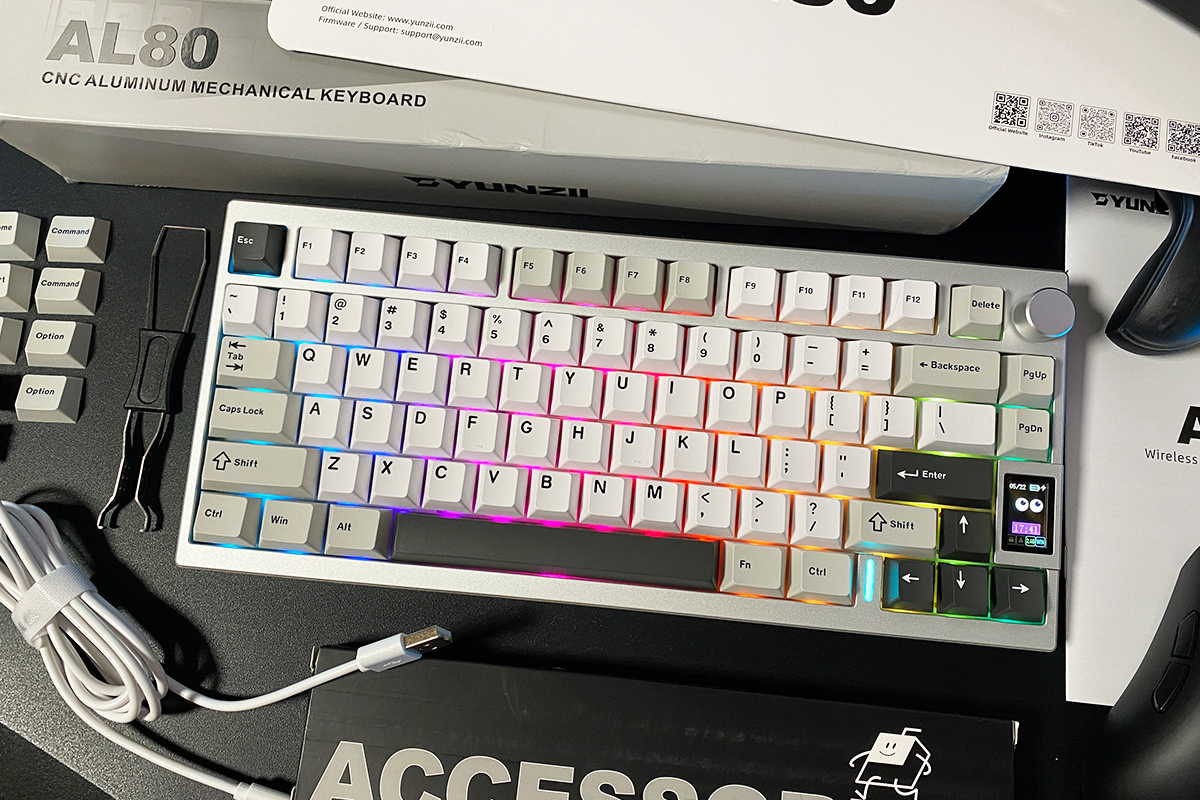
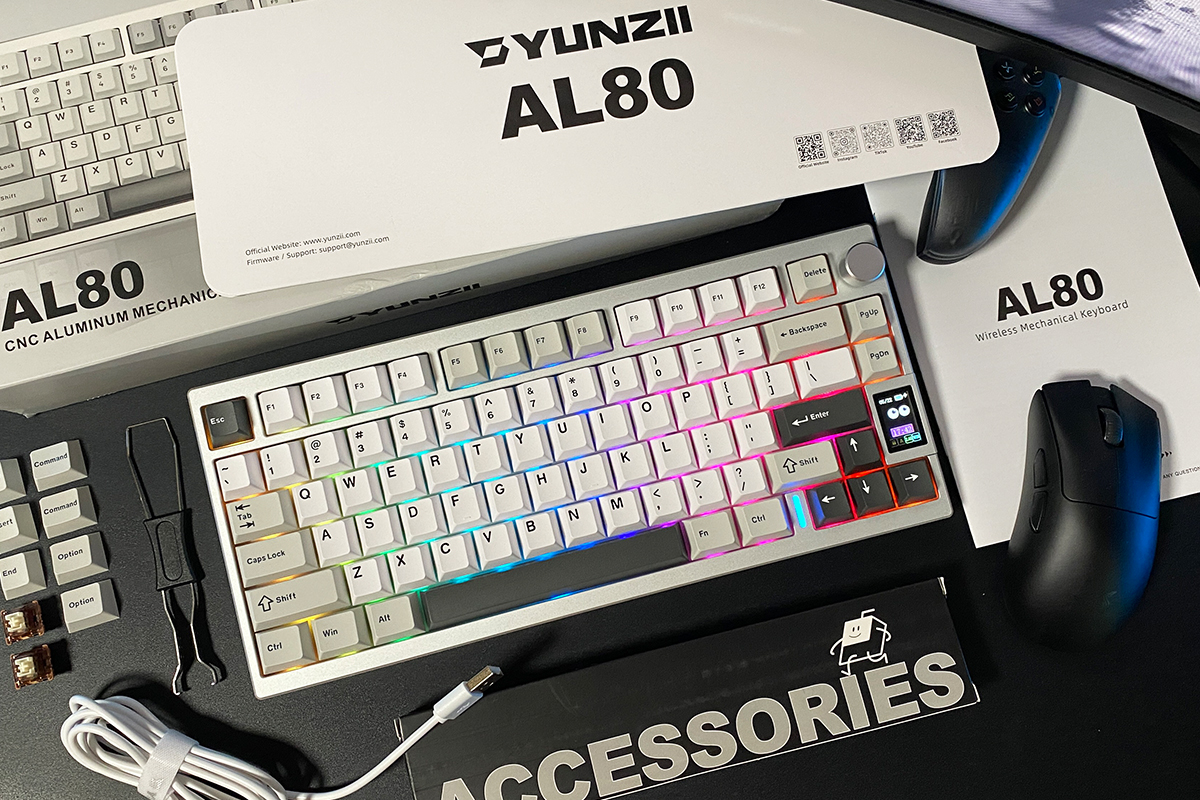
The keyboard comes in branded packaging, which traditionally consists of two parts: a stylized sleeve and a black cardboard box containing the main contents.
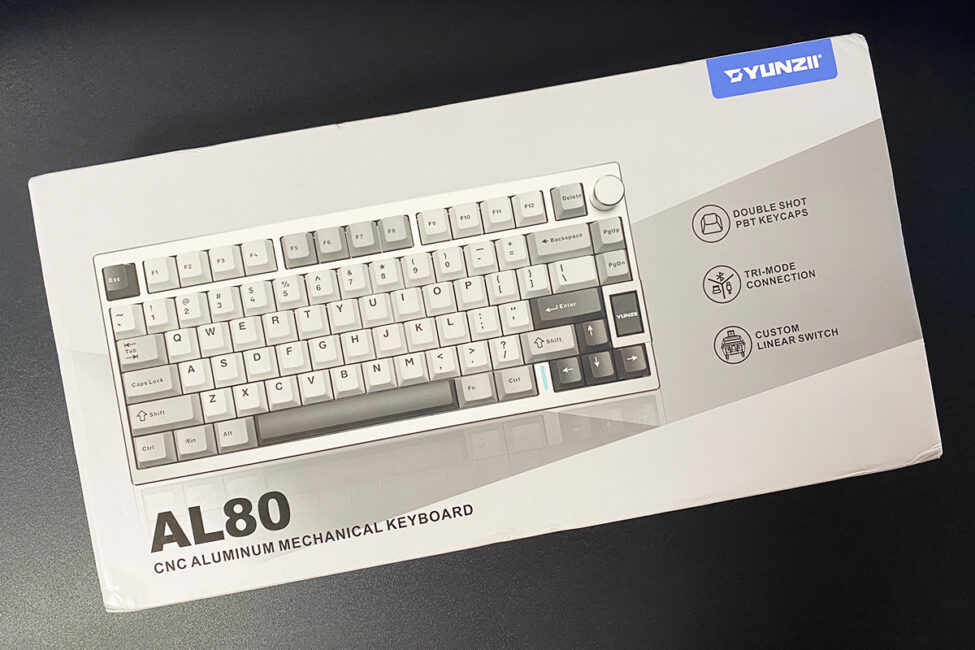
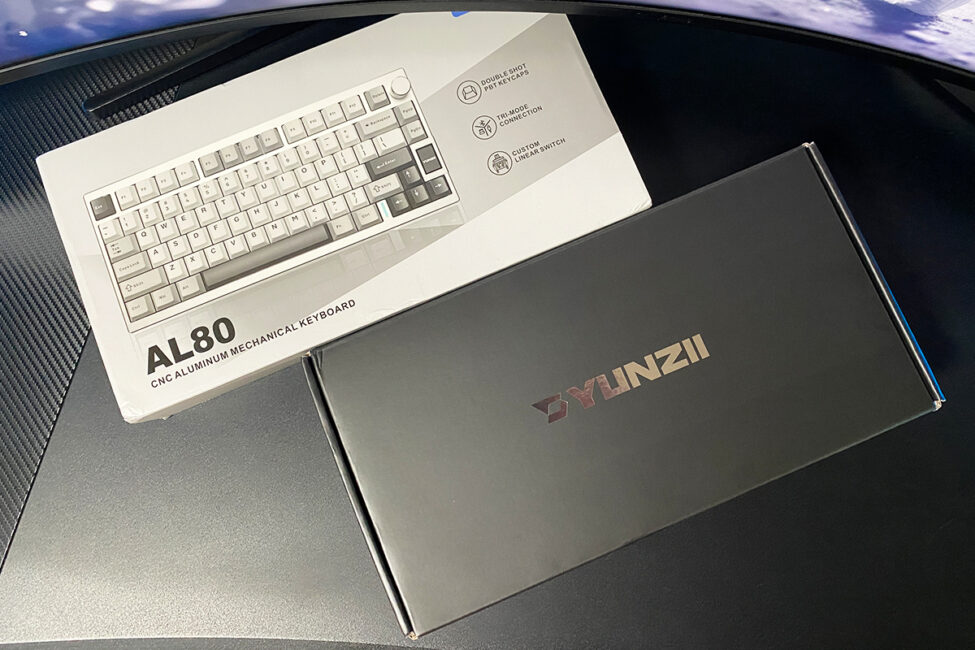
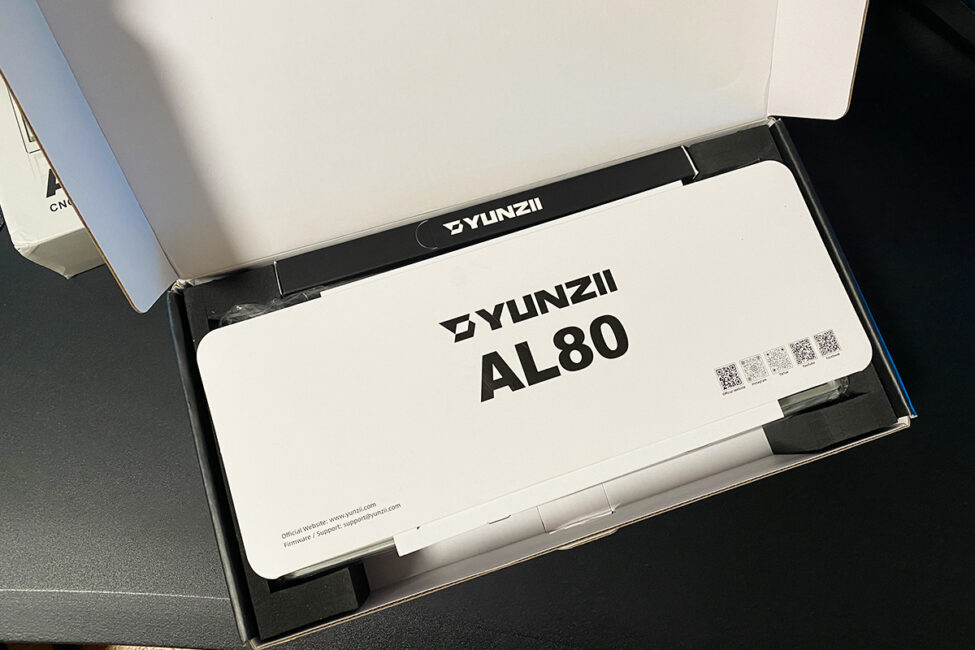
The package of the AL80 model is basic. In addition to the keyboard itself, the package includes:
- detachable cable
- 2-in-1 pulser
- two spare switches
- 2.4 GHz wireless RF receiver
- a set of alternative keycaps
- user manual
- blister dust cover
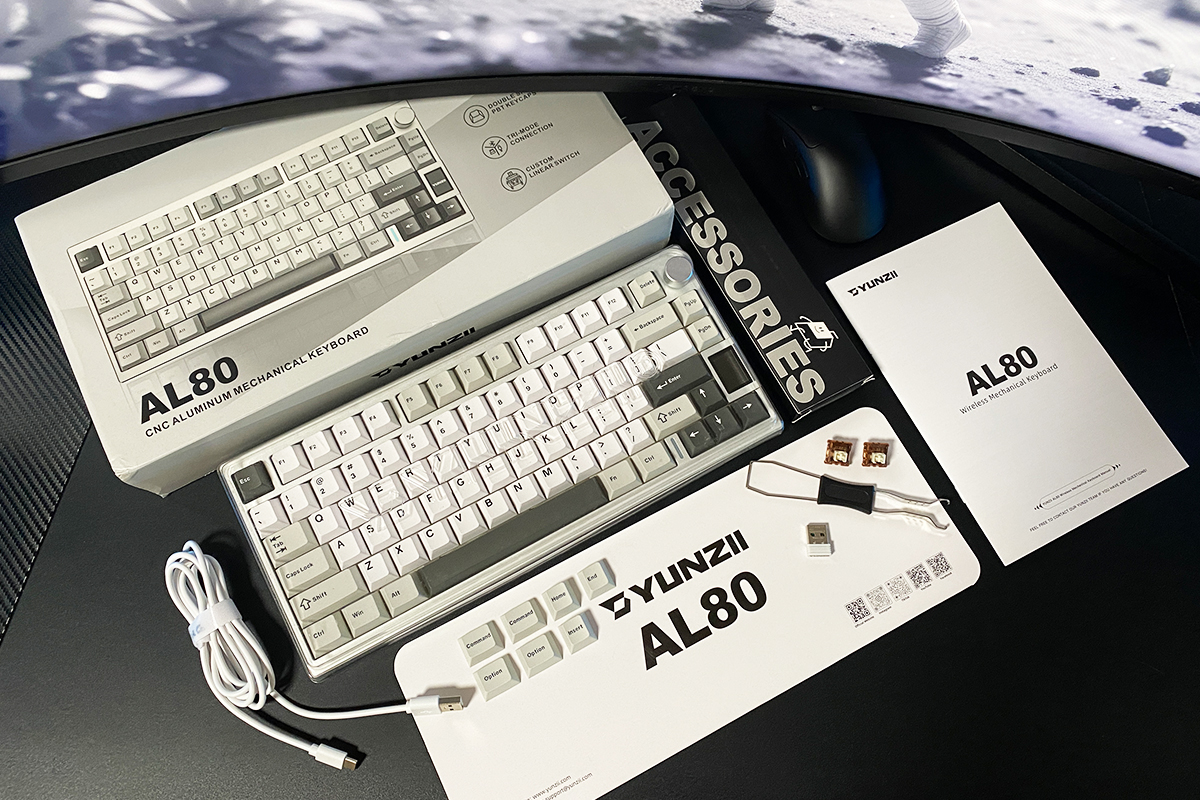
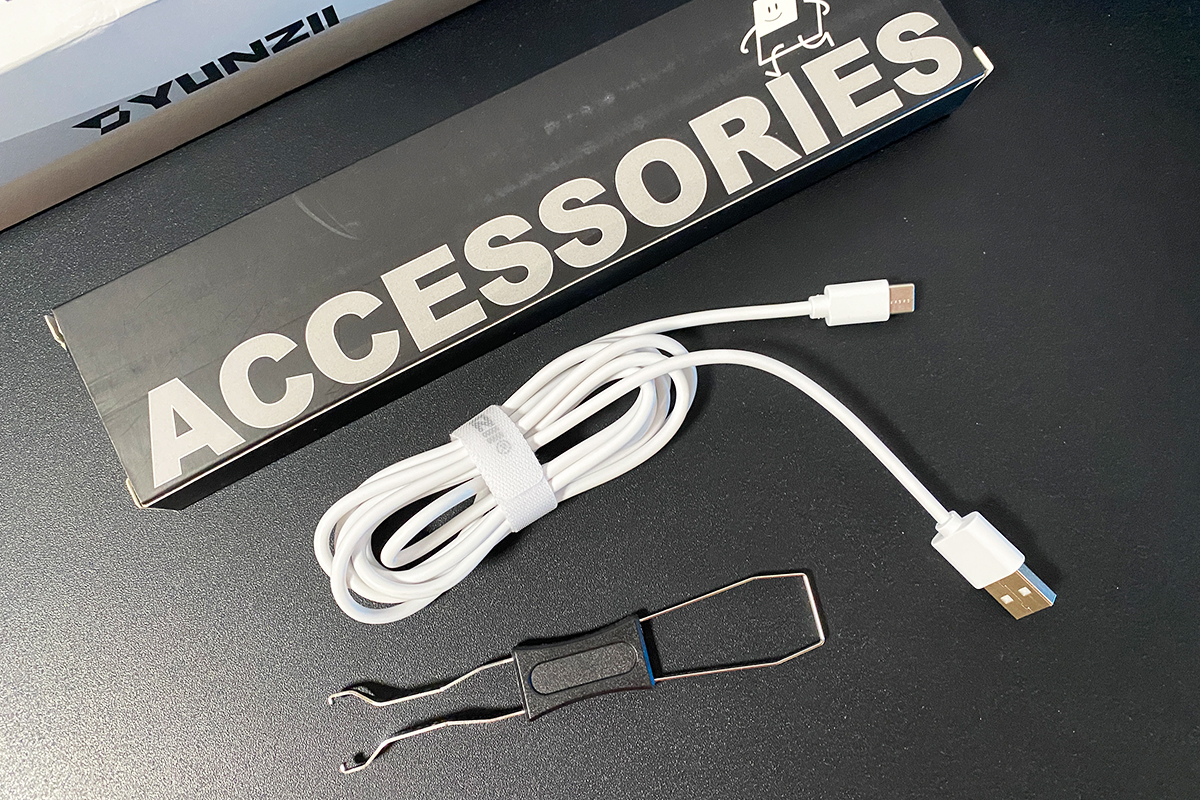
The detachable cable is USB-A to USB-C. It’s a standard rubberized cable, 1.8 meters long, with a branded YUNZII Velcro strap to neatly coil and secure any excess length. The puller is a standard metal tool: one side has keycap pullers, and the other side features a switch remover.
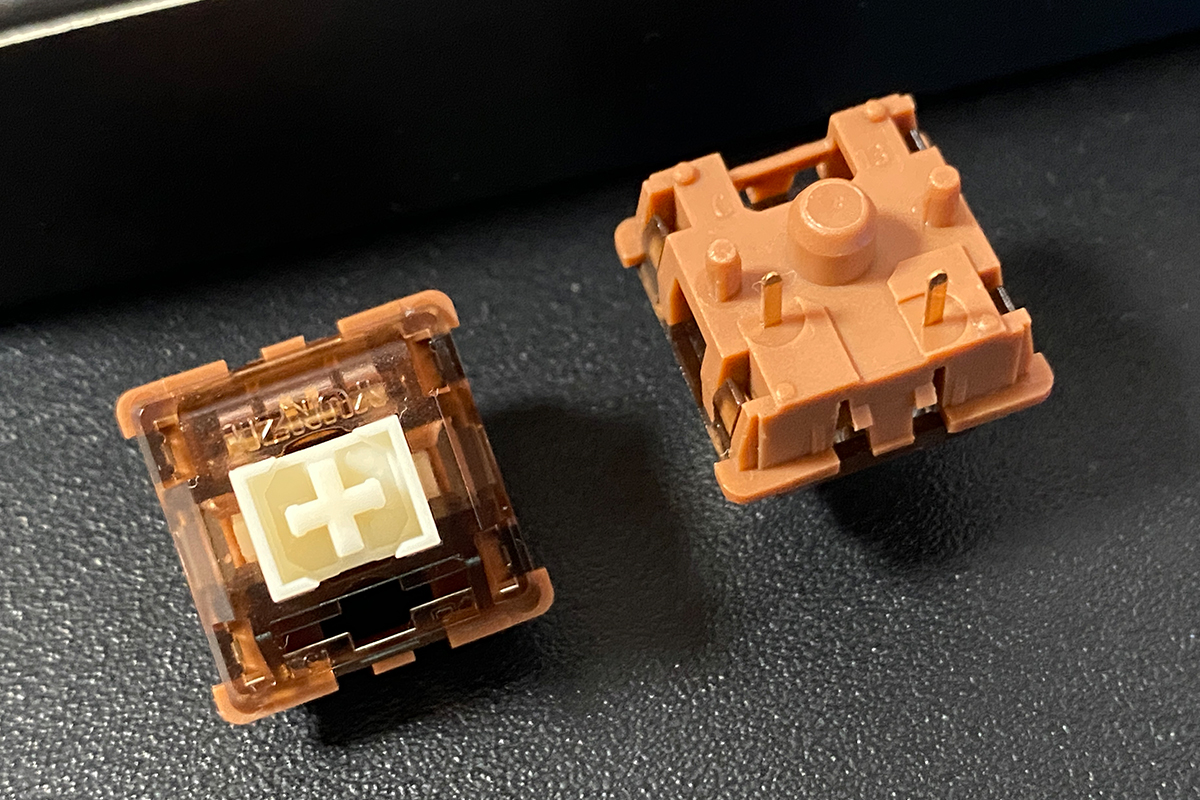
The spare switches are the same as those in the keyboard. In my case, they are YUNZII Cocoa Cream V2 Linear Switches.
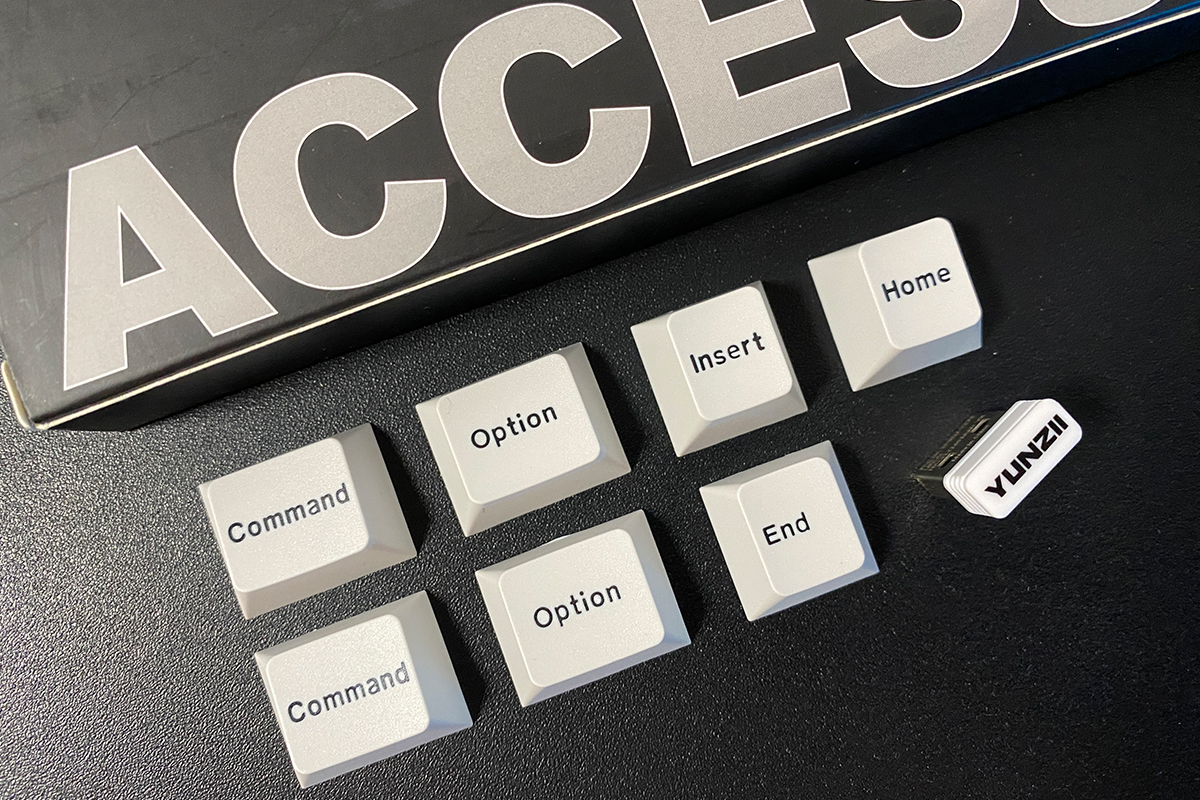
The AL80 comes with a limited set of alternative keycaps: Insert, Home, End, and a set of keys for Mac (Command, Option).
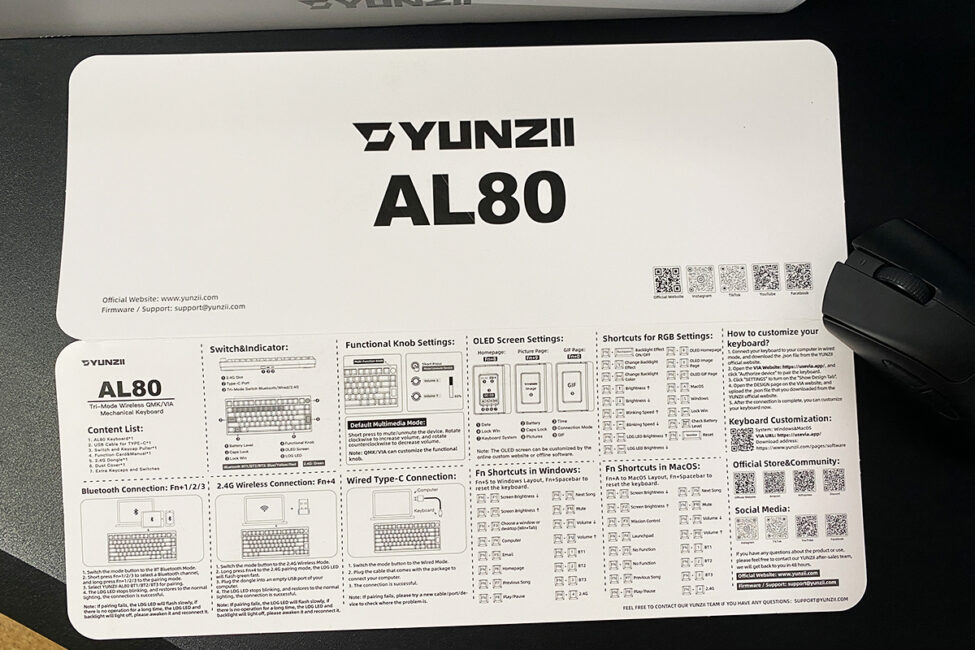
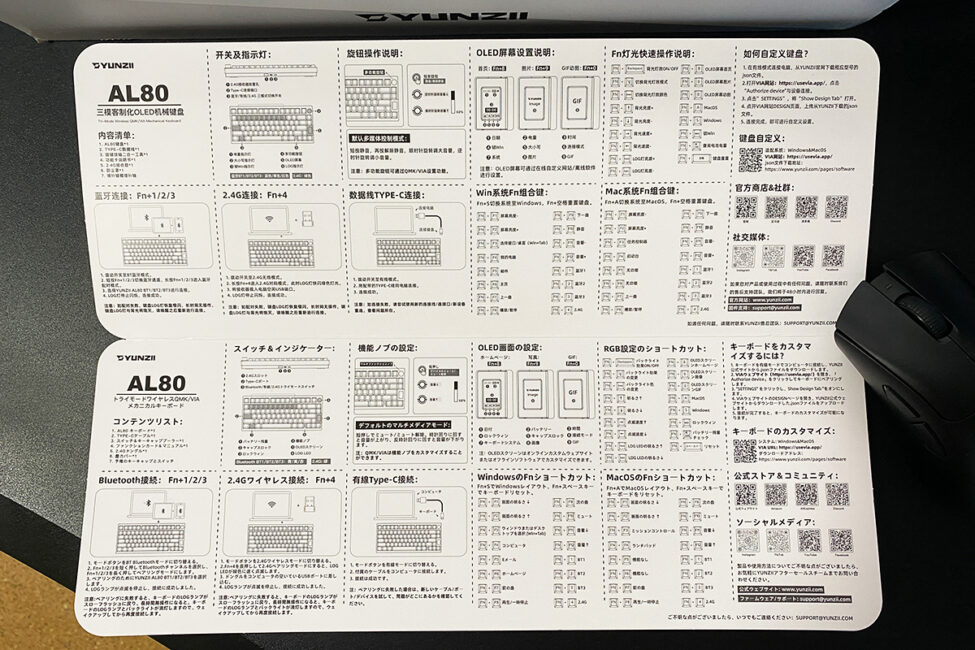
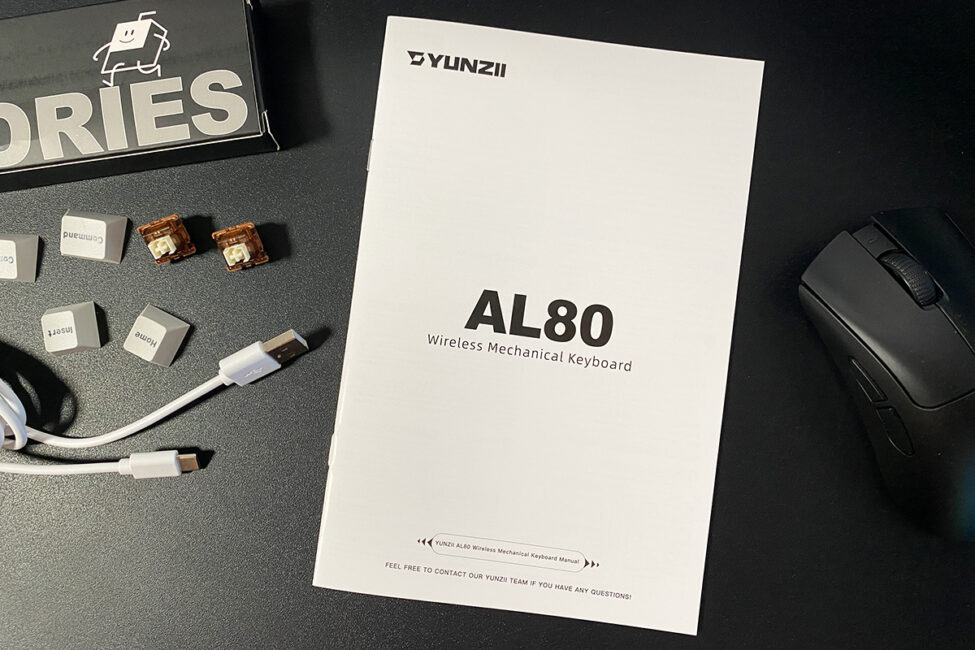
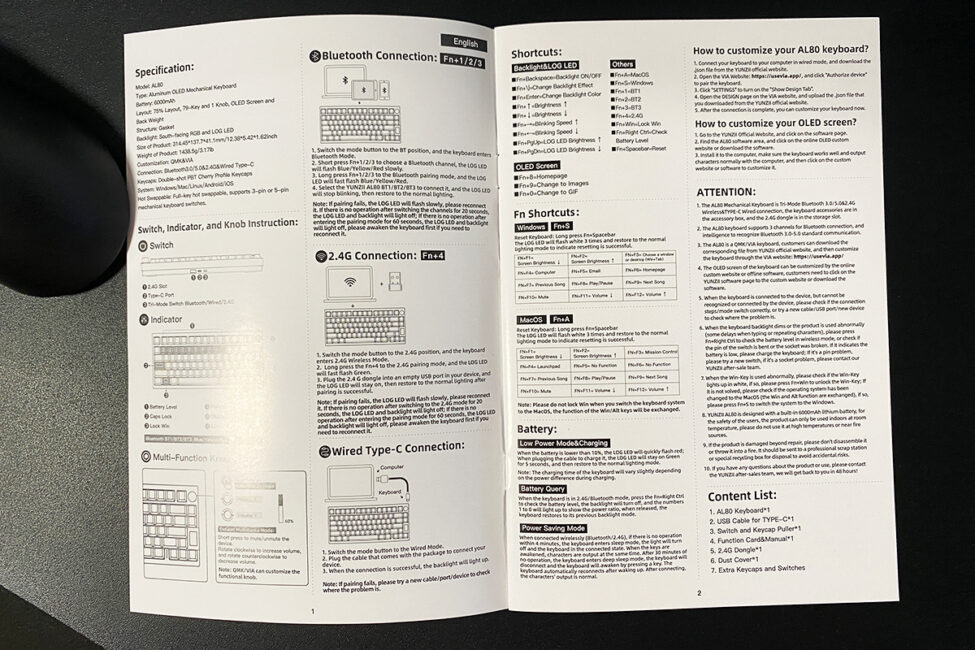
As usual, the package includes two manuals: a cardboard foldout with the main hotkeys and key combinations, and a thicker booklet available in several languages. English is provided in both, so understanding the instructions should not be difficult.
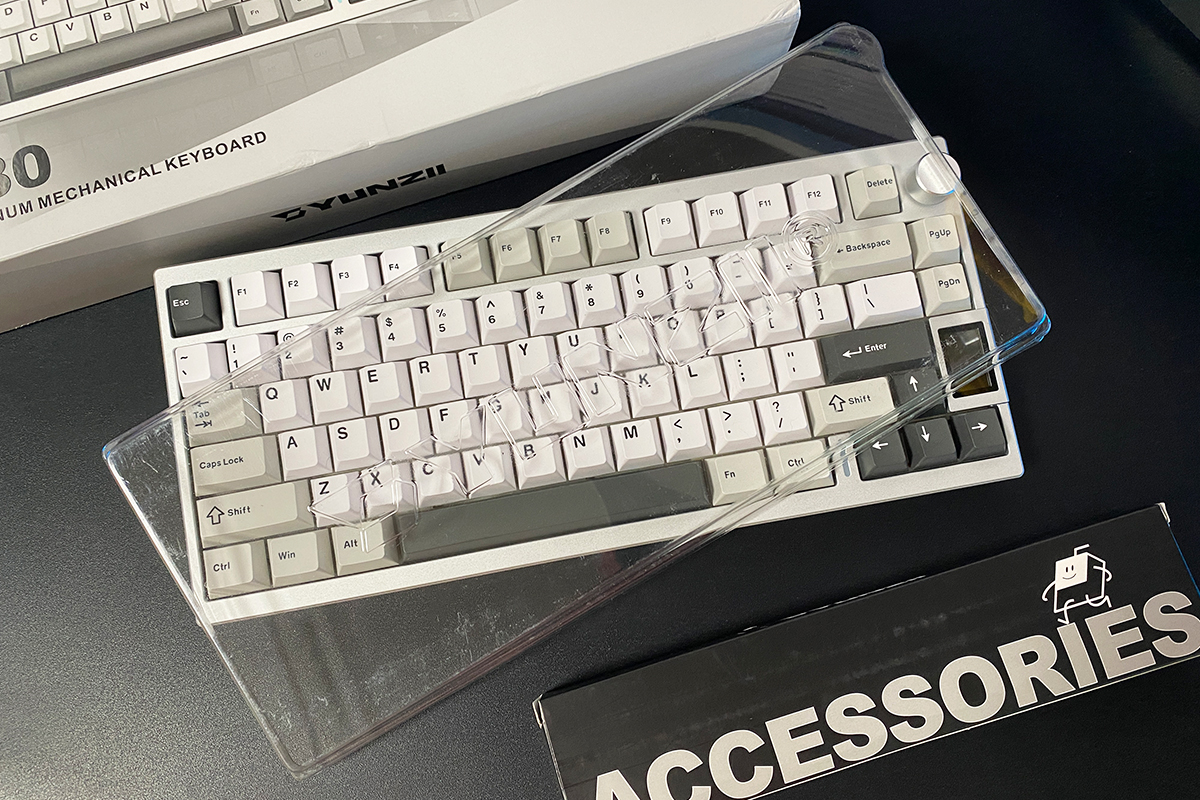
Finally, there is a blister-style dust cover. It can be placed over the keyboard when it’s not in use. While it might seem like a minor detail, I find these covers quite helpful for keeping the keyboard clean during periods of inactivity.
Read also:
- YUNZII AL65 Review: Aluminum Wireless RGB Keyboard
- Review of YUNZII RT75 – Mechanical Keyboard with Magnetic Switches
Design, ergonomics, build quality
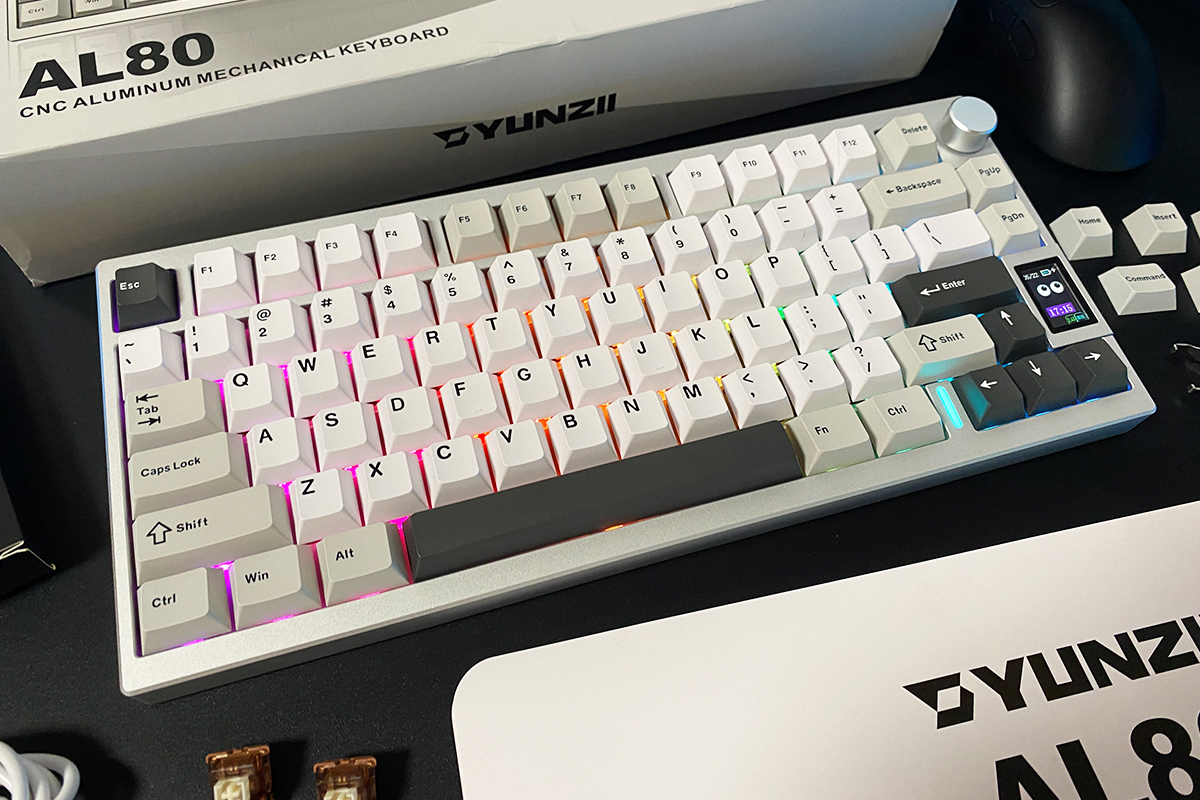
In terms of design and appearance, the YUNZII AL80 leans into a classic look with a subtle retro touch. It’s a straightforward, minimalist keyboard with a clean aesthetic. The only elements that break from this simplicity are the LCD display and a small lighting strip on the case between the keys.
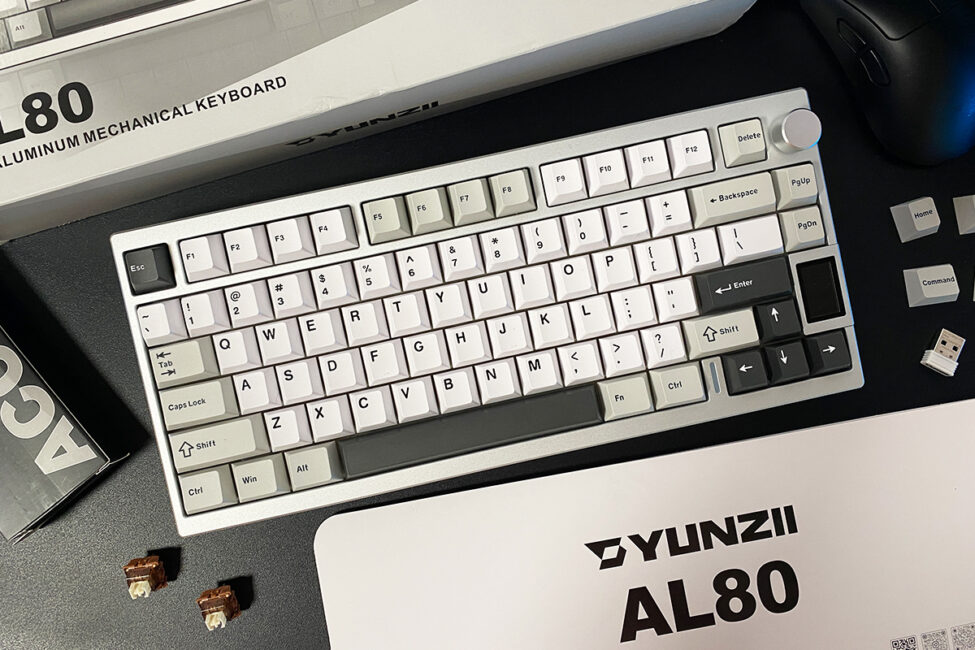
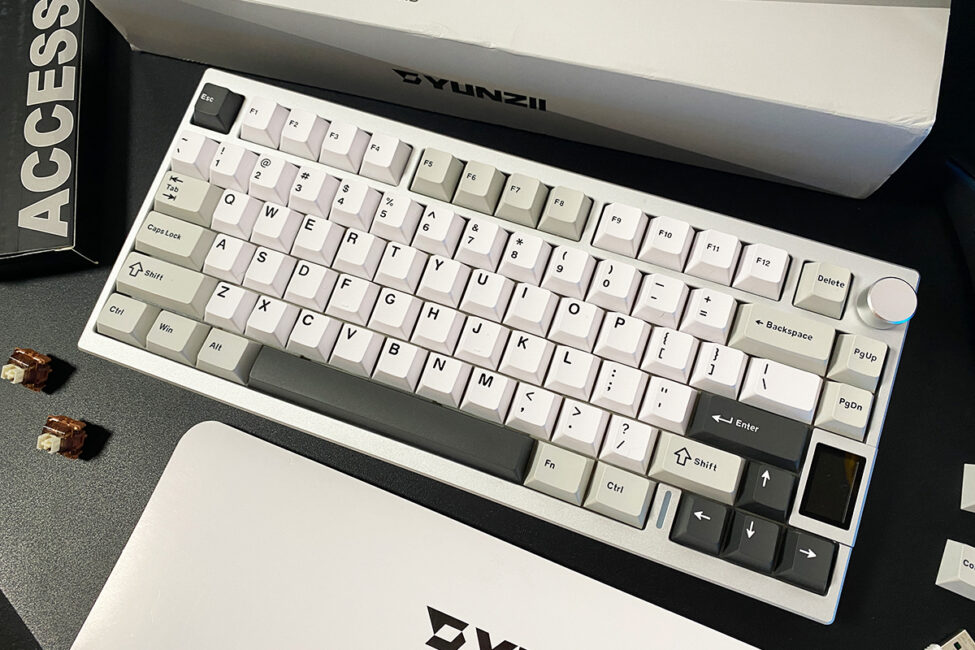
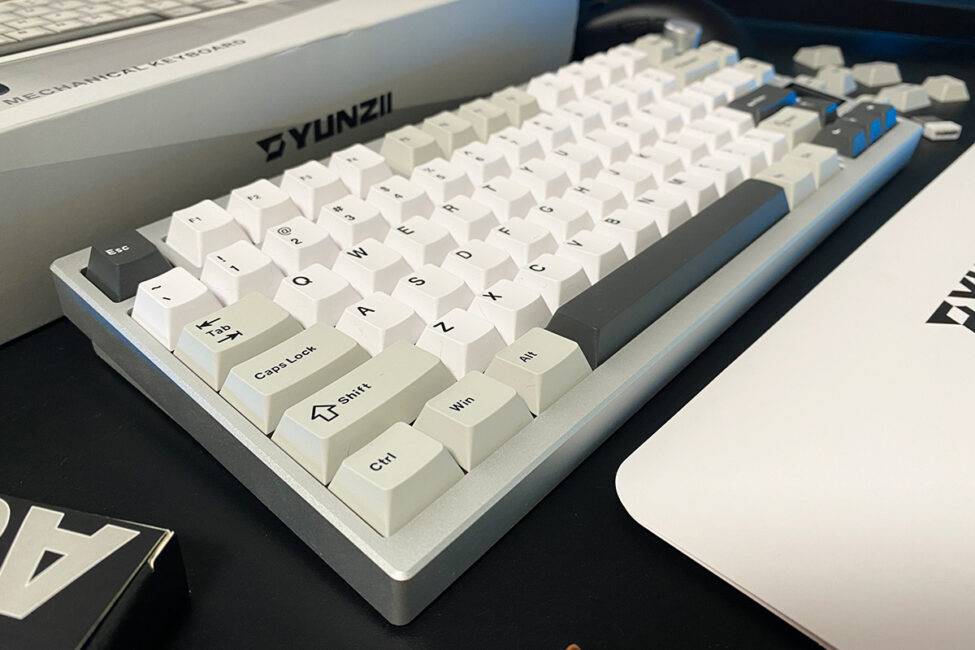
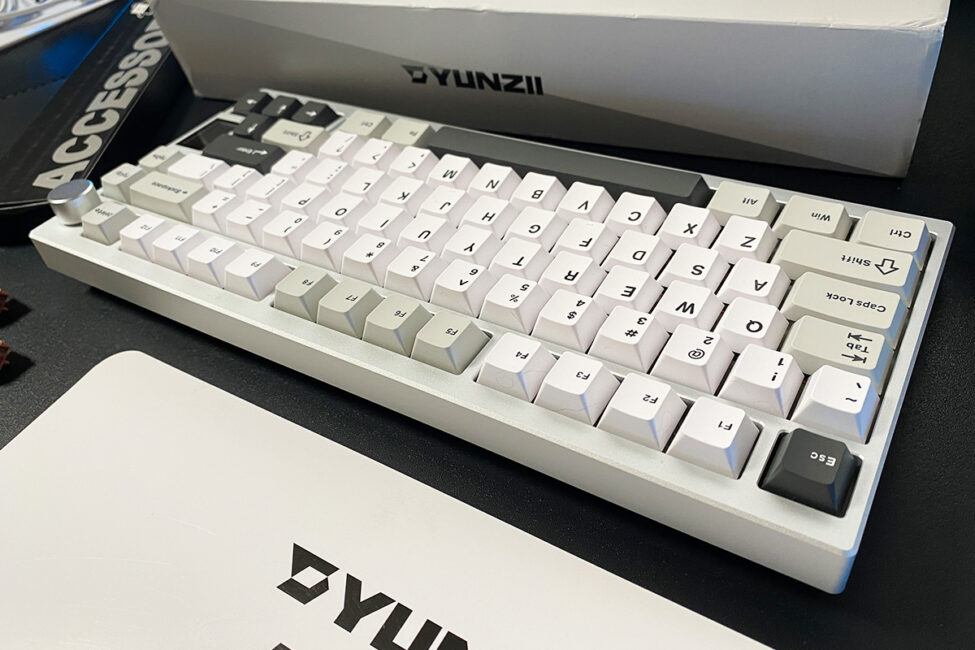
The AL80 is available in a limited range of color options, all sticking to the same minimalist, classic style. At the moment, it comes in silver, black, and beige. The unit I received for review is the silver version, so that’s the one you’ll see throughout the rest of this review.
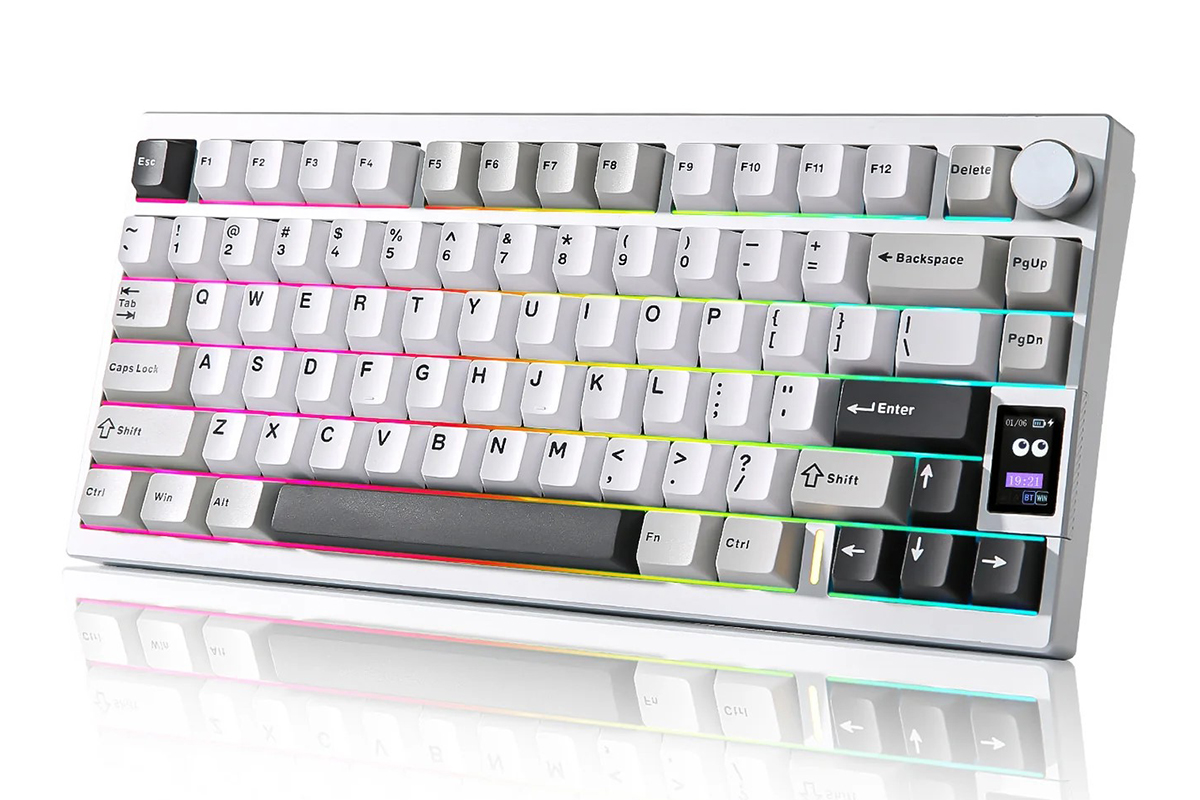
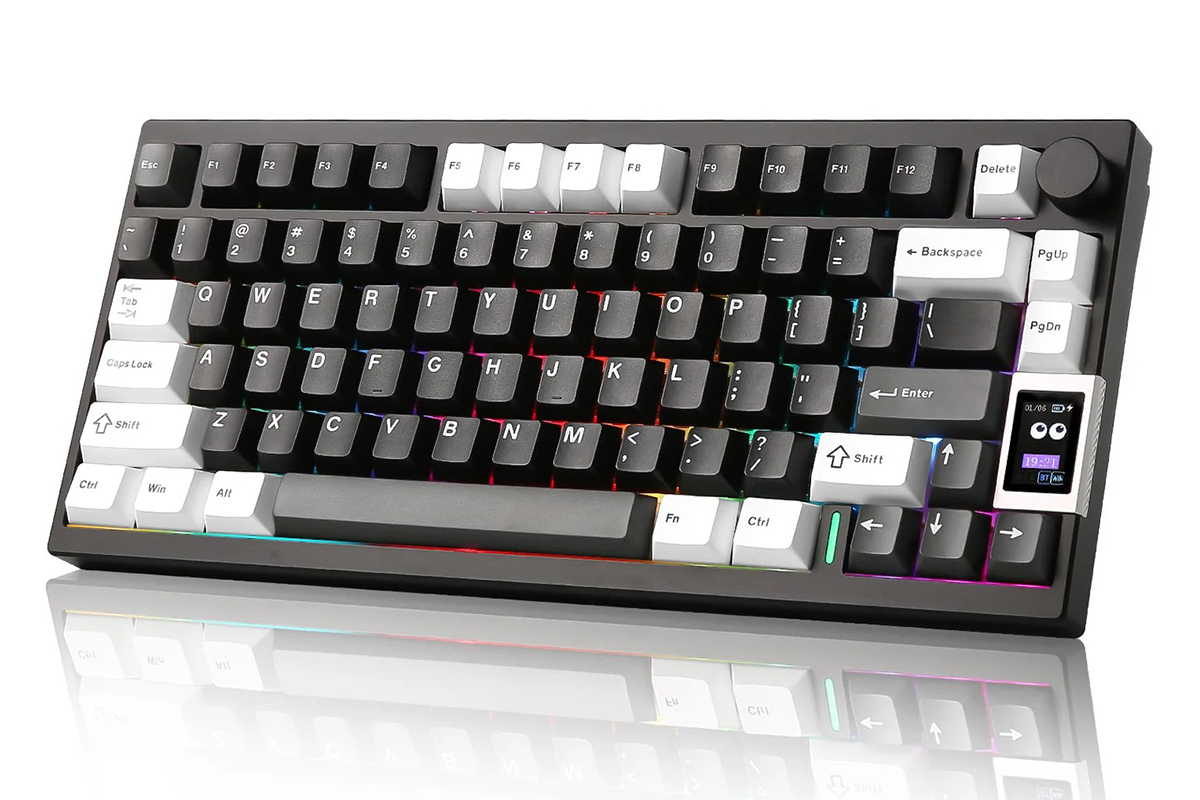

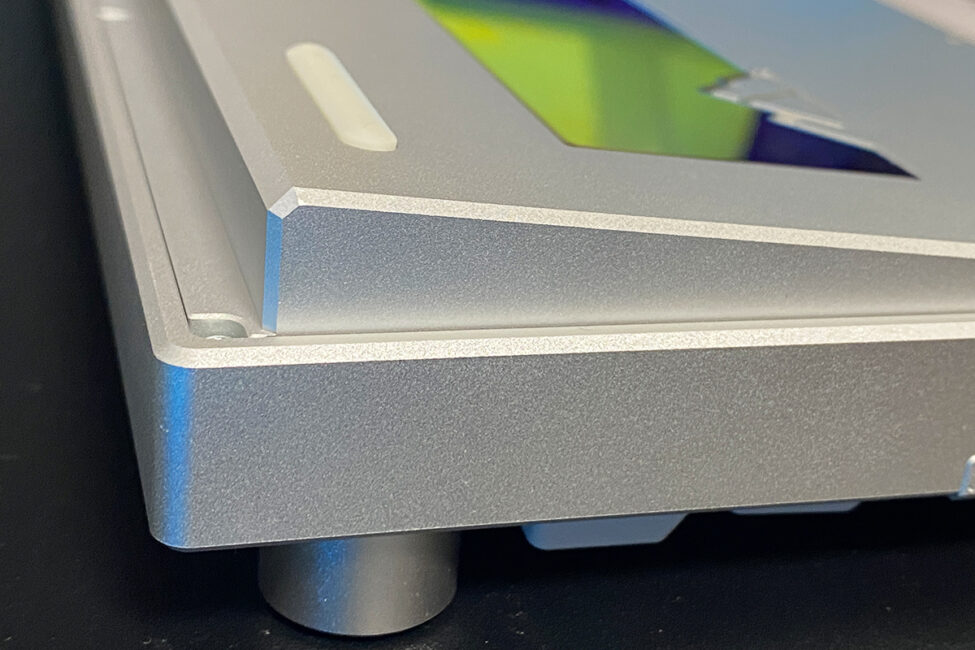
The first thing you notice when picking up the keyboard is its fully metal construction, which gives it a noticeable heft. According to the official specs, it weighs 1.44 kg, though subjectively, it feels slightly heavier – and that’s a good thing. The YUNZII AL80 features an all-aluminum case, precisely machined using CNC processes. As expected, the build quality is excellent, with clean lines and tightly fitted components.
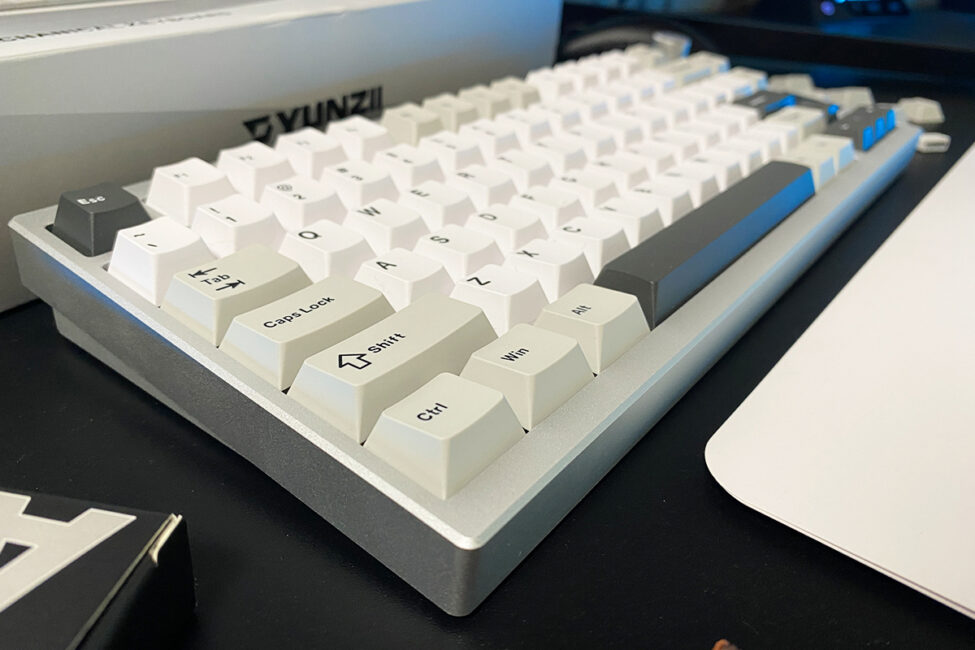
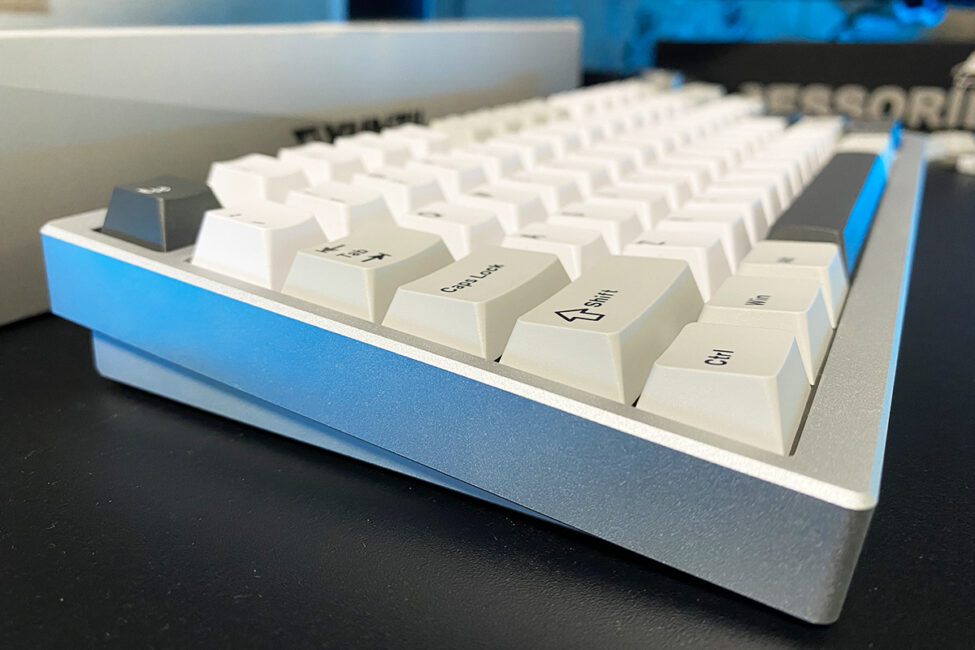
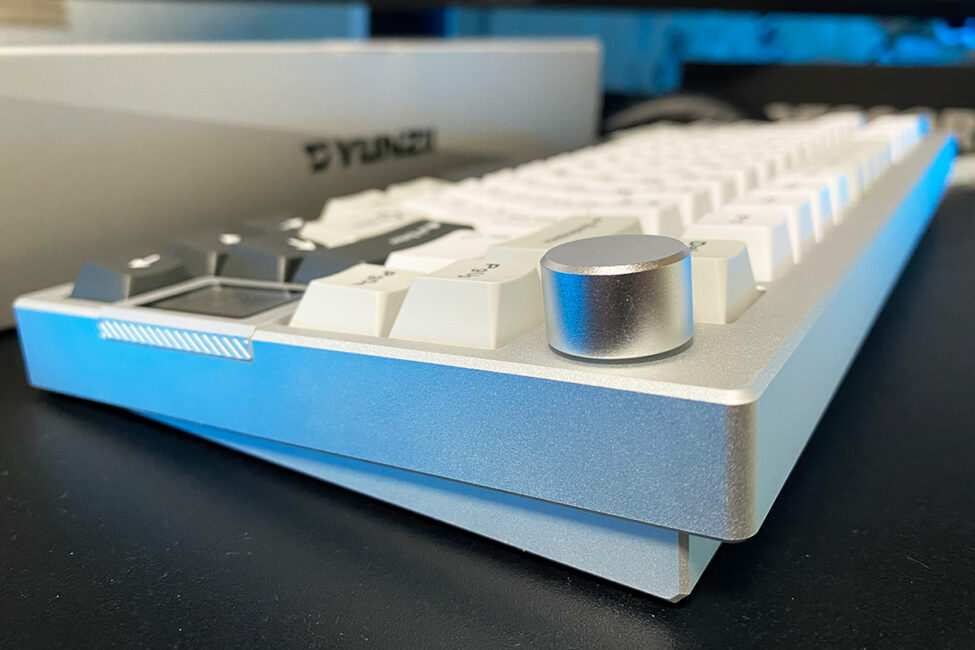
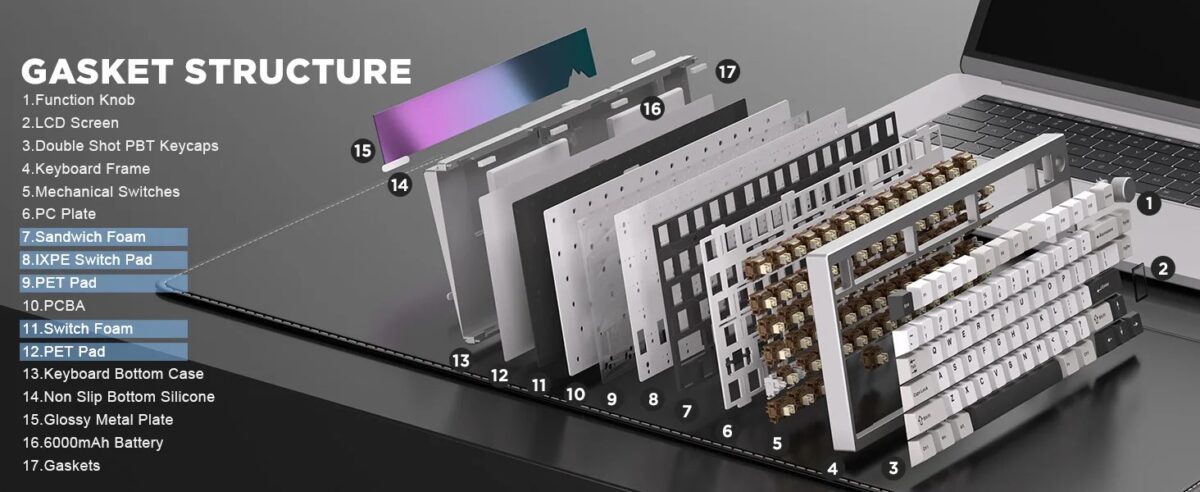
Inside, the keyboard is well-equipped for a comfortable and relatively quiet typing experience. It uses a gasket mount design, combined with multiple layers of sound-dampening materials that soften keystrokes and reduce noise. Rather than listing each component in detail, I’ll show them clearly in the screenshot below.
The AL80 follows a 75% layout, which means it drops the numeric keypad and a few less commonly used function keys to save space. The main advantage of this format is a more compact footprint on the desk. Personally, this is probably my favorite keyboard layout – it strikes a solid balance between gaming and everyday work.
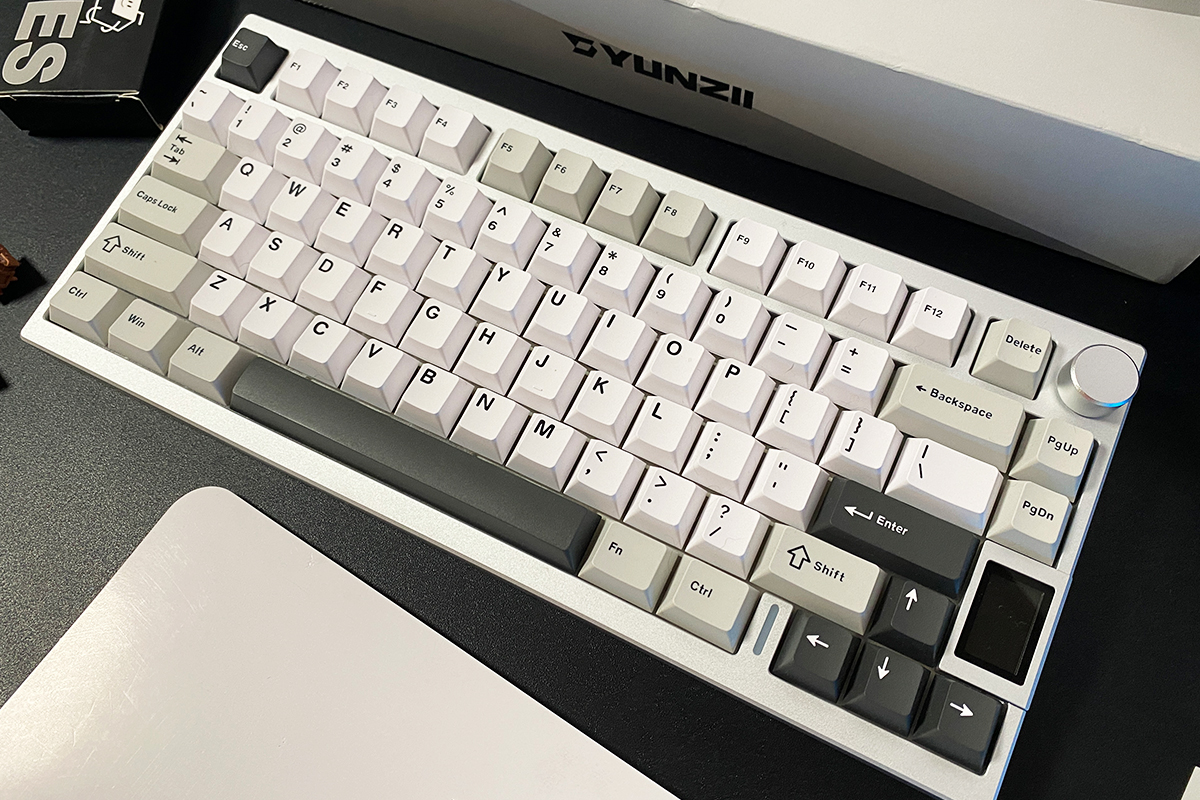
The AL80 uses a standard ANSI layout, featuring a long left Shift, single-row Enter key, and an extended backslash key above it. Notably, the Insert, Home, and End keys – typically found on 75% keyboards – have been removed. In their place, the AL80 includes a small LCD display.
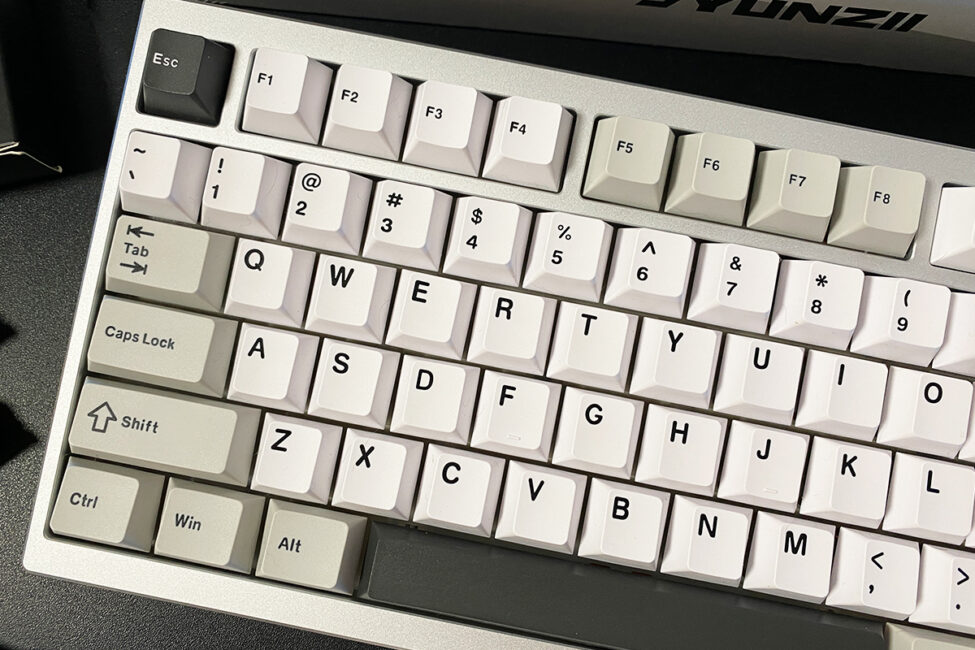
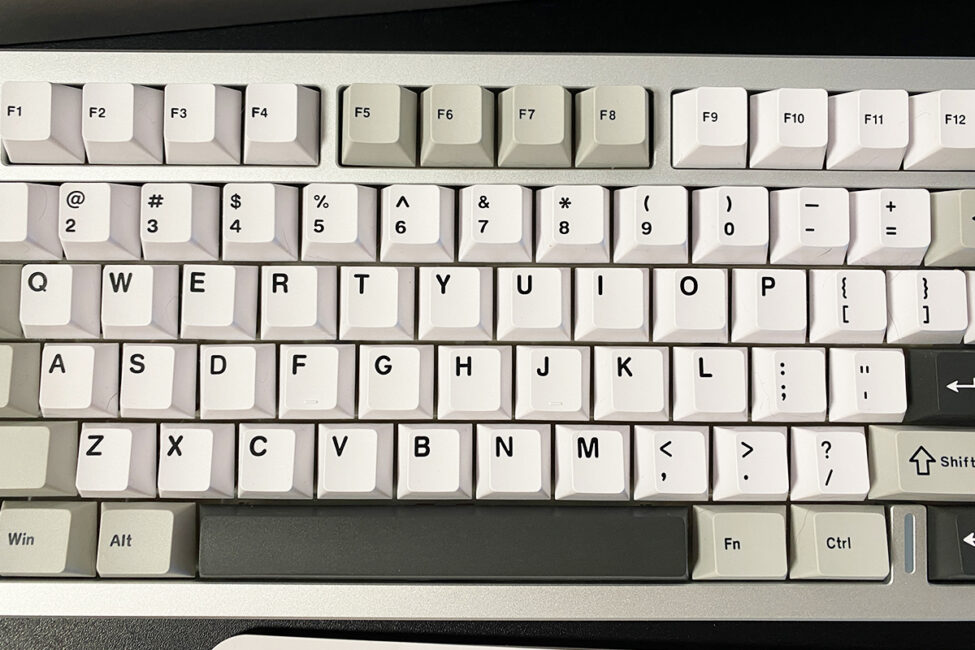
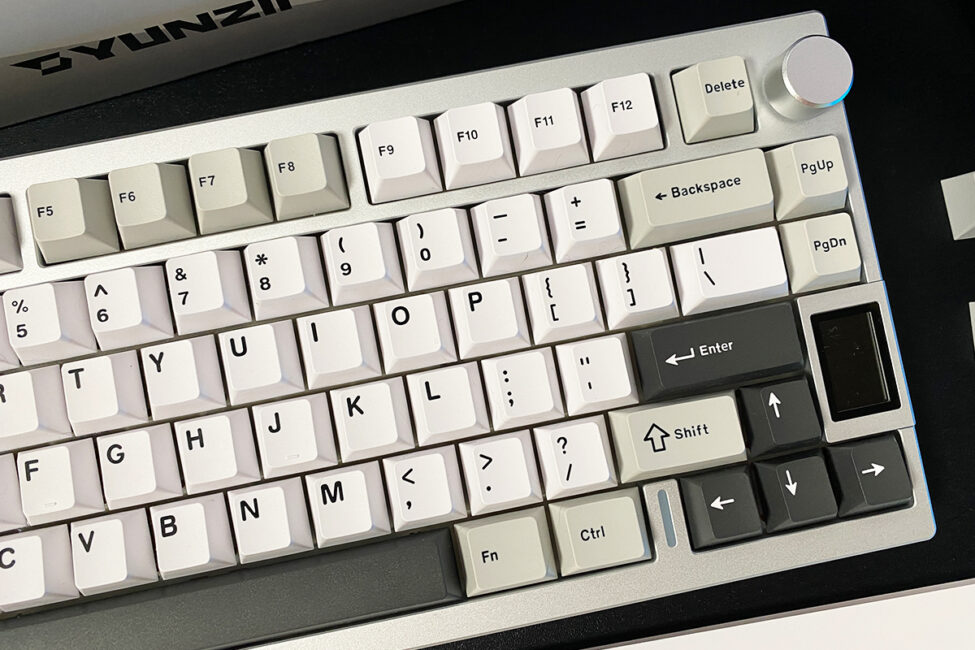
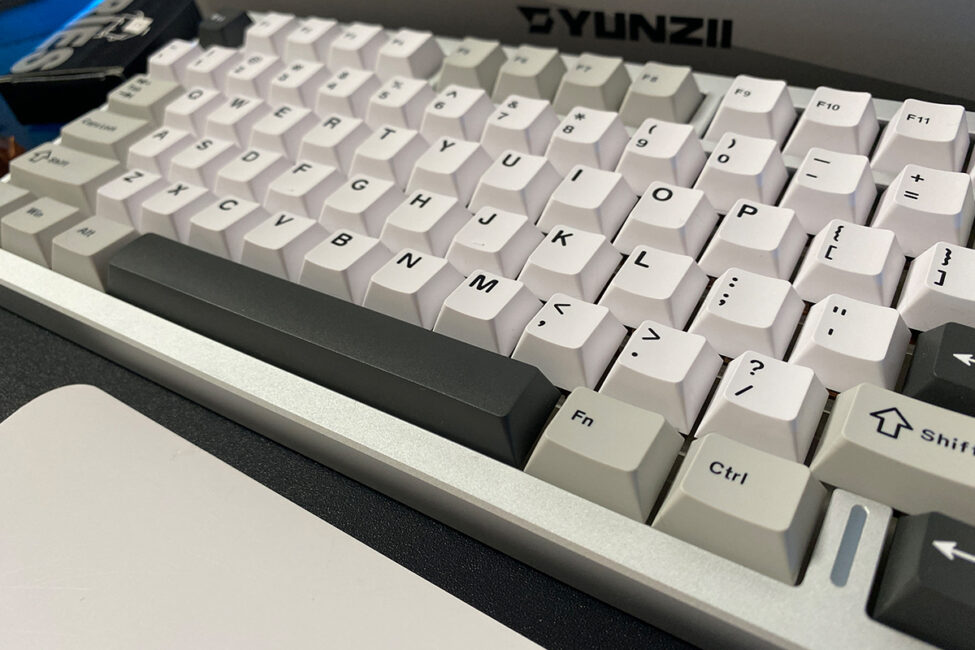
The keycaps are Cherry profile and made from high-quality PBT plastic using double-shot molding. They’re thick, slightly textured, and feel solid and pleasant to the touch.

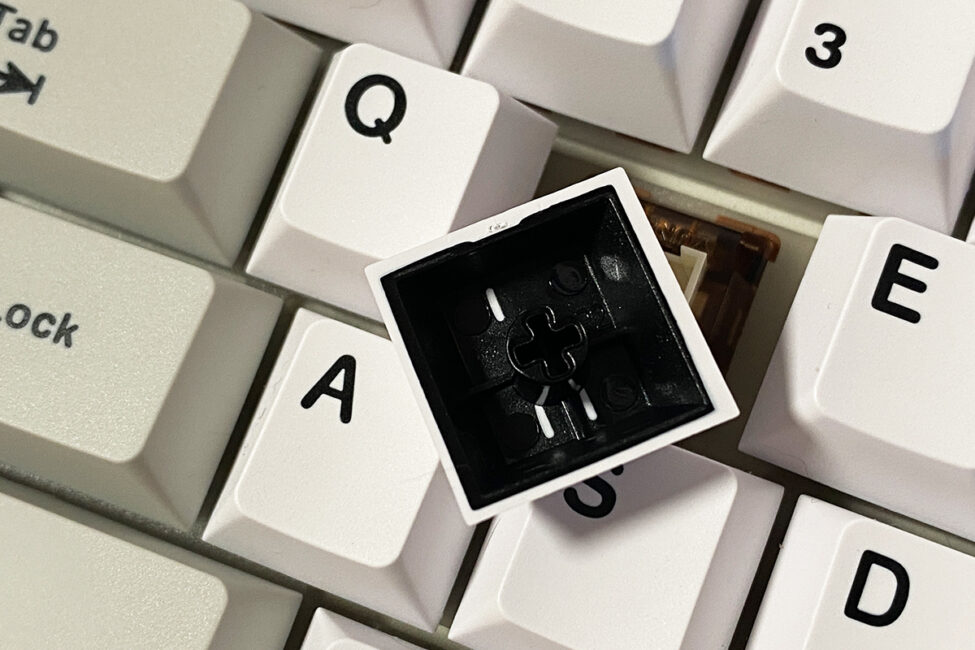
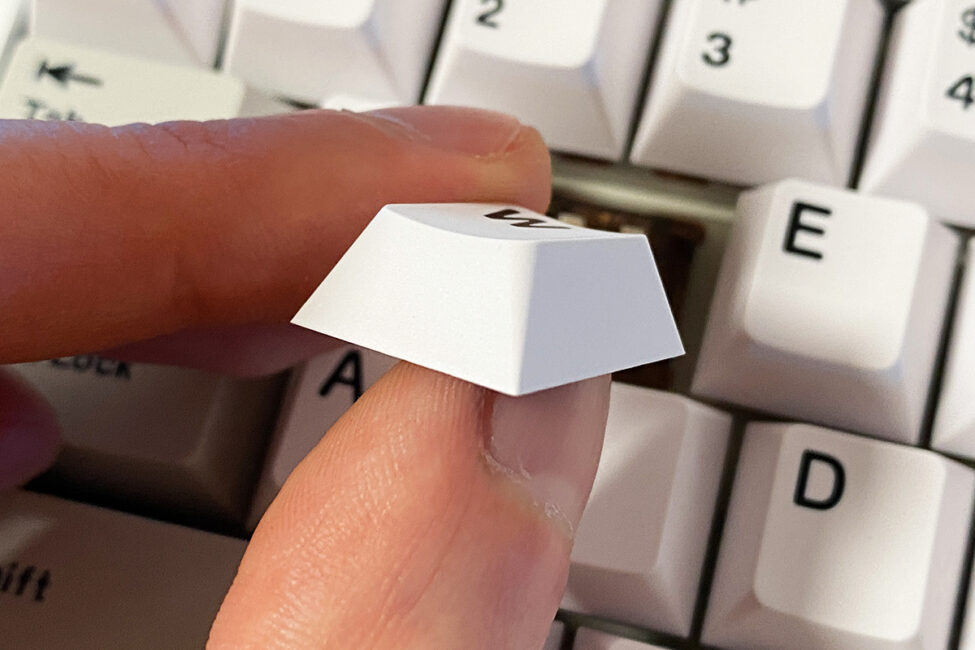
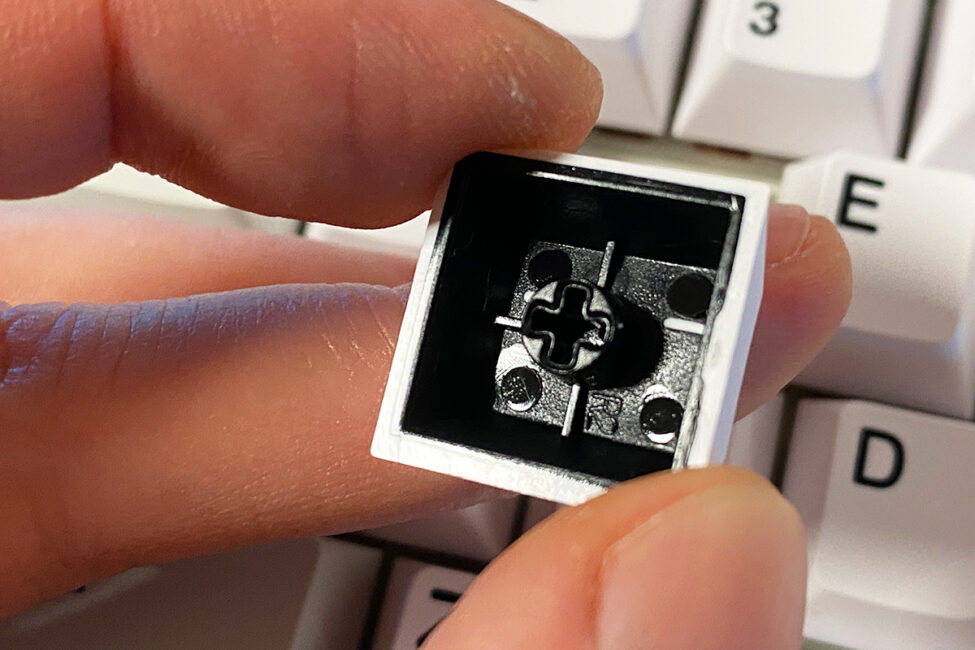
The legends on the keycaps are large and neatly applied. As with most PBT keycaps, they aren’t backlit, but that’s not really an issue – thanks to their size and color, the characters remain easy to read even without lighting. The layout features only English characters, with no additional symbols. Personally, I rely on touch typing, so extra language legends aren’t necessary. For those who do need them, engraving is a viable option – these keycaps can handle it easily. Alternatively, replacing the set entirely is always an option, depending on what’s more convenient.

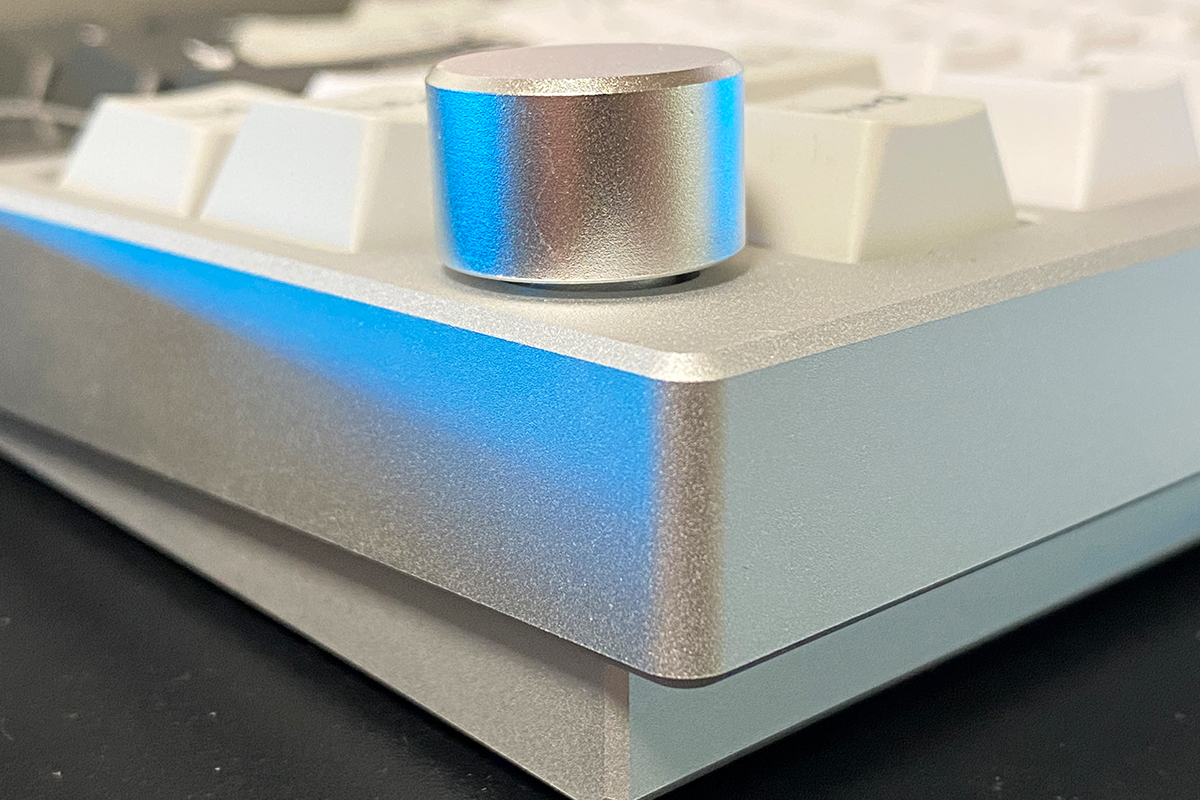
Like most 75% keyboards, the YUNZII AL80 includes a rotary knob. On many models, this kind of control is multifunctional – commonly used to adjust both volume and backlighting, depending on the mode. In the case of the AL80, the knob is limited to volume control by default. There are no additional modes out of the box. However, it’s worth noting that the function of the knob can be reassigned through QMK or VIA if needed.
The knob adjusts volume in two-step increments, and pressing it toggles mute on or off. Like the keyboard’s case, the knob is made of aluminum. It feels solid to the touch and operates silently, with no audible clicks during adjustment.
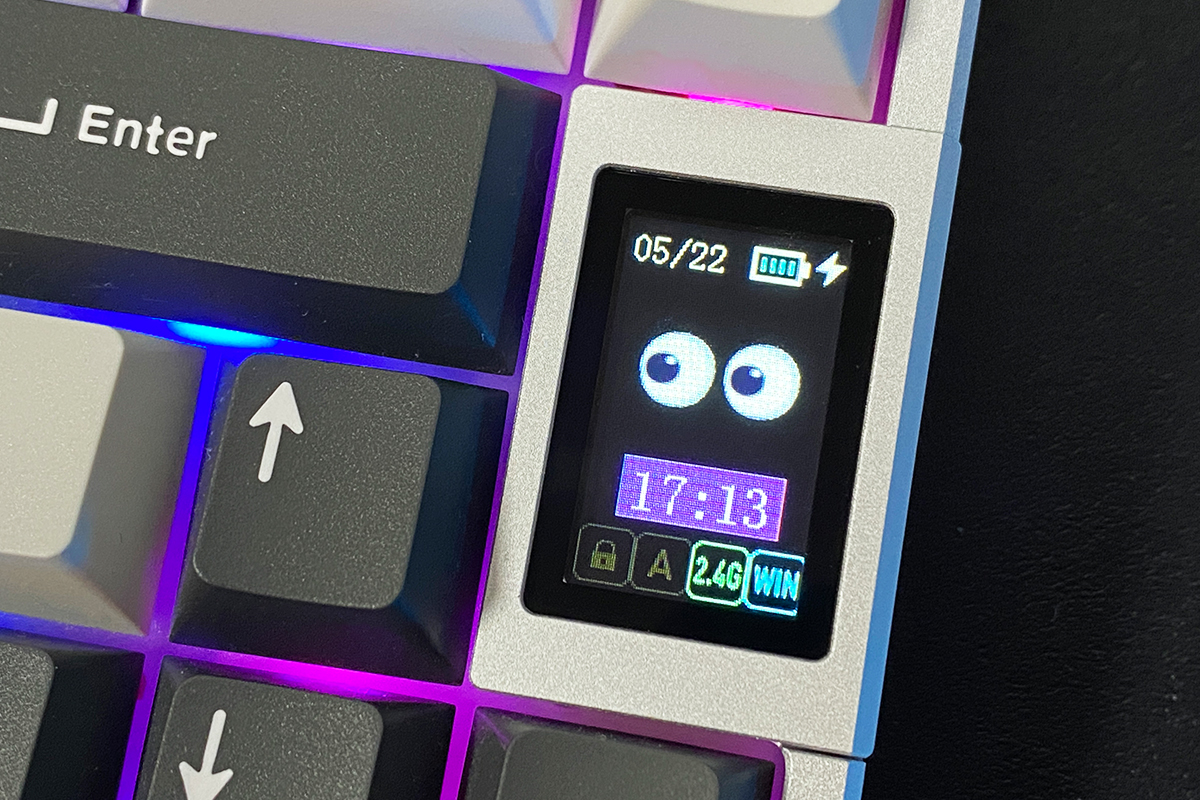
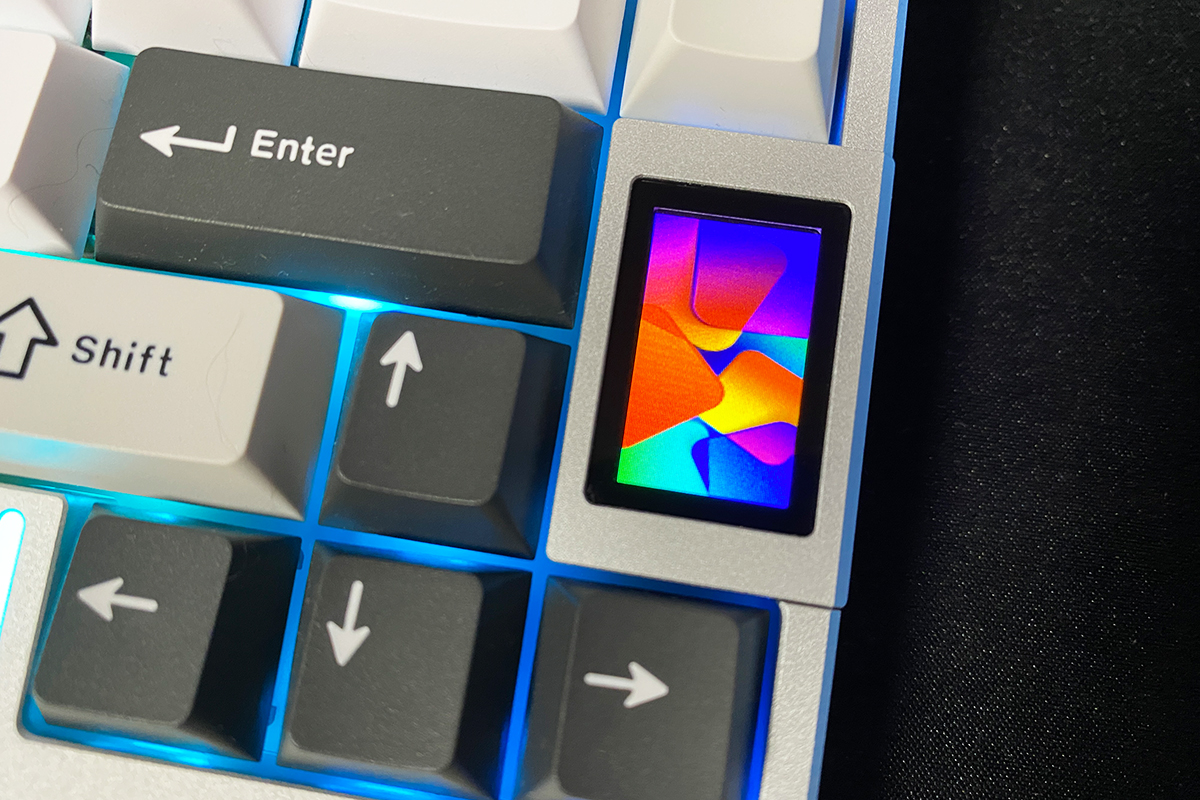
The LCD display is one of the standout features of the AL80. It’s a bright, color screen with smooth animations. It can show the date, time, battery level, various indicators, images, and GIFs – all customizable by the user. I’ll cover the display in more detail in a dedicated section. For now, let’s continue exploring the keyboard’s overall design.
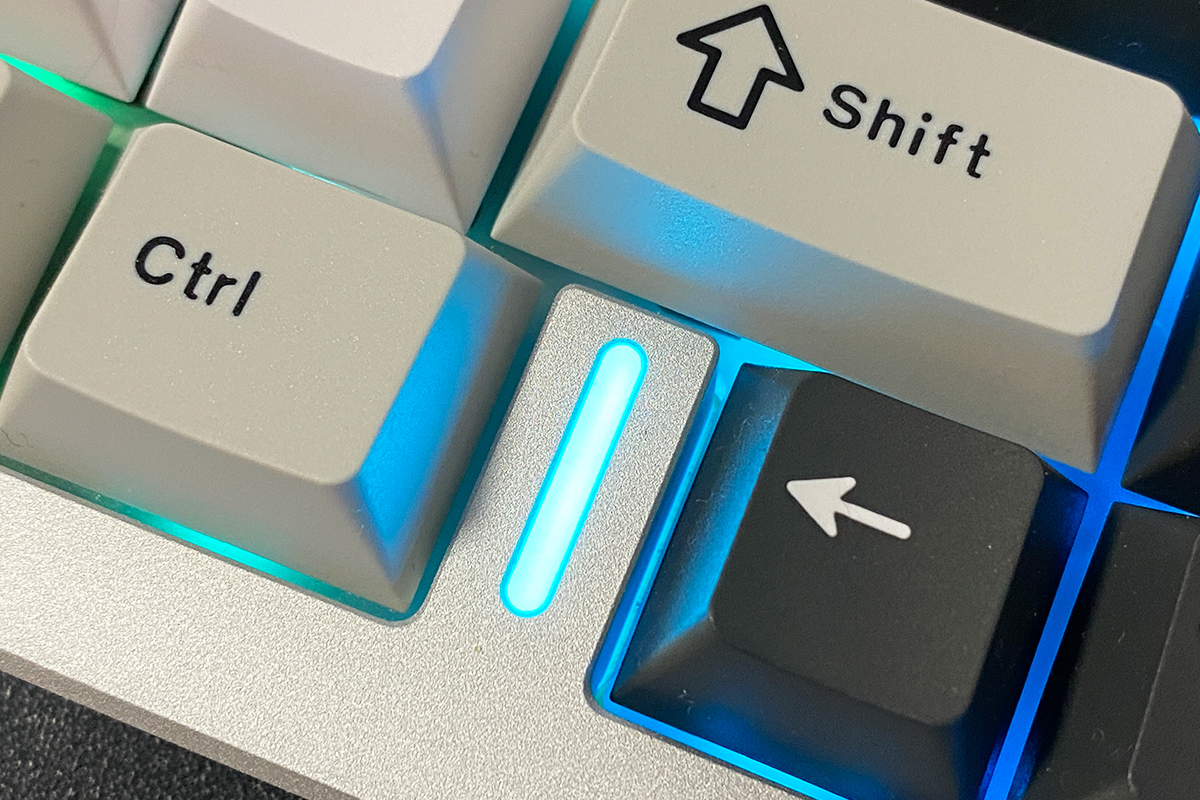
Between the arrow keys and the right Ctrl key, there is a small illuminated strip on the keyboard’s case. This lighting serves two purposes: decorative and informative. On the informative side, it acts as an indicator for Bluetooth connection status. This lighting zone is separate from the key backlighting and operates independently.
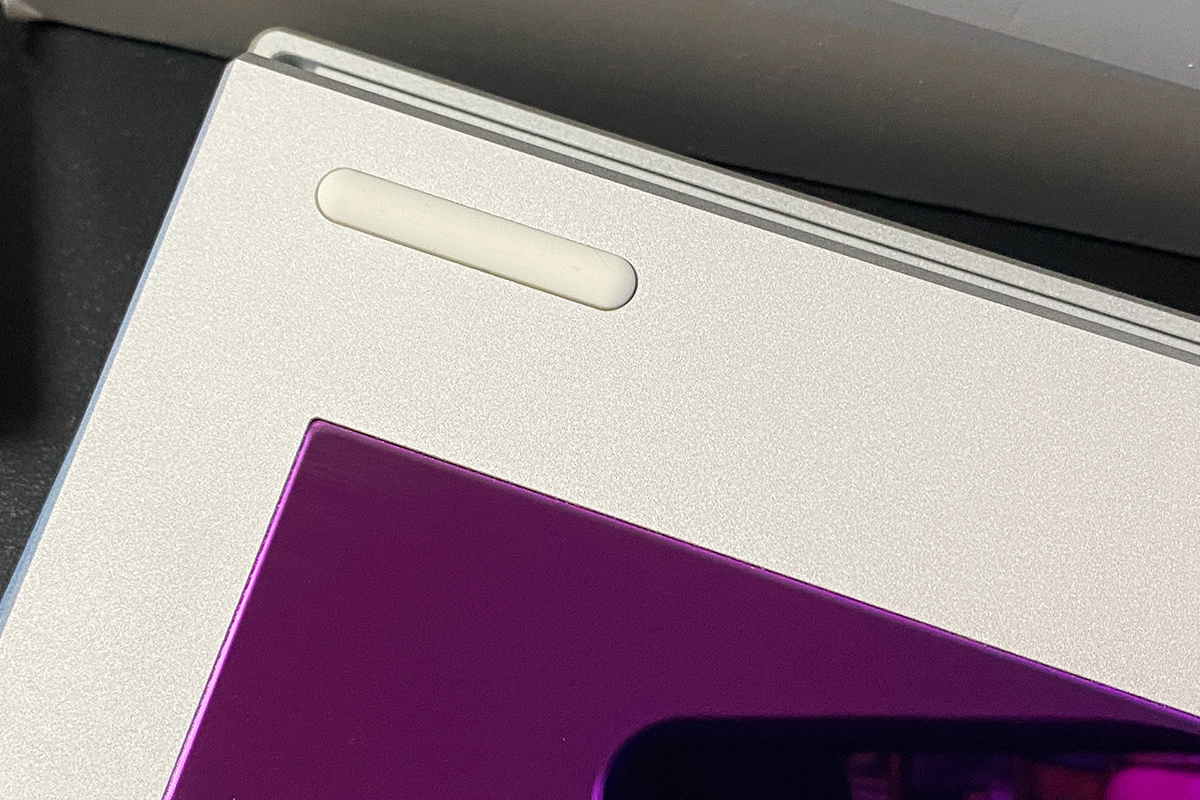
The keyboard’s bottom is also made entirely of aluminum. Besides four rubber feet, there’s a large shiny metal plate that shifts colors depending on the viewing angle. It looks striking, though its practical impact is limited since it’s mostly hidden while the keyboard is in use.


The keyboard doesn’t have traditional adjustable feet for changing the tilt. Personally, I don’t find this to be a significant drawback. The default angle and height of the AL80 are comfortable enough for everyday use.
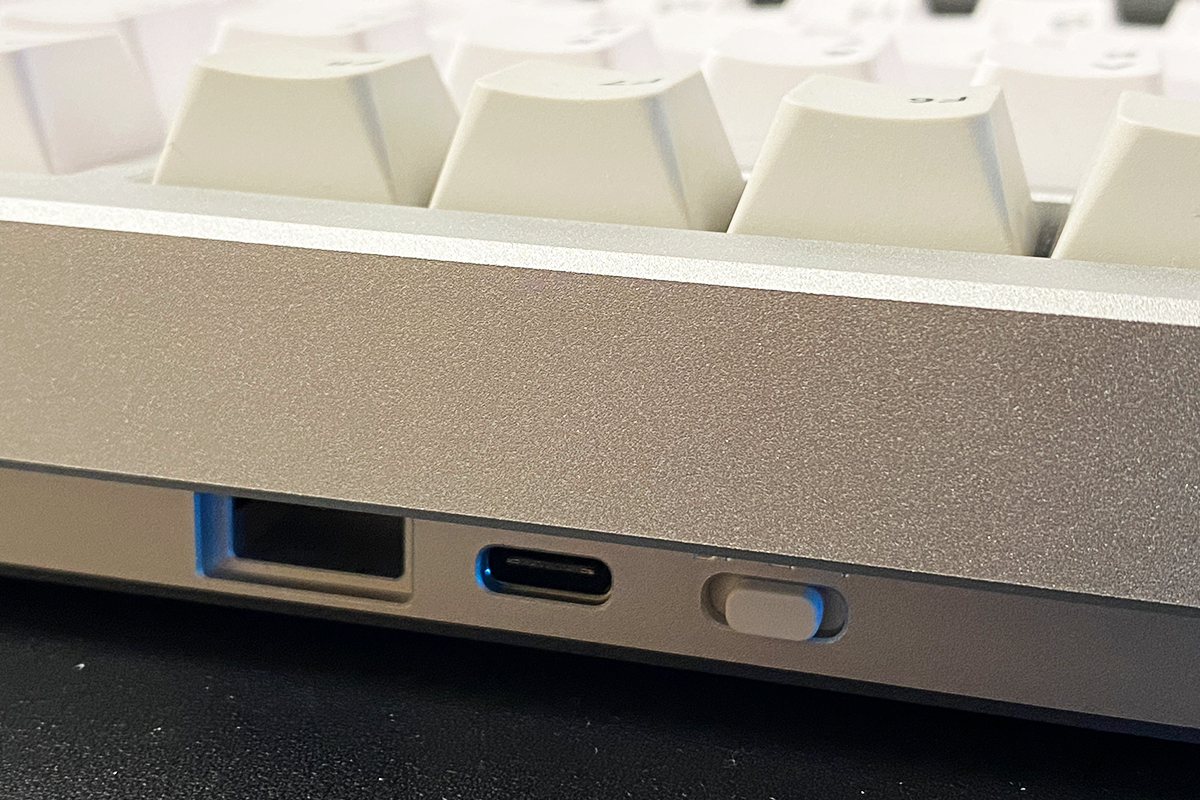
The sides of the keyboard are clean, with perfectly straight edges. At the front, there’s a standard USB-C port for the cable and a three-position switch for connection modes (RF 2.4 GHz, wired, and Bluetooth). Nearby is a small magnetic compartment designed to hold the 2.4 GHz wireless dongle, helping to keep it from getting lost.
Build quality is excellent – there’s really little to criticize here. The keyboard feels solid and heavy, with a monolithic construction that resists flex or movement. The metal case features precise shaping and tight tolerances across all parts. Ergonomically, it performs well with no noticeable issues, making for a comfortable and generally pleasant user experience.
Read also:
- YUNZII YZ75 PRO Wireless Mechanical Keyboard Review
- YUNZII B75 PRO Review: Wireless Mechanical Keyboard
Backlighting
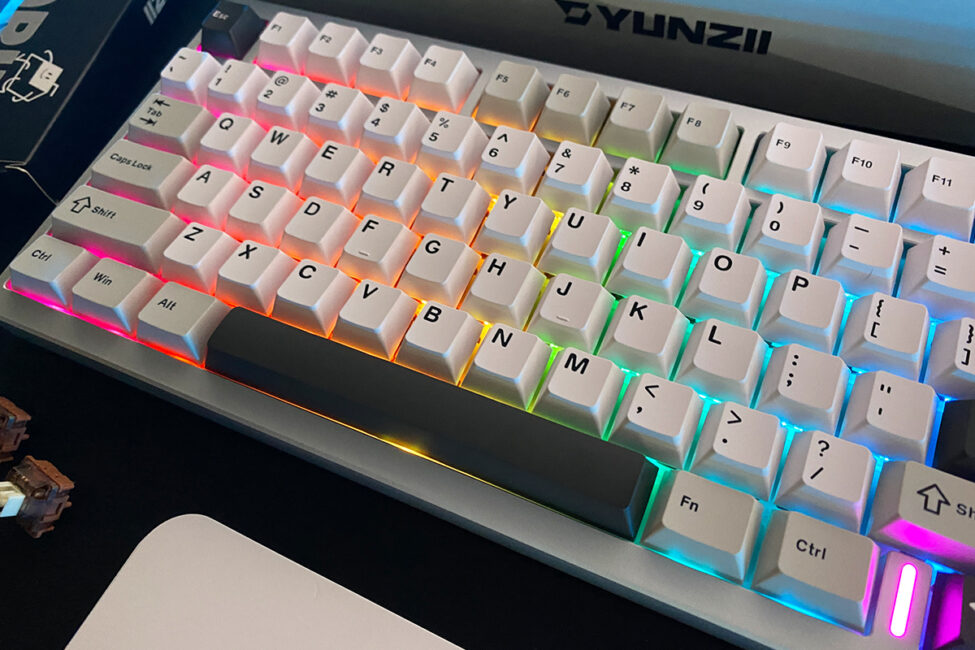
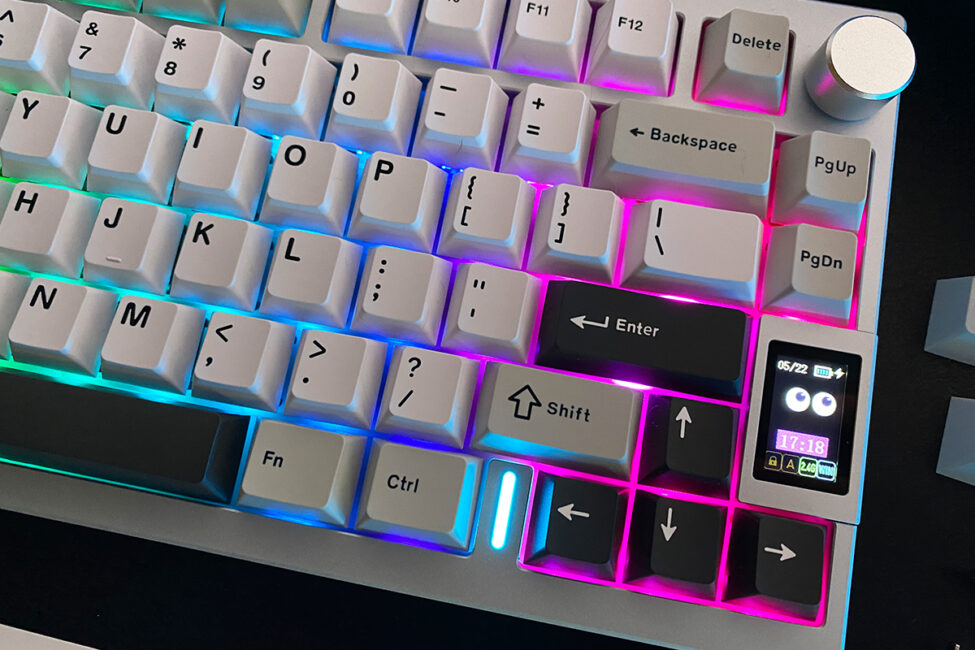
The keyboard features two separate lighting zones: the keys themselves and a small indicator strip on the case near the arrow keys. As mentioned earlier, these zones operate independently, allowing you to adjust or toggle each one on or off separately.
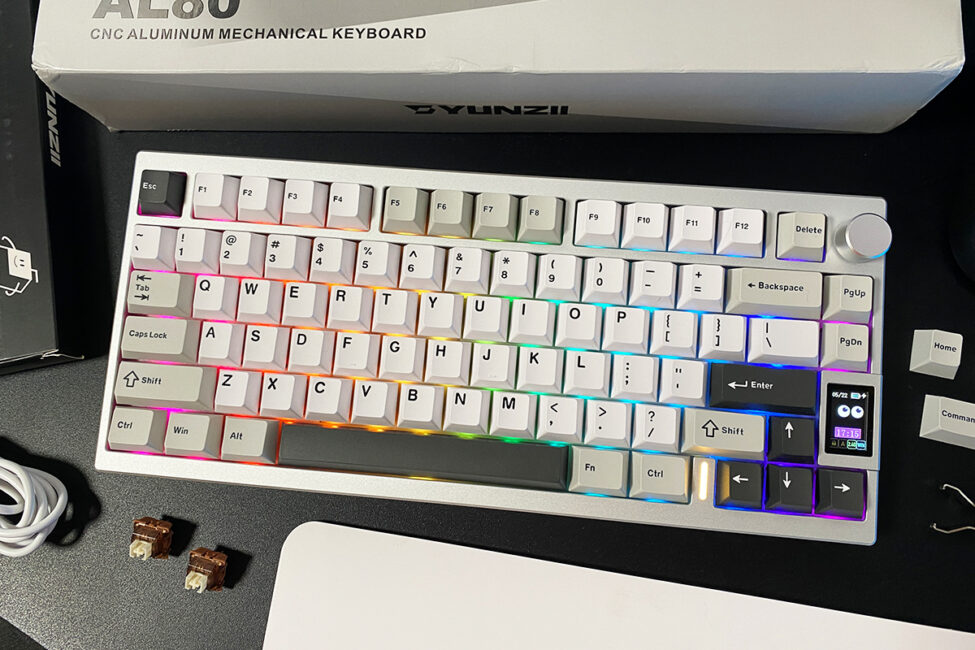
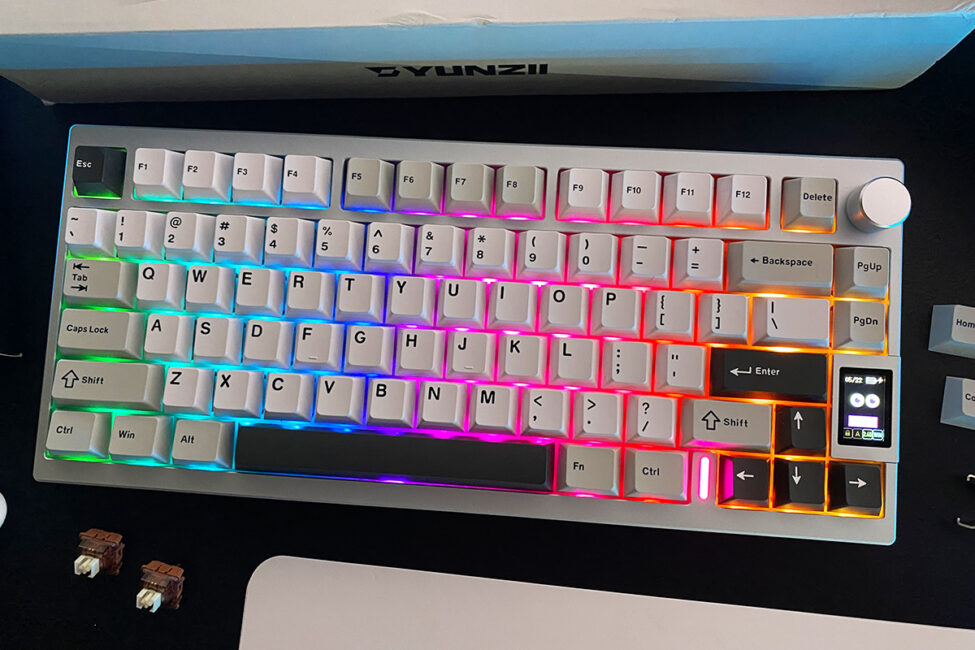
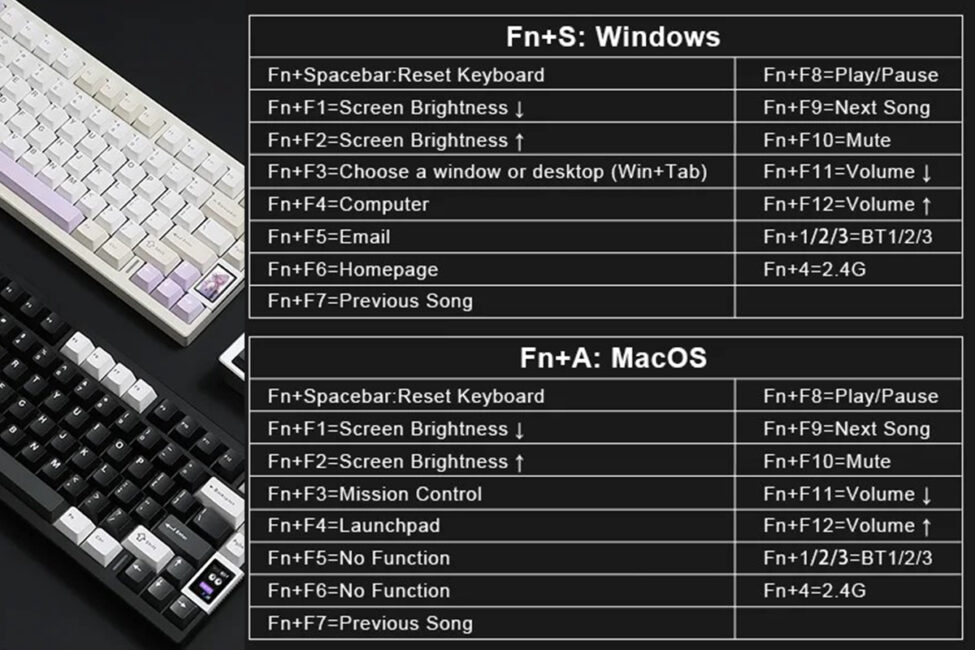
Lighting settings can be adjusted directly from the keyboard using FN key combinations or through QMK/VIA on the corresponding website via a browser. We’ll cover QMK/VIA configuration in detail in a separate section. Below, I’ll include a screenshot with all the key combinations for adjusting the backlighting. Looking ahead, it’s worth noting that all key combinations on the AL80 can be customized and remapped to your preference using QMK/VIA.
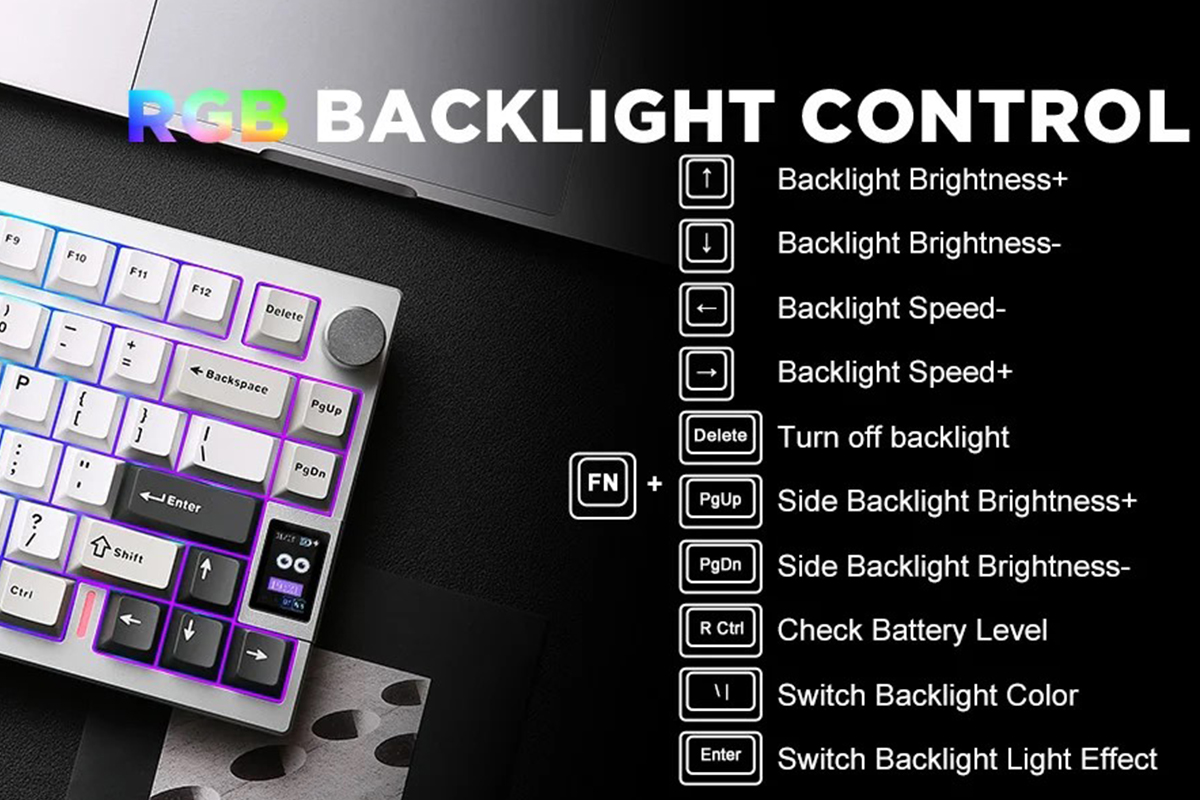
The backlighting itself is decent – bright enough to clearly illuminate the keys without drawing too much attention. On the AL80, lighting serves more as a practical feature than a decorative one. Some keyboards look better without any lighting, and the YUNZII AL80 is one of them. That said, it offers a variety of built-in lighting effects. In QMK/VIA settings, I counted around 24 preset effects for the keys. As for the indicator strip on the case, it doesn’t have any special effects – it simply cycles through colors. The only available setting for it is brightness adjustment, controlled by the FN + PgUp/PgDn key combinations. Below, I’ll include a video demonstrating the lighting and its effects for a clearer view.
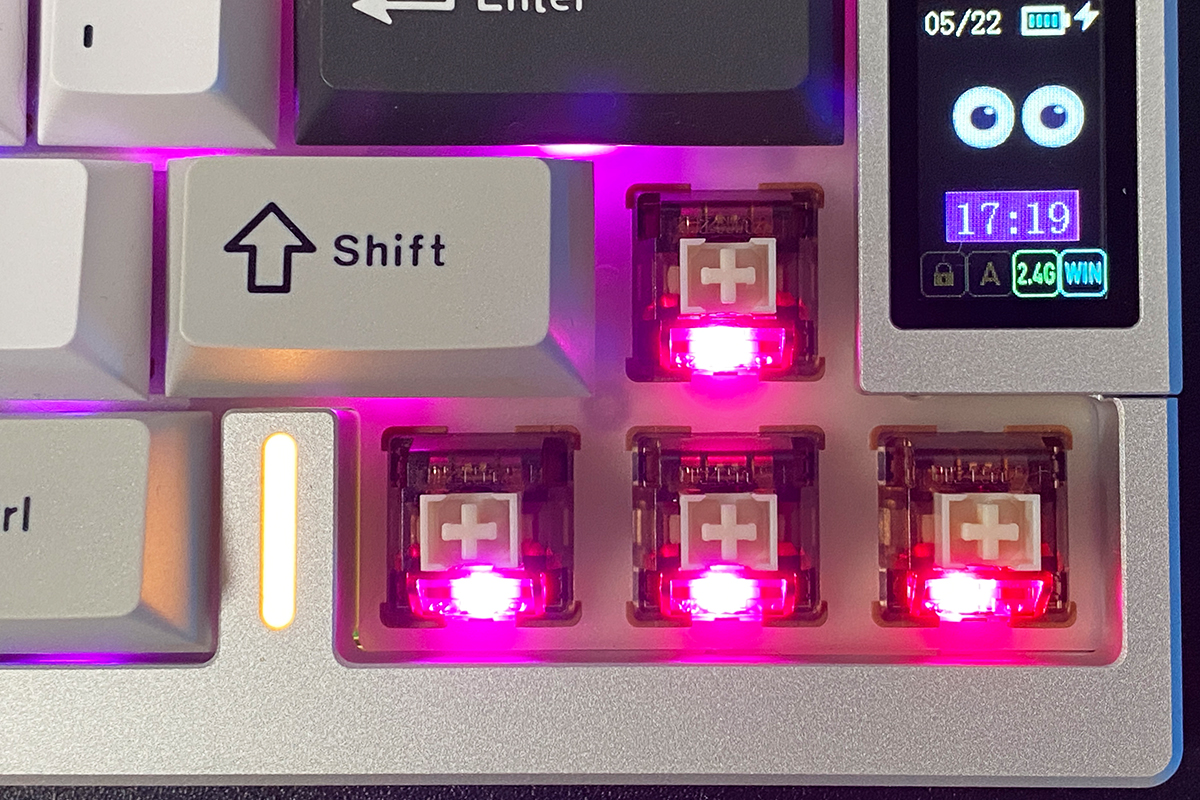
To add, the YUNZII AL80 uses south-facing LEDs, meaning the LEDs are positioned underneath the switches. This detail could be useful for anyone planning to swap switches on the AL80. Aside from that, I’ve covered everything about the lighting, so let’s move on.
LCD display
One of the key features of the YUNZII AL80 is its LCD display. As you may have seen in the photos, the keyboard has a small screen on the case that can show information, images, and animations (GIFs). Essentially, the display has three different output modes that can be switched using the key combinations FN + 8 / 9 / 0.
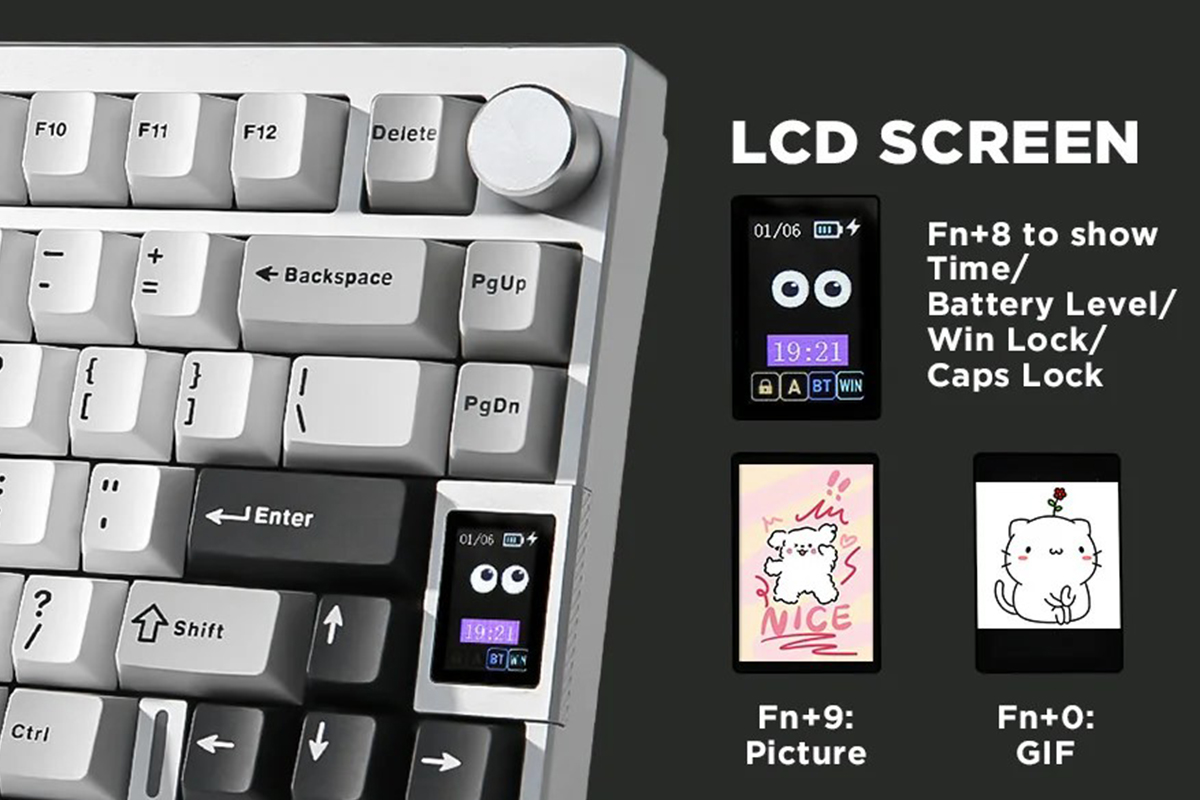
In the first mode (FN + 8), the display shows the date, time, battery percentage, an animation (GIF), and indicators for Win Lock, Caps Lock, connection type (RF, Bluetooth, wired), and operating mode (Windows/Mac).
In the second mode (FN + 9), the display shows a custom image that can be added via a dedicated app. In the third mode (FN + 0), the display plays an animation (GIF), which can also be uploaded through the app.
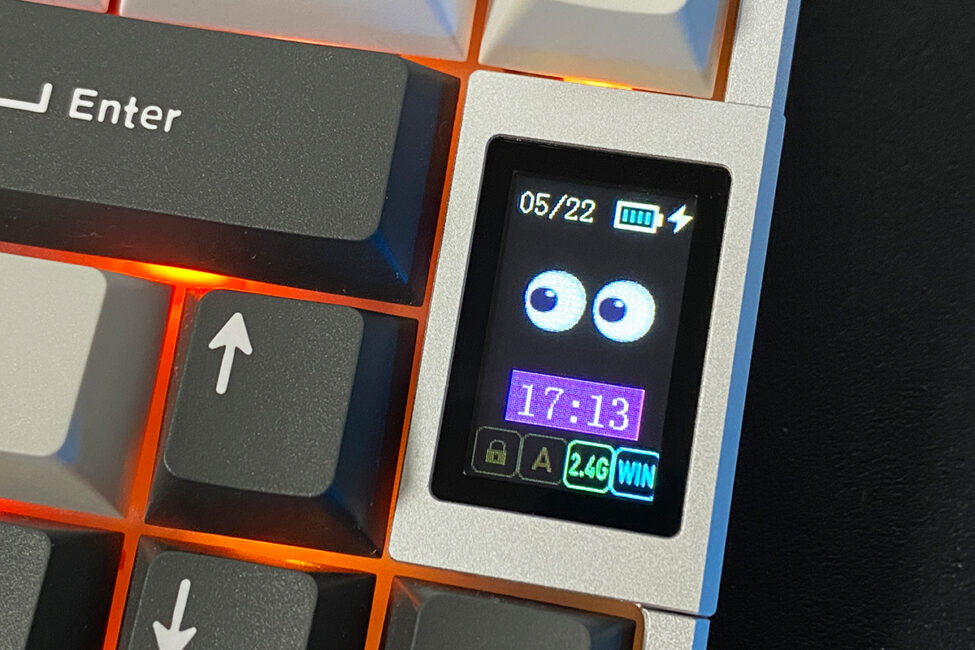
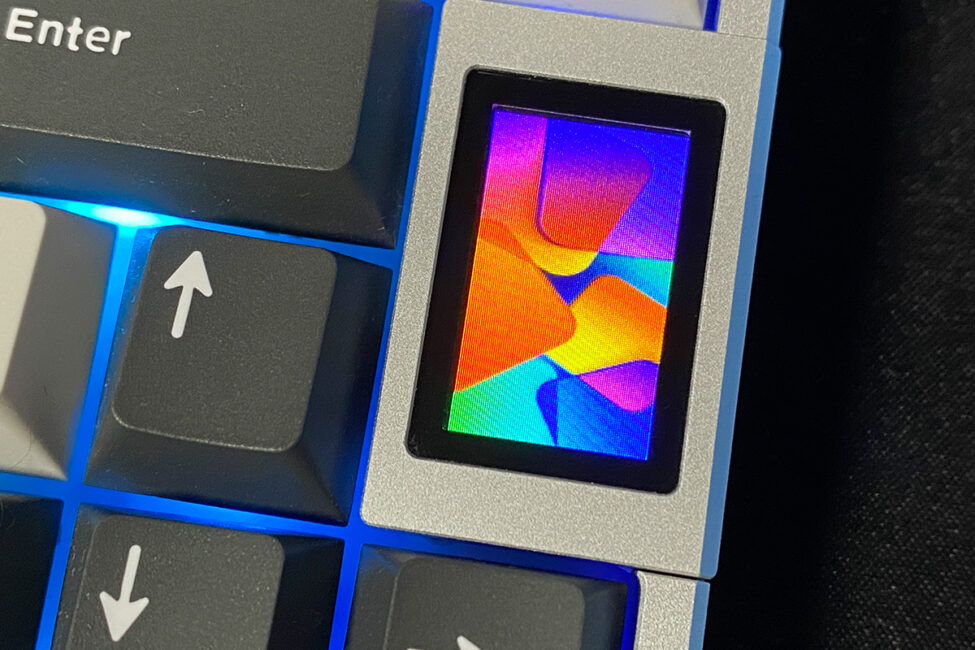
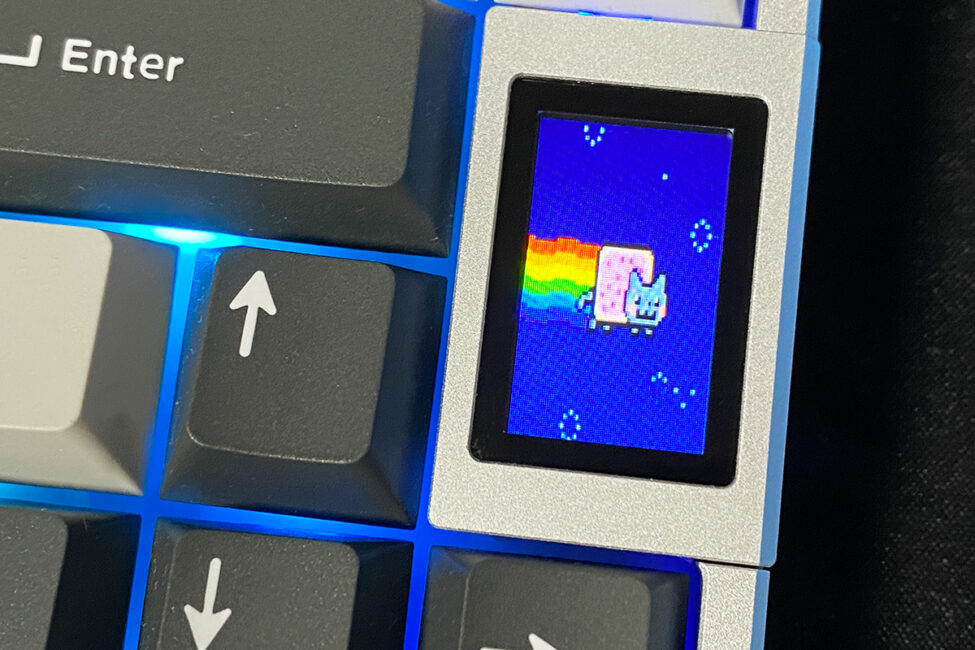
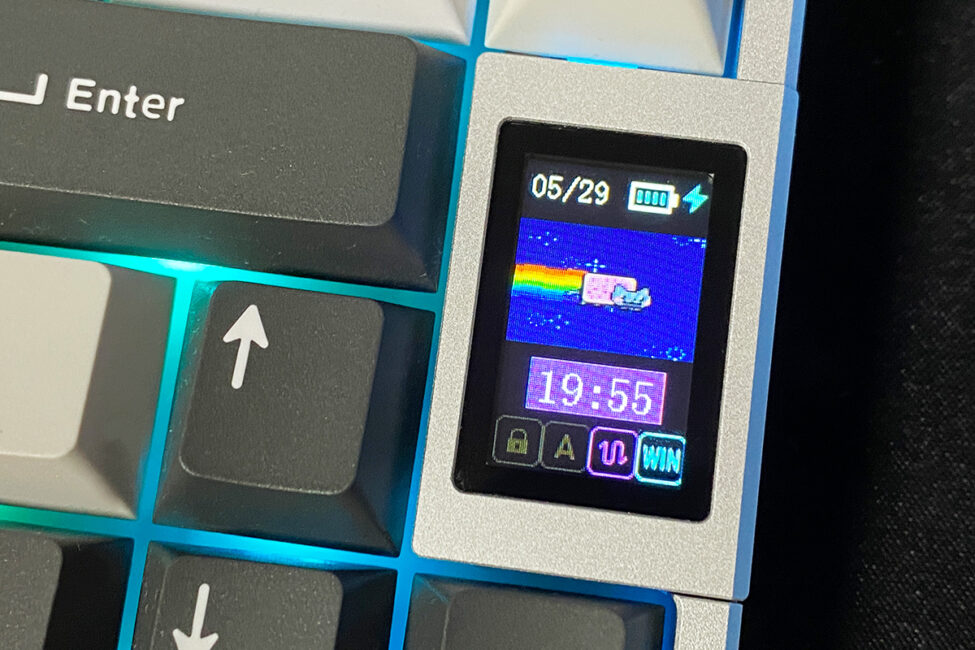
You can set the time and date, as well as upload your own media files to the keyboard using a dedicated application available for download from the official YUNZII website.
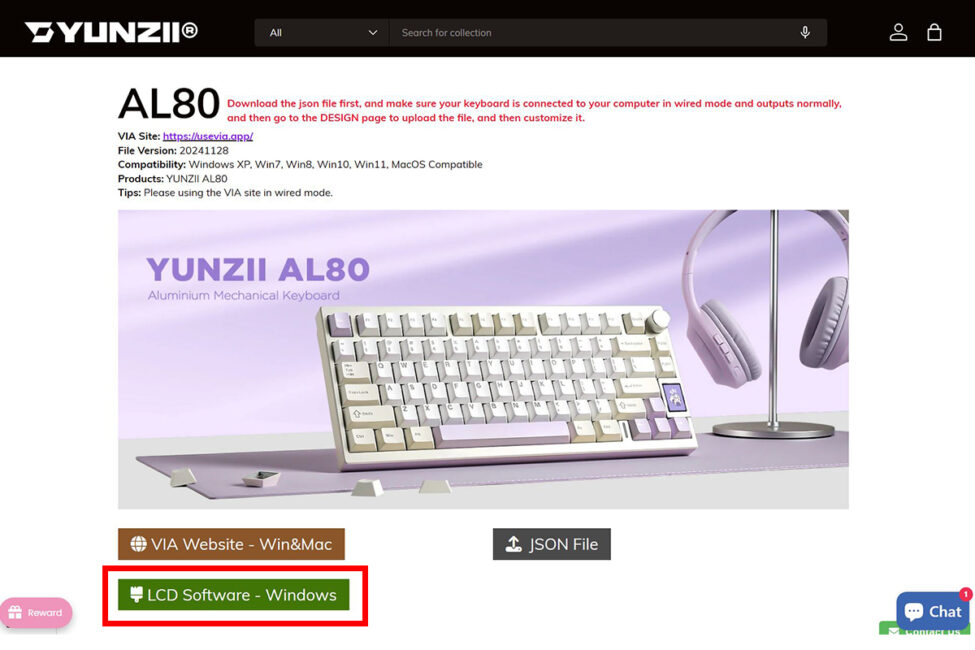
You download and install the app on your PC, then connect the keyboard via cable and switch it to wired mode. It’s worth noting that the app is currently only available for Windows. The application itself is quite simple and intuitive. It basically has three main sections: Pic Set for images, GIF Set for animations, and Setup Device for other settings. Let’s take a closer look at each of these.
In the “Pic Set” menu, you can upload and edit your own images. You click “Upload Pic,” choose the image you want to display on the keyboard screen, and save it using the “Save Image To Device” button. Images need to be in .jpg format. I tried adding .png files, but they didn’t work – the image uploads but doesn’t display on the screen. This isn’t a big issue since .jpg is the most common image format, and there are plenty of wallpapers available in it. Regarding resolution, I had no trouble uploading 4K smartphone wallpapers, and the keyboard’s display handled them fine.
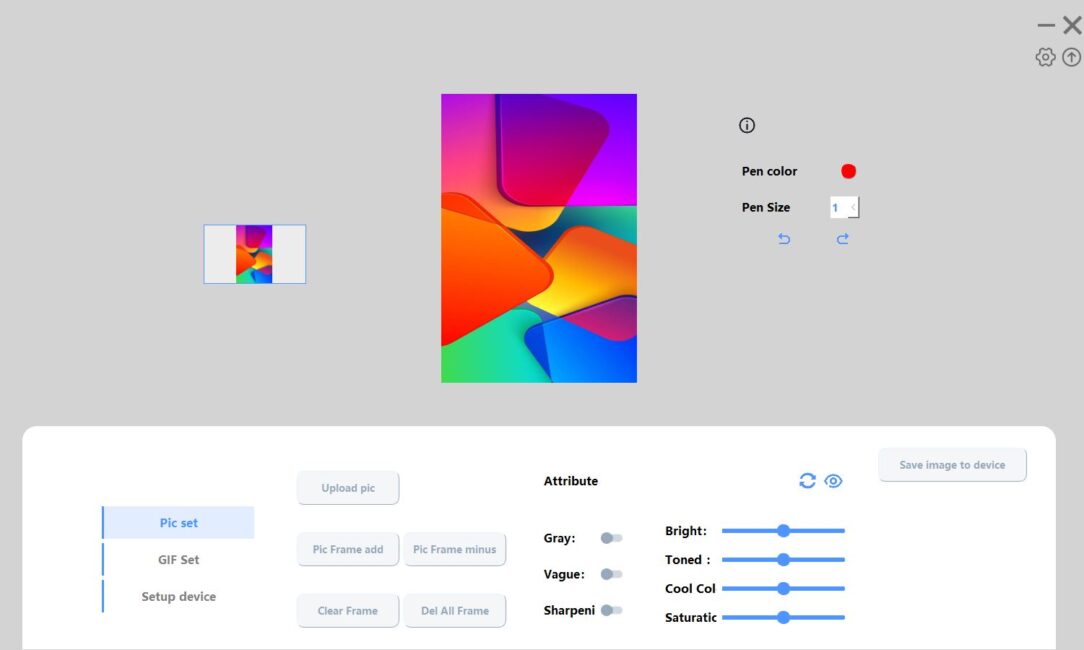
To delete an image from the keyboard, you need to go to the “Setup Device” menu and press the “Clear Picture” button. The interface for adding images is the same as for GIFs. At first, I thought it would be possible to upload multiple images and display them as a gallery on the screen. However, this is not the case – the display in image mode can only show one uploaded picture at a time. It seems likely that the same menu was designed for both images and GIFs to keep things simple.
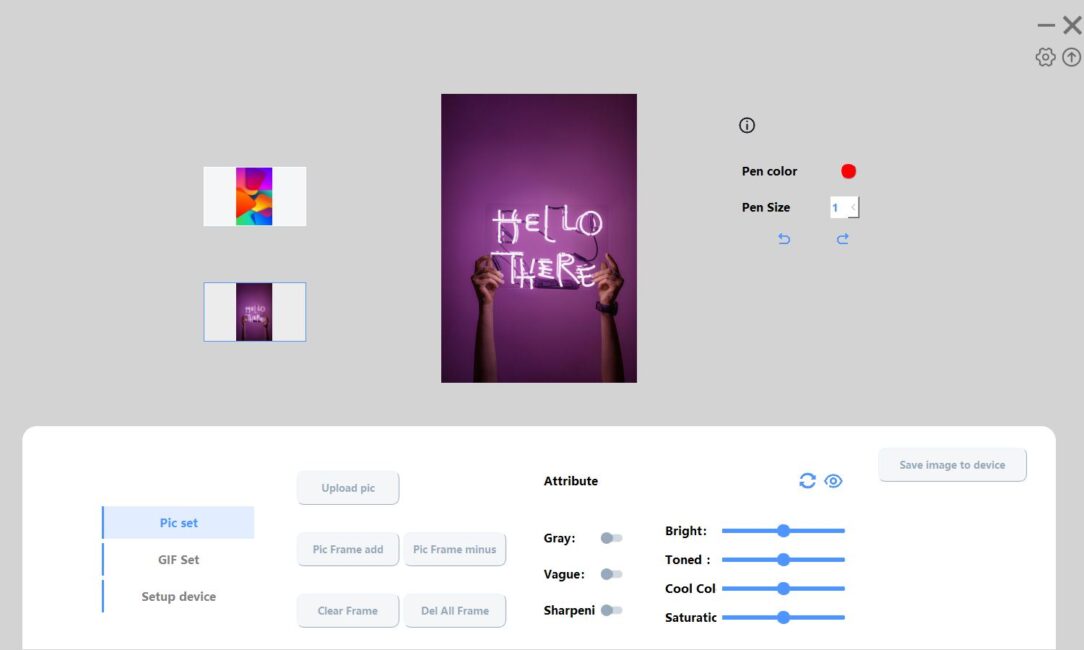
The “GIF Set” menu allows you to upload and edit animations in the .gif format. You can even create a GIF directly within the app by combining several images. It’s also possible to set your GIF as the main screen display (the first mode, activated by FN + 8). Removing a GIF from the keyboard works the same way as deleting an image.
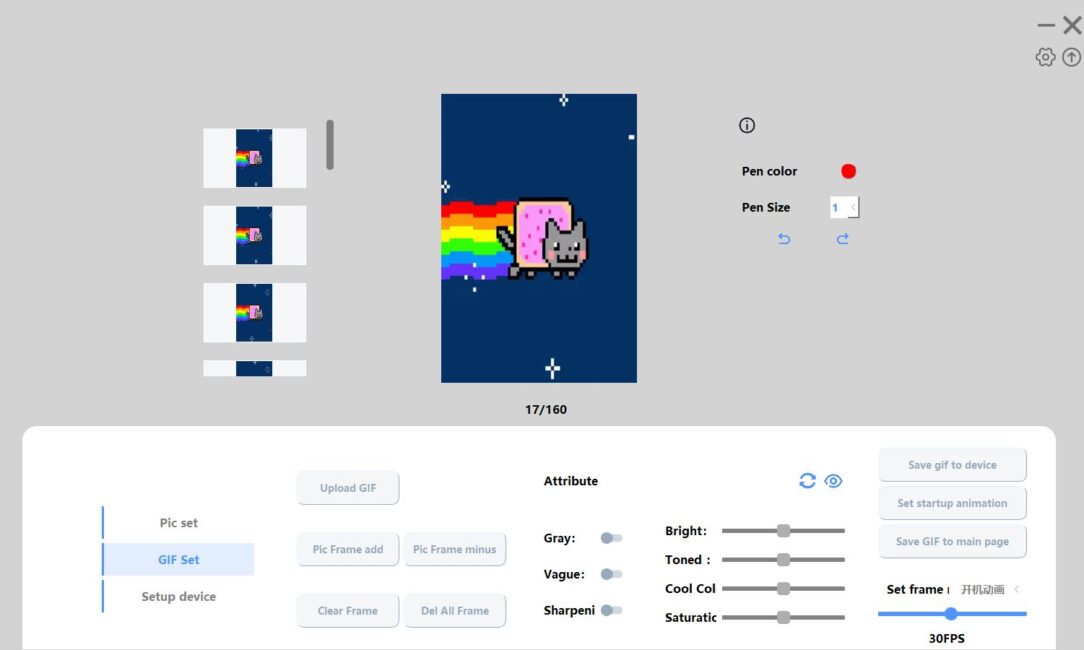
The “Setup Device” menu is used to set the date and time, as well as to delete media files stored on the keyboard. Setting the date and time happens automatically when you press the “Set Time And Date” button. The app simply syncs the keyboard’s date and time with the settings on your PC.
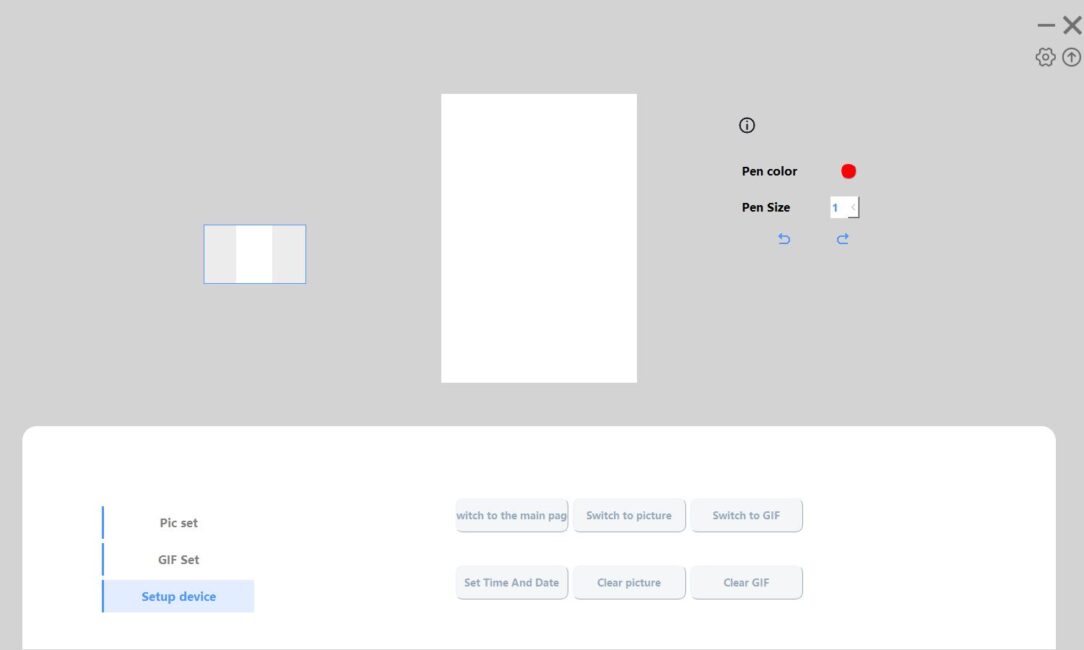
Overall, the app functions as intended, but uploading media files to the keyboard is not instantaneous. This can sometimes make the app appear unresponsive or slow during use. Aside from that, it performs its core functions adequately. As for the display itself, there are no complaints – it’s bright and smooth, looks decent, and complements the overall design of the keyboard well.
Read also:
Connections and supported platforms
Like most YUNZII keyboards, the AL80 supports three connection modes: wired, RF 2.4 GHz, and Bluetooth. The keyboard can connect to up to three devices simultaneously via Bluetooth, with switching between them using the key combinations FN + 1 / 2 / 3. Additionally, it can connect to one more device through the RF 2.4 GHz radio module, which can be selected with FN + 4.
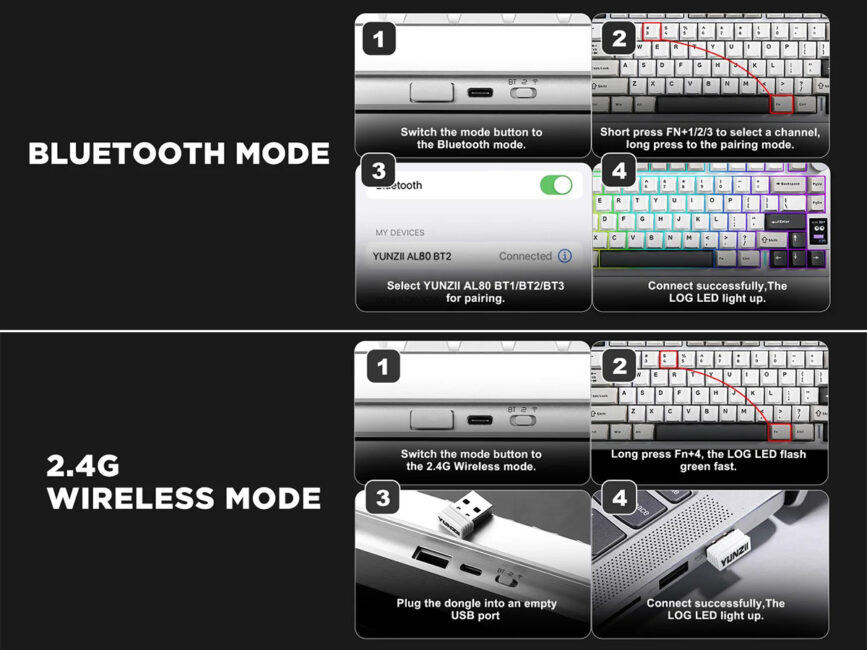
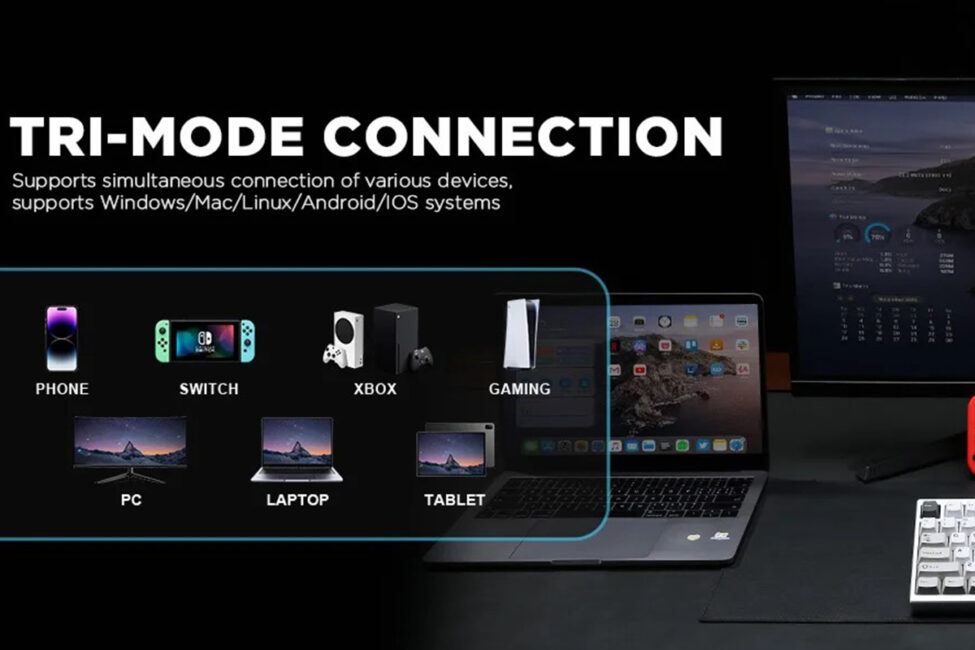
This means the keyboard can connect to a maximum of five devices at the same time: three via Bluetooth, one via RF 2.4 GHz, and one wired. As for supported platforms, the YUNZII AL80 is compatible with most current systems, including Windows, macOS, Linux, Android, iOS, Nintendo Switch, and Xbox.
To switch the keyboard to Windows mode, use the key combination FN + S. To switch to Mac mode, use FN + A.
Keyboard shortcuts, layout layers, customisation
Basically, you’ve already seen all the main FN+ key combinations in the previous section’s screenshot. Here, I’ll just add that all these key combos can be customized, disabled, or changed however you like. The keyboard has special layers that can be configured at the firmware level on the official website.
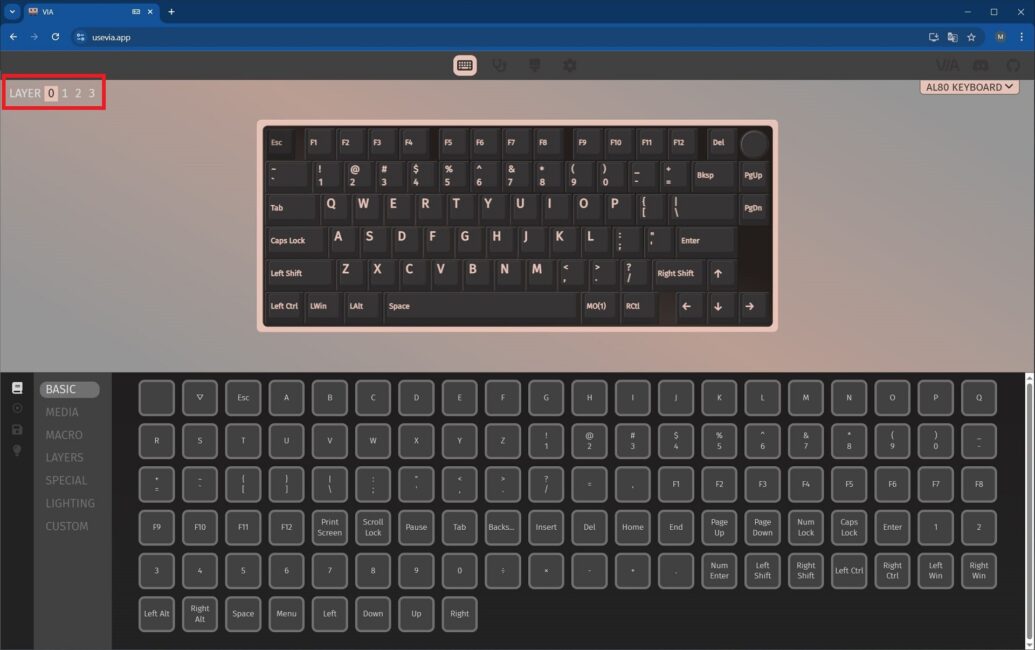
In my previous review, I explained in detail how all this works and demonstrated on my own example how to customize the keyboard. So, I don’t see much point in going over it all again here. Just to mention, the AL80 is configured the same way as the AL65 model from the earlier review.
The main difference between the AL80 and AL65 is that the AL80 has only four layers instead of seven, and it lacks the double-FN key press mode.
To break it down:
- Layer 0 is the default keyboard state.
- Layer 1 is the layout with the FN key held down.
- Layer 2 is the default layout for macOS.
- Layer 3 is the macOS layout with the FN key held down.

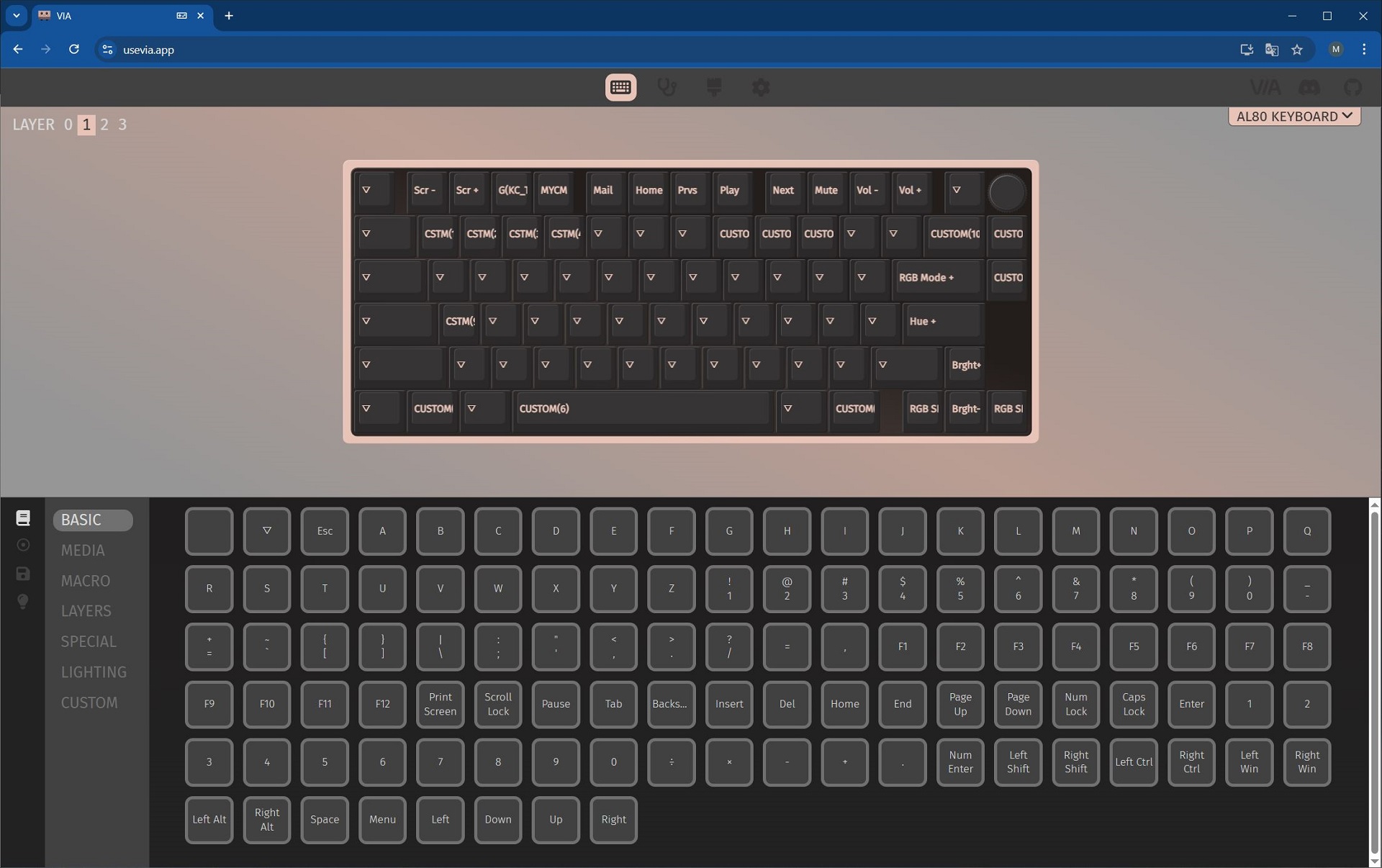
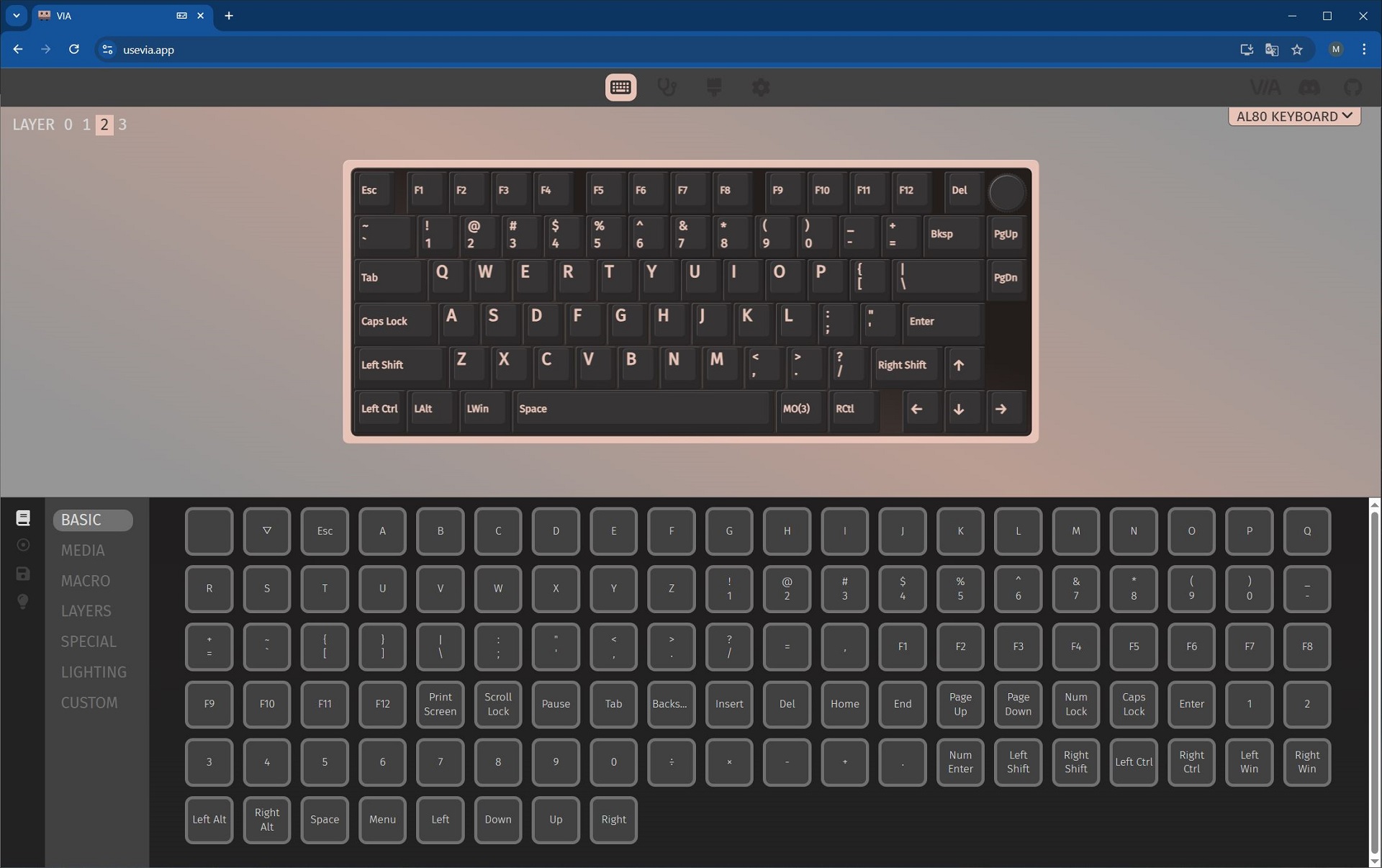

I should also note that unlike the AL65 (which is a 65% layout), I didn’t customize the AL80 at all for my own use. The 75% layout already provides easy access to everything you need. Plus, it has a volume wheel, which adds convenience. Overall, it’s a very practical format that doesn’t require much tweaking. Like I mentioned earlier.
Setting up the QMK/VIA
I’ve already covered what QMK/VIA is and why it’s a better option compared to standard preset configuration apps in my previous review. So, I won’t repeat that here and will get straight to the point. To access the keyboard settings, you need to:
- Connect the keyboard to the PC with a cable
- Download the JSON file for the keyboard from the official YUNZII website
- Go to the usevia.app settings site
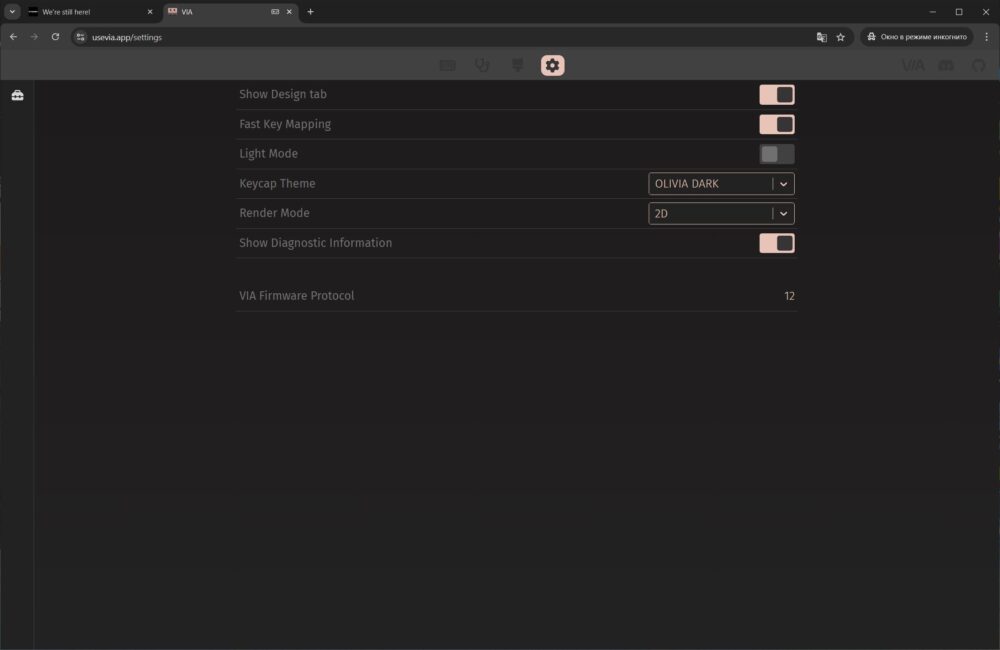
- Go to the Settings tab and activate the Show Design Tab
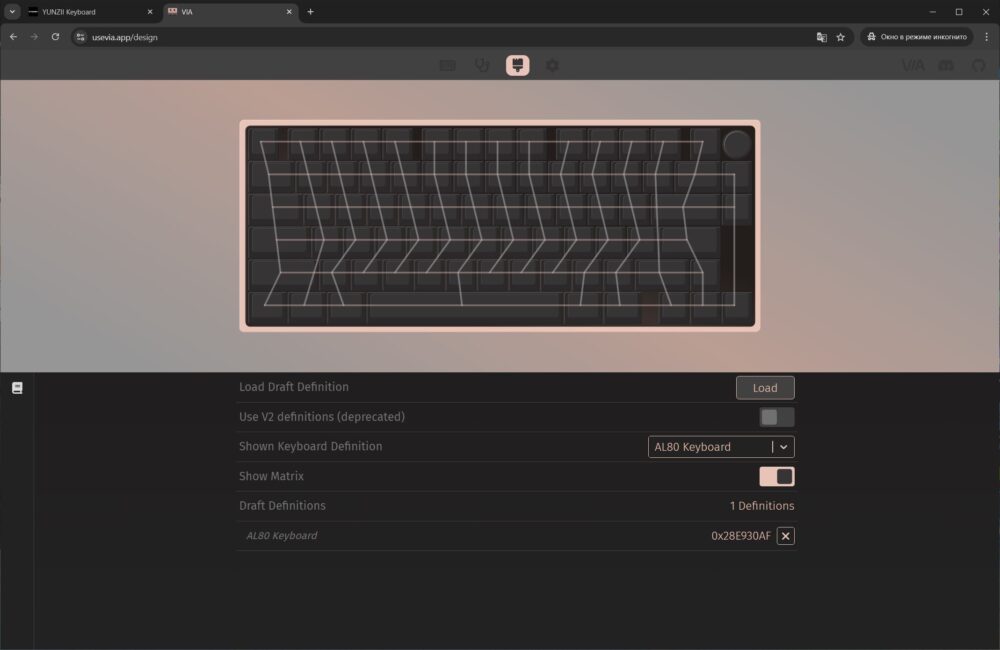
- Go to the Design tab and download our JSON file to your browser
- Allow connection to the keyboard


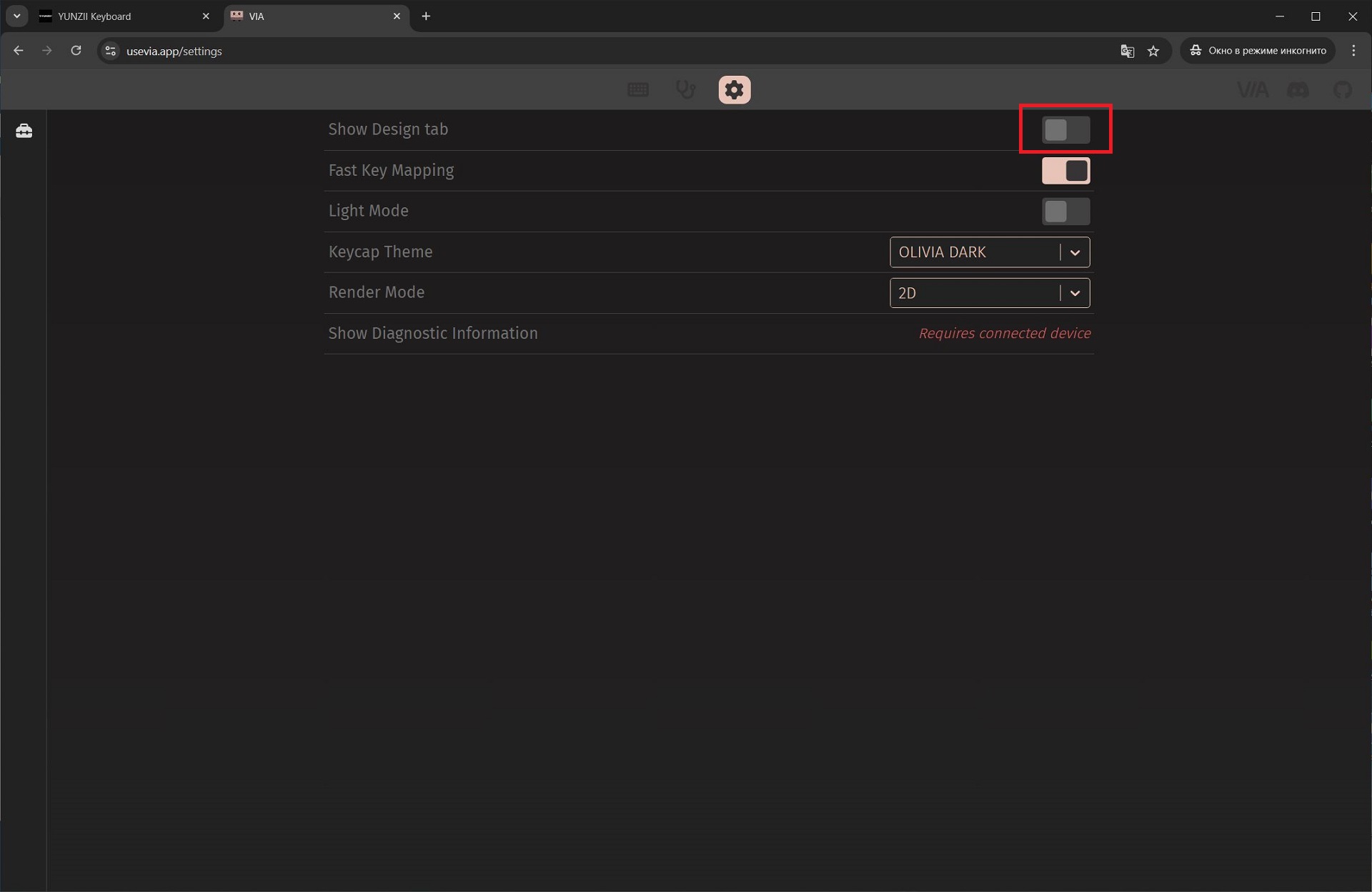


This procedure only needs to be done once. After that, all settings can be adjusted directly in the browser without needing to upload the JSON file again.
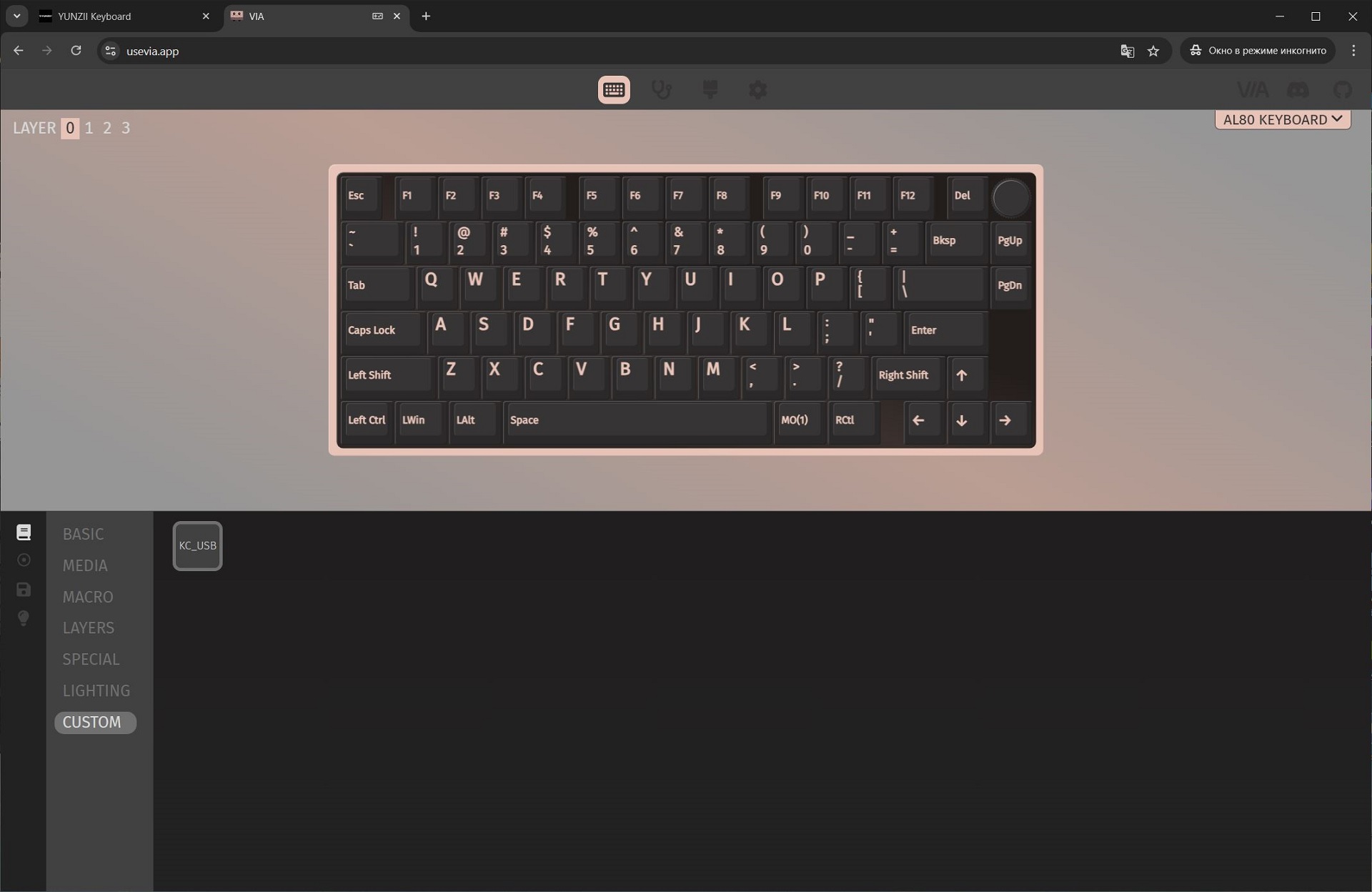
Once the keyboard is connected, you’ll enter its configuration (CONFIGURE) page, which is roughly divided into four sections: KEYMAP, MACROS, SAVE + LOAD, and LIGHTING.
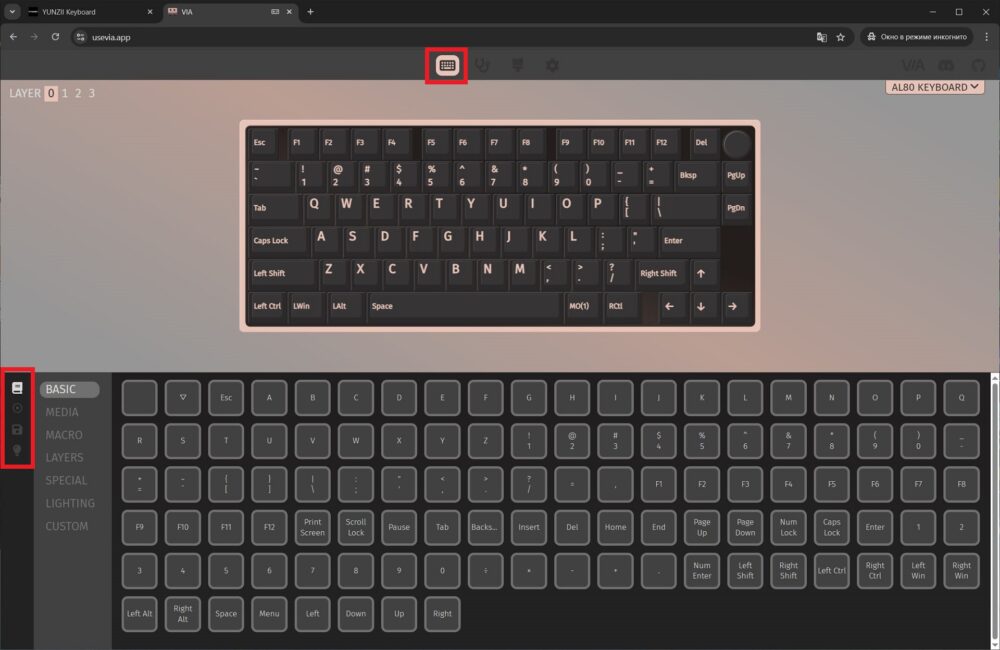
The KEYMAP menu allows you to remap keys, change the functions of FN+ key combinations, and customize layout layers. At first glance, the settings might seem complex and confusing, but it’s actually quite straightforward. You select a key or FN+ function from the top section, then choose what you want to assign it to from the bottom. I’ve explained this process in detail using my own example.


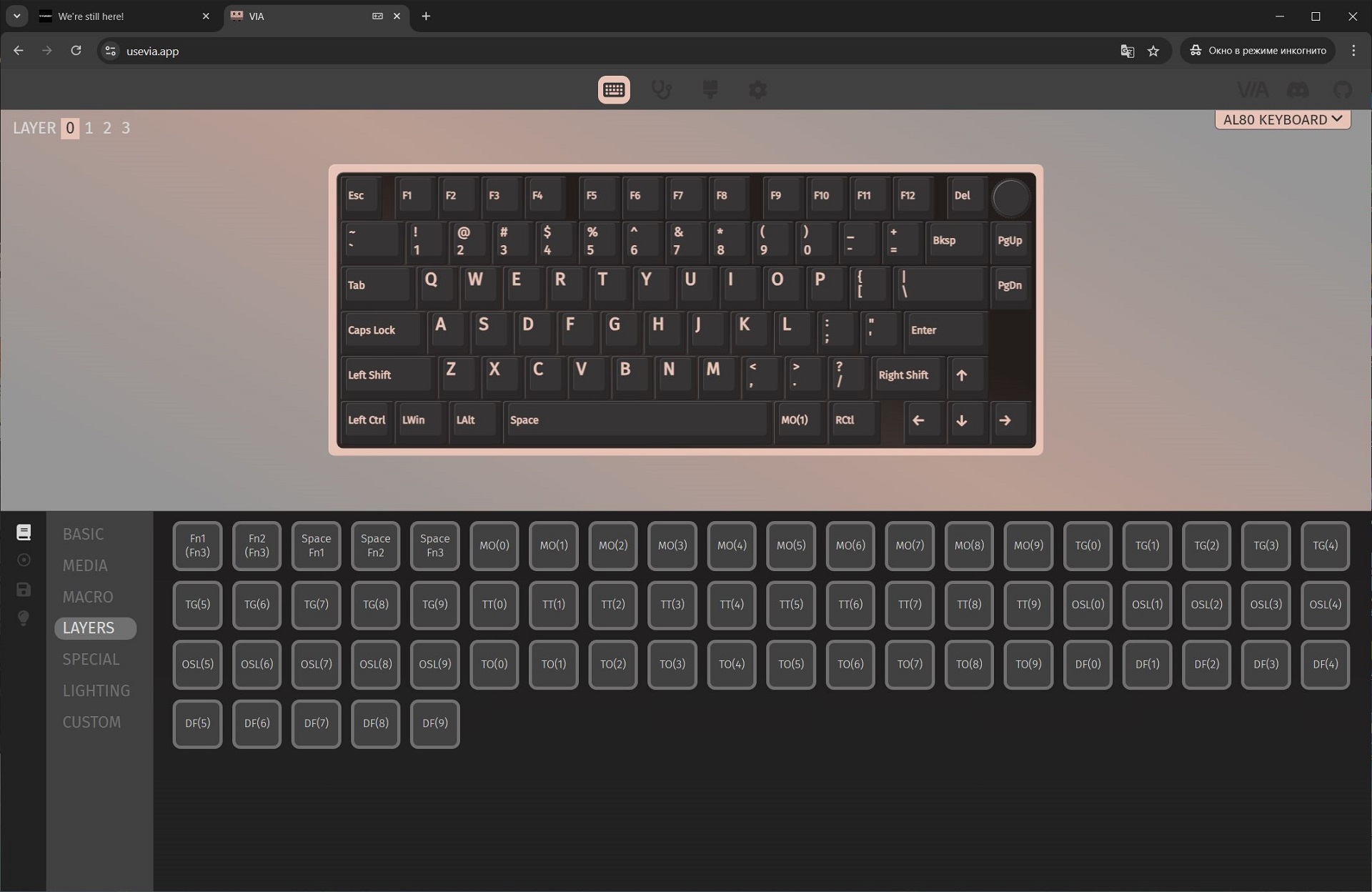


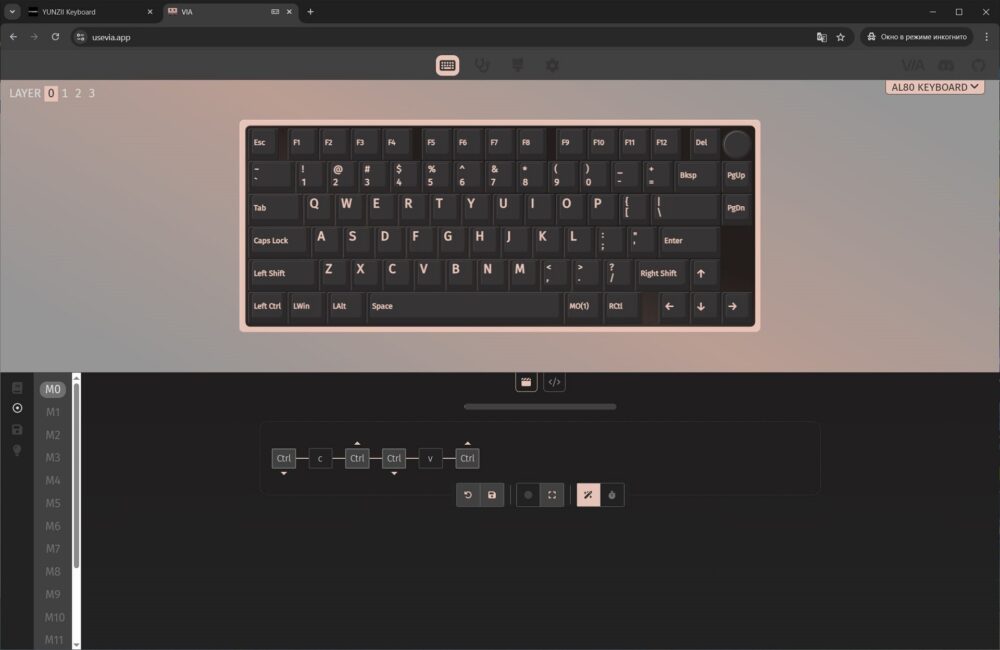
The MACROS menu lets you record and edit custom macros (M0 to M15). You can assign these macros to specific keys or key combinations in the KEYMAP menu.
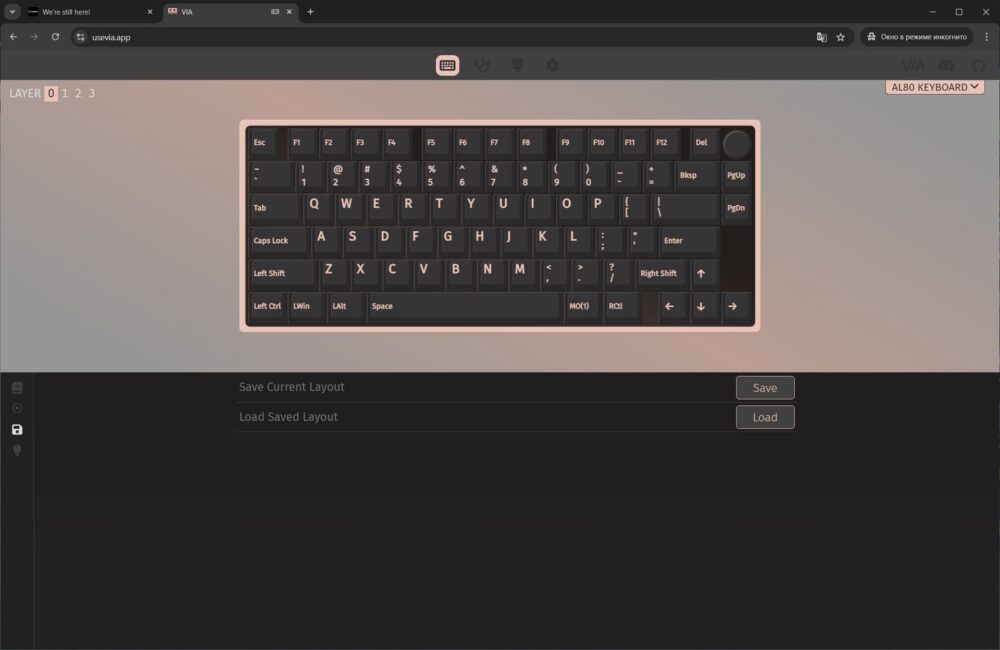
The SAVE + LOAD menu allows you to save and load your settings using JSON files.
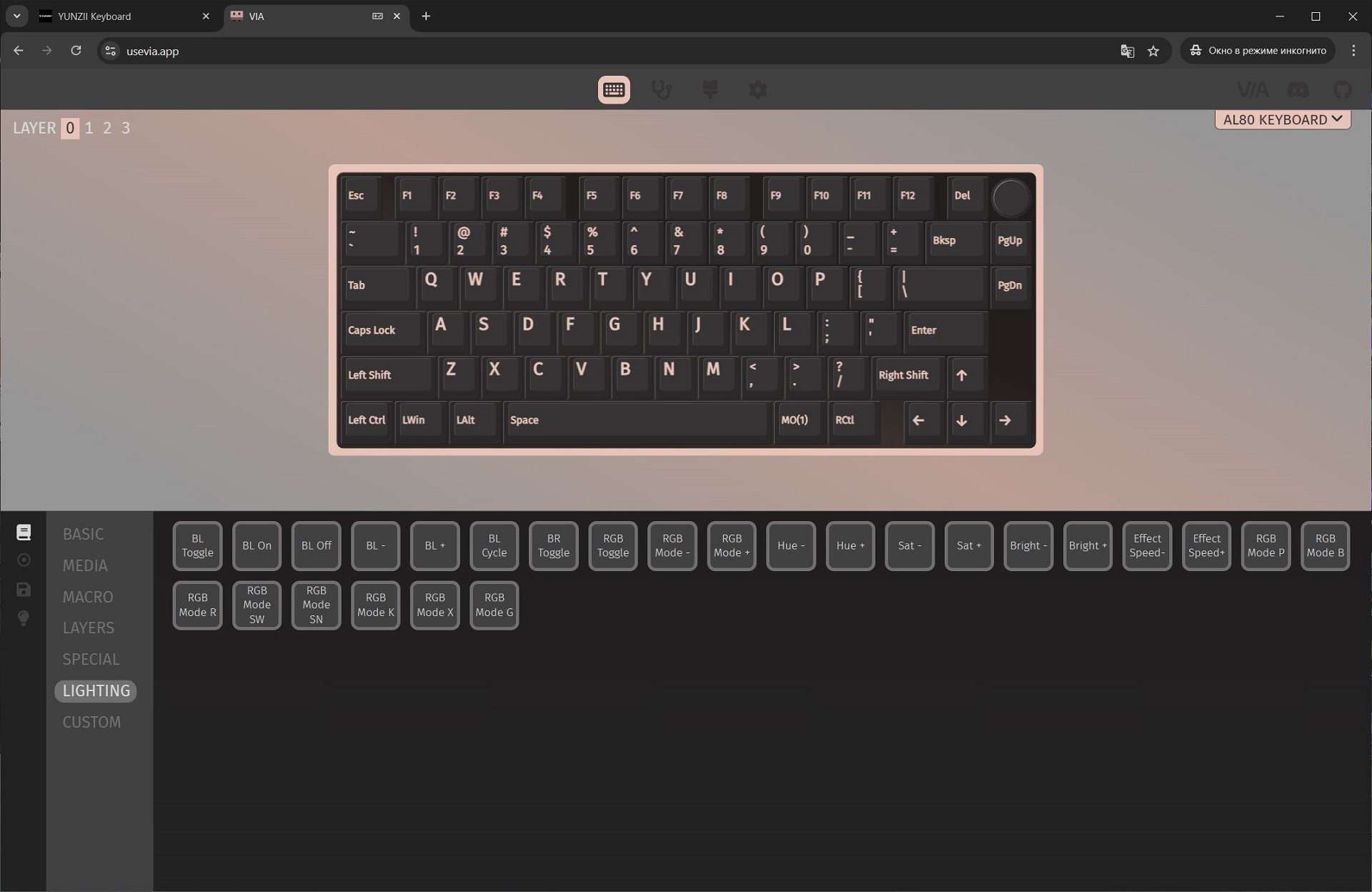
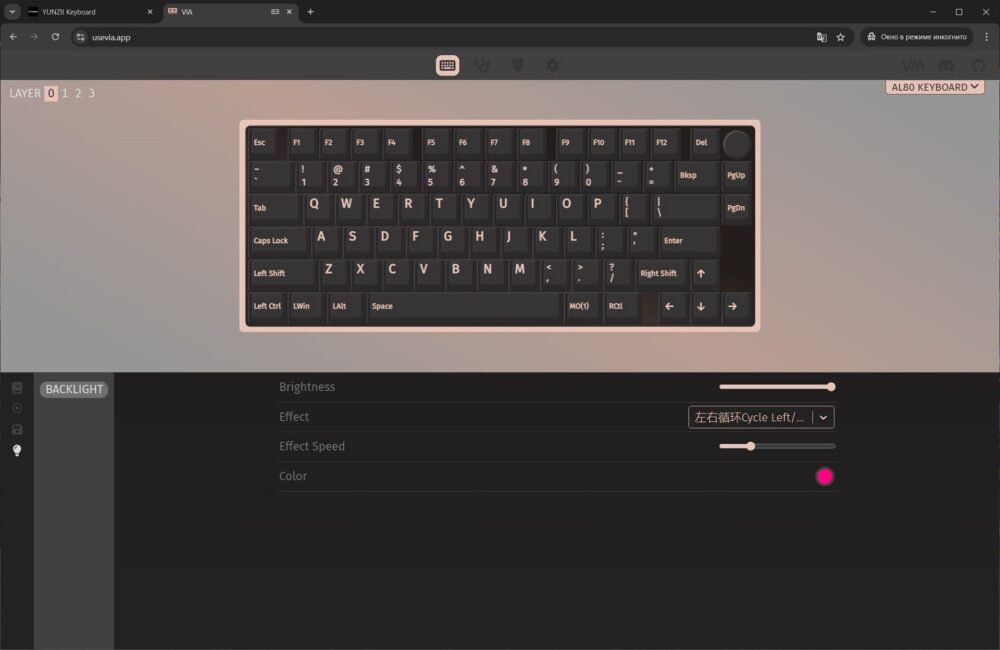
The LIGHTING menu is where you adjust the keyboard’s backlighting – effects, brightness, speed, and color for solid color effects. Just to clarify, this menu controls backlighting only for the keys. There are no lighting settings (other than brightness) available for the indicator strip on the keyboard’s case.
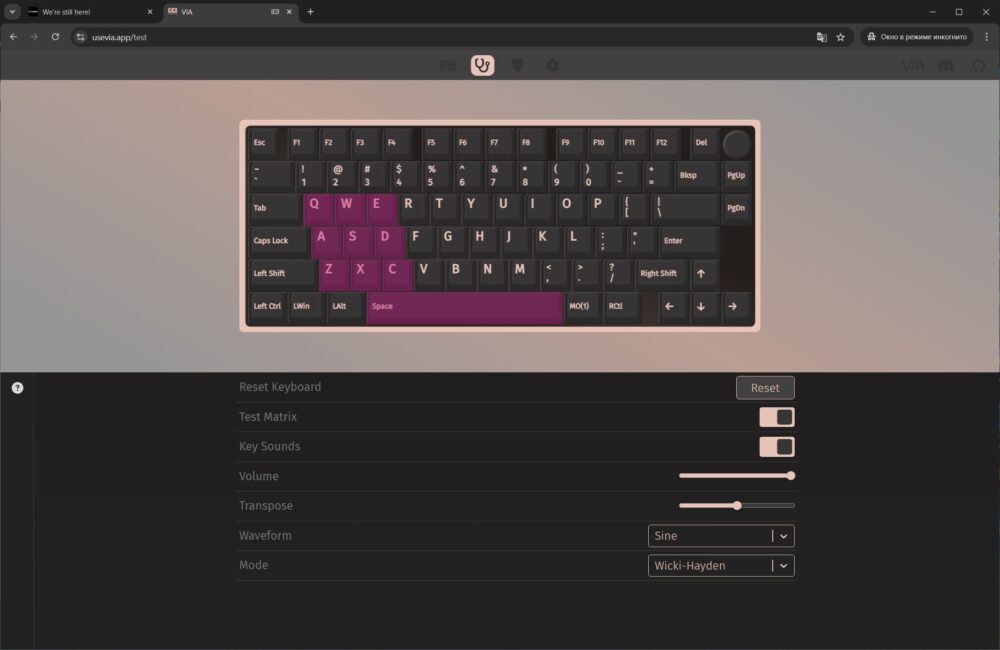
Next to the “CONFIGURE” tab is the “KEY TESTER” tab. This section lets you test individual keys and FN+ combinations, including both short presses and key holds. I also recommend trying it with the sound enabled – each key press is accompanied by a fun sound effect, and there are even different sound presets. It’s a neat feature, and I imagine some users could even experiment with creating music using it.
Next is the ‘DESIGN’ tab, where the JSON file for connecting the keyboard is uploaded.
The last tab is “SETTINGS.” Here you’ll find various options for customizing the visual appearance of the interface. This tab also enables the “DESIGN” tab, where you upload the JSON file containing your keyboard’s firmware.
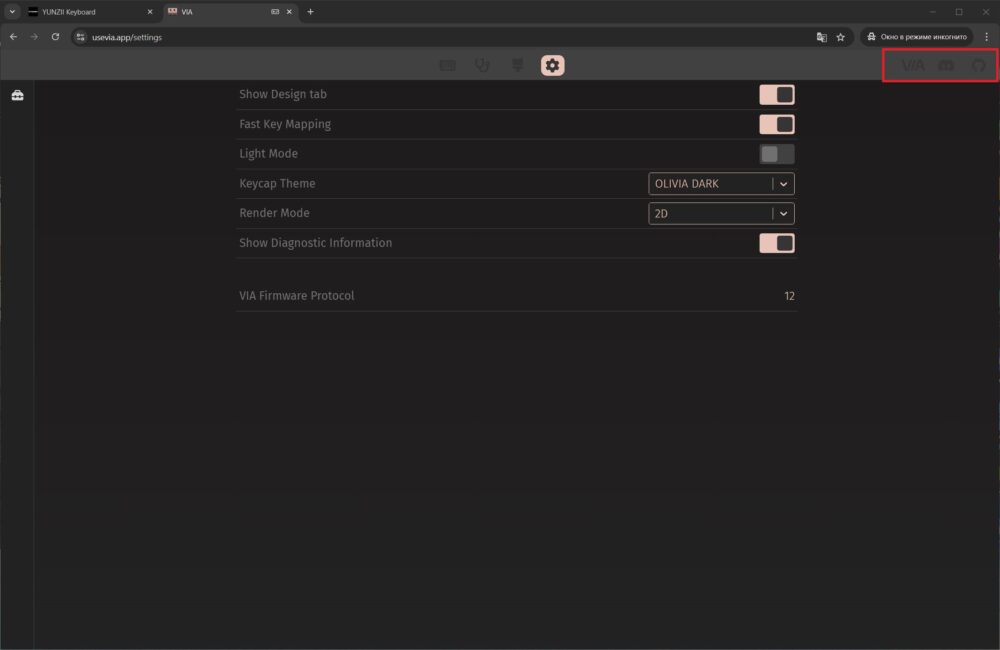
Besides the keyboard settings, this section also includes links to the official VIA website with detailed firmware documentation, the official VIA Discord channel, and the VIA source code on GitHub. These links are located in the top-right corner of the site.
Switches, stabilisers, typing
The YUNZII AL80 keyboard comes with two switch options: the proprietary YUNZII Cocoa Cream V2 Linear Switch and the Gateron Zero Linear Switch. Both are linear switches and come pre-lubricated. You can see detailed specifications and a comparison in the screenshots below.
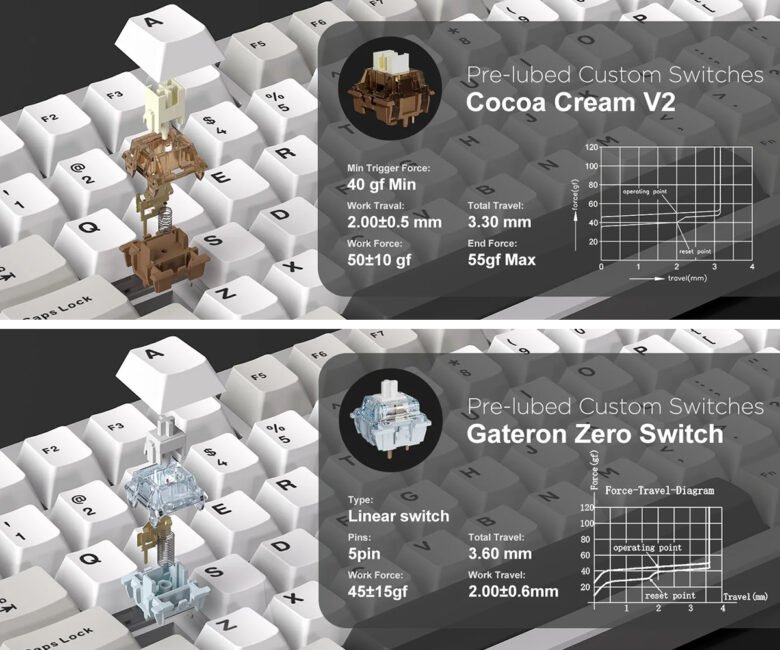
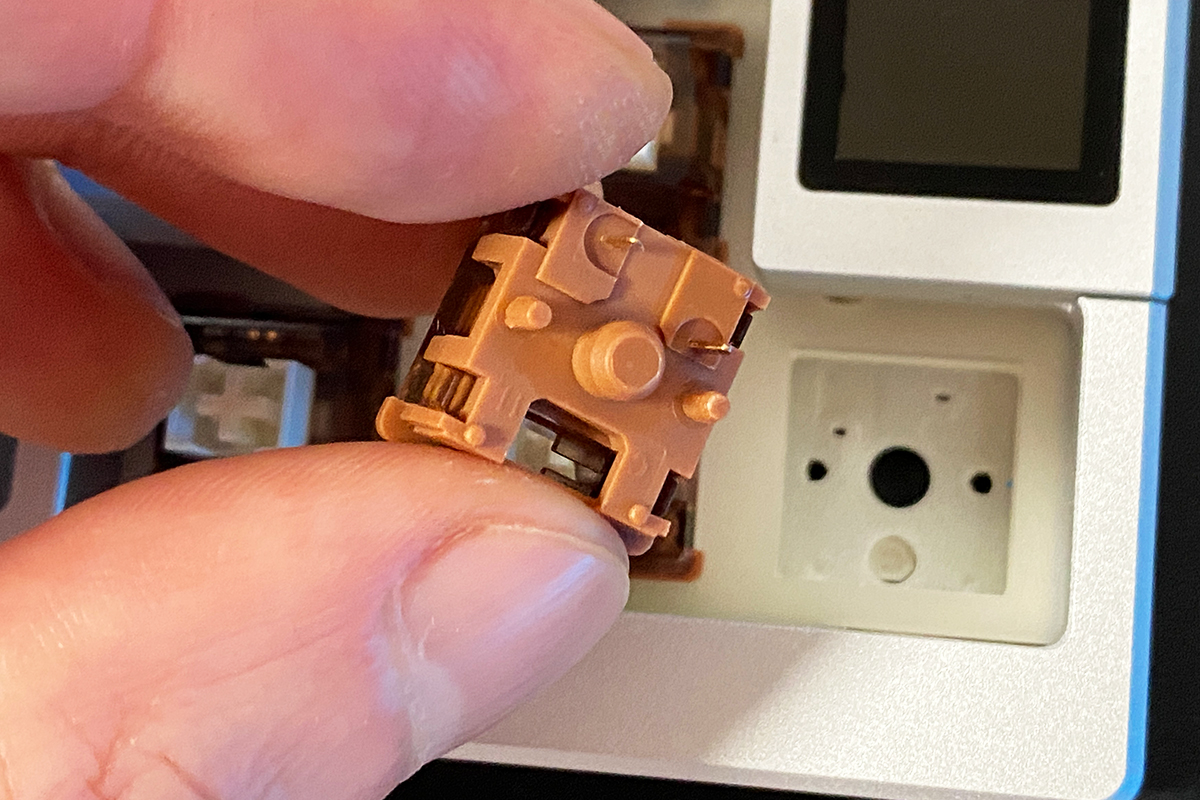
Like all YUNZII keyboards, the AL80 supports hot-swapping, allowing switch replacement without soldering. The switch sockets are standard 5-pin, which means you can install both 3-pin and 5-pin switches in the AL80.
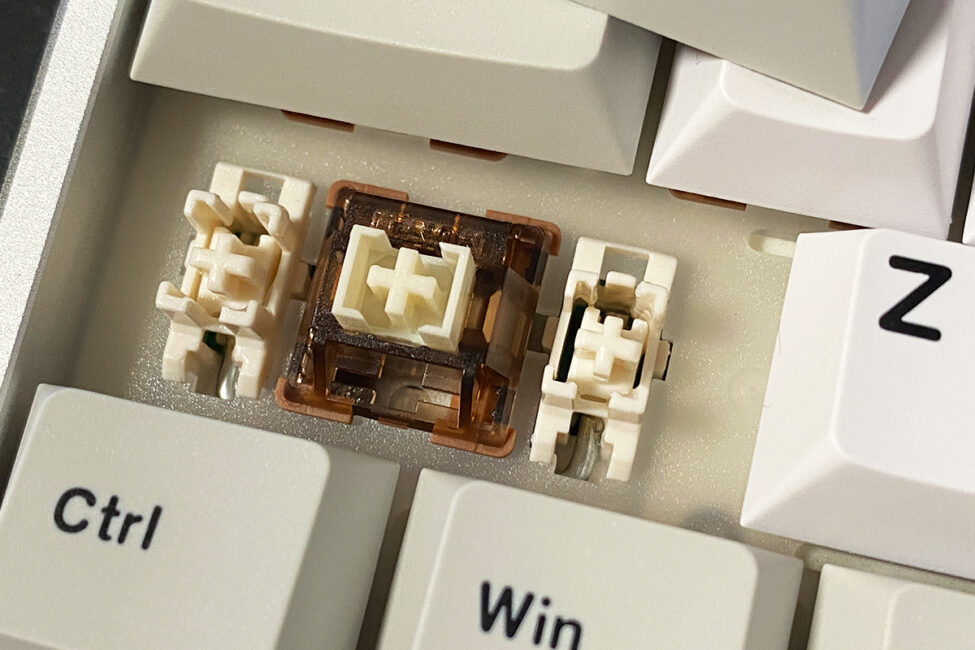
The stabilizers for the longer keys come pre-lubricated, which noticeably improves the typing experience. Overall, the longer keys feel good to press and produce a clean sound.
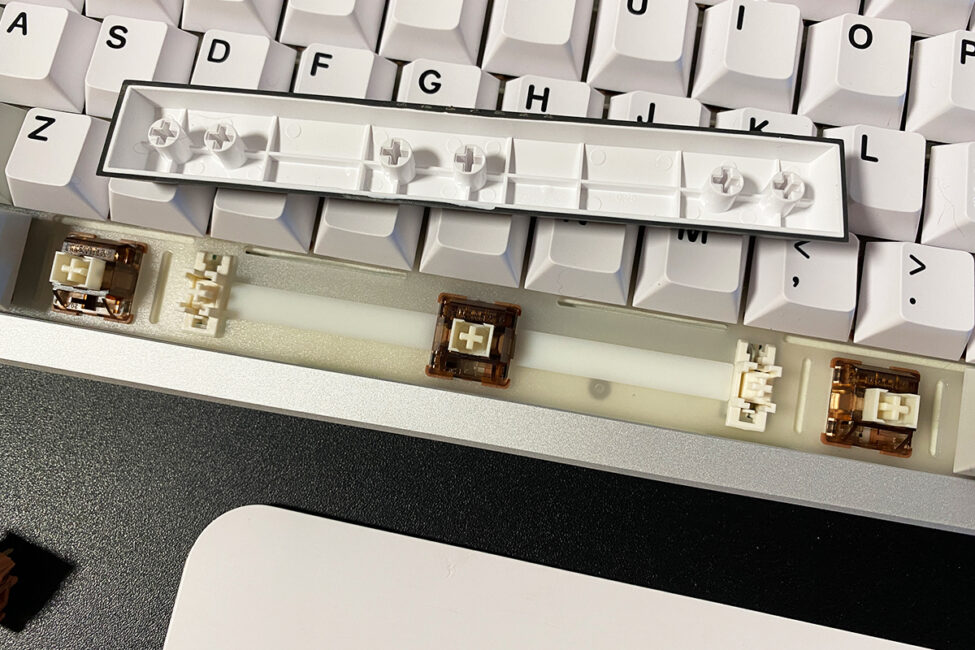
Typing on the YUNZII AL80 is solid. The keys have a moderately soft and precise feel, without any mushiness. The sound level is moderate, and overall the keyboard produces a pleasant acoustic profile. There’s no noticeable scratchiness or buzzing in the keypresses, and no unwanted noise often found in lower-quality mechanical keyboards. The review unit I received came with YUNZII’s own Cocoa Cream V2 switches, and it sounds like this (video below).
I’ve had the YUNZII AL80 for about two weeks, and during this time I’ve managed to play through the entirely new Doom: The Dark Ages, as well as write a couple of extensive reviews. And based on my experience and feelings from using it, I can say that I liked the keyboard, in particular its typing. That is, I would gladly use it as my main keyboard.
If we compare the typing experience of the AL80 (YUNZII Cocoa Cream V2) with my previous review unit, the AL65 (YUNZII Milk V2), I personally preferred the AL65. It uses slightly different switches that feel a bit softer and quieter. However, when comparing the two keyboards on video, their sound profiles seem quite similar. Overall, both keyboards are solid options and likely represent some of the best models currently available in YUNZII’s lineup.
Battery life
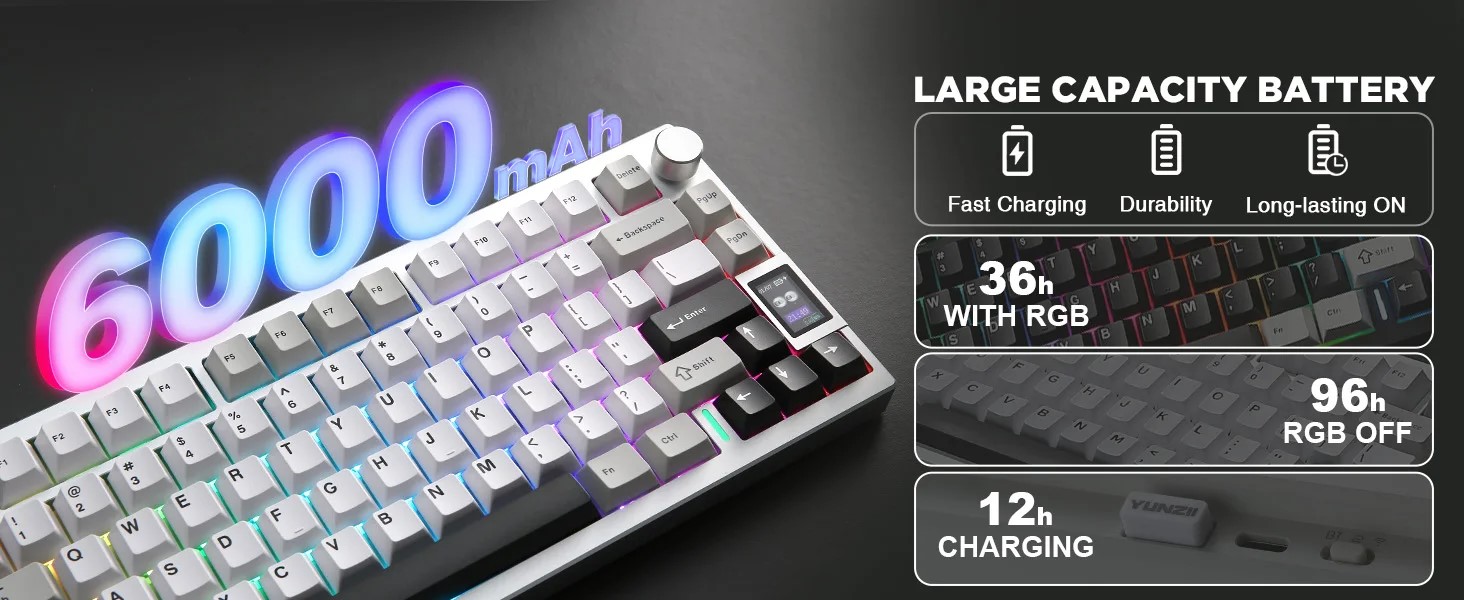
The keyboard comes with a 6000 mAh battery. With the backlight on, it can last up to 36 hours, and with the backlight off, up to 96 hours. A full charge takes about 12 hours. Overall, this battery life is reasonable for this category of keyboards.
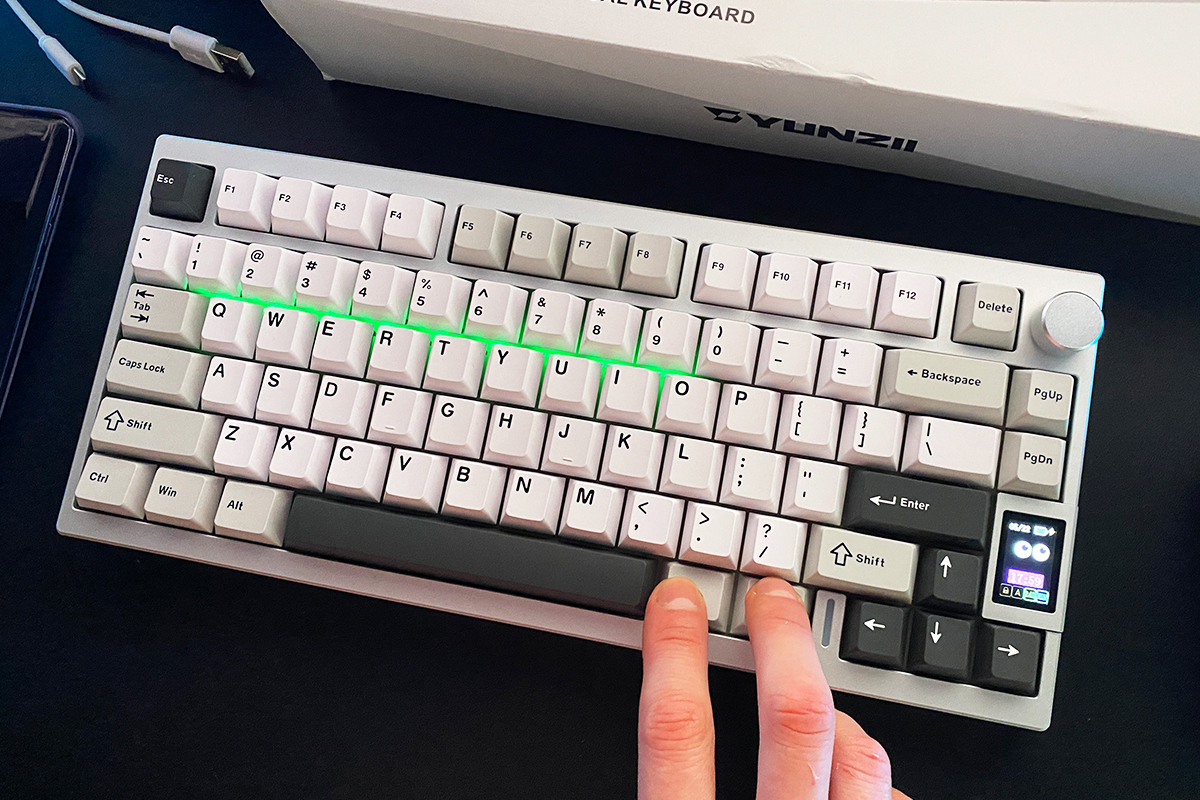
You can check the battery status either on the built-in display or by pressing the FN + right Ctrl key combination. When you press this combination, the number row on the keyboard lights up to indicate an approximate battery percentage. For example, the number 3 represents around 30%, 5 means 50%, and 0 indicates 100%. The color of the number row also changes based on the charge level: red for low, yellow for medium, and green for high battery.
To save battery in wireless mode, the keyboard enters sleep mode after about four minutes of inactivity. There is no option to adjust this timeout period – the setting simply isn’t available. This is a minor drawback I noticed during use.
Like the previous AL65 model, the keyboard has a small delay when waking from sleep mode. If it has been inactive for an extended period – say, over an hour – there’s a brief delay of about a second after pressing a key before the keyboard becomes fully responsive. However, if it’s been asleep for a shorter time, around 10 to 20 minutes, it wakes up immediately without any noticeable delay. This behavior was also present in the YUNZII AL65 and B75 PRO models. It’s worth noting that the wake-up delay on the AL80 is noticeably shorter than on those earlier models, so it doesn’t feel like a significant downside – just an inherent aspect of how it operates.
Conclusions
In conclusion, I found the YUNZII AL80 to be a solid keyboard and one of the best 75% models from the brand currently available. It also stands out in the broader market for keyboards around the $100 price range.
The keyboard features a fully metal case, high build quality, a 75% layout, an adjustment wheel, full customization support through QMK/VIA, and a satisfying typing experience. The added display is a nice bonus. Honestly, it’s hard to ask for much more in this category – unless you’re looking for magnetic switches, which belong to a different segment altogether. From my experience, magnetic switches with their exclusive features aren’t necessary for everyone. Overall, the YUNZII AL80 offers excellent value for the price and provides a great foundation for further customization.
The only downside I noticed is the inability to adjust the time before the keyboard enters sleep mode. Honestly, four minutes feels a bit short – I would prefer a longer timeout. Aside from that, it’s a well-made and affordable device that I can confidently recommend.
Read also:
- GIGABYTE GS25F2 Gaming Monitor Review: 200Hz and Super Speed IPS
- EcoFlow River 3 Max Review: A Portable Power Station with Modern Features
- Bloody R72 Pro Duo Review: Mouse with Flagship Docking Station
Where to buy