



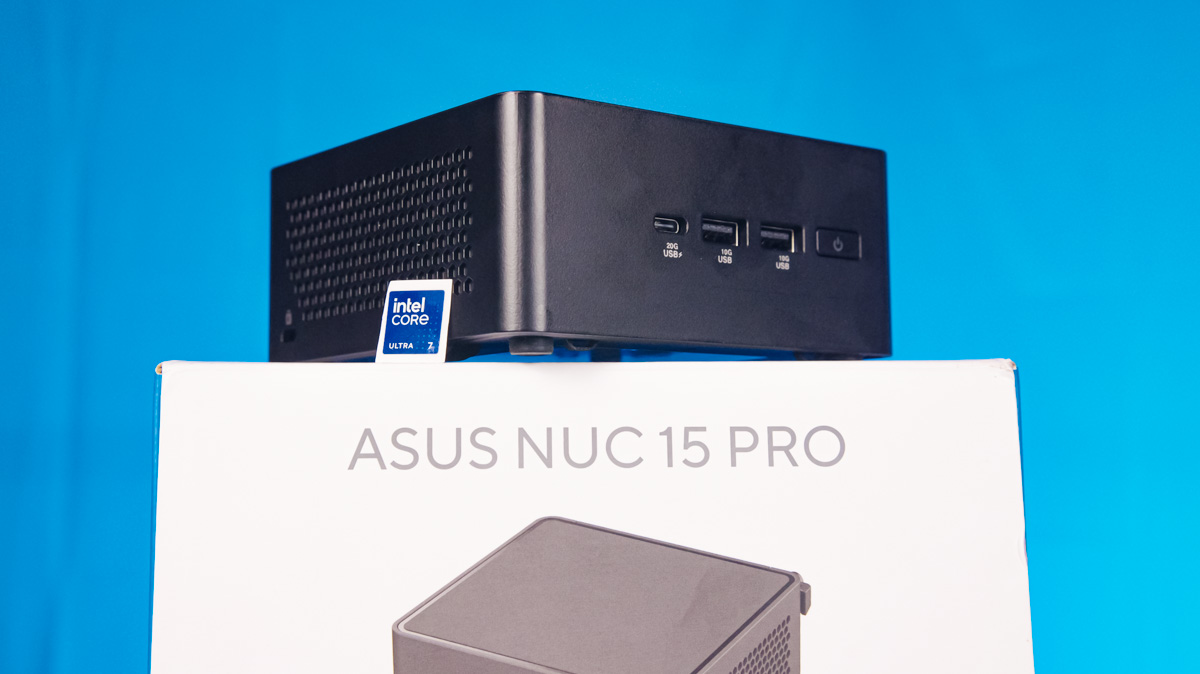

© ROOT-NATION.com - Use of content is permitted with a backlink.
I’ll let you in on a small secret – but don’t tell anyone. I’m a long-time admirer of energy-efficient desktop chips. From the Intel Atom Z8350 and the ComputeStick to the desktop modes offered by Motorola and Huawei, this category has always interested me. So when Intel sold the NUC “brand” into the hands of ASUS, I expected the lineup to continue rather than fade away like Optane did. And now, years later, I finally have the ASUS NUC 15 Pro for review.
Read also: All reviews of PCs, all-in-ones and nettops
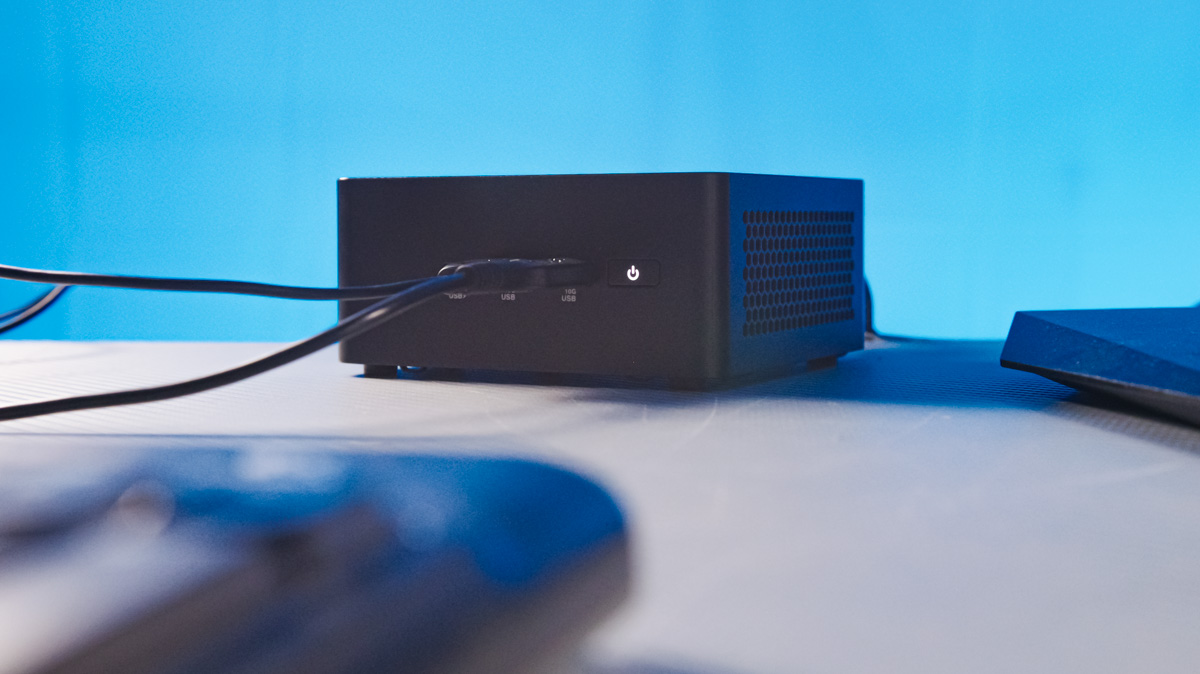
TABLE OF CONTENTS:
ASUS NUC 15 Pro Specifications
- Pre-installed operating systems: Windows 11 Pro, Windows 11 Home
- RAM support: up to 6400 MT CSO-DIMM
- Network card: Intel BE201/BE202
- LAN: Intel I226-V/I226-LM
- Front peripherals: 2x USB Type-A 10 Gb, Type-C 20 Gb
- Rear peripherals: 2x HDMI 2.1 TMDS, LAN, USB Type-A 10 Gb, USB 2.0, 2x
- Thunderbolt 4 40 Gb + DP
- Dimensions: 117×112×54 mm
- Weight: 600 g
Market position
Before we begin, it’s worth noting that the unit I received for testing is not a barebone version, but a pre-configured mini-PC. The difference lies in the included internal components. A barebone – taken directly from the term “barebone” – is essentially a partially assembled system. While a mini-PC is a complete, ready-to-use machine in a compact chassis, a barebone provides the same chassis and core hardware but lacks RAM and storage, which the user must install separately.
The ASUS NUC 15 Pro, in its barebone configuration, currently costs around $900. This price corresponds to the version equipped with the Intel Core Ultra 7 255H. Other configurations are also available, and their pricing varies accordingly. For example, the model based on the Intel Core 3 100U is priced at approximately $570.
Package contents
The unit I received does not come with the standard factory configuration. That’s expected – you simply can’t test a barebone system as-is. To make testing possible, a barebone has to be completed with the necessary components so that it functions as a full mini-PC.
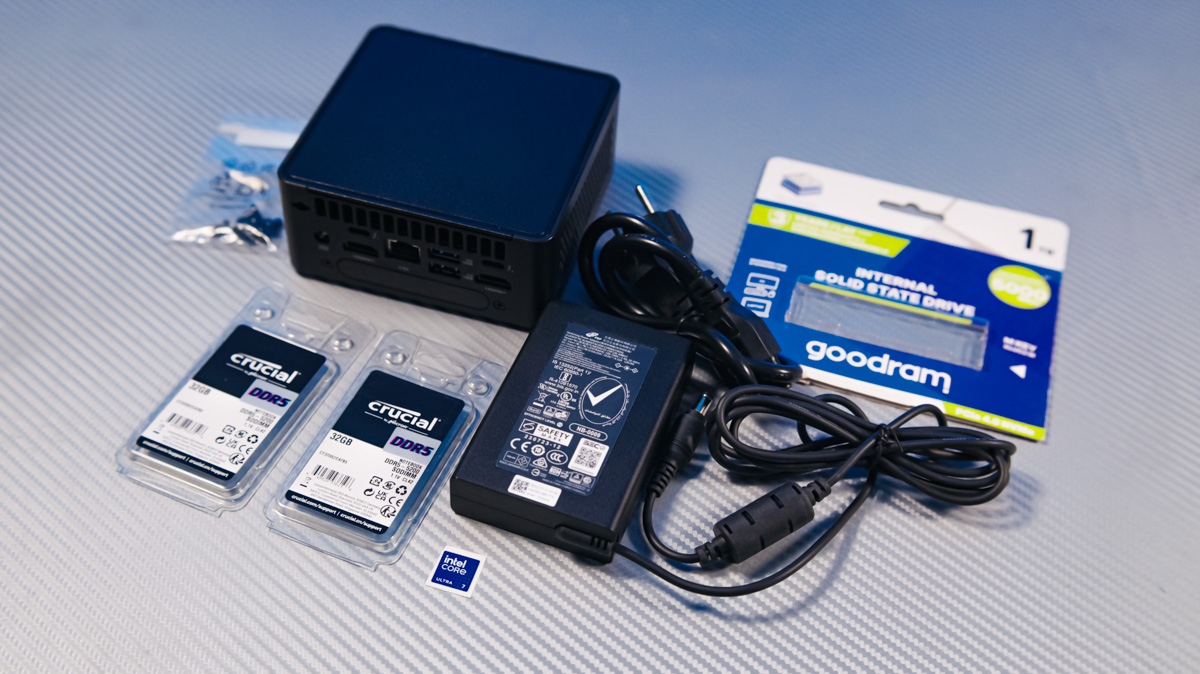
My ASUS NUC 15 Pro (model NUC15CRH) arrived with additional components already installed: 64 GB of Crucial DDR5 SODIMM 5200 CL42 memory running in dual-channel mode, and a 1 TB Goodram PX600 PCIe 4.0 SSD. The package also included VESA mounting screws and a 120 W power adapter.
Read also:
- ASUS NUC 14 Essential Review: Affordable and Productive Mini PC
- ASUS NUC 14 Pro Review: Efficient Mini PC
Design and layout
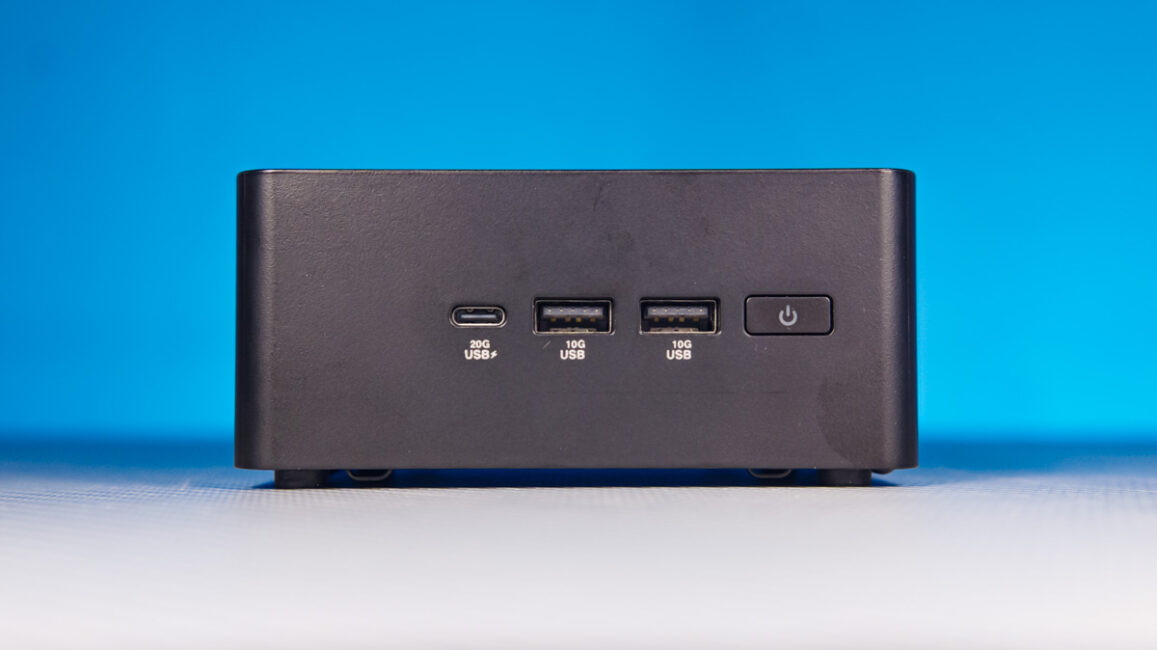
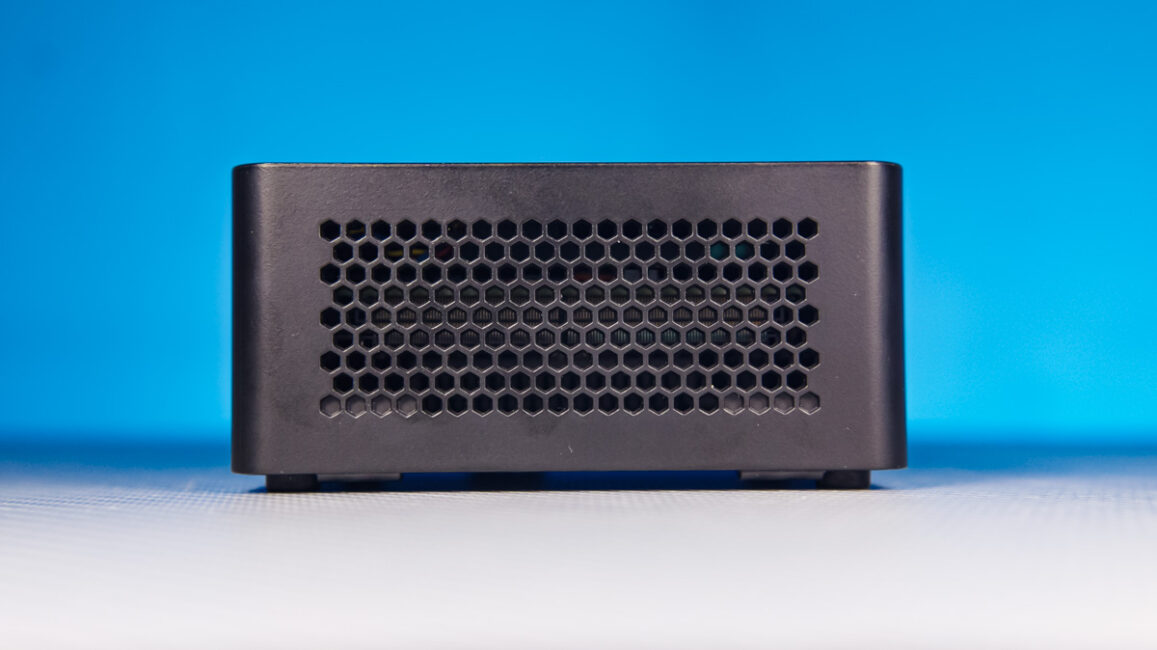
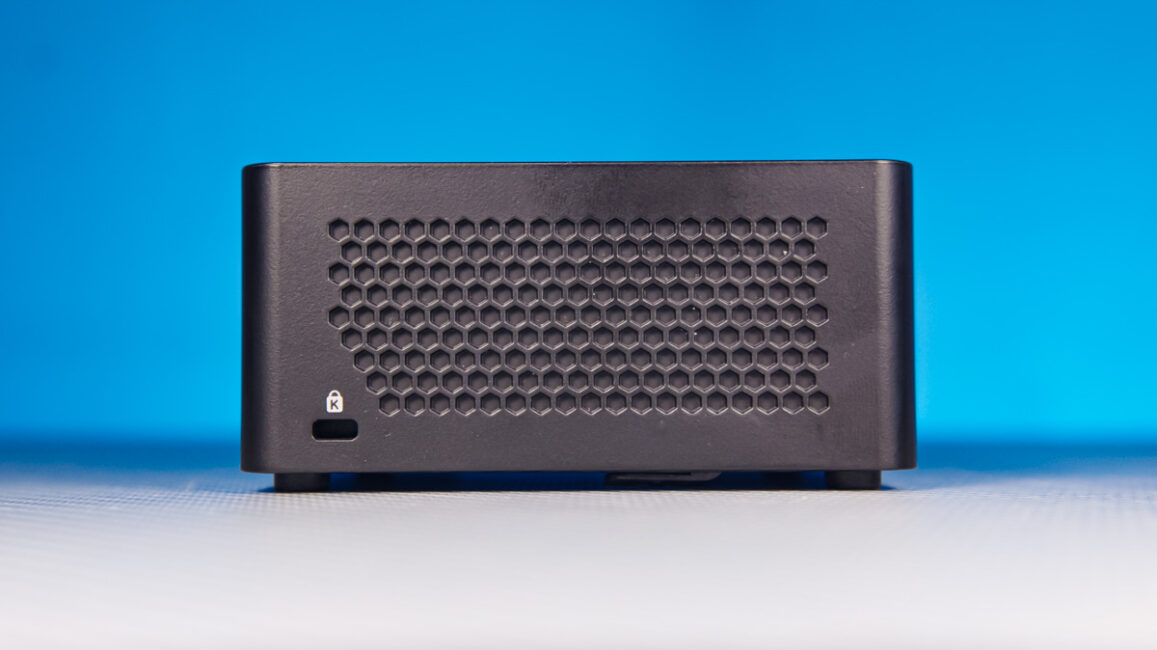
The ASUS NUC 15 Pro has the appearance of a compact plastic box with rounded edges, with ports positioned on both the front and back. The left side features a hexagonal plastic texture, while the right side has ventilation openings for air intake. Warm air is expelled through the upper rear section of the chassis.
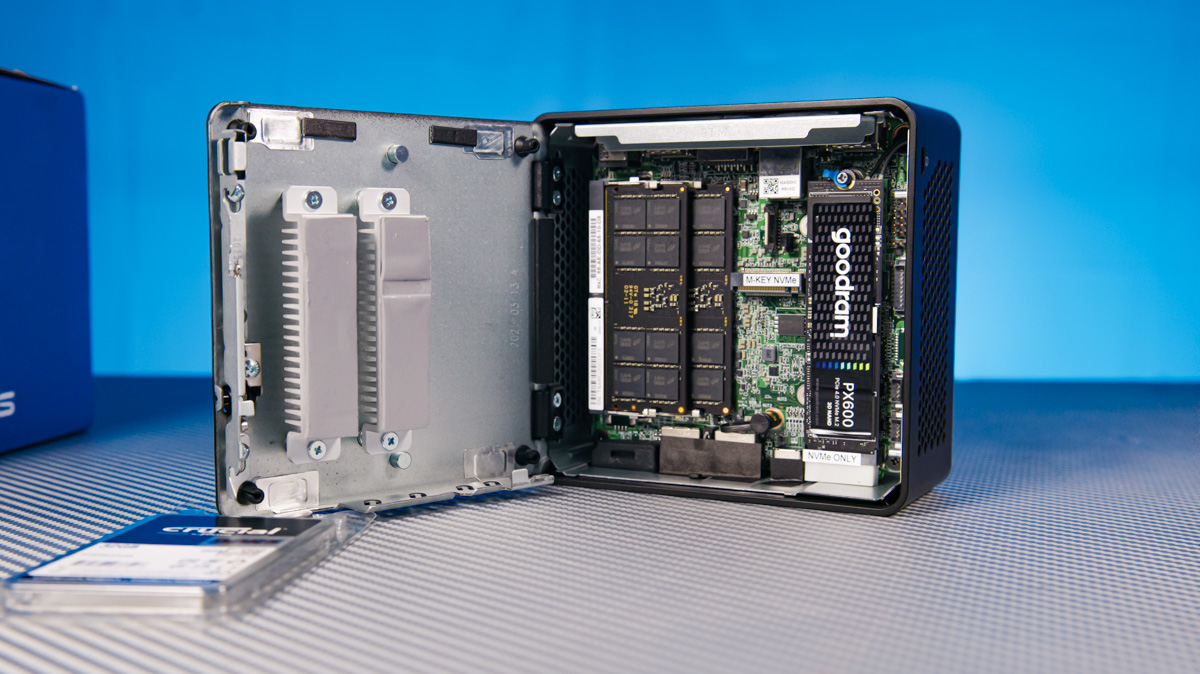
On the underside, the unit has several rubberized feet and a small hooked latch used to open the bottom access panel. This panel provides quick, tool-free access to the RAM slots and two PCIe NVMe bays: one PCIe 5.0 x4 (2280) dedicated to storage, and another PCIe 4.0 x4 (2242) with a more flexible purpose – the reason for that flexibility I’ll explain later.
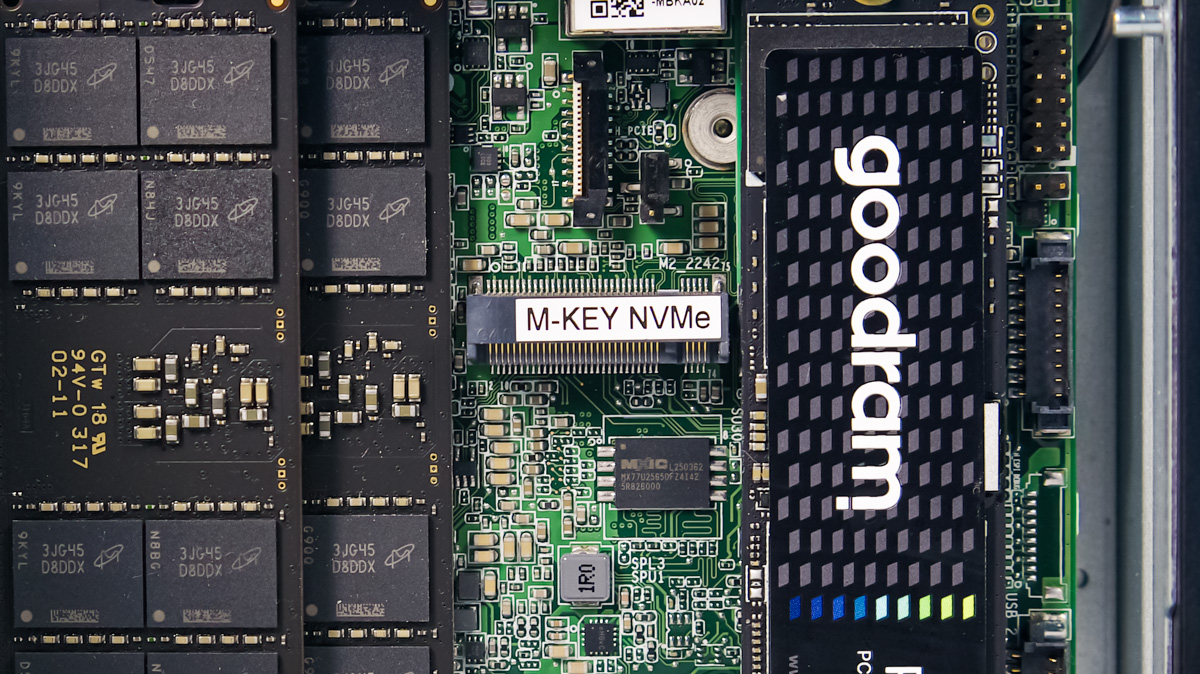
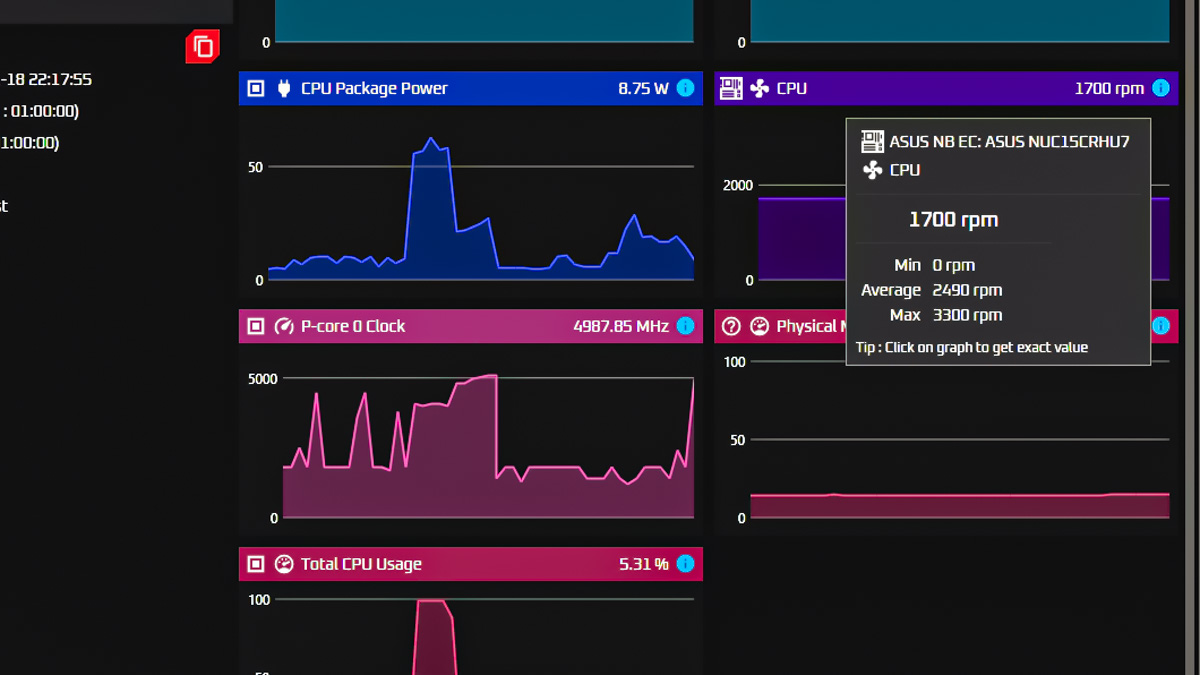
All of these interfaces are easy to access. Reaching the processor and the cooling system, however, is considerably more difficult. In practice, there’s little reason to open that part of the device: the processor and network controllers are soldered to the board, and the cooling system follows a typical laptop-style design with a single fan capable of operating anywhere between 0 and 3300 RPM. Notably, the ASUS NUC 15 Pro can run passively when required, allowing for completely silent operation.
It’s also worth noting that the unit carries MIL-STD-810H certification. This doesn’t imply dust or water resistance – rather, it indicates that the chassis can withstand extremes of temperature, both hot and cold. For more details on what MIL-STD-810H entails and how it differs from standards like IPX, see the dedicated explanation here.
Connectors and peripherals
The front panel features two USB Type-A ports (10 Gbps), one USB Type-C port (20 Gbps), and a power button.
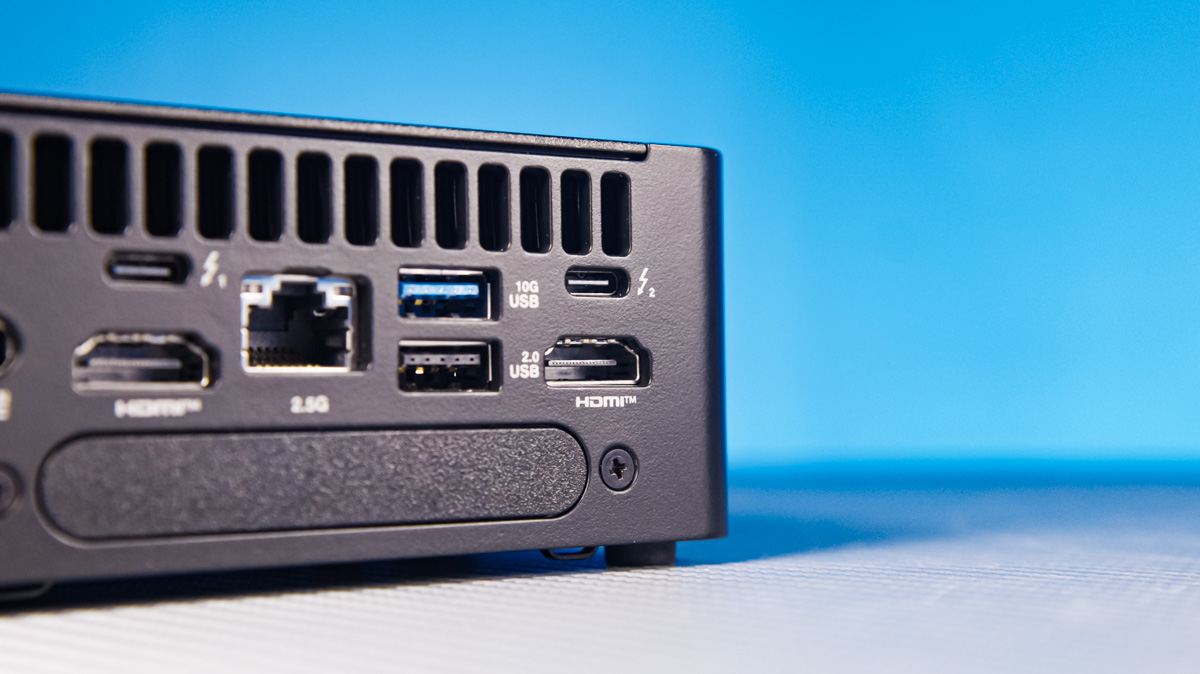
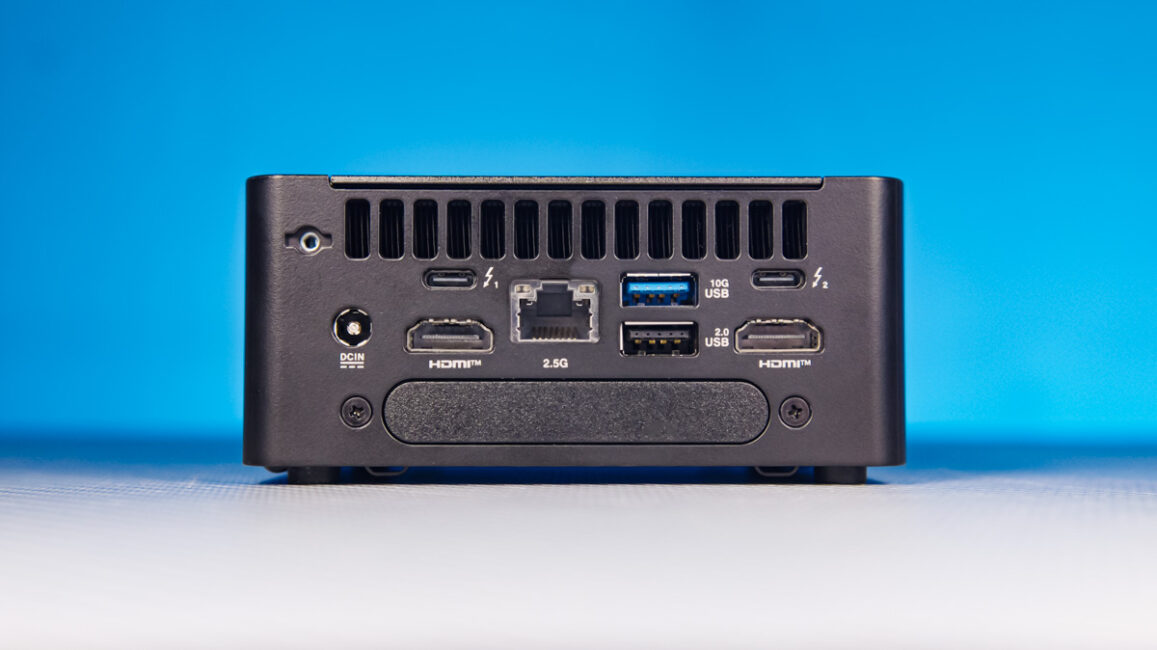
The rear panel includes a DC barrel connector, two HDMI 2.1 TMDS ports, a 2.5 Gbps LAN port (I226-V), one USB Type-A port (10 Gbps), and a legacy USB 2.0 port (480 Mbps). Flanking the USB 2.0 port are two Thunderbolt 4 ports (40 Gbps) that support the mobile version of DisplayPort 2.1.
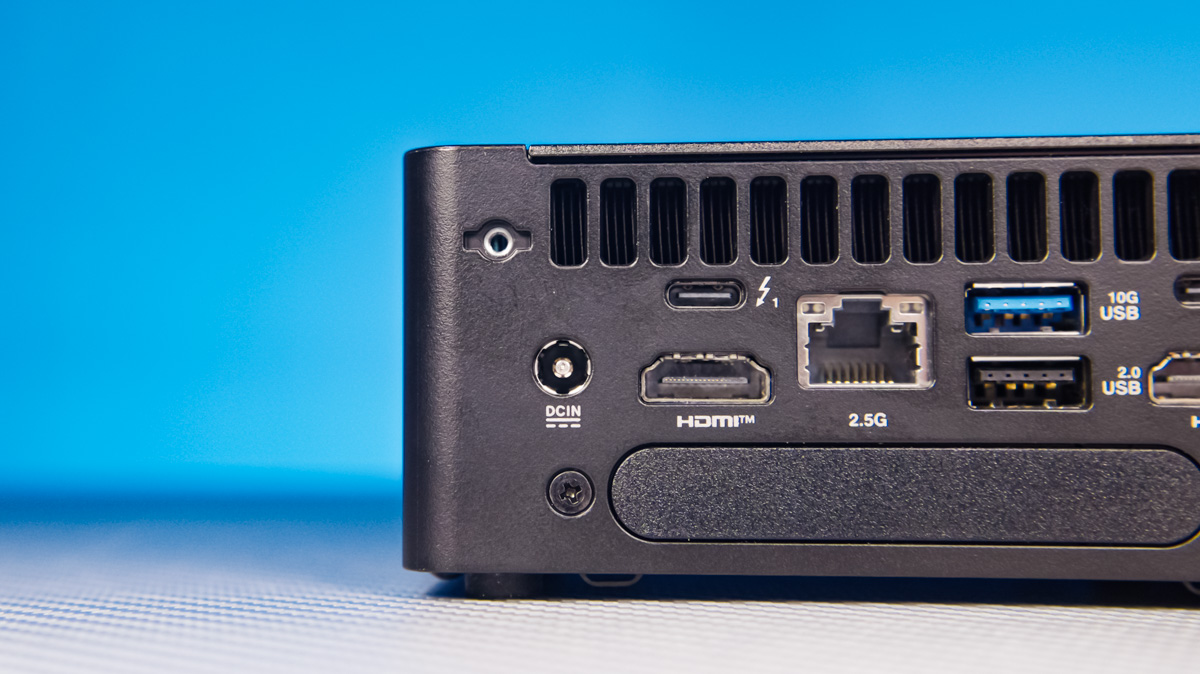
Yes, the video outputs are not fully high-speed – for example, the HDMI port cannot deliver more than 4K at 60 Hz. This is a common limitation of mobile platforms. I was also surprised not to see any audio jack, even a combined one. However, with this many USB ports, including Thunderbolt 4, connecting a quality USB sound card or even a headset stand like the ROG Throne, which includes a 7.1 sound card and additional USB ports, should be straightforward.
Capacities
Next, let’s look at the specifications. Everything ultimately revolves around the processor. Since it is soldered to the board, it cannot be replaced, so you need to choose the model that best fits your needs. For this review, I received the ASUS NUC 15 Pro equipped with the Intel Core Ultra 7 255H – a choice that frustrates me. Why? Because it perfectly illustrates what I expect from mid-range processors compared to premium models.
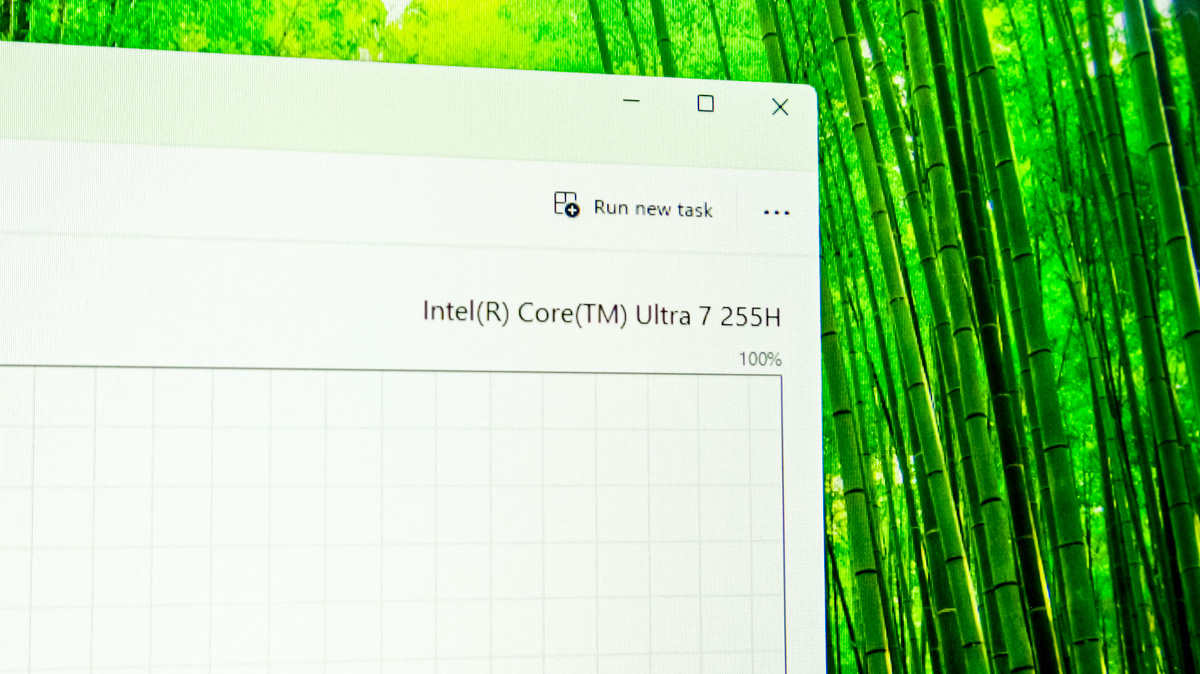
I’m comparing it to the Lenovo Legion 7 Pro, which has the Intel Core Ultra 7 275HX. On paper, it has more cores and a higher TDP, but the integrated graphics are significantly weaker. That’s frustrating for me because, in my personal workloads, the opposite setup would be far more advantageous – especially during power outages, when a laptop’s integrated GPU can help prevent rapid battery drain during essential tasks.
Read also:
- End of Specs Race: How Many Megapixels Can Human Eye Actually Perceive?
- 19 Minutes to Apocalypse: Review of ‘A House of Dynamite’ (No Spoilers!)
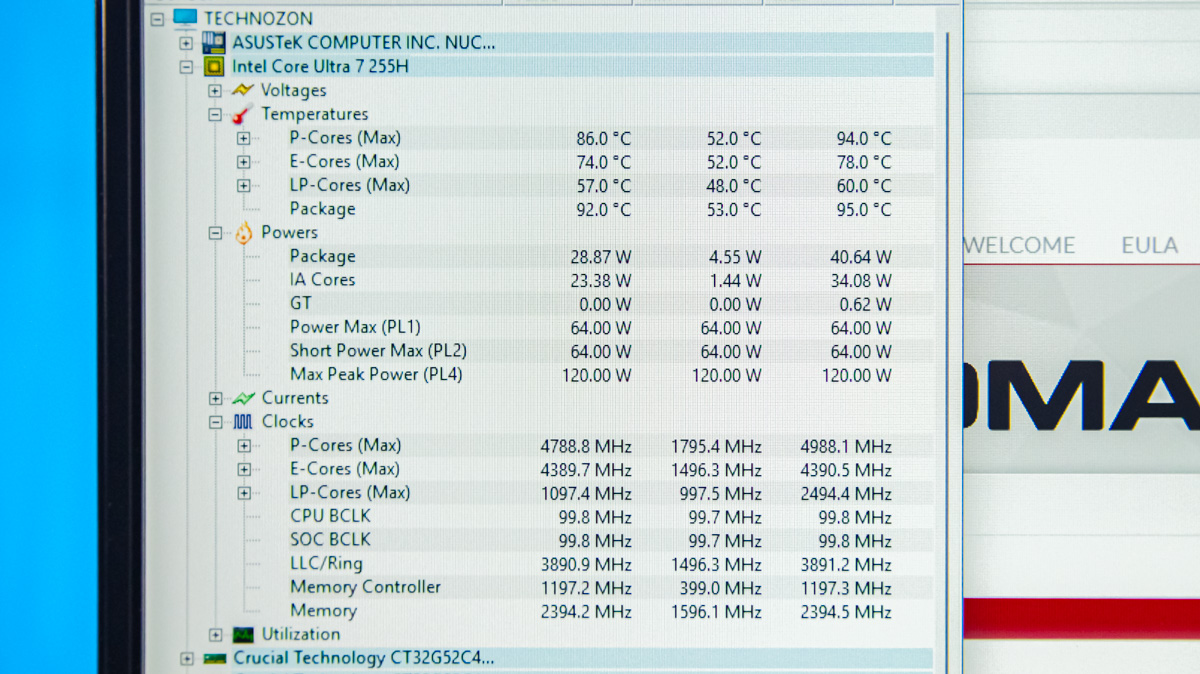
Specifically, the Intel Core Ultra 7 255H is a 16-core processor from the Arrow Lake generation. It features a triple-tier design: six high-performance P-cores (Lion Cove) clocked up to 5.1 GHz, eight efficiency E-cores (Skymont) up to 4.4 GHz, and two ultra-efficient Skymont cores running at 2.5 GHz. The processor has 24 MB of cache and a TDP ranging from 28 W in its base configuration up to 155 W in PL2 mode.
The network adapter is an Intel BE201, supporting Wi-Fi 7 and Bluetooth 5.4. It is installed in an M.2 2230 slot, which is not easily accessible. However, that’s not really an issue, as there’s currently nothing better on the market, and it’s unclear when a superior solution will become available.
Graphics
The system is equipped with an Intel Arc 140T GPU. It features 1,024 unified cores, 64 texture units (TMUs), and 32 render output pipelines (ROPs). Its performance in AI-related tasks reaches up to 77 TOPS, and in gaming scenarios, the GPU performs quite well.
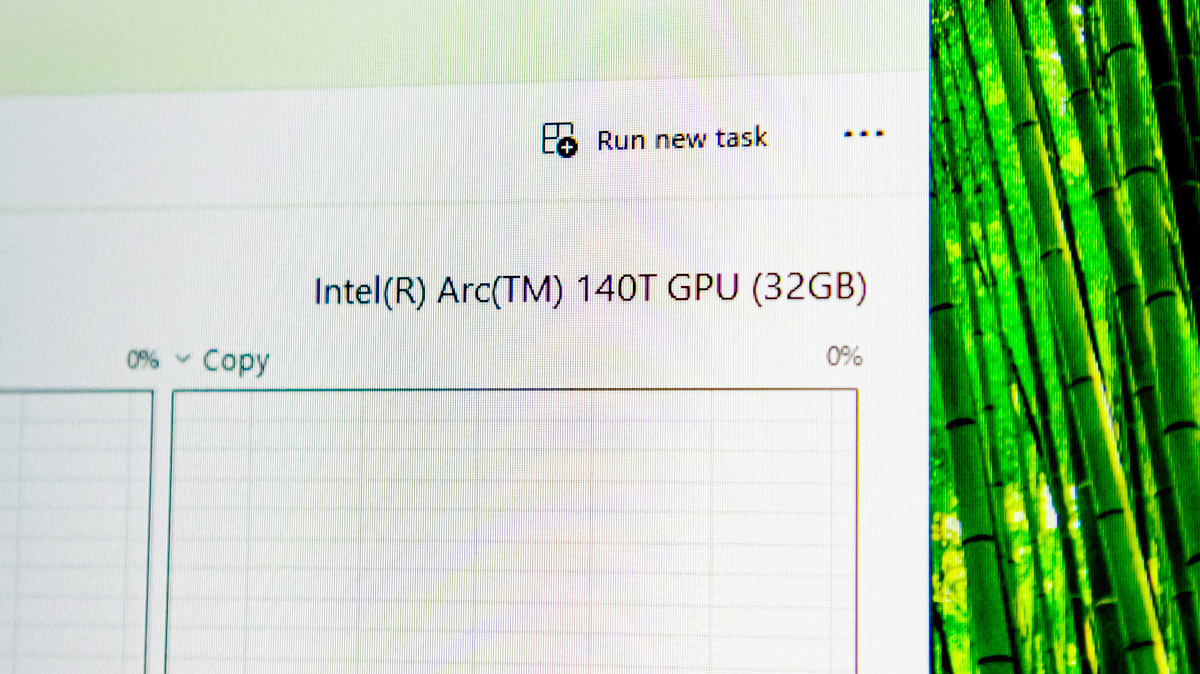
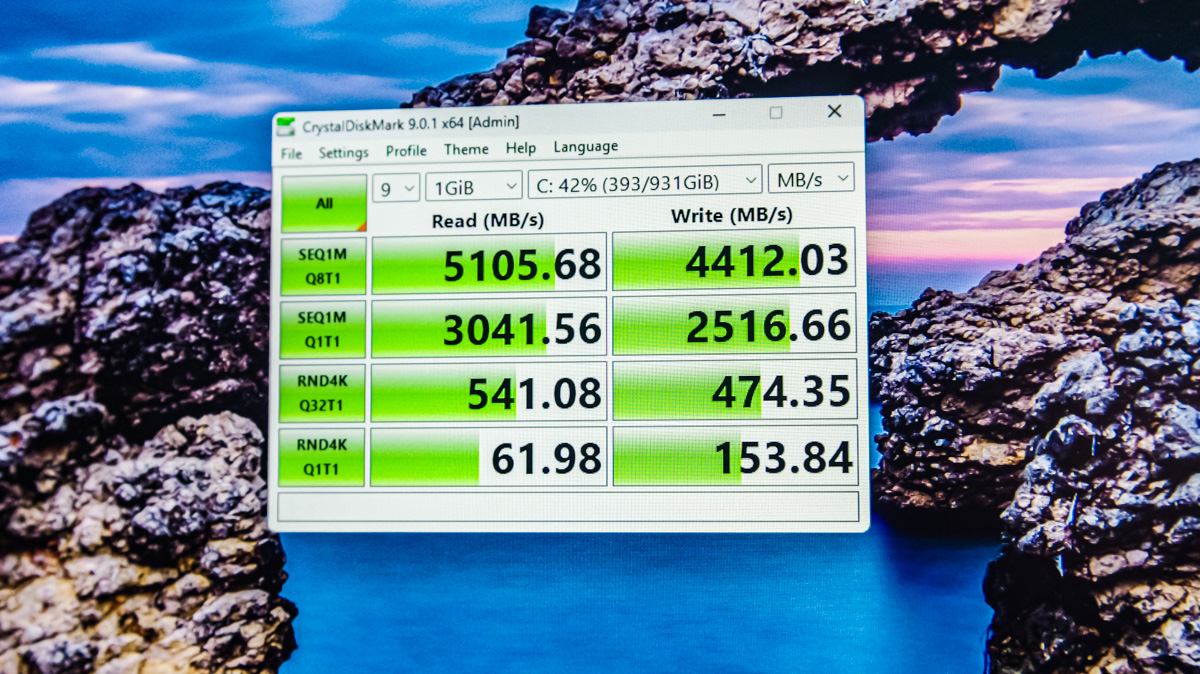
A 4,000 score in Time Spy translates to over 100 FPS in esports titles such as Fortnite or Apex Legends – though only at Full HD resolution, even on ultra settings. The storage performance is also solid, with speeds reaching up to 5,100 MB/s.
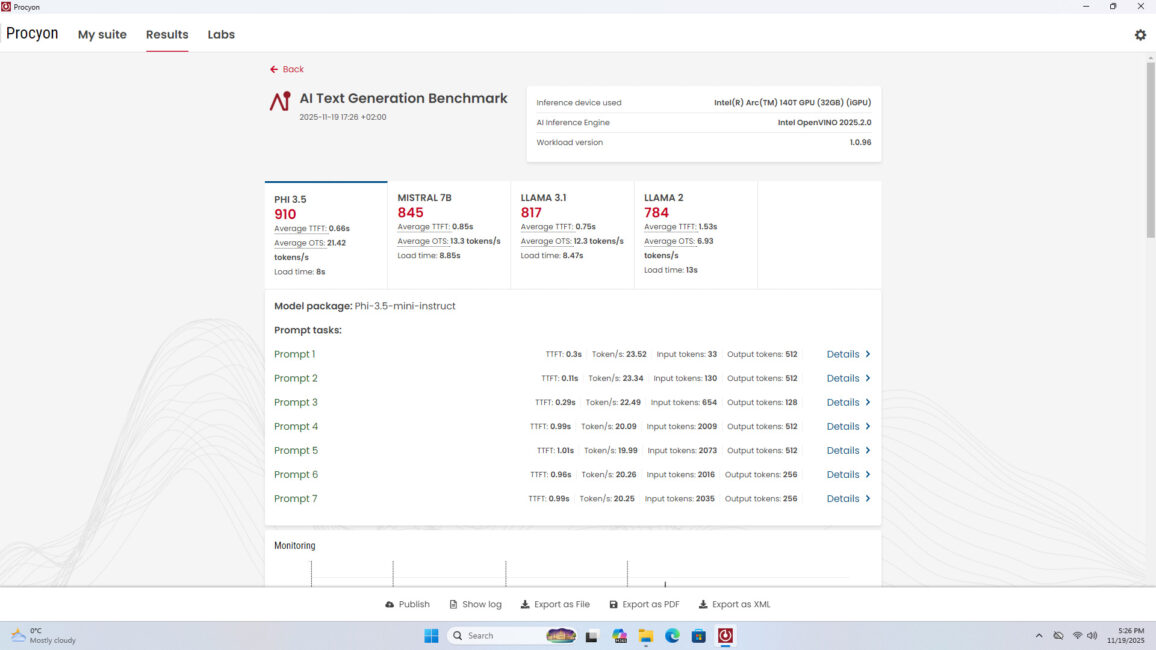
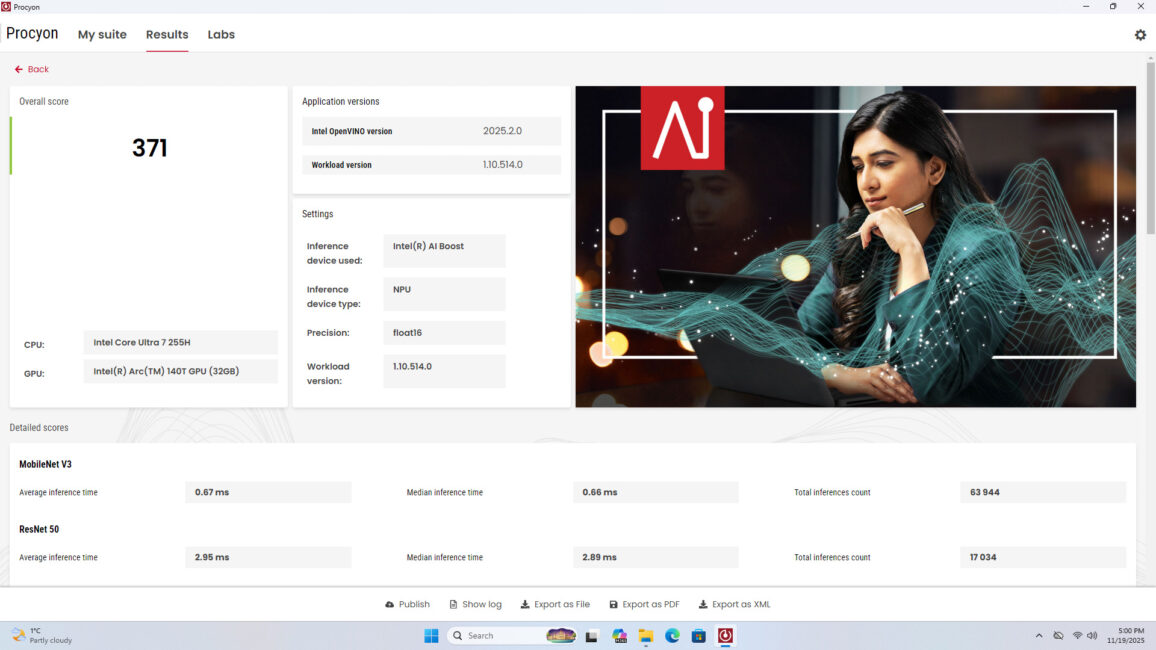
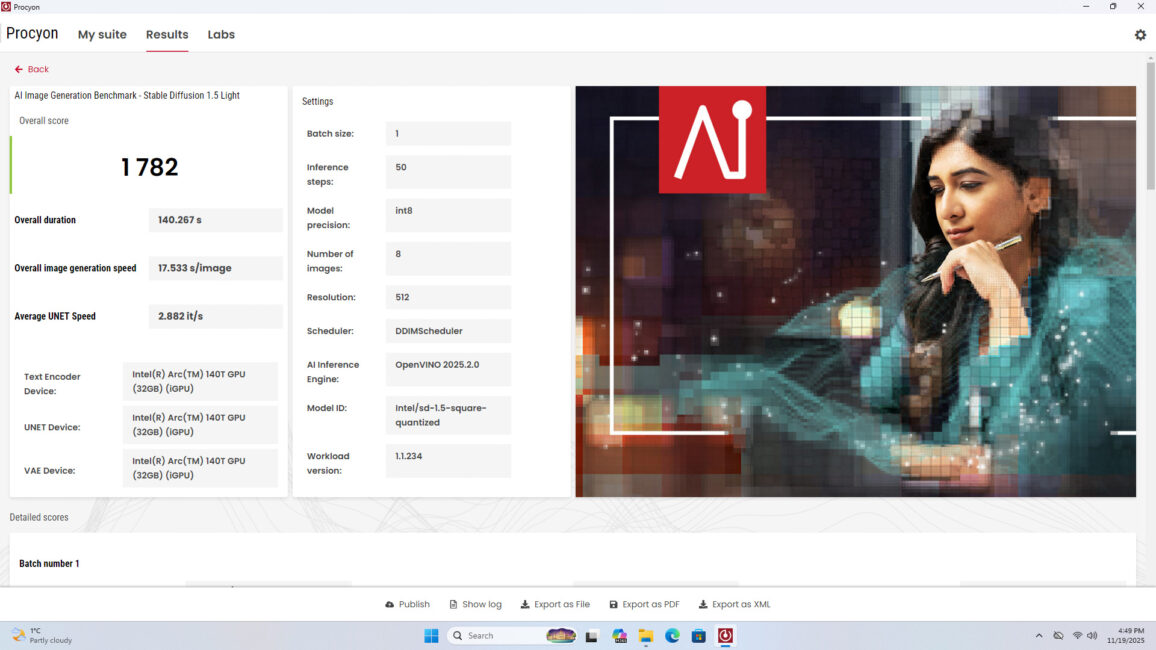
With support for up to 92 GB of RAM, the ASUS NUC 15 Pro presents itself as a compact and cost-effective option for AI development. While it is significantly less powerful than mini-PCs based on the Ryzen AI Max+ 395, it costs roughly a third as much – and, importantly, the RAM is not soldered. For reference, I’ve included benchmark results below, including tests in AI workloads with Procyon and in Adobe Premiere Pro.
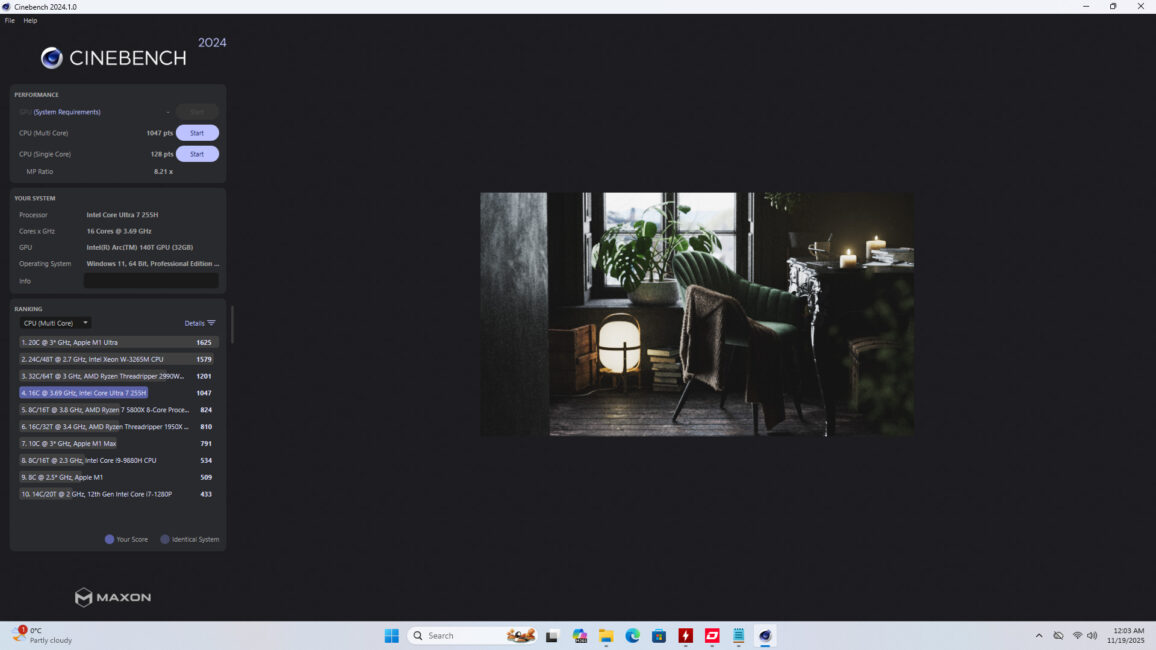

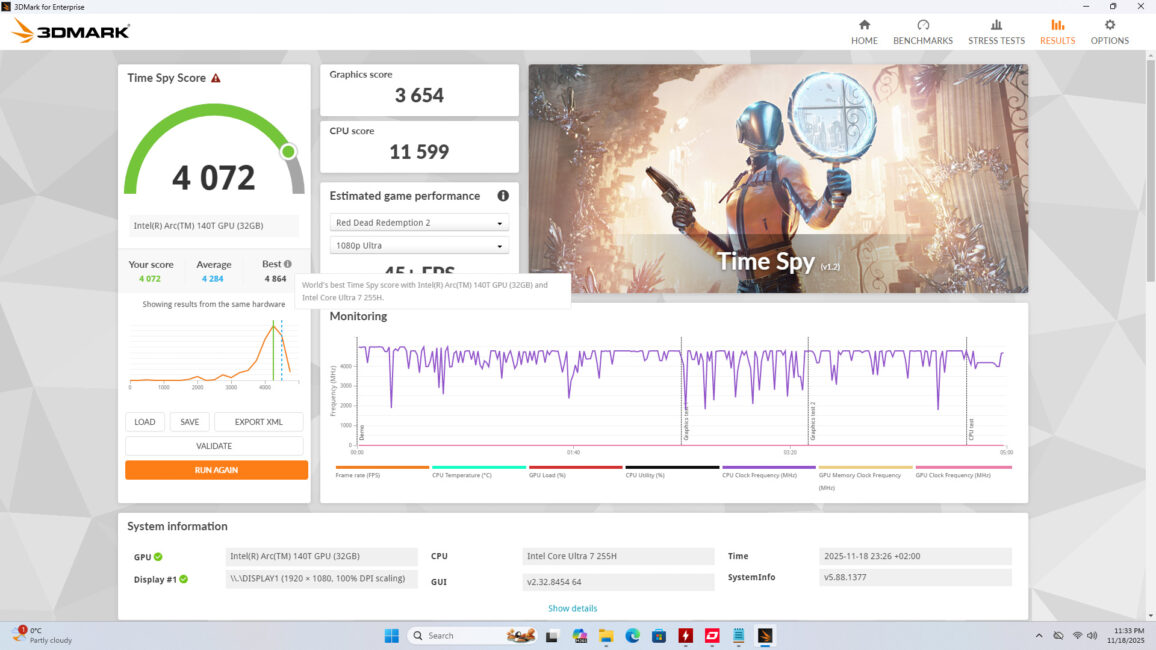
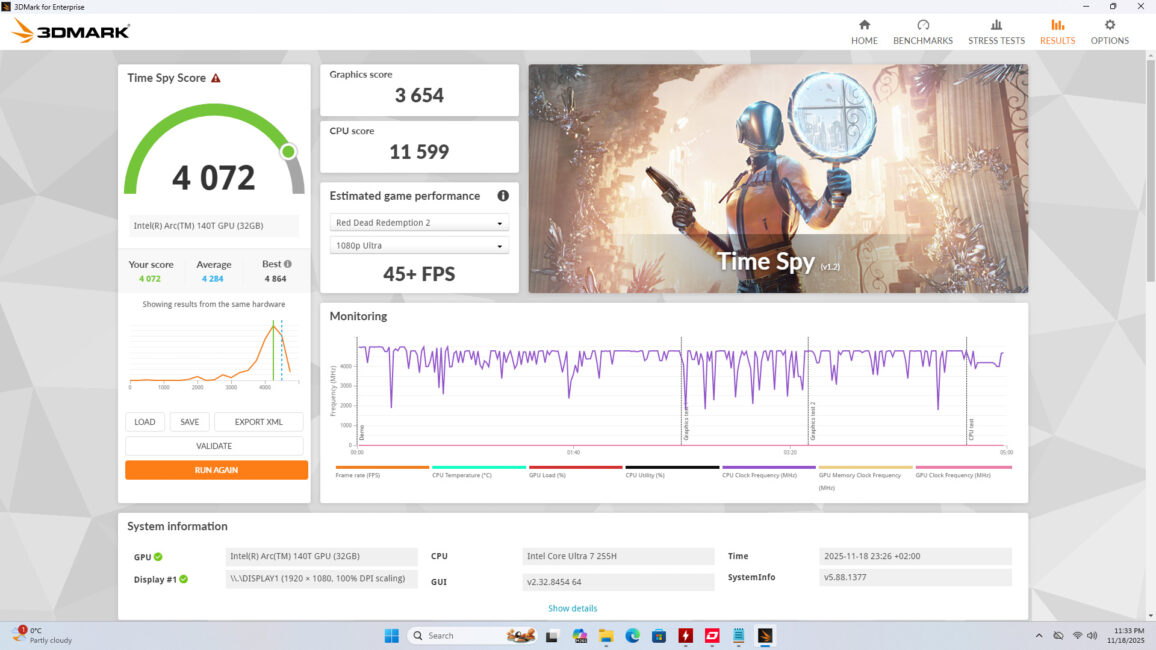
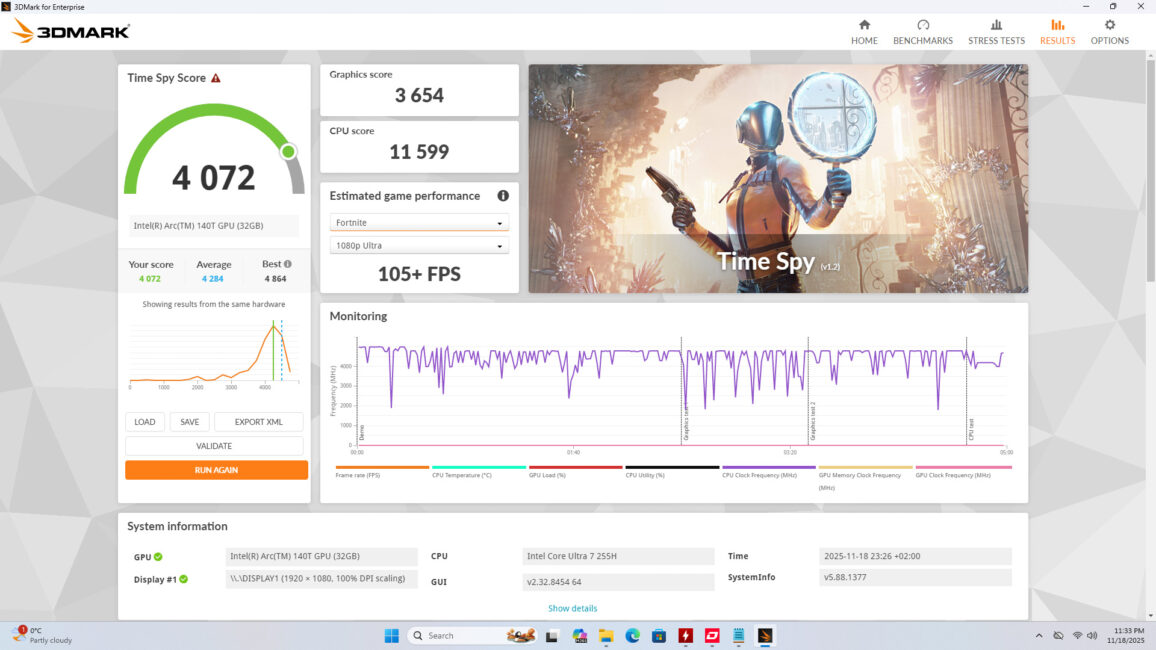
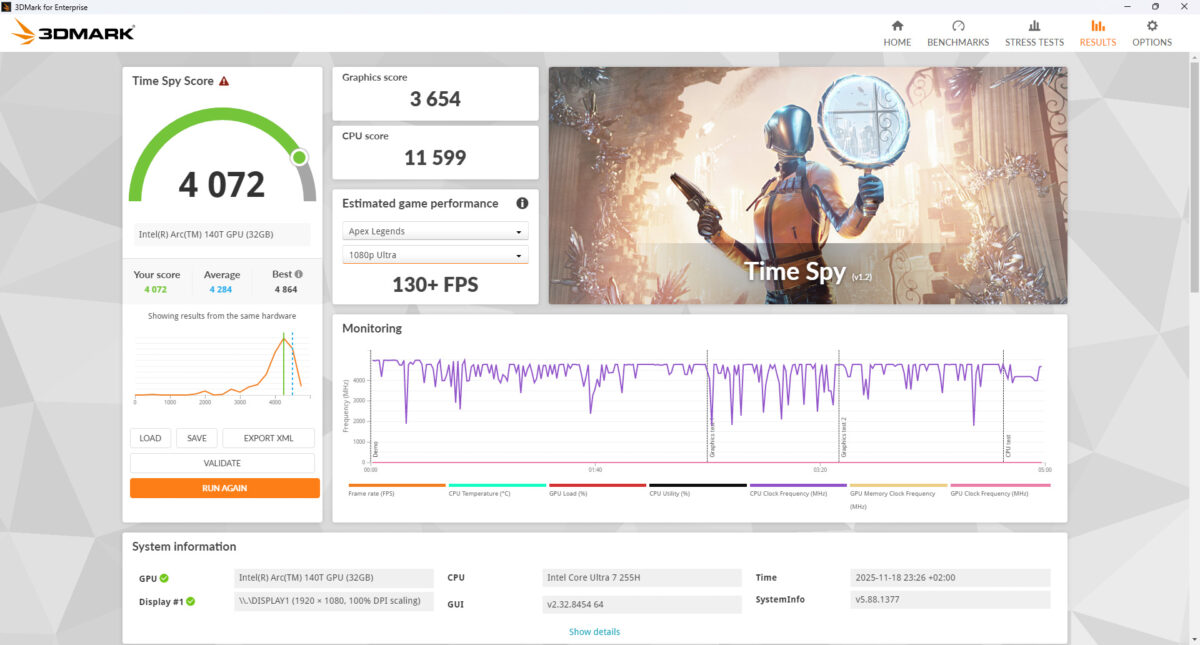
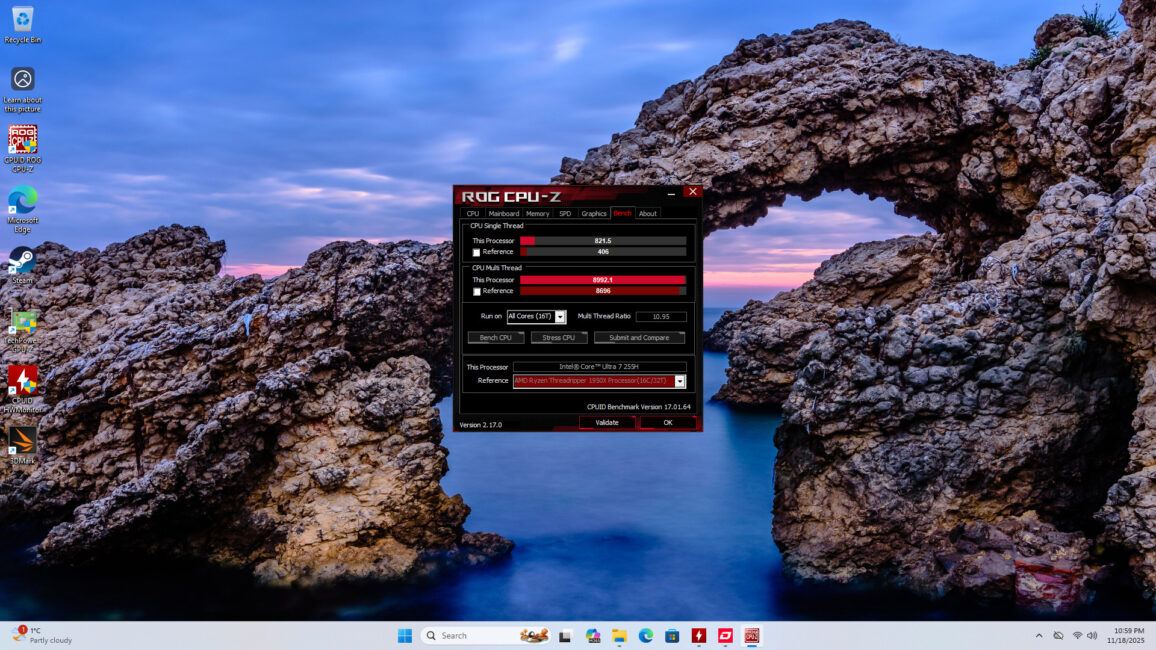
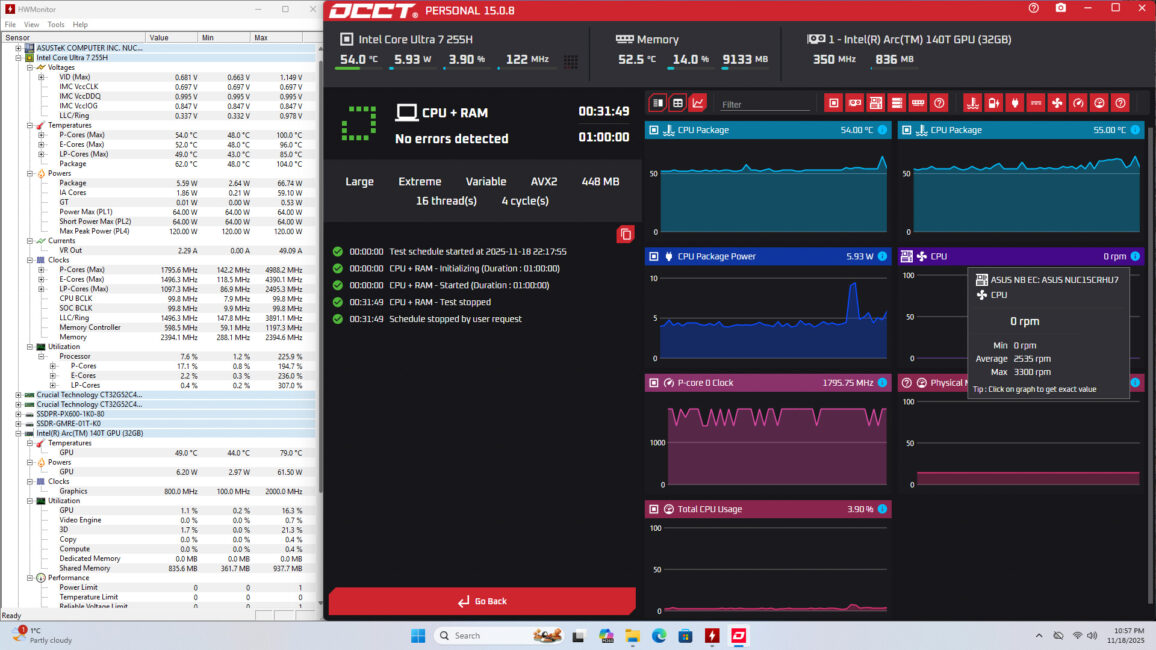
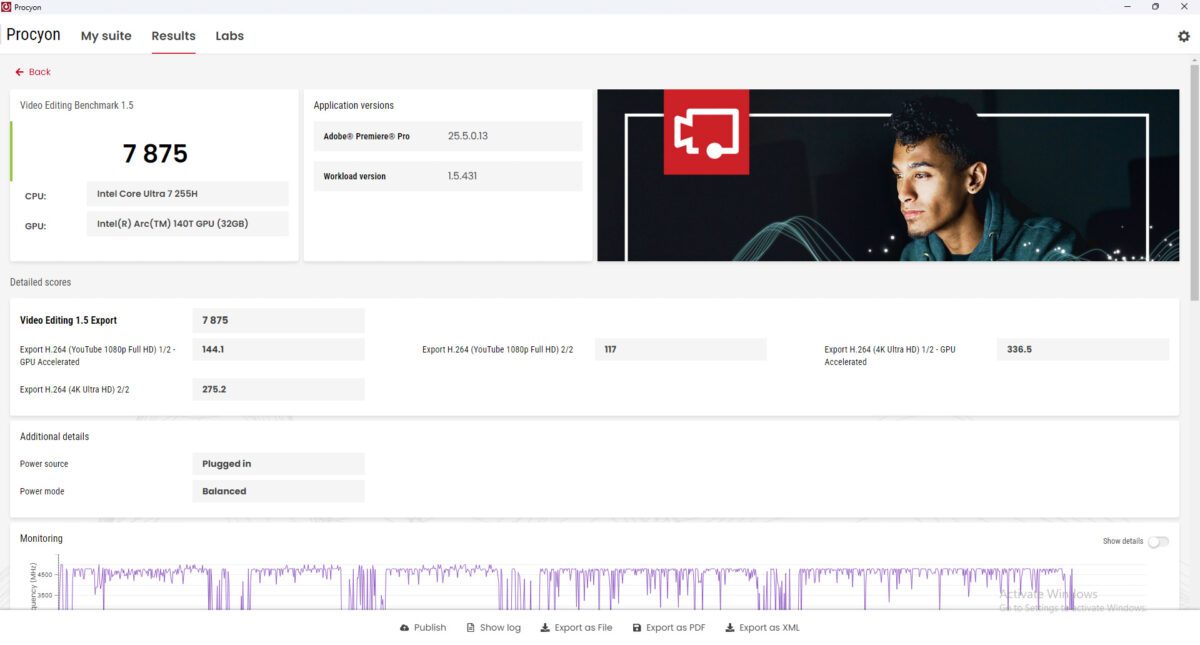
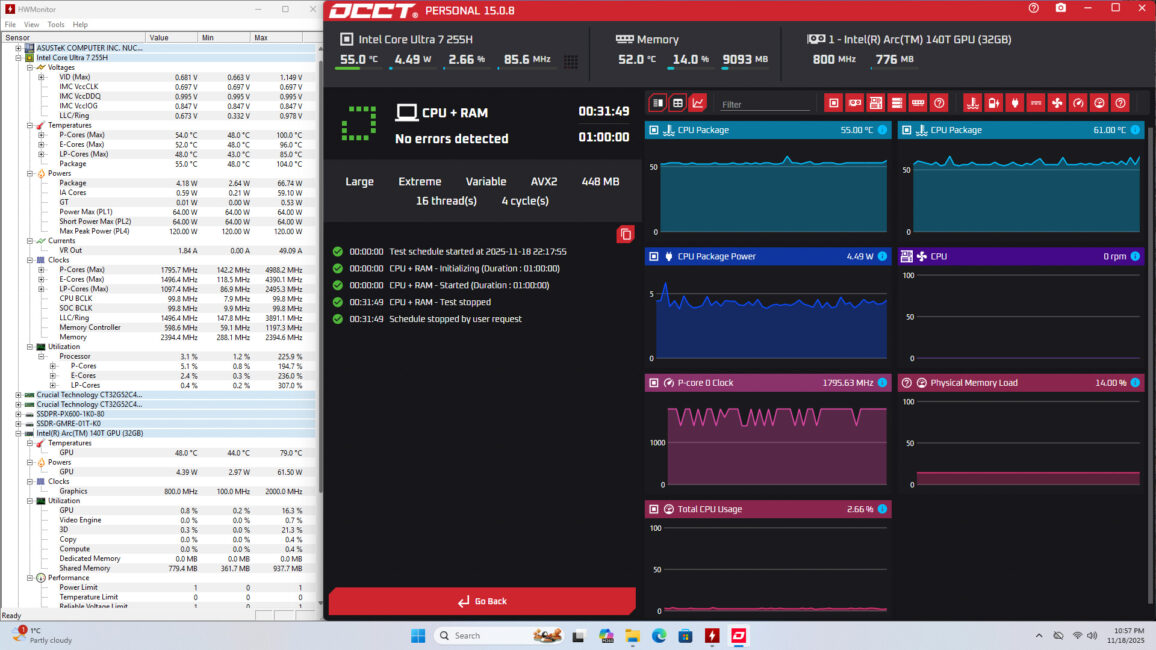

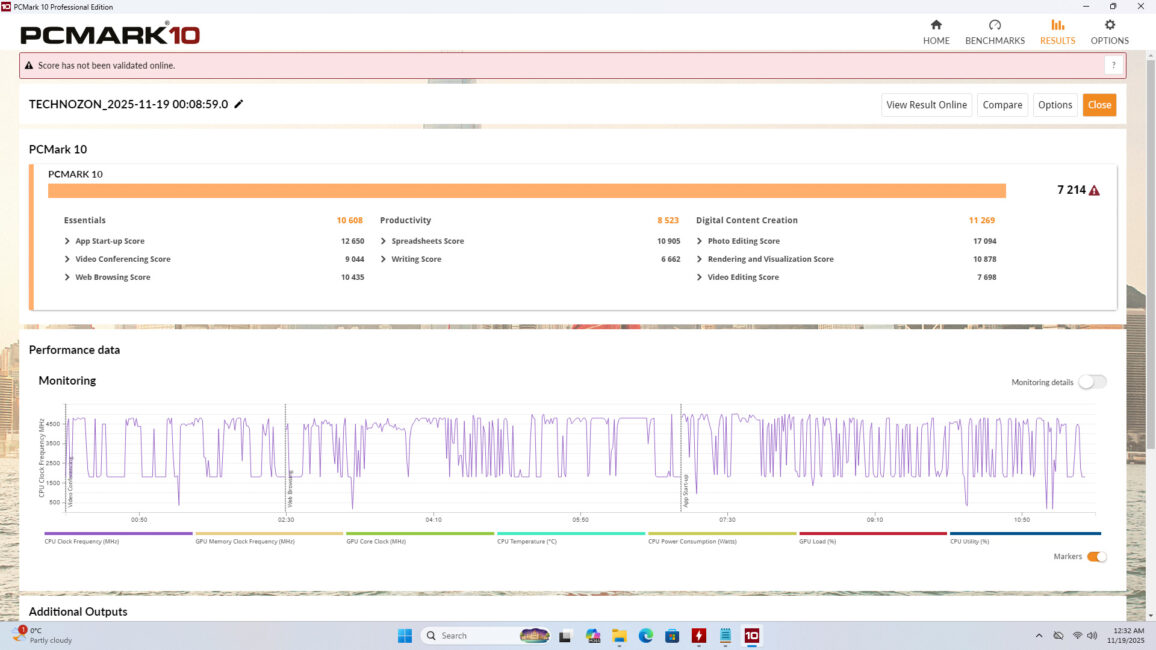
Regarding heat and noise: the single fan, with speeds up to 3,300 RPM, is objectively insufficient to keep the processor fully within comfortable thermal limits. During an OCCT stress test, the Intel Core Ultra 7 255H reached temperatures up to 100 °C, with power consumption peaking at 66 W. However, it’s worth noting that clock speeds remained respectable under load: 3.9 GHz for the P-cores, 3.5 GHz for the E-cores, and 2.0 GHz for the ultra-efficient E-cores.
Conclusions
This mini-PC – which in practice often functions like an all-in-one – is clearly a specialized device. Its value has notably increased recently due to the growing interest in AI applications. When considered beyond basic office tasks, the ASUS NUC 15 Pro is genuinely compelling: versatile, surprisingly powerful, premium in build, quiet, and compact. Mount it behind a monitor using a VESA mount, and you effectively have a high-performance all-in-one setup – even the power button is conveniently positioned.
Read also:
- ASUS ROG NUC 970 Mini-PC Review: Power in Compact Form
- Impressions of the Artline Gaming Desk PC 1200 Black: A Concentrated “Wow”
- ingston Dual Portable SSD 1TB Review: Compact External SSD

