





© ROOT-NATION.com - Use of content is permitted with a backlink.
Can a budget monitor under $145 deliver a decent gaming experience? And is it really wise to cut costs on the display when building an entry-level gaming PC? These are the questions explored in this review of the GIGABYTE GS25F2 – a new 200 Hz monitor with support for FreeSync Premium adaptive sync.
TABLE OF CONTENTS:
Specification
- Model: GIGABYTE GS25F2
- Diagonal and type of screen panel, coating: 24.5’, Super Speed IPS, matte finish
- Resolution: 1920×1080 pixels
- Backlight: Front, white LED
- Refresh rate, support for adaptive synchronisation: 200 Hz, AMD FreeSync Premium
- Response time: 1 ms (GtG)
- Number of reproduced colours: 16.7 million
- Охоплення кольорового простору: sRGB 120%
- Support for HDR: HDR 10
- Brightness: 300 cd/m² (declared), in fact – more
- Contrast ratio: 1000:1
- Interfaces:
- HDMI 2.0 ×2
- DisplayPort 1.4 ×1
- minijack for headphones
- Screen position adjustment: tilt, -5° to +20°
- Power supply: built-in to the monitor body.
Packaging and equipment
The box for the GIGABYTE GS25F2 is relatively lightweight, but it’s a nice touch that the manufacturer included a carrying handle for easier transport. The packaging features an image of the monitor, the model name, screen size, resolution, and a list of key features. Interestingly, one side of the box displays the number “25,” which might suggest a 25-inch screen, but the label on the end correctly states the diagonal as 24.5 inches.
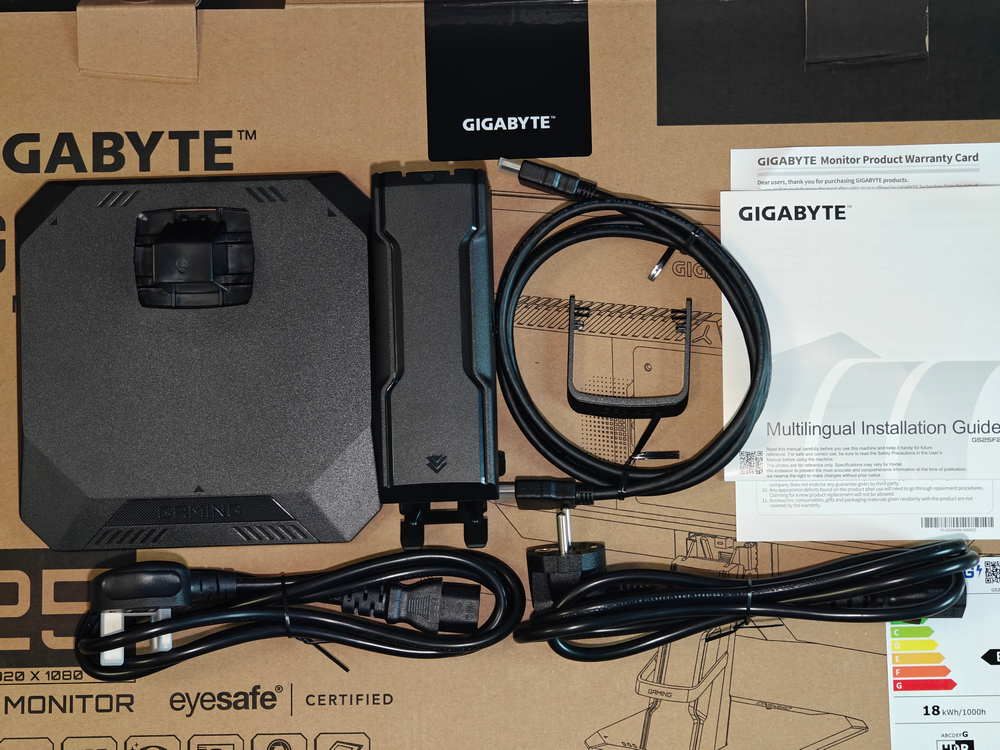
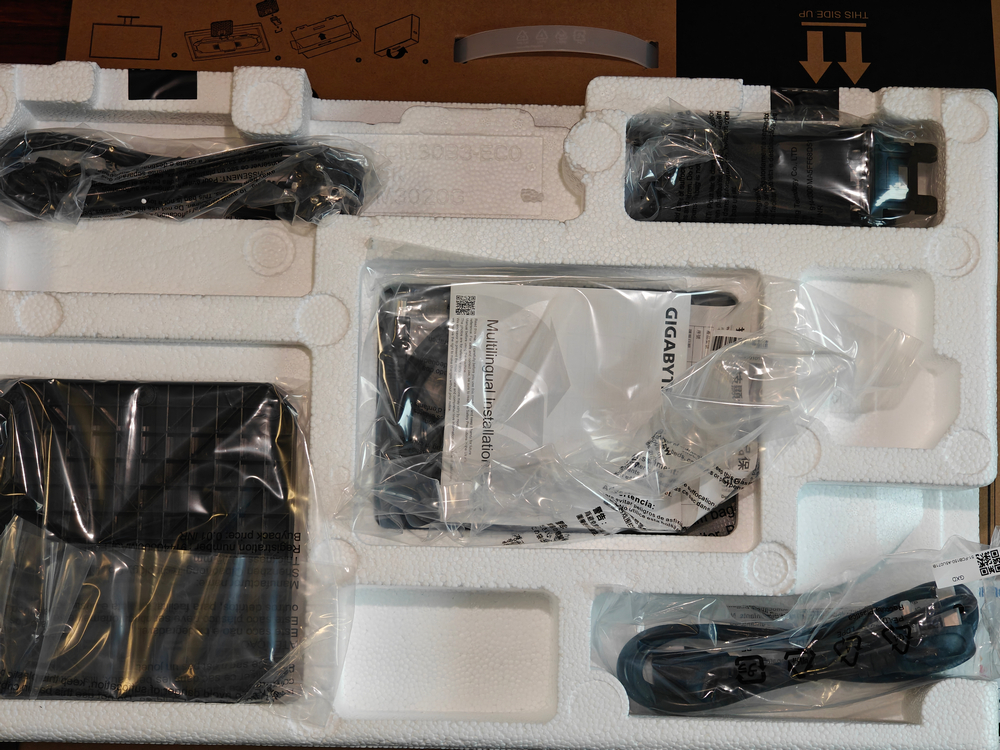
The packaging uses a two-tiered design with foam inserts to protect the monitor and accessories during transport. Inside, you’ll find two power cables (the EU version is roughly 153 cm long), a 150 cm HDMI cable, a warranty card, a quick start guide, the stand base and neck, and a cable management clip. The power supply is integrated into the monitor itself, which is a noticeable plus in terms of setup simplicity and reducing desk clutter.
Read also:Review of ASUS ZenScreen Touch MB16AHT Portable Monitor
Design and appearance
The stand base of the GIGABYTE GS25F2 is made of ABS plastic and features five small rubber feet along the edges to improve grip on a desk surface. There are no metal inserts or other elements in the base that would help lower the monitor’s center of gravity. The stand neck is also plastic, but the mounting bracket that connects it to the display is made of metal, offering a bit more durability where it matters most.

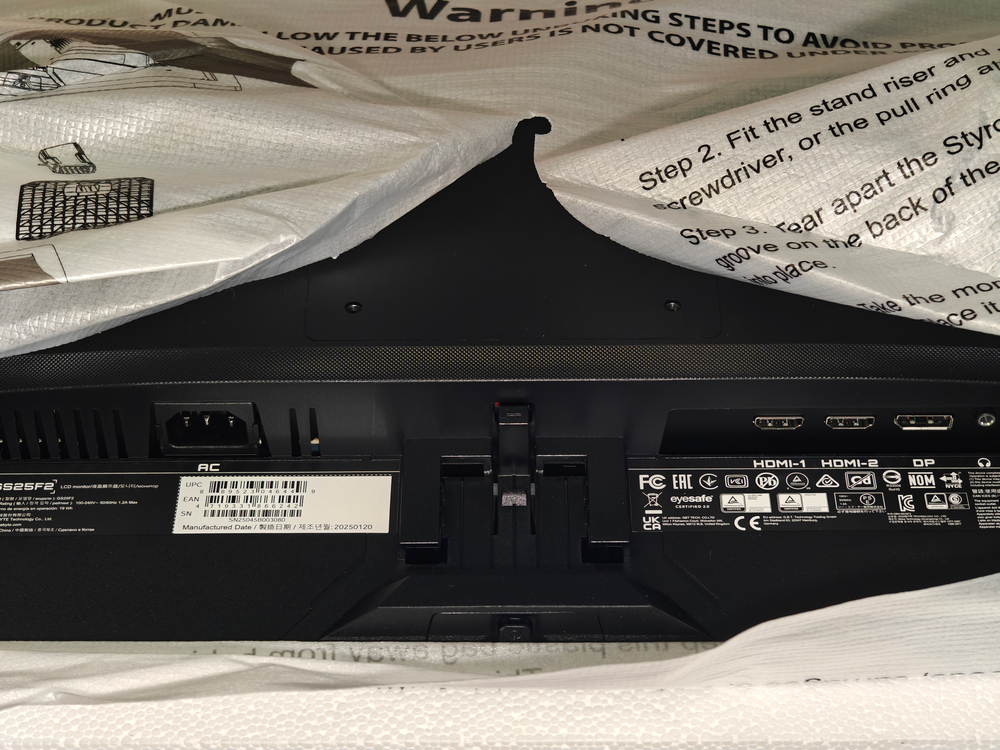
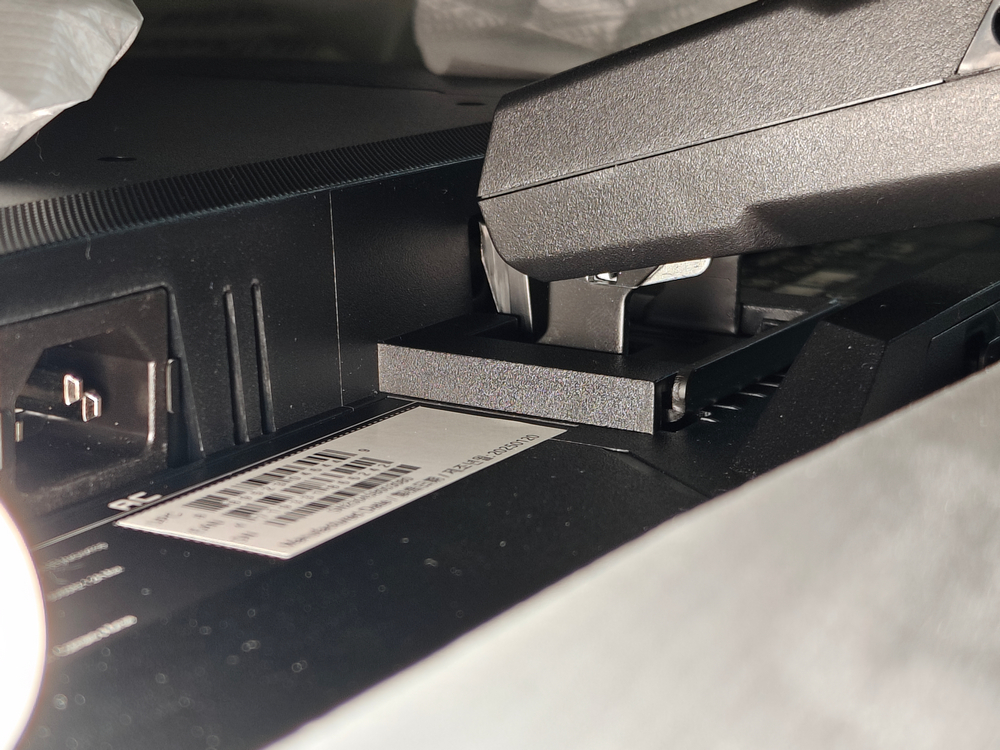
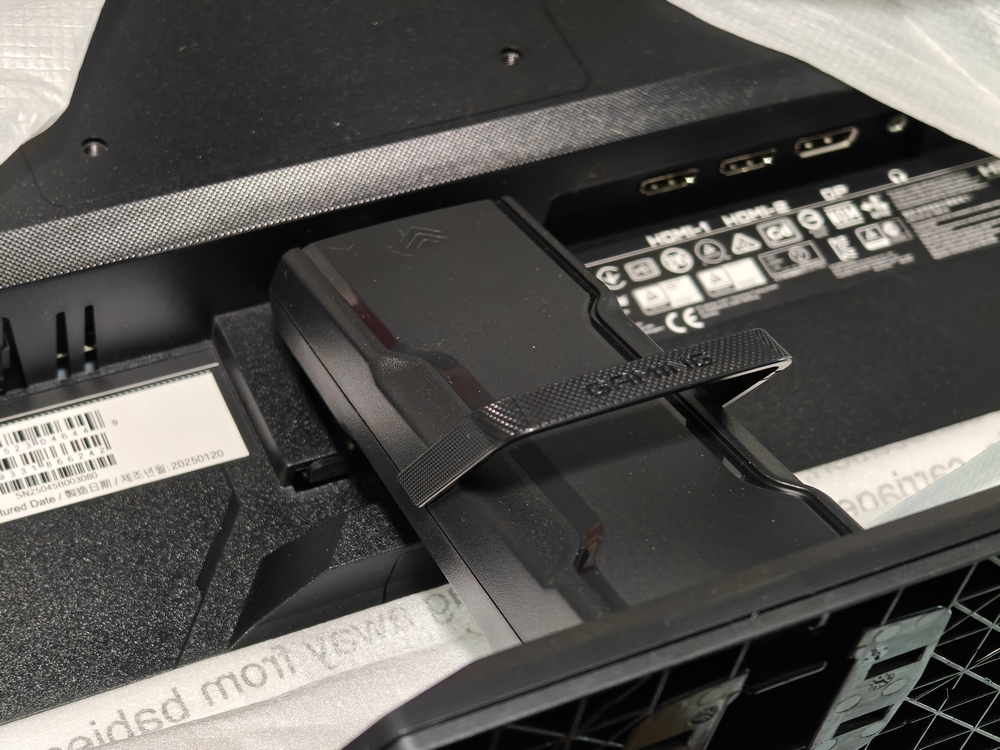
At the connection point between the monitor and the stand, there’s a plastic push-lock mechanism. Pressing this latch allows the stand to slide into the designated slots, and a distinct click confirms the stand is securely attached. Detaching it simply involves reversing the process. It’s convenient that no tools are required for assembly or disassembly. The package also includes a detachable plastic cable guide, which helps route cables neatly behind the stand. Once the stand is installed, the monitor can be safely lifted out of the packaging.
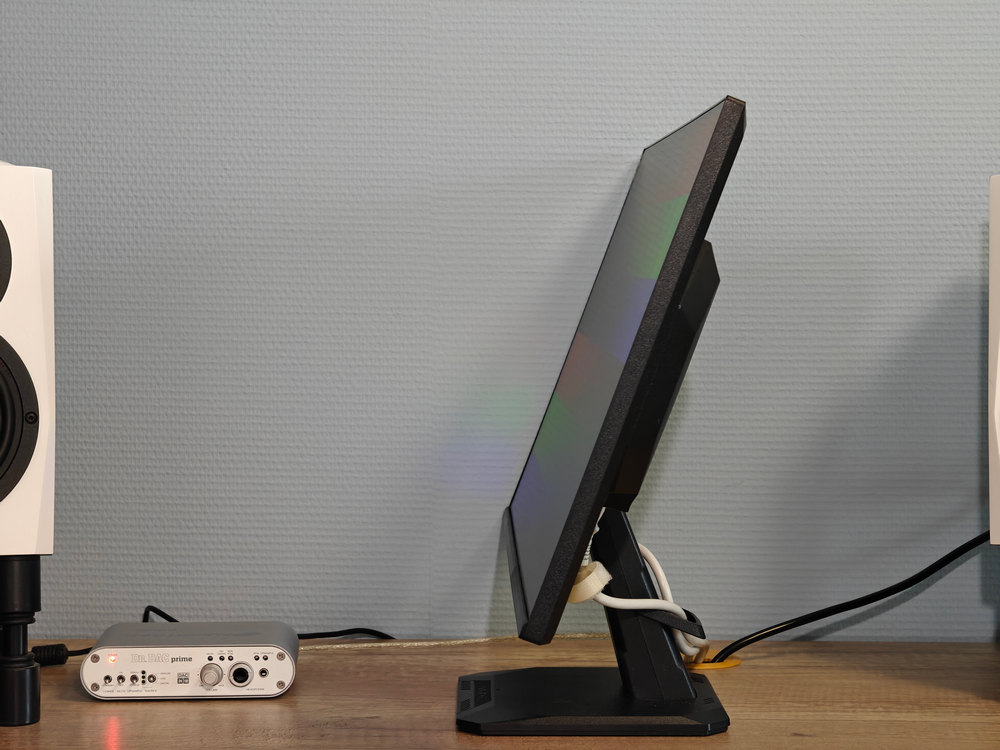

The stand of the GIGABYTE GS25F2 allows only tilt adjustment, within a range of -5° to +20°. Height adjustment, rotation, or pivot into portrait mode are not supported. This limited adjustability is a common indicator that a monitor belongs to the budget category. That said, there are exceptions – models like the Samsung 24″ Odyssey G3 offer a more versatile stand despite being similarly priced. Interestingly, GIGABYTE also offers a related model, the G25F2, which appears to differ primarily by featuring a more adjustable stand. It’s a practical approach: users can decide whether the added flexibility is worth the extra cost.
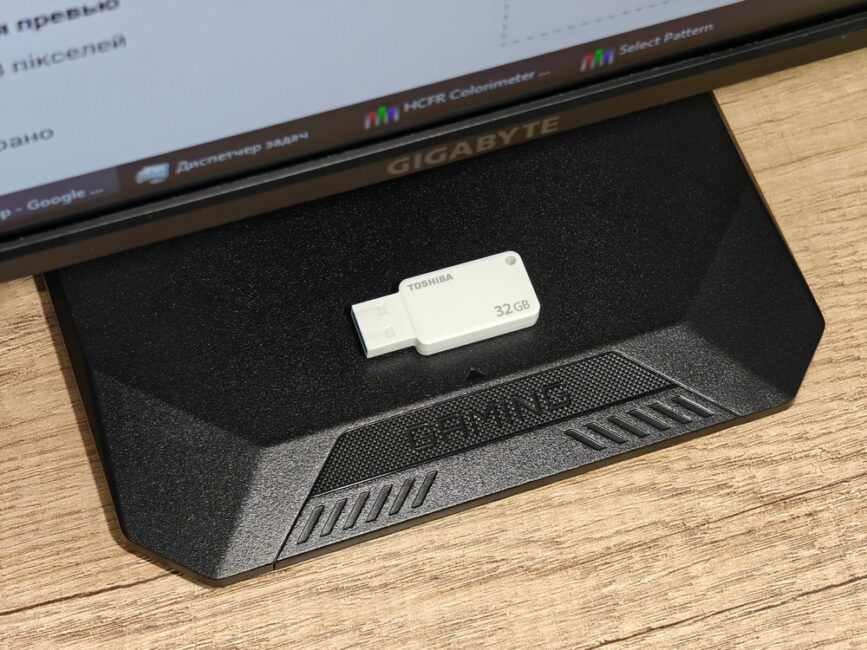
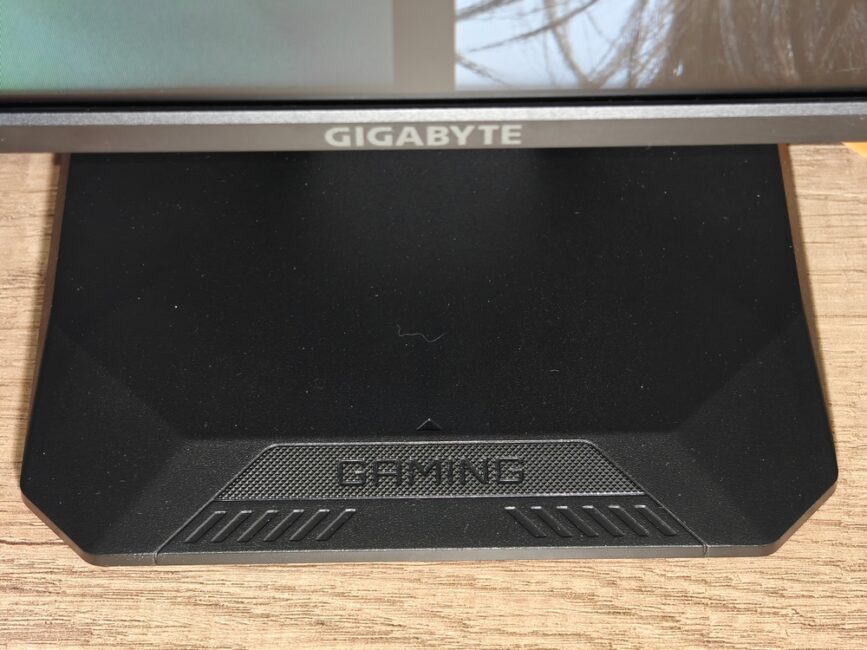
Returning to the GIGABYTE GS25F2, it’s worth noting that the base of the stand is quite compact, so it doesn’t take up much space on the desk. Both the stand’s surface and the back panel of the monitor are made of black plastic with a textured finish, which resists fingerprints well. However, dust is more noticeable on the dark surface.
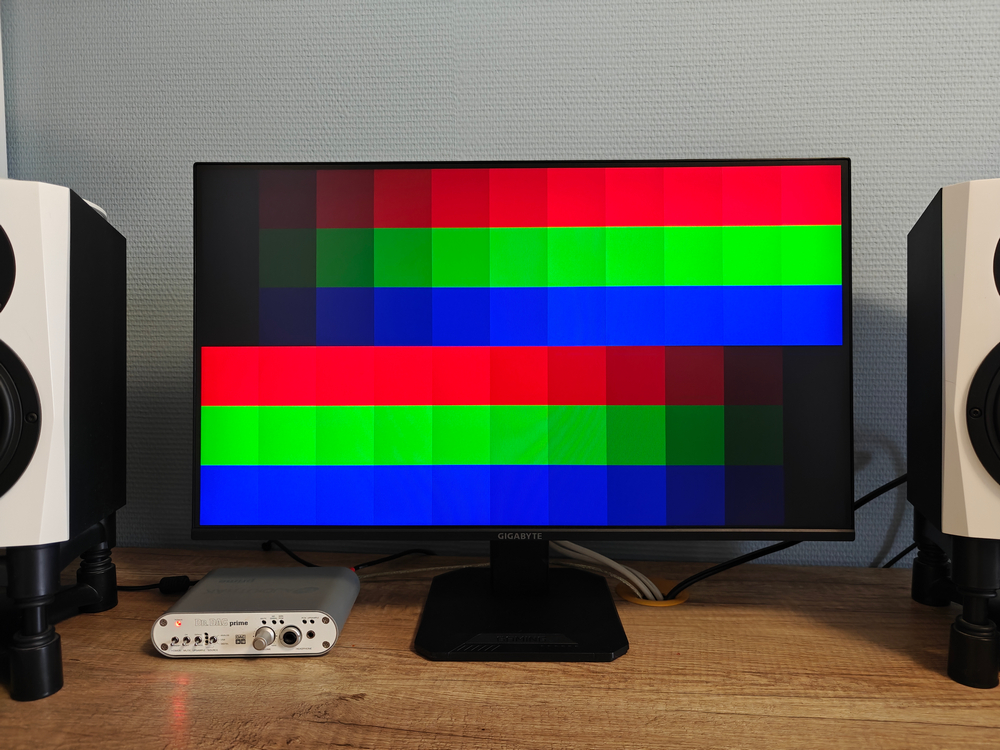
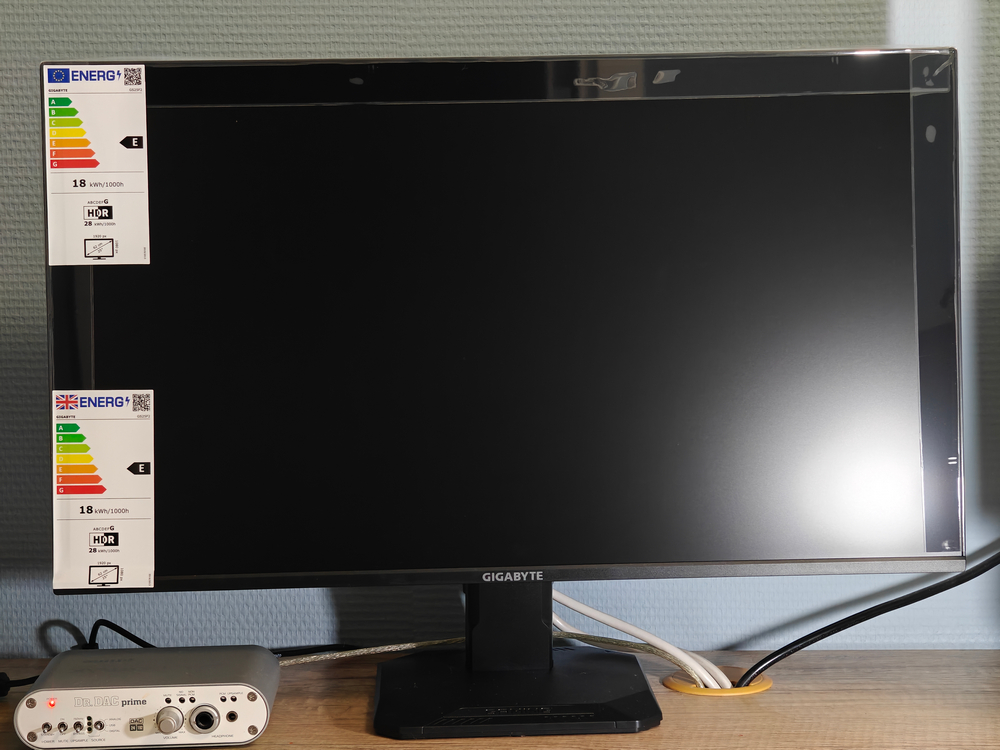
Overall, the GIGABYTE GS25F2 has a universally appealing appearance – once set up on a desk, it doesn’t overtly suggest a gaming focus, apart from a discreet “Gaming” inscription on the front of the stand’s base. Visually, it looks like a modern monitor with a minimalist, restrained design that fits equally well for both work and entertainment. The thin screen bezels enhance the aesthetics: approximately 6.5 mm on the sides, 7 mm on the top, and 10 mm at the bottom.
In terms of connectivity, the GIGABYTE GS25F2 features two HDMI 2.0 ports, one DisplayPort 1.4, and a headphone output. USB Type-C with DP Alt Mode or other advanced options aren’t present – which is expected in this price range, as such features are typically reserved for flagship models. However, a welcome addition is the built-in stereo speakers. Their volume level is moderate and the sound quality is basic: generally flat with noticeable distortion at higher volumes. Still, the monitor’s body doesn’t resonate or introduce unwanted noise, which is a definite plus. For background music at low or medium volume, this audio setup is perfectly adequate.
Read also:Duex Max DS Review: 14.1″ Portable Monitor for Boosting Mobile Productivity
Menus and settings
All controls of the GIGABYTE GS25F2 monitor are handled via a five-way joystick located beneath the GIGABYTE logo on the front panel. A short press of the joystick brings up the main on-screen menu options (Setting, Crosshairs, Game Assist, Power Off), while a long press powers off the monitor.


Just in front of the joystick, there is a small LED indicator that shows the current status of the device: a steady light means the monitor is powered on, while a blinking light indicates it is in standby mode.
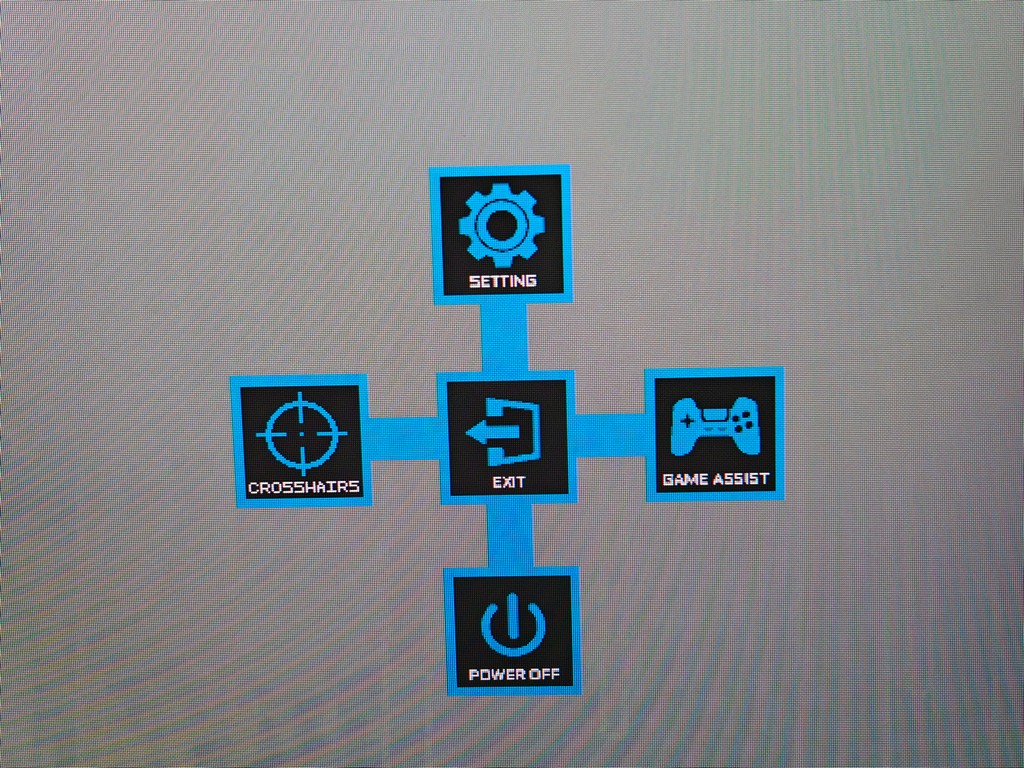
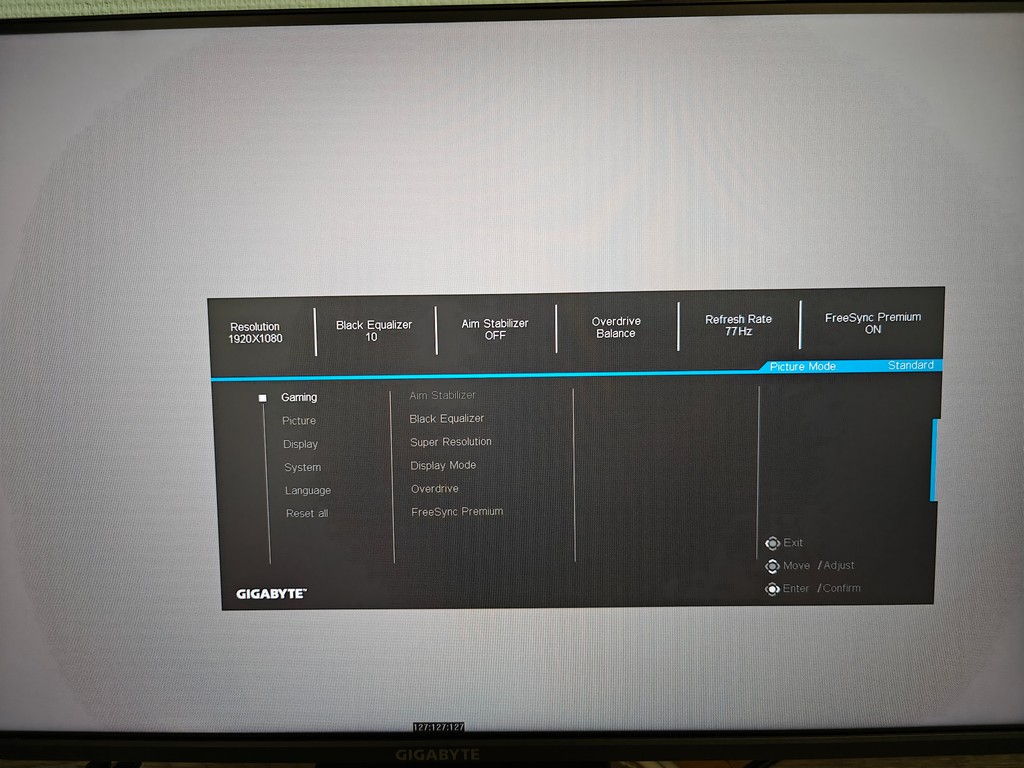
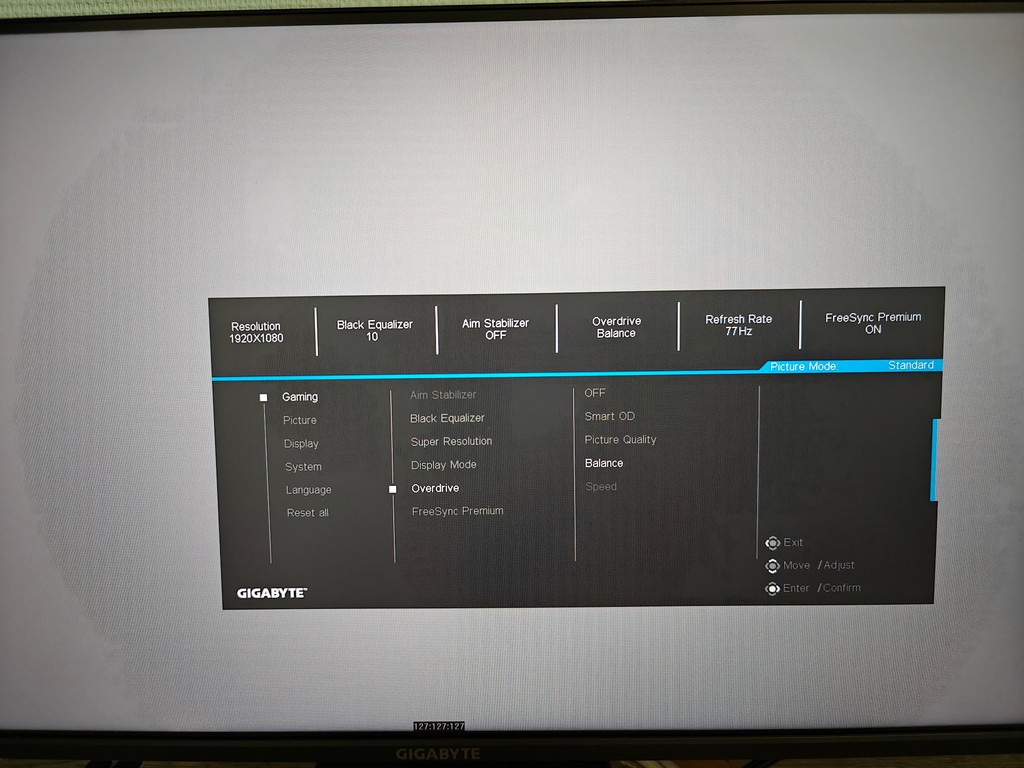

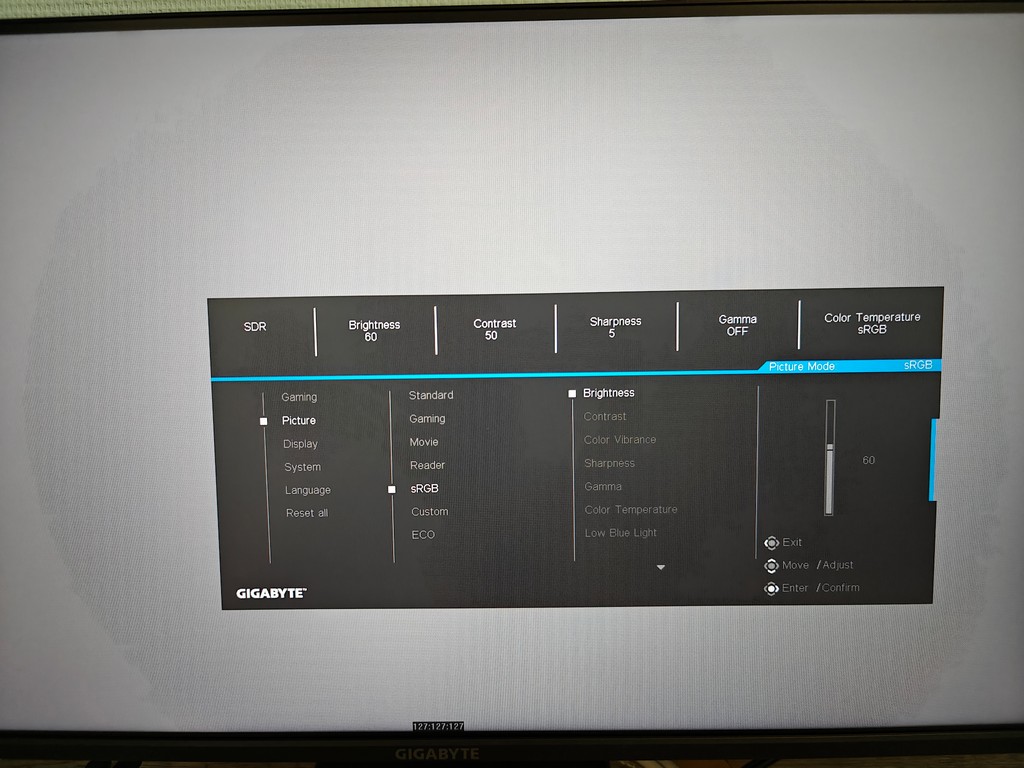

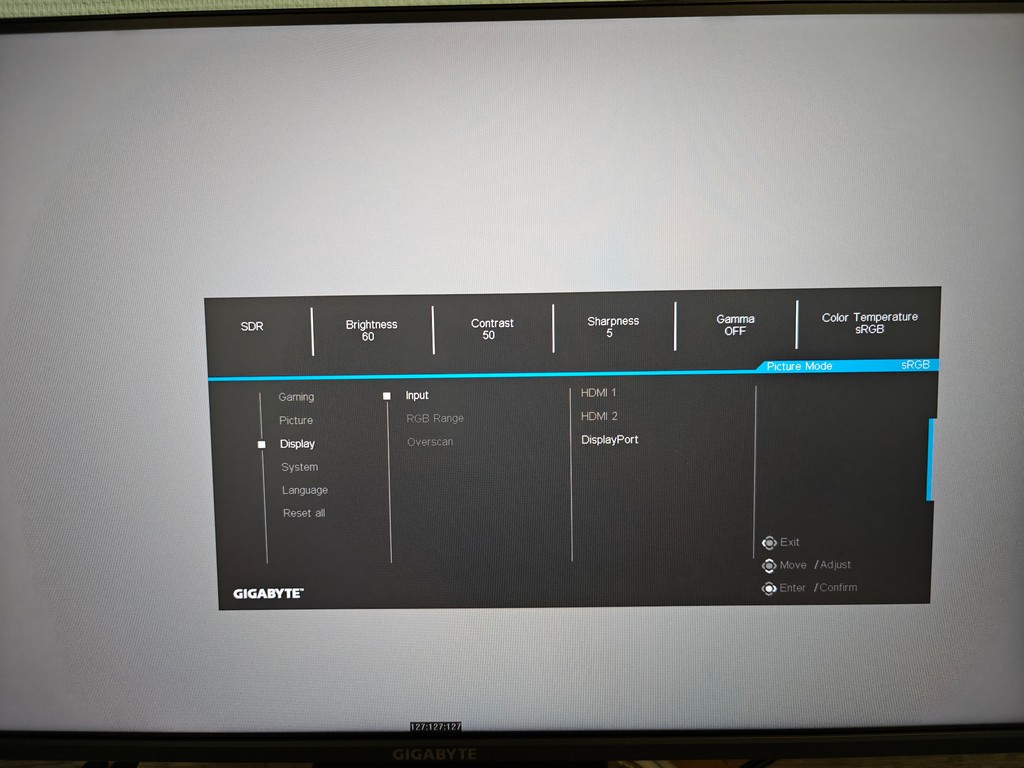

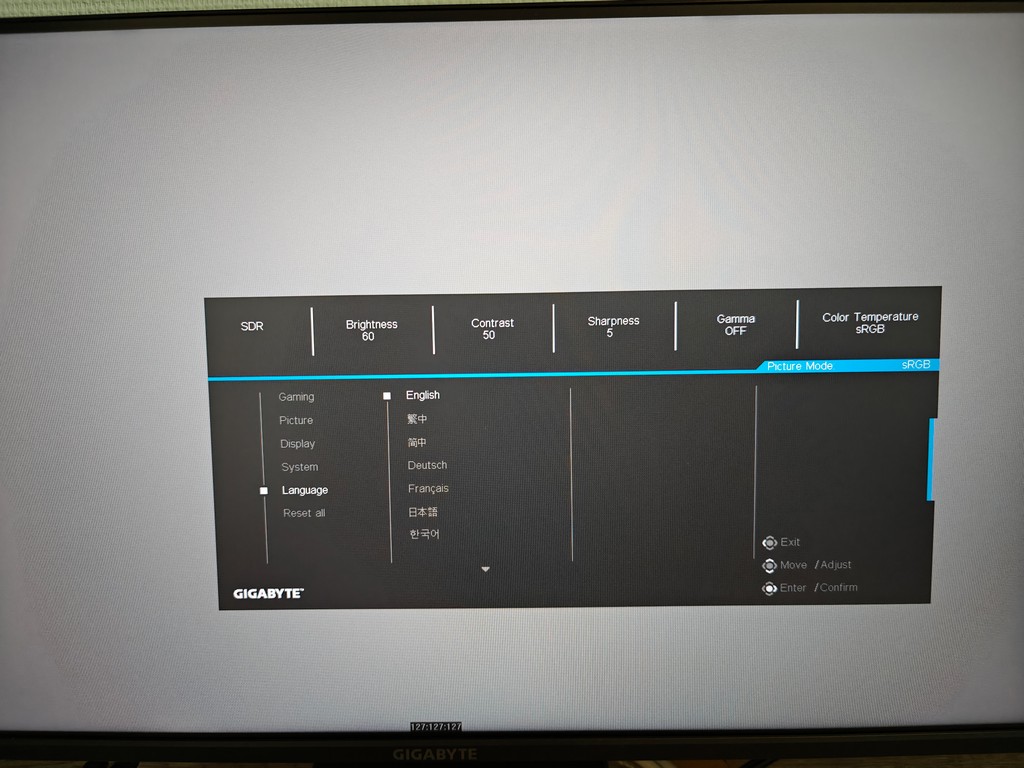

The Settings menu contains all the key and auxiliary image parameters, organized into thematic tabs. Notably, the Black Equalizer feature improves visibility in dark areas by brightening them, functioning similarly to a gamma adjustment. The Super Resolution option slightly enhances the sharpness of low-resolution content, acting as a sharpening filter, which can be useful when watching SD video. There is also an Overdrive setting to speed up the panel response – more on that in a dedicated section of the review.
The GIGABYTE GS25F2 monitor supports AMD FreeSync Premium, and the option to enable or disable it is available in the corresponding menu section. The AMD Radeon RX 6800 XT utility confirms the display operates with variable refresh rates from 48 to 200 Hz.
The Picture section offers several profiles that affect the image settings. The default profile is Standard, but there are options tailored for different use cases. For example, the Gaming mode increases contrast, color saturation, sharpness, and gamma for a more dynamic image. The Reader profile adds warmer tones to make reading more comfortable. Other profiles also include optimizations for specific needs. Within each mode, users can manually adjust brightness, contrast, saturation, sharpness, gamma, color temperature (including precise adjustments for primary colors), enable a blue light filter (Low Blue Light), turn on dynamic contrast (DCR), or reset settings to factory defaults.
It’s worth noting that the GIGABYTE GS25F2 includes an sRGB profile, meaning it’s calibrated to display the most common SDR content accurately (since sRGB remains the most widely used color space). Having factory calibration in a budget monitor is a definite advantage, although the accuracy of this calibration can vary slightly between individual units. More details on this are covered in the testing section. Here, it’s important to mention that when the sRGB profile is active, the only adjustable image setting is brightness.
You can customize which functions are accessed by pressing the joystick up, down, left, or right, allowing quick adjustments for brightness, contrast, picture profiles, or other features. The menu also lets you adjust the on-screen display transparency, set the monitor to turn off automatically, and disable the LED indicator. The menu supports localization and includes translations in several languages, Ukrainian among them.
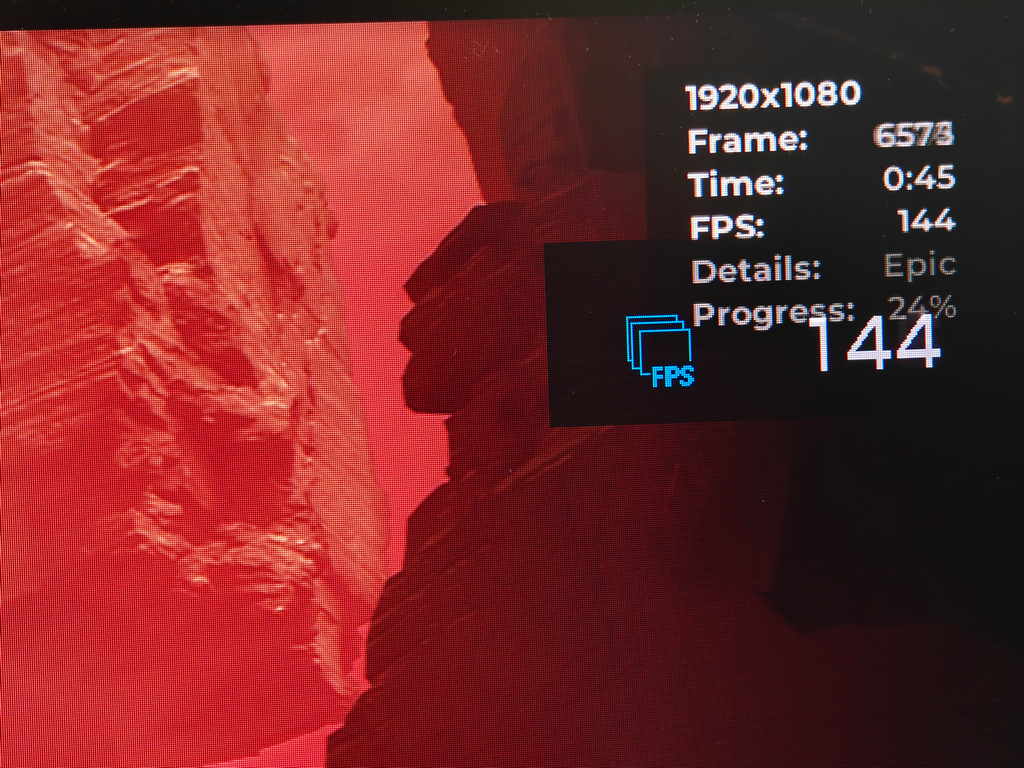
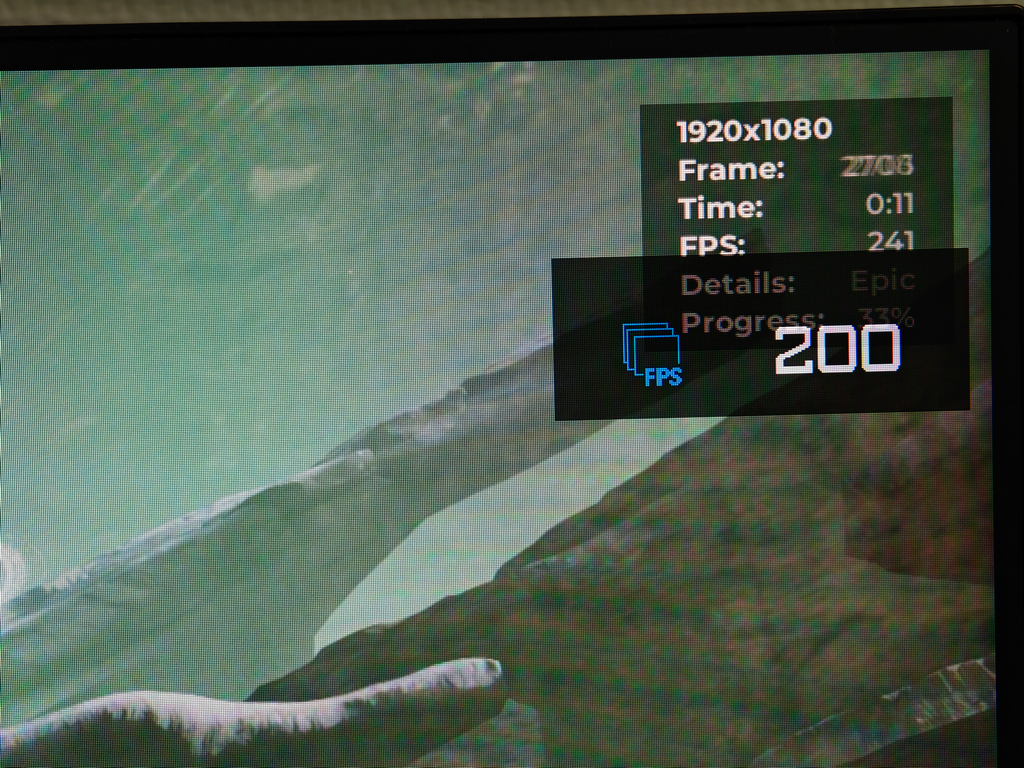

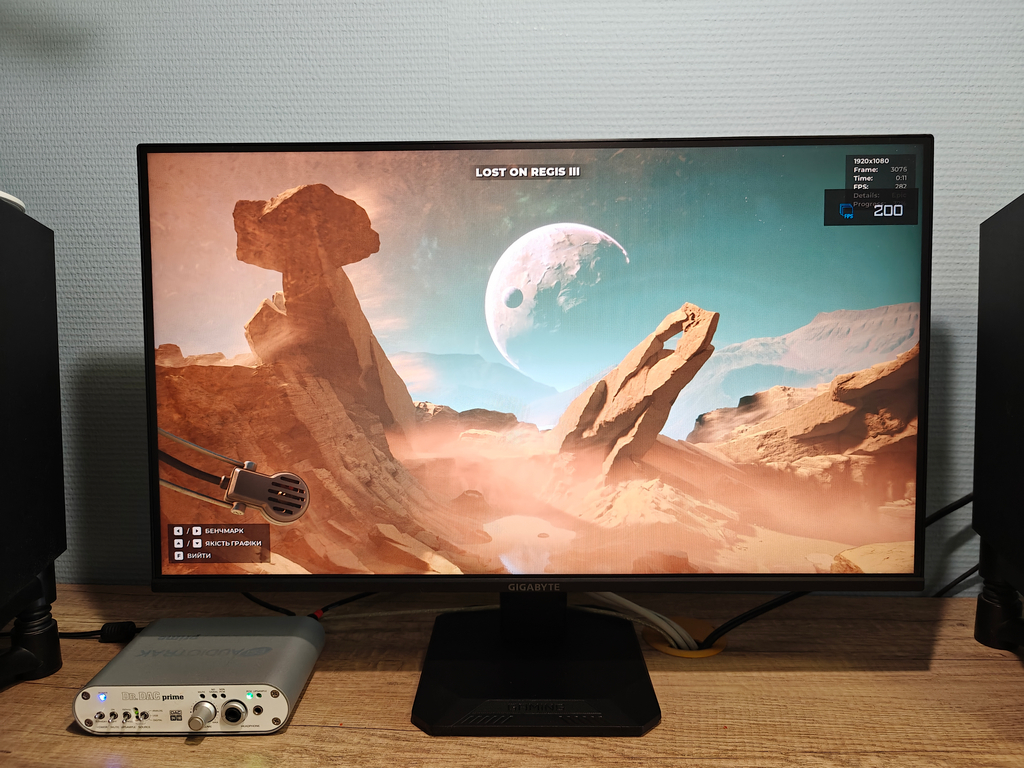
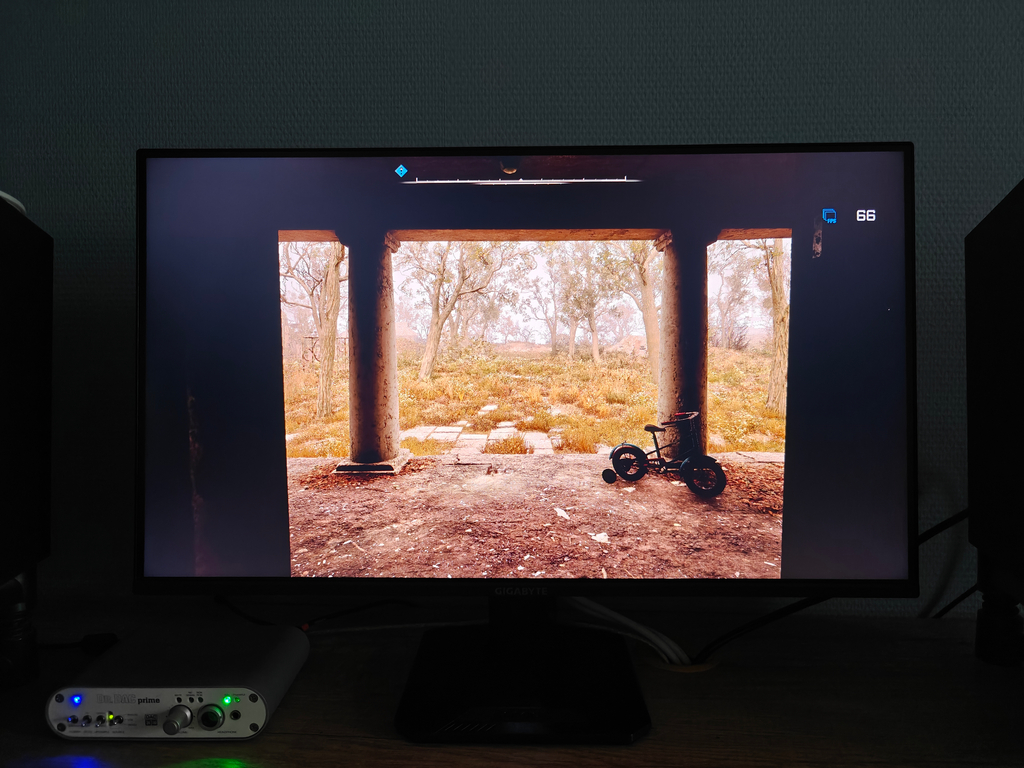
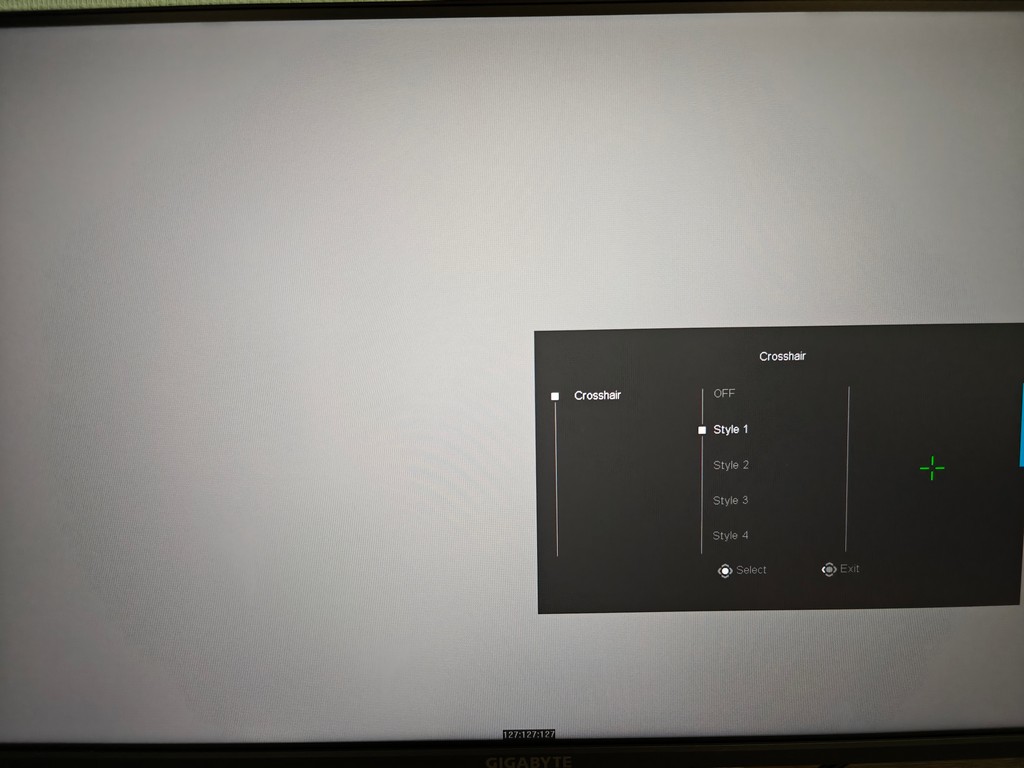
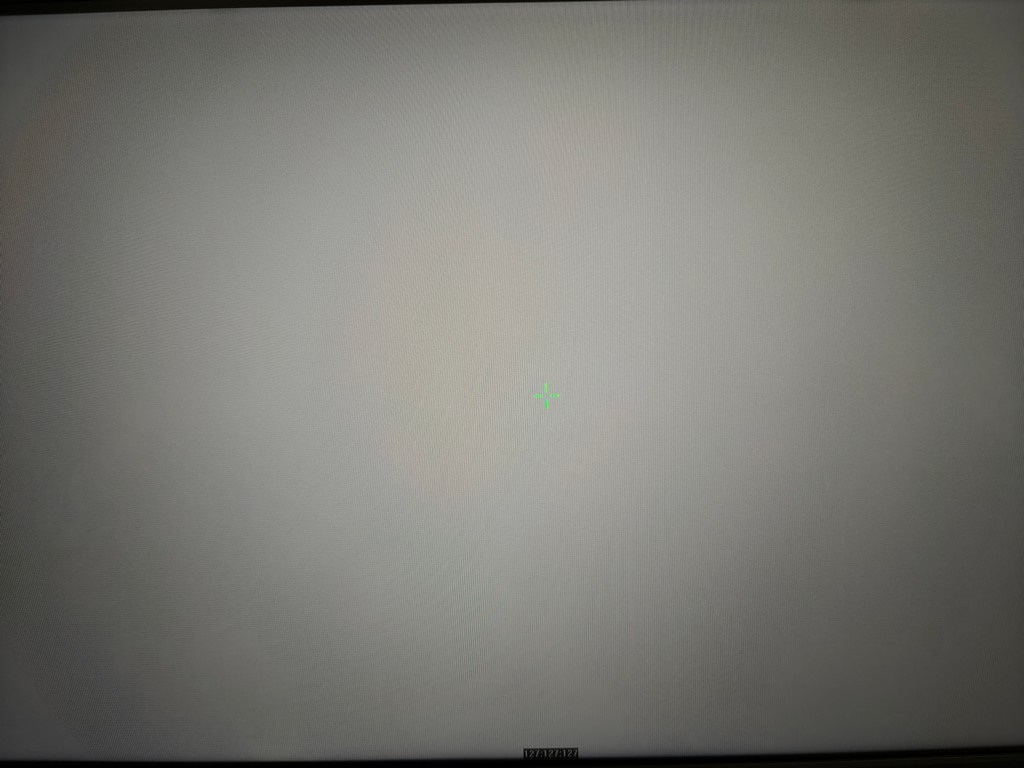
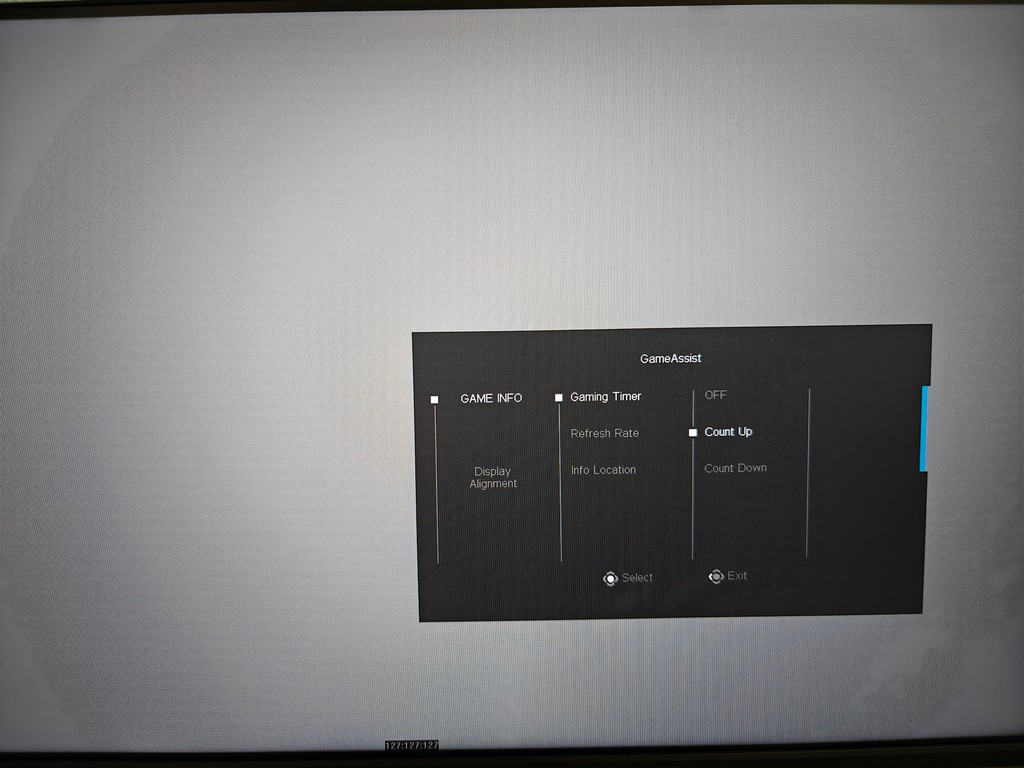
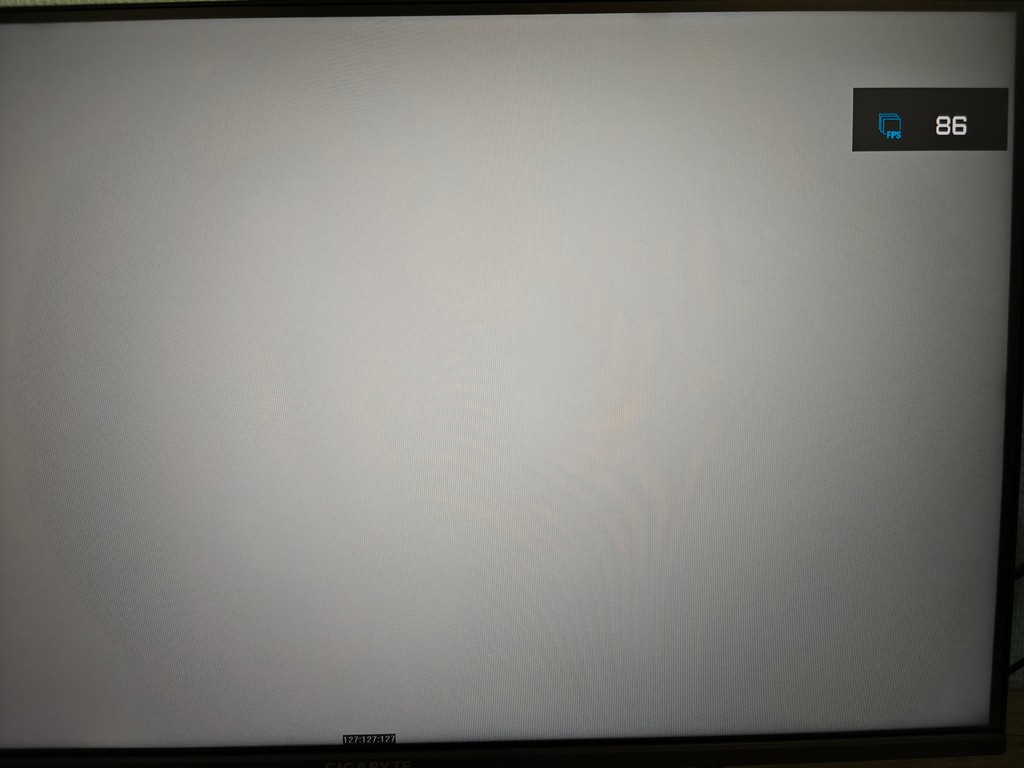
The Crosshair menu lets you enable an on-screen aiming reticle, with four different styles available. In the GameAssist section, you can activate a timer useful for tracking in-game events, as well as display the screen’s refresh rate. This refresh rate display acts as a built-in FPS counter based on FreeSync technology and doesn’t require any additional software like Fraps or MSI Afterburner. This means you can monitor your FPS directly on the monitor in any game. However, if you minimize and then restore the game window, the monitor may temporarily show the target refresh rate set in the OS (e.g., 120, 165, 200 Hz) instead of the actual FPS. In such cases, minimizing and restoring the window again usually fixes the display.
Read also:ASUS TUF Gaming VG34VQL3A Gaming Monitor Review: Optimal Ultra-Wide
Testing image quality
The GIGABYTE GS25F2 monitor features a matte screen coating, which helps reduce glare from light sources and surrounding objects, minimizing distractions during work or gaming. Additionally, this type of surface tends to show less dust. The screen exhibits very little graininess, which is an improvement over older matte display types.
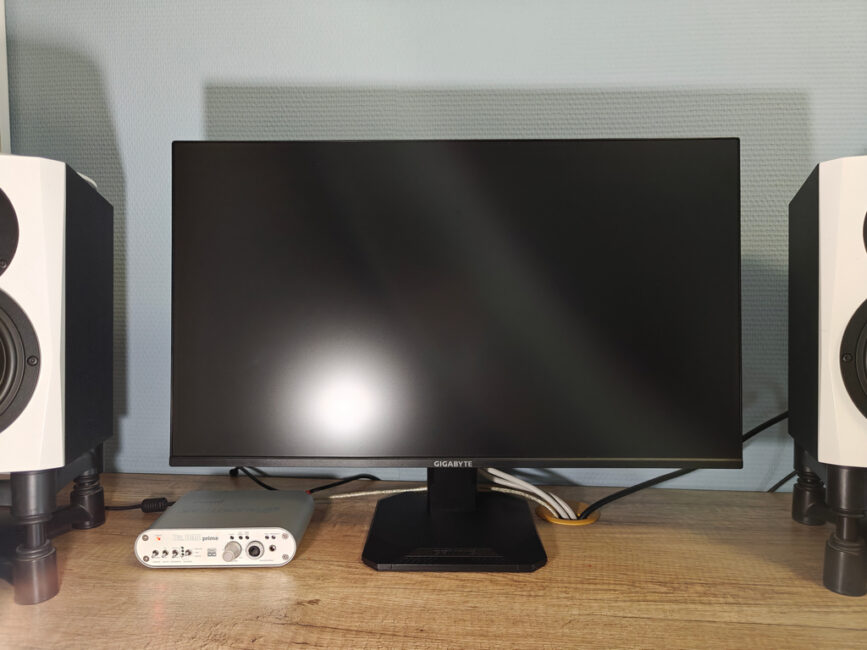
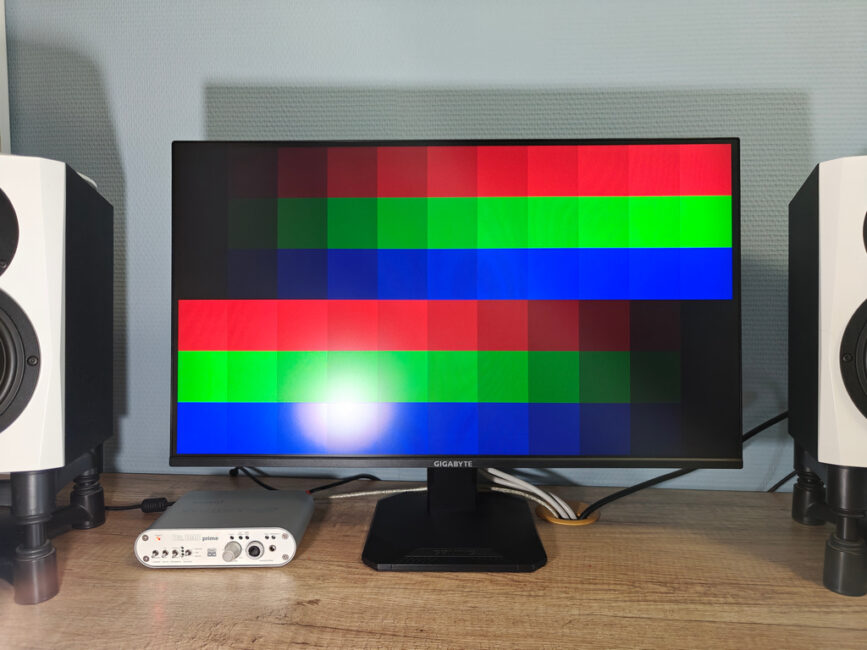
The overall image quality is satisfactory – the picture is comfortable to view, although reds appear slightly oversaturated and the color temperature tends toward warmer tones. The monitor was tested using both the Standard and sRGB profiles: in each case, the image quality was assessed first without any adjustments, and then again after calibration.
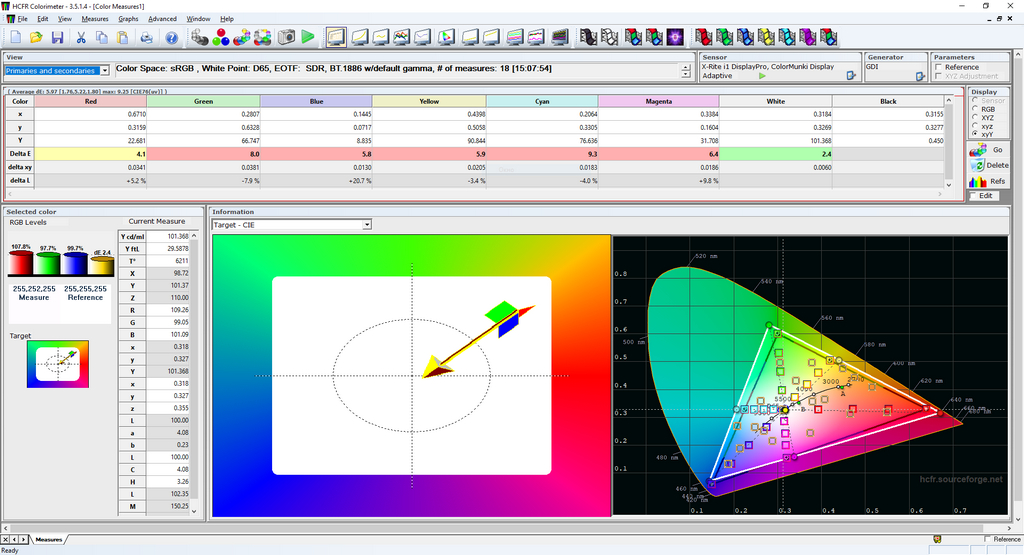
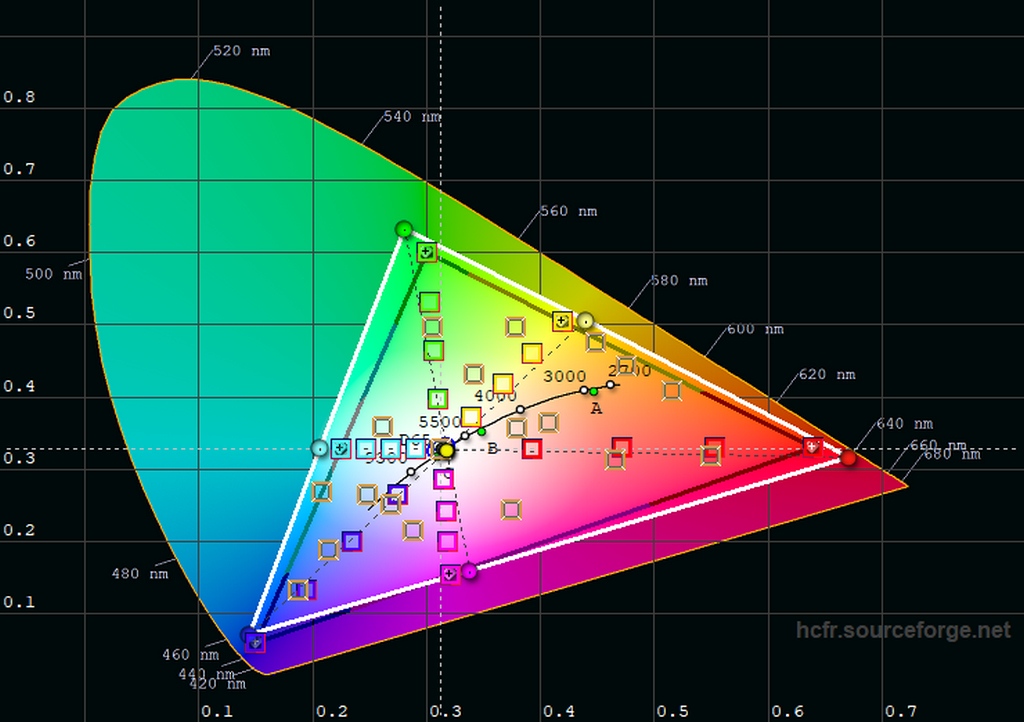
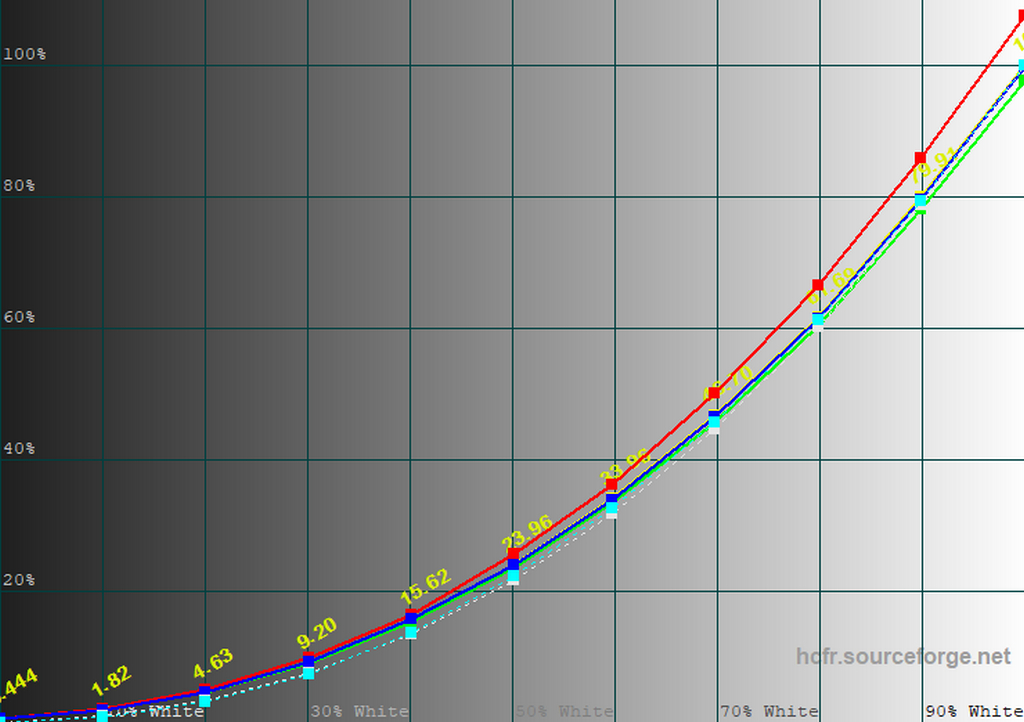
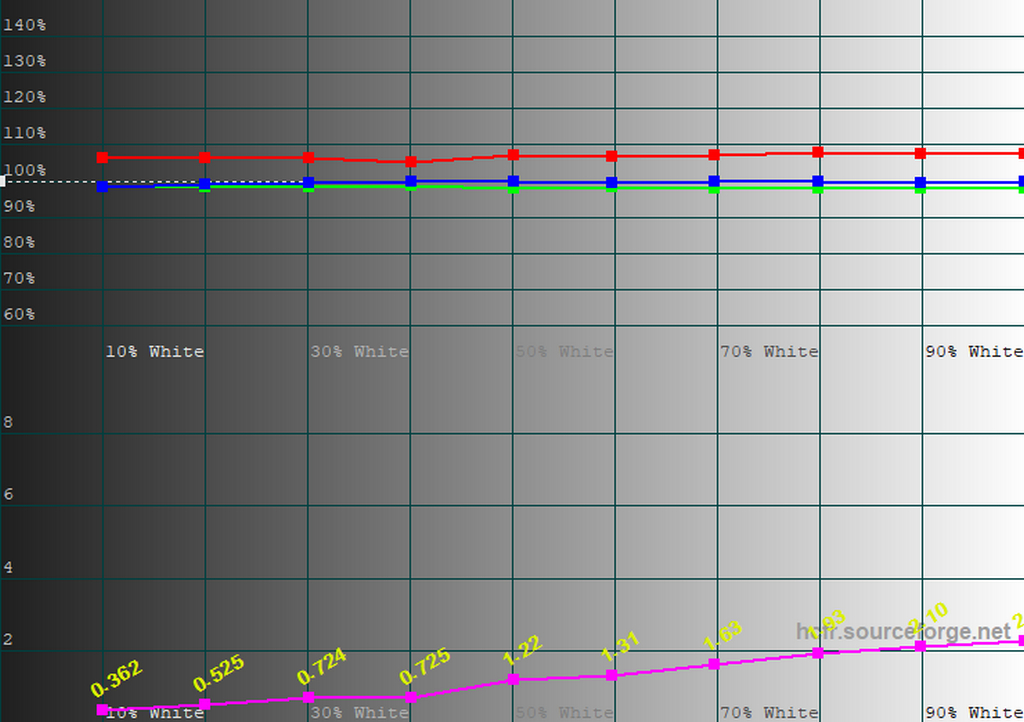
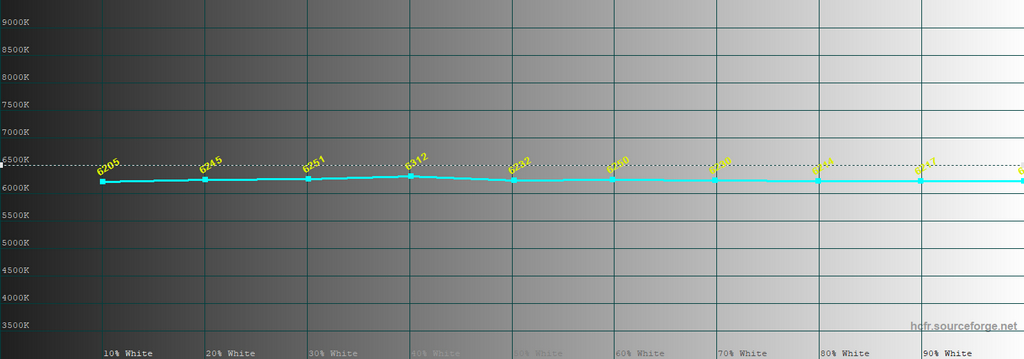
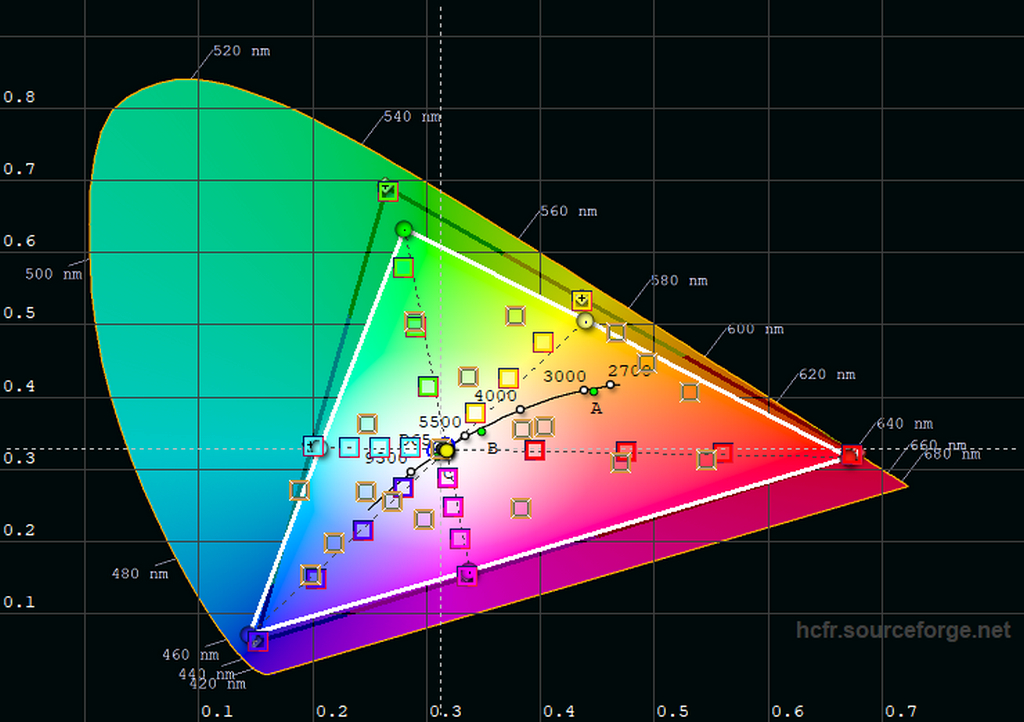
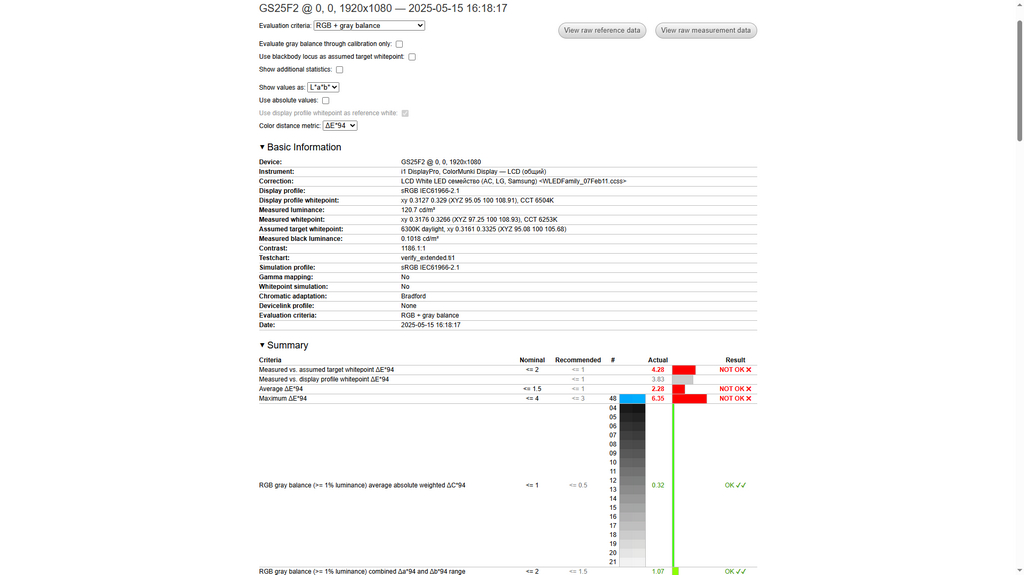
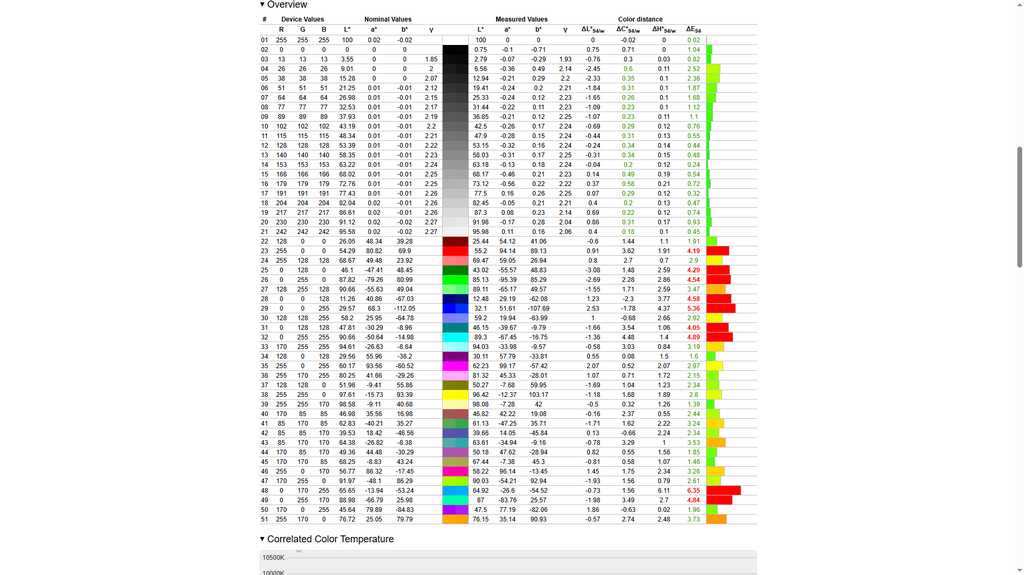
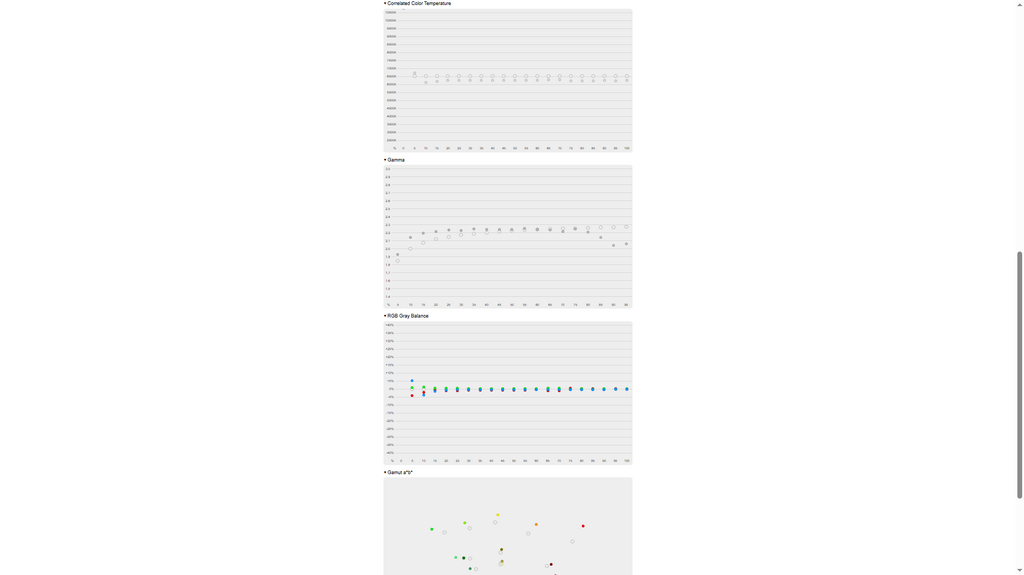
In the default Standard profile, the color gamut significantly exceeds the sRGB standard, resulting in noticeable oversaturation in the red and green areas. Among the three primary RGB components, red is particularly elevated, while the color temperature is lower than the reference level. This explains the overall “warm” appearance with oversaturated reds. The ΔE value on the grayscale is excellent, but the average ΔE is 2.3, and the maximum reaches 6.3. These results are average but acceptable for a budget gaming monitor.
The gamma setting is not perfect. It’s worth noting that in this mode, the display shows good coverage of the wider DCI-P3 color space in the blue and red ranges, although it noticeably falls short in the green area (as seen in the sixth image in the gallery).


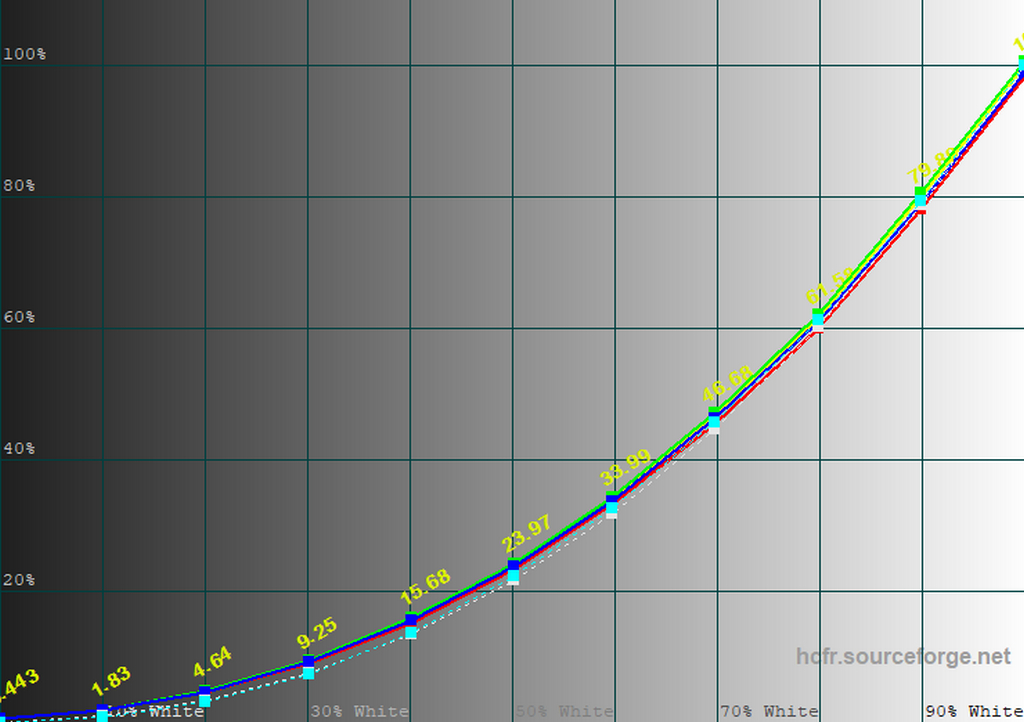


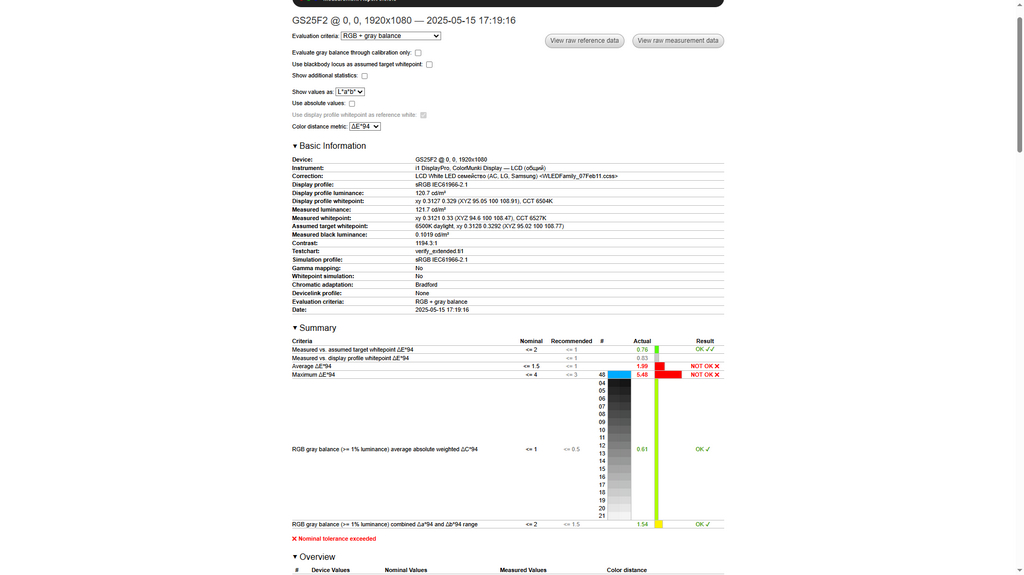

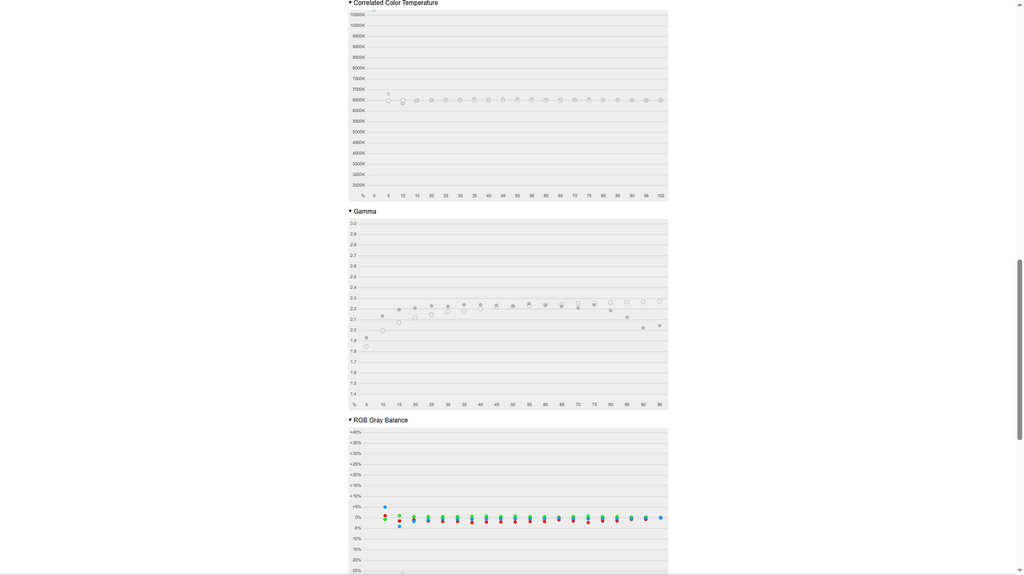
For calibration, I set the monitor’s brightness to 25 and the Color Temperature to User Define (R 96, G 100, B 97), which allowed me to achieve the target white point before calibration. After calibration, the monitor still covers 121% of the sRGB color space, a figure that hasn’t changed significantly (the manufacturer claims 120% coverage, which is confirmed). However, the ΔE error on the grayscale slightly increased after calibration, dropping from an excellent rating to a “good” level.
On the other hand, the ΔE for the white point improved significantly, with the color temperature nearly matching the reference value of 6500K. The average and maximum ΔE deviations on the color test chart decreased to 2 and 5.5, respectively (previously 2.3 and 6.3). While these changes may seem modest, almost all colors showed a consistent improvement in accuracy. For a monitor in the budget gaming segment, this is a respectable outcome.
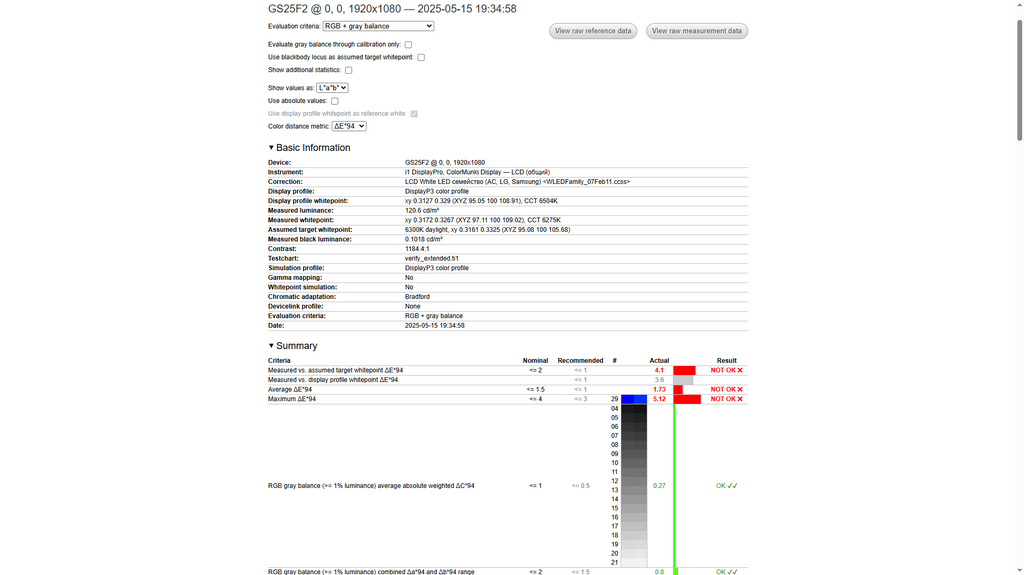
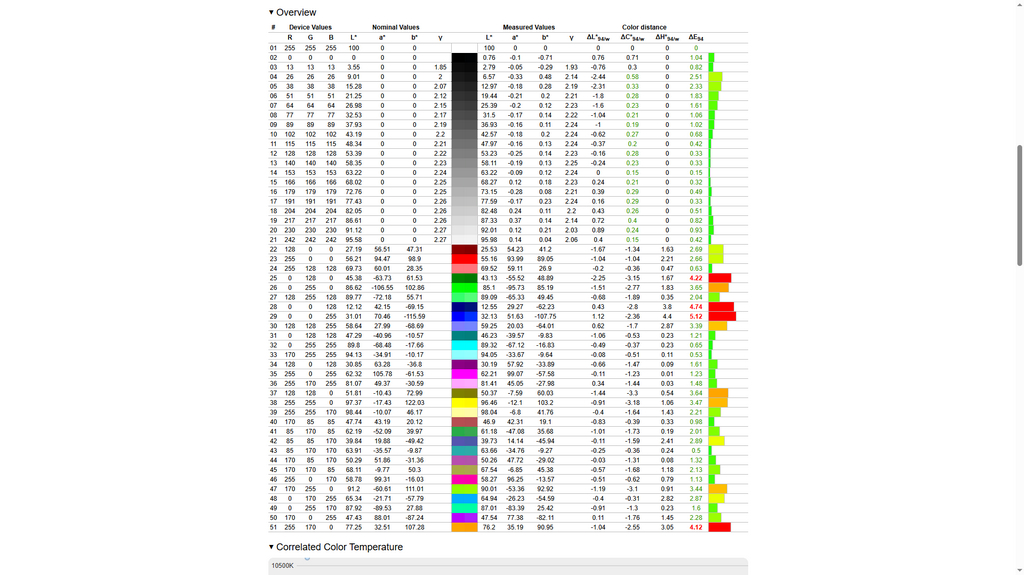
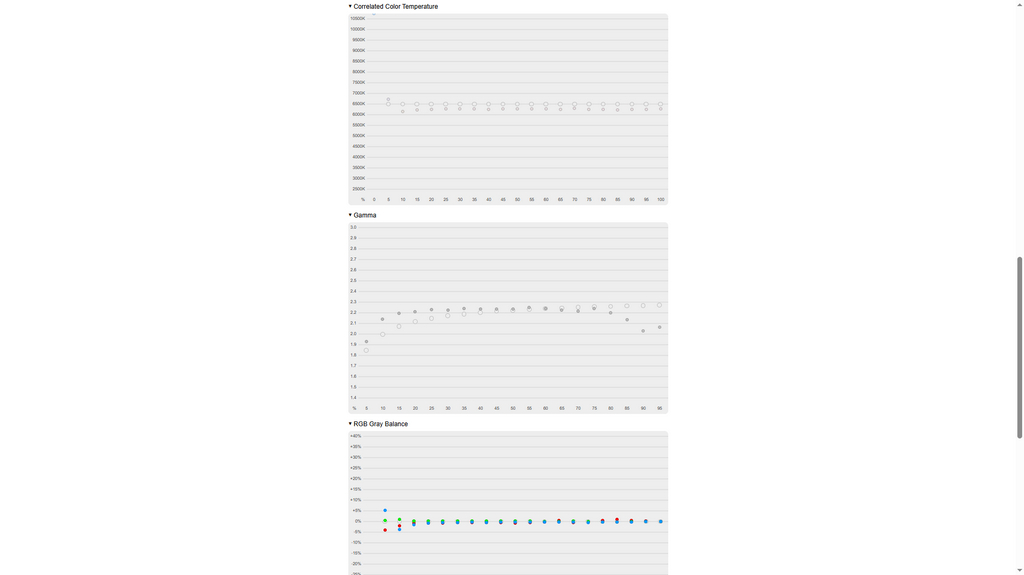
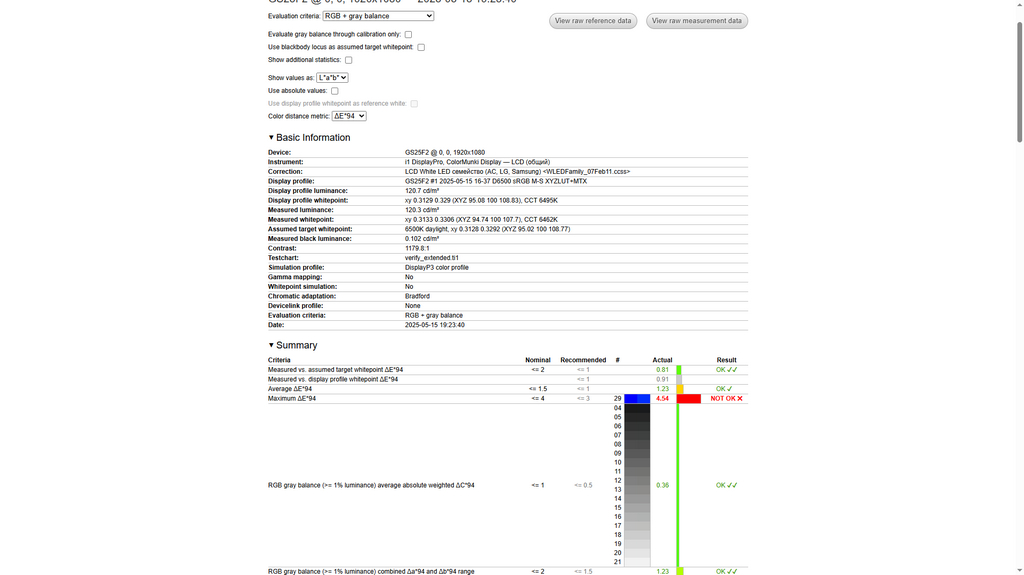
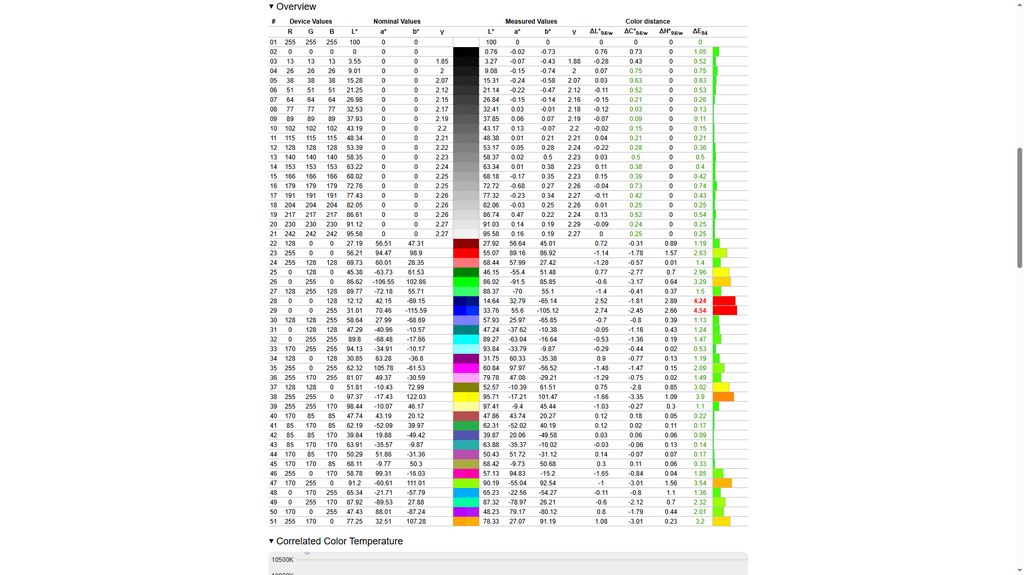
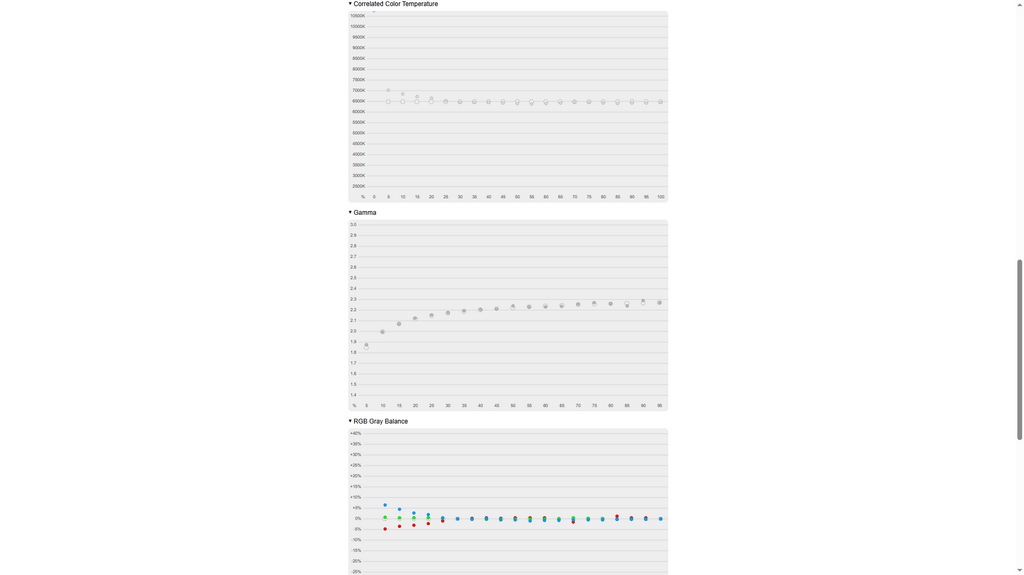
The monitor covers about 85% of the DisplayP3 color space. After calibration, the average ΔE in the color chart decreased from 1.7 to 1.2, while the maximum ΔE dropped from 5.1 to 4.5. These are acceptable results, but it’s important to note that the GIGABYTE GS25F2 is primarily designed for use within the more common sRGB standard, as indicated by the dedicated sRGB profile in the settings. With this in mind, I switched from the Standard profile to sRGB and retested the monitor.
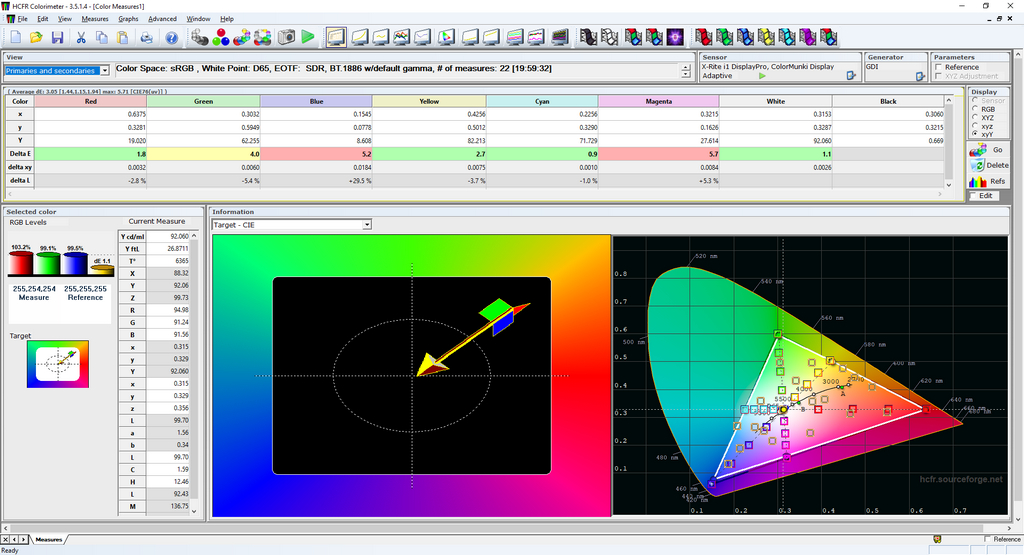


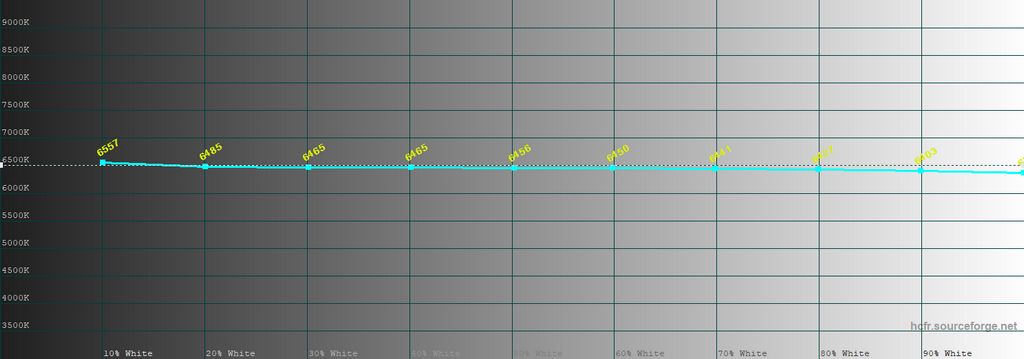


Measurement results indicate that the factory calibration of the sRGB profile on the GIGABYTE GS25F2 monitor is of high quality. The display accurately reproduces colors within the sRGB color space triangle, with only minor deviations in the blue spectrum. ΔE values across most of the grayscale range do not exceed 0.5, which is an excellent result. Color temperature is also stable and close to the reference level of 6500K.
The average ΔE value on the test color chart is 1.2, which is a very good result for a monitor in this category. The maximum ΔE reaches 5, but this deviation occurs in only one color from the test chart; the vast majority of colors have a ΔE well below 2, which is acceptable for semi-professional color work. Gamma is better calibrated than in the Standard profile, though not perfect. In other words, to get a decent image quality “out of the box” from the GIGABYTE GS25F2 – considering its price – simply selecting the sRGB profile in the monitor’s menu is sufficient.
The average ΔE value on the test color chart is 1.2, which is a very good result for a monitor in this category. The maximum ΔE reaches 5, but this deviation occurs in only one color from the test chart; the vast majority of colors have a ΔE well below 2, which is acceptable for semi-professional color work. Gamma is better calibrated than in the Standard profile, though not perfect. In other words, to get a decent image quality “out of the box” from the GIGABYTE GS25F2 – considering its price – simply selecting the sRGB profile in the monitor’s menu is sufficient.
Read also: ASUS ROG STRIX XG259CMS Gaming Monitor Review
Peak brightness, contrast and uniformity of backlighting
The actual brightness was measured after calibration with the sRGB profile activated in the monitor menu, across different brightness levels – from 0% to 100%. Measurements were also taken in HDR mode, where the monitor’s brightness is fixed.
The peak brightness of 350, and sometimes even 375 cd/m², is a strong result for a budget monitor, as most competitors in this price range offer around 270–300 cd/m². Subjectively, for indoor use with moderate lighting, 15–25% brightness is sufficient; for medium lighting, 30–50% works well; and for bright environments, 60–85% brightness is recommended. This brightness range provides comfortable use across different lighting conditions, which isn’t always typical for monitors in this segment.
The actual contrast ratio was tested after calibration with the sRGB profile enabled in the monitor’s menu and at various brightness settings ranging from 0% to 100%. Measurements were also taken in HDR mode, where the monitor’s brightness is fixed.
Before calibration, the contrast ratio in the Standard mode was around 1190:1. In the sRGB mode, it dropped slightly but remained consistently above 1100:1. For an affordable IPS LCD panel, this level of contrast can be considered decent, even good.
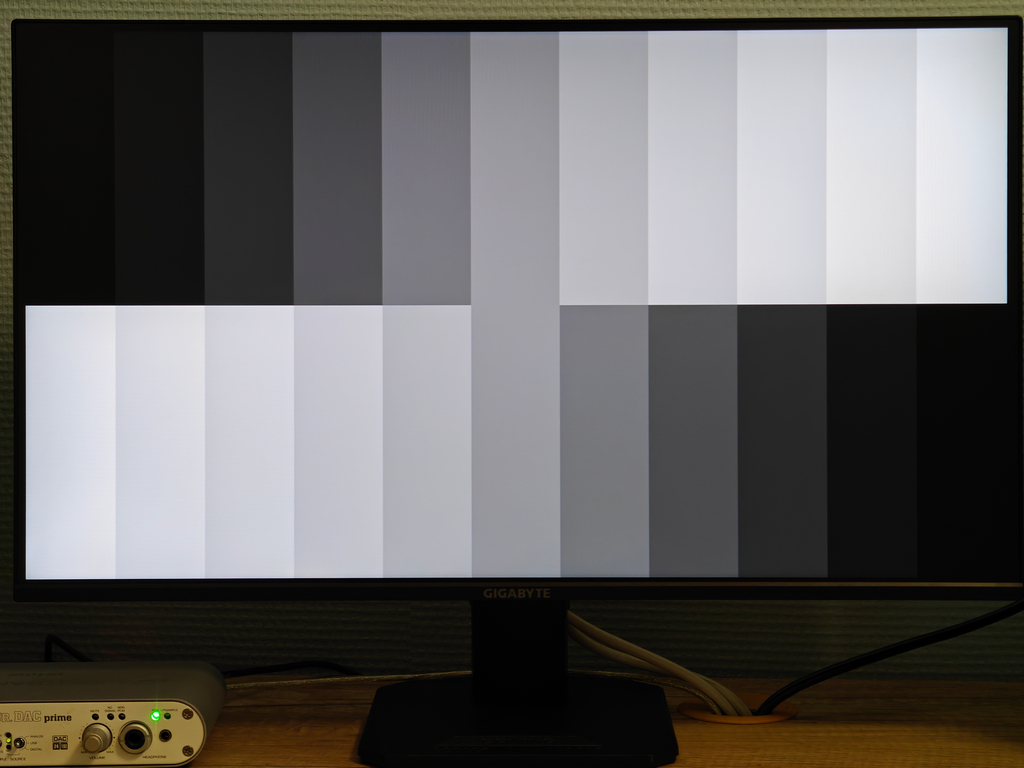
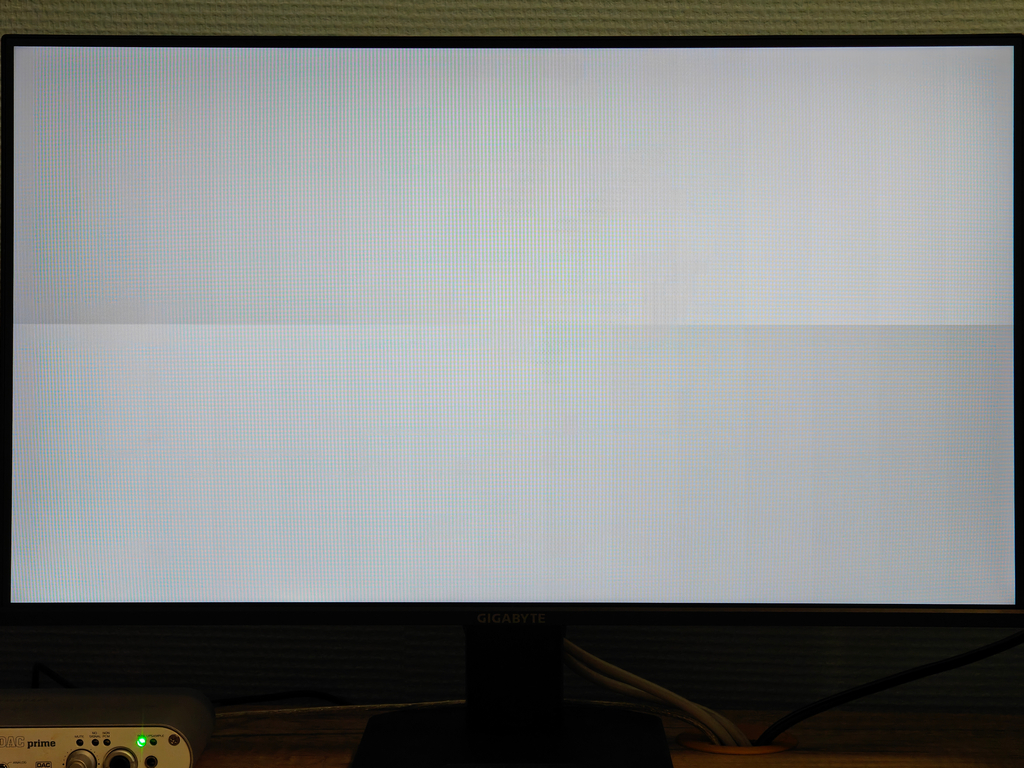
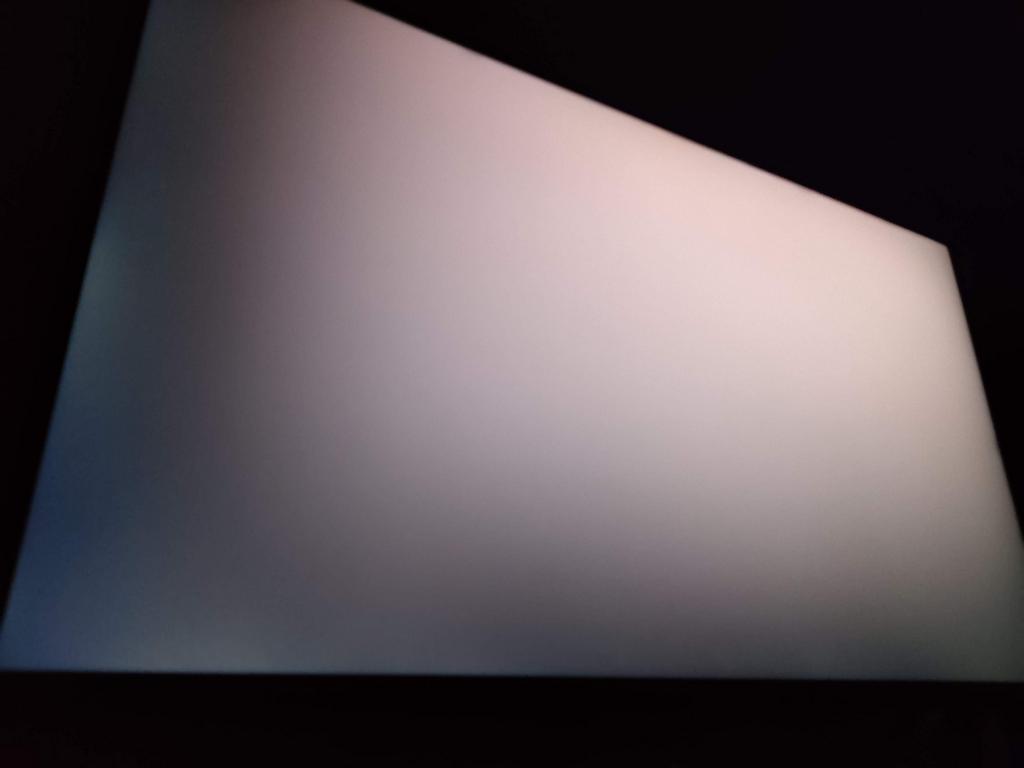
Backlight uniformity was tested at brightness levels of 0%, 50%, and 100%. The results are shown in the screenshots:
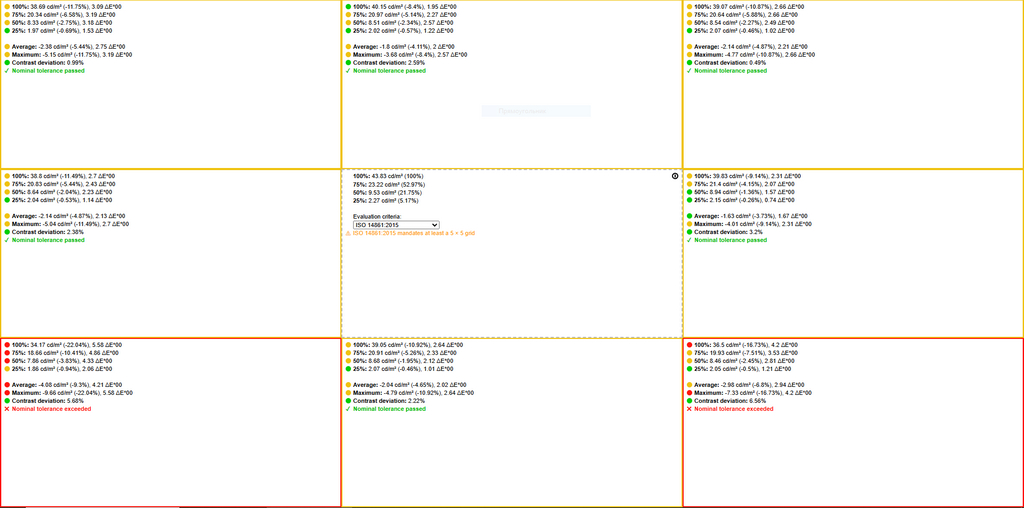
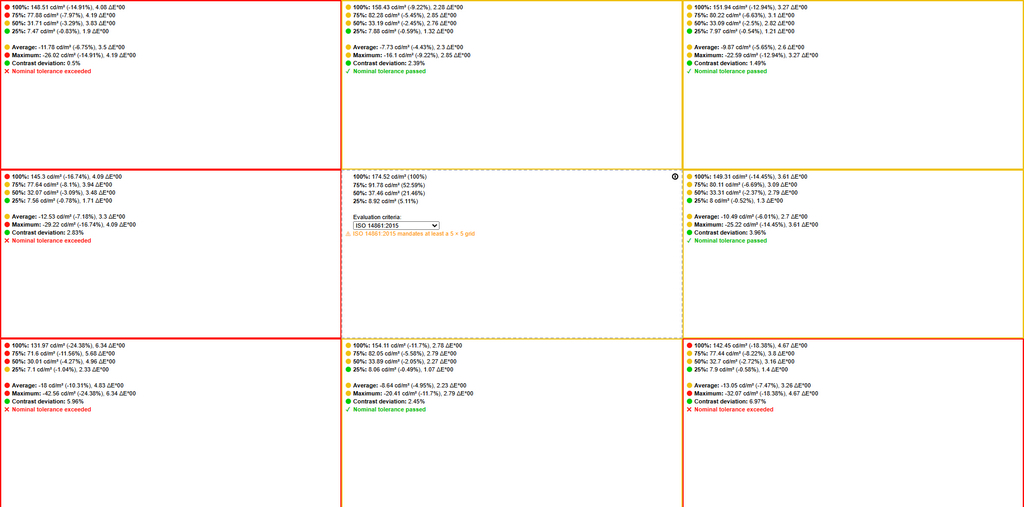
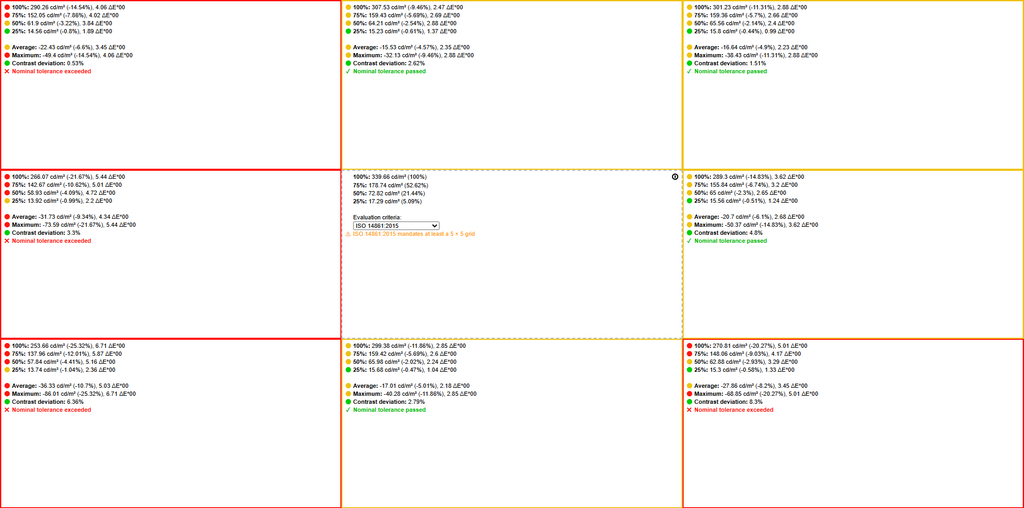
Backlight uniformity decreases as brightness increases and is generally at a low level. While unevenness within the 8–12% range can be considered acceptable, values around 20% and even up to 25% in some areas of the screen are unsatisfactory. That said, backlight unevenness is common among all LCD monitors, though the extent varies and does not always correlate with price – there are significantly more expensive models with similar or even higher deviations exceeding 20%. Still, this is clearly an area where the manufacturer could focus on improvement.
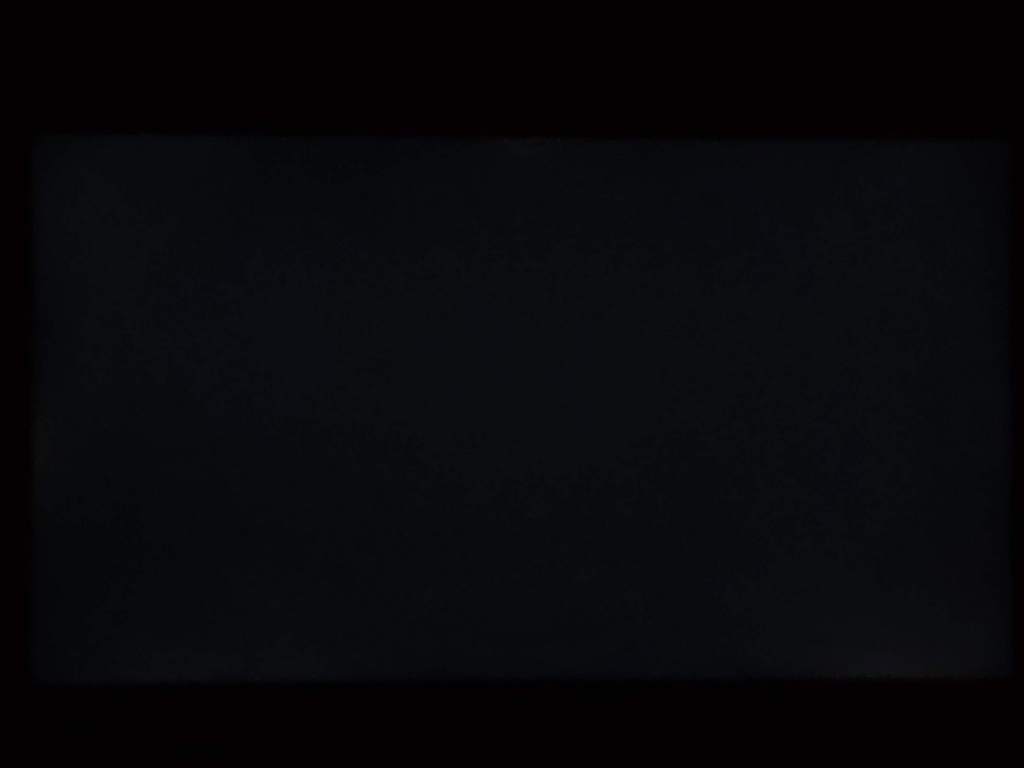
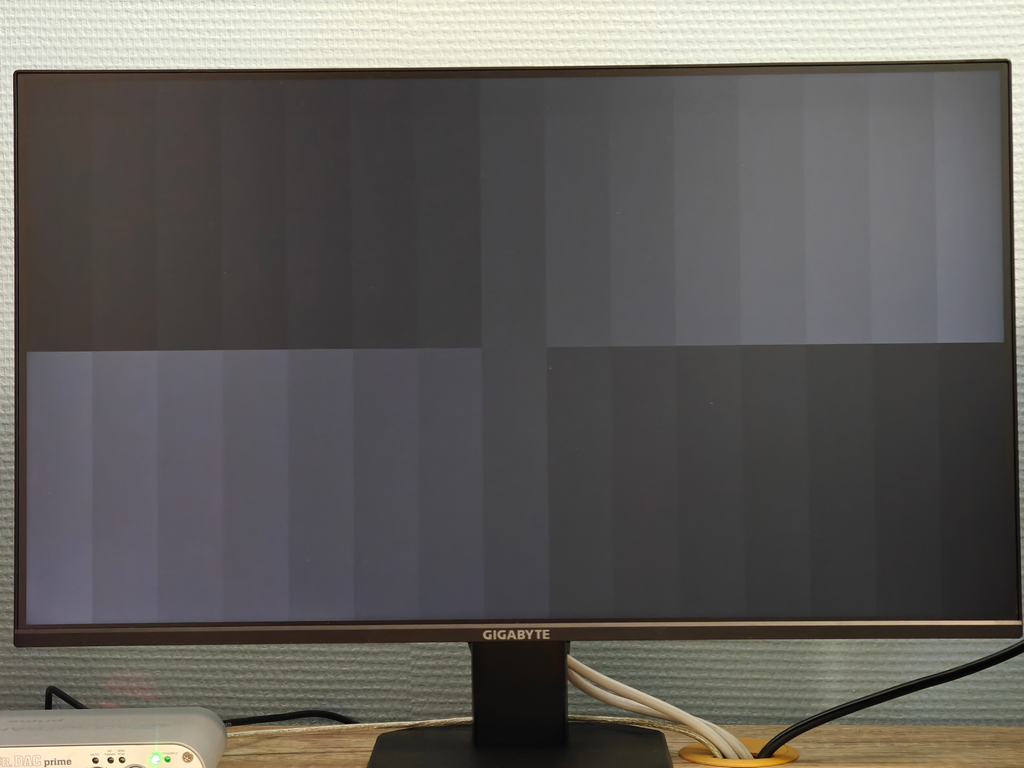
The photo quality is not very high, but it accurately reflects the backlight unevenness. There are noticeable bright spots along the edges (bottom right and left, middle left, and center top) as well as darker areas (a large one at the bottom left, smaller ones on the right, and at the top left and right). A “glow effect” is also present, visible in the second photo. The images were taken in a dark environment with a full-screen black background.
The GIGABYTE GS25F2 monitor is advertised with wide viewing angles of 178° both horizontally and vertically. Thanks to its IPS panel, this claim holds up in practice, with the image retaining contrast well even when viewed from steep angles. While it doesn’t match the performance of OLED screens, it is a clear improvement over TN panels, which until recently were common in gaming monitors.
Regarding backlight flicker, the manufacturer states that the GS25F2 supports Flicker-Free technology. This was confirmed during testing with the “pencil test,” where no visible flickering was detected at any brightness level.
Read also: ASUS ZenScreen MB229CF Portable Monitor Review
Overdrive testing
Because all image settings, including overdrive modes, become unavailable when using the sRGB profile, the Standard profile was enabled for further testing. In this mode, users can choose from four overdrive options – Smart OD, Picture Quality, Balance, and Speed – or disable the feature entirely.
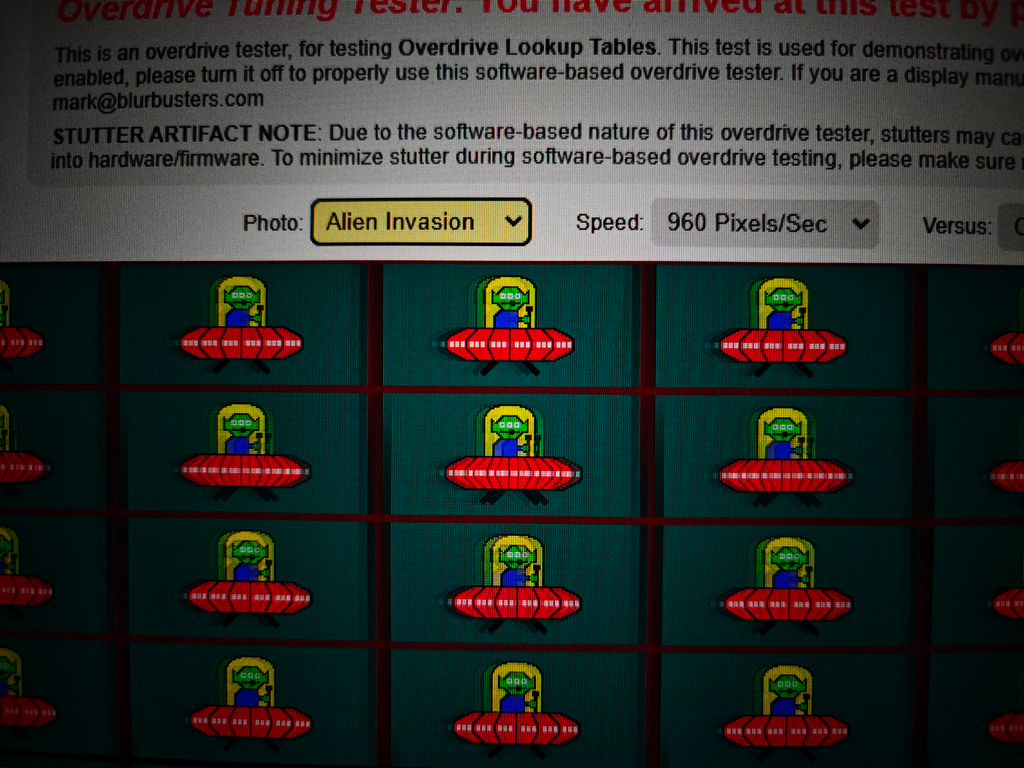
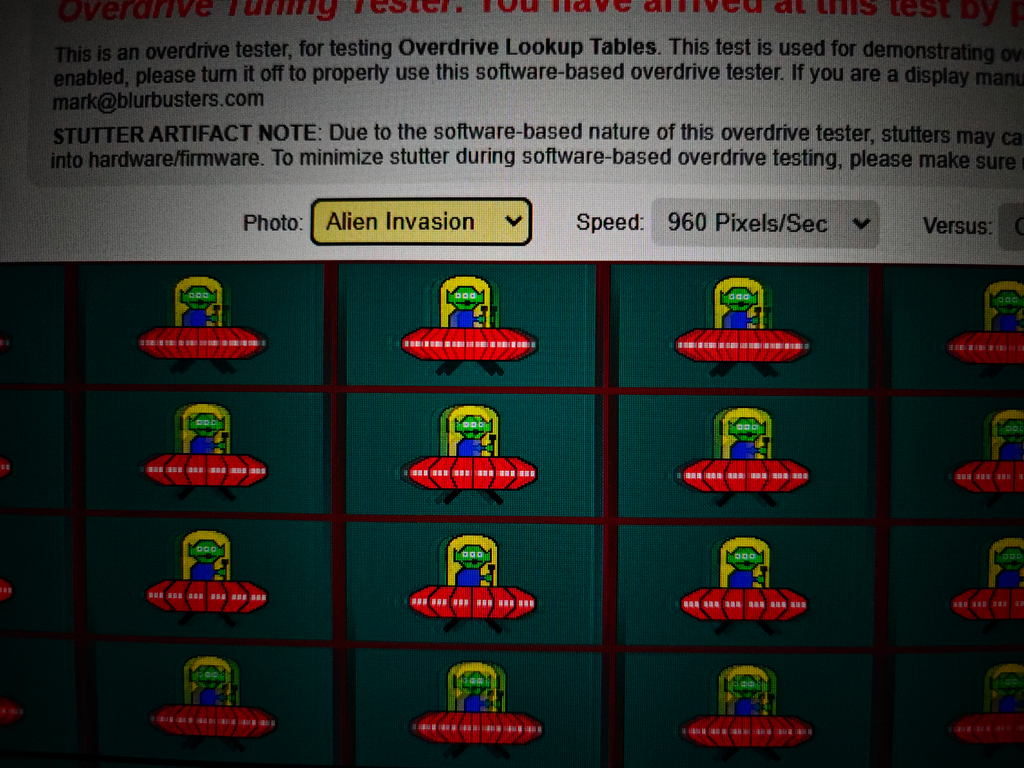
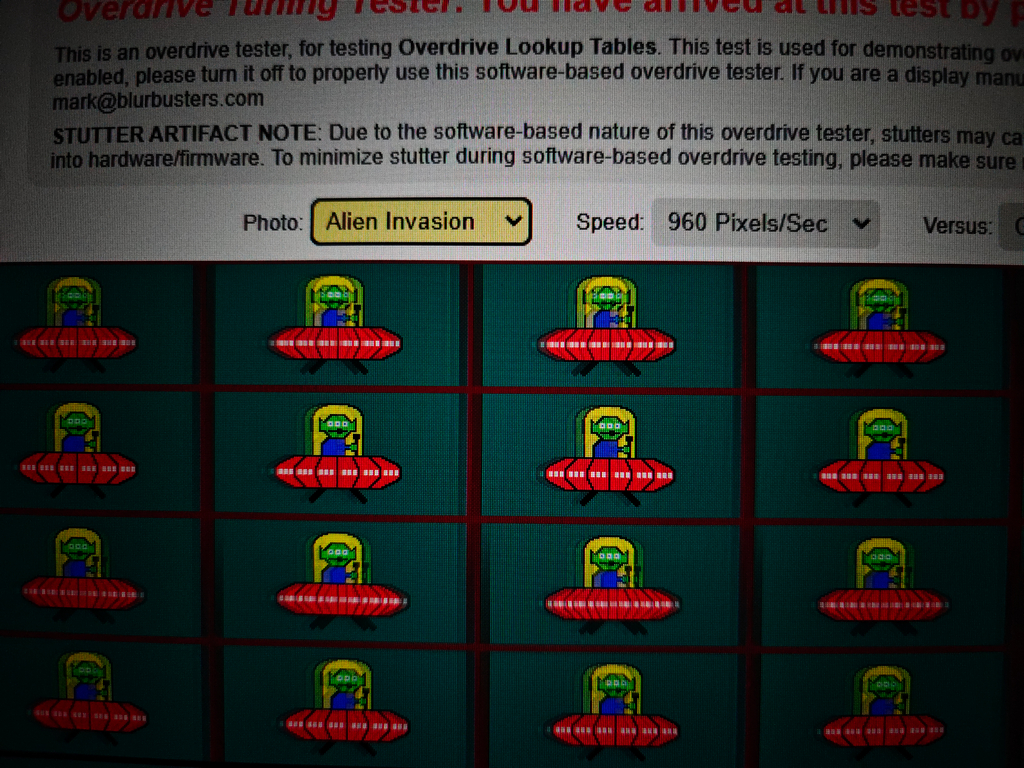
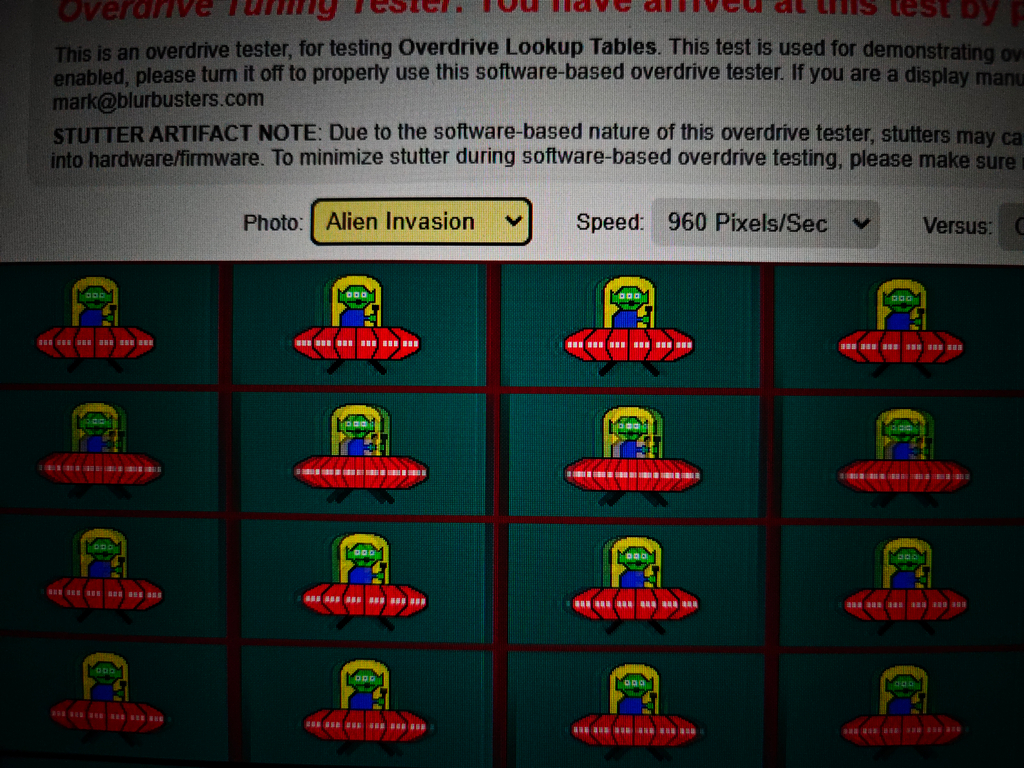
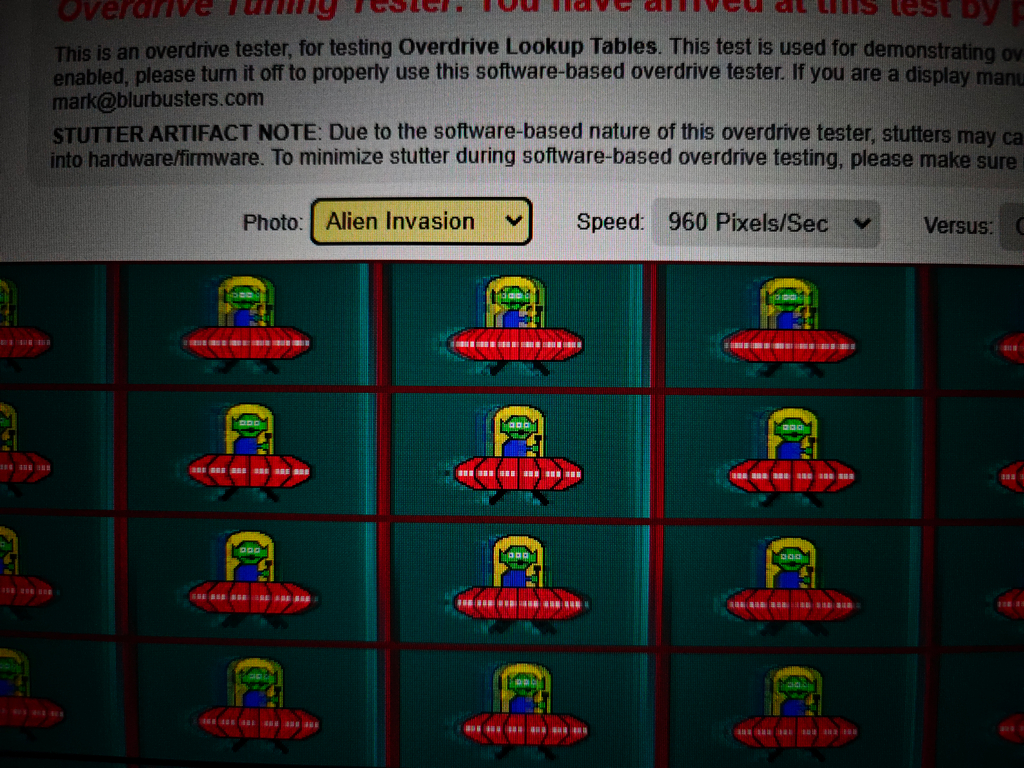
These are comparison photos taken during the Overdrive Tuning Tester test at a 200 Hz refresh rate. In the gallery, the first photo shows the image without overdrive, followed by images in this order: Smart OD, Picture Quality, Balance, and Speed. This setup allows for a side-by-side comparison of the different overdrive modes.
The most noticeable artifacts, appearing as bright trailing effects, occur when the overdrive mode is set to Speed. These trails are visible even behind objects moving at moderate speeds. The other three modes are more restrained: Picture Quality shows slightly more noticeable trails, but they remain manageable; Balance offers the best compromise, with minimal trailing and no obvious artifacts. With overdrive completely turned off, image blur increases slightly but stays within a comfortable range, thanks to the Super Speed IPS panel. Subjectively, this panel’s response time is sufficient for smooth gameplay in most fast-paced games even without overdrive. However, for situations demanding higher performance – such as esports competitions or professional-level gaming – enabling overdrive could provide a tangible advantage.
Read also: ASUS TUF Gaming VG259Q3A Gaming Monitor Review
Energy consumption
The power consumption of the GIGABYTE GS25F2 monitor was tested with the sRGB profile activated, after calibration. For an objective assessment, measurements were made at different brightness levels, as well as with full screen display of black and white fields and colour gradients. Separately, the monitor was tested at two refresh rates: 200 Hz and 60 Hz. The obtained values were systematised in a table, which allows us to estimate the impact of brightness, colour load and refresh rate on power consumption.
Lowering the refresh rate can reduce power consumption by 4 watts or more. For a desktop PC, this might be significant when running on a generator or an inverter with battery power. Of course, overall power usage is much more influenced by the monitor’s brightness level.
Since the GIGABYTE GS25F2 monitor supports HDR mode, which can be enabled in Windows, a separate test was conducted specifically in this mode. After activating HDR, all image settings in the monitor’s menu become unavailable, and brightness is fixed automatically without manual adjustment. Power consumption measurements were also taken under these conditions.
Measurements showed that power consumption in HDR mode is nearly identical to that in SDR mode at maximum brightness (100%). This indicates a basic level of HDR implementation – the display supports the technology in a nominal way, similar to most models in this price range.
Read also:ASUS ProArt PA278CFRV Professional Monitor Review
Daily use
One clear advantage of the GIGABYTE GS25F2 monitor is its high brightness capacity – at 75% brightness in the menu, it delivers a luminance comparable to many budget models running at maximum settings. The matte screen reduces glare without producing a noticeable grainy or “crystal” effect, resulting in a comfortable viewing experience. Additionally, the built-in power supply simplifies setup and reduces cable clutter at the workspace.
However, there are some compromises. The stand design is quite basic, lacking height adjustment, which limits ergonomic comfort during use – even in everyday situations like cleaning the desk. Additionally, the matte screen coating tends to attract dust relatively quickly, which may require more frequent cleaning.
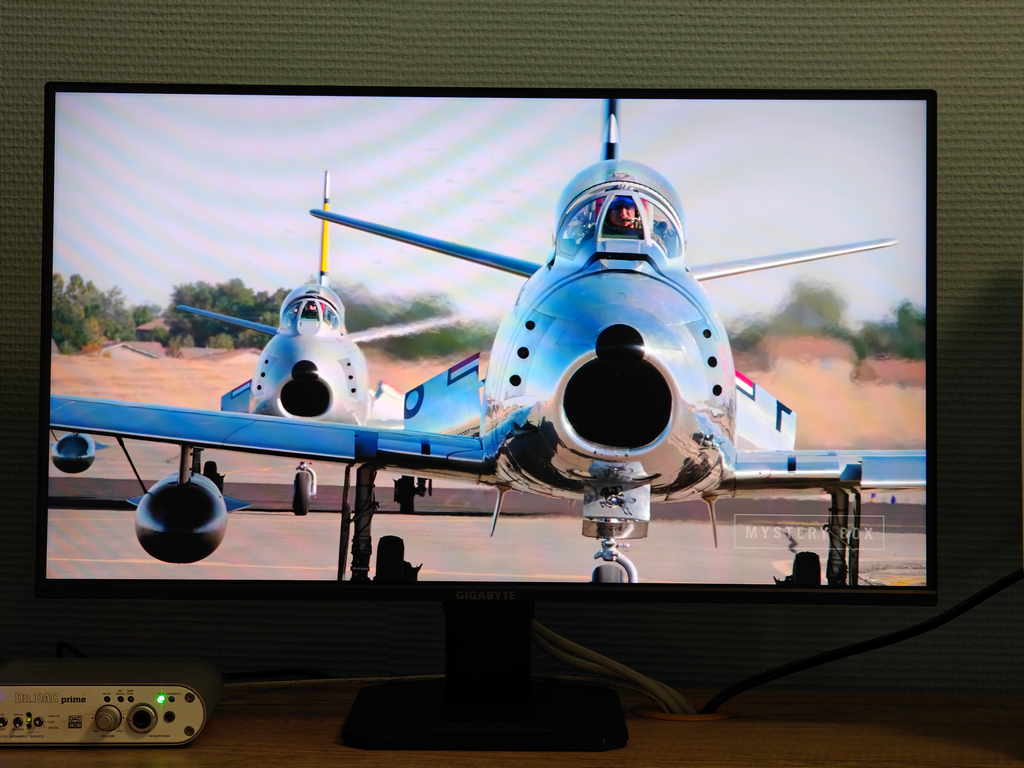
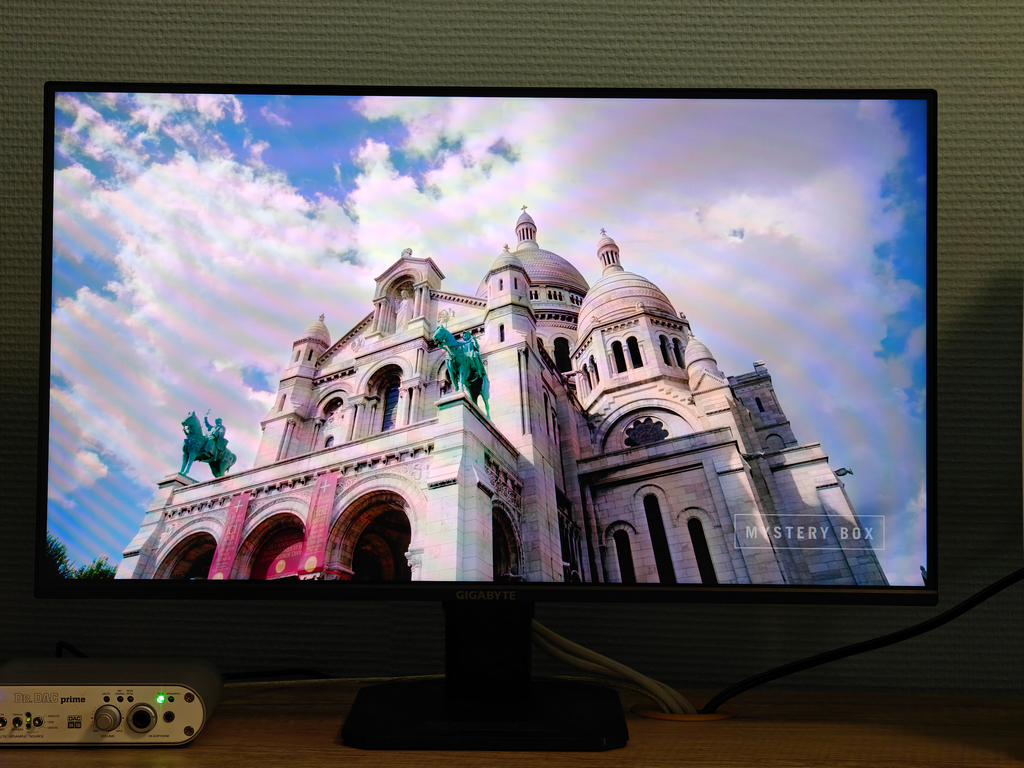
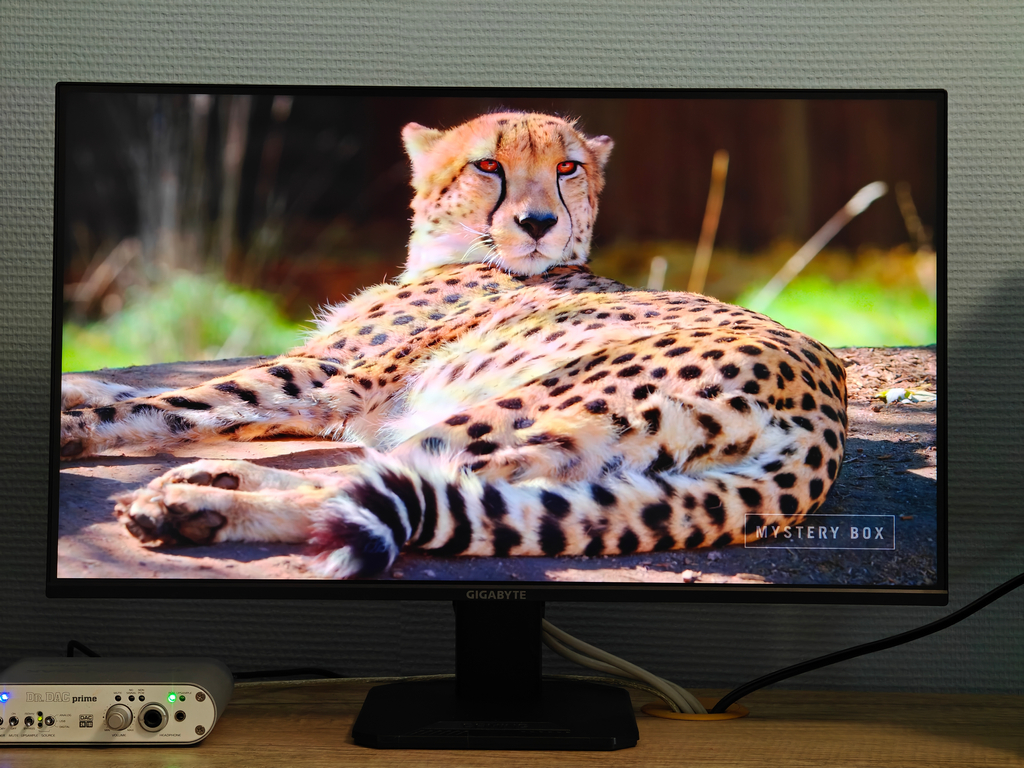
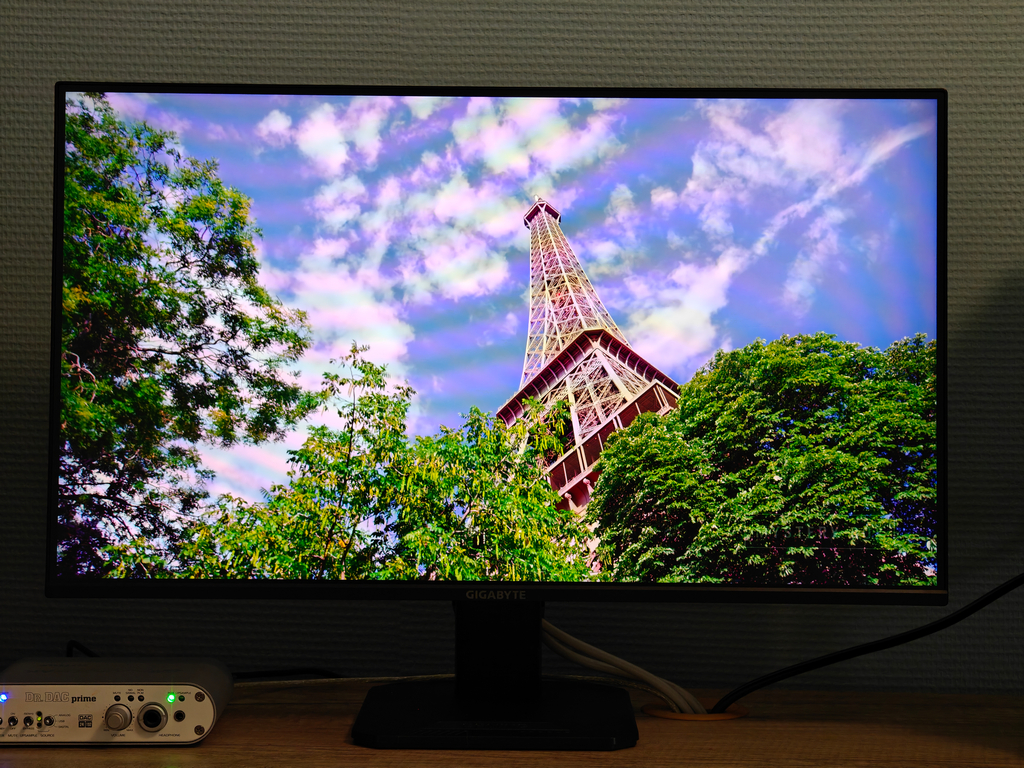
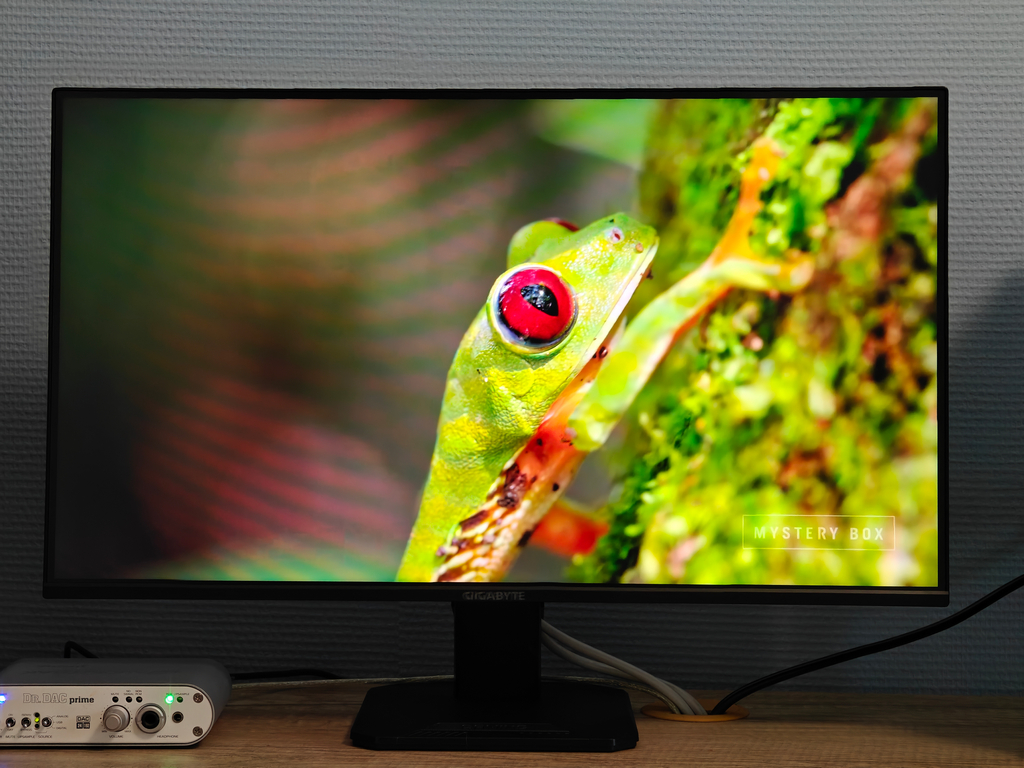
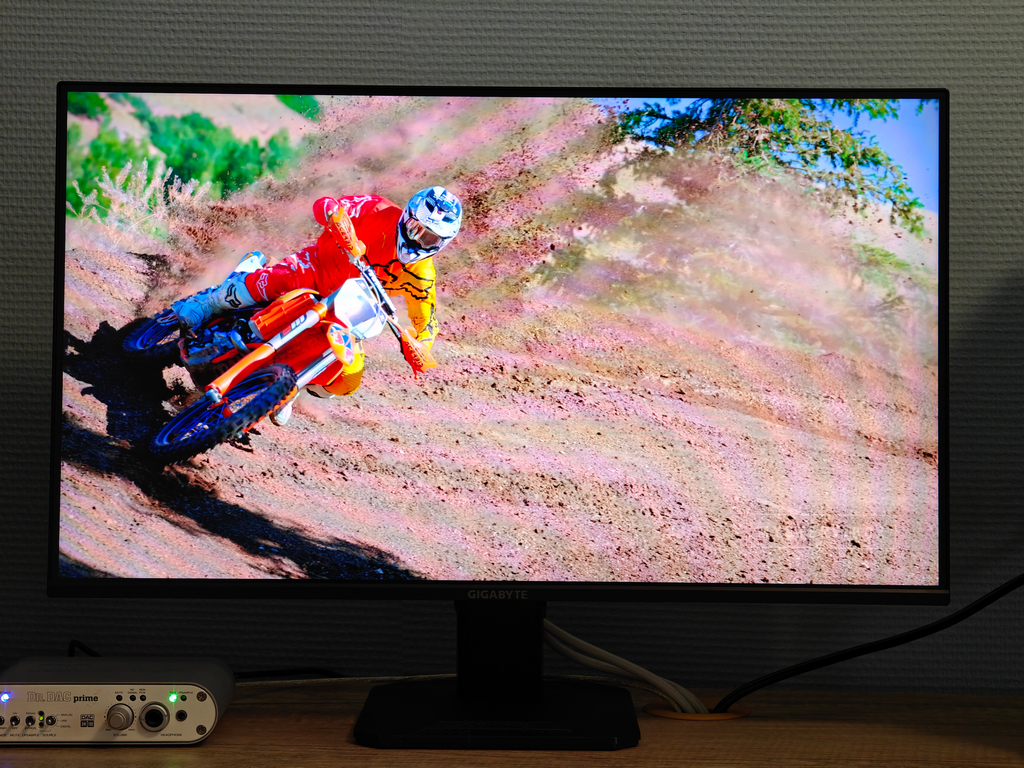
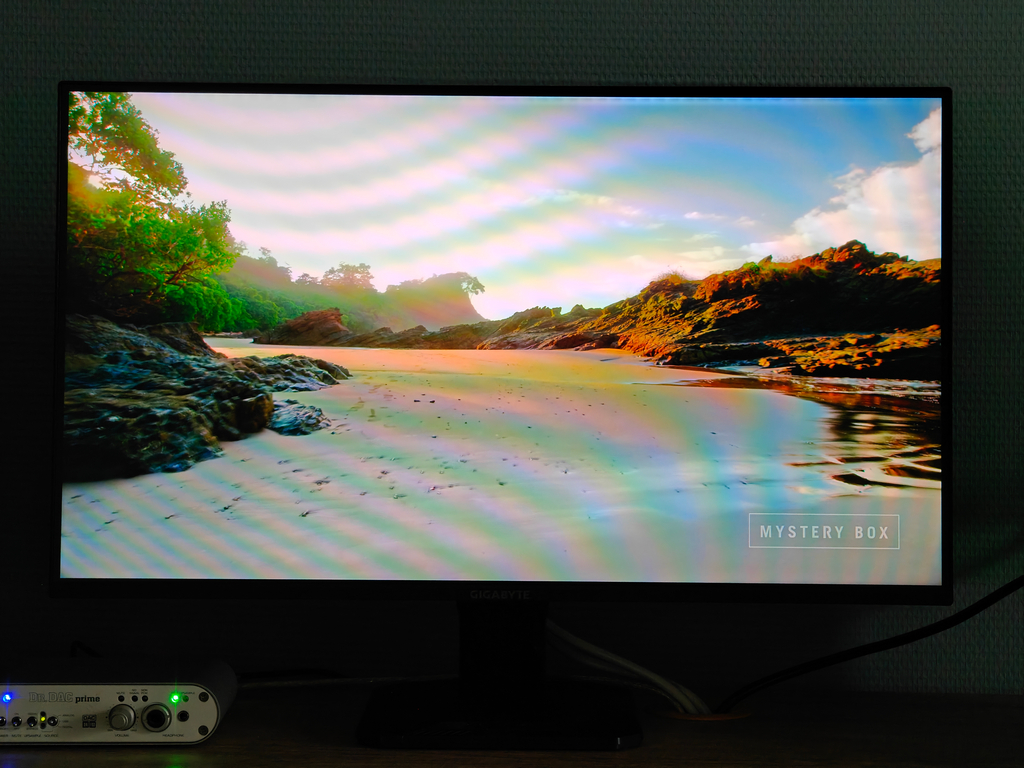
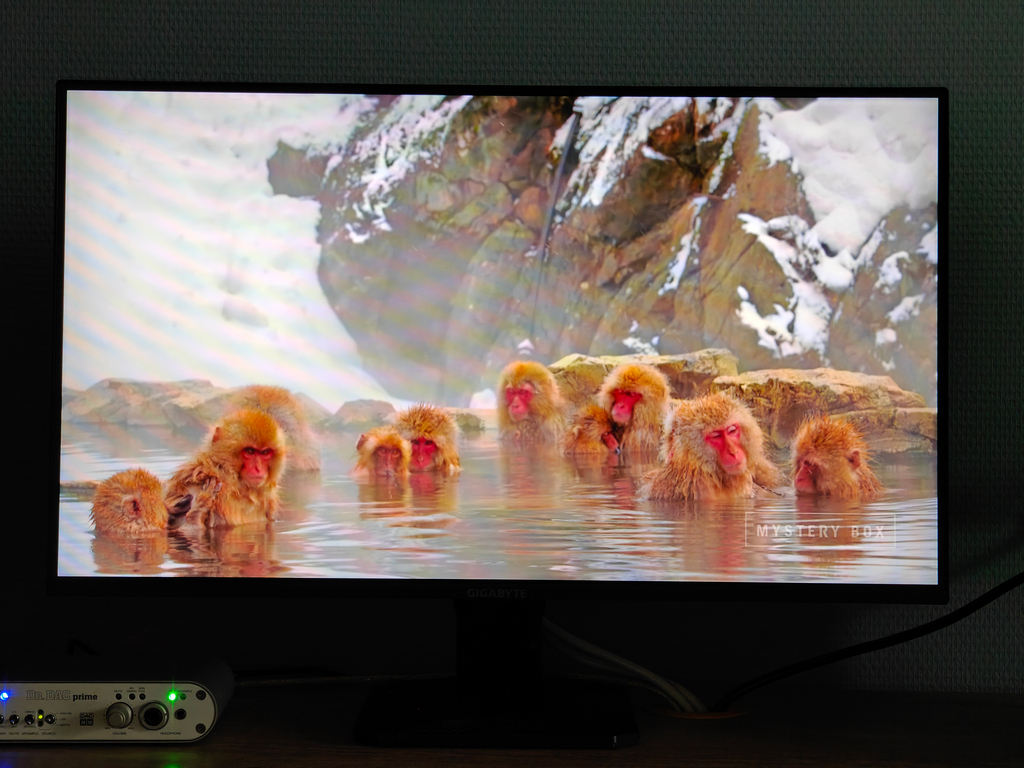
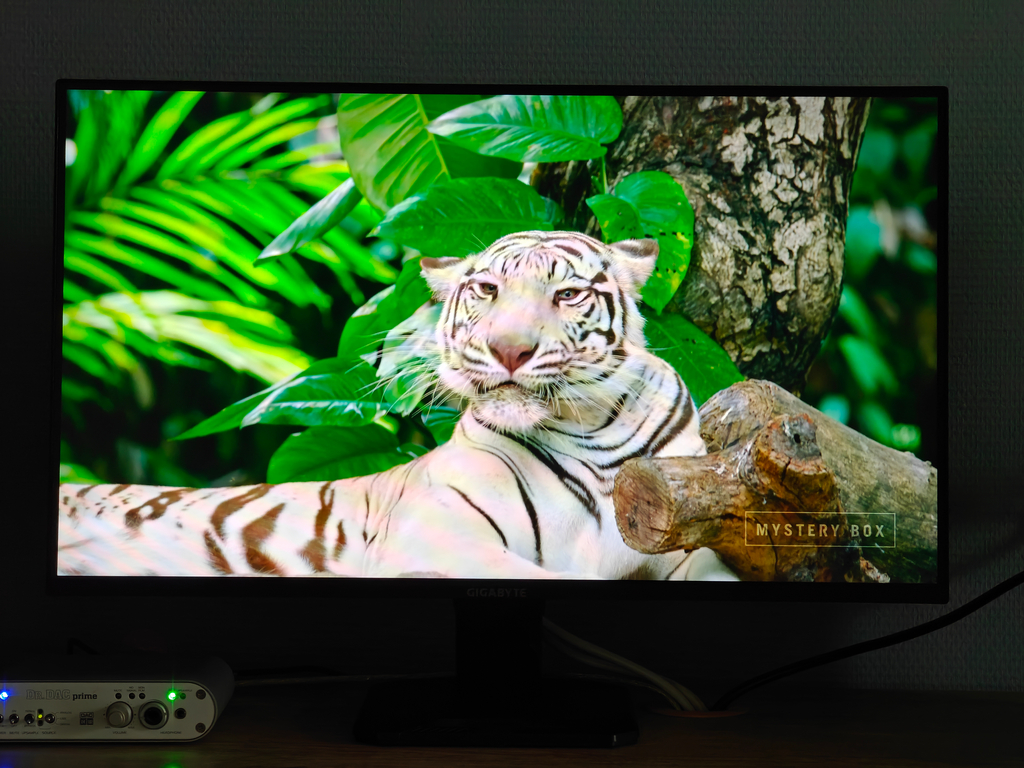
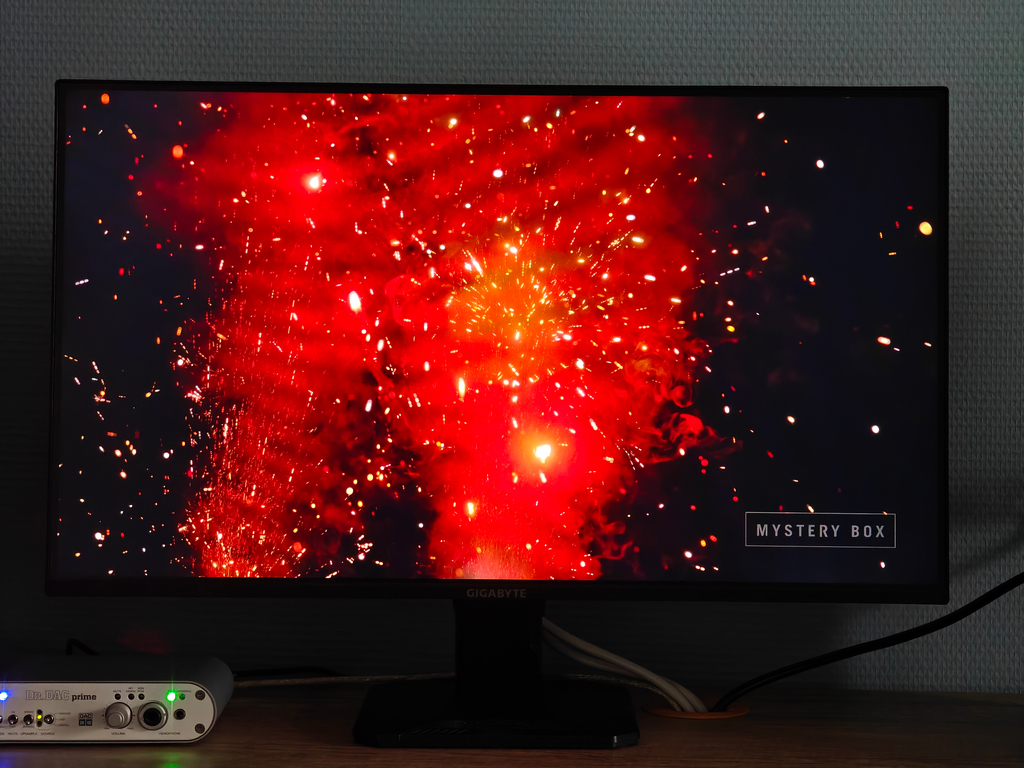
The factory calibration of the sRGB profile on the GIGABYTE GS25F2 is impressive, delivering accurate color reproduction and stable white point temperature. However, in this mode, users lose access to several important settings, including overdrive. Ideally, the manufacturer would allow adjustments to gamma and color temperature without compromising calibration accuracy – this flexibility would make the sRGB profile even more appealing. Still, having a well-calibrated sRGB profile in a model priced below 6000 UAH is a notable advantage compared to many competitors.
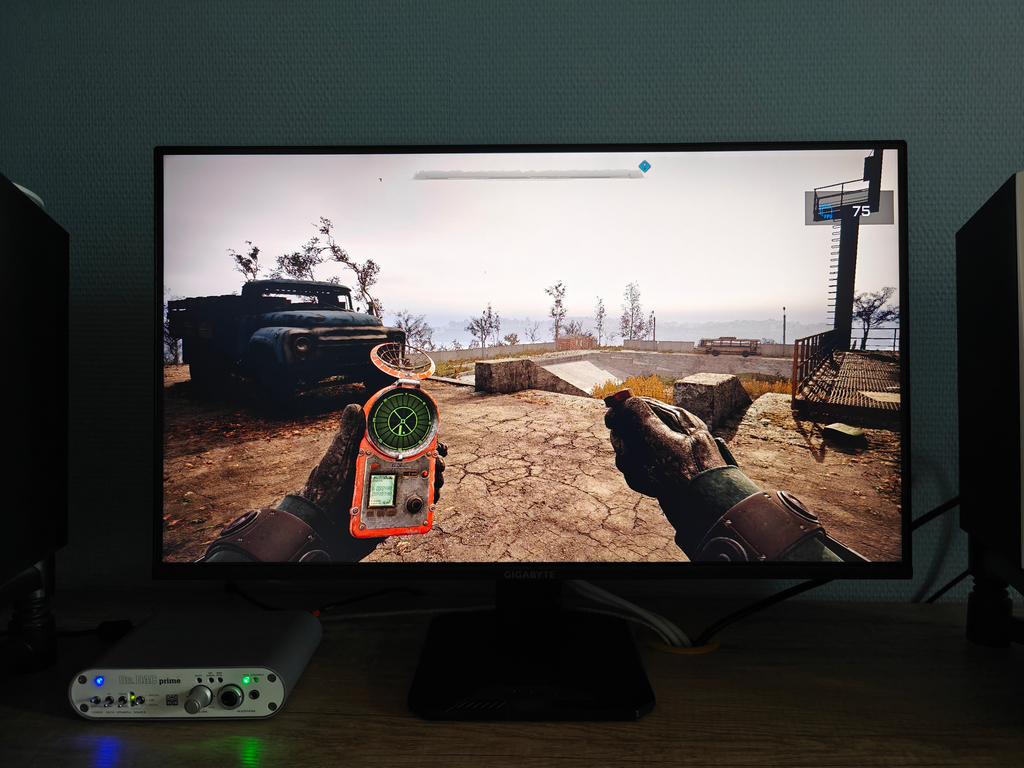
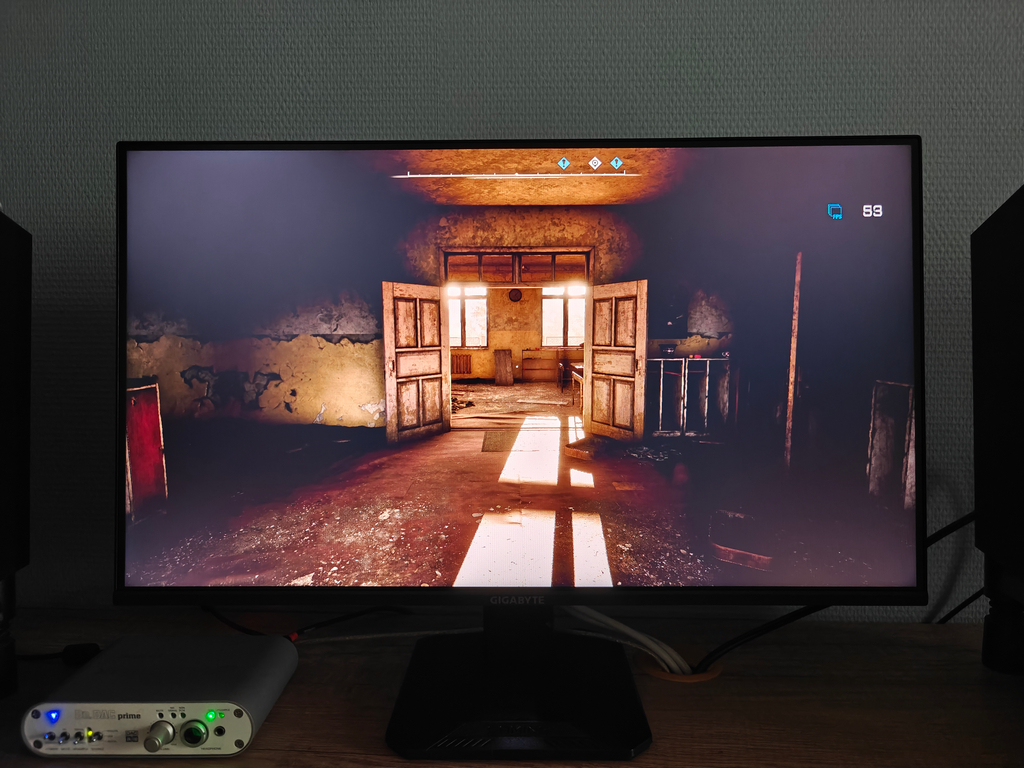
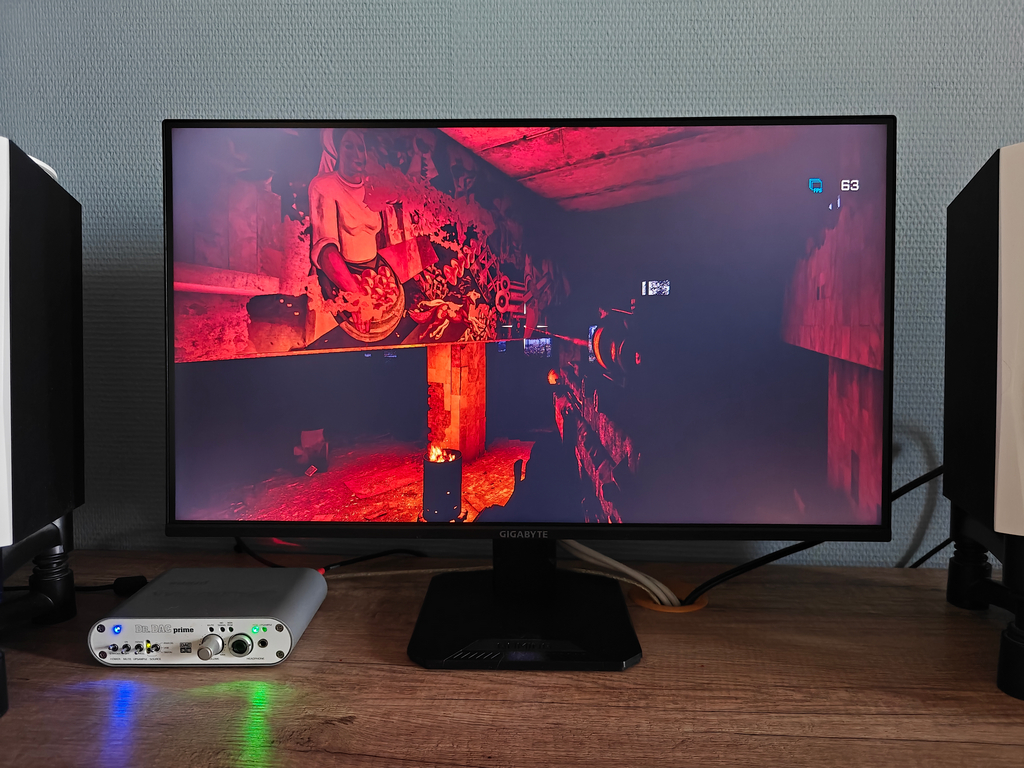
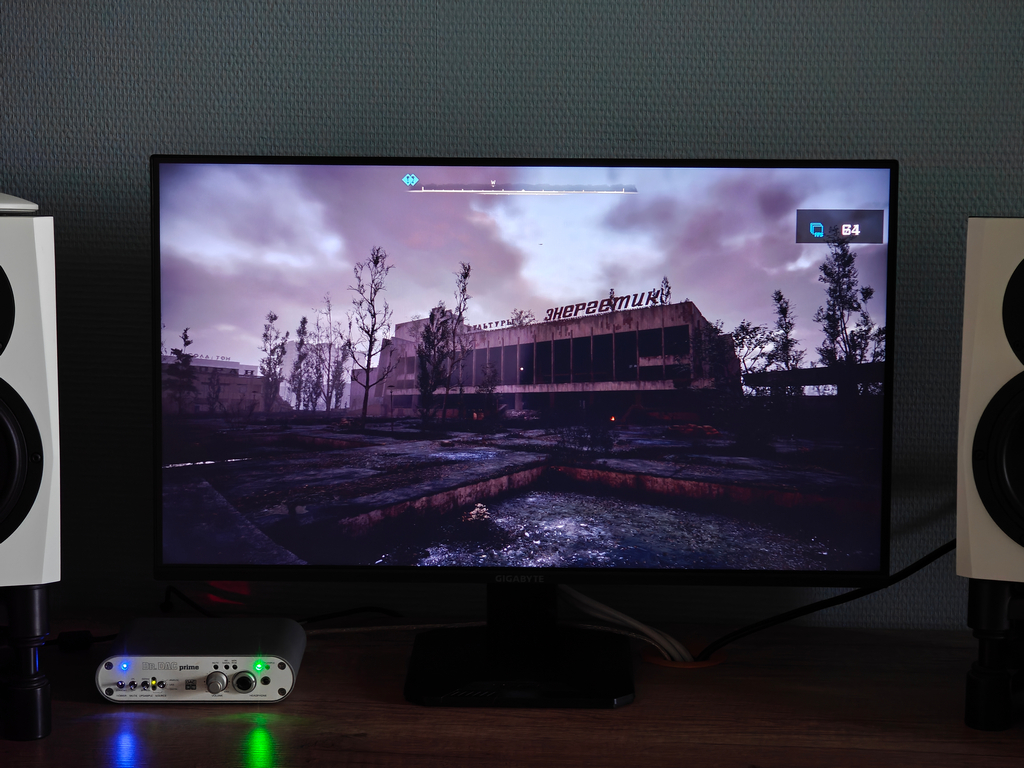
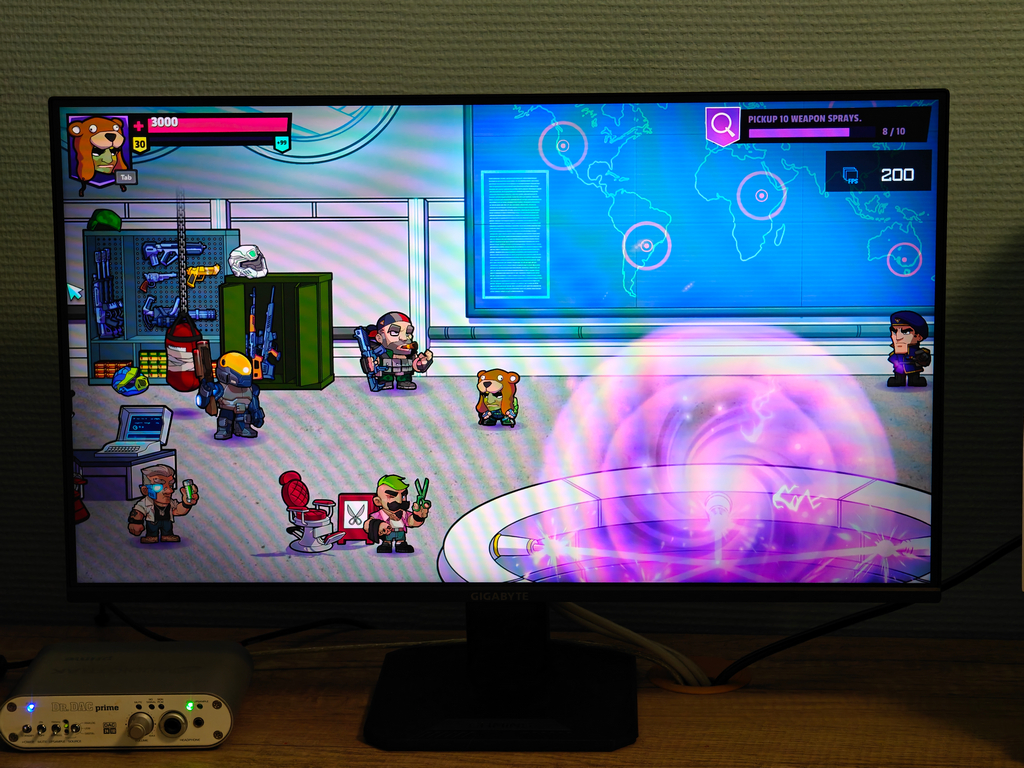
Adaptive sync with FreeSync Premium, paired with an AMD Radeon RX6800XT graphics card, works without issues. The monitor’s ability to display FPS without requiring additional software is a useful feature. However, the FPS counter doesn’t always show the correct frame rate, sometimes displaying the refresh rate set in the operating system instead. This can usually be fixed by minimizing and then restoring the game window.
In everyday use, backlight unevenness on the GIGABYTE GS25F2 monitor is hardly noticeable. The exception is when displaying a completely white screen or light-background text documents – under these conditions, dimmer areas near the edges of the panel may become more apparent. However, over time, the eyes tend to adapt, and most users stop noticing these variations.
If uniform backlighting is critical – such as for graphic design or other color-sensitive work – it’s better to consider monitors with local dimming or OLED displays. However, these options belong to a different class of technology, both in terms of functionality and price.
Alternatives and conclusions
The budget gaming monitor segment is crowded with various models – some cheaper, some more expensive than the GIGABYTE GS25F2. However, it’s worth noting that at the time of this review, the GS25F2 is the most affordable 200 Hz monitor available in Ukraine. Competitors in a similar price range typically max out at 100–120 Hz, or at best 165 Hz. This makes the GS25F2 a competitive option in terms of price-to-refresh-rate ratio.
More affordable options include the ASRock CL25FF, priced around 4000 UAH (\$95). It has a 24.5-inch screen and covers 99% of the sRGB color space but is limited to a 100 Hz refresh rate and a lower claimed brightness of 300 cd/m². The Acer SA243YG0wi, priced similarly to the ASRock, offers a slightly higher 120 Hz refresh rate and a respectable 1500:1 contrast ratio but a lower brightness rating of 250 cd/m², with the same 99% sRGB coverage. The slightly more expensive BenQ GW2790E features a larger 27-inch display but only supports a 100 Hz refresh rate and has a modest brightness level. The Xiaomi Gaming Monitor G24i, priced at about $120, offers a higher 180 Hz refresh rate and a fast IPS panel with Adaptive-Sync and FreeSync support, along with decent calibration, though its brightness is also rated at 250 cd/m².
More expensive options include the Samsung 24 Odyssey G3 LS24DG300EIXCI, which stands out as a strong competitor to the GIGABYTE GS25F2. It is one of the few monitors in this segment to offer a functional stand, along with a VA panel that features a 3000:1 contrast ratio and a 180 Hz refresh rate. However, it has slightly lower sRGB coverage at 95% and a brightness level of 250 cd/m².
The Xiaomi Gaming Monitor G27i offers a larger screen size and good color calibration, though its refresh rate and brightness (165 Hz, 250 cd/m²) are somewhat behind the main monitor in this review. The ASUS VG259Q3A is priced higher than the GIGABYTE model but matches it with a 180 Hz refresh rate and 250 cd/m² brightness. A notable feature is ASUS’s proprietary ELMB Sync technology, which aims to reduce motion blur. The iiyama G-Master Red Eagle G2770HS-B1 comes with a 27-inch display, 180 Hz refresh rate, and a brightness of 300 cd/m². Lastly, the Acer Nitro ED270RS3bmiipx offers a curved VA panel with a 1500R radius, 3000:1 contrast ratio, and 180 Hz refresh rate, although its brightness is moderate at 250 cd/m².
In summary, the GIGABYTE GS25F2 is a genuinely competitive budget monitor that holds its own against similarly priced models. Its most noticeable drawbacks are the basic stand – a common issue among many competitors – and uneven backlight uniformity, which is frequently seen in IPS panels, including some higher-end models. That said, there are monitors available at a similar price point that offer better backlight uniformity.
The GIGABYTE GS25F2 stands out with its high brightness level of 350–370 cd/m², compared to most competitors in the same class that typically offer 250–300 cd/m². It also features the highest refresh rate among its price peers at 200 Hz, delivers accurate color reproduction with a factory-calibrated sRGB profile, and offers good contrast for an IPS panel.
Users seeking full coverage of DCI-P3 / Display P3 color spaces, support for more advanced HDR standards with higher brightness, and more precise factory calibration will need to look at significantly more expensive models. However, it’s worth noting that among all monitors with a 200 Hz refresh rate available on the Ukrainian market, the GIGABYTE GS25F2 offers the best value while remaining competitive in other key specifications within its price range.
Read also:


Please share srgb profile