© ROOT-NATION.com - Use of content is permitted with a backlink.
Today I’m reviewing the TUF Gaming VG27AQML5A, a new gaming monitor from ASUS that joined the lineup in the second half of last year. It is a 27-inch model with strong gaming specifications by current standards and currently serves as the flagship of the TUF series. Essentially, the VG27AQML5A can be considered a “stripped-down ROG” offering, but at a noticeably lower price.
It features a fast 10-bit IPS panel with a 300 Hz refresh rate, 2K resolution, a solid adjustable stand, and a full suite of proprietary ASUS technologies, including new AI modes – among other capabilities. In this review, I’ll cover what makes it notable, its pricing, and the smart features ASUS has included. As usual, we’ll start with a brief overview of the technical specifications.
Read also: All monitor reviews on our website
TABLE OF CONTENTS:
ASUS TUF Gaming VG27AQML5A Specifications
- Model: VG27AQML5A
- Diagonal: 27″
- Resolution: 2560×1440 (QHD)
- Aspect ratio: 16:9
- Panel type: Fast IPS
- Display surface: Anti-Glare (matte, anti-reflective)
- Backlight type: LED
- Colour space: DCI-P3 95%
- Display colours: 1073.7 million (10 bits)
- HDR support: HDR10
- Brightness (typical): 300 cd/m²
- Brightness (HDR, peak): 400 cd/m²
- Contrast ratio (typical): 1300:1
- Response time: 1 ms (GTG); 0.3 ms (min)
- Refresh rate (max): 300 Hz
- VRR technology: Adaptive-Sync (AMD FreeSync Premium, G-SYNC Compatible)
- Pixel pitch: 0.233 mm
- Display viewing area (H×V): 596.74×335.66 mm
- Viewing angle (CR≧10, H/V): 178°/178°
- Audio: 2 x 2 W speakers
- I/O ports: 1×DisplayPort 1.4 (HBR3), 2×HDMI 2.1 (FRL), 1×USB 3.2 Gen 1 Type-C (Service Port), 1×3.5 mm audio jack
- Digital signal frequency: DisplayPort 223~223 kHz (H) / 48~300 Hz (V); HDMI 30~223 kHz (H) / 48~300 Hz (V)
- Tilt adjustment: +20° ~ -5°
- Height adjustment: 0 ~ 130 mm
- Horizontal rotation: +20° ~ -20°
- Vertical rotation: +90° ~ -90°
- Wall/bracket mount: VESA 100×100 mm
- Tripod socket: 1/4″
- Kensington lock: yes
- Monitor dimensions (W×H×D): 61.50×53.40×21.50 cm
- Monitor dimensions without stand (W×H×D): 61.50×36.70×5.40 cm
- Package dimensions (W×H×D): 81.80×47.50×15.80 cm
- Monitor weight: 5.8 kg
- Monitor weight without stand: 3.6 kg
- Total weight in packaging: 8 kg
- Proprietary software: ASUS DisplayWidget Centre
- Power consumption: operating mode <33 W, energy-saving mode <0.5 W, power-off mode <0.3 W; operating voltage 100-240 V, 50/60 Hz
- Technologies and features: Flicker-Free, HDCP 2.2, ASUS Power Sync, Adaptive-Sync, GameFast Input, ELMB Sync, Low Blue Light, GameVisual, GamePlus, Shadow Boost, 4 colour temperature modes, A.I. Assistant Technology (AI Visual, Dynamic Crosshair, Dynamic Shadow Boost)
- Certifications and standards: TÜV Flicker-Free, TÜV Low Blue Light, VESA AdaptiveSync Display 300Hz, AMD FreeSync Premium, G-SYNC Compatible, DisplayHDR 400
- Package contents: monitor, stand, DisplayPort cable, power cable, user manual, warranty documentation
Позиціонування та ціна
The positioning of the VG27AQML5A was established from the outset. The ASUS TUF Gaming VG27AQML5A is currently the flagship of the TUF lineup, offering specifications that can compete with more expensive ROG models and, in some areas, even outperform them, thanks in part to its more accessible price.
In essence, the VG27AQML5A is a refreshed version of the 2023 hit, the VG27AQML1A. The updated model increases the refresh rate from 240/260 Hz to 300 Hz, slightly improves contrast (from 1000:1 to 1300:1) and color coverage (DCI-P3 from 90% to 95%), and adds new AI features through the A.I. Assistant. Pricing has remained relatively stable, with the new model averaging $371–$464 / €314–€393, and in some retailers, it can even be found at a lower price than the previous version.
Packaging and Build
The monitor comes in a medium-sized branded cardboard box (81.8 × 47.5 × 15.8 cm) featuring the distinctive TUF series design. The total package weighs 8 kg. Convenient handholds are located on the sides for easier handling, and the contents are securely protected with thick, double-layered foam.


Standard contents. The TUF Gaming VG27AQML5A package includes:
- Monitor
- Adjustable stand
- V-shaped stand support
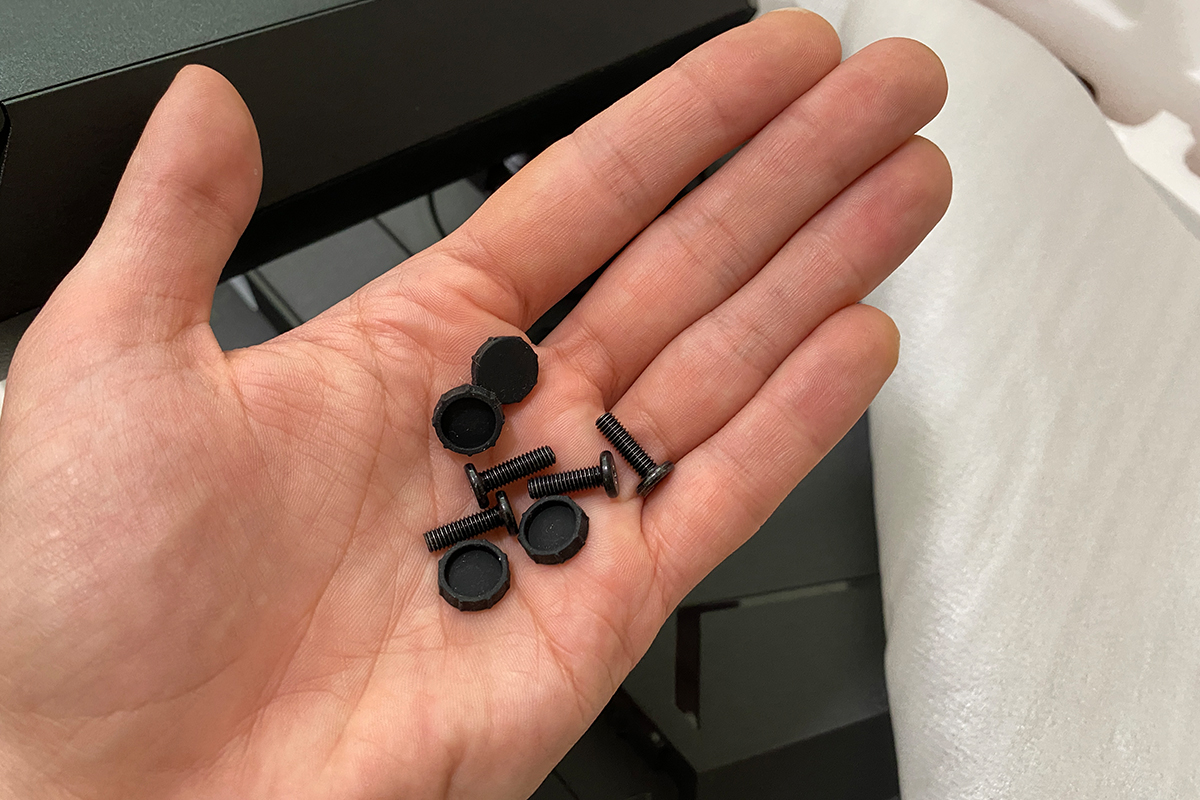
- 4 bolts with caps
- DisplayPort cable
- Power cable
- User manual
- Warranty documentation

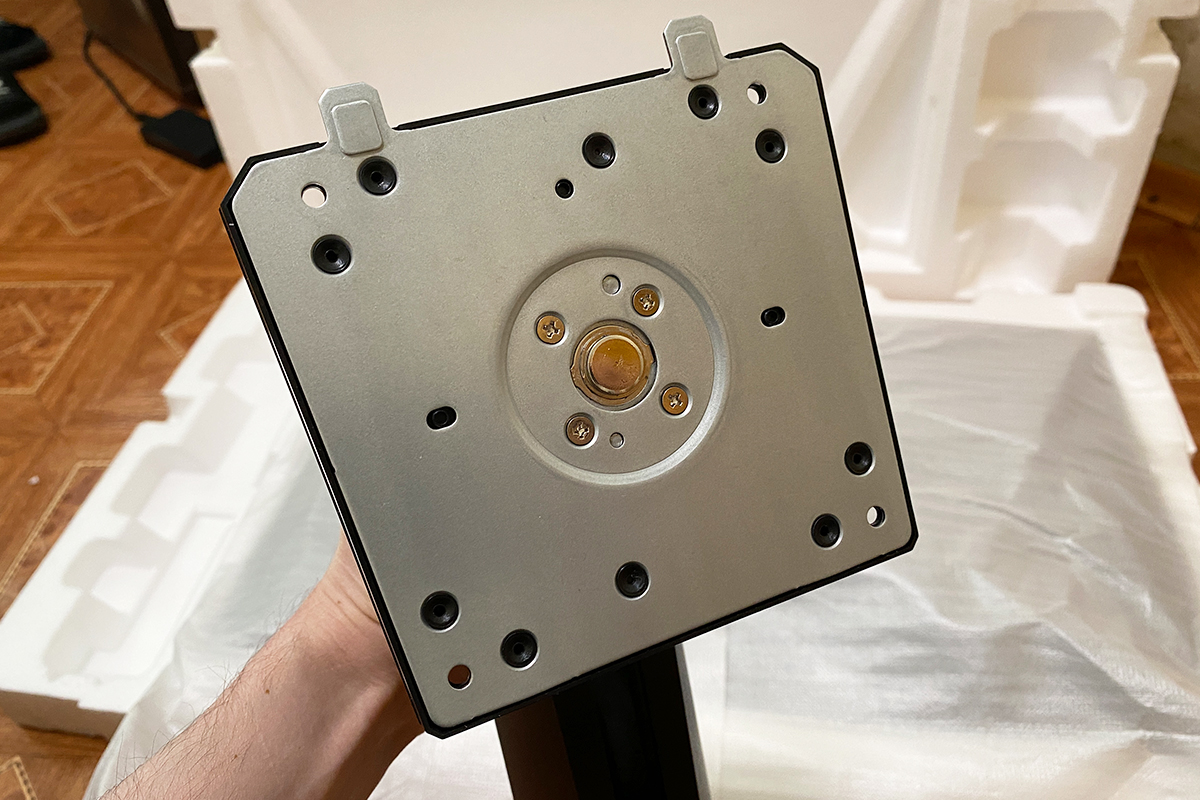
Immediate attention goes to the stand: as with the previous model, the package includes a robust, thick stand that allows adjustment of height, tilt, and swivel. Both visually and to the touch, it feels very solid, with a heavy metal core and high-quality matte plastic exterior.
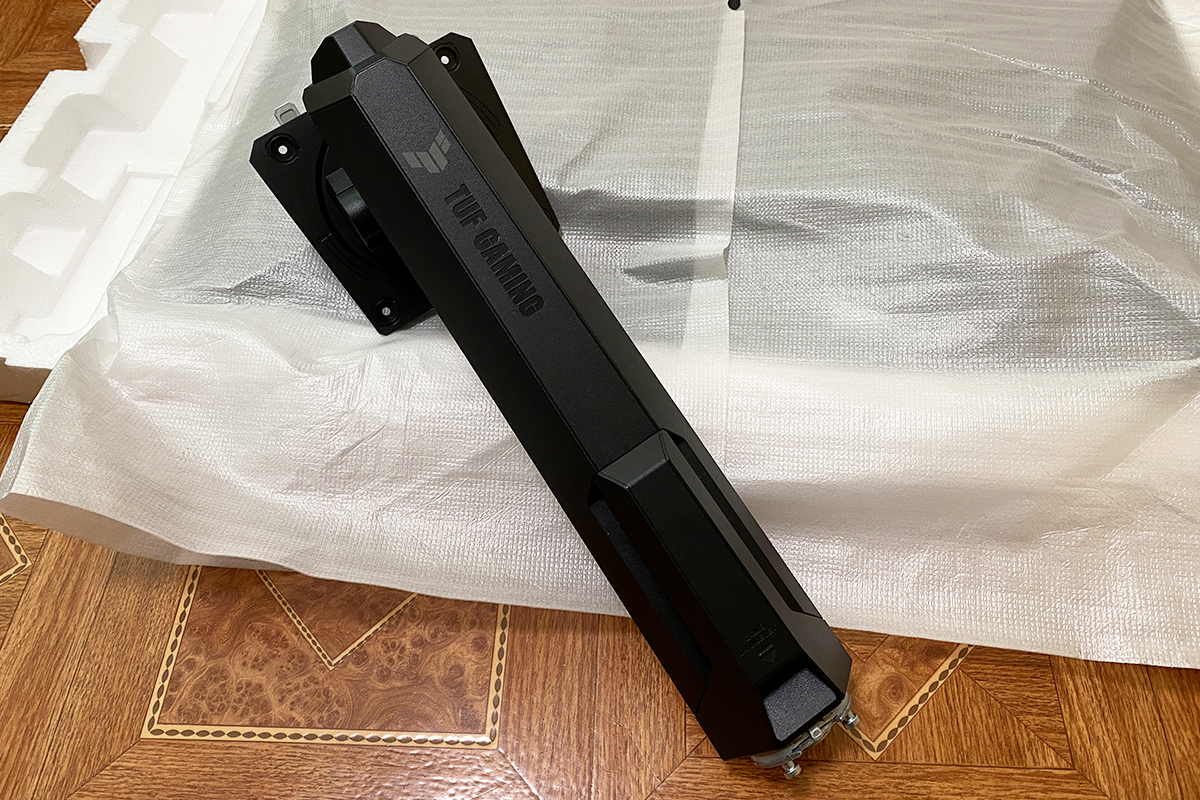
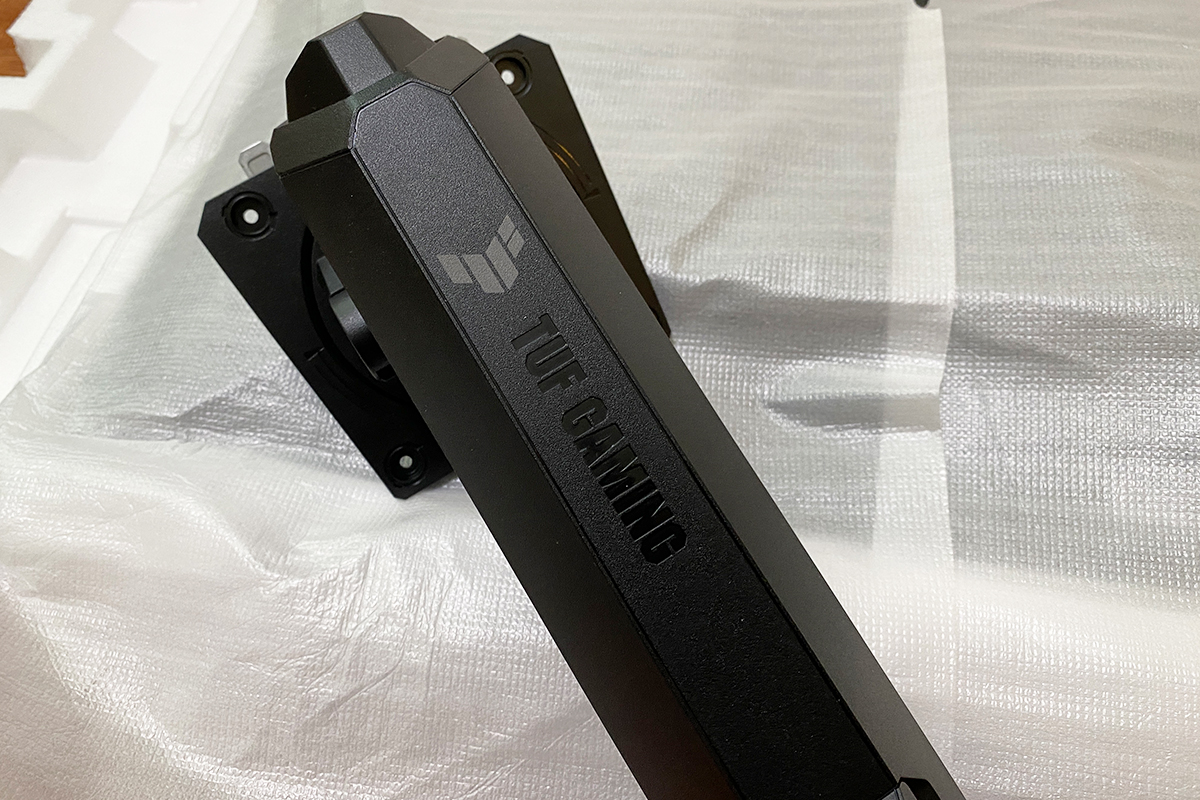
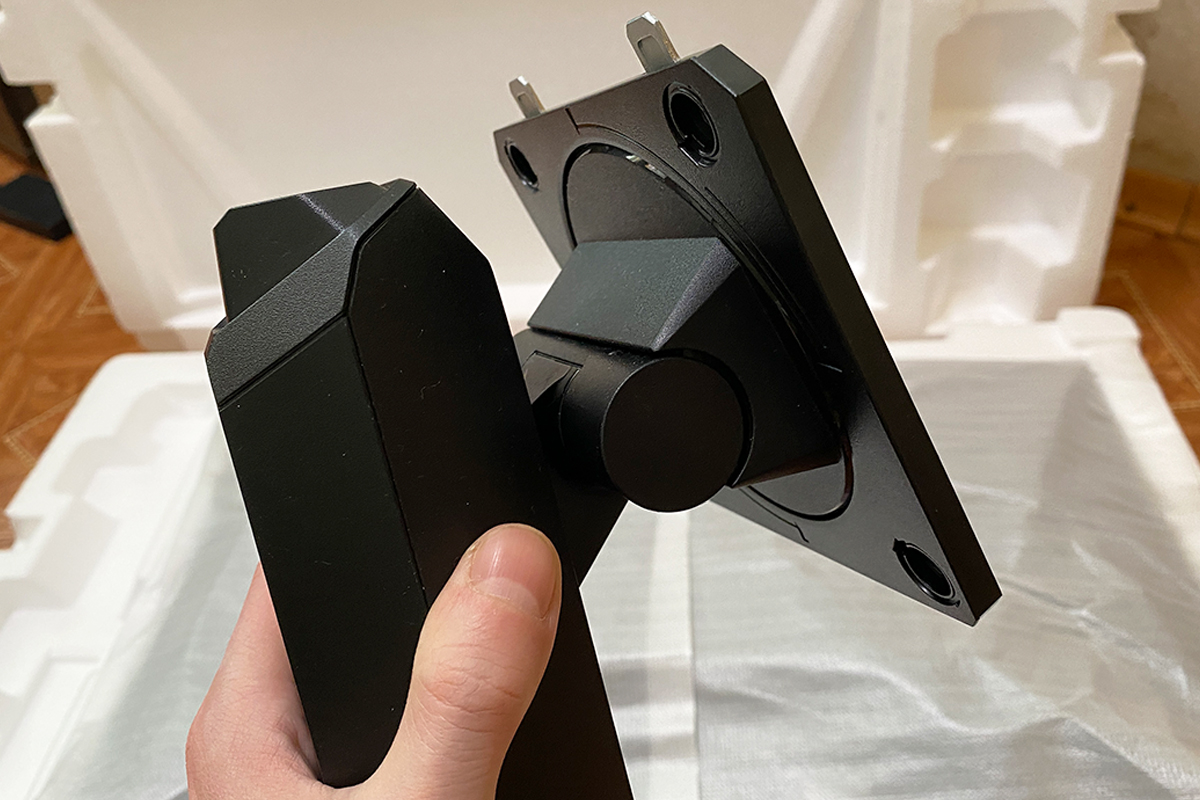
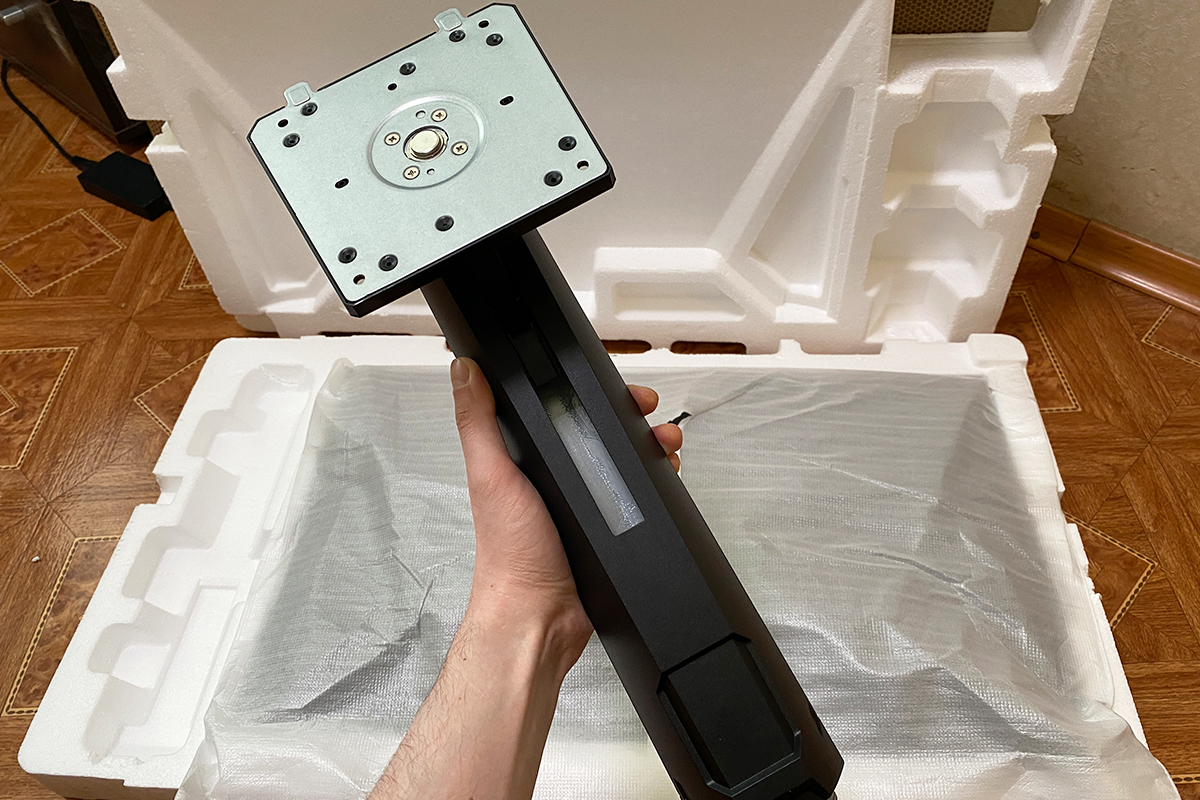
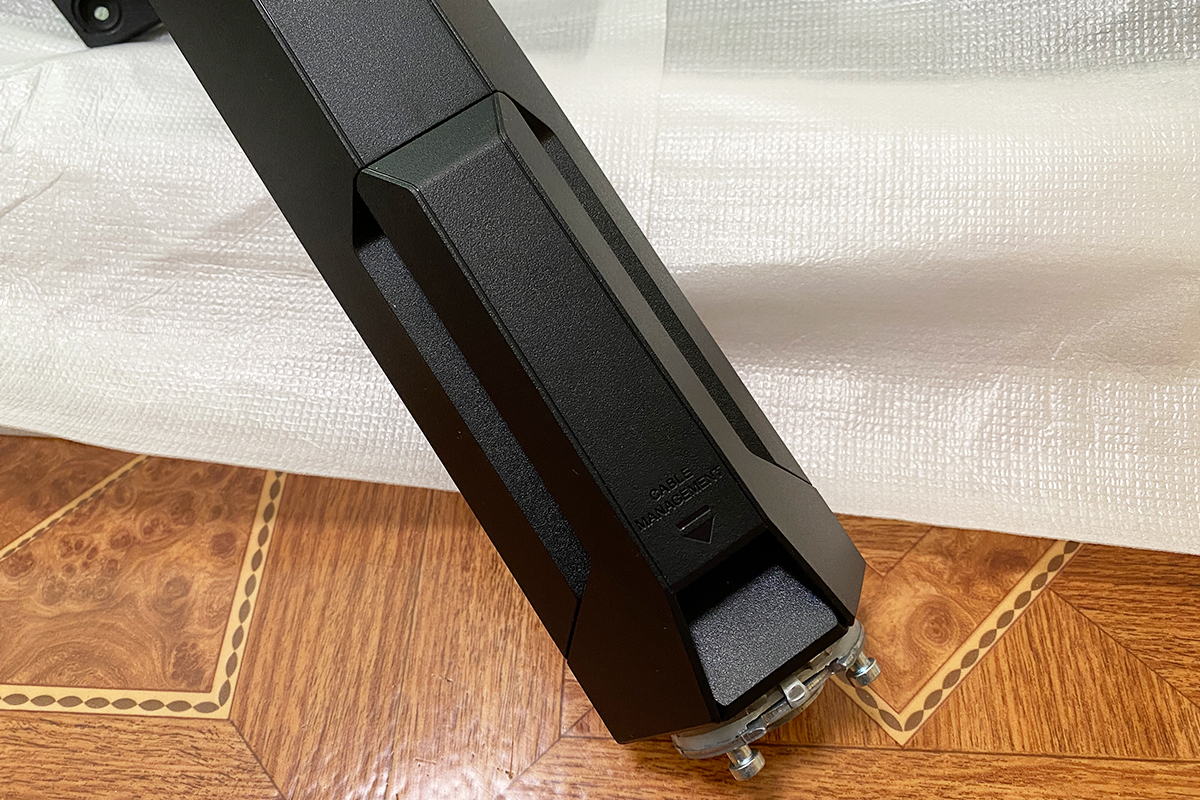
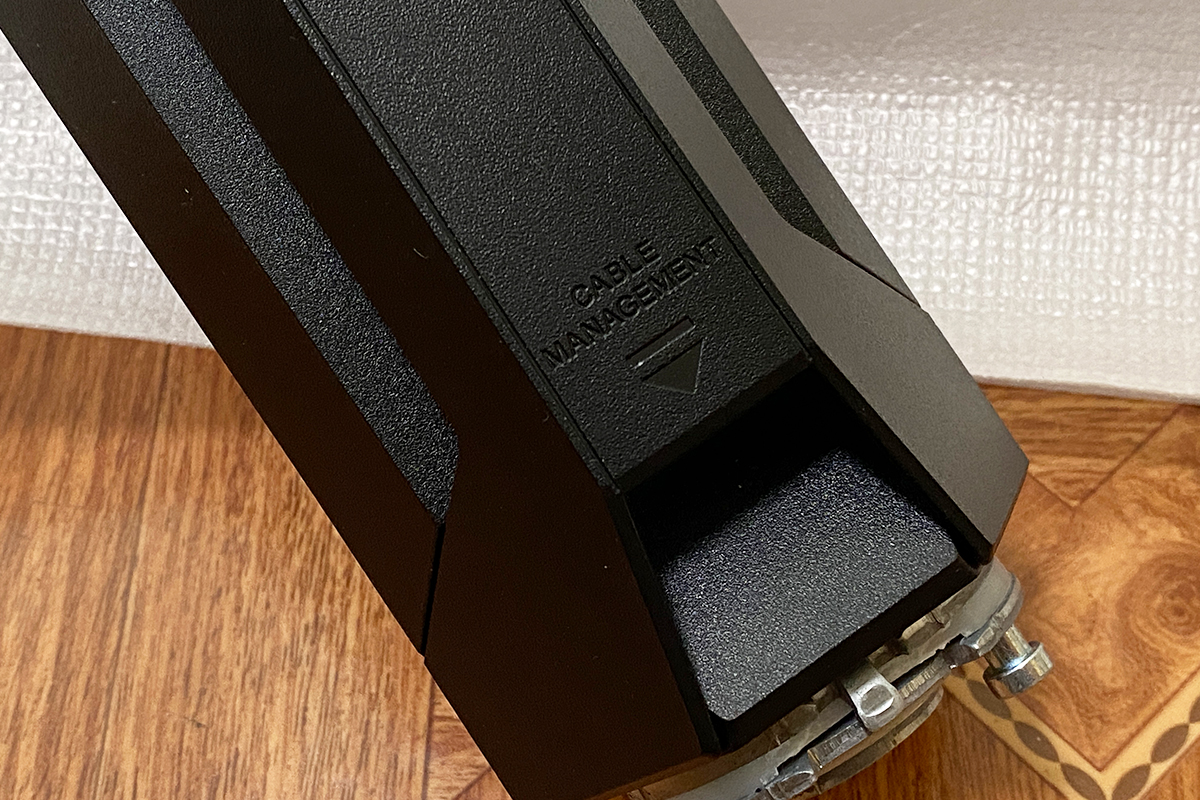
The stand includes a simple cable-management system with a plastic clip at the base. At first, it may seem unable to hold thicker cables, as the cover tends to come off. However, after a few adjustments, it can be secured firmly, and it generally performs its intended function.
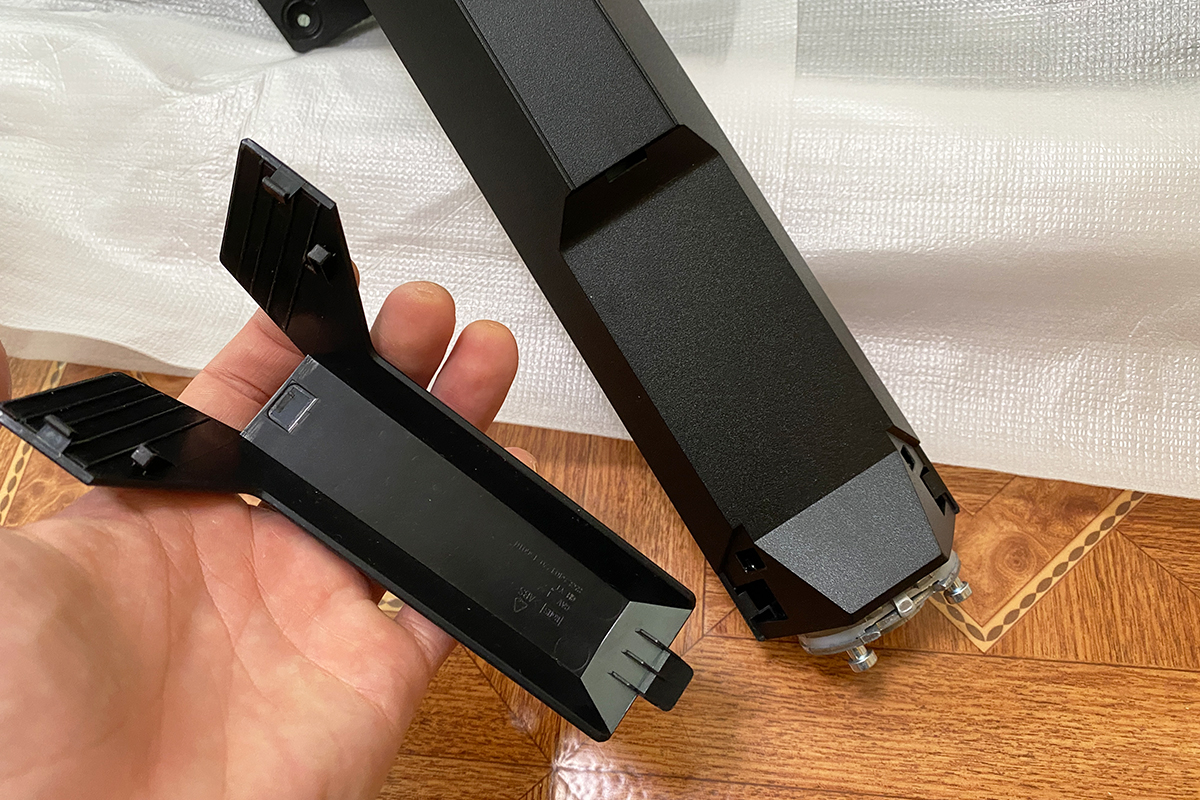
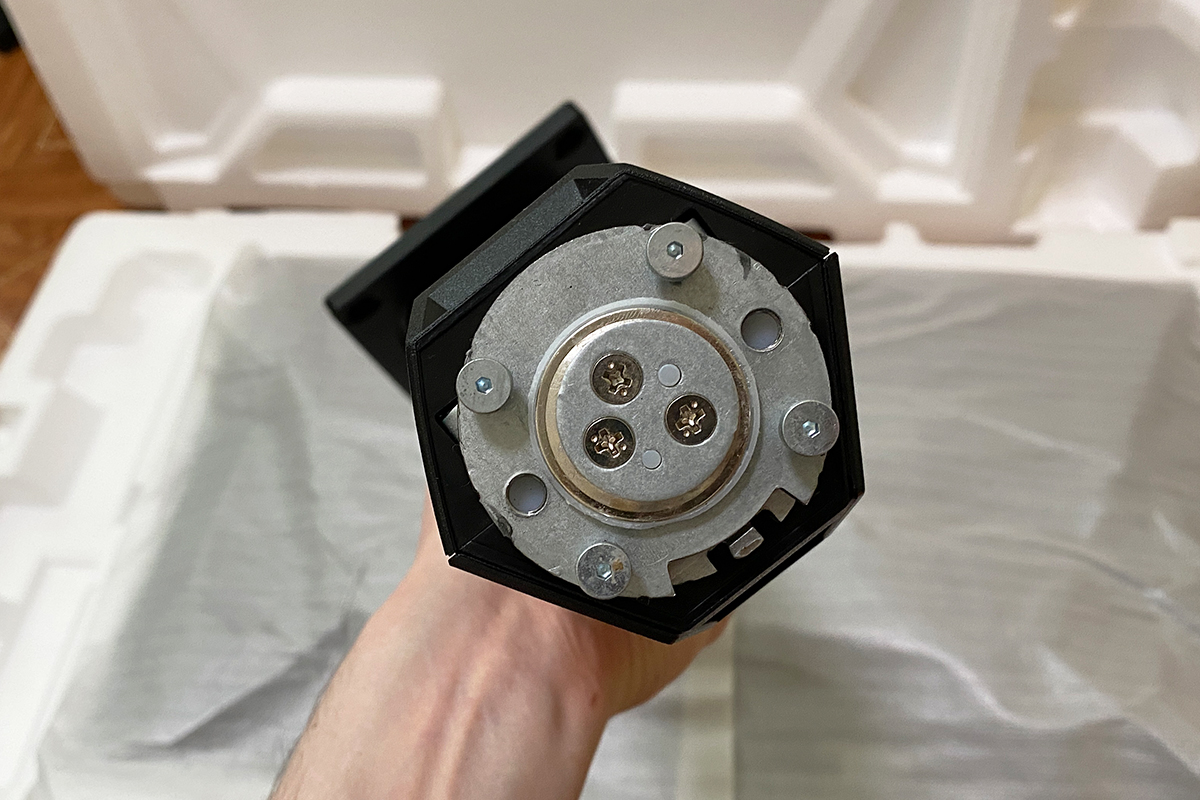
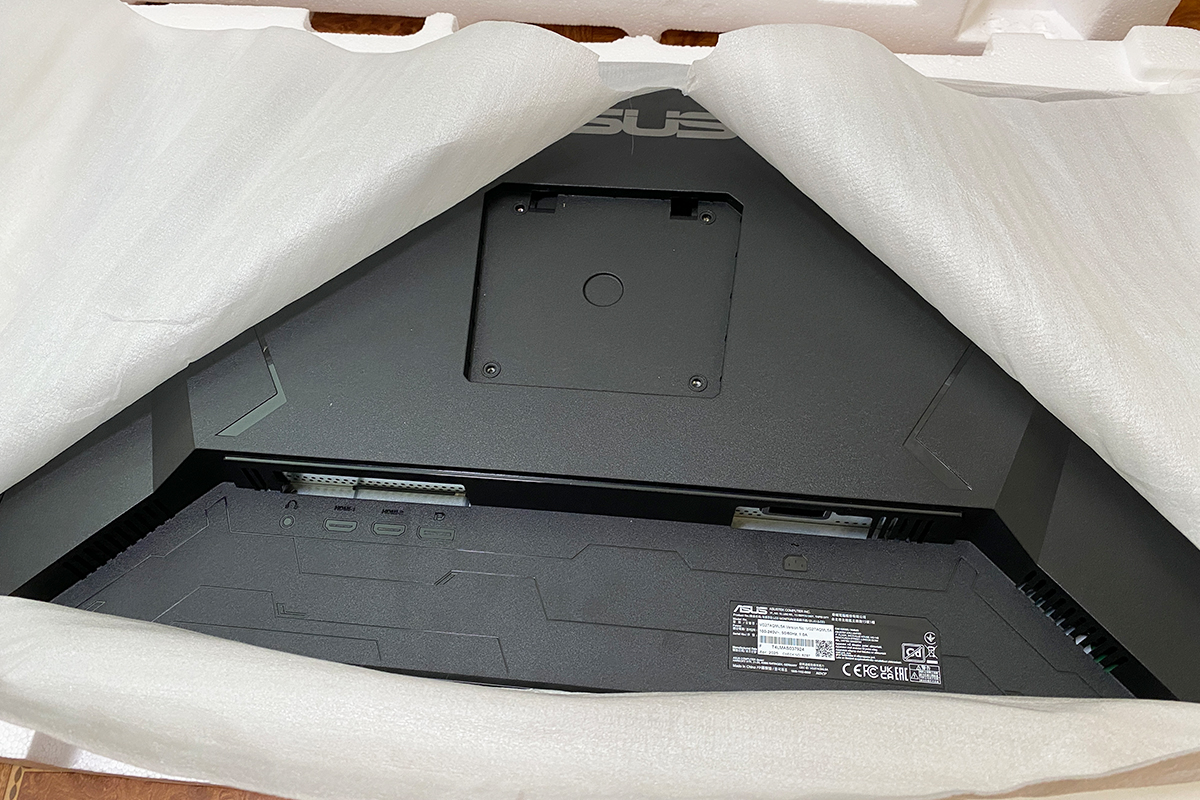
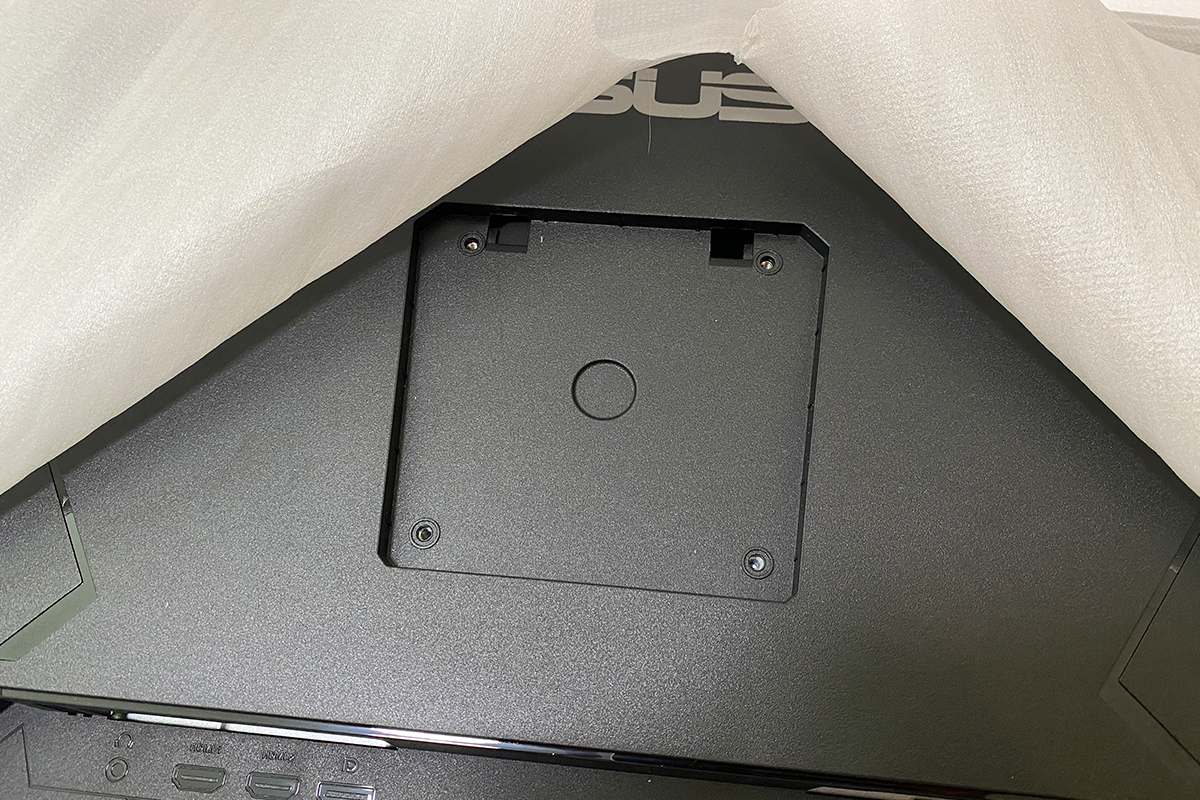
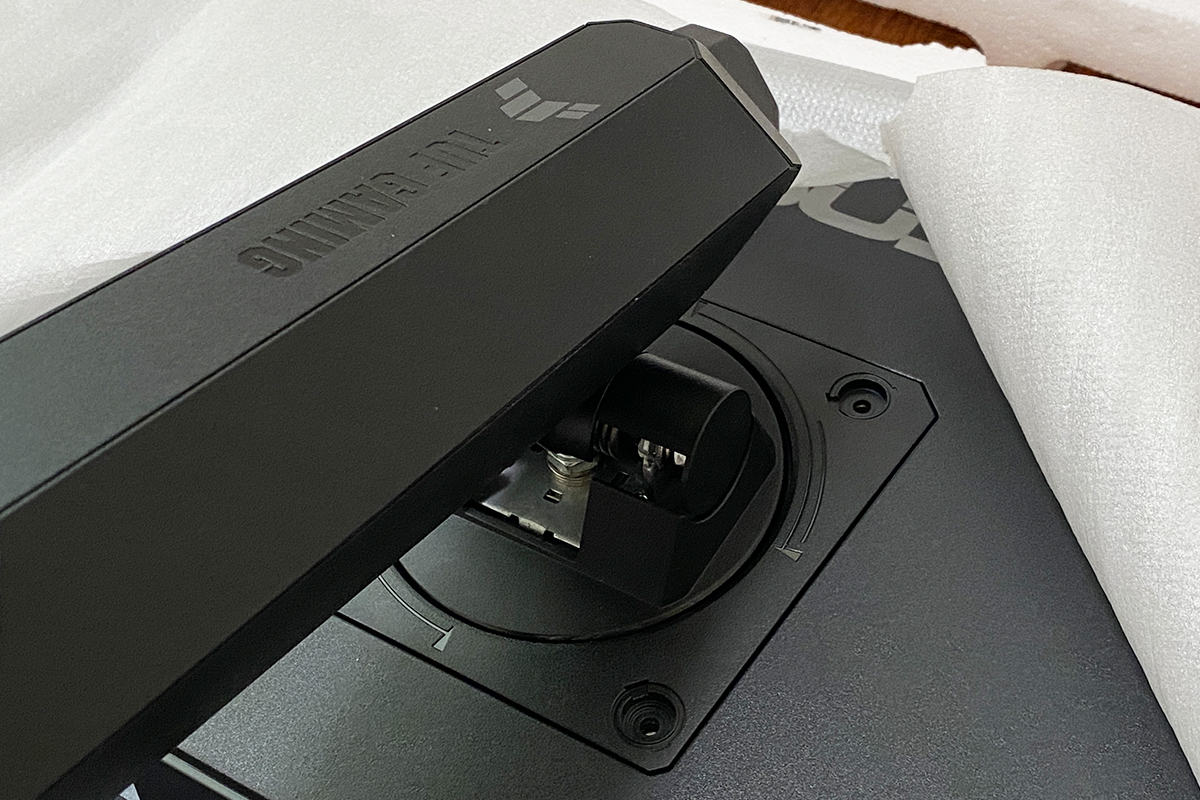
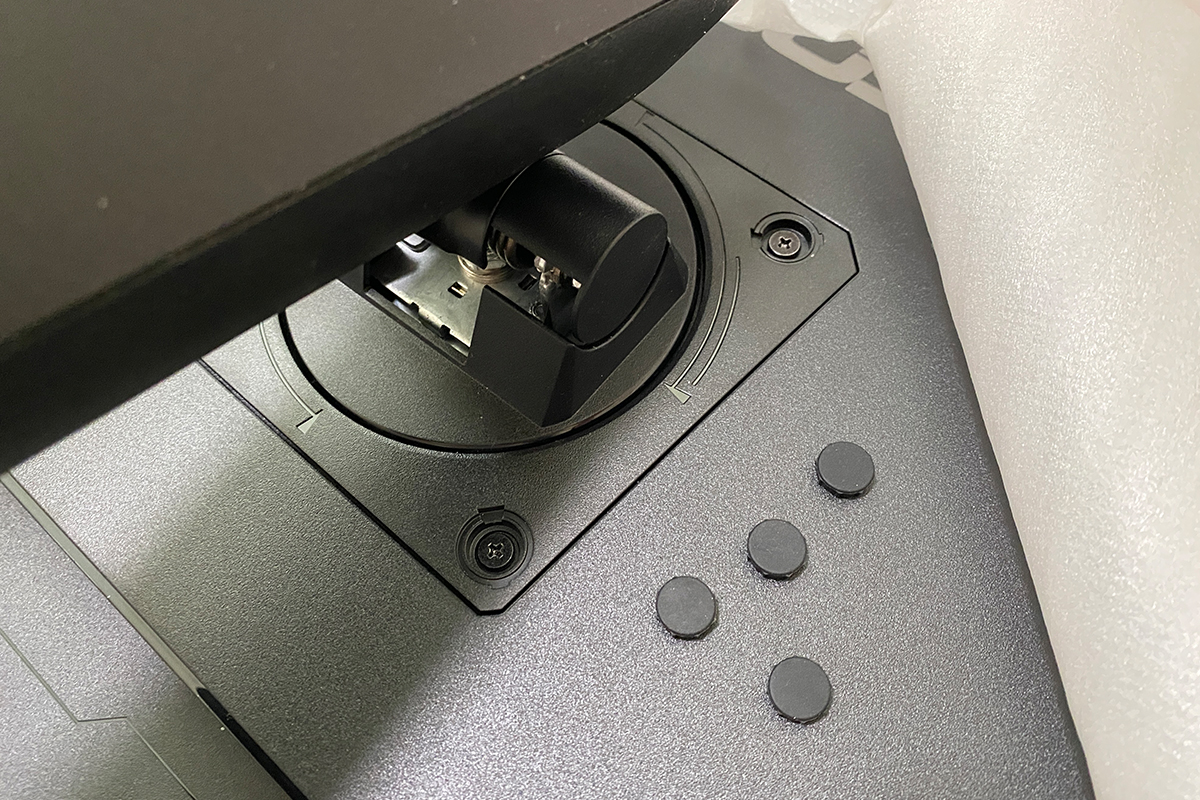
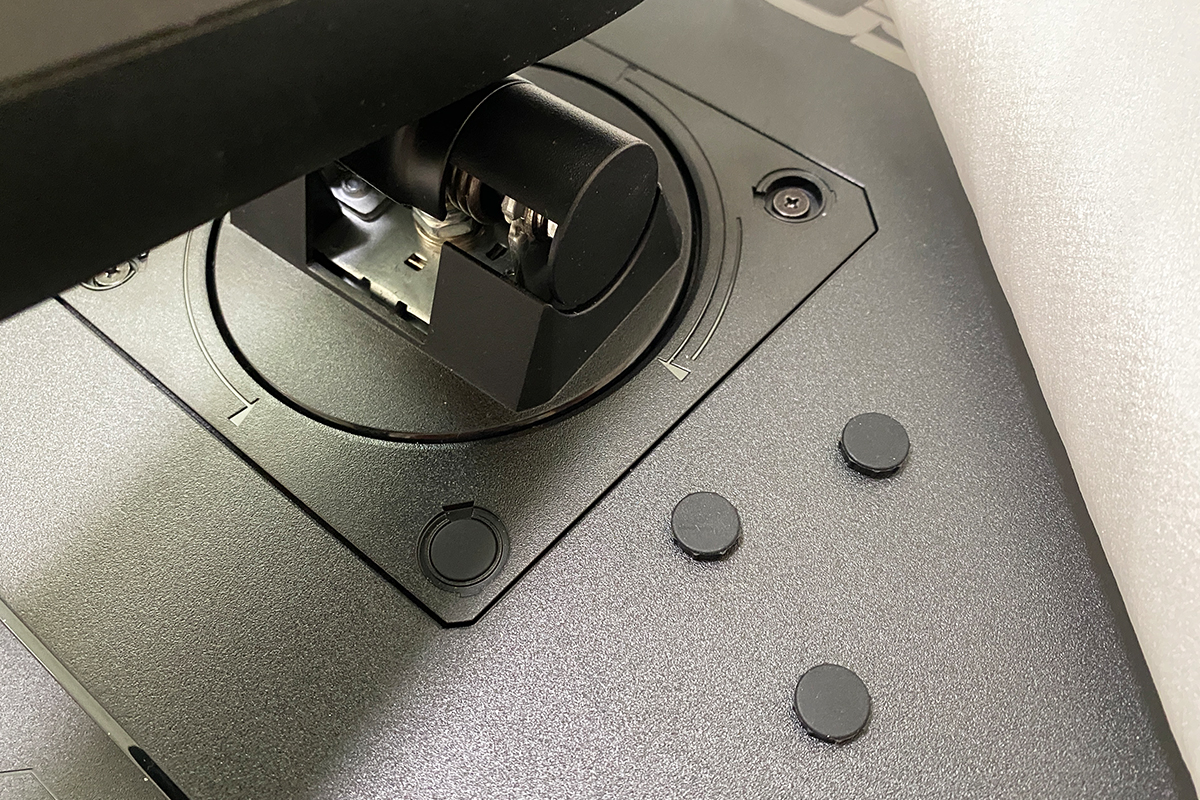
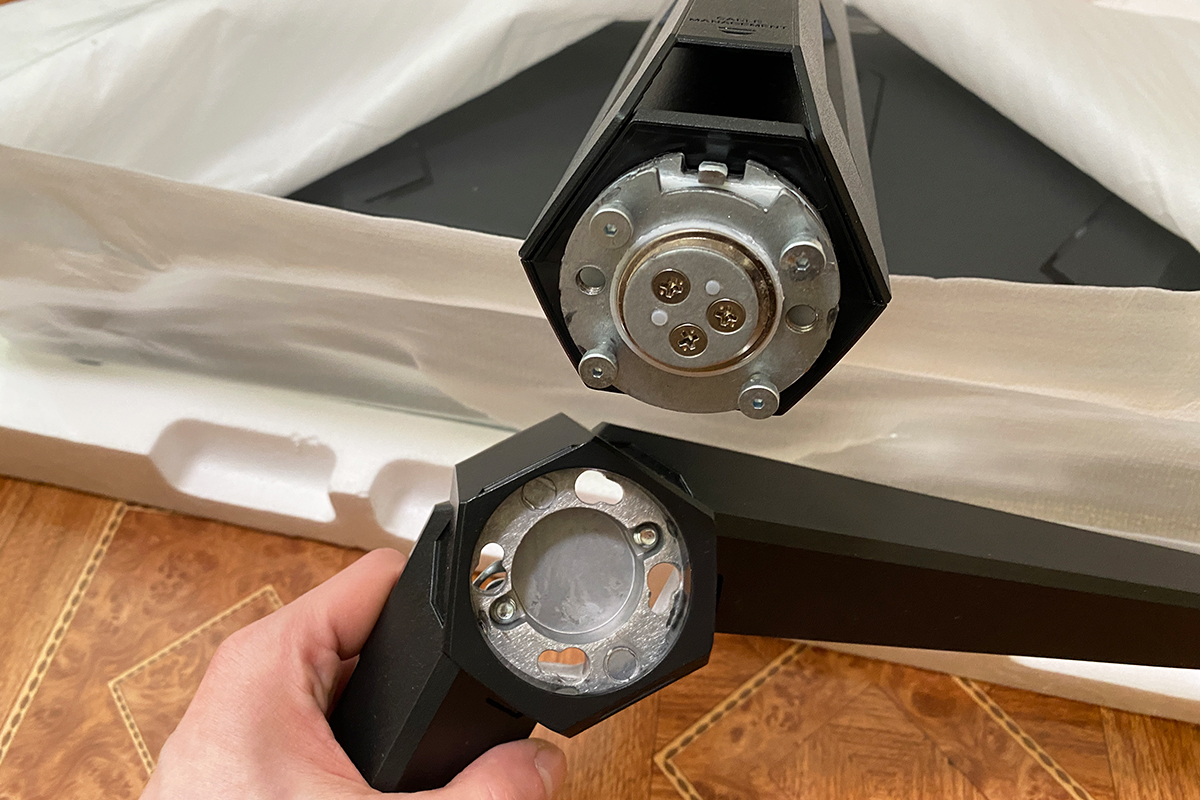
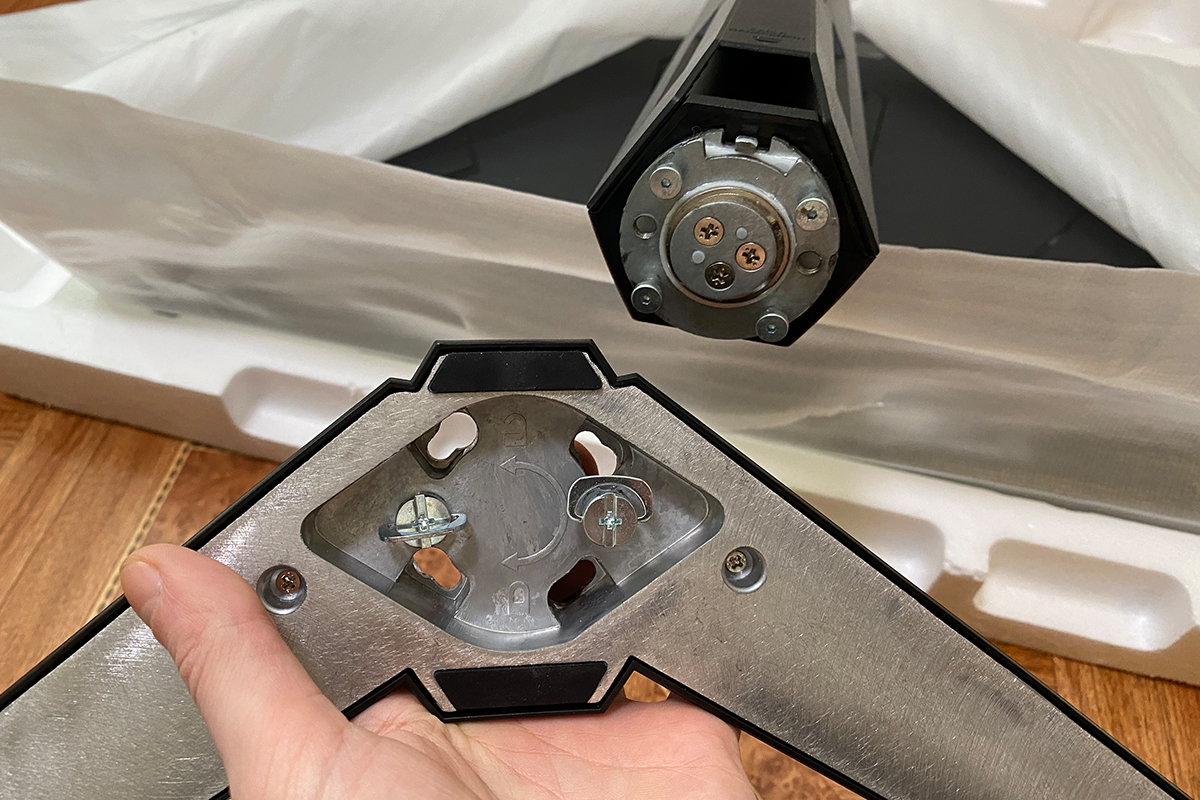
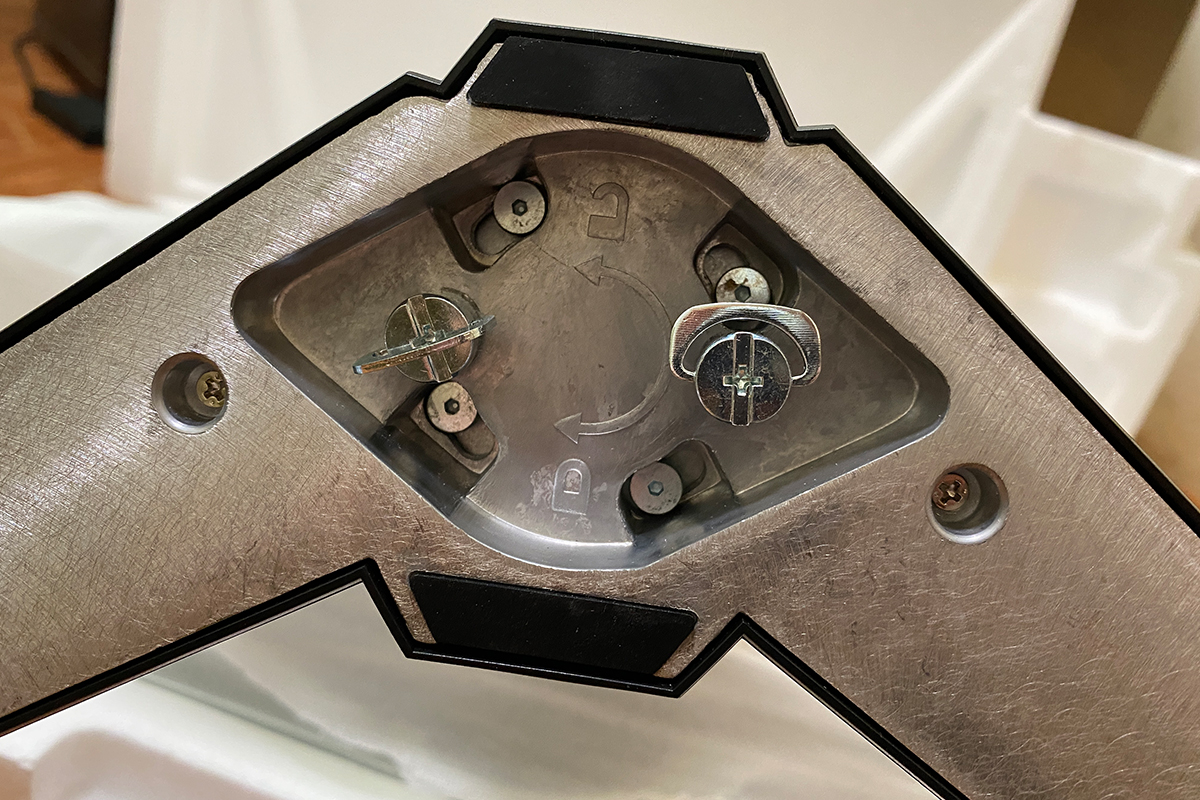
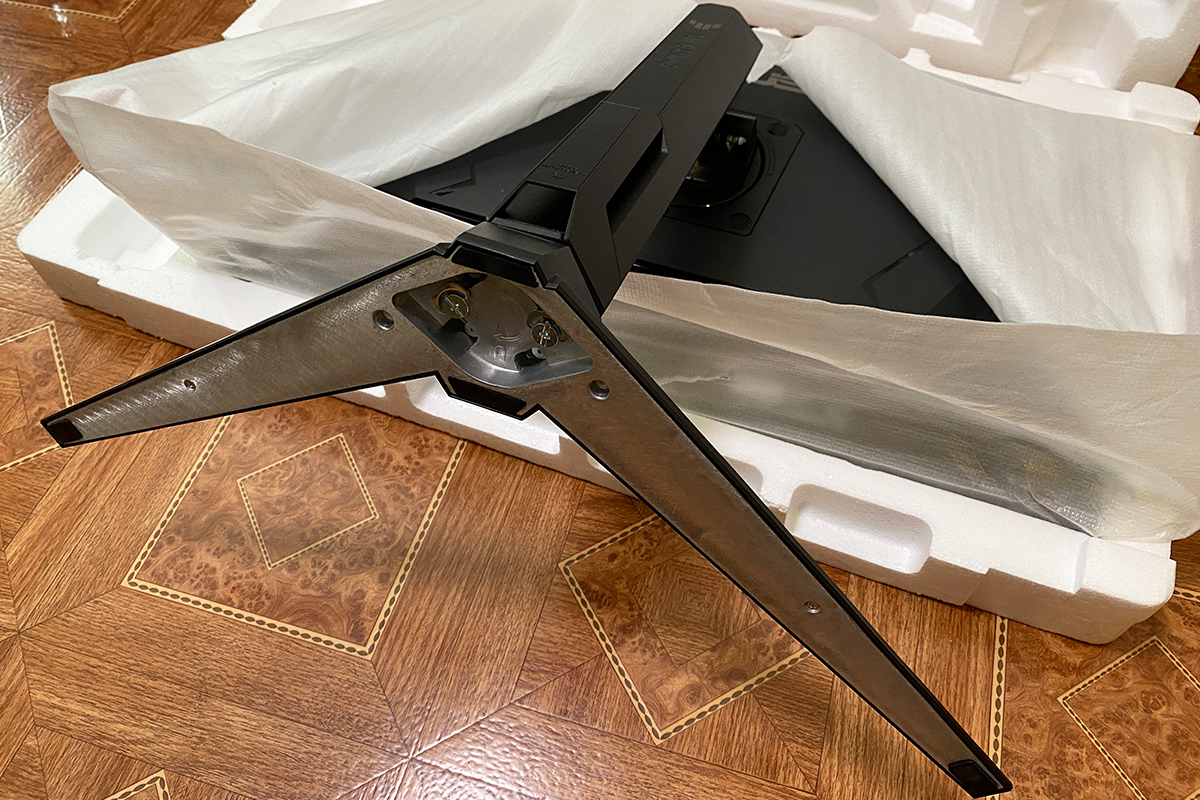
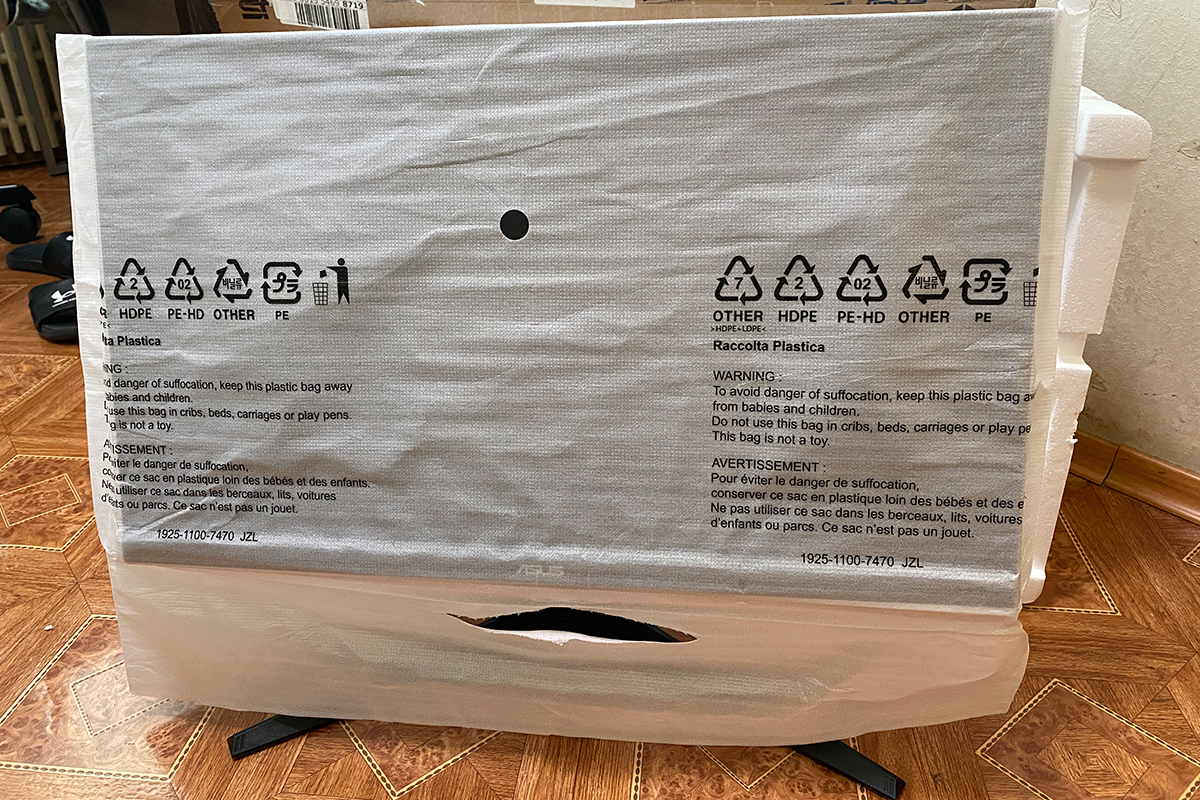
The monitor is quick and easy to assemble – literally possible with one hand. The process involves inserting the stand into the slots on the back panel, securing it with four screws and covers, attaching the V-shaped base to the stand (making sure it fits into the slots and rotates slightly), and fastening it with screws from below. Afterward, the monitor can be lifted by the stand, placed on the desk, and the protective cover removed. As usual, it is recommended to assemble the monitor while it is still in the foam packaging and only remove it once fully assembled. This minimizes the risk of leaving marks on the panel.
Read also:
- ASUS TUF Gaming VG259Q5A Review: Affordable Full HD Gaming Monitor with Fast IPS and 200 Hz
- Top 10 4K Monitors
Design, Ergonomics, and Build Quality
Externally, the new model closely follows the design of its predecessor. ASUS has established a distinctive style for its TUF Gaming monitors, and this model continues that approach. The front and back panels are clean, the signature logos are centered, the stand edges are straight, and subtle lines along the sides hint at the monitor’s gaming orientation without being overly aggressive.


The monitor features a 27-inch diagonal and relatively compact dimensions: 61.5 × 53.4 × 21.5 cm with the stand and 61.5 × 36.7 × 5.4 cm without it. Its weight is moderate as well, at 5.8 kg with the stand and 3.6 kg without. Thanks to its compact footprint, including the stand and V-shaped base, the monitor does not occupy excessive desk space and fits well in smaller work areas. The included adjustable stand allows comfortable use without a wall mount, making it easy to set the height and tilt to suit individual preferences.


As noted earlier, the included stand is both heavy and well-built. Inside and at the base of the monitor mount, there is a solid metal structure, while the exterior is covered in high-quality matte plastic adorned with the signature TUF logos.


The complete stand allows you to adjust the height, tilt and rotation of the display horizontally and vertically. The available adjustment ranges are as follows:
- height: 0 ~ 130 mm
- tilt: +20° ~ -5°
- horizontal rotation: +20° ~ -20°
- vertical rotation: +90° ~ -90°
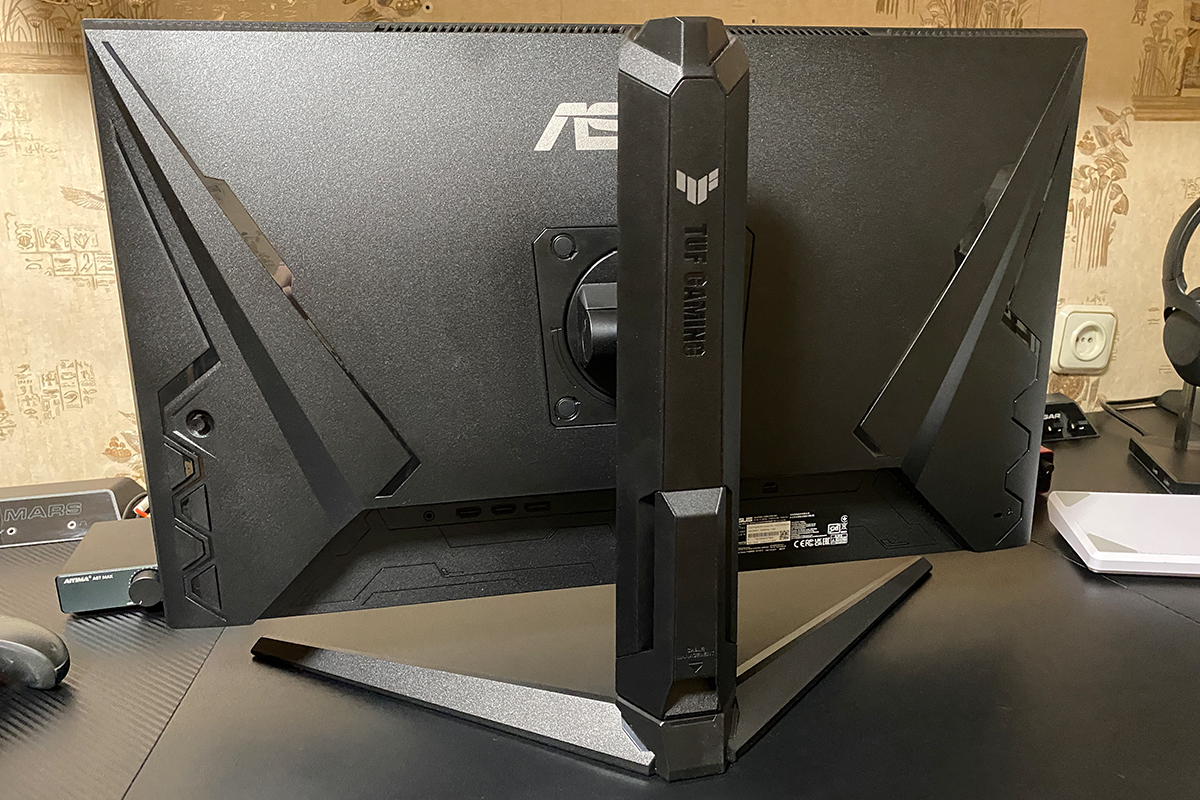
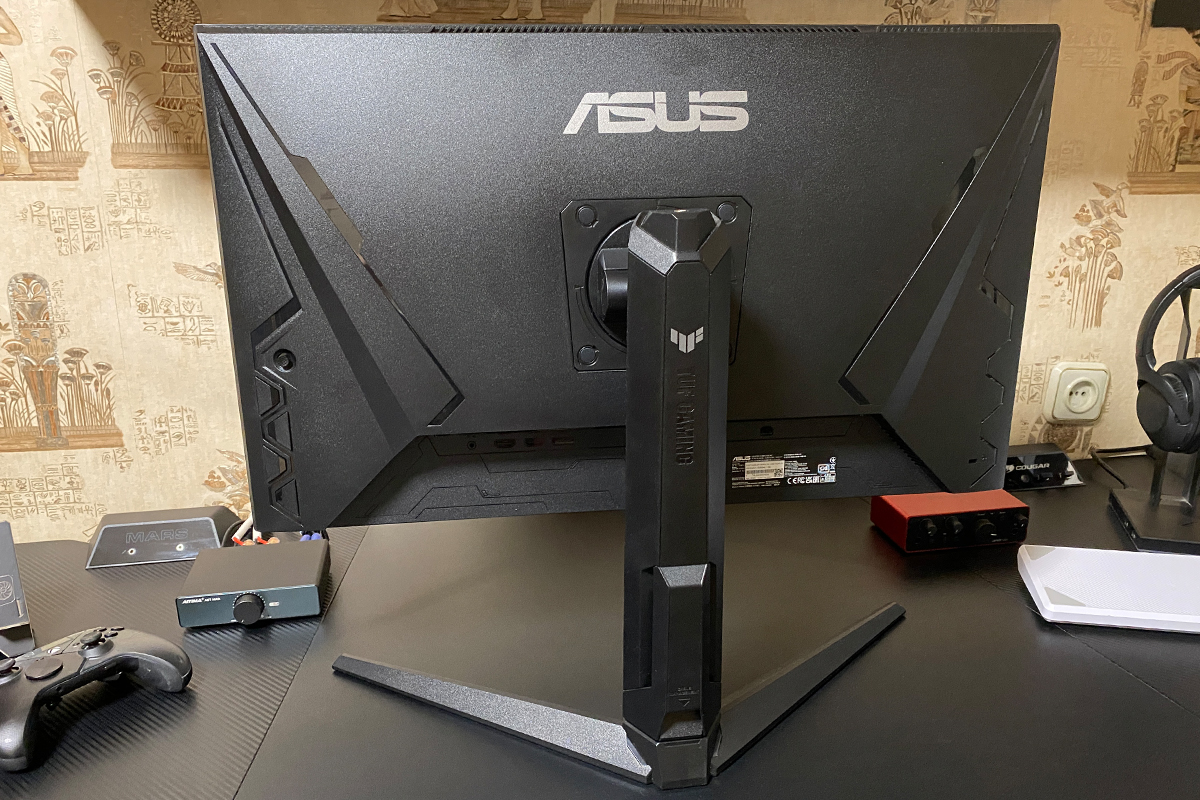
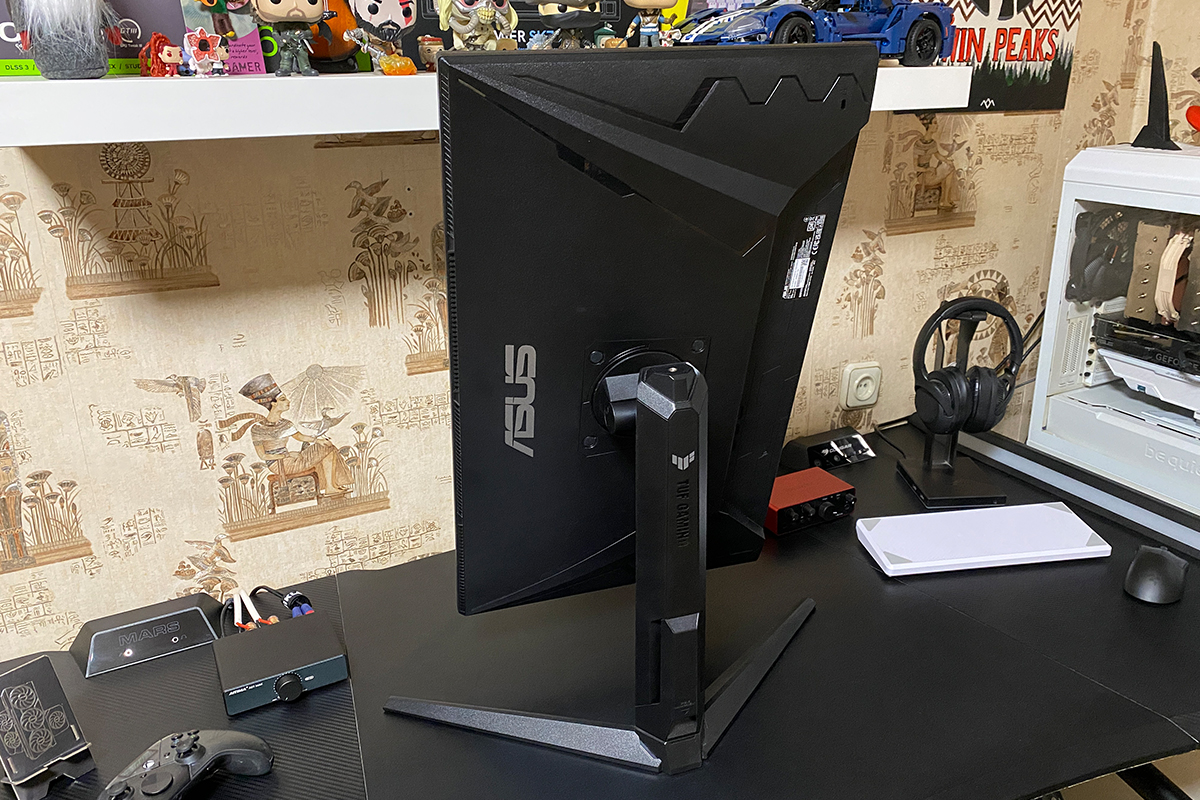
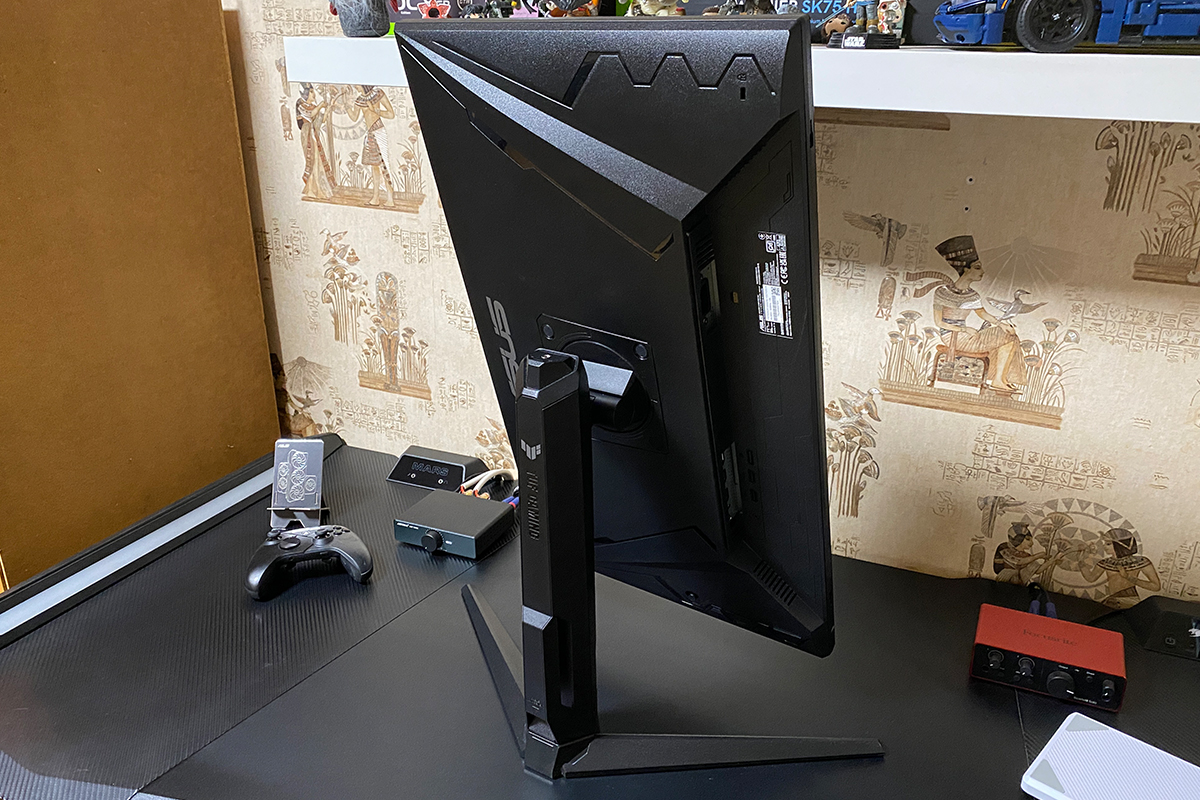
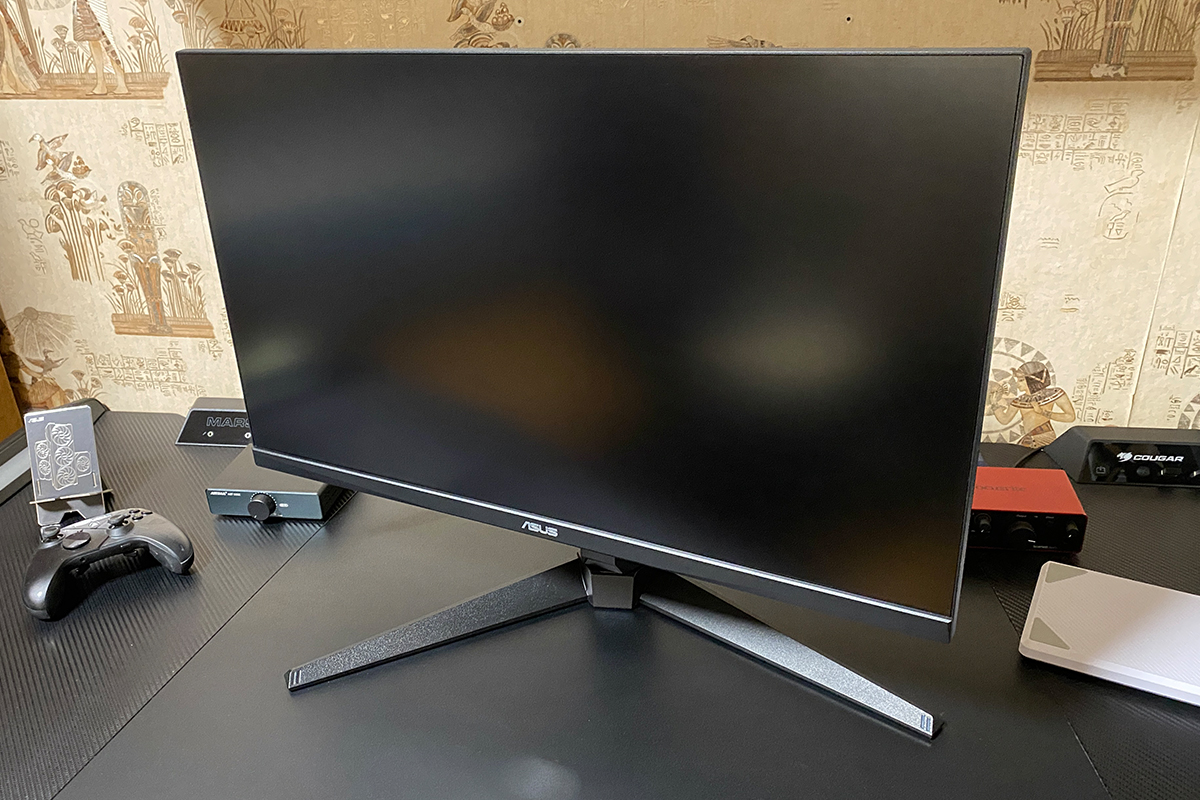
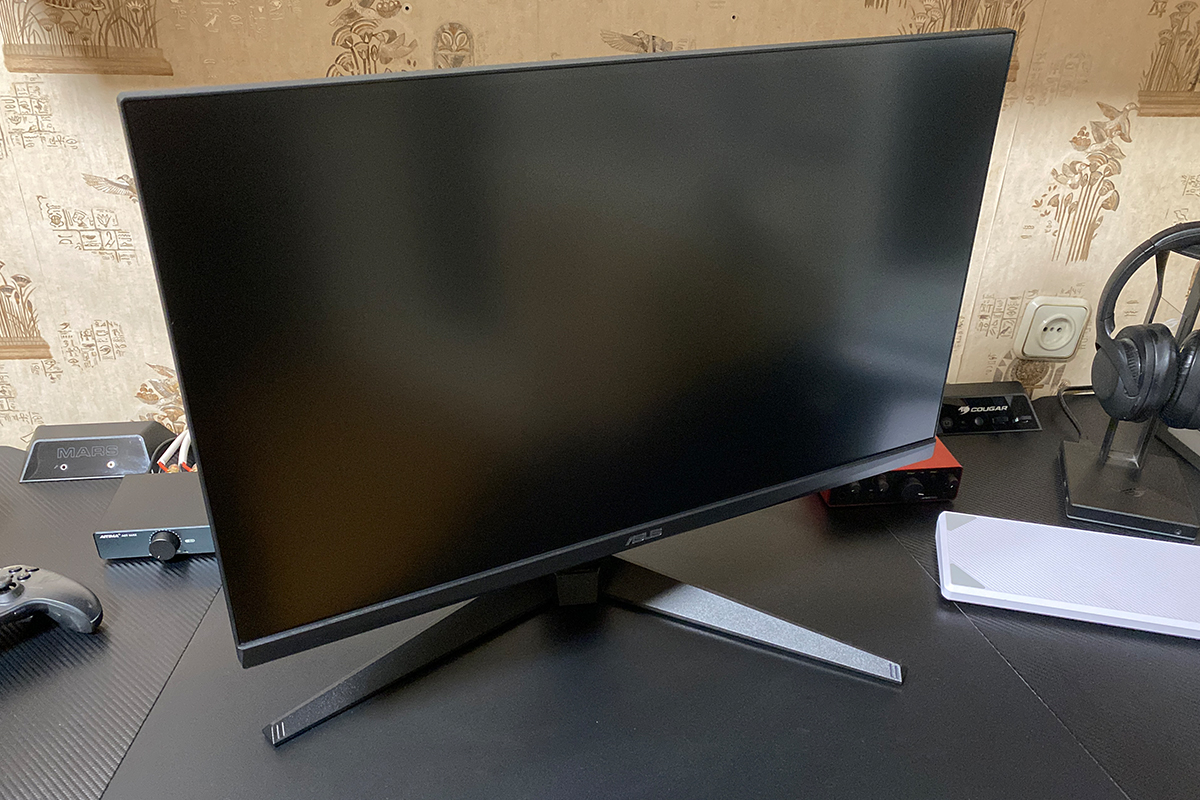
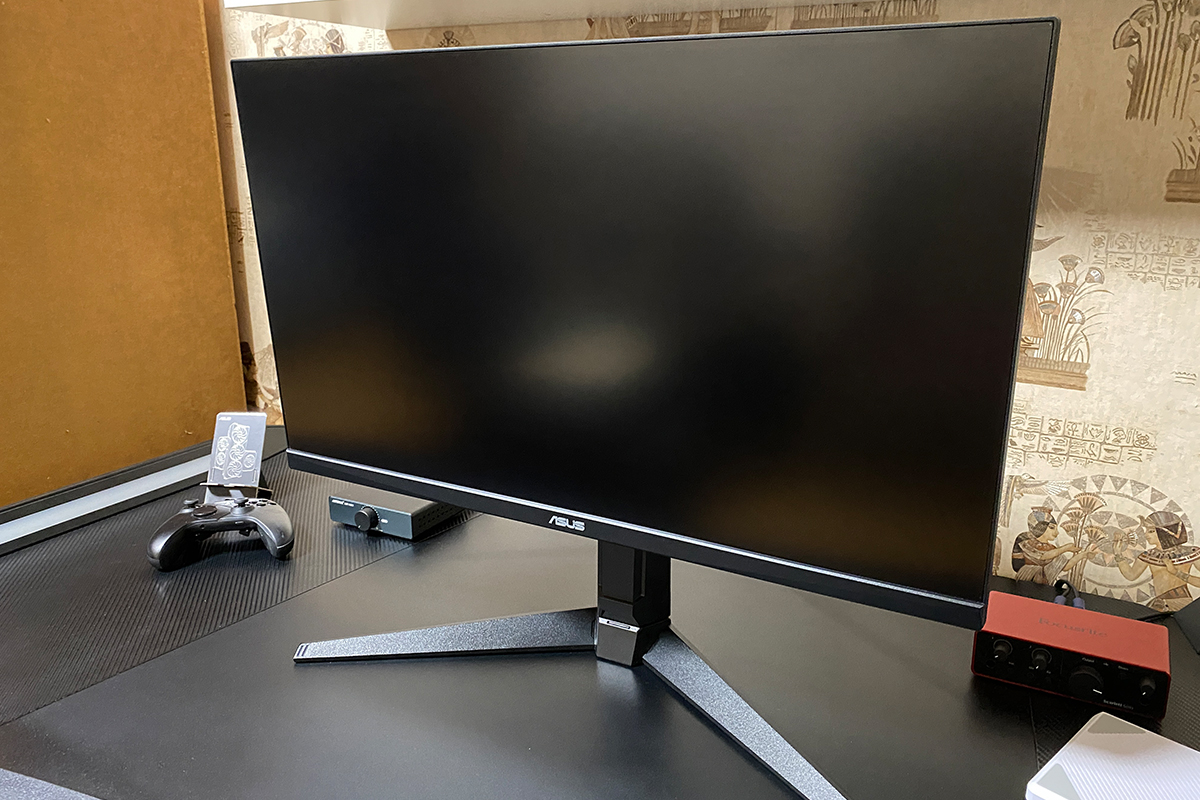
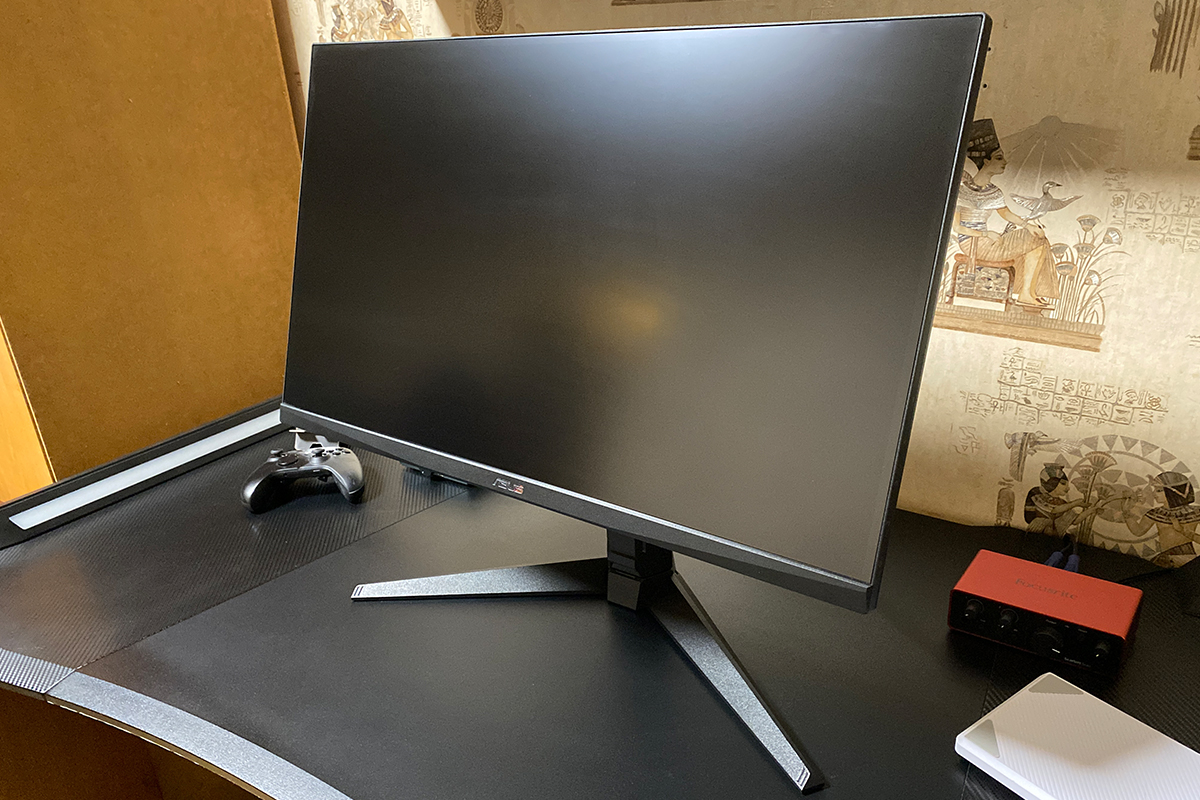
On top of the stand, there is a 1/4‑inch mount, which can be useful for bloggers, streamers, podcasters, and other content creators. At the base, as mentioned earlier, there is a simple cable-management system using a plastic clip for organizing cables.


The front is dominated by the 27-inch display with a matte (anti-glare) finish and slim bezels. As usual, there are no stickers on the front – only a subtle ASUS logo centered at the bottom.

The power indicator is located on the bottom panel and faces downward. While it is visible in complete darkness, it remains virtually unnoticeable during typical use and does not cause any distraction. When the monitor is on, the indicator glows white, and in sleep mode, it turns orange. It can also be completely disabled through the monitor’s built-in OSD menu.

All connectivity ports are located on the back of the monitor and face downward. On the left side (when facing the screen) is the power input. On the right side, there is 1× DisplayPort 1.4 (HBR3), 2× HDMI 2.1 (FRL), 1× USB 3.2 Gen 1 Type-C (service port), and a 3.5 mm audio jack.


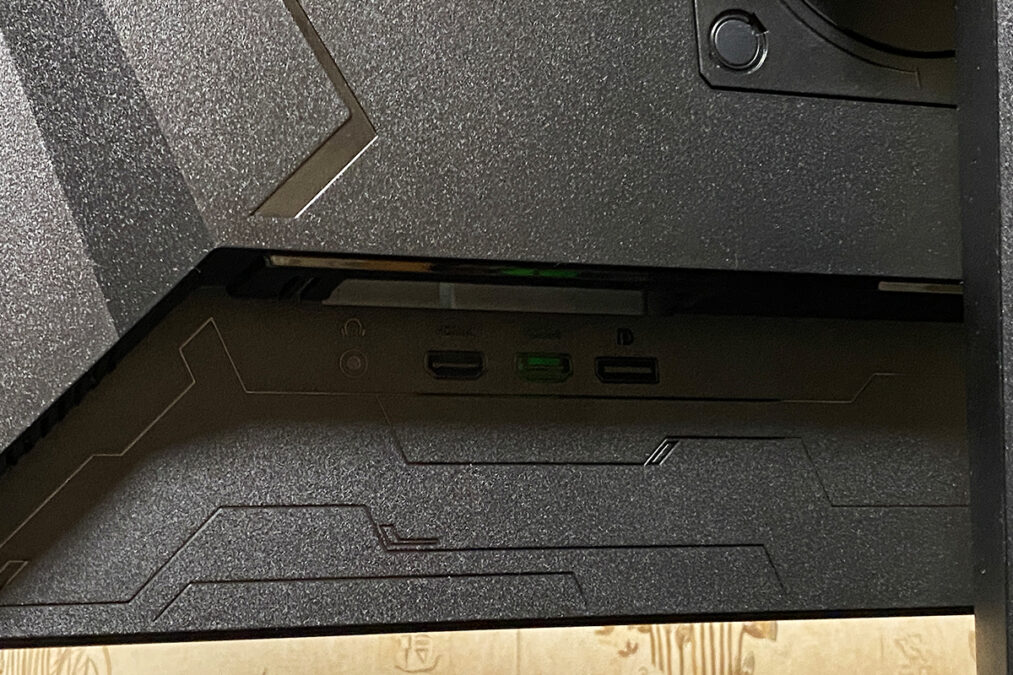
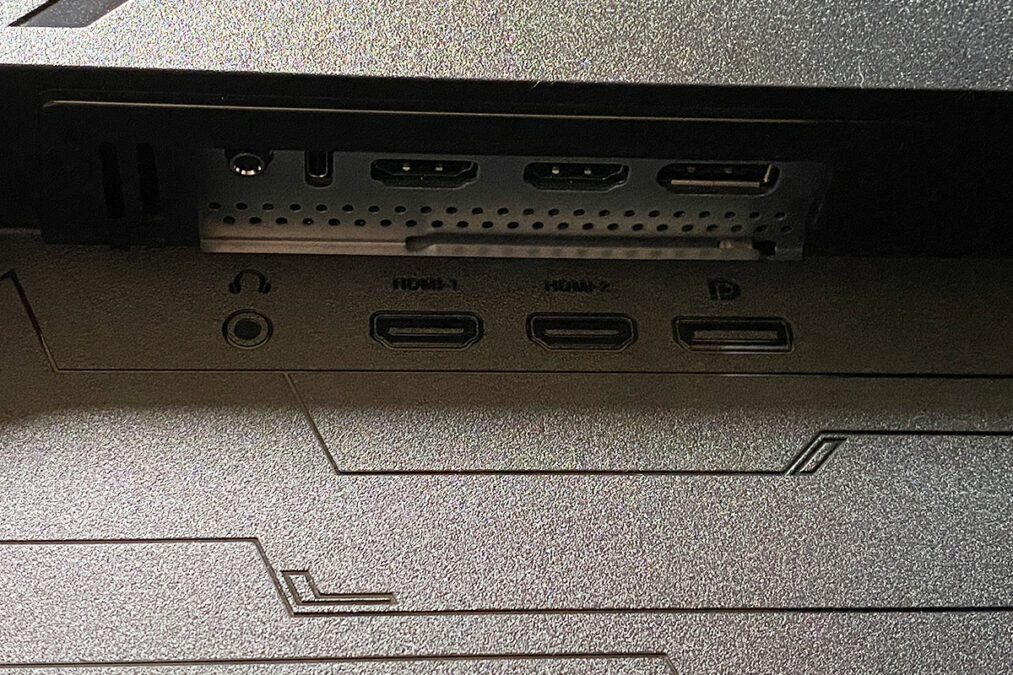
Also on the back, to the right, there is a 5-way joystick along with dedicated buttons for quick access to the OSD menu. Both the joystick and buttons are well-positioned, allowing them to be easily located by touch behind the monitor.

Build quality of the monitor is excellent: the matte plastic feels premium, the stand and base are sturdy, there are no creaks, and all components and seams are neatly aligned. Ergonomically, it performs well too – the monitor doesn’t take up excessive desk space, adjusts easily to individual preferences, and sits securely on the desk.

Read also:
- ASUS VA259HGA Review: An Affordable Full HD Gaming Monitor with 120Hz and Eye Care+
- ASUS TUF Gaming VG27WQ3B Monitor Review: Fast VA, 2K Resolution, 180 Hz, and an Affordable Price
Display: Specifications, Features, and Technologies
Like its predecessor, the monitor features a 10-bit Fast IPS panel with a QHD resolution (2560 × 1440) and a 16:9 aspect ratio. As mentioned earlier, the refresh rate in this new revision has been increased to a true 300 Hz. Contrast has also been slightly improved to 1300:1, and DCI-P3 color coverage has been expanded to 95%.
Other specifications remain largely unchanged. The typical brightness is rated at 300 cd/m², with a peak HDR brightness of 400 cd/m². The response time is specified as 1 ms (GTG) and 0.3 ms (minimum). Pixel pitch is 0.233 mm. The monitor supports HDR10 (DisplayHDR 400) and adaptive sync technologies, including AMD FreeSync Premium and G‑SYNC Compatible.

Like the previous model, the new monitor includes a solid set of features and technologies designed to enhance image quality, improve the gaming experience, and reduce eye strain. These include Extreme Low Motion Blur (ELMB), Variable Overdrive, Shadow Boost, GamePlus, GameVisual, Flicker-Free, and Low Blue Light. In addition to these standard features, the TUF Gaming VG27AQML5A introduces new intelligent modes under the A.I. Assistant suite, including AI Visual, Dynamic Crosshair, and Dynamic Shadow Boost. Each of these will be described in more detail below.
Extreme Low Motion Blur (ELMB) – ASUS’s proprietary technology that significantly reduces motion blur in fast-moving scenes. With ELMB, quickly moving objects in games appear sharper and more defined. Notably, this model supports ELMB Sync, allowing the feature to operate simultaneously with adaptive sync (G‑SYNC or FreeSync). This provides both high motion clarity and smooth, tear-free gameplay.
Variable Overdrive – dynamically adjusts pixel overdrive to improve image clarity during motion. The feature automatically adapts to the current frame rate in a game, helping to minimize ghosting and artifacts even under fluctuating FPS conditions.
Shadow Boost – enhances visibility in dark areas of a scene without overexposing bright regions. This allows players to spot opponents hiding in shadows while maintaining detail in well-lit areas.
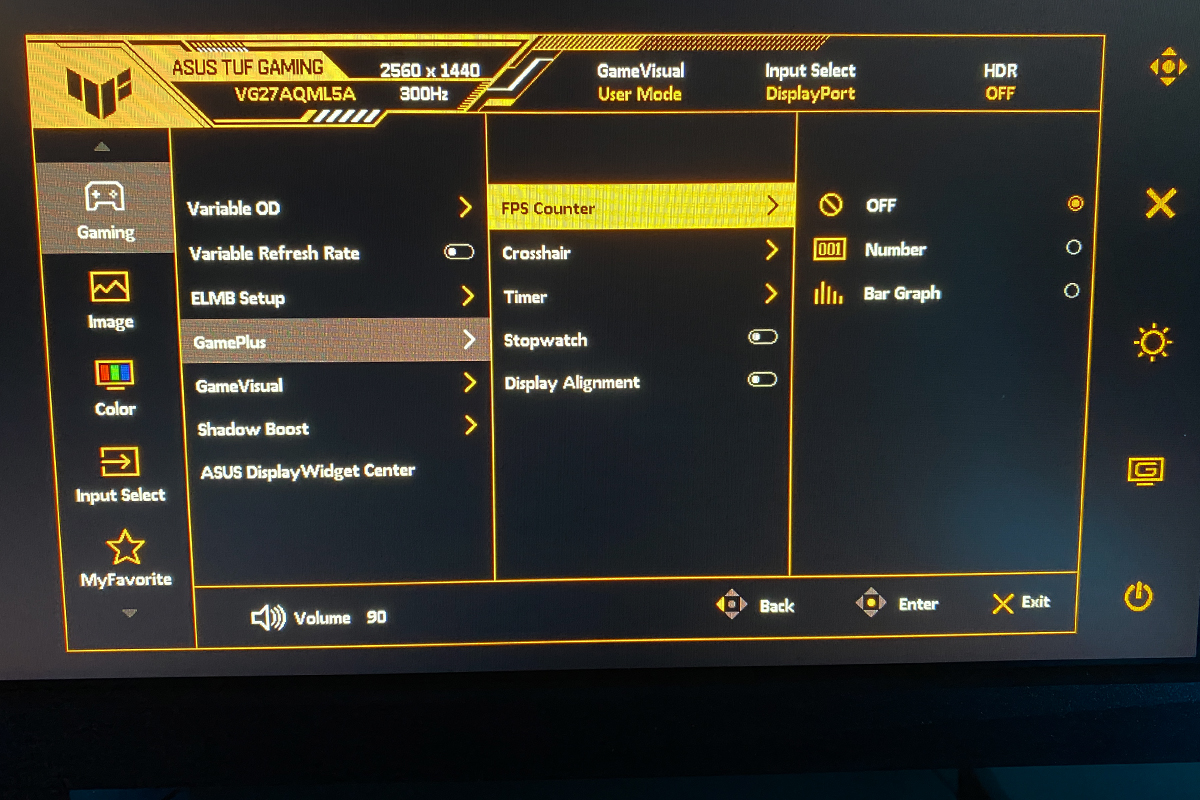
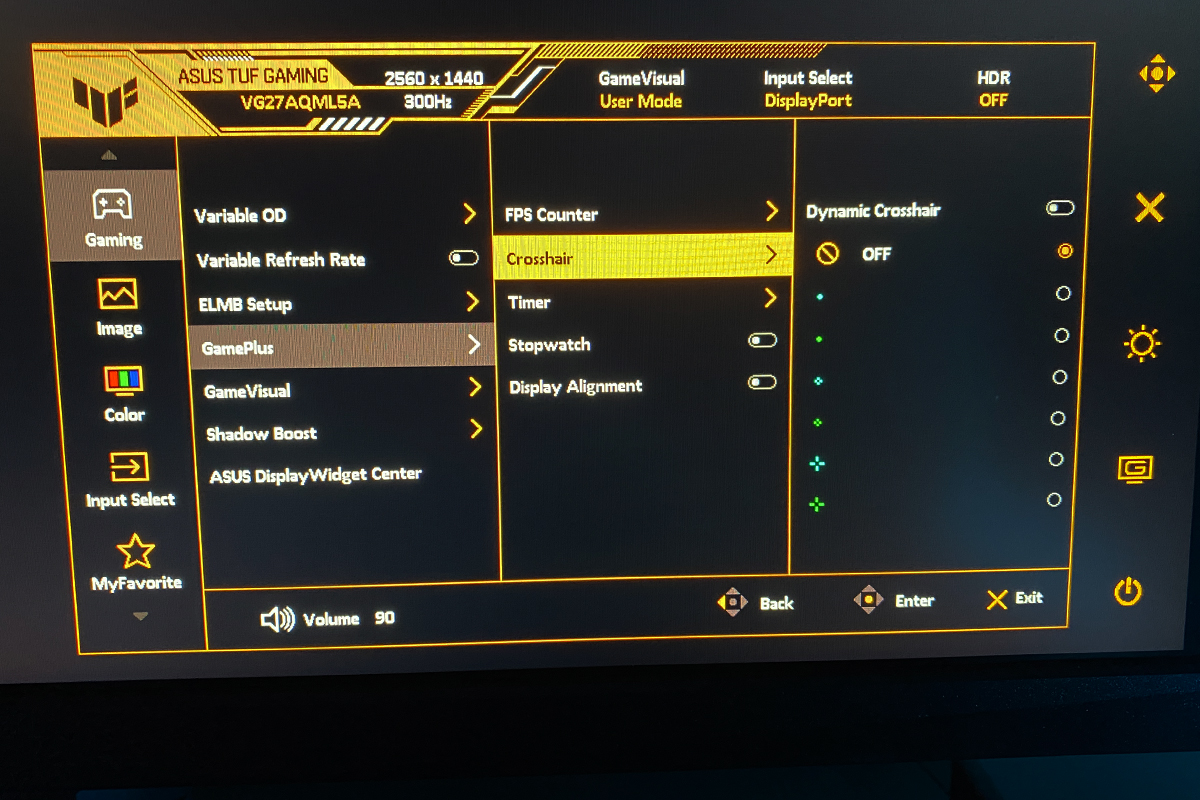
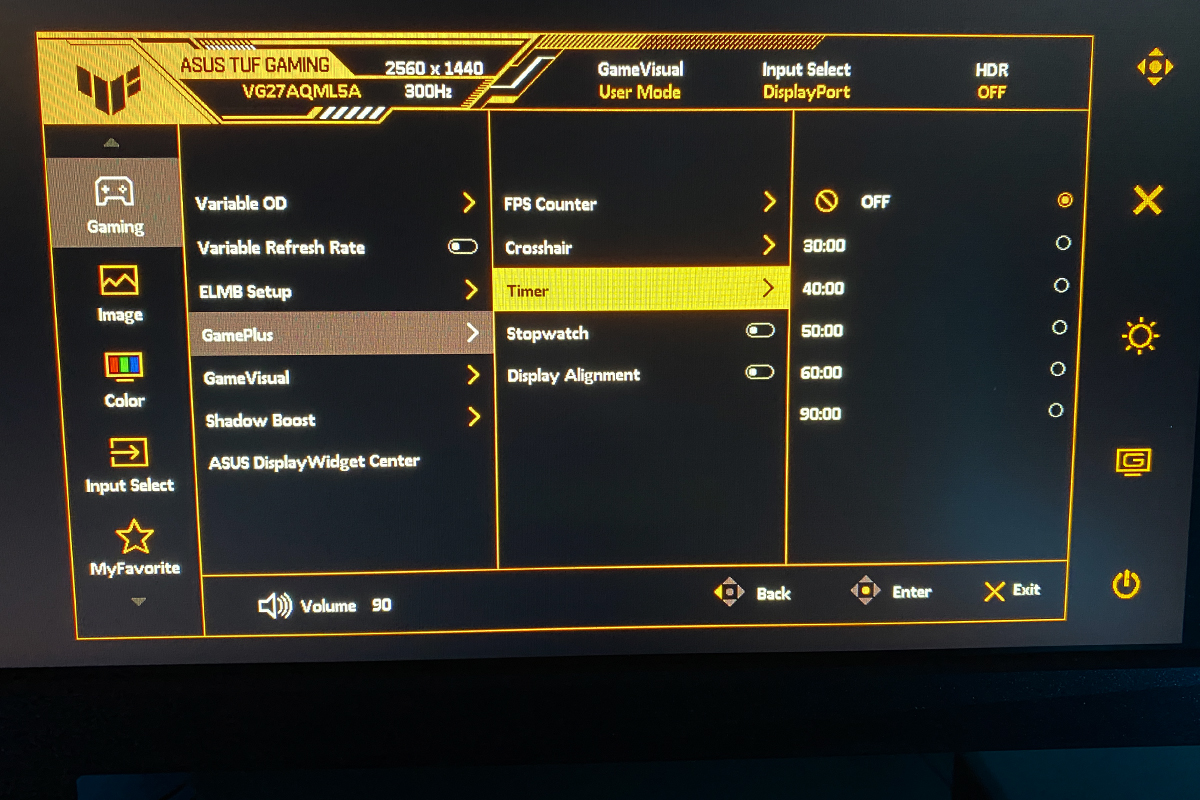
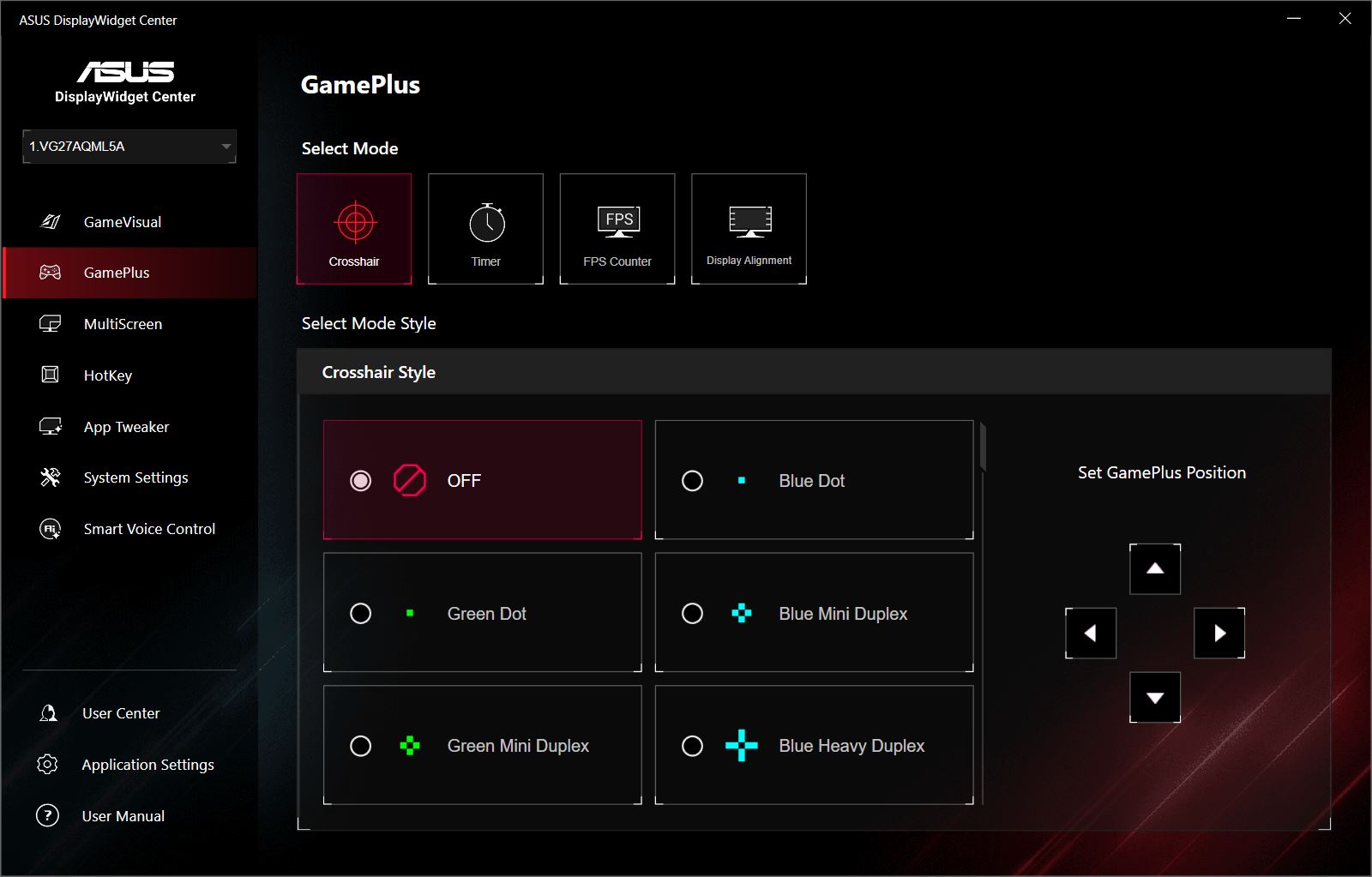
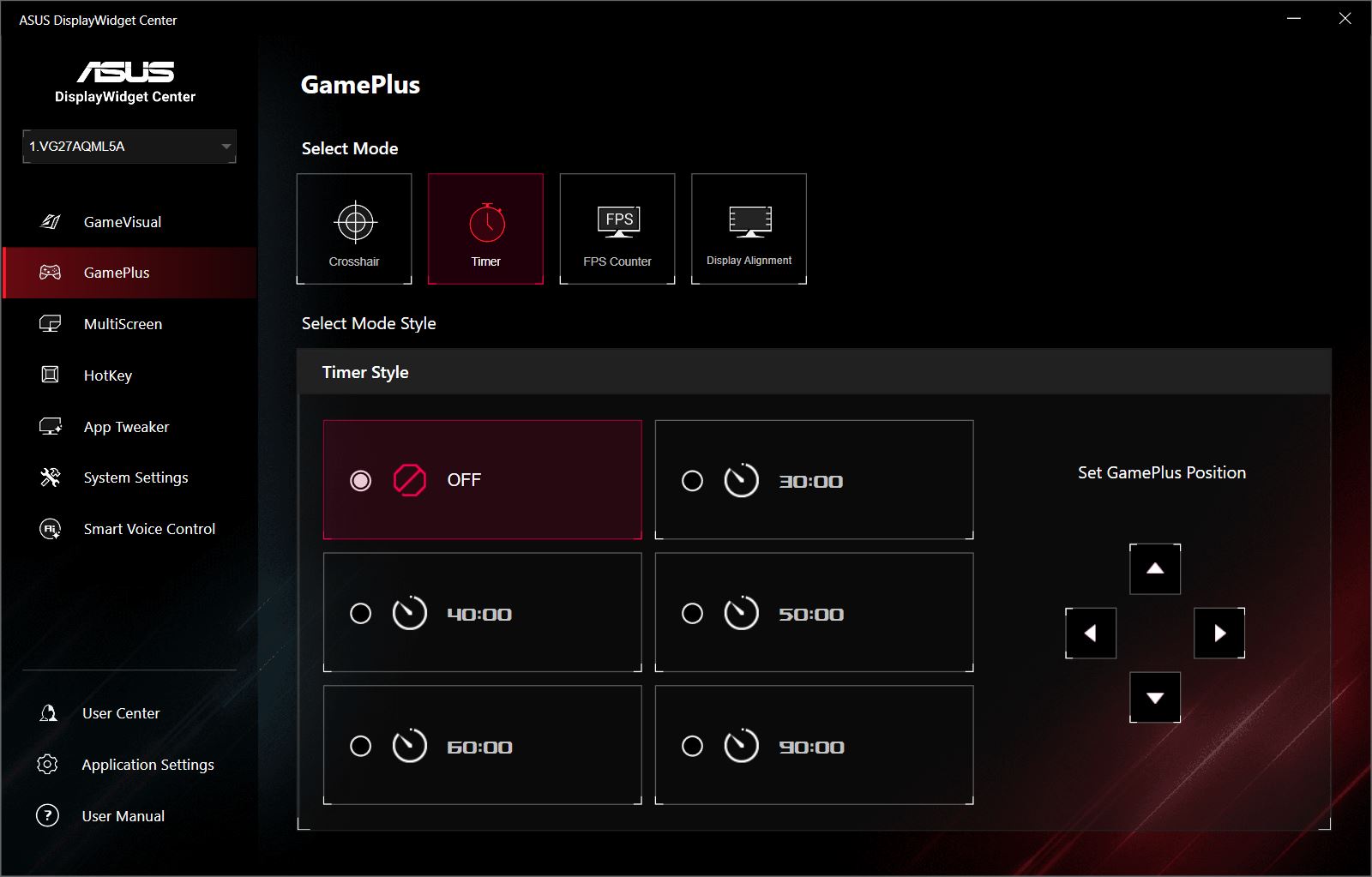
GamePlus – a set of built-in gaming tools and on-screen metrics, such as a crosshair, timer, and FPS counter, designed to give players better control over gameplay.
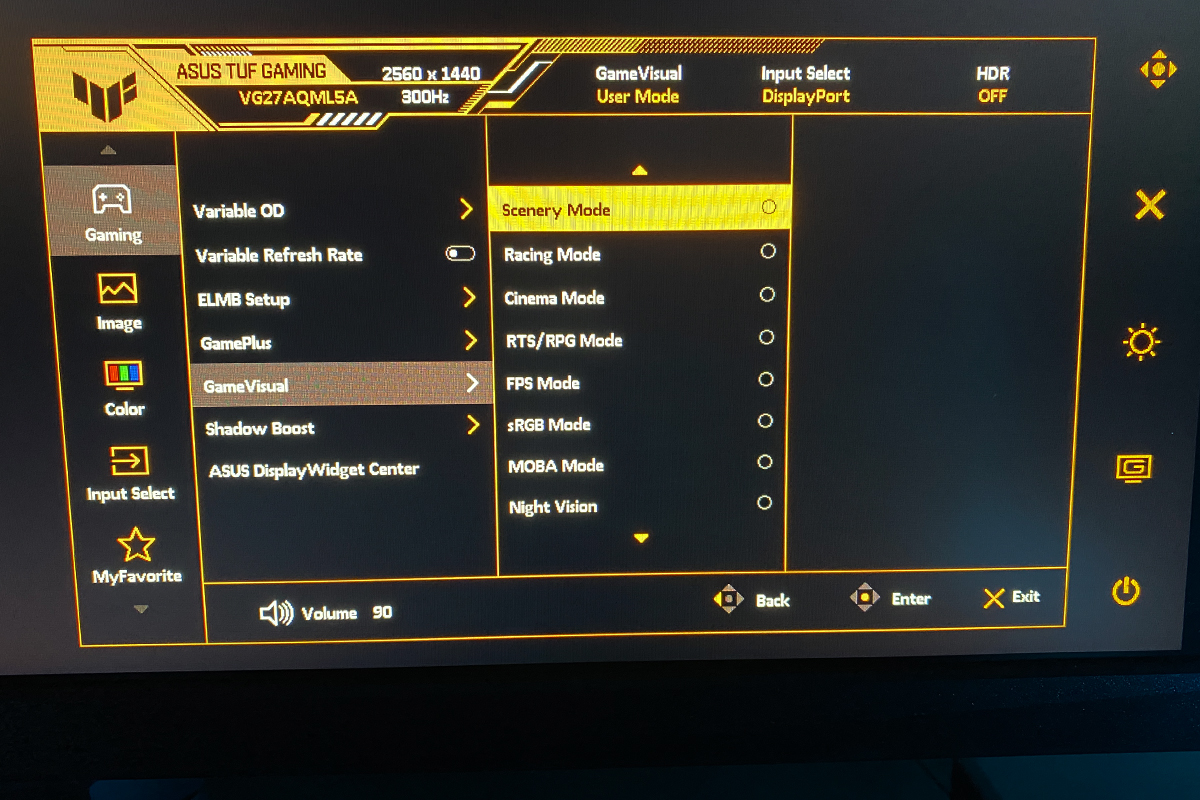
GameVisual – a collection of preset modes (FPS, Racing, Cinema, RTS/RPG, etc.) optimized for different game genres and content types. This feature allows users to quickly switch color and brightness settings with a single button, without needing to manually adjust the display.
Flicker-Free – eliminates backlight flicker, helping to reduce eye fatigue during extended use.
Low Blue Light – reduces the intensity of blue light, making prolonged use more comfortable for the eyes.

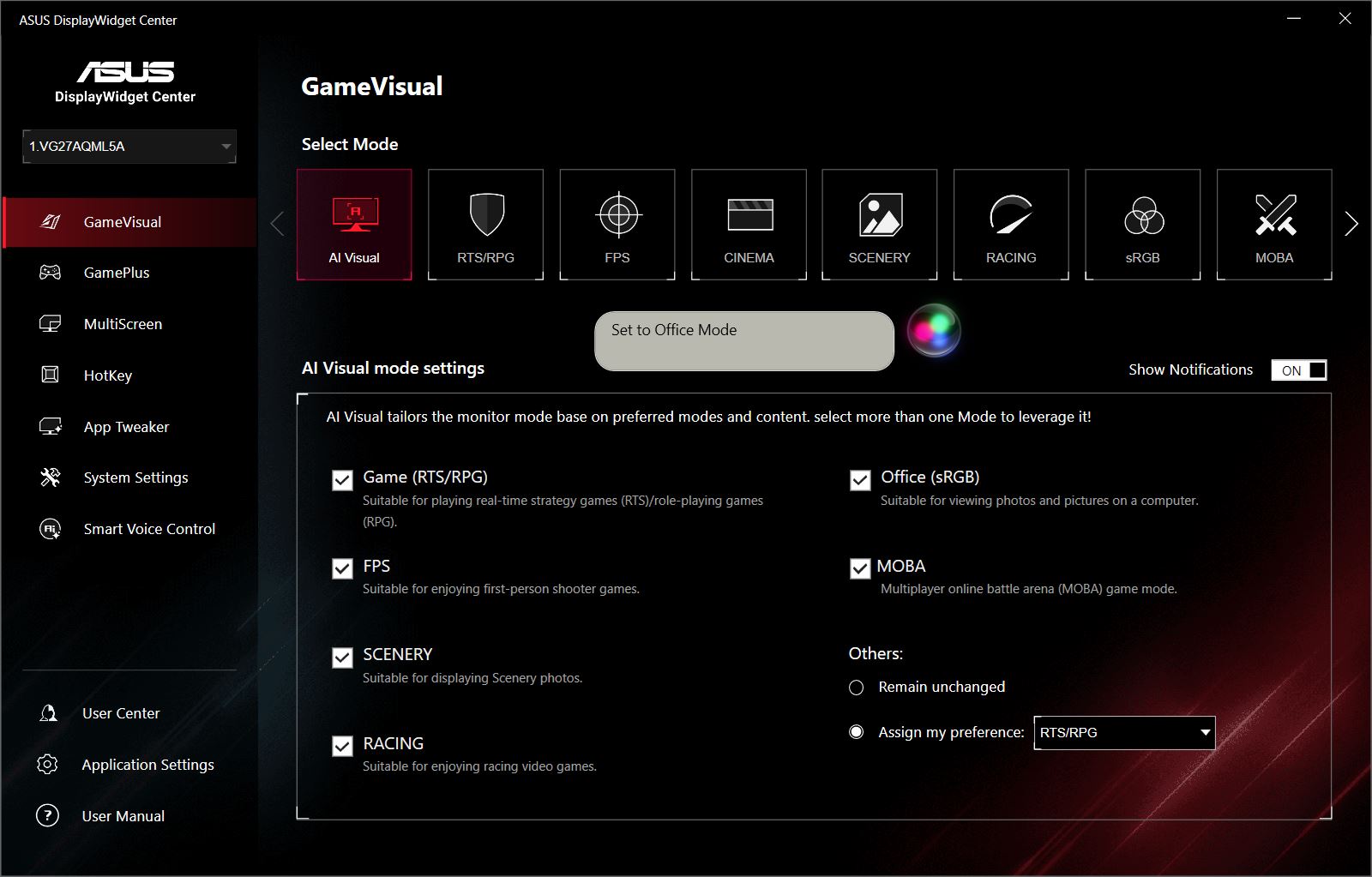
AI Visual – an intelligent mode available through ASUS’s DisplayWidget Center application. It analyzes screen content in real time and automatically switches display profiles based on your activity – gaming, watching a movie, or working with text – eliminating the need to manually change modes.
Dynamic Crosshair – a “smart” crosshair that automatically adjusts its color depending on the background. For example, it turns dark when aimed at a bright sky and bright when aimed at a dark corner, ensuring the reticle is always clearly visible against the game environment.
AI Dynamic Shadow Boost – an intelligent enhancement for visibility in dark scenes. Unlike the standard Shadow Boost, this AI-powered version analyzes each frame and brightens only the necessary areas, preserving natural contrast and avoiding overexposure in regions that don’t require adjustment.

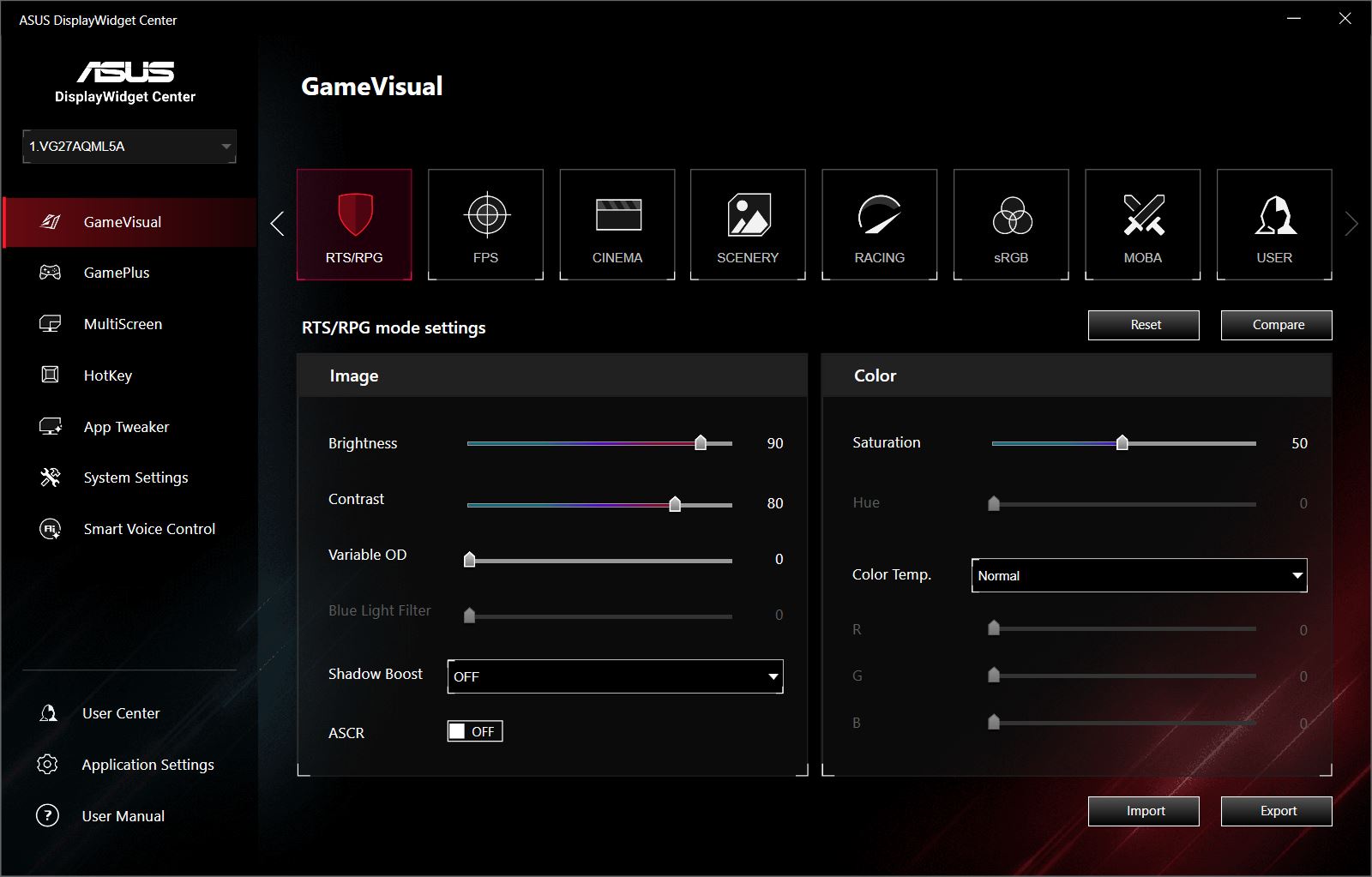
The preset GameVisual modes on this model are generally appealing. For example, Scenery and Cinema offer bright, high-contrast images, while Racing provides a more realistic look. Other modes, in my view, require manual fine-tuning, which can only be done through the DisplayWidget Center application, as the monitor itself does not allow profile adjustments.
For reference, all modes are shown in the photos below. Note that smartphone cameras cannot fully capture the display quality – these images serve only to illustrate the available modes and their appearance with default settings.
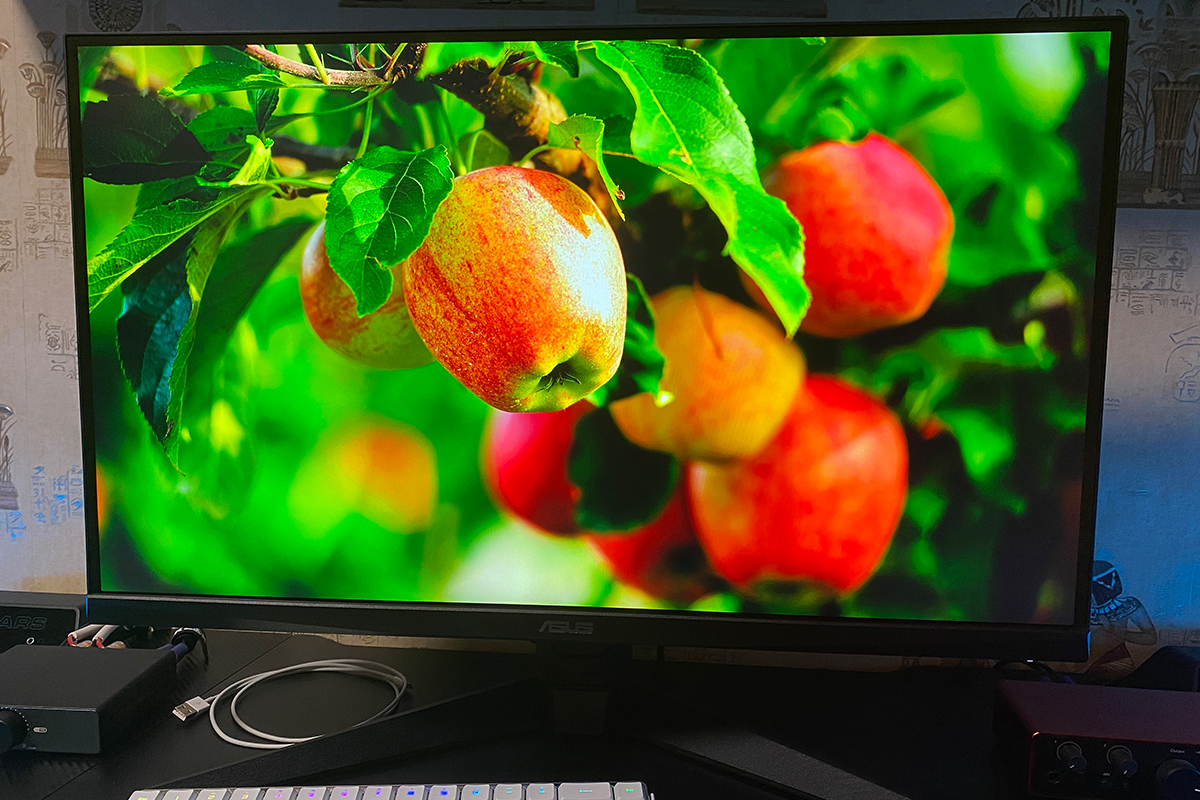
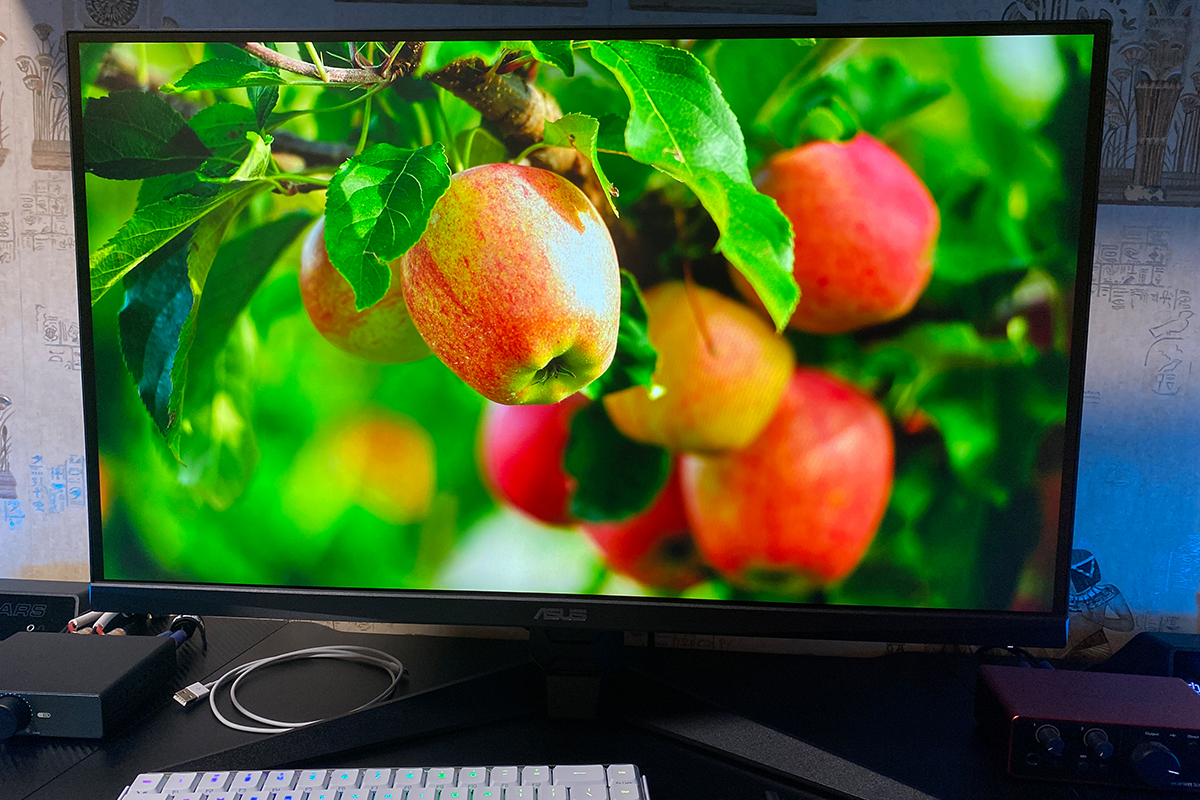
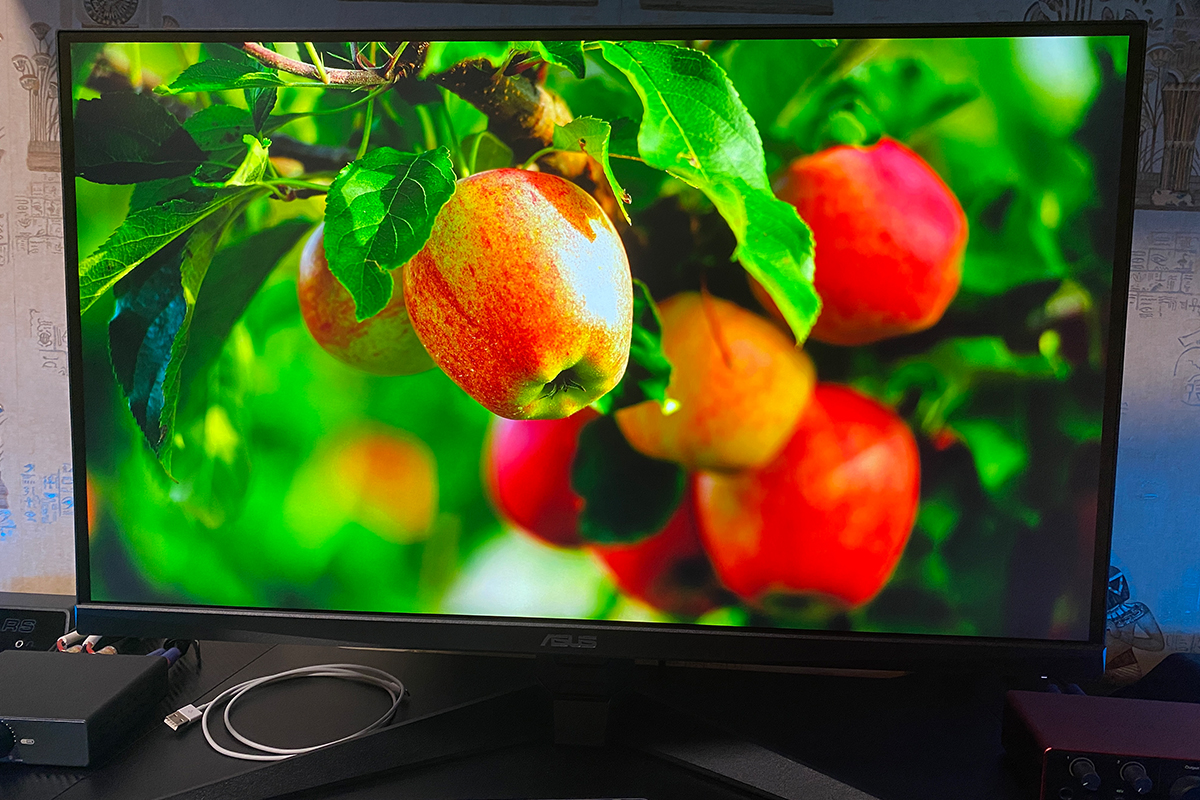
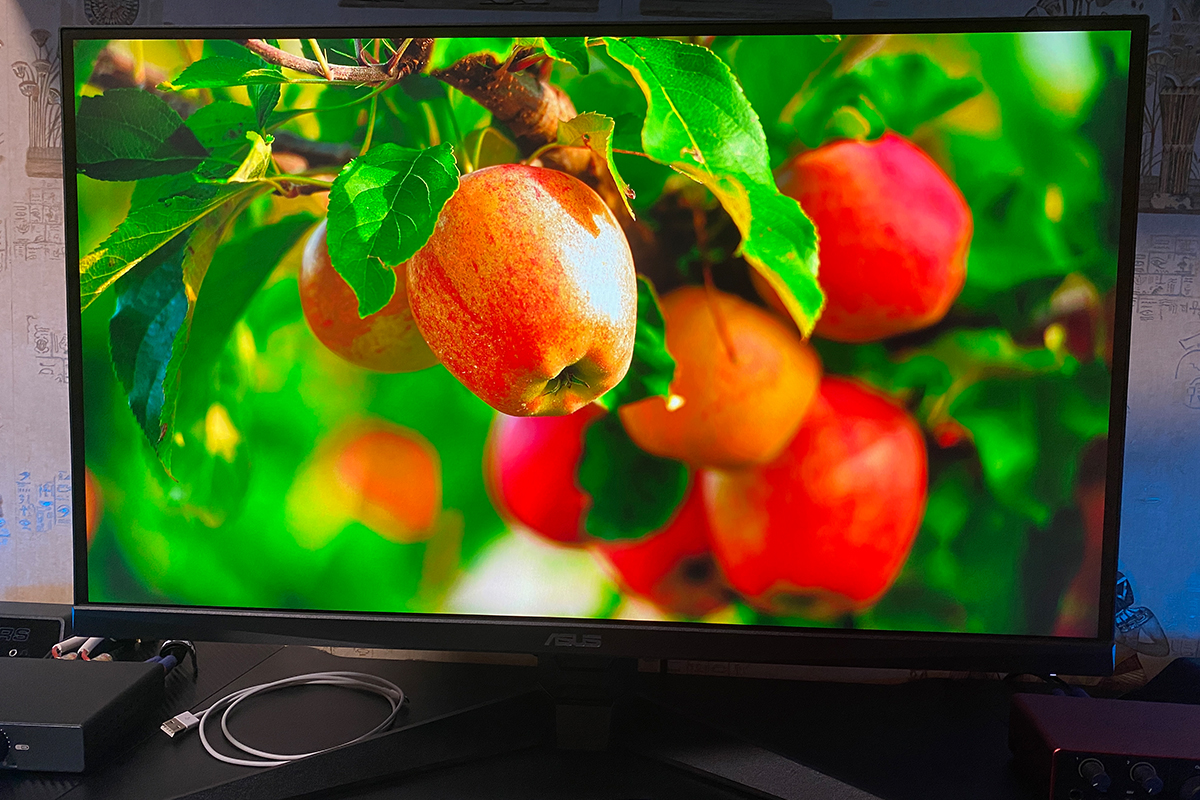
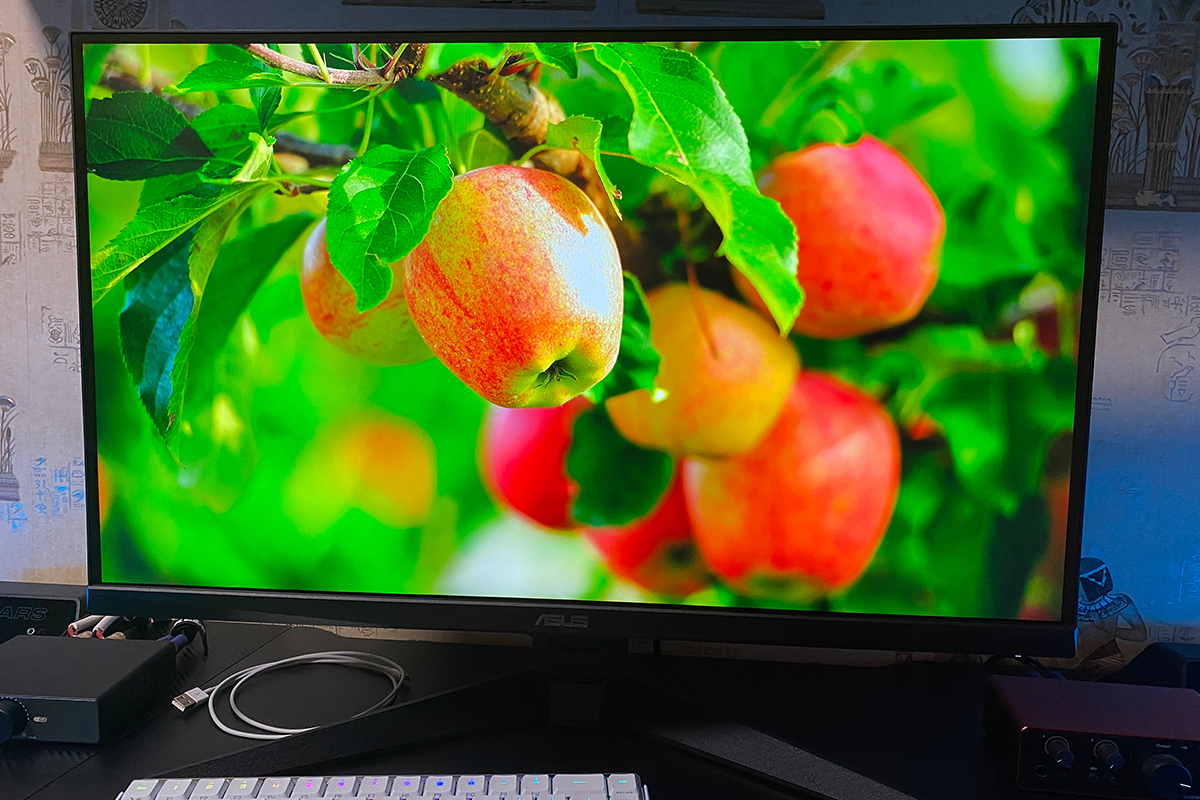
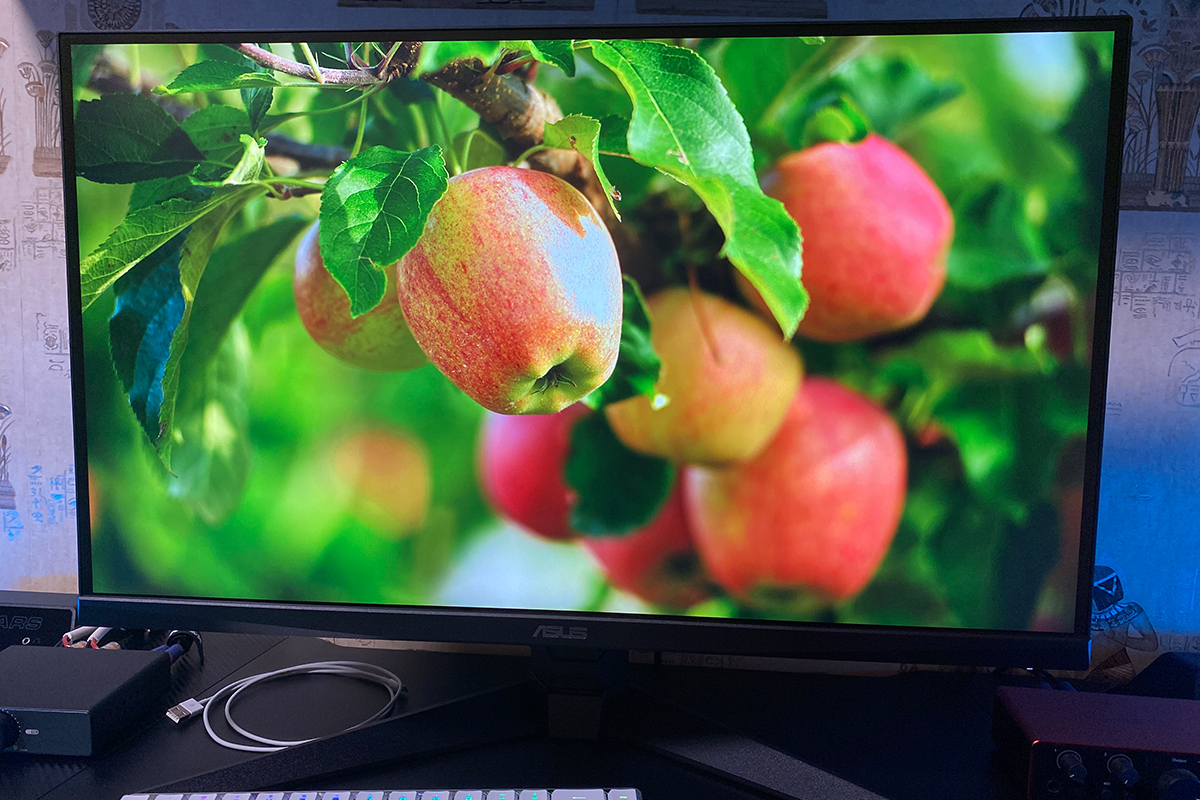
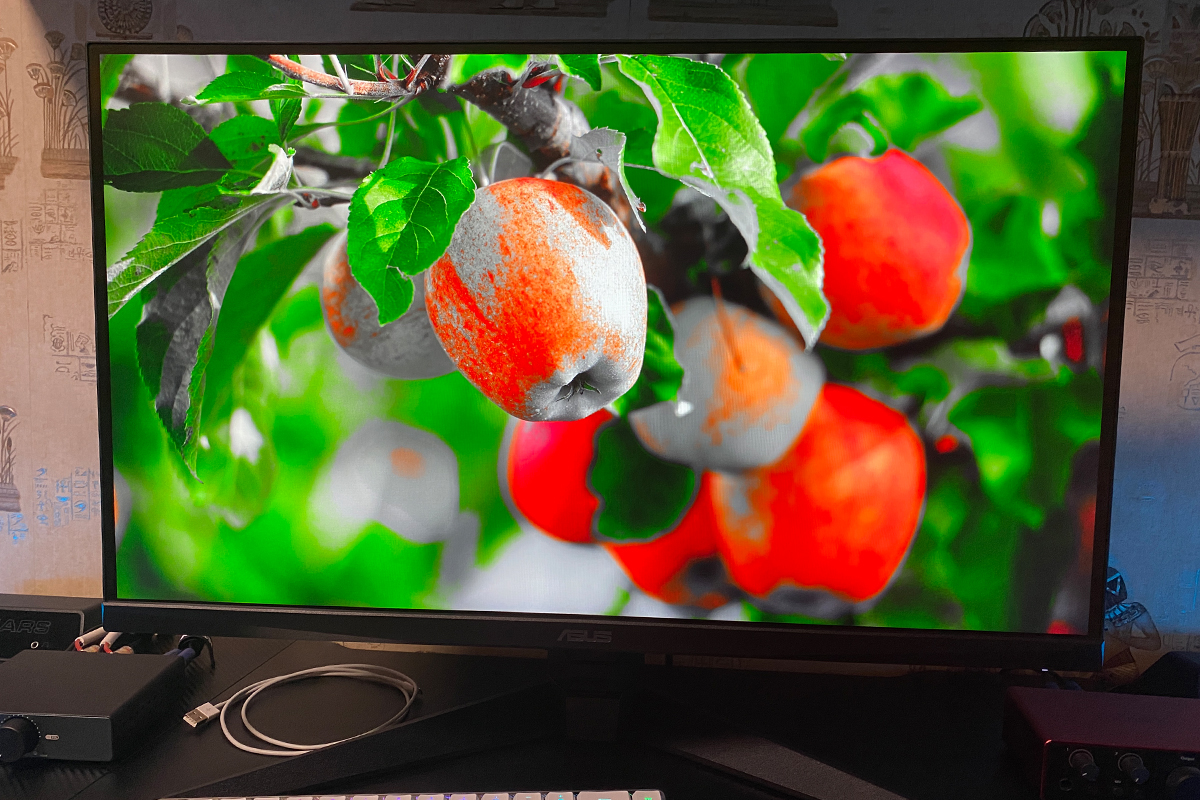
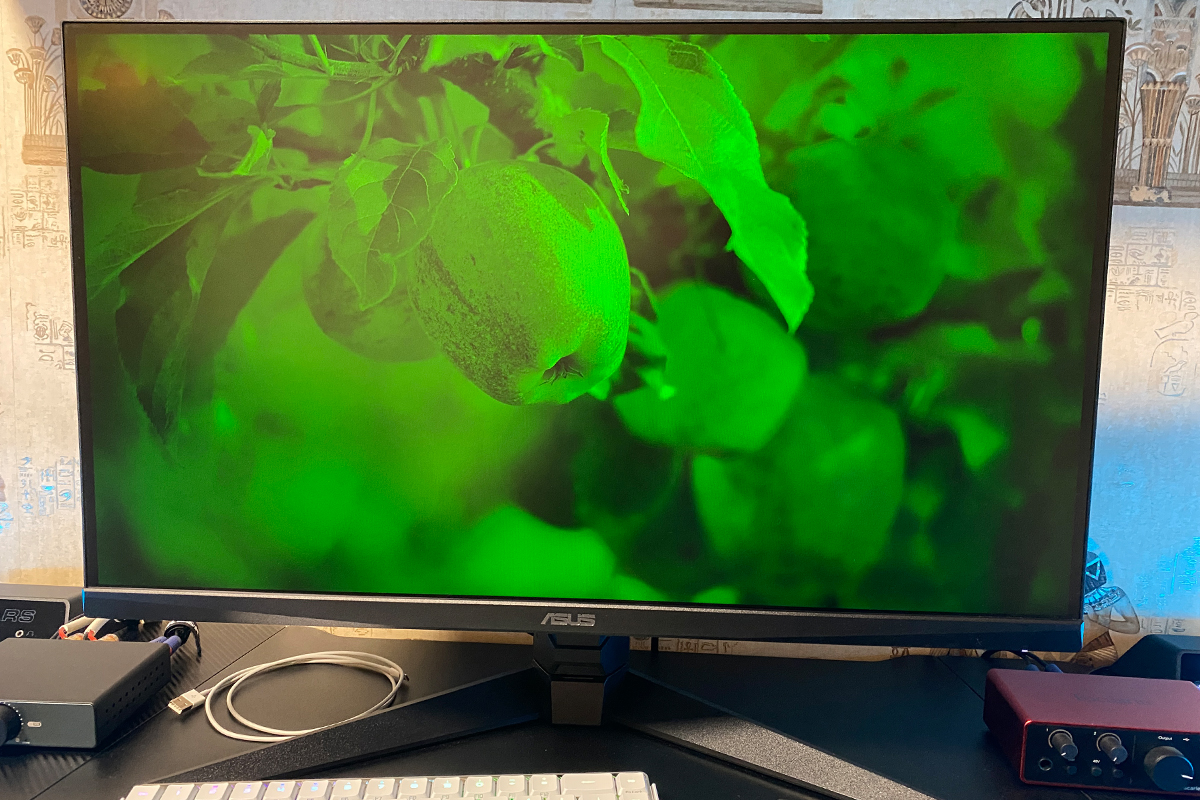
As for image quality, it is very impressive. The display produces vibrant, saturated colors with good sharpness and adequate brightness. The difference compared to more budget-oriented TUF models with 8-bit Fast IPS panels is immediately noticeable.
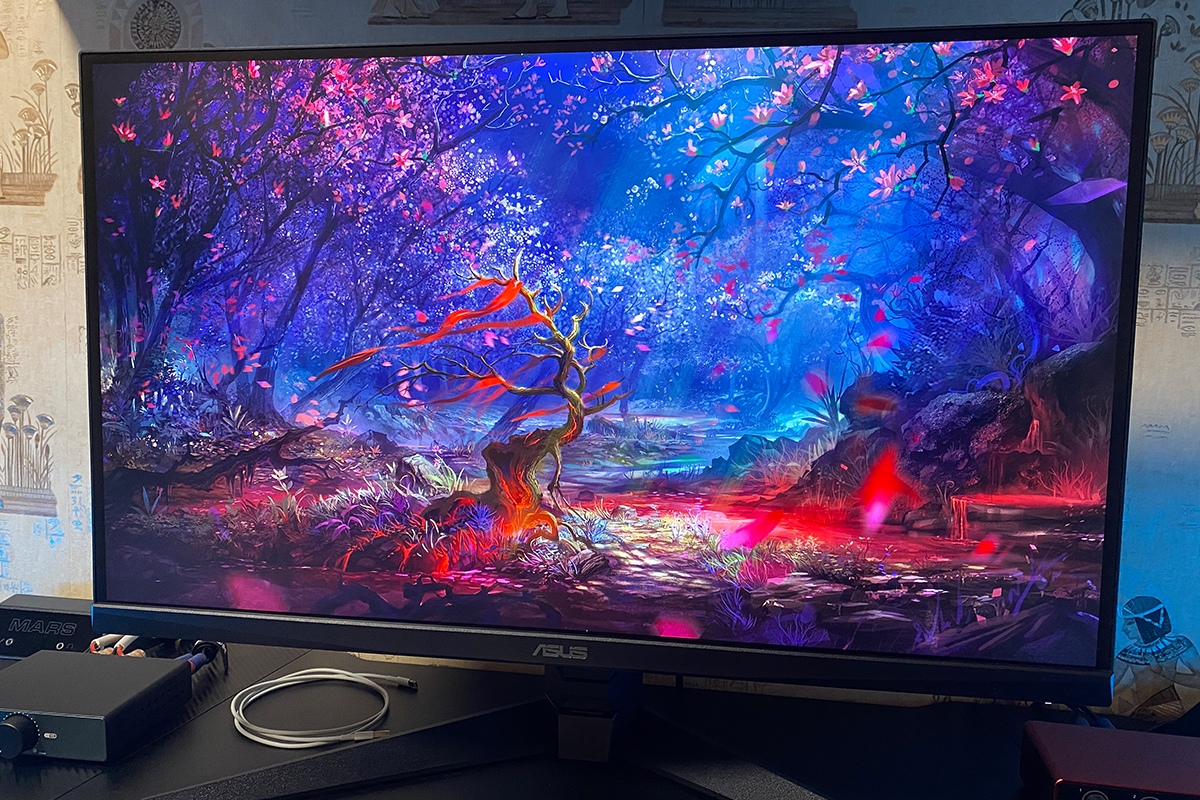
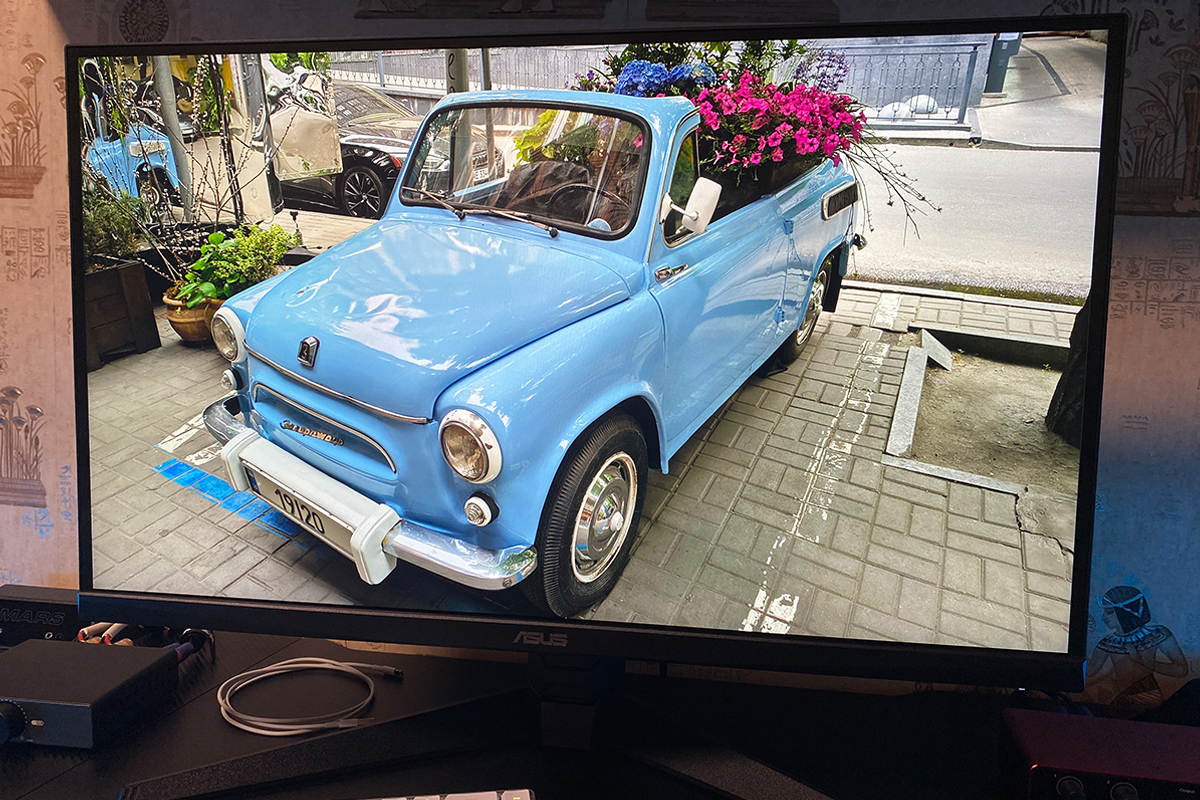
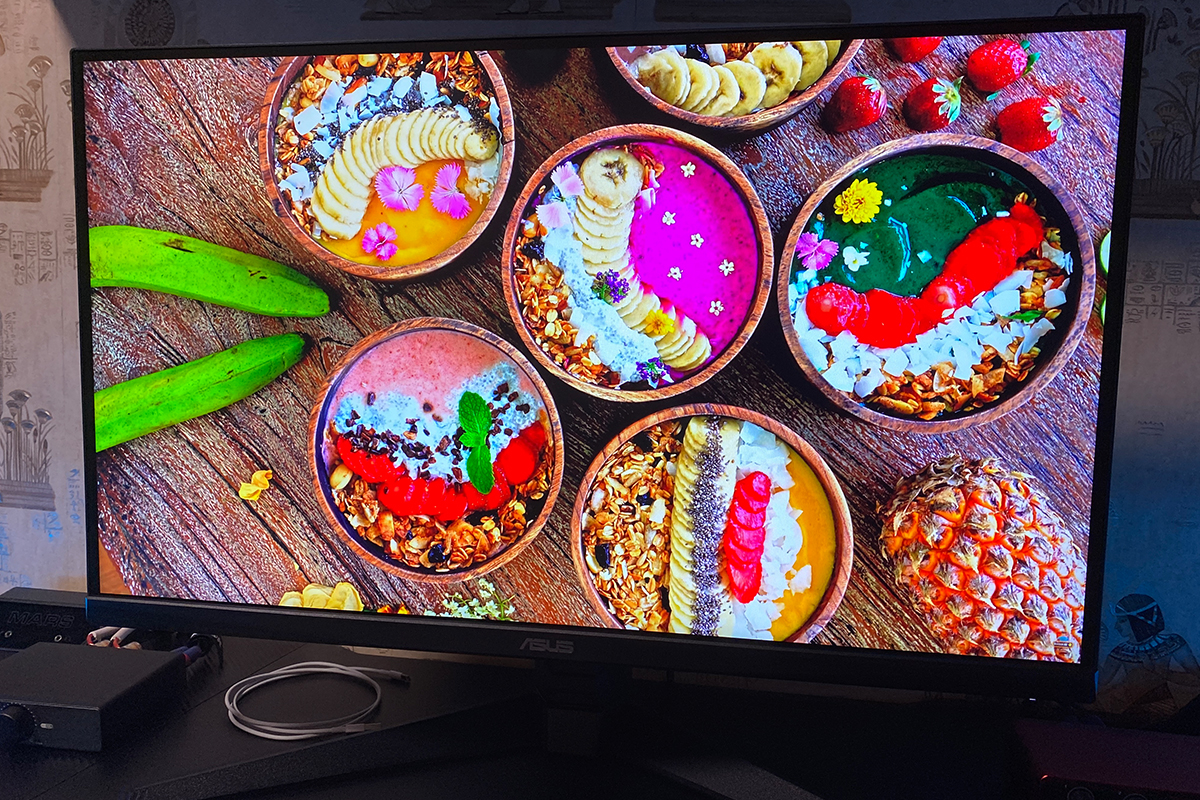
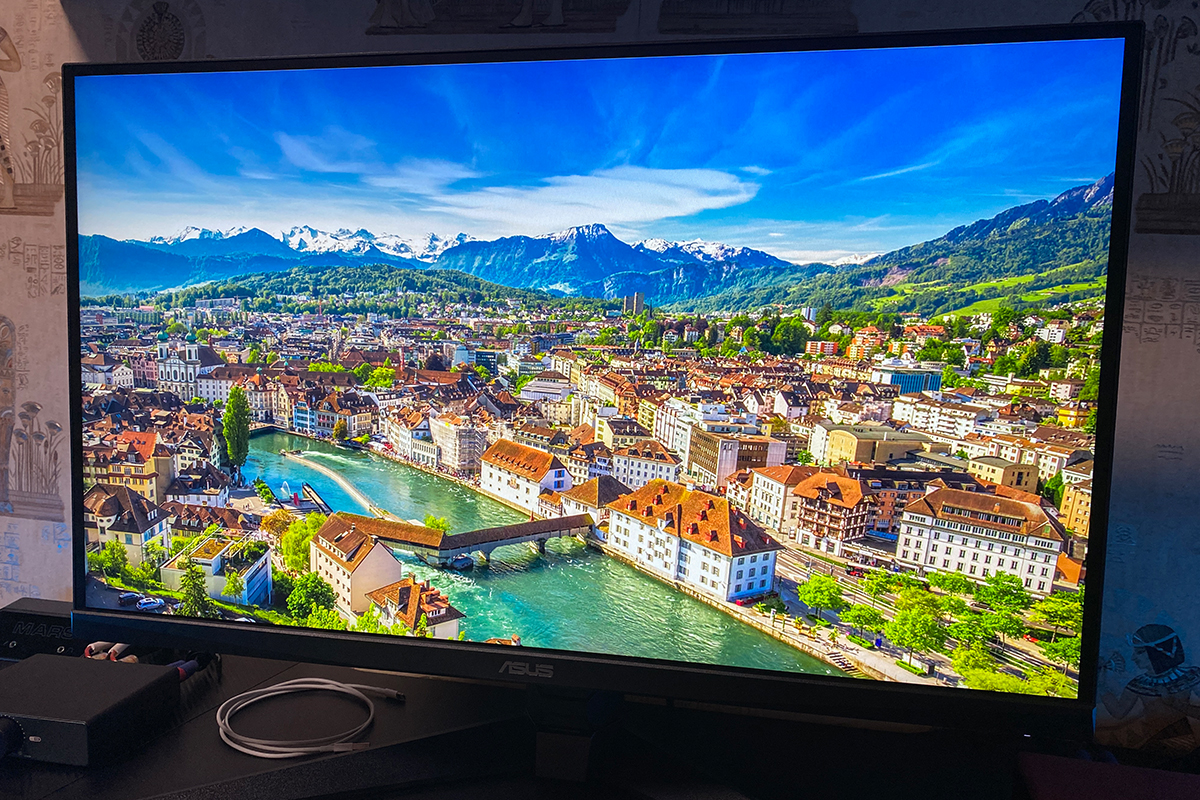
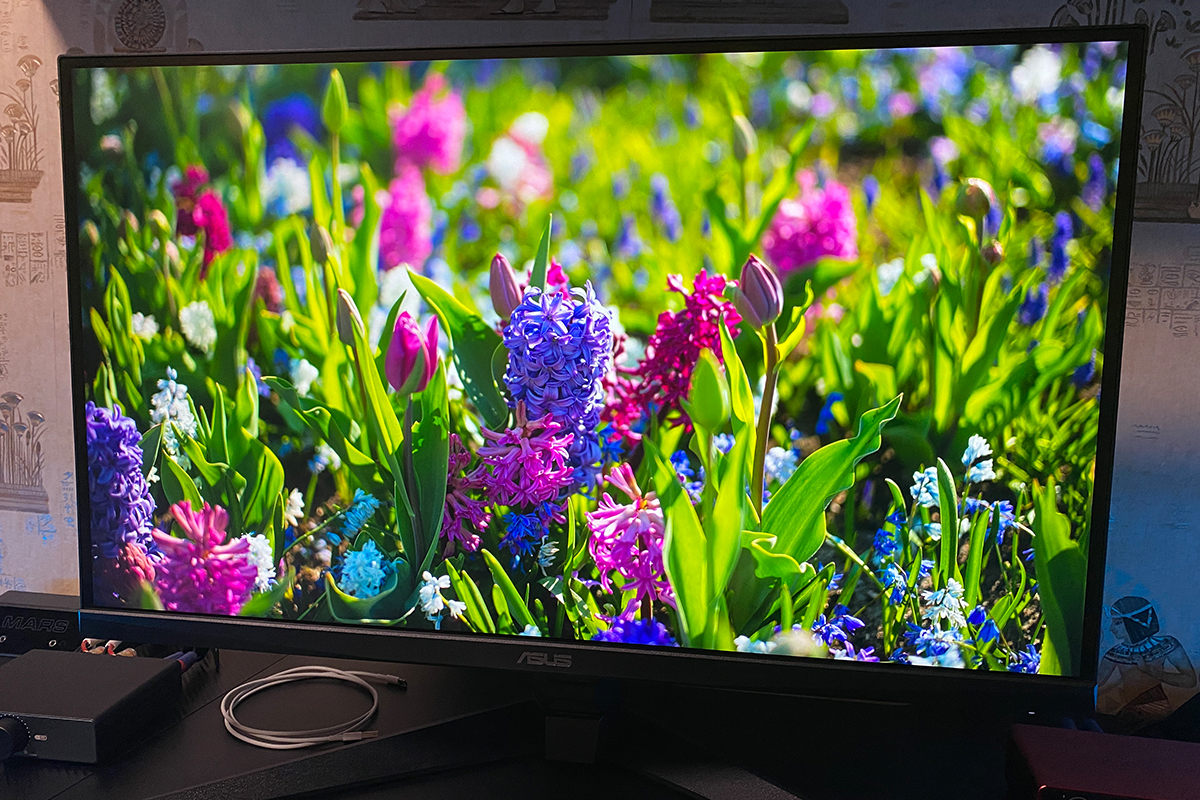
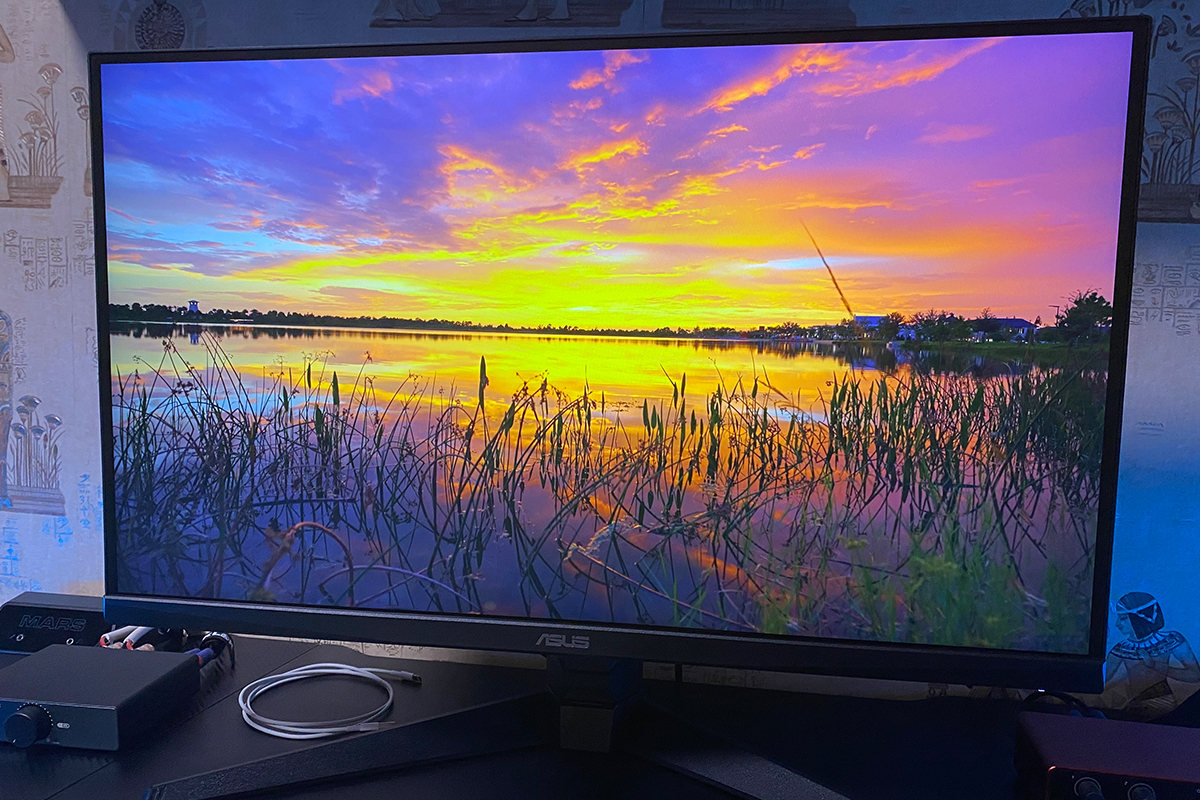
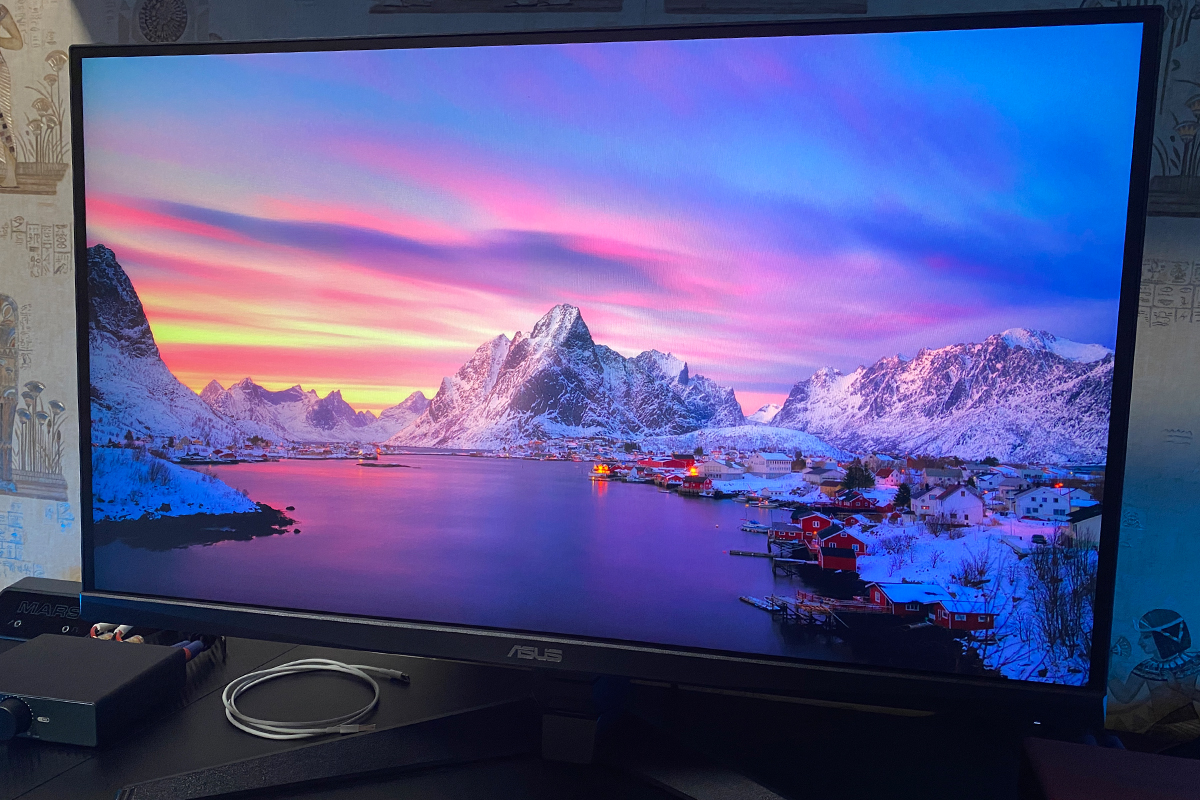
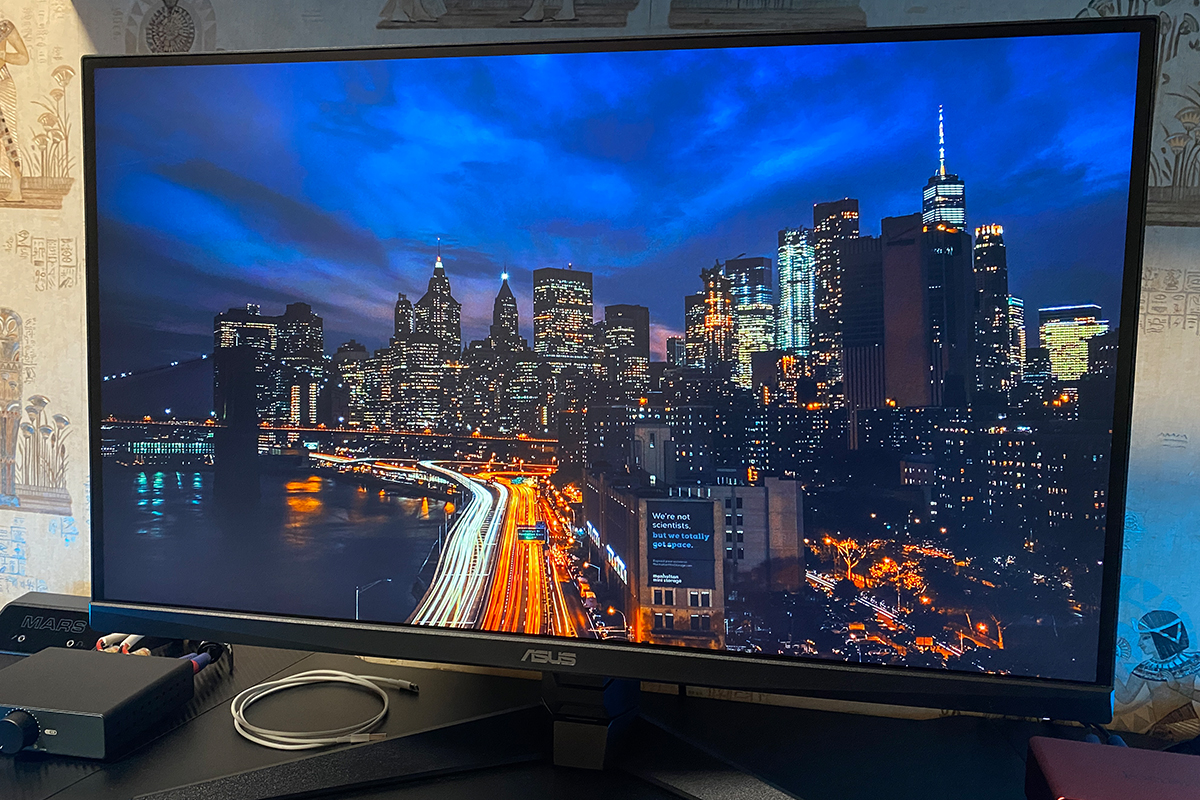
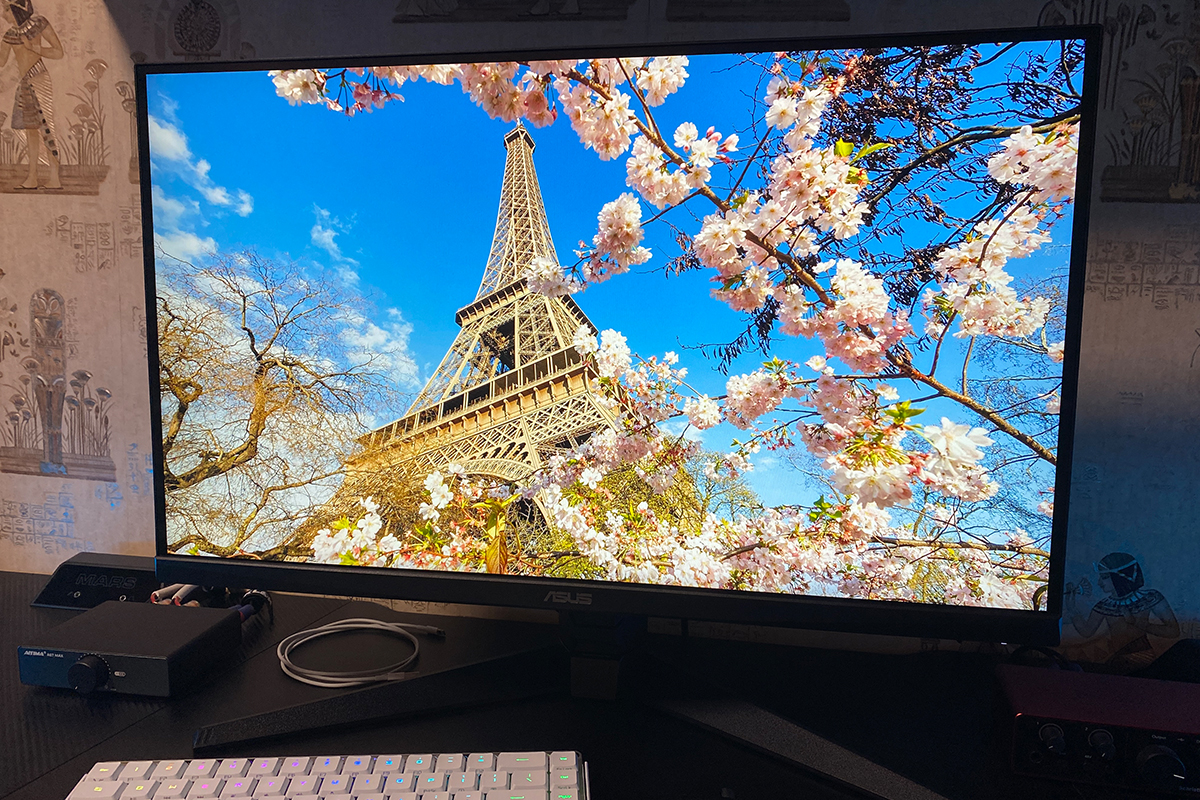
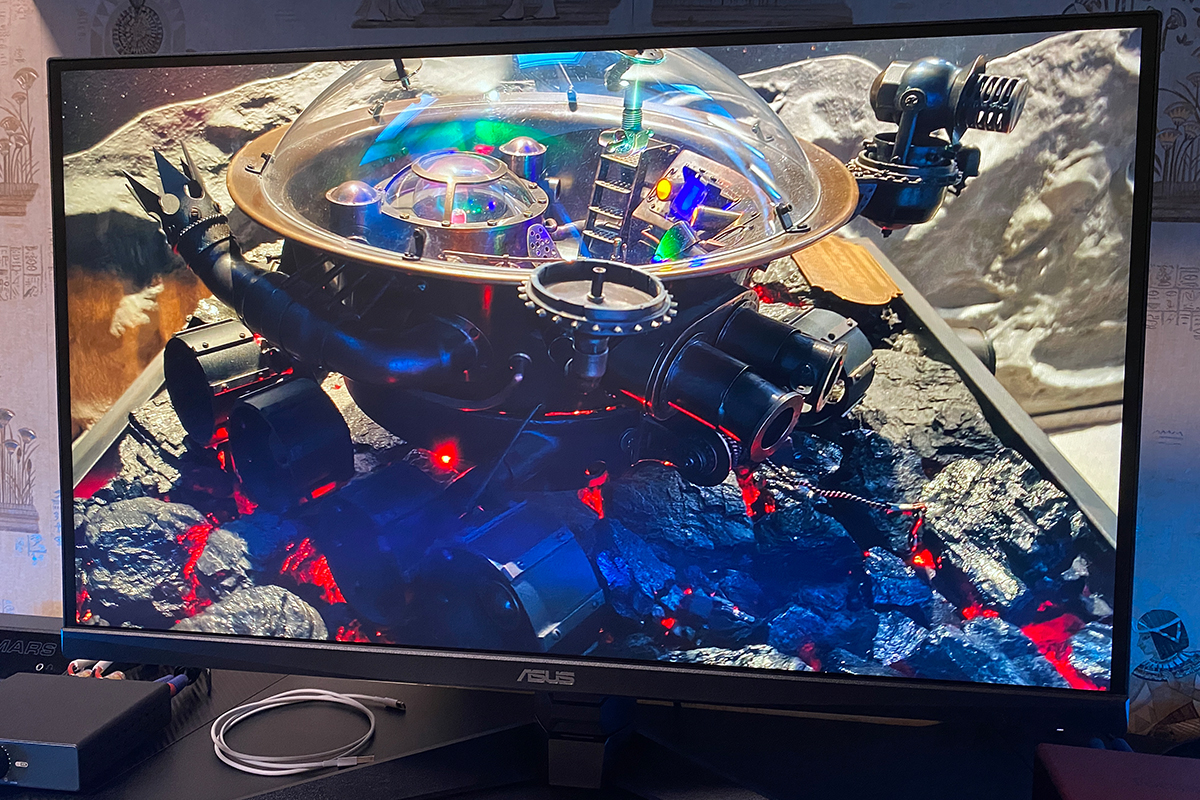
The black levels are generally good, though they can sometimes appear slightly “washed out,” which reduces perceived depth. Contrast is similarly decent but may feel slightly lacking in certain scenes. Naturally, compared to high-end VA or OLED panels, this IPS monitor can’t match their deep blacks and contrast. However, when not making direct comparisons, blacks and their shades still look quite respectable. The situation improves significantly when HDR is enabled (for example, in a fully supported game), as black depth and overall contrast are noticeably enhanced.


Speaking of HDR, its implementation here is excellent. With HDR enabled, the image becomes noticeably richer and more contrasty, and, as mentioned earlier, the black levels gain the depth that was previously lacking.


When it comes to the main purpose – gaming – this monitor is a pleasure to use. The combination of vivid colors, excellent sharpness, and a fast panel makes gameplay comfortable and enjoyable. In fast-paced scenes, the monitor delivers smooth, rich visuals even without enabling ELMB, overdrive, or HDR.
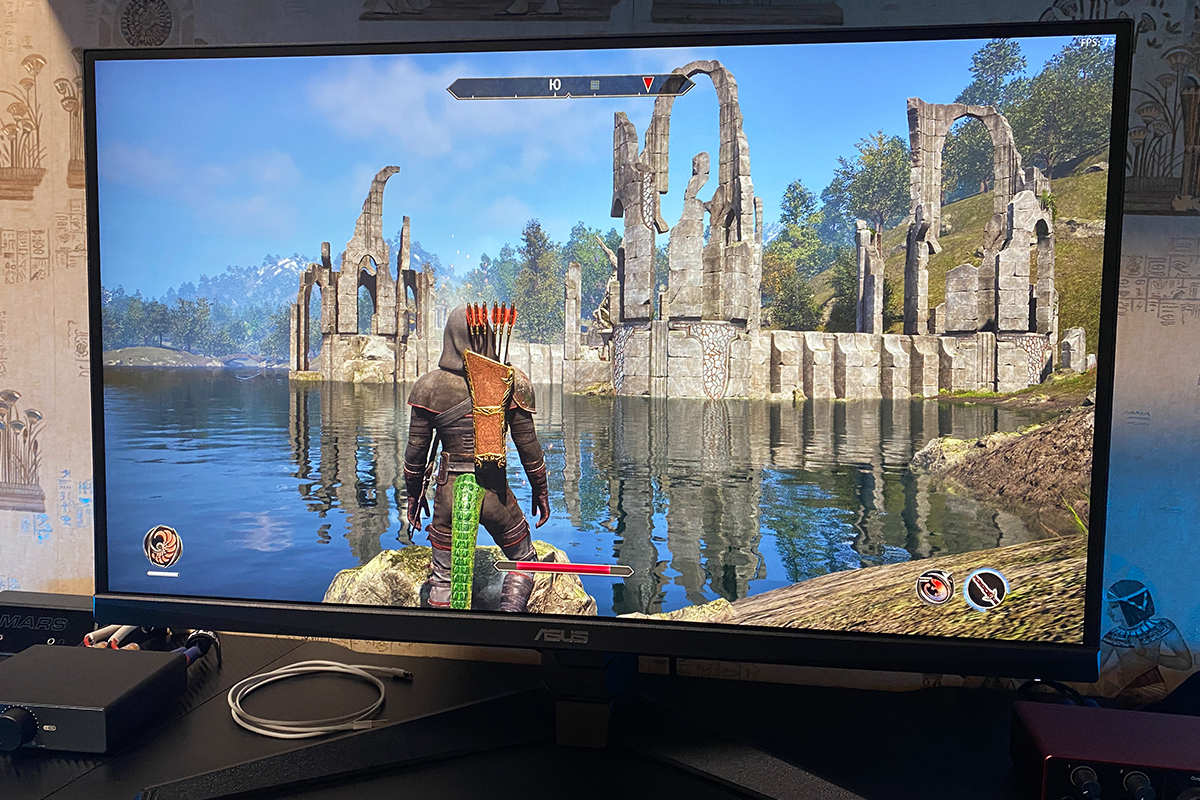
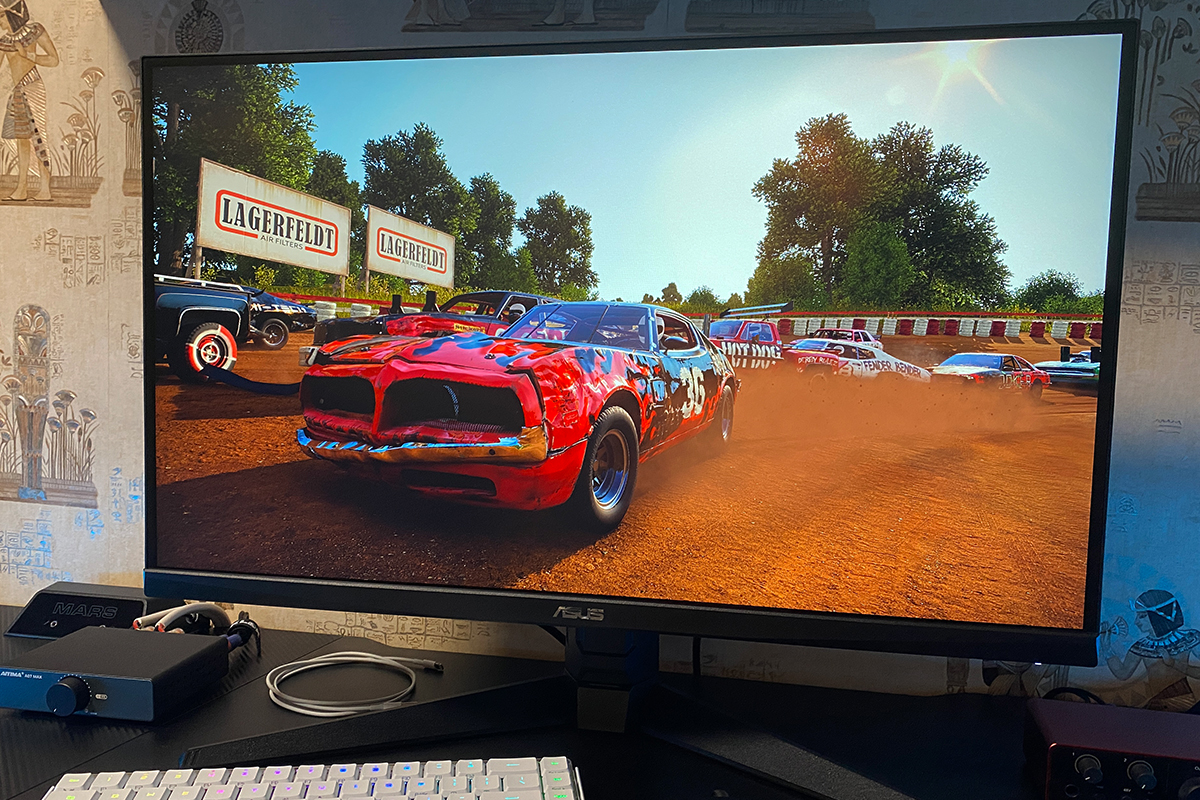
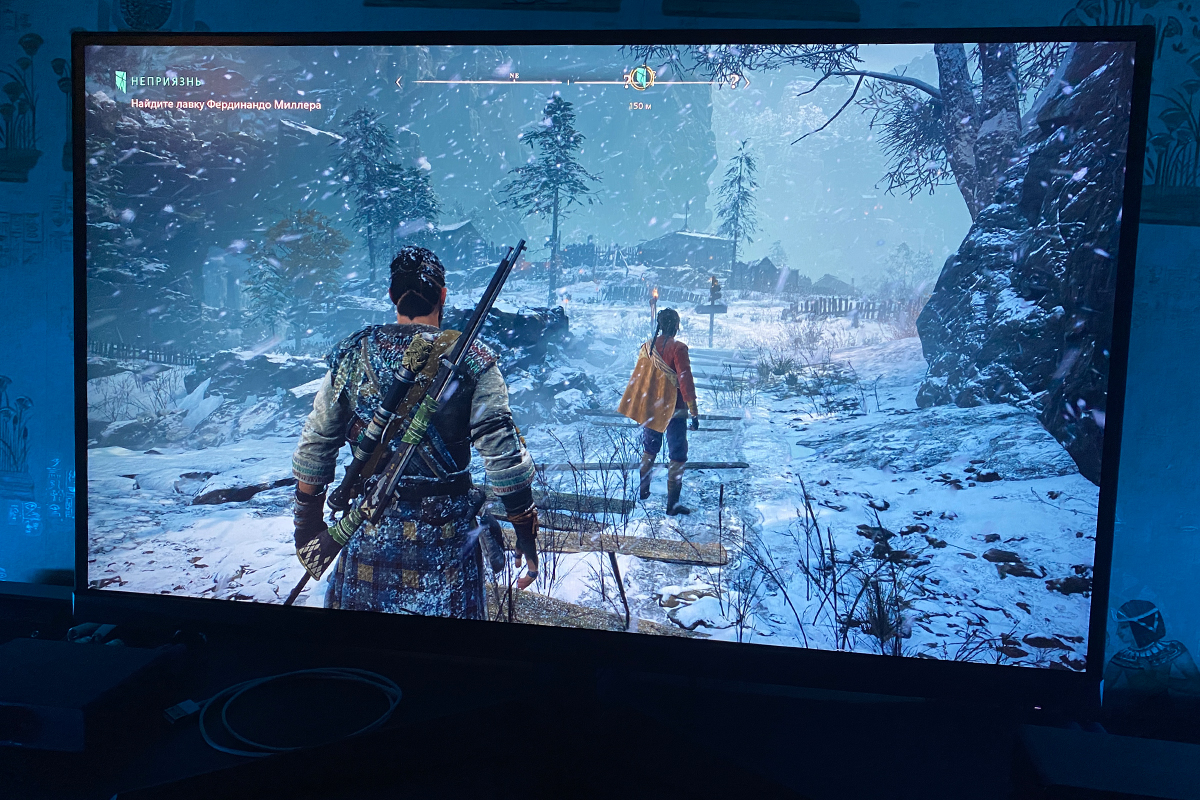
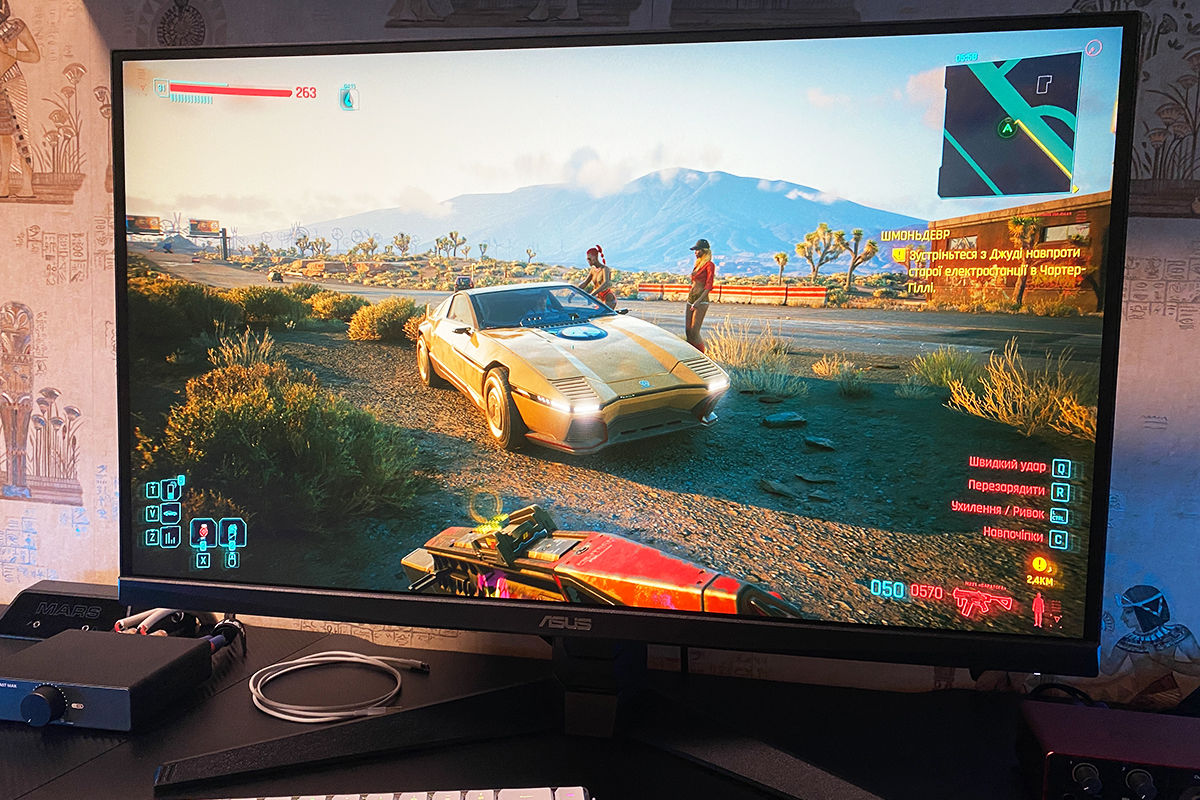
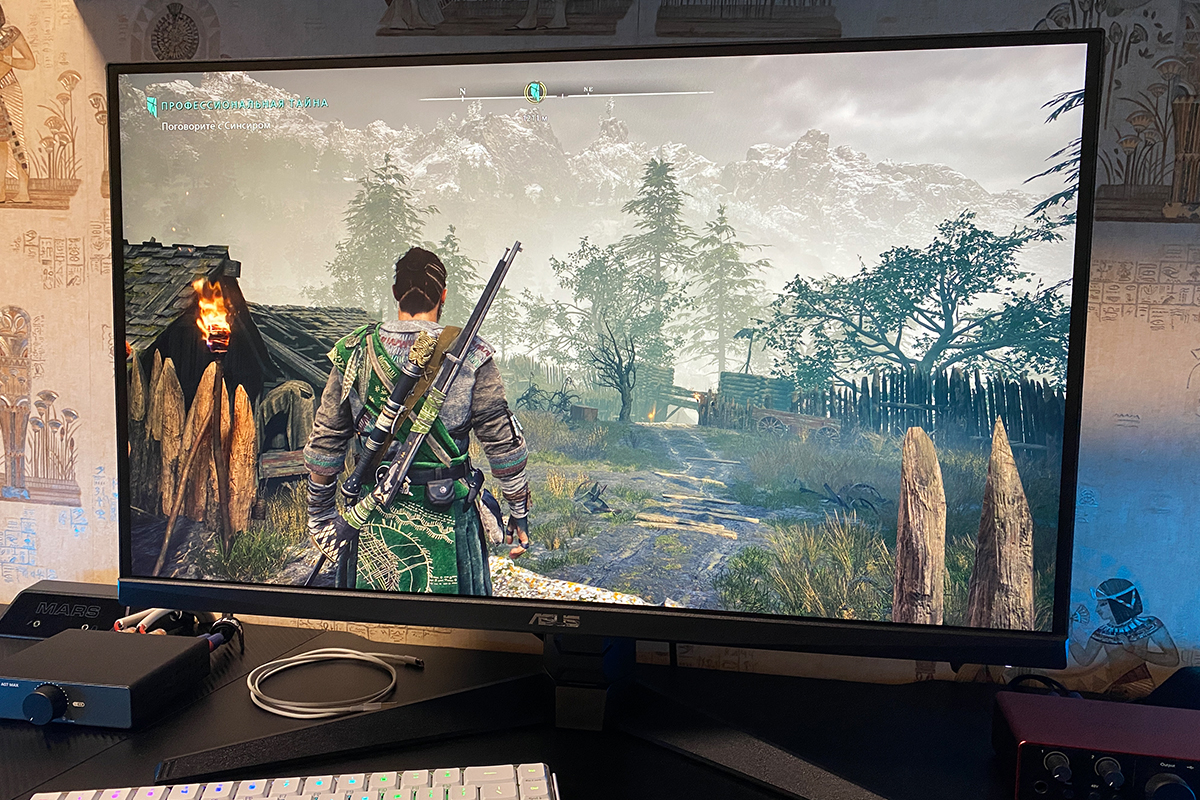
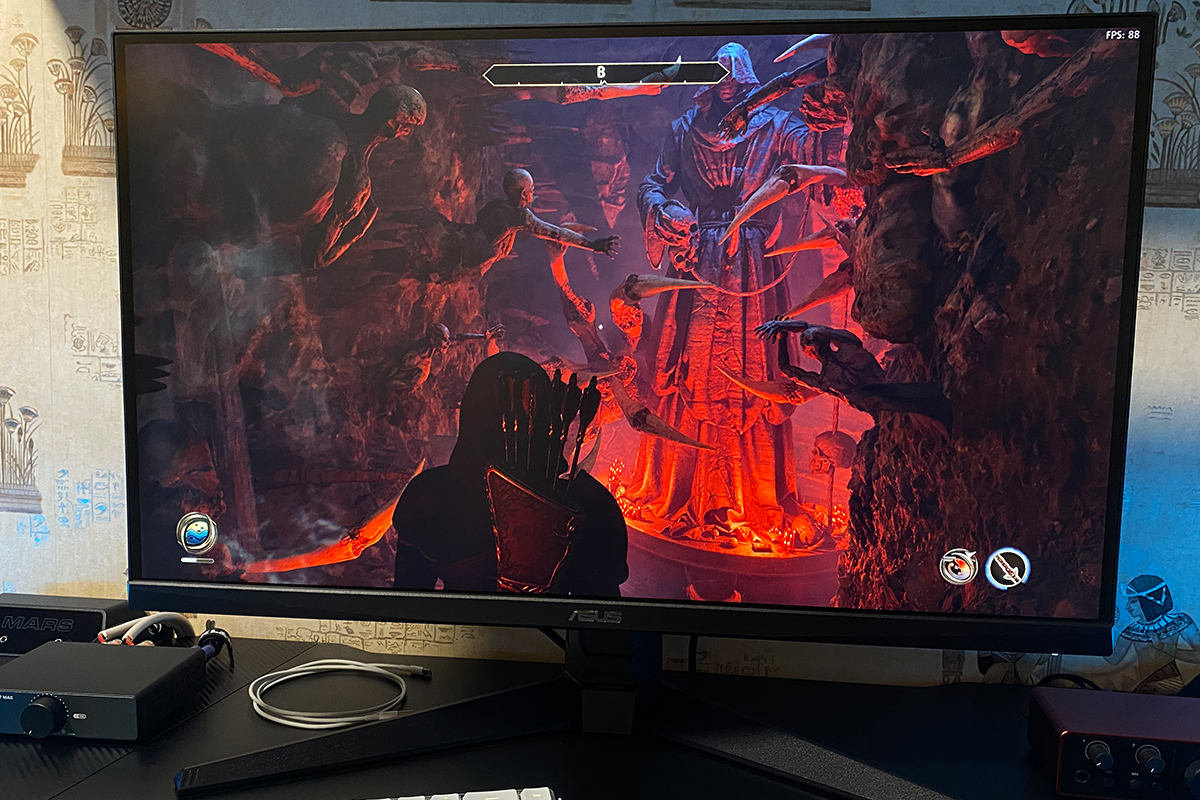
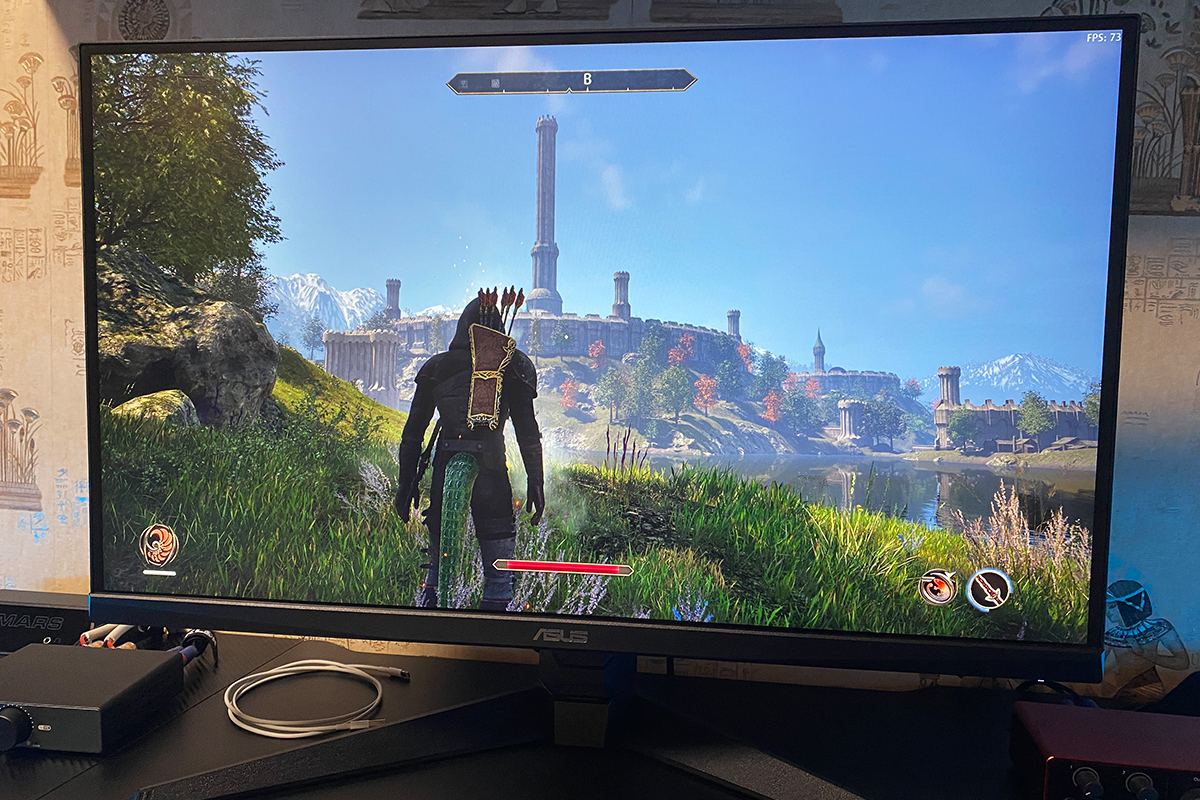
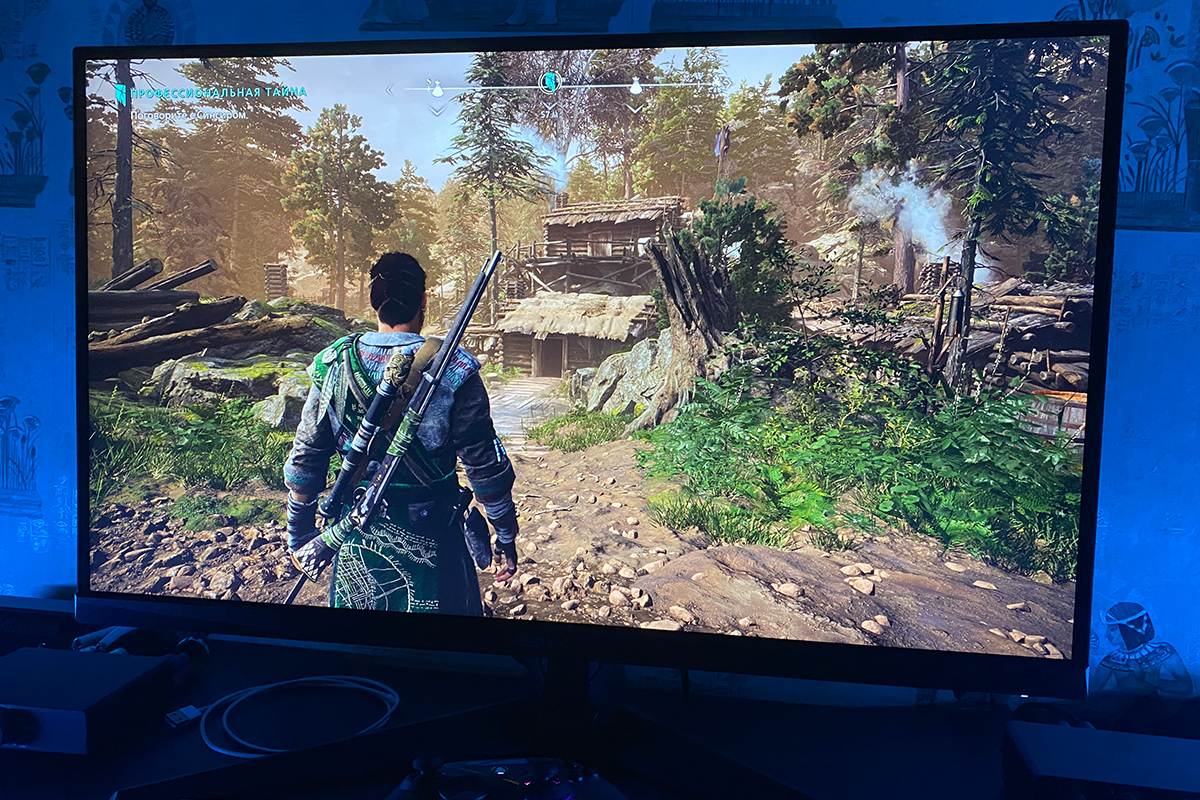
Viewing angles are generally excellent – the image remains clear from almost any perspective, with minimal changes in color, brightness, or contrast. On dark scenes, a slight IPS Glow can be noticed when viewing from the side or above, but this is typical for all panels of this type. Overall, the display performs well in this regard.


The monitor does exhibit minor backlight bleed, visible in the photos below. However, it is neither severe nor critical and can only be noticed on pure black at certain angles. During typical use, these imperfections are not apparent and have little to no impact on overall image quality.

Read also:
- ViewSonic VX2479A-HD-PRO Monitor Review: Truly Gaming-Oriented Display
- GIGABYTE GS25F2 Gaming Monitor Review: 200Hz and Super Speed IPS
Audio Quality
Like the previous model, the monitor includes two built-in 2 W speakers. Sound quality is typical for low-power monitor speakers: they can get reasonably loud but lack bass and have a somewhat thin, tinny tone. High-quality audio is not to be expected.
However, for basic tasks or casual background listening, they are sufficient – essentially, just enough to have sound. During testing, I played Banishers: Ghosts of New Eden and Oblivion Remastered on this monitor, and for these games, the built-in speakers were adequate without the need for external audio.

On-Screen Display (OSD) – ASUS TUF Gaming VG27AQML5A
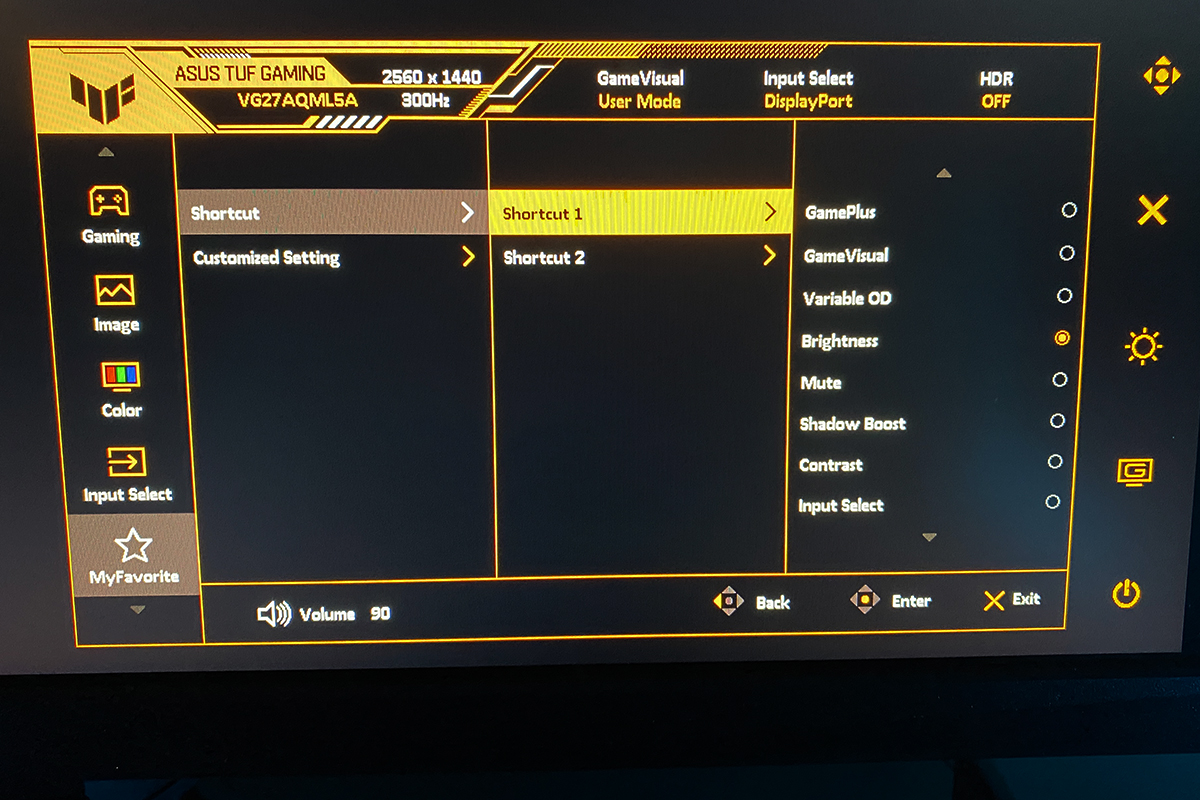
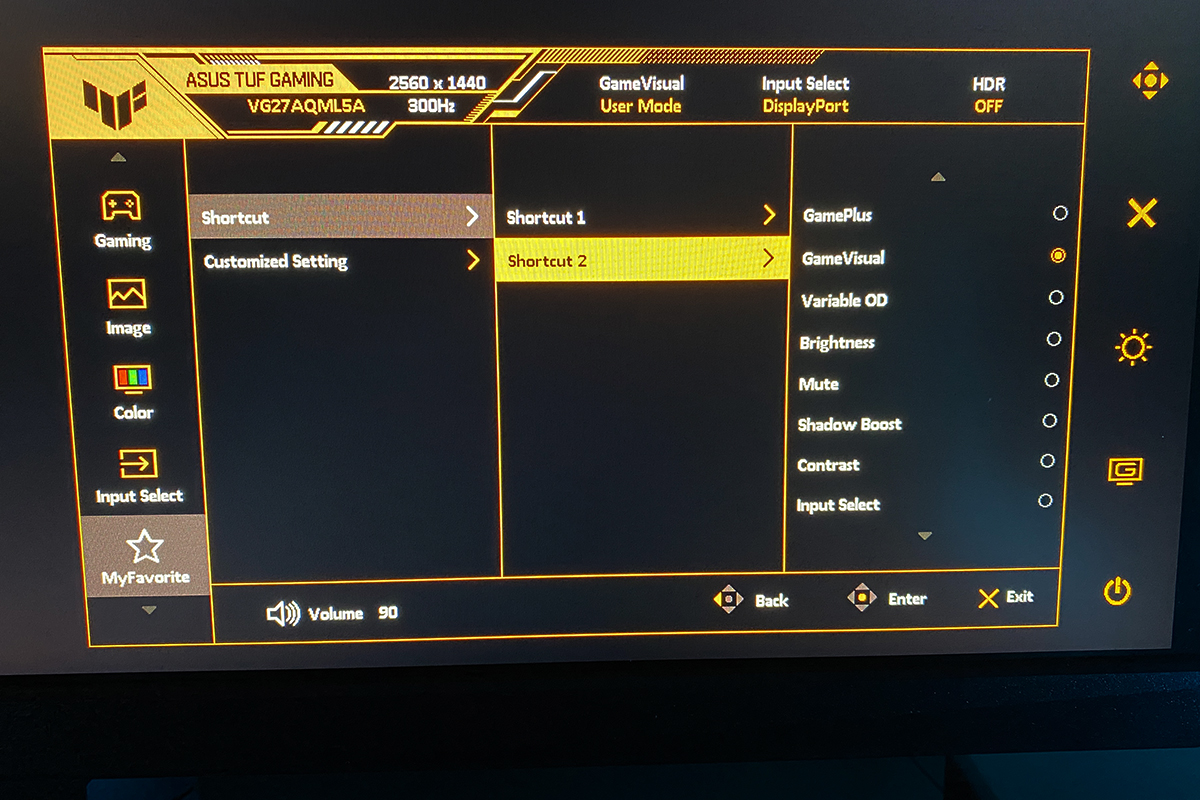
The OSD in the new model remains unchanged from previous iterations, featuring the familiar ASUS menu found on other TUF series monitors. It is accessed and navigated using the 5-way joystick, which handles all adjustments and menu navigation. The buttons primarily provide quick access to specific functions, which can also be reassigned to suit user preferences.

In the Game menu, you can enable and adjust the Variable Overdrive (pixel overdrive), turn on Adaptive-Sync, and activate ELMB (motion blur reduction). This menu also provides access to GamePlus features, GameVisual mode selection, and Shadow Boost settings for enhancing dark areas.
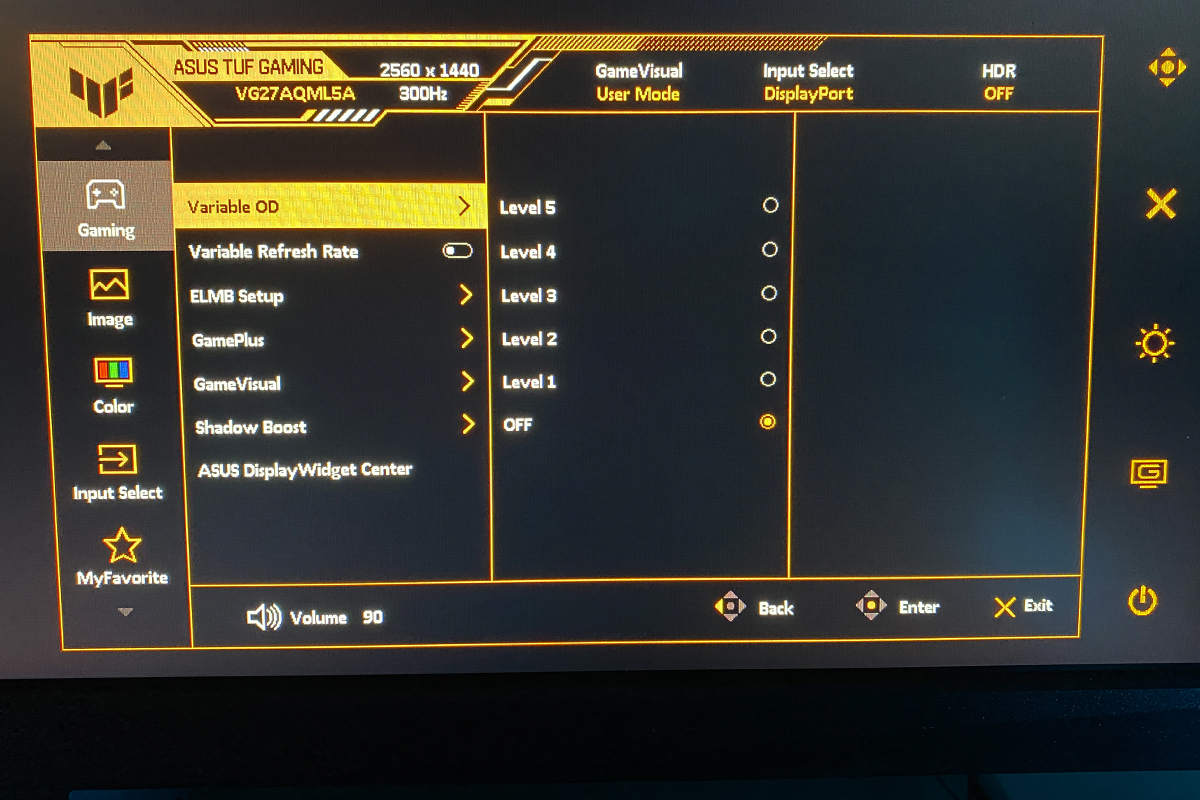
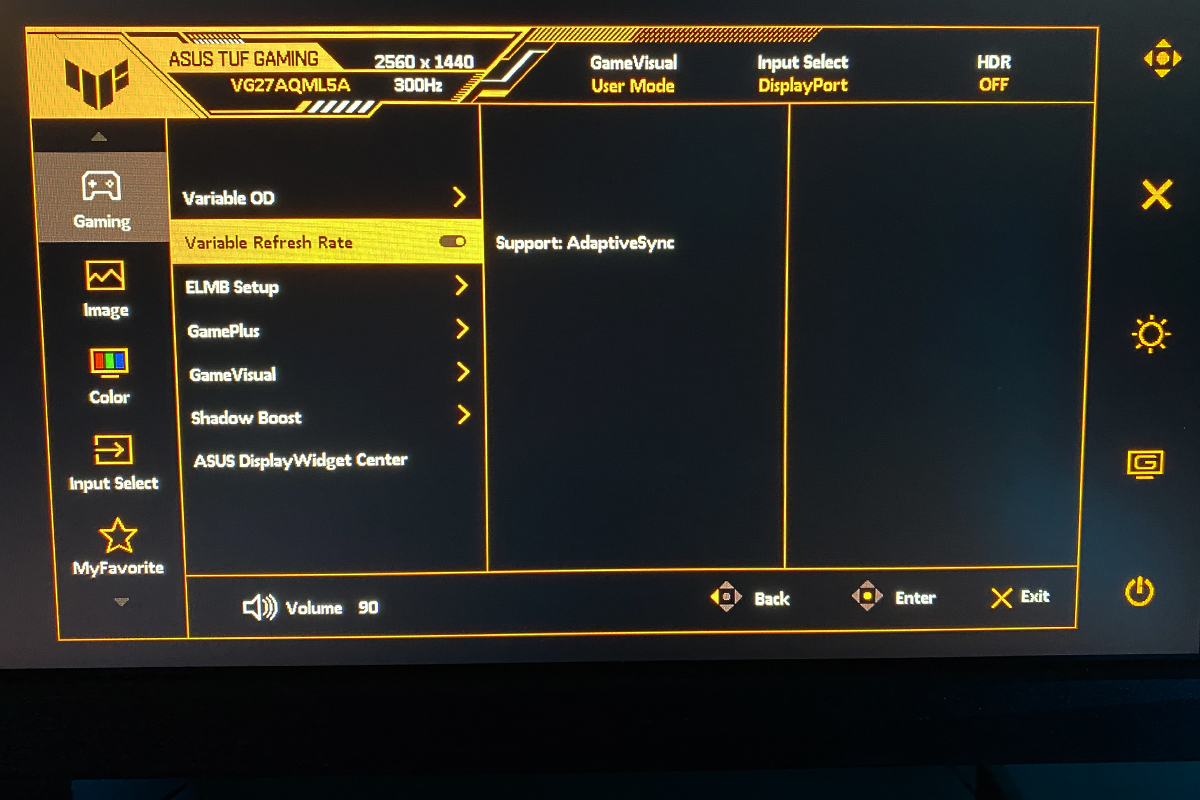
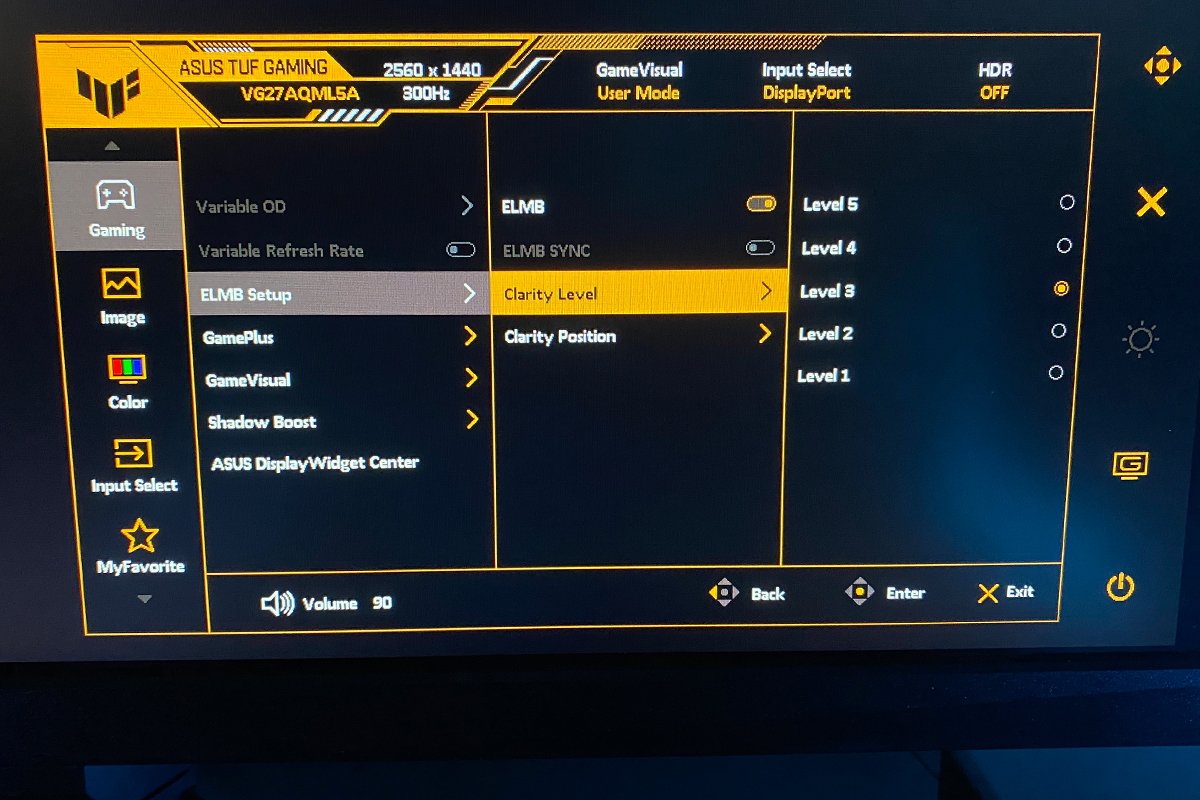
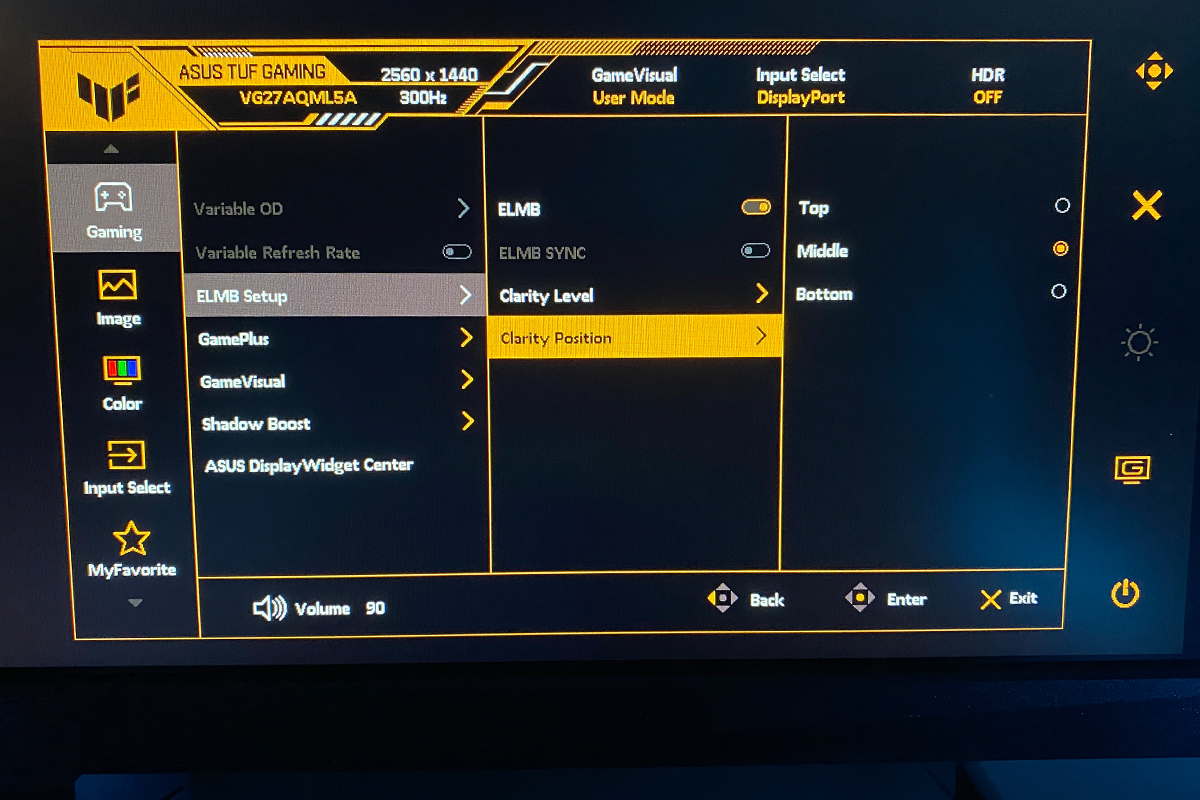
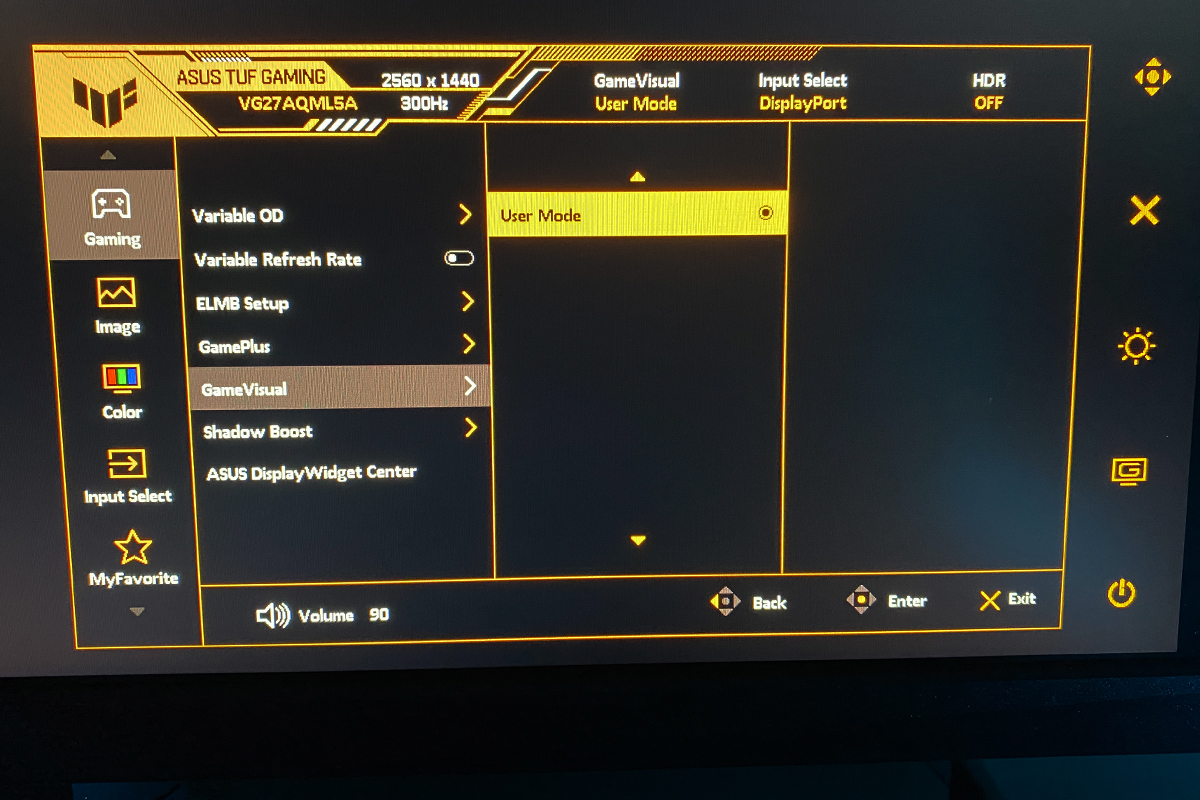
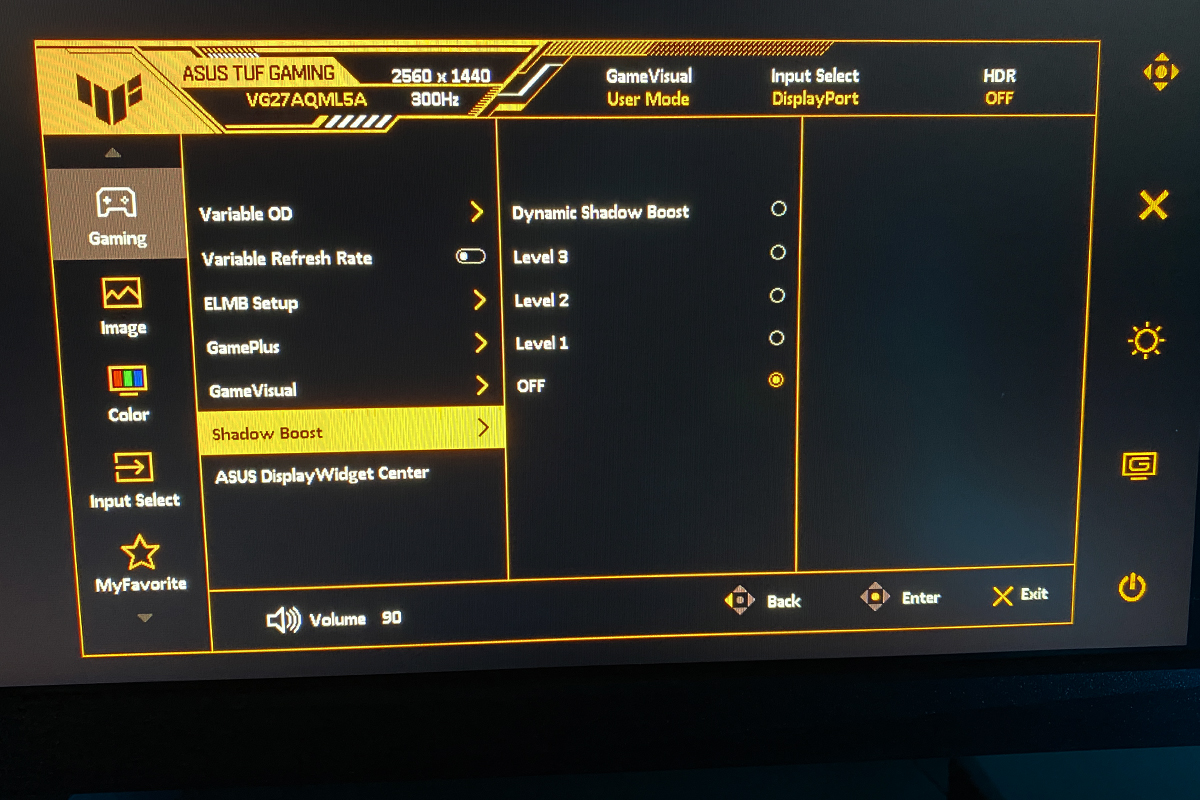
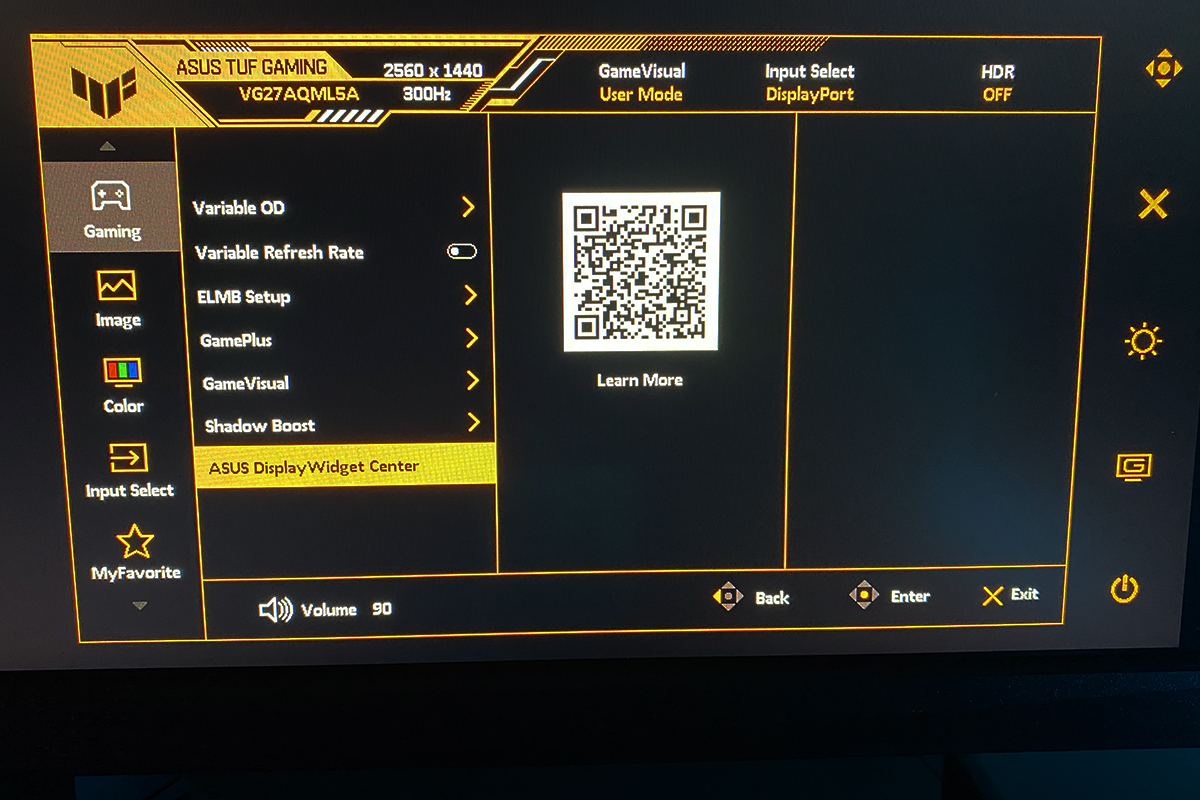
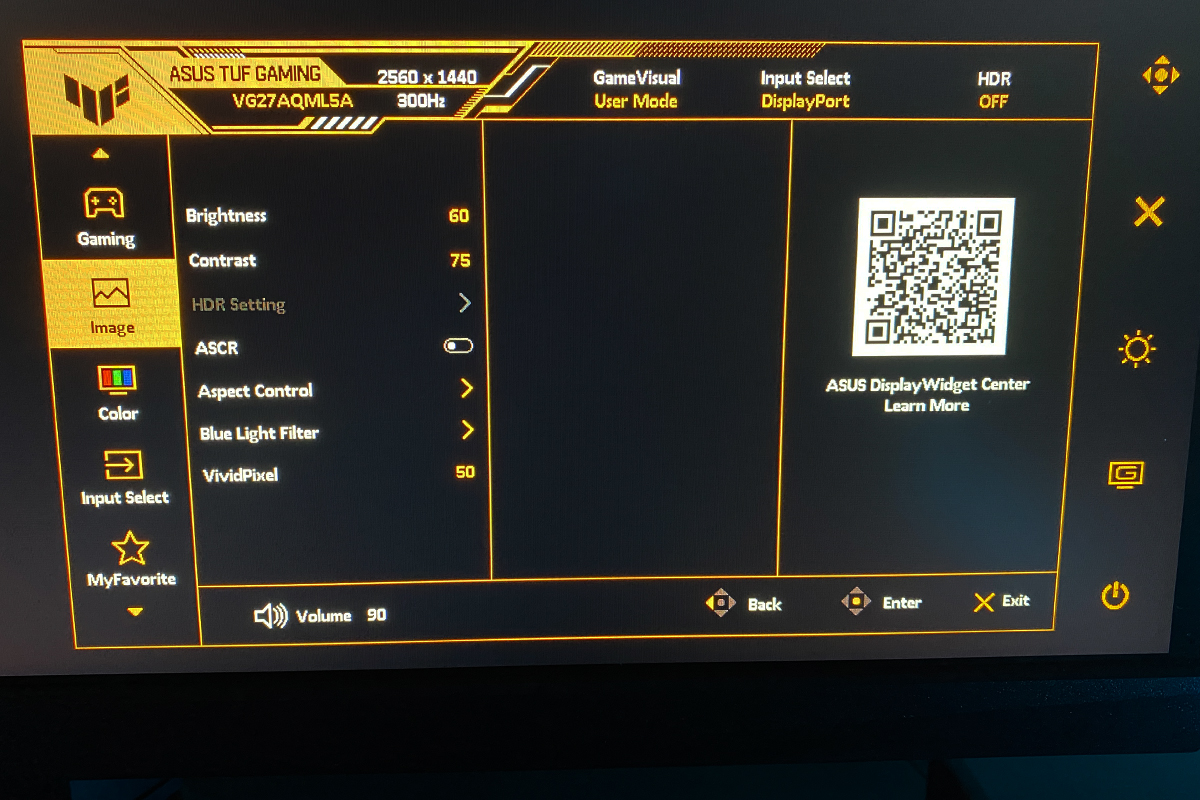
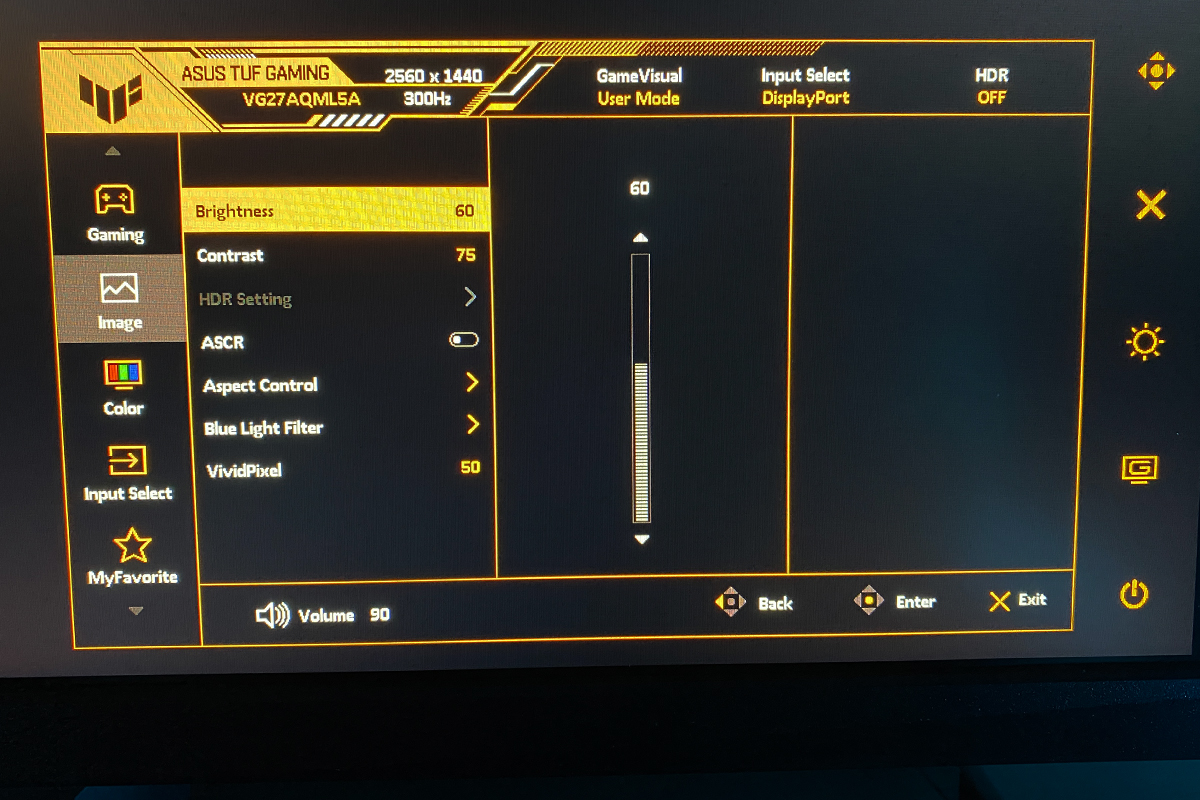
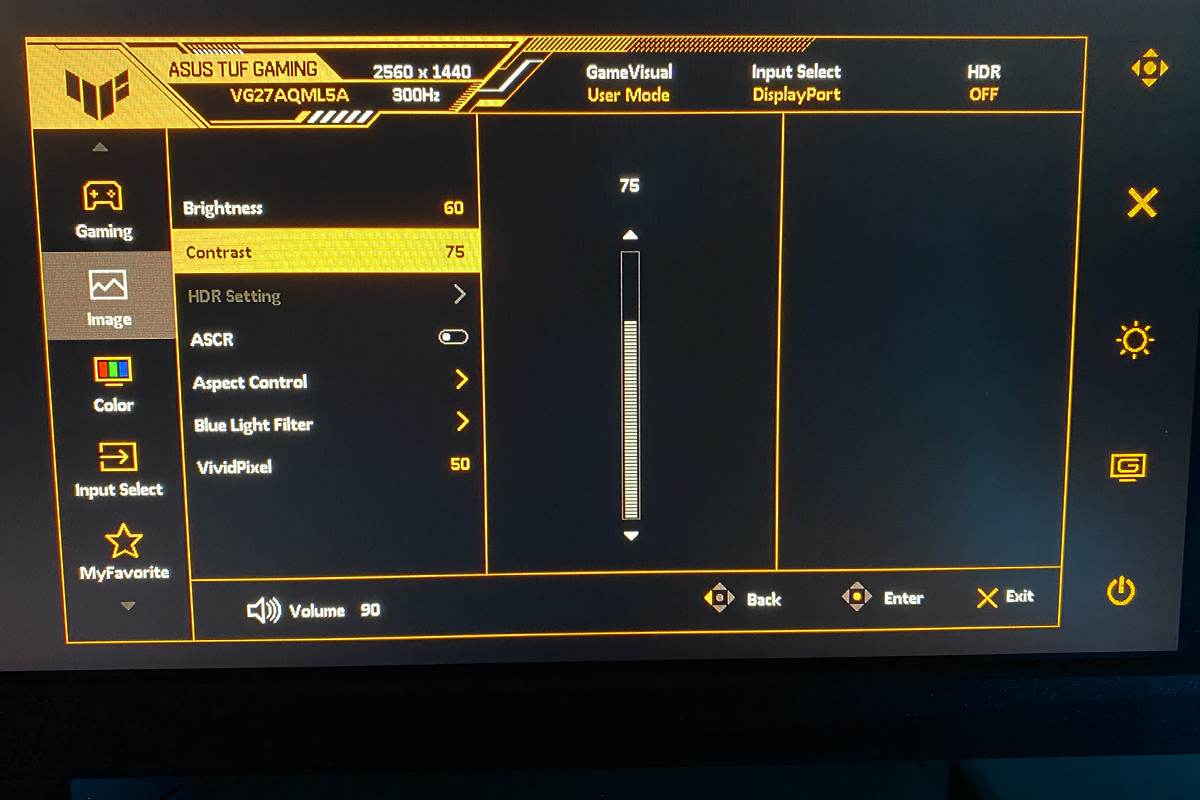
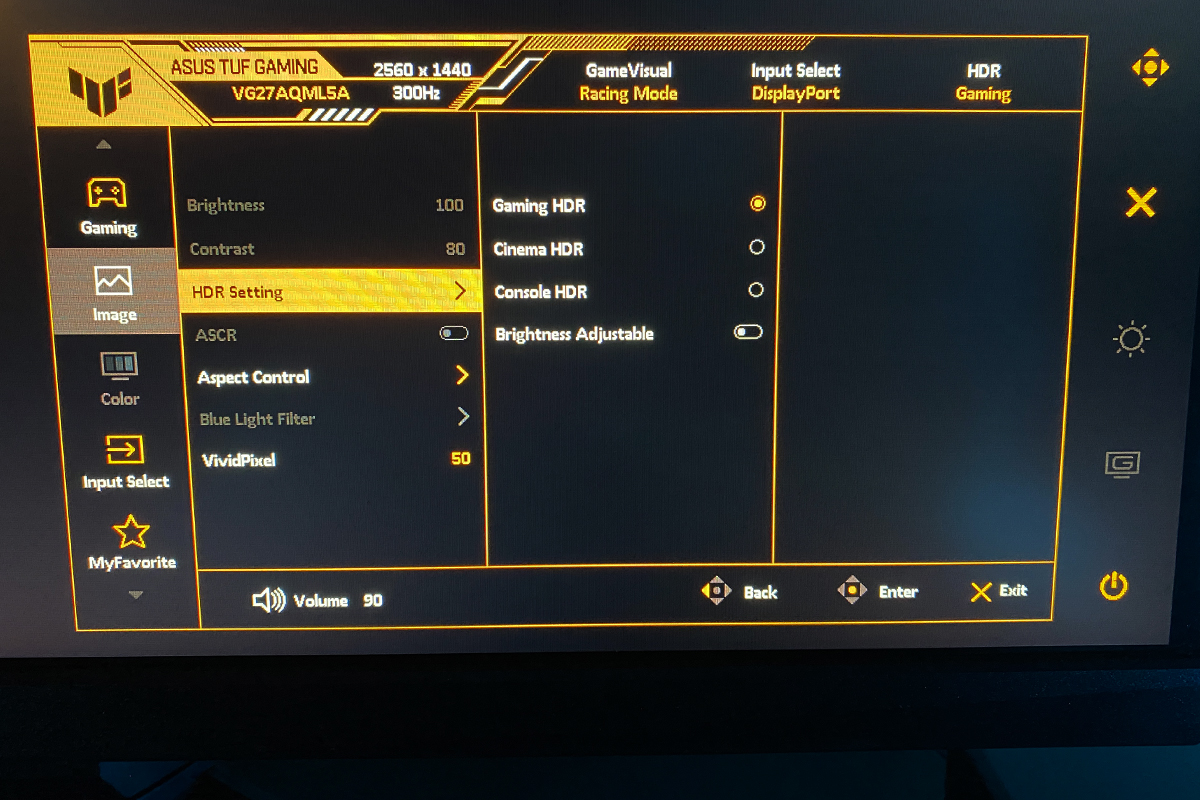
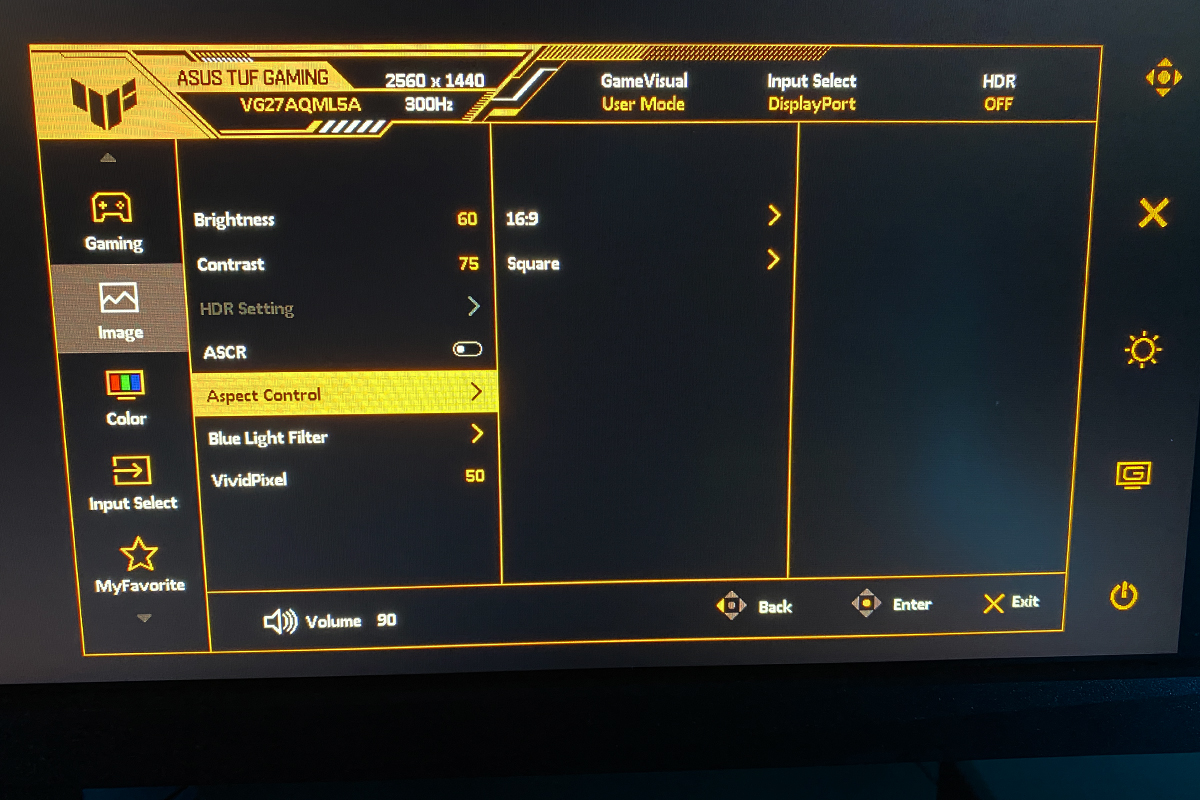
In the Image menu, you can adjust brightness, contrast, sharpness, and aspect ratio. This section also includes HDR settings, the Blue Light Filter, and ASCR (dynamic contrast) adjustments.
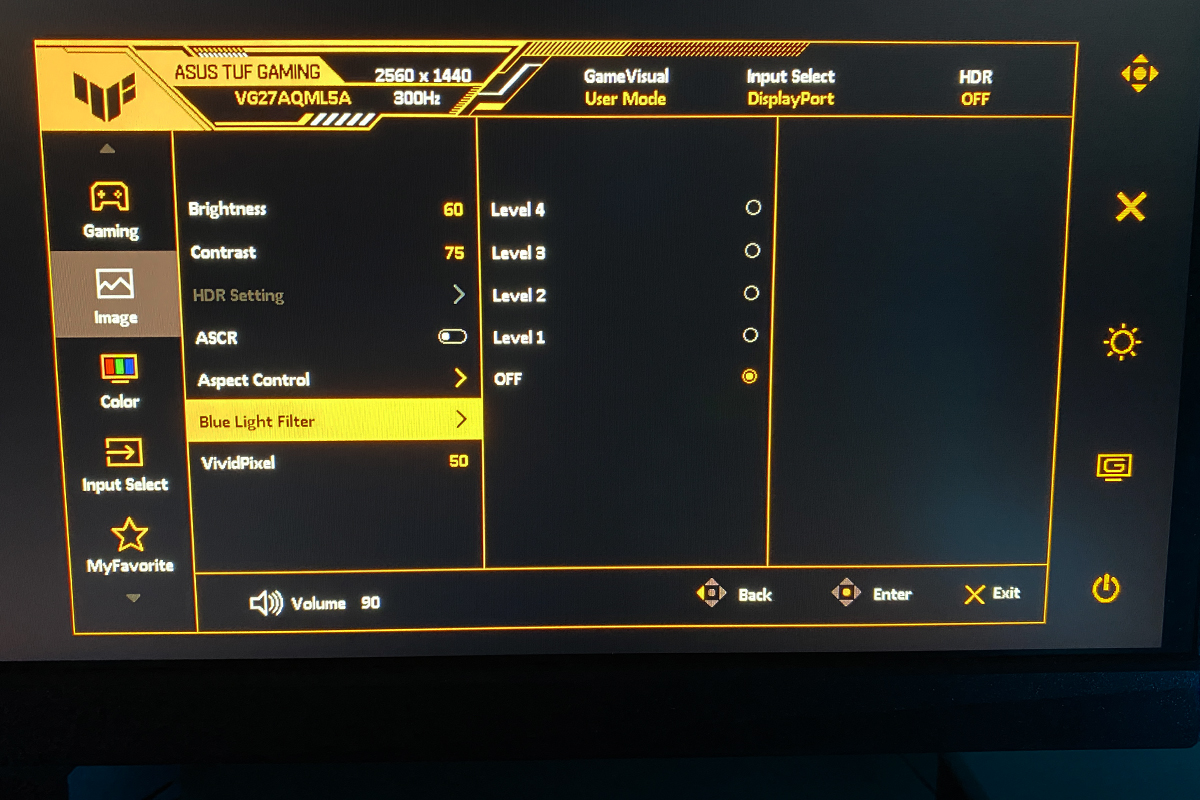
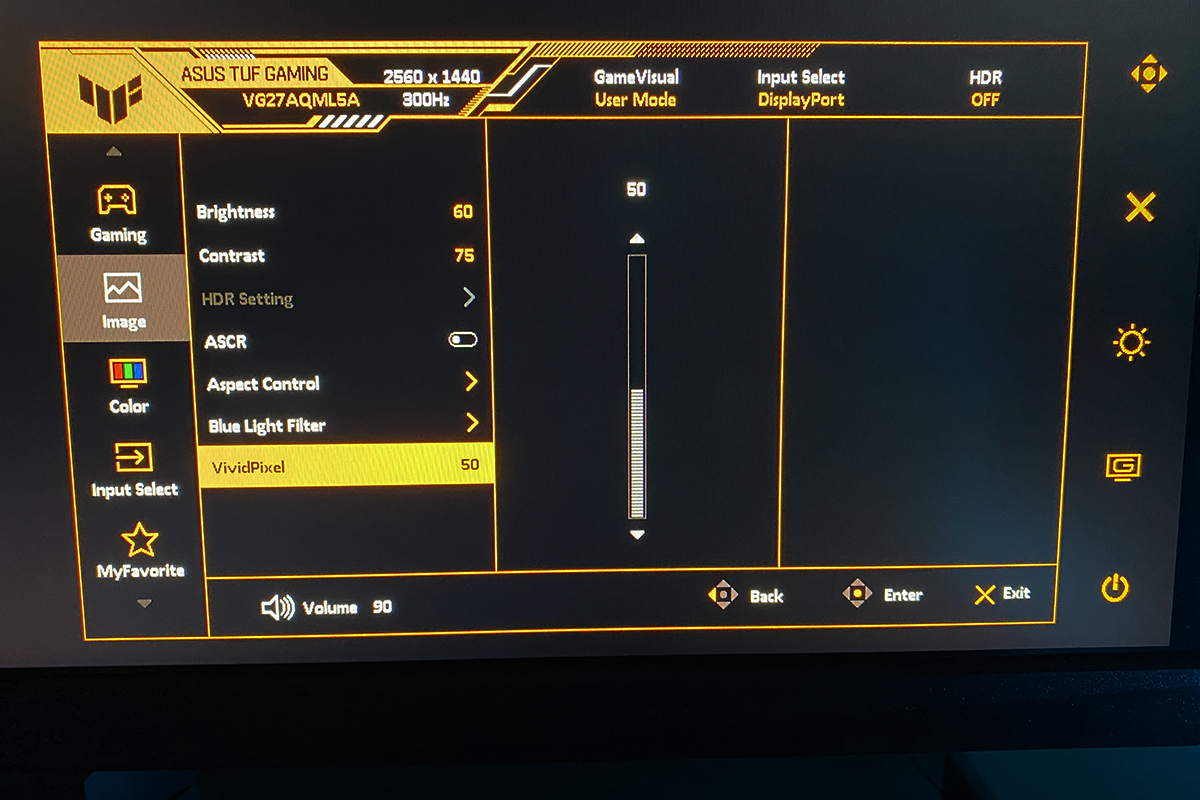
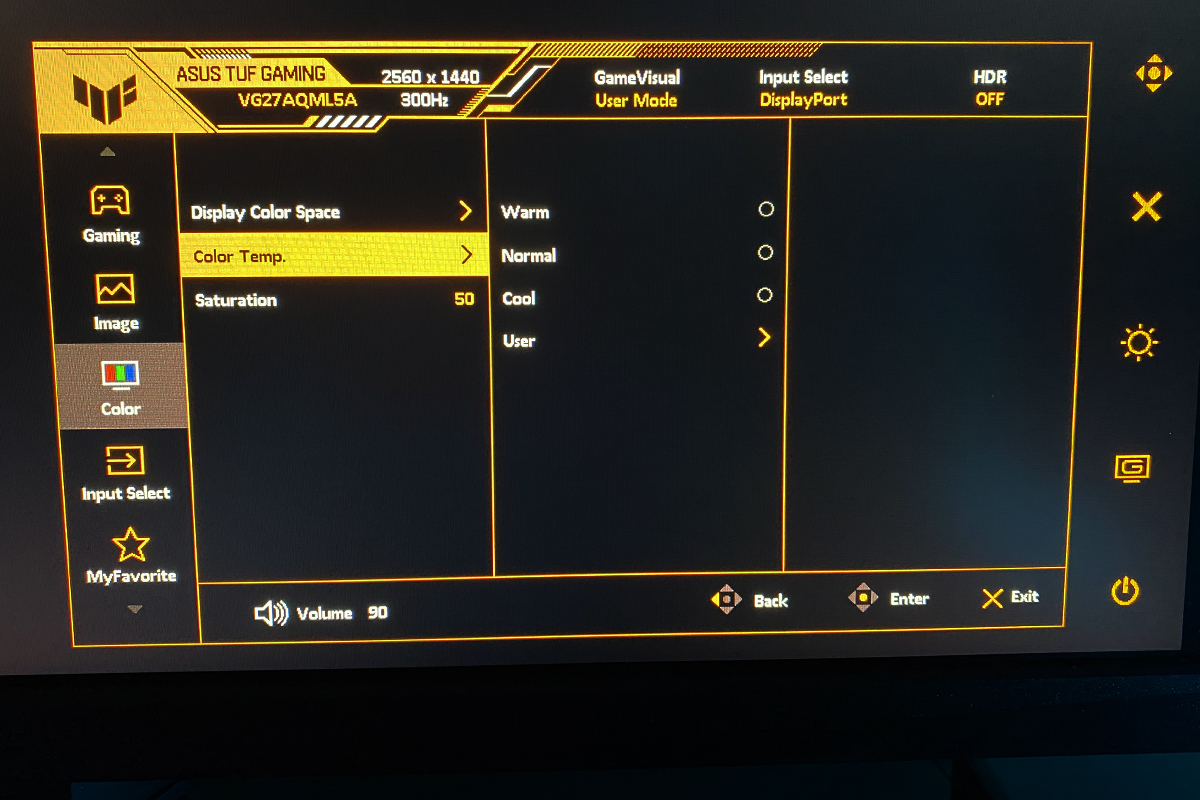
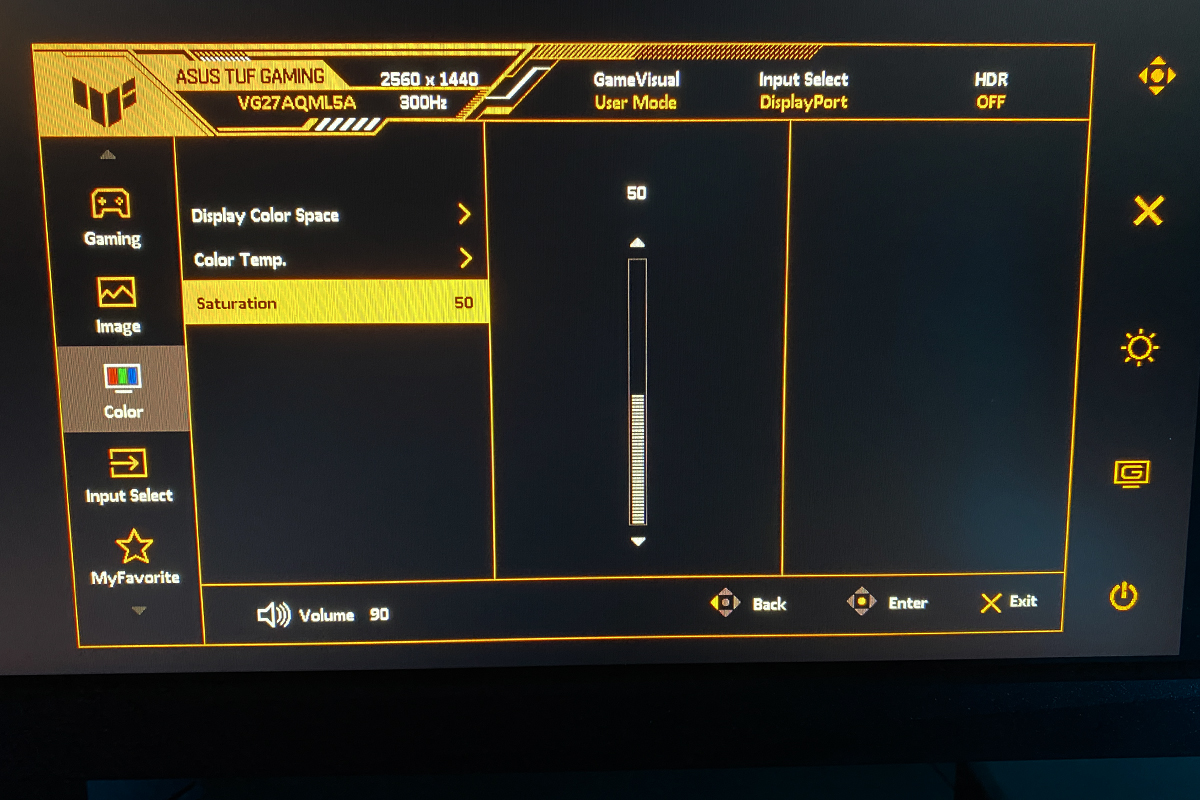
In the Color menu, you can select the color gamut and adjust color temperature and saturation to fine-tune the image.
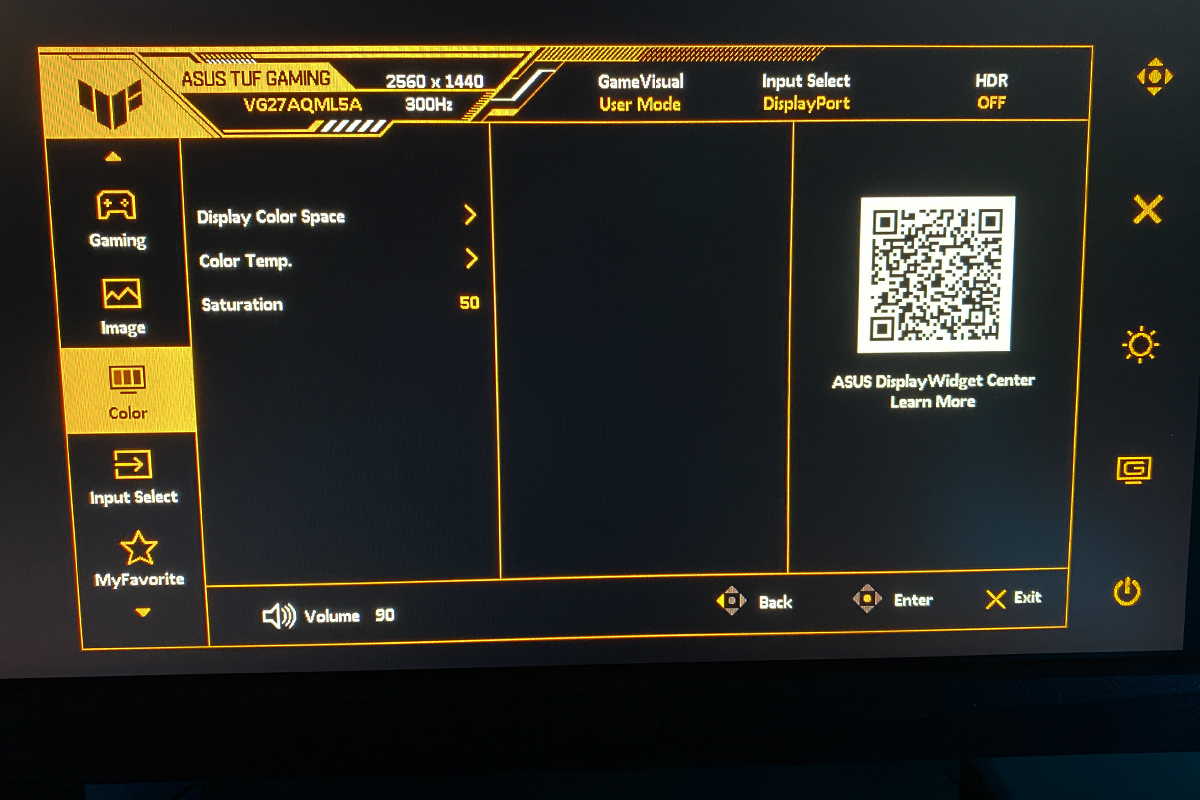
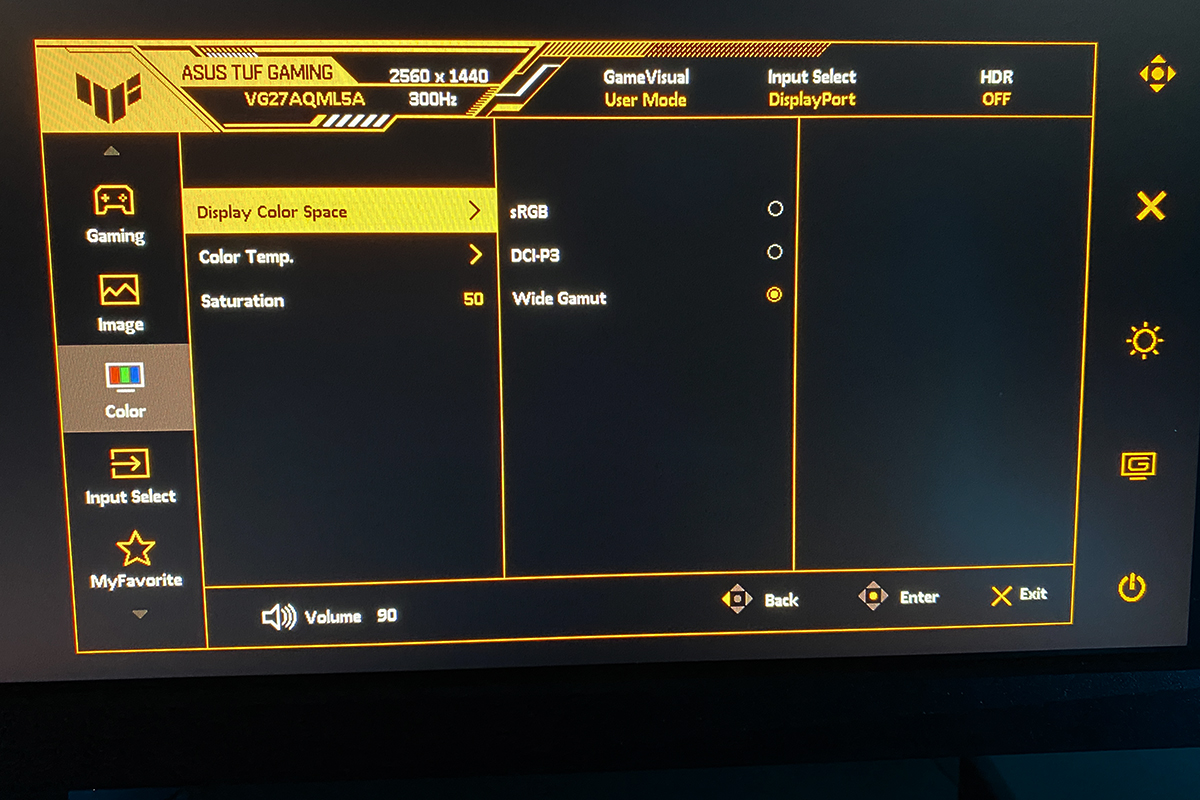
In the Input Select menu, you can switch the video source. By default, auto-detect is enabled.

In the Favorites menu, you can customize the quick-access buttons, assigning the functions and settings you use most frequently. This menu also allows you to save and load user profiles for the monitor’s configuration.
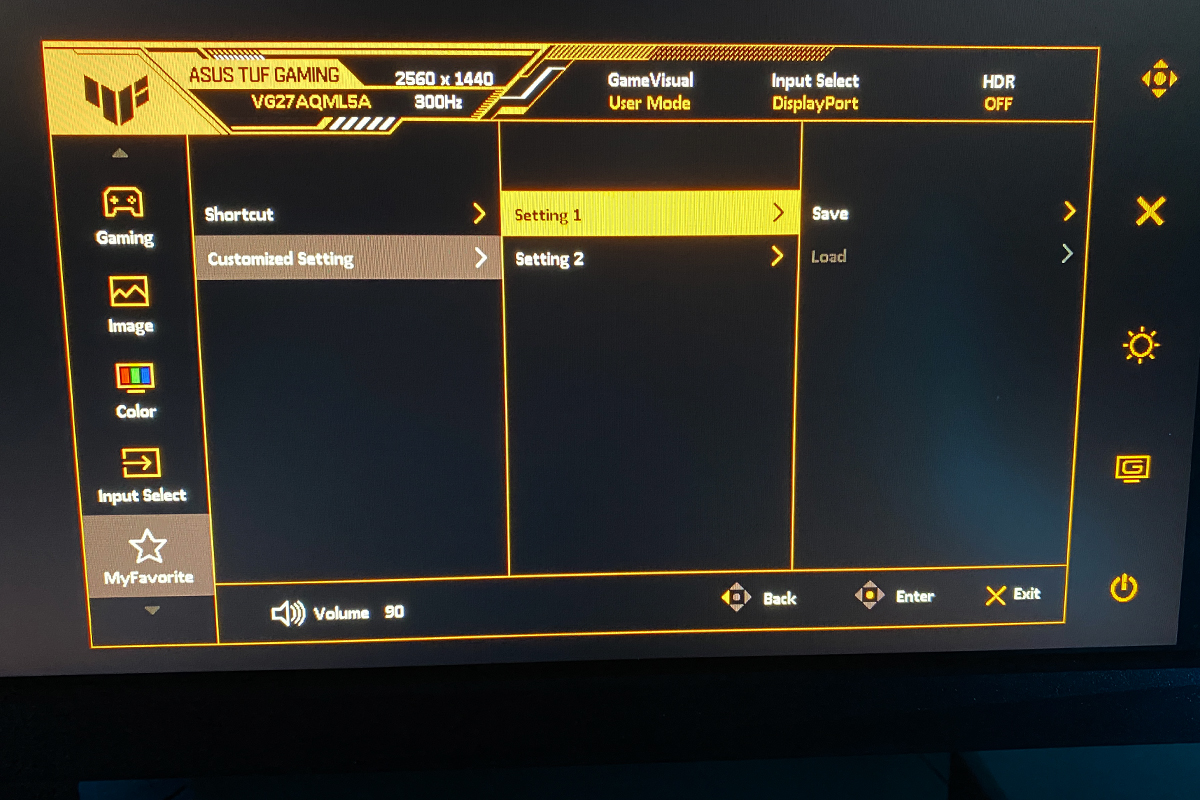
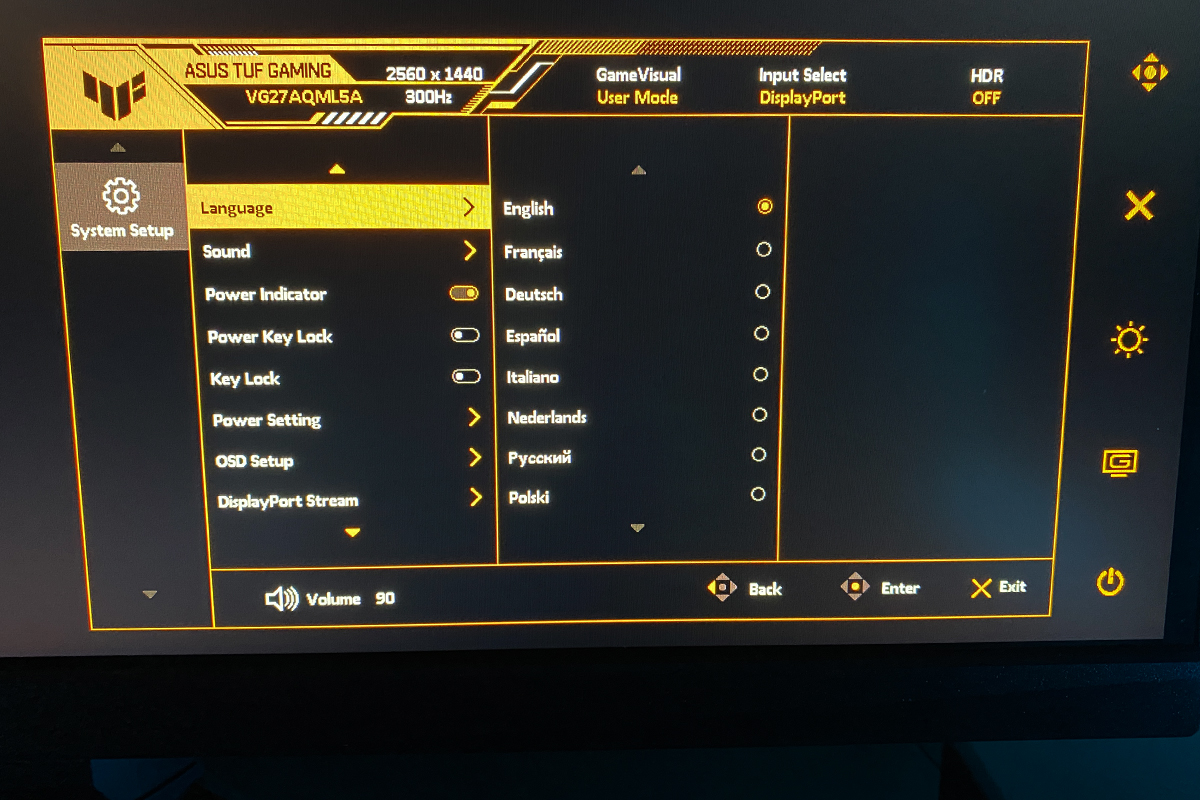
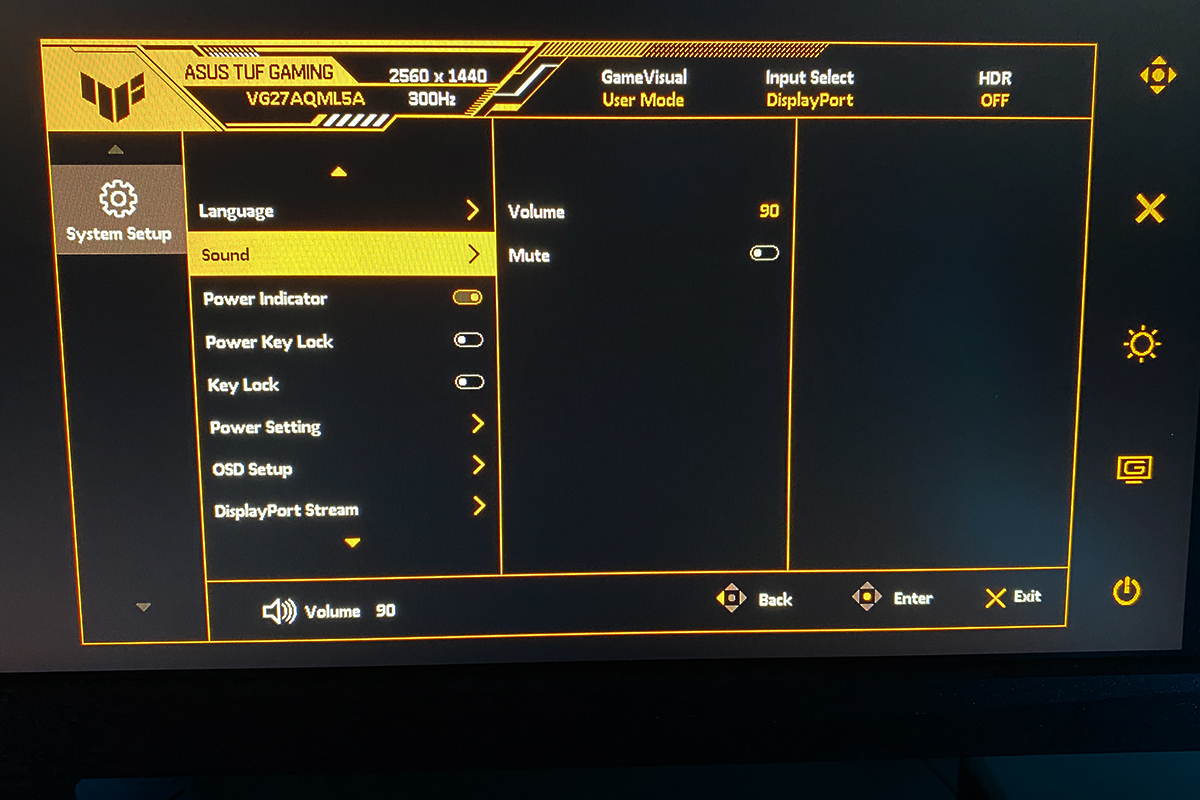
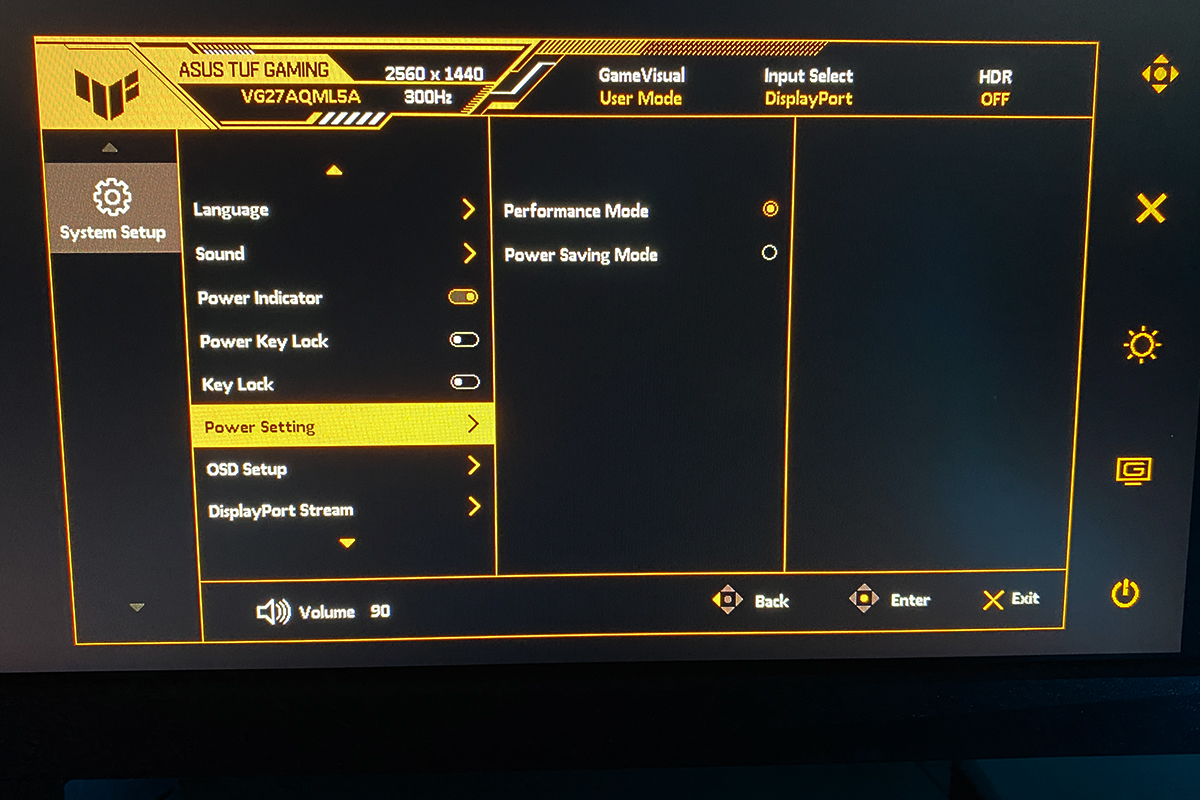
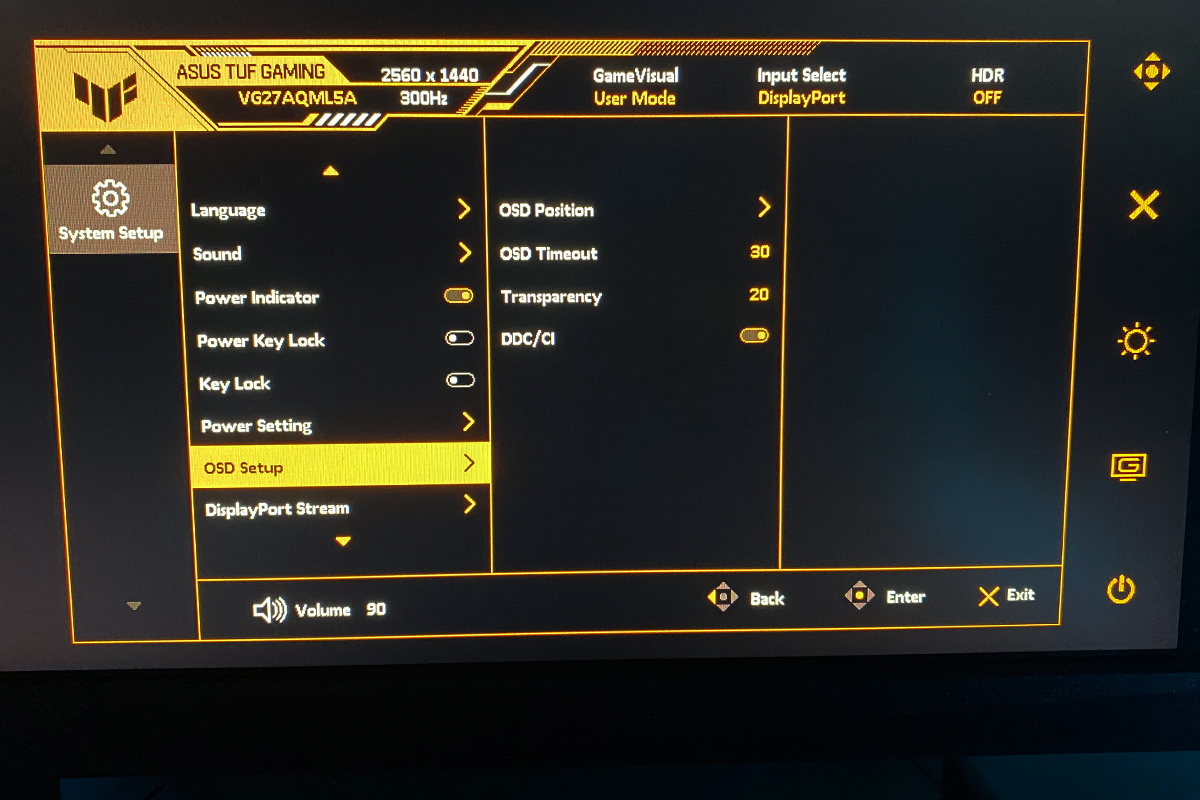
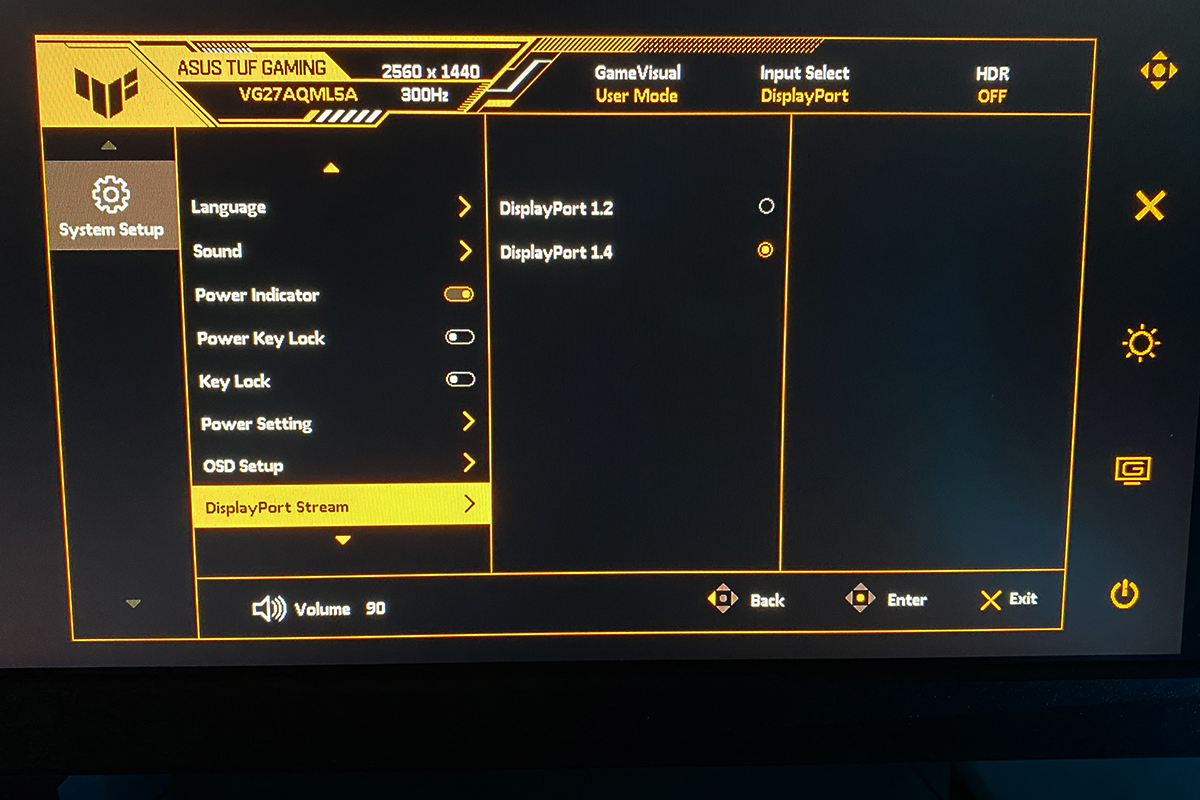
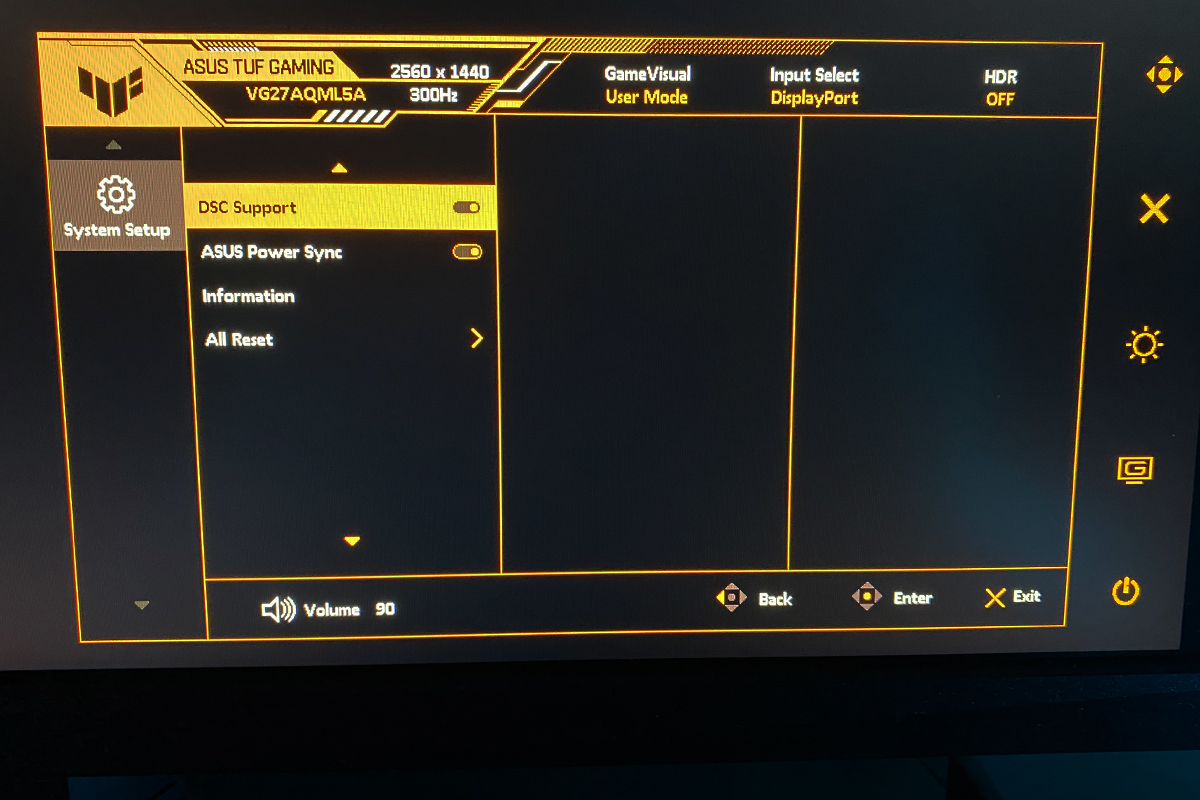
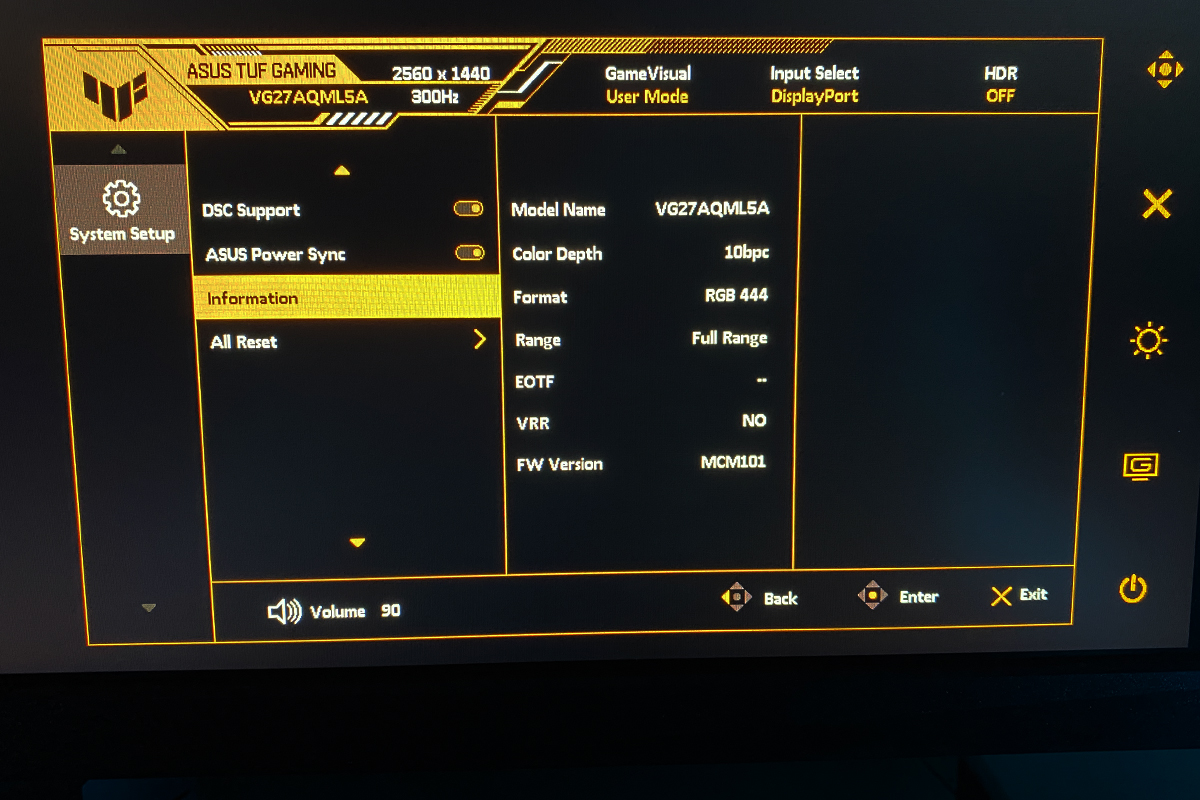
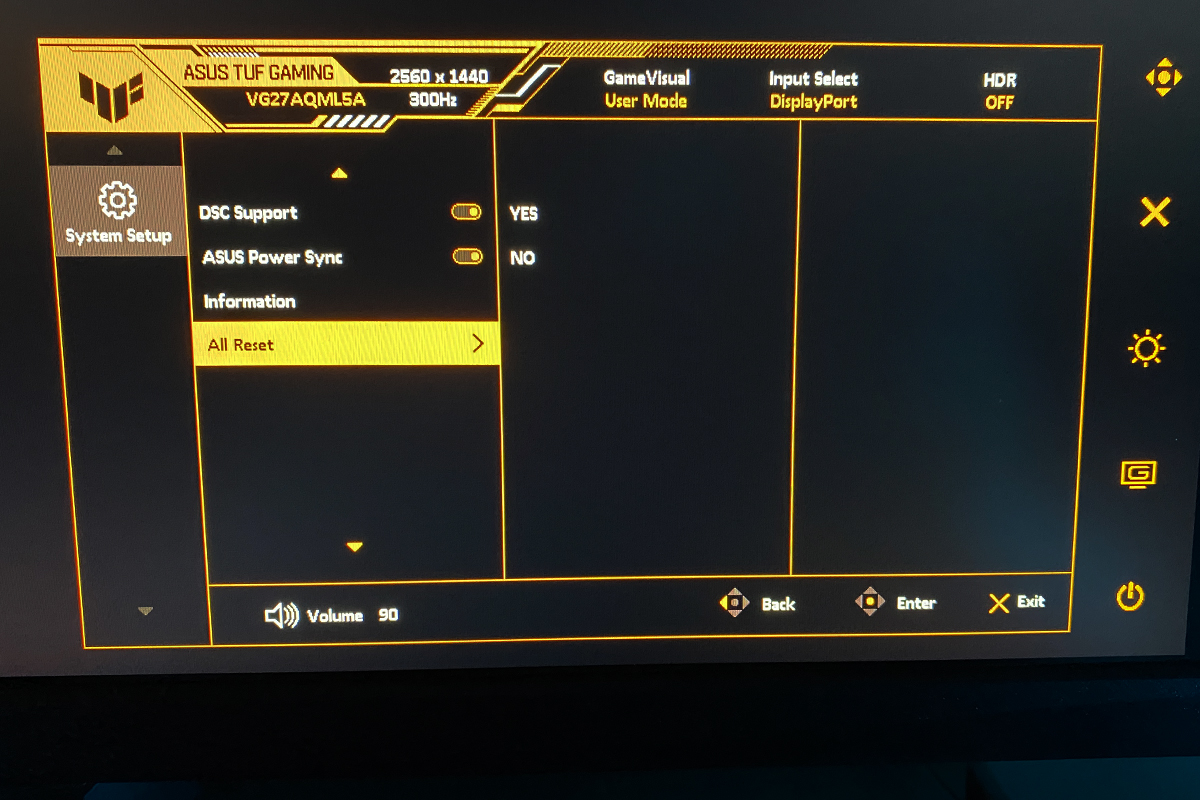
In the final System Settings menu, you can change the language, adjust the speaker volume, disable the power indicator, and lock the control buttons. This menu also allows you to customize the OSD appearance, select the power-saving mode, view information about the model and firmware, and reset all settings to their factory defaults.
Proprietary Software: DisplayWidget Center
In addition to the built-in OSD, the monitor’s settings can also be managed through ASUS’s proprietary application, ASUS DisplayWidget Center.
Read also: How ASUS DisplayWidget Center Transforms the Monitor Experience
The application largely mirrors the functions of the built-in OSD, but with a key advantage: all monitor controls can be adjusted directly with a mouse. This eliminates the need to reach behind the monitor and navigate the joystick, which is much more convenient for many users.
DisplayWidget Center also offers several exclusive features. For example, the AI mode analyzes content in real time and automatically selects the optimal display preset, and MultiScreen allows convenient division of the screen into independent areas. The software also lets you assign specific settings to hotkeys, speeding up adjustments for different workflows.
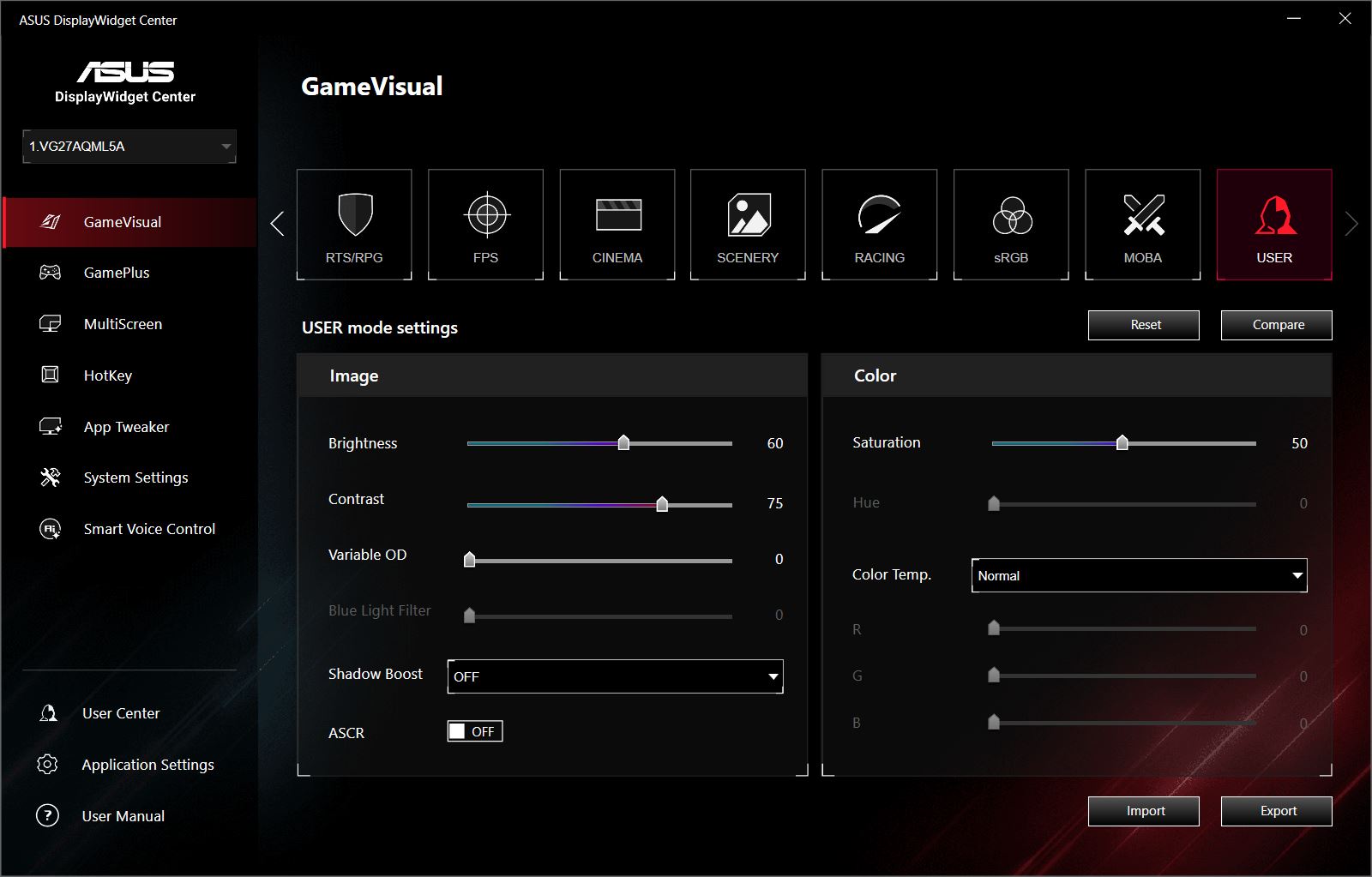
In the GameVisual menu, you can select preset display modes and further fine-tune each one to your preference. User-defined modes and HDR settings are also available here. The AI Visual mode analyzes content in real time and selects the most appropriate scene automatically. This feature recently moved out of beta into full release.
In practice, AI Visual works, but it can respond with a slight delay and may switch presets multiple times consecutively, which can become distracting. It’s worth trying for demonstration purposes, but it is unlikely to be used constantly in everyday settings.
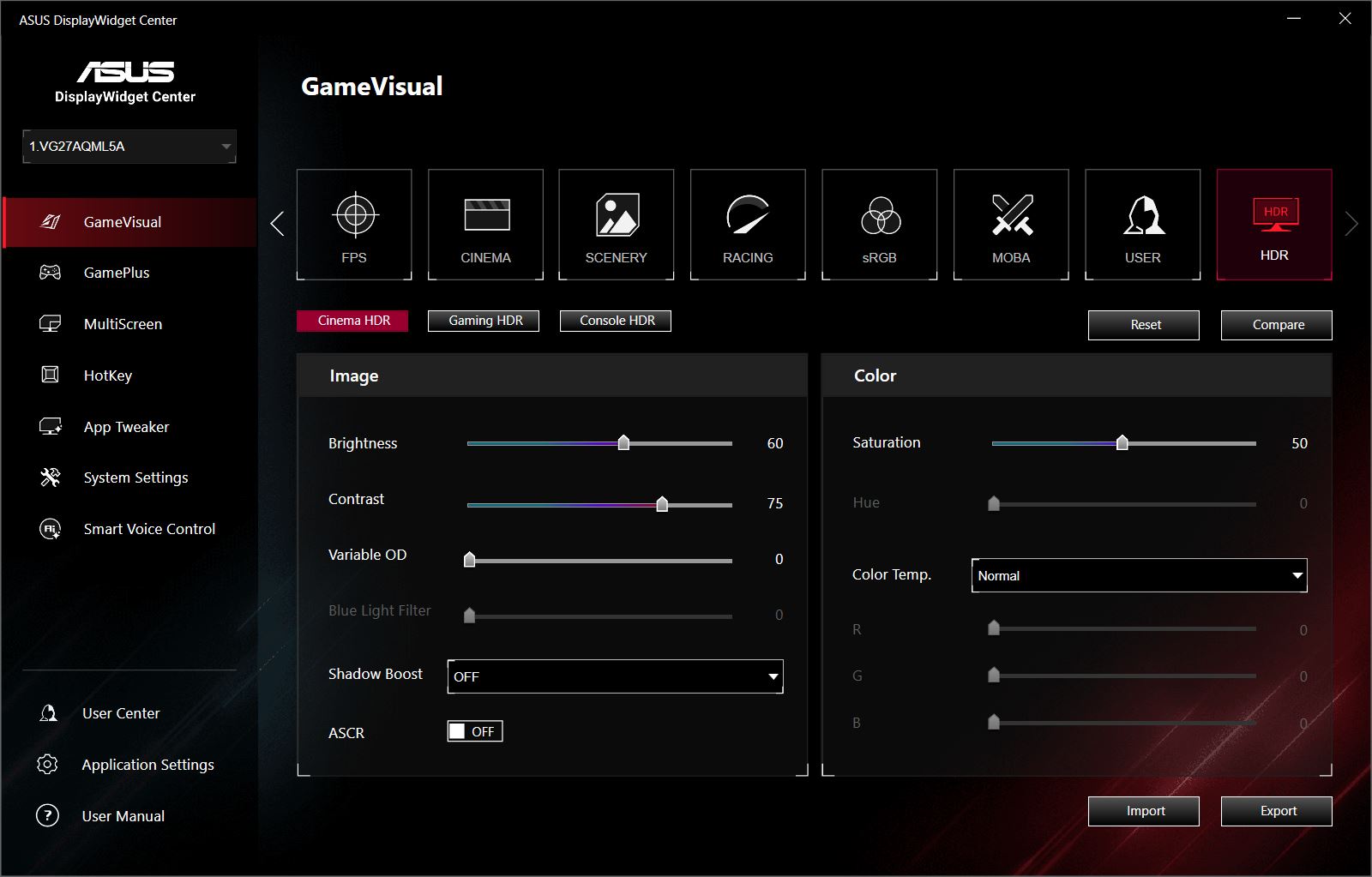
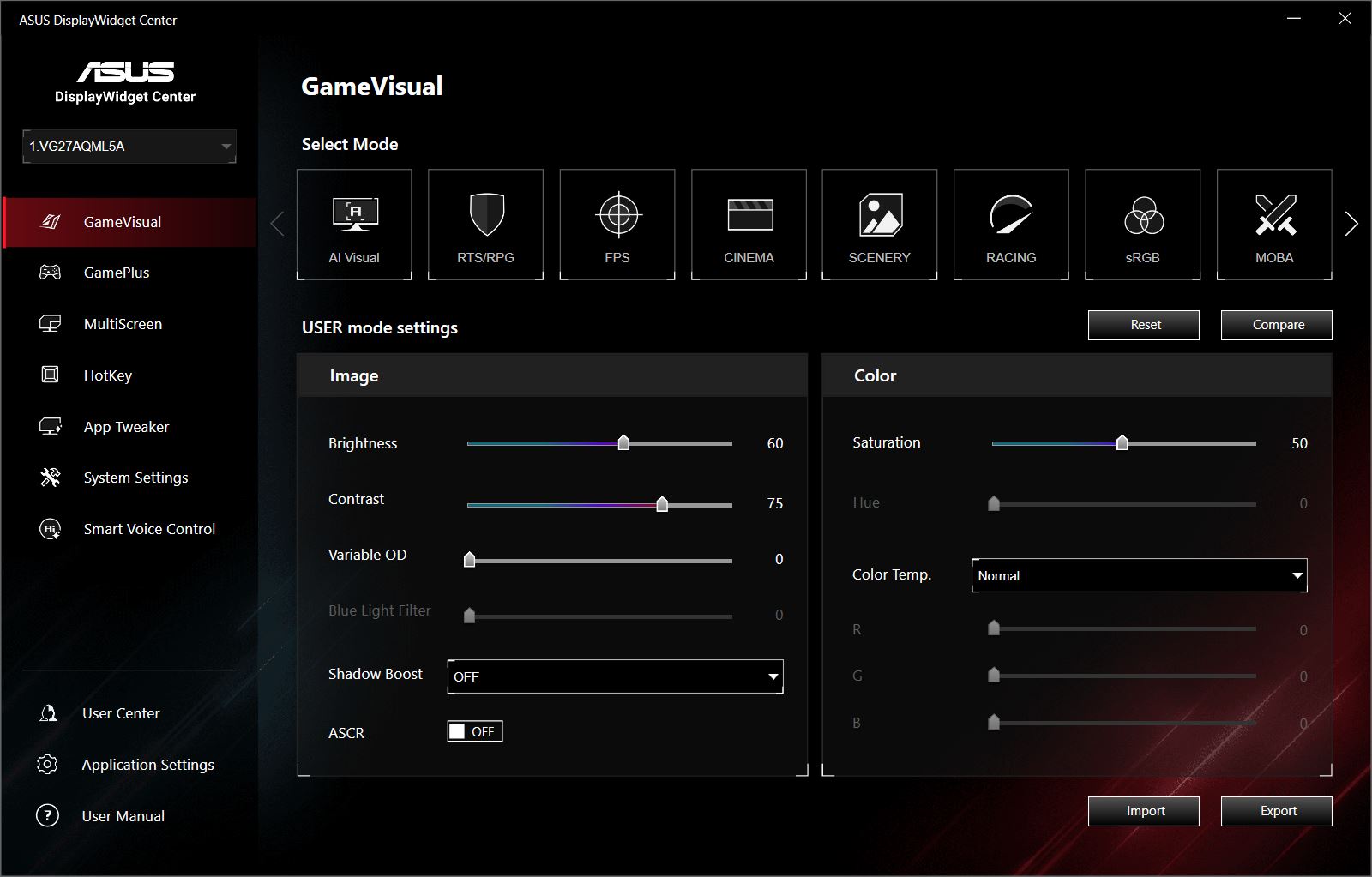
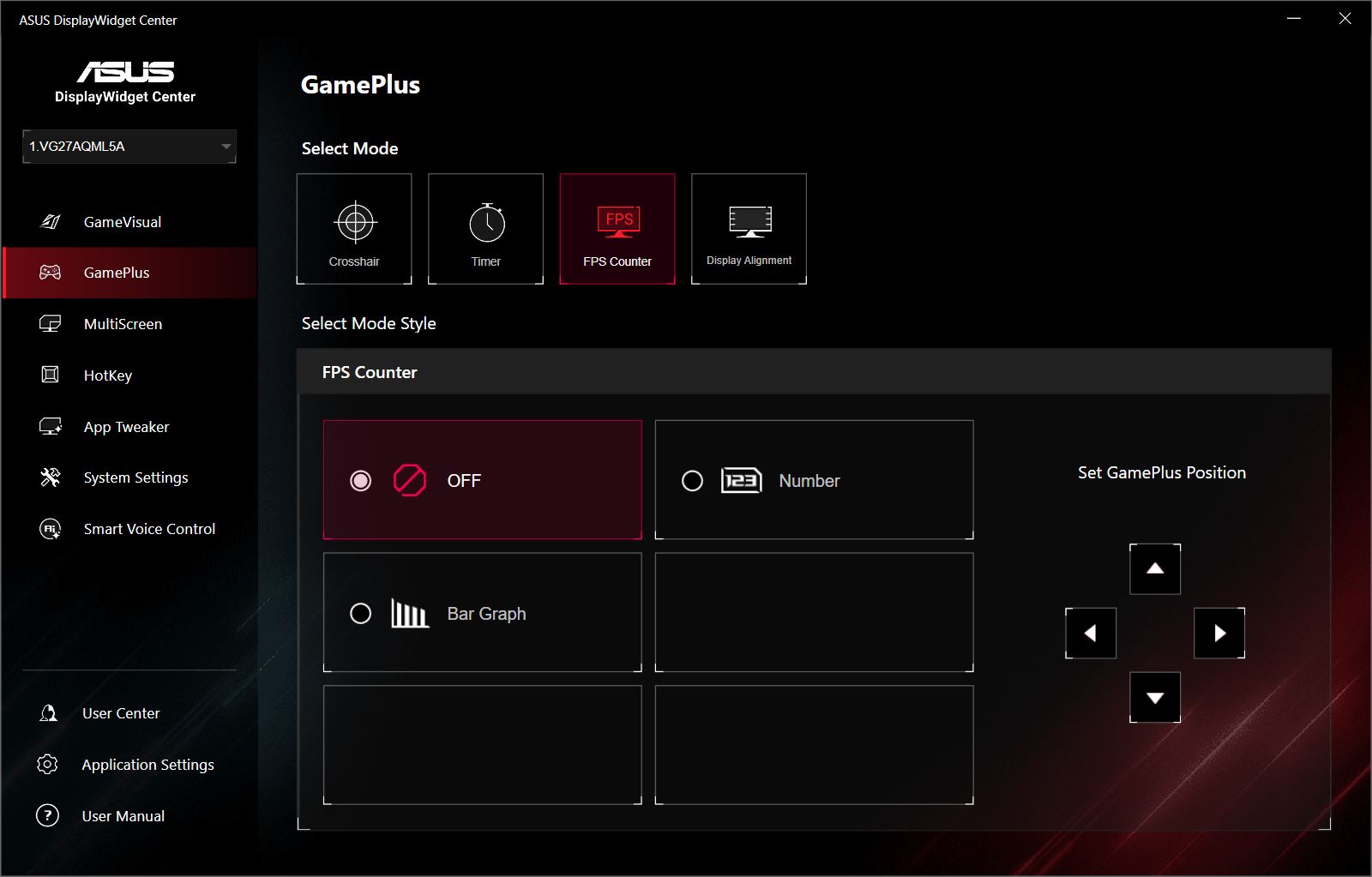
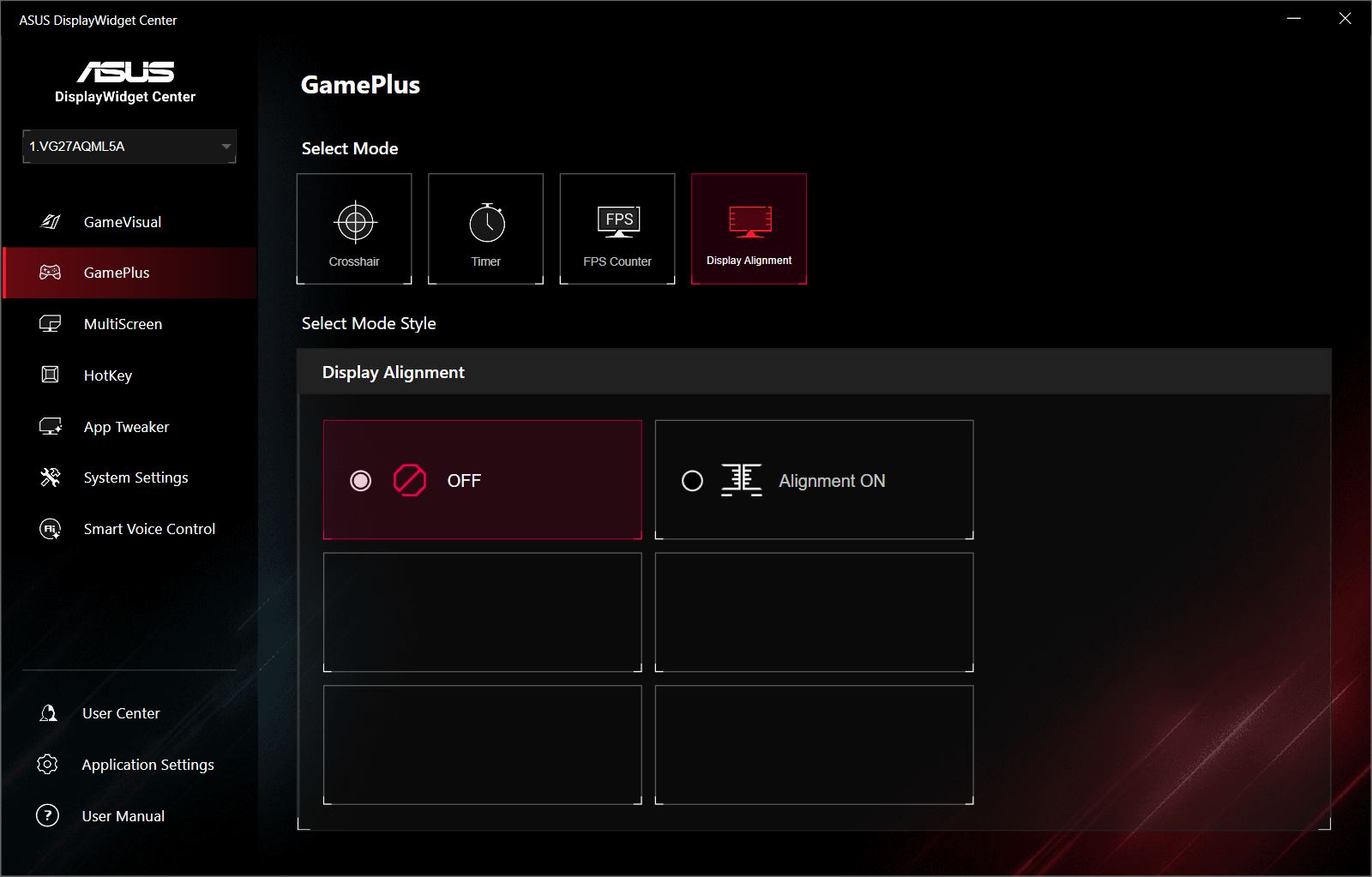
In the GamePlus menu, the same settings available in the monitor’s OSD can be accessed: on-screen crosshairs, timers, indicators, FPS counters, and other gaming tools.
The MultiScreen menu provides settings for dividing the screen into independent areas. Notably, this feature is not available in the monitor’s built-in OSD.

In the HotKey menu, you can assign keyboard shortcuts to various monitor settings, allowing you to adjust parameters directly from the keyboard. For example, you can quickly increase brightness or switch display modes with a simple key combination, without opening the software or reaching for the joystick on the back of the monitor.

In the AppTweaker menu, you can select specific applications installed on your PC and assign a custom display mode for each. When the application is launched, the monitor automatically switches to the chosen preset.

In the System Settings menu, you can adjust HDR, power-saving options, and Windows personalization settings. This includes enabling automatic taskbar hiding, selecting a light or dark system theme, and switching between standard and power-saving modes.

The Smart Voice Control menu features an experimental (Beta) function that allows the monitor to automatically adjust settings based on your voice or keyboard input. You can also select the input language to ensure the feature works correctly.

In the User Center menu, you can view the monitor’s serial number, firmware version, and a summary of its current settings.

In the Application Settings menu, you can manage the DisplayWidget Center software itself. This includes checking for updates, changing the interface language, selecting the application theme, and enabling automatic launch at system startup. You can also export the system log for support purposes.

Summary
Overall, the ASUS TUF Gaming VG27AQML5A is a very successful release. In my view, it represents a solid upgrade for the TUF lineup, particularly compared to last year’s hit model, VG27AQML1A.
It offers an optimal 27-inch diagonal, the currently popular 2K resolution, a true 300 Hz refresh rate, excellent image quality, HDR support, and a comprehensive set of built-in ASUS features. The monitor also benefits from useful and convenient software and a fully adjustable stand that doesn’t take up much desk space. Overall, it ticks nearly all the boxes one would expect from a modern gaming monitor.

Yes, the contrast could be higher to achieve deeper blacks, but that’s a typical characteristic of IPS panels. For example, high-quality VA panels usually offer better contrast and deeper blacks (in my opinion), but they aren’t as fast and can exhibit ghosting or trailing in fast-moving scenes. So it’s really a trade-off – you need to decide what matters more for your use case. HDR in games, as mentioned earlier, helps mitigate this limitation to some extent.
For context, during the review I switched to this monitor for a couple of weeks from my main display, a good VA panel with 2500:1 contrast and 420 cd/m² brightness, and I didn’t experience any discomfort. In fact, I quite liked the new TUF. Considering the price, it’s a strong option for both gaming and everyday work – especially if you can find it near the lower end of the market range.
Read also:
- HATOR Skyfall 80 Mag Ultima 8K Review: Magnetic-Switch Keyboard from Ukrainian Brand
- Bigme HiBreak Pro Color Review: Smartphone with E Ink Display
- OSCAL PV800 Pro Review: Affordable Android TV Projector with Netflix Support and 4K Playback