





© ROOT-NATION.com - Use of content is permitted with a backlink.
Today, we’ll look at common user mistakes that should be avoided when working with Windows 11. Let’s break them down.
Windows 11 is a modern, intelligent, and largely self-sufficient operating system. Yet many users continue to rely on optimization methods from a decade ago. Techniques that helped speed up a computer in 2015 can now lead to system instability or even hardware issues. The problem isn’t Windows 11 itself, but outdated assumptions about how it should operate. Modern operating systems do not require constant manual intervention, and excessive distrust of built-in tools often does more harm than good. For this reason, it’s worth identifying and discussing five key mistakes that users should stop making in Windows 11 today.
Read also: All instructions and life hacks for Windows OS
TABLE OF CONTENTS:
Trust Windows Update for Driver Updates, Not Random Websites
In modern versions of Windows 11, Windows Update is no longer just a security tool. It has become the primary mechanism for delivering drivers for key components – chipsets, network adapters, audio devices, USB and Bluetooth controllers, and other essential hardware that directly affects system stability.
The main advantage of this approach is compatibility. Drivers distributed through Windows Update are tested for alignment with specific OS versions and are installed alongside system updates. For the user, this translates into fewer conflicts, crashes, and unexpected issues after updates, ensuring that the system continues to run smoothly.

Against this backdrop, third-party “driver managers” are largely unnecessary. They often install drivers without considering the specific characteristics of the hardware, which can lead to crashes, stability issues, or problems with networking and audio. Additionally, these programs frequently come bundled with ads, paid features, or background services that provide little to no practical benefit.
Read also: Five Windows 11 Tools for Improving Productivity
There is, however, one logical exception: the graphics card. For gaming, graphic design, or AI workloads, up-to-date drivers from NVIDIA or AMD are important, as they provide optimizations, bug fixes, and support for new technologies. In this case, using the official manufacturer utilities is a reasonable and justified approach.

Remember: in Windows 11, there’s no need to search for drivers manually or rely on third-party “magic” tools. For most components, Windows Update handles driver installation more reliably than alternative solutions. The only exception is the graphics card, where it’s best to use the manufacturer’s official tools.
Read also: 5 Windows 11 Settings You May Want to Disable Right After Buying a Laptop
Defragmentation Is for HDDs; It’s Unnecessary and Harmful for SSDs
This is one of the most common – and potentially damaging – habits carried over into Windows 11 from the era of mechanical hard drives. Back then, defragmentation wasn’t just helpful; it was essential. For HDDs, where data is read by a moving head, fragmented files scattered across the disk meant slower performance, increased noise, and additional mechanical wear. Consolidating files in one place genuinely made a difference.

The problem is that this approach no longer applies. Solid-state drives (SSDs) work on a fundamentally different principle. They have no moving parts, and access to any memory block occurs at the same speed, regardless of whether the data is fragmented or contiguous. As a result, fragmentation has no meaningful impact on SSD performance.
SSDs do have a different limitation: the write endurance of memory cells. Each unnecessary write operation gradually wears down the drive. Traditional defragmentation generates large volumes of unnecessary writes without improving speed or stability. In effect, following this outdated “optimization” practice actively shortens the lifespan of your SSD.

Third-party utilities that forcibly defragment SSDs are particularly risky, as they ignore the design of modern drives and the recommendations of manufacturers.
It’s important to note that Windows 11 clearly distinguishes between HDDs and SSDs. For solid-state drives, the system does not perform traditional defragmentation. Instead, it uses the TRIM command, which informs the SSD which data blocks are no longer in use, allowing the drive’s controller to manage memory efficiently without unnecessary wear.
This process runs automatically in the background and requires no user intervention. In fact, any manual interference is not only unnecessary but can also be potentially harmful.
In other words, if you have an SSD, you can safely forget about “defragmentation.” Windows 11 already handles everything automatically. Your role is simple: don’t interfere with the system’s built-in processes.
Read also: How to Use Microsoft PowerToys
No “Magic” Tools Are Needed for Disk Cleanup
One of the most popular – and arguably most unnecessary – types of software is the so-called disk cleaner. Their promises are almost always the same: “free up gigabytes,” “speed up your system,” or “remove junk files.” These claims can seem appealing, especially to users accustomed to treating Windows as a system that constantly requires manual maintenance. In reality, however, the benefits are usually far more modest.
Windows 11 already includes a built-in and fully capable storage management tool: Storage Sense. This automated utility handles routine cleanup tasks in the background. It removes temporary files, empties the Recycle Bin after a specified period, manages update caches, and can even control local copies of cloud files that haven’t been accessed for a while.

For most users, this built-in functionality is more than sufficient. Storage Sense operates cautiously, following the system’s logic, and does not attempt to “clean everything” just to produce impressive numbers. This careful approach is often missing in third-party utilities, which act aggressively and without context.
The problem with many “cleaner” programs is that they don’t just replicate Windows’ functions – they frequently exceed their authority. Deleting application caches, temporary files, or system data without a clear understanding of their purpose can cause crashes, loss of settings, or, in the worst case, permanent deletion of important files. The risk is particularly high when such programs run automatically without providing a clear explanation of what is being removed.

In reality, the only extra step that’s truly worthwhile is periodically reviewing your own files. Downloads folders, old installation files, and long-unused documents or videos usually take up far more space than any “system junk.” No automatic cleaner knows better than you what can be safely deleted.
In short, additional disk-cleaning utilities are unnecessary in Windows 11. They provide little real benefit and can potentially cause harm. If cleanup is needed, rely on the built-in Storage Sense – and for everything else, use common sense.
Read also: How to Reduce RAM Usage in Windows 11
Third-Party Antivirus Software Is Often Unnecessary
A decade ago, going online without a third-party antivirus seemed reckless. Operating systems were more vulnerable, updates were installed inconsistently, and most users only learned about threats after the fact – when their computers slowed down or lost control over data. At that time, a separate antivirus was not just a recommendation; it was a baseline requirement for basic security.
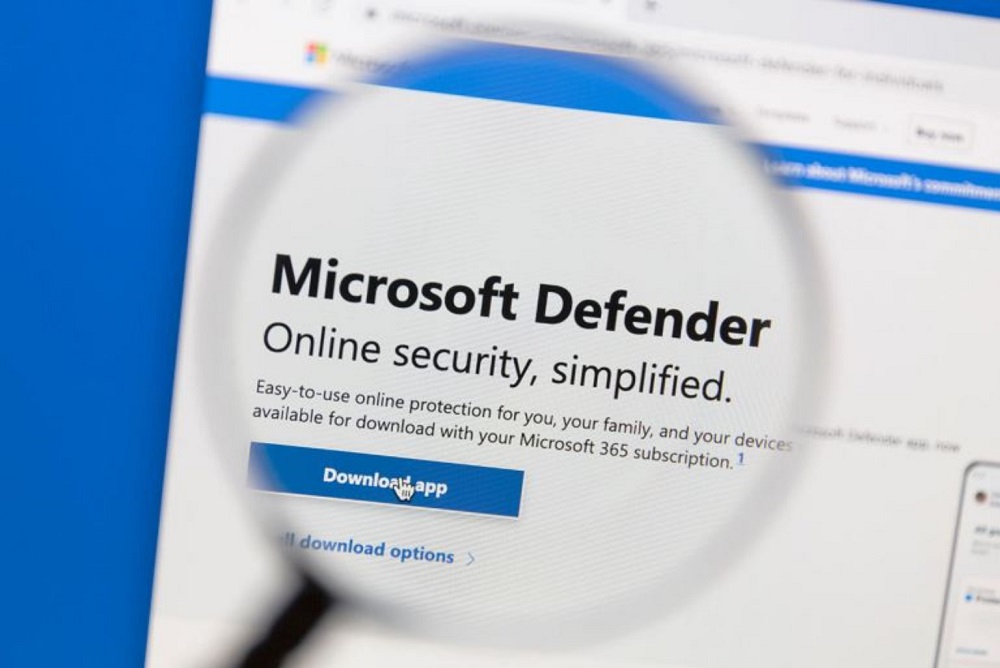
Today, the situation is very different. Windows 10, and especially Windows 11, are designed for continuous online use and ongoing security threats. Protection is no longer an optional add-on – it is an integral part of the platform itself. As a result, the role of third-party antivirus software has shifted – and not necessarily for the better.
Most modern antivirus suites have become large, resource-intensive programs that deeply integrate with the system. They consume CPU and memory, slow down Windows startup, create background load, and can sometimes conflict with system updates. Users seeking “extra protection” may end up facing instability and issues that wouldn’t occur otherwise.
In this context, built-in Windows protection is often the more practical choice. Windows Security – formerly Windows Defender – has evolved into a full-featured security system, offering real-time protection, a firewall, application control, and basic ransomware defenses. All of these components are tightly integrated with Windows updates and operate without disrupting the system’s internal logic.
It’s worth noting that independent antivirus testing labs have rated Microsoft’s security solutions on par with commercial products for several years. This is not just “good enough for home use” – it provides comprehensive protection that is sufficient for the vast majority of typical users. For this reason, adding a separate antivirus often does more harm than good, creating extra complexity without meaningful security benefits.
That said, there is an important limitation to keep in mind. No antivirus – built-in or third-party – can protect a user from their own inattention. Phishing emails, fake login pages, and fraudulent messages via messaging apps or SMS exploit trust rather than technical vulnerabilities. If a user willingly enters credentials on a fraudulent site, no software can undo that action.
Today’s security model looks very different from that of a decade ago. Windows now provides built-in technical protection that works effectively, and the main vulnerability is no longer the system itself – it’s the user sitting in front of the screen.
The conclusion is straightforward: the era when a third-party antivirus was mandatory is over. For most users, Windows’ built-in protection is sufficient and well-balanced. Anything beyond that is either relevant only for specific professional scenarios or stems from outdated habits that should be reconsidered.
Read also: All About the New Windows 11 25H2: Not a Revolution, but Stability?
Registry Cleaning: The Most Persistent Windows Myth
The Windows registry is the central database of the operating system. It stores settings for the kernel, drivers, system services, user accounts, and installed applications. Any errors in this structure can directly affect system stability – even preventing Windows from booting.
Despite this, many programs still claim that “cleaning the registry” can improve computer performance. These utilities promise to locate and remove redundant or erroneous entries that supposedly slow down Windows. In modern versions of the operating system, however, this approach has no practical basis.

The system registry is a large, well-optimized database. Individual outdated or unused keys occupy a negligible amount of memory and do not place any noticeable load on the CPU or storage. Windows does not continuously scan the entire registry; it only accesses the specific branches required for current processes.
As a result, deleting a few dozen or even a few hundred entries will not produce a measurable performance improvement. This myth dates back to early versions of Windows, when hardware resources were limited and the system architecture was less refined.
Overall, even experienced users should avoid manually modifying the registry without a clear need. Windows 11 handles all fundamental tasks efficiently on its own. In most cases, the best approach is simply to let the system operate as designed.
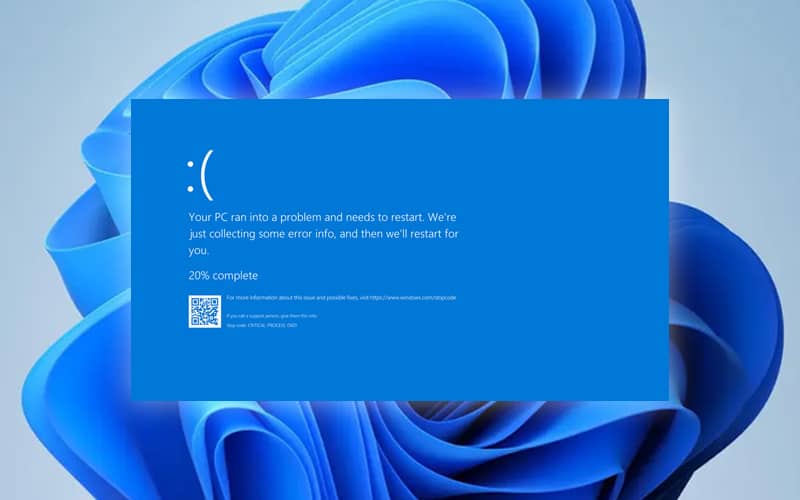
The Windows registry is a critical component of the operating system. In modern versions of Windows, it does not require any third-party maintenance or so-called “cleaning” to maintain performance. In contrast, the potential harm from automatic utilities or ill-considered modifications far outweighs any hypothetical benefit.
For the vast majority of users, the most rational strategy is to avoid interfering with the registry and rely on Windows’ built-in mechanisms. This approach ensures system stability and minimizes the risk of serious failures, which often can only be resolved through system recovery or a full reinstallation.
In practice, when it comes to the registry, the rule “if it isn’t broken, don’t fix it” still applies today.
Read also: Windows 11 Open Source: Myth or Reality?
What You Really Need to Keep Windows Stable
Instead of installing extra “optimization” packages, it’s better to rely on a few simple, repeatable practices that genuinely improve both usability and security. The key is not complex tools, but basic consistency.
First and foremost, regularly check Windows Update – at least once a week. This ensures that security patches are applied, the system remains stable, and drivers function correctly.

Equally important is maintaining a sensible organization of your files – especially on the desktop, in Documents, and in Downloads. A cluttered file system won’t directly break Windows, but it can significantly reduce usability and gradually create unnecessary confusion.
It’s also wise to periodically review startup programs and the list of installed applications. Programs you no longer use provide no benefit and only contribute to background load or additional potential security risks.
Additionally, pay attention to Windows Security: ensure that all protection modules are active and follow basic safe browsing practices. Exercising caution with links and attachments in emails and messaging apps is often more effective than relying on third-party “protection” software.
This set of habits provides the most practical benefit – without extra costs, unnecessary risks, or interference with the system mechanisms that Windows 11 is fully capable of managing on its own.
Read also:
- How to Disable Location Tracking in Windows 11 – and Why You Might Want To
- Seven Annoying Windows 11 Features – and How to Fix Them
- Power saving modes in Windows 11: Which one to choose?


Before installation of Windows 11, it required a product key so I searched and I was wonder, why Microsoft prices are high as compare to its partner sites so I was looking for Windows 11 free which found at ODosta Store and it was sold. Your information is really helpful for me but I need free windows 11 pro license.