




© ROOT-NATION.com - Use of content is permitted with a backlink.
If you’re looking to customize Windows to better suit your workflow, Microsoft PowerToys is worth a closer look. This utility pack is designed to help you work more efficiently and with greater convenience.
Working from home offers plenty of advantages, but staying focused and productive can be a challenge. That’s where Microsoft PowerToys comes in – a collection of advanced tools that let you tailor Windows to fit your personal work style.
No more unnecessary hassle – just practical tools that help you work smarter, not harder. It’s a quiet boost to your overall productivity.
Read also: How to Reduce RAM Usage in Windows 11
TABLE OF CONTENTS:
Working from home requires powerful tools
Working from home isn’t just about comfort – it also brings challenges when it comes to staying focused. Distractions are everywhere, and maintaining concentration is tough without a well-structured workspace. Whether you have a full home office or just a corner of the kitchen table, PowerToys can help you stay organized and make smarter use of every pixel on your screen.
Think about the little things that chip away at your time and patience: constantly rearranging windows, losing track of a tiny cursor, or keeping your PC awake during a long call. These issues may seem minor – until they start piling up and becoming a constant source of distraction.
PowerToys helps cut through that background noise. Tools like FancyZones, Mouse Utilities, and Awake quietly support your workflow without getting in the way. You turn them on – and soon forget what it was like to work without them. Tasks feel smoother, more manageable, and less like a constant uphill push.
If you use multiple monitors, an external display, or rely on complex window arrangements, PowerToys really starts to show its strengths. It brings structure and clarity to your workspace – no clutter, no compromises. It’s like tailoring the interface to fit your needs, then getting on with your day without second-guessing your setup.
Read also: How to Reset All Network Settings in Windows 11
What is Microsoft PowerToys
PowerToys is a collection of utilities that extends Windows well beyond its default capabilities. Originally introduced in the ’90s as a set of experimental tools for tech enthusiasts, PowerToys has since been reimagined as a modern toolkit for users who want to get more out of their system. It’s all about productivity, flexibility, and ease of use. And notably – despite Microsoft’s usual preference for closed ecosystems – this project is fully open source.

Installation is straightforward: you can download PowerToys either from the Microsoft Store or directly from the official GitHub repository. Once set up, it runs quietly in the system tray, staying out of the way while doing its job. Each utility functions like a modular component – you can enable or disable them individually, depending on your needs. It’s a low-profile toolset that gives you maximum control with minimal intrusion.
Read also: How to Disable Location Tracking in Windows 11 – and Why You Might Want To
Microsoft PowerToys features
PowerToys is a toolkit for power users that turns everyday routines into a more streamlined and precise workflow. It includes a range of utilities that don’t just simplify common tasks – they reshape how you interact with your workspace. Some modules are highly specialized, designed for very specific use cases. Others are versatile tools that prove especially useful in remote work environments. In this guide, we’ll focus on the latter – the ones that genuinely shift how you work and make a noticeable difference.
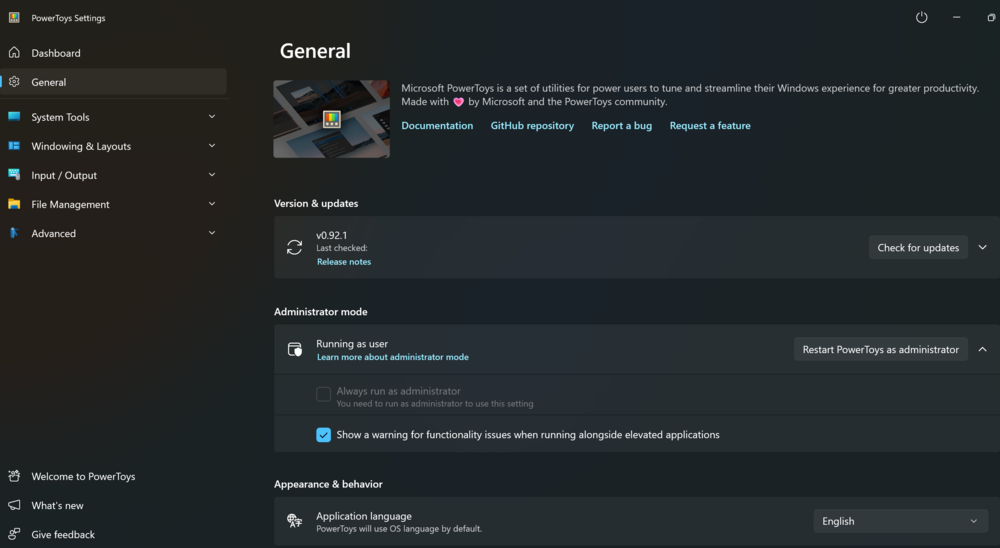
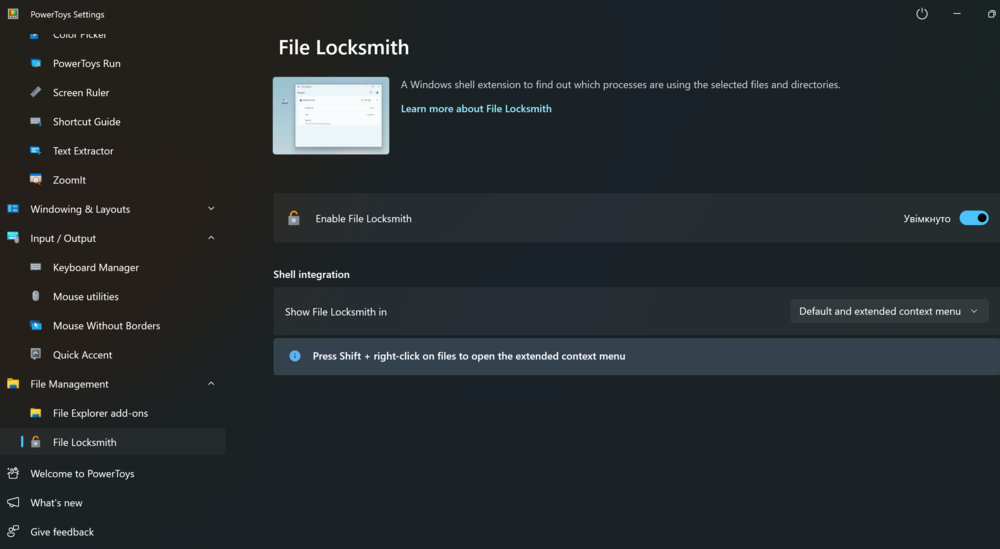
From fine-tuning window layouts to quickly navigating between files, PowerToys gives the impression that your home PC is working with you – not just for you. The image above shows a snapshot of all currently available modules. As you can see, the selection is extensive.
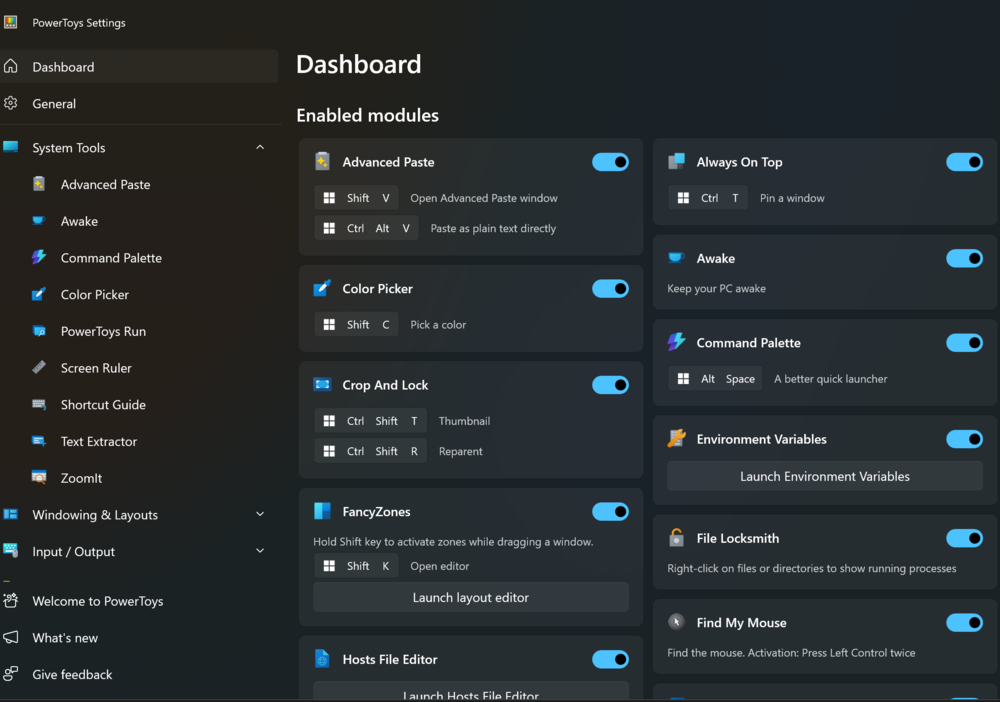
But rather than diving into every module and turning this into a technical reference guide, we’ll take a different approach: we’ll focus on the most impactful tools – the ones that don’t just save minutes, but sometimes hours.
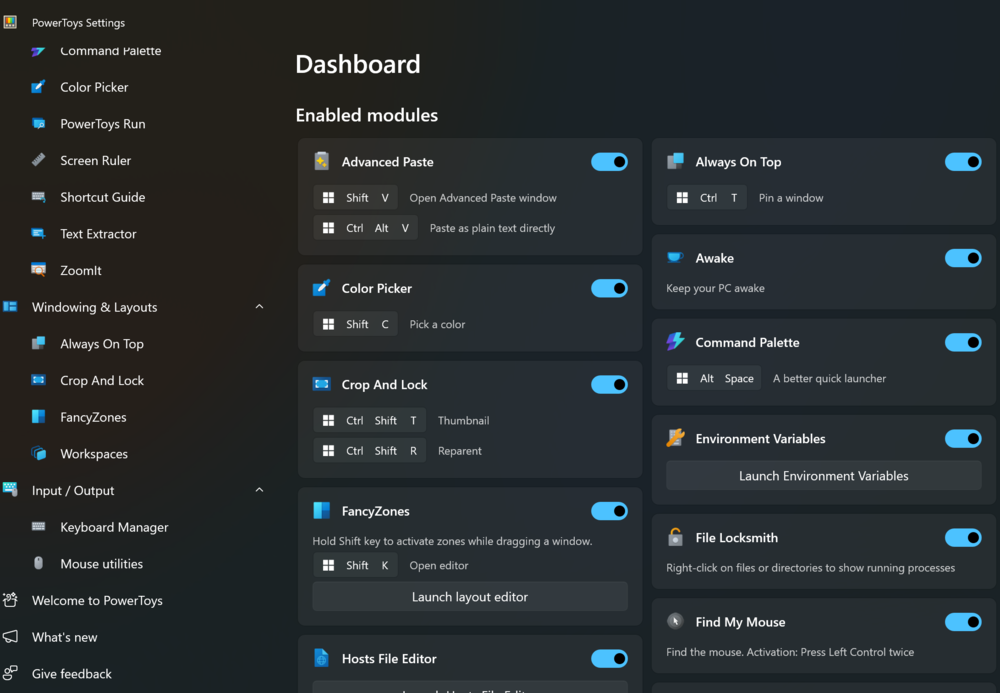
And the ones that provide what every remote worker wants: control, speed, and flexibility.
Read also: Power saving modes in Windows 11: Which one to choose?
FancyZones: Window management that works for you
FancyZones is more than just an alternative to Windows’ standard window snapping. It’s a full-featured layout manager that lets you create, save, and apply custom window arrangements tailored to the way you actually work.
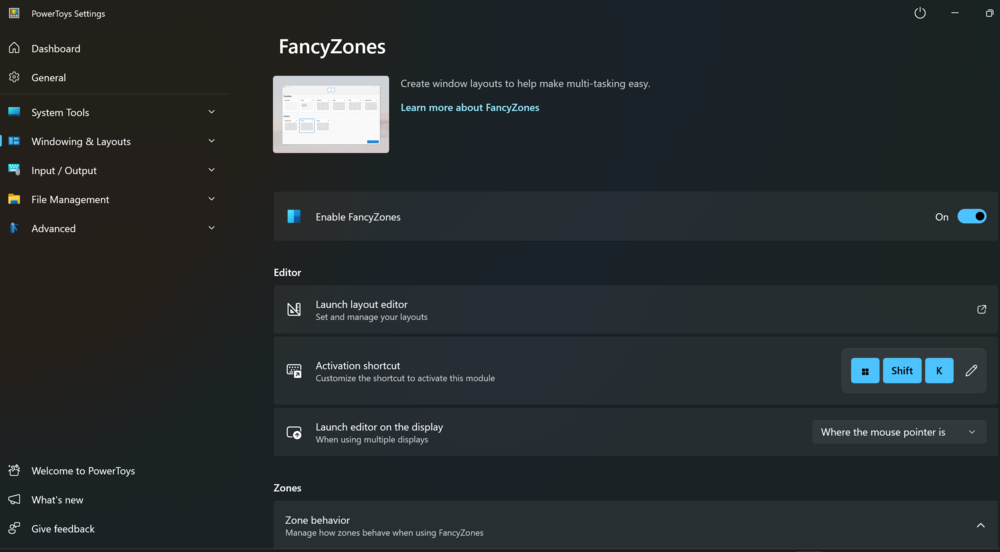
Instead of limited options like “half-screen left,” you decide exactly where each window should go. For example, you could set up a three-zone layout: one area for email or chat, another for your browser, and a third for Excel. Each window will consistently open in its designated spot, eliminating clutter and chaos.
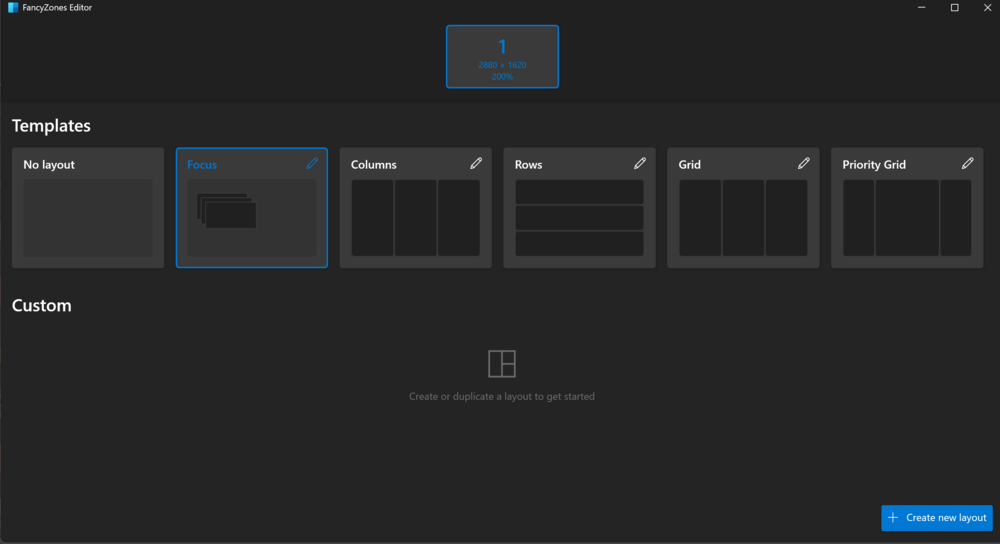
This is especially useful if you often multitask or switch between multiple monitors. When you move from a laptop screen to a widescreen display, your layout adjusts automatically – no more fiddling with the mouse or manually dragging windows. FancyZones works proactively to keep your workspace organized.
Read also: Everything Announced at Microsoft Build 2025
Get the most from your mouse
Losing track of the cursor on a large monitor or during a screen share isn’t uncommon. PowerToys offers several tools to help regain control, including Cursor Crosshair and Mouse Highlighter.
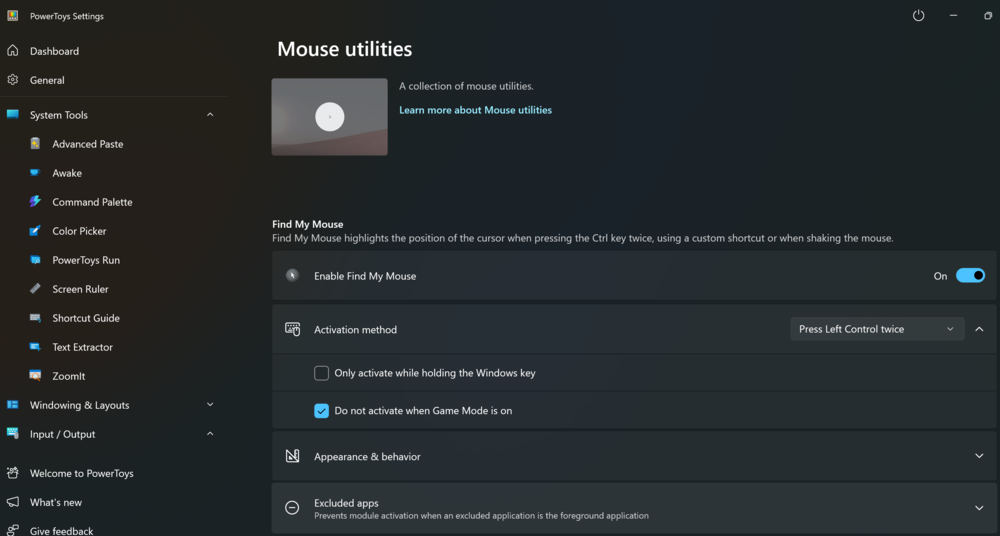
Cursor Crosshair adds a clear crosshair around the cursor, making it easy to locate within seconds – even on 4K displays or during screen sharing. By default, the crosshair spans the entire screen, but it can be adjusted to a more compact version (an example is shown in my animation in the PowerToys section of this guide).
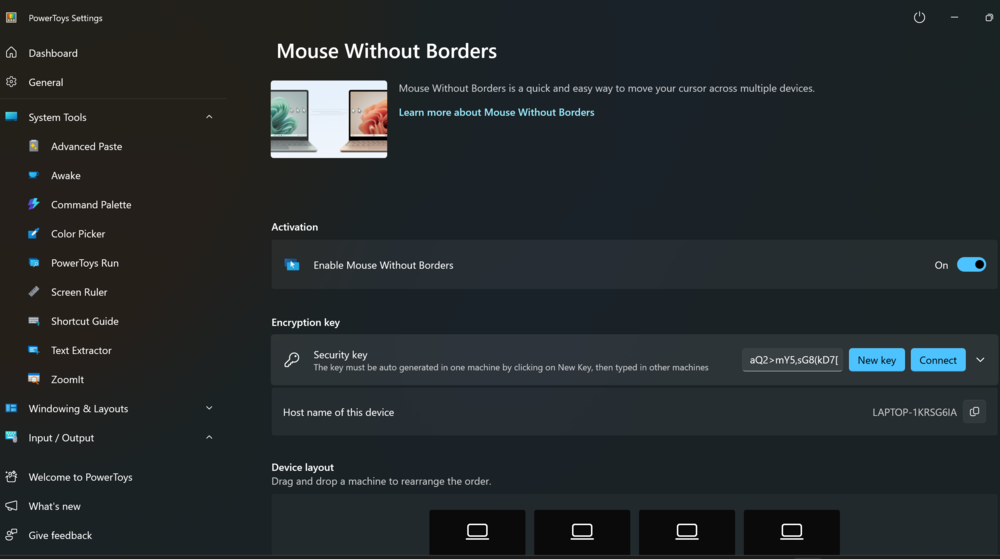
Mouse Highlighter adds a bright visual effect to each click, which is useful for video tutorials, webinars, or whenever you need to clearly show where you’ve clicked. It’s not just a cosmetic feature but a practical way to make your actions more understandable to others.
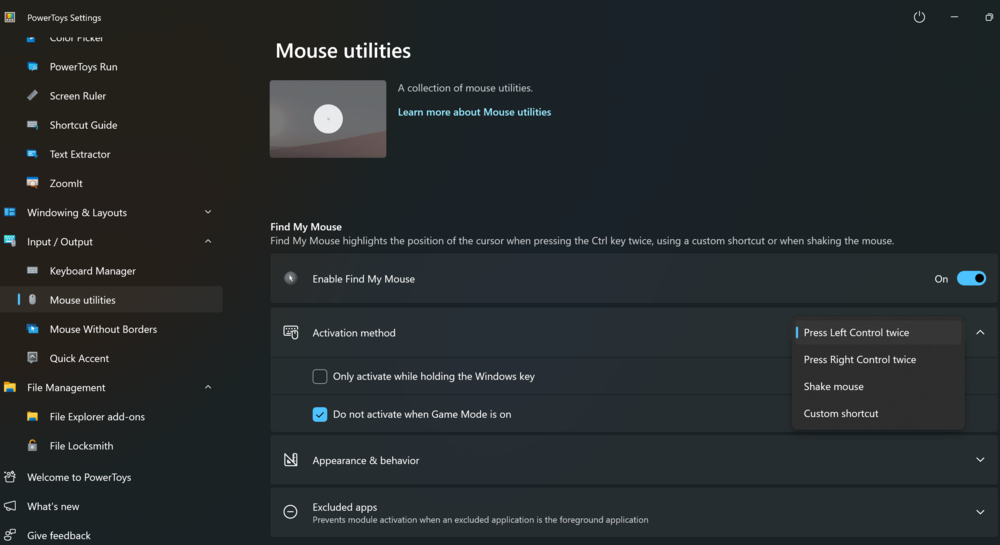
While these tools are often associated with presentations or calls, they can be just as helpful in everyday work. If you use multiple monitors, work with scaled interfaces, or simply have tired eyes at the end of the day, these utilities become valuable allies.
Speaking as someone who creates guides and tutorials, I’ll be honest – working without them feels awkward now. It’s like driving at night without headlights: you don’t realize how essential they are until you try them.
Read also: How Taiwan, China and the US are fighting for technological dominance: the great chip war
Sleep and display control
The Awake tool is a small but useful utility that keeps your PC awake even when you’re not actively using it.
It comes in handy when your system decides to “take a break” at inconvenient times – during a long video call, a heavy download, or a backup process – just as you step away for a coffee. Without Awake, you might return to a locked screen or, worse, an interrupted task.
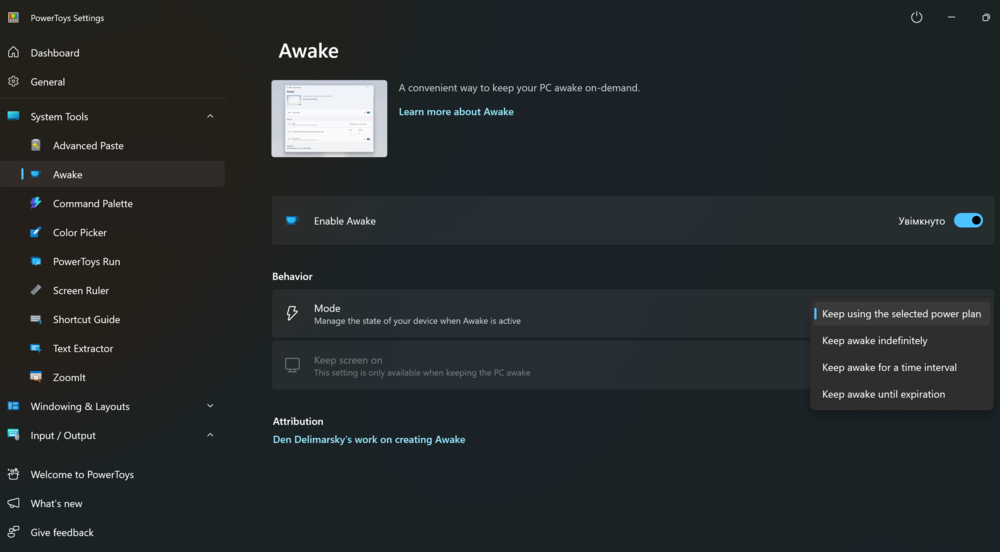
Awake runs quietly in the background and can be set to stay active continuously or according to a schedule. There’s no need for scripts or complicated power settings – just enable the utility and forget about unwanted sleep modes.
It’s especially useful if you don’t want your computer to go to sleep before you do.
Read also: Мережецентрична війна (NCW): Як змінюється війна у XXI столітті
Faster navigation
PowerToys Peek is a handy feature for anyone dealing with cluttered folders filled with files named something like “final\_final\_version(3).mp4.” Simply select a file and press Ctrl + Space to instantly preview its contents without opening it manually.
Essentially, it’s a Quick Look-style tool for Windows, with the added benefit of supporting various file types and offering greater flexibility. Whether you need to check an image, glance at a document, quickly preview a video, or just figure out what a file is, Peek handles it all within seconds.
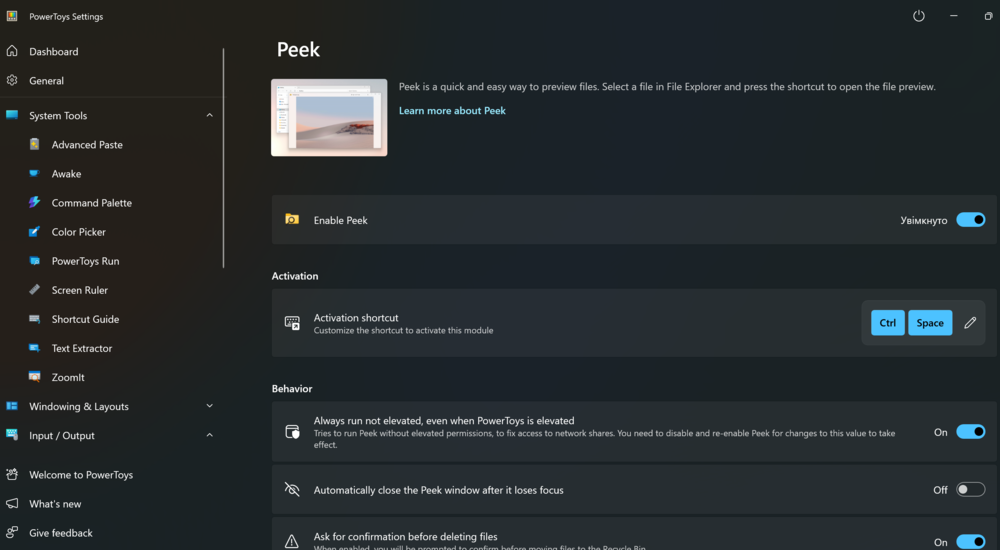
Peek is especially useful when sorting, cleaning up your system, or navigating through fragmented projects where there are many files but little time. For example, I use Peek to preview videos directly within File Explorer: just select a file, press the shortcut key, and the clip plays immediately – no need to open a separate media player. The up and down arrow keys let you quickly jump between files in the folder, making the process smooth and efficient.
Peek is one of those tools you don’t actively seek out, but once you try it, you won’t want to work without it.
Read also: FAQ from AI: How to connect your phone to computer with Windows 11
Other use cases for PowerToys
While PowerToys is often linked to remote work, its functionality extends well beyond office scenarios. Tools like FancyZones, Cursor Crosshair, Mouse Highlighter, and Peek prove useful both in everyday tasks and personal projects – no matter where you’re working from.
For example, if you’re into streaming, FancyZones helps organize everything – OBS, chat, donations, players – arranged clearly without overlap or clutter. Mouse Highlighter makes every click visible to viewers, which is helpful for tutorials, live broadcasts, or technical explanations. Meanwhile, Peek lets you quickly preview video files, images, or documents on the fly without opening multiple windows.
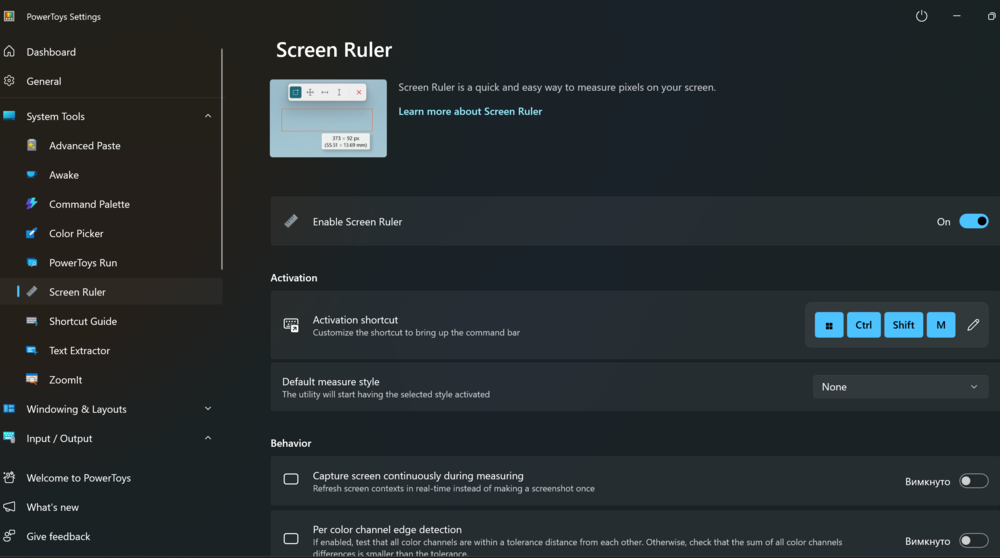
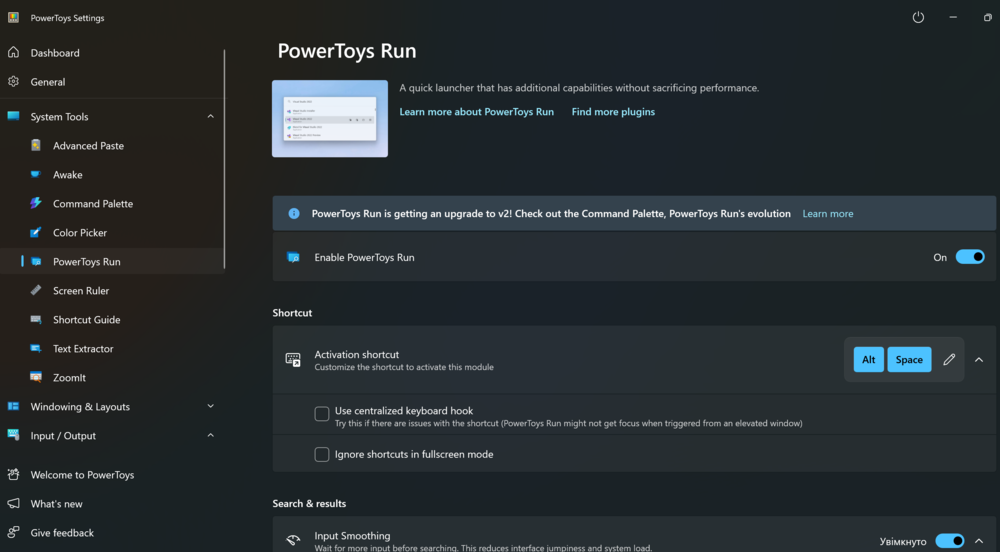
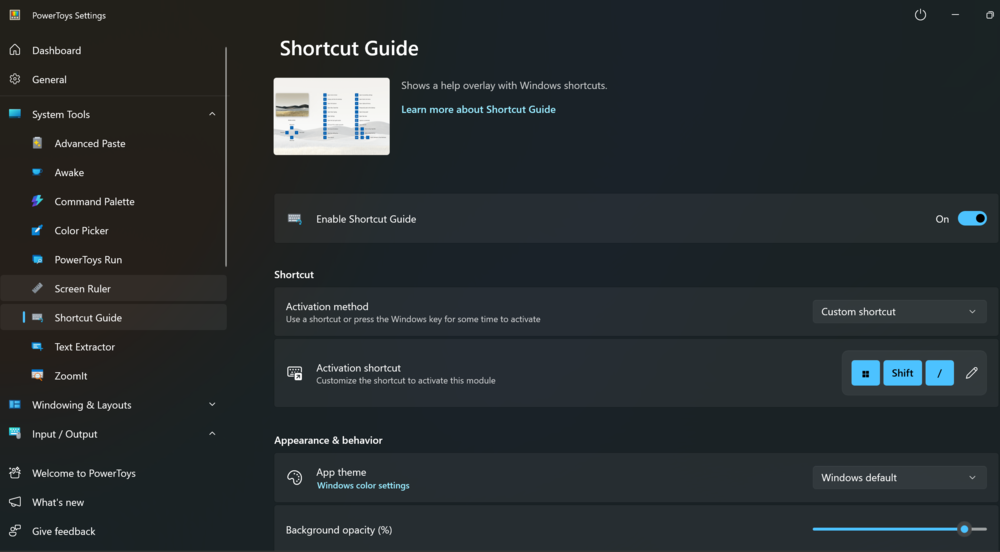
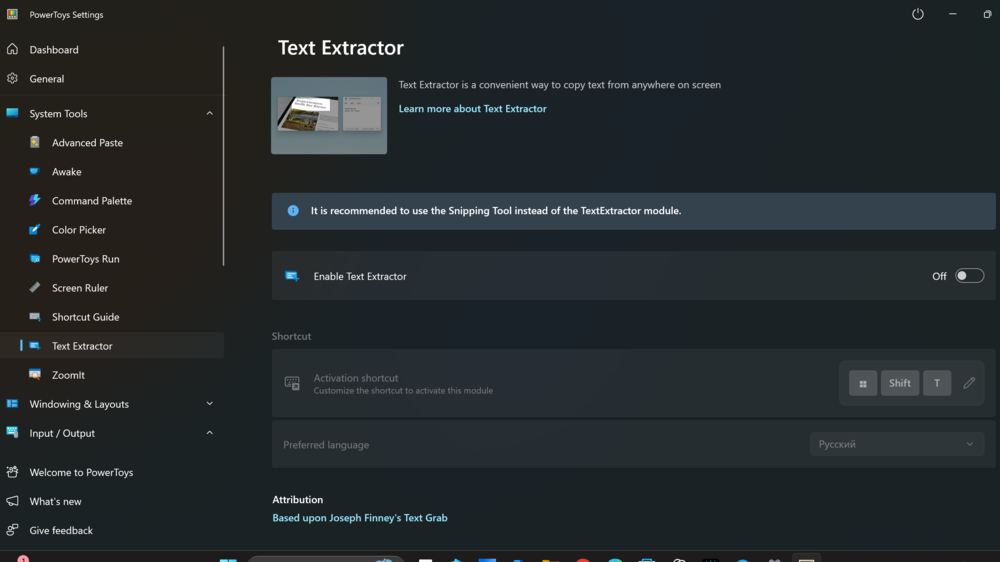
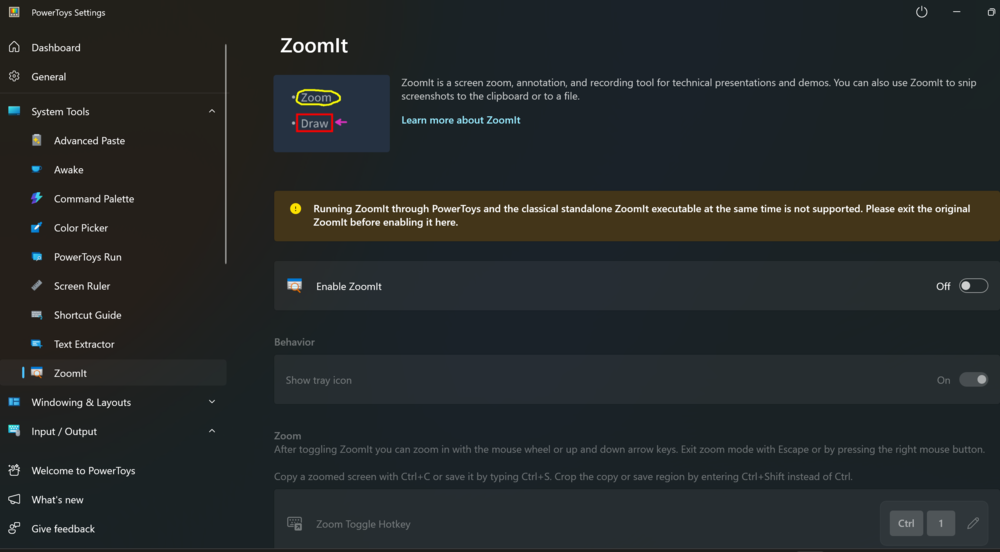
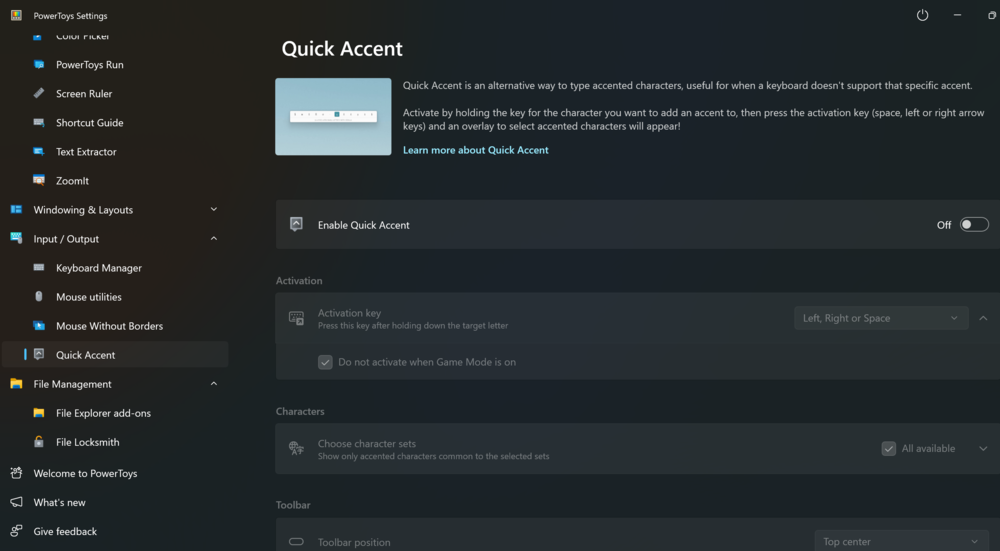
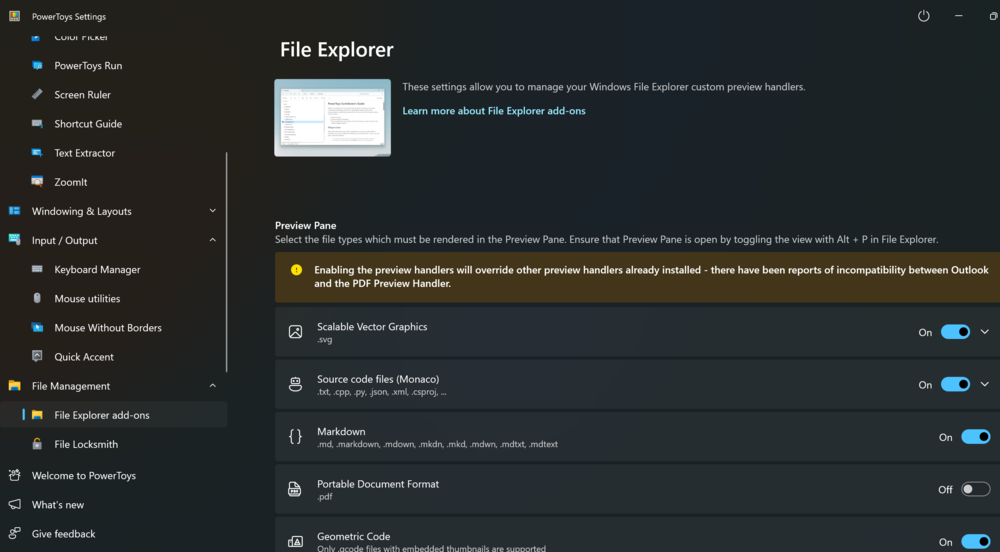
PowerToys is also a valuable toolset for enthusiasts. DJs, video editors, gamers, designers – anyone working with multiple windows or looking to optimize their screen space can benefit. Need better visibility? More control? Fewer clicks? PowerToys delivers on all fronts.
Microsoft PowerToys is a collection of essential tools for users who want Windows to work for them, not the other way around. It cuts down on routine tasks, reduces mental clutter, and helps you focus on what really matters – whether you’re working, creating, or simply organizing your digital space.
Read also:
- ChatGPT Destroys the Competition: Era of Super Apps Has Arrived
- Online Safety: How to Protect Your Data – Even When You Let Your Guard Down
- Gabe Newell’s Starfish Neuroscience Сhallenges Neuralink

