





© ROOT-NATION.com - Use of content is permitted with a backlink.
Got a new Windows 11 laptop? There are a few settings you might want to disable right away. Adjusting them can help improve the device’s performance and usability.
Read also: Instructions, Guides, How To for Windows
TABLE OF CONTENTS:
Why disable certain settings?
Windows 11 comes with a wide range of features and services, most of which are enabled by default to provide deep system integration. While this setup gives users immediate access to the full suite of capabilities, it also has drawbacks. Not all features are equally useful for every type of user, and some can place extra load on hardware resources. This is particularly noticeable on laptops with entry-level or mid-range specifications, where performance can be a critical factor.
Given this, optimizing the system by disabling unnecessary options is not just recommended – it’s often essential. Turning off these features doesn’t reduce the core functionality of Windows 11 but can improve performance, lower background resource usage, and enhance the overall user experience.

Microsoft provides straightforward tools for personalizing settings. Users can disable unnecessary options without any additional software. The key question, however, is prioritization: which settings should be turned off first to achieve the most noticeable impact?
While there are dozens of settings that can affect system performance, five key options stand out. Disabling them on a new laptop can provide a noticeable performance boost without compromising Windows 11’s core functionality. It’s best to make these adjustments immediately after installing the system or when upgrading from an earlier version. The result is a more balanced experience: improved privacy, fewer intrusive notifications, and more efficient use of system resources for important tasks.
Read also: All About the New Windows 11 25H2: Not a Revolution, but Stability?
Transmission of diagnostic data
Windows 11 actively collects and sends a significant amount of information about your computer to Microsoft to improve its services. This process, known as diagnostic data collection (telemetry), is generally divided by Microsoft into two categories: required and optional.
- Required data is the minimal set of information needed for the system to function properly and remain stable. This includes details about the device, its specifications, settings, configuration, and software compatibility.
- Optional data is more extensive, covering device status, usage patterns, visited websites, error logs, and even memory dumps. This level of data collection poses the greatest privacy risks.
By default, Windows 11 sends both types of data. While Microsoft does not allow telemetry to be completely disabled, users can limit data transmission to required information only. This is a key privacy setting that is worth adjusting immediately after setting up the system.
To change the diagnostic data collection settings:
- Open Settings – Privacy and security.
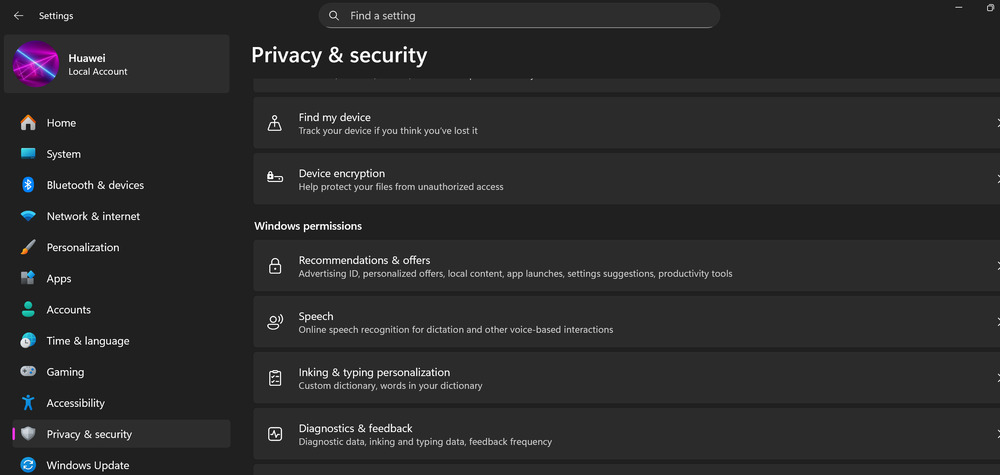
2. Go to the Diagnostics and Feedback section.

3. In the Diagnostic data section, disable the Send optional diagnostic data option.
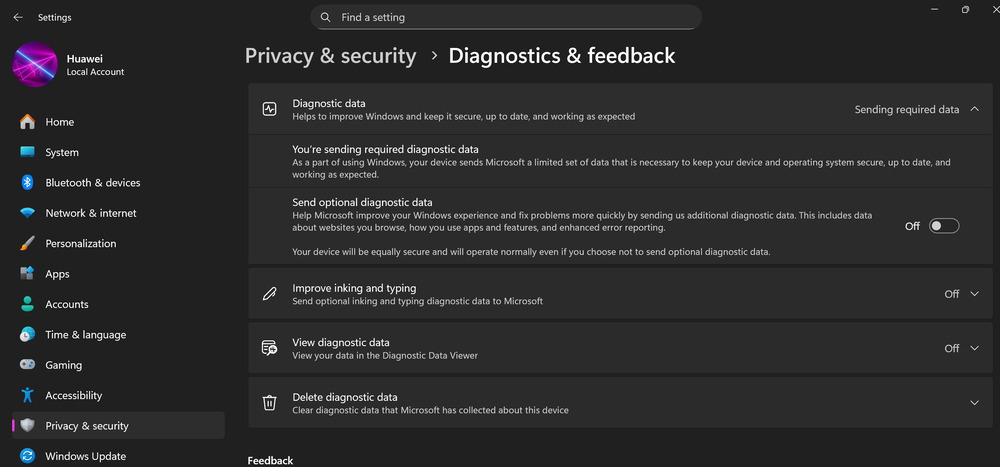
It is also recommended to prevent diagnostic data from being used for personalized recommendations and advertising:
- In the same section, open View diagnostic data and turn off the toggle for Enable Diagnostic Data Viewer.
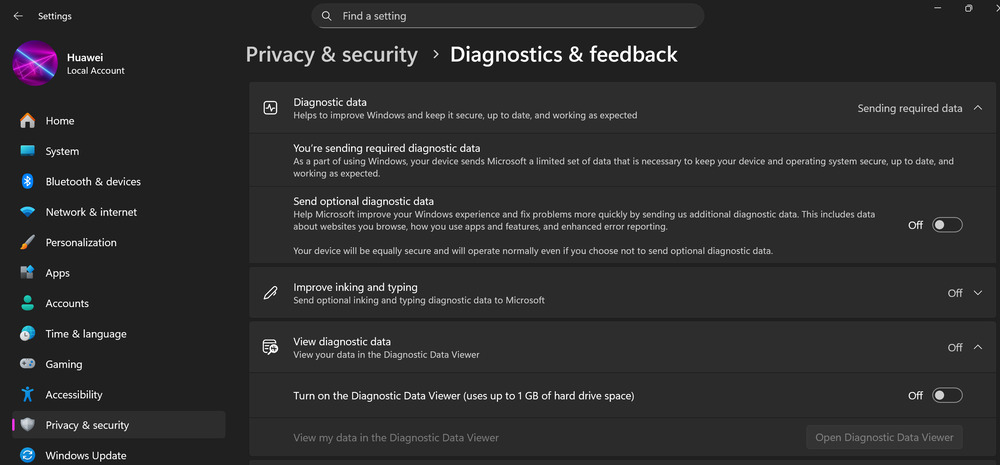
Another useful step is to delete the diagnostic data that has already been collected:
- In the Delete diagnostic data section, click Delete. Microsoft will then remove the existing copies from its servers.
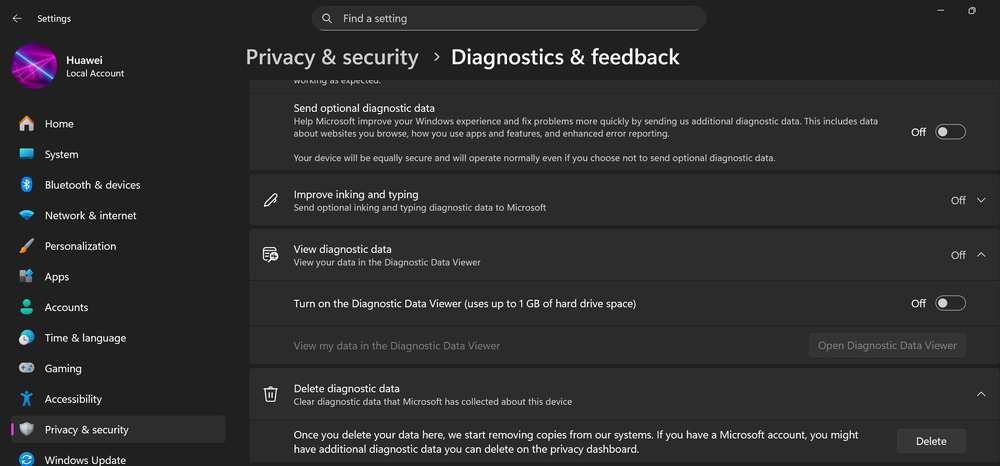
It’s also a good idea to disable Windows’ periodic feedback requests, which can be distracting:
- Scroll down to the Feedback section.
- Under Feedback frequency, change the setting from Automatically (recommended) to Never.
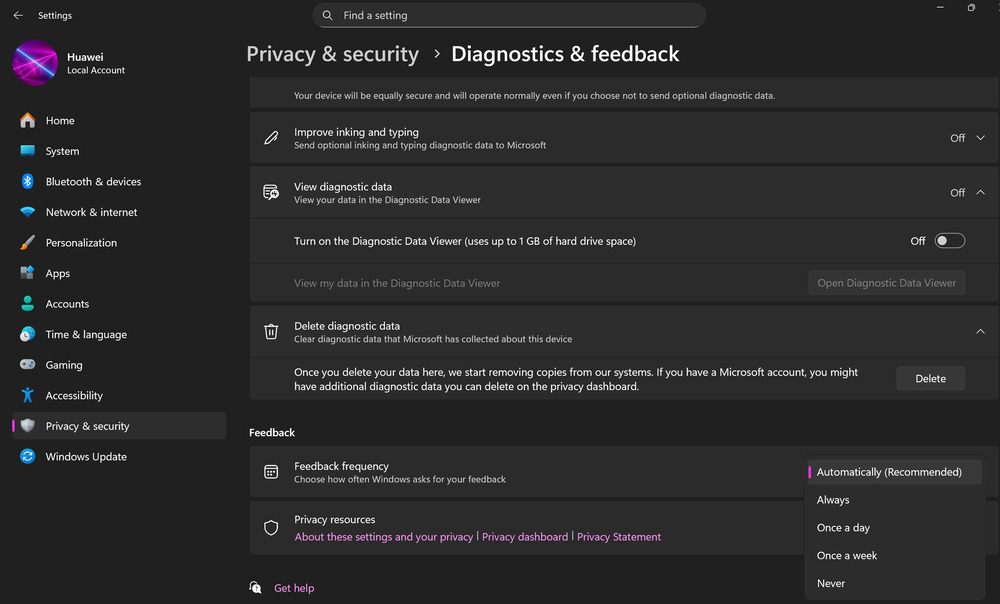
As a result, you’ll reduce the amount of data sent to Microsoft, lower the risk of sensitive information being exposed, and eliminate intrusive system prompts. It’s a simple yet effective way to make Windows 11 more private and less resource-intensive.
Read also: Windows 11 Open Source: Myth or Reality?
Disabling personalised advertising
Disabling the Personalized Experiences settings in Windows 11 does reduce the amount of targeted advertising based on your diagnostic data. However, it does not eliminate ads entirely – targeted ads may still appear using the system’s advertising ID.
The advertising ID is a unique digital code assigned to each user by the system. App developers and advertising networks use it to build a profile based on your activity in apps and websites you visit. This profile is then used to deliver relatively personalized ads. If you value privacy and don’t want your app activity to influence the ads you see, it’s advisable to disable this feature.
To limit this type of advertising in Windows 11:
- Open the Settings app.
- Go to Privacy & Security → Windows Permissions → Tips & Recommendations.
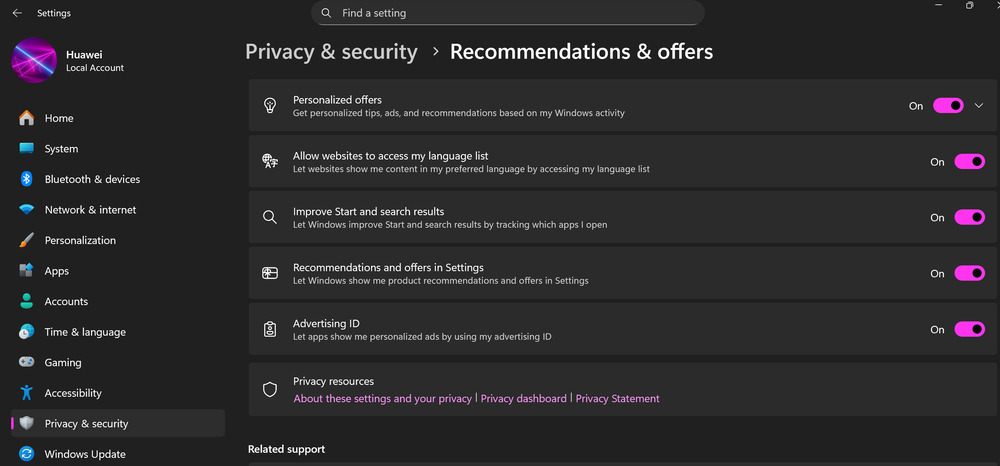
3. Turn off the toggle next to Allow apps to show personalized ads using my advertising ID under the Advertising ID subsection.
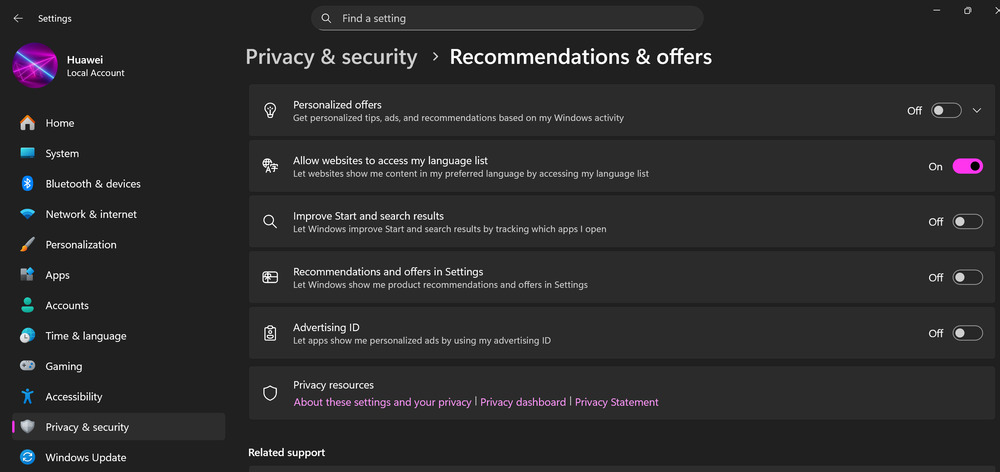
Additionally, the Tips & Recommendations section includes several other settings worth disabling to improve privacy and reduce system load:
- App launch tracking: By default, Windows collects information about which apps you open to “enhance” search results and the Start menu. Disabling the Let Windows improve Start and search results option stops this data collection.
Settings recommendations and content: Windows 11 can show suggested content, ranging from new features to app recommendations. This is more marketing than useful information. To reduce distractions, disable Show me suggested content in the Settings app.
Ads in the Start menu: Microsoft occasionally promotes apps and services directly in the Start menu. Turning off this option makes the interface cleaner and less intrusive.
In the end, you’ll have a more focused Windows 11 experience: fewer ads, fewer unnecessary tips, and improved privacy, all without affecting the system’s core functionality.
Read also: How to Spot Fake Photos: New Challenges of the Digital Age
Turn off annoying notifications
Windows 11 makes extensive use of its notification system to inform users about a wide range of events, from calendar reminders and new emails to system updates, app alerts, and tips for using the OS itself. Notifications appear as banners in the lower-right corner of the screen and are stored in the Action Center. While some of these can be useful, an excessive number – especially system prompts and promotional suggestions – can often become a distraction during work.
To reduce unnecessary notifications, Microsoft provides flexible management tools. The basic steps are:
- Open Settings → System → Notifications.
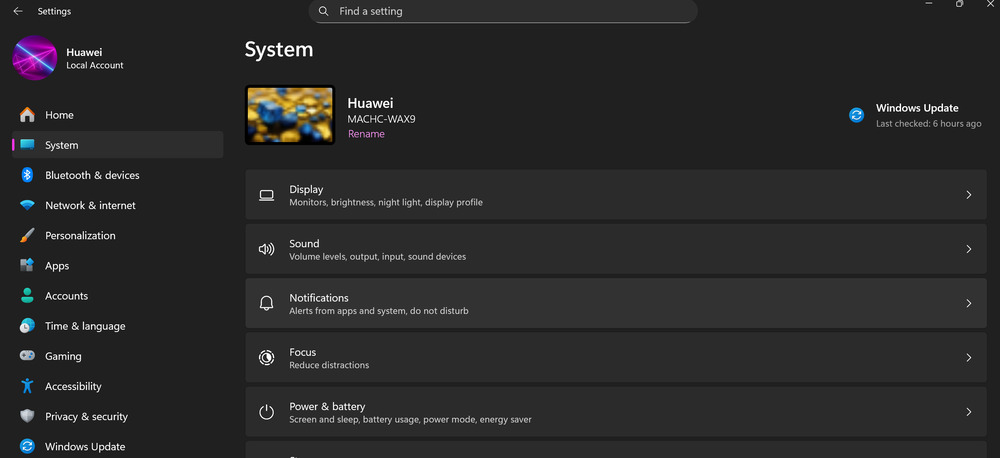
2. Scroll down and expand the Additional settings section.
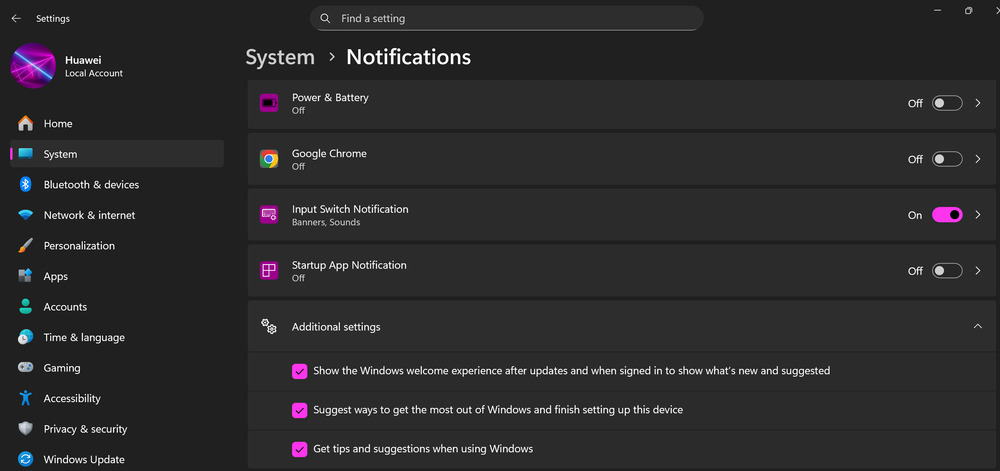
- Uncheck the following options:
- Get tips and suggestions as you use Windows
- Suggest ways to get the most out of Windows and finish setting up this device
- Show Windows welcome experience after updates and sign-in to highlight new and recommended features
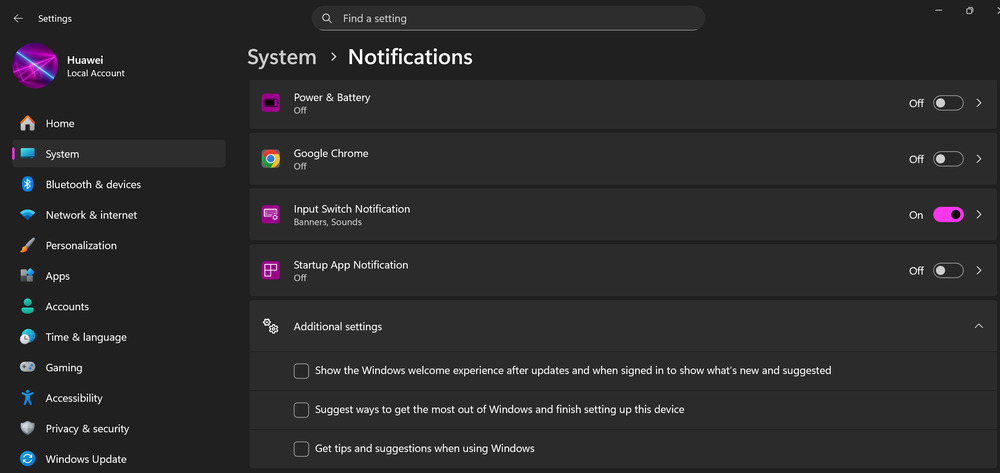
These simple steps significantly reduce intrusive system notifications.
For a more comprehensive effect, it’s also important to manage notifications from third-party apps and services:
- In the same Notifications section, open Notifications from apps and other senders.
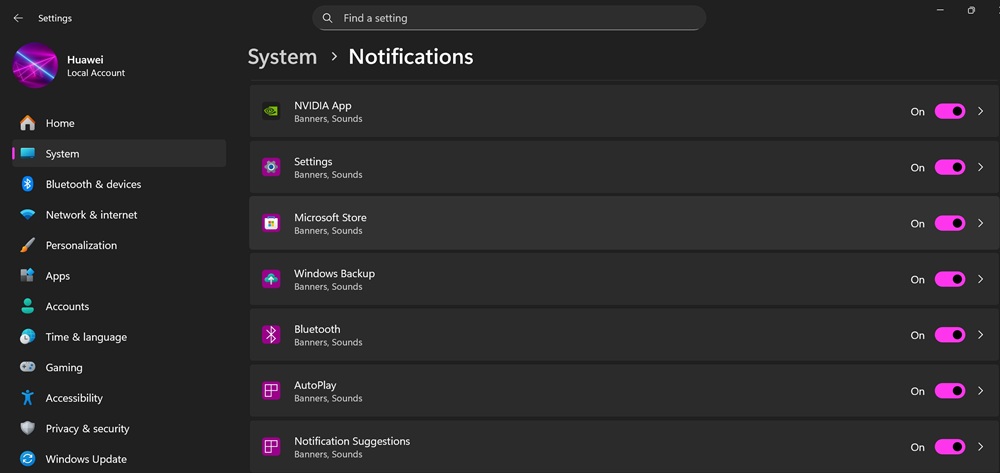
- Turn off the toggles next to any apps whose notifications you don’t want.
- If you prefer to keep notifications but make them less intrusive, click on the app and adjust the settings – choose whether to show banners, display them in the Action Center, or play a sound.
Windows 11 also includes a Focus mode (formerly known as Focus Assist) that can be enabled to block or filter notifications entirely during work, presentations, or gaming. This is particularly useful when you need maximum concentration.
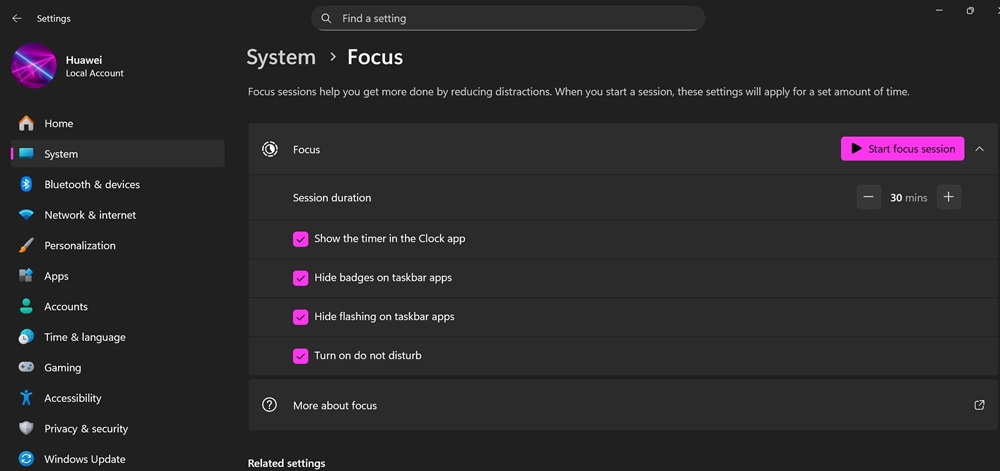
By properly configuring the notification system, you can eliminate unnecessary tips and promotional alerts while creating a more comfortable environment for work or study.
Read also: Microsoft Ends Windows 10 Support: Is There Life After the End?
Do you need widgets? I don’t think so
Windows 11 offers widgets as a quick way to access up-to-date information directly on the desktop. A widget is an interactive panel that displays real-time data such as weather, currency rates, stock indices, news, reminders, and more. The widget panel can also integrate certain apps and services from your device.
However, there is a downside: widgets constantly connect to the internet and download new content in the background. This adds extra load on the system and can reduce performance, particularly on lower-end or older computers. Disabling widgets can free up resources and make Windows 11 run more smoothly if you prioritize maximum performance.
How to disable all widgets
Open Settings (key combination Win + I).
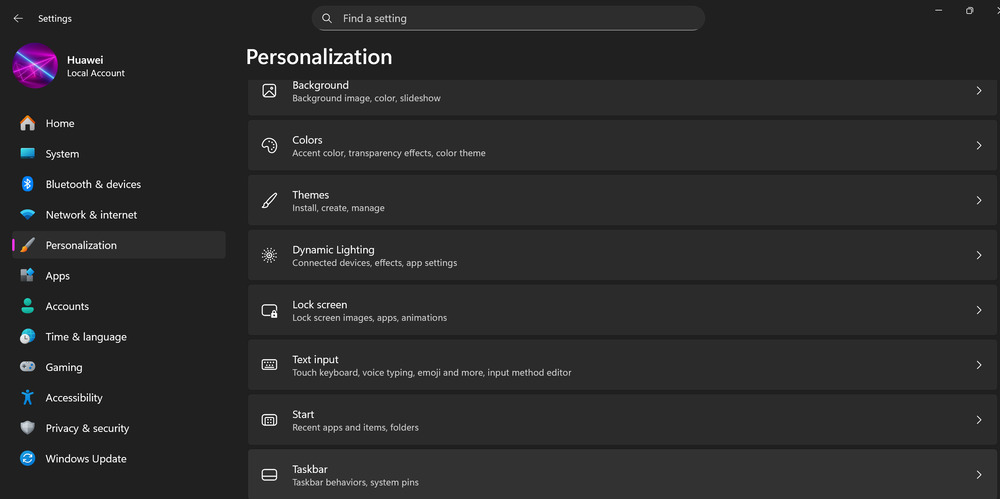
2. In the left-hand menu, select Personalization → Taskbar. This will open the Taskbar items subsection.
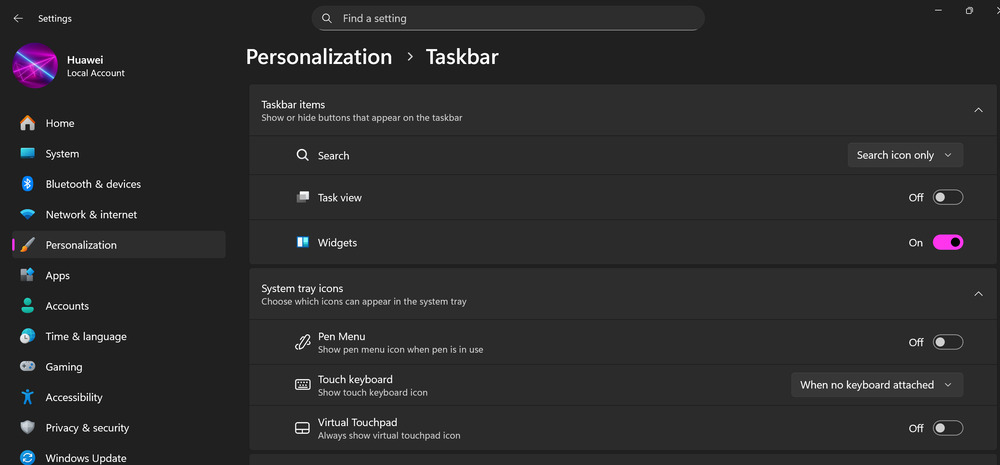
3. Locate the Widgets toggle and turn it off.
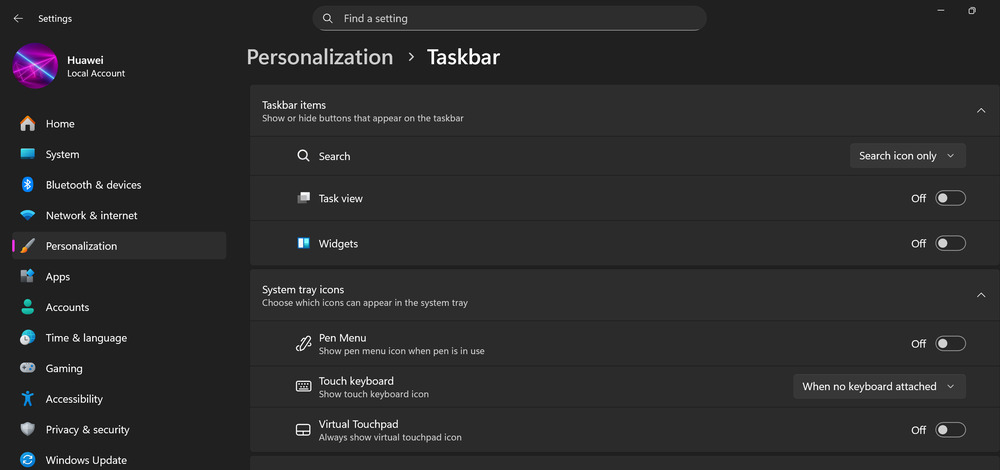
After doing this, the widgets icon will disappear from the taskbar, and all widgets will be deactivated.
How to keep only the necessary widgets
If you don’t want to disable widgets entirely, you can customize them:
- Open the widget panel via the taskbar icon or by pressing Win + W.
- In the top-right corner of the widget you want to remove, click the three-dot icon → Hide this widget.
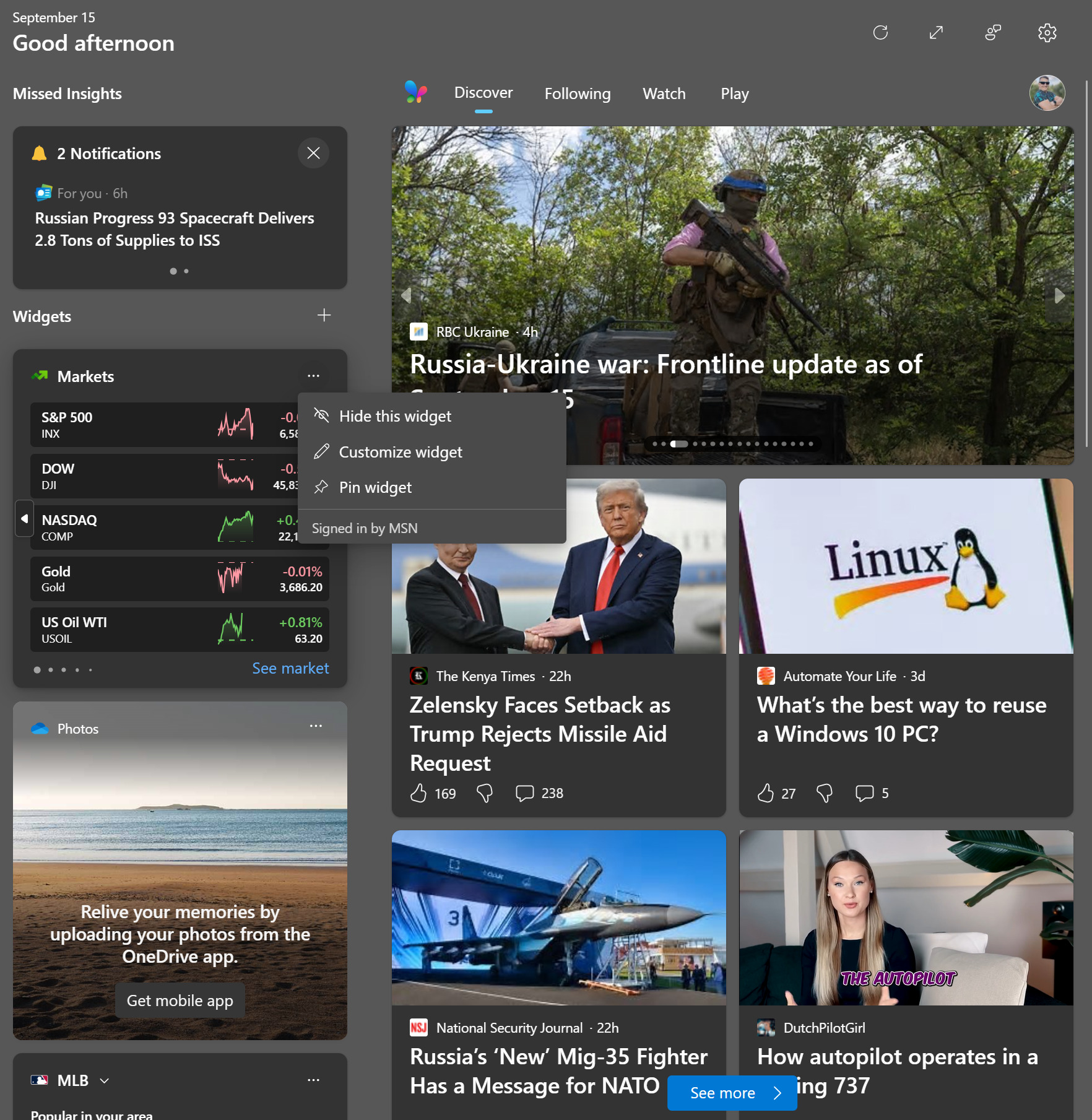
To disable the news feed, open the Settings menu (gear icon) → Show or hide feeds, and turn off the Feed option.
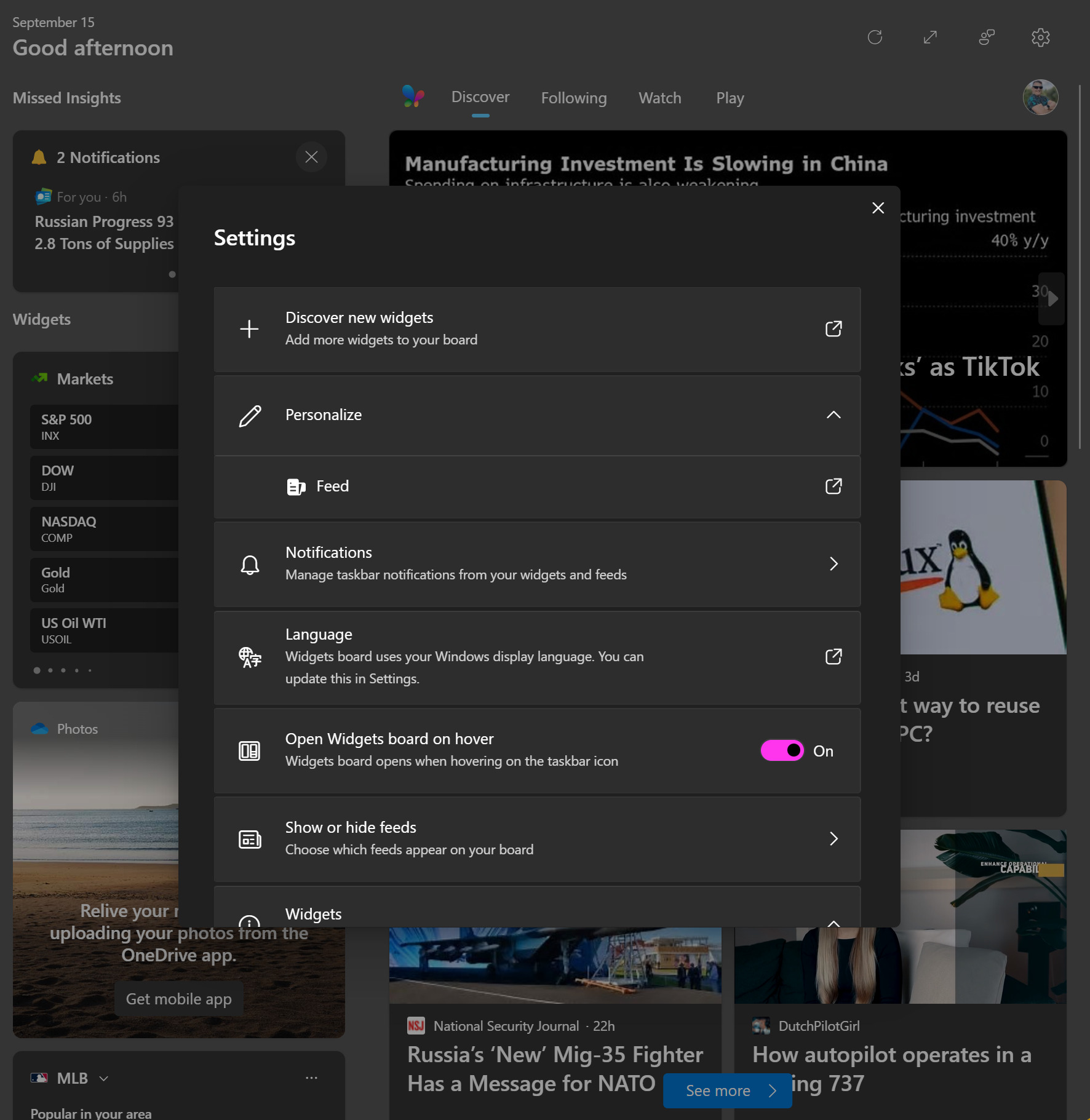
This way, you can either disable all widgets completely or keep only those you use daily. Doing so helps maintain a balance between convenience and system performance.
Read also: What to Do If You Lose Access to Your Google/Gmail Account
Turn off the Search Highlights
Search Highlights in Windows 11 is a feature that adds various informative content to the search panel. It can display important dates and events, national or international holidays, recent news, and trending searches. If you use a work or school account, the system may also show organization-related information such as files, contacts, meetings, and other data.
At first glance, this seems convenient, keeping everything within reach. In practice, however, Search Highlights often behaves like widgets: it consumes system resources, uses RAM, and can impact overall performance. Additionally, the excess information clutters the search panel, slows result display, and creates visual noise. Instead of faster access, it can lead to delays and a less comfortable user experience.
To restore maximum speed and usability to search, it’s recommended to disable Search Highlights. Here’s how:
- Open Settings → Privacy & Security.
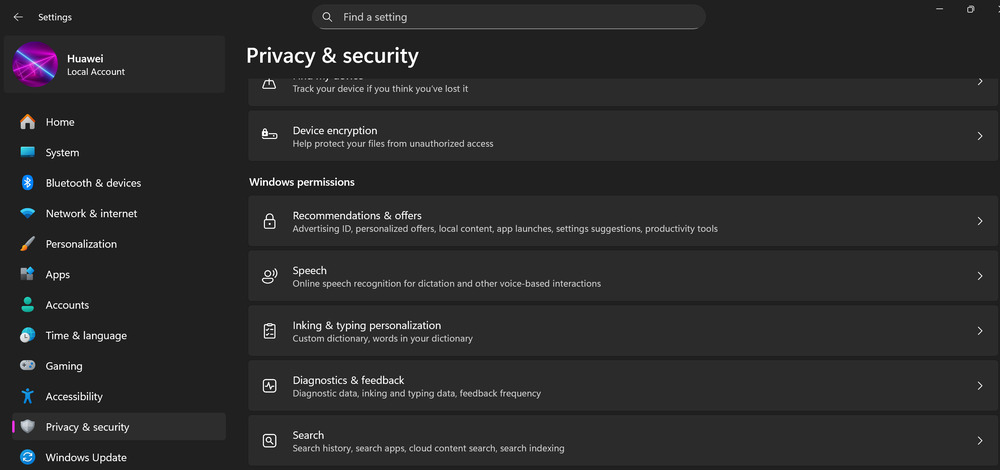
2. In the Windows Permissions section, select Search.
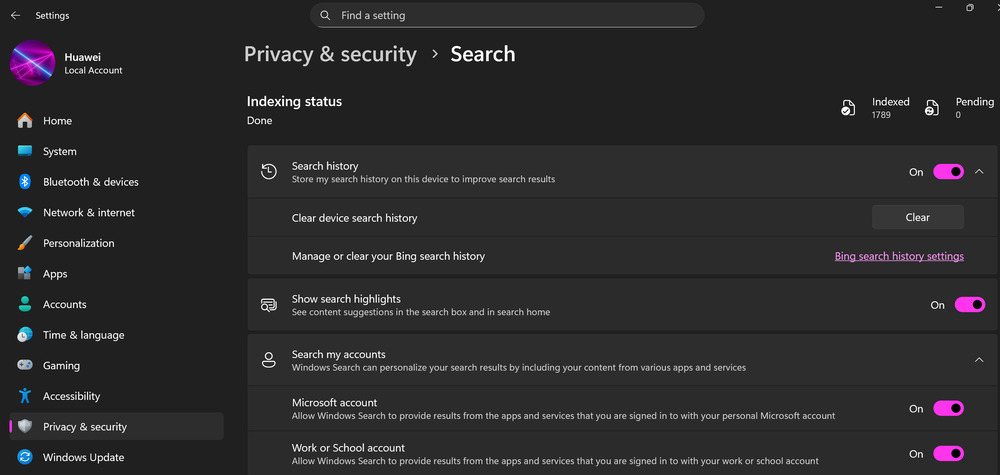
3. The Search settings panel will open. Turn off the toggle for Show search highlights.
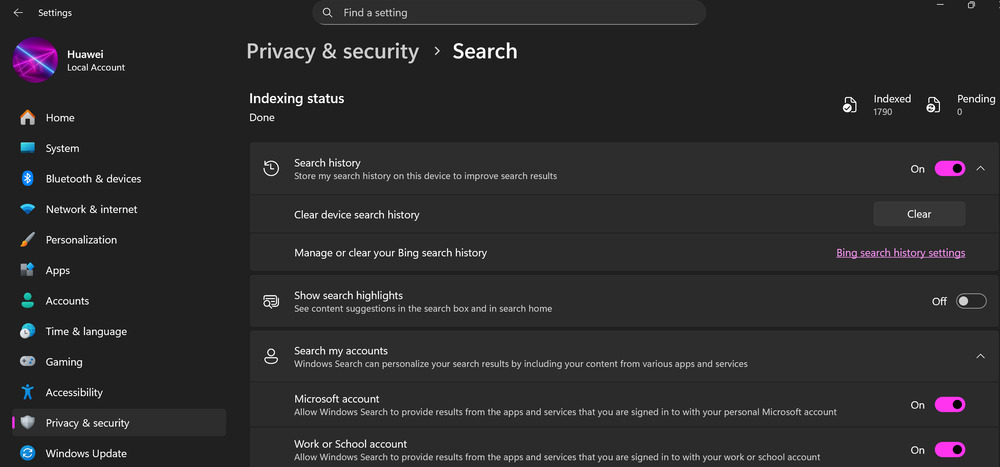
After this, the search panel will be cleaner and faster. Instead of extra content, you’ll see only standard quick suggestions and the most-used apps – providing useful results without distractions.
Read also: Cryptography: What It Is and How It Works
After disabling these settings, a new Windows 11 laptop becomes better optimized for productive work. The system is freed from unnecessary background processes, reducing resource load and improving performance. Fewer distracting elements enhance stability and allow the hardware to operate at its full potential. In other words, the laptop runs faster, more reliably, and more efficiently – benefits that matter for both everyday tasks and professional use.
Read also:
- Nine of the Strangest and Most Mysterious Weapons
- 15 Creepiest Space Objects and Concepts That Defy Explanation
- Bigme HiBreak Pro Review: An Almost Ideal E-Ink Smartphone for Digital Detox

