





© ROOT-NATION.com - Use of content is permitted with a backlink.
Today I will outline several tools that I find most useful and rely on regularly when working in Windows 11. Below is a structured overview.
Windows 11 is more than a refreshed interface and smoother animations. Beneath the visual changes, it includes a set of practical tools designed to reduce routine friction in everyday work. These are relatively small features, but together they contribute to a more efficient workflow: built-in screenshot capabilities without third-party software, an expanded and genuinely useful clipboard, and window snapping and workspace management that can be handled with minimal mouse interaction.
In practical use, these functions gradually stop being perceived as “features” and instead become part of the basic working infrastructure. Once integrated into daily routines, reverting to older approaches can feel like a step backward. For this reason, this article focuses not on headline additions or promotional highlights, but on the Windows 11 tools that are used consistently in everyday work and have become difficult to replace in both professional and general computer use.
TABLE OF CONTENTS:
Snipping Tool – a utility for screenshots and screen recordings
The Snipping Tool in Windows 11 is a core system utility that plays a practical role in everyday workflows. It can be launched via the Win + Shift + S shortcut and is designed for frequent, low-friction use, which makes it suitable for tasks that require capturing visual information quickly and repeatedly.
The tool allows users to capture any portion of the screen, including a free-form selection, a specific window, or the entire desktop, and immediately convert it into usable material. The process involves no additional dialogs, third-party software, or noticeable delays. This makes it effective for documentation, communication, and content preparation tasks. Its value becomes more apparent after the capture itself, where the tool supports further basic handling of the image as part of a continuous workflow.

After a screenshot is taken, a compact editing window opens. Over time, this interface has evolved from a basic capture utility into a more capable working tool. It allows users to quickly underline elements, obscure sensitive information, highlight areas of interest, or add simple diagrammatic markings. Additional functions such as shapes and cropping are available, and notably, the tool now supports extracting text directly from images, which extends its usefulness beyond basic image capture.

This function may seem minor until it becomes part of regular use. It allows text to be copied from presentations, tables, PDFs, or web pages where standard copying is not available, and then pasted directly into a document or spreadsheet without relying on external OCR services or third-party applications. In practical work, this saves small amounts of time on individual tasks that, over the course of a day, accumulate into a noticeable efficiency gain.

If the built-in editing options are insufficient, the Snipping Tool allows a one-click transition to Paint without requiring the file to be saved again or reopened manually. In most cases, however, this step is unnecessary. The screenshot can be saved, copied to the clipboard, or shared directly, making it immediately usable in messaging applications, documents, or published materials.

It is also worth noting another feature that is still overlooked or ignored by many users: screen recording. The Snipping Tool can record on-screen activity either within a specific window or across a selected area of the display. This is a straightforward but practical option for creating short instructional videos, explanations, or software demonstrations. It requires no complex configuration, no post-processing, and avoids the overhead associated with launching more advanced recording software for brief clips.
Overall, the Snipping Tool in Windows 11 has moved beyond the role of a supplementary utility and has become a core component of everyday workflows. It illustrates how relatively unobtrusive but well-integrated tools can have a tangible impact on the overall usability of an operating system.
Read also: 5 Windows 11 Settings You May Want to Disable Right After Buying a Laptop
Clipboard
Many users are unaware that Windows 11 includes a fully functional clipboard tool that is accessible almost instantly. It is activated with the Win + . (period) shortcut. This opens a compact pop-up window that, at first glance, resembles a simple emoji selector, which is likely why it is often underestimated or overlooked.

In practice, this tool extends well beyond a basic set of standard emoji. It includes a full collection of emoji, kaomoji, and symbols that can be used regularly in messaging applications and work-related chats. Kaomoji, with their more traditional text-based appearance, can add nuance in contexts where conventional icons feel overly neutral. The built-in GIF search also allows users to select visual reactions without switching to a browser tab, a small convenience that can nevertheless streamline online communication.

A separate, often overlooked section covers special characters. Currency symbols like €, £, or ¥, mathematical operators, arrows, and different types of quotation marks are all accessible without relying on Alt codes or copying from external websites. In text editors, analytical documents, or financial calculations, this saves time and reduces unnecessary friction in the workflow.

The real value of this tool, however, begins beyond the “cosmetic” features – in the clipboard itself. Windows 11 lets users access a history of previously copied content, including text, code snippets, links, and images. Everything is stored in a single location and is instantly available, fundamentally changing the way copy-and-paste workflows are managed.

There’s no longer a need to frantically go back and recopy a paragraph that was accidentally overwritten, or to open multiple windows and repeat the same action several times. Simply accessing the clipboard history and selecting the desired item is enough. For me, this is one of those tools that quietly but significantly improves the workflow.
The built-in clipboard in Windows 11 exemplifies how an operating system can be genuinely convenient – not through flashy new features, but through small, well-designed solutions. Over time, these are the kinds of tools that become most appreciated.
Read also: Windows 11 Open Source: Myth or Reality?
Window Management
Windows 11 introduces several subtle improvements to multitasking that are not immediately obvious. These features don’t announce themselves with pop-ups or intrusive prompts; instead, they reveal their utility gradually, at the moment they are actually needed. One such tool is the window snapping mechanism, which can be activated either by hovering over the maximize button or by using the Win + Z keyboard shortcut.

At first glance, this may seem like a minor interface detail, but it’s precisely such small touches that create a sense of an organized and controlled workspace. With Windows 11’s Snap Layouts, you can quickly arrange open applications into predefined grids on the screen.
Since this feature was introduced, it has become one of my essential daily tools. A few simple actions are enough to organize the desktop: browser, text editor, messenger, spreadsheets, or reference materials can all be placed into clearly defined zones without manual dragging or endless resizing.
The snap layout system is particularly convenient. Windows offers several predefined configurations, ranging from a classic split-screen layout to more complex arrangements for large monitors. The system goes a step further by suggesting applications that logically complement the selected layout. Typically, these are apps that are already running in the background or were used recently, streamlining the process of organizing the workspace.

As a result, multitasking stops feeling chaotic. Instead of a jumble of overlapping windows and constant Alt+Tab switching, there is a sense of order and predictability. For tasks such as text work, data analysis, or interacting with multiple information sources simultaneously, this has a much greater impact than it might seem at first glance.
Importantly, this tool is not rigidly imposed. In Windows 11 settings, it can be adapted to individual preferences: users can disable layout suggestions, modify snap behavior, or opt out of Snap Layouts entirely. The system leaves the choice to the user – whether to take advantage of automation or maintain full manual control.

The window snapping mechanism in Windows 11 is not a revolution, but an evolution. Yet it is precisely these incremental improvements that gradually transform multitasking from a constant struggle with the interface into a seamless, almost invisible part of the workflow.
Read also: How to Reduce RAM Usage in Windows 11
Focus Sessions – helping Windows users stay on task
Windows 11 includes an unexpectedly useful tool called Focus Sessions, integrated into the built-in Clock app. Technically, it functions as a timer, but in practice it represents a systematic approach to managing attention and minimizing distractions.
When a focus session starts, Windows automatically silences notifications, activates “Do Not Disturb” mode, and reduces visual distractions. The system stops constantly drawing the user toward messengers or minor alerts, allowing for more sustained concentration on the task at hand.

The core idea behind Focus Sessions is clear time separation: when you’re working, you work; when it’s break time, Windows notifies you explicitly, leaving no room for an endless “just five more minutes.”
An added benefit comes from integration with Microsoft To Do, as focus sessions are linked to specific tasks rather than a vague “get some work done” goal. This is particularly useful for users managing multiple projects simultaneously, helping maintain structure and clarity in their workflow.

There is also optional integration with Spotify, a logical addition for those who work with background music or white noise.
Focus Sessions doesn’t include motivational slogans, gamification, or “productivity achievements.” Instead, Windows simply creates an environment that supports focused work without adding distractions.
It’s not a revolutionary tool, but as a built-in solution requiring no third-party apps, Focus Sessions performs remarkably well. Windows 11 doesn’t automatically make you more productive, but at least it stops being a constant source of interruptions.
For me, this tool genuinely helps maintain focus. It cuts out everything extraneous – external notifications, alerts, and minor distractions that normally drain attention without being noticed. The result is a workflow where you can actually work, rather than constantly reacting to system prompts.
Read also: Seven Annoying Windows 11 Features – and How to Fix Them
PowerToys
Finally, it’s impossible to overlook another set of utilities that I have written about repeatedly and return to regularly: PowerToys. For Windows 11, it is recommended to install them directly from the Microsoft Store, where the package is officially supported and receives regular updates.
However, it’s worth taking Microsoft’s description of the product with a grain of salt. In the Store, the company presents it as:
“PowerToys is a set of utilities for advanced users that allows customizing and enhancing the Windows environment to improve productivity.”
Formally, this is correct. In practice, however, PowerToys has long outgrown the “advanced user” label. Many of its features are useful not just for power users, but for everyday tasks as well. Over time, several tools start to feel like a natural extension of Windows itself – so much so that the system feels incomplete without them.
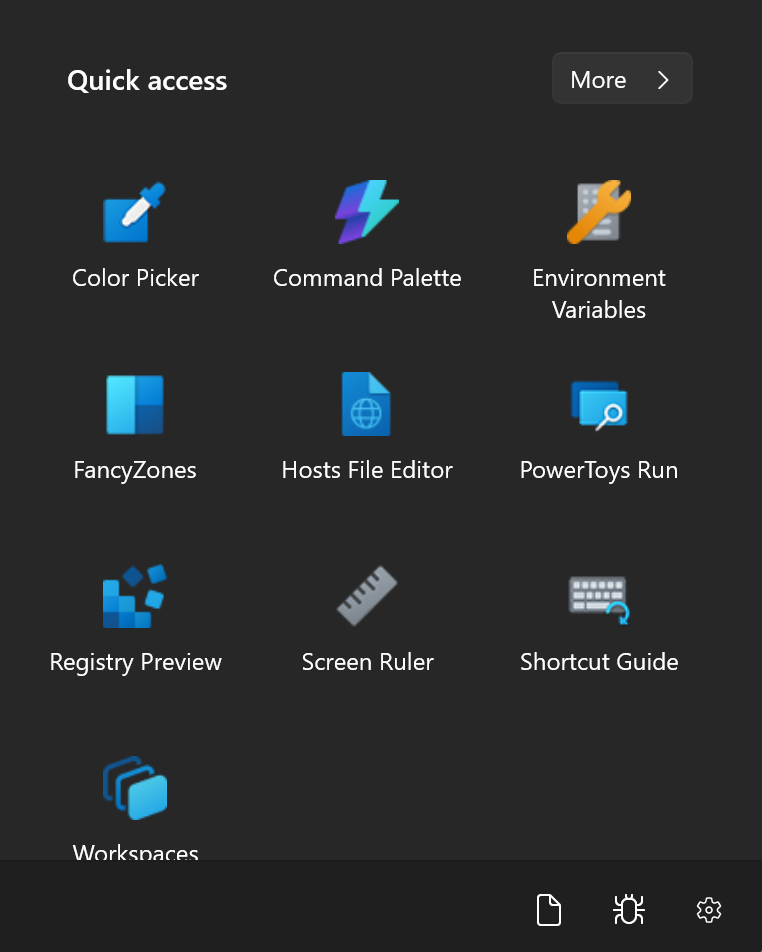
I have previously published a detailed article on PowerToys – those interested in a deeper dive may want to check that piece. It provides a clear, no-frills explanation of why these tools are useful, the scenarios in which they deliver real value, and why PowerToys have long ceased to be a “toy for enthusiasts,” evolving instead into a practical suite for everyday Windows use.
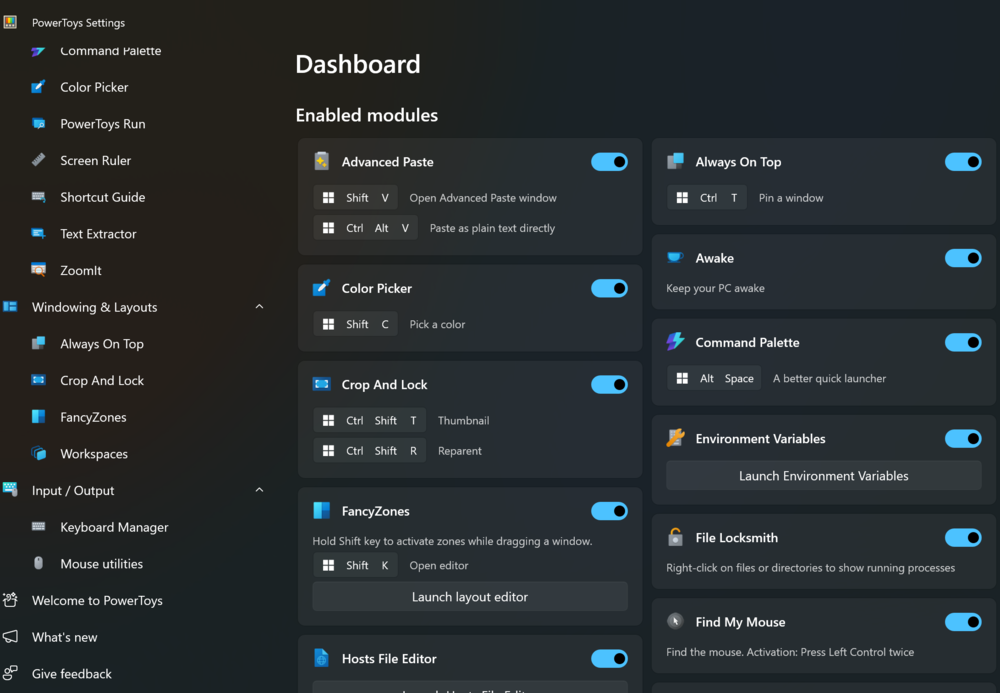
Below are the PowerToys tools that I use regularly and can confidently recommend without reservation.
Crop and Lock
This tool allows you to create a small, separate window from a selected portion of the screen. Its key feature is real-time updates: if the content of the original window changes, those updates are immediately reflected in the cropped fragment. This is particularly useful for monitoring data, chats, spreadsheets, or technical dashboards without constantly switching between windows.
Command Palette
Essentially, this is a quick command interface for Windows. You simply start typing the name of a program, command, or feature, and the system immediately suggests relevant options. There’s no need to search through the Start menu or navigate nested lists. For me, it’s one of the fastest ways to launch applications and access system actions.
Always on Top
A simple yet highly practical tool, Always on Top lets you pin any window above all others using the Win + Ctrl + T shortcut. It’s ideal for videos, notes, messaging apps, or reference materials that need to remain constantly visible.
File Preview
This tool extends the standard preview functionality in Windows Explorer, allowing you to view the contents of a file without opening it in a separate application. Supported formats include images, Office documents, PDFs, videos, web pages, and even some developer-oriented file types. When working with large numbers of files, this feature can save a significant amount of time.
FancyZones
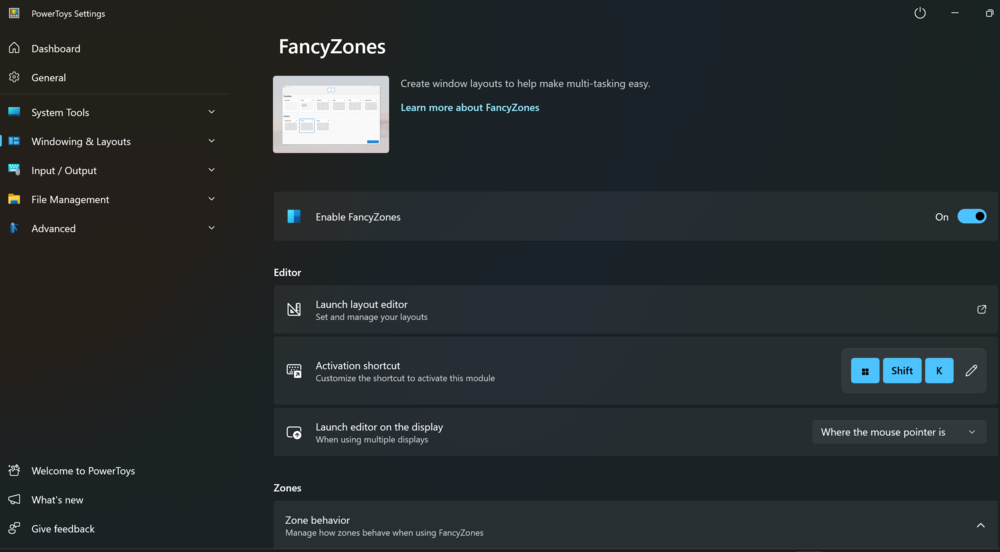
An advanced window management system that complements the standard Windows 11 layouts. FancyZones lets you create custom zones tailored to your specific monitor and workflow, allowing you to quickly snap windows into these predefined areas. It is especially useful for large or ultrawide displays.
Image Resizer
This tool adds an option to the context menu for quickly resizing images without opening a graphics editor. Custom presets are supported, making it ideal for preparing images for publications, presentations, or the web.
PowerRename
A tool for bulk renaming files, supporting templates, numbering, text replacement, and even changing file extensions. It is indispensable when working with large sets of documents, photos, or technical files.
PowerToys is not just a “suite of geek utilities”; it represents a kind of practical innovation from Microsoft. The collection includes tools that either should have long been part of Windows or demonstrate the direction in which the system can and arguably should evolve. The longer you use them, the harder it becomes to imagine working without this suite.
Read also: How to Reset All Network Settings in Windows 11
Conclusions
In everyday use, Windows 11 is less about design or animations and more about small, well-thought-out tools that gradually become part of routine workflows. Features like the Snipping Tool, the enhanced clipboard, window snapping, and PowerToys may not seem revolutionary individually, but together they create a cohesive environment with fewer unnecessary steps and greater control over tasks.
What unites these functions is a single principle: they don’t impose themselves on the user, but activate when there is a genuine need. Windows 11 doesn’t force a change in work habits, but it provides tools that gradually make workflows more efficient. Once accustomed to them, reverting to older approaches feels impractical.
Ultimately, this isn’t about having “the best version of Windows,” but about a system that finally respects the user’s time – a measure that, in the end, defines the value of any productivity tool.
Read also:
- Power saving modes in Windows 11: Which one to choose?
- How to Disable Location Tracking in Windows 11 – and Why You Might Want To
- Windows as an Agentic Operating System: Current State and Future Prospects

