© ROOT-NATION.com - Use of content is permitted with a backlink.
Today, we’re taking a closer look at another keyboard from YUNZII’s aluminum-bodied lineup – the AL66. In a previous review of the AL68, I briefly mentioned this model, noting that it was waiting for its turn. Now that time has come. Like the AL68, the YUNZII AL66 is a 65% keyboard housed in a full aluminum case, featuring hot-swappable switches and a multifunctional control knob. At first glance, the differences seem minor – side lighting, slightly altered dimensions, design tweaks, and a different switch set. But a deeper look reveals that the two models have more distinctions than it might initially appear.
To be honest, I originally set the AL66 aside, not expecting much from it. At the time, I didn’t think it would offer anything significantly better than the AL65, AL68, or AL80 – models I’ve already reviewed. But after spending some time with the AL66 and getting to know it more closely, I’ve completely changed my mind. In hindsight, I was wrong to underestimate it. Without giving too much away, the AL66 has a few key advantages over the other models in the series. That said, it’s not without its shortcomings either. In this review, I’ll walk through where it excels and where it falls short – starting with a quick overview of its technical specs.
TABLE OF CONTENTS:
Versions and specifications
First, it’s important to clarify a key detail. As of now, there are two versions of the YUNZII AL66 keyboard – V1 and V2. As the naming suggests, V2 is the newer and more advanced iteration. The main differences lie in the switch sockets (V2 supports 5-pin switches, whereas V1 supports only 3-pin) and QMK compatibility, which allows for customization directly in the browser via the appropriate web interface. Other specs are more or less the same between the two. The unit I received for review is the V1, so most of this review will focus on that version. Wherever there are notable differences between the two, I’ll point them out specifically.
- Model: YUNZII AL66 V1
- Format: 65%
- Number of keys: 66 keys
- Connectivity: wireless (RF 2.4 GHz / Bluetooth); wired (USB-C)
- Switches: YUNZII Milk Switch
- Hotspot: yes (3-pin connectors)
- Design: Gasket Mount
- Anti-Ghosting: yes
- #KRO: N-KRO
- Keycaps: Double-Shot PBT Keycaps (Cherry Profile)
- Backlighting: RGB (keys and side backlight)
- Multi-function wheel: yes (sound and backlight control)
- Software: Windows app
- Supported platforms: Windows, MAC, Android, iOS
- Battery: 4600 mAh
- Autonomy: up to 90 hours
- Cable: detachable UBS-A – USB-C
- Case material: CNC anodised aluminium
- Dimensions: 322×113×42 mm
- Weight: 1145 g
- Available colours: silver, black, pink, blue
- Model features: Gasket Mount, hotspot, built-in memory, pre-lubricated switches/stabilisers, RGB keys and body, aluminium body, multifunctional wheel
- Package contents: keyboard, detachable USB-A to USB-C cable, dual remote control, two spare switches, 2.4 GHz RF wireless adapter, alternative keys for MAC, blister dust cover, user manual
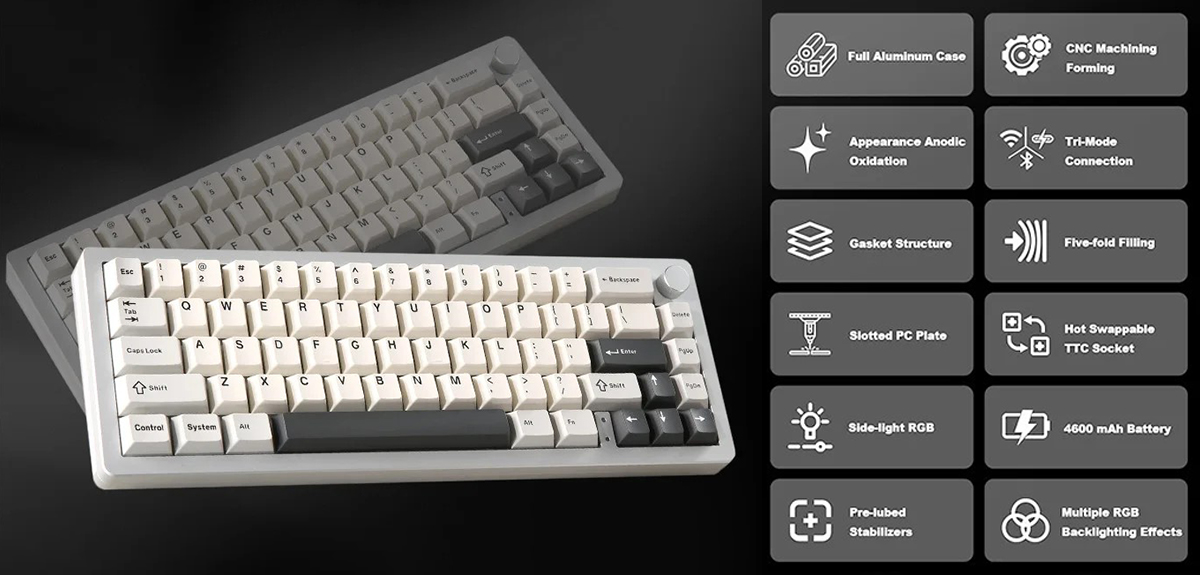
Positioning and price
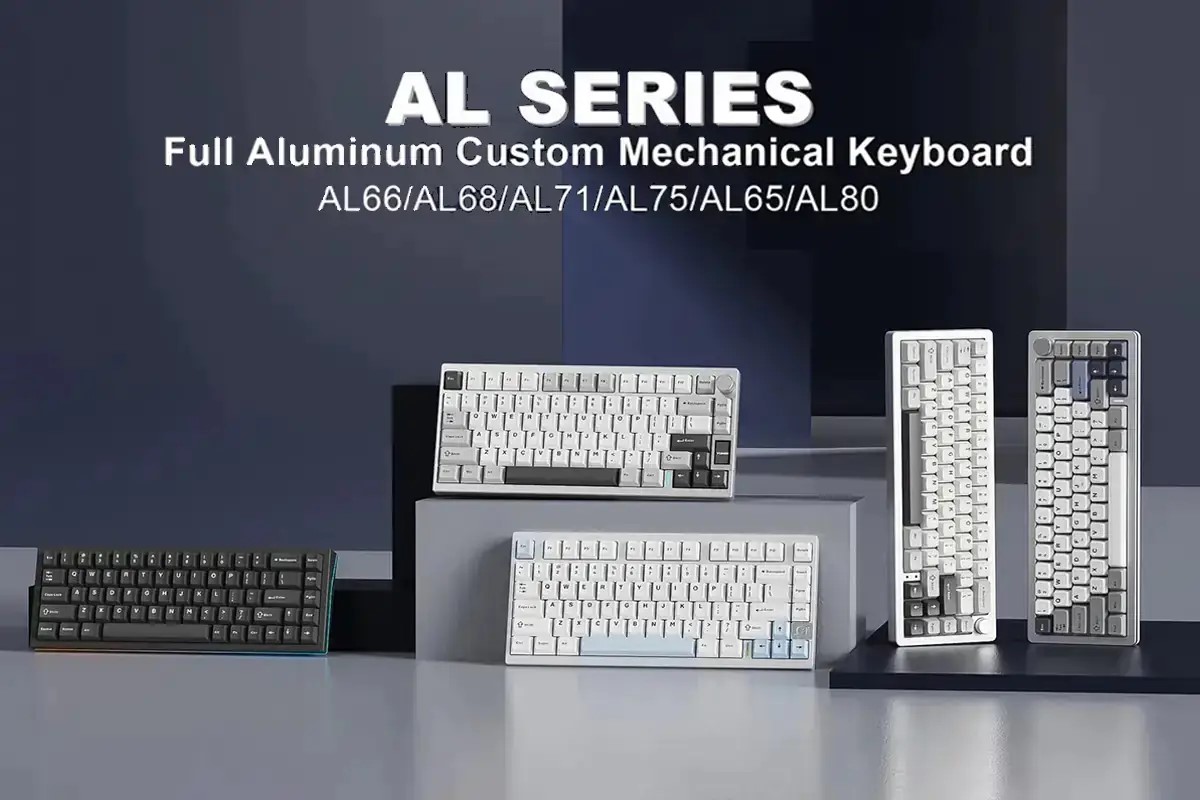
In a previous review, I already covered the broader YUNZII AL lineup. This is a dedicated series of wireless mechanical keyboards housed in aluminum cases, currently consisting of seven models: AL65, AL66, AL68, AL71, AL75, AL75 PRO, and AL80. The series is characterized by solid build quality, premium materials, a mix of original and classic design elements, a satisfying typing experience, firmware-level customization options, and – perhaps most notably – an accessible price point. That, in short, sums up what the AL series aims to deliver.
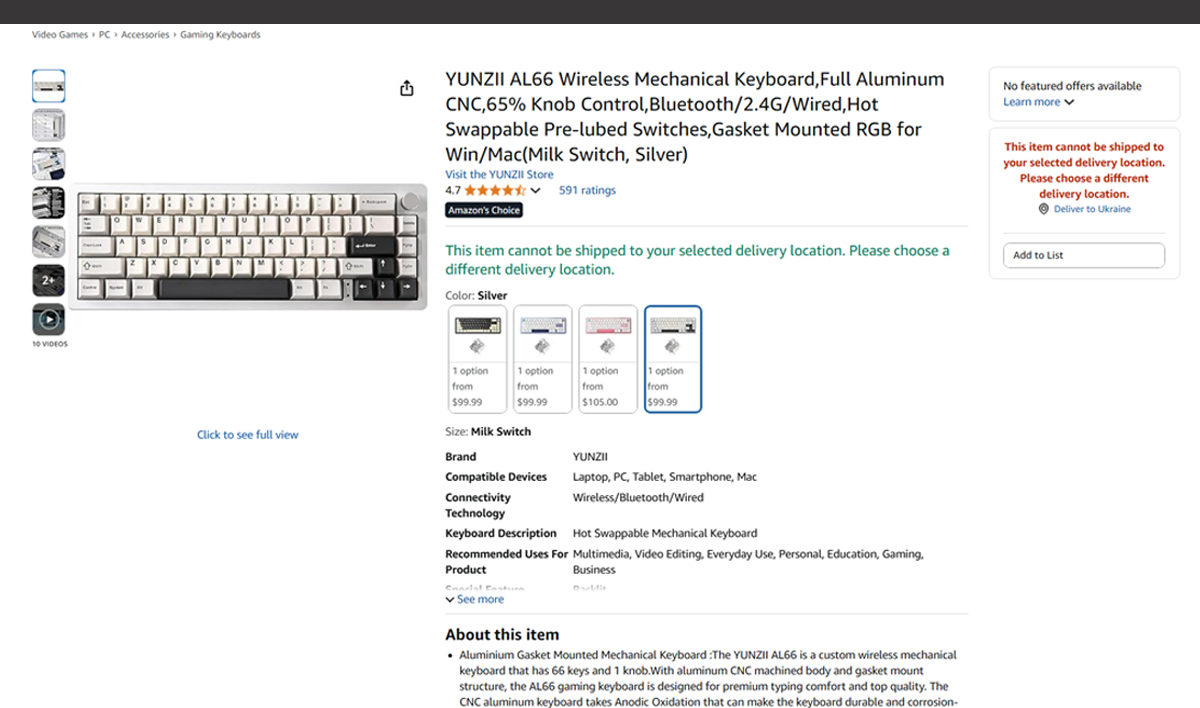
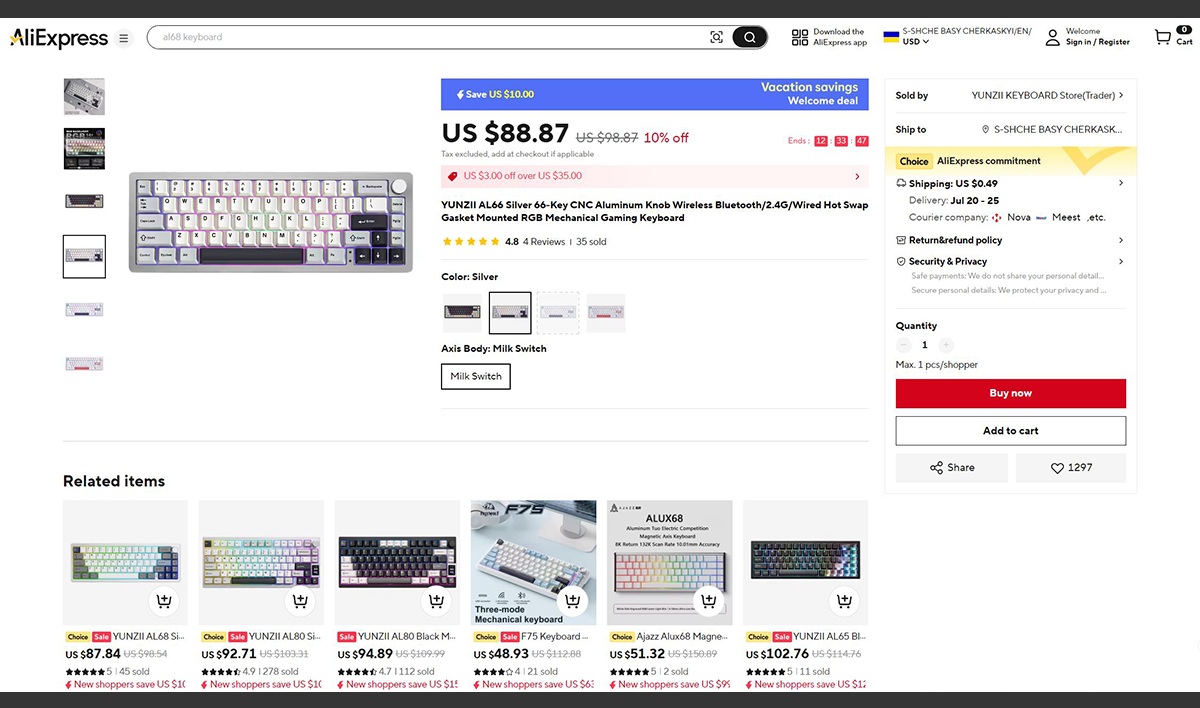
As for the YUNZII AL66 specifically, it sits somewhere in the middle of the lineup in terms of pricing – not the most expensive, but not the cheapest either. On YUNZII’s official website and Amazon, it’s listed at $99.99 or €85. As usual, prices on AliExpress are a bit lower, with the keyboard selling for around $88 or €75.

There’s also a barebones version of the AL66 available for custom builds – essentially a keyboard kit based on the same design. It comes without switches or keycaps and is priced at $60 / €51 on YUNZII’s official website.
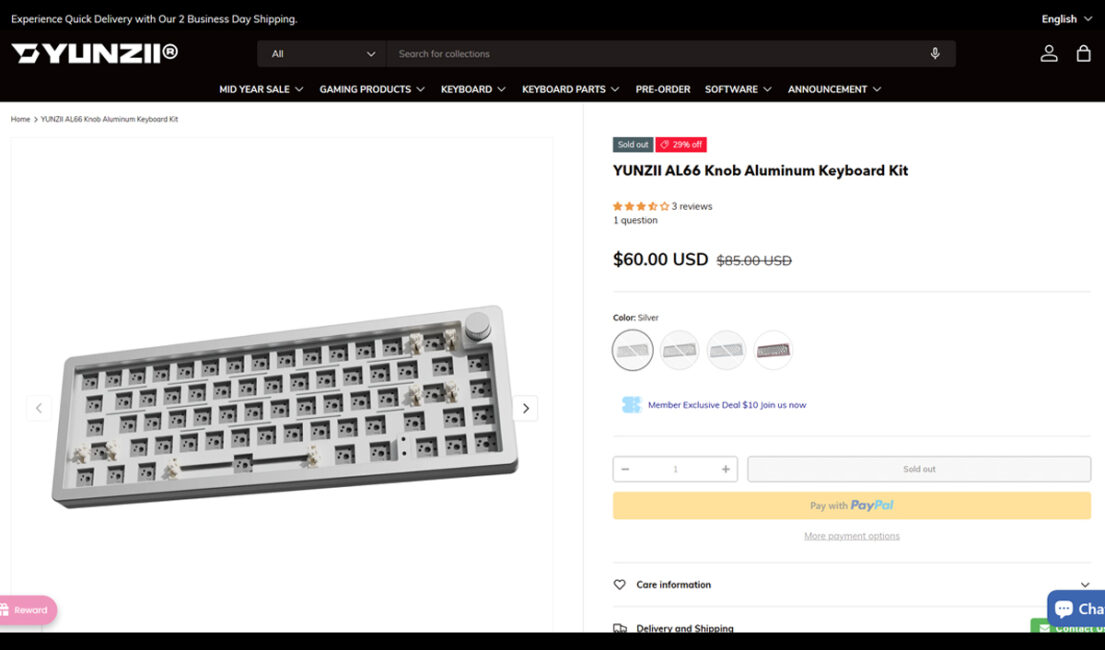
Just to clarify: the product links mentioned earlier refer to the second revision of the keyboard – that is, the V2 model, which comes with 5-pin switch sockets.
Read also:
- SteelSeries Apex Pro Mini – So Good It’s Almost Cheating
- Epomaker Galaxy 100 Review: The Full-Size Keyboard That Will Survive a Nuclear Blast
Package contents
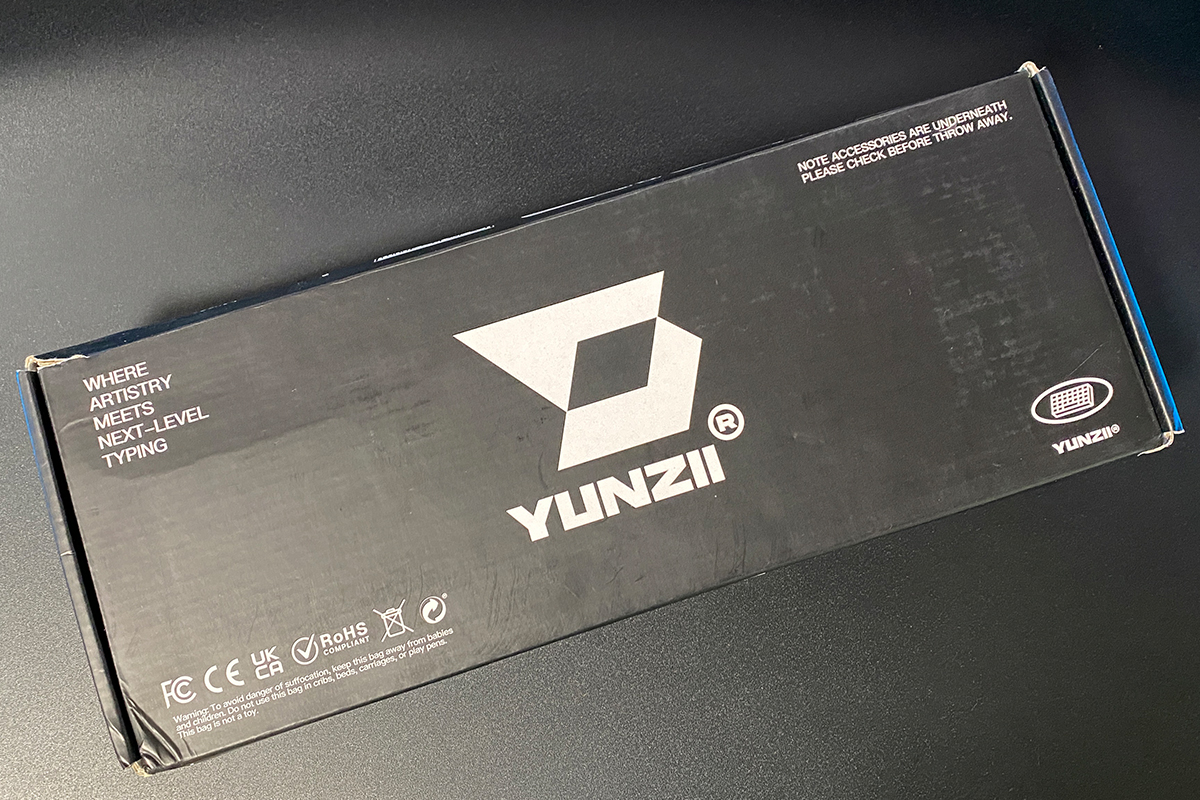
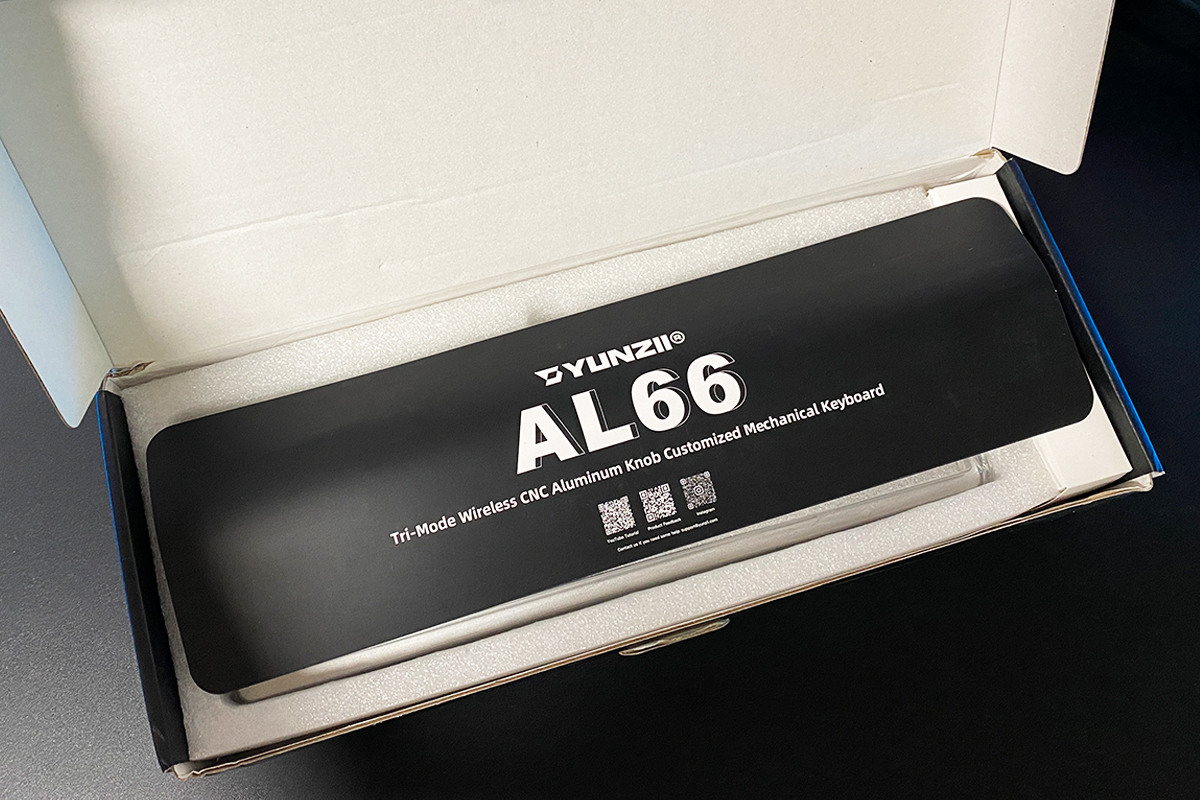
Unlike the AL65, AL68, or AL80 models, the YUNZII AL66 comes in a single-layer cardboard box with a very minimalistic design. Inside the box, along with the keyboard itself, you’ll find:
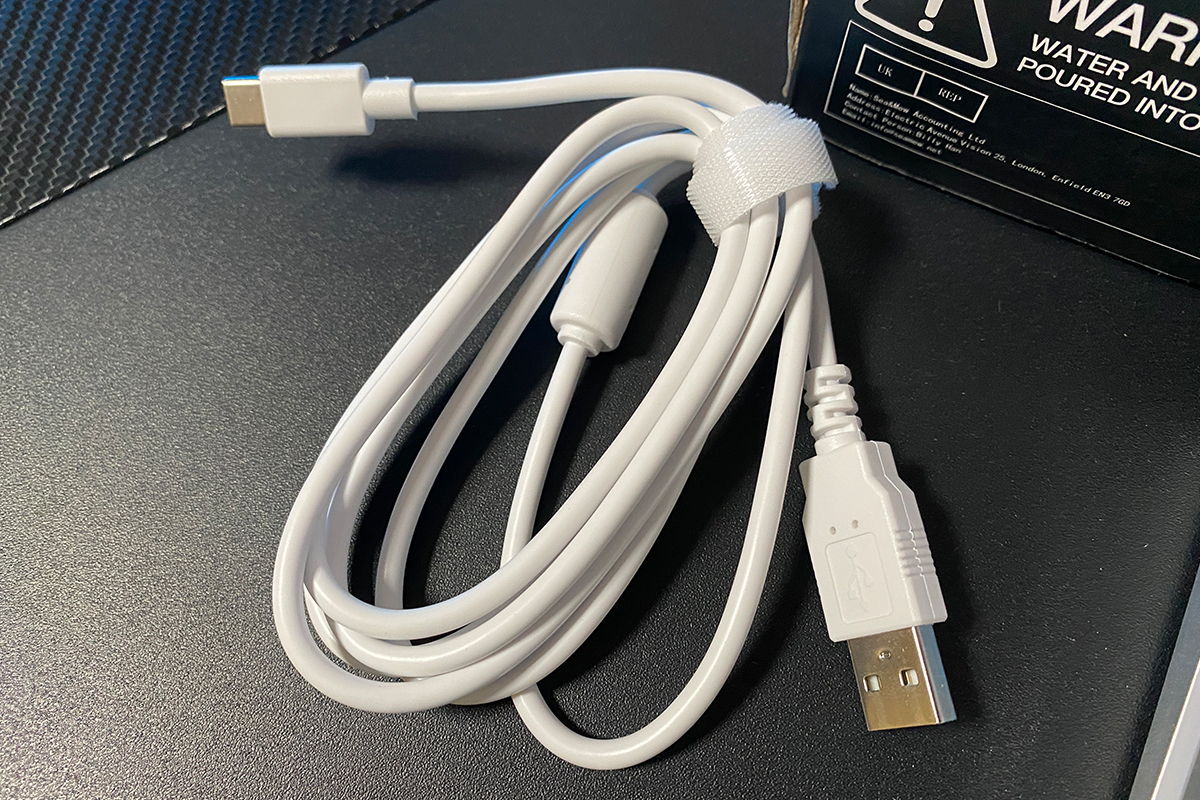
- detachable USB-A to USB-C cable
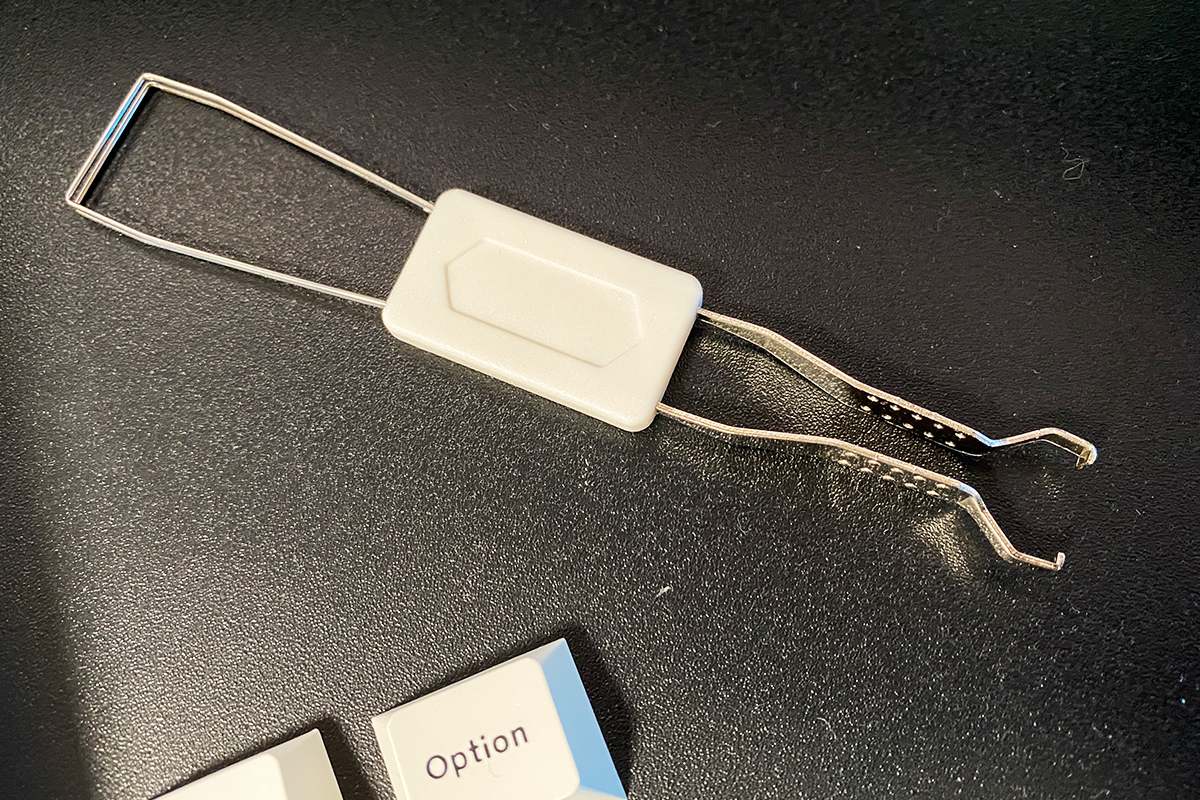
- dual puller for keycaps and switches
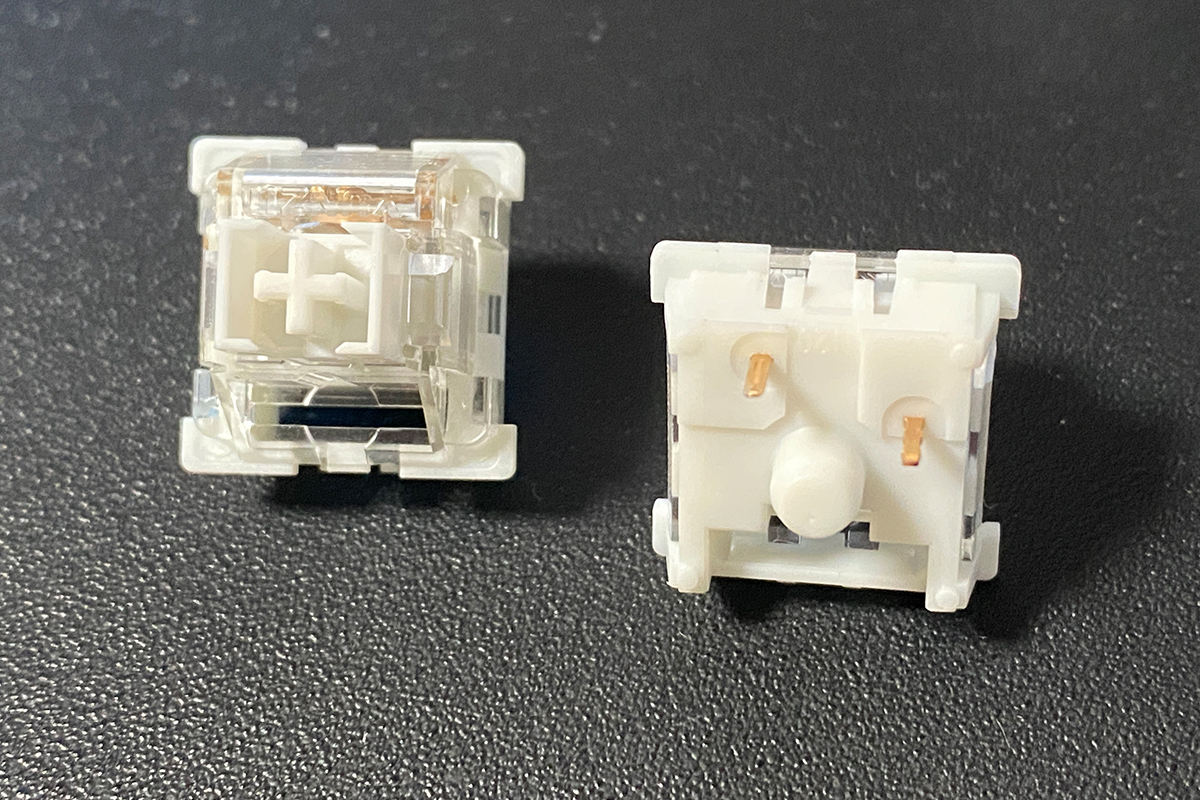
- two spare switches (same as in the keyboard)
- 2.4GHz wireless RF adapter
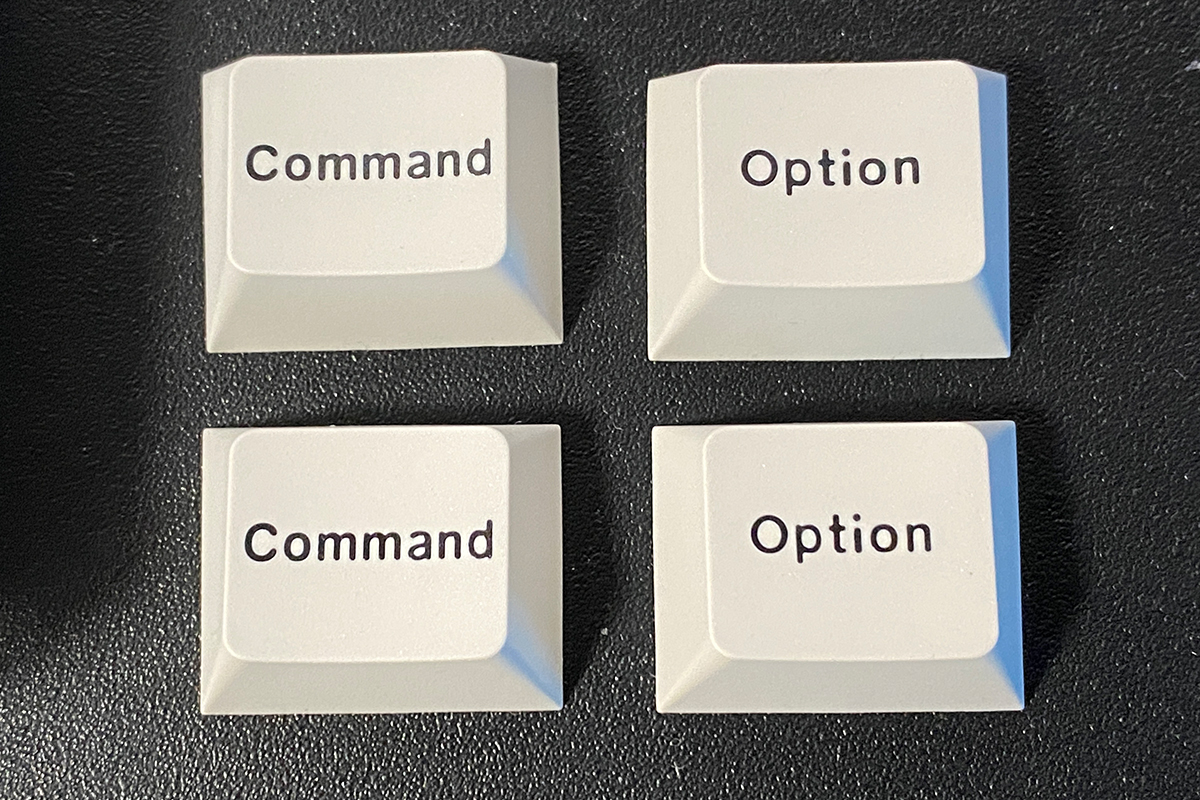
- set of alternative keys for MAC (Command, Option)
- blister dust cover
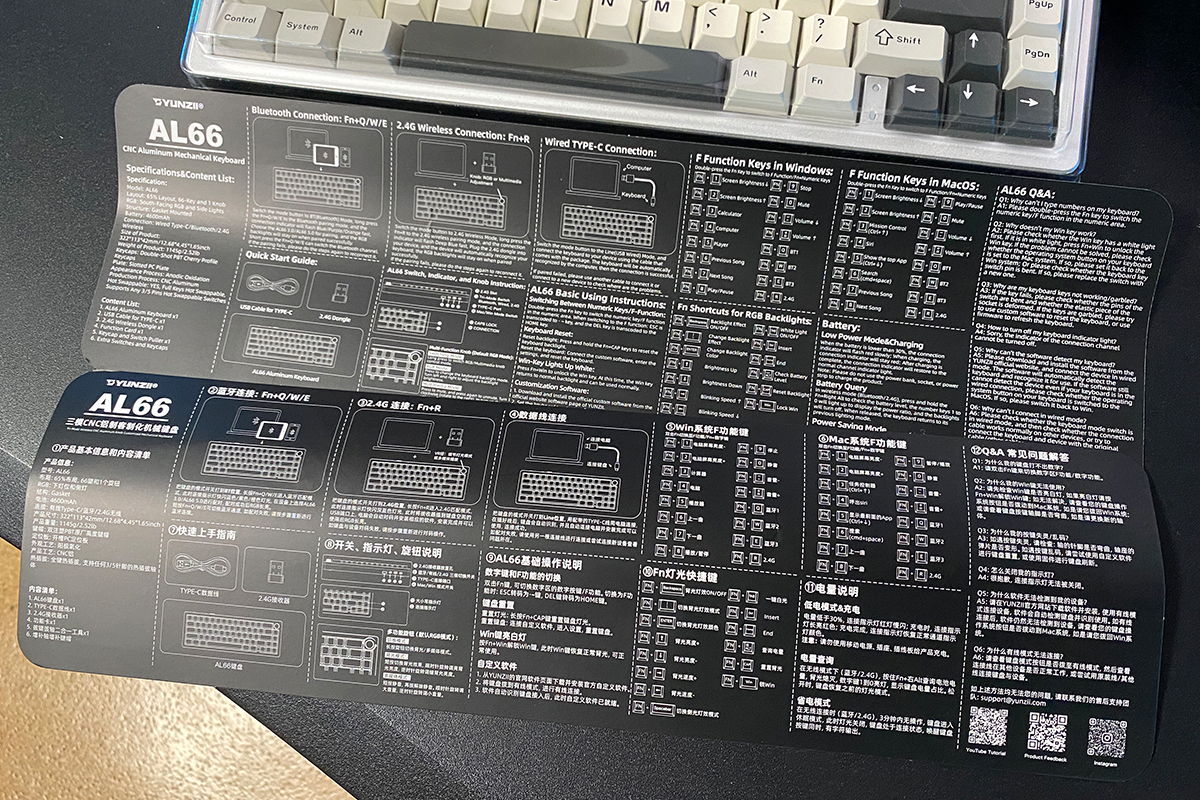
- user manual (two cardboard spreads)

Design, ergonomics, build quality
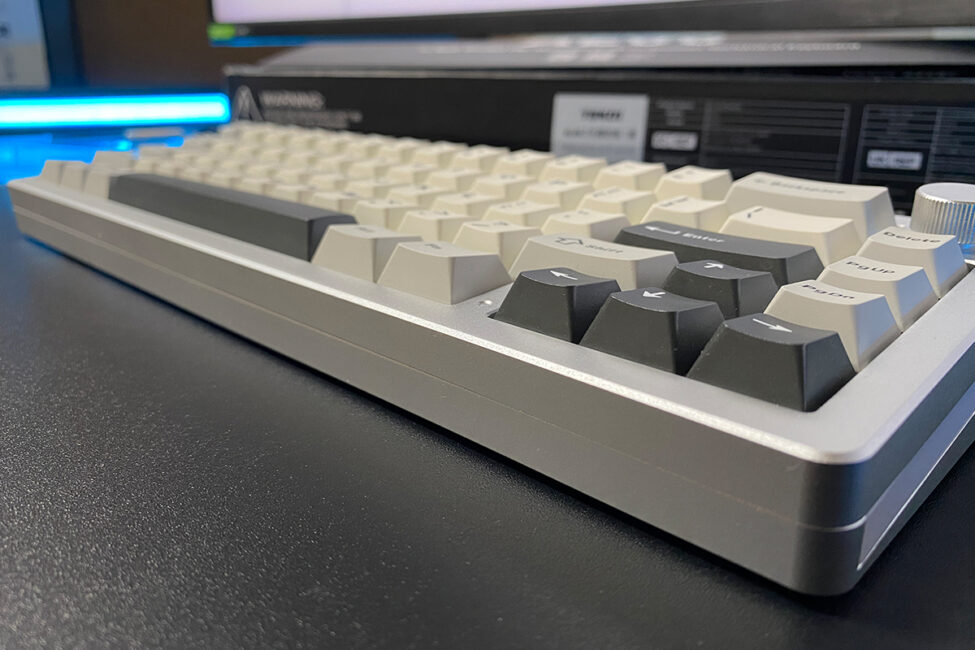
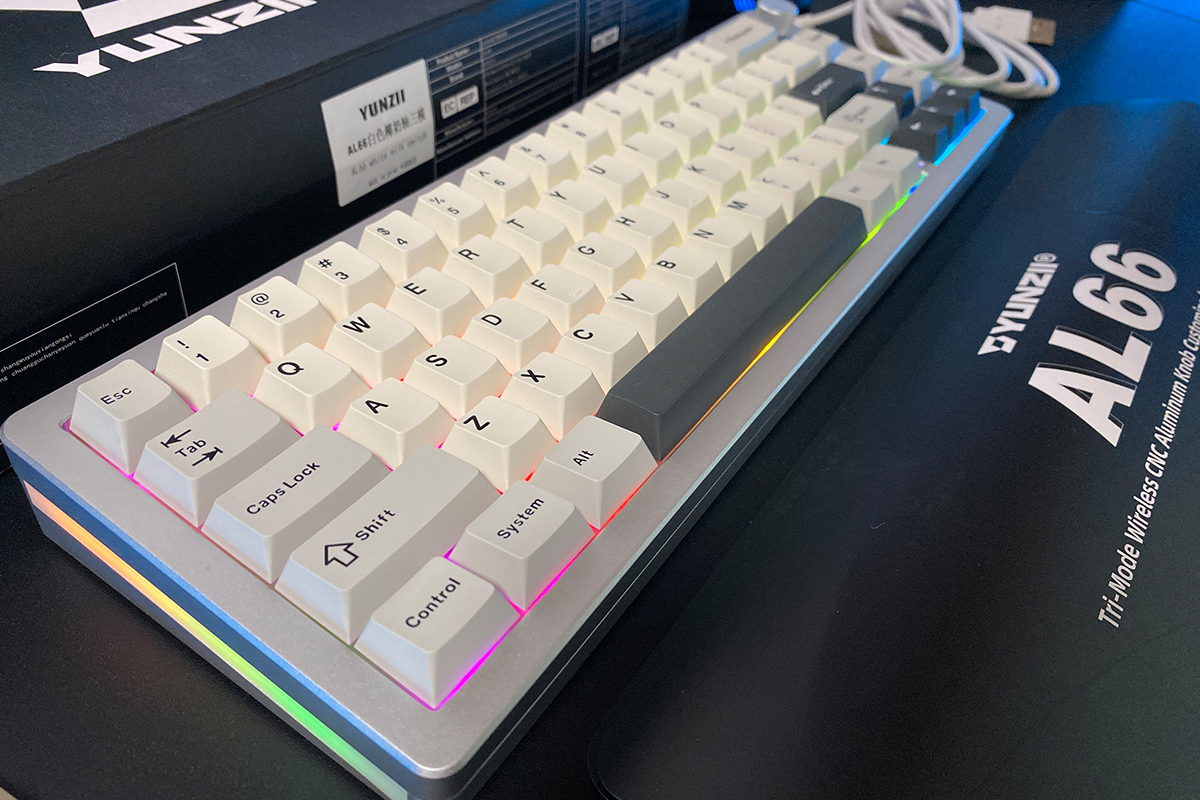
Design-wise, the YUNZII AL66 is essentially a variation of the AL68. The main differences include side lighting, a smaller control knob, and slightly larger dimensions in terms of width and height. Aside from that, it maintains the same clean, understated aesthetic as the rest of the series.
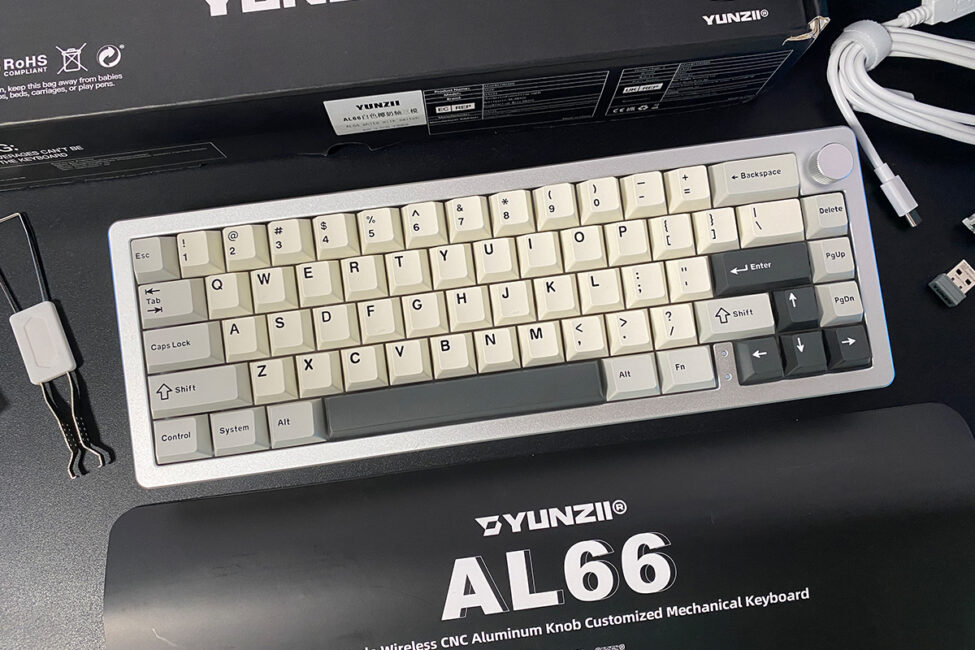
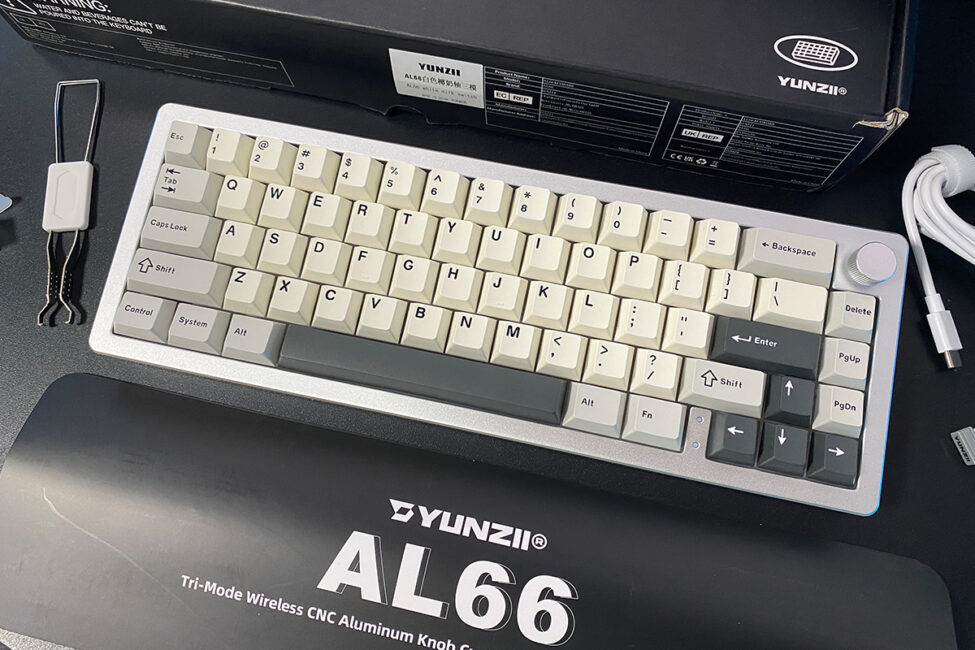
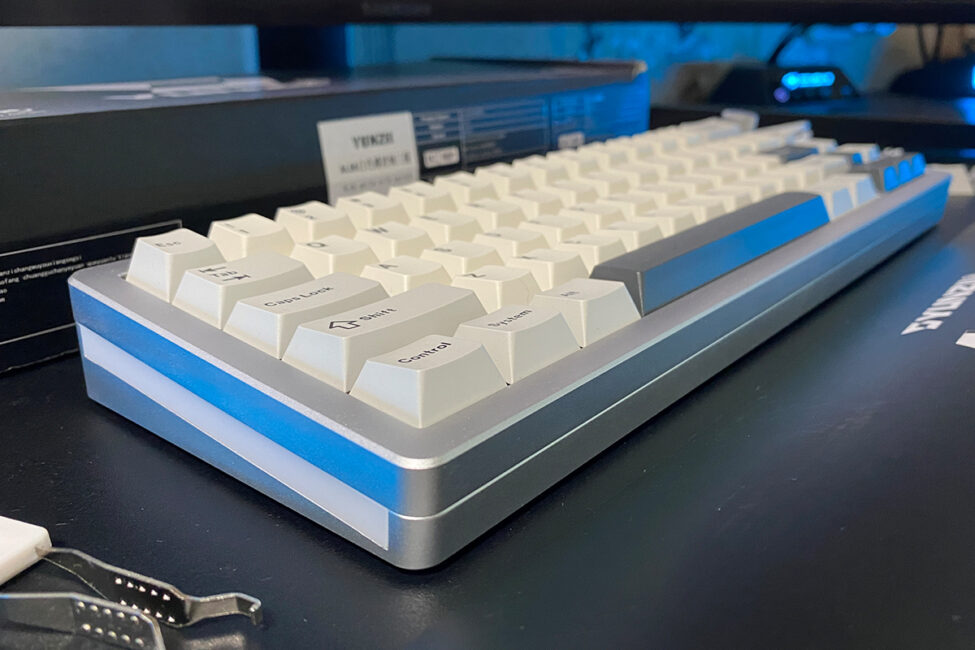
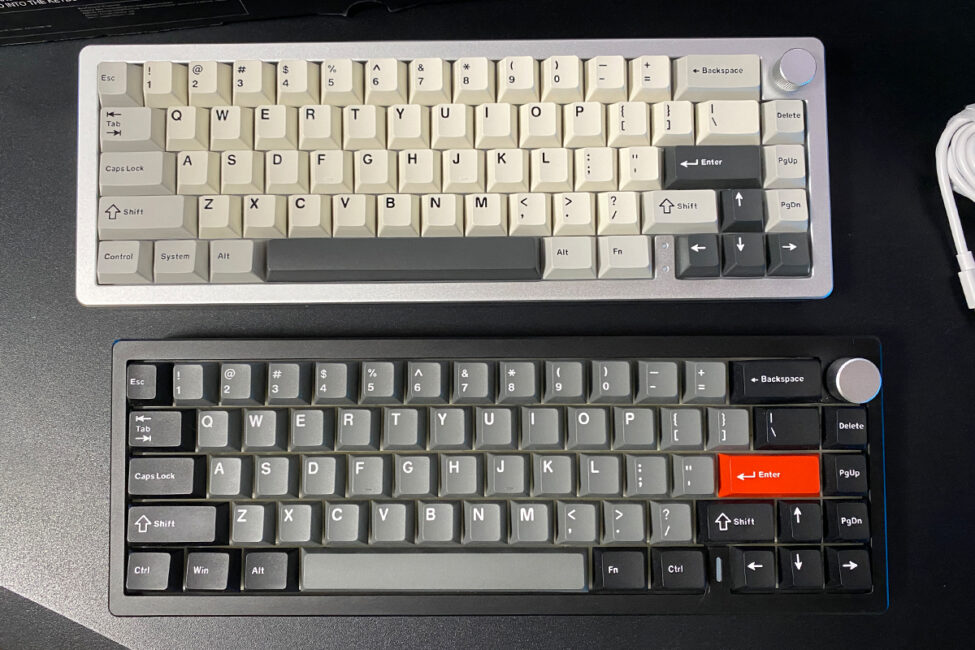
The AL66 offers more color options compared to the AL68. It’s available in four colors right from the start: silver, black, pink, and blue. The review unit I received is the silver version, so most of the photos will focus on that variant. I’ll include images of the other colors in screenshots further down.
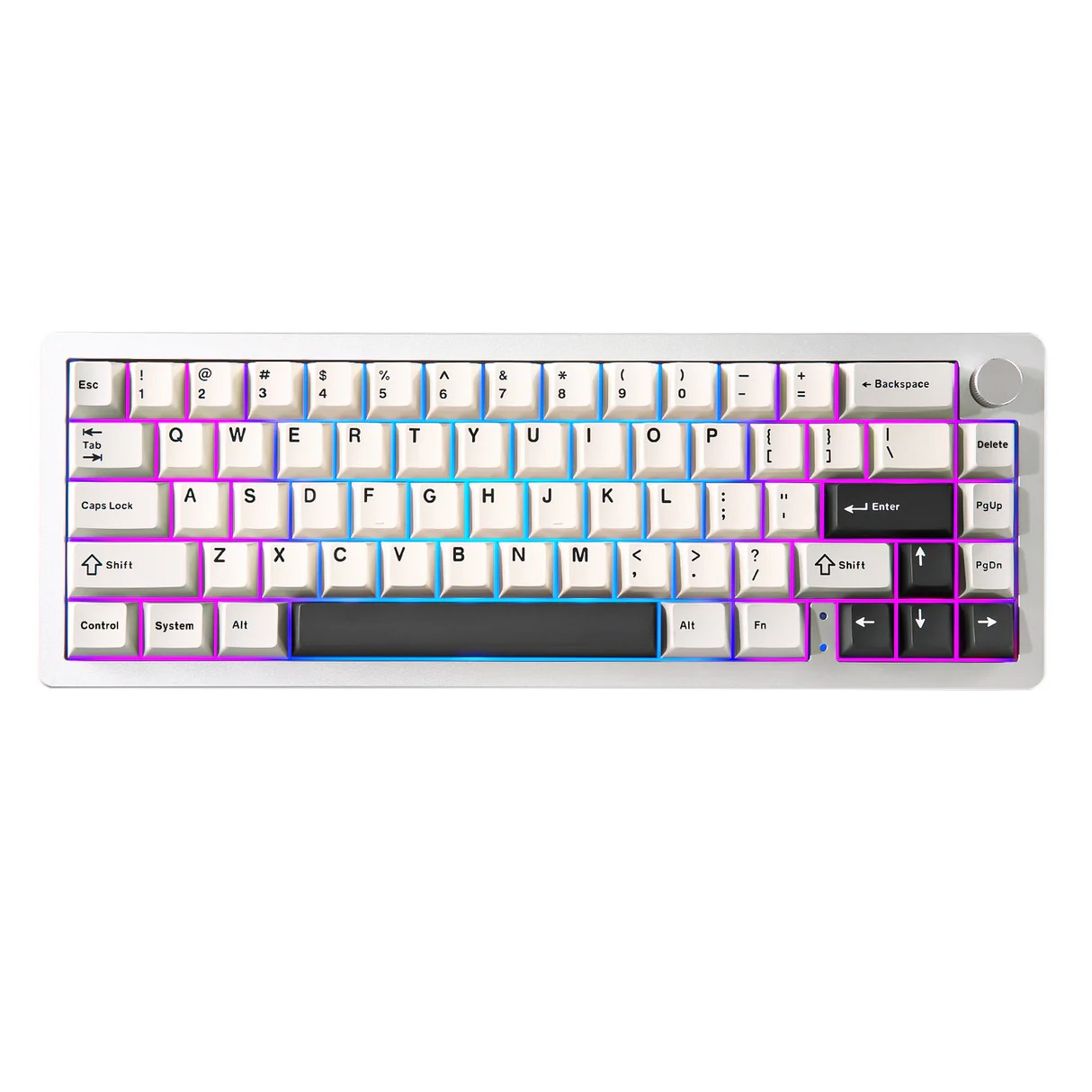
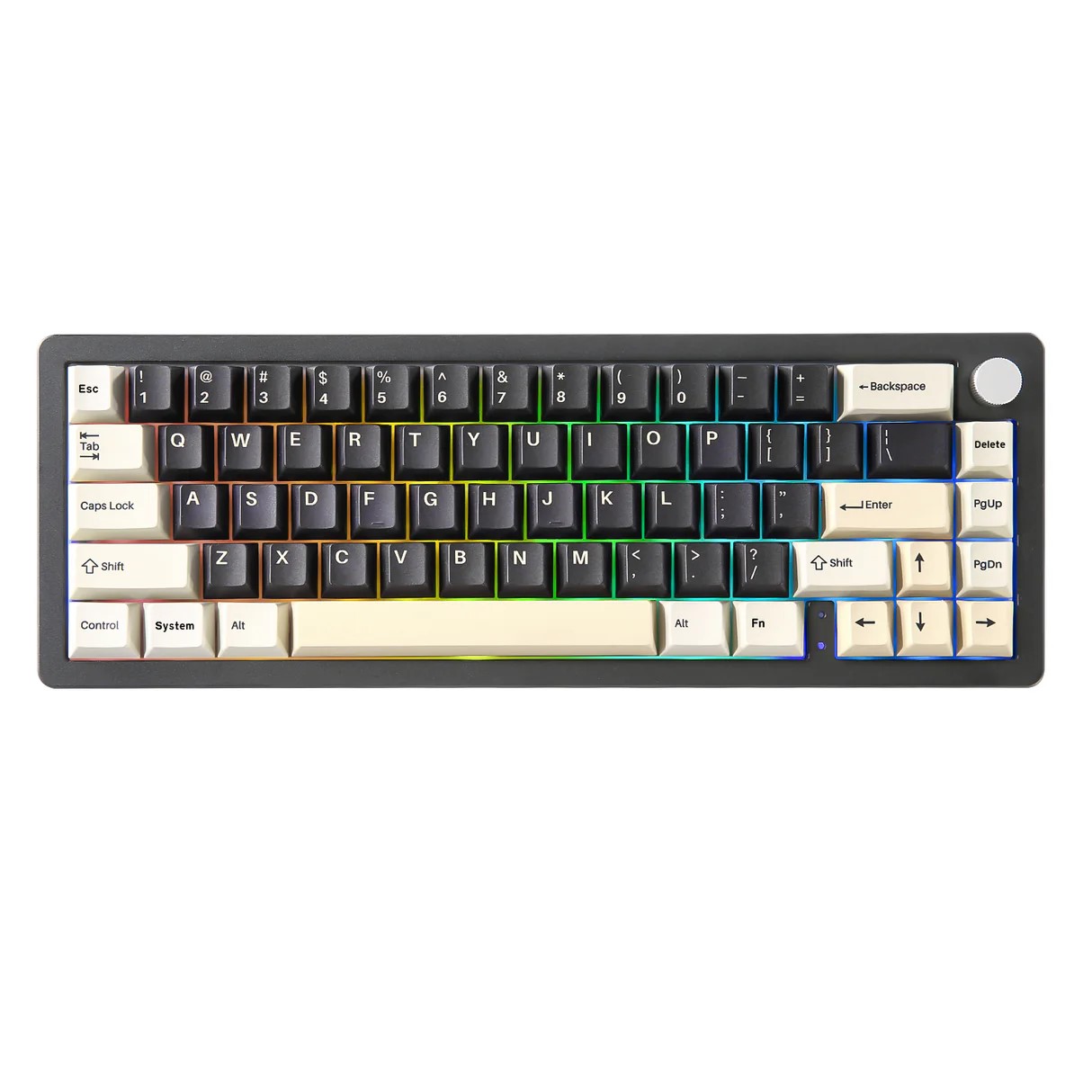
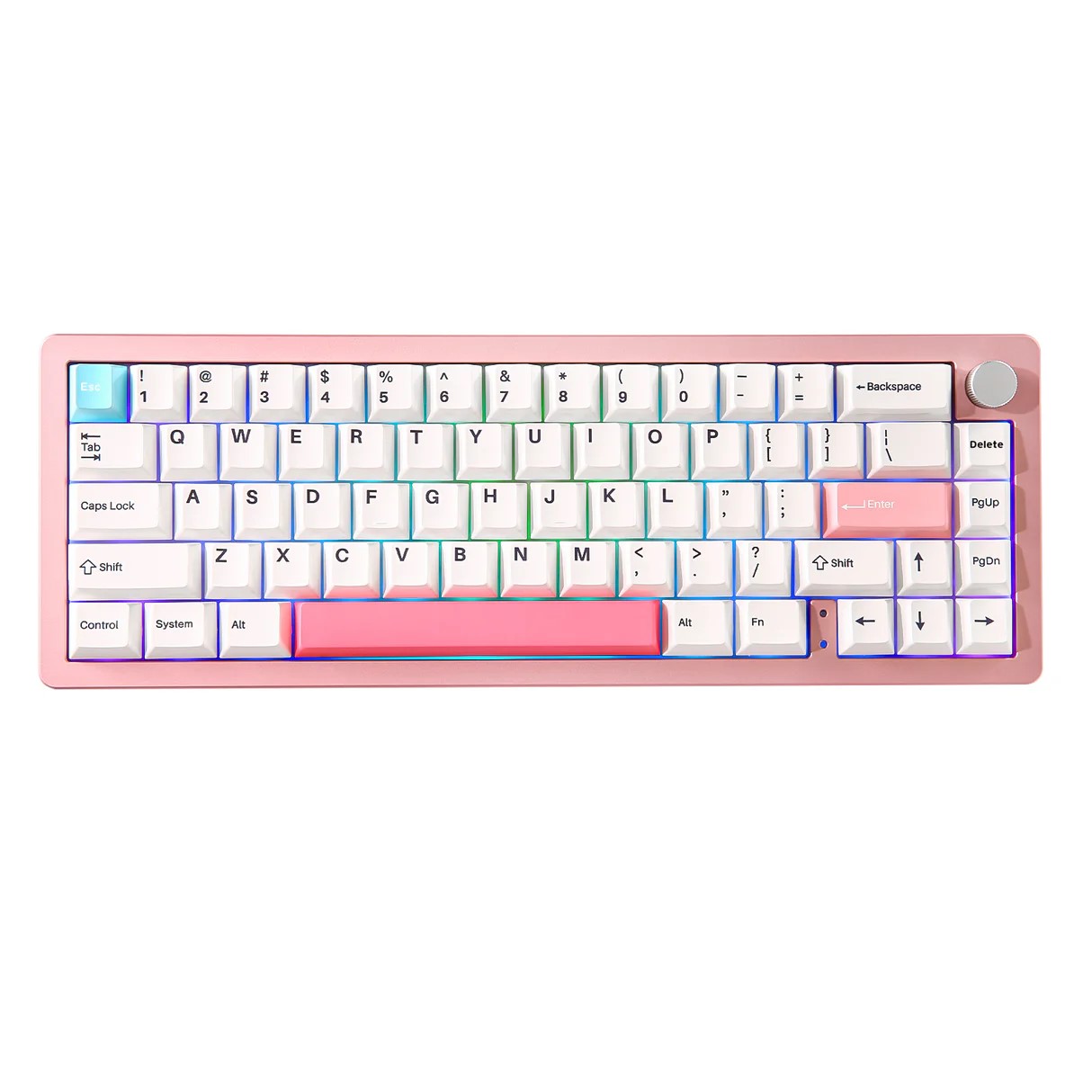
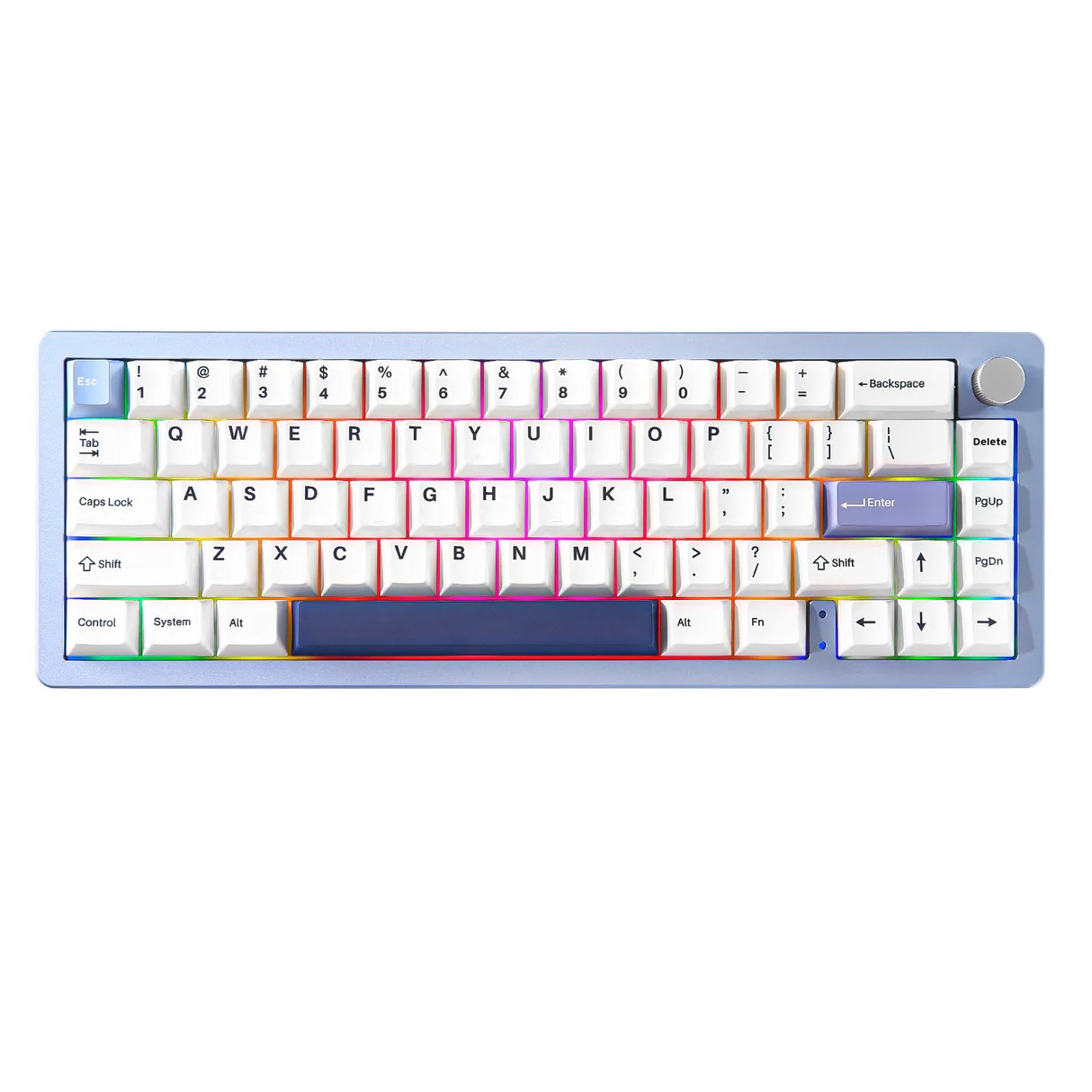
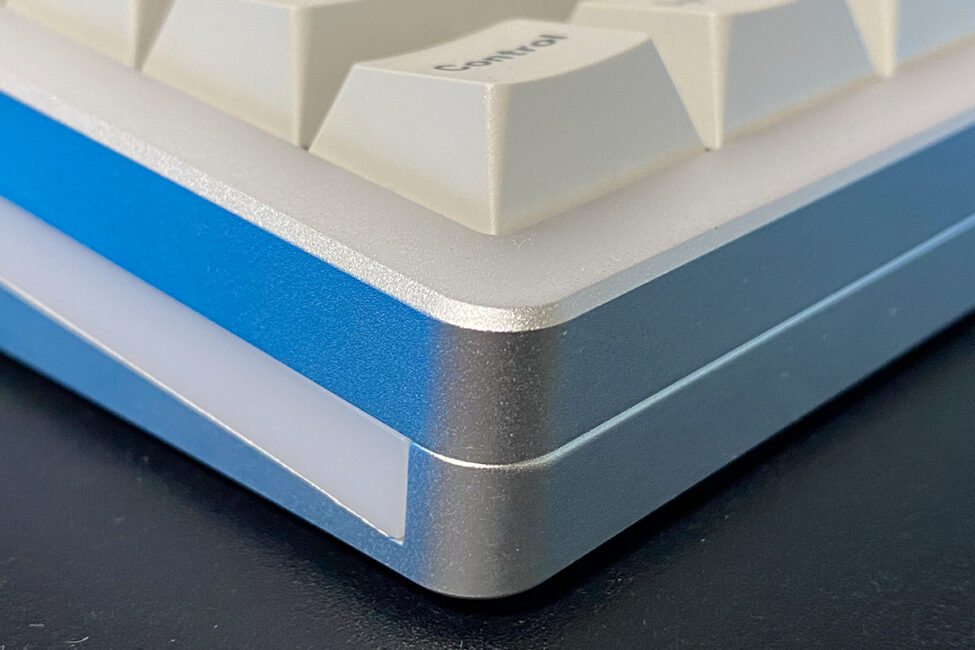
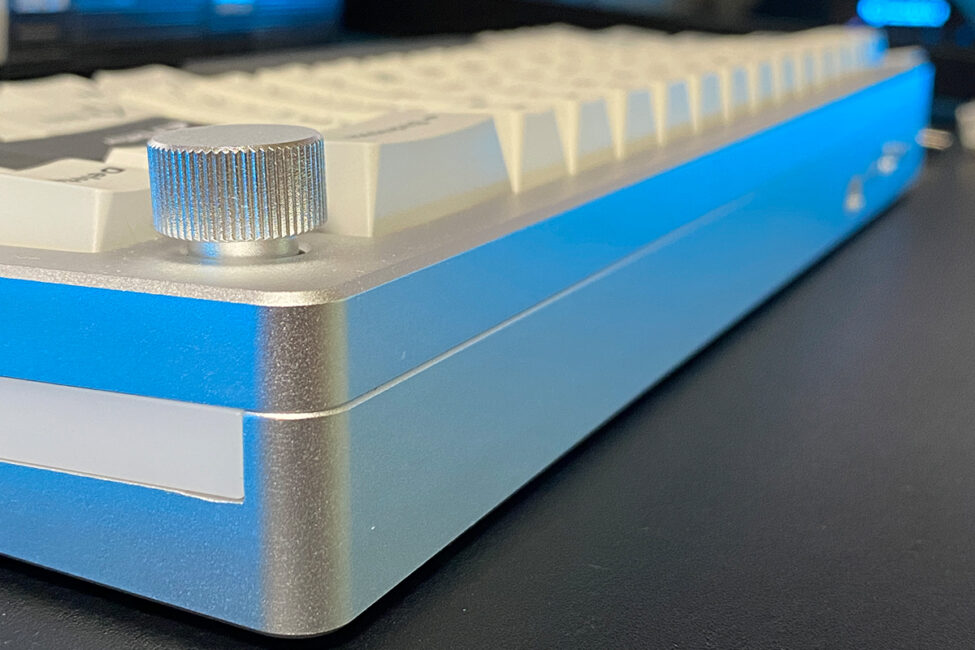
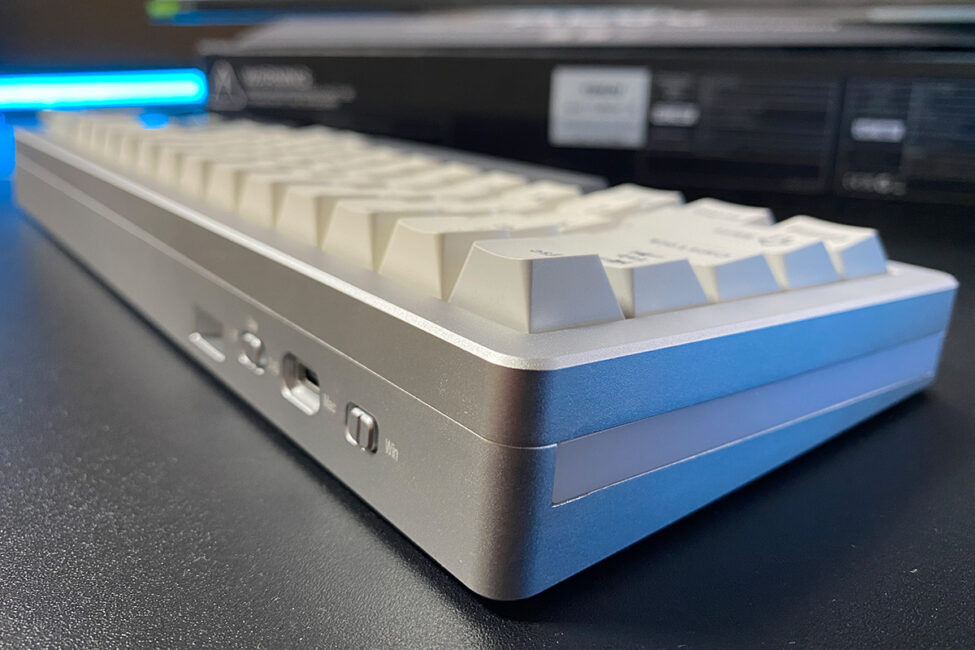
The first thing you notice when picking up the AL66 is its solid metal body and substantial weight – typical for keyboards in the YUNZII AL lineup. Like its siblings, the AL66’s case is made from anodized aluminum and machined using CNC equipment. This results in perfectly flat surfaces, neatly rounded edges, and precise fitting of all the case components.
The internal structure of the keyboard follows a gasket mount design, featuring a full set of various gaskets and dampening layers aimed at improving the typing experience. Rather than listing all the details, it’s easier to illustrate the AL66’s internal construction with a screenshot.
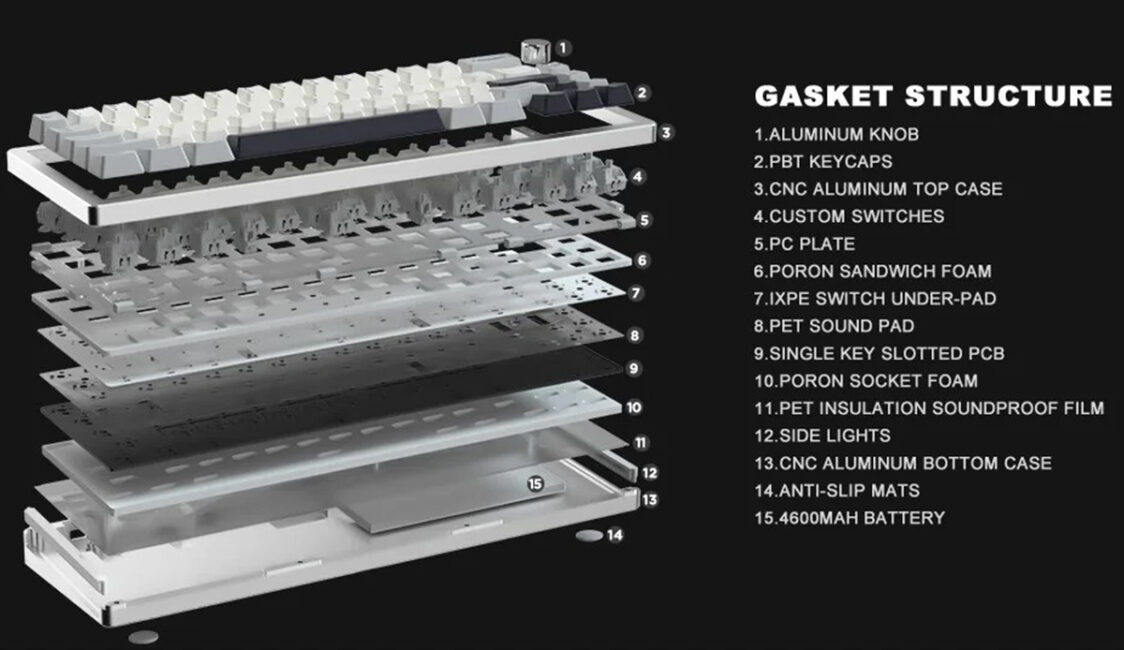
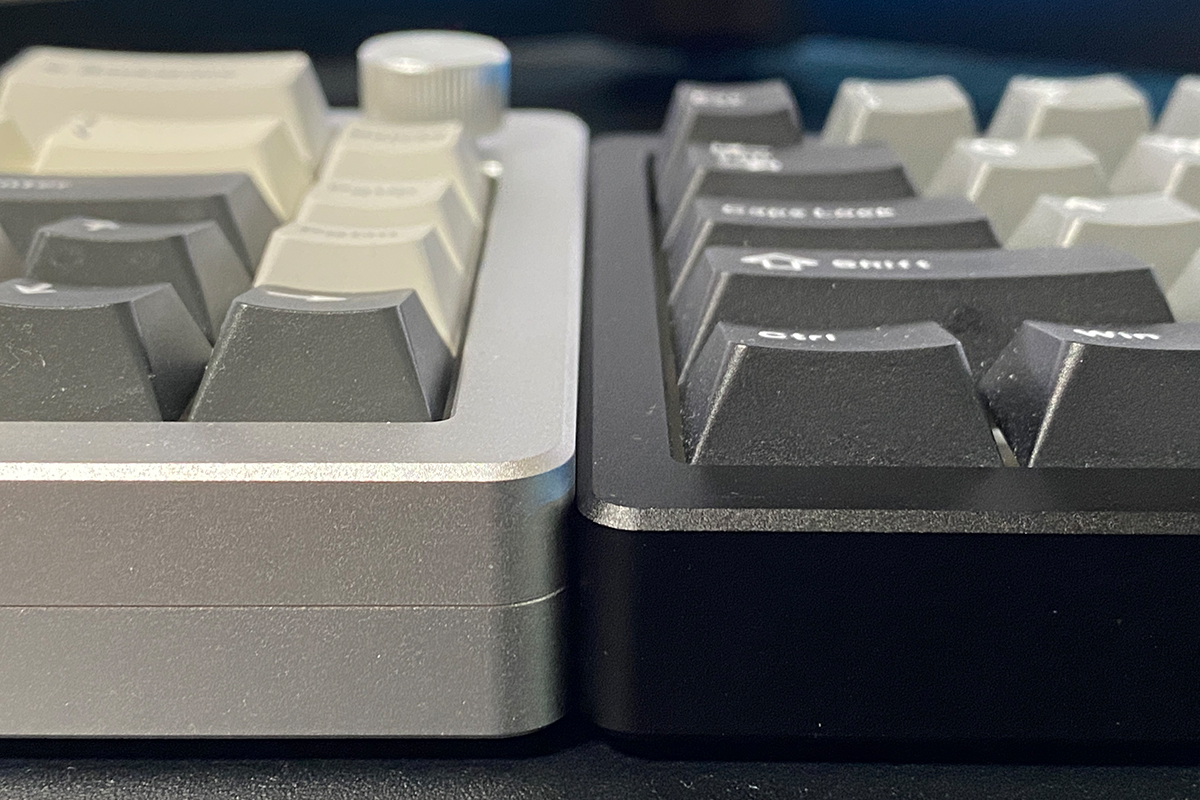
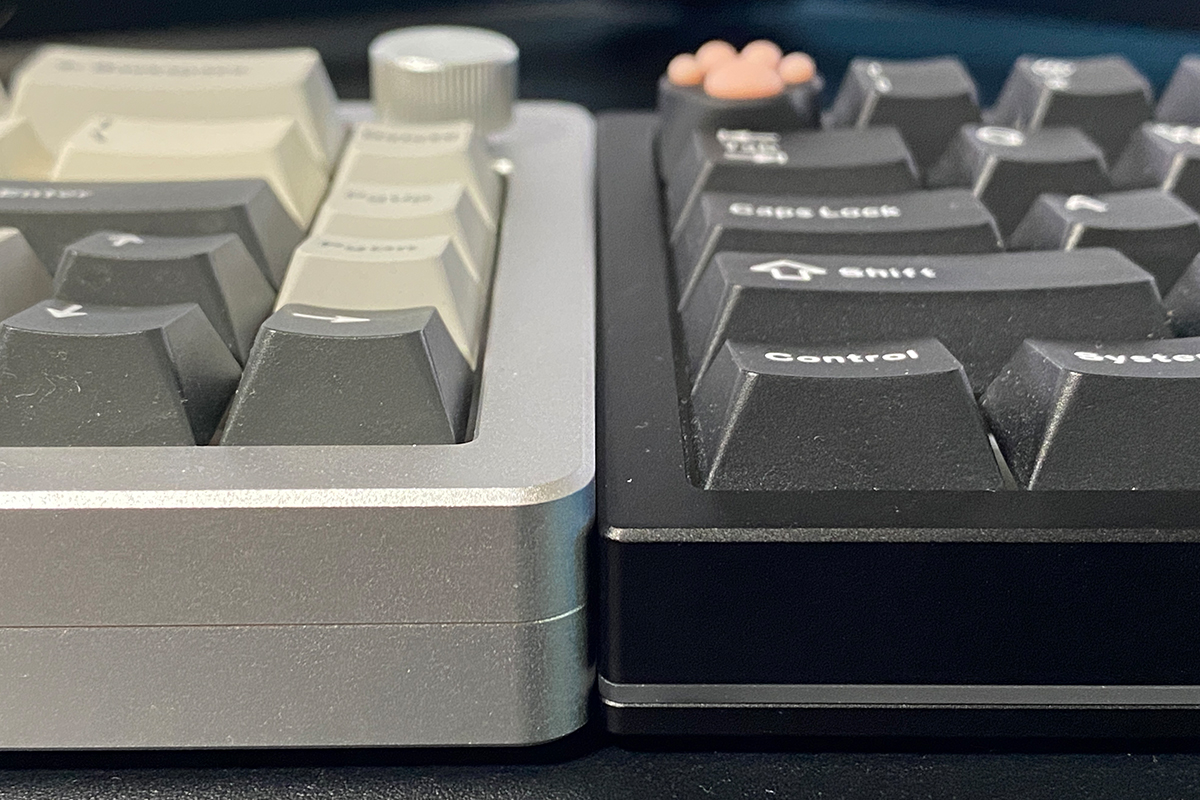
The AL66 follows a 65% layout, similar to the AL65 and AL68 models I’ve reviewed previously. In terms of size, the AL66 is slightly wider and thicker (taller) than those earlier models:
- AL65: 319.4 x 110.0 x 39.9 mm
- AL68: 319.0 x 114.0 x 40.25 mm
- AL66: 322.0 x 113.0 x 42.0 mm
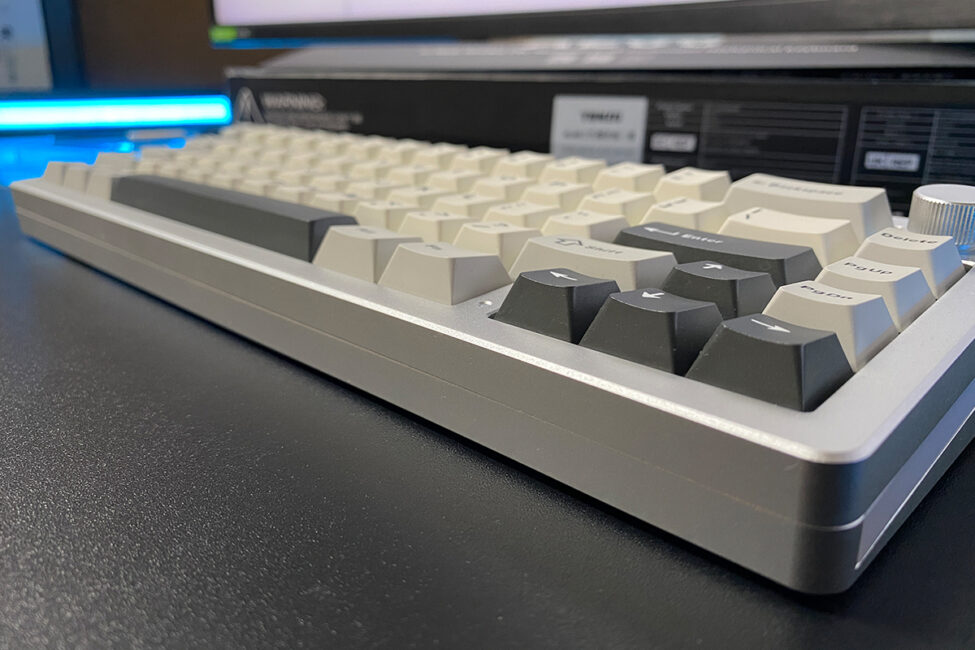
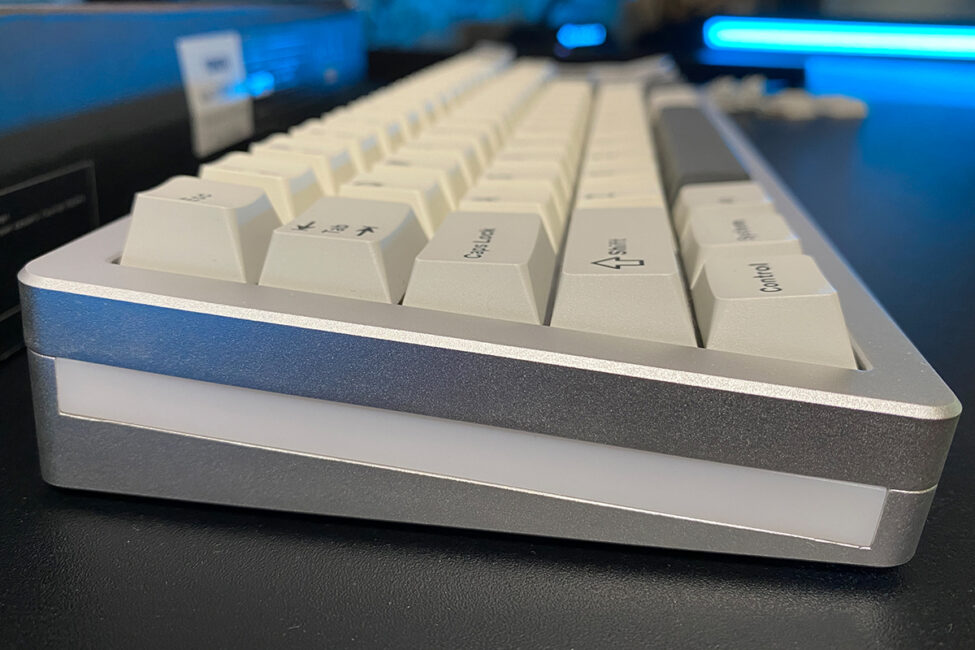
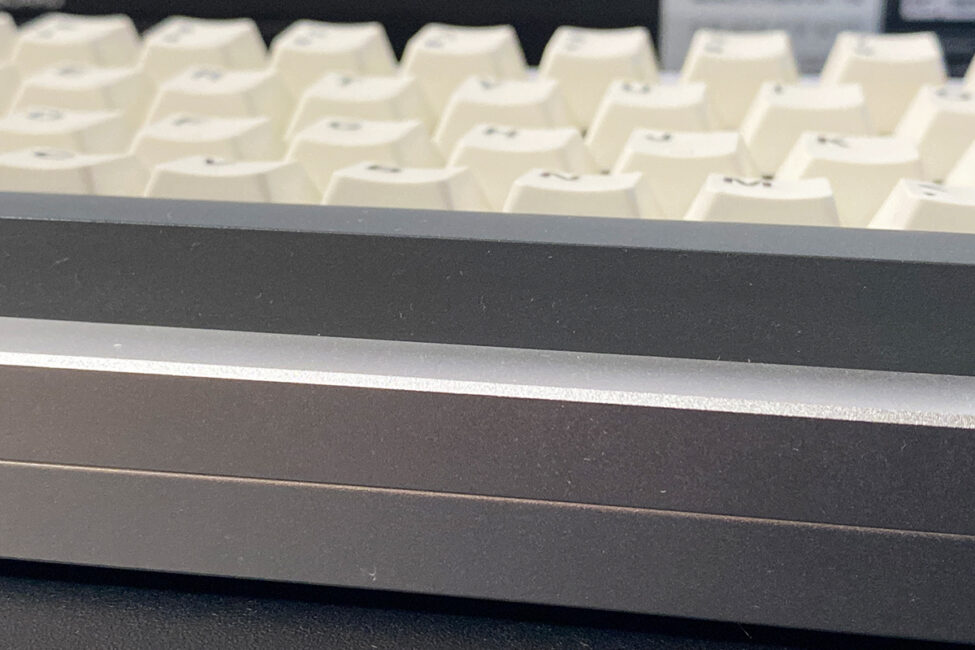
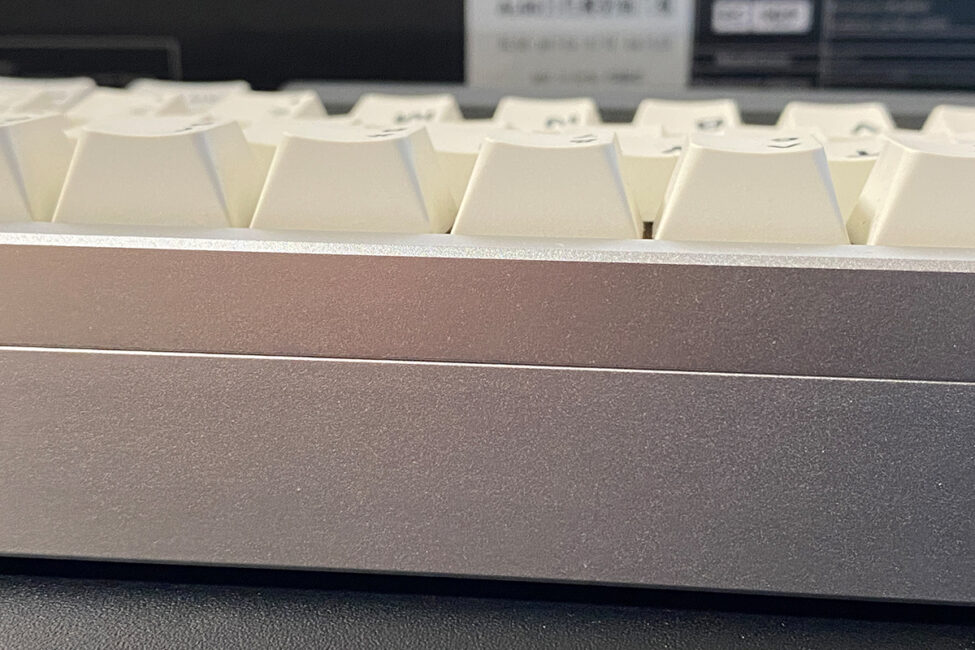
I have to say, the size difference – especially in thickness (height) – is noticeable right away. While a few millimeters might not seem like much, the AL66 initially feels like a notably tall keyboard. That said, it doesn’t take long to get used to it. However, it’s worth noting that not everyone prefers keyboards this tall or thick. On the other hand, the AL66’s weight is quite similar to its counterparts, weighing in at 1,145 grams.
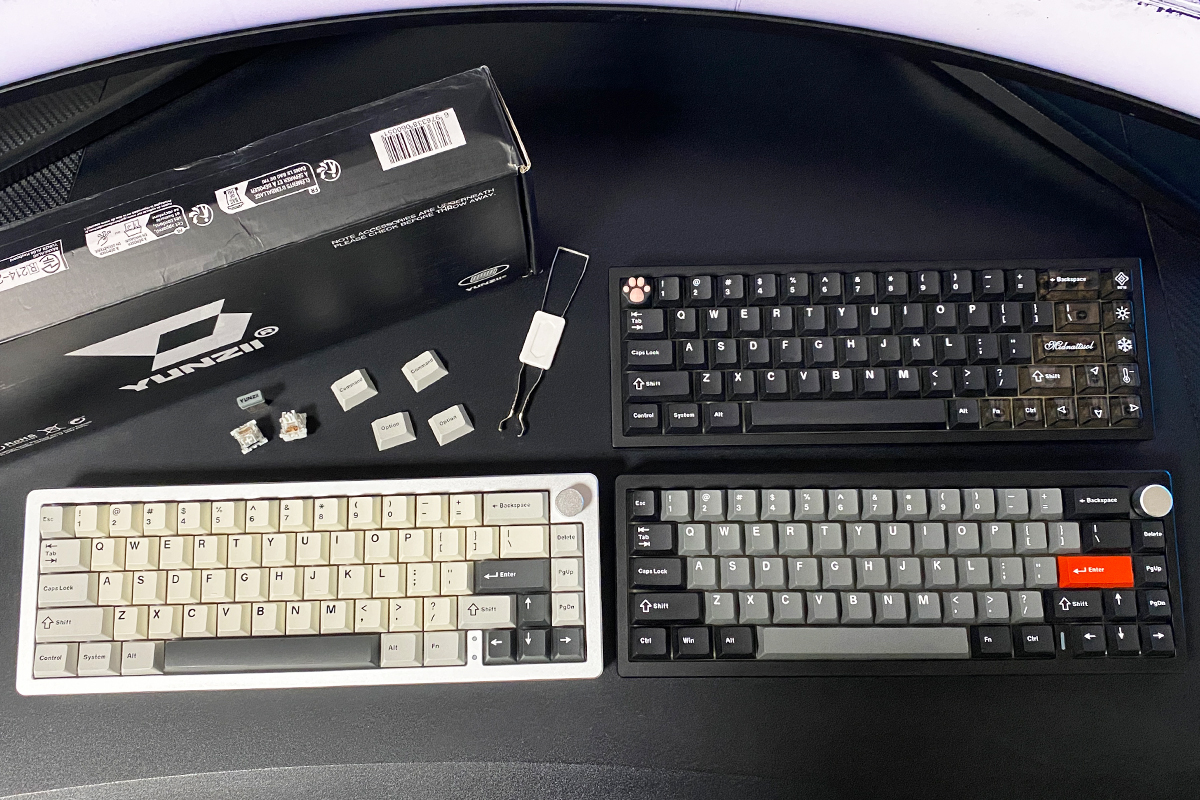
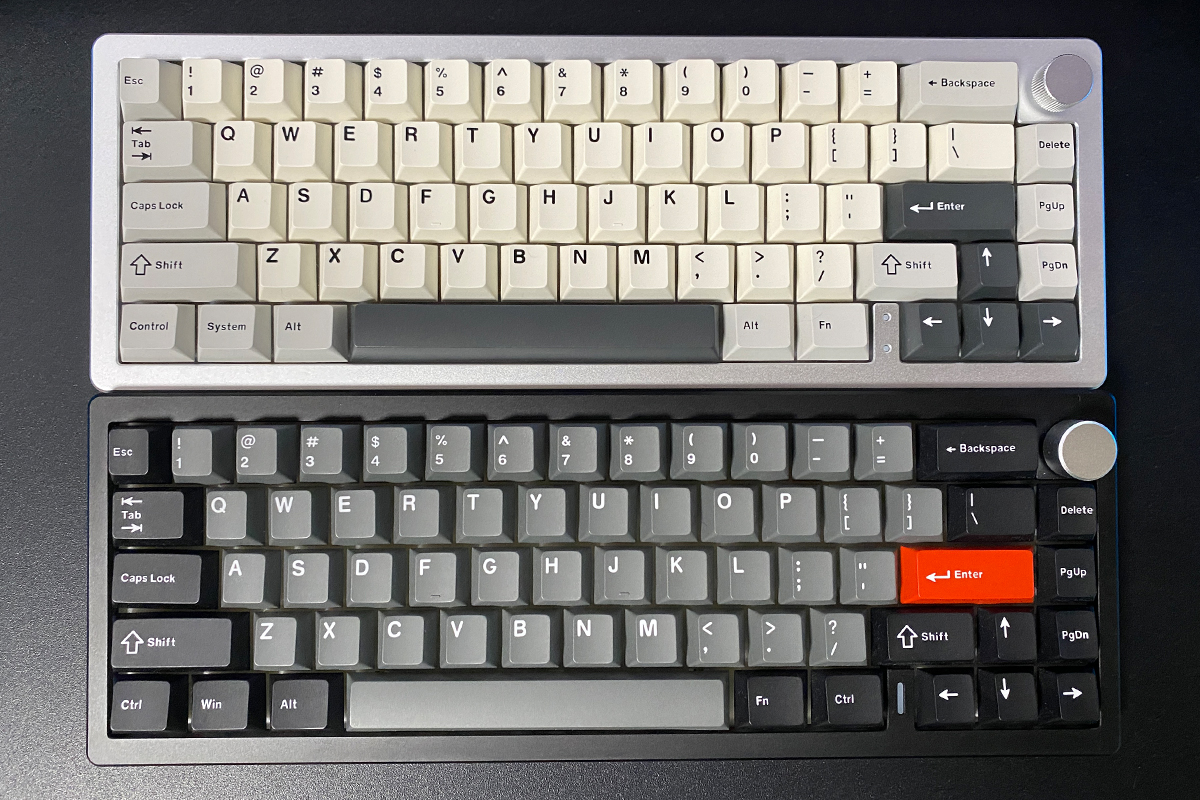
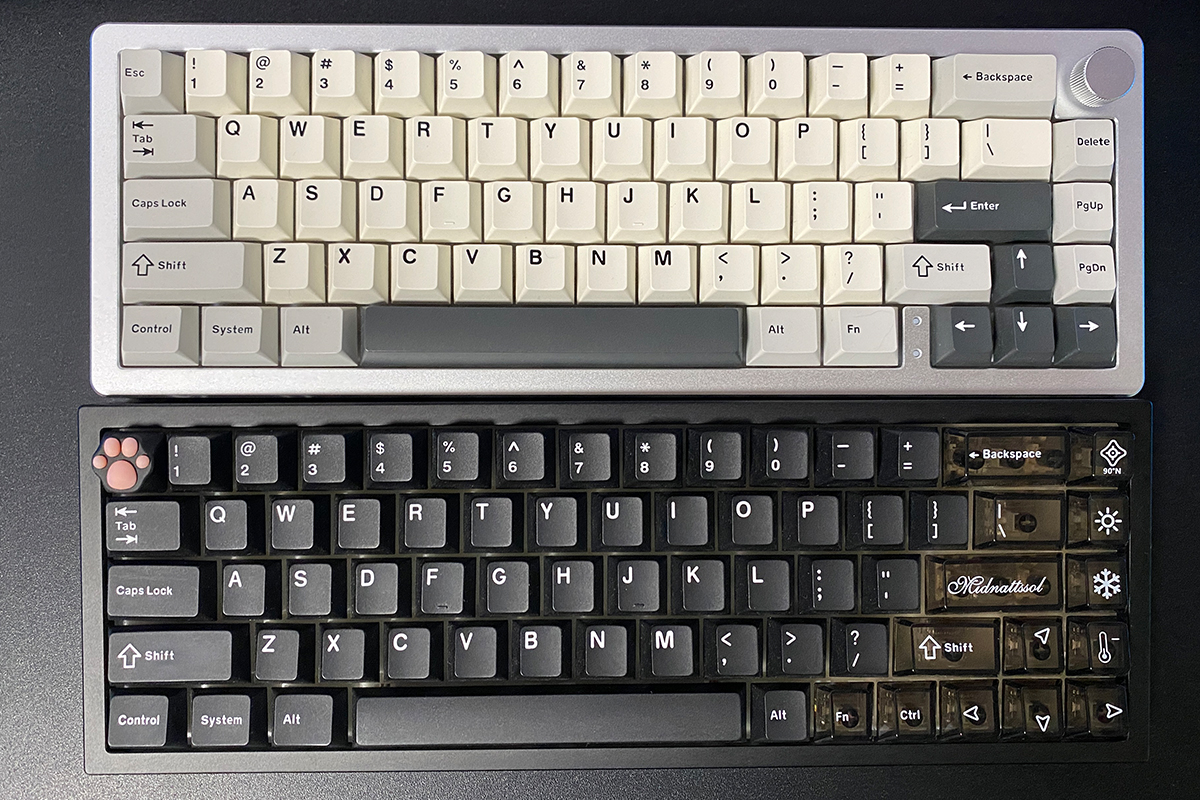
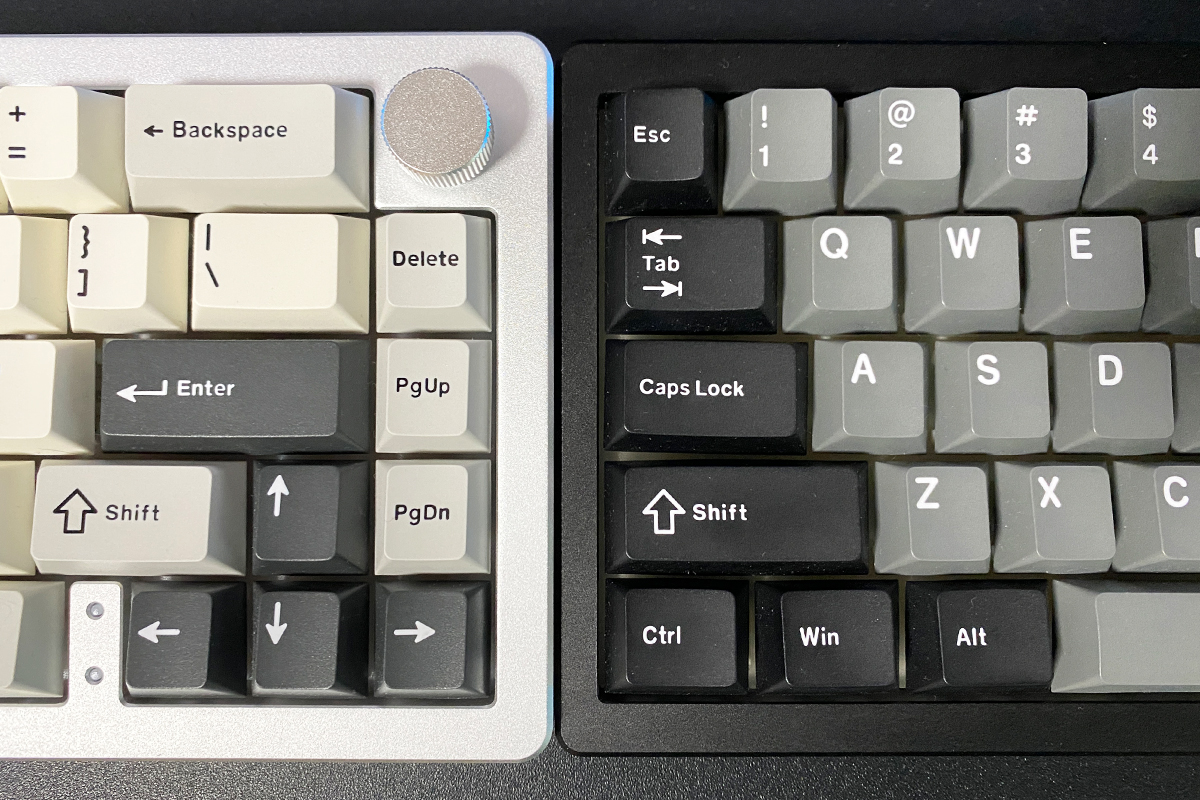
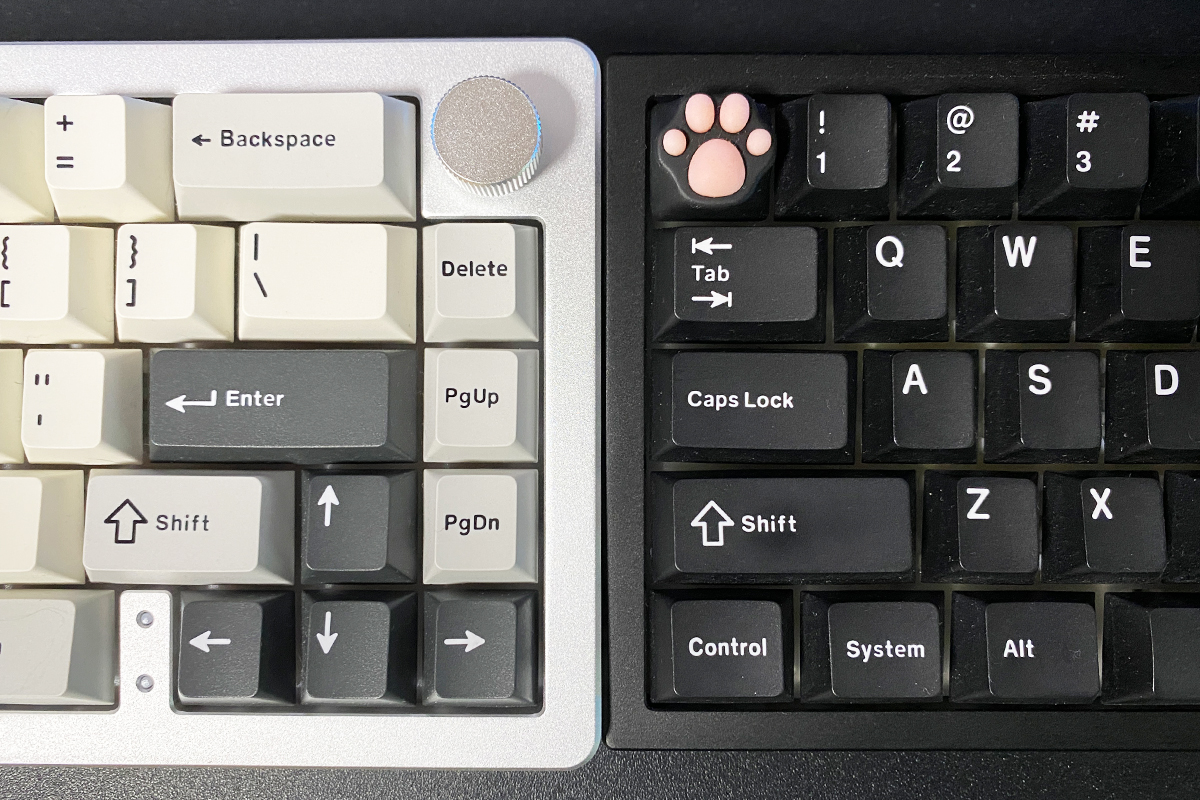
The AL66 uses the same layout as other 65% keyboards in the series – a standard ANSI (QWERTY) configuration. It features a long Shift key, a single-row Enter, and an extended backslash key. There’s no dedicated numeric keypad or function row (F1–F12), but those keys can be accessed through FN key combinations. Notably, these FN shortcuts are well-designed and convenient right out of the box. I didn’t even need to remap anything to suit my preferences, unlike with some other 65% keyboards in the lineup.
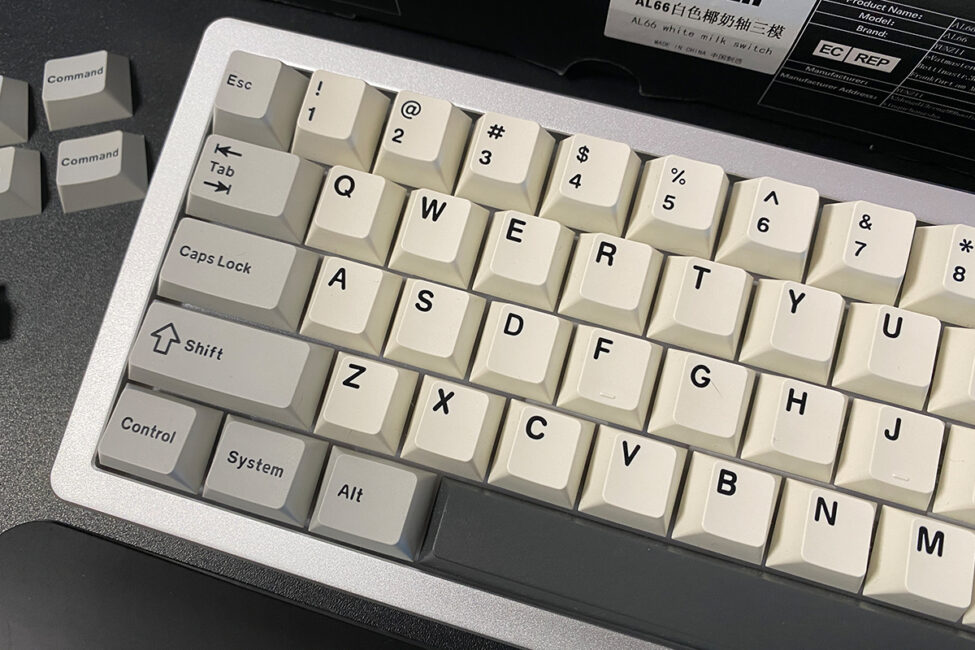
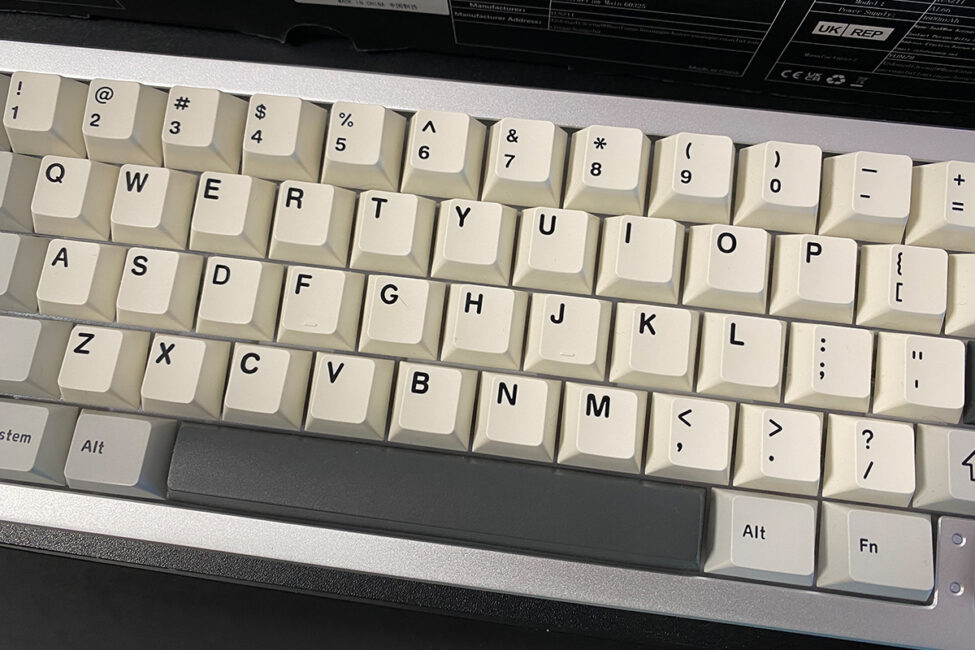
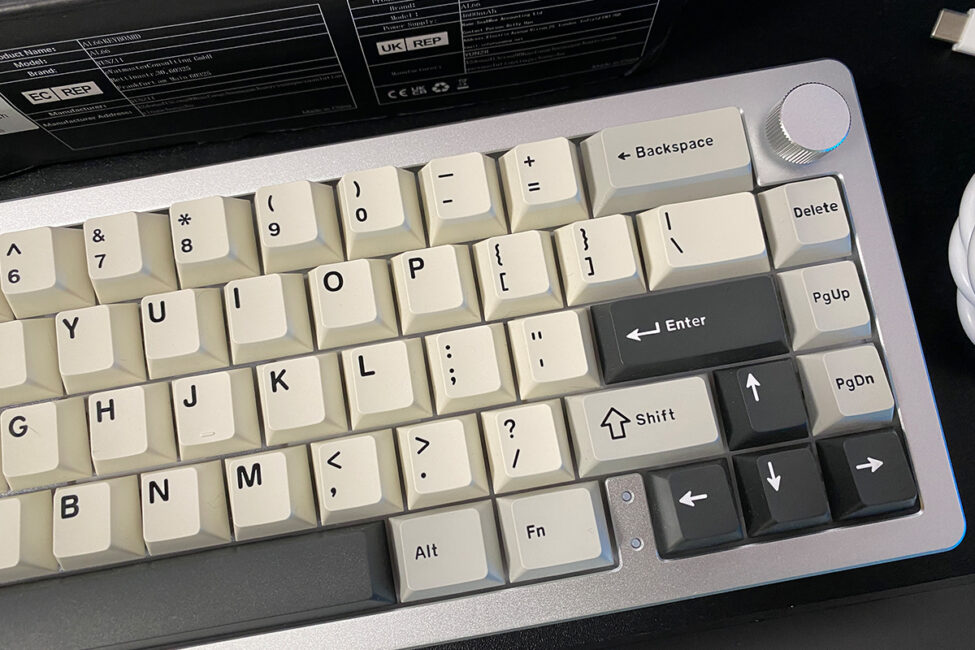
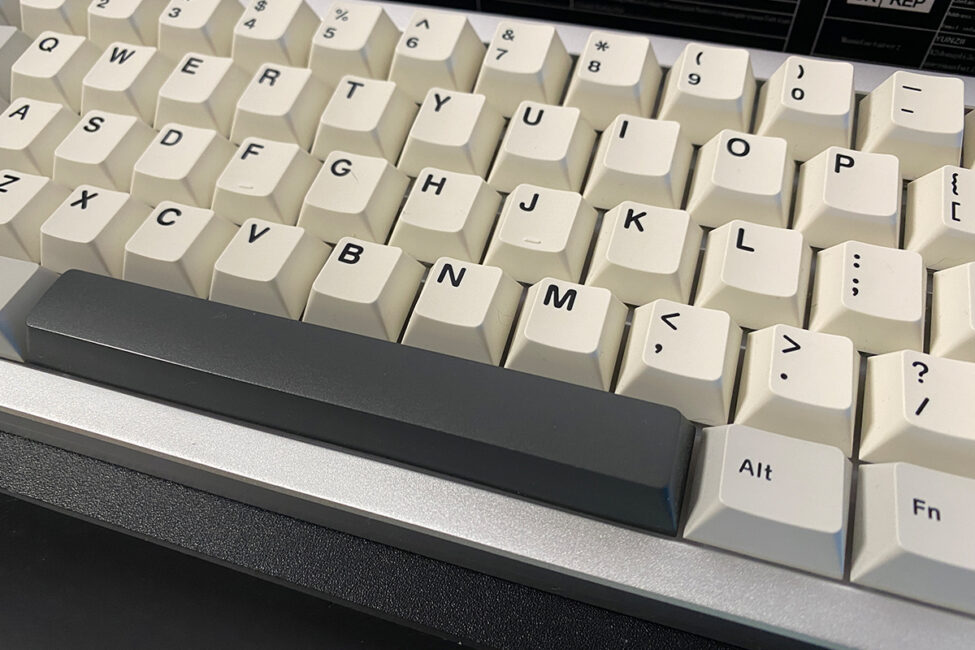
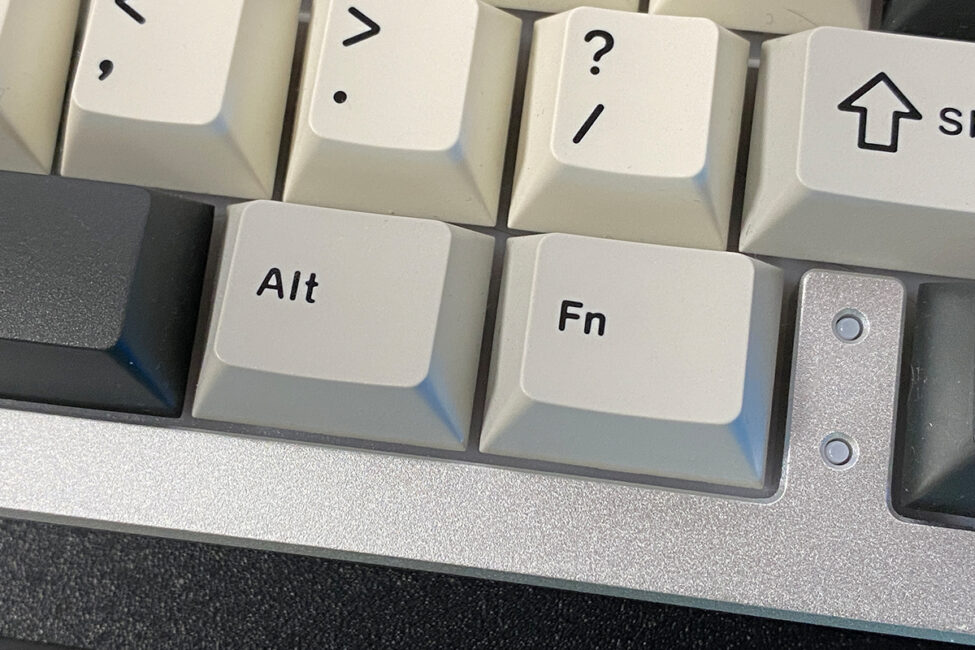
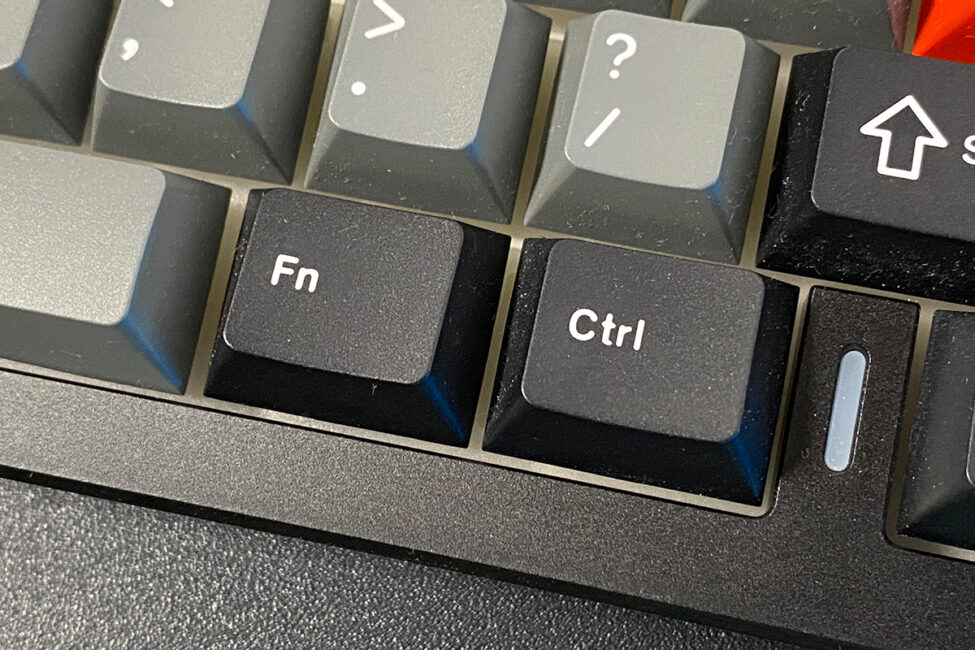
On the AL68, there were two standard-sized keys to the right of the spacebar – Fn and Ctrl – instead of three smaller ones (Alt, Fn, Ctrl). In my previous review, I noted this layout was very convenient since the Fn key gets frequent use on 65% keyboards. With the AL66, it’s a similar setup, but instead of a right Ctrl key, there’s a right Alt key, and the positions of the Alt and Fn keys are swapped. Overall, it’s something you can get used to quite quickly.
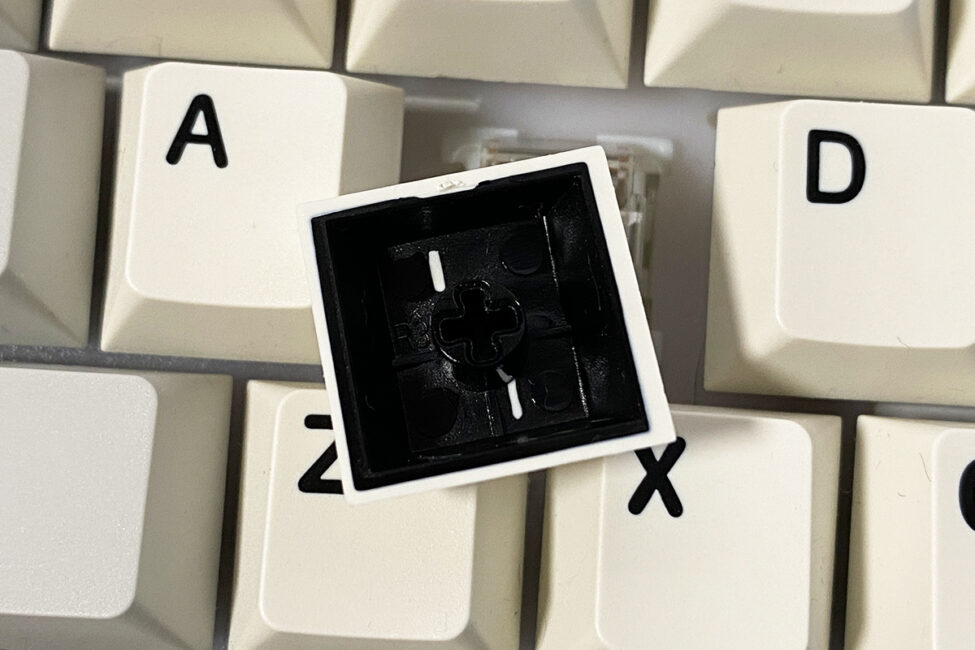
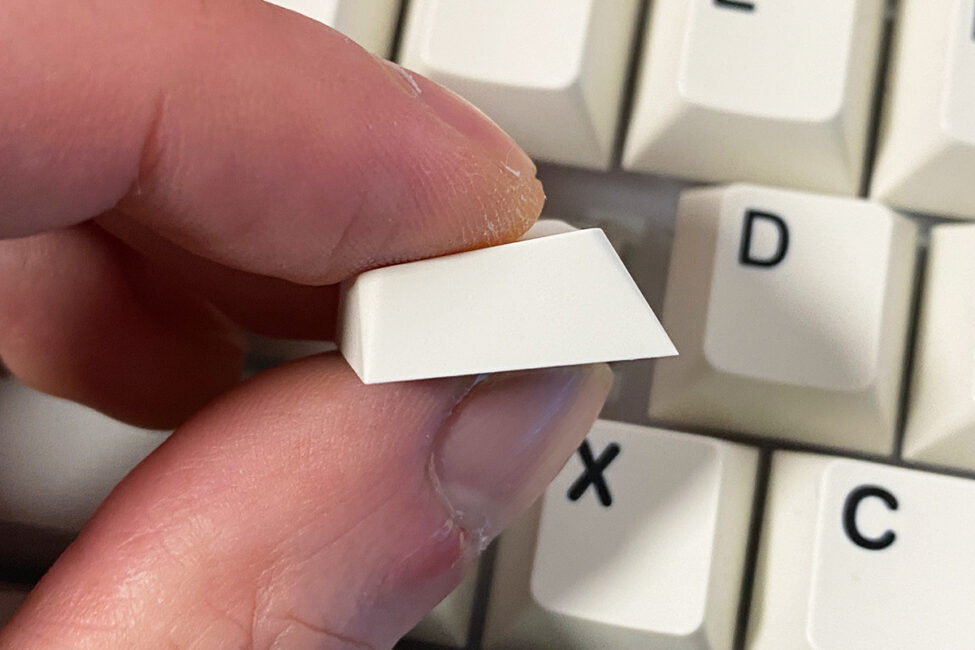
Like all keyboards in the series, the AL66 comes with high-quality double-shot PBT keycaps in a Cherry profile. The plastic is thick and slightly textured to the touch. The legends are neat, standard-sized, and clearly visible even without backlighting. On the underside of the keys, there are no burrs or molding defects. Overall, these keycaps are excellent on their own.


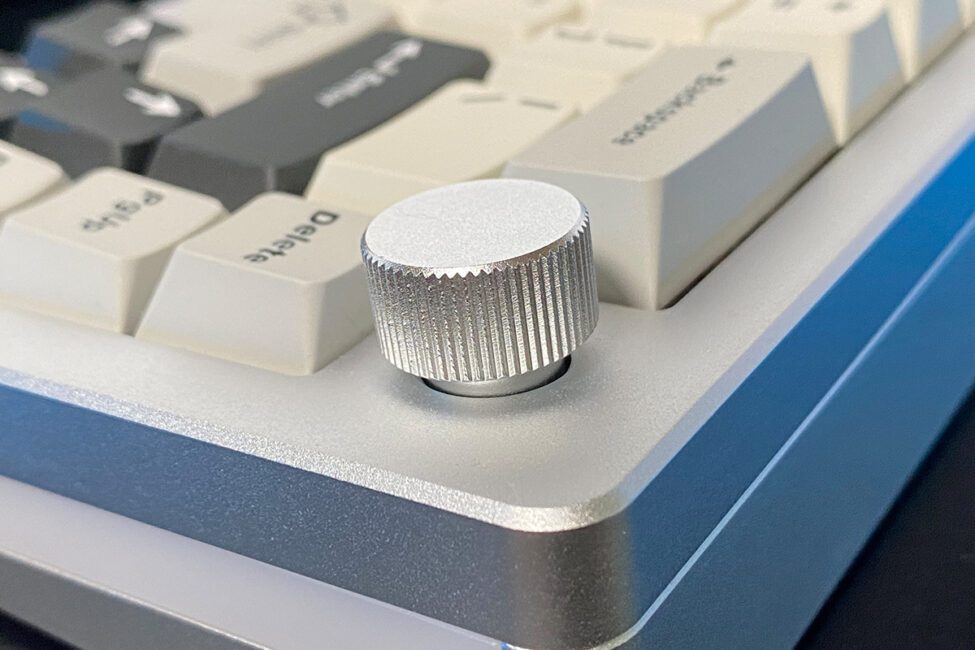
Like the AL68, the AL66 features a multifunctional control wheel that adjusts both volume and keyboard backlighting. You switch between these modes by pressing and holding the wheel for about five seconds. When the mode changes, the keyboard’s lighting blinks – providing clear visual feedback that the adjustment mode has switched.
The wheel itself is made from the same aluminum material as the keyboard case. However, unlike the AL68, the AL66’s wheel is smaller, which actually feels quite comfortable. It rotates smoothly and quietly, with a pleasant texture on the sides and a perfectly smooth top. In short, it’s an excellent adjustment wheel.

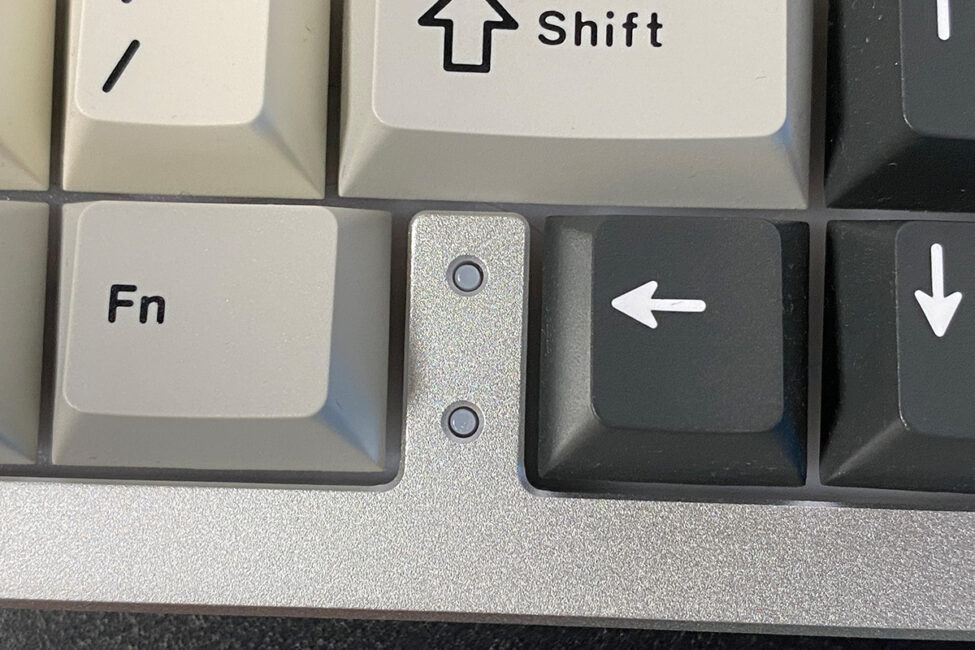
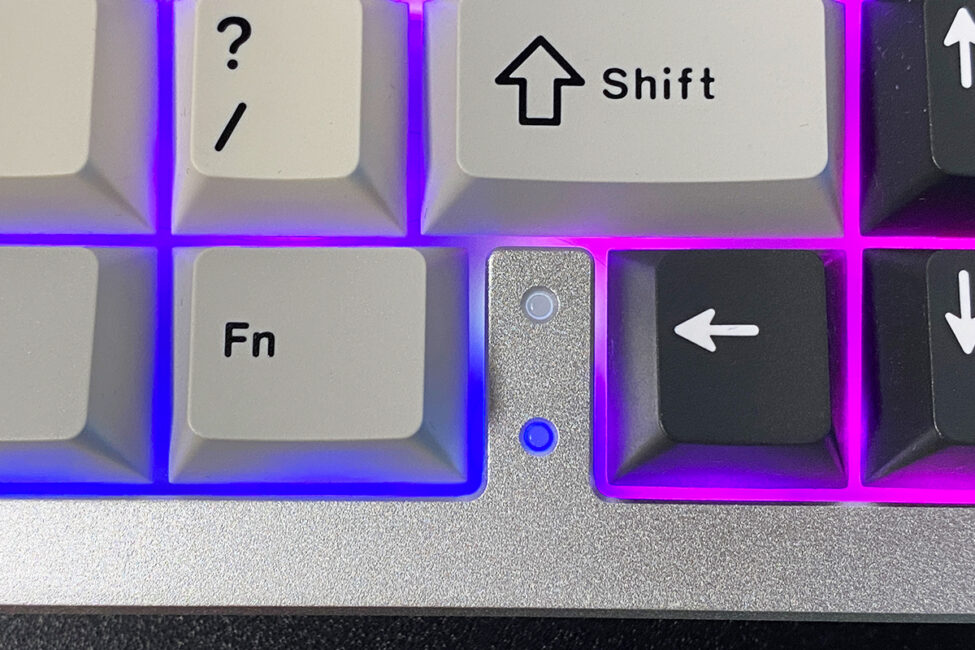
To the left of the arrow keys on the keyboard’s case, there are two indicator lights. The upper one shows the Caps Lock status, while the lower one changes color based on the keyboard’s connection mode (RF, Bluetooth, or USB). It’s worth noting that the connection mode indicator can’t be turned off – it remains lit in the corresponding color depending on the active connection type.
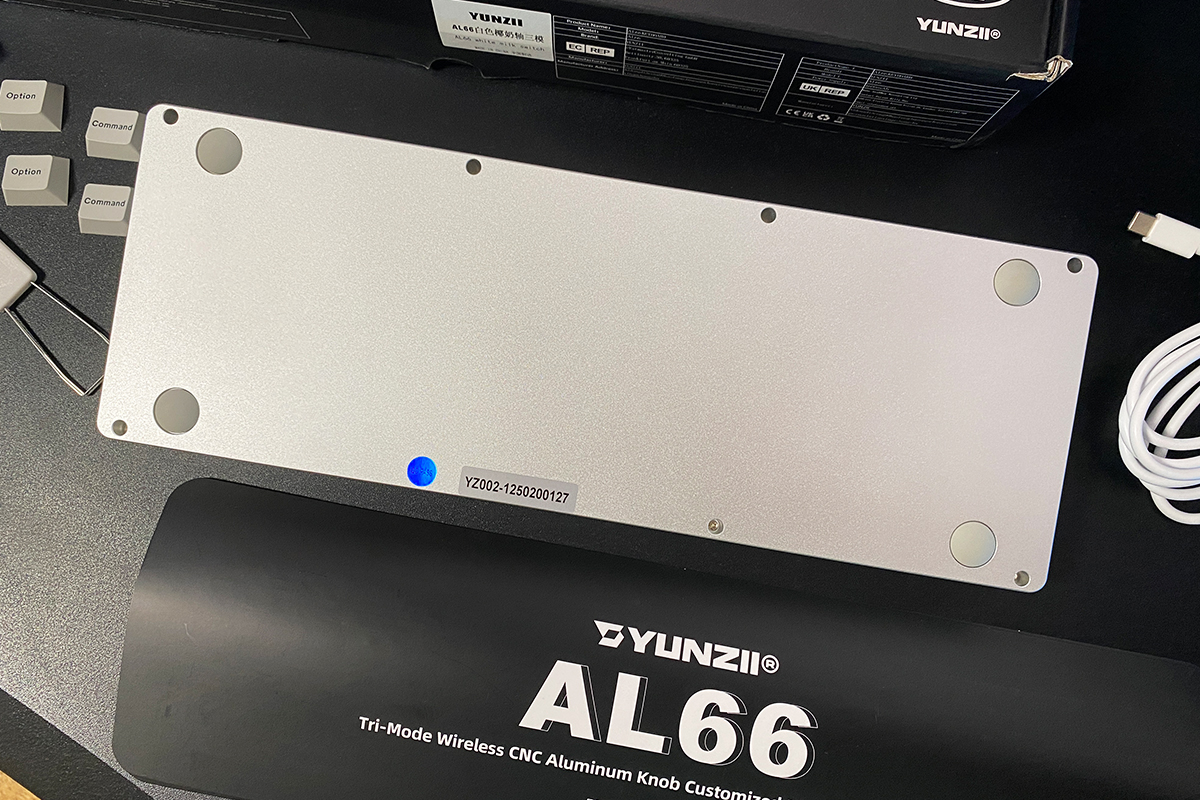
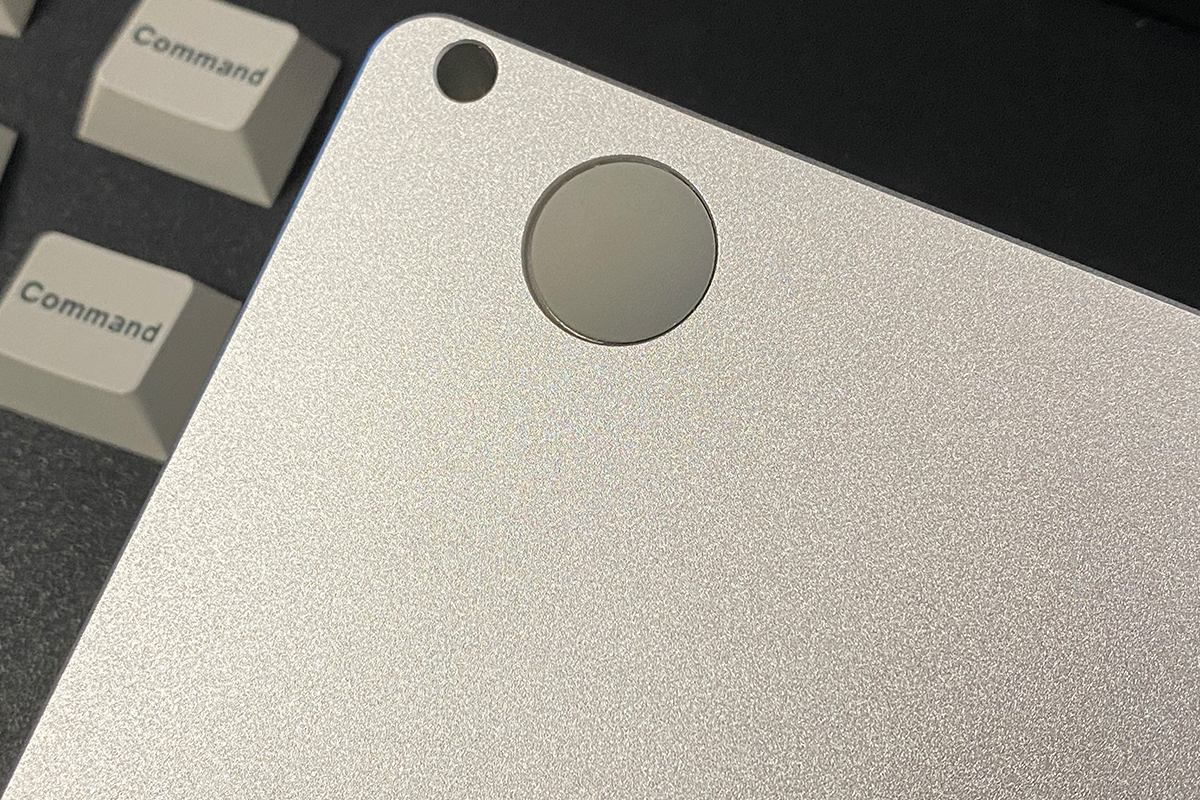
The keyboard’s bottom is also made entirely of aluminum. As you can see, the YUNZII AL66 doesn’t have the standard adjustable feet for changing the typing angle – similar to the AL65 and AL68 models. For some, the lack of feet and the inability to adjust the keyboard’s tilt might be a drawback. Personally, though, this hasn’t been an issue for me. I’ve mentioned before that the default tilt on YUNZII keyboards is comfortable enough for my use. That said, with the AL66, it took a bit more time to get used to the height (thickness) of the keyboard.
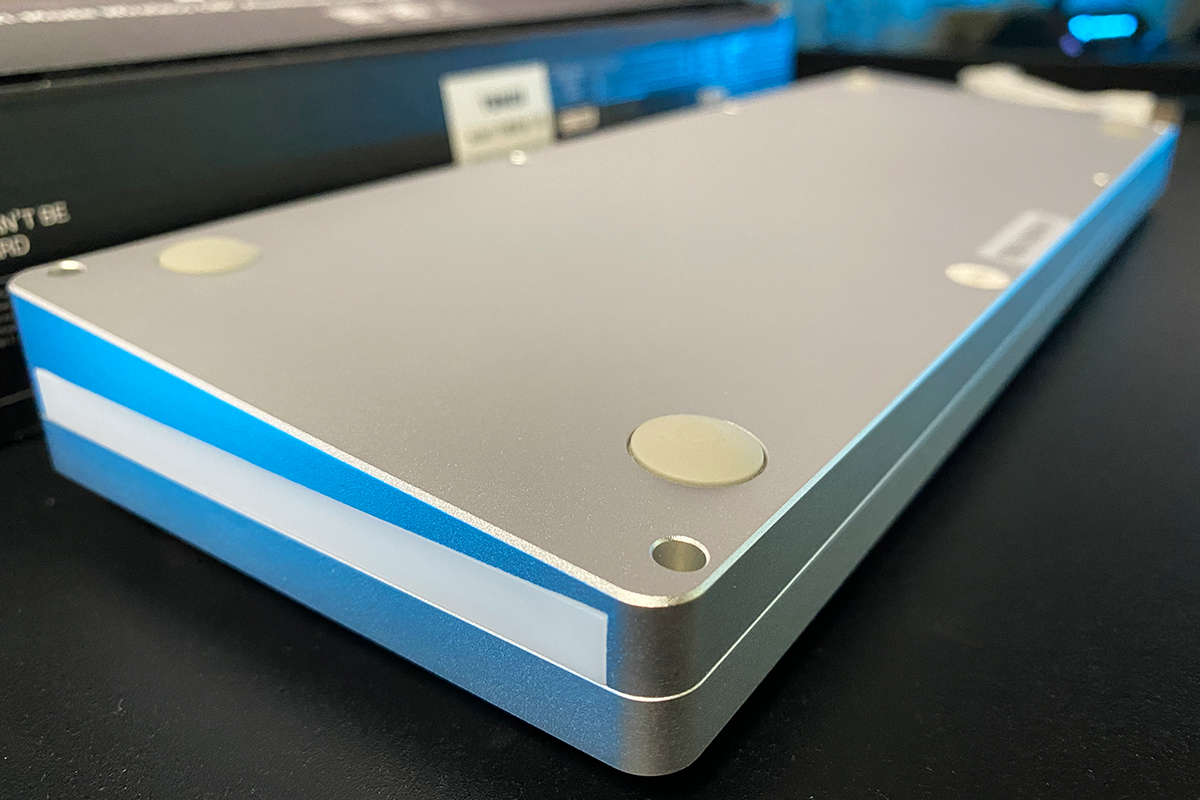
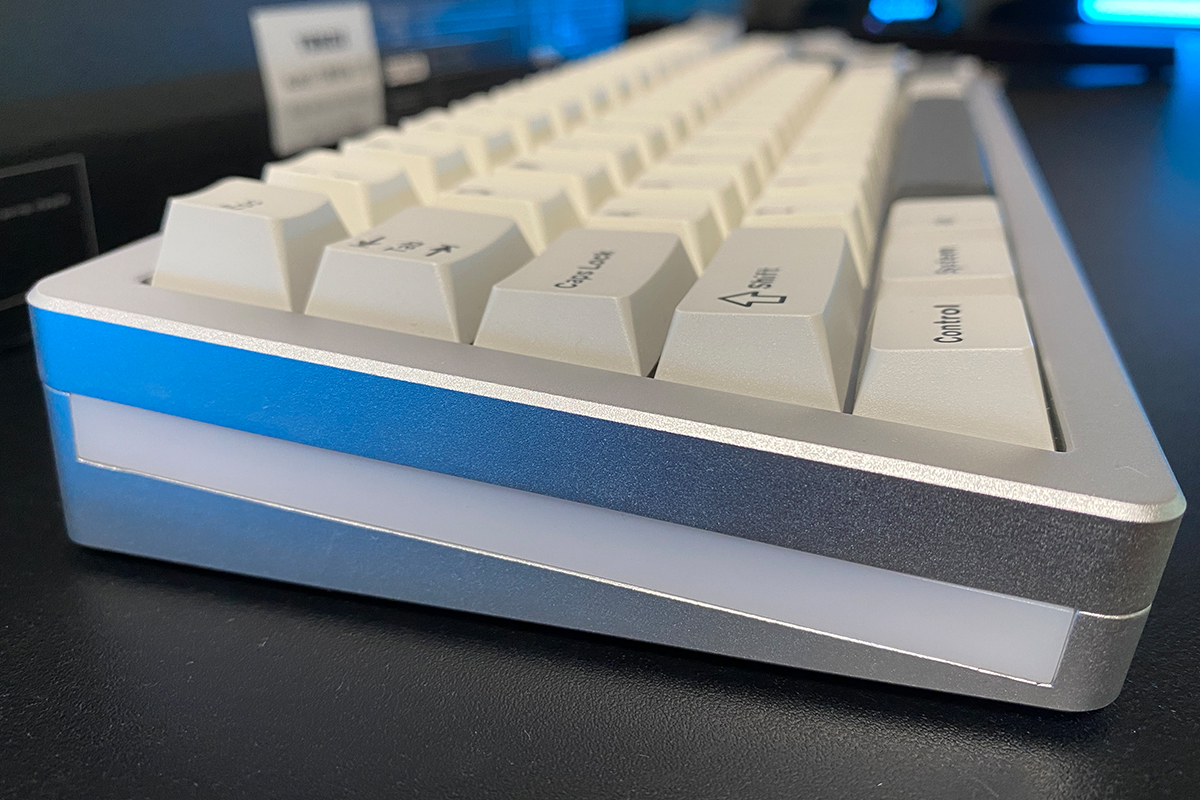
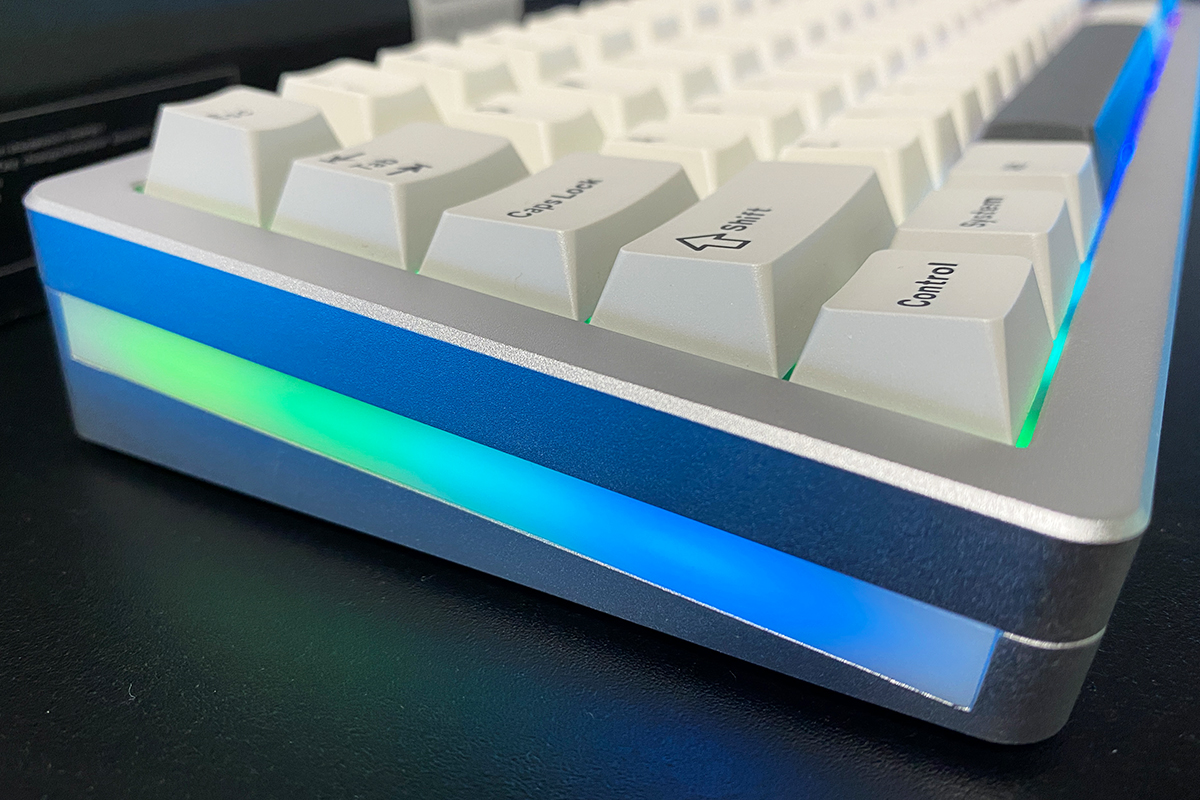
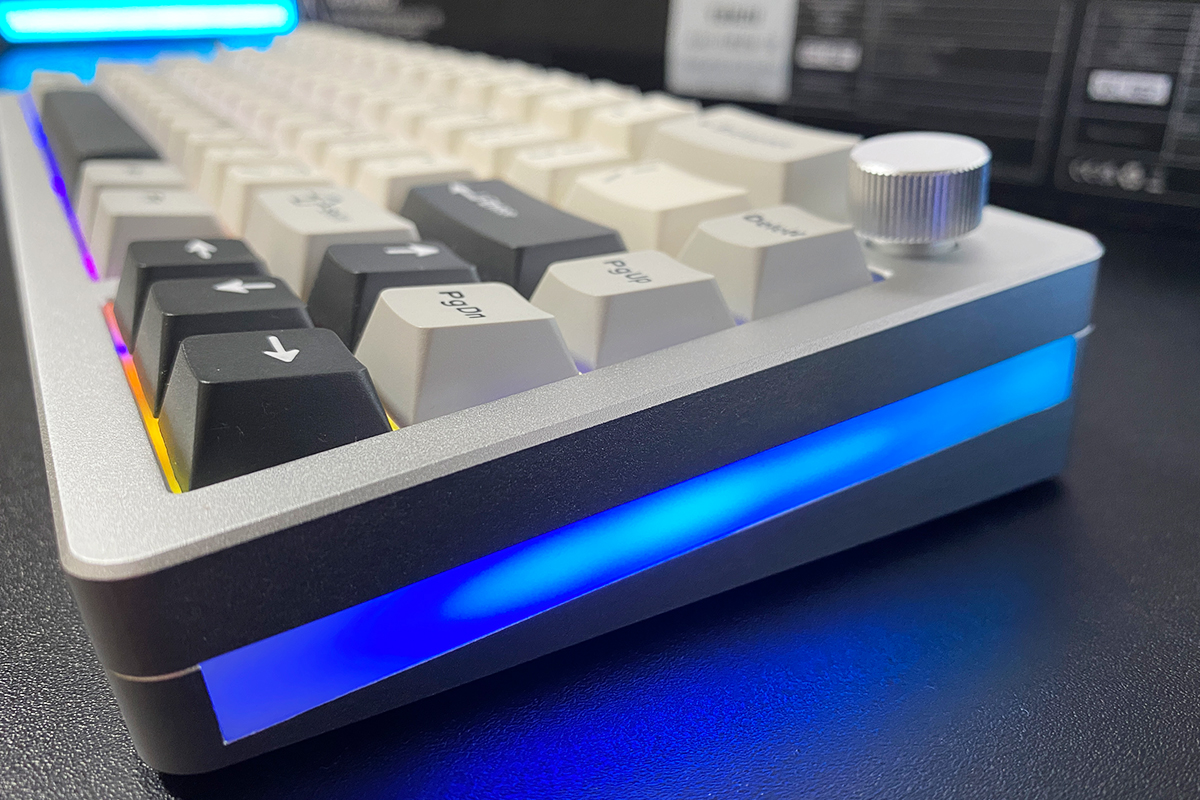
The keyboard features two light strips on its sides, which is one of the signature design elements of the AL66. To be honest, I’m not a big fan of the side lighting on this model. It’s neither as bright nor as even as I would expect – there’s noticeable dimming along the edges of the LED strips. I also suspect that this side lighting contributes to the keyboard’s height. Although, I could be wrong, since the AL65 also has full-case lighting but is noticeably thinner than the AL66.
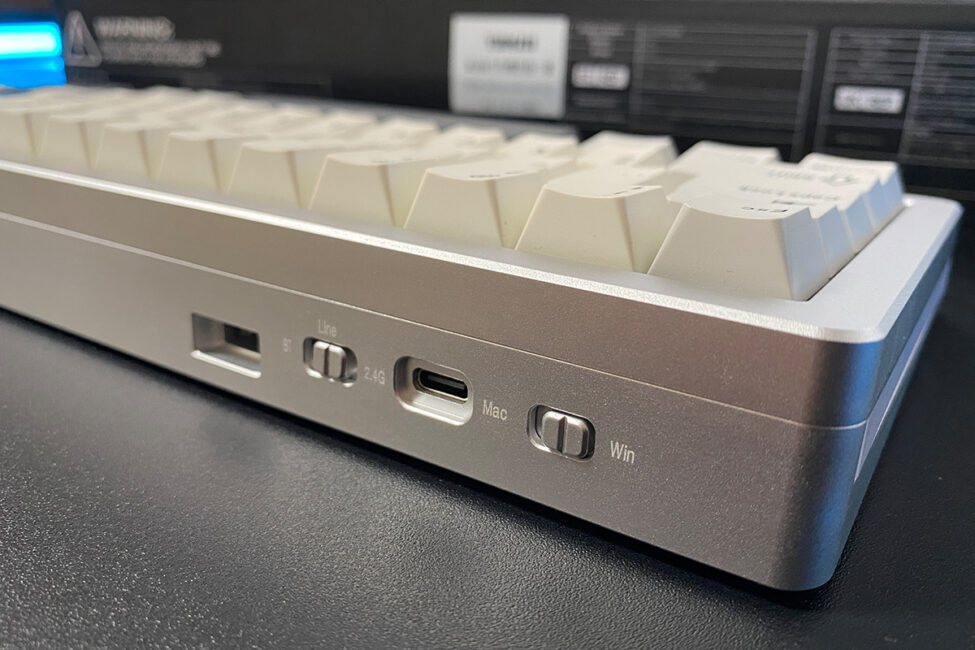
The Type-C port for the cable and the mode switches are located on the top edge of the keyboard, on the left side. The first switch toggles the operating system mode between Windows and Mac, while the second switch changes the connection mode among RF, wired, and Bluetooth.
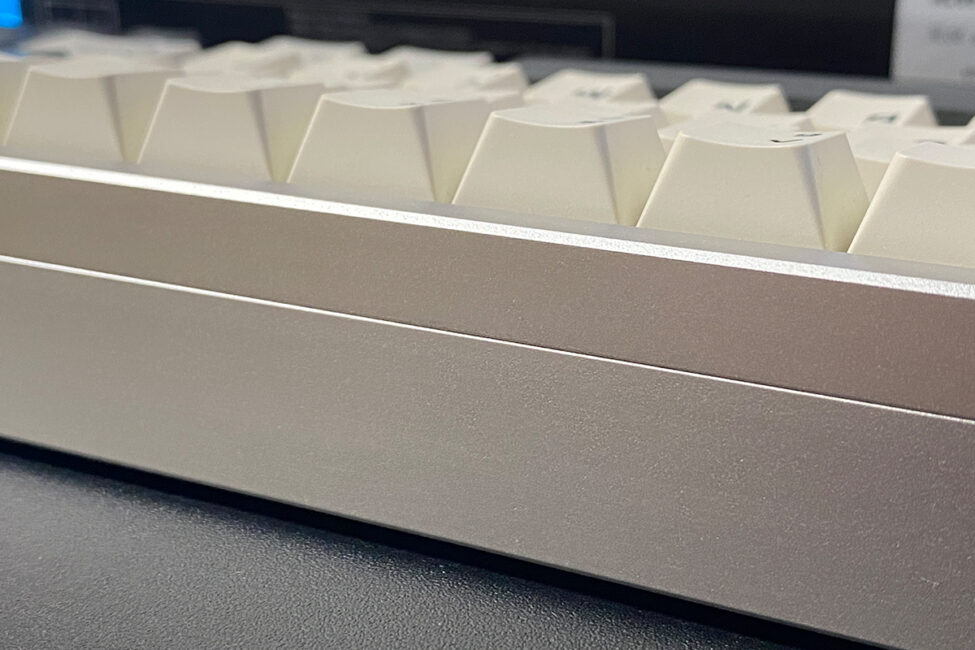
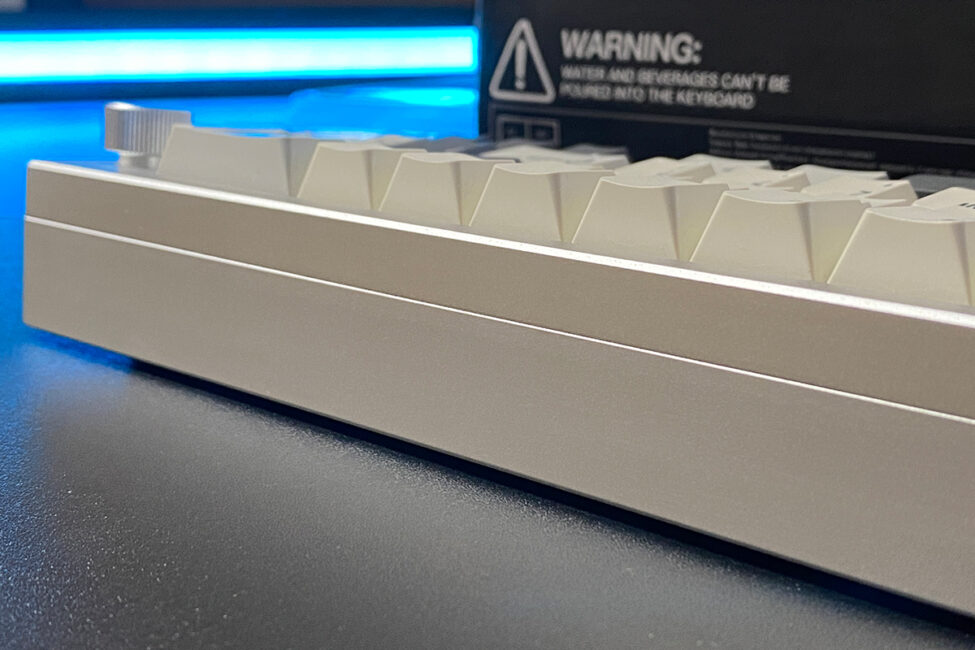
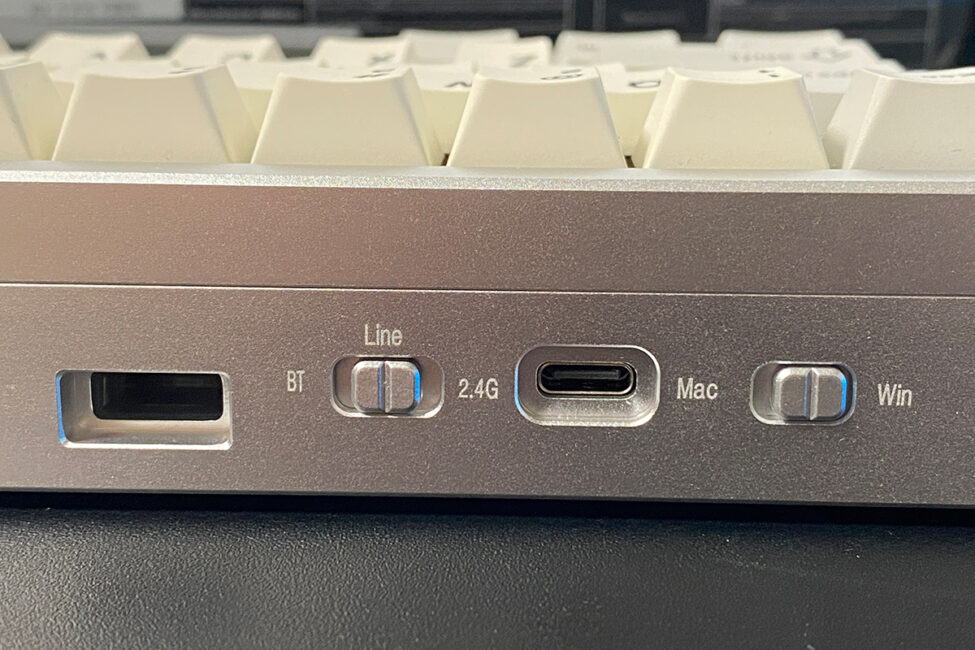
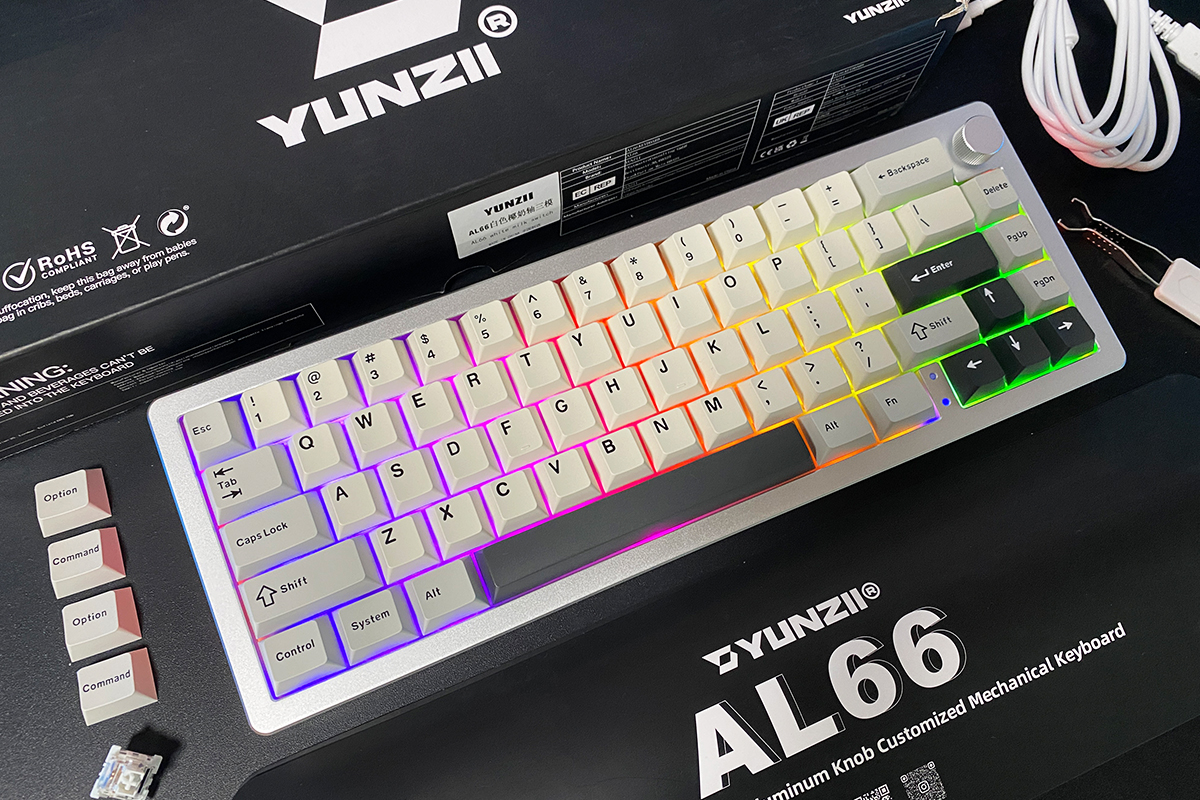
The build quality of the AL66, like other keyboards in this series, is excellent. It has a heavy, sturdy, and solid construction that doesn’t flex and stays firmly in place on the desk. Despite its compact size, it feels stable without taking up too much space. The control wheel is convenient to use, and overall, the AL66 offers good ergonomics. That said, as mentioned earlier, it is noticeably taller than other 65% models in the lineup (like the AL65 and AL68), which can make working on it feel a bit unusual at first.
Personally, I got used to the height of the AL66 quite quickly and now find it comfortable to work on. However, as I mentioned before, not everyone prefers keyboards this tall. My recommendation would be to pair the AL66 with a wrist rest for better comfort. On that note, YUNZII offers some nice wrist rest options that complement this keyboard well.
Read also:
- SteelSeries Apex Pro TKL Gen 3 White review: Gorgeous Update
- HATOR Icefall Pro Wireless Review: 75% Gaming Keyboard with Mini Screen
Backlighting
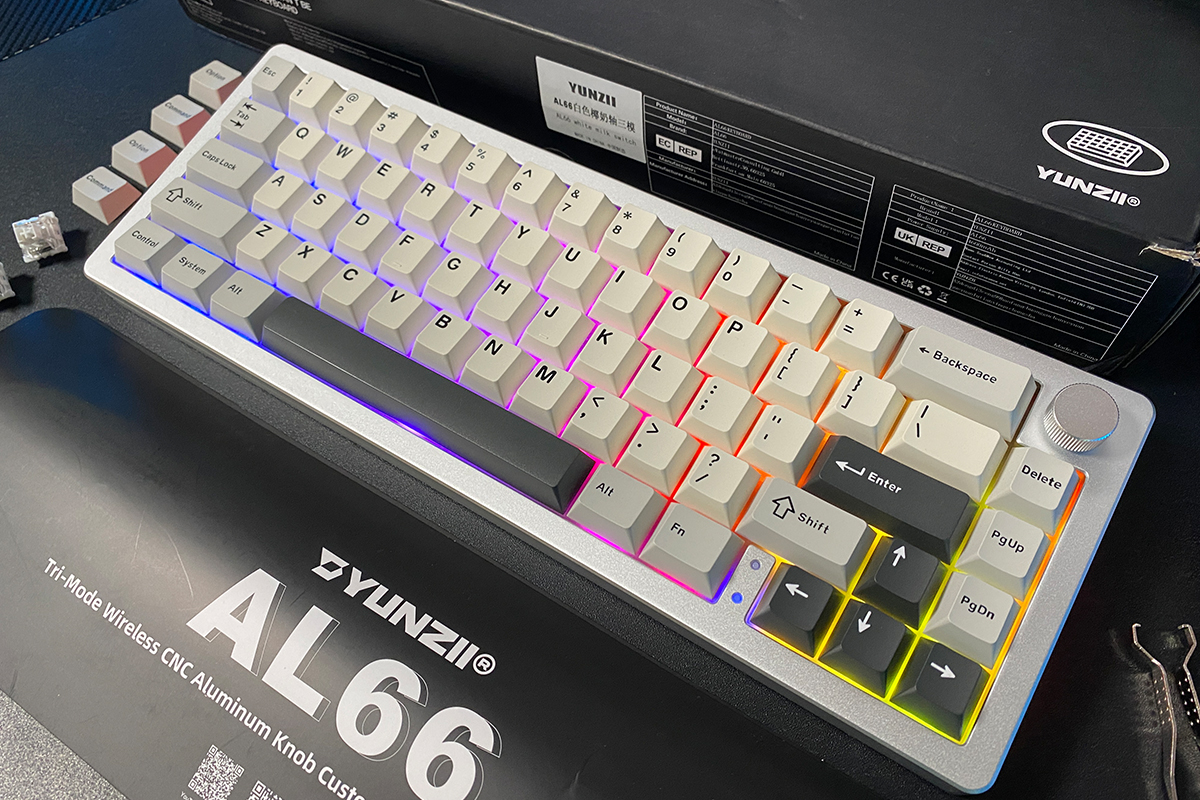
As you’ve probably noticed, the AL66 features two separate RGB lighting zones: the keys and the two side strips. These zones are independent, meaning you can customize them separately. For the key backlighting, you can adjust effects, colors, brightness, and speed. The side lighting, however, only allows you to switch effects and change colors. Regarding the lighting quality itself, the key illumination is quite good – reasonably bright, rich, and smooth.
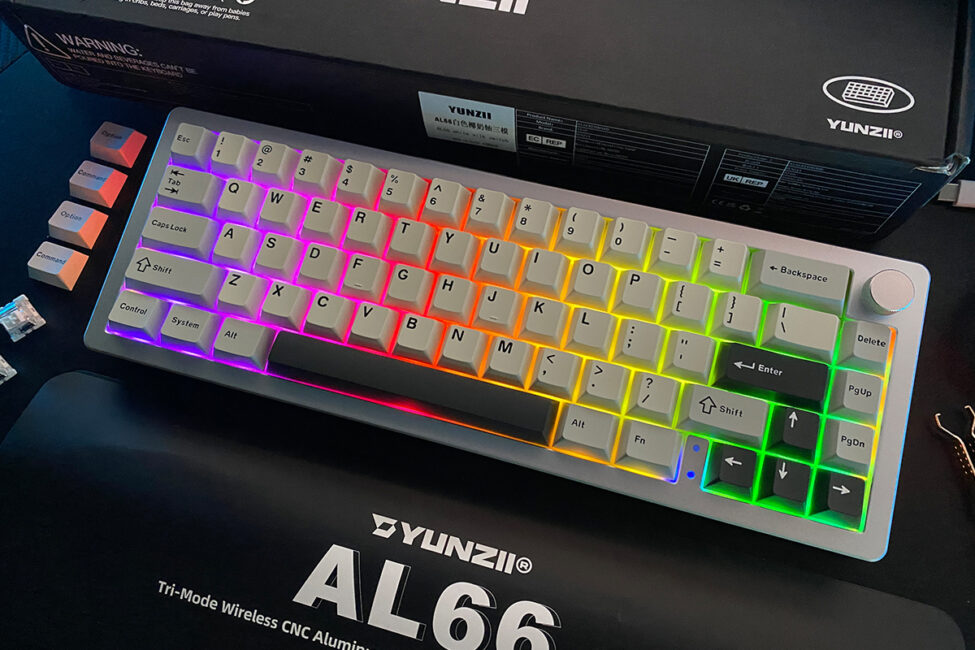
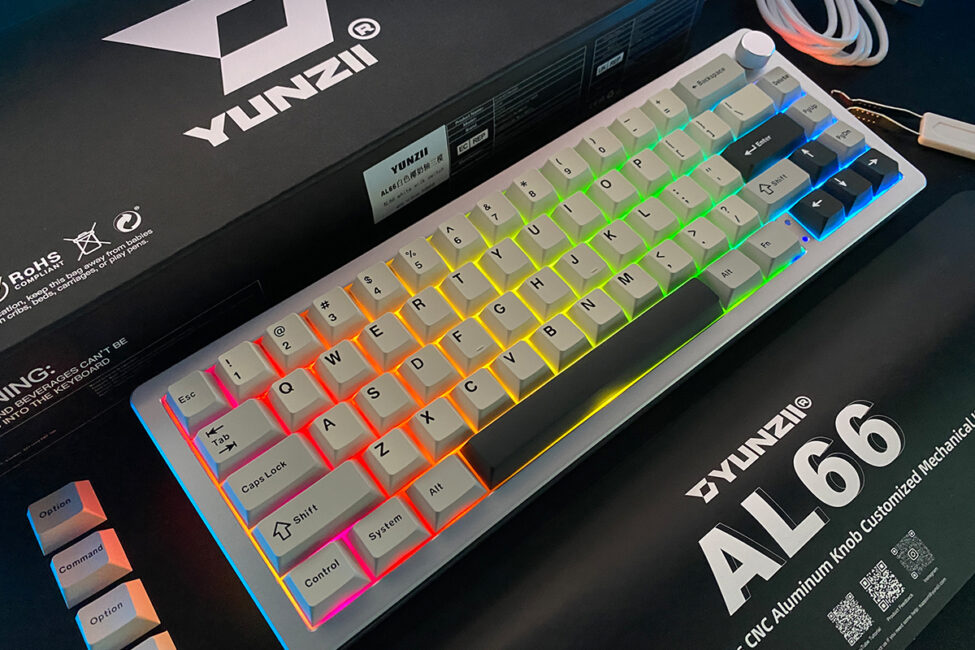
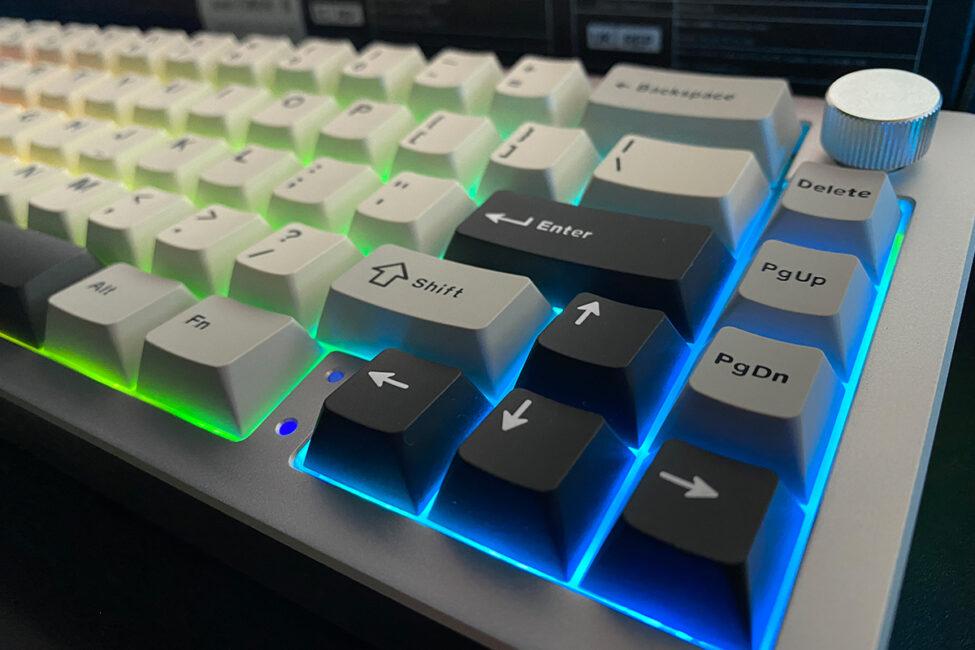
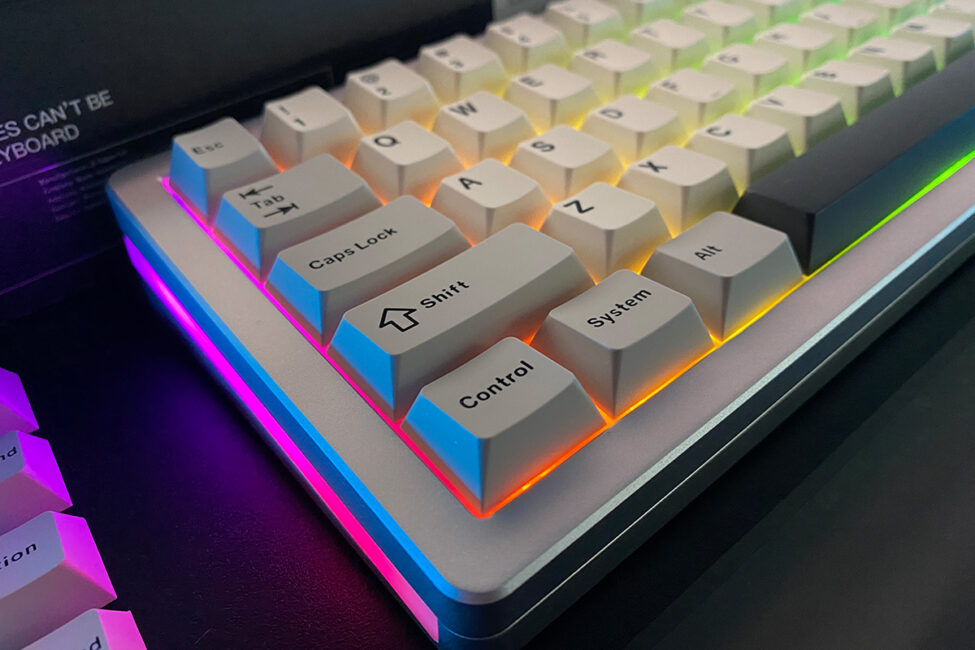
As I mentioned earlier, I’m not very impressed with the side lighting. It’s not as bright or saturated as I’d like, and the edges appear uneven. That said, if you don’t focus too much on those details, it still looks fairly decent.
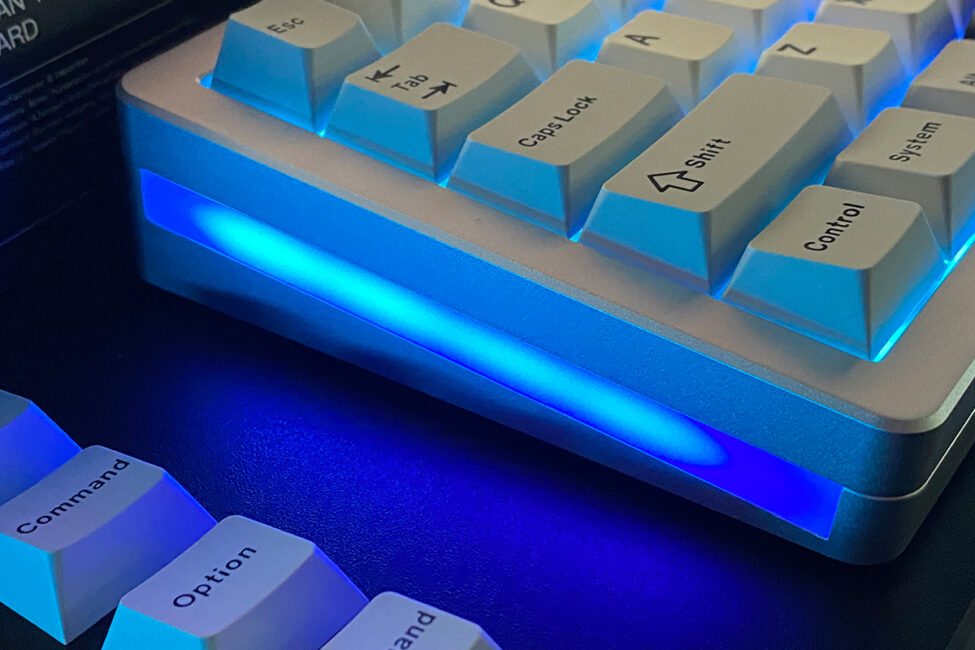
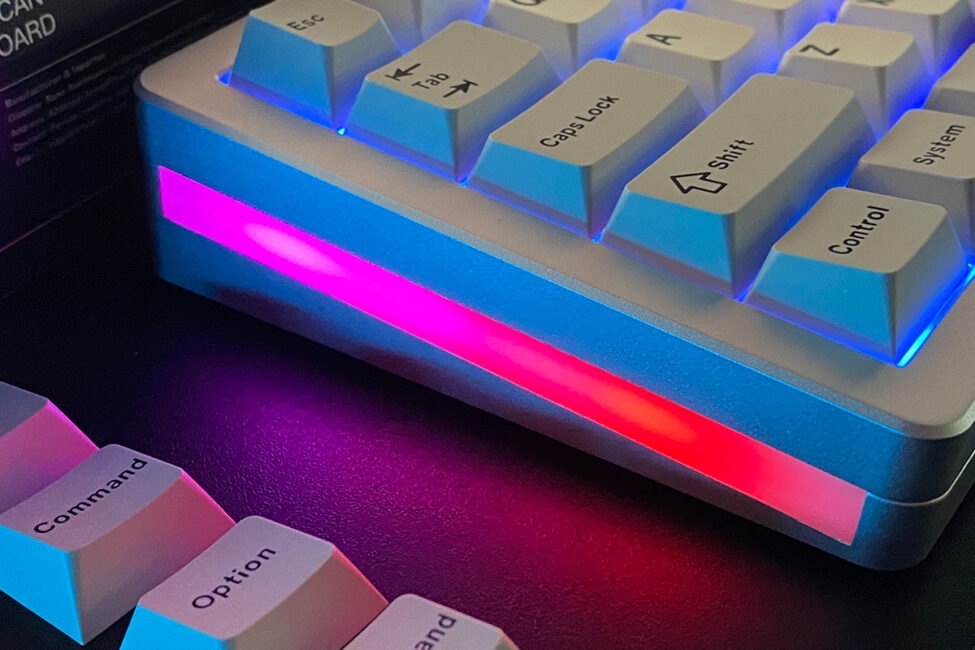
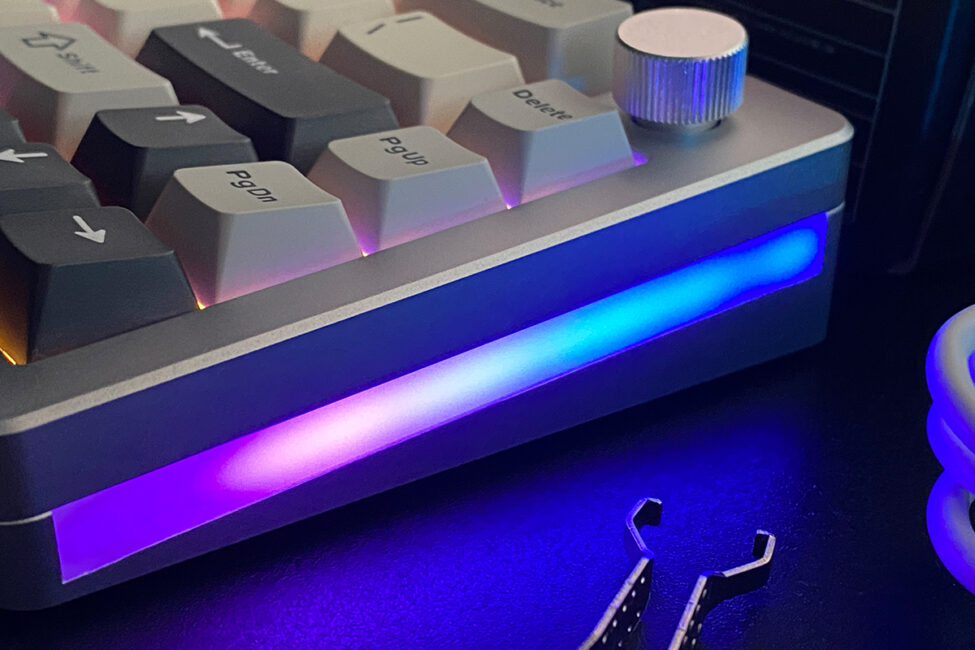
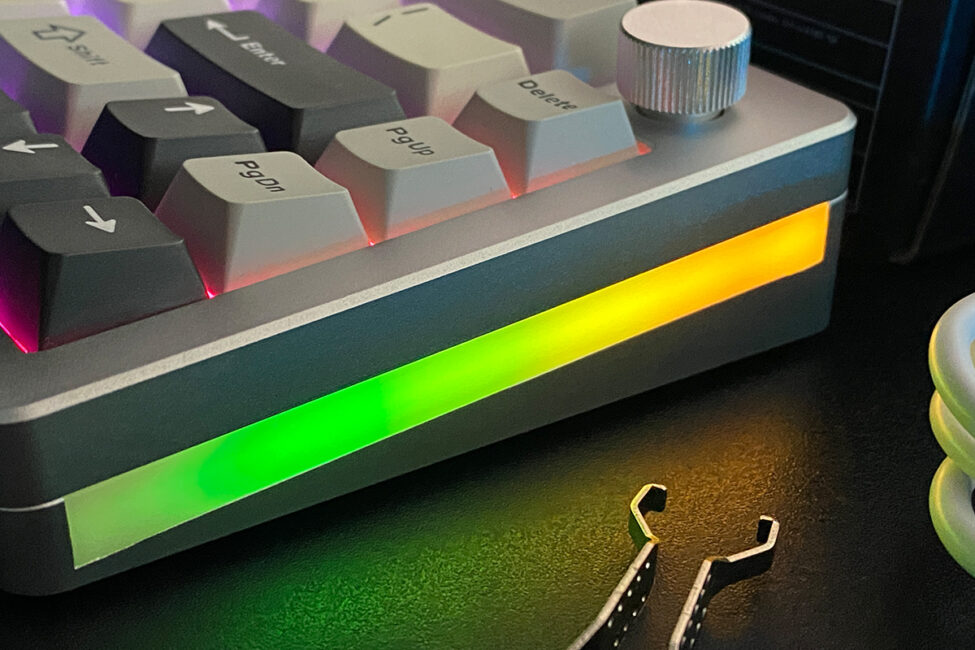
The key backlighting offers about 18 preset effects, which you can further customize by adjusting speed, brightness, and colors. The official app also lets you assign individual colors to each key. For the side lighting, there are 3 preset effects and 7 different static colors available.
You can customize the lighting either directly on the keyboard using FN key combinations or through the official software. I’ll cover the app in more detail shortly, but here are the main hotkeys for controlling the lighting on the keyboard itself.
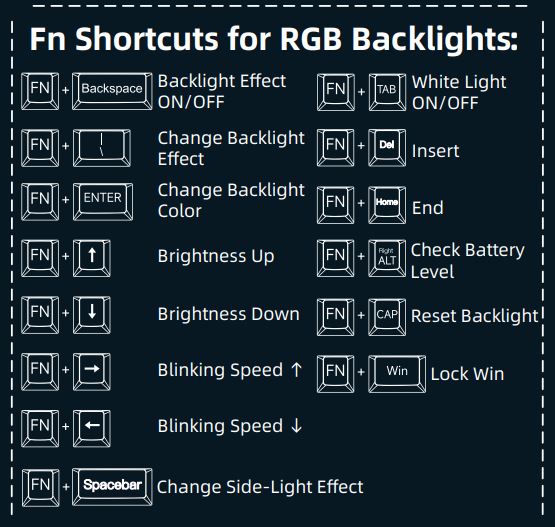
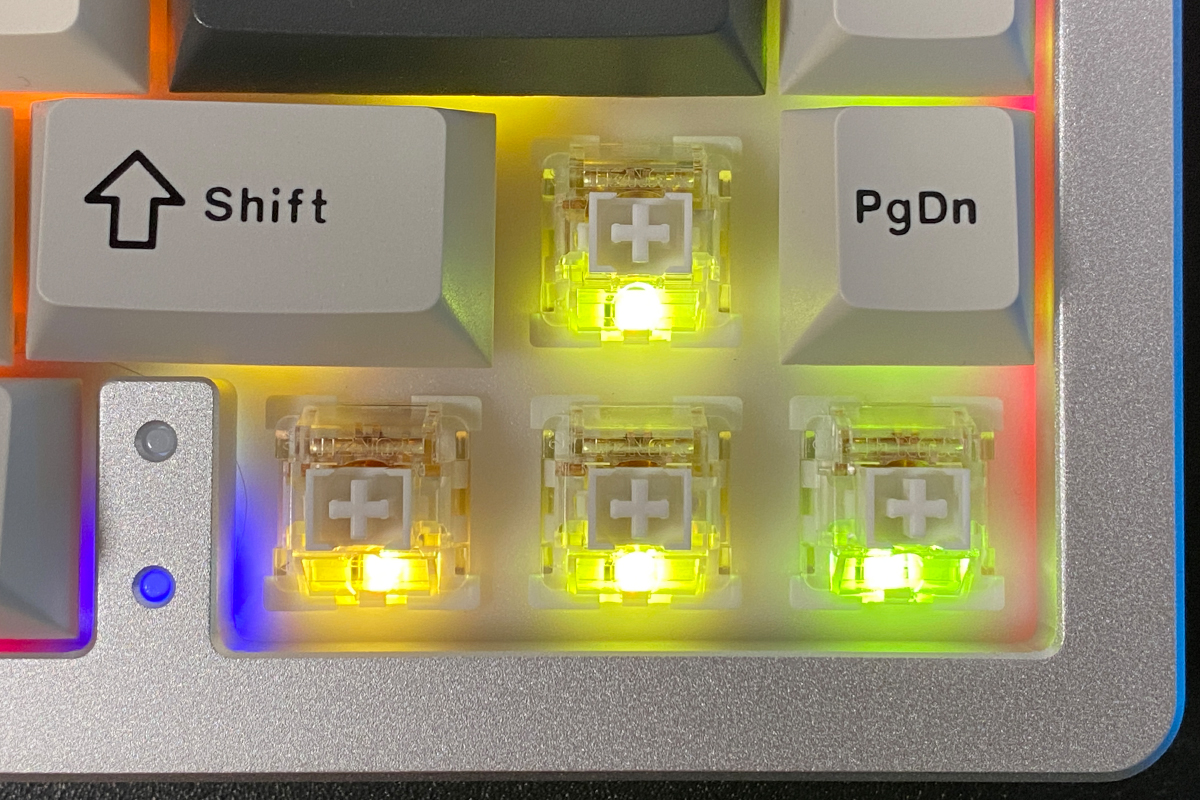
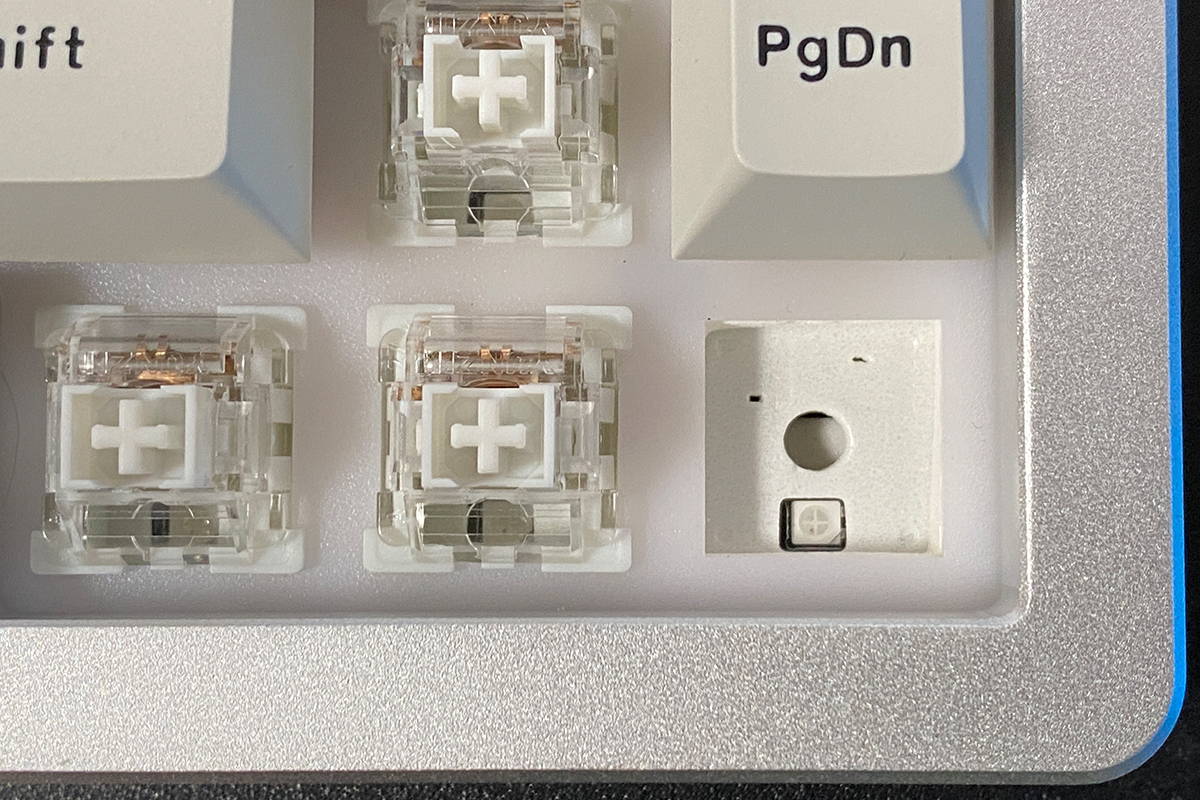
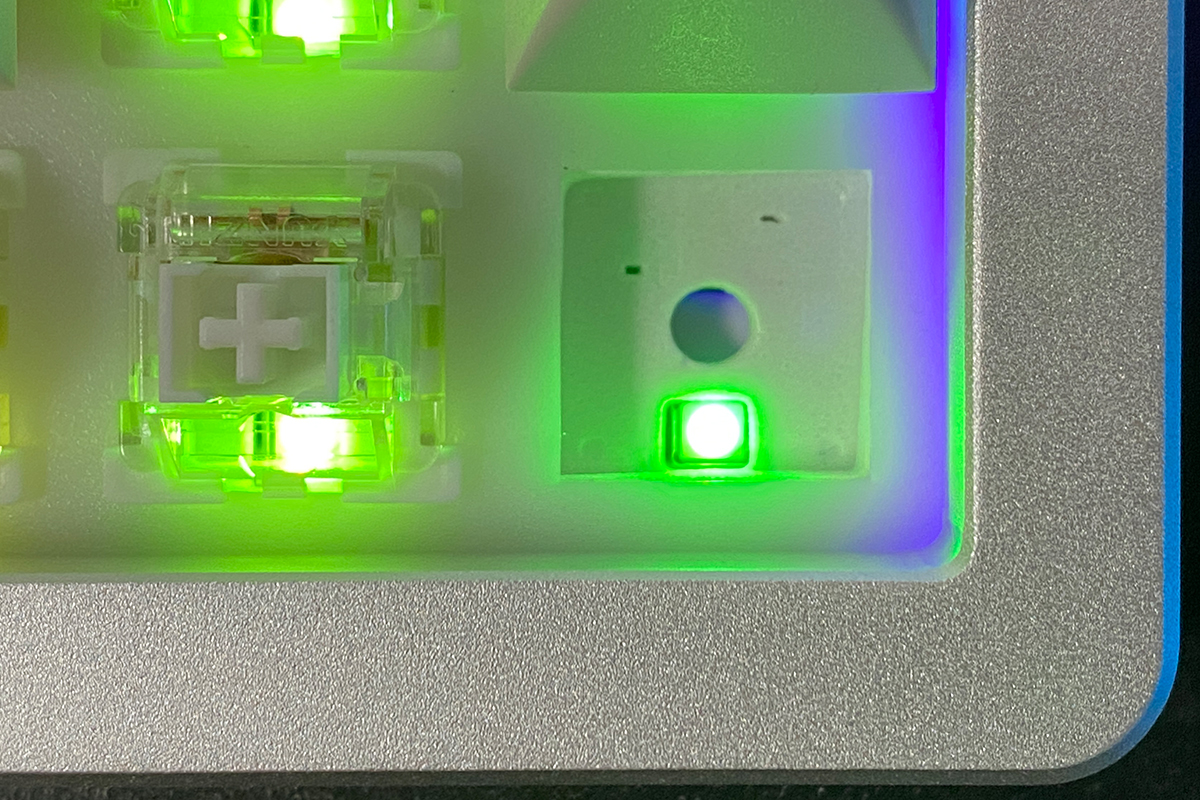
The key backlighting on the YUNZII AL66, like other models from the brand, uses south-facing LEDs (located beneath the switch). This setup offers better compatibility with various switches and keycaps.
Connections and supported platforms
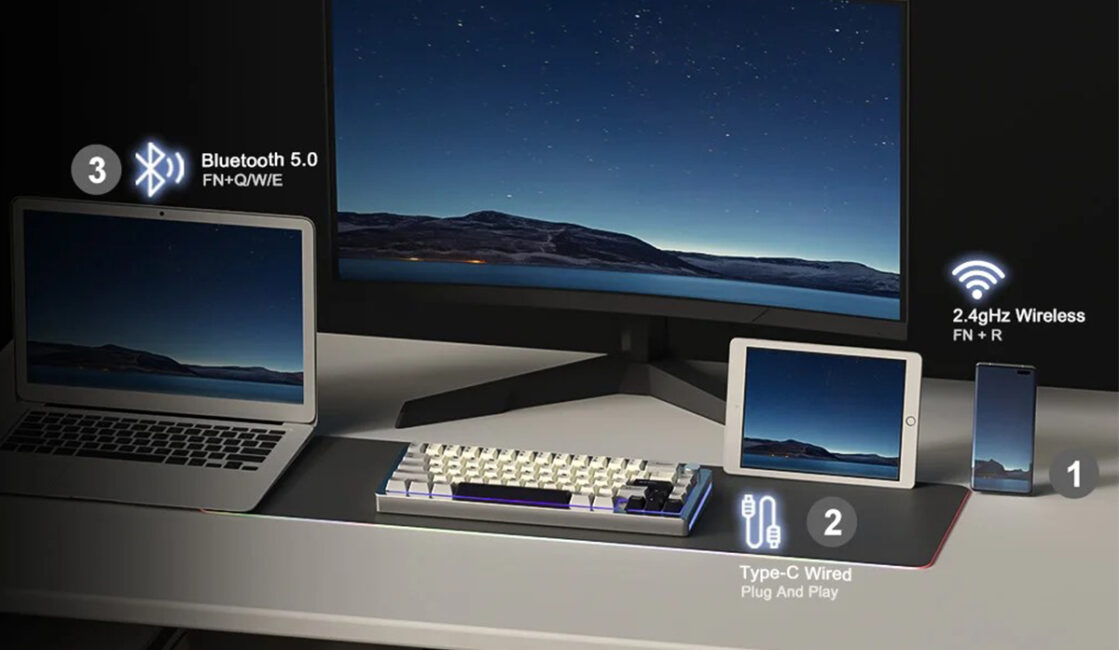
Like other models from the brand, the YUNZII AL66 supports three connection modes: 2.4 GHz RF, Bluetooth, and wired. Via Bluetooth, you can pair up to three devices simultaneously and switch between them using FN + Q / W / E key combinations. Additionally, you can connect one more device via the 2.4 GHz RF channel and switch to it with FN + R. In total, the AL66 can handle five connected devices at once: three via Bluetooth, one via RF, and one wired.
As for device compatibility, the AL66 supports the usual platforms: Windows, Mac, Android, and iOS. While gaming consoles like Xbox and Switch aren’t officially listed in the specifications, I believe they should work without issues. Similarly, Linux systems are likely supported as well.
Layers and keyboard shortcuts
The AL65 and AL68 models offered 8 different layouts, but the AL66 is a bit simpler in this regard, providing only 4 layouts.
The first layout is the default one, active right out of the box. In this mode, the number row functions as standard numbers and symbols when combined with Shift.
The second layout maps the function keys F1–F12 to the number row when used with the FN key. I find this implementation very convenient – it’s actually how I remap keys on other 65% keyboards. With the AL66, I didn’t need to make any changes.
The third layout is activated by double-tapping the FN key. In this mode, the number row switches to function as F1–F12 keys.
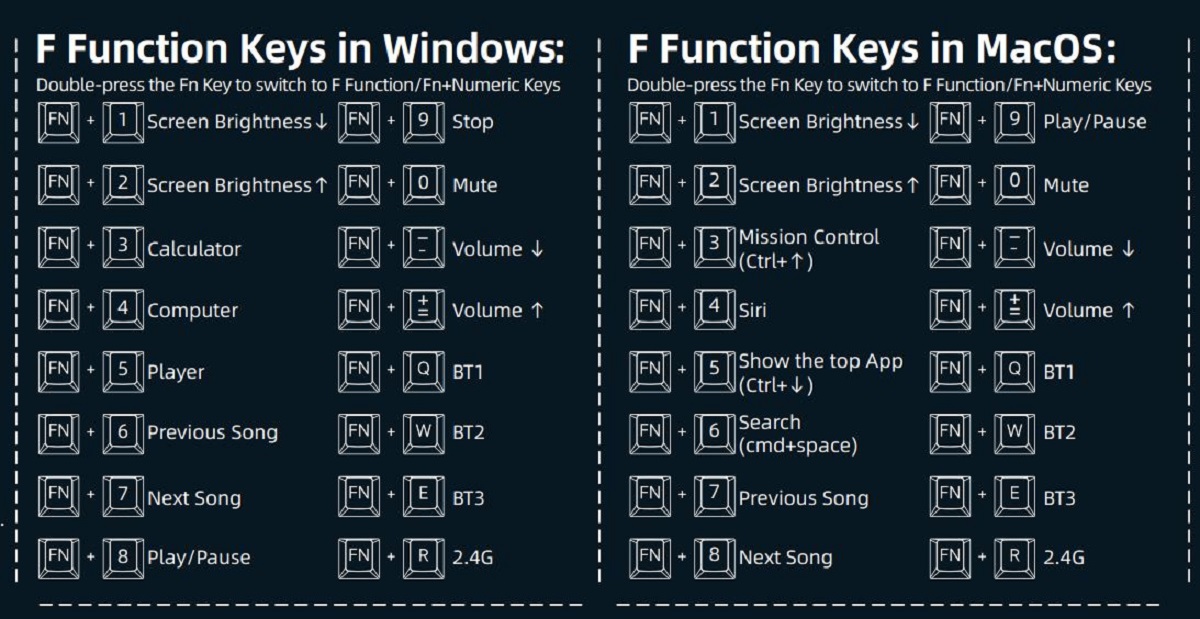
The fourth layout is a combination of the third layout with the FN key held down. Here, the FN + number row keys trigger various system functions like adjusting screen brightness, opening the calculator, launching the media player, and so on – though many of these functions aren’t particularly useful. The Mac layouts work similarly, but with Mac-specific functions assigned. I’ll include a screenshot below showing all the key combinations for the fourth layout on both Windows and Mac.
From my experience, the AL66 is comfortable to use right out of the box without any layout changes. The first layout includes all the essential keys, and the function keys F1–F12 are easily accessed with a simple FN + number row combination. That said, the keyboard also offers customization options through its official software, which I’ll cover in the next section.
Read also:
The proprietary app
The AL65 and AL68 models could be customized online through the VIA web configurator. However, the first revision of the AL66 (V1) doesn’t support this feature. Instead, customization is only possible via a dedicated desktop application for Windows, which you can download from YUNZII’s official website. A key point to note: for the V1 version of the keyboard, you need to install the V1 version of the software. The V2 revision has a separate application available on the same page, labeled specifically as AL66 V2.

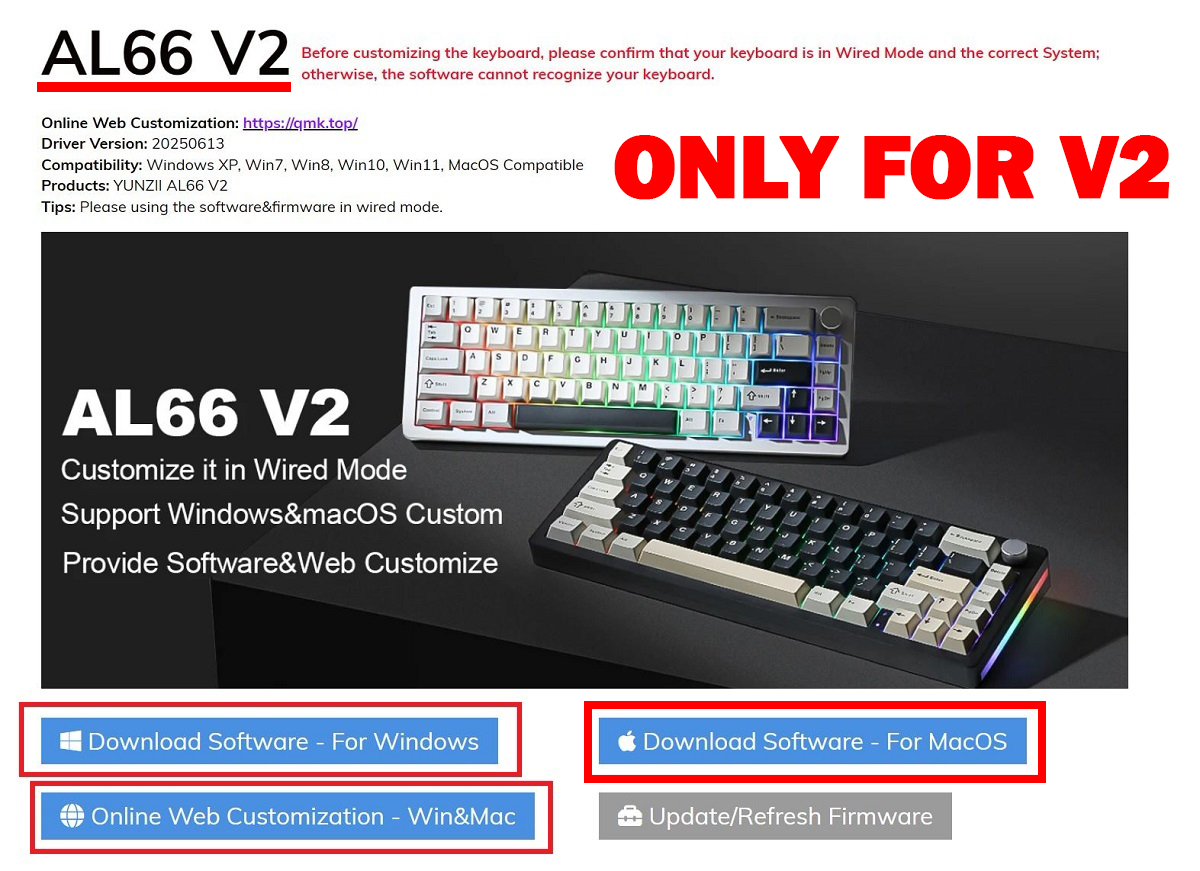
Here’s a quick recap of the differences between the V1 and V2 versions of the keyboard:
The first revision (V1) only supports a single Windows application for customization. The second revision (V2), however, offers a dedicated app for both Windows and Mac, plus the option to customize the keyboard online through the QMK web configurator.
The V1 app itself is quite basic and not as user-friendly as the VIA web interface used by the AL65 and AL68 models. The app’s settings are divided into five main sections: Key Assignment, Light Effect, Macro Edit Panel, Effect, and Global.
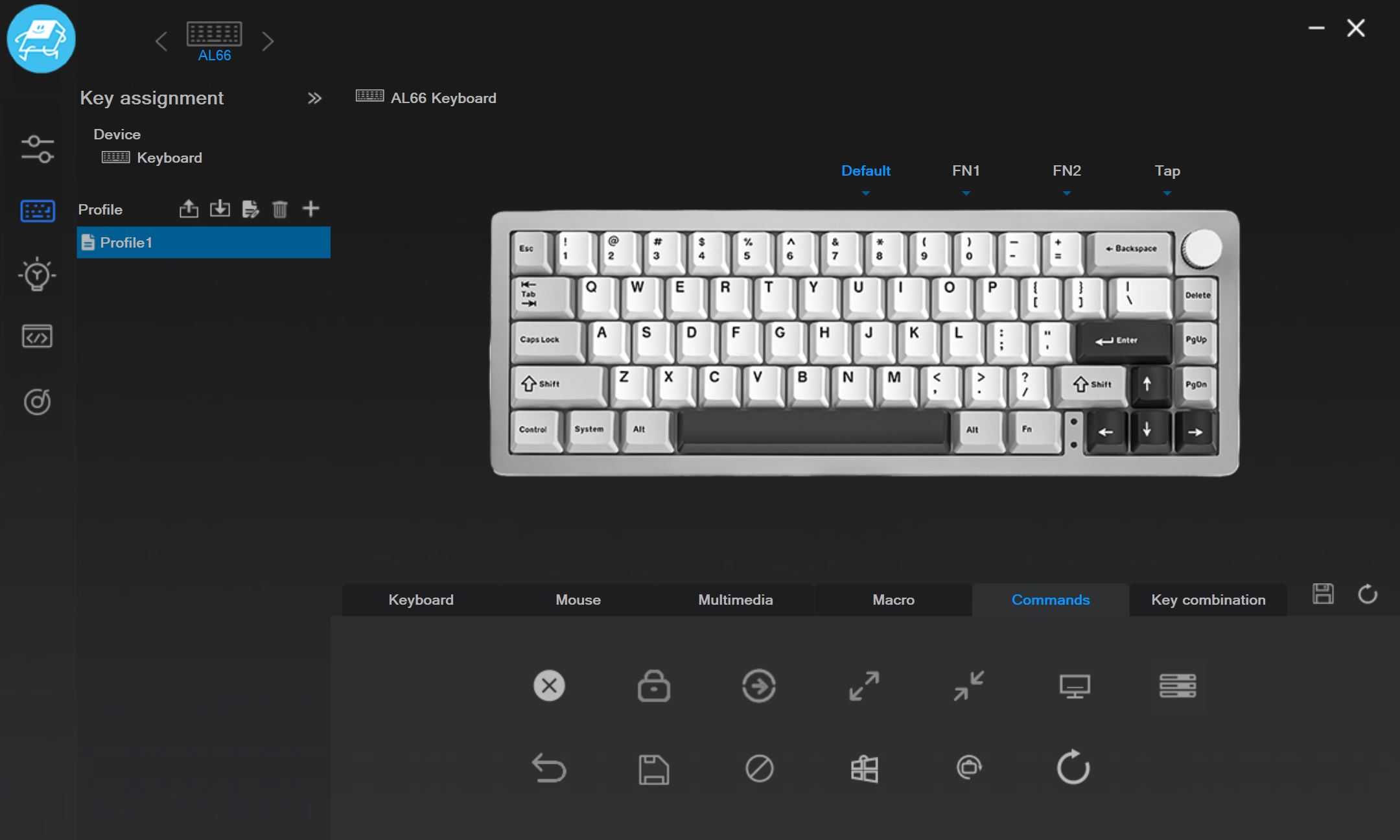
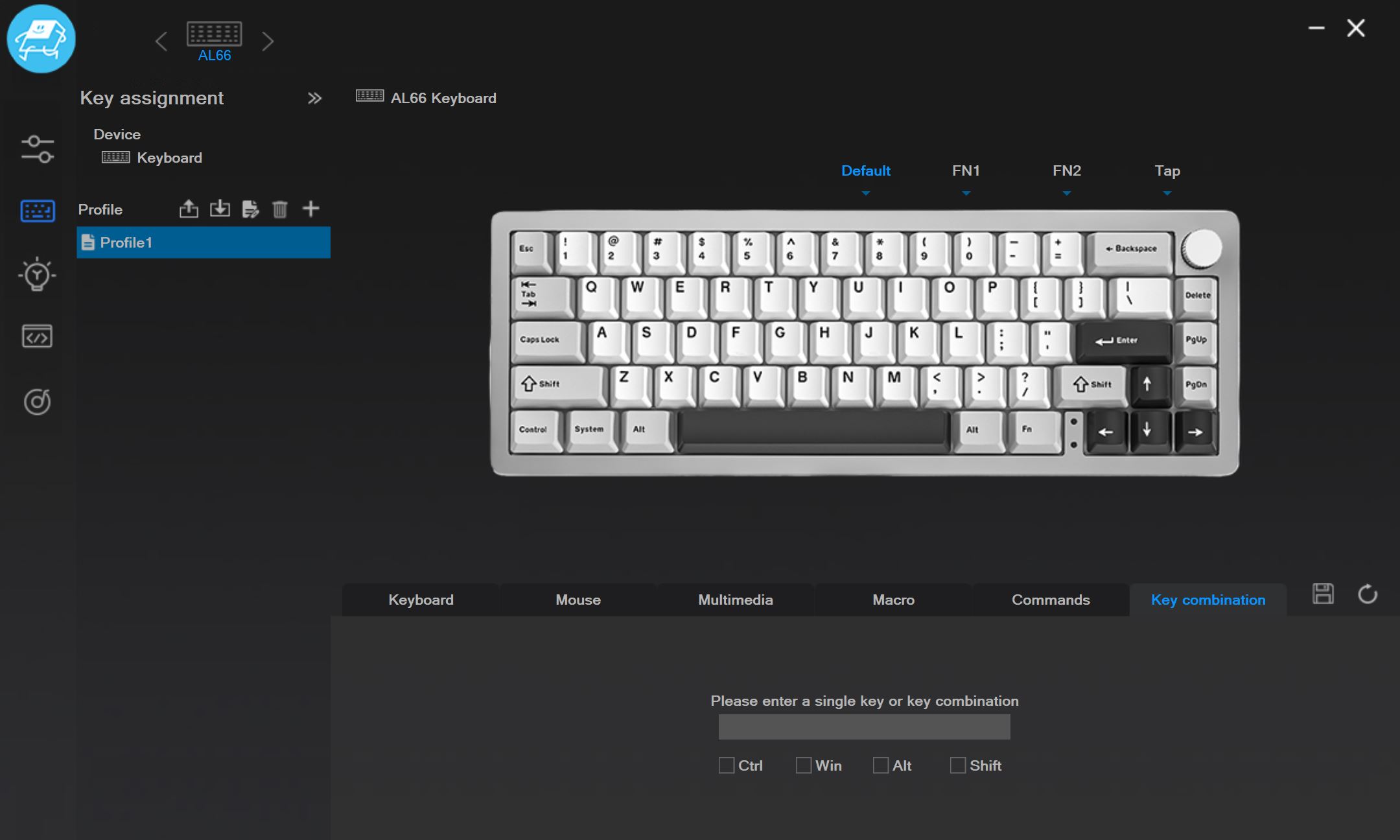
In the Key Assignment menu, you can customize individual keys as well as FN-layer functions (FN1, FN2). At the top, you select the key or FN layer you want to modify, and at the bottom, you choose the key, function, macro, or command you want to assign. Modified keys are highlighted in a different color, and hovering over them shows both the default assignment and the current change. One downside is that the key labels on the layout graphic itself don’t update to reflect changes, unlike the VIA web interface, which makes it less intuitive to track modifications.
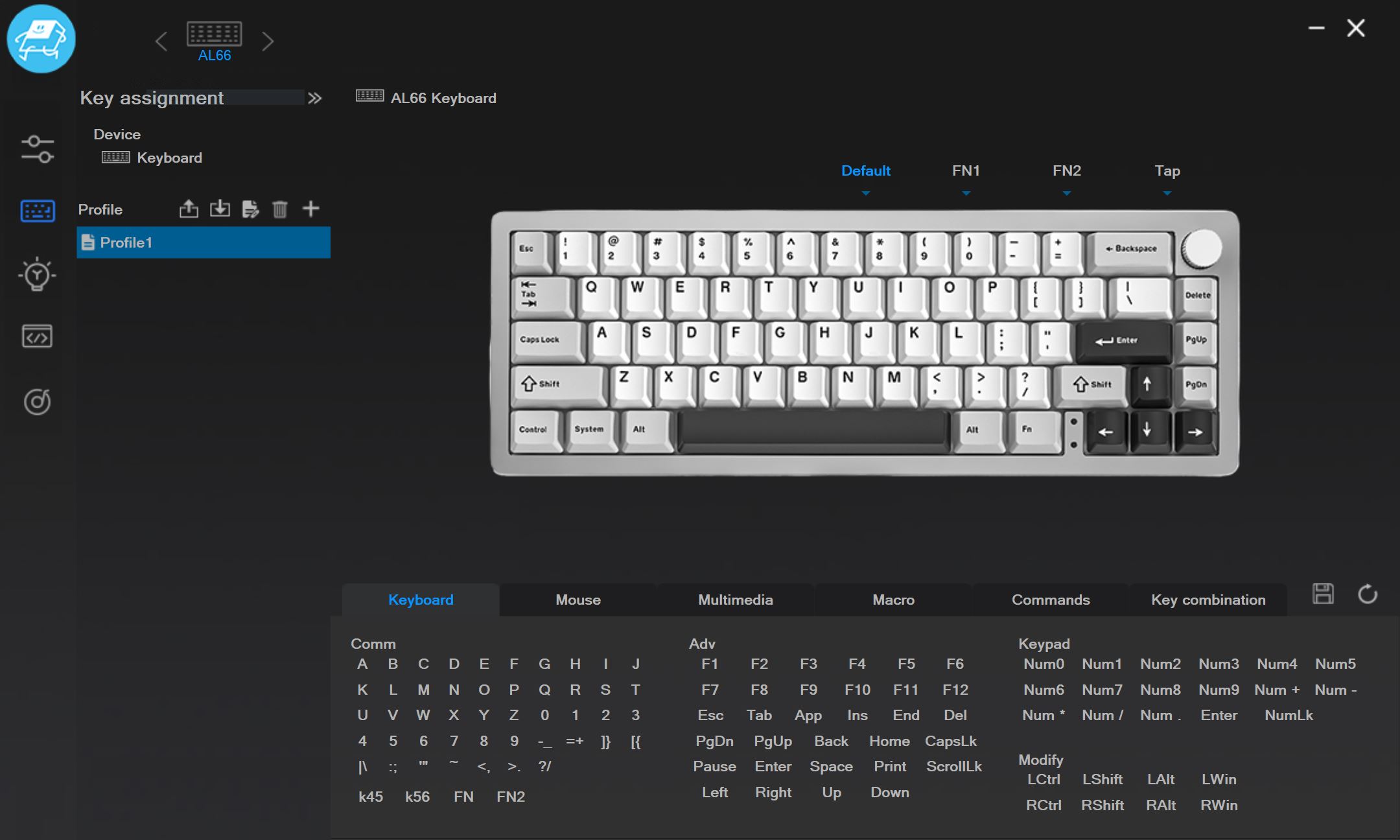
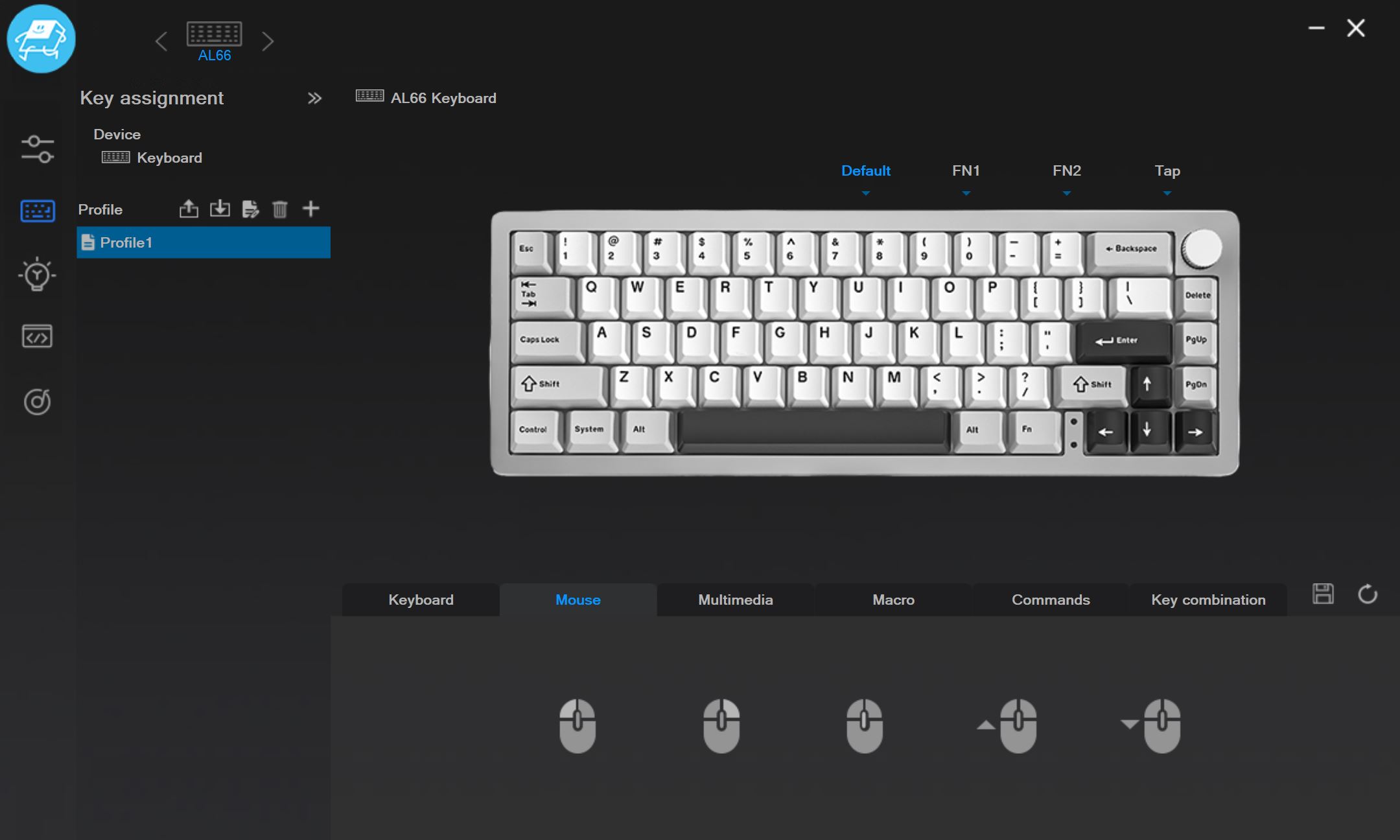

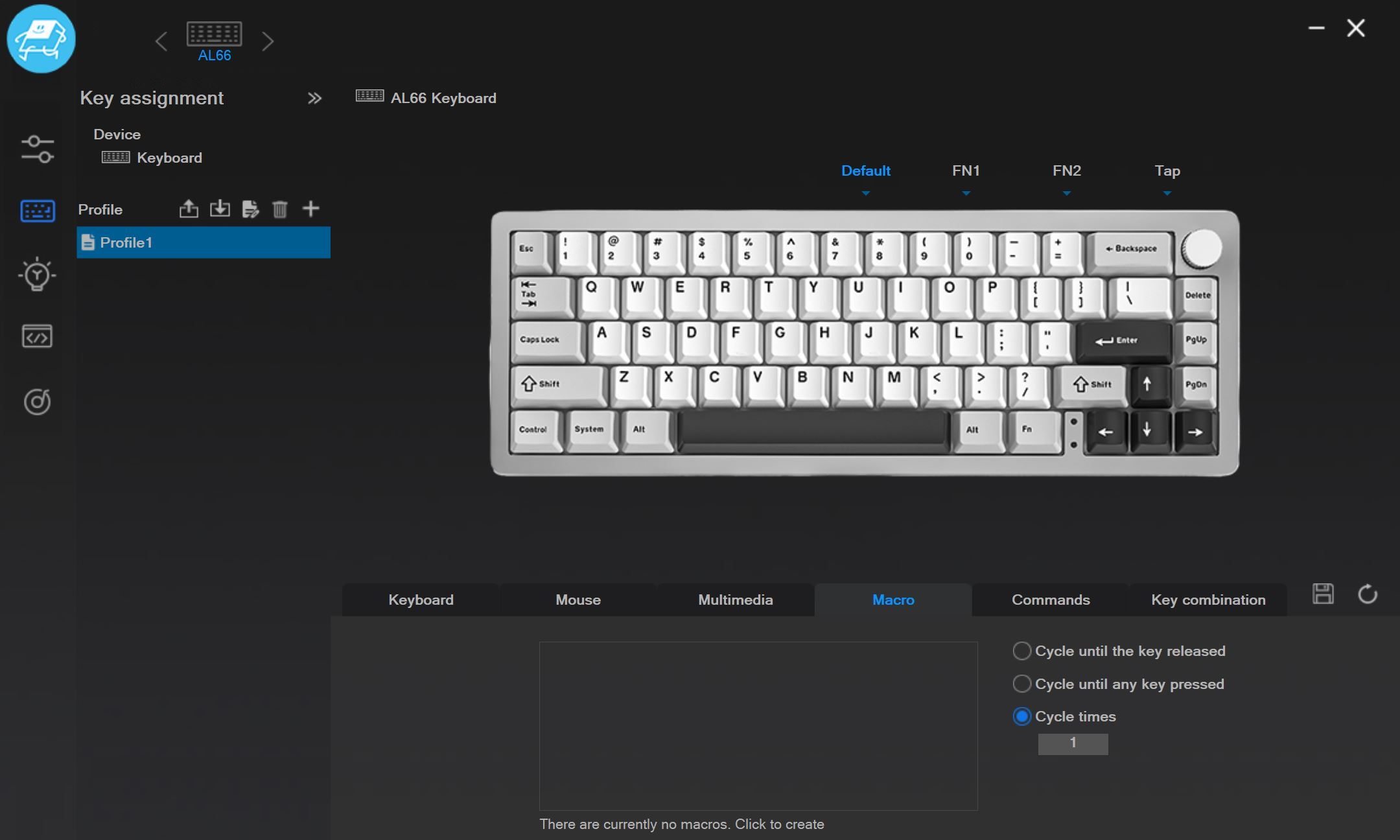

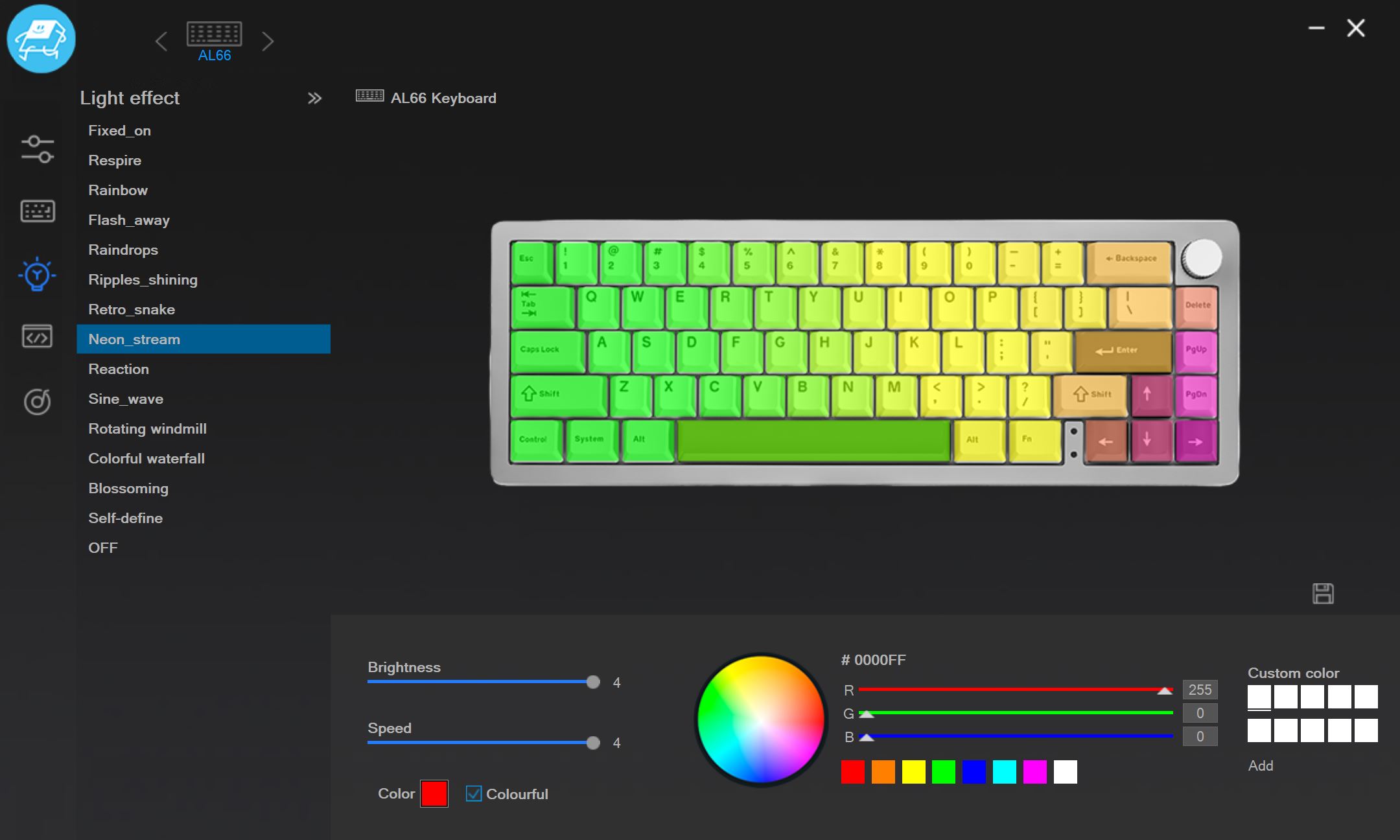
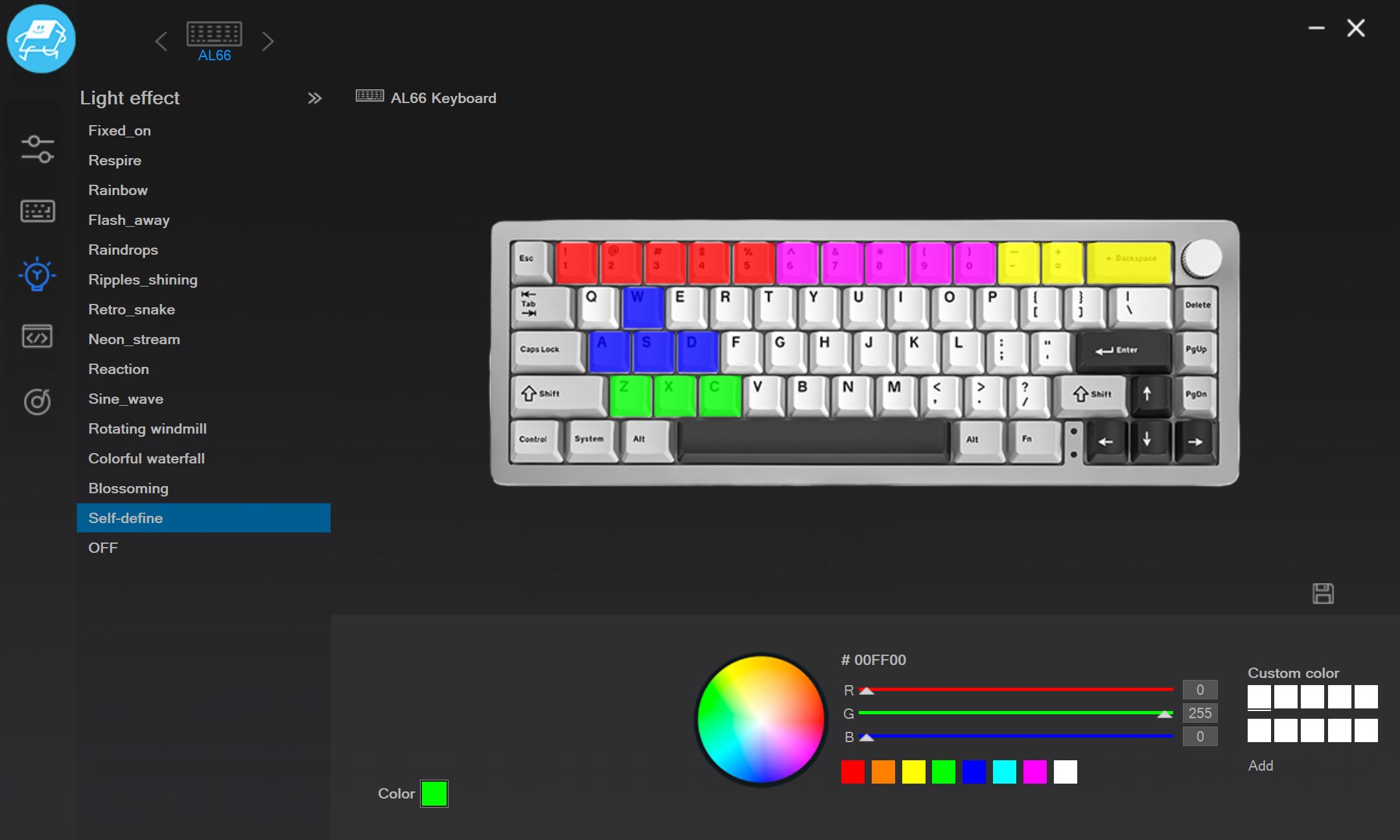
The Light Effect menu is where you customize the key backlighting. Note that these settings apply only to the keys themselves – there are no options for adjusting the side lighting in the app. The available settings are fairly standard: you get a variety of effects, brightness and speed controls, and the ability to change colors within those effects. There’s also an option to assign individual colors to each key.
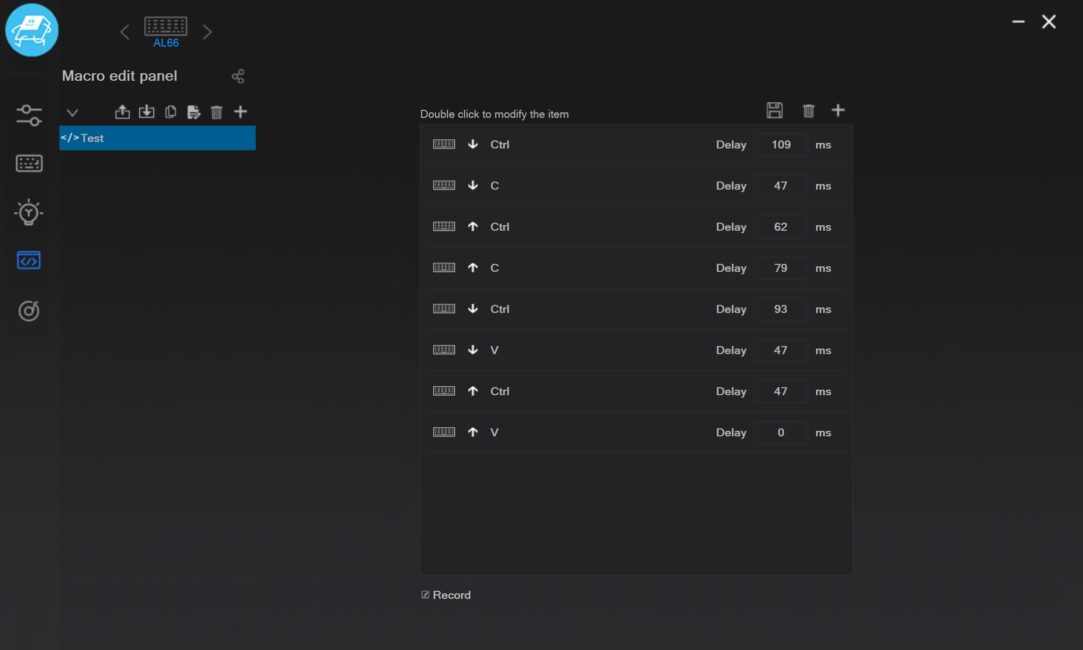
The Macro Edit Panel menu allows you to record and edit macros. These macros can then be assigned to keys or functions within the Key Assignment menu.
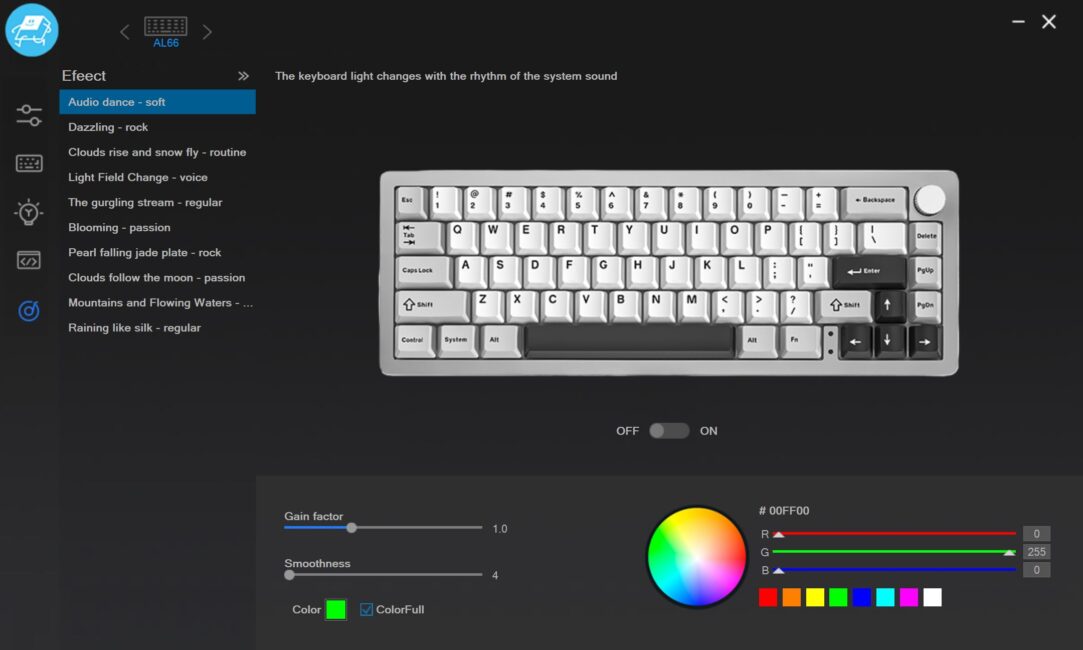
The Effect menu contains light music effects. When this option is activated, the keyboard lighting syncs with the music playing on the PC. I tested different effects, and they all worked as expected.
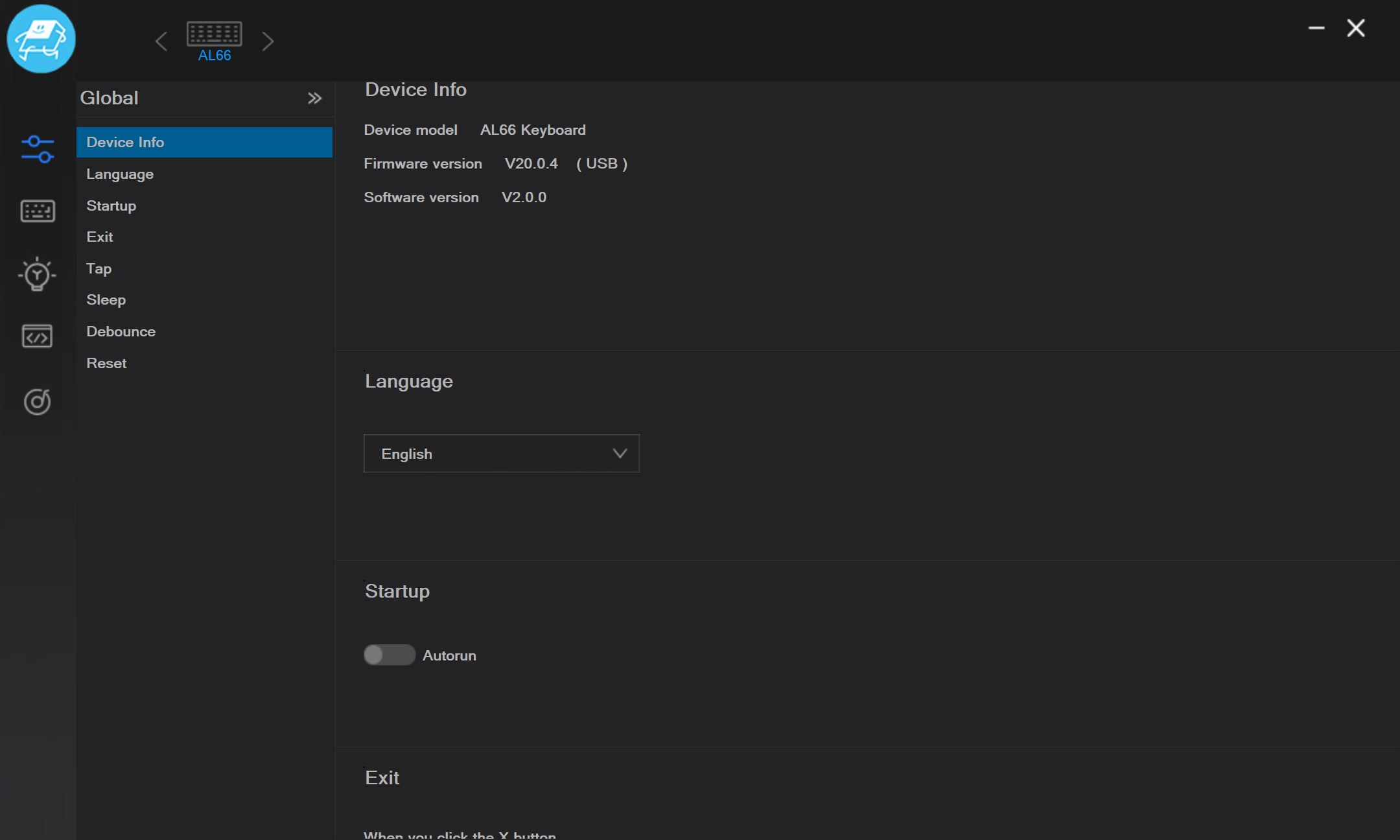
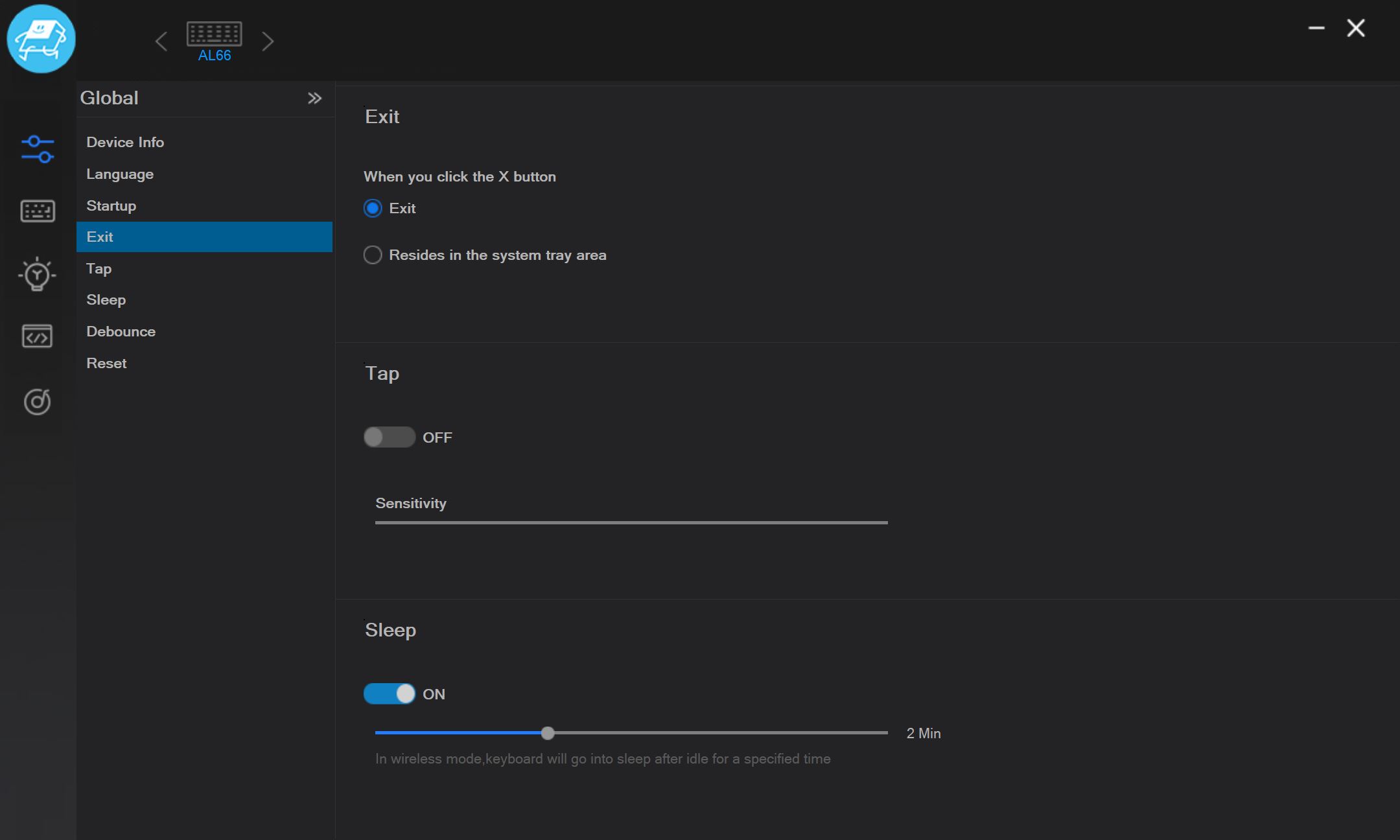
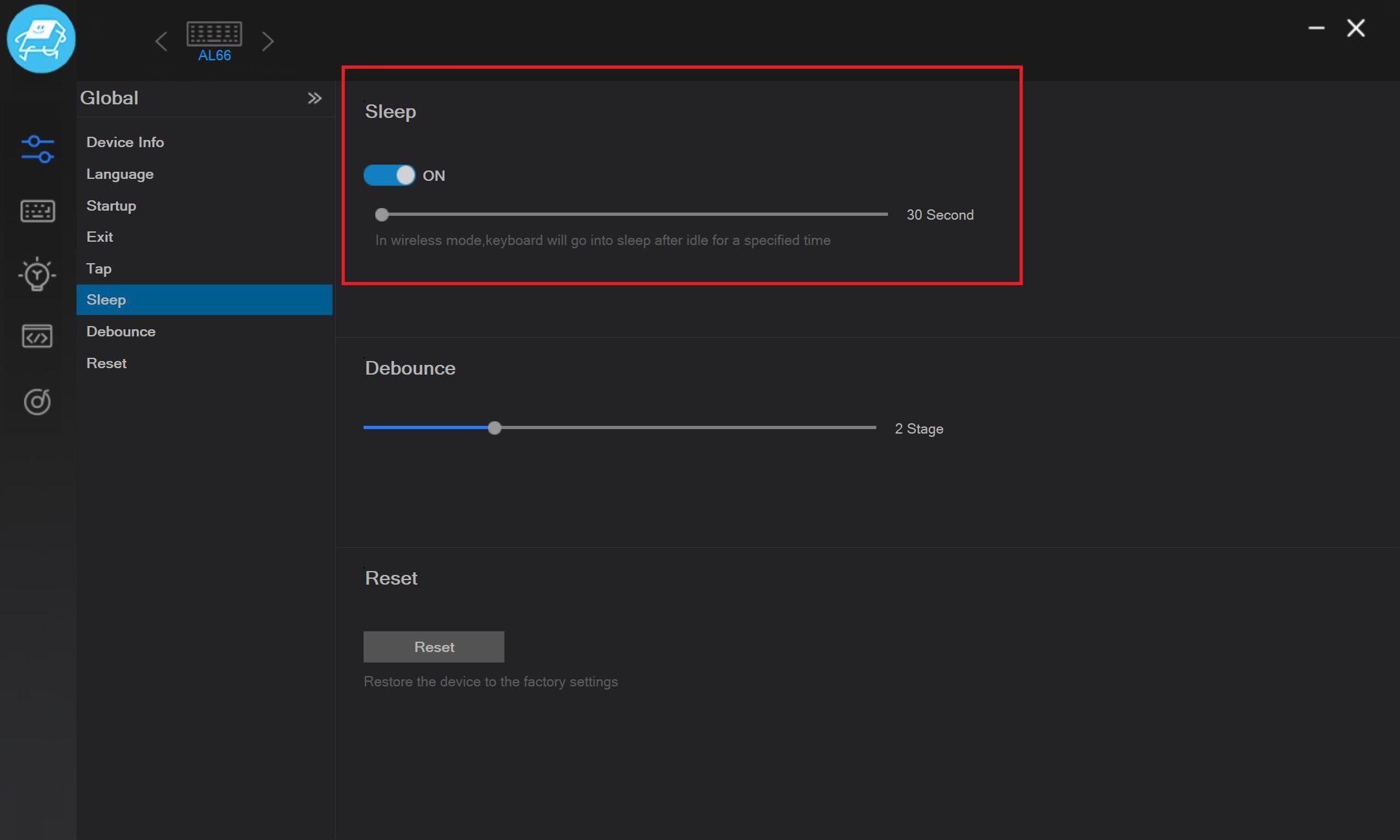
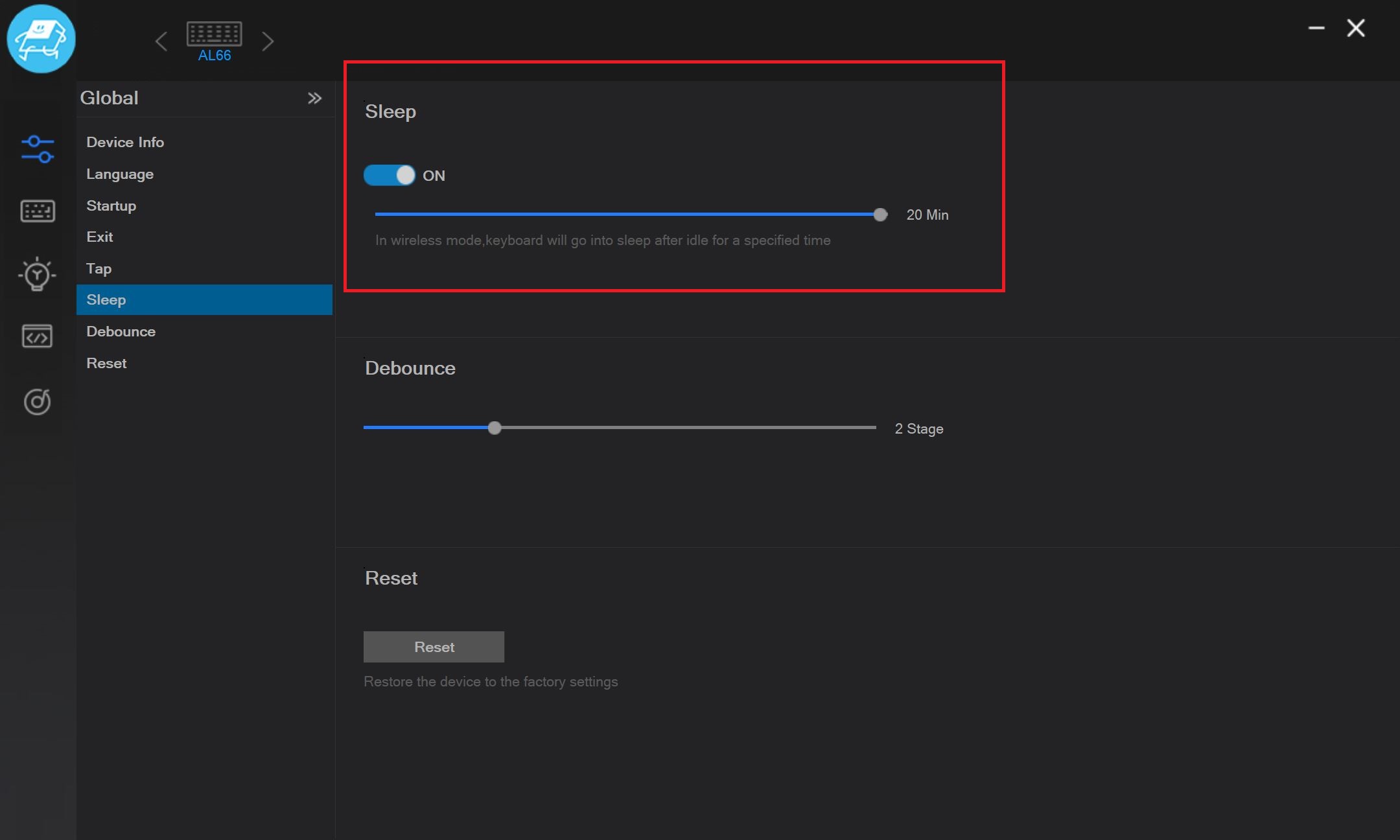
The Global menu contains the main settings for both the app and the keyboard: language, auto-start, sleep timer, and factory reset. The ability to adjust the sleep timer directly within the app is a notable improvement. In previous models like the AL65 and AL68, this setting could only be changed at the firmware level, meaning the keyboard required a firmware update to alter the sleep time. With the AL66, this process is much more straightforward.
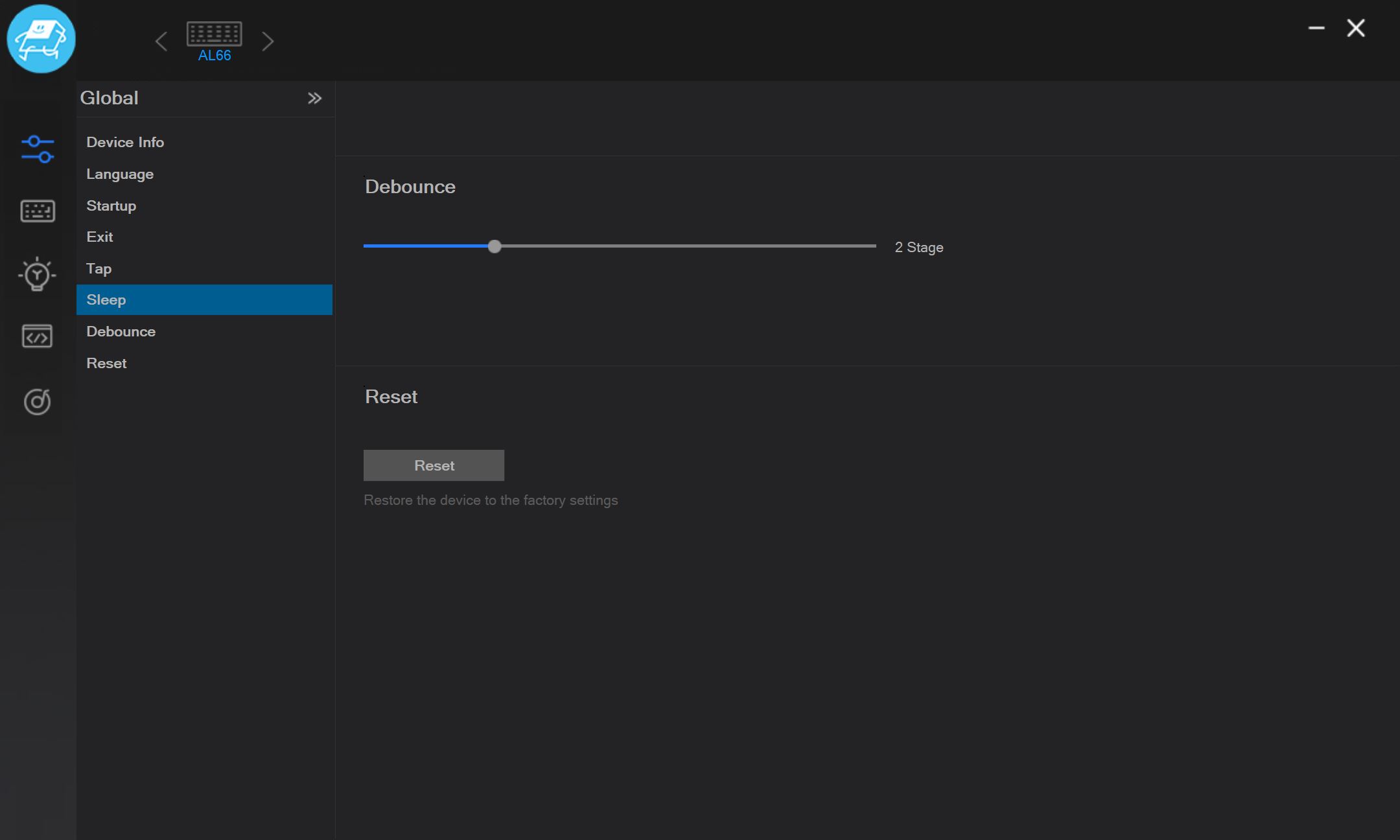
As mentioned earlier, the app is simple but can be somewhat awkward and not very intuitive in places. After using the more user-friendly VIA web interface found on the AL65 and AL68, this app feels less polished. However, it functions adequately and handles the essential tasks without major issues. All settings made within the app are saved directly to the keyboard’s memory. Essentially, you can configure the keyboard once to your preferences and then use it on other systems without needing the app.
Another advantage is that the keyboard can be configured not only in wired mode but also wirelessly via the 2.4 GHz RF connection. This means you don’t have to connect the keyboard with a cable or switch it to wired mode just to adjust the settings.
Switches, stabilizers, typing
The AL66 model comes with only one type of switch – the brand’s own linear YUNZII Milk Switch. To clarify, these are the very first version of the YUNZII Milk switches. For comparison, the AL65 and AL68 models I reviewed earlier were equipped with the second revision – the Milk V2 Linear Switch. After using the AL66 with the original switches, I can say I preferred them over the second revision found in the AL65 and AL68. The first version feels softer, quieter, and offers a smoother typing experience. As for the technical specifications of these switches, you can see them in the screenshot below. One additional note is that the switches come pre-lubricated.

Like all keyboards from this brand, the AL66 supports hot-swappable switches, allowing you to replace switches without soldering. However, there is one drawback – the AL66 V1 uses 3-pin sockets. This means the keyboard is not compatible with 5-pin switches, which is a notable limitation. By contrast, the second revision, V2, features 5-pin sockets that are compatible with both 3-pin and 5-pin switches.
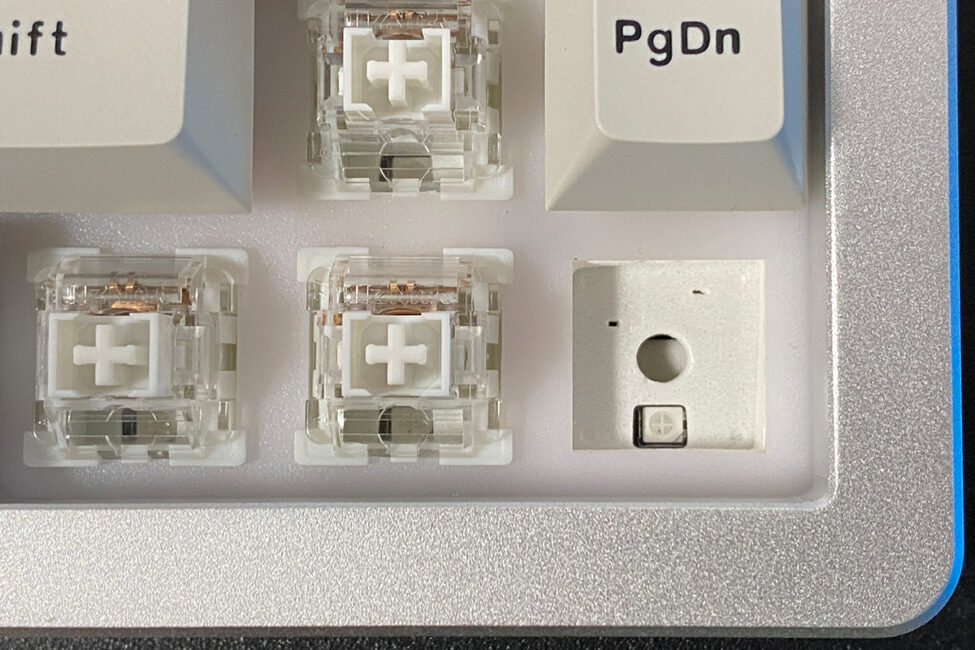
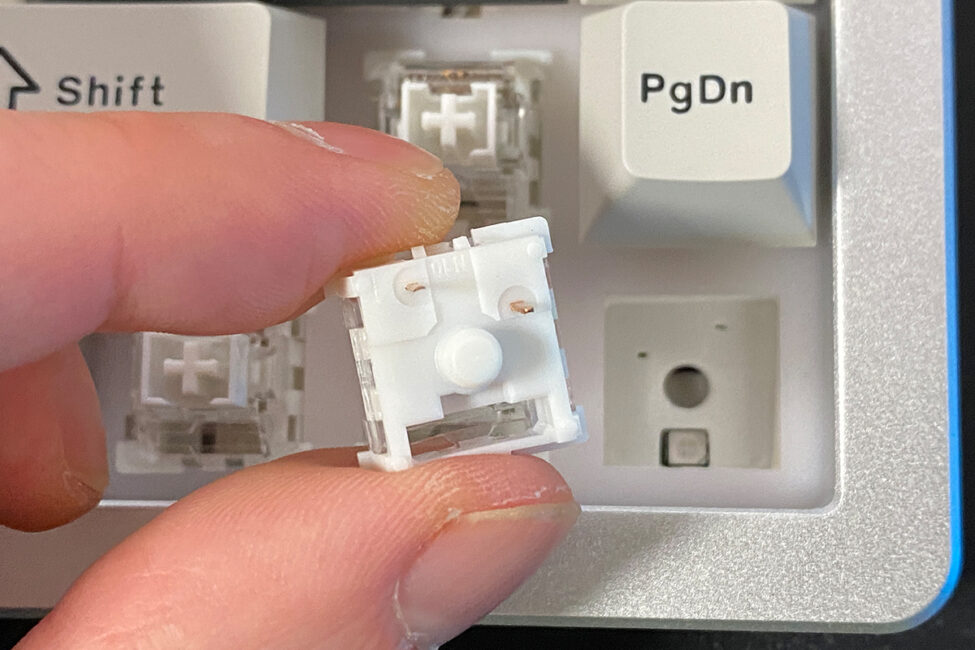
The stabilizers in the AL66 also come pre-lubricated, as you can see in the photo below. They are not just lightly coated but generously lubricated. The stabilizers perform very well, providing solid stabilization for longer keys with a smooth, quiet keypress. There’s no noticeable rattling or other unwanted noises.
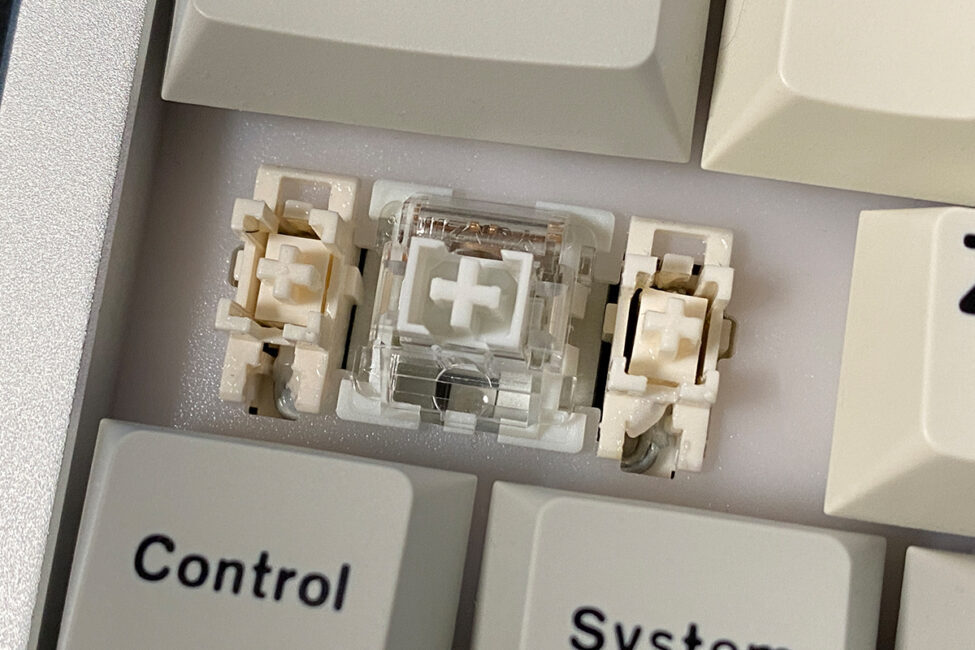
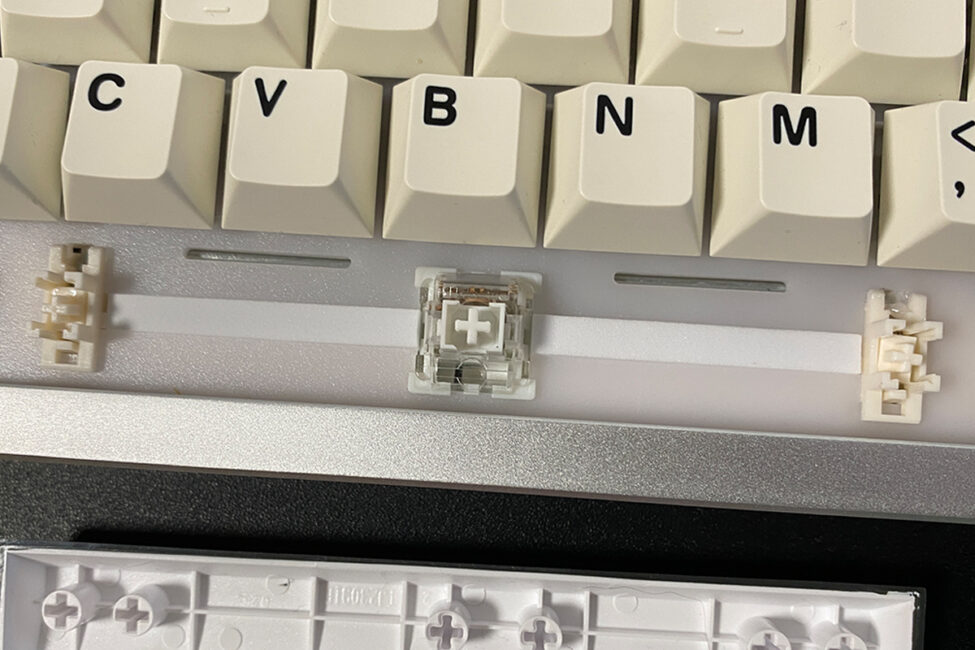
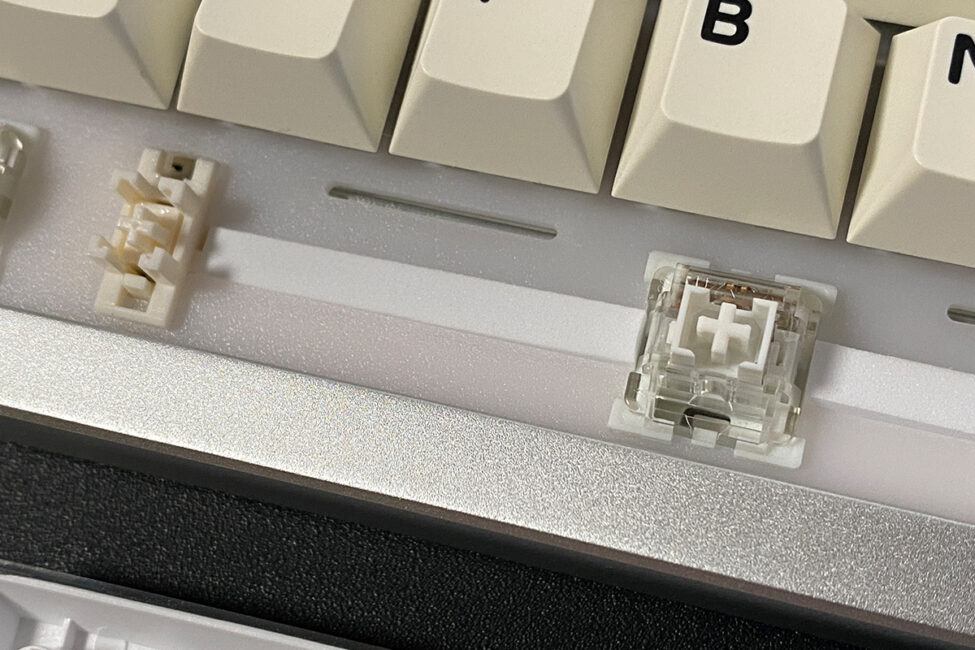
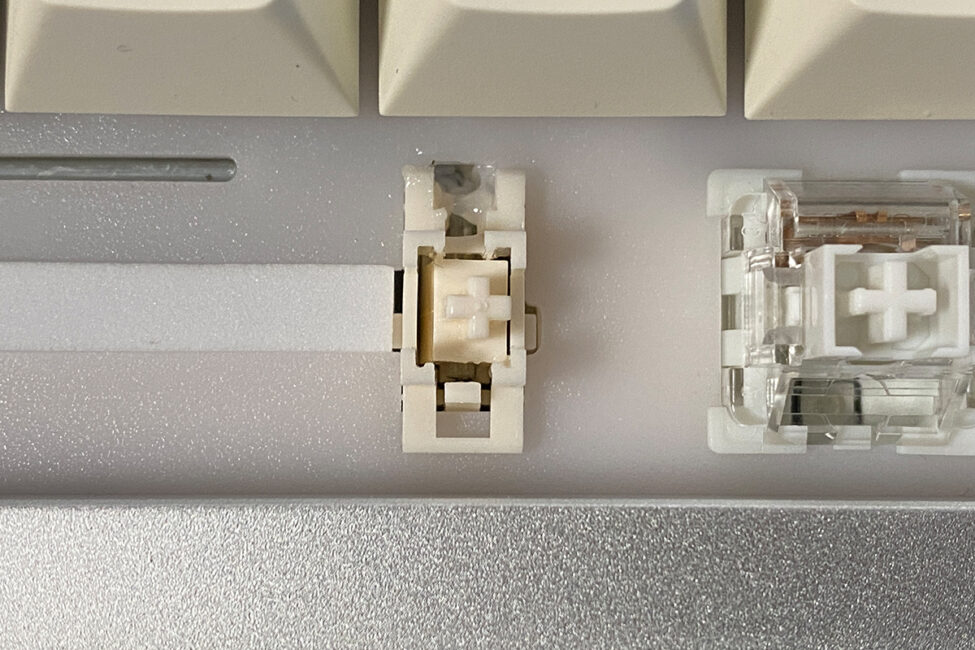
Typing on the YUNZII AL66 is, without exaggeration, excellent. In terms of typing experience, the AL66 is definitely one of the most comfortable keyboards I’ve tested. It offers a very smooth, quiet, and creamy key feel on both the smaller and longer keys. I personally preferred the typing experience on the AL66 with the first version of the Milk switches much more than on the AL65 and AL68, which use the second version.
YUNZII AL66
YUNZII AL65
YUNZII AL68
Read also:
- GamePro MK130R and GamePro MK180B Keyboards Review
- Epomaker Carbon 60 review: Premium Materials Meet Portable Design
Battery life
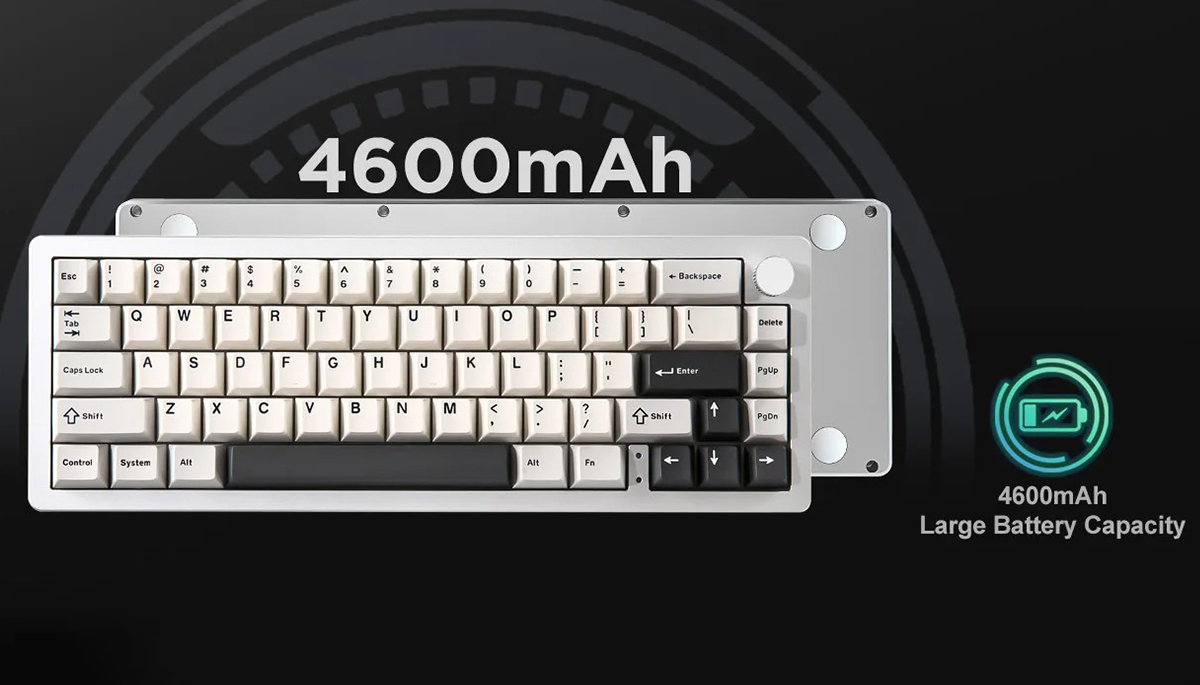
The keyboard is equipped with a 4600 mAh battery, which is notably smaller than the 8000 mAh in the AL65 and 6000 mAh in the AL68. However, based on personal use, the AL66 actually seems to last longer on a single charge than those larger-battery models. According to the official specs, it can deliver up to 90 hours of battery life on one charge. In my case, I used it for about a week with the backlighting set to maximum, and it held up without issue.
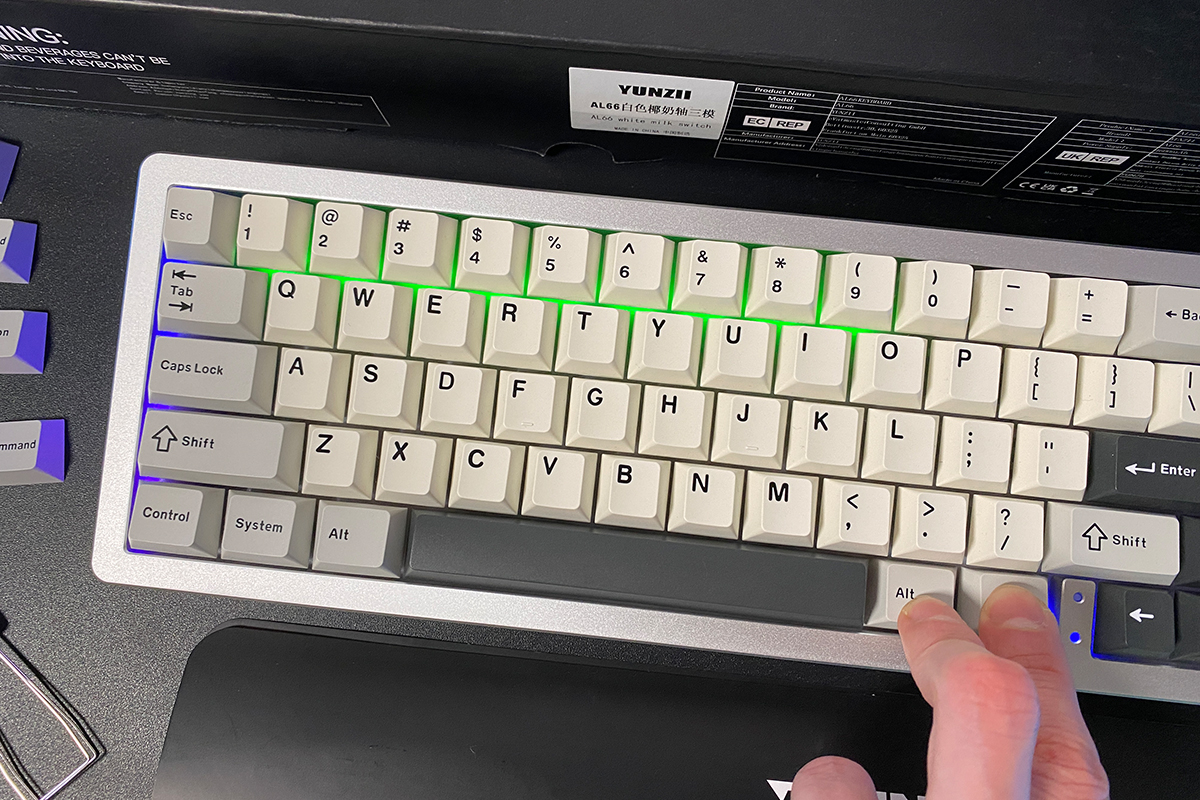
You can check the battery level by pressing the FN + Right Alt key combination. When triggered, the number row lights up in a color that reflects the current charge level: green, yellow, or red. The illuminated numbers indicate the remaining battery percentage – for example, 2 means 20%, 5 means 50%, 9 means 90%, and 0 indicates a full charge.
To conserve battery, the keyboard automatically enters sleep mode after 2 minutes of inactivity. You can adjust this timeout in the official app by going to the Global menu and selecting the Sleep settings. The minimum sleep timer you can set is 30 seconds, and the maximum is 20 minutes.
The AL65 and AL68 models had a minor quirk when waking from sleep – a slight delay if the keyboard had been inactive for a long time. The YUNZII AL66 doesn’t have this issue. No matter how long it stays in sleep mode – even an entire day – it wakes up instantly, with no noticeable lag. The first key you press responds immediately, just as it should.
Conclusions
Judged on its own, without direct comparison to other models in the series, the YUNZII AL66 stands out as a solid keyboard within its price range. It features a metal case, excellent build quality, and a highly satisfying typing experience. On top of that, it offers strong battery life and instant wake-up from sleep mode, with no noticeable input lag.
But realistically, it’s hard not to compare the AL65, AL66, and AL68 – especially since they belong to the same product line, all follow the 65% layout, and fall within a similar price range. As mentioned earlier, there are areas where the AL66 comes out ahead, and others where it falls short. So, it makes sense to break things down and compare these three models point by point.
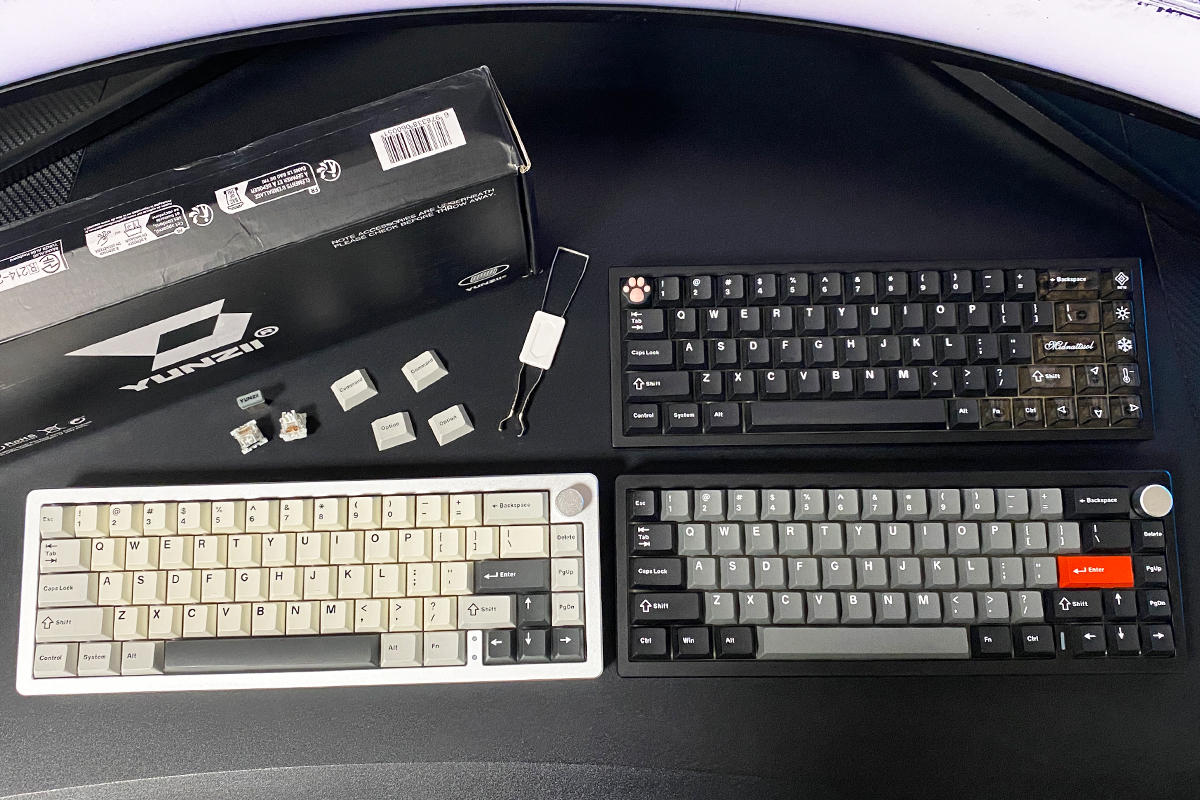
Design and Ergonomics. Objectively speaking, all three models have solid design work. That said, I personally preferred the look of the AL68 the most, largely because of its simplicity. The AL65 comes in second, while the AL66 ranks third in this category. One of the reasons is its side lighting, which, as mentioned earlier, isn’t particularly impressive – it’s not as bright or evenly diffused as one might expect. If case lighting is a priority, the AL65 does it better, offering more extensive and vivid illumination. Of course, the AL65 is also the most expensive of the three. When it comes to ergonomics, the AL65 and AL68 come out ahead. Both are noticeably slimmer and lower in profile compared to the AL66, making them more comfortable to use over long periods.
Software. In terms of software, the AL65 and AL68 clearly have the upper hand. They don’t require a dedicated app – everything can be configured directly through the VIA web interface, which is both user-friendly and accessible. It’s worth clarifying, though, that this comparison refers specifically to the first revision of the AL66 (V1). The second revision, AL66 V2, offers the same ease of configuration as the AL65 and AL68, making it just as convenient in that regard.
Typing Experience. Typing feel is always a bit subjective, but for me, the AL66 with the first version of the Milk switches offered the most enjoyable experience. As mentioned earlier, it has a softer, quieter, and overall smoother typing feel compared to the AL65 and AL68.
Hot-Swap Support. In this category, the AL65 and AL68 clearly come out ahead thanks to their 5-pin switch sockets. These are compatible with both 3-pin and 5-pin switches, offering greater flexibility when it comes to customization. The AL66 V1, on the other hand, uses 3-pin sockets, meaning it only supports 3-pin switches out of the box. This is arguably the most significant drawback of the keyboard. That said, it applies only to the first revision – AL66 V2 addresses this by switching to 5-pin sockets, bringing it in line with the other models.
Battery Life and Sleep Mode. Despite having the smallest battery capacity among the three, the AL66 appears to last the longest on a single charge – at least based on my experience. So in terms of battery life, the AL66 comes out on top compared to the other 65% models in the lineup. It also handles sleep mode better than the AL65 and AL68. The AL66 wakes instantly, even after long periods of inactivity, with no noticeable delay or missed keystrokes. That’s something the AL65 and AL68 models still struggle with to some extent.
Read also:
- Oppo Enco Buds 3 TWS Earbuds Review: Comfort, Battery Life, and Sound Quality
- Škoda Karoq Sportline Test Drive: Just a Visual Refresh?
- JSAUX Accessories for Portable Consoles Review: Docking Stations and Joy-Con Connector
Where to buy