




© ROOT-NATION.com - Use of content is permitted with a backlink.
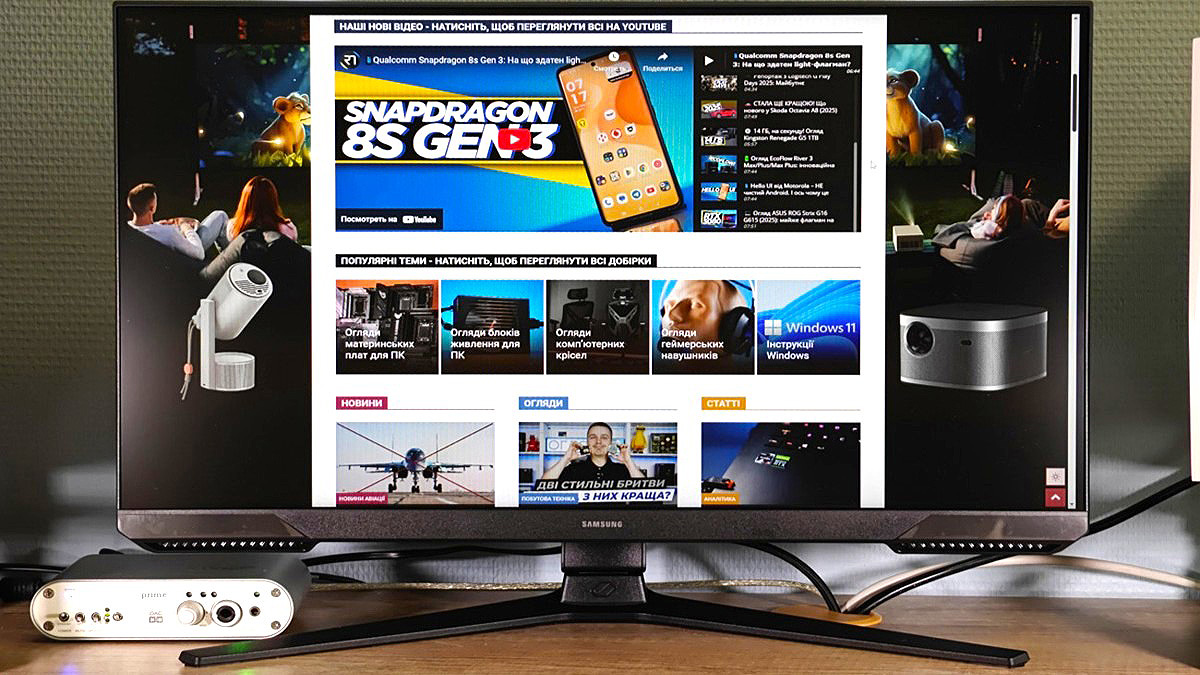
Samsung continues to expand its Odyssey gaming monitor lineup with both IPS and VA models. In this review, we’re taking a closer look at the 24-inch VA-based Samsung Odyssey G3 G30D. Priced at around $133 / €113, it offers solid image quality with deep blacks, a 180Hz refresh rate, and a versatile, ergonomic stand. Let’s see how the G30D performs in real-world use.
Read also: ASUS VA259HGA Review: An Affordable Full HD Gaming Monitor with 120Hz and Eye Care+
TABLE OF CONTENTS:
Samsung Odyssey G3 G30D specifications
- Model: Samsung Odyssey G3 G30D, LS24DG300EIXCI
- Diagonal, type of screen panel, coating: 24″, VA, matte
- Resolution: 1920×1080 pixels
- Backlight: white LED
- Refresh rate, adaptive sync support: 180 Hz, AMD FreeSync
- Response time: 1 ms (MPRT)
- Number of reproducible colours: 16.7 million
- Colour space coverage: sRGB 95%
- HDR support: HDR 10
- Brightness: 250 cd/m²
- Contrast: 3000:1
- Interfaces: 1×HDMI 2.0, 1×DisplayPort 1.4, minijack, USB (for firmware updates only)
- Screen position adjustment: tilt from -5° to +20°, height adjustment range 120 mm, 15° left or right rotation, flip to portrait mode (clockwise only)
- Power supply: external
Package contents
The Samsung Odyssey G3 G30D comes packaged in a sturdy cardboard box labeled with the monitor series name and screen size in both inches and centimeters. Stickers on the packaging provide details such as the full model code, serial number, weight, manufacturing date, and country of origin. The box includes basic cutout handles on both sides, making it relatively easy to carry over short distances.
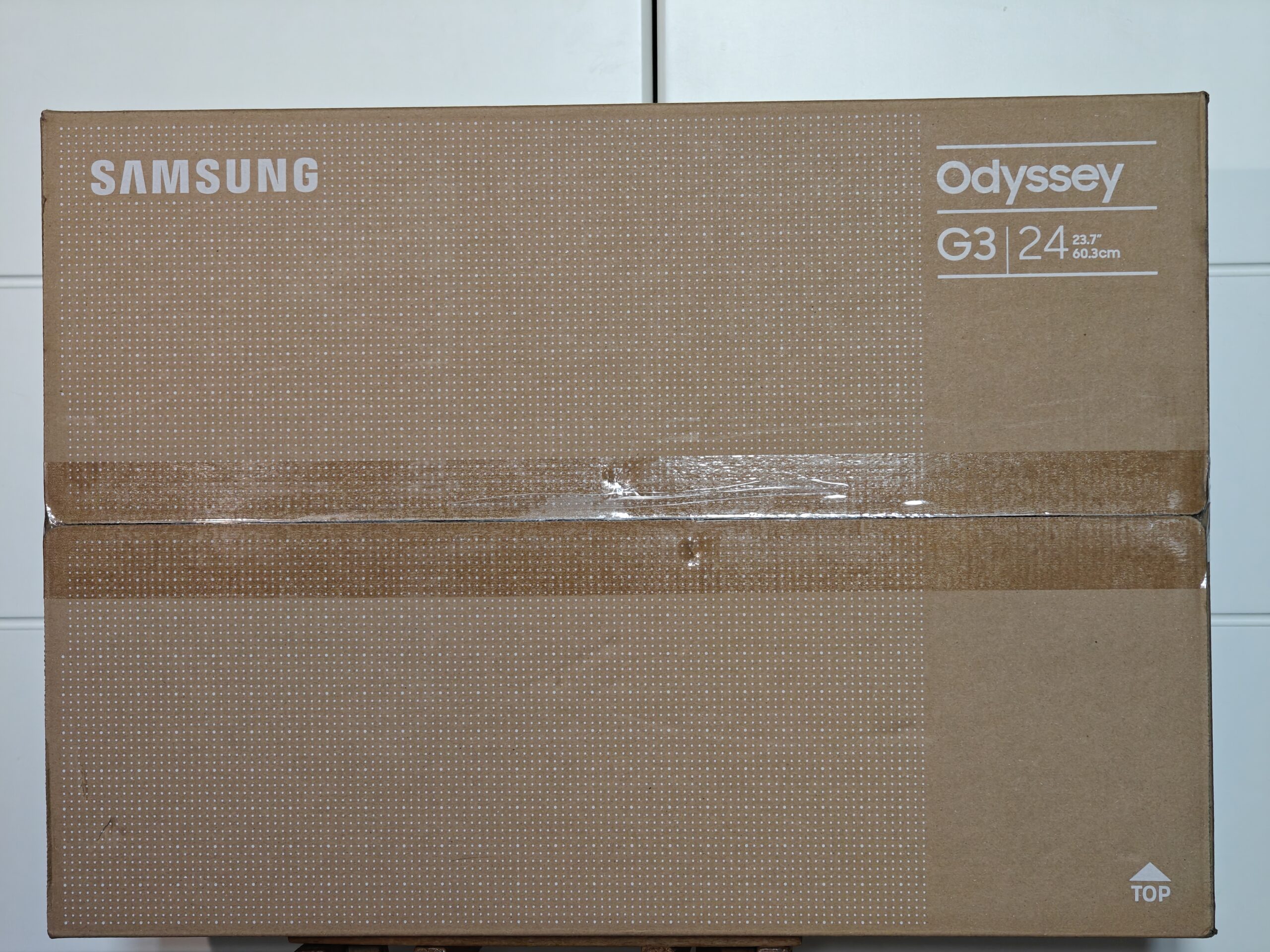

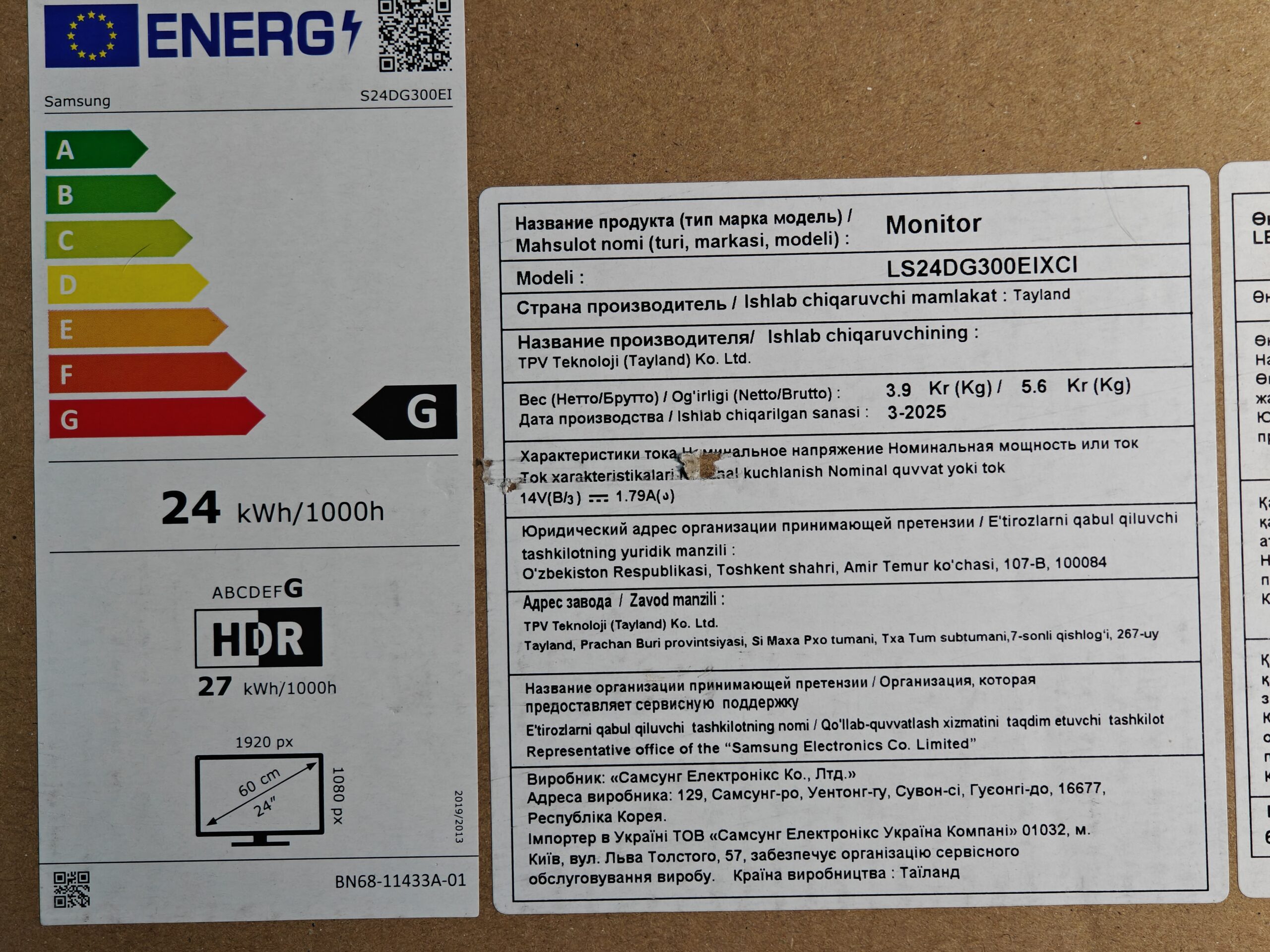
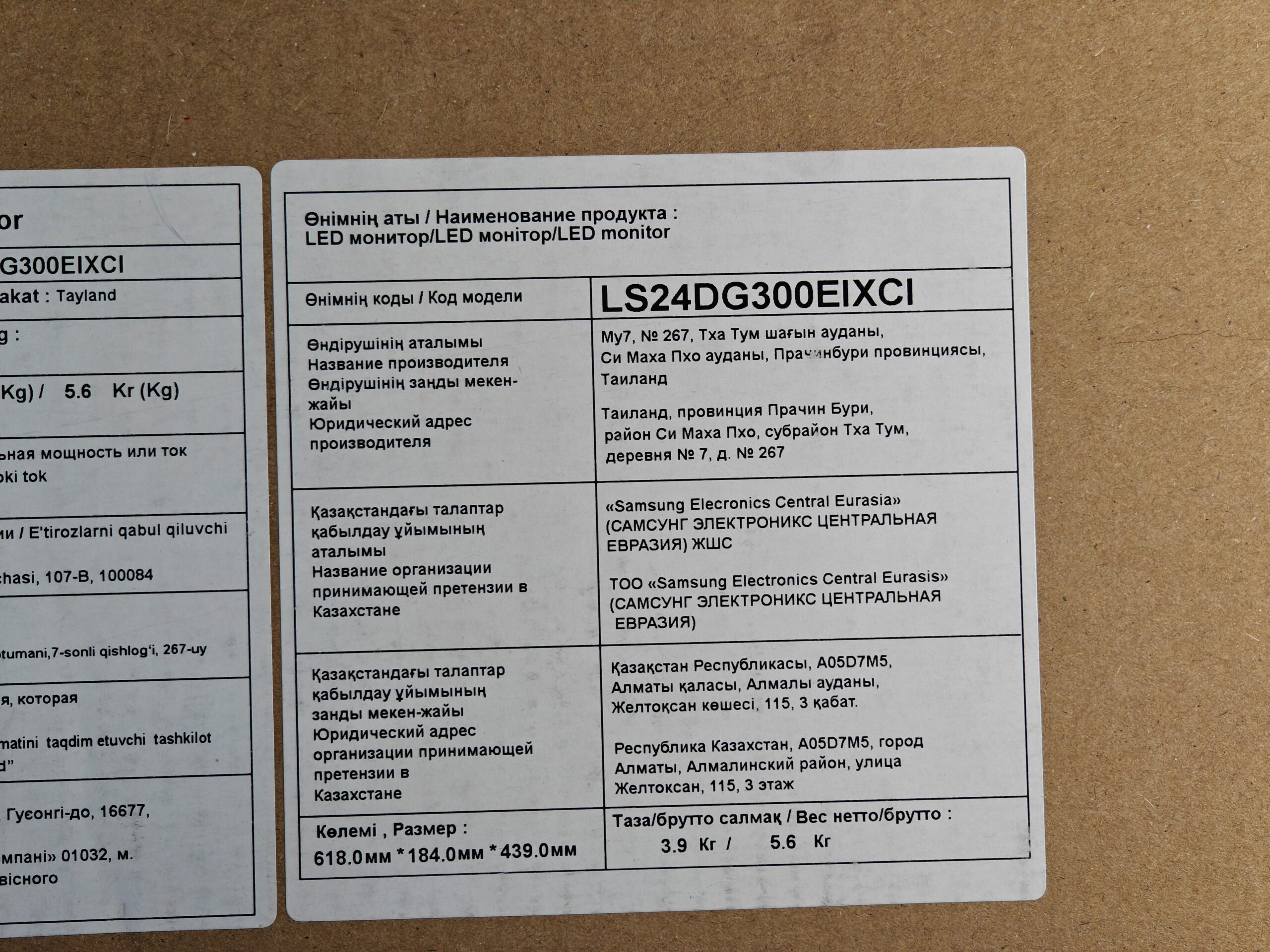
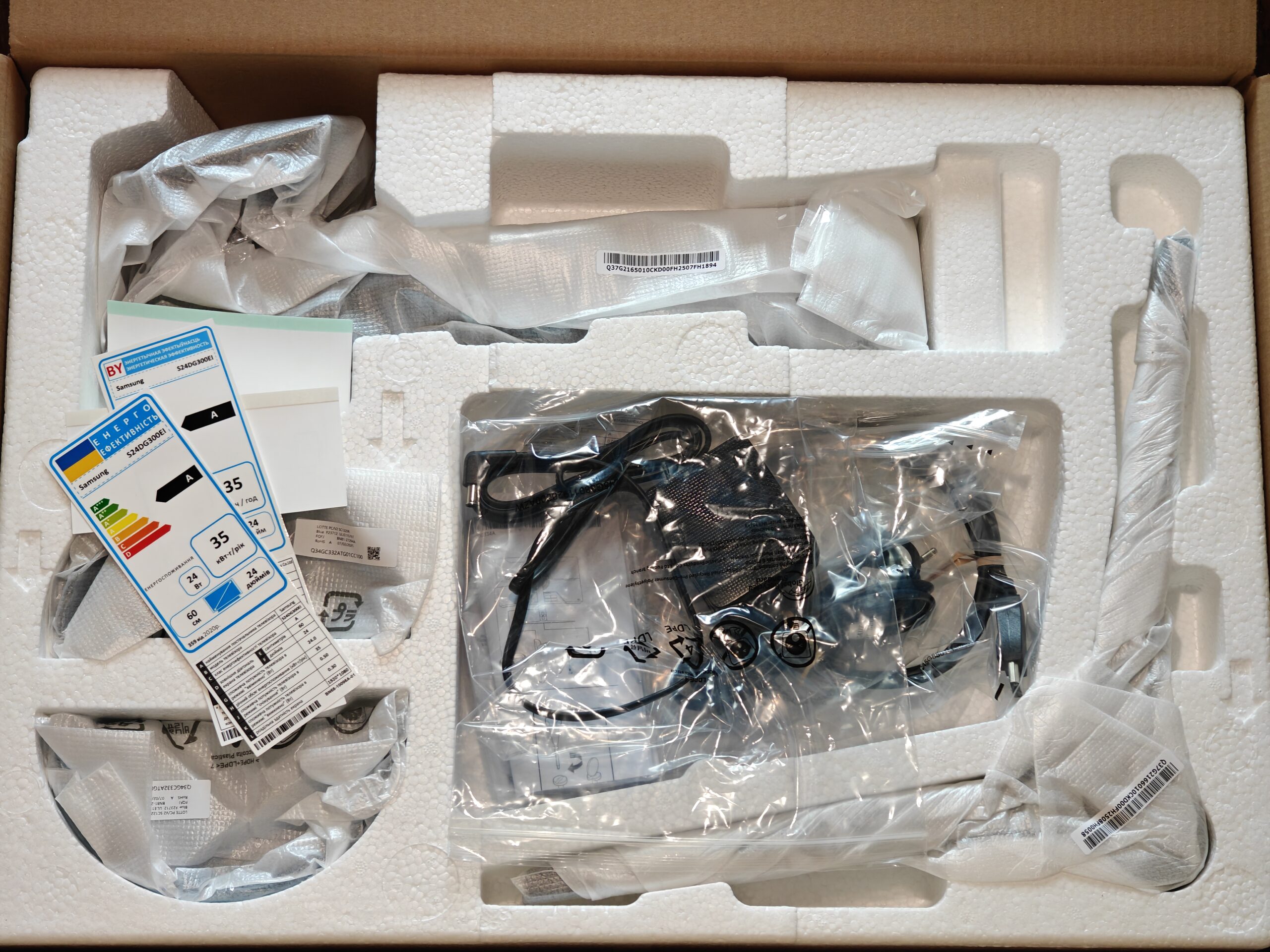


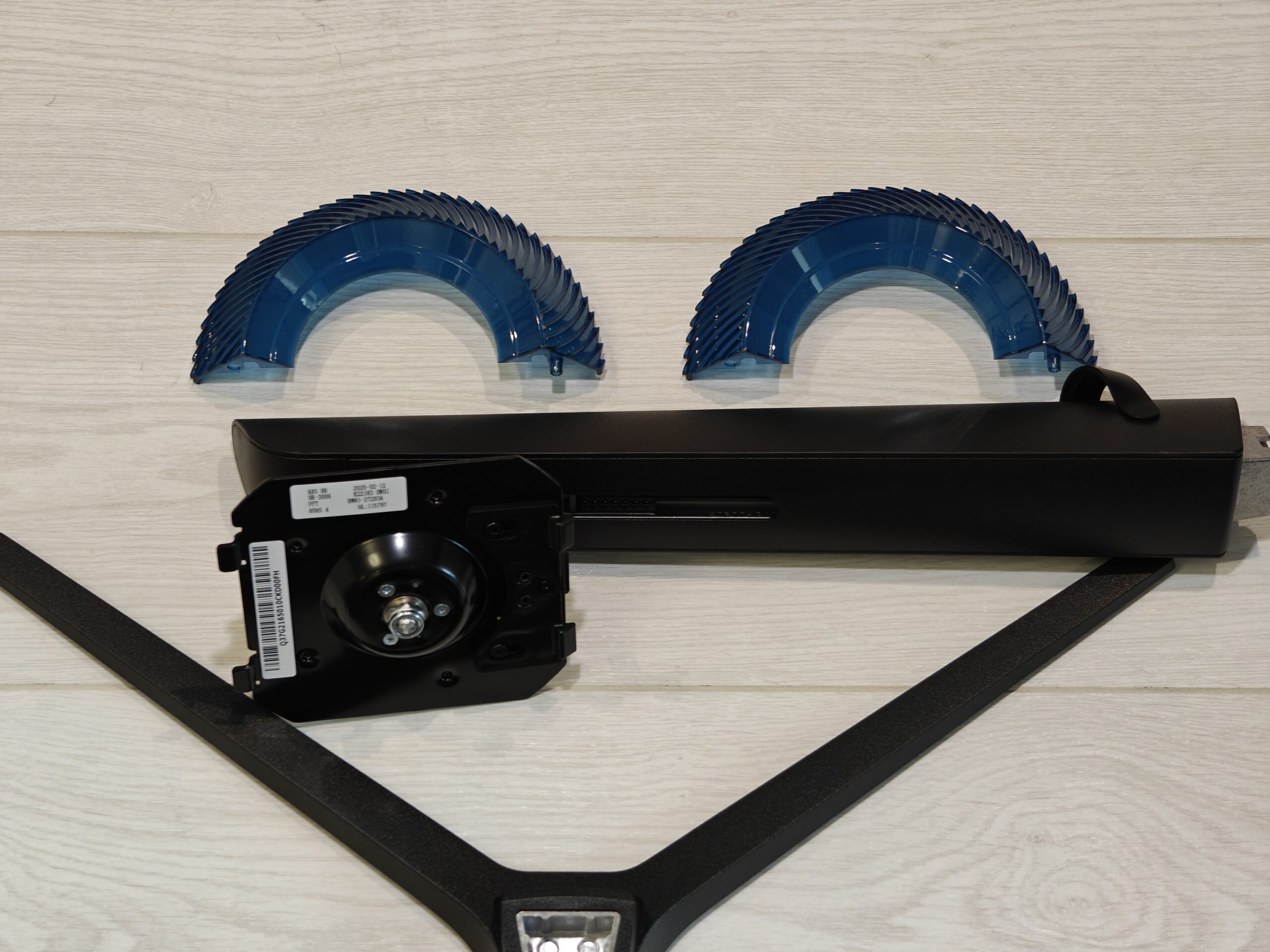
The packaging is organized into two layers: the display panel is placed on the bottom, while the accessories, stand components, and documentation are located on the top. The box includes an external power adapter with a detachable power cable, a DisplayPort cable, a warranty booklet, a monitor assembly guide, a quick user manual, and parts of the monitor stand. The power adapter is rated for up to 25 watts (14V / 1.79A).
Design and construction
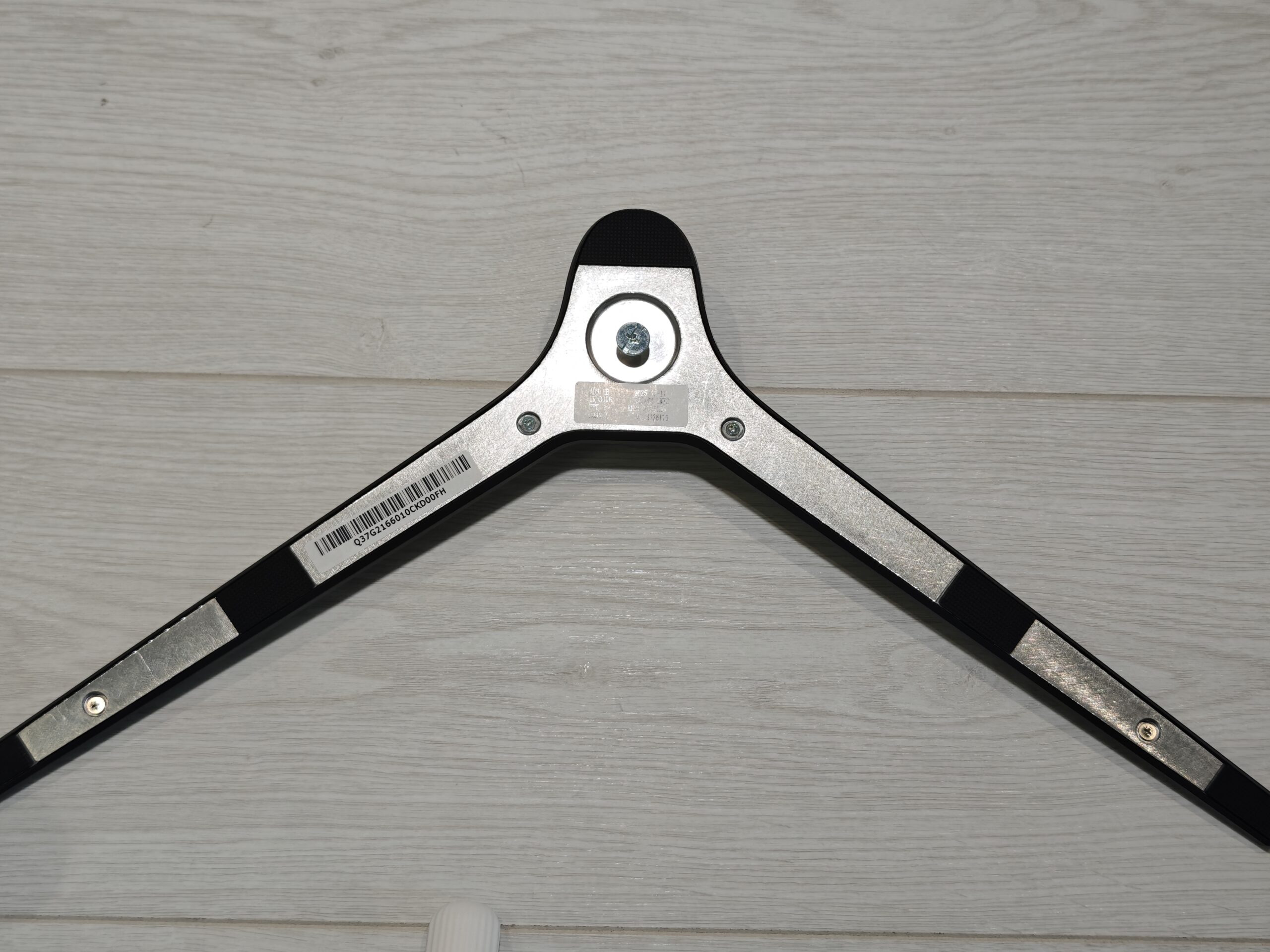

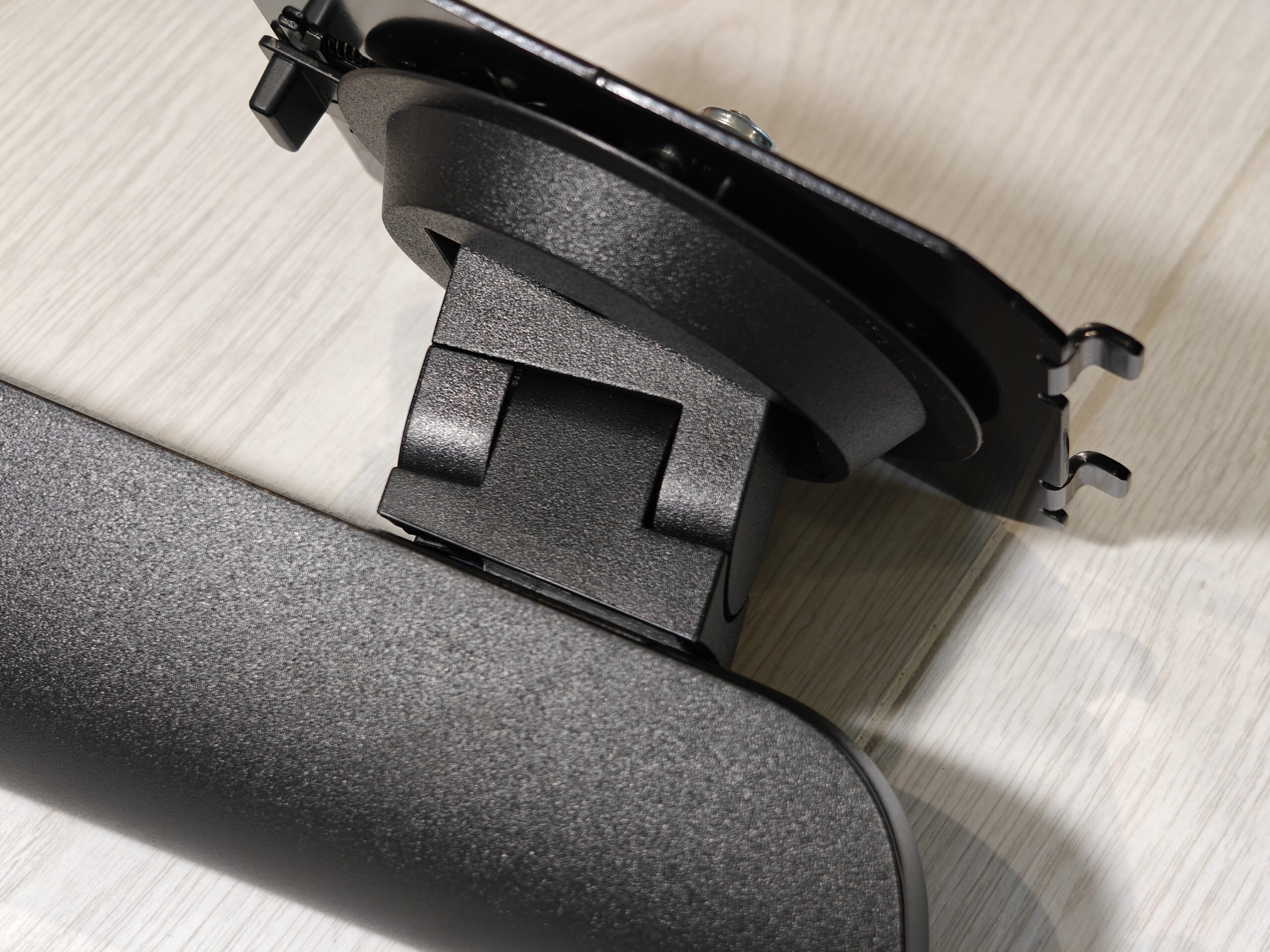


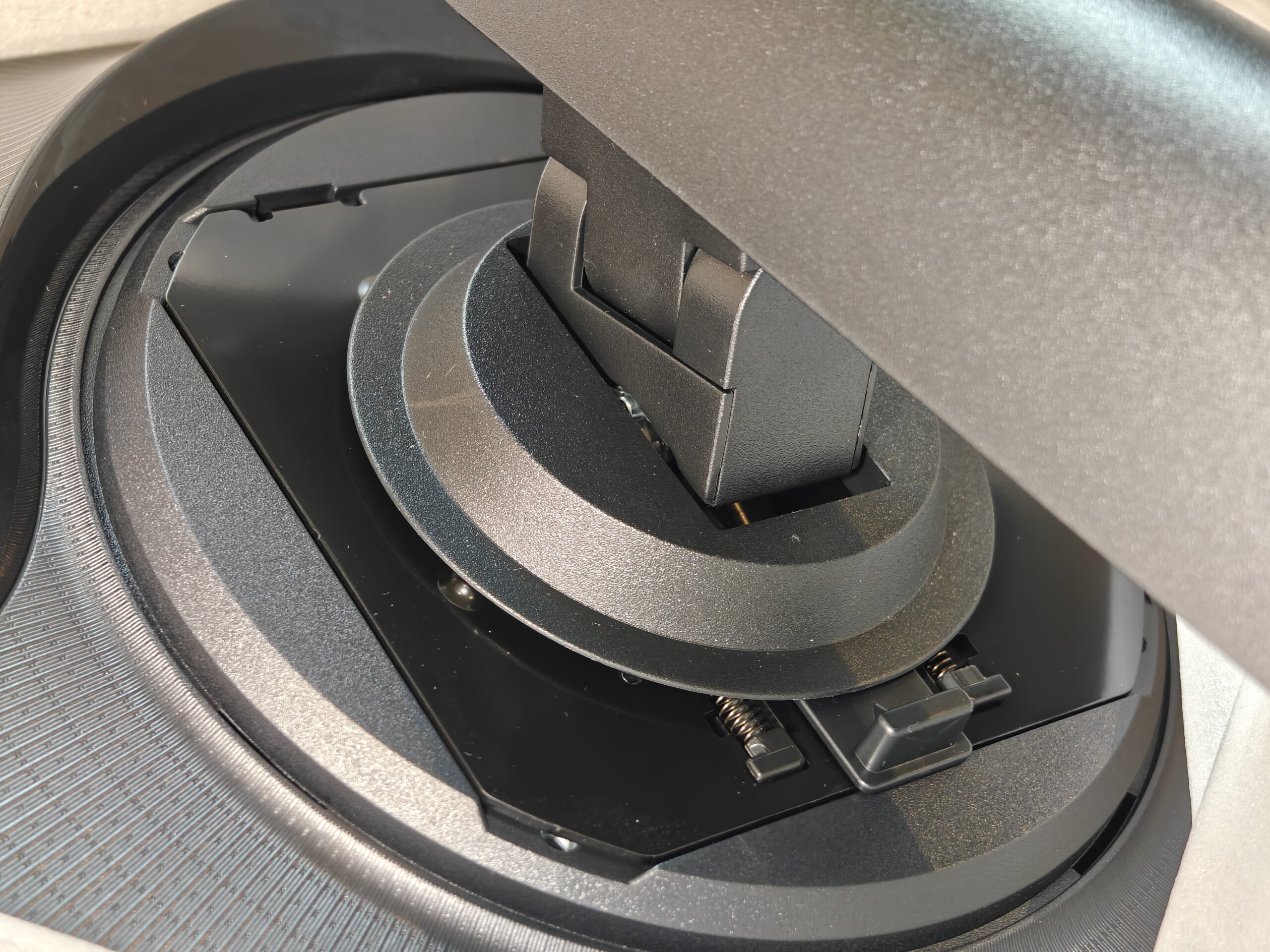

Assembly of the stand is straightforward. The base attaches to the vertical arm using a screw, and then the assembled stand clicks into the back of the monitor without the need for any tools. When adjusting the monitor’s position on a desk – raising, lowering, or rotating – it’s recommended to hold it by the plastic tabs located at the bottom of the screen. The stand’s base and arm are made of metal but are covered in a plastic shell. For stability and grip on a desk surface, the base includes five rubber pads.


One of the standout features of the Odyssey G3 G30D is its adjustable stand. While most monitors in this price range typically only offer tilt adjustment, Samsung has gone a step further. This model allows for height adjustment within a 120 mm range, tilt between -5° and +20°, swivel 15° to the left or right, and even rotation into portrait mode – though only clockwise. The distance from the desk to the bottom edge of the screen ranges from approximately 77 mm to 197 mm, depending on the height setting.
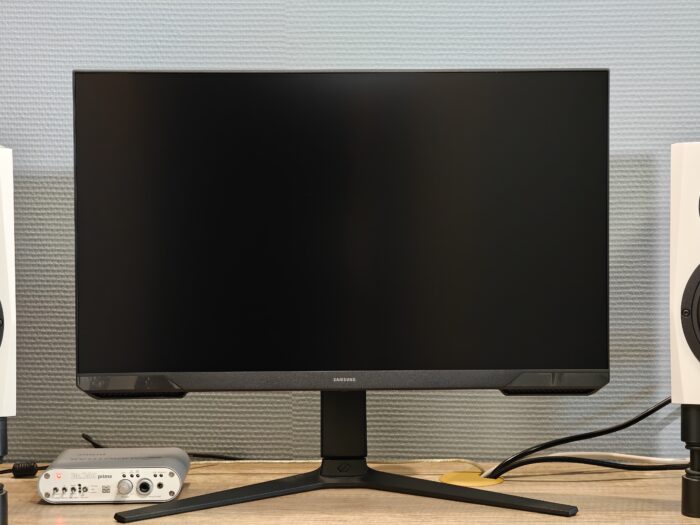
In daily use, the external power adapter can be seen as a drawback. It takes up space on the desk or floor and may get in the way. Given the monitor’s thickness, there seems to be enough room to house the power supply internally – especially since it only delivers 25 watts and wouldn’t require much space. That said, there is an upside: if the adapter fails, it’s easier and cheaper to replace compared to an integrated unit.
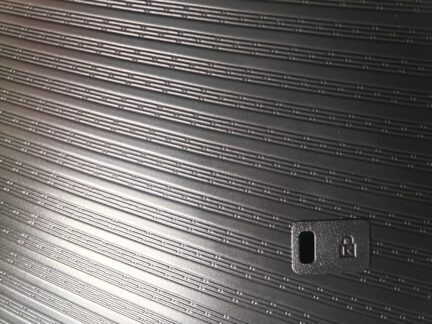
The monitor’s housing and stand are made of standard textured black plastic. While dust is easily visible against the dark surface, the matte finish helps resist fingerprints and masks small scratches. The Samsung Odyssey G3 G30D has a modern, yet fairly neutral design. Its gaming lineage is hinted at mainly by the angular plastic accents at the bottom of the display and a colored plastic insert on the rear. This insert features a teal shade, possibly meant to evoke a vortex motif in line with the “Odyssey” branding.
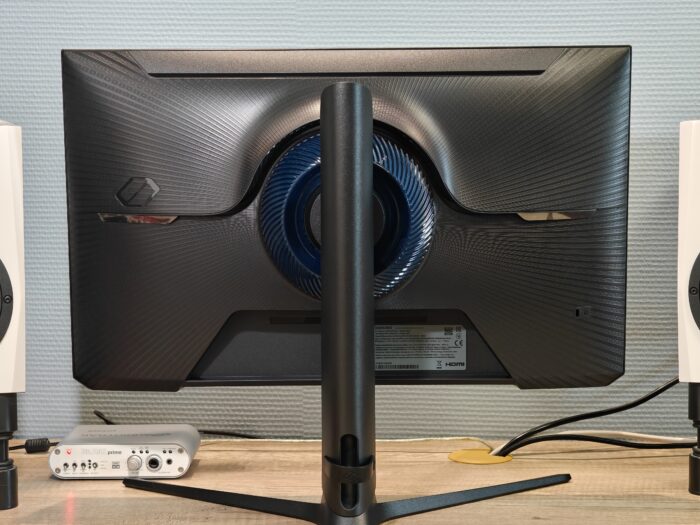
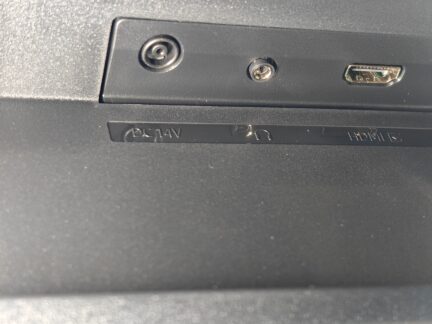
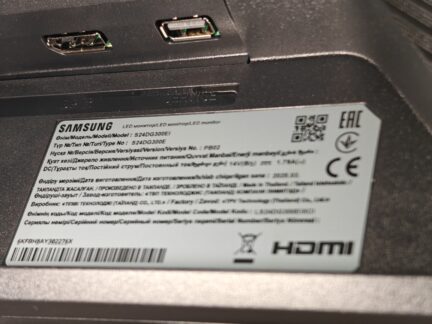
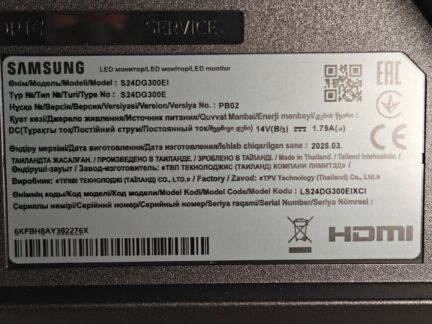
The monitor doesn’t have a true frameless design, but the bezels are fairly slim – approximately 6 mm on the top and sides, and 20 mm at the bottom. In terms of connectivity, it includes one DisplayPort 1.4 (HBR 2), one HDMI 2.0 input, a 3.5mm audio jack, and a USB port that’s used solely for firmware updates.
Read also: ASUS TUF Gaming VG27WQ3B Monitor Review: Fast VA, 2K Resolution, 180 Hz, and an Affordable Price
Samsung Odyssey G3 G30D menu and settings
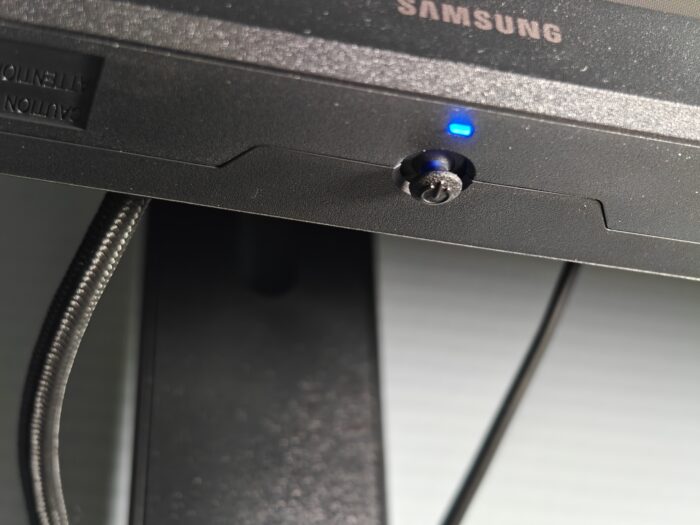
The monitor is controlled by a five-way controller located under the Samsung logo on the front panel.
Pressing in the centre brings up the initial menu with several items: Menu (accesses the main menu with settings), Eye Saver Mode (reduces the level of blue for comfortable reading of text), Power Off (switches off) and Source (selects Display Port or HDMI input).
Pressing on the sides allows you to quickly change the main picture settings (brightness, contrast, sharpness), video input or headphone volume, if connected.


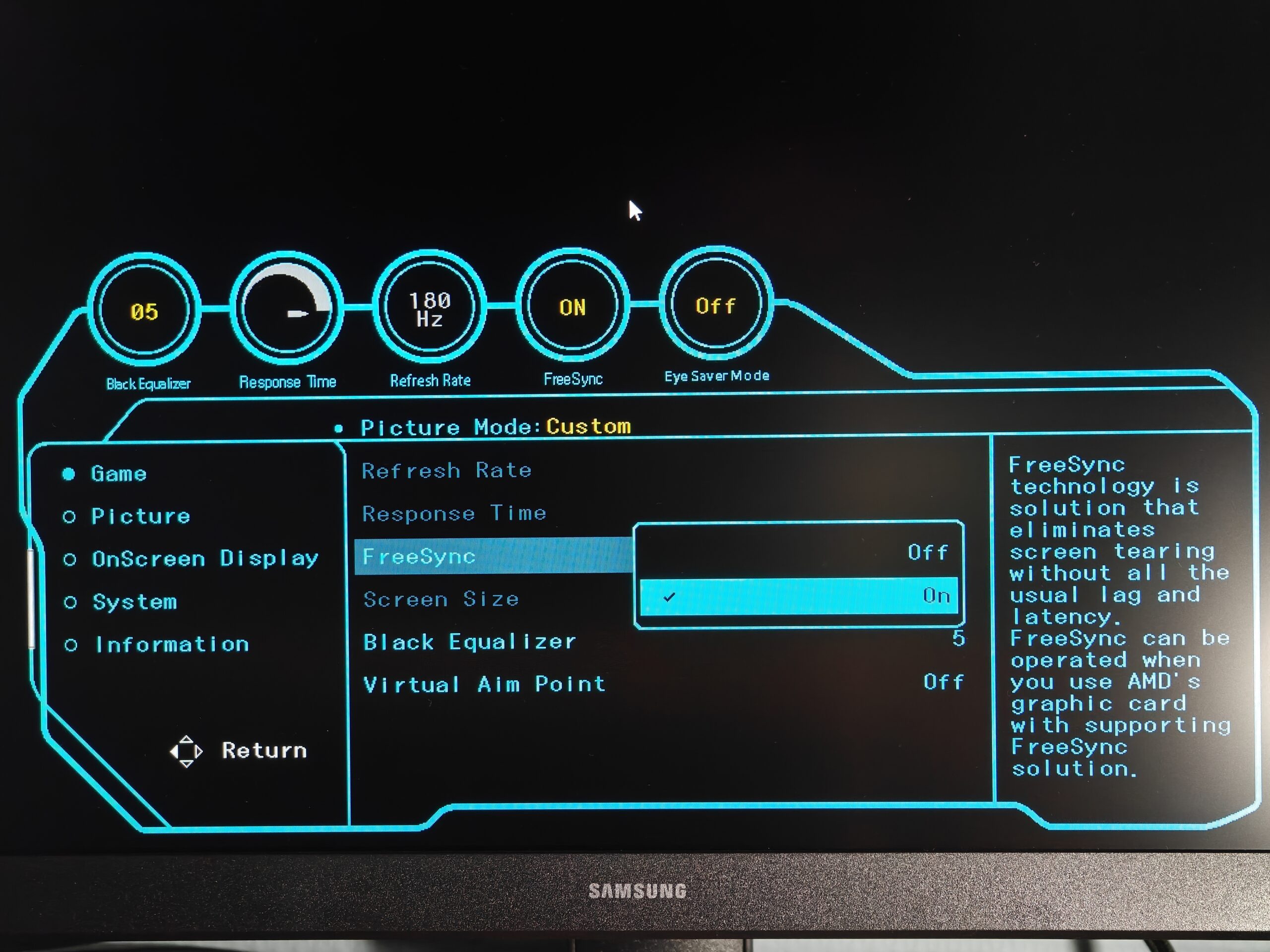


The main menu is organized into several tabs grouping related settings and displays current values for key parameters. In the first tab, Game, you can adjust the refresh rate (options are 60, 120, or 180 Hz), overdrive (offered in four levels, with the highest using MBR backlight modulation), and dark area visibility via the Black Equalizer feature. Adaptive synchronization with FreeSync can also be enabled here, along with an on-screen crosshair marker called Virtual Aim Point.
It’s important to note that FreeSync and overdrive cannot be used simultaneously, which affects how motion is perceived on screen. More details on this will follow.





The Picture tab contains the main image settings, including adjustments for gamma, color saturation, and color temperature (referred to as Color Tone). This tab also allows activation of Eye Saver Mode, which significantly warms the image to make reading text more comfortable.
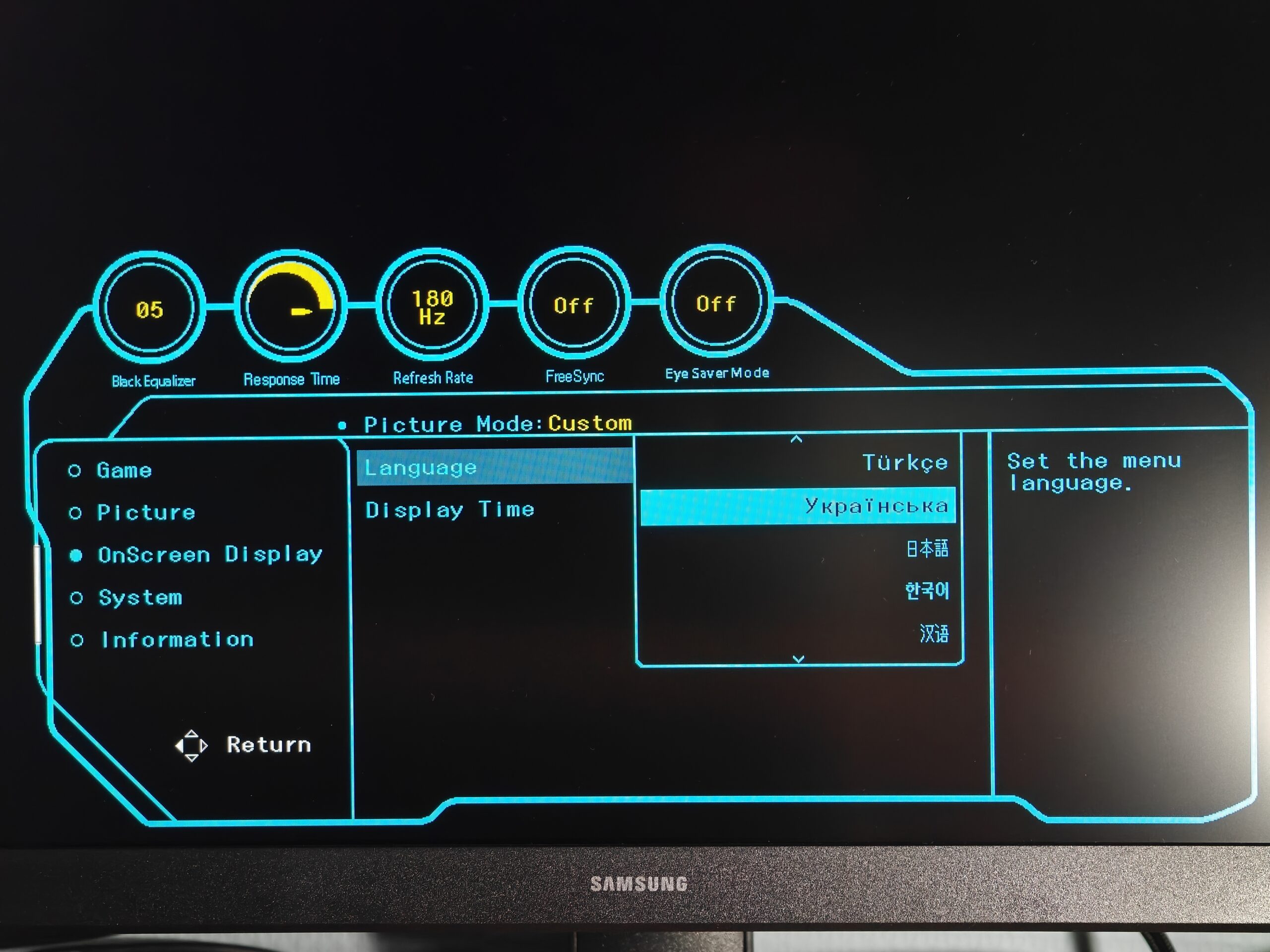
In the OnScreen Display tab, you can set the language for the on-screen menu (Ukrainian is available) and adjust how long the menu stays visible, ranging from 5 to 200 seconds.
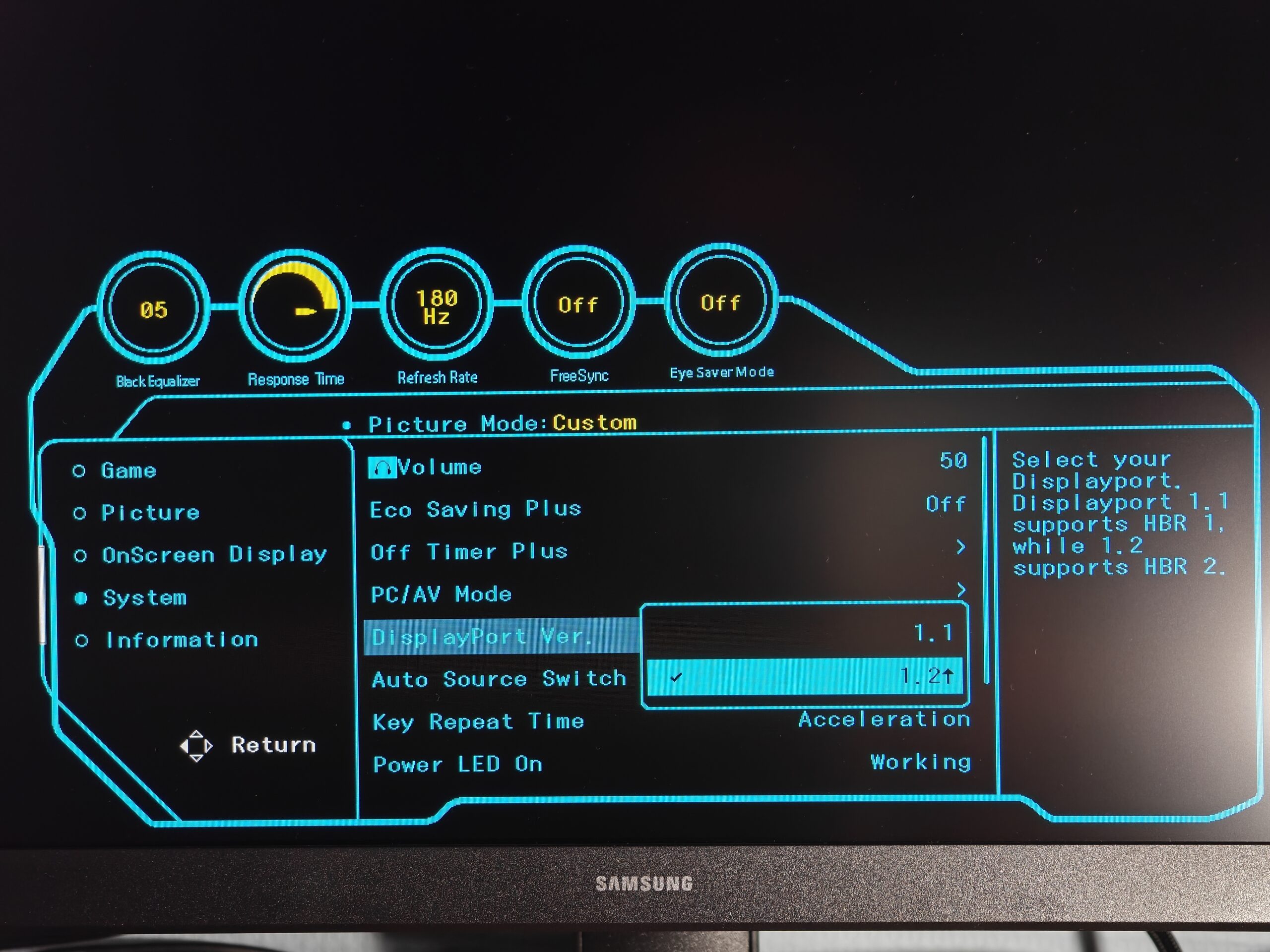
The System tab lets you adjust headphone volume, enable power-saving mode, and set an automatic monitor shutoff timer. You can also select the DisplayPort version – either 1.1 with HBR 1 support or 1.2 with HBR 2 support – and configure the blue LED near the joystick to light up either when the monitor is on or off. Additionally, there’s a Software Update option for updating the monitor’s firmware.
The Information tab displays the monitor’s model code, serial number, firmware version, and the current HDR status.
Samsung Odyssey G3 G30D image quality
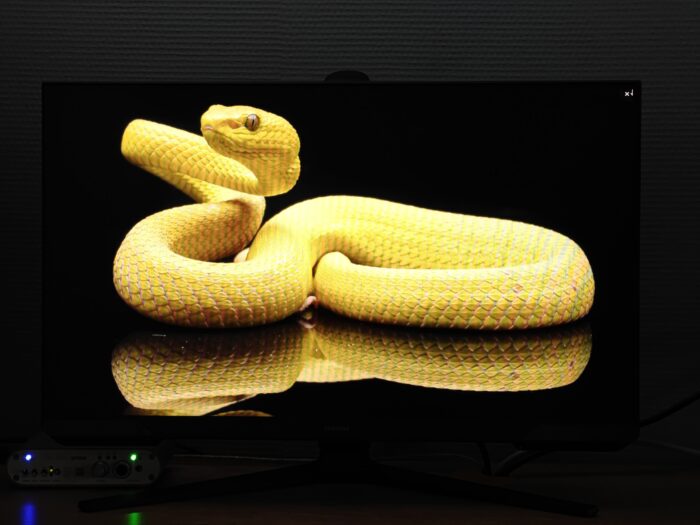
If you prefer a quick summary instead of a detailed read, here are the key points for this section:
The Samsung Odyssey G3 G30D shows potential for accurate image reproduction within the sRGB color space. However, unlocking this potential requires additional calibration, which the manufacturer does not provide – an understandable choice given the price point. Out of the box, the monitor’s factory settings can be described as average to decent.
It’s possible to improve the picture quality without a colorimeter by reducing the color temperature and lowering the saturation of green and blue tones in the menu. Typical advantages of VA panels – such as high contrast and deep blacks – are noticeable even without calibration. That said, some common drawbacks like motion trailing remain visible.
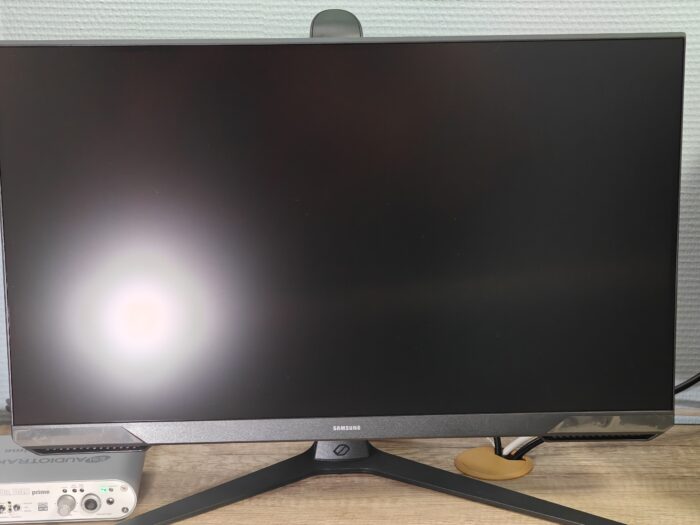
The Odyssey G3 G30D features a matte screen coating. This is a practical choice, as it reduces reflections from light sources and room elements, making dust less noticeable and minimizing any “crystal-like” glare effect.
Testing in the Custom profile
Testing was conducted using the default Custom profile, with a refresh rate set to 180 Hz and overdrive level at Faster. The manufacturer claims the monitor covers 95% of the sRGB color space. Here are the results from testing the default color settings with brightness set to 30% in the monitor’s menu:
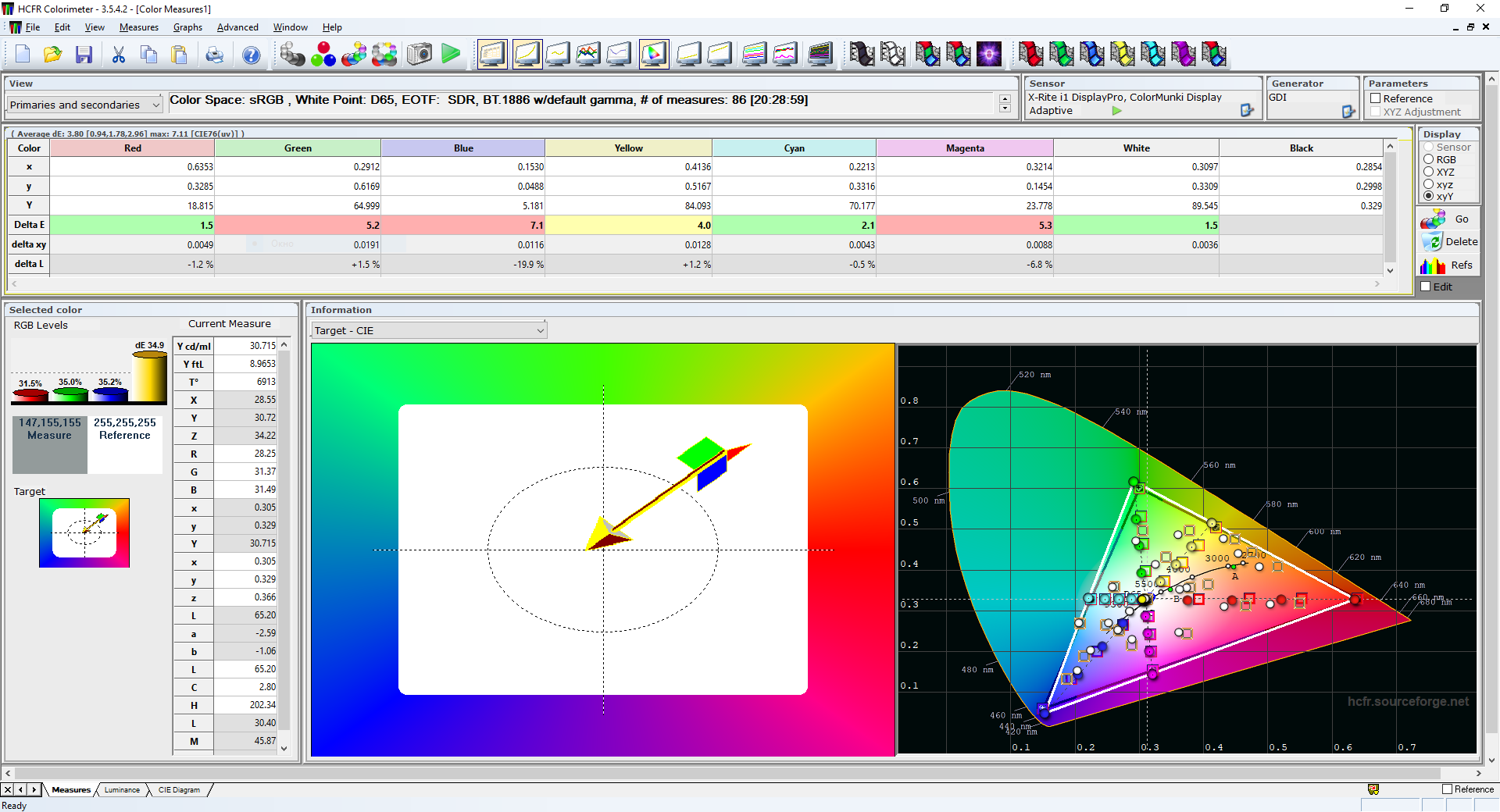
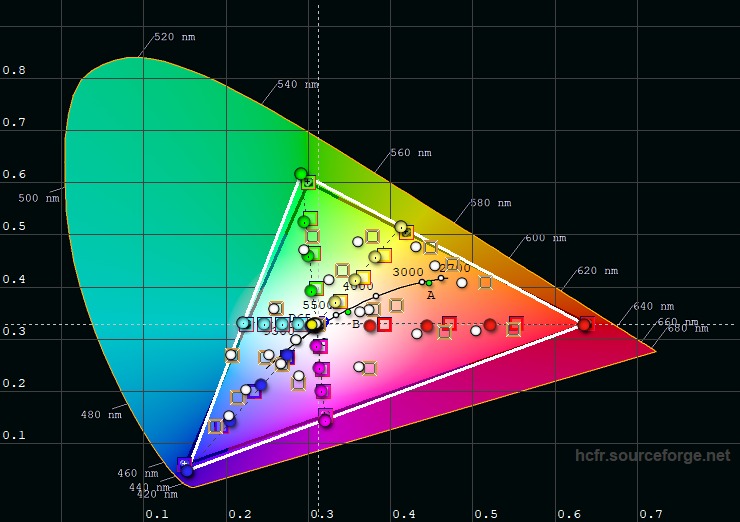
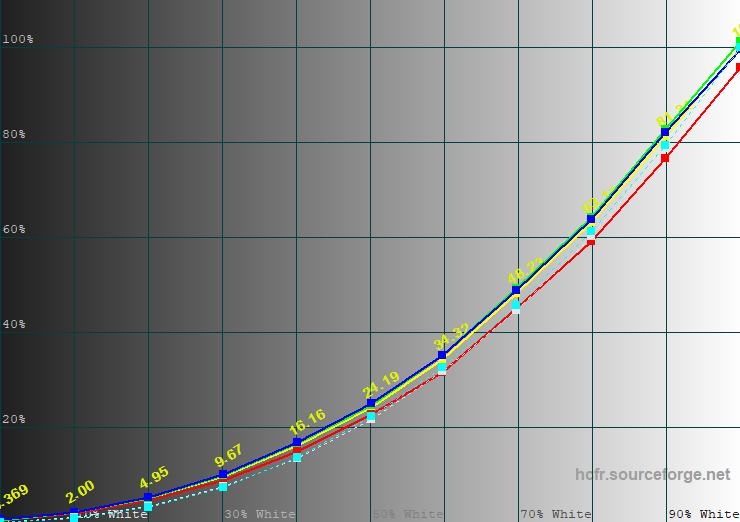
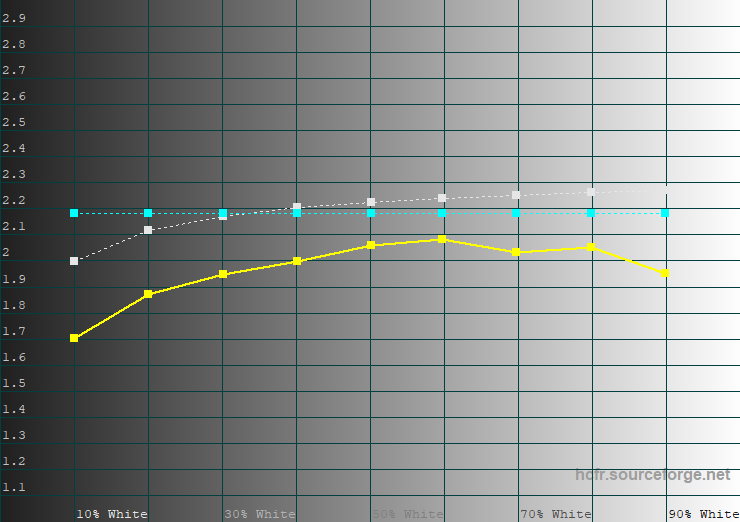
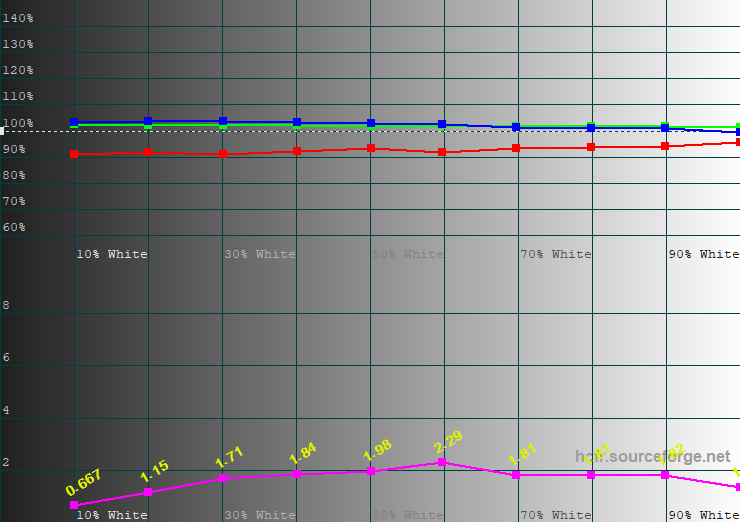
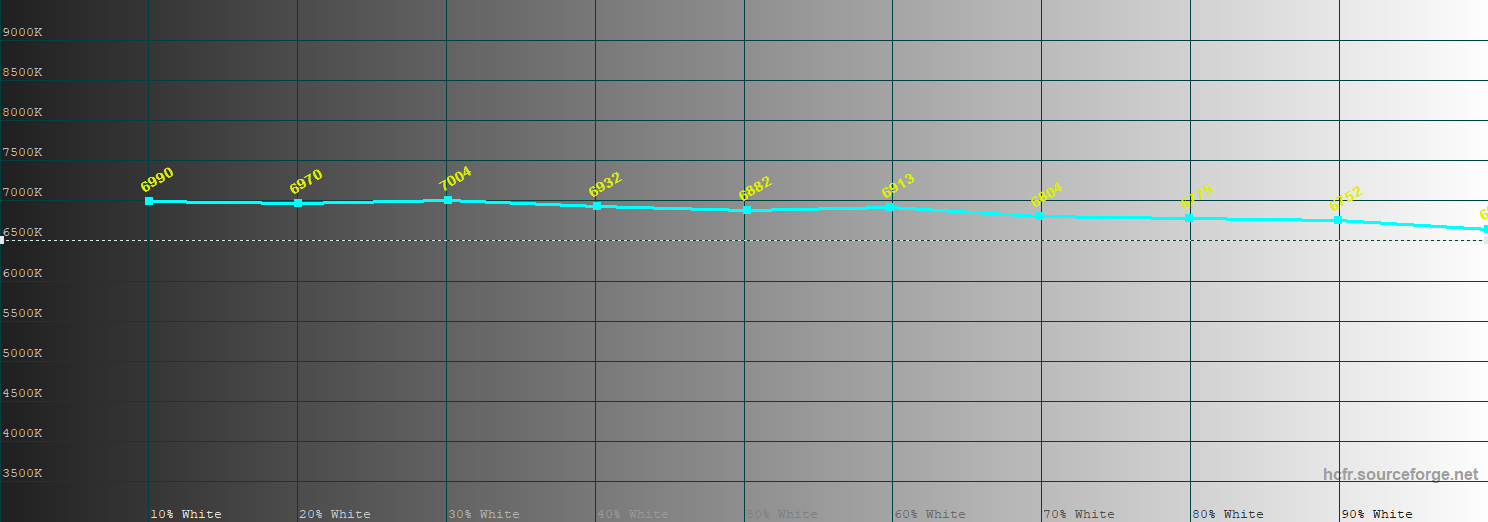
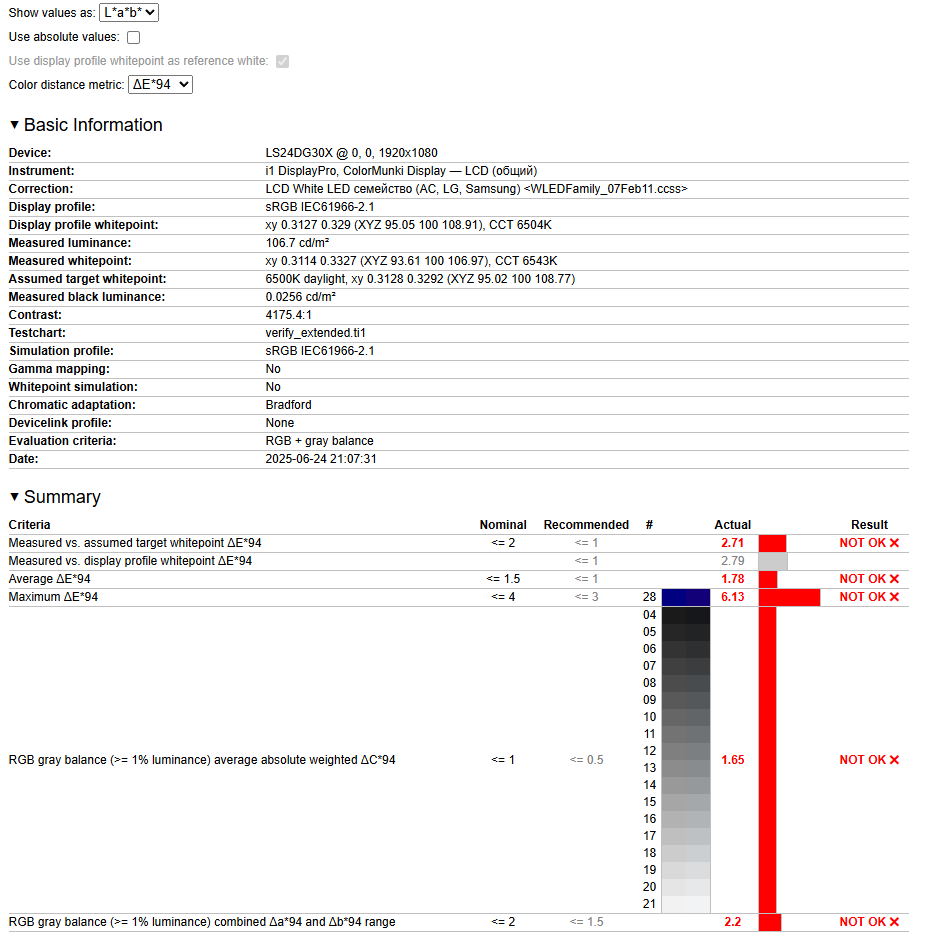
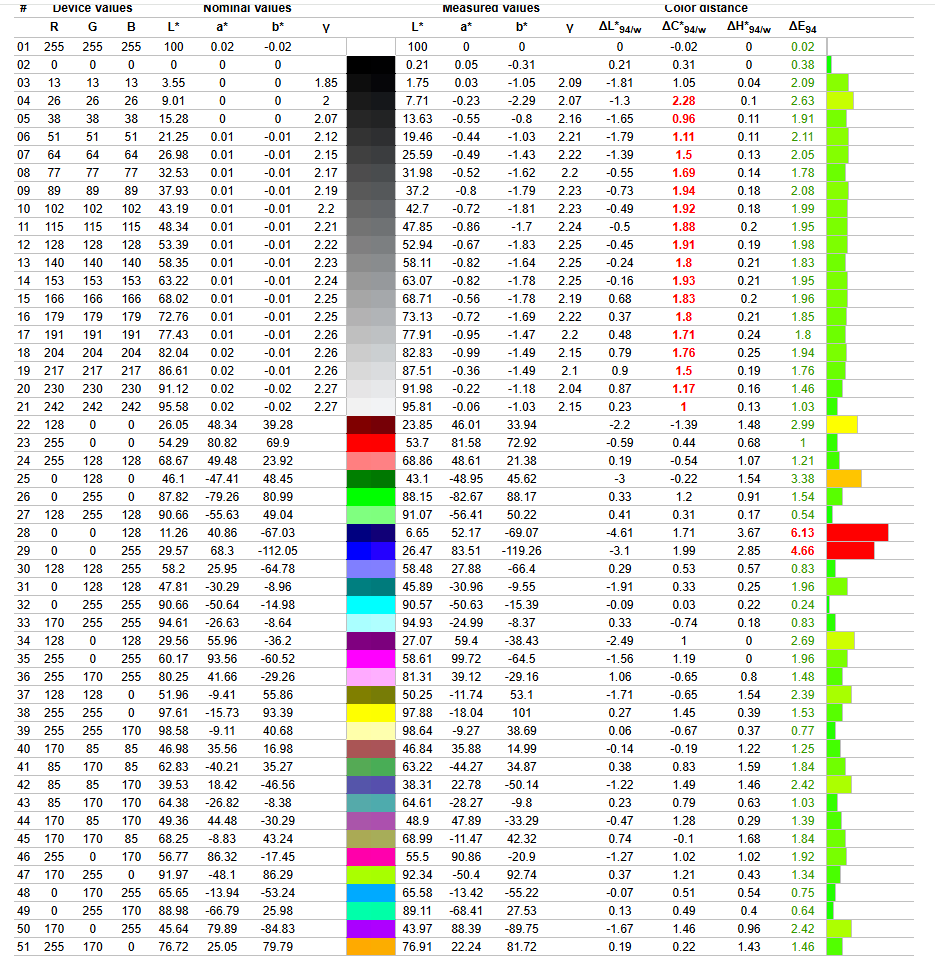
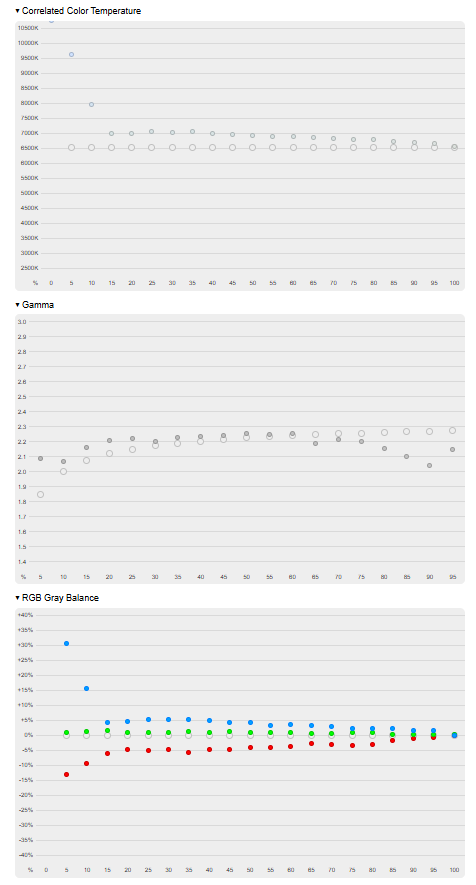
The color coverage closely matches the sRGB color space, with slight overshoot in the green spectrum. Gamma is higher than the reference value, and the red channel falls short compared to the other primary colors. Color temperature is noticeably above the standard 6500K, occasionally reaching around 7000K. Measured color accuracy shows an average ΔE of 1.6 on the grayscale, with a maximum of 2.2; for the color test chart, the average ΔE is 1.8 and the maximum 6.1.
Overall, the image quality out of the box in the Custom mode is average, but the contrast ratio stands out at 4183:1 – about four times higher than typical IPS panels. The question remains whether calibration can significantly improve the image quality.
At the start of calibration, I adjusted the color saturation settings in the monitor menu to Green 48, Blue 49, and Red 50 (leaving Red unchanged). Brightness was slightly increased to 33%, resulting in a luminance of 107 cd/m². These adjustments helped achieve the target white point and white level, as shown in the first screenshot of the gallery.
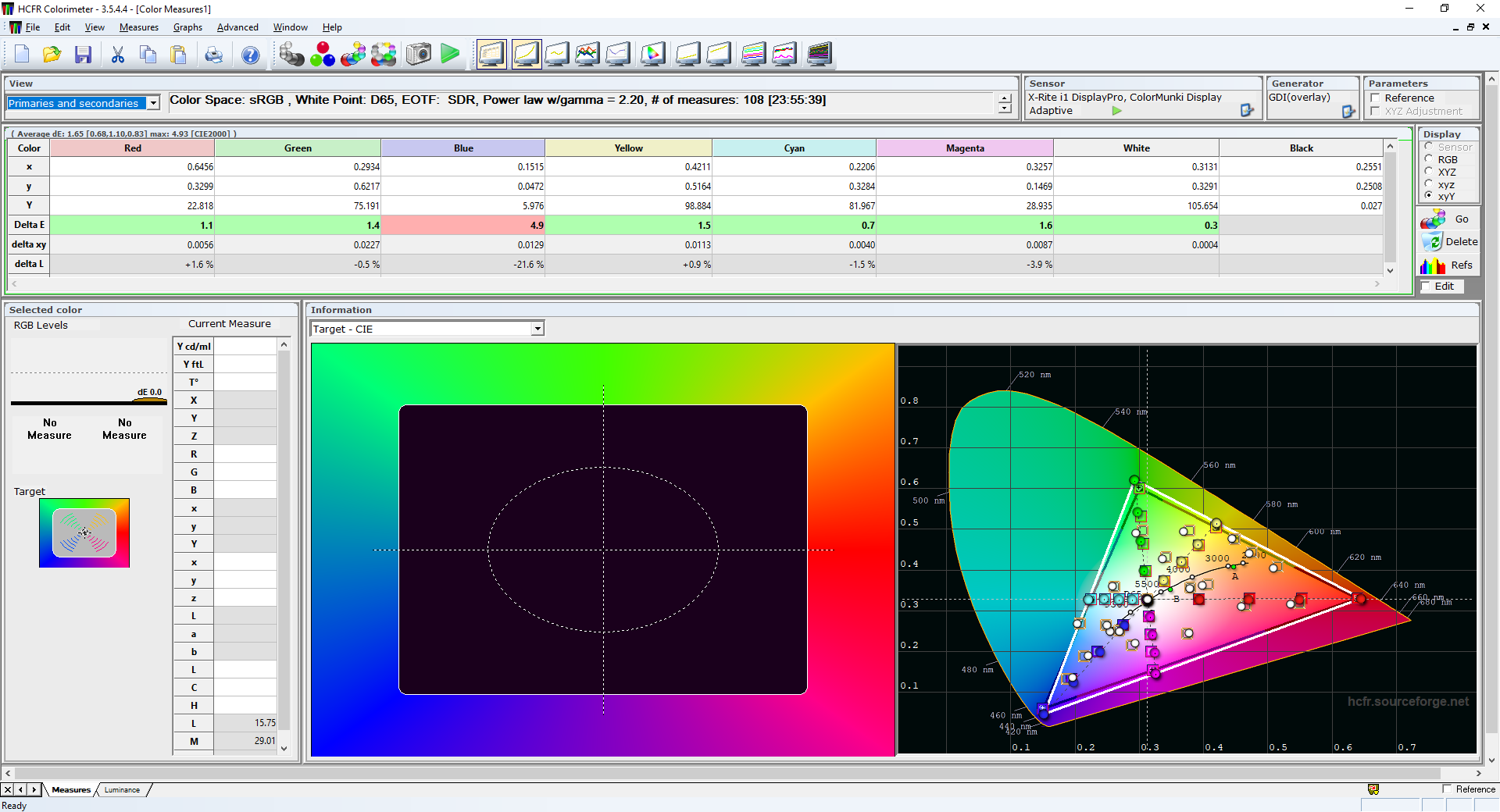
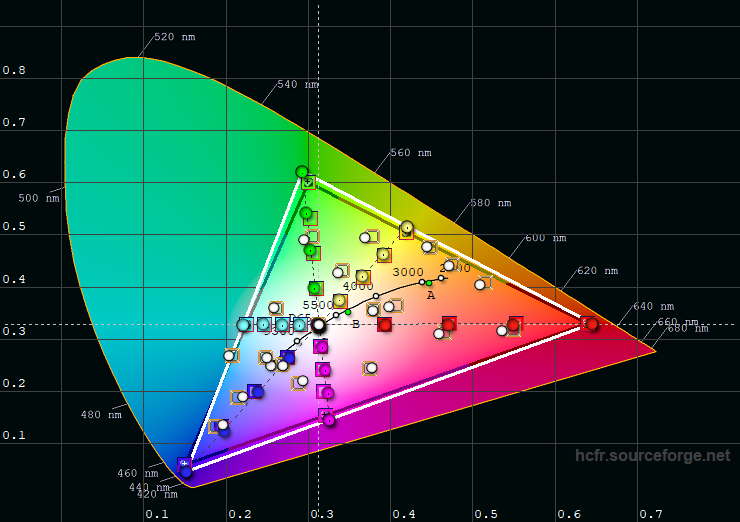
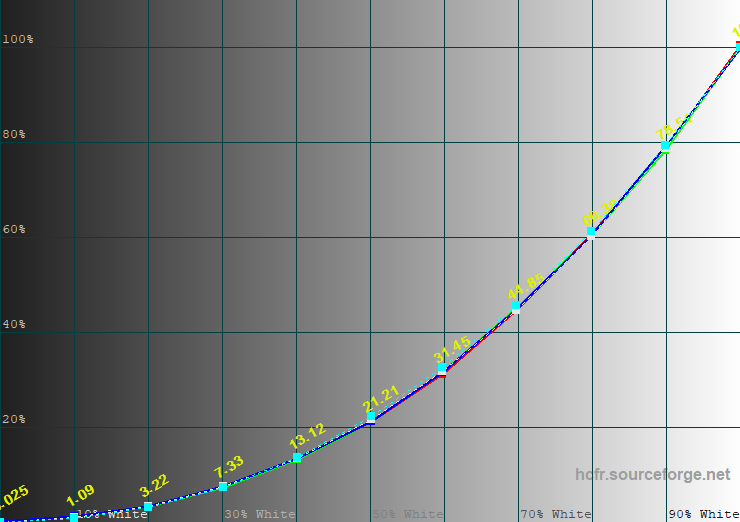
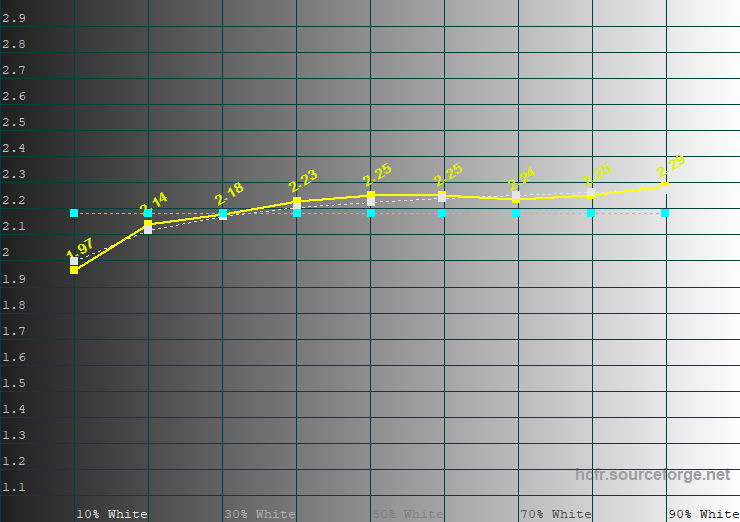
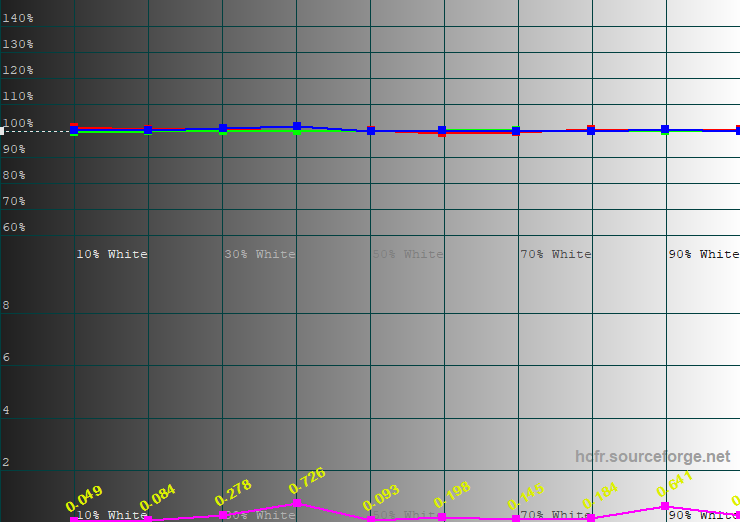
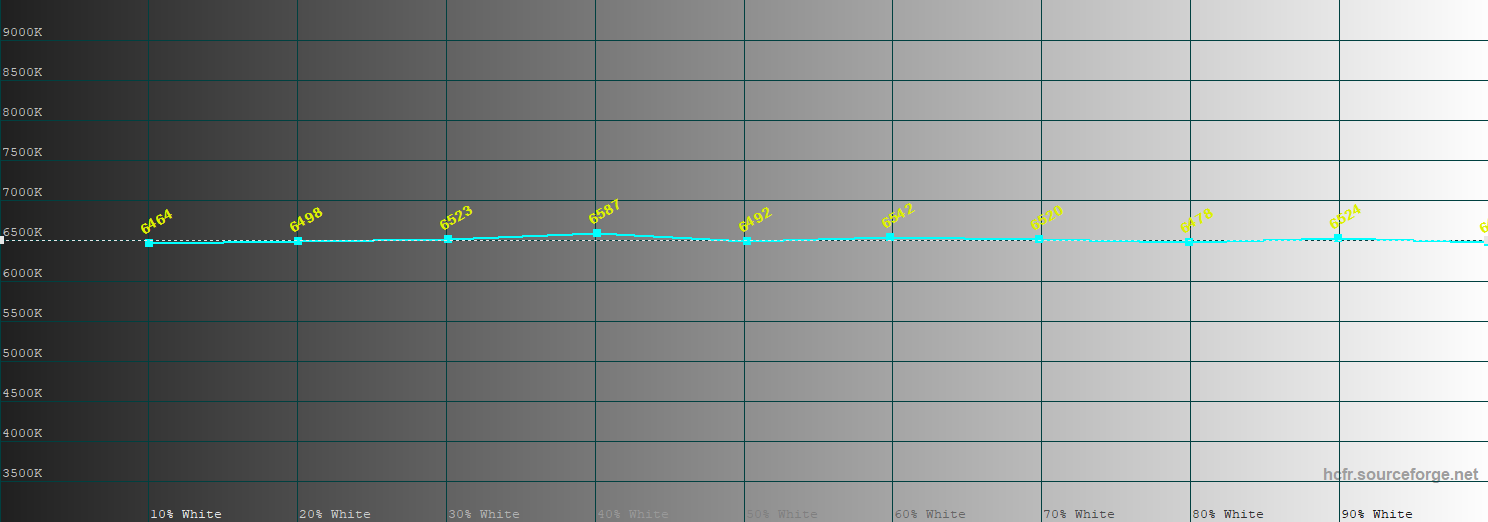
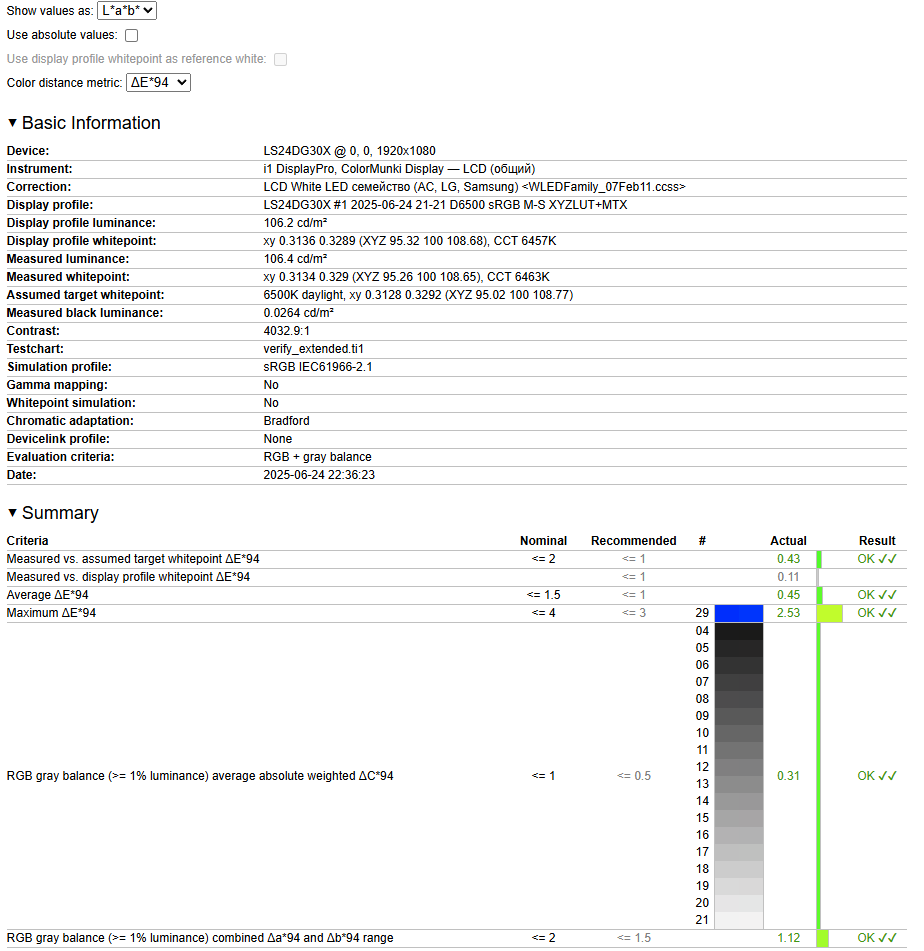
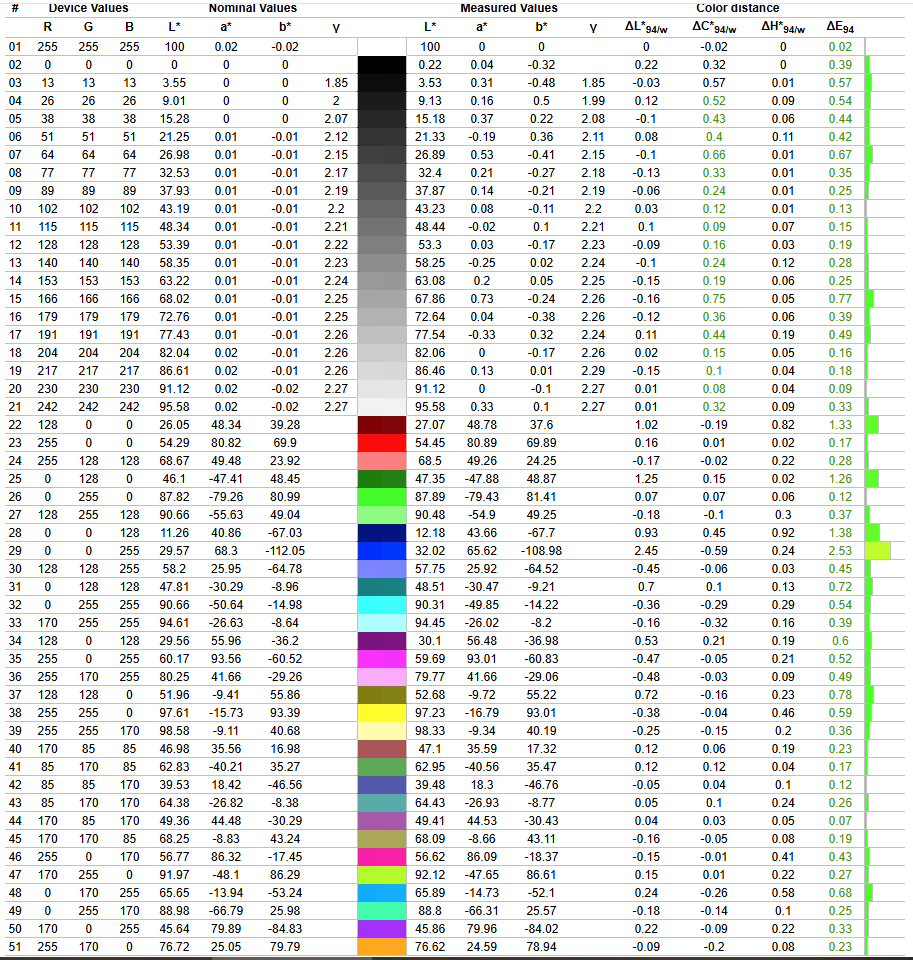
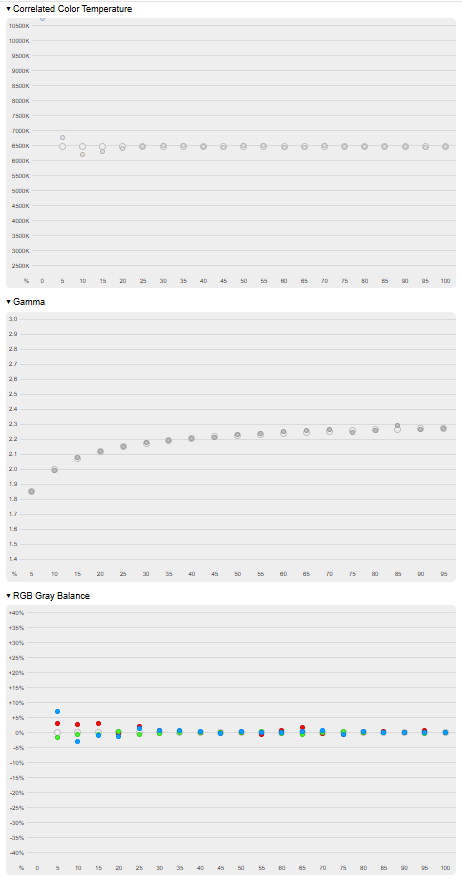
After calibration and menu adjustments, the image quality of the Samsung Odyssey G3 G30D improved significantly. The sRGB coverage expanded slightly, particularly in the red spectrum, where color accuracy (ΔE) also improved. Gamma settings became excellent, along with color temperature and its stability. Average ΔE on the grayscale dropped from 1.6 to 0.3, with the maximum decreasing from 2.2 to 1.1. For the color test chart, average ΔE went down from 1.8 to 0.4, and the maximum from 6.1 to 2.5.
Furthermore, after calibration, only four colors in the test chart show a ΔE error greater than 1, with just one exceeding a ΔE of 2. This indicates that the Odyssey G3 G30D has considerable potential for image quality improvement through calibration compared to its relatively unoptimized factory settings.
With calibration, the Samsung Odyssey G3 G30D becomes suitable for amateur color work, keeping in mind the limitations of its sRGB coverage and its roughly 75% coverage of Adobe RGB.
Testing in the Cinema profile
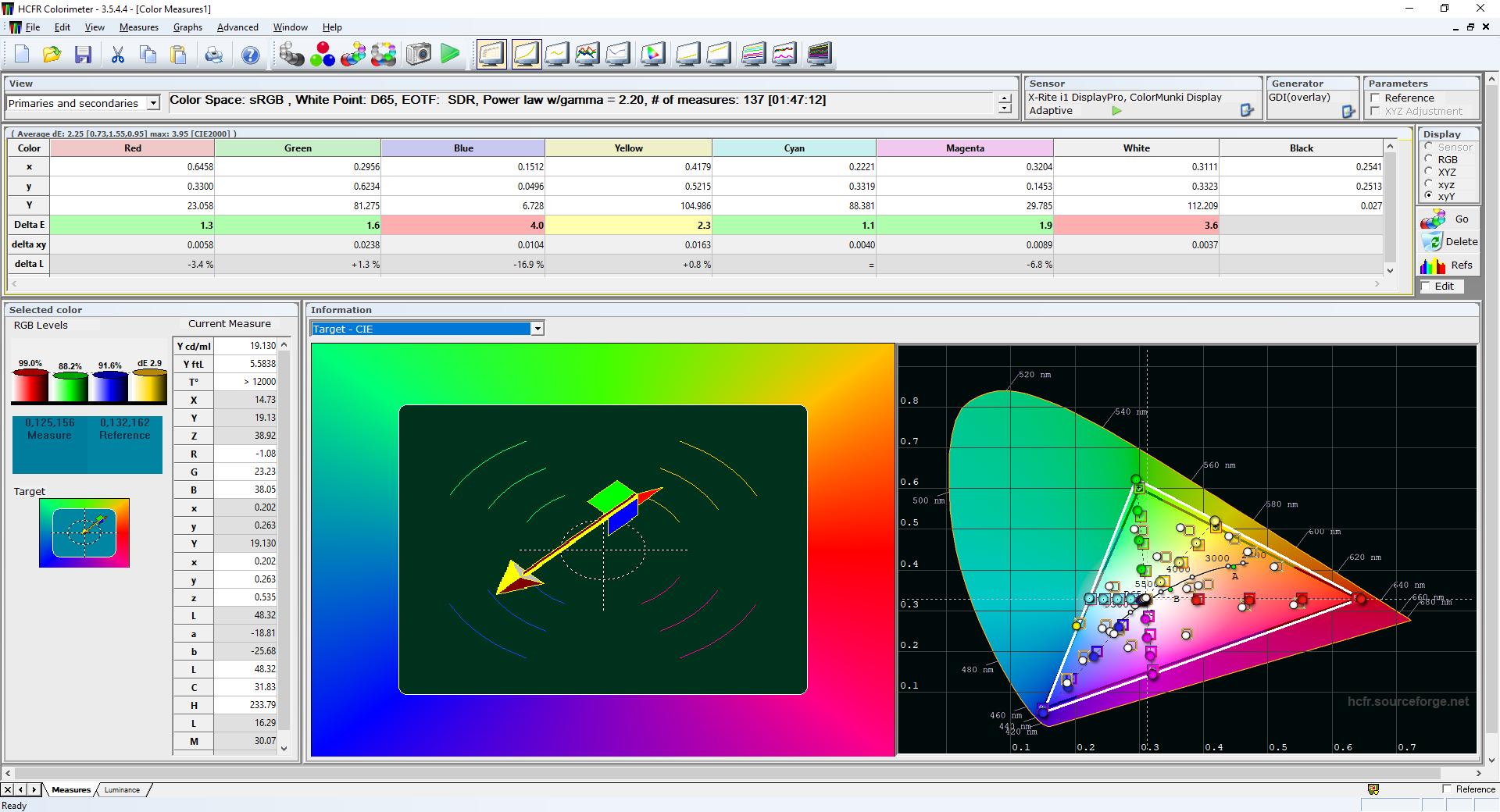
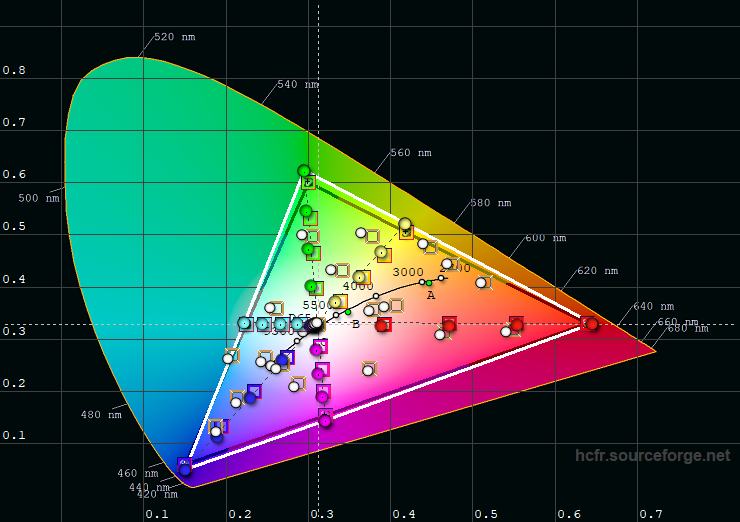
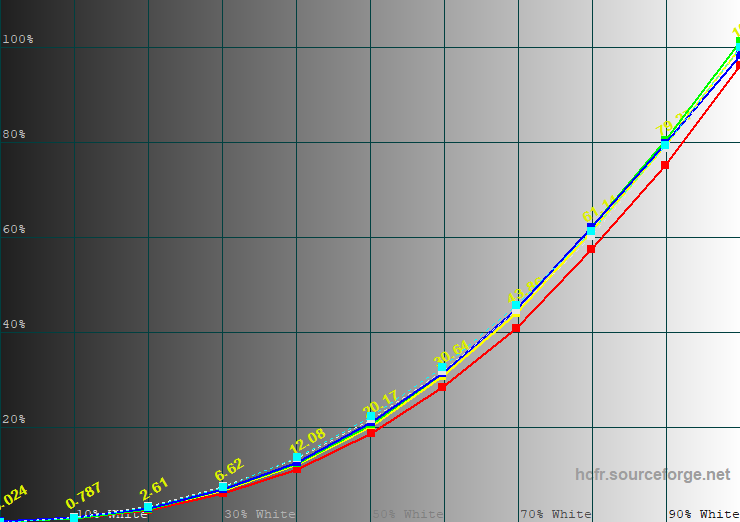
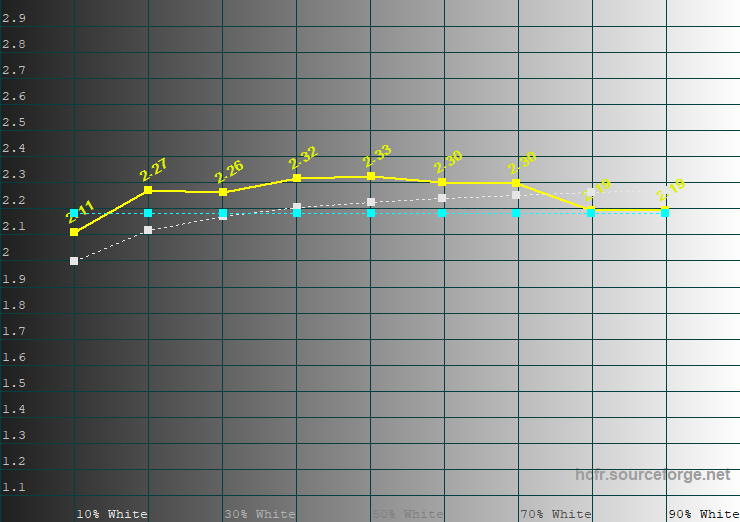
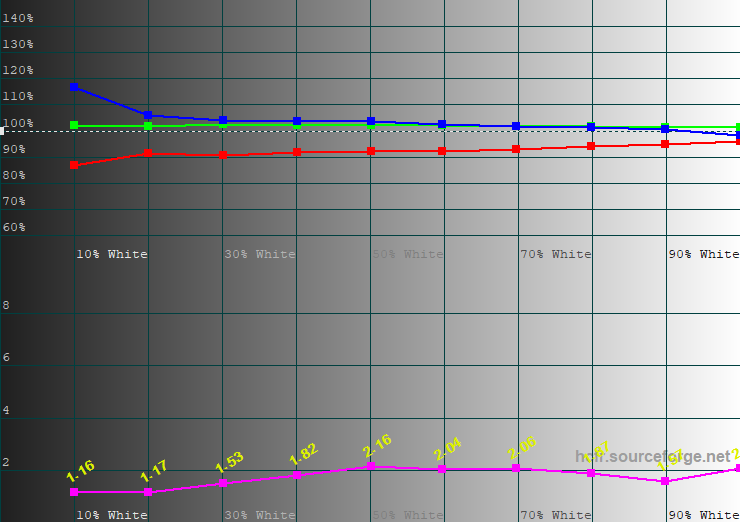
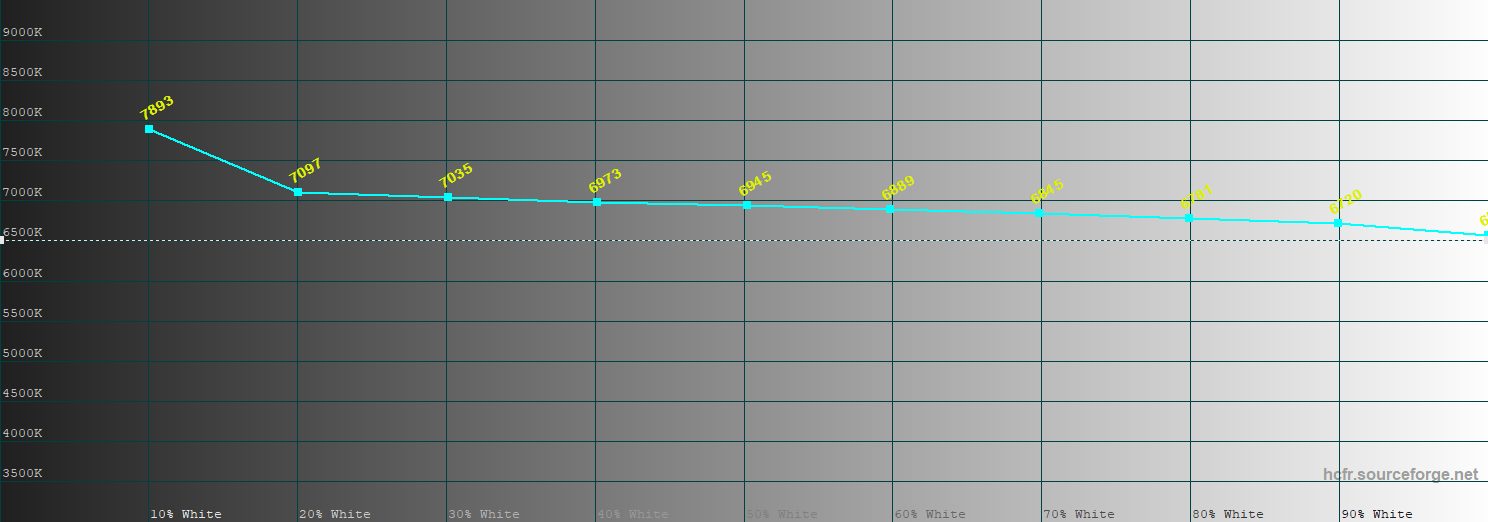
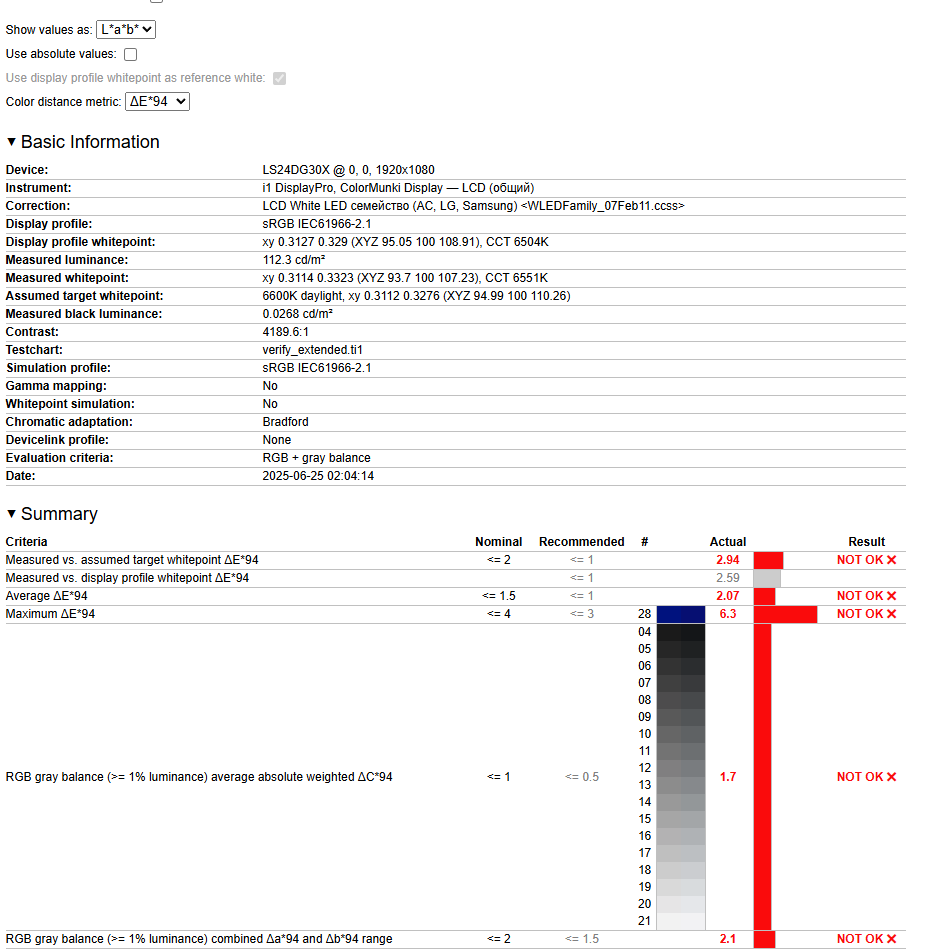
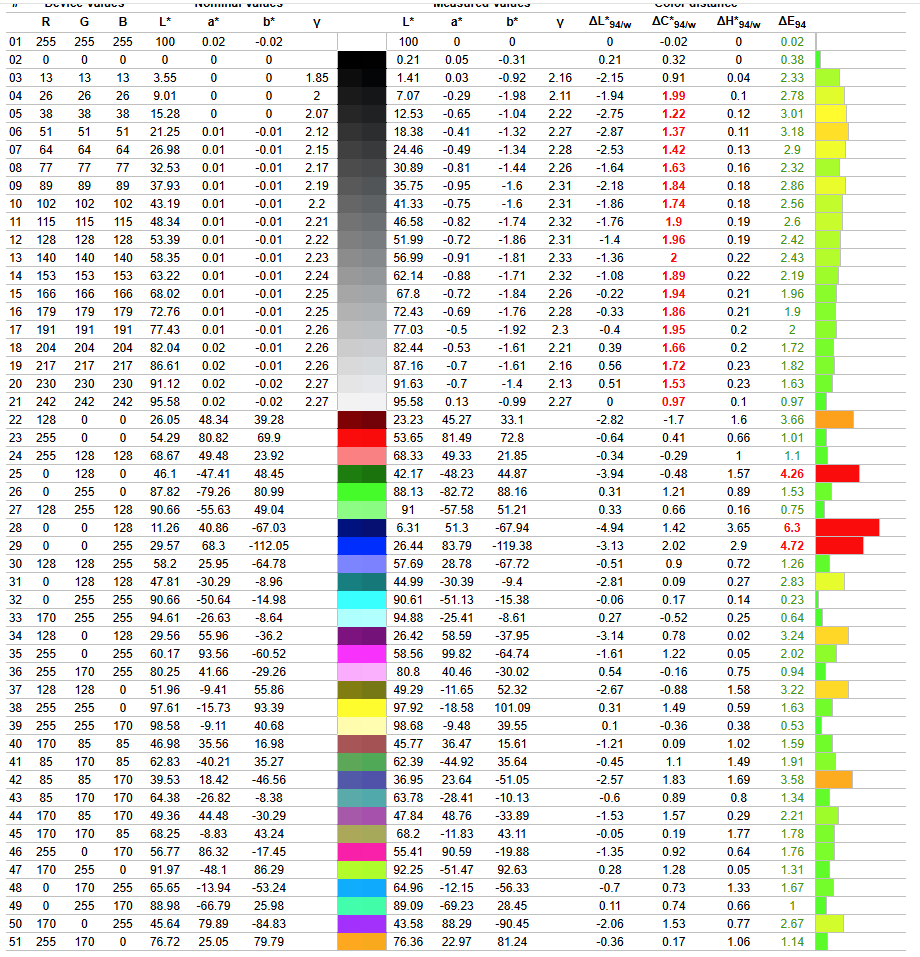
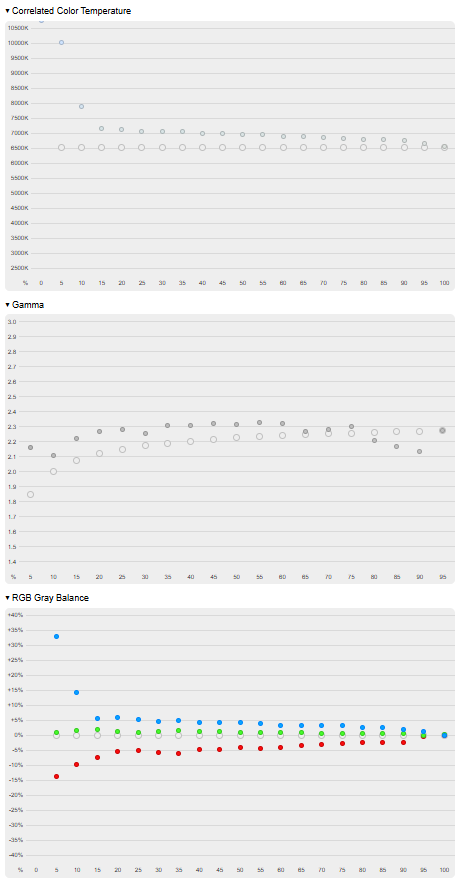
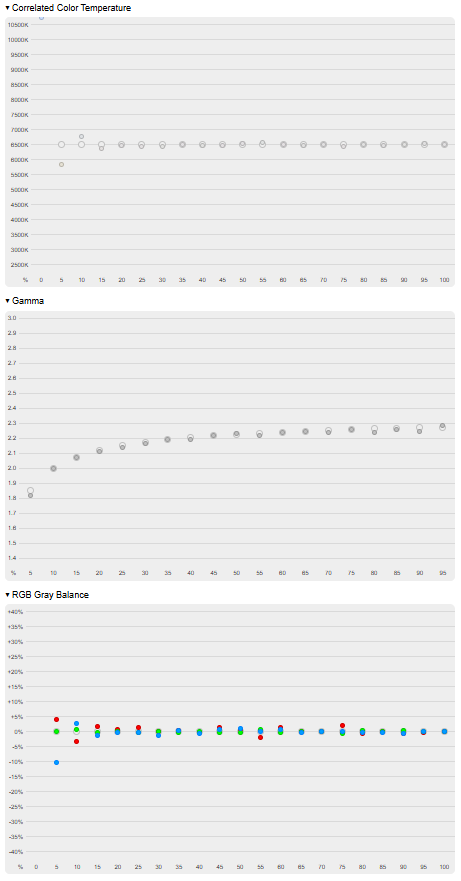
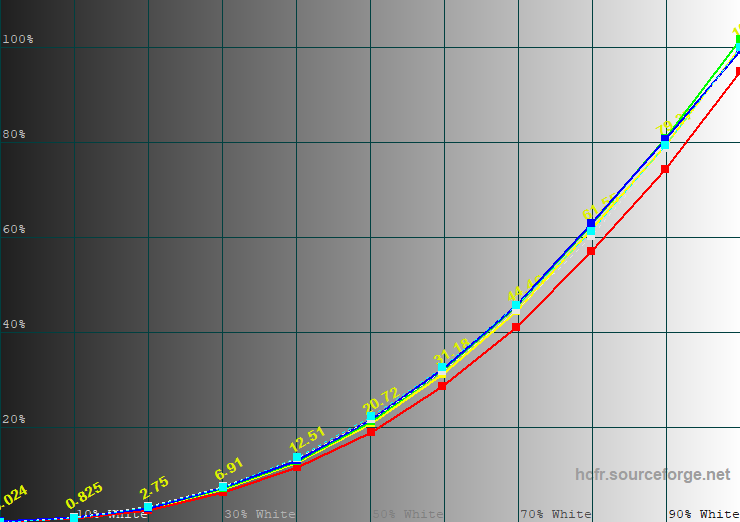
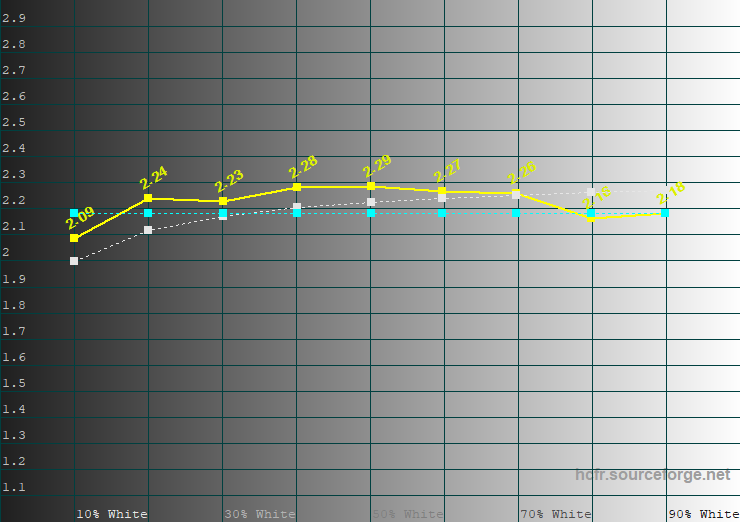
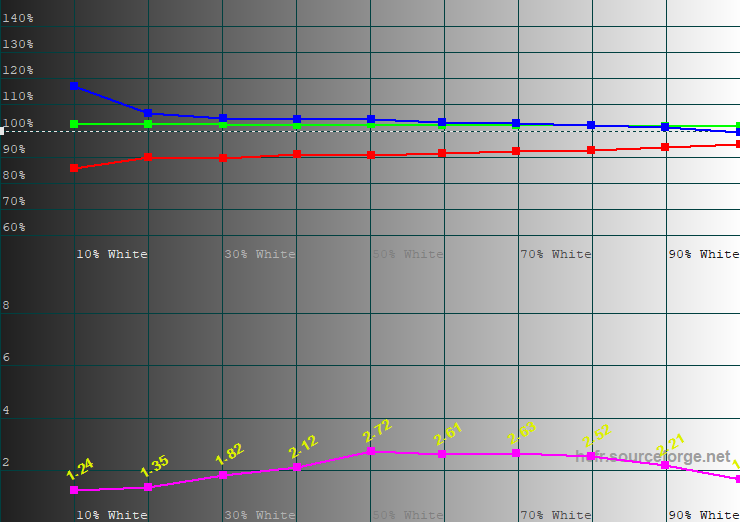
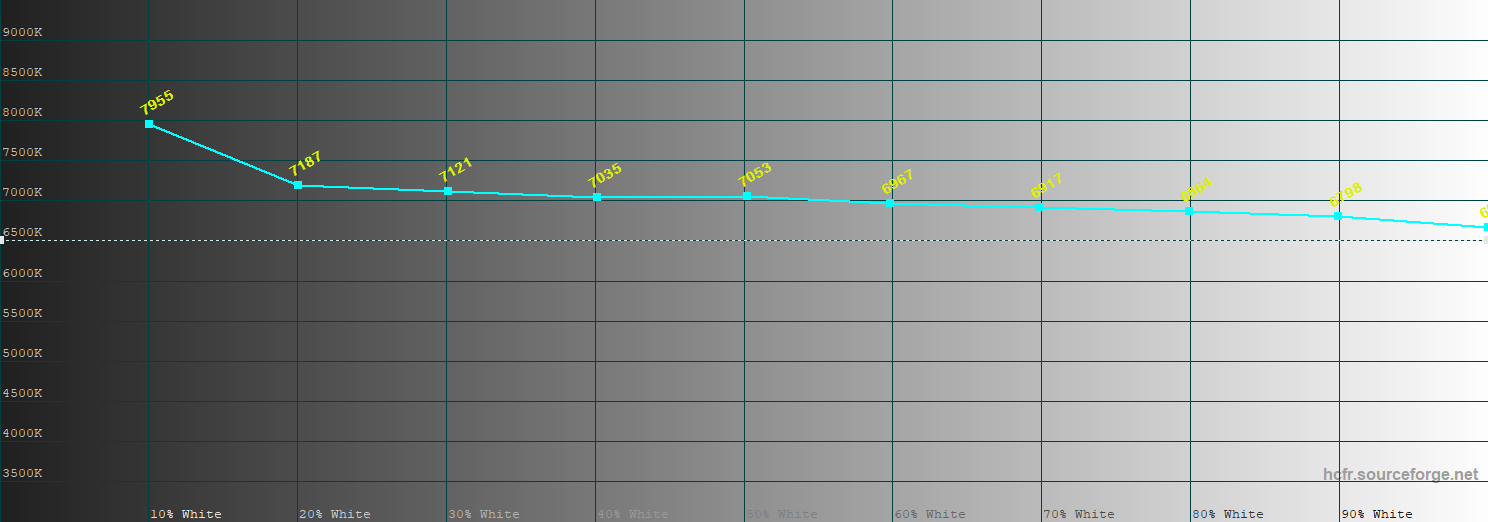
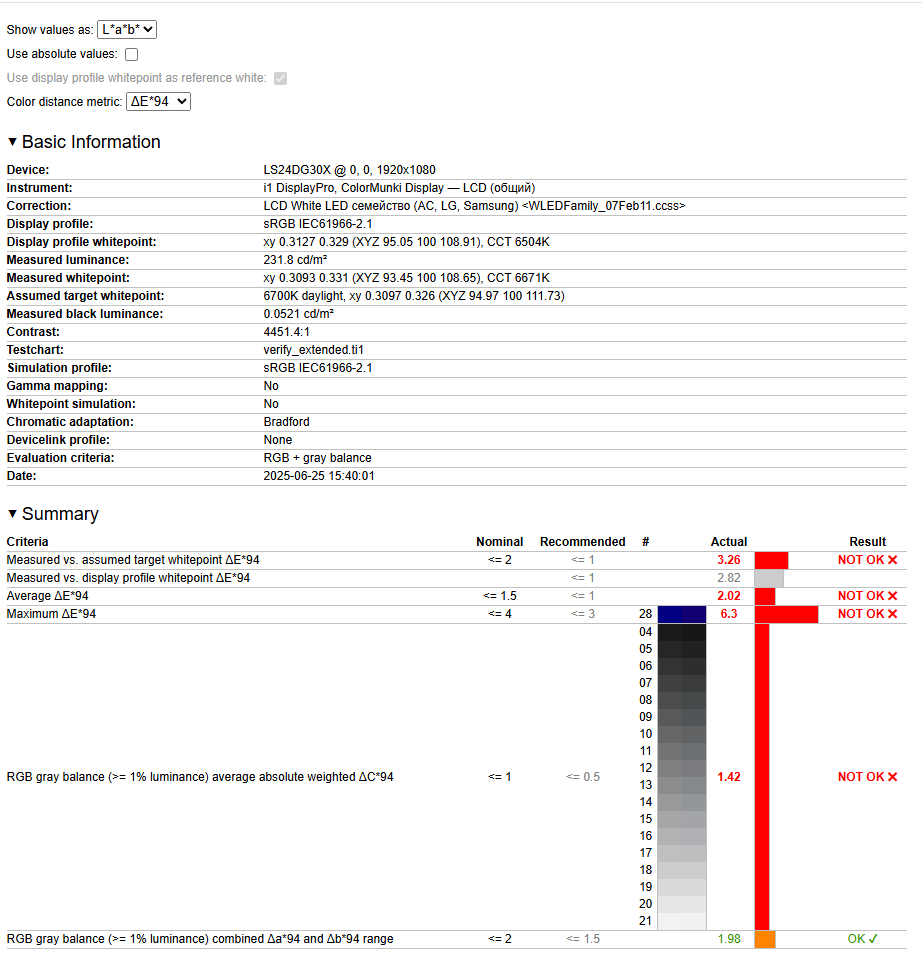
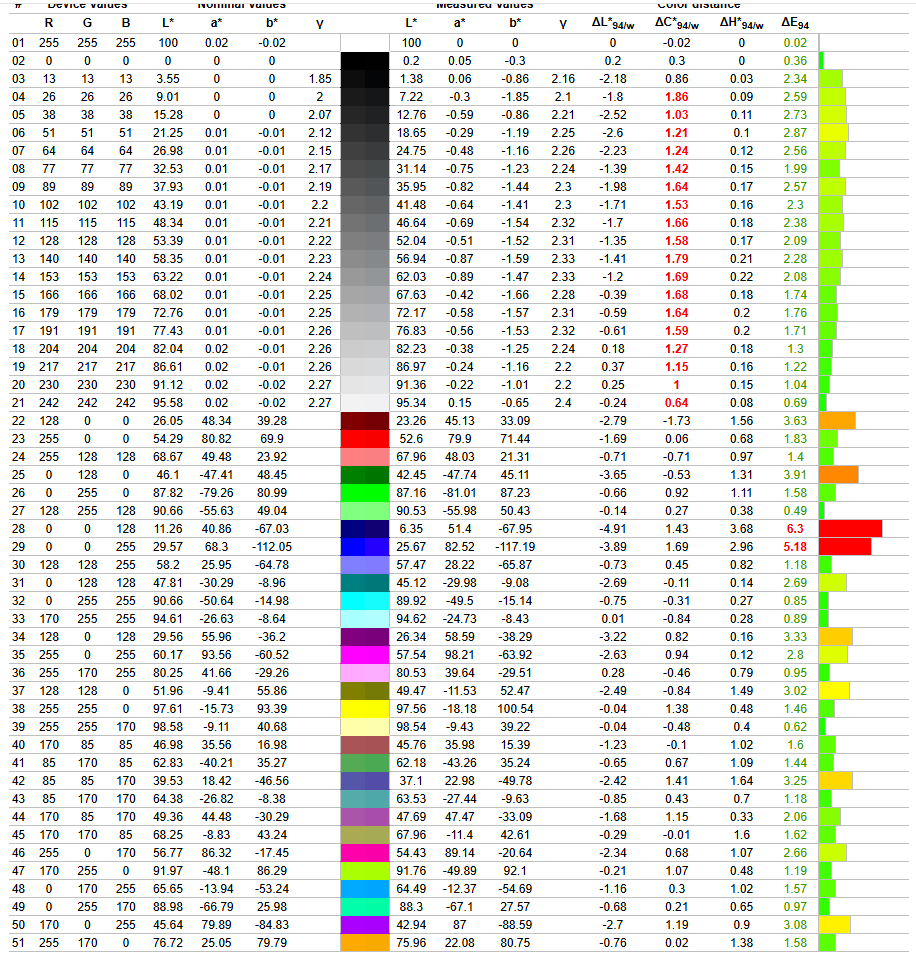
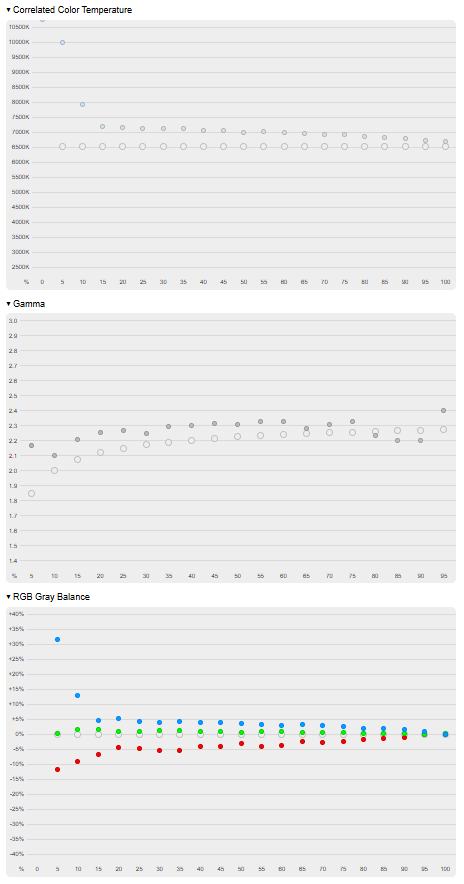
The monitor includes preset image profiles tailored for various game genres (FPS, RTS, RPG, AOS), as well as Cinema and Dynamic Contrast modes. I tested the Cinema profile, which shows a gamma curve slightly different from the Custom profile but is otherwise similar. Both profiles exhibit notable deviations in color temperature, grayscale balance, and overall color accuracy, with average and maximum ΔE values of 2.1 and 6.3 respectively. Here are the results after calibration:
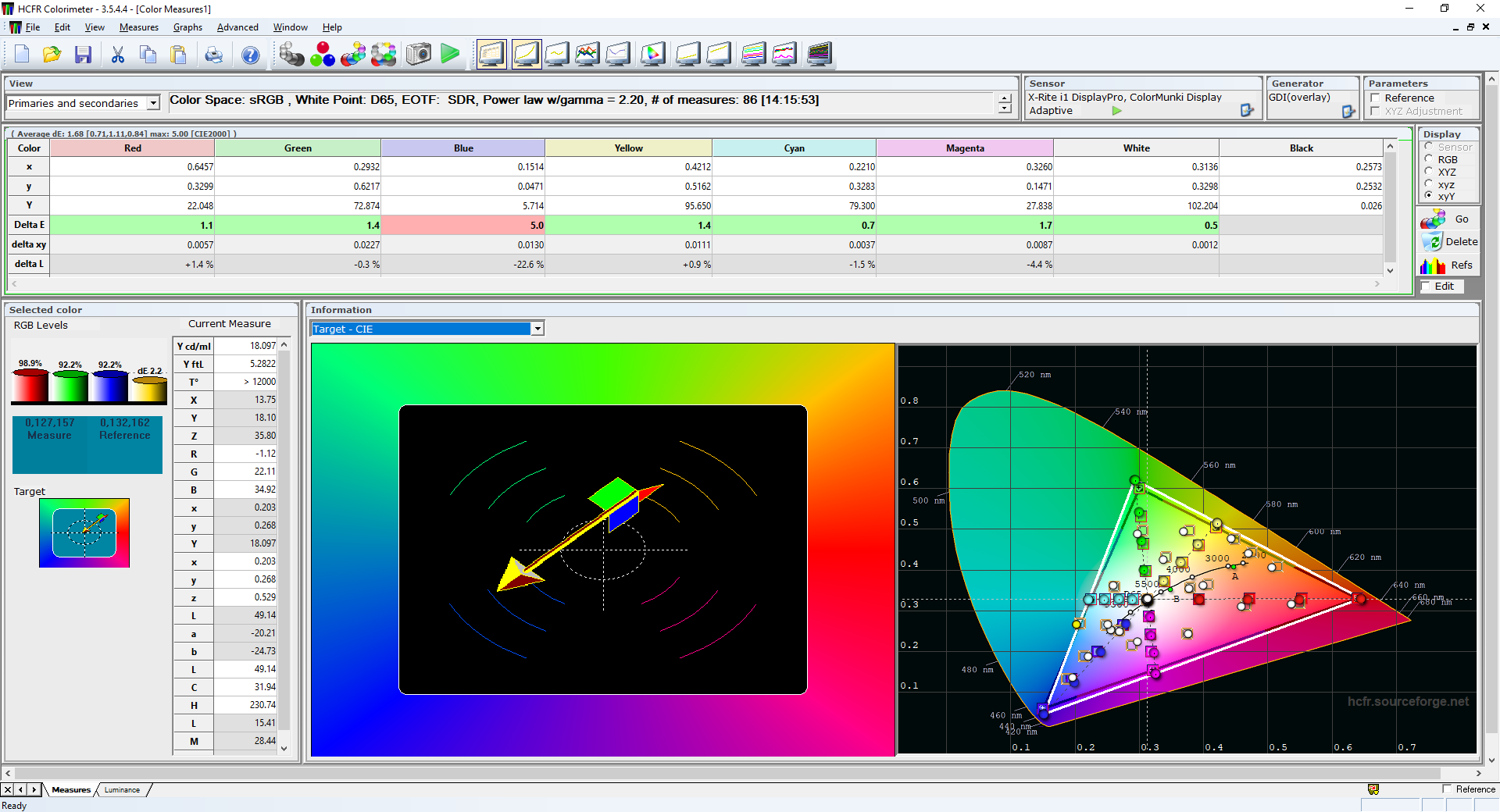
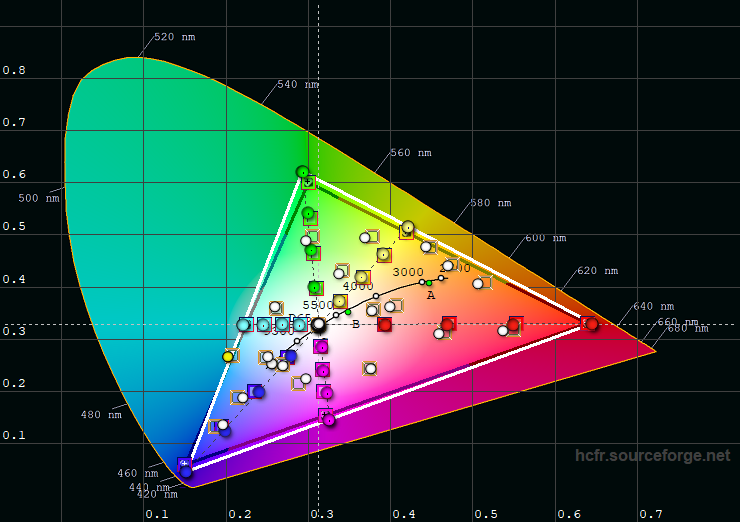
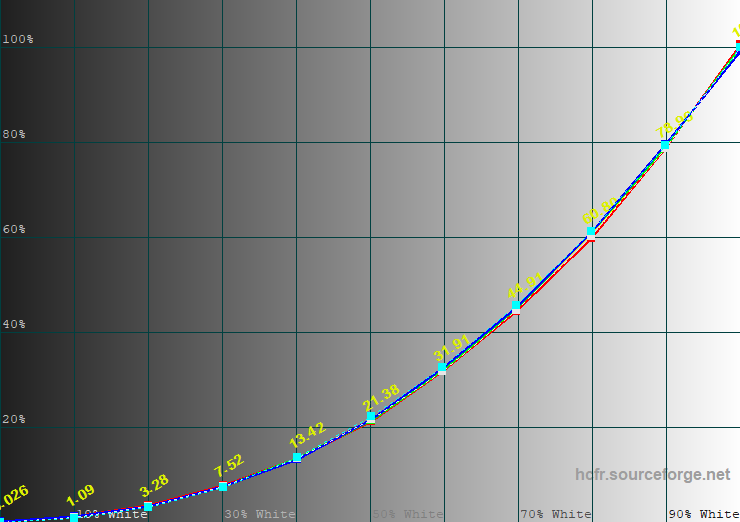
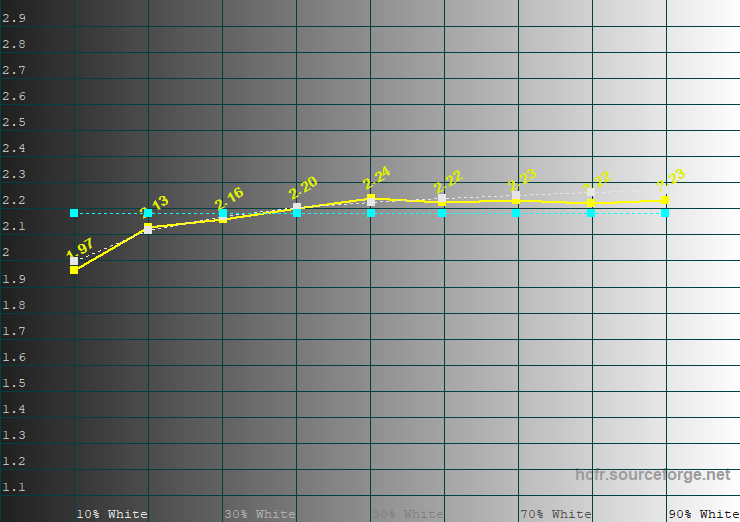
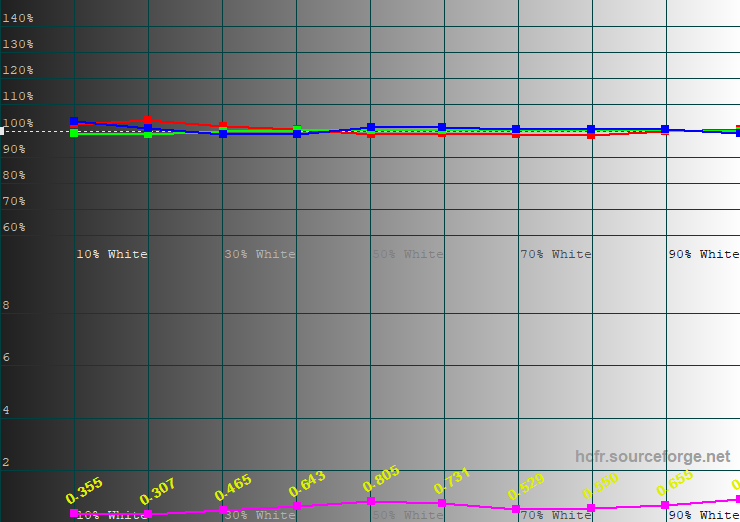
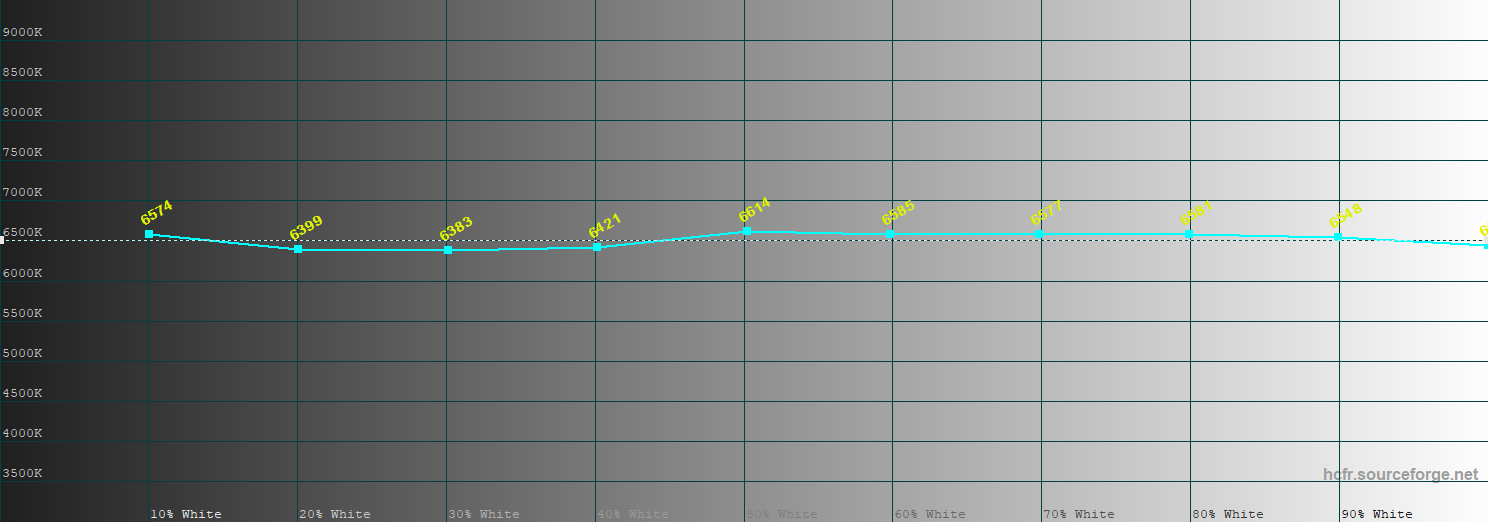
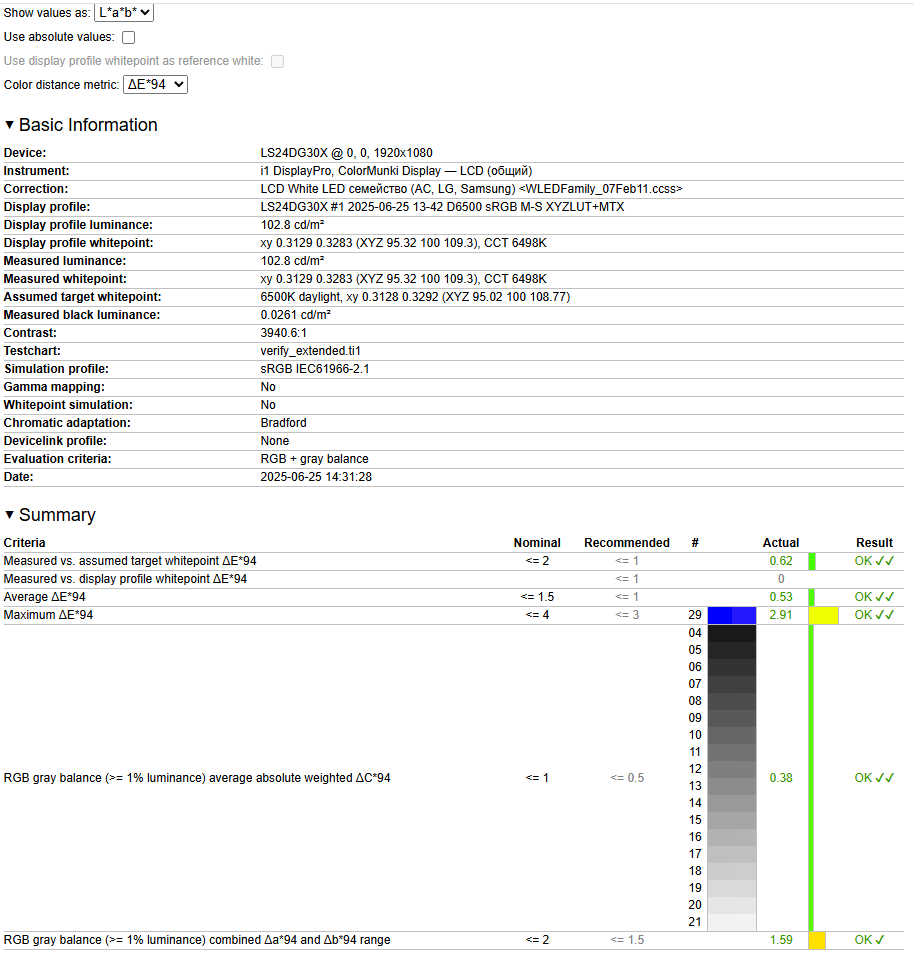
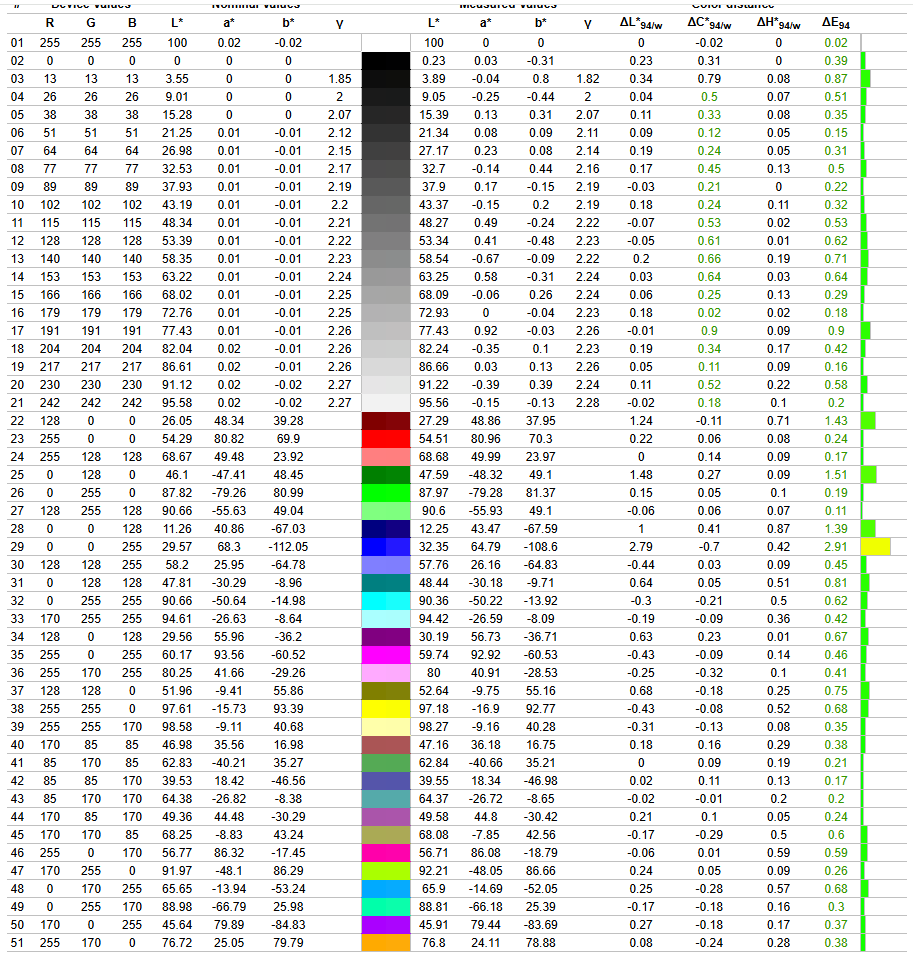
It’s worth noting that in the Cinema profile, color settings and other image parameters are locked, leaving only brightness and Eye Saver Mode adjustable. This means you cannot modify the RGB saturation values in the monitor’s menu before calibration.
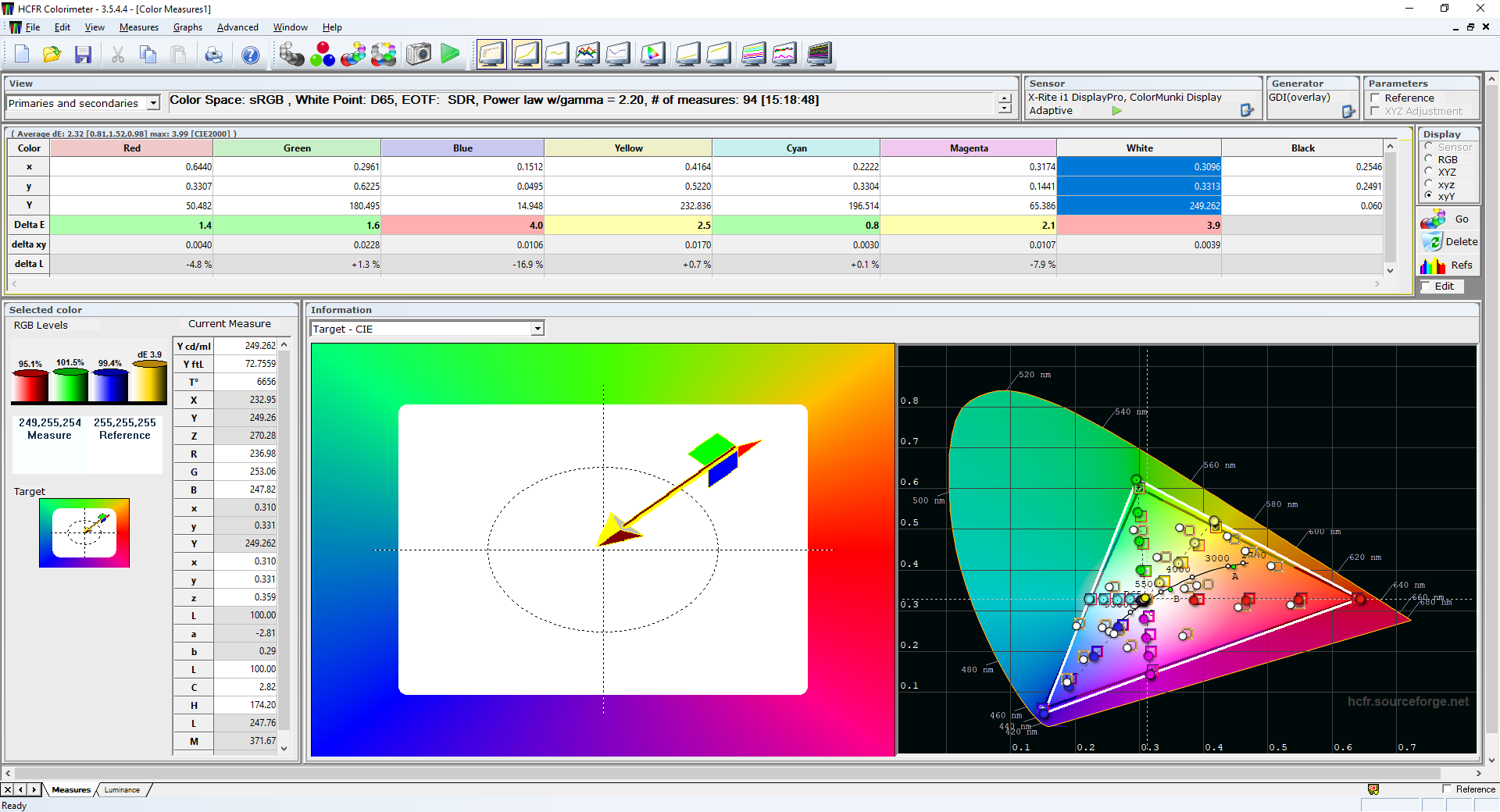
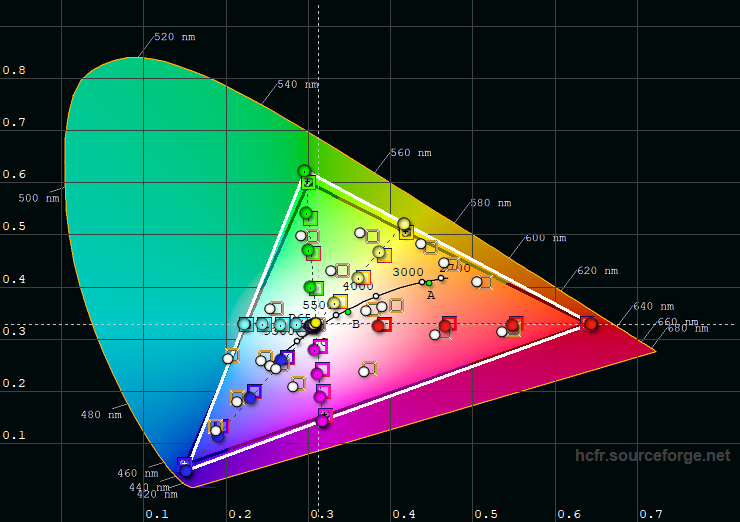
For calibration, I set the brightness to 30% (108 cd/m²). This led to a noticeable improvement in gamma, with the grayscale ΔE dropping from 1.7 to 0.4. Color temperature decreased from 6800–7000K to 6400–6600K, bringing it closer to the reference value of 6500K. The average ΔE on the color test chart improved significantly, falling from 2.1 to 0.5, while the maximum ΔE reduced from 6.3 to 2.9.
The calibration results for the Samsung 24″ Odyssey G3 G30D using the Cinema profile can be considered very good. However, some parameters – such as color temperature stability – perform better when calibrated under the Custom profile.
Testing in the Dynamic Contrast profile
In the Dynamic Contrast profile, even brightness adjustment is locked. Brightness is fixed at its maximum level (measured at 247 cd/m²) and then varies dynamically based on the content displayed on the screen.
The main advantage of this profile is the highest static contrast ratio of 4228:1. Other parameters, such as gamma, grayscale ΔE, and color temperature, are set to average levels, similar to the previous two profiles. The average ΔE on the grayscale is 1.4, while the average ΔE on the color test chart is 2, with a maximum of 6.3.
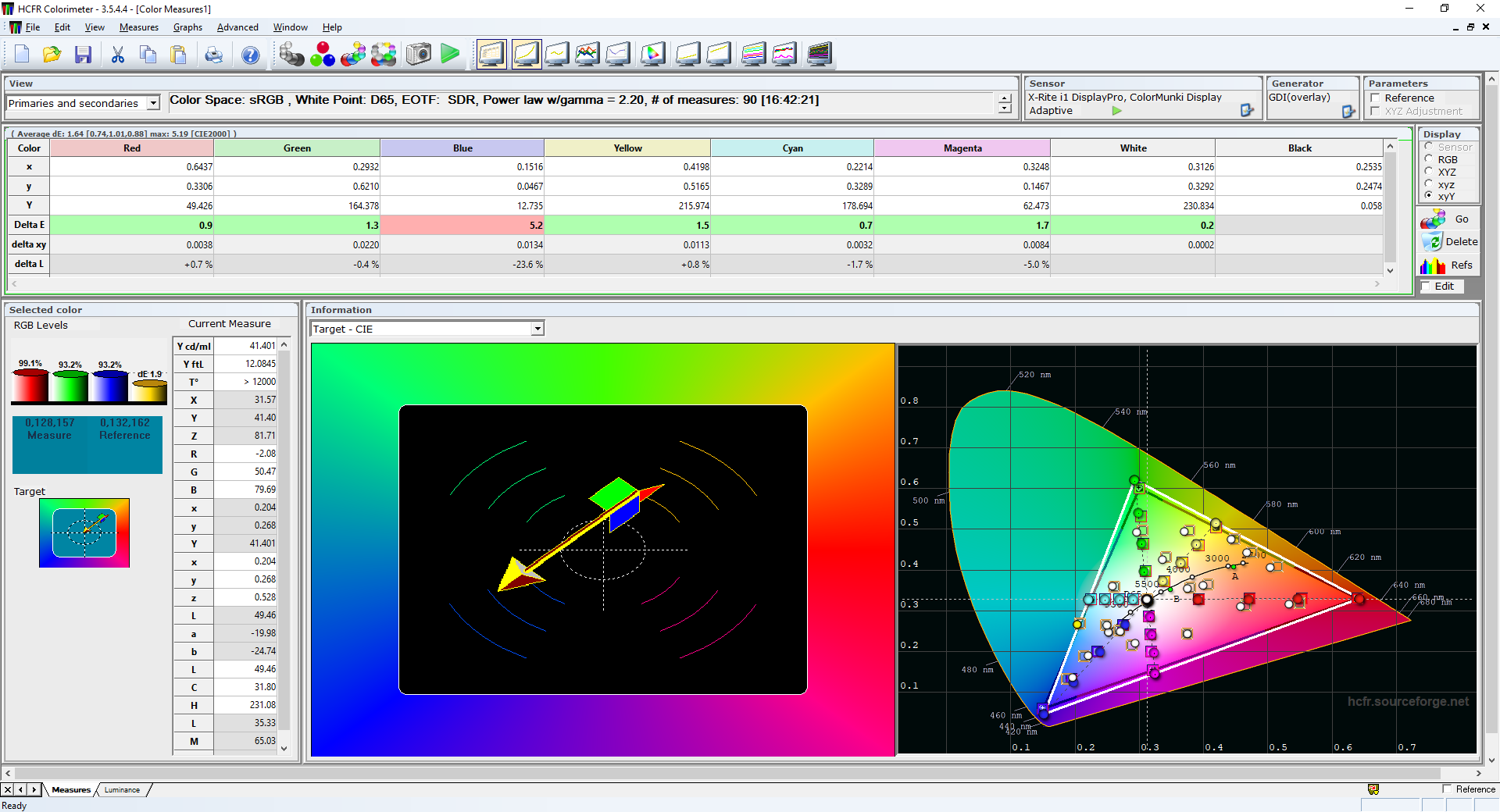
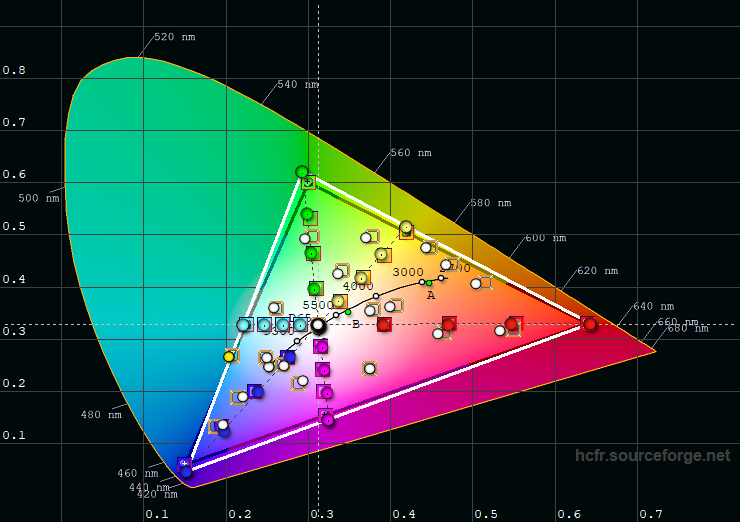
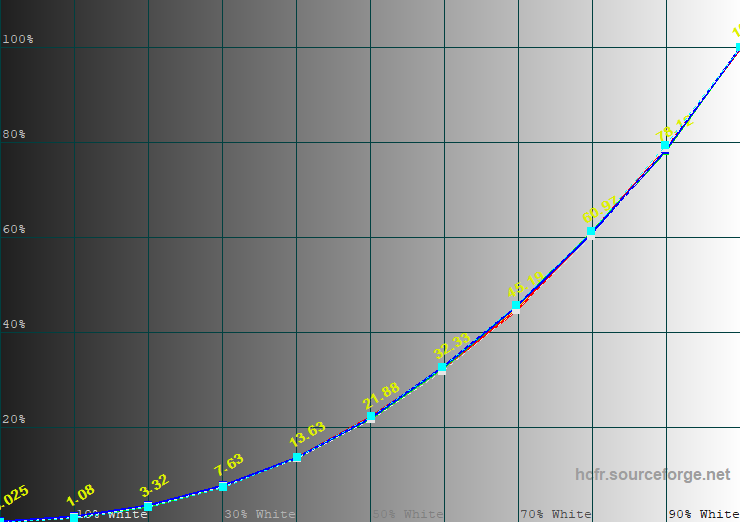
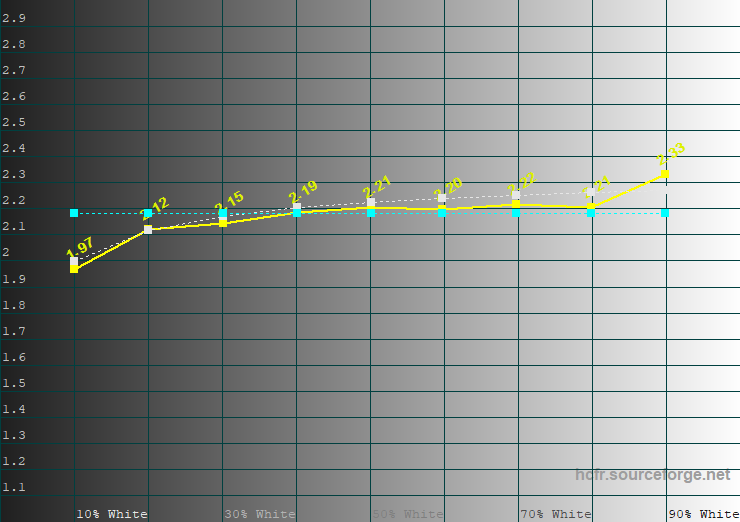
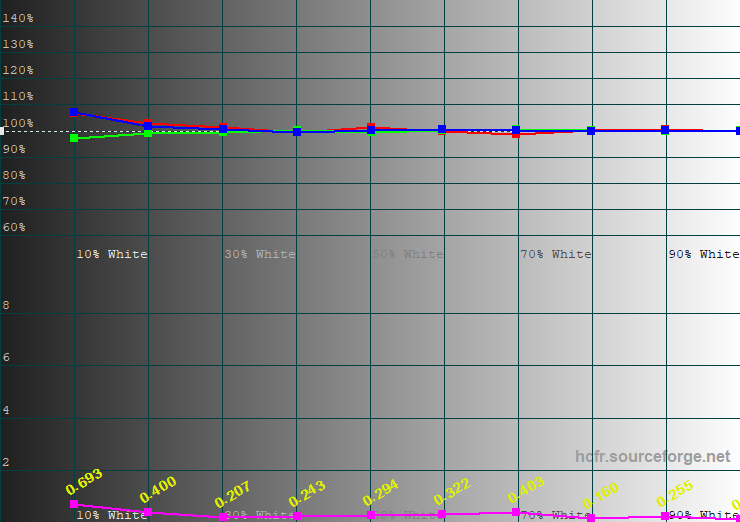
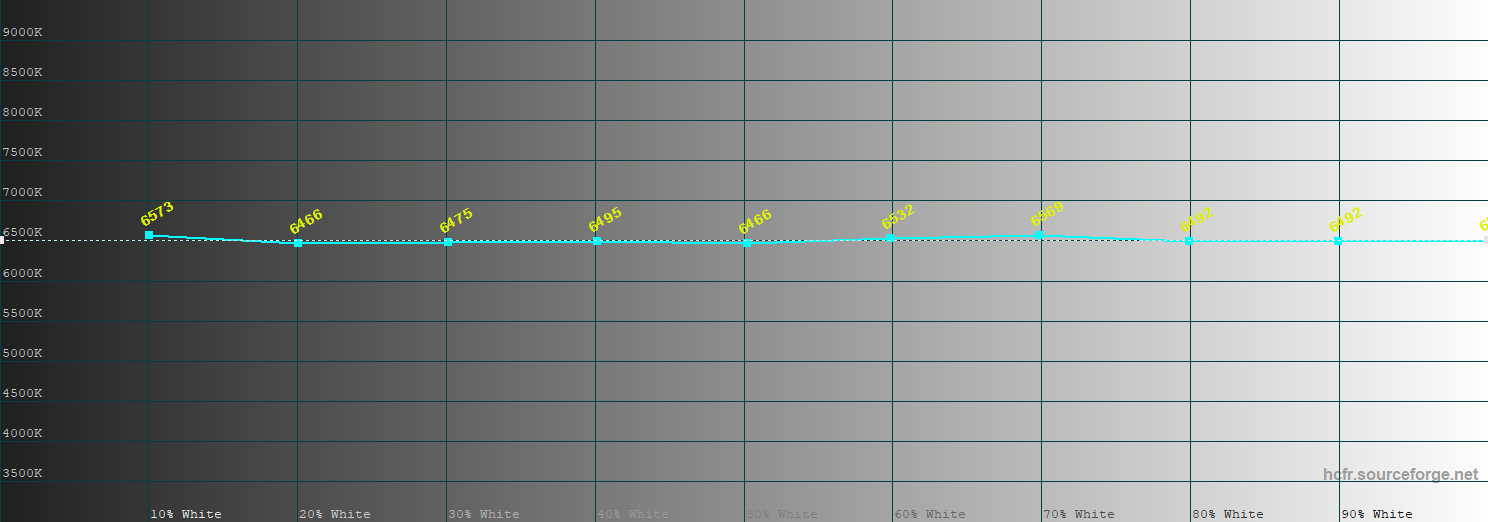
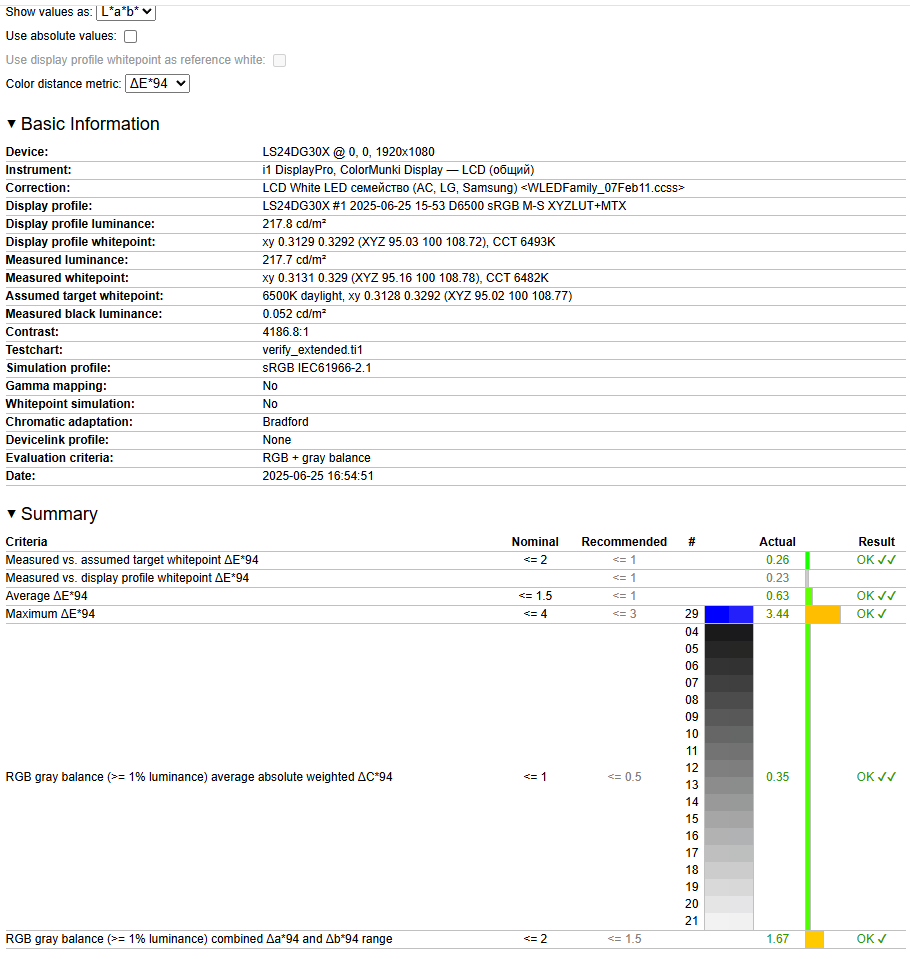
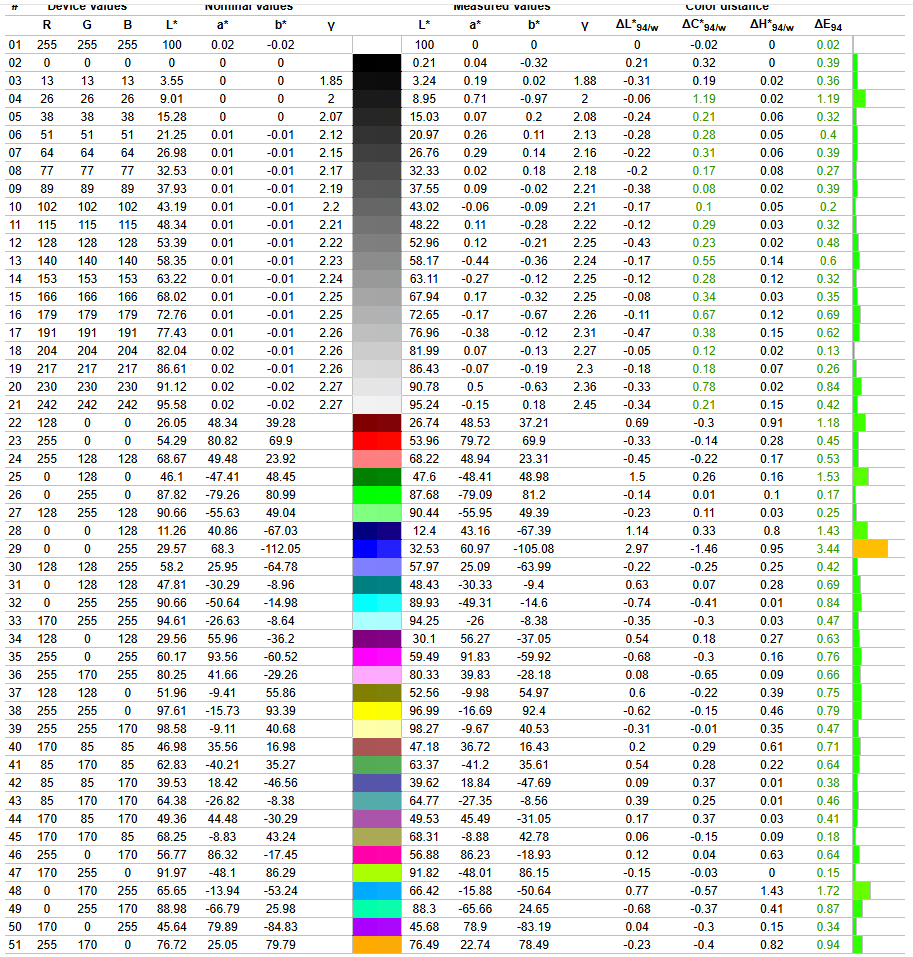
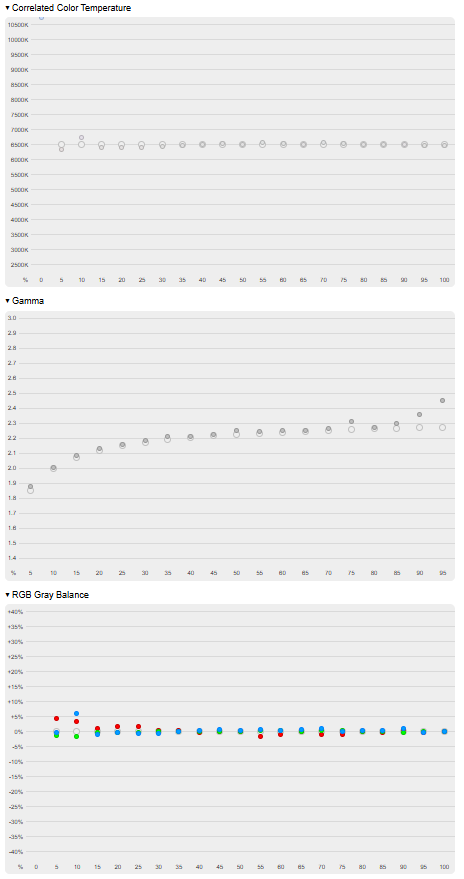
After calibration with the Dynamic Contrast profile, the static contrast ratio decreased slightly to 3980:1. Color temperature, its stability, and gamma settings improved to excellent levels. The average grayscale ΔE dropped from 1.4 to 0.35, while the average ΔE on the color test chart fell from 2 to 0.6, with the maximum decreasing from 6.3 to 3.4. Overall, image quality after calibration in the Dynamic Contrast profile is very good, though the Custom profile remains the best choice for calibration.
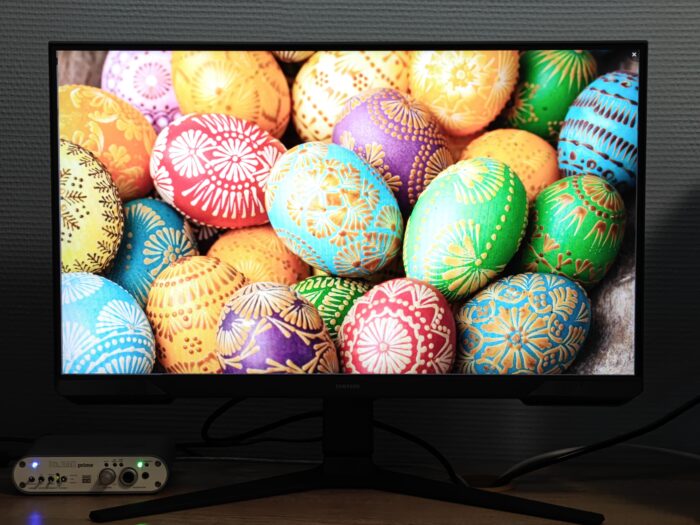
Testing in HDR Standard and HDR Dynamic profiles
Unlike earlier versions of the Samsung Odyssey G3, the current LS24DG300EIXCI model supports HDR. However, this is basic HDR10 support without VESA DisplayHDR 400 certification, as the peak brightness is limited to around 250 cd/m². While this is acceptable, it’s not particularly impressive – some budget monitors offer brightness levels of 300 cd/m² or even above 350 cd/m².
Once HDR is enabled, two image profiles appear in the monitor menu: HDR Standard and HDR Dynamic. Brightness and other image settings remain adjustable in both profiles.
Let’s evaluate the image quality with the HDR Standard profile:

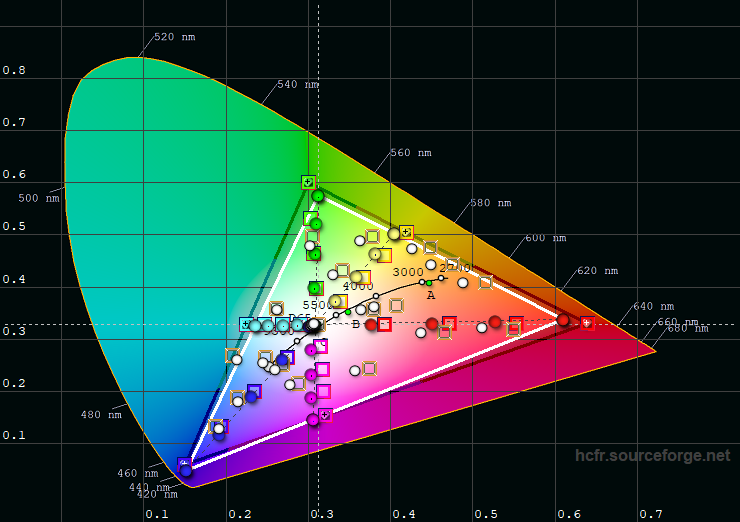
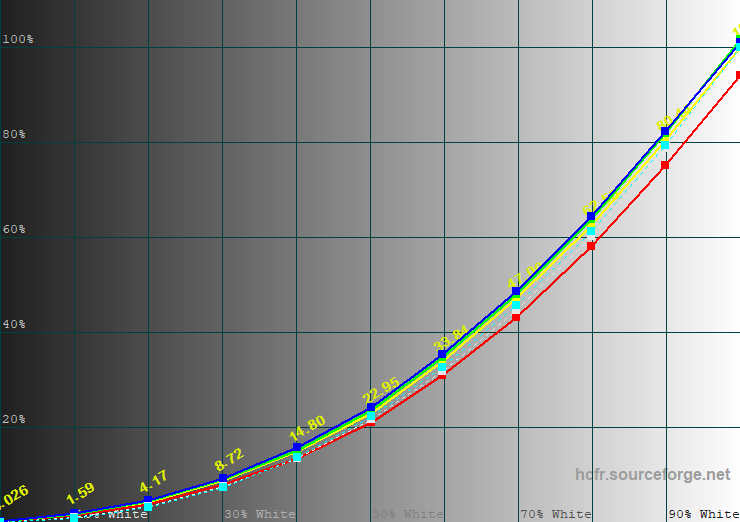
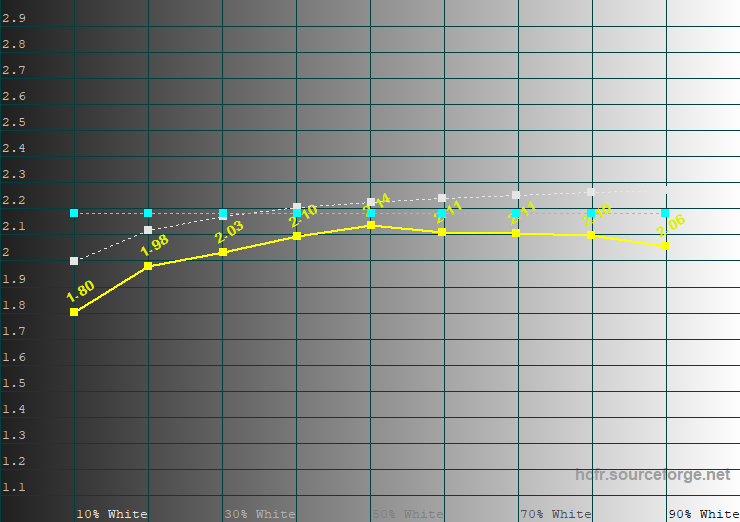
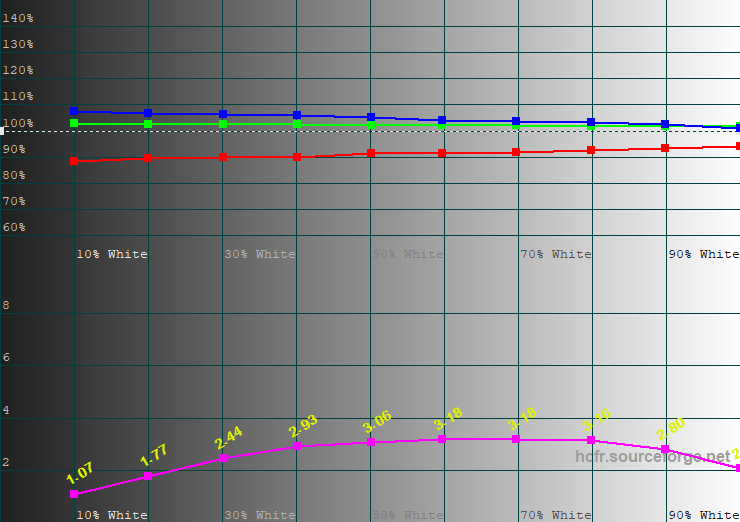
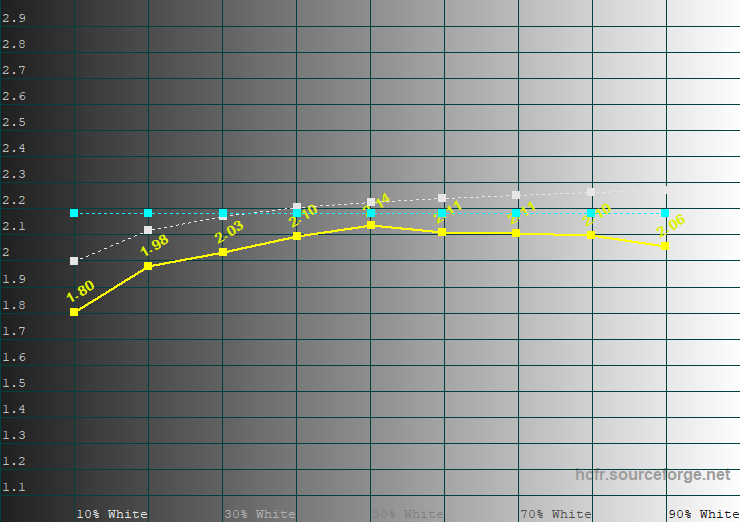
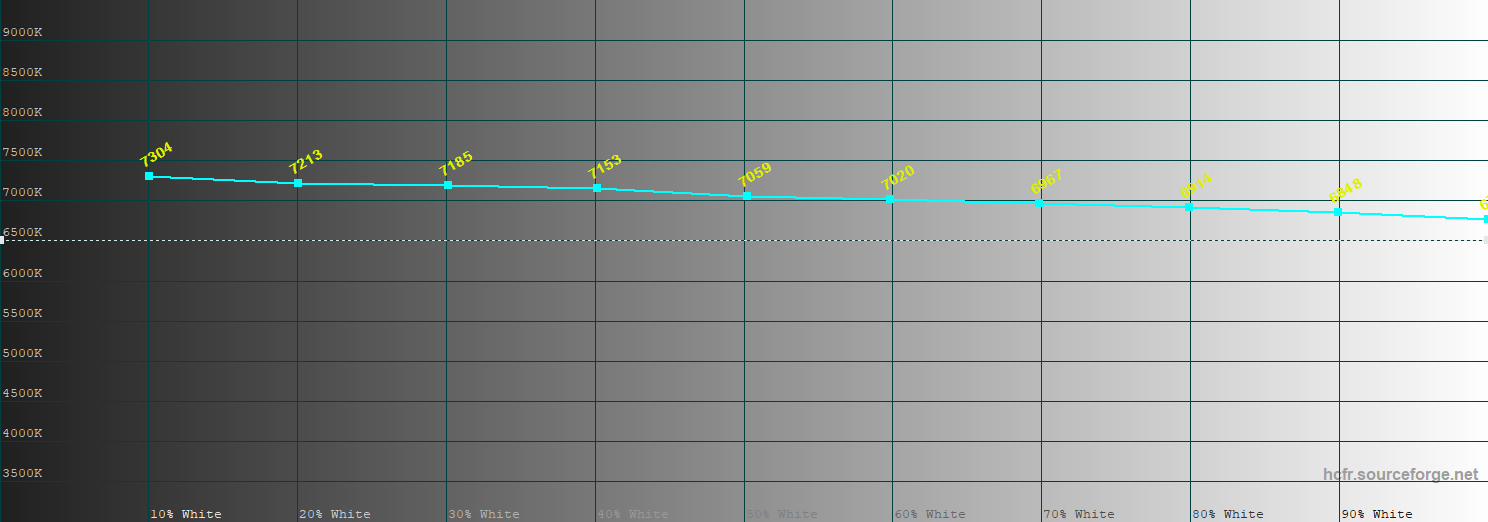
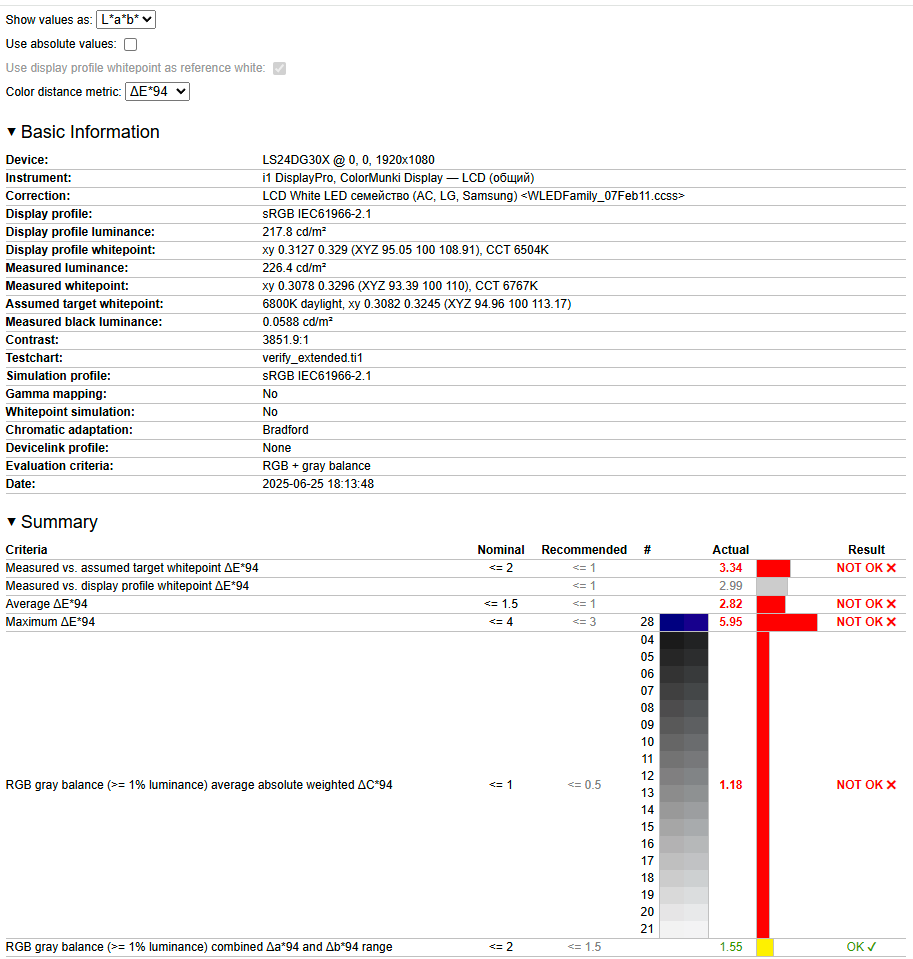
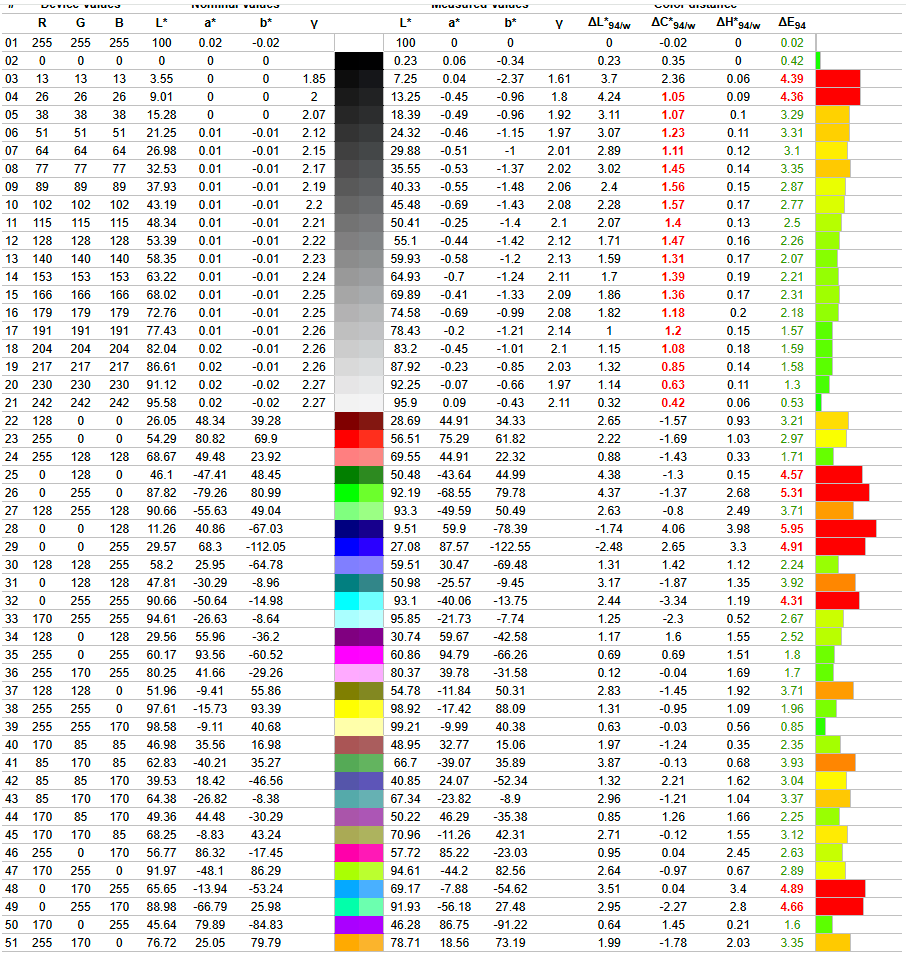
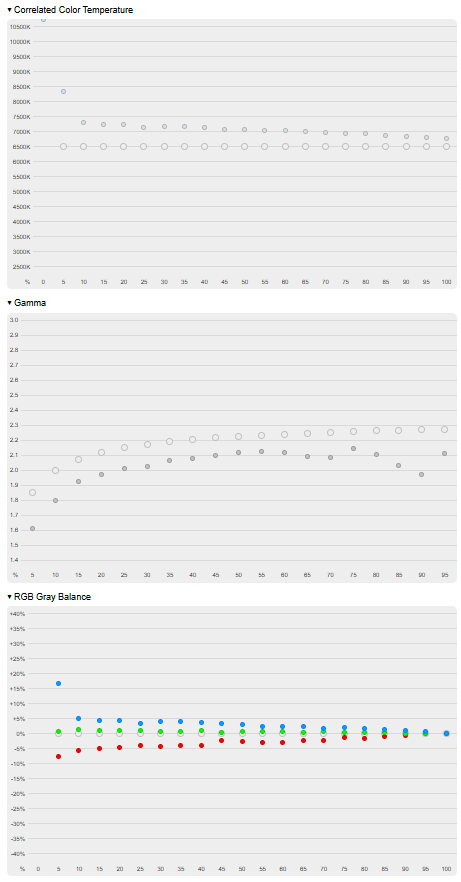
Brightness was set to 100%, but measurements showed it reached only 227 cd/m², with a contrast ratio of 3814:1. Interestingly, the sRGB color coverage didn’t increase compared to the SDR profiles – in fact, it slightly decreased. Gamma remains mediocre, and color temperature is noticeably higher than the reference 6500K. There is also some deviation in grayscale ΔE. On the color test chart, the average ΔE is 2.8, with a maximum of 6.
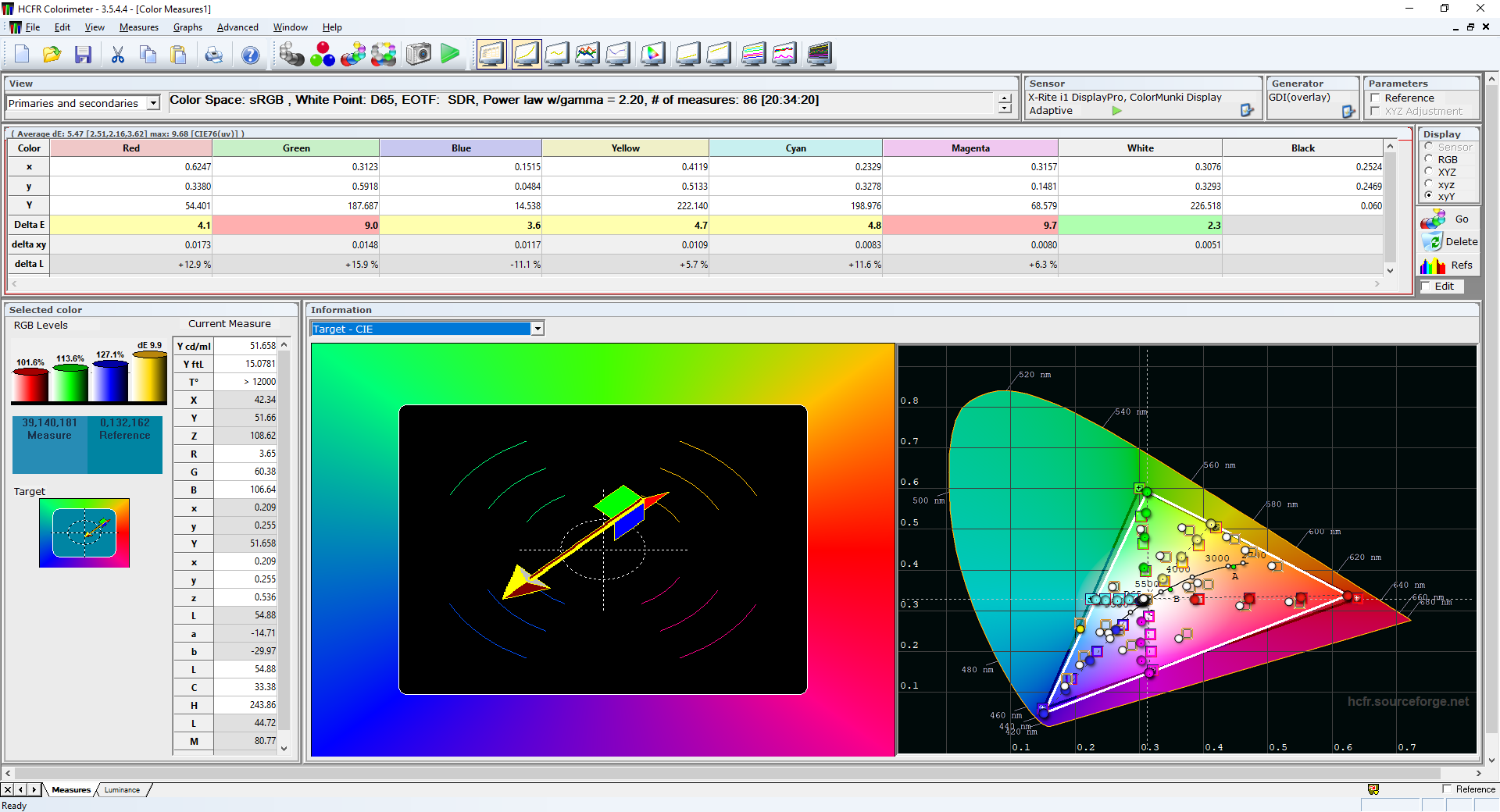
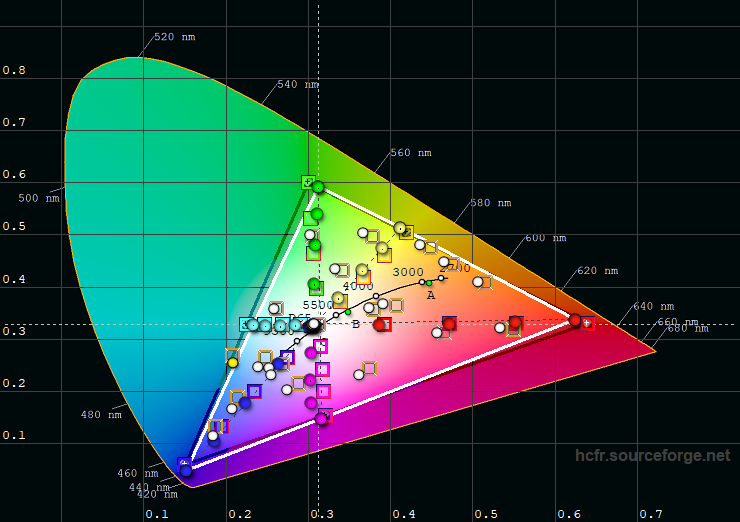
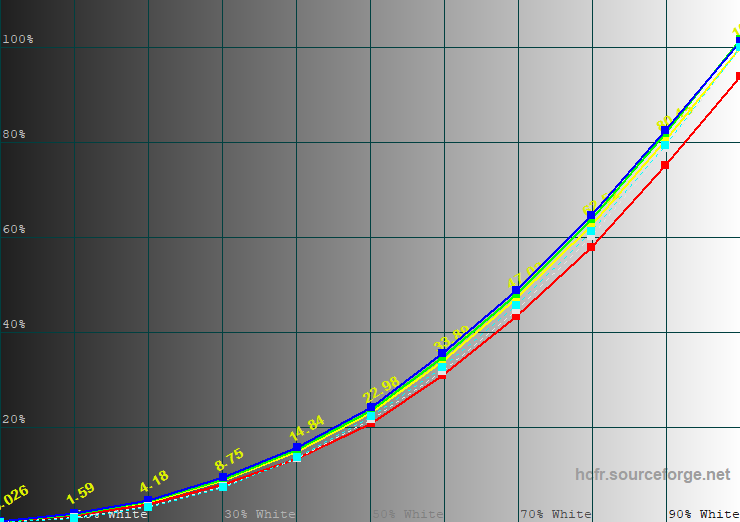
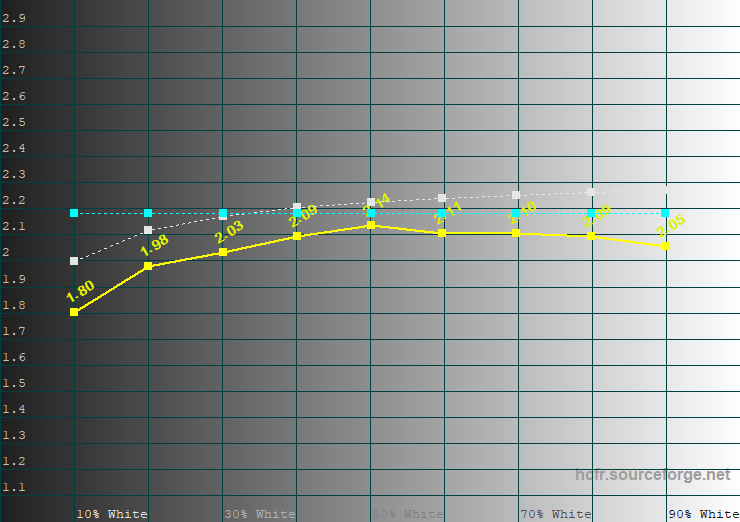
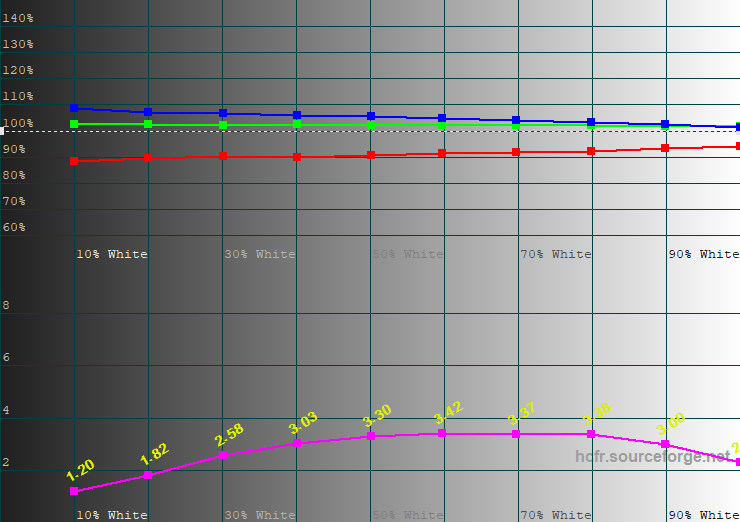
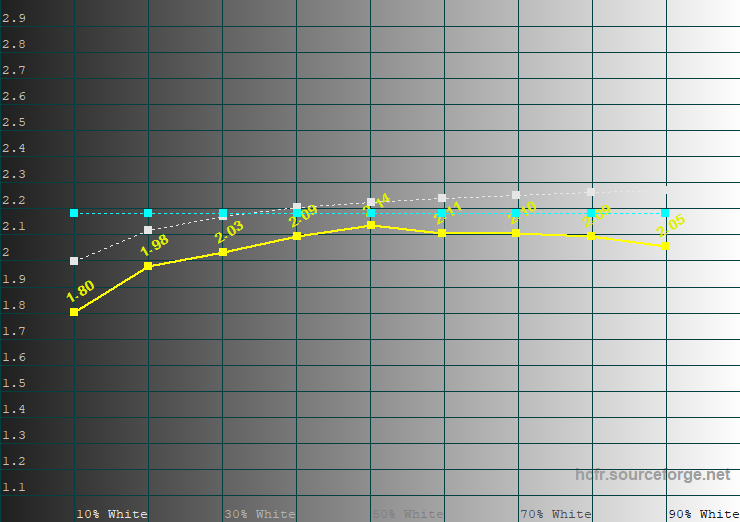
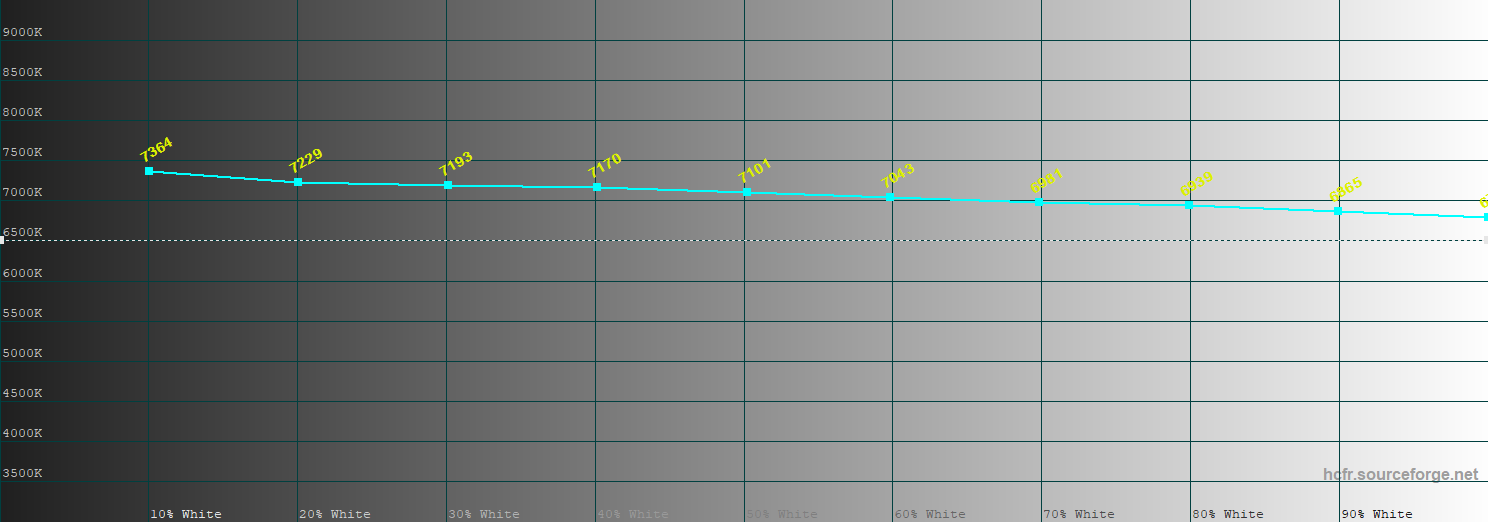
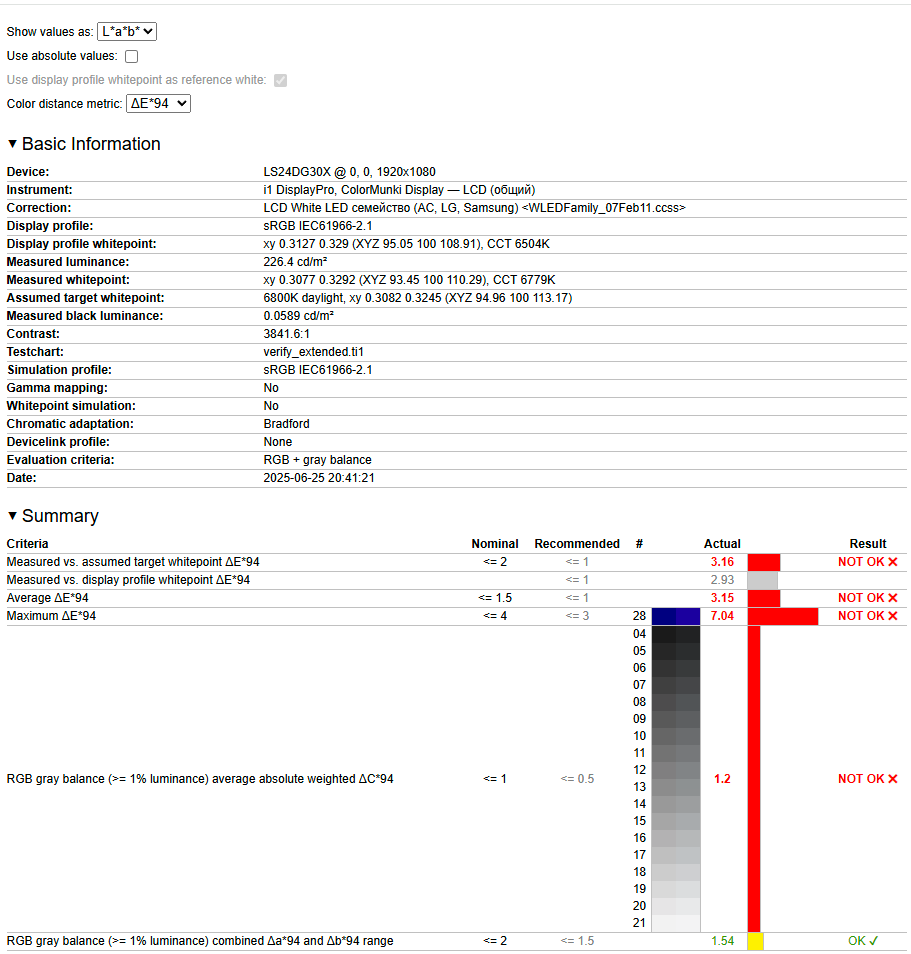
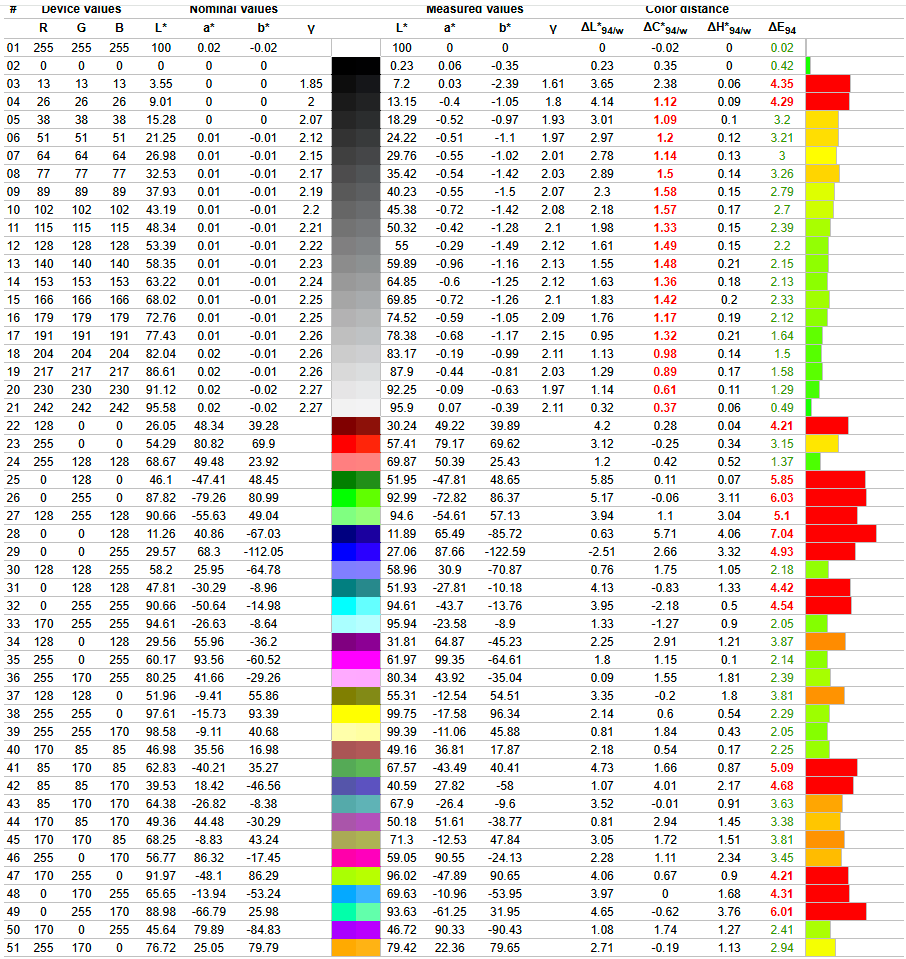
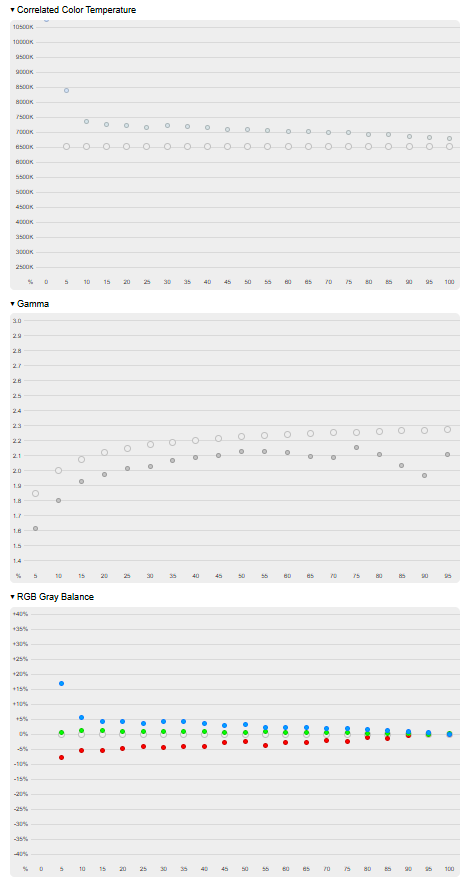
With the HDR Dynamic profile, color coverage expands slightly but still doesn’t fully reach the edges of the sRGB triangle. Factory settings are similar, but the average ΔE on the color test chart increased from 2.8 to 3.15, with noticeable spikes in error on some individual colors. Measured brightness was 229 cd/m², which is insufficient for a fully immersive HDR experience. Overall, the Samsung Odyssey G3 G30D is best suited for SDR content within the sRGB color space, which covers most of the content currently available.
Read also: GIGABYTE GS25F2 Gaming Monitor Review: 200Hz and Super Speed IPS
Peak brightness, contrast and uniformity of backlighting
Actual brightness measurements were taken after calibration using the Custom and Cinema profiles, with brightness levels adjusted from 0% to 100%. Measurements were also performed in the HDR Standard mode. The results are presented in the table.
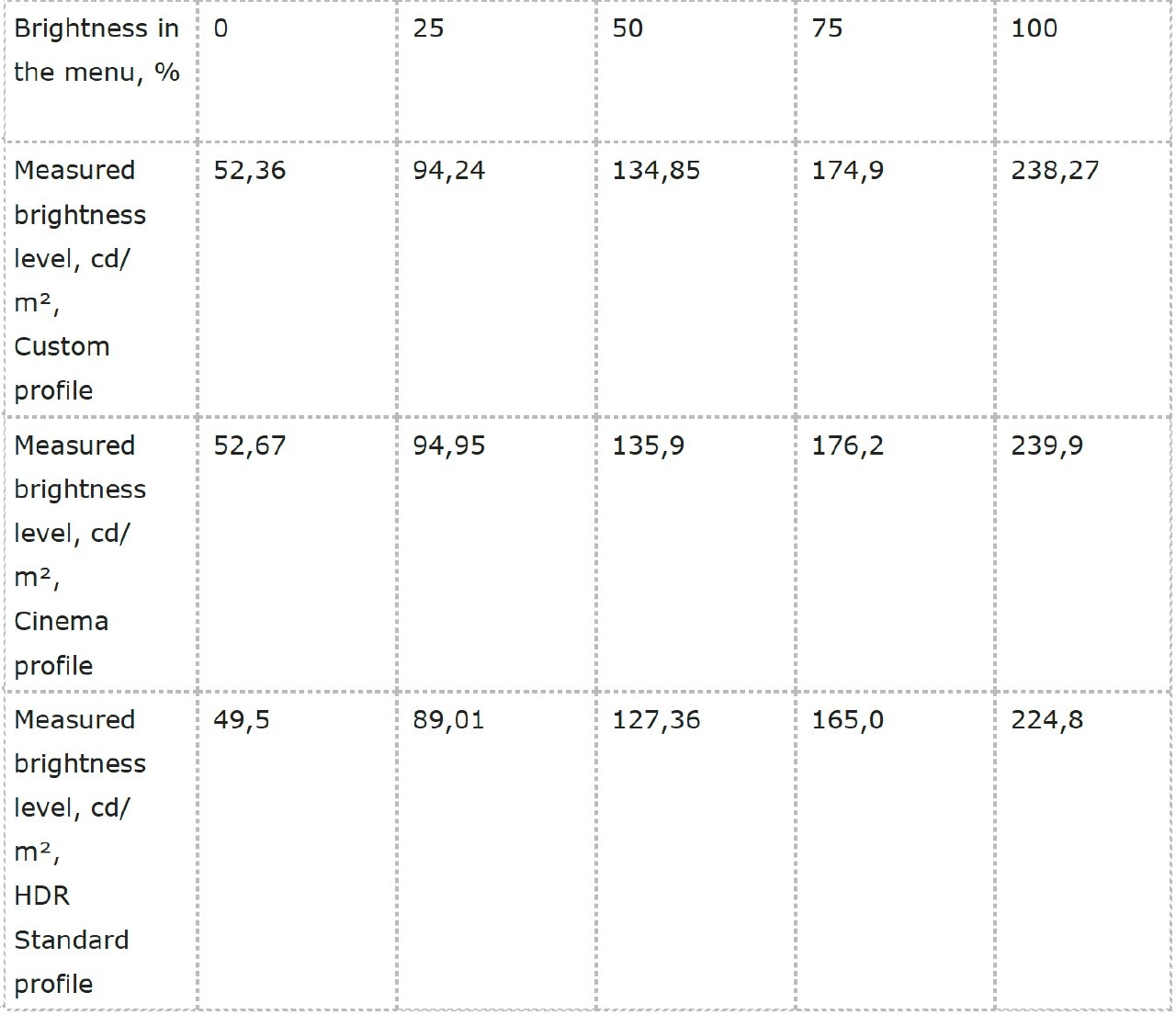
The monitor’s brightness is sufficient for rooms with moderate to low ambient lighting. In brighter environments, you’ll likely need to set brightness between 80% and 100%. Even then, it’s best to avoid placing the monitor directly opposite a sunny window or near strong light sources. Interestingly, measured brightness in HDR mode was actually slightly lower than in SDR, suggesting that HDR support is more of a basic feature than a fully realized capability.
Actual contrast measurements were also conducted after calibration using the Custom profile, with brightness levels ranging from 0% to 100%. Measurements were additionally taken in HDR Standard mode. The results are summarized in the table.
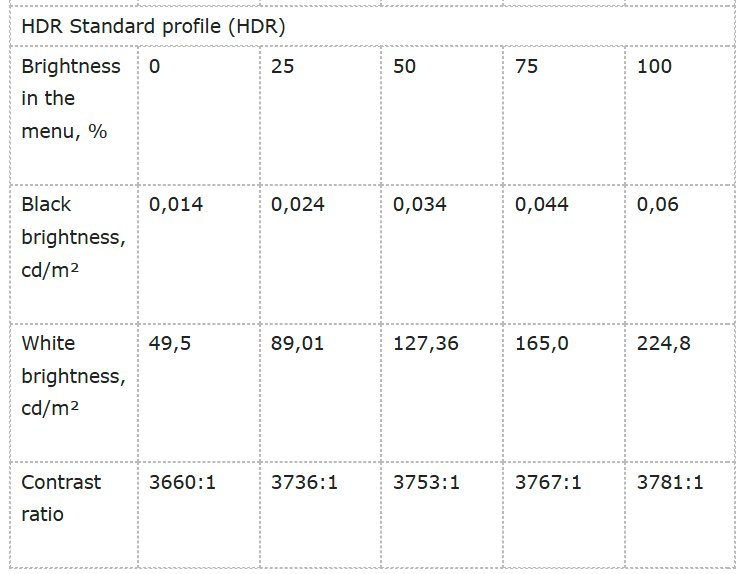
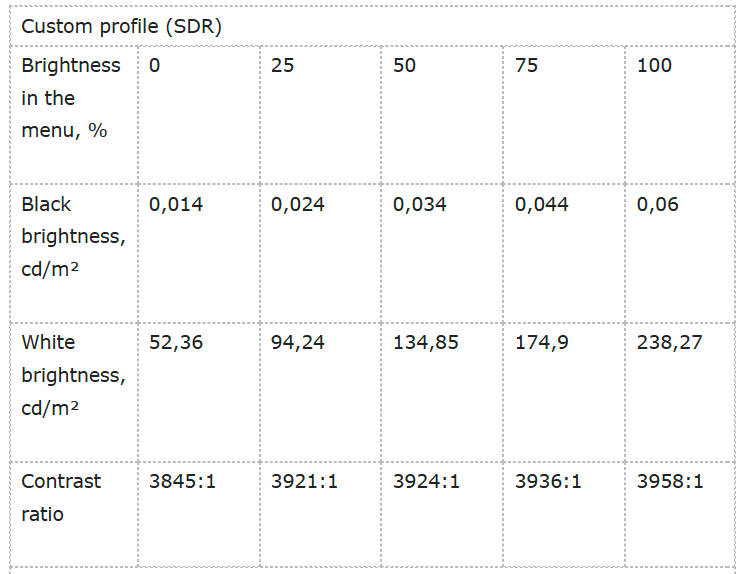
In terms of contrast and black level measurements, the Samsung Odyssey G3 G30D benefits from the strengths of its VA panel. Its contrast ratio is about four times higher than typical IPS monitors, and its black depth is three to four times better. Blacks appear genuinely dark, with a noticeable improvement over IPS displays.
Backlight uniformity was tested at 100% brightness using the Custom (SDR) color profile.
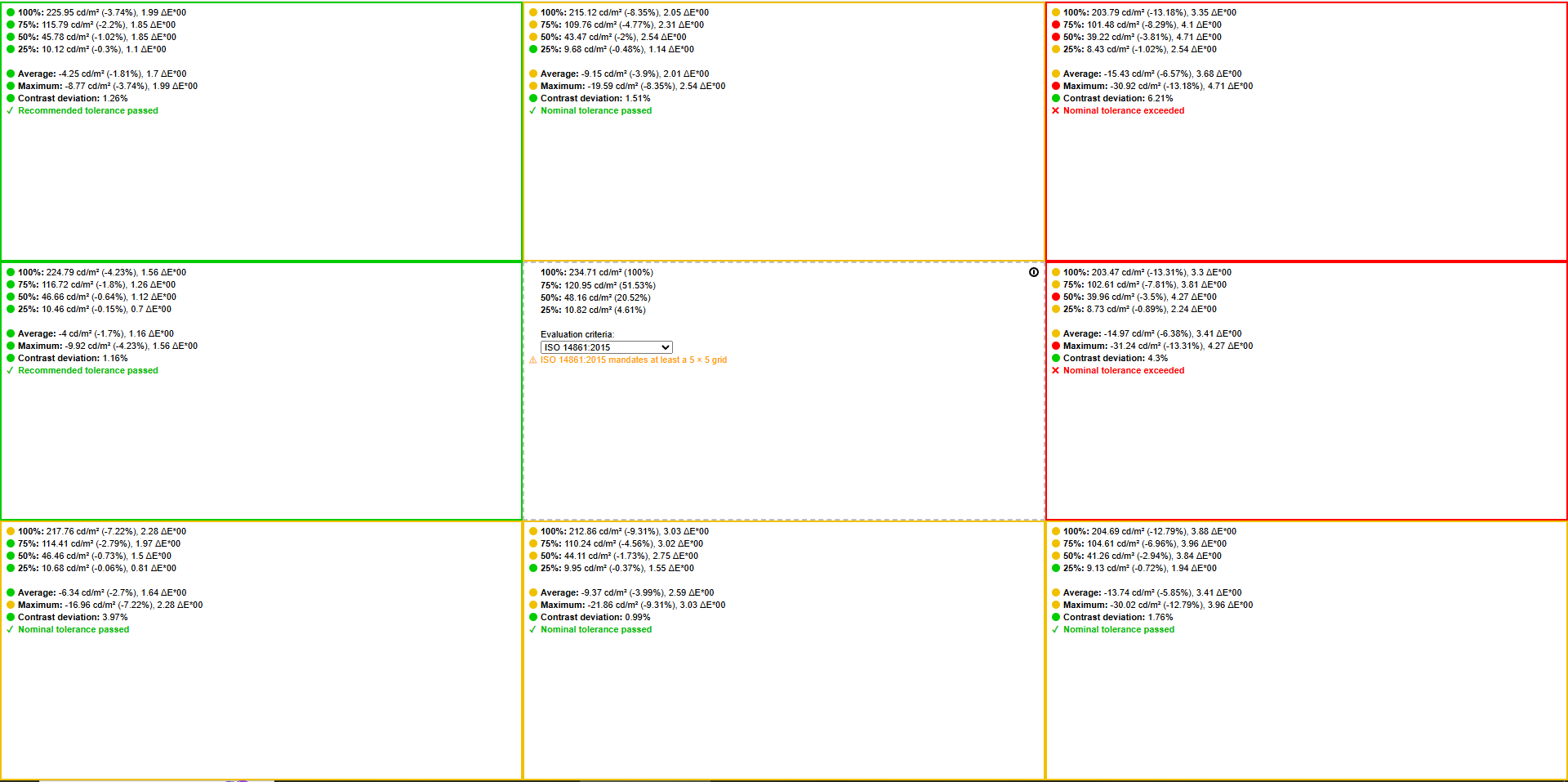
Backlight uniformity is decent, with a maximum deviation of 13%. In this regard, the Samsung Odyssey G3 G30D outperforms many budget competitors, though not all.
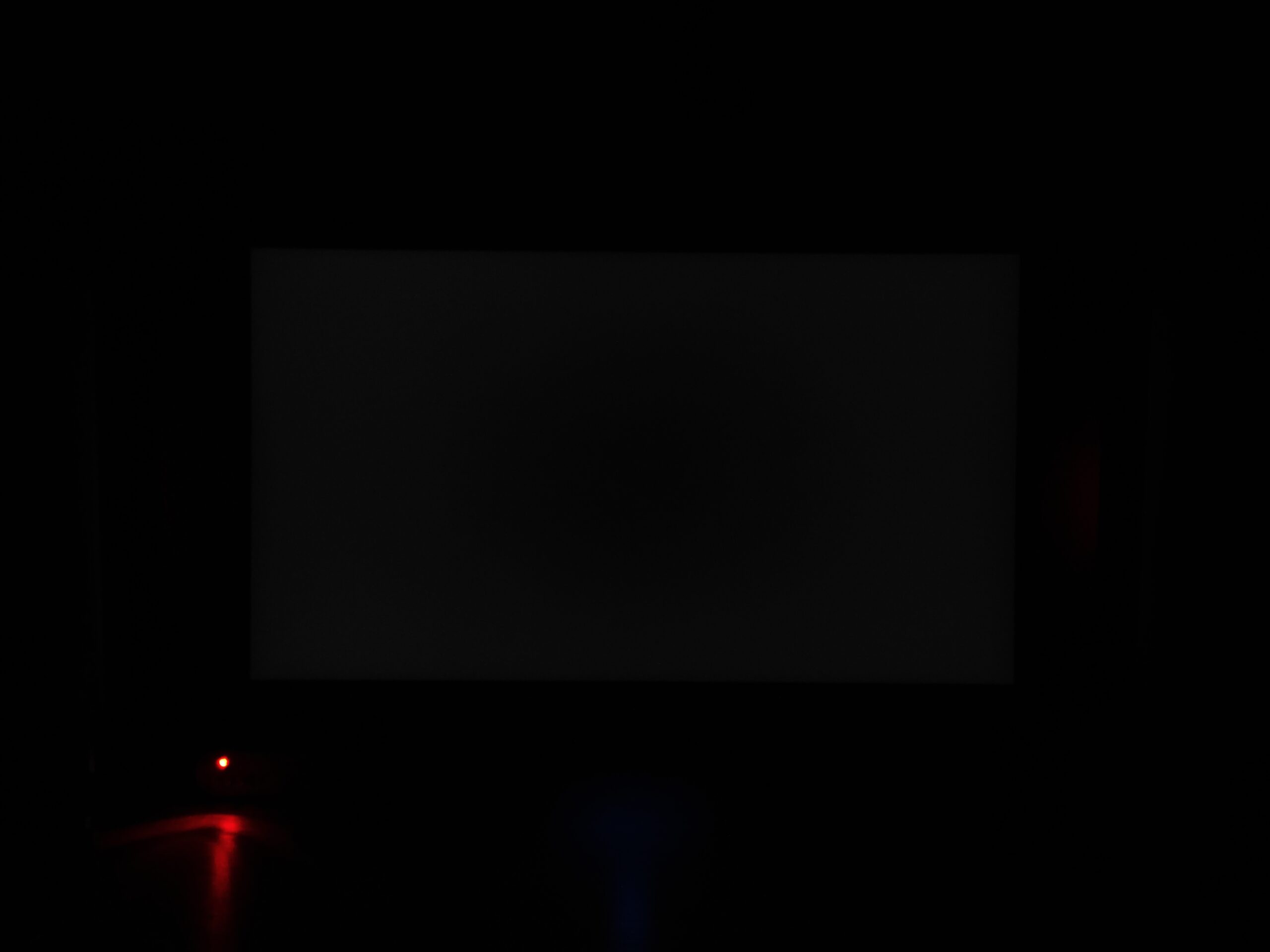
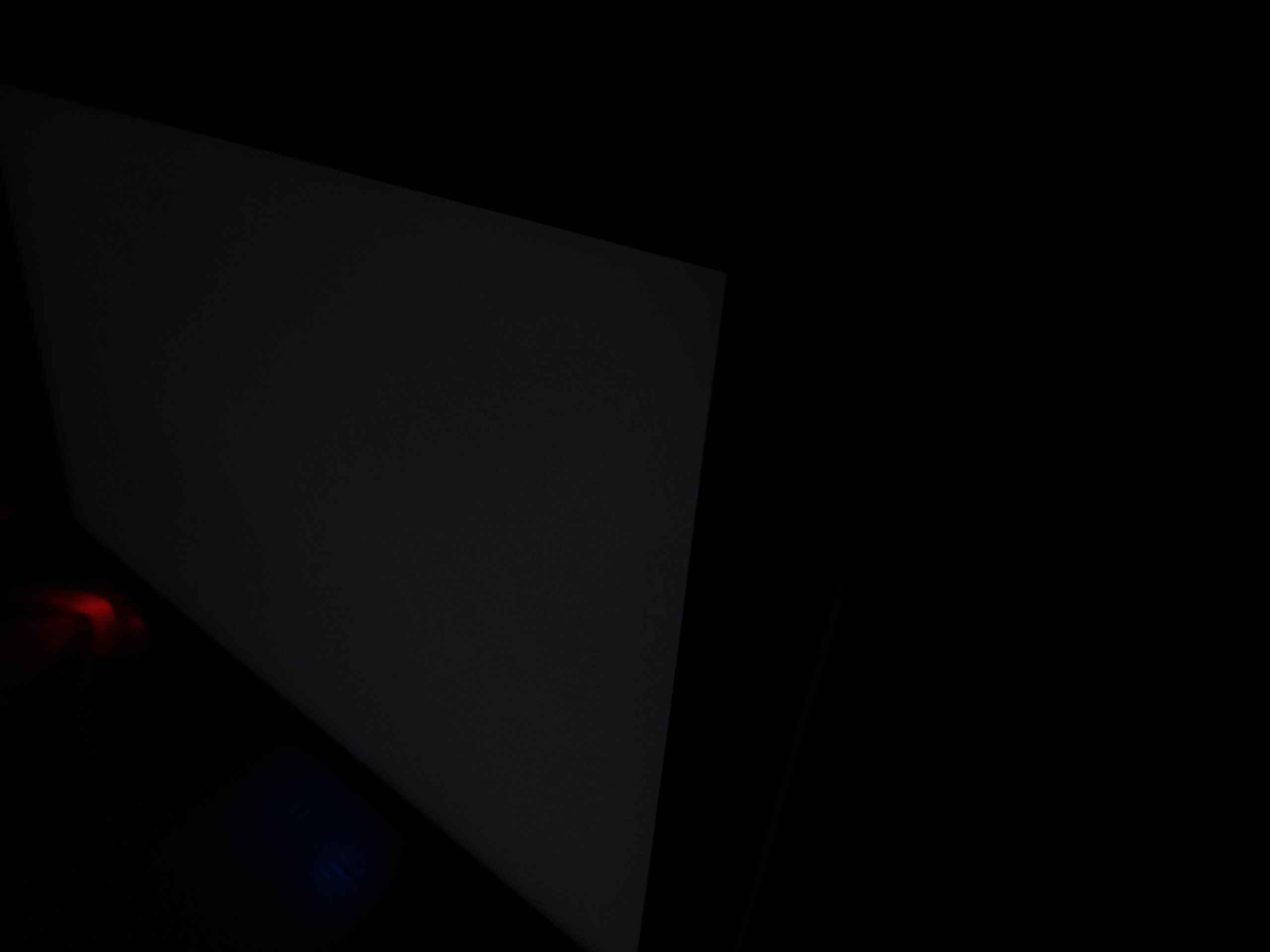
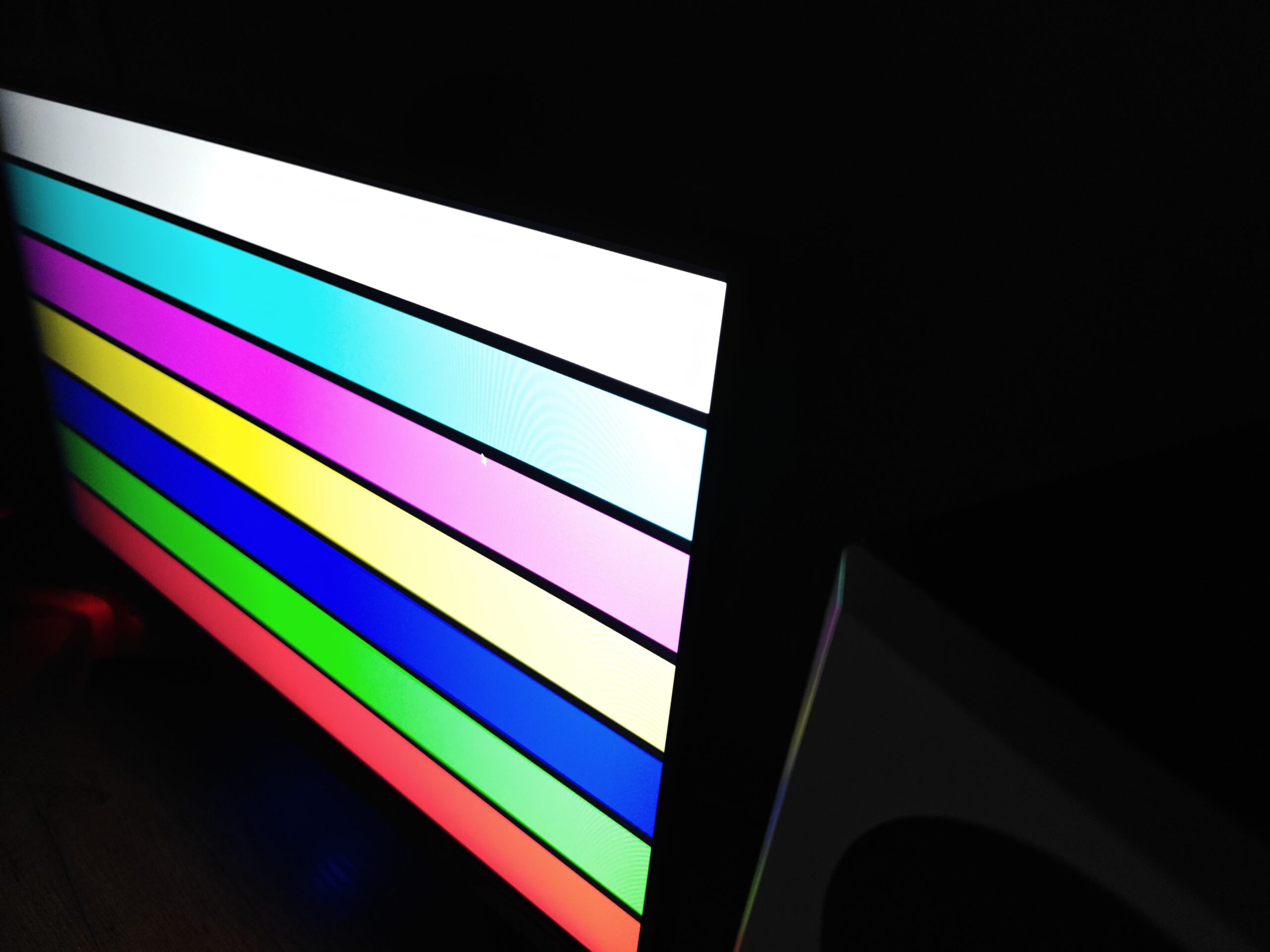
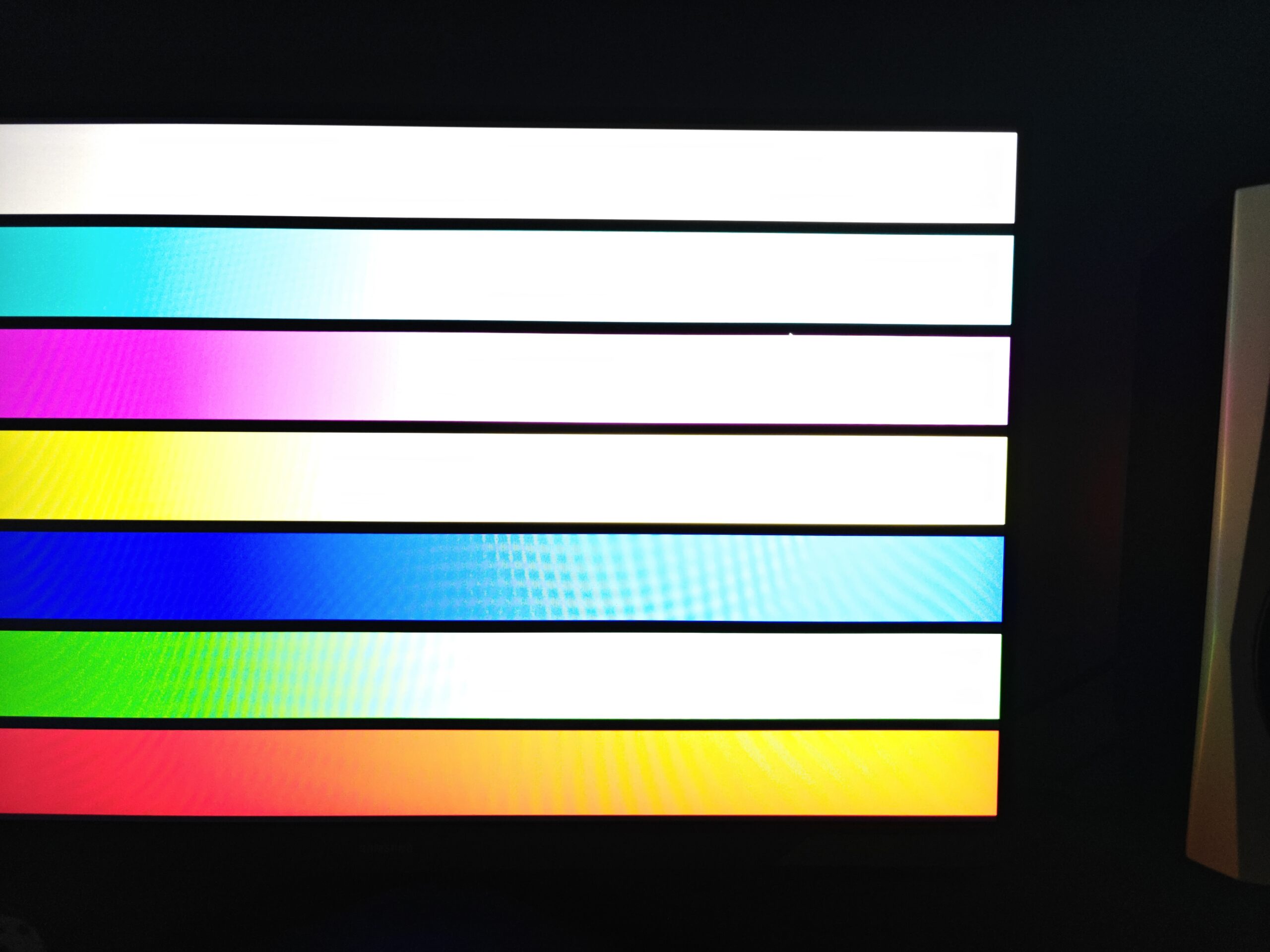
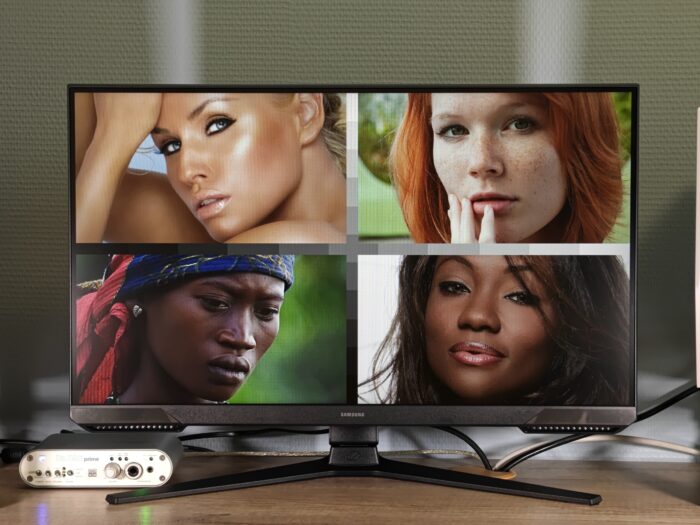
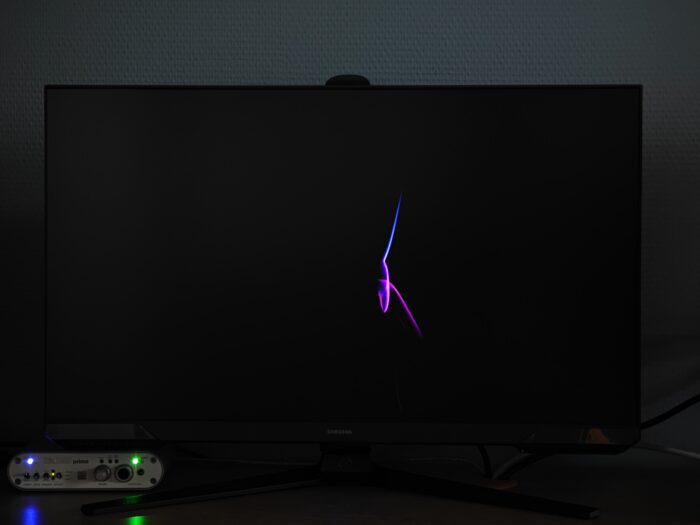
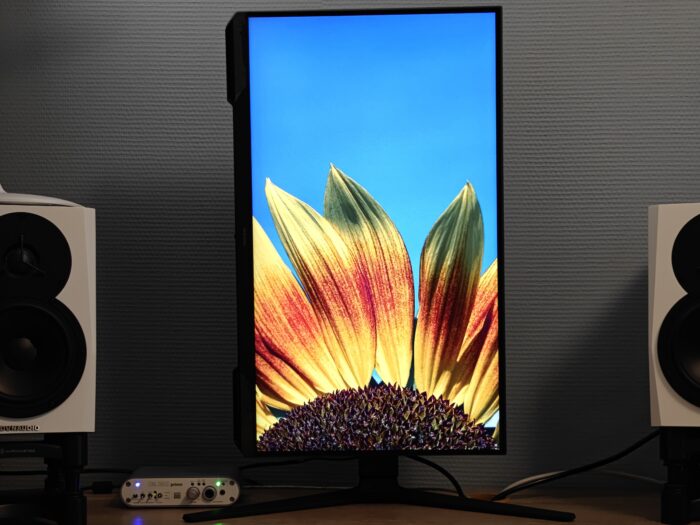
The so-called “glow effect” is noticeable on the monitor, especially on solid color backgrounds (as shown in the first photo). Viewing angles are somewhat limited compared to IPS panels – while text remains readable from almost any angle, color saturation begins to fade even with slight shifts away from a direct, head-on view.
Viewing distance also impacts image quality. Sitting too close to the monitor causes color saturation to diminish at the edges, even when looking straight on. For this reason, I recommend maintaining a viewing distance of at least 70–80 cm from the Samsung Odyssey G3 G30D, preferably a bit more.
The monitor shows no visible backlight flicker, which is a definite advantage as it helps reduce eye strain. The Odyssey G3 G30D also offers an overdrive mode called Extreme (MBR). This mode significantly improves the clarity of moving objects, but it does so by using backlight modulation, meaning flicker is present when this mode is enabled.
Overdrive testing
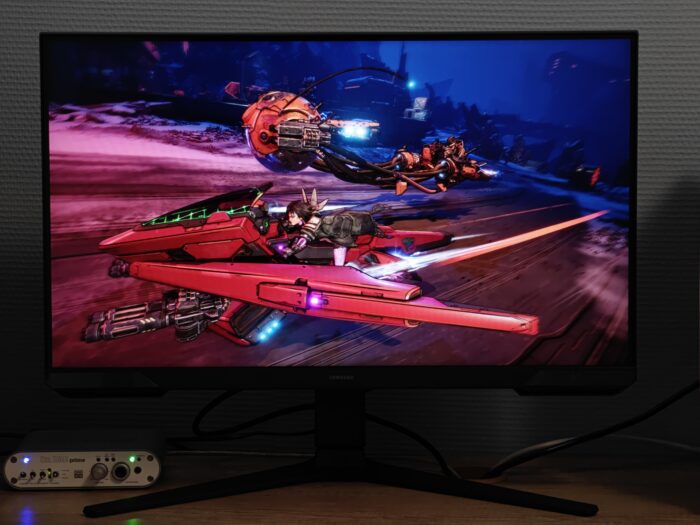
Historically, VA monitors have been slower than their IPS and TN counterparts. However, recent generations have made significant improvements. I recall my Samsung SyncMaster 971P – with its striking design but also noticeable motion trailing in games. There was even a TV commercial featuring a cat and a ball, for those who remember. Nearly 20 years later, the Odyssey G3 G30D shows how far VA technology has come, even in the budget monitor segment.
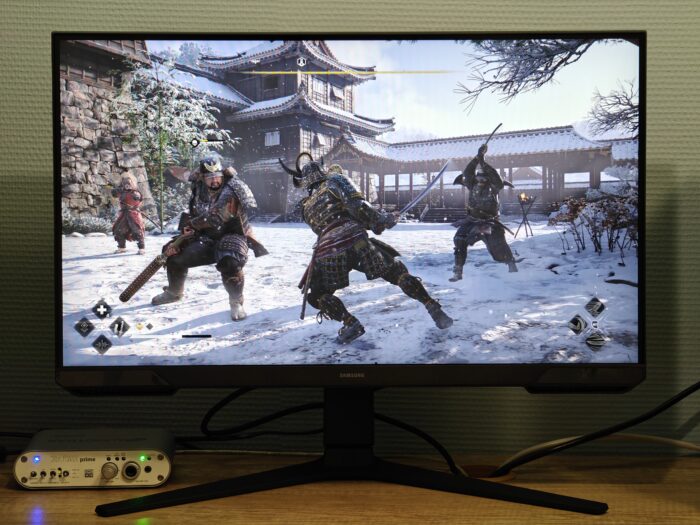
Dynamic performance testing of the monitor was carried out using the Custom profile, a refresh rate of 180 Hz, and brightness set to 25%. Various settings for the Response Time option (overdrive) in the monitor’s menu were tested. Here is a comparison of the different overdrive modes.
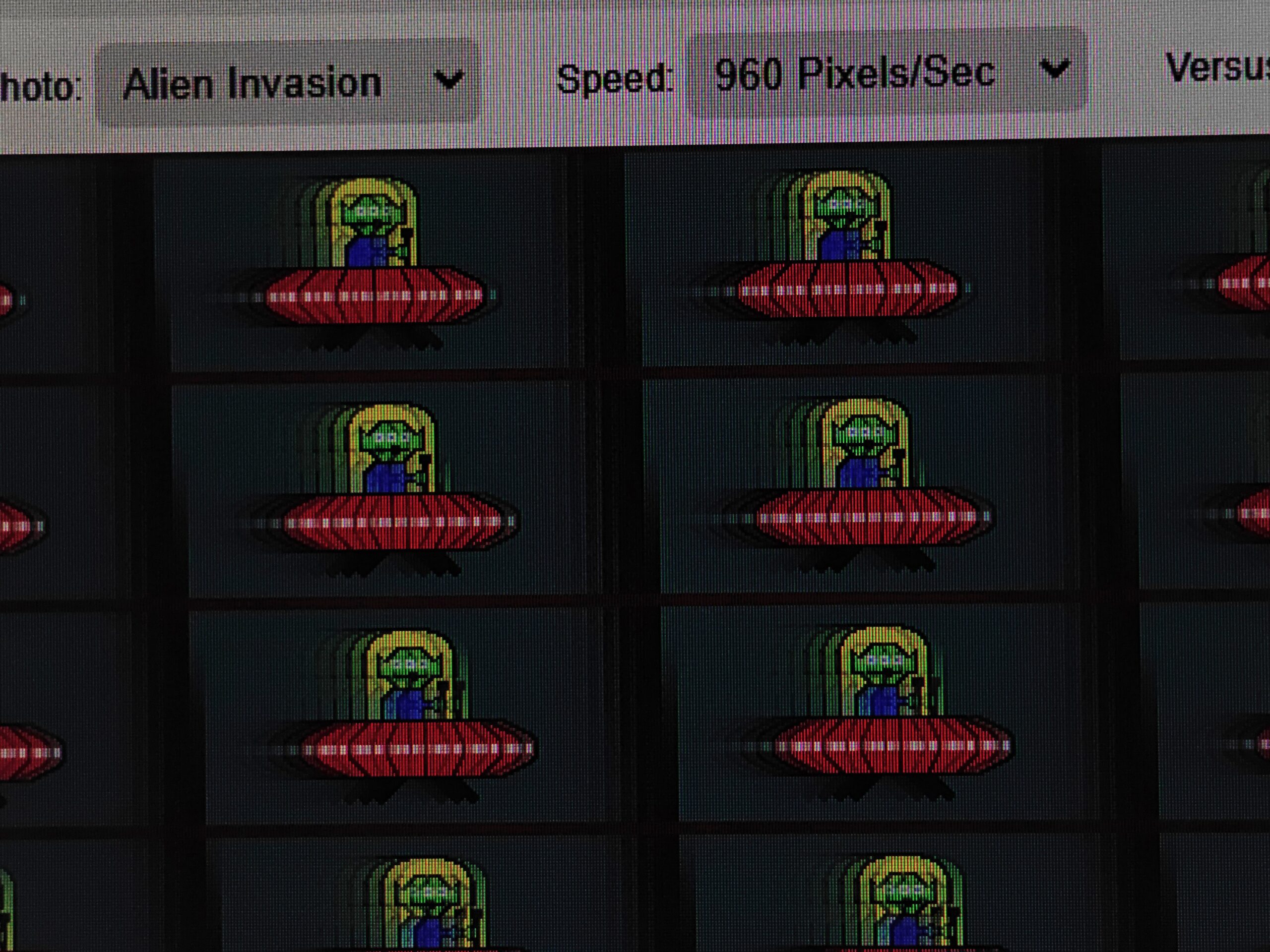
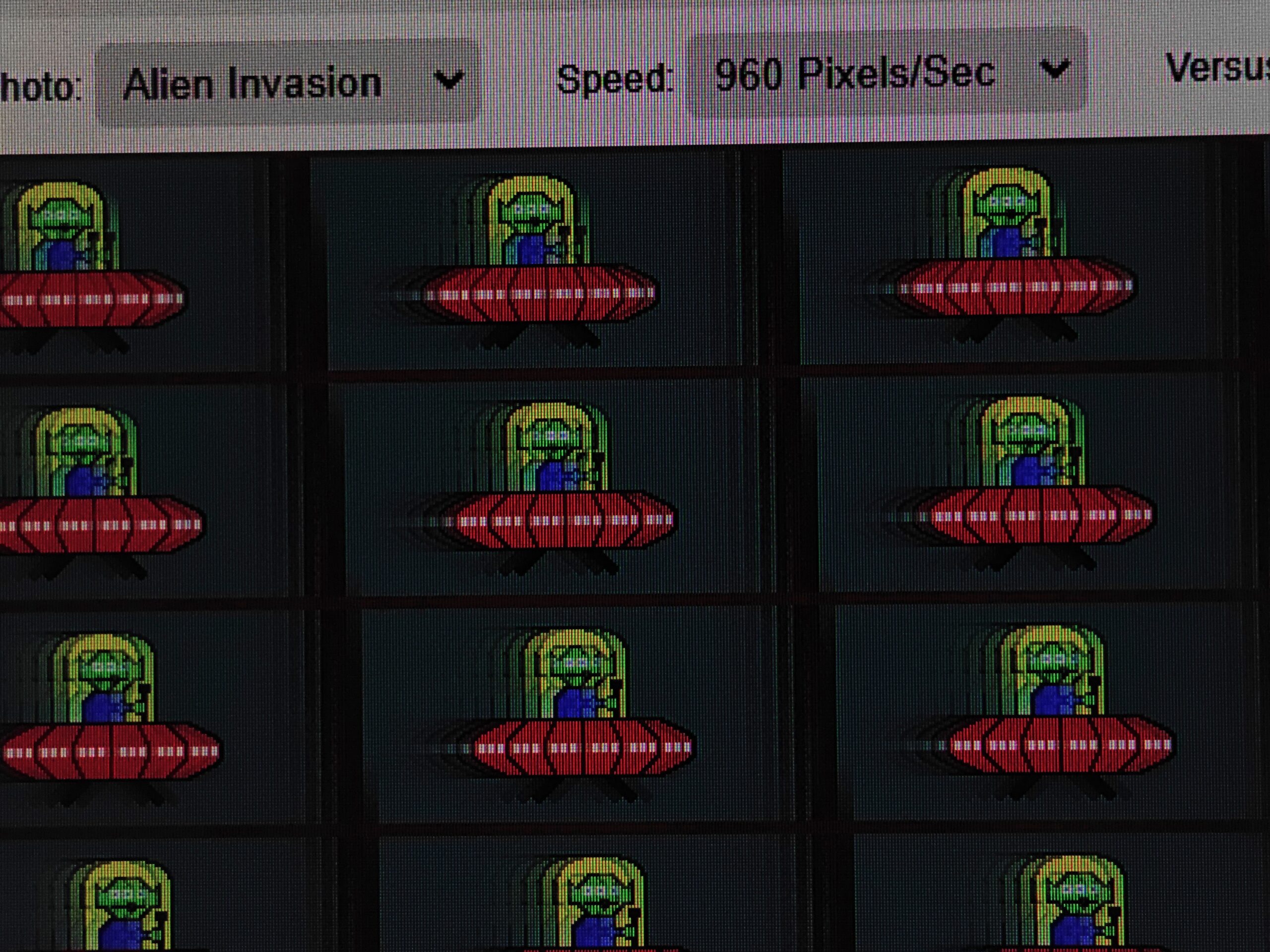
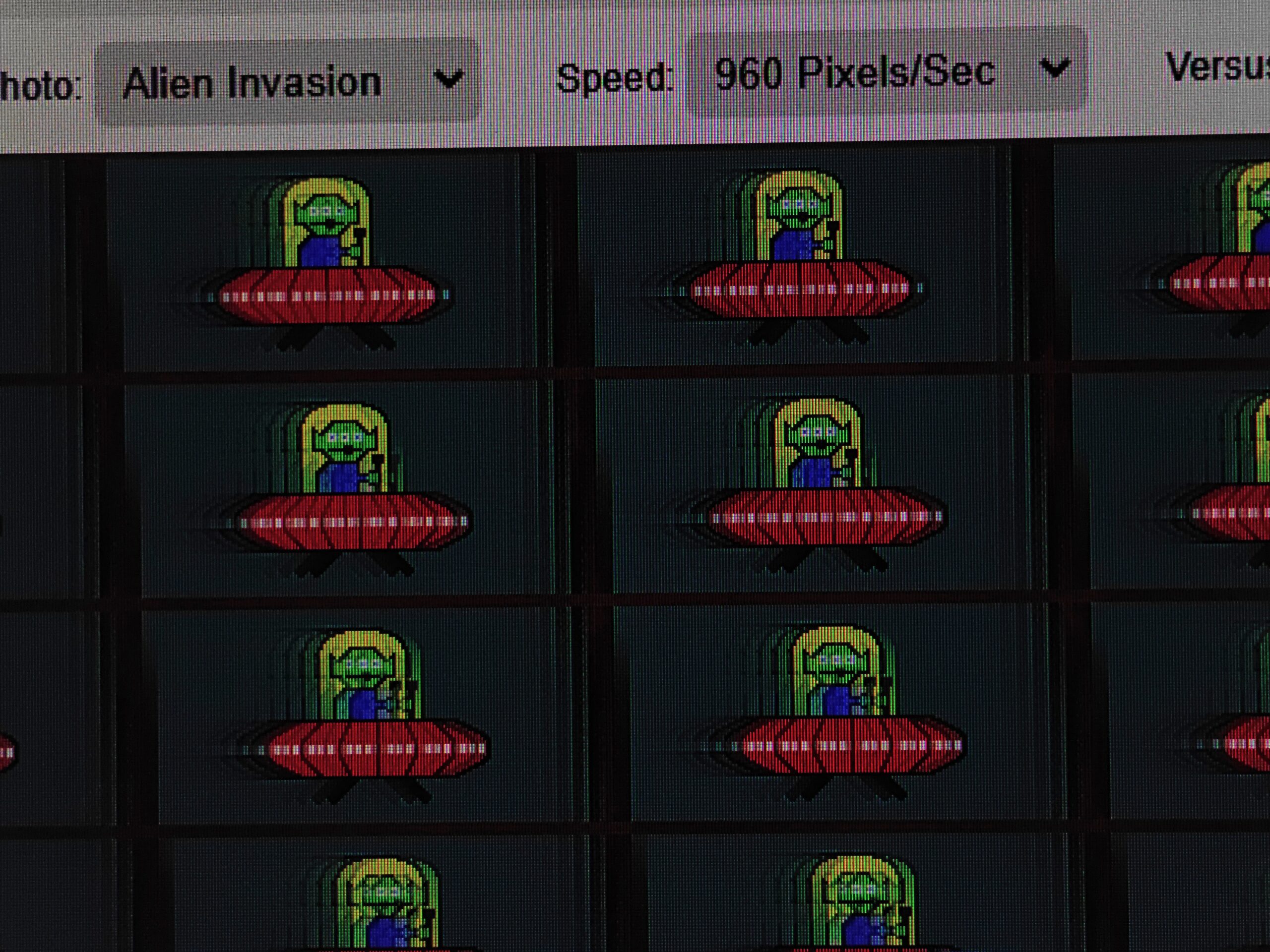
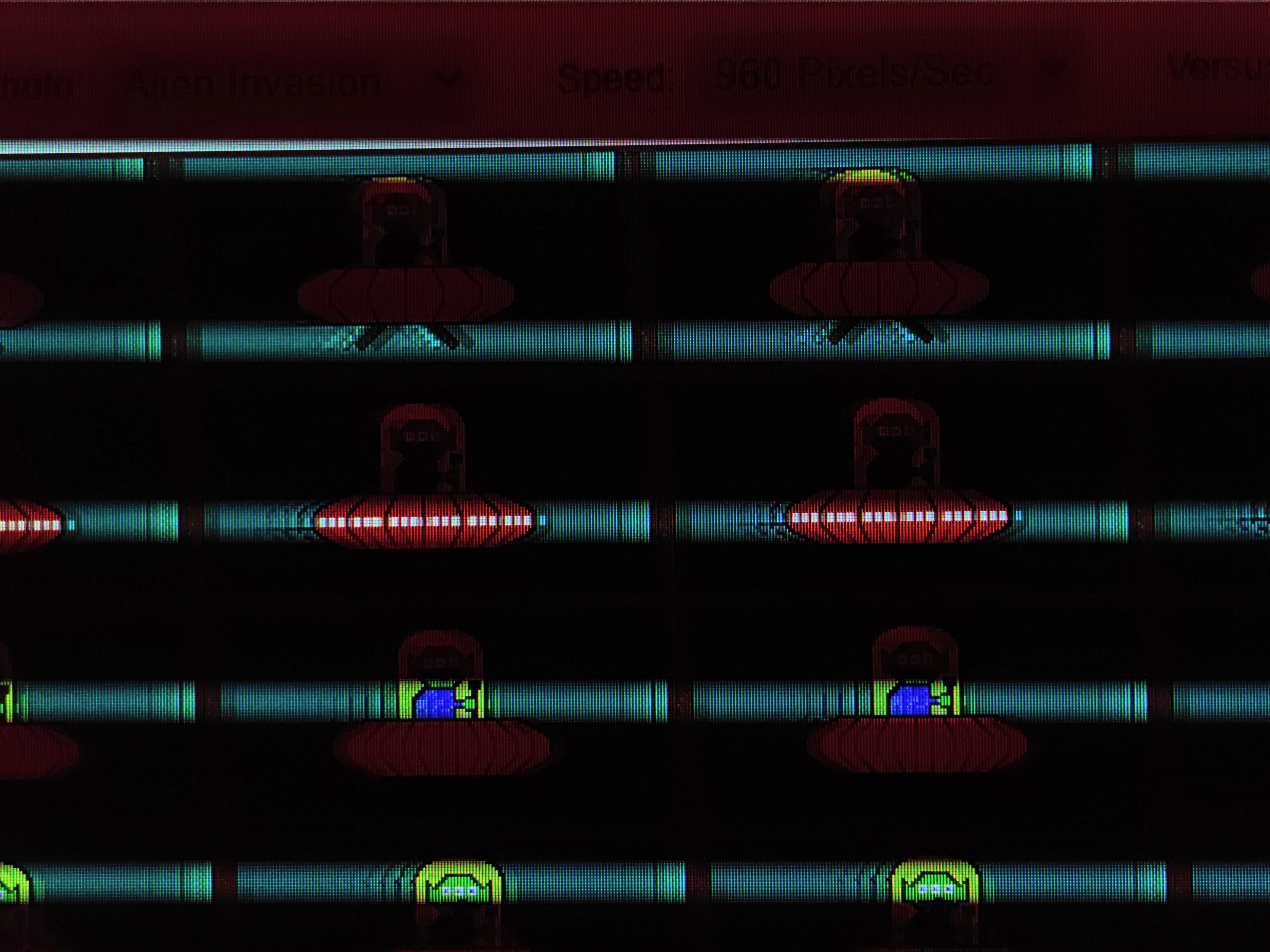
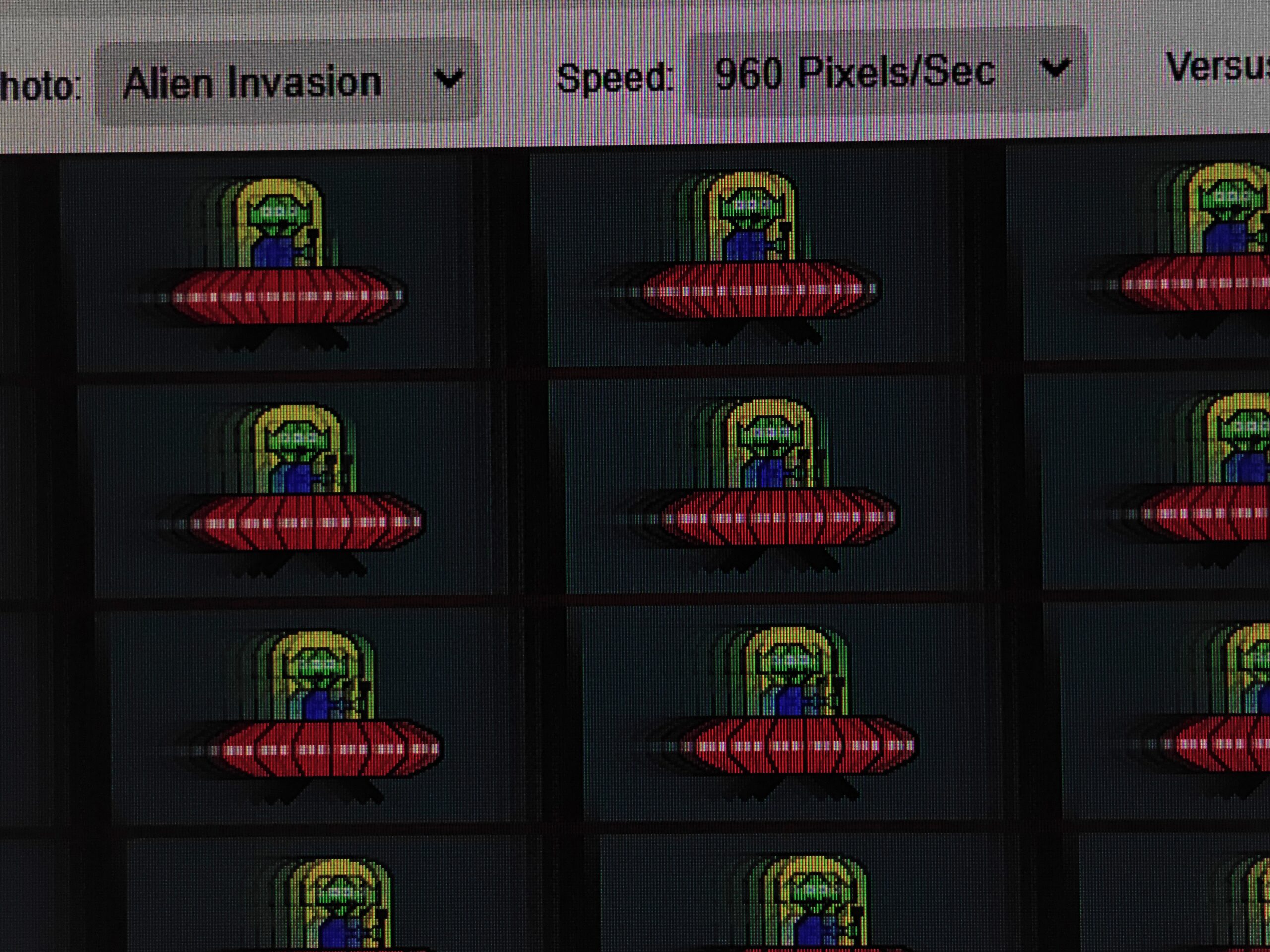
The UFO Test: Overdrive Tuning Tester was used for evaluation. Without overdrive, motion trails are quite noticeable and significantly more pronounced than on modern IPS panels. Activating overdrive in the Faster mode noticeably reduces trailing and blurring. The next level, Extreme, further improves motion clarity without obvious artifacts at 180 Hz refresh rate, which can sometimes appear with higher overdrive settings.
However, at 60 Hz with Extreme overdrive, some artifacts become visible, so Faster mode is generally a better choice at that refresh rate.
The Extreme (MBR) mode subjectively delivers the sharpest image clarity, though some trailing silhouettes remain and eye strain tends to increase. Unfortunately, enabling Adaptive Sync (FreeSync) disables overdrive, so in that mode, motion trails are as noticeable as when overdrive is off.
In my view, Extreme is the most versatile overdrive setting for everyday use. With it, the Samsung Odyssey G3 G30D’s dynamic performance is slightly behind modern IPS panels running without overdrive. So while IPS still leads in speed, a well-tuned overdrive helps VA panels close the gap to some extent.
Read also: What is HDR in monitors and how to properly adjust it
Samsung Odyssey G3 G30D power consumption
Power consumption of the Samsung Odyssey G3 G30D was measured using the Custom and HDR Standard profiles after calibration. Tests covered various brightness levels from 0% to 100% and refresh rates of 180 Hz and 60 Hz. The results are summarized in the table below.
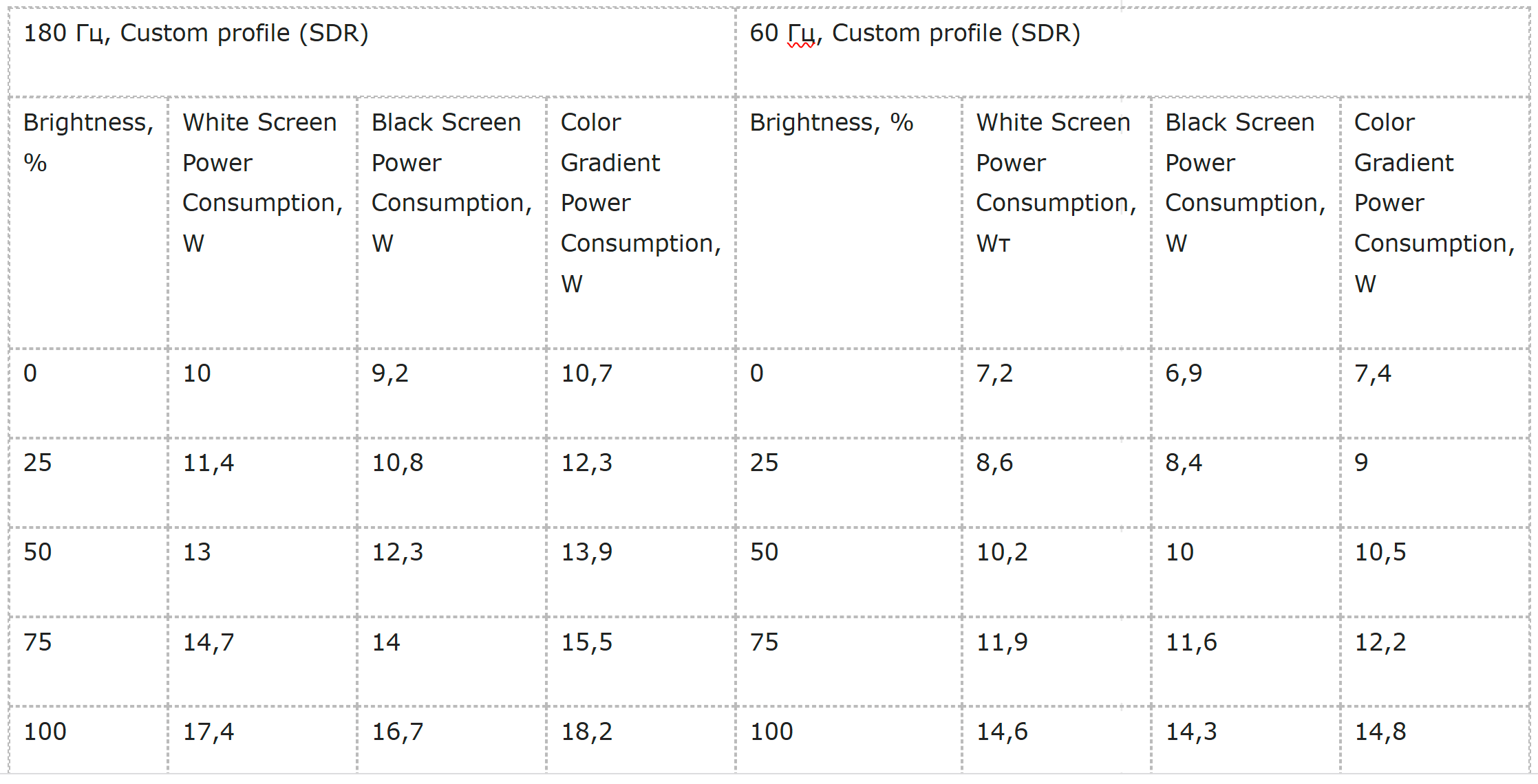
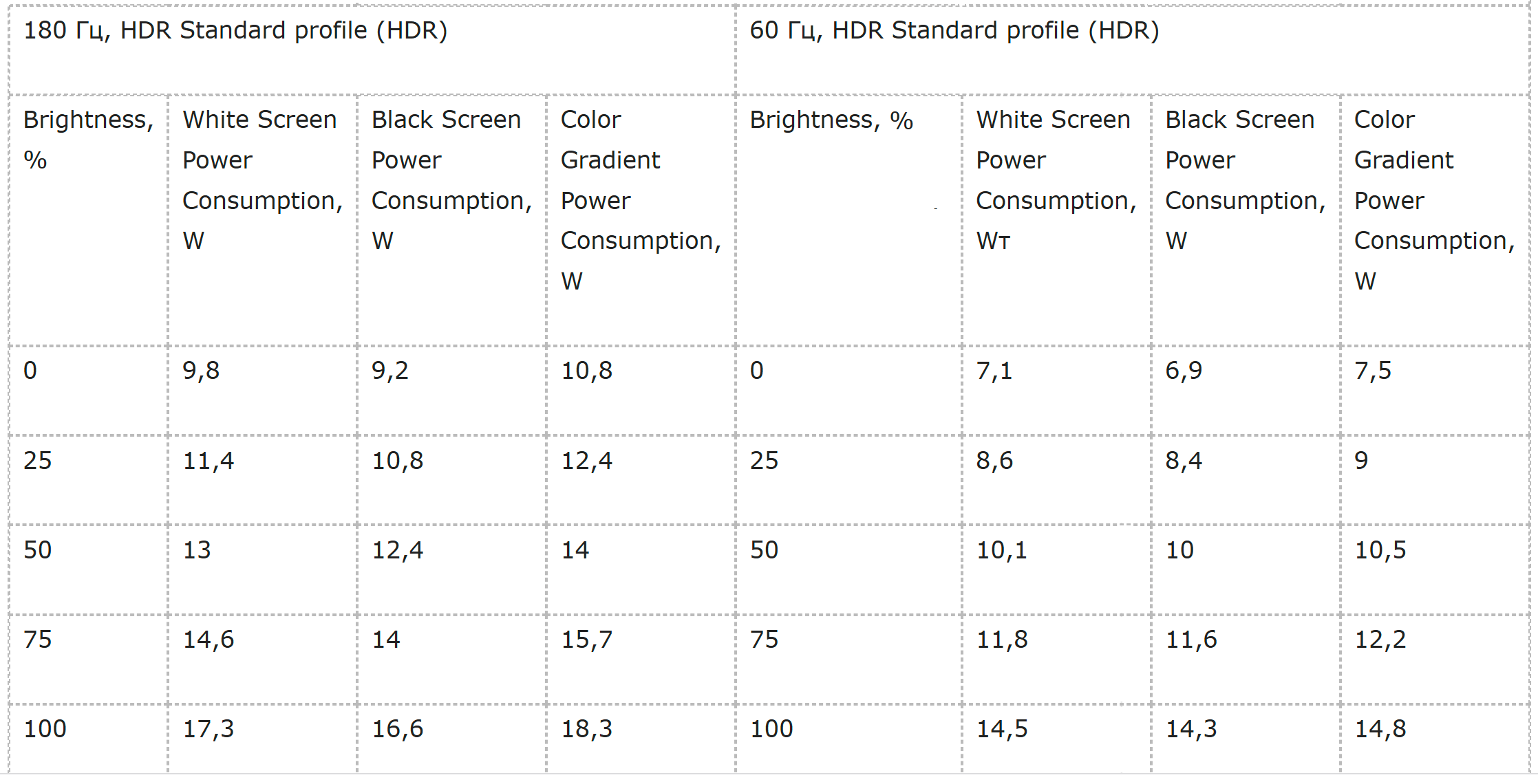
In most modes, the monitor consumes less than 15 watts, especially at the 60 Hz refresh rate. The Samsung Odyssey G3 G30D is quite energy-efficient, including in HDR mode, though this is partly due to its limited brightness range. Lowering the refresh rate from 180 Hz to 60 Hz reduces power consumption by 2–3 watts. While this difference is small, it can be meaningful during power outages or when running on battery inverters or generators.
Operating experience
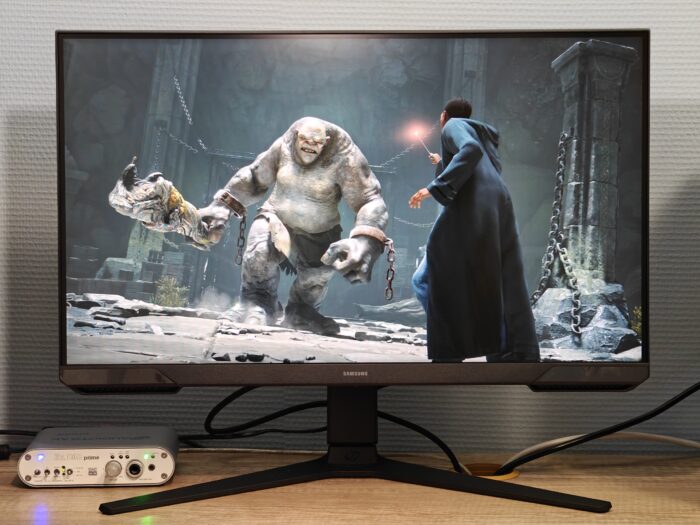
At first power-on, the refresh rate is set to 60 Hz by default. You can change it directly in the monitor’s menu to 120 Hz or 180 Hz. Alternatively, enabling FreeSync mode in the operating system unlocks additional refresh rate options of 100 Hz, 120 Hz, and 180 Hz.
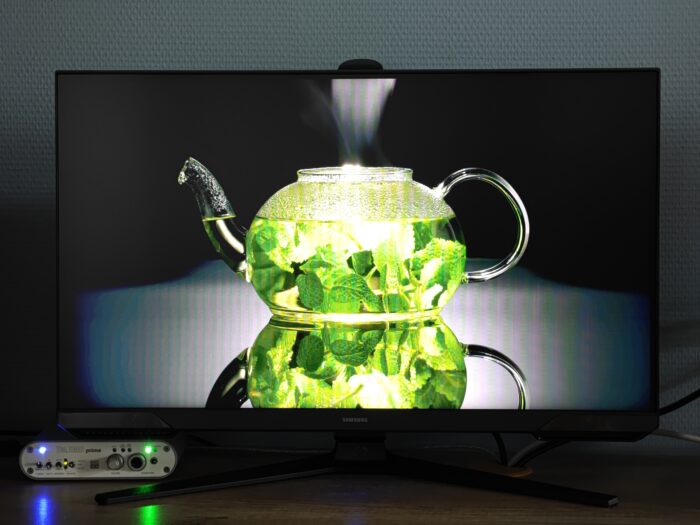
After using IPS monitors, the high contrast and deeper black levels of the Samsung Odyssey G3 G30D stand out. This is particularly noticeable when watching demo videos with dark backgrounds. However, the narrower viewing angles can be apparent, especially when viewing the monitor from an angle. If there’s only one viewer who can position themselves directly in front of the screen, this isn’t a major issue, but the difference compared to IPS panels is still noticeable.
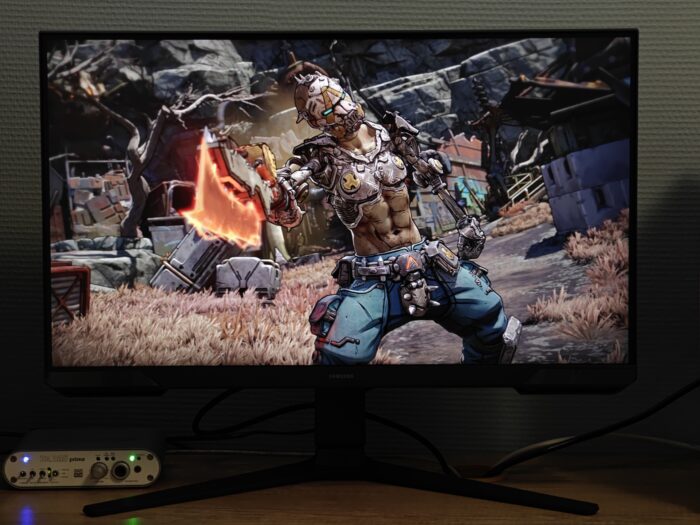
In fast-paced games, some motion trailing is noticeable at any overdrive level. This often comes down to personal tolerance and familiarity, and many users tend to stop noticing it over time. Trails are more apparent on high-contrast scenes – for example, when a dark object moves against a bright background.
When black text appears on a white background, such as in a document, motion trails are barely noticeable. However, with white text on a dark background – for example, Facebook’s dark mode – trails become more visible. In other words, moving black text on a light background remains clearer. You can even observe this effect in the digital user manual by smoothly scrolling from one page to the next.
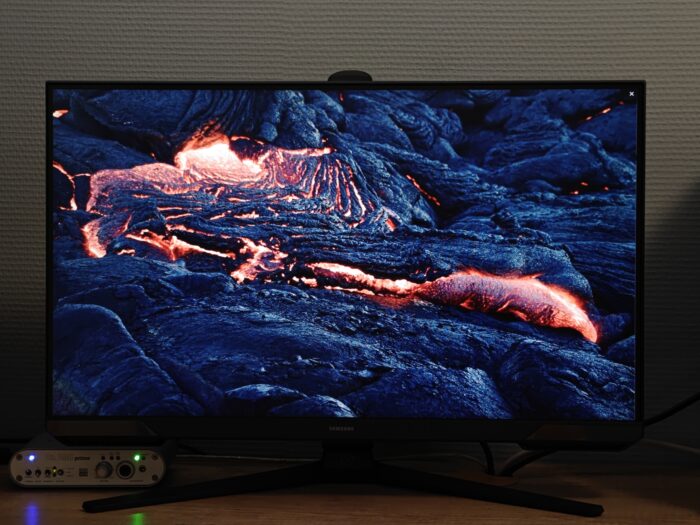
Overall, the image quality out of the box is decent, and it becomes excellent after calibration. The monitor’s ability to accurately reproduce SDR content within the sRGB color space is one of its strongest points, though achieving this potential requires proper calibration.
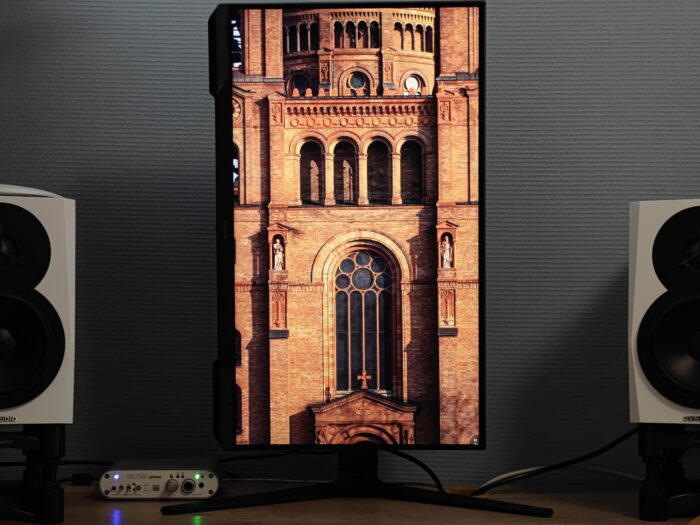
The versatile stand is another positive aspect. Height adjustment comes in handy when changing chair height, adapting the monitor to different users, or simply cleaning the desk. The ability to rotate the screen to portrait mode is useful for viewing certain types of content. Most budget monitors offer only basic tilt adjustment, so the Samsung Odyssey G3 G30D stands out as a pleasant exception.
Conclusions
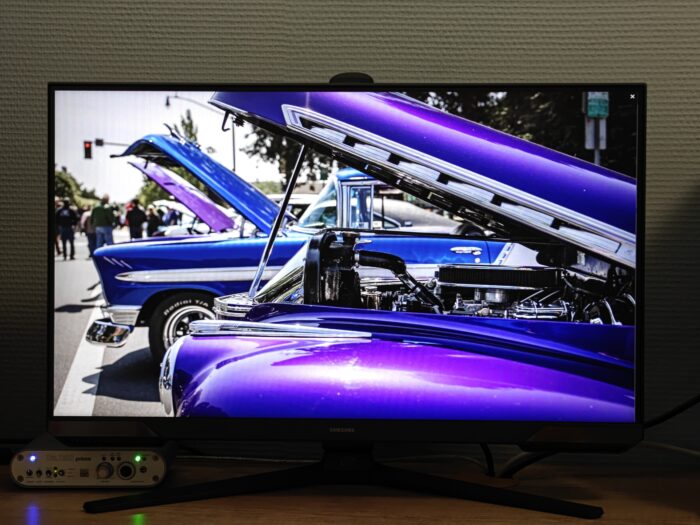
The Samsung Odyssey G3 G30D is not the most versatile option, but it offers a compelling choice within the budget monitor segment. Its strengths include decent out-of-the-box color accuracy with near-complete sRGB coverage, very good to excellent image quality after calibration, deep blacks, high contrast around 4000:1, support for a 180 Hz refresh rate, a functional stand with convenient adjustments (a rarity in this price range), and firmware update capability. On the downside, it has limited brightness, an HDR mode that feels more like a formality, moderate dynamic performance and viewing angles, and the inability to use FreeSync and overdrive simultaneously.
Read also:
- Duex Max DS Review: 14.1″ Portable Monitor for Boosting Mobile Productivity
- Samsung Innovations: How OLED and QLED Are Reshaping the Premium TV Market
- Everything You Need to Know Before Installing Solar Panels: A Look Into the World of Energy Generation and Storage Systems


Is there any calibration(icc) file available for this monitor?