





© ROOT-NATION.com - Use of content is permitted with a backlink.
Today I’m taking a look at the ASUS VA259HGA – a gaming monitor that hit the market earlier this year. This model falls into the budget-friendly category and is likely to appeal to gamers working within tight financial limits. It’s also a practical option for anyone in need of a compact, low-cost Full HD display. Beyond gaming, the VA259HGA works well as a secondary monitor, an office-focused screen, or a straightforward solution for students and entry-level PC setups. It’s a well-rounded choice for those who need basic functionality without spending much.
At an average price of around $103 / €88 – and in some cases even less – the ASUS VA259HGA offers a fairly compelling set of features for a budget monitor. It’s built around a 24.5-inch IPS panel with an anti-glare coating, Full HD resolution (1920×1080), a 120Hz refresh rate, 1ms response time (MPRT), and support for Adaptive-Sync. In short, these are solid specs for 1080p gaming. Beyond gaming, the monitor also stands out with its compact footprint, ultra-thin bezels, and a clean, modern design that feels more refined than you’d expect at this price point. It also comes equipped with ASUS’s Eye Care+ suite – an expanded set of features aimed at reducing eye strain and improving comfort during extended use.
To be honest, I didn’t go into this review expecting much from the VA259HGA. But it managed to surprise me. Let’s take a closer look at what this monitor has to offer and where it stands out.
TABLE OF CONTENTS:
Specifications
- Model: VA259HGA
- Diagonal: 24.5″
- Resolution: 1920×1080
- Aspect ratio: 16:9
- Matrix type: IPS
- Display surface: Anti-Glare
- Backlight type: LED
- Colour space: 99% sRGB
- Display colours: 16.7 million colours (8-bit)
- HDR support: no
- Brightness (typical): 300 cd/m²
- Contrast Ratio: 3000:1 (max); 1500:1 (typical)
- Response time: 1 ms (MPRT)
- Refresh rate (max): 120 Hz
- Pixel pitch: 0.2830 mm
- Display viewing area (H×V): 543.74 × 302.61 mm
- Viewing angle (CR≧10, H/V): 178°/178°
- Audio: 2 x 2W speakers
- I/O ports: 1×HDMI 1. 4, 1×VGA, 1×PC Audio Input, 1×3.5 mm headphone jack
- Digital signal frequency: HDMI 30~225 kHz (H) / 48~120 Hz (H); VGA 30~85 kHz (H) / 48~75 Hz (H)
- Tilt adjustment: yes (+23°~-5°)
- Height adjustment: no
- Wall mount: VESA 100×100 mm
- Kensington lock: yes
- Monitor dimensions (W×H×D): 55.80×40.80×19.10 cm
- Monitor dimensions without stand (W×H×D): 55.8×32.3×4.6 cm
- Package dimensions (W×H×D): 62.2×41.2×12.7 cm
- Monitor weight: 3.2 kg
- Monitor weight without stand: 2.4 kg
- Total weight of the monitor in the package: 5.6 kg
- Proprietary software: ASUS DisplayWidget Centre
- Power consumption: <15W; power saving mode <0.5W; power off mode <0.3W; voltage 100-240V, 50/60Hz
- Technologies and features: Flicker-Free, Trace Free, QuickFit, HDCP, Adaptive-Sync, SPLENDID, 4 colour temperature modes, Motion Sync, Low Blue Light, Eye Care+, GamePlus, ASUS Power Sync
- Certifications and standards: Energy Star, EPEAT Silver, TCO Certified, TÜV Flicker-Free, TÜV Low Blue Light, FSC MIX
- Package contents: monitor, HDMI cable, power cable, user manual, warranty card
Positioning and price
As mentioned earlier, the ASUS VA259HGA is positioned firmly in the entry-level gaming segment. It’s a budget monitor through and through – but that doesn’t mean it’s lacking in capability. In fact, in certain areas, it holds up surprisingly well even when compared to slightly more expensive models from ASUS’s own TUF Gaming line.
At the time of writing, the VA259HGA averages around $103 / €88, with some retailers offering it for as low as $89 / €76. For a display with a 120Hz refresh rate, IPS panel, and basic gaming features, that’s a very competitive price. There’s really not much more to add – it’s simply a solid offering for what it costs.
Completeness, assembly process
The monitor comes in a relatively compact cardboard box measuring 62.2 × 41.2 × 12.7 cm and weighing around 5.6 kg. The packaging includes side cutouts for easier handling during transport. Inside, everything is neatly organized across two rigid cardboard trays – one holds the monitor itself, while the other contains the remaining accessories.
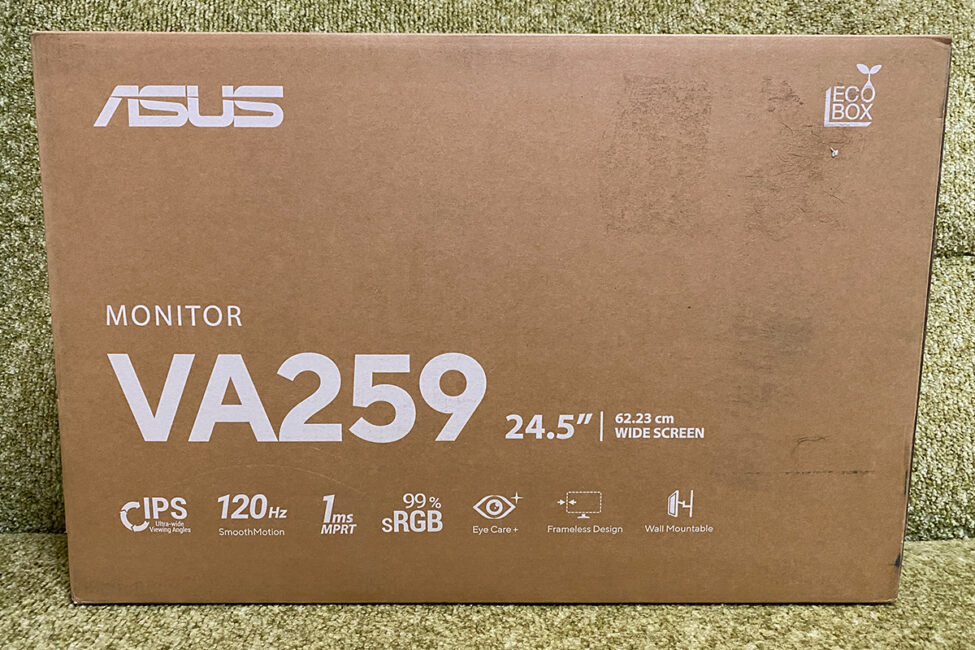
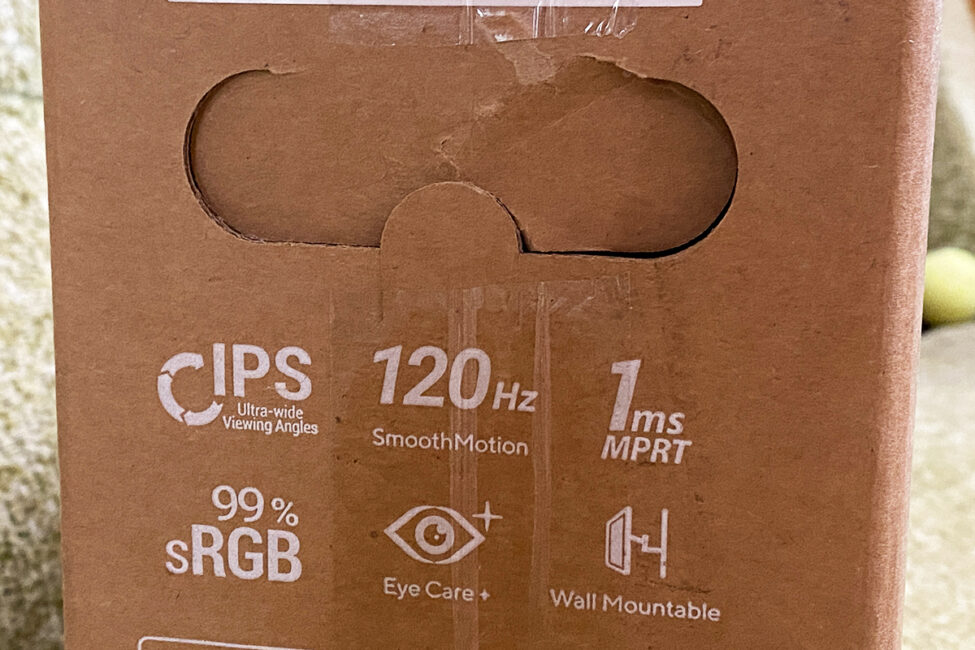
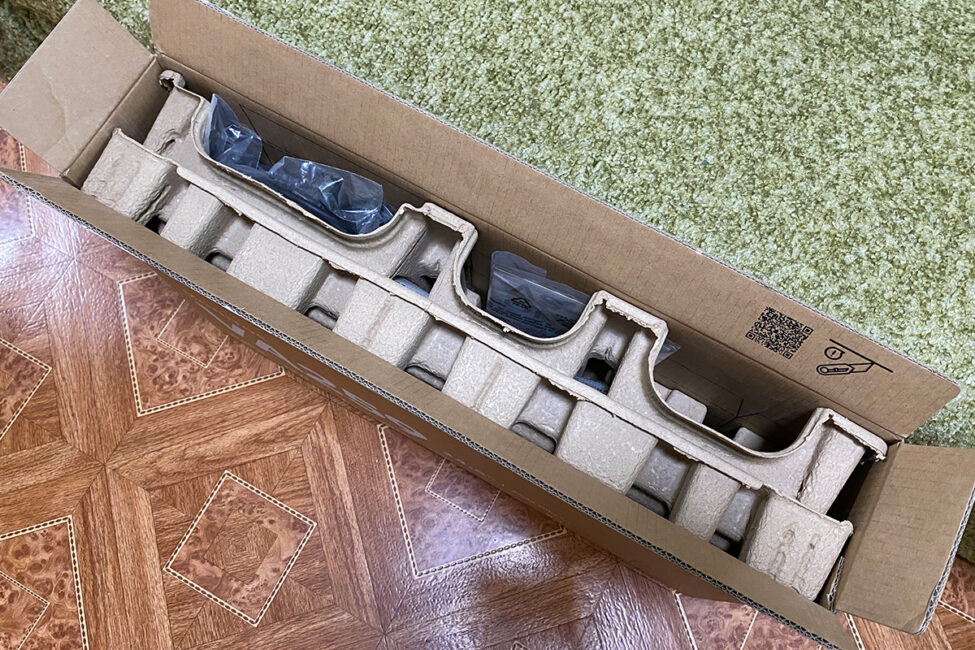
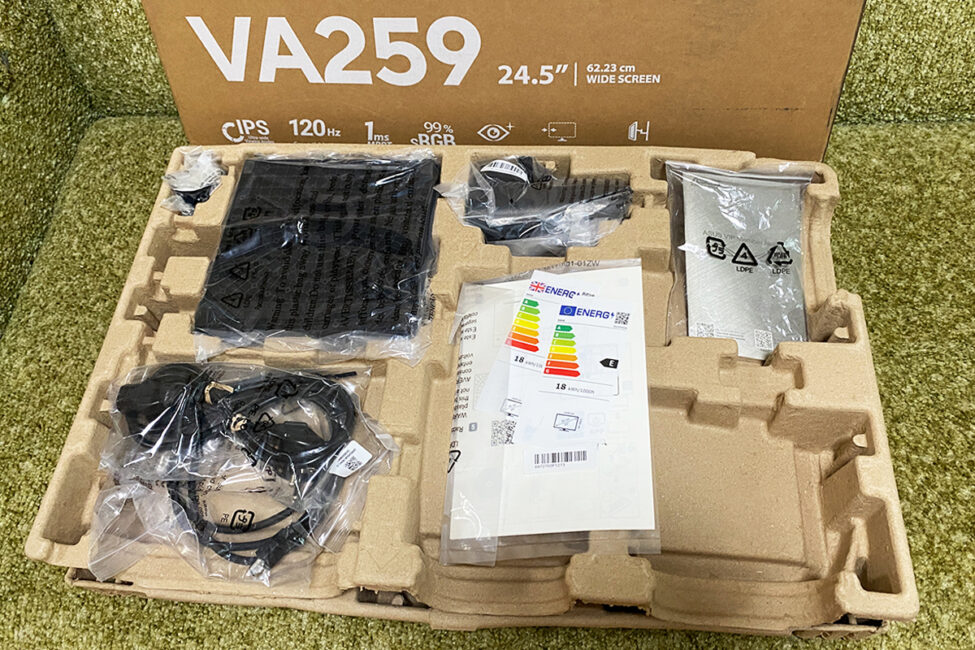
The package of ASUS VA259HGA is, so to speak, basic. In addition to the monitor itself, the package includes:
- HDMI cable
- network cable
- leg with stand
- cable retainer
- user manual
- warranty card
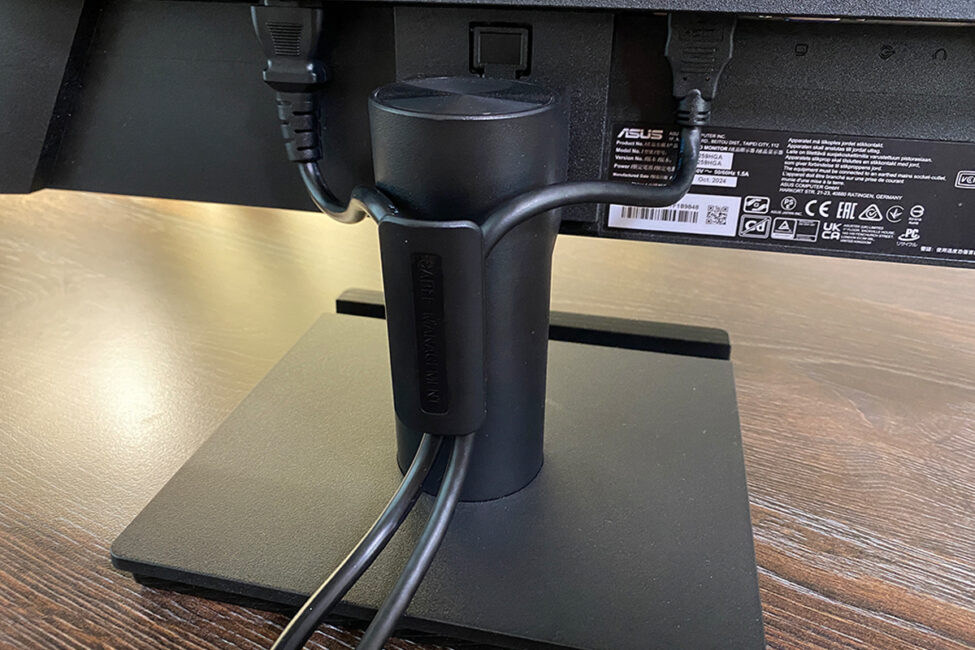
The stand and base are made of plastic, but the mounting plate inside the stand is metal. Assembly doesn’t require any screws – the parts connect using slot-lock mechanisms with built-in clips. The process is straightforward: insert the included stand into the slot on the back of the monitor, then attach the base to the stand. After that, lift the monitor out of the packaging by holding the stand, place it on the desk, remove the protective bag, and connect the cables. A clip included with the monitor helps secure the cables to the stand for basic cable management. As usual, it’s best to assemble the monitor while it’s still lying flat in the box. It’s not only easier this way, but also helps avoid getting fingerprints on the display. A short video is included below to show exactly how the components fit together and where each locking mechanism is located.
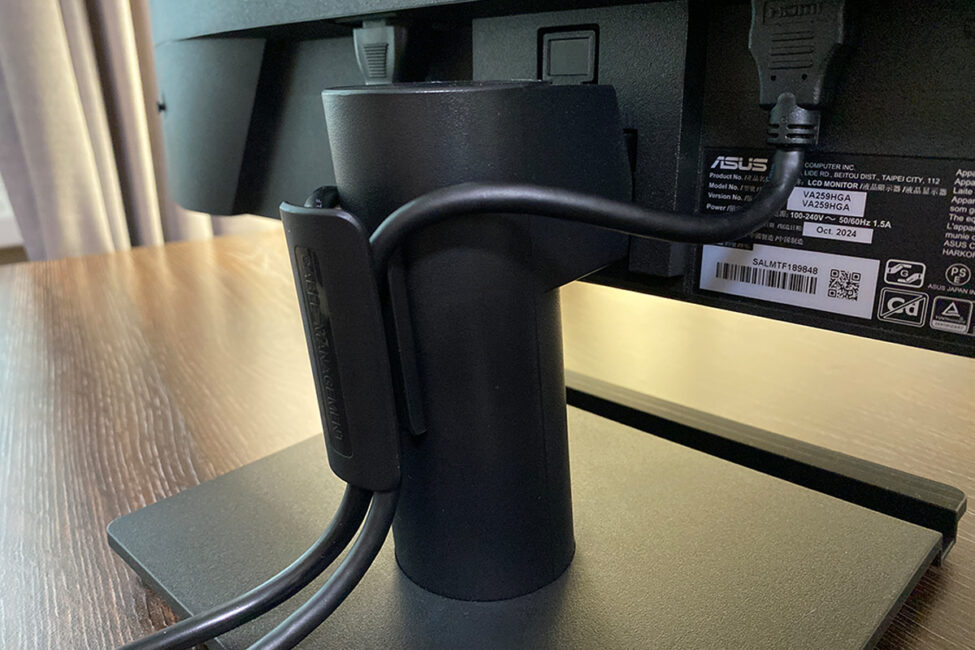
One small detail worth noting is that the stand fits into the monitor’s slot quite tightly. I can usually assemble monitors single-handedly, but that wasn’t the case here – it required both hands. Another point is the cable management clip. At first, it didn’t want to snap onto the stand at all, but eventually it locked into place. In fact, it fit so snugly that now I can’t remove it. Aside from that, the overall assembly process is simple, quick, and solid.
Read also:
- ASUS TUF Gaming VG27WQ3B Monitor Review: Fast VA, 2K Resolution, 180 Hz, and an Affordable Price
- GIGABYTE GS25F2 Gaming Monitor Review: 200Hz and Super Speed IPS
Design, ergonomics, build quality
In terms of design, the ASUS VA259HGA closely resembles the TUF Gaming VG27WQ3B model. It features a clean rear panel without the TUF logo. There are no patterns or cutouts – just a straightforward, minimalist design with simple lines.
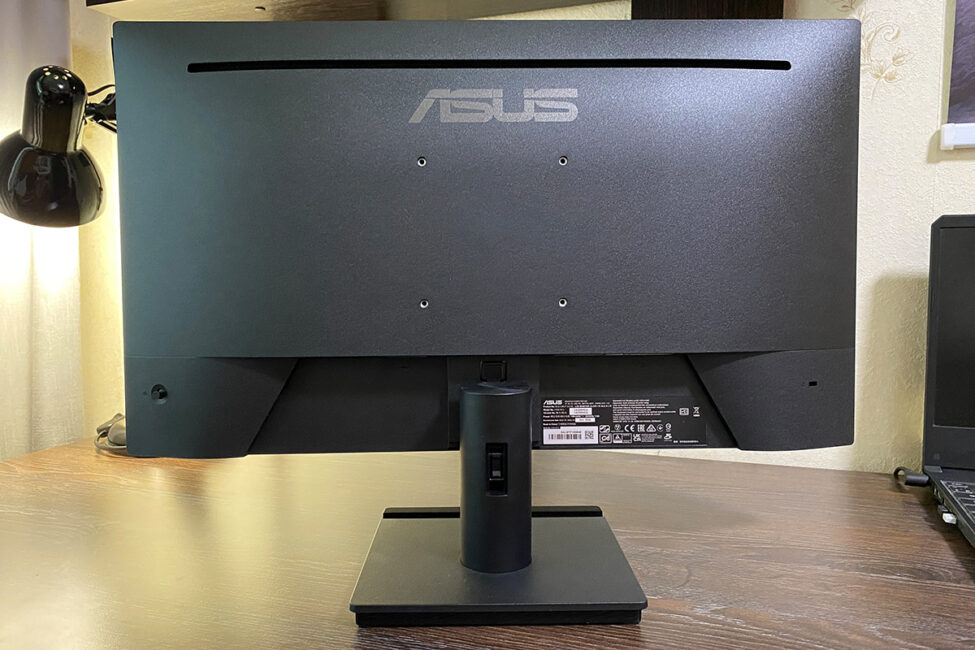
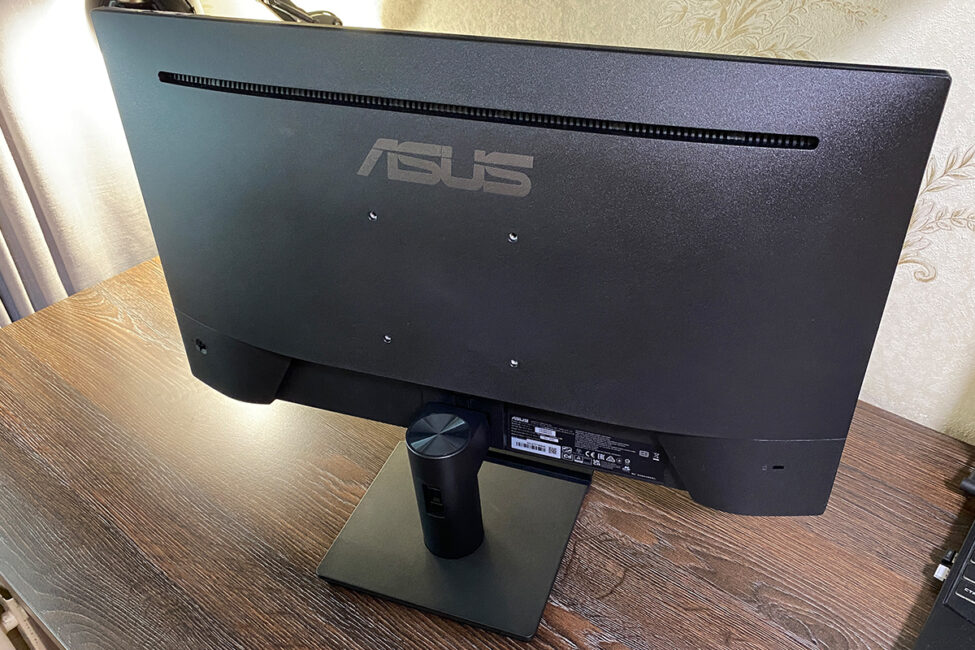
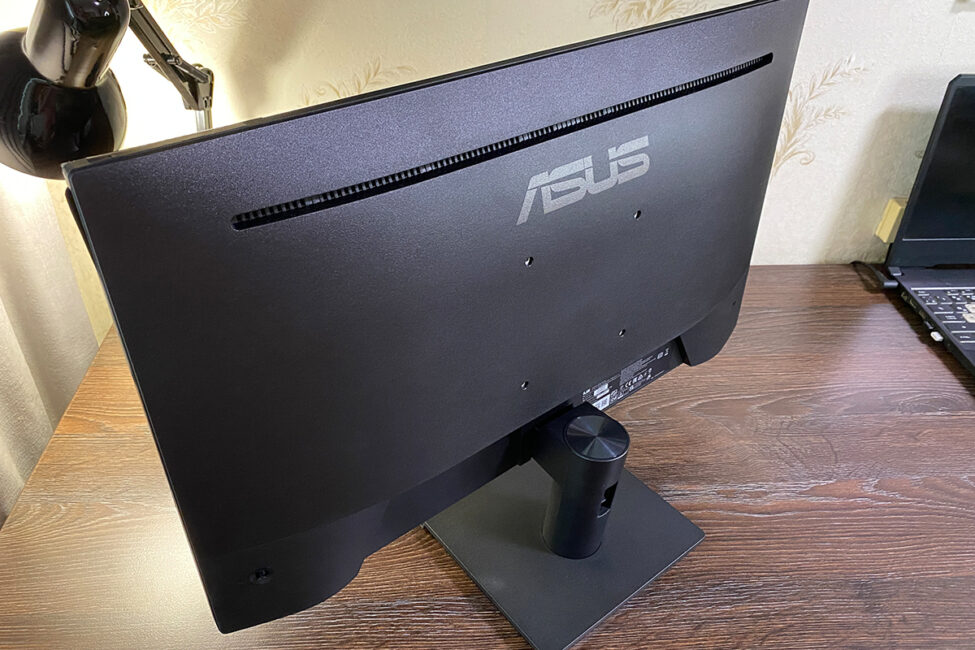
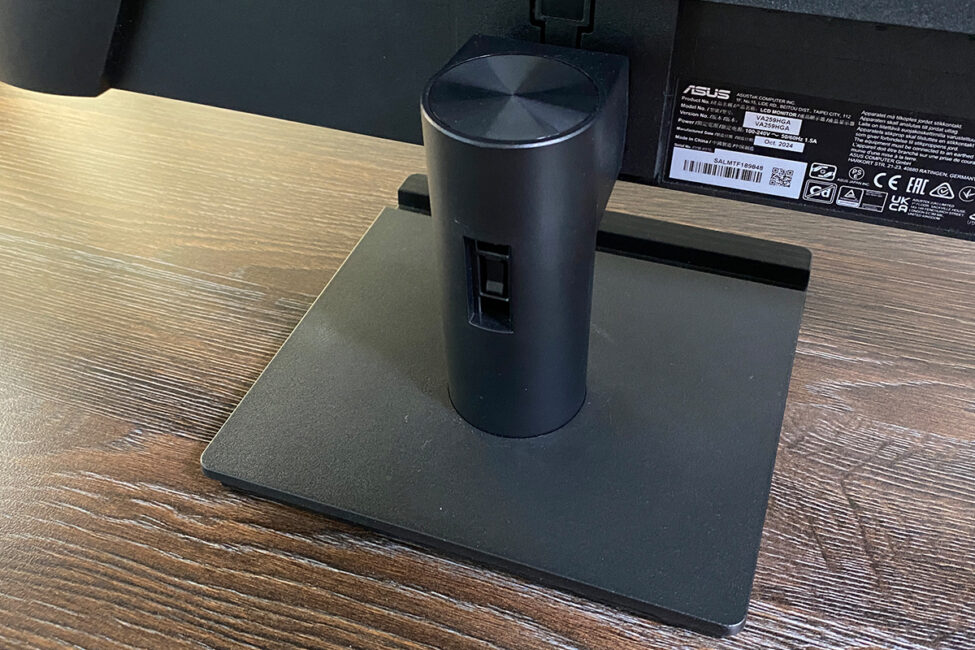
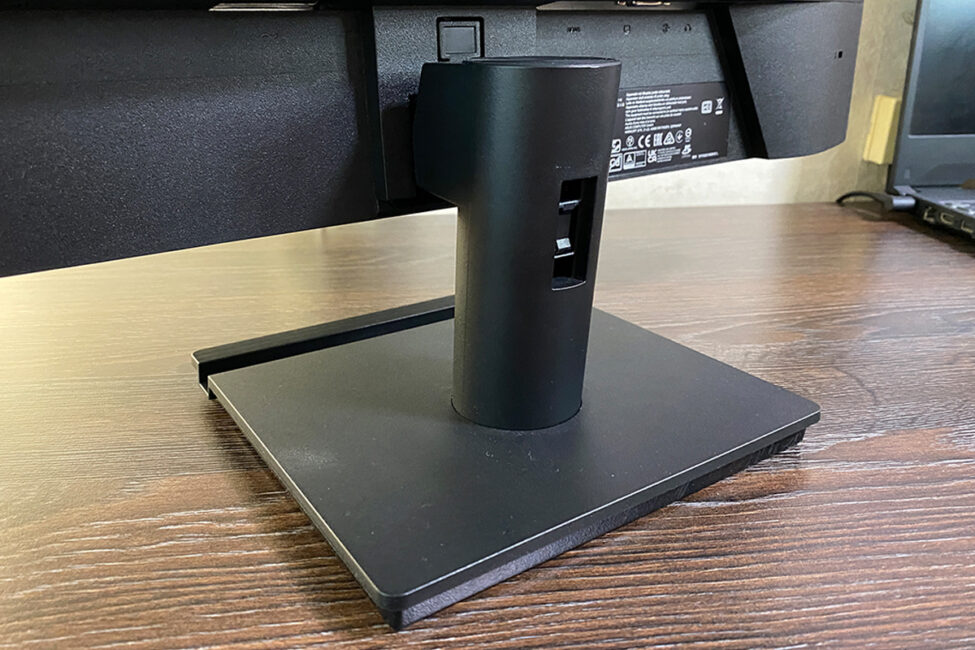
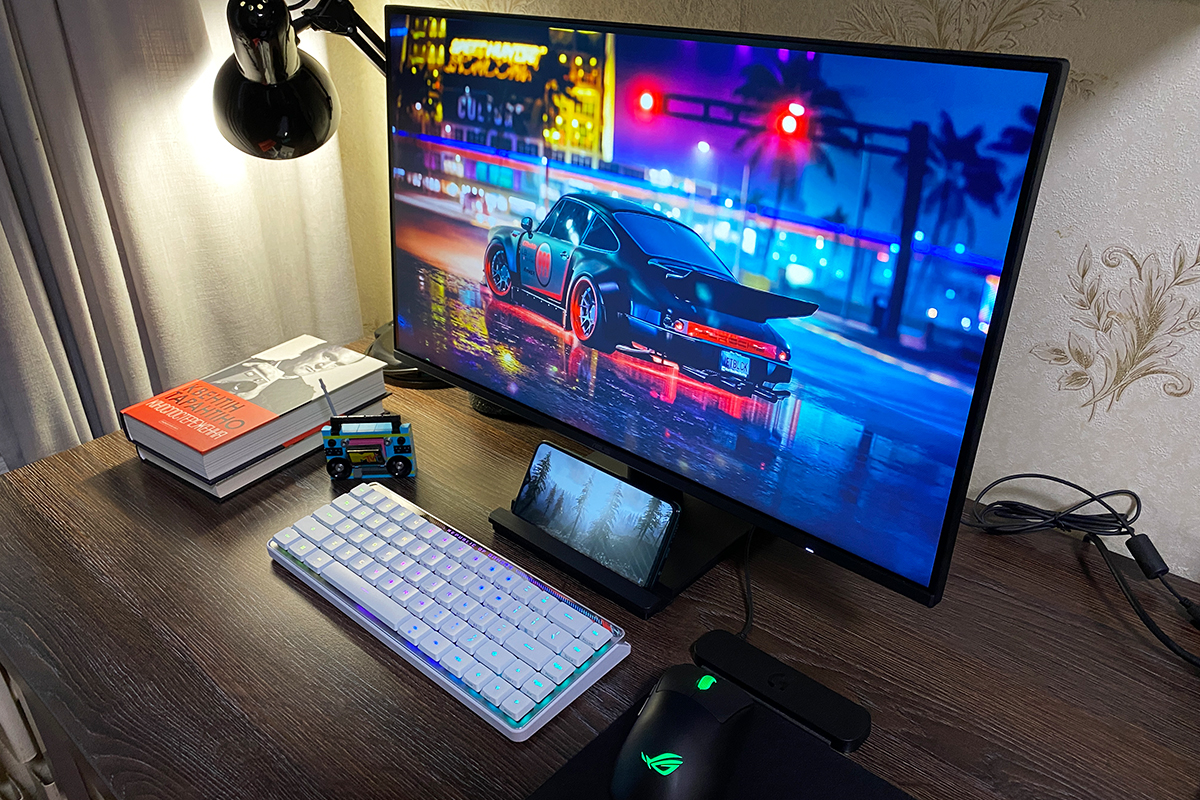
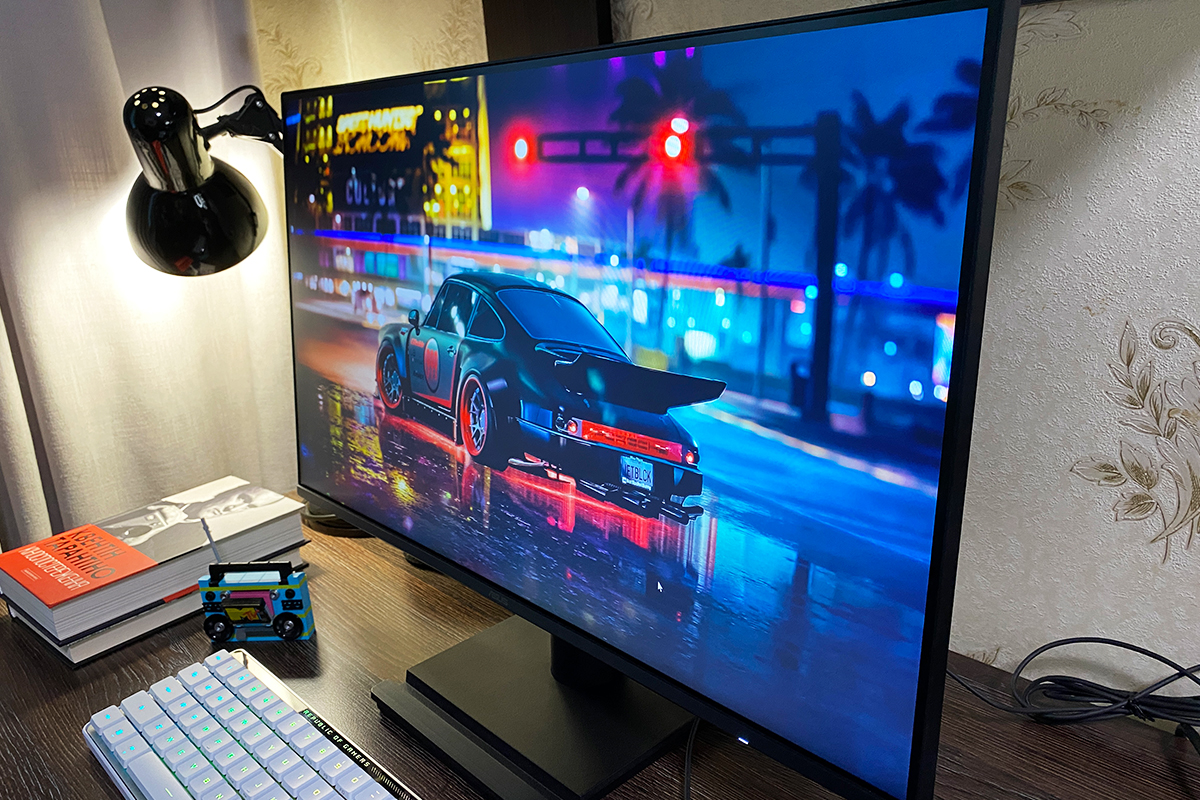
From the front, the monitor looks quite refined. It has very thin bezels and a neat, functional stand that can also hold a smartphone or similar items.

The ASUS VA259HGA is a compact monitor with a 24.5-inch diagonal. Its dimensions without the stand are 55.8 × 32.3 × 4.6 cm, and with the stand, it measures 55.8 × 40.8 × 19.1 cm. The panel itself weighs 2.4 kg, while the complete setup weighs 3.2 kg. Thanks to its compact size, the VA259HGA fits well in almost any workspace, including smaller or limited areas. Its understated design also makes it suitable for various environments, whether it’s a home office, a gaming room, or a modern workplace.
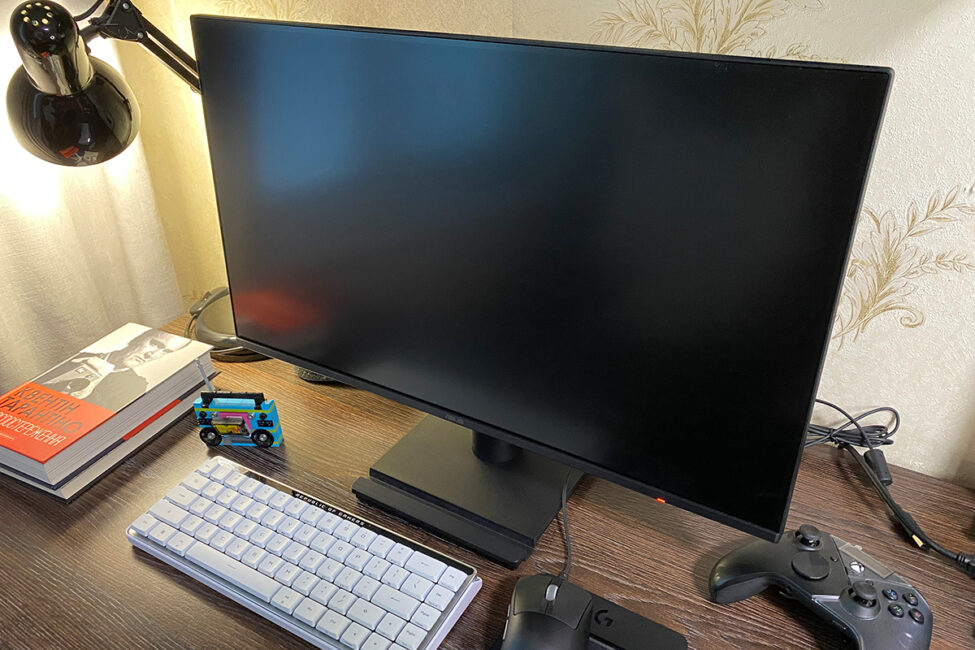
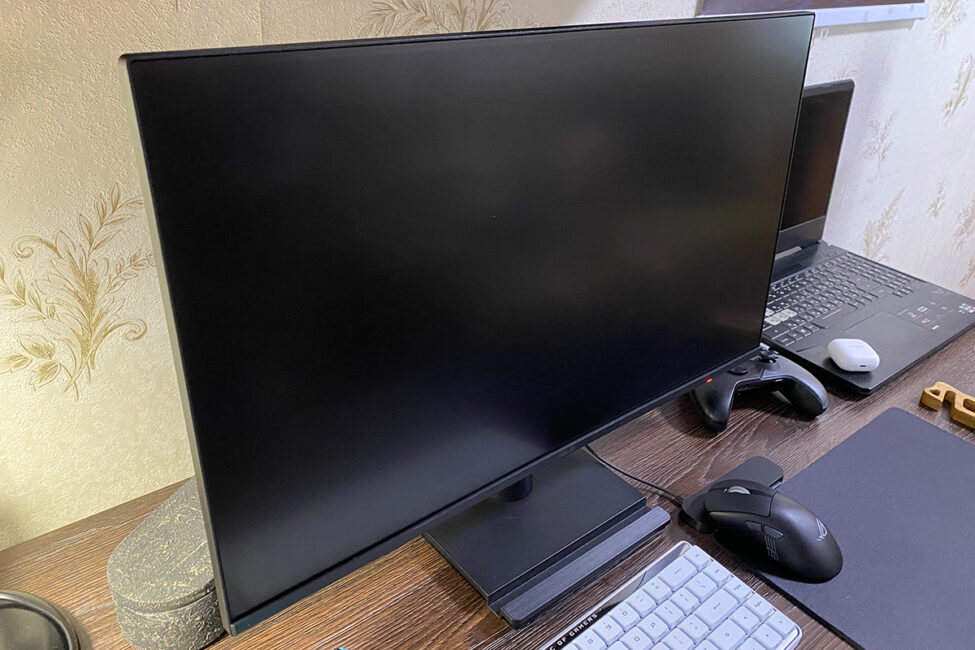
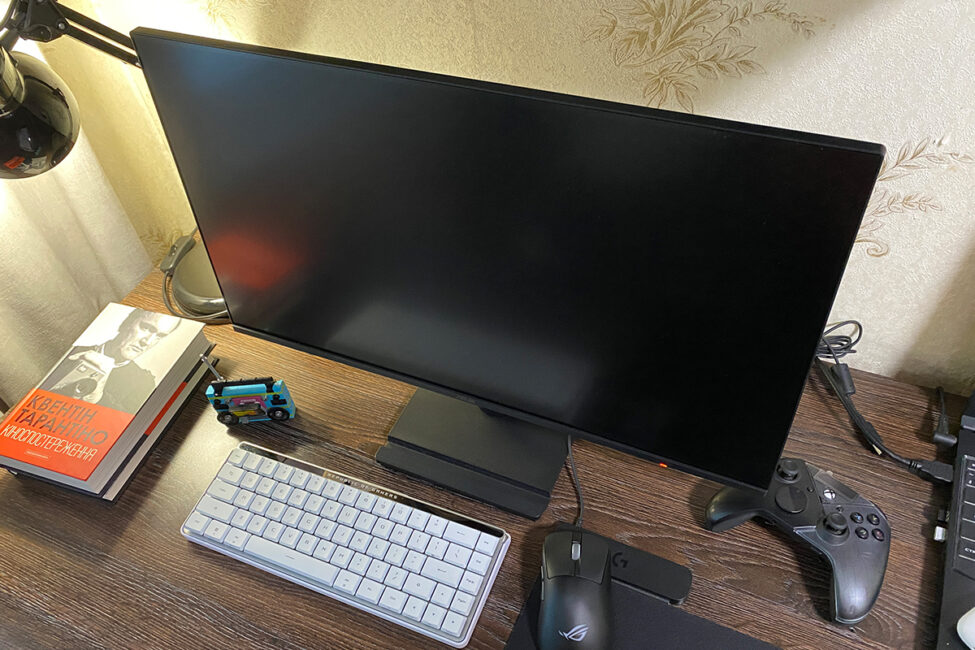
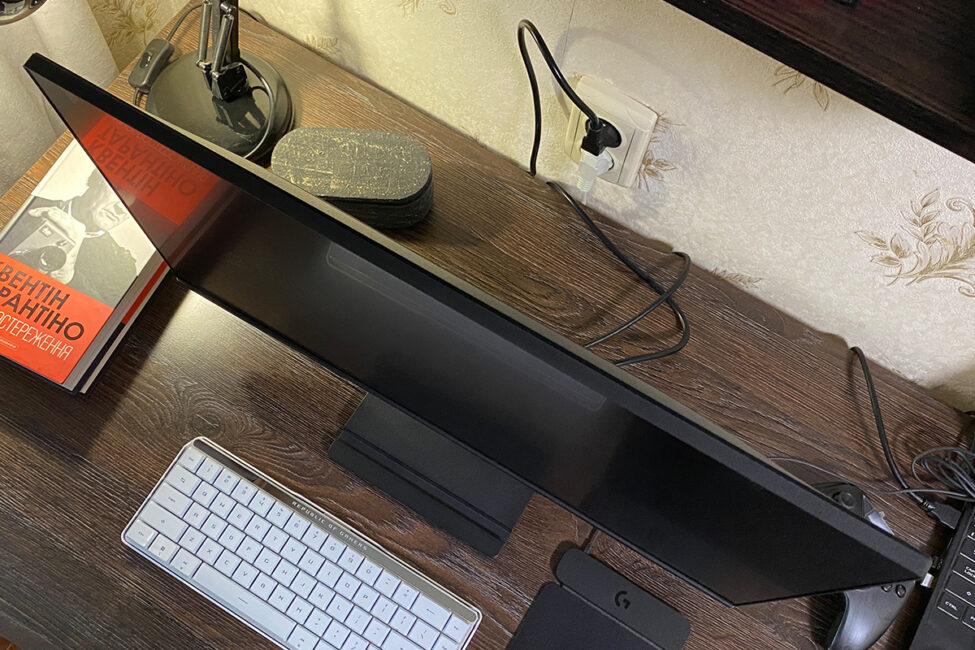
The included monitor stand somewhat resembles the one from the more advanced ROG STRIX XG259CMS model. However, the design here is much simpler, and it doesn’t allow for monitor rotation. The slot for holding a smartphone remains, which is a convenient feature worth noting.
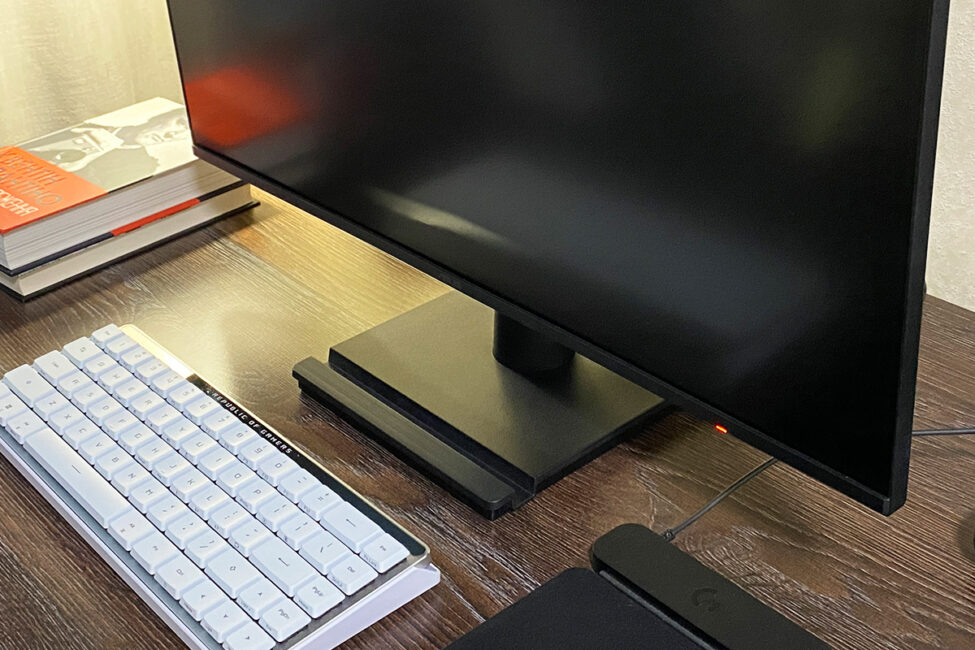
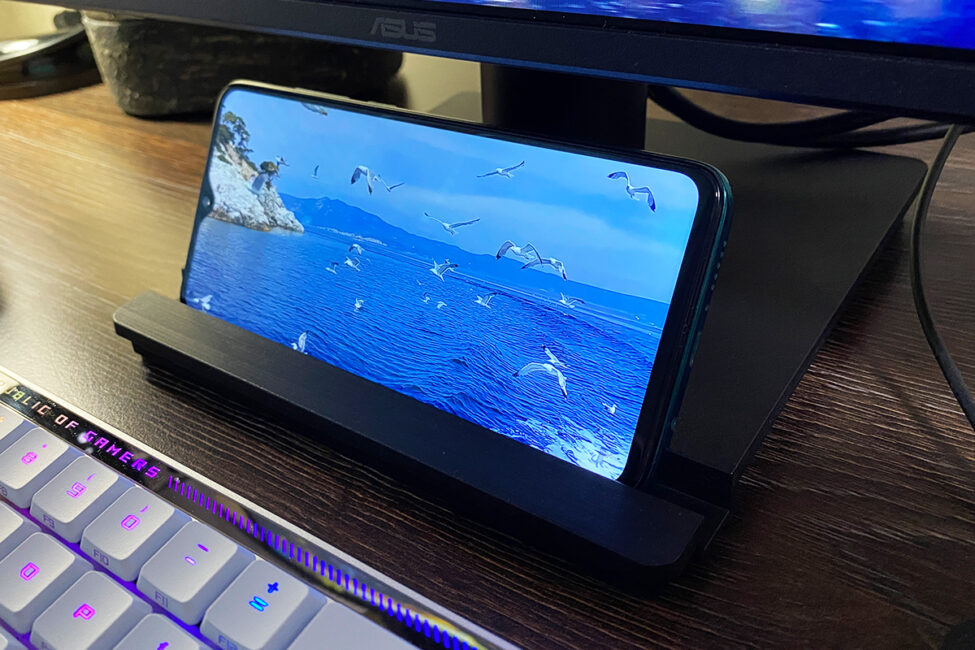
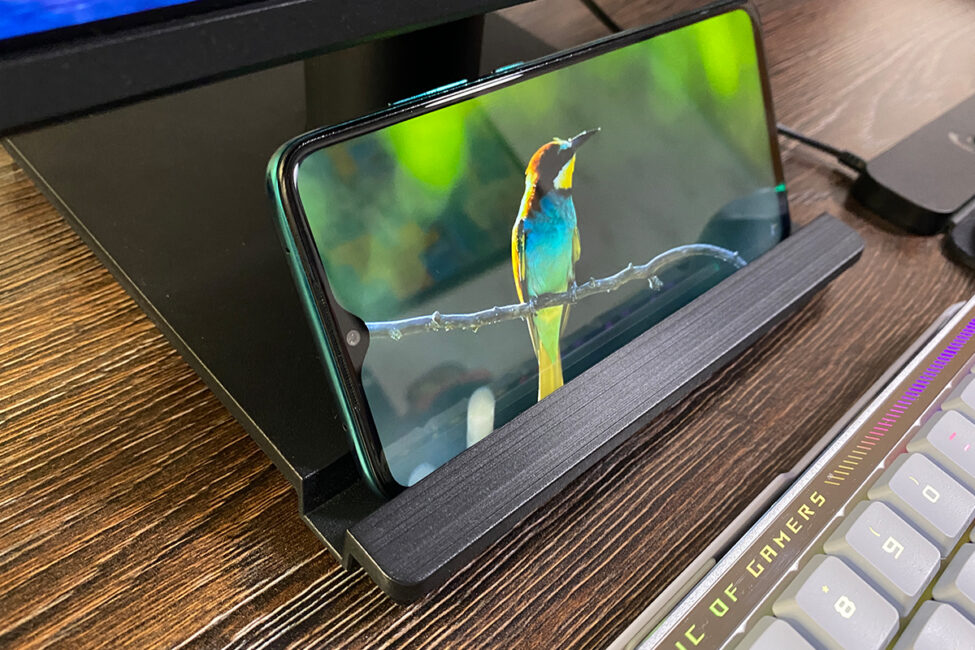
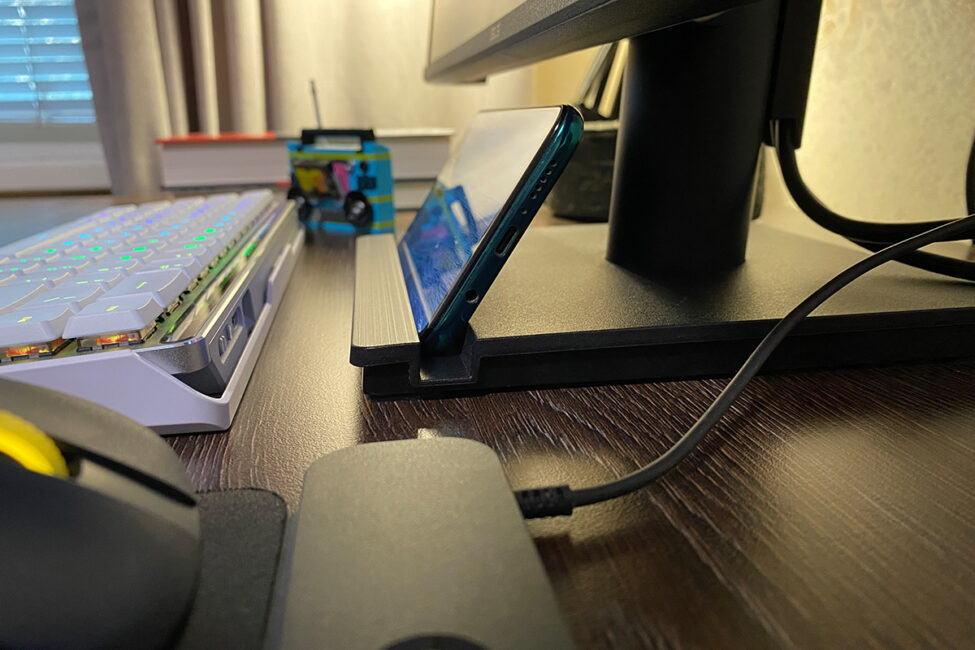
The included stand allows for tilt adjustment between +23° and -5°, but there is no height adjustment or swivel functionality, which is expected for this model. Before using the monitor, I assumed it would sit too low for me. However, after some time with it, I found that the stand and base are actually fairly substantial, providing a reasonably comfortable viewing height. While you might need to tilt the screen slightly to get an ideal angle, overall, I found the VA259HGA more comfortable to use than the TUF GAMING VG259Q3A with its stock stand and base.
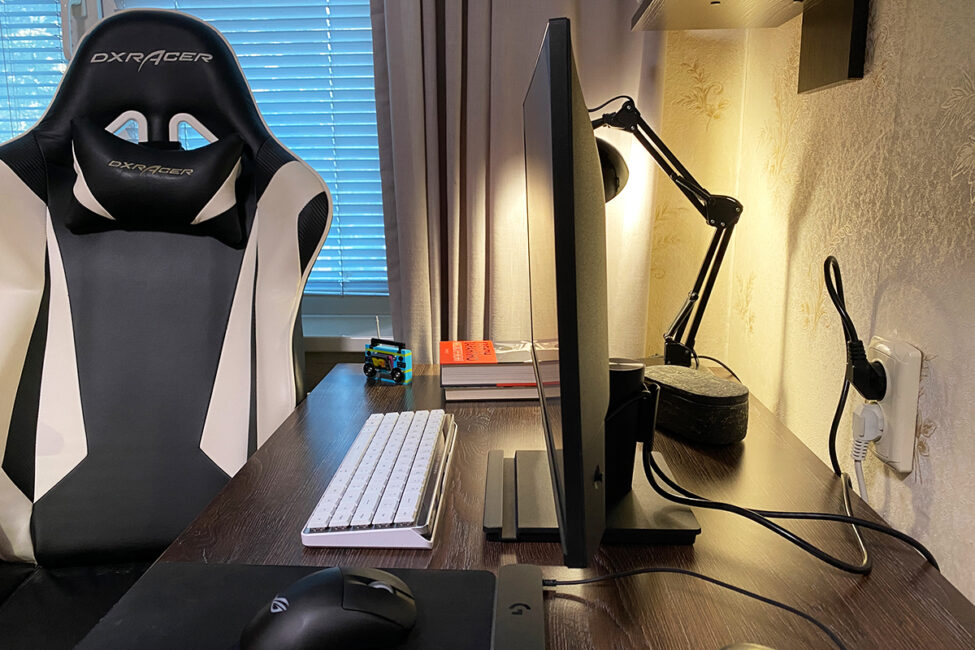
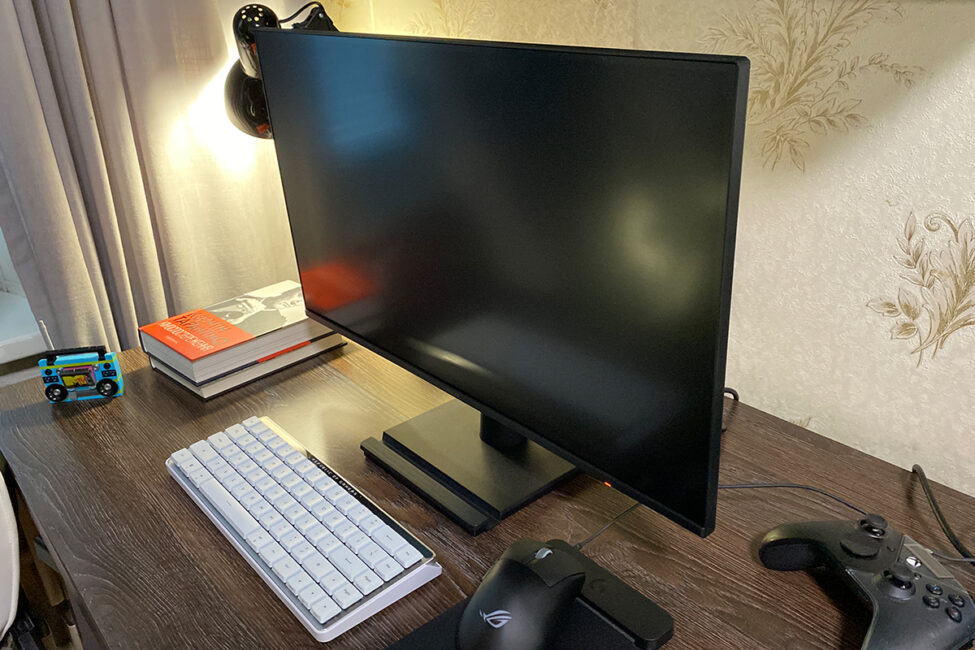
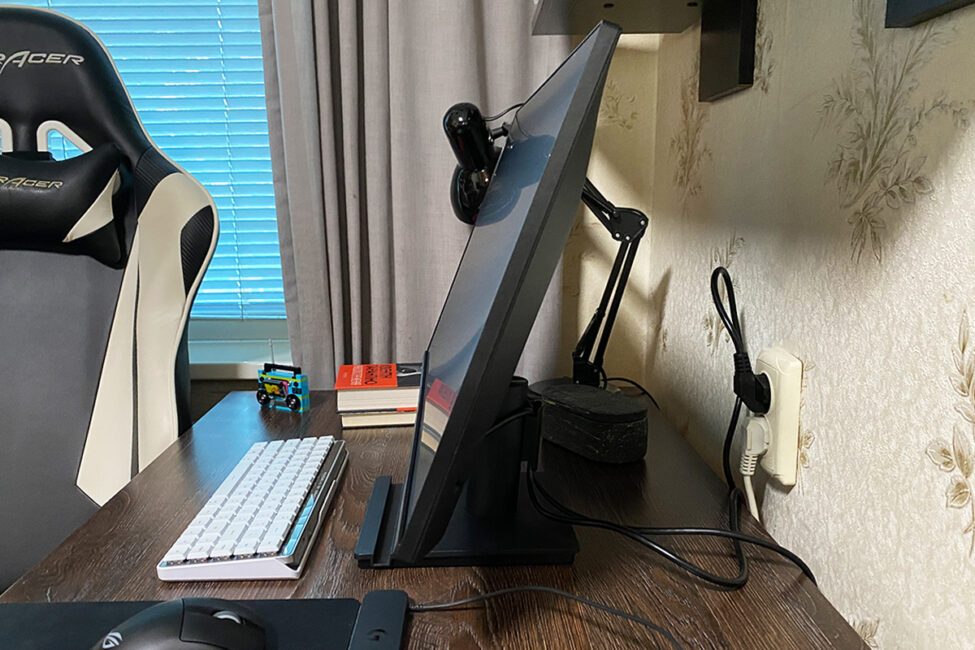
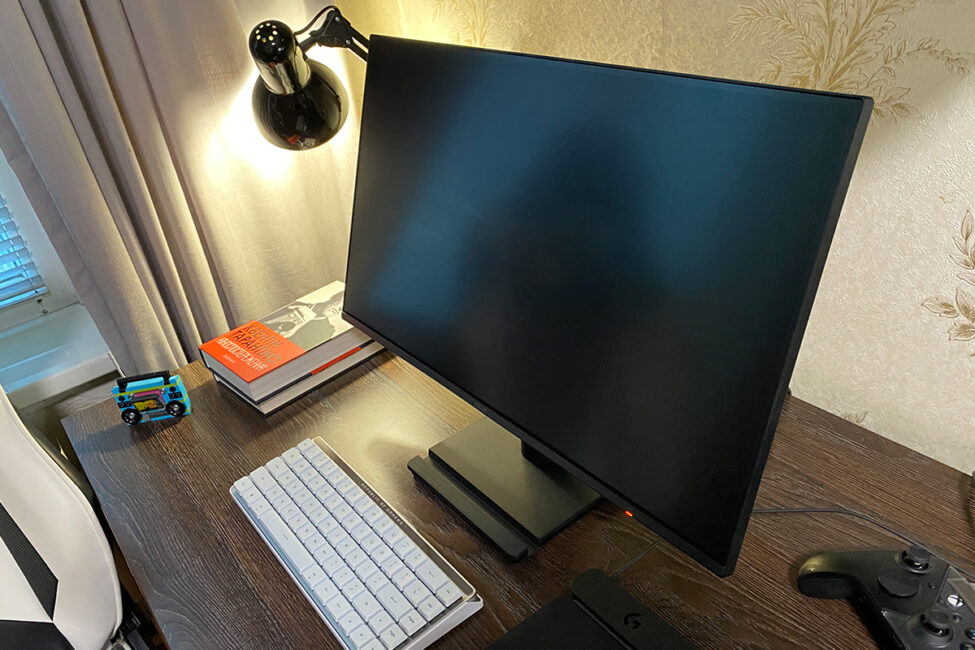
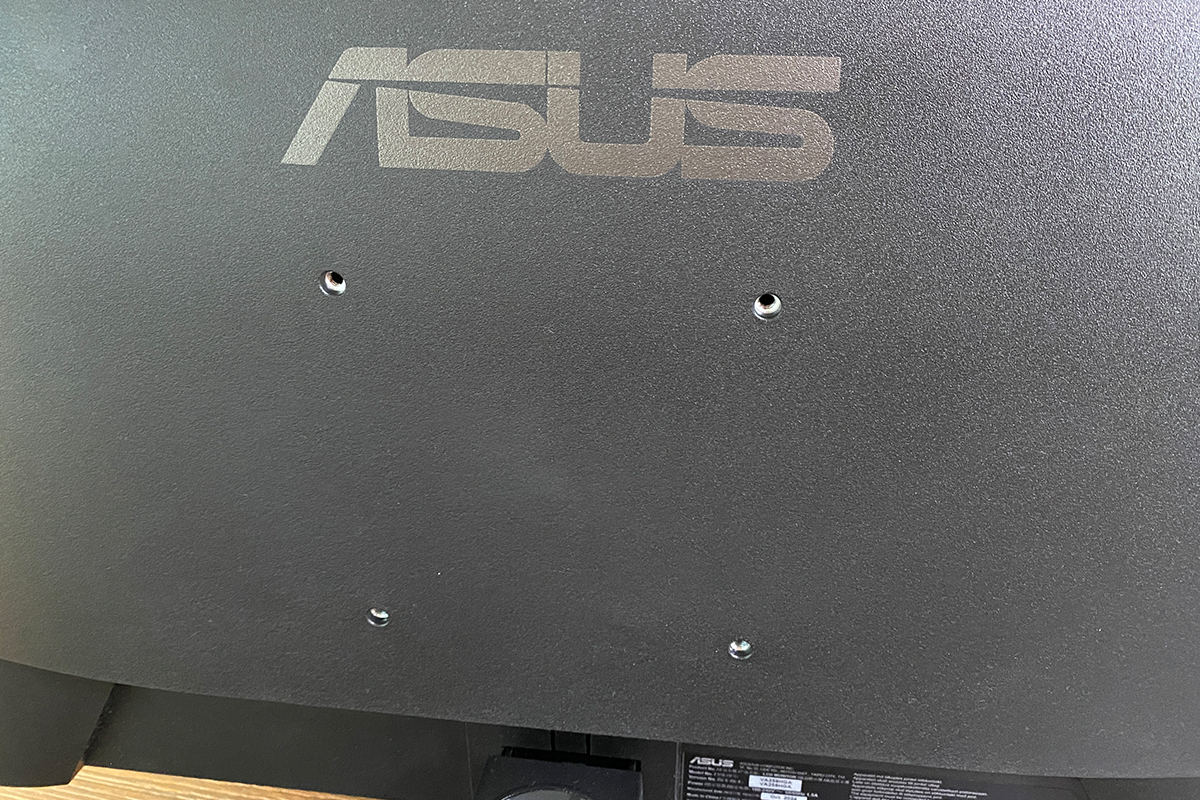
For those who still find the monitor too low, I recommend mounting it on a separate bracket. As mentioned earlier, the monitor itself is quite lightweight, so almost any bracket will work, even inexpensive ones. On the back, there are standard VESA 100×100 mm mounting holes for this purpose.
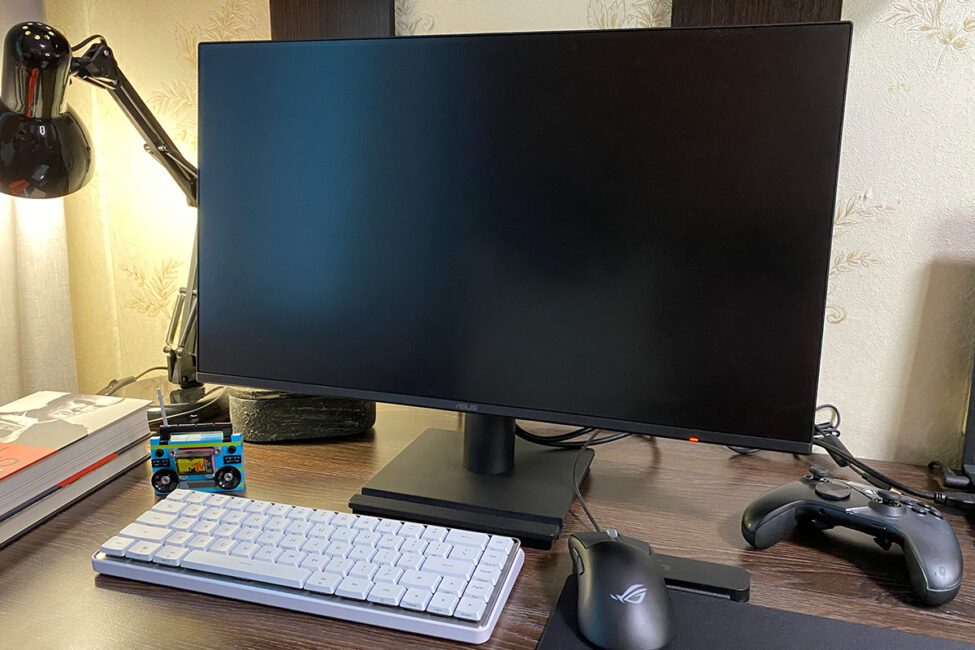
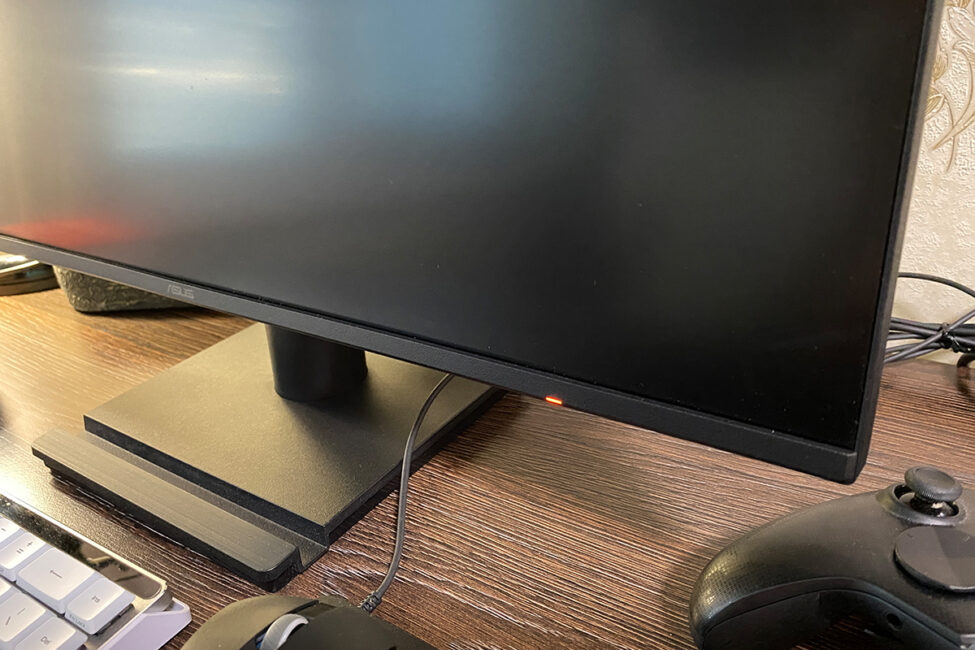
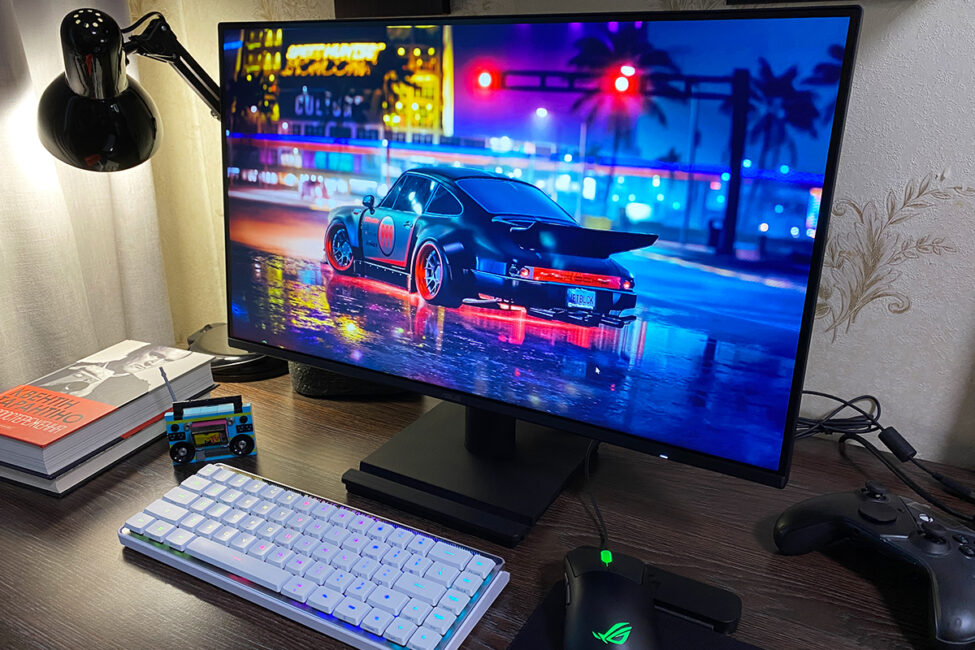
The front of the monitor is dominated by a 24.5-inch display with an anti-glare coating and very thin bezels. The ASUS logo is centered on the bottom bezel. To the right, there is a small status indicator light, which can be turned off in the monitor’s settings if you find it distracting.
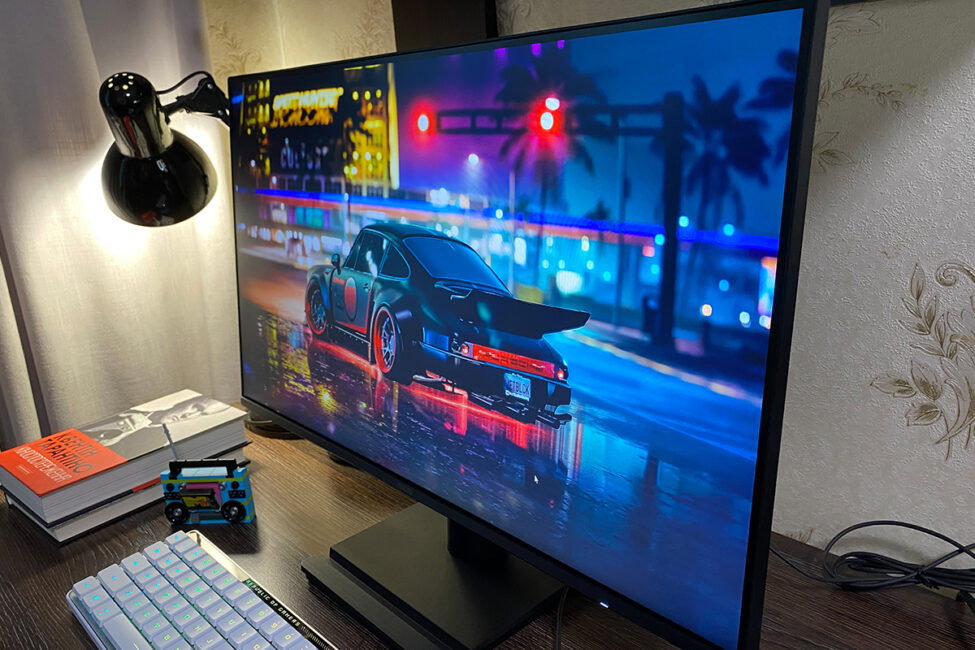
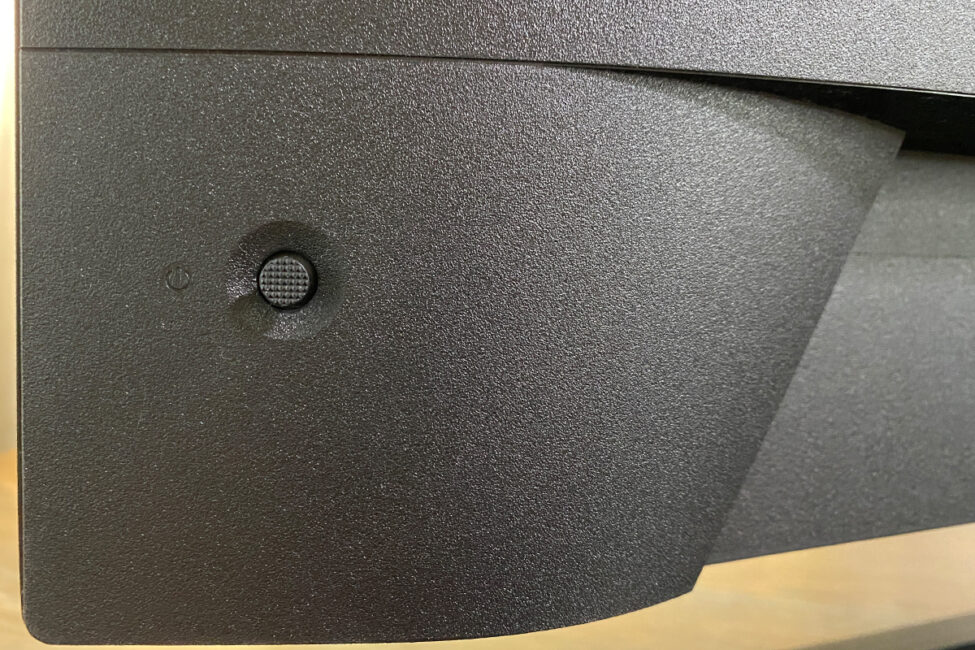
The input ports and the joystick for the built-in menu are located on the back of the monitor. On the right side (when facing the display) there is a five-way joystick, and on the left side is a Kensington lock slot.
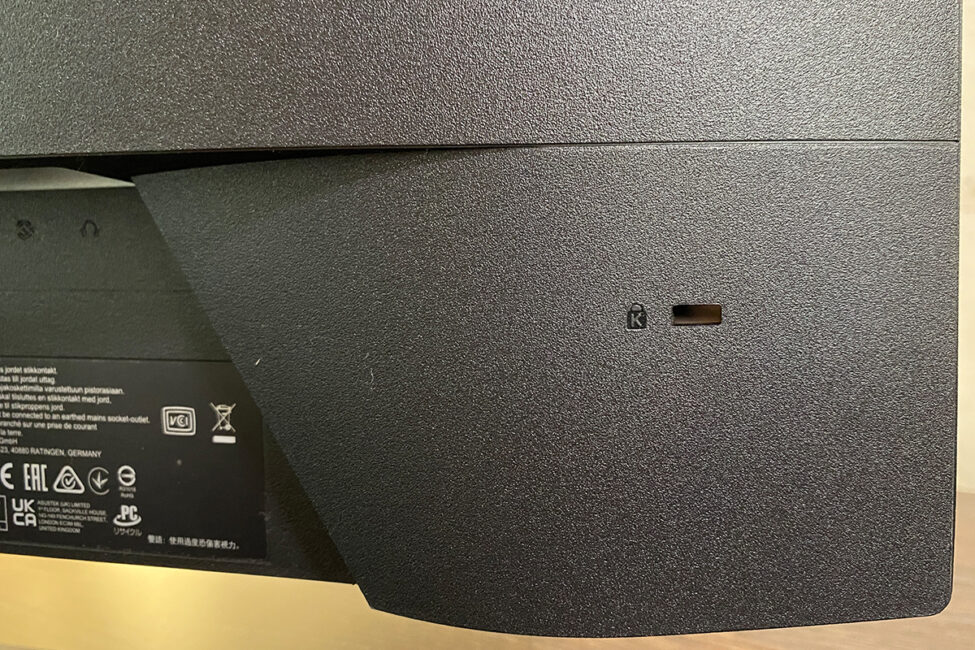
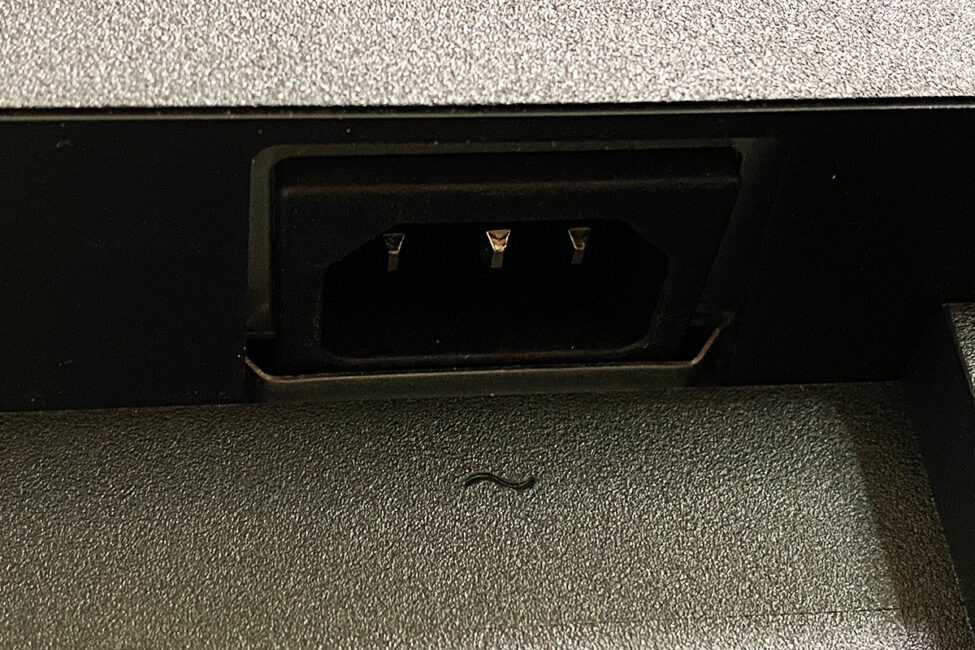
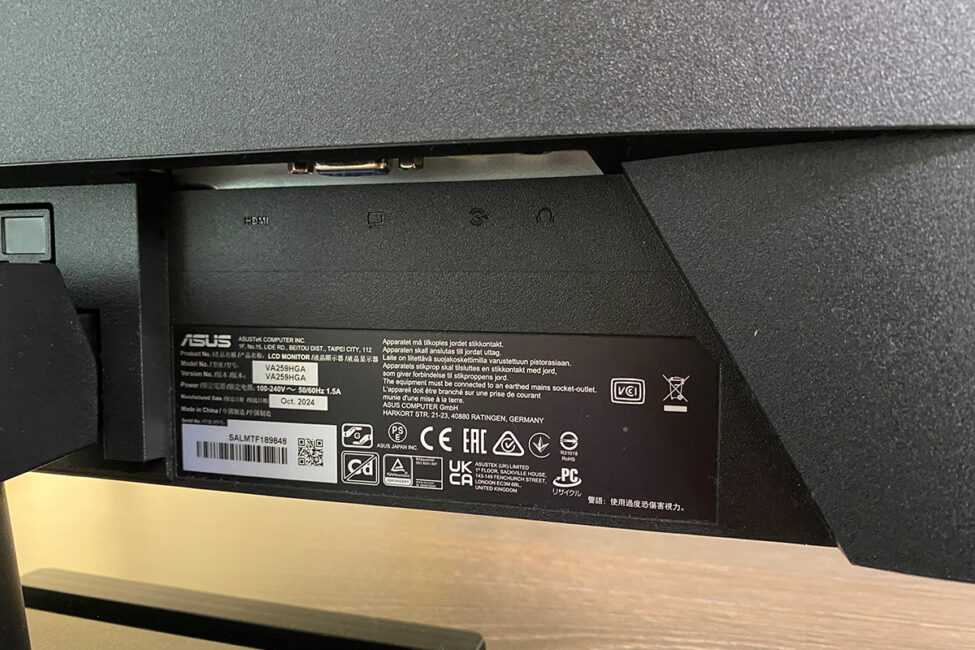
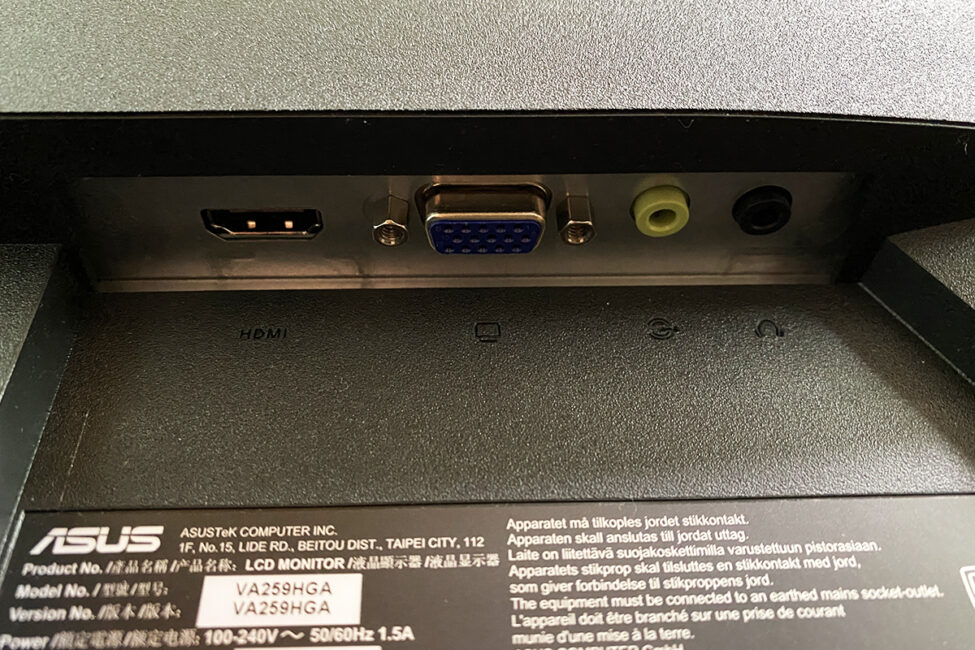
At the bottom right, just below the stand, is the monitor’s power input. On the left side are the input and output ports: HDMI 1.4, VGA, PC Audio Input, and a 3.5 mm headphone jack. Honestly, seeing a VGA port on a 2025 monitor was a bit surprising at first. However, it makes sense as ASUS included it to ensure compatibility with older graphics cards. The PC Audio Input is specifically designed to send audio to the monitor’s speakers when using a VGA connection, since VGA itself doesn’t carry audio like HDMI does. There’s no DisplayPort on this monitor, but that’s not really necessary since it supports Full HD resolution at a 120 Hz refresh rate over HDMI without issues.
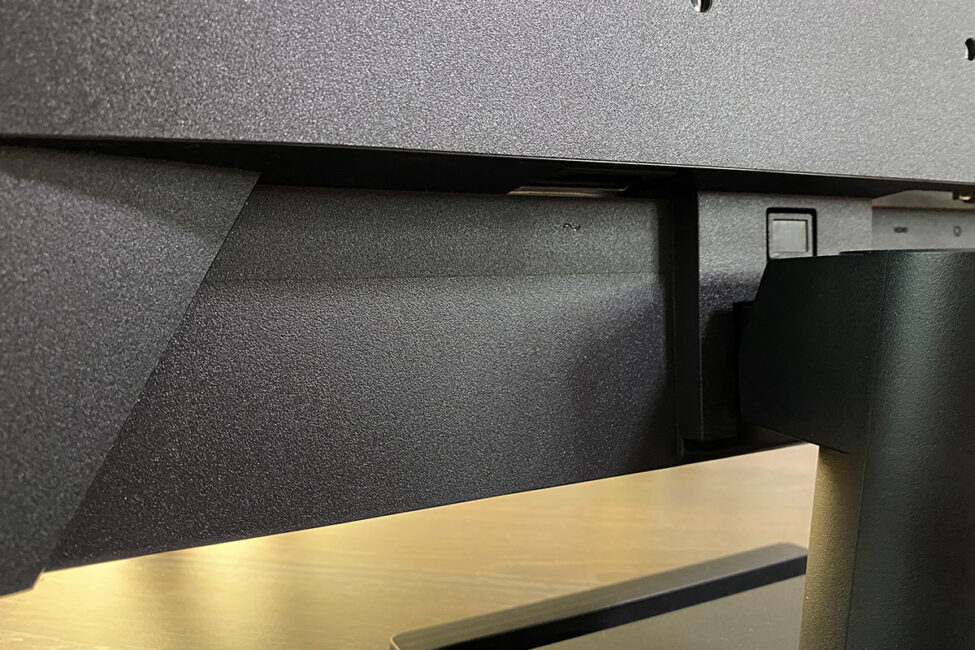
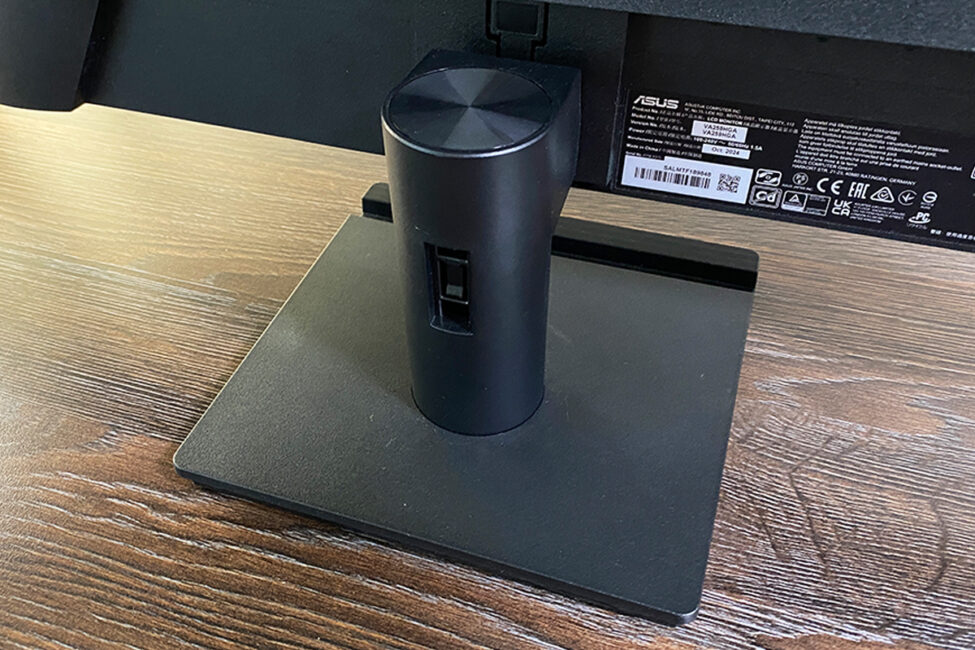
The cable connected to the monitor can be secured using a plastic clip that attaches to the stand. As I mentioned earlier, this clip was initially difficult to snap into place and kept falling out. After some effort, I managed to secure it properly. In fact, it fits so tightly now that I can’t remove it. I mention this to reassure anyone struggling with the clip not to discard it – with enough pressure, it can be fixed firmly and reliably. On a side note, it’s worth acknowledging that ASUS included some form of cable management here. Budget monitors often skip this feature entirely, so it’s a small but welcome addition.
Since we’re on the topic of the monitor’s speakers, a few words about them. The VA259HGA has two built-in 2W speakers. They can get reasonably loud, but the sound quality is typical for basic monitor speakers. They’re adequate for work tasks or casual background listening, but not suitable if you need higher-quality audio.
The power supply in the VA259HGA, like in most similar monitors, is built-in. This helps keep the area under the desk clear of extra adapters and cables. In terms of heat, the monitor stays practically cool during use, which is a positive. Regarding energy consumption, the monitor is efficient: it uses less than 15W during normal operation, under 0.5W in power-saving mode, and less than 0.3W when turned off.
The build quality of the monitor is solid, featuring a pleasant matte plastic finish, sturdy construction, precise fitting of all parts, and smooth tilt adjustment with some resistance. The monitor sits firmly on the desk overall. However, if you deliberately shake the desk or the monitor itself, it does wobble slightly – mainly the base rather than the screen. In this regard, V-shaped stands tend to offer better stability. That said, on a stable desk during normal use, the monitor remains steady. Mounting the monitor on a bracket is, of course, the most stable option and also allows for height adjustment.
Read also:
- ViewSonic VX2479A-HD-PRO Monitor Review: Truly Gaming-Oriented Display
- Duex Max DS Review: 14.1″ Portable Monitor for Boosting Mobile Productivity
Display: features and technology
The ASUS VA259HGA features an 8-bit IPS panel with a Full HD resolution of 1920×1080 and a maximum refresh rate of 120 Hz. It has a 16:9 aspect ratio and a pixel pitch of 0.2830 mm. The specified brightness is 300 cd/m². Contrast ratio is listed as 3000:1 maximum and 1500:1 typical. The monitor covers 99% of the sRGB color space. It also supports a 1 ms response time (MPRT) and includes Adaptive-Sync technology.
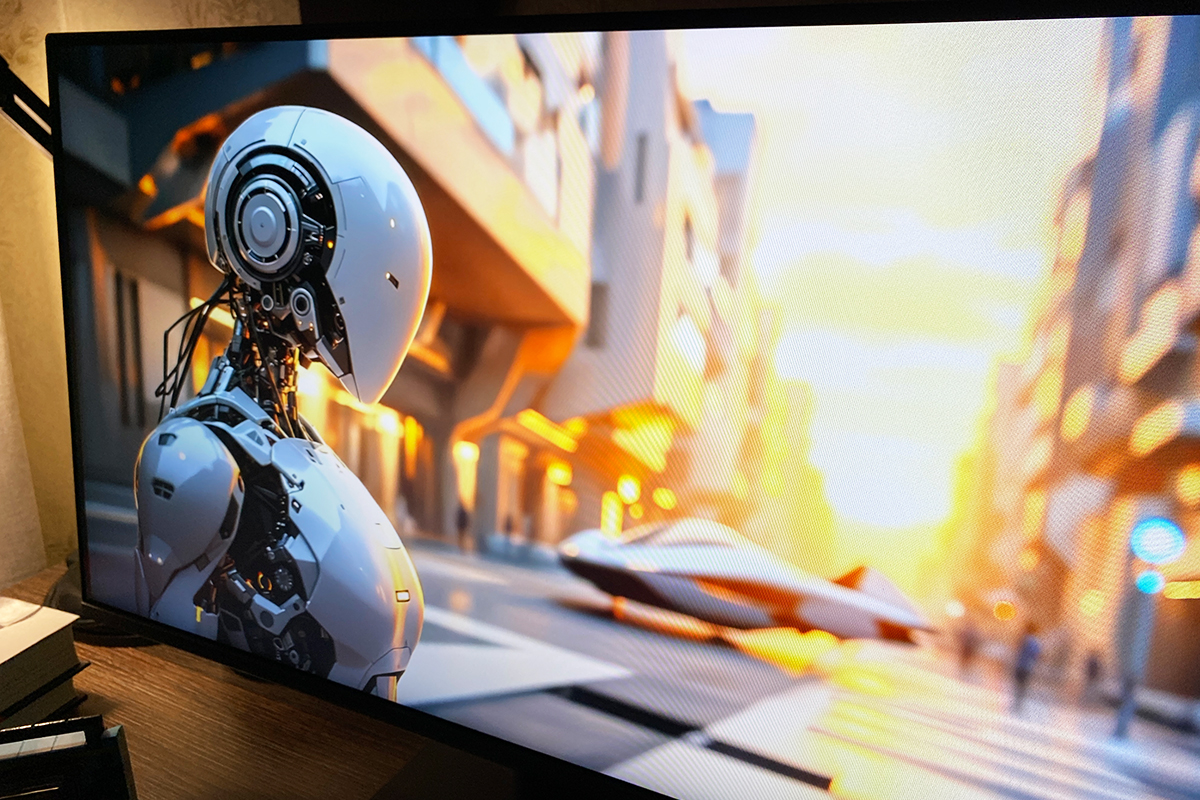
The monitor also includes a set of built-in features and proprietary technologies designed to enhance image quality and reduce eye strain. While the selection isn’t as extensive as what you’d find in higher-end TUF or ROG models, it’s still a respectable set. Additionally, some features are common across different ASUS monitor lines.
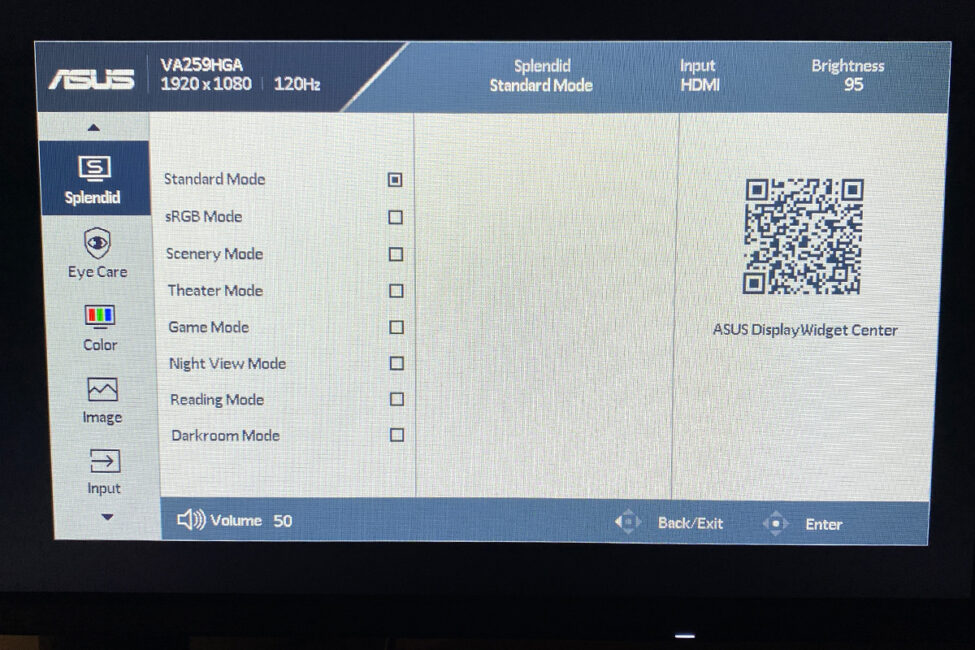
To enhance the image, the monitor includes SPLENDID, Trace Free, and Motion Sync technologies. SPLENDID is ASUS’s proprietary feature offering seven preset display modes tailored for different types of content. These modes adjust brightness, contrast, color saturation, sharpness, and color temperature to improve viewing comfort. Trace Free helps reduce motion blur by improving pixel response times and minimizing ghosting behind moving objects. Motion Sync is an additional technology aimed at ensuring smoother motion on the screen.
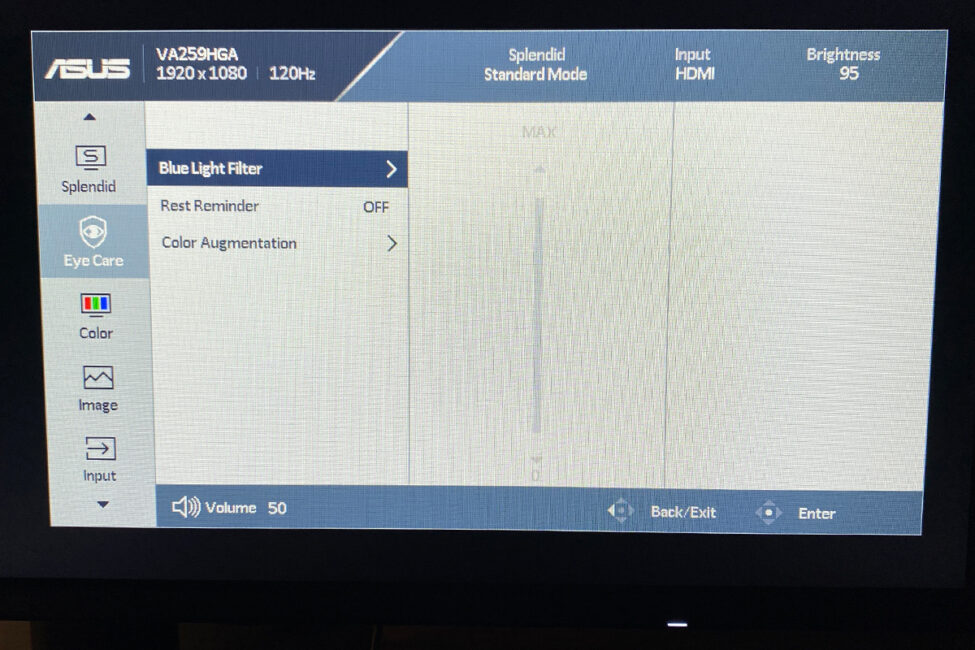
For eye protection, the monitor includes the ASUS Eye Care+ suite, which consists of Flicker-Free, Blue Light Filter, Color Augmentation, and Rest Reminder features. Flicker-Free eliminates invisible screen flicker to reduce eye strain. The Blue Light Filter lowers exposure to potentially harmful blue light. Color Augmentation enhances color perception to assist users with color vision deficiencies in distinguishing colors more easily. Rest Reminder prompts users to take breaks, helping to prevent eye fatigue during extended use.
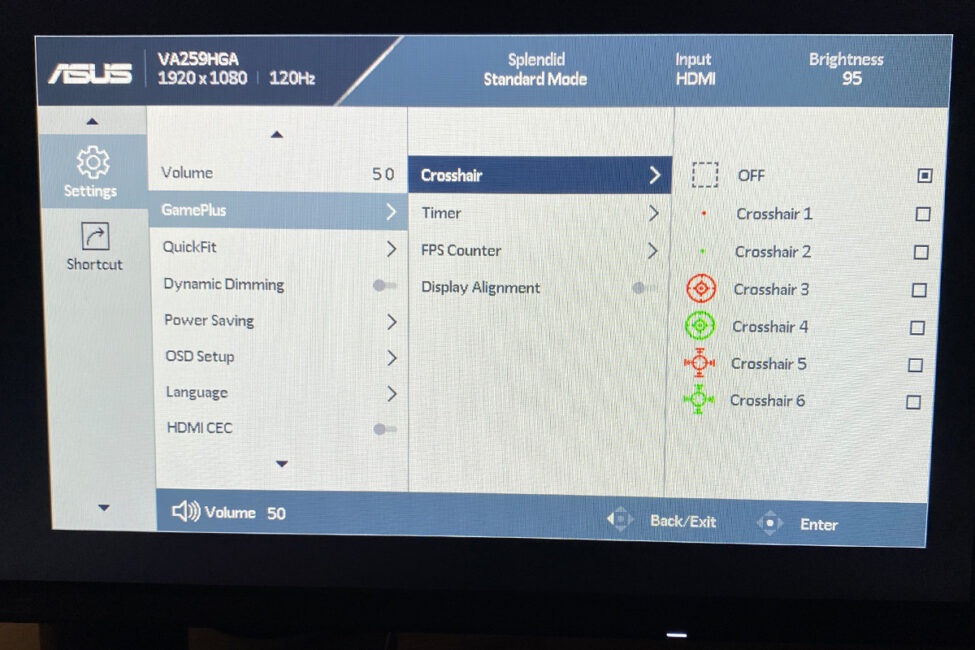
Among the gaming and practical features, the monitor offers Adaptive-Sync, GamePlus, and QuickFit. Adaptive-Sync is a technology that eliminates screen tearing and reduces input lag by synchronizing the monitor’s refresh rate with the graphics card’s frame rate. It’s an essential feature for modern gaming monitors. GamePlus provides a set of in-game tools such as crosshairs, timers, FPS counters, and display alignment aids. QuickFit Virtual Scale allows users to overlay grids and templates of real-world sizes (like A4, B5, or photo dimensions) on the screen, which can be particularly helpful for designers and those working with printed materials.
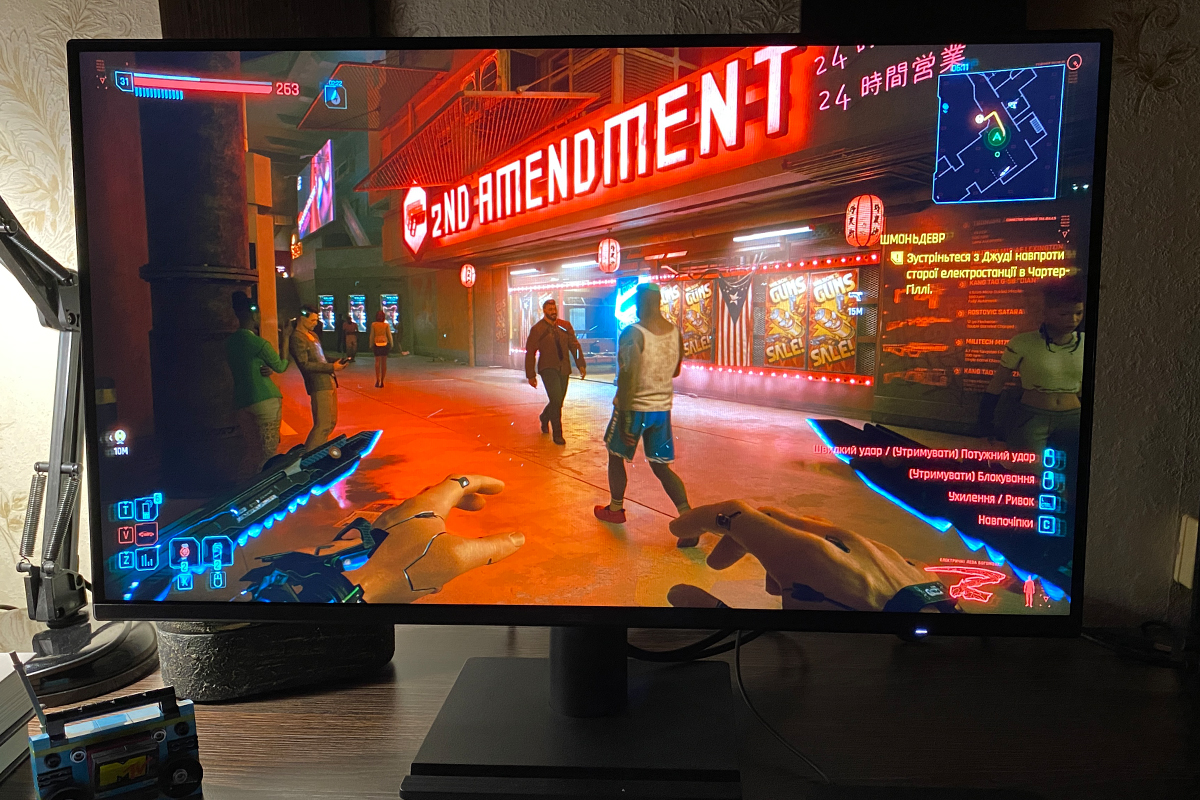
We’ve covered the main display specifications and key features. Now, let’s take a closer look at the actual image quality, including color reproduction, sharpness, and overall performance. Overall, the monitor delivers quite good image quality for its price range: color reproduction is accurate, contrast is decent, sharpness is clear, and brightness is sufficient for most use cases. It’s worth highlighting the brightness level – at 300 cd/m² (300 nits), it stands out in the budget segment, where 250 cd/m² is more common, making it a notably strong point.


The black levels on the monitor are also quite good, though there’s a noticeable difference compared to higher-end TUF and ROG models – especially those equipped with VA panels.


The monitor’s specified viewing angles are 178°. At wider angles, brightness shifts can be observed – the image tends to appear brighter, which is typical for most budget IPS panels. These changes are especially noticeable in darker areas and objects.

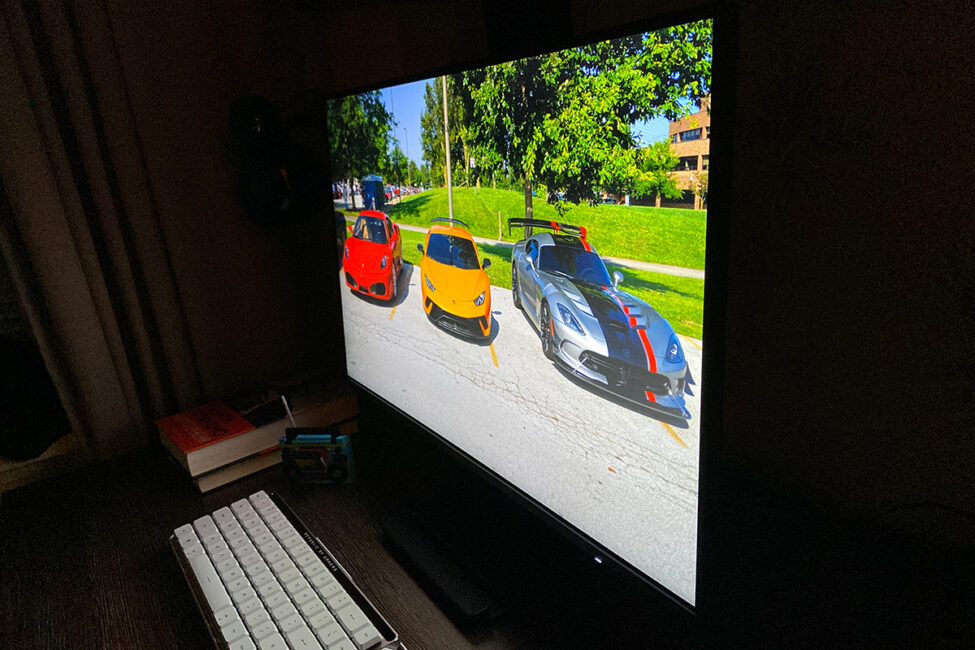

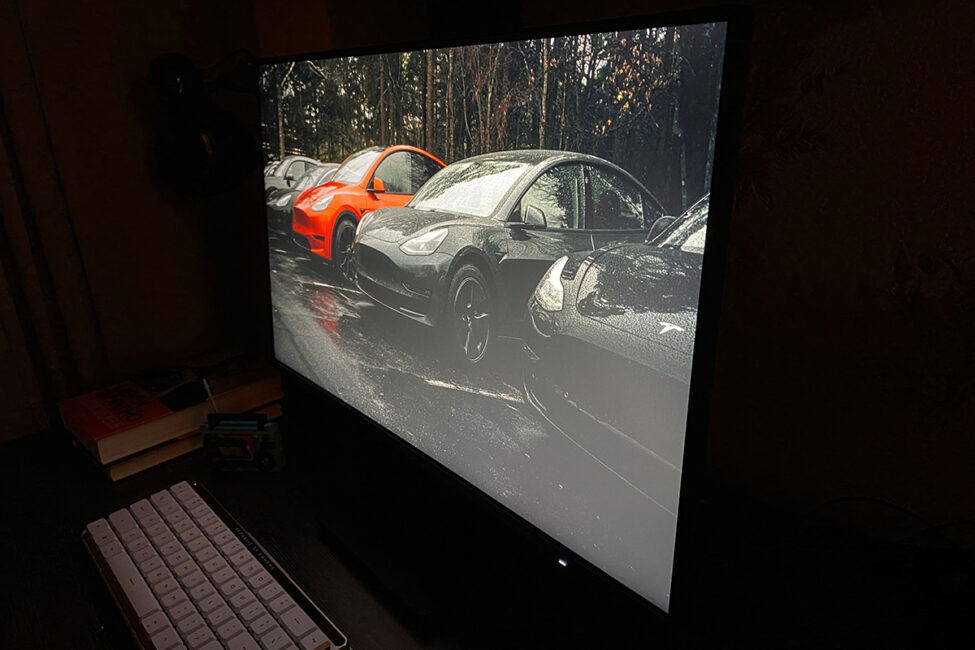
The review unit of the monitor I received shows some backlight bleed in the corners. While the uneven lighting might look quite pronounced in photos, in typical use it’s not as noticeable. During regular use, these “spots” were generally not distracting. Only in very dark scenes did the lower-left corner occasionally stand out slightly against the rest of the screen.

The monitor’s response time is good. The image appears fast and smooth, without noticeable blur or ghosting during gameplay. It’s worth noting that a 1 ms (MPRT) response time is an excellent specification for a budget monitor. This makes the ASUS VA259HGA well-suited for fast-paced shooters and modern games in general.



On-screen menu
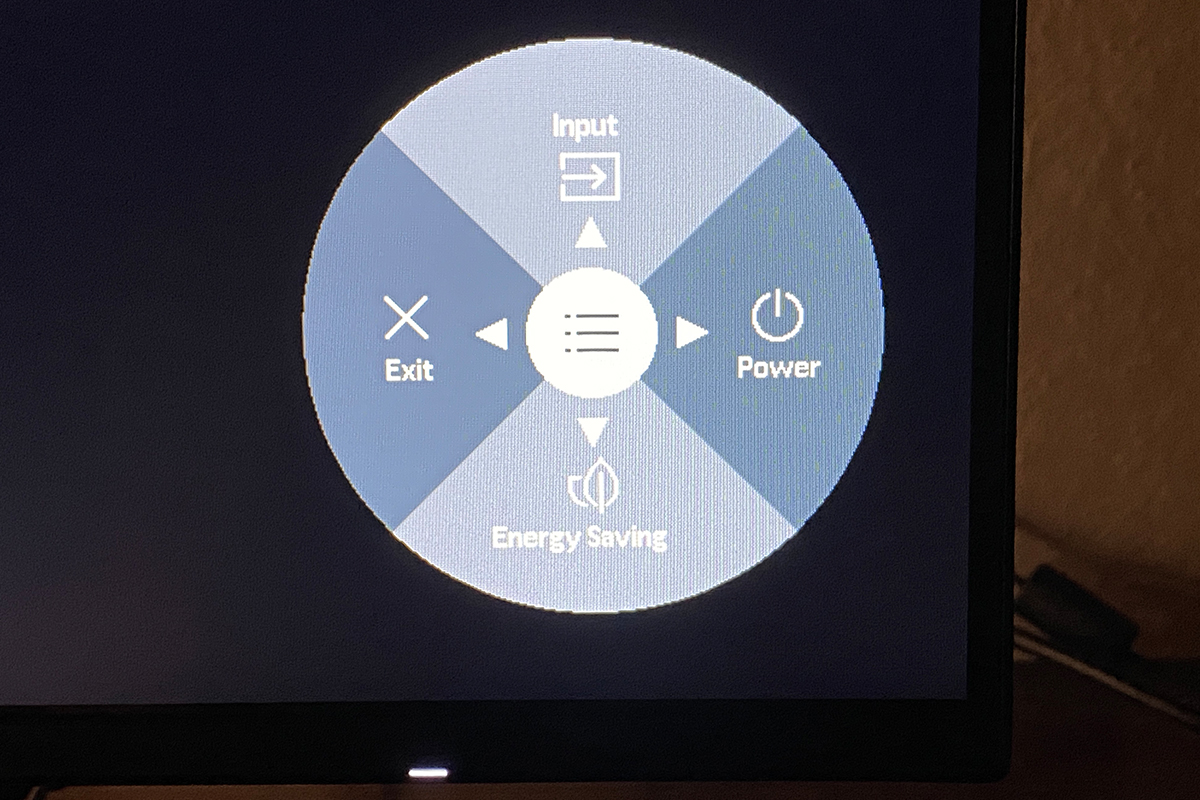
The monitor’s OSD is accessed via a five-way joystick located on the right side of the back panel. When you open the OSD, a quick access wheel appears first instead of the full settings menu. To enter the main settings, you need to press the joystick inward to select the central menu option.
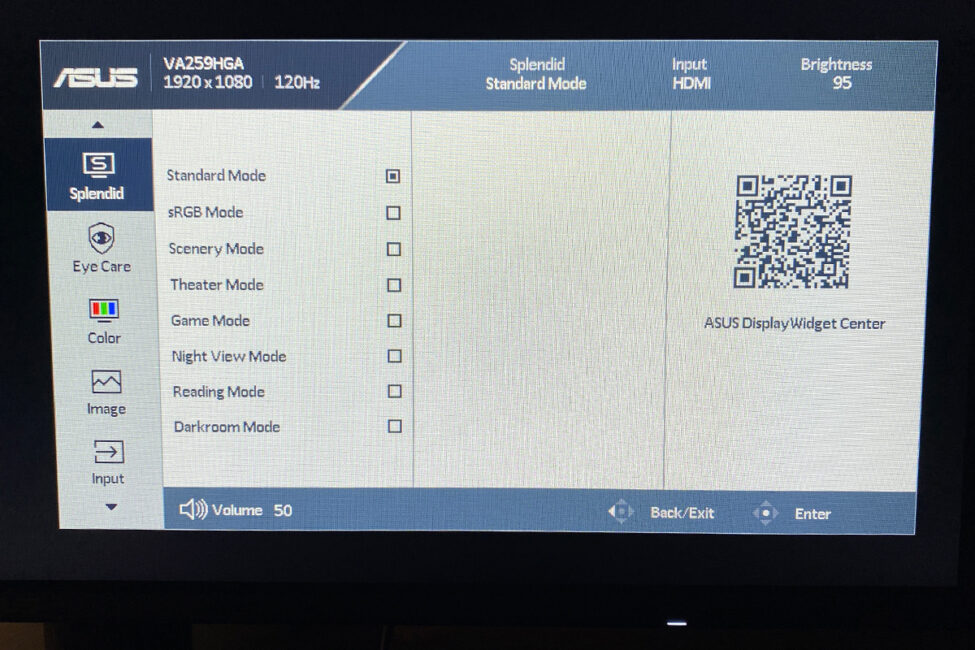
In the Splendid menu, you can choose from seven preset display modes or set a standard (custom) mode with your own settings.
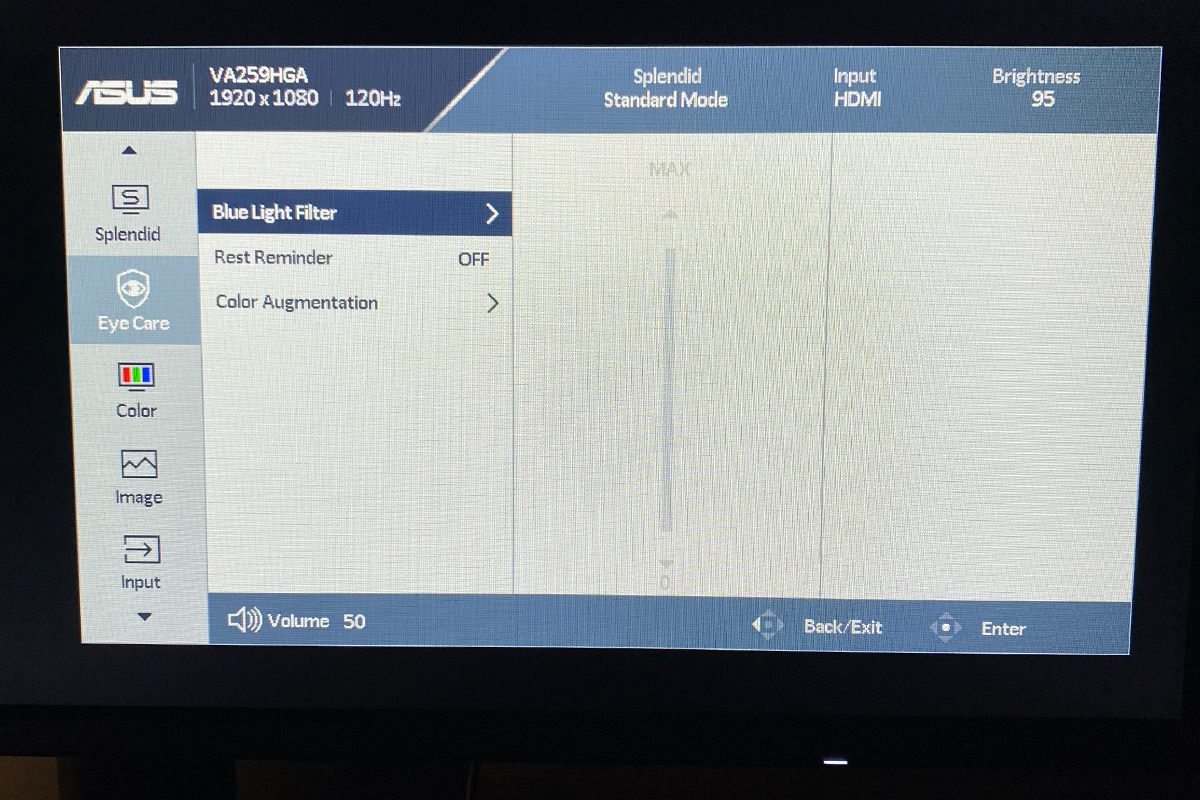
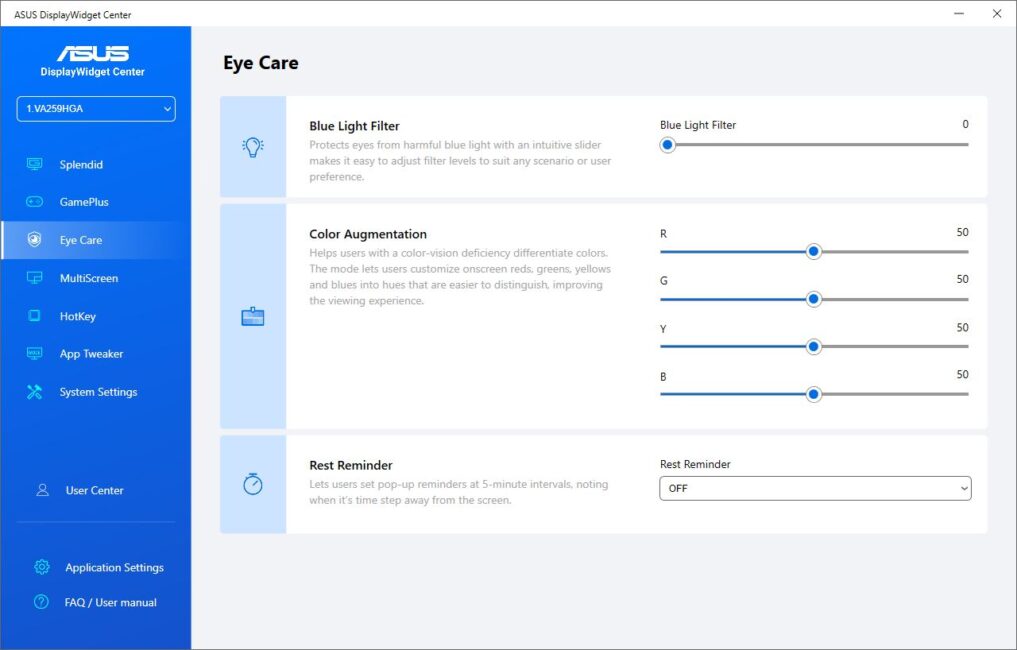
The Eye Care menu allows you to enable and adjust the level of blue light filtering, set break reminders, and configure the color enhancement mode designed to assist users with color vision deficiencies.


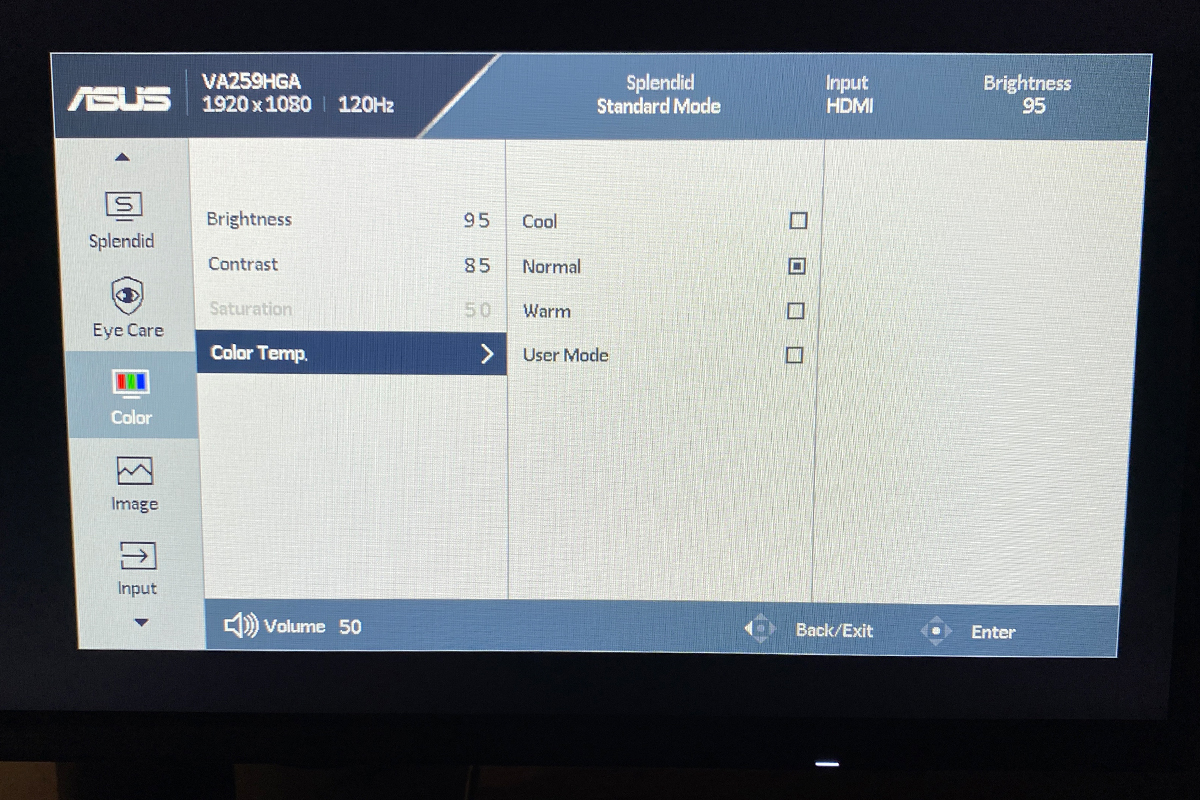
The Color menu lets you adjust brightness, contrast, saturation, and color temperature.


In the Image menu, you can adjust sharpness, overdrive level (Trace Free), aspect ratio, and enable Motion Sync for smoother motion. You can also activate Adaptive Sync and ASUS’s Smart Contrast Ratio (ASCR) technology for enhanced contrast.


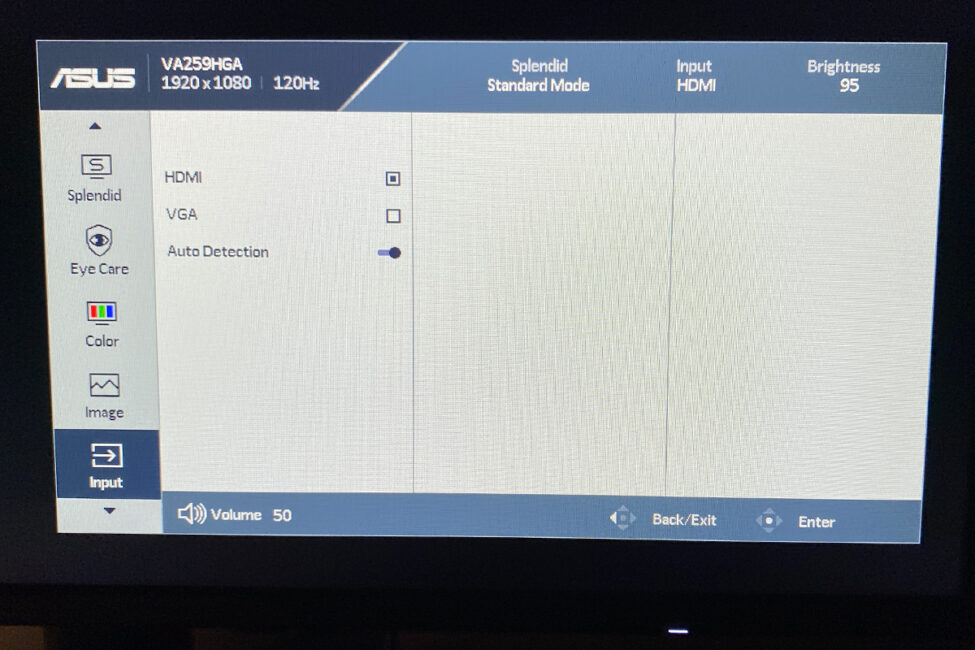
The Input menu lets you select the signal source: HDMI, VGA, or auto-detect.
The Settings menu allows you to adjust the volume of the built-in speakers, enable Dynamic Dimming, change the OSD language, and set the power-saving mode. You can also view information about the monitor model and firmware, disable the front status indicator, and reset the monitor to factory defaults. The GamePlus and QuickFit features I mentioned earlier are also accessed here.


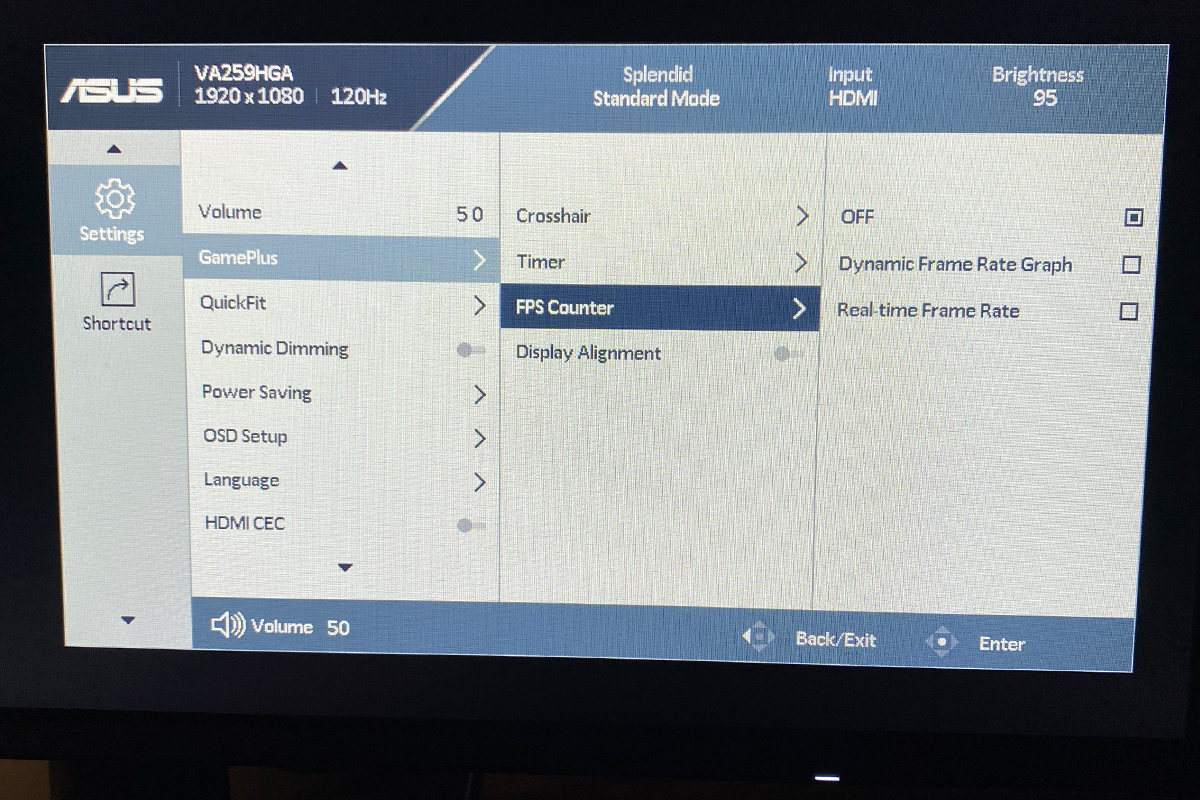


In Shortcut, you can select a shortcut menu.


Read also:
- Review of ASUS ZenScreen Touch MB16AHT Portable Monitor
- ASUS ROG STRIX XG259CMS Gaming Monitor Review
Proprietary software
Like most ASUS monitors, the VA259HGA can be configured using the company’s proprietary app – DisplayWidget Center Many of the app’s settings mirror those found in the monitor’s built-in menu, but it also offers some exclusive features with more advanced customization options. By the way, there’s a detailed review of this app available on our website.
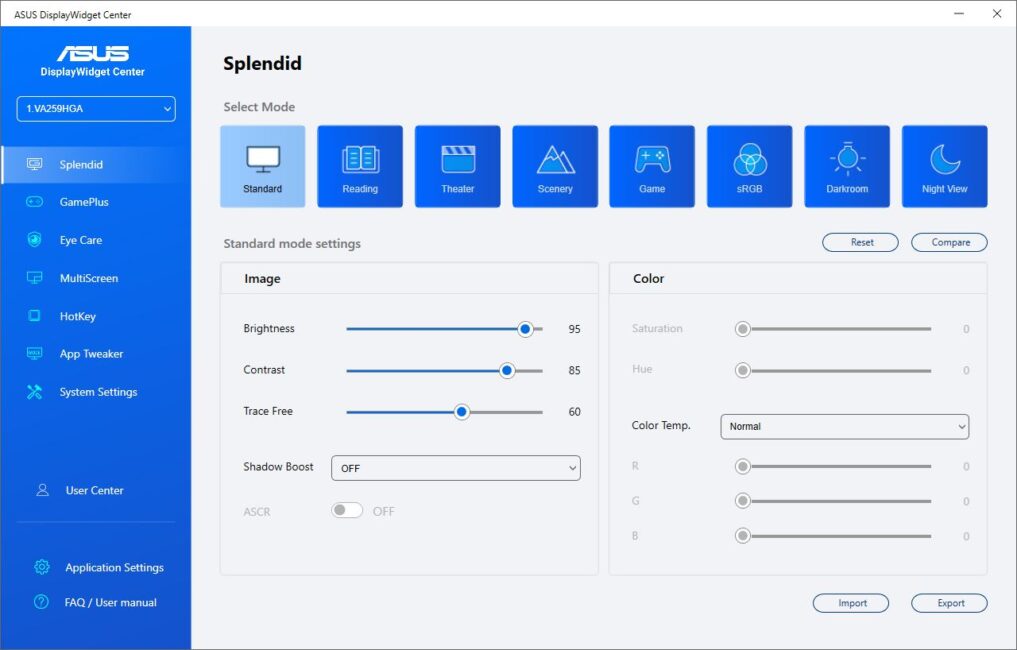
Within the app’s Splendid section, you can select a preset display mode and customize it according to your preferences.
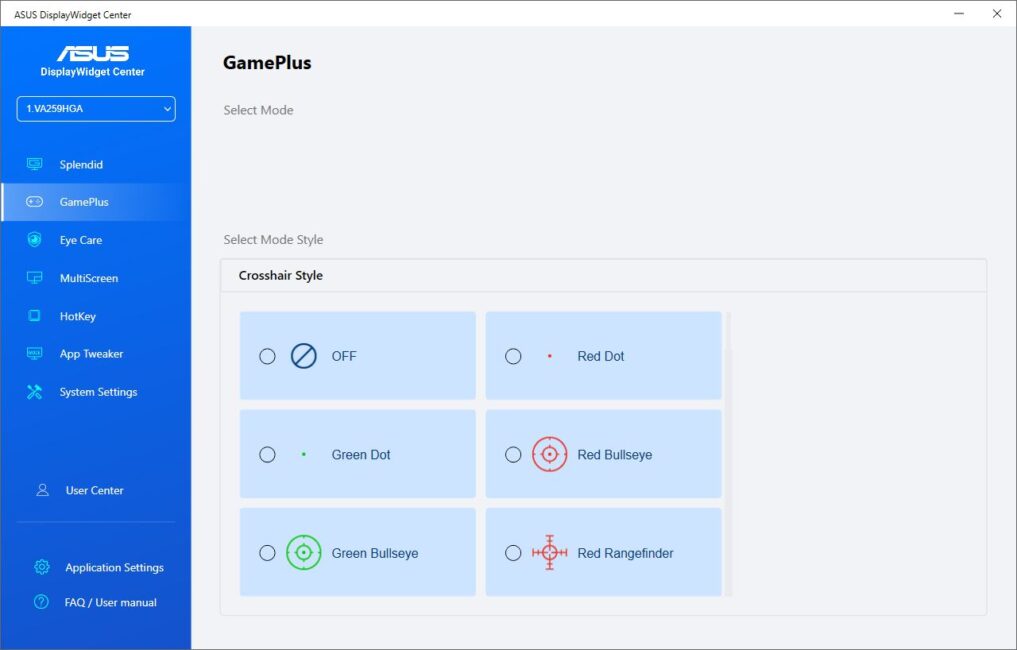
In the app’s GamePlus section, only the virtual crosshair settings are available. The timer, FPS counter, and display alignment tools that are present in the OSD menu seem to be missing here.
The Eye Care section in the app offers the same options as the OSD: blue light filtering, break reminders, and the color enhancement mode.
The MultiScreen feature allows you to split the monitor into several independent zones for multitasking. This option isn’t available in the built-in OSD and is exclusive to the DisplayWidget Center app.
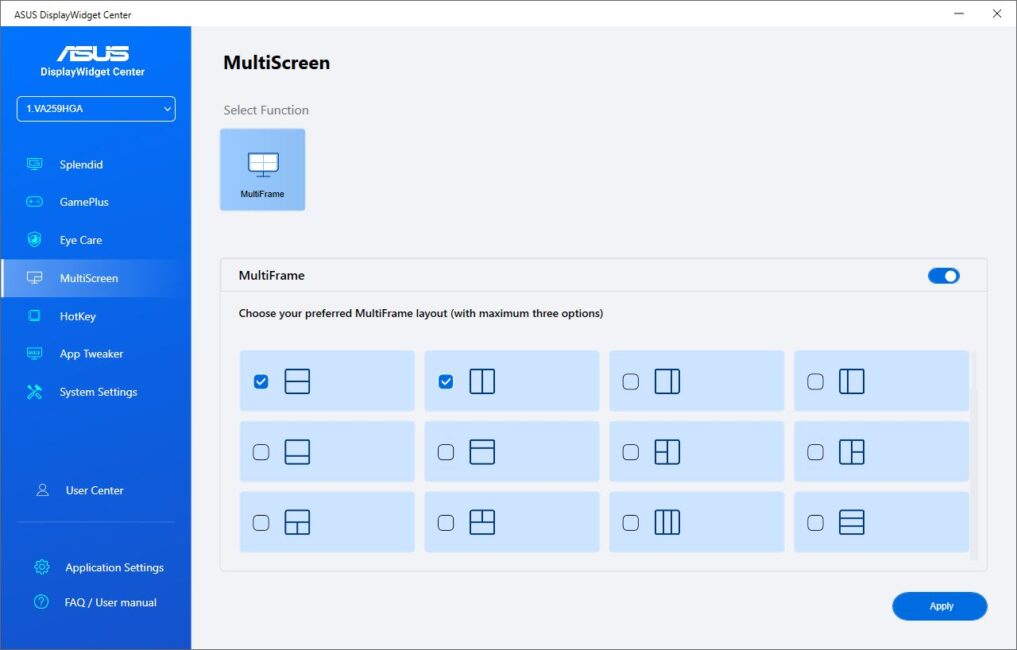
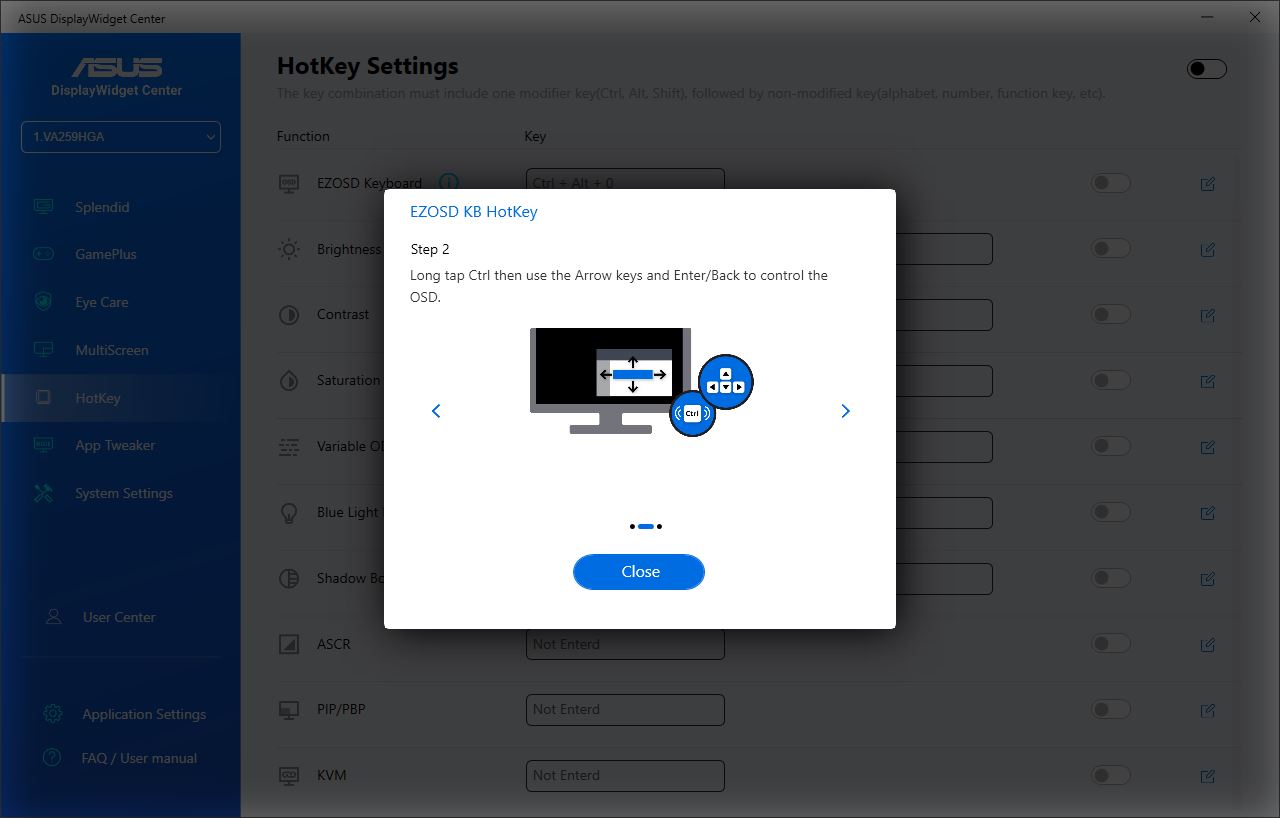
The HotKey menu lets you assign monitor settings to keyboard shortcuts. It’s a convenient feature that saves you from having to reach for the joystick or navigate through the app every time you want to make a quick adjustment.



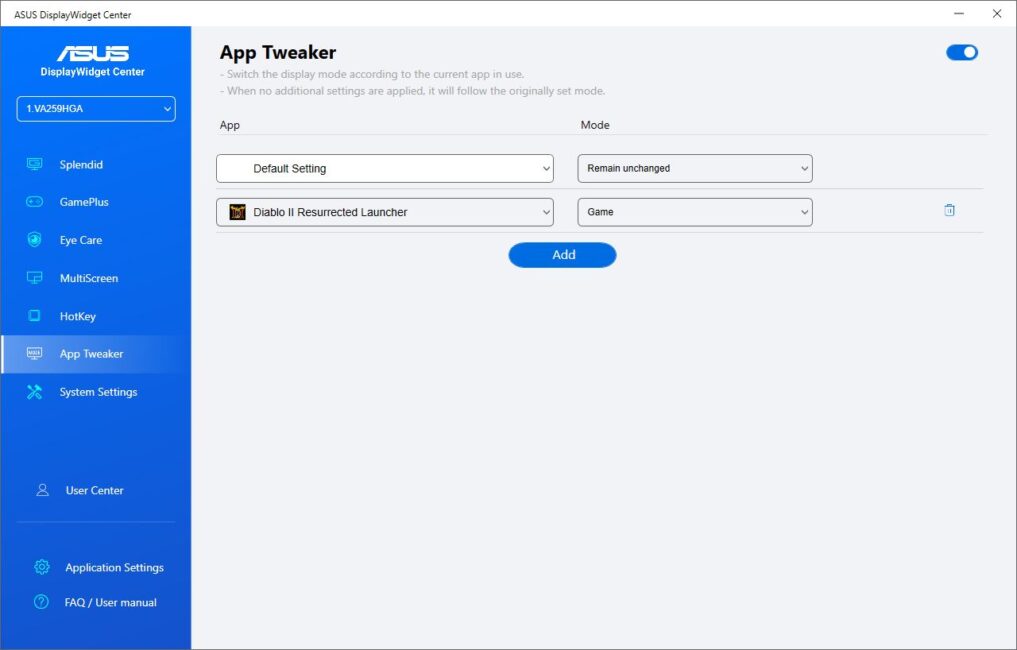
The App Tweaker section allows you to assign specific Splendid display modes to individual applications. When one of these programs is launched, the monitor automatically switches to the selected mode.
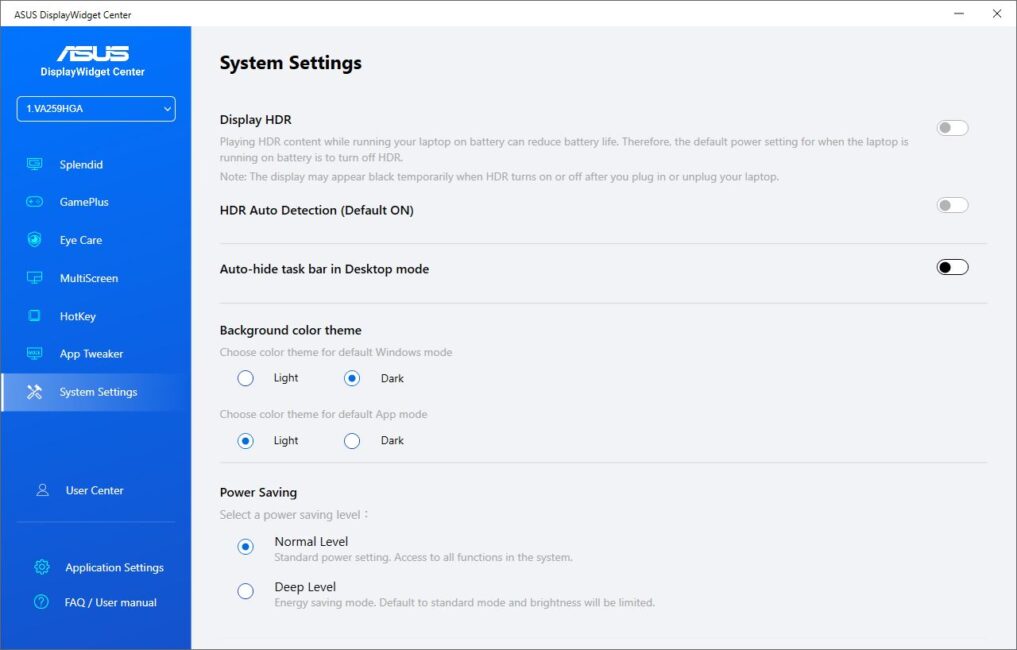
The System Settings section lets you adjust the power-saving mode, change the app’s color theme, and hide the Windows taskbar. There’s also an HDR setting, but it’s intended for other models, as the VA259HGA does not support HDR.
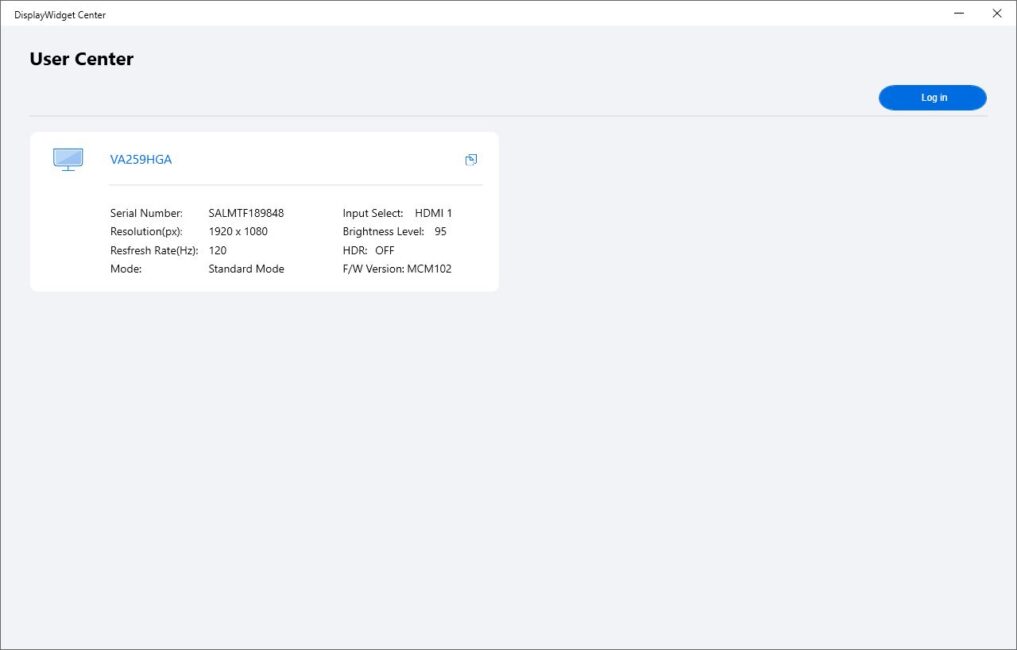
The User Center provides detailed information about the monitor and allows you to sign in to your ASUS account.
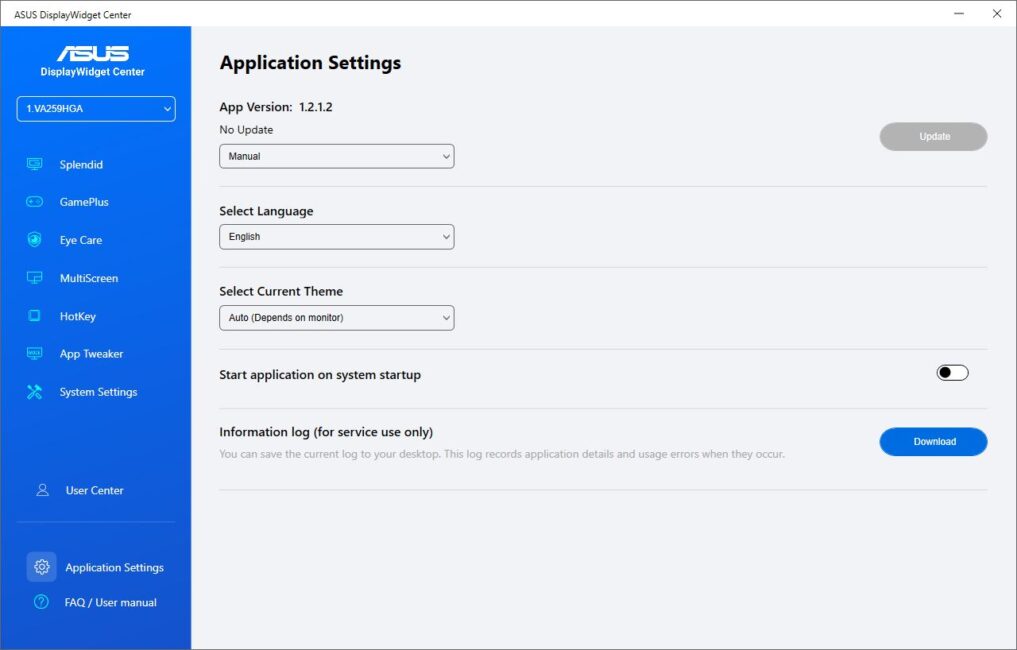
The Application Settings section contains options related to the app itself, along with the ability to generate and download a diagnostic service log.
The FAQ / User Manual section is simply a set of links to the official ASUS website, where you can access the user manual and browse frequently asked questions about the device.
Conclusions
In summary, the ASUS VA259HGA is a well-rounded and appealing option within its price range. It offers a balanced feature set that makes it a solid choice for 1080p gaming, everyday work, and study. It’s also a practical option as a secondary monitor, especially for users looking for a straightforward and reliable display without overspending.
Compact size, clean design, decent color reproduction, sharp image quality, responsive performance, a 120 Hz refresh rate, brightness that’s adequate for most scenarios, Adaptive-Sync support, and a full set of eye comfort features via the Eye Care+ suite – realistically, that’s everything you’d expect from a budget monitor. And for most users, it’s probably all they’ll need.
There are a few trade-offs worth mentioning. The basic stand doesn’t offer height adjustment, which could be limiting for some users. The panel’s backlight isn’t perfectly uniform, and some corner glow may be noticeable in dark scenes. There’s also some brightness shift at wide viewing angles, and the lack of a DisplayPort might be an issue depending on your setup.
That said, none of these drawbacks are particularly surprising in this price range. They’re fairly typical for budget monitors. Overall, the VA259HGA holds up well and remains a solid, competitive option compared to similarly priced alternatives.
Read also:
- ASUS ZenScreen MB229CF Portable Monitor Review
- Motorola Edge 50 Ultra: What the Qualcomm Snapdragon 8s Gen 3 Is Really Capable Of
- Huawei FreeBuds Pro 4 Review: Possibly the Best All-Around TWS Earbuds for Everyday Use


Nice review, you’re the only English review Ive found and yeah! I think i’m gonna get this Monitor, Thanks for the review :)
Also in terms of colors, would you say that this is better than the ASUS TUF Gaming VG259Q3A?
Because im debating whether to spend extra for it
Hi
We have a dedicated review of the ASUS TUF Gaming VG259Q3A:
https://root-nation.com/en/pc-en/pc-monitors-en/en-asus-tuf-gaming-vg259q3a-review/
If we compare the monitors I’ve reviewed, I can say that the VA259HGA has slightly better color reproduction. This model also has higher brightness (300 cd/m² vs 250 cd/m²) and better contrast (1500:1 vs 1000:1).
On the other hand, the TUF Gaming VG259Q3A features a faster panel (Fast IPS vs IPS), better response time (1 ms GTG), and a higher refresh rate (180 Hz vs 120 Hz). Plus, it comes with a range of additional gaming features.
Essentially, the VA259HGA is positioned as a good office monitor, while the TUF Gaming VG259Q3A is a budget gaming option. If you need a monitor for gaming, it’s probably better to consider the TUF Gaming VG259Q3A due to its faster panel. For work, both options are equally suitable.