© ROOT-NATION.com - Use of content is permitted with a backlink.
In 2023, ASUS released the first ROG Azoth – a standout keyboard that introduced a mix of unique features like an OLED screen, hot-swappable switches, and even a lube kit included in the box. The lineup expanded in 2024 with the ROG Azoth Extreme, one of the most premium and expensive keyboards on the market. And now, at COMPUTEX 2025, ASUS has announced the next entry: the ROG Azoth X.
In essence, the new keyboard sits somewhere between the original ROG Azoth and its upgraded carbon-fiber counterpart, the ROG Azoth Extreme. However, it brings its own identity, featuring a distinctive “space-inspired” design and a typing feel that’s noticeably different from previous models. Beyond aesthetics, the ROG Azoth X introduces several technical upgrades: new switches, a reworked internal structure, 8000 Hz polling rate support, and integration with Gear Link – a feature that allows you to configure the keyboard directly in your browser without installing any software. The ROG Azoth X has just hit the market, and I had the chance to test it ahead of release. In this review, I’ll go over the key specs, walk through the device in detail, and share my impressions after using it. Let’s start with a quick look at the technical highlights.
Read also: Gaming Keyboard Reviews
TABLE OF CONTENTS:
Specifications
- Format: 75%
- Connection: wireless (RF 2.4 GHz, Bluetooth 5.1); wired (USB-C to USB-A)
- Switches: ROG NX Mechanical Switch (Snow V2 / Storm V2)
- Hot-swap: yes (5-pin connectors)
- Polling rate: 8000 Hz with ROG Polling Rate Booster; 1000 Hz without ROG Polling Rate Booster
- Anti-ghosting: yes
- #KRO: N-KRO
- Design: Gasket Mount
- Keycaps: Semi-transparent keycaps with sublimation printing
- Backlighting: RGB compatible with Aura Sync
- Proprietary software: Armoury Crate, Gear Link
- Built-in memory: 5 customisable profiles
- Platform support: Windows, macOS
- Multifunctional control: three-position switch and side button
- Display: OLED display (animation, parameter indicators, audio visualisation, system monitoring)
- Battery life: up to 1600 hours in 2.4 GHz mode (with backlight and OLED display turned off)
- Body material: metal top case, plastic body
- Proprietary technologies: ROG Polling Rate Booster, ROG Omni Receiver, ROG SpeedNova
- Cable: detachable ROG Paracord (USB-A to USB-C) 2 m long
- Dimensions: 325.4×136.2×40.0 mm
- Weight: 1600 g (with wrist rest)
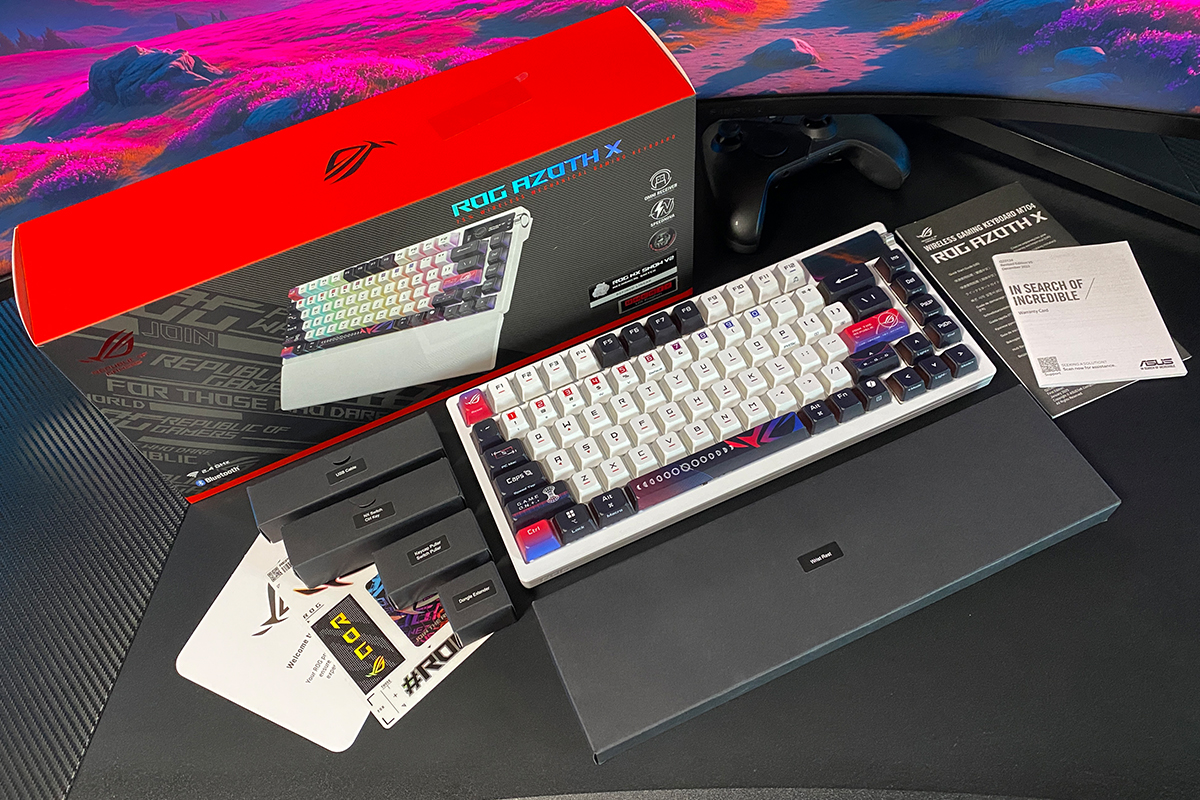
- Included: keyboard, wrist rest, keycap puller, switch puller, alternate Ctrl key, three spare switches, 2.4 GHz RF wireless adapter, USB-A to USB-C adapter, detachable USB-A to USB-C cable, ROG branded stickers, quick start guide, warranty booklet, thank you card
Positioning and price
The ROG Azoth lineup firmly represents ASUS’s flagship keyboards to date. They’re built with premium materials, solid construction, offer three connection modes, gasket mount design, hot-swap switch support, a built-in OLED display, impressive battery life, and come with an extensive accessory kit. Among them, the ROG Azoth X stands out the most in terms of design. It’s the most visually distinct model in the series and noticeably sets itself apart – not just from other Azoth keyboards, but from much of what’s currently available on the market.
As mentioned earlier, the ROG Azoth X sits somewhere between the original ROG Azoth and the upgraded carbon-fiber Azoth Extreme – but with its own original, space-inspired design. The keyboard is priced at $360 / €312, though it’s currently available at a launch discount for $312 / €270. Interestingly, this brings it almost in line with the original ROG Azoth’s launch price – making the ROG Azoth a potentially strong value proposition for early buyers.
Package contents
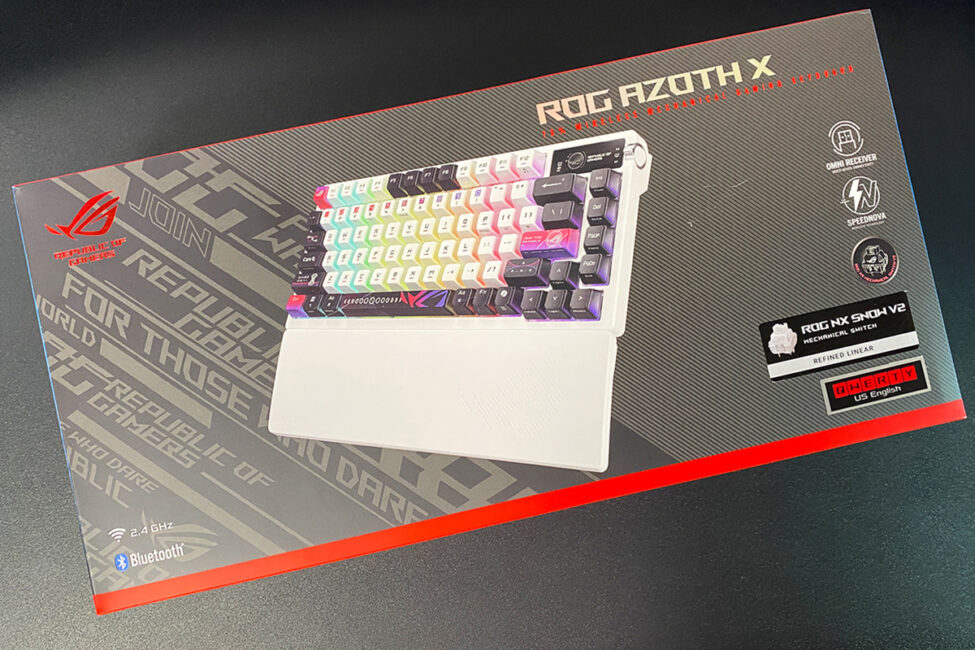
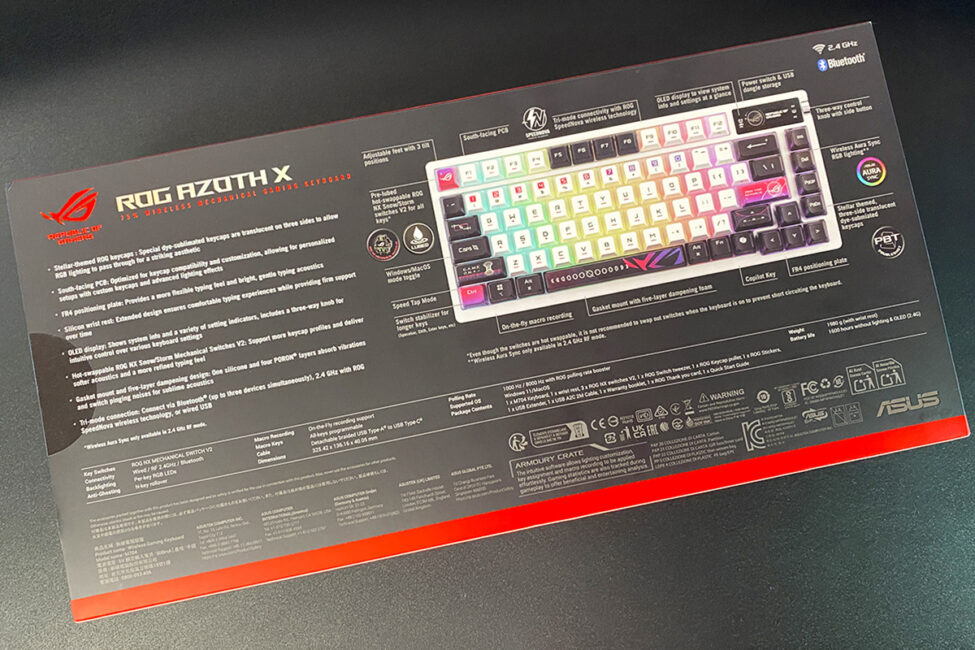
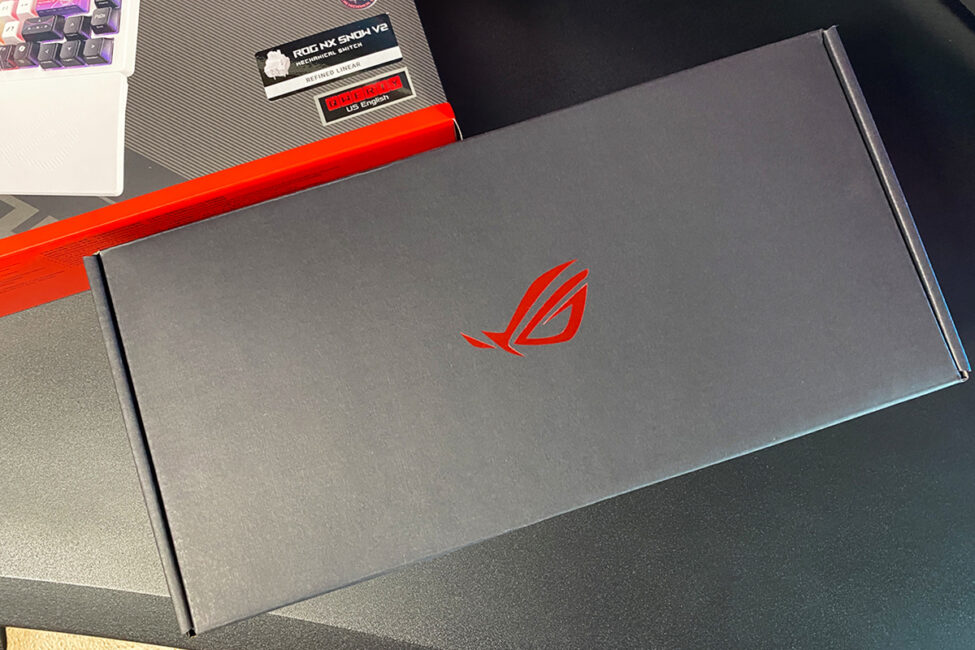
The keyboard comes in signature ROG packaging with the familiar, stylized branding. As is often the case, the box consists of two parts: a themed outer sleeve and a sturdy cardboard inner box that holds the main contents. One standout detail in the ROG Azoth X package is how all the accessories are individually boxed and clearly labeled. Honestly, this is the first time I’ve seen such an organized and deliberate packaging approach for a keyboard.
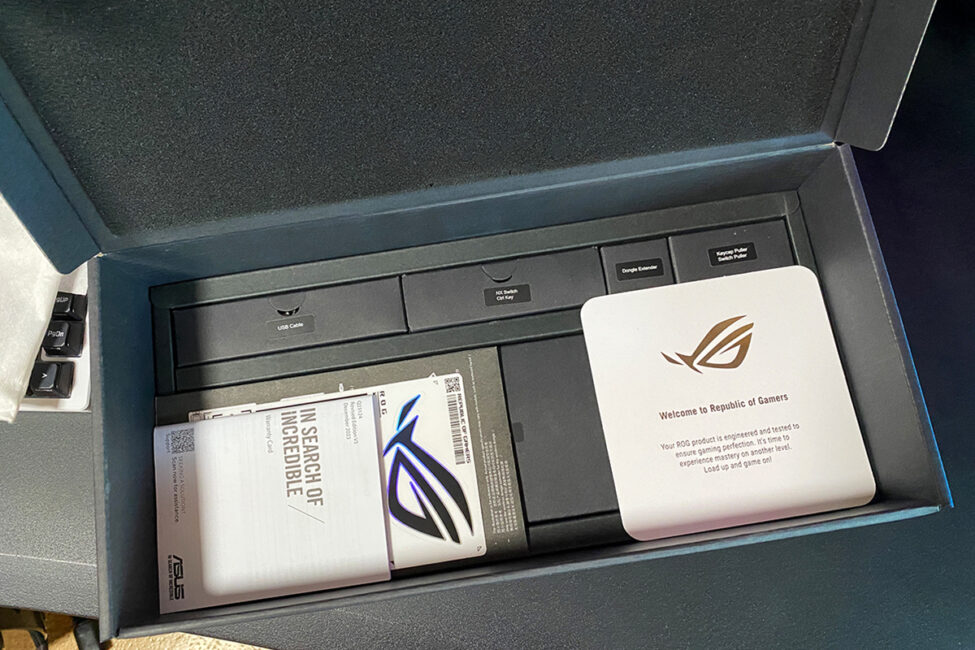
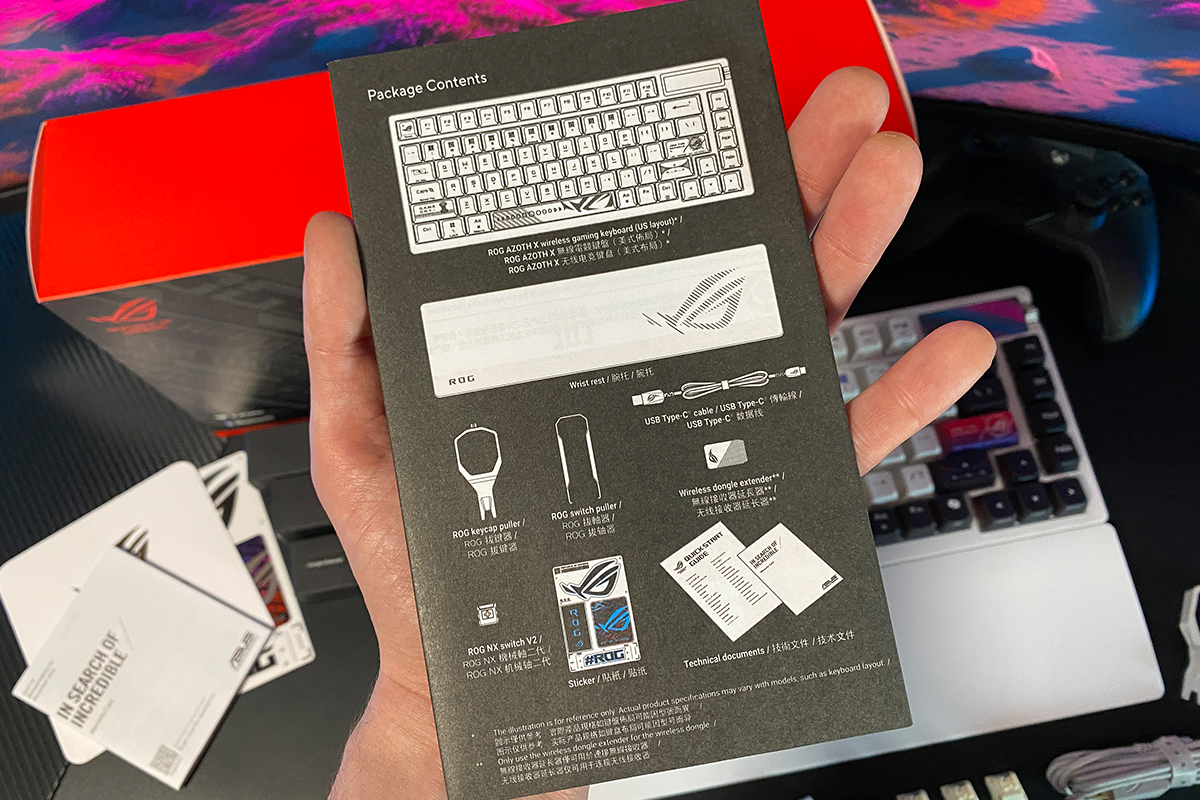
As for the included accessories, the bundle is noticeably more comprehensive than what came with the original ROG Azoth. In fact, it’s nearly identical to the more expensive ROG Azoth Extreme, with just a few exceptions I’ll touch on later. Here’s what comes in the box with the ROG Azoth X, in addition to the keyboard itself:
- wrist rest
- keycap puller
- switch puller
- alternative Ctrl key
- three spare switches
- 2.4 GHz RF wireless adapter
- USB-A to USB-C adapter
- detachable USB-A to USB-C cable
- ROG branded stickers
- Quick start guide
- Warranty booklet
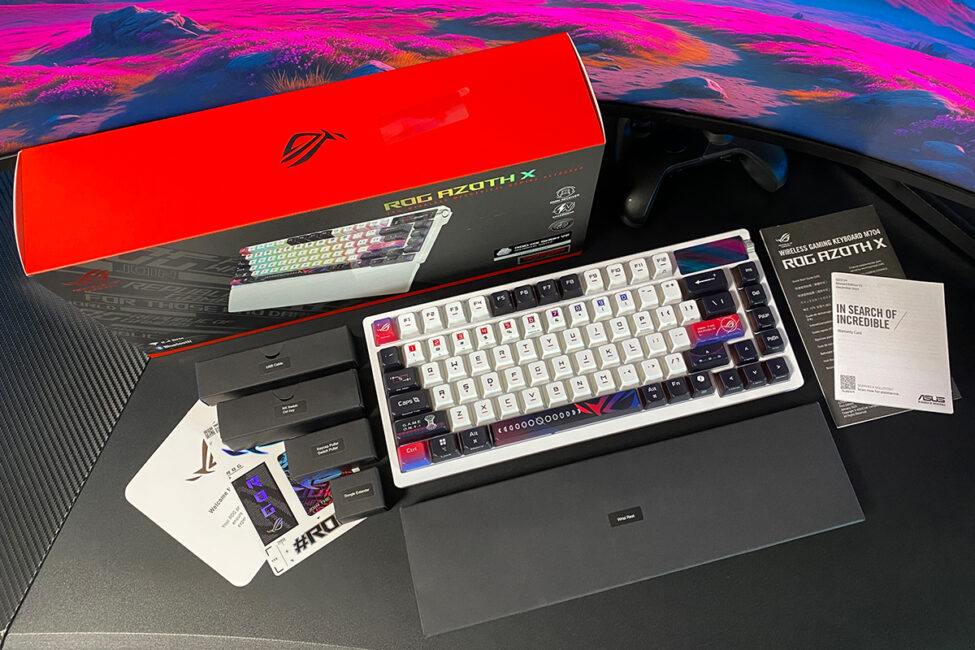
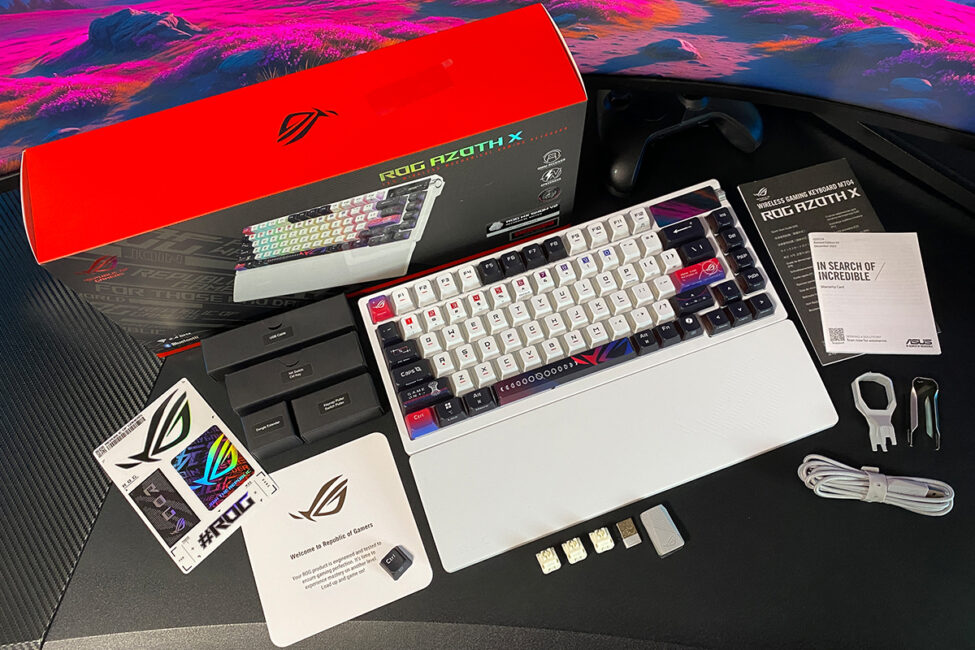
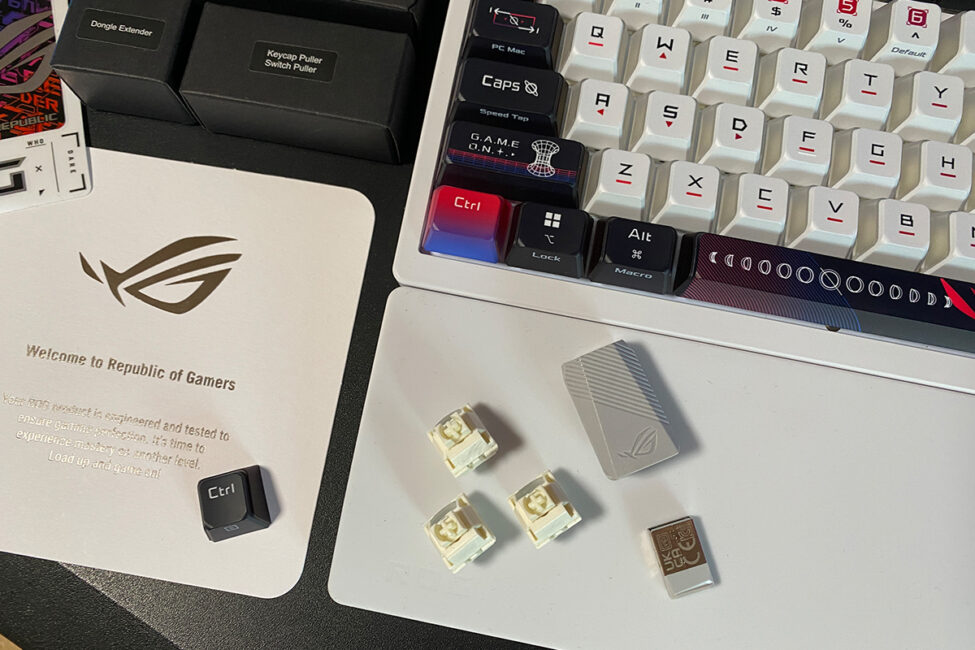
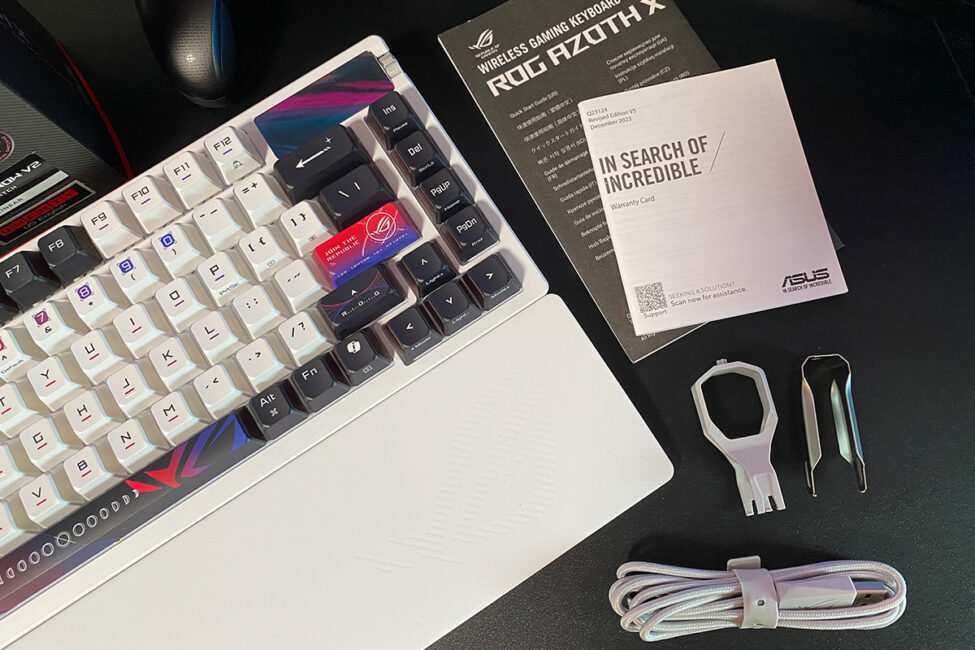
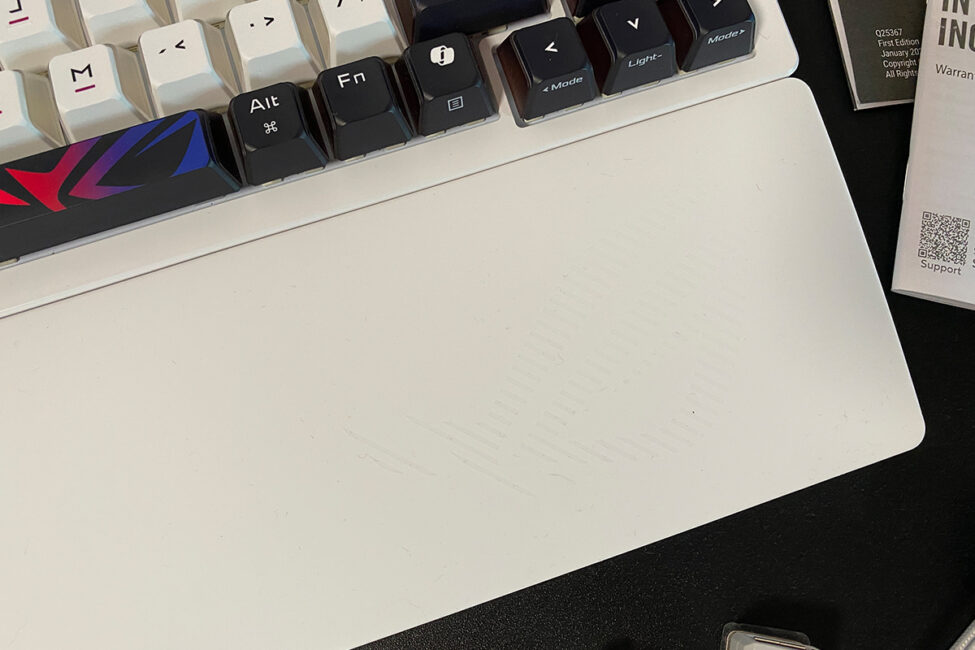
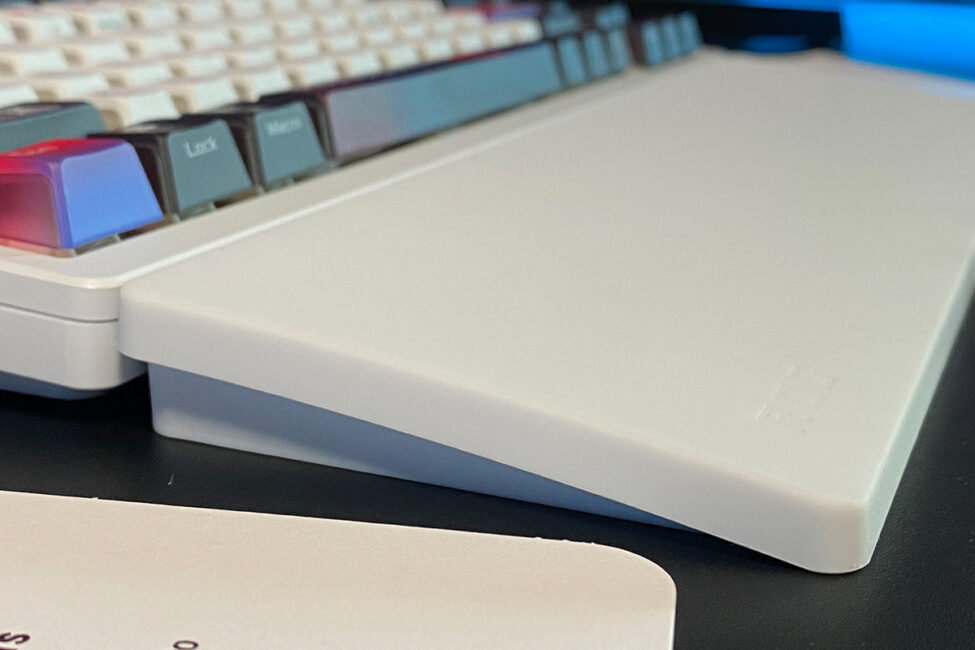
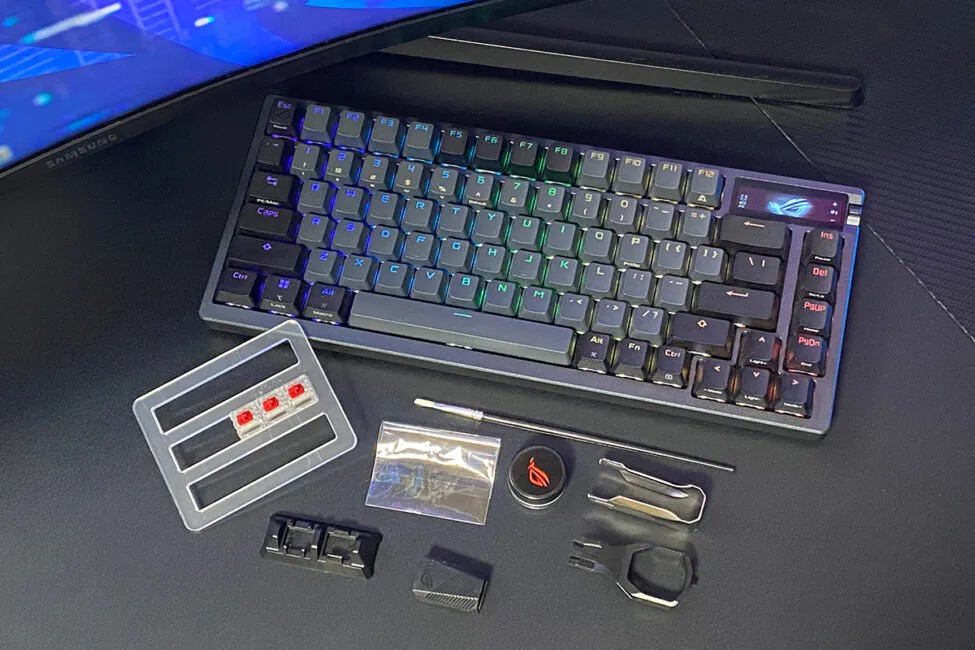
In my opinion, it’s an excellent accessory kit – let’s take a closer look at a few of the key items. The wrist rest is made of silicone, featuring the ROG logo on the right side and an interesting textured pattern on the underside. It’s soft, comfortable, and flexible enough to adapt to different desk surfaces without any issue. That said, the material has one notable downside – it attracts dust and small debris very easily, and cleaning it can be a bit of a hassle.
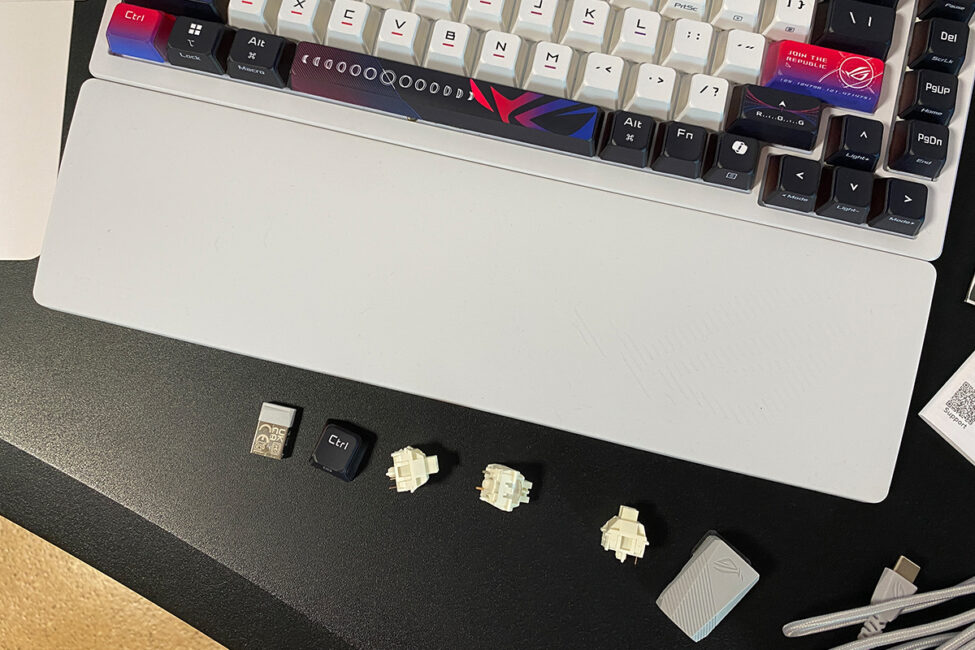
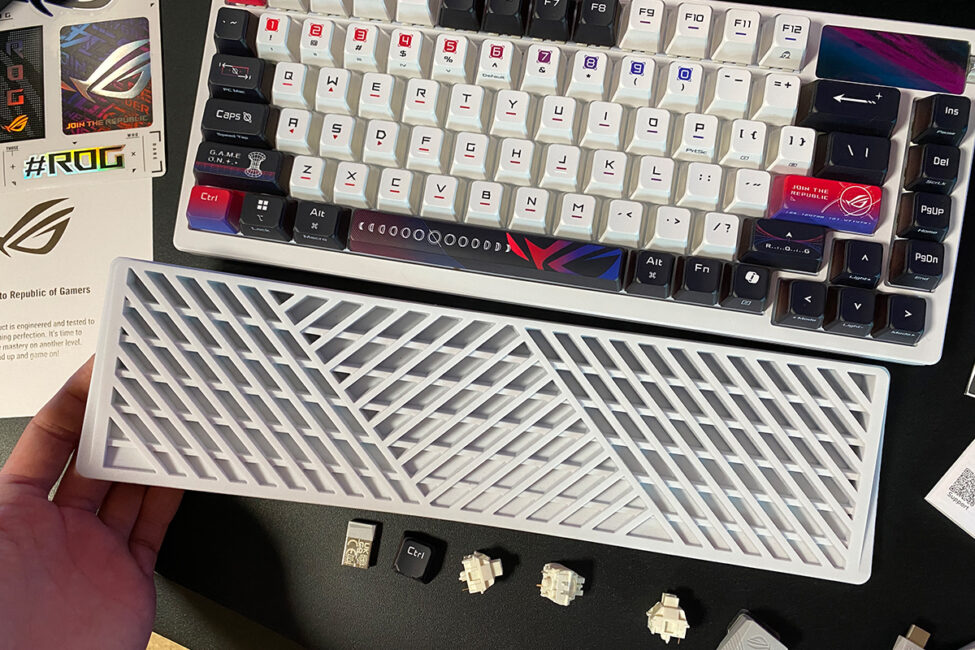
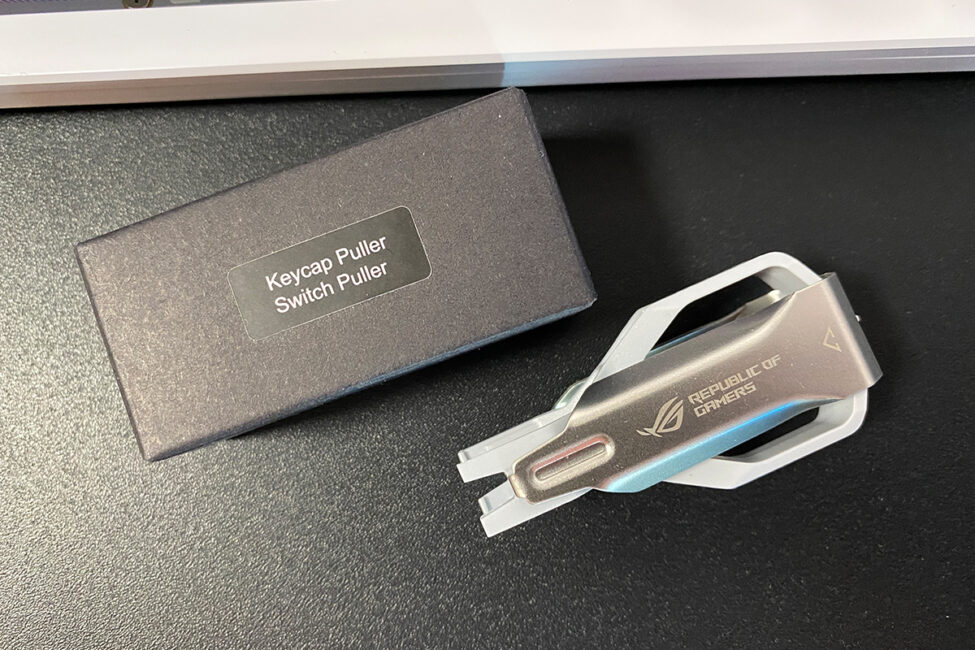
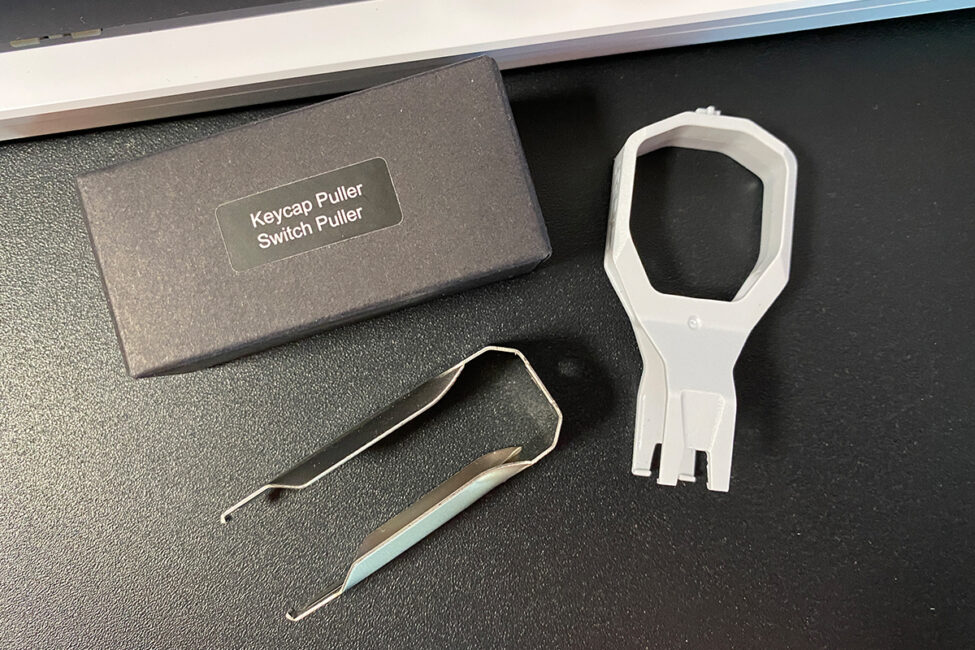
The keycap puller included in the kit is plastic. Personally, I’m not a fan of this type – I always worry about scratching the keycaps. That said, it does its job just fine and will get you through occasional use without much trouble. The switch puller, on the other hand, is metal, and there’s really nothing to complain about. It’s sturdy and makes removing switches from the sockets easy and straightforward.
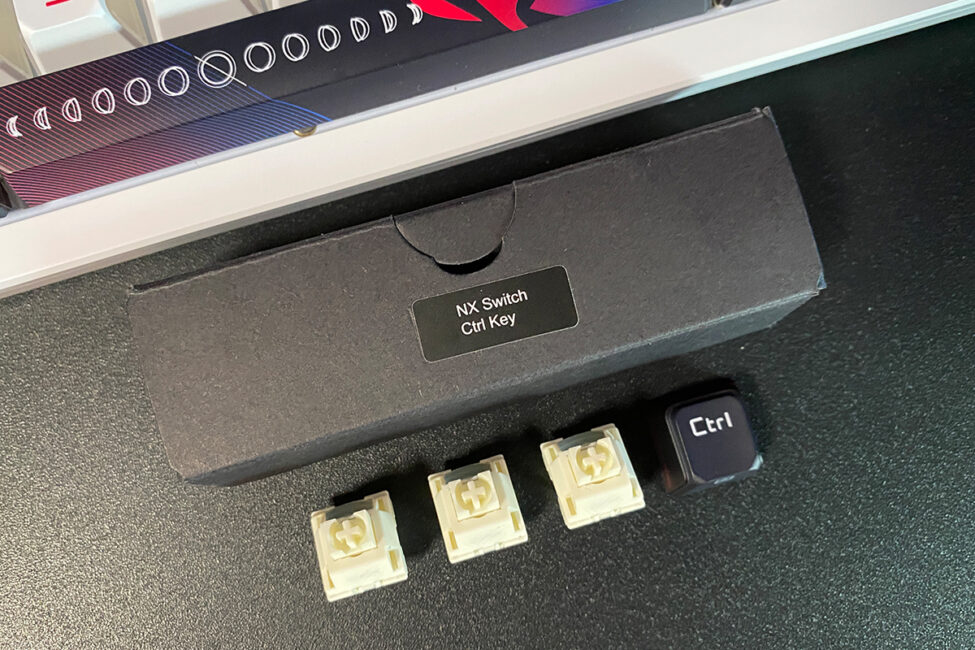
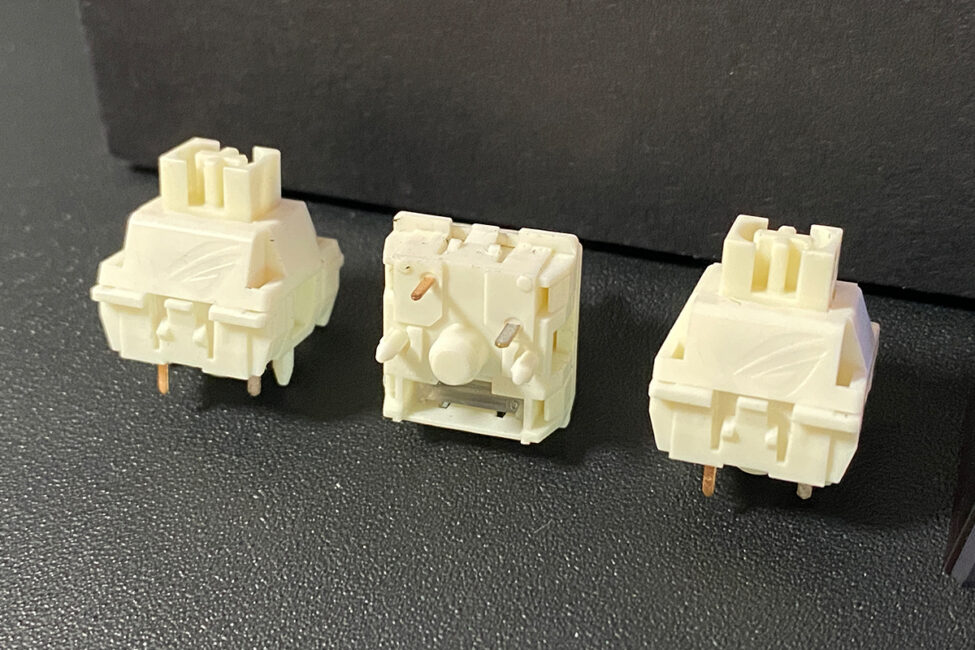
The alternative keycap for the right Ctrl is a standard one, while the default key out of the box features a Copilot icon – reflecting recent trends in software integration. The spare switches included are the same model used in the keyboard itself. In my unit, that means a few extra ROG NX Snow V2 mechanical switches – ASUS’s in-house linear option.
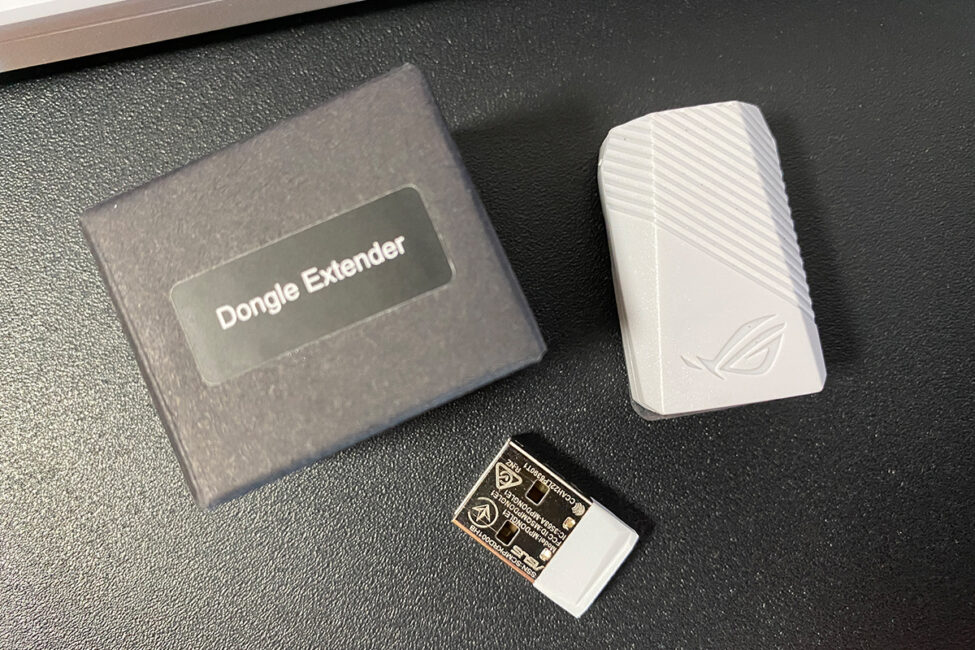
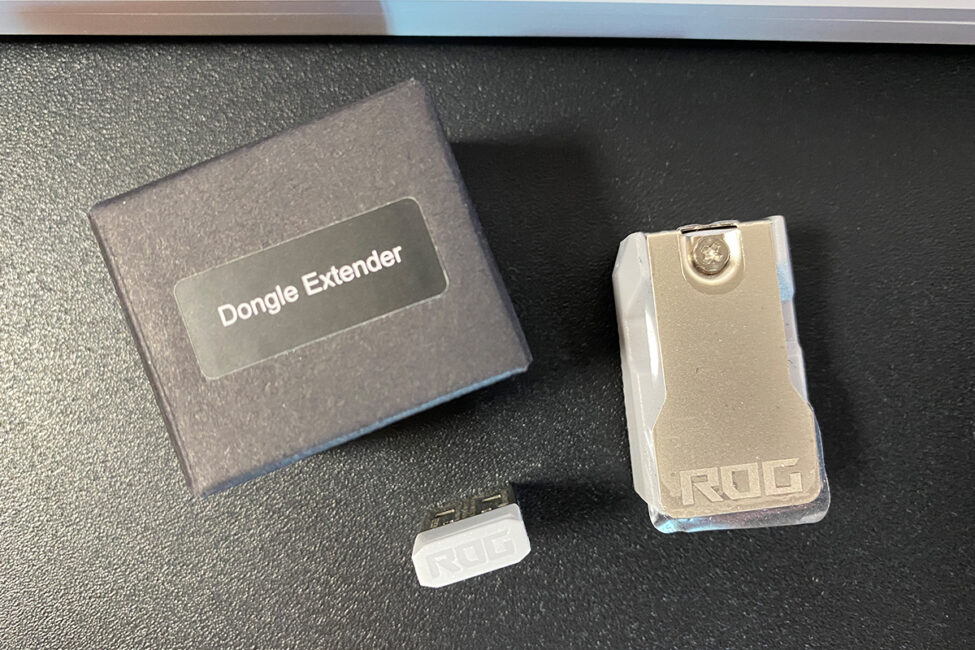
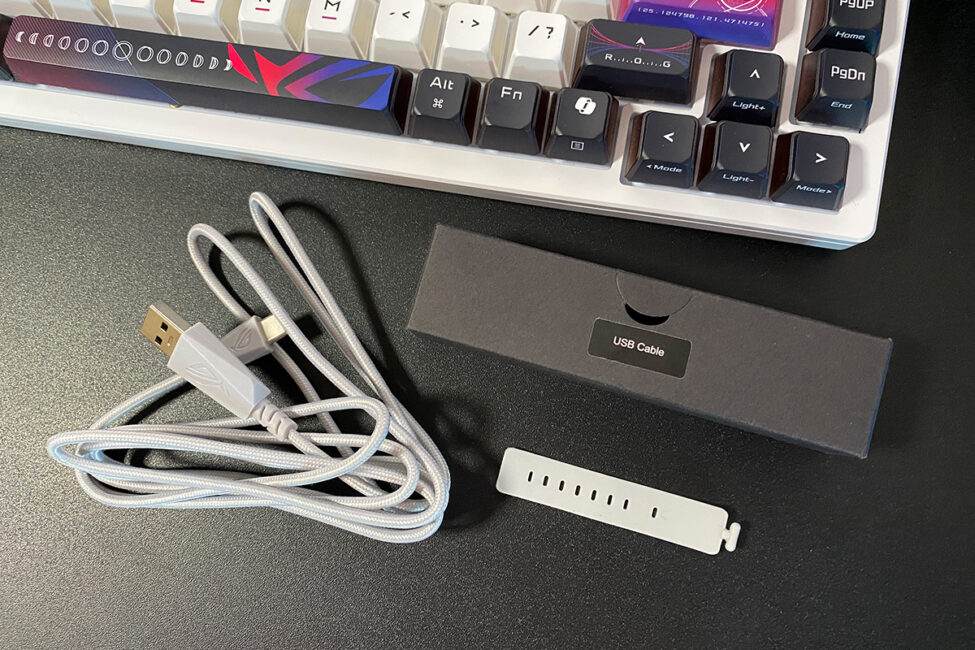
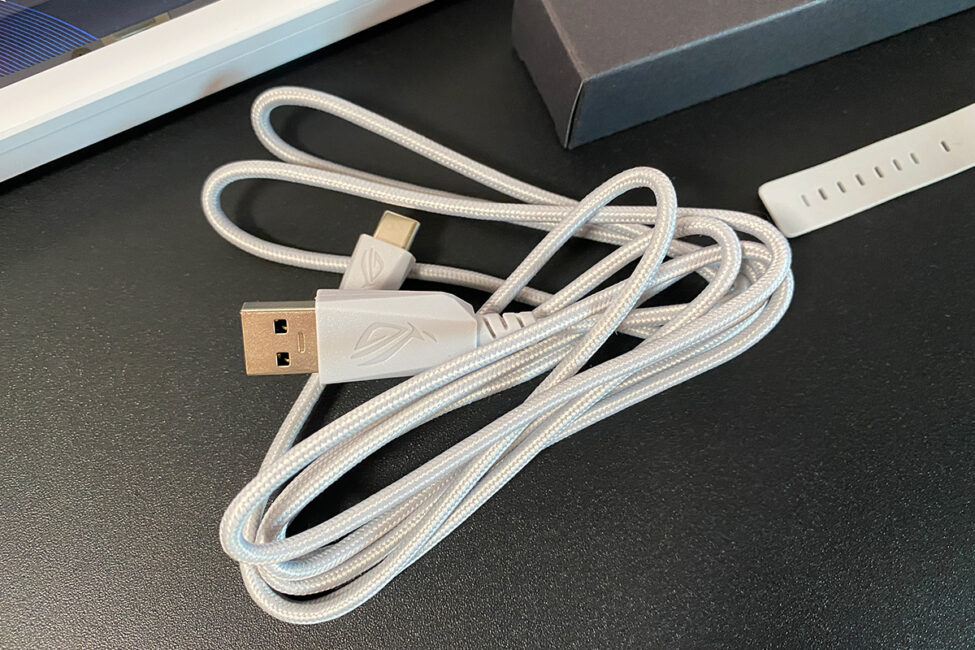
The USB-A to USB-C adapter is a standard inclusion – ASUS now bundles this with almost all their devices. The wireless adapter operates on 2.4 GHz RF and is ASUS’s proprietary ROG Omni Receiver, which supports not only the keyboard but other compatible peripherals as well. I’ll touch on this feature later in the review. The detachable USB-A to USB-C cable is two meters long and features a durable paracord-style braided sleeve with ROG branding on the connectors. It’s flexible and holds its shape well, making it convenient to use. The package also includes a strap for neatly managing and securing any excess cable length.
The included paper materials – promotional leaflets, user manual, and warranty information – are all fairly standard. There’s nothing unusual to note, so I won’t go into detail here. Instead, I’ll just show them in the photos below.




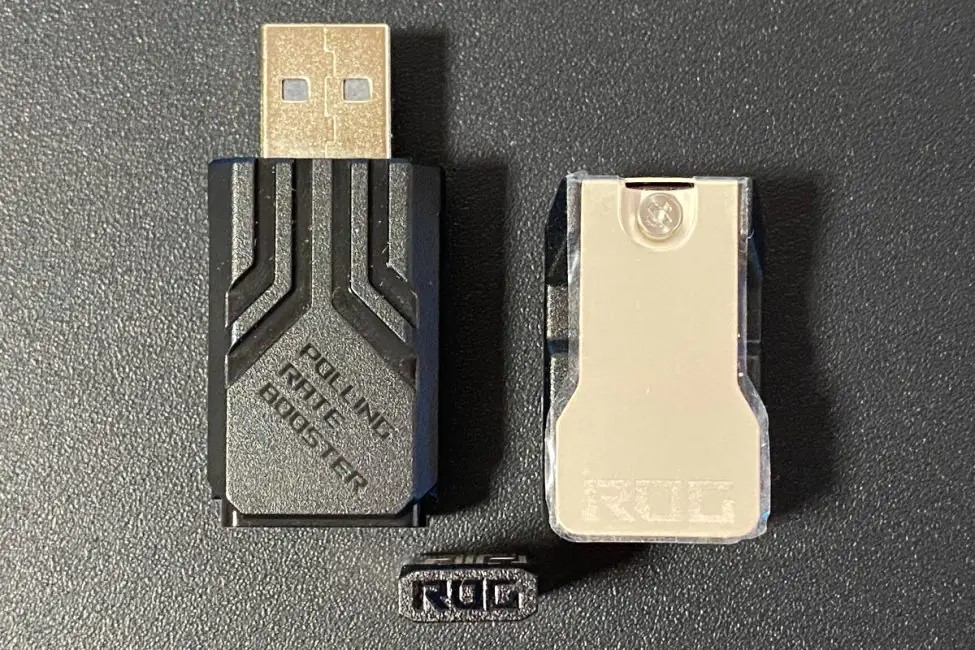
Like the ROG Azoth Extreme, the new keyboard supports an 8000 Hz polling rate. However, to operate at this frequency, it requires a special ROG Polling Rate Booster adapter, which isn’t included in the base package and is sold separately for $28 / €24. The Extreme model includes this adapter by default, which makes sense given its significantly higher price – almost double that of the Azoth X. The original ROG Azoth didn’t support 8000 Hz at all, so it’s not really comparable in this respect.
One final point worth mentioning is the absence of the lubrication kit that came with the original ROG Azoth. Notably, the top-tier Extreme version didn’t include it either, suggesting that ASUS may be phasing it out entirely. On one hand, it’s a bit disappointing since that kit added a unique touch to the original Azoth and the series as a whole. On the other hand, based on user feedback from first-generation Azoth owners, few actually used the kit, which might explain why it was dropped in later revisions.
Read also:
- ASUS ROG Strix G16 (2025) G615 Review: Almost a Flagship on Blackwell
- ASUS ROG Falchion Ace HFX review: Gaming Keyboard with Magnetic Switches
Design, ergonomics, build quality
The design of the ROG Azoth X largely follows the aesthetic of its predecessors. However, a closer look reveals that it’s stylistically closer to the original model in the series.


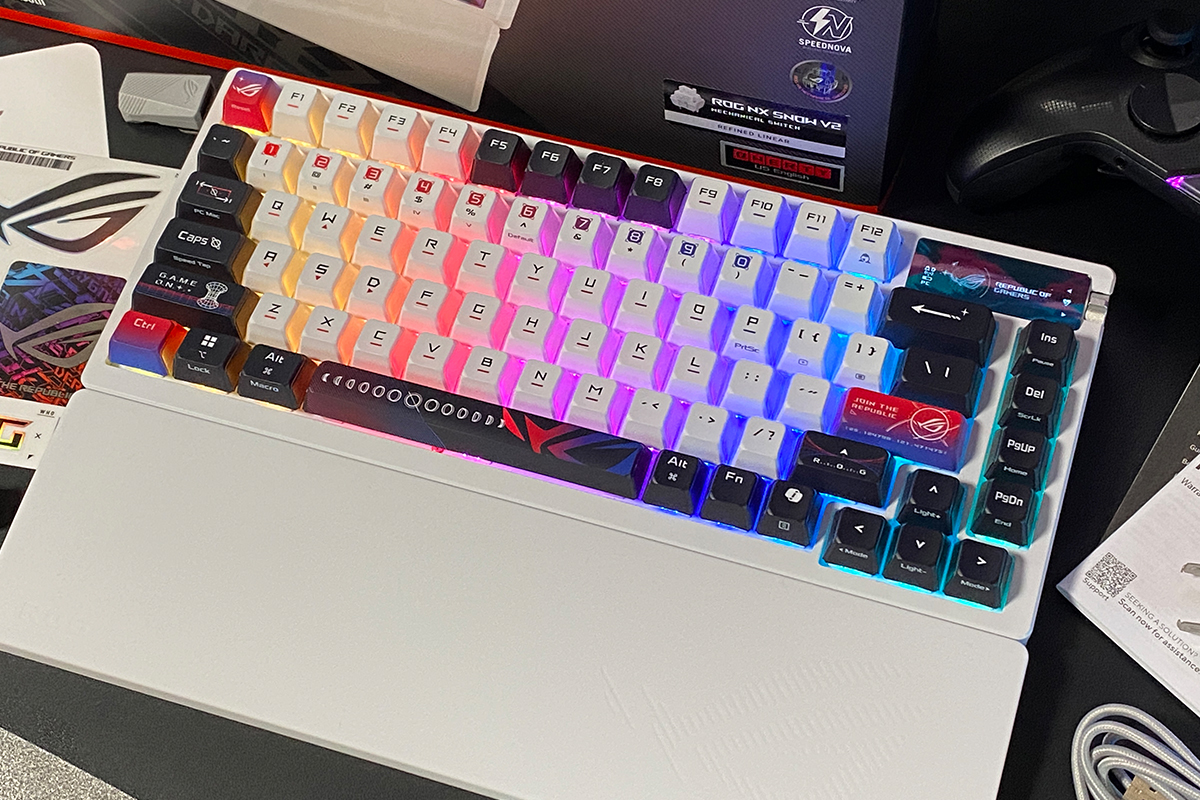
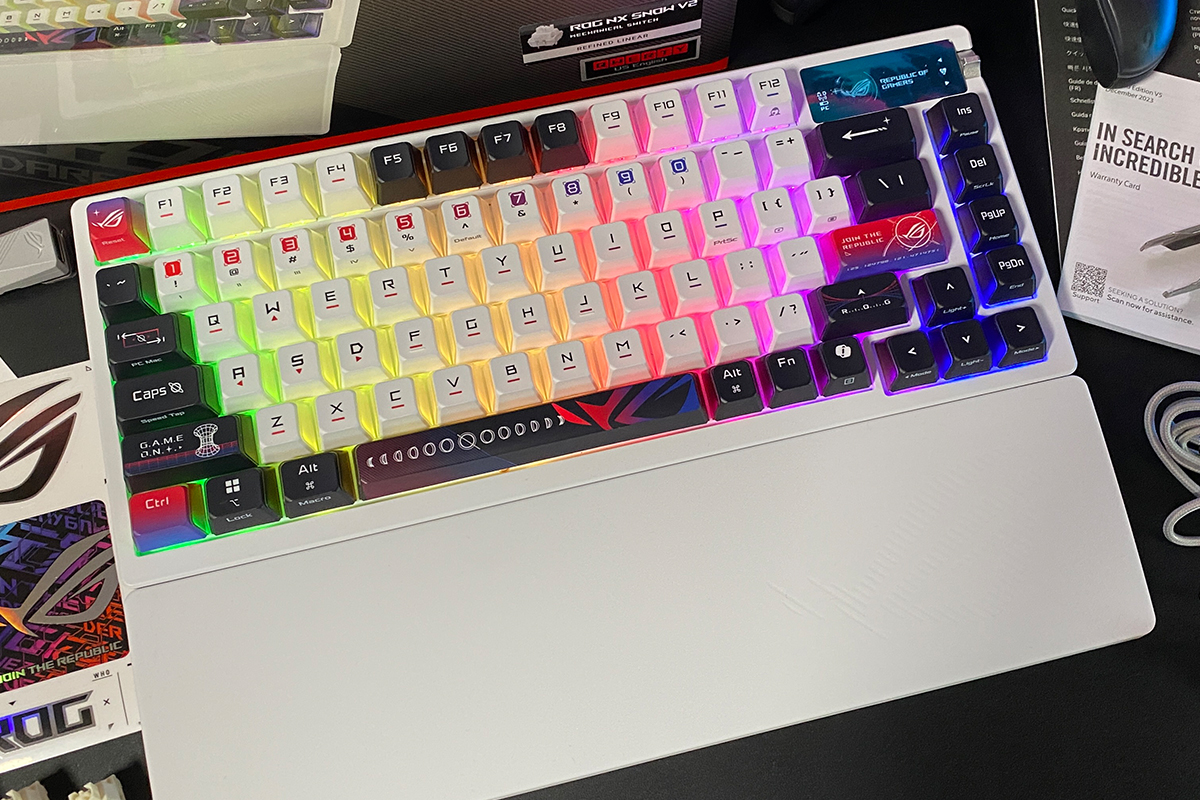
The original Azoth came in black (or dark gray) and white options. The Azoth Extreme featured its own unique carbon-fiber finish. Meanwhile, the ROG Azoth X is available exclusively in white, sporting distinctive pudding-style keycaps with a space-themed design.
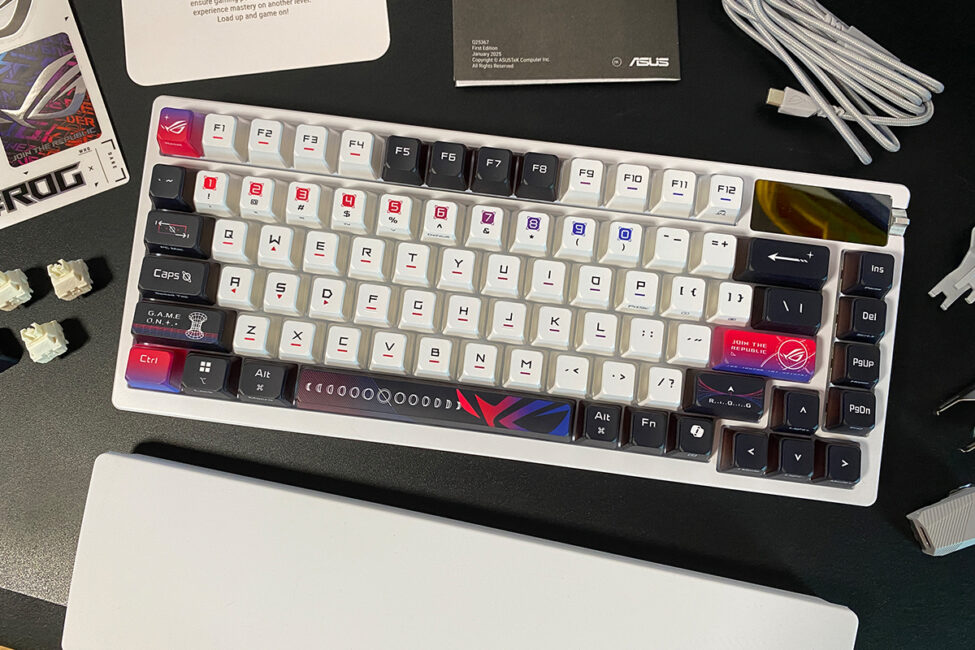
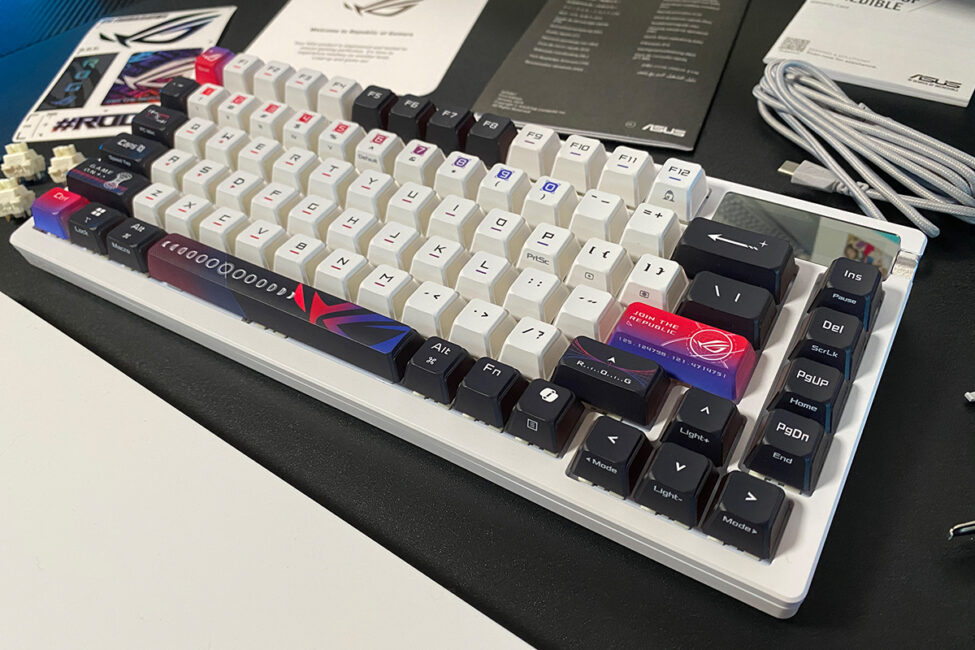
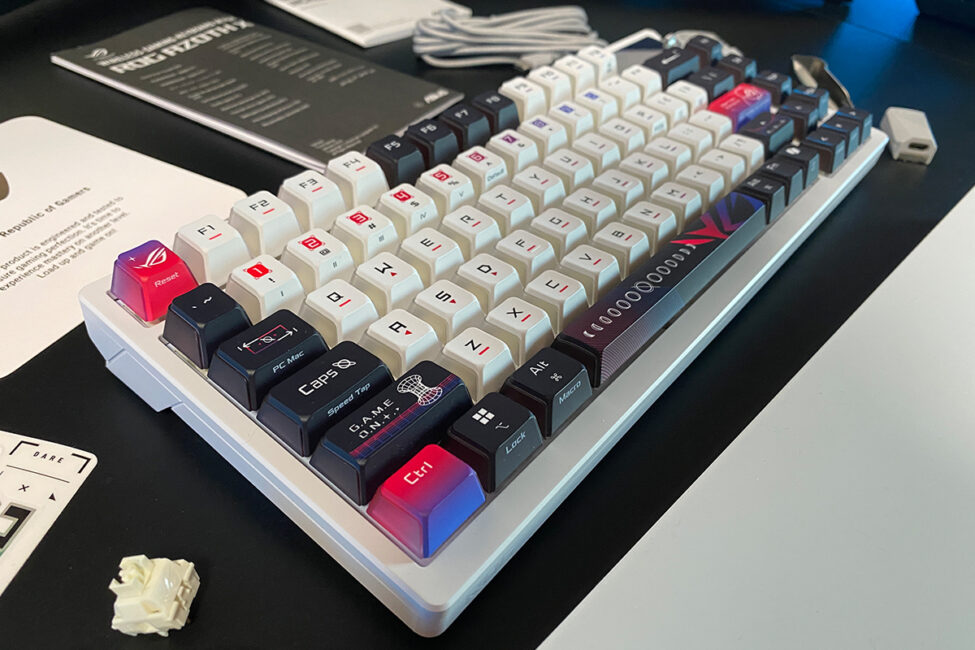
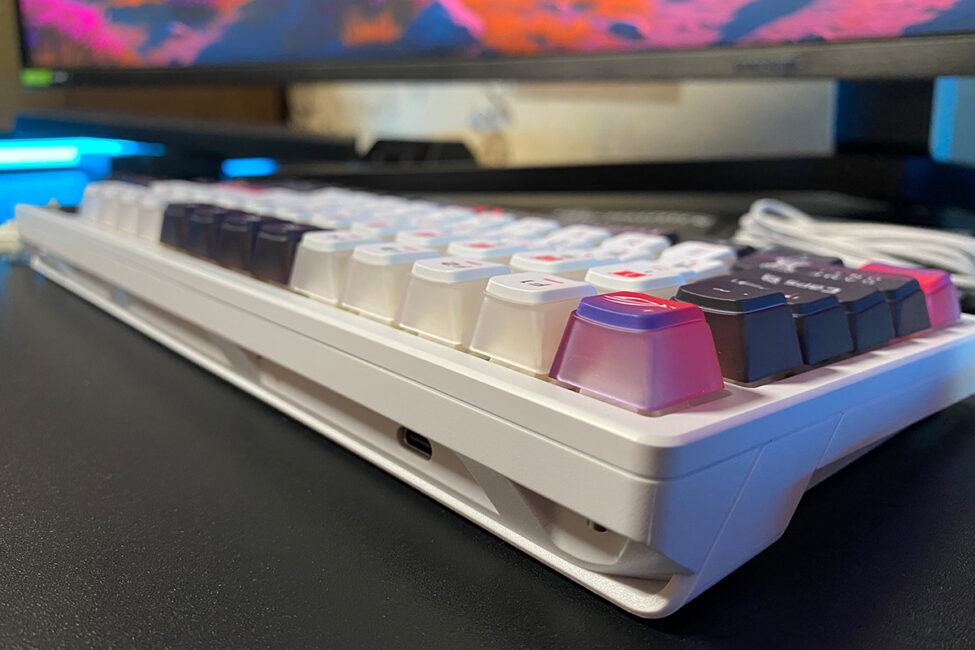
One of the key design highlights of the ROG Azoth X is its unique keycaps. I refer to them as “pudding” keycaps, though that’s a loose term – I’m not sure there’s a better way to describe them. ASUS simply calls them semi-transparent keycaps with sublimation printing, but conceptually, they’re closer to what the community typically calls pudding keycaps.
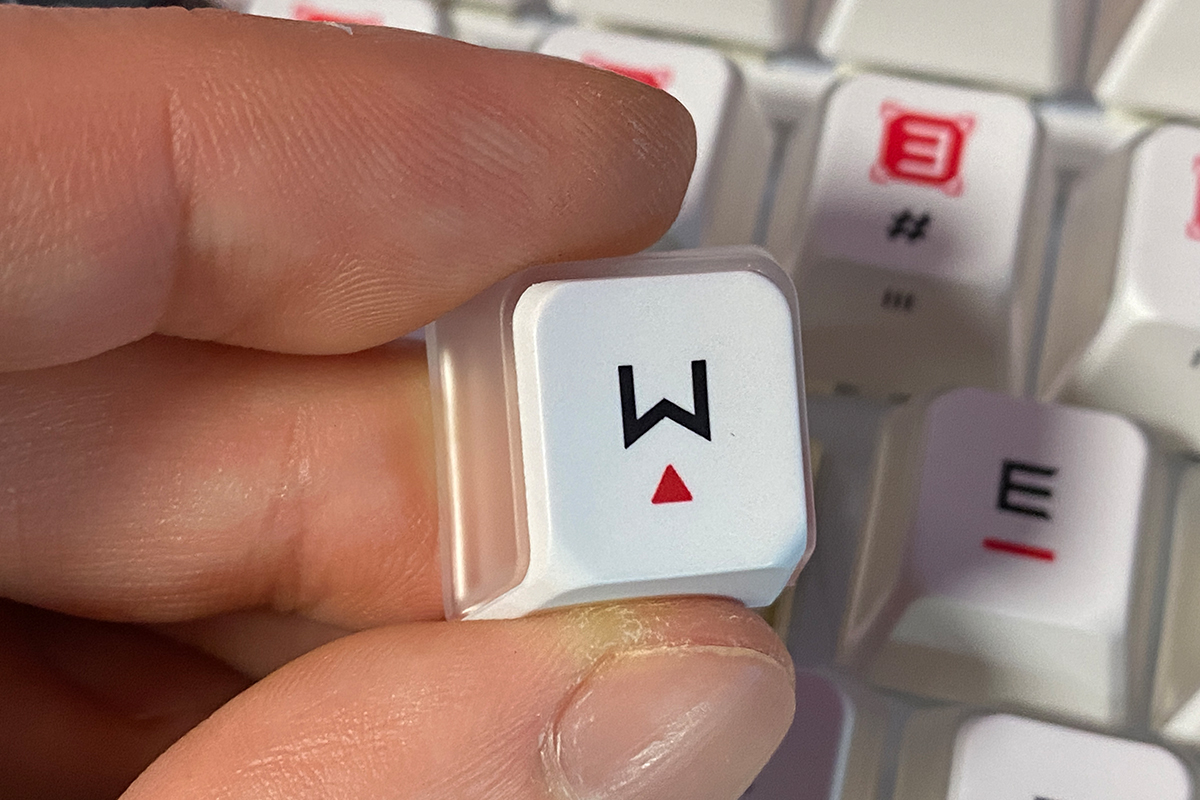
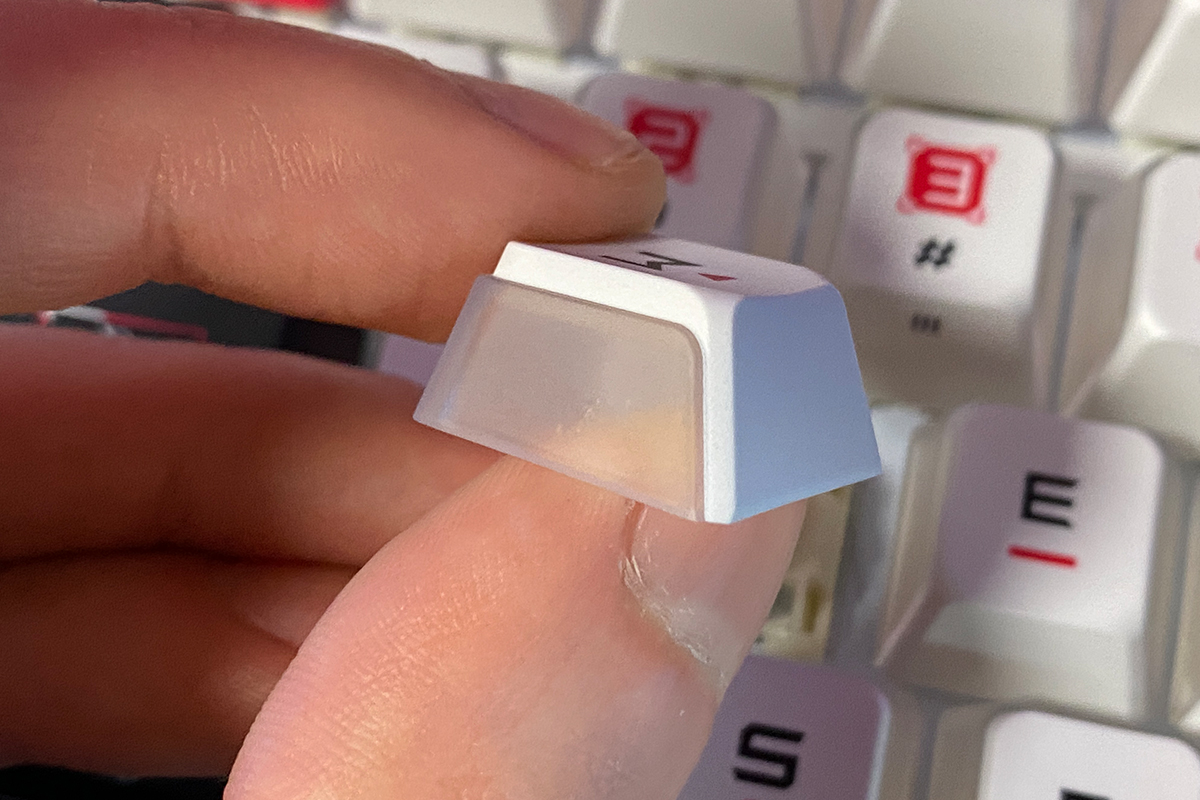

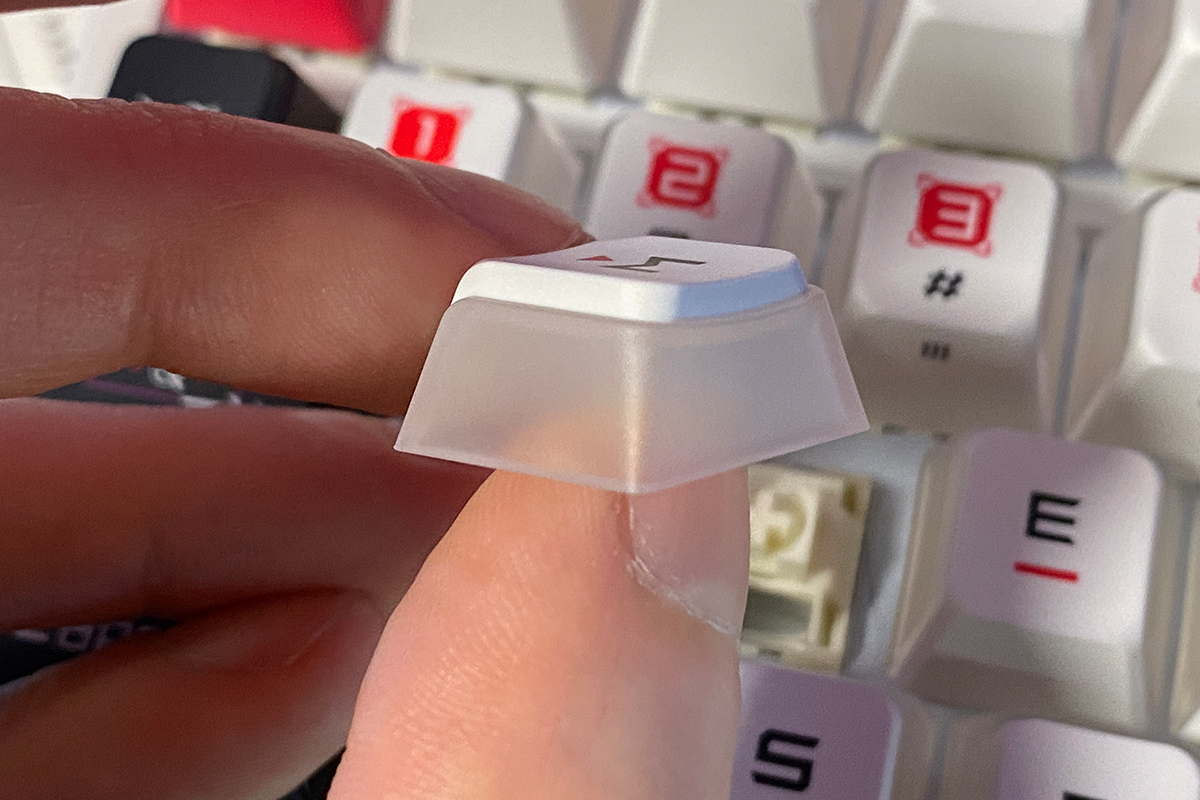

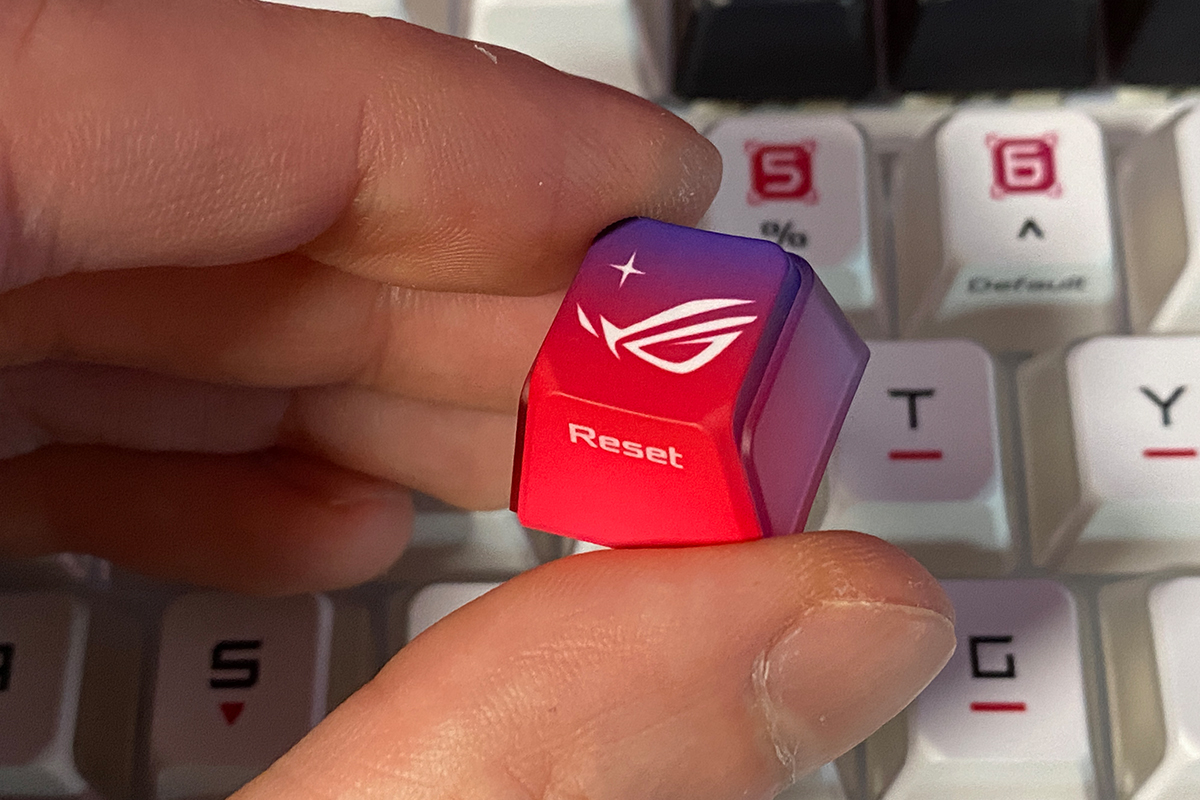

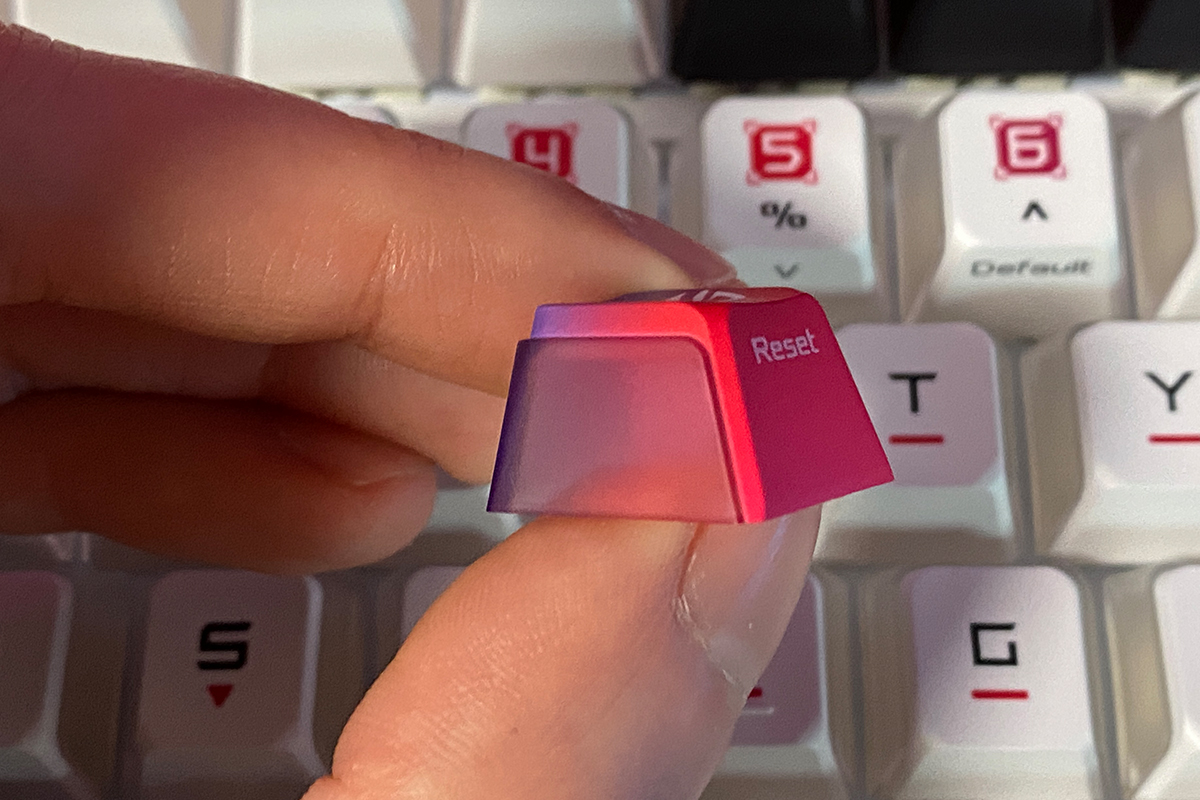


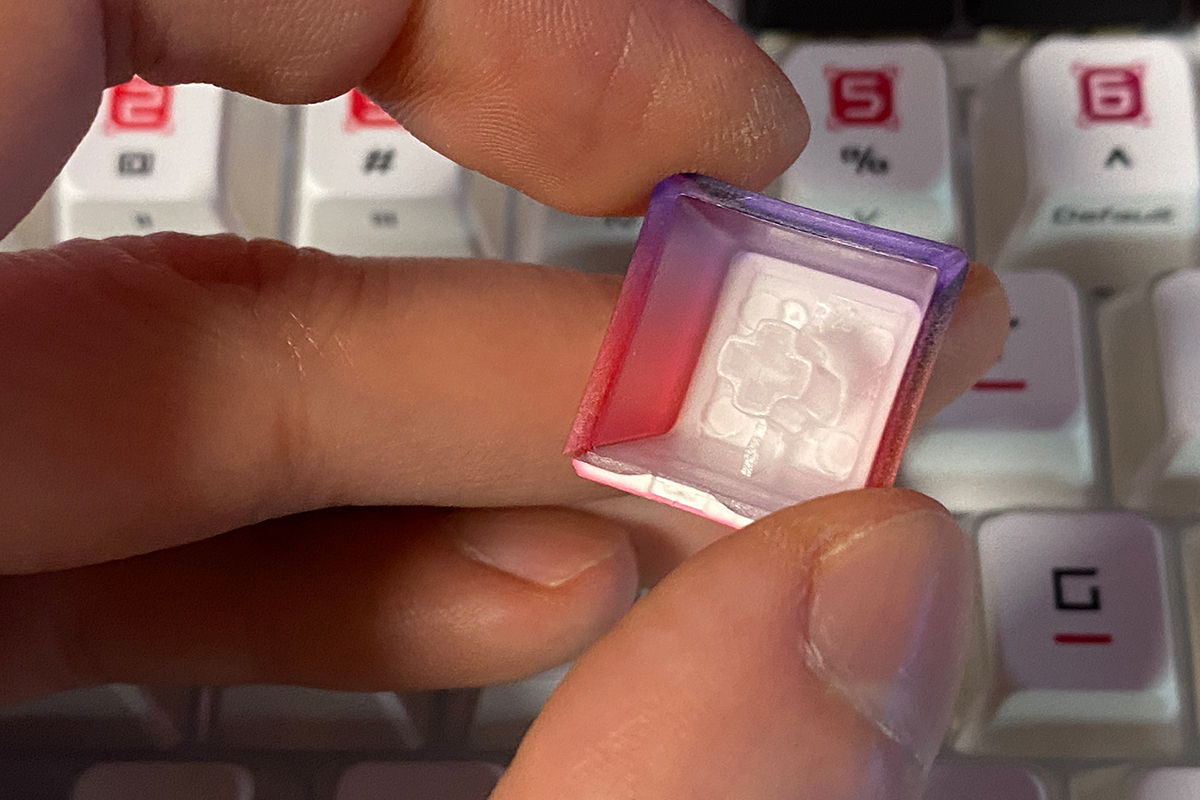



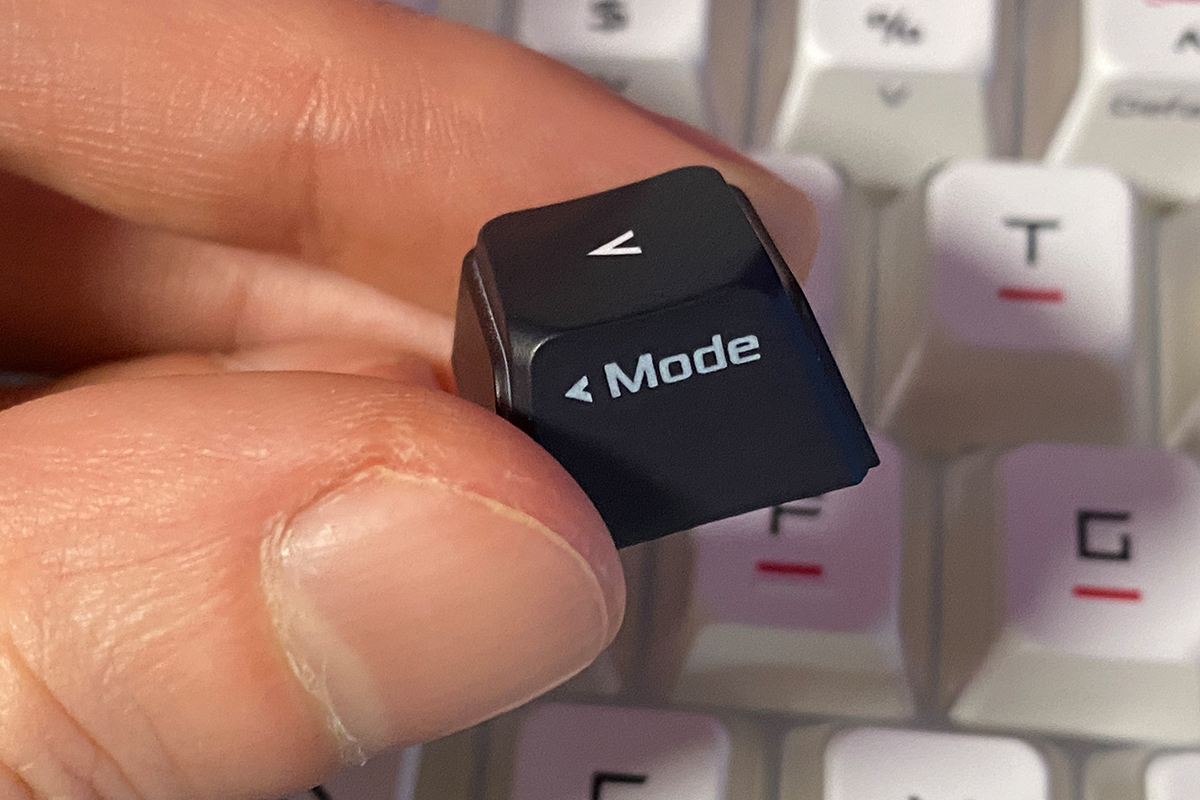
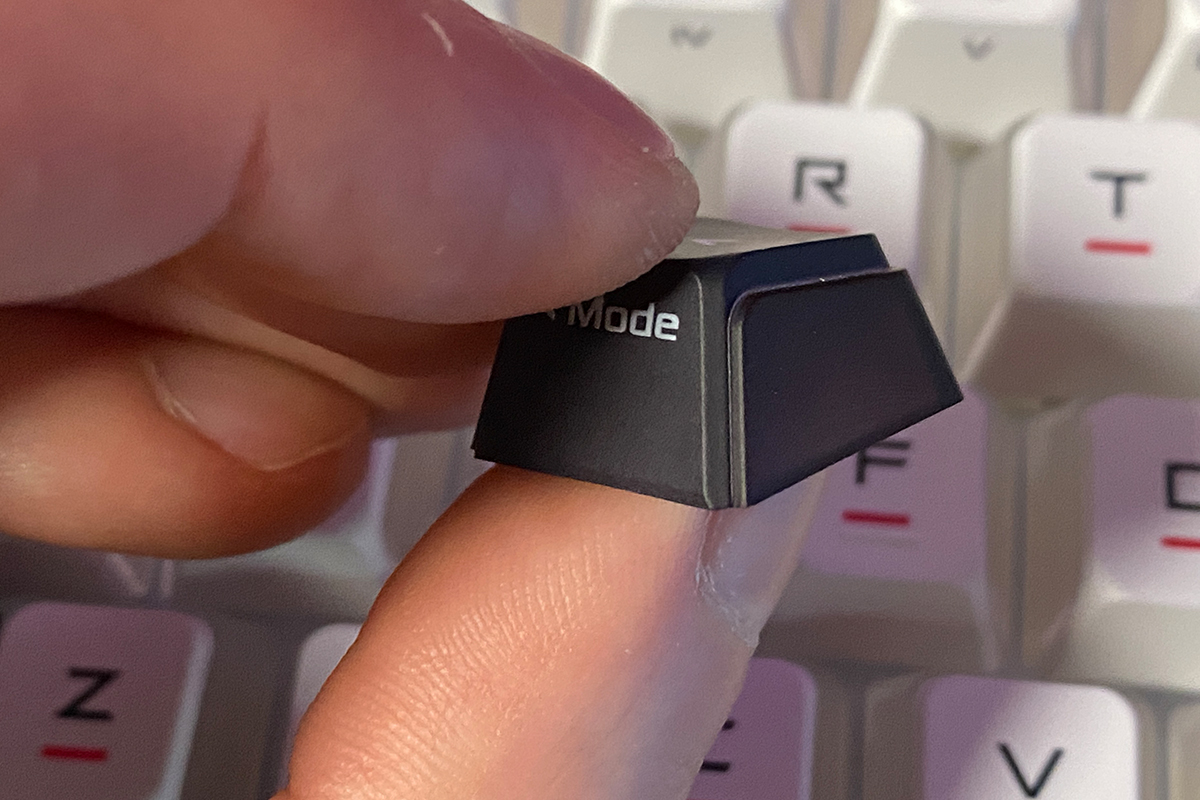
Honestly, this is the first time I’ve encountered keycaps like these on a keyboard. Paired with the space-themed print and ASUS’s signature lighting, they look impressive. I imagine many users would be interested in buying these keycaps separately for their collections. That said, looking ahead, these keycaps aren’t sold separately and likely won’t be in the future. Similarly, there won’t be versions with Russian or Ukrainian legends available either.


Like previous models in the series, the keyboard uses a 75% layout with an ANSI (QWERTY) key arrangement. Its dimensions remain largely unchanged at 325.4 × 136.2 × 40.0 mm. The keyboard, including the wrist rest, weighs 1.6 kg – about 400 grams heavier than the original Azoth but 600 grams lighter than the Azoth Extreme.
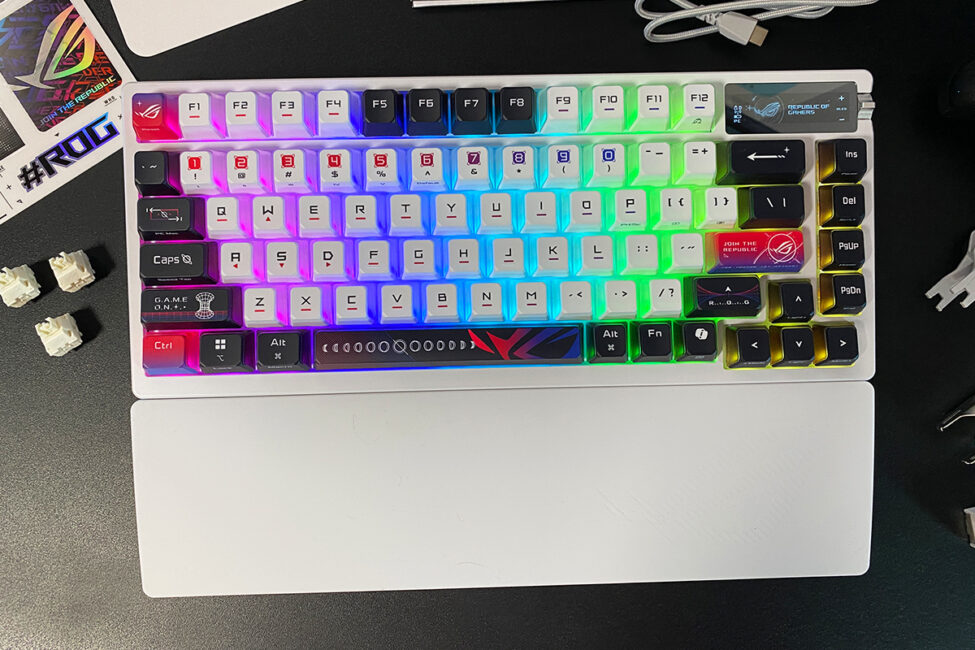
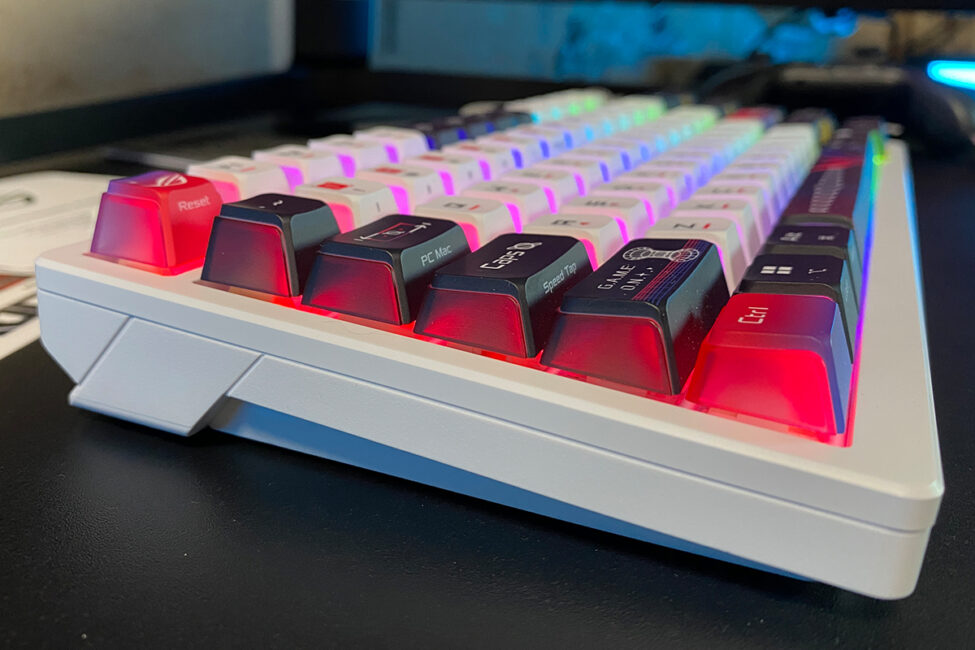
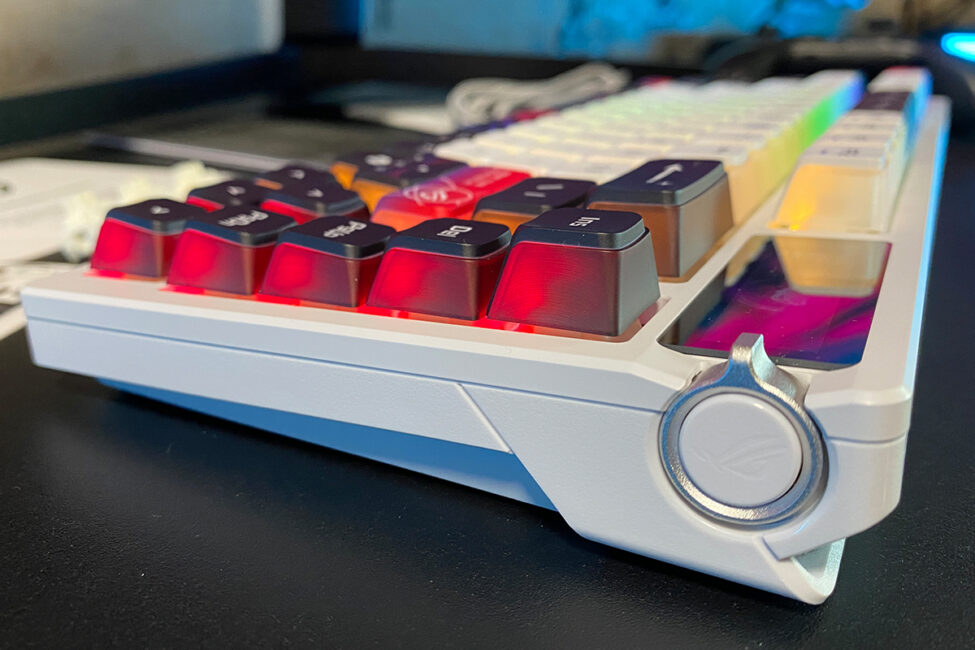
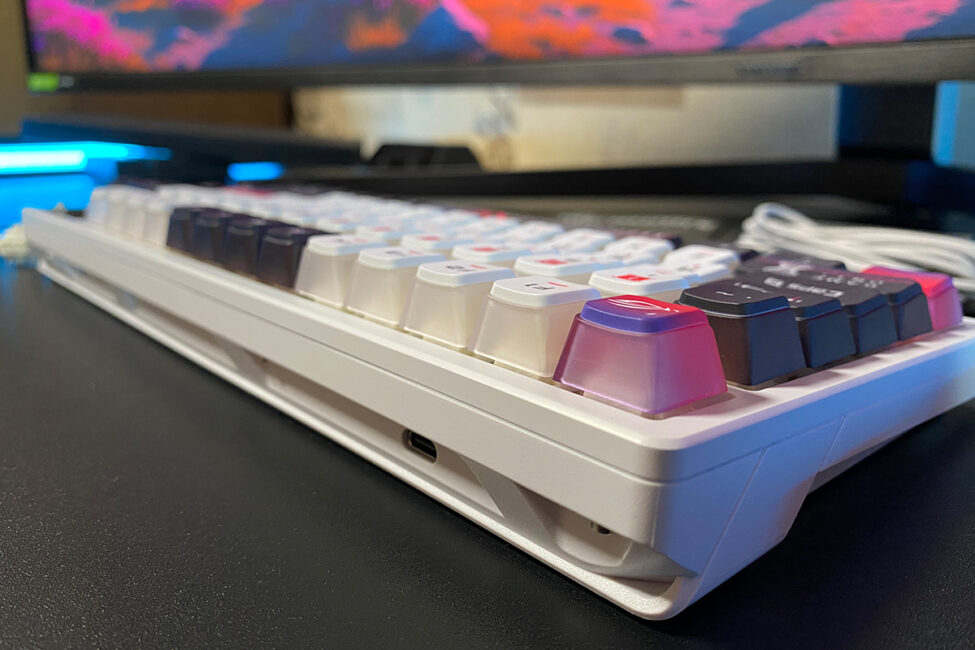
The keyboard’s body combines metal and high-quality plastic. The top case is made of aluminum and machined using CNC equipment, while the bottom shell is constructed from plastic.
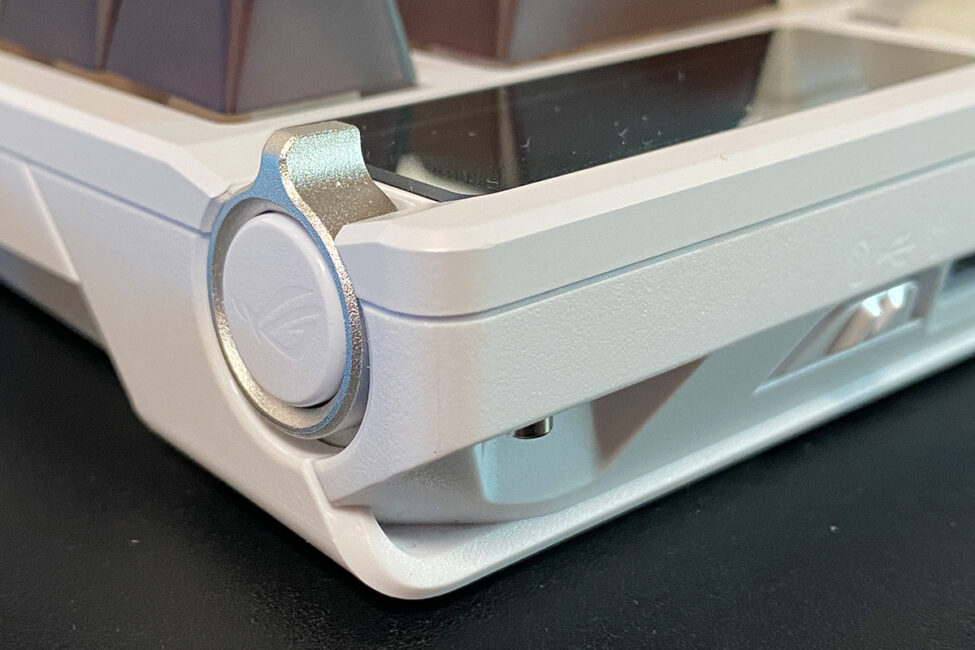
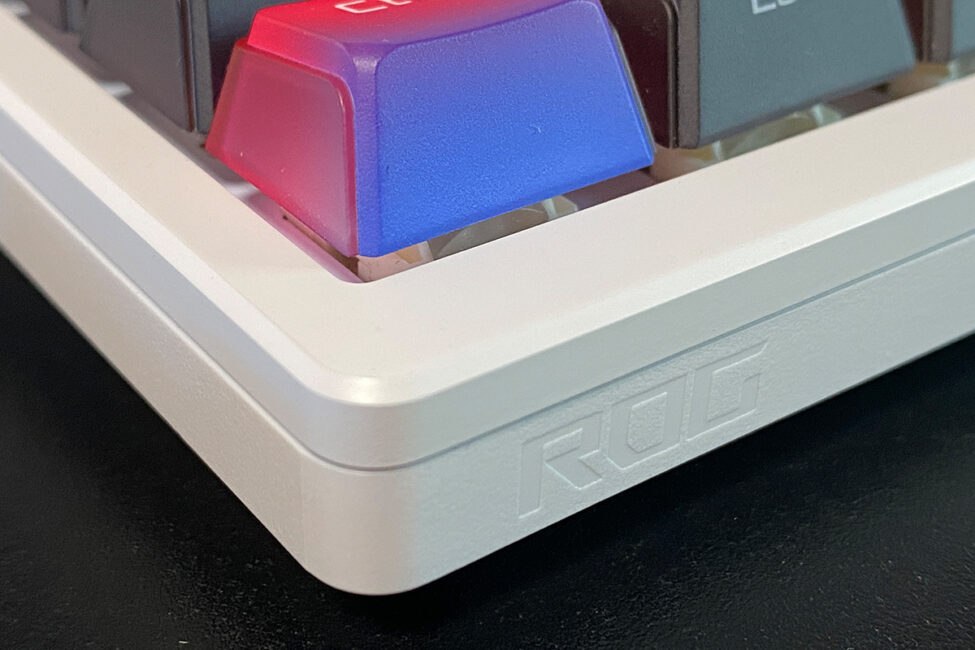
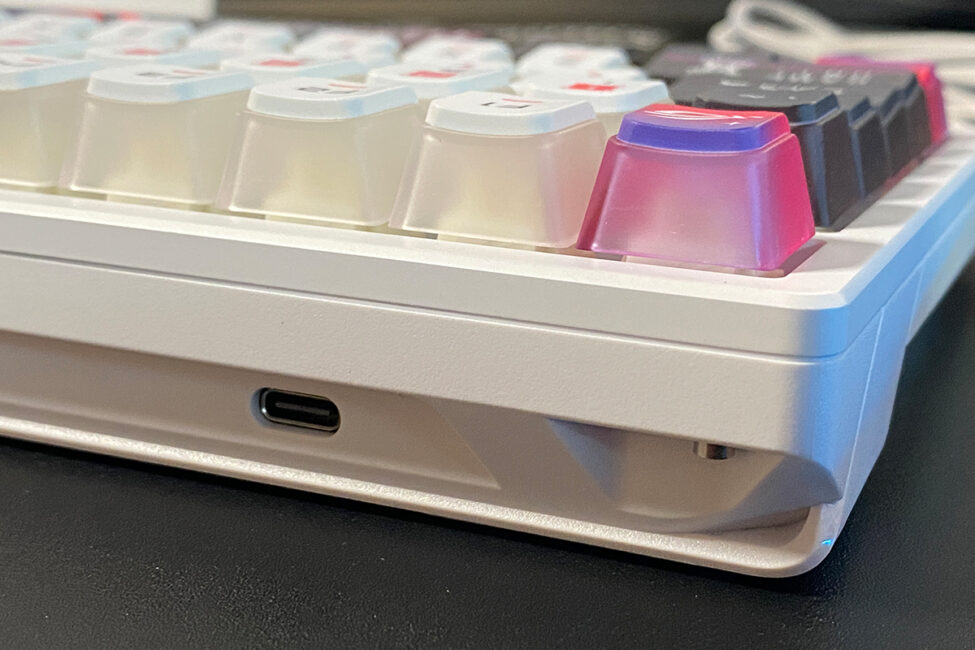
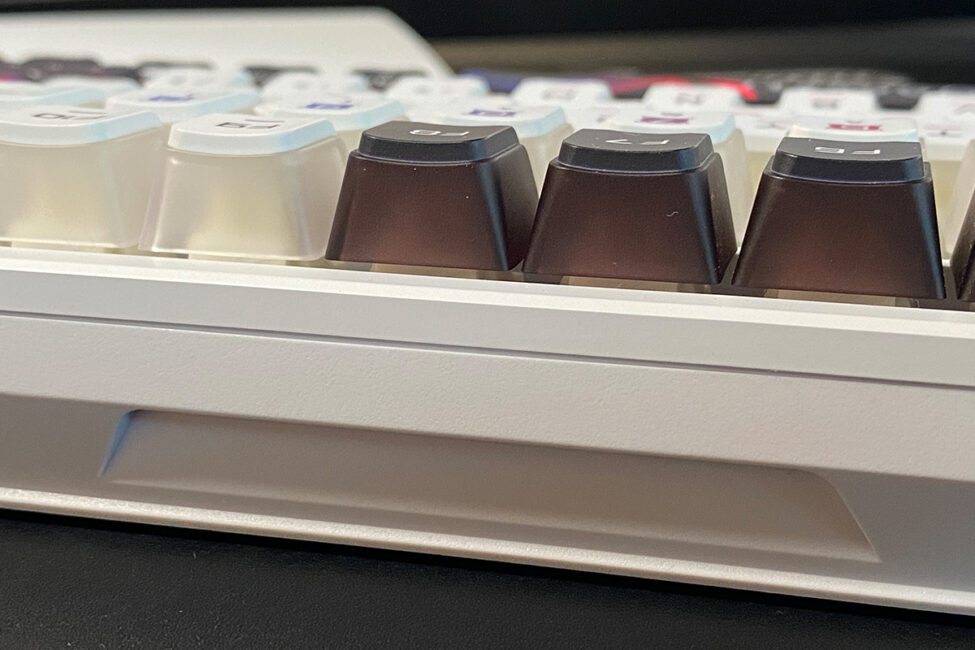
Inside, the keyboard features a solid gasket mount design, complete with multiple layers of padding, sound insulation, and dampening materials to enhance typing comfort and reduce noise. One notable element is a specially designed FR4 positioning plate, which strikes a balance between flexibility and rigidity to further suppress sound. I won’t list all the layers in detail here, but I’ll include clear visuals in the screenshots below for reference.
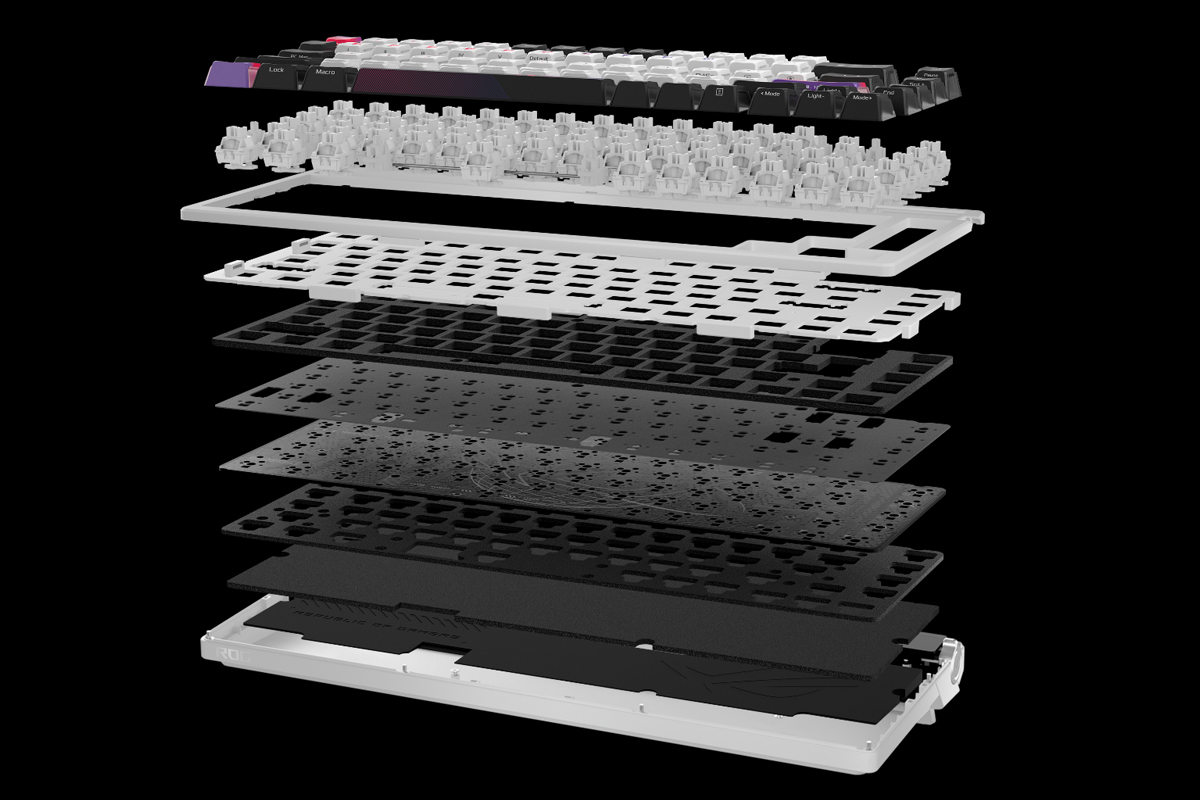


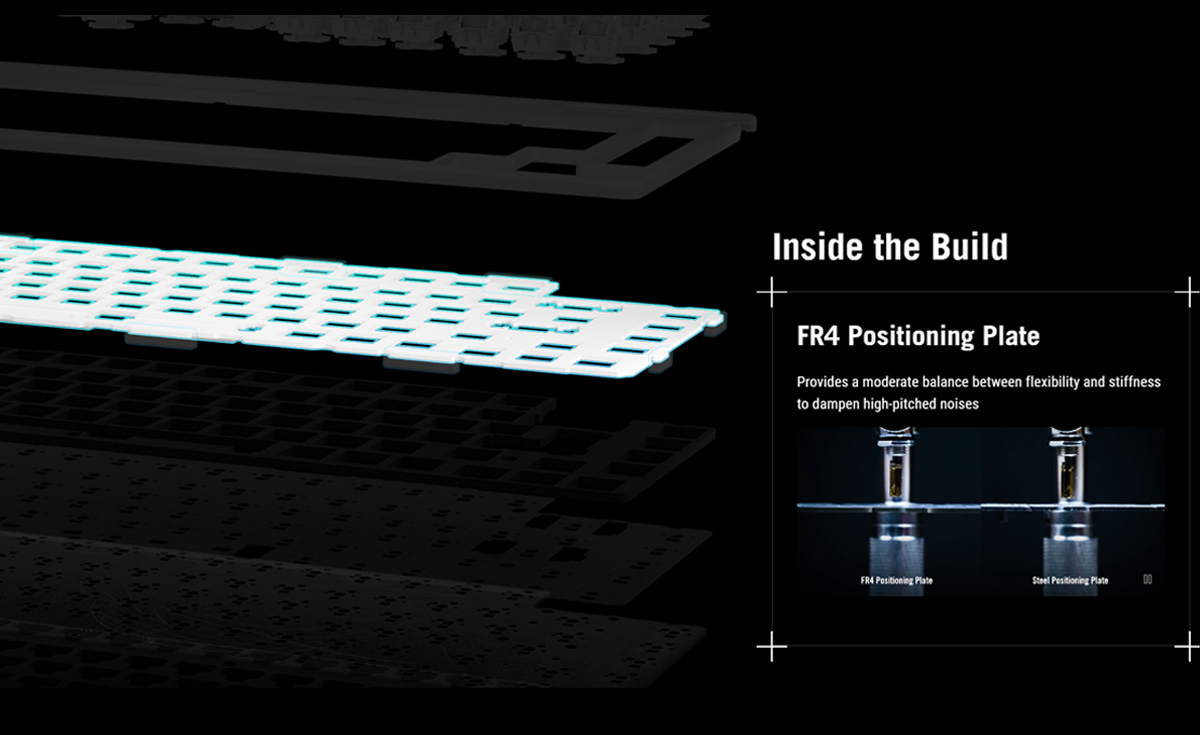
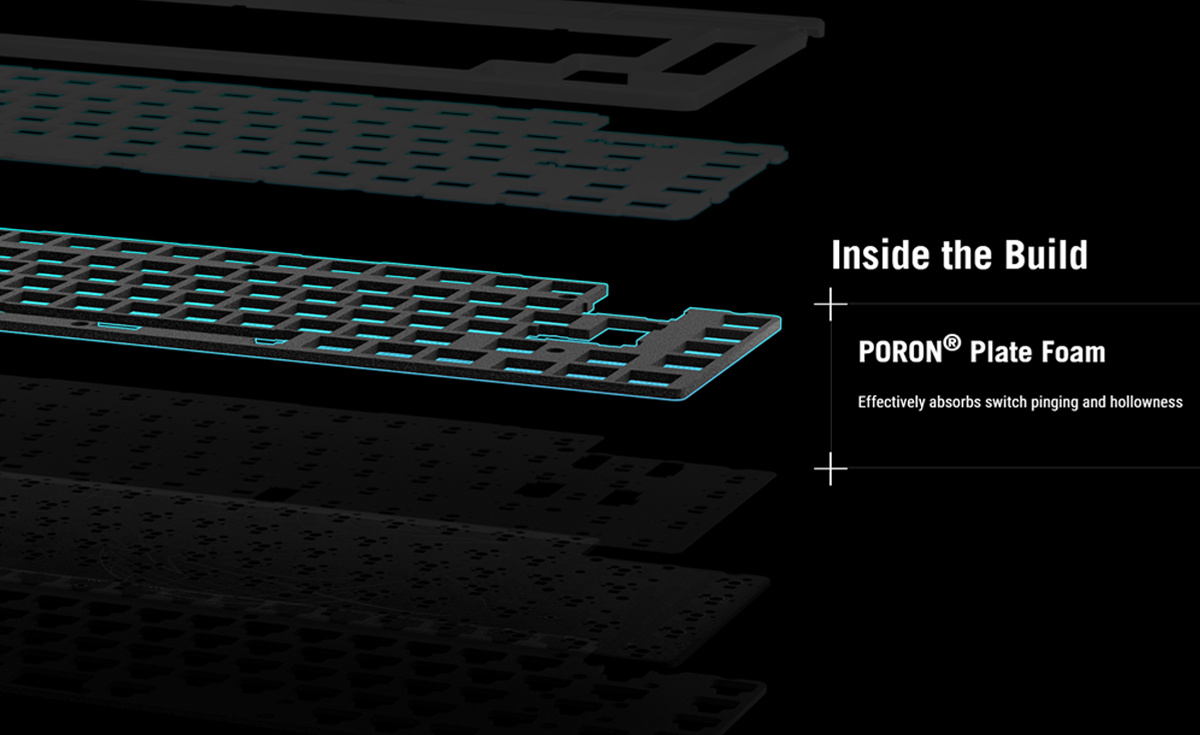


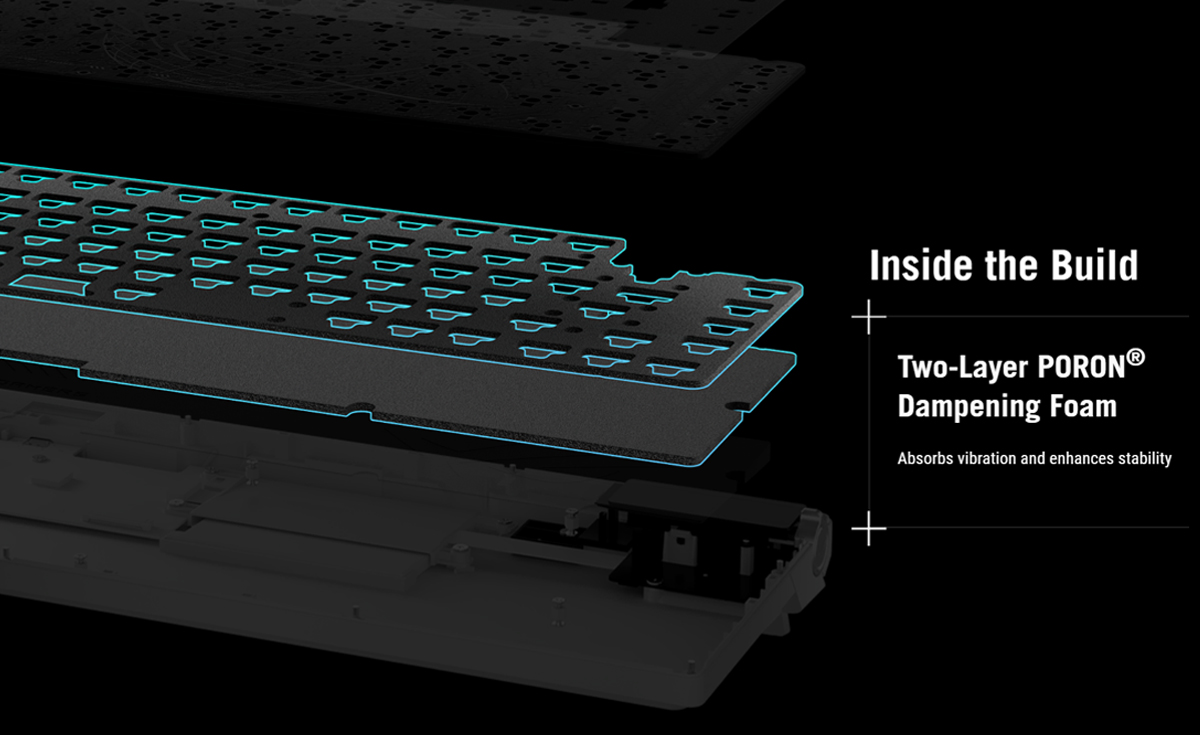

Like its predecessors, the ROG Azoth X features a built-in OLED display and a three-position switch with a side button. The display can show system status, parameter indicators, and various animations. The switch and button allow you to control keyboard settings such as lighting, volume, and profiles. I’ll cover the display and controls in more detail in a dedicated section. For now, let’s continue looking at the keyboard’s overall design.
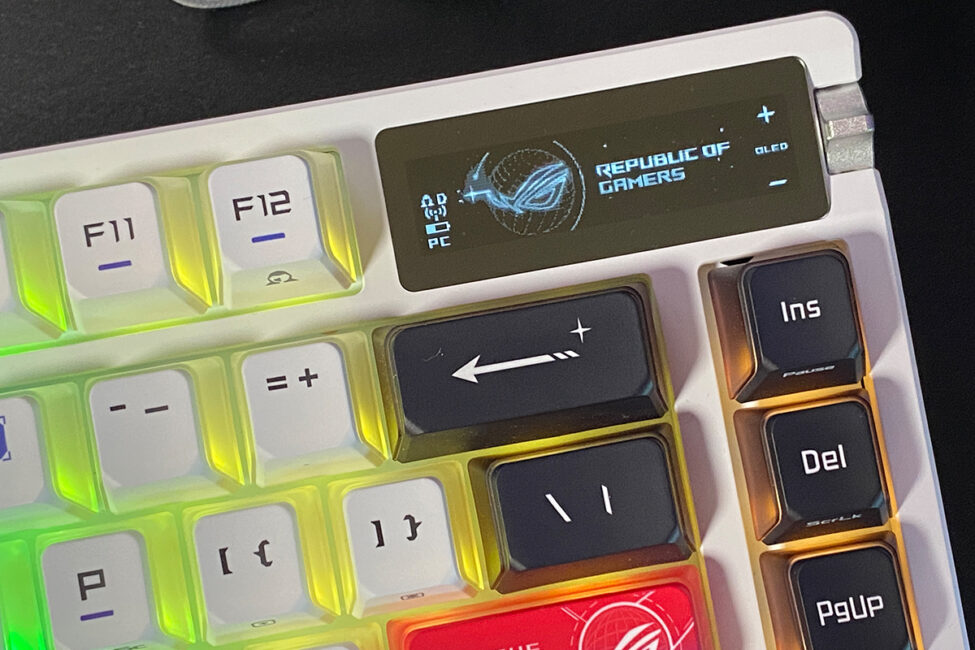
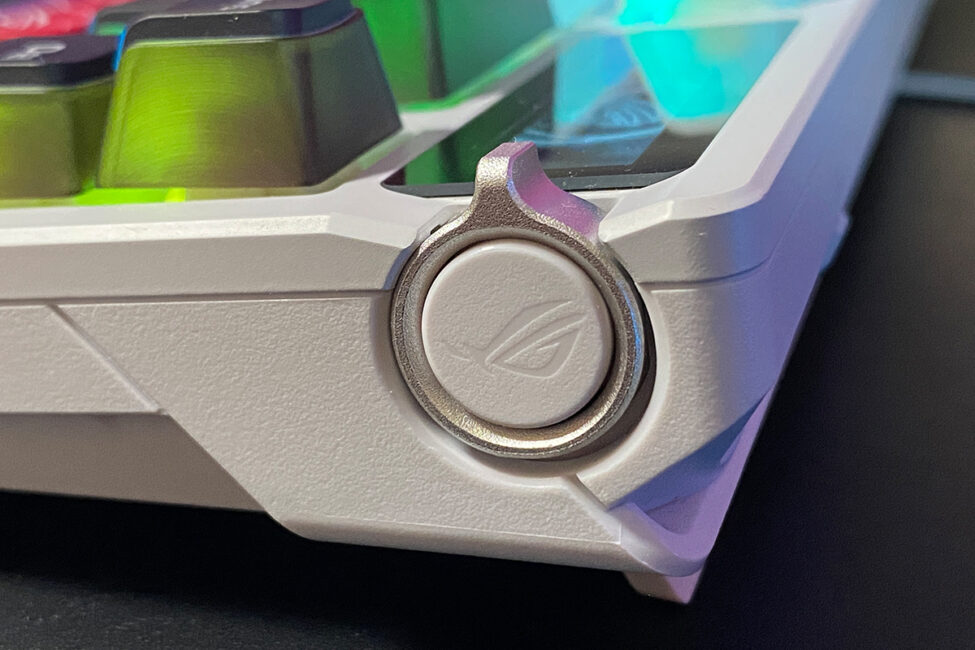
The keyboard features full RGB lighting, fully compatible with Aura Sync. Typically, I don’t focus heavily on ASUS lighting because it’s generally excellent by default – bright, vibrant, smooth, with a range of signature effects and flexible customization options.
But in the case of the ROG Azoth X, the lighting deserves special attention since it works closely with the semi-transparent keycaps to create a significant visual impact.
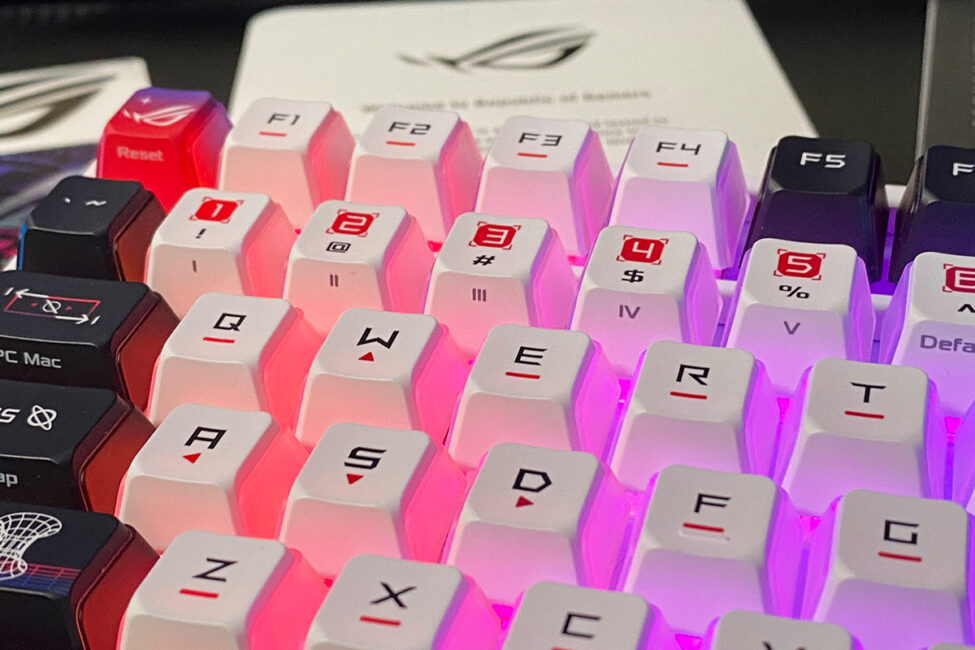
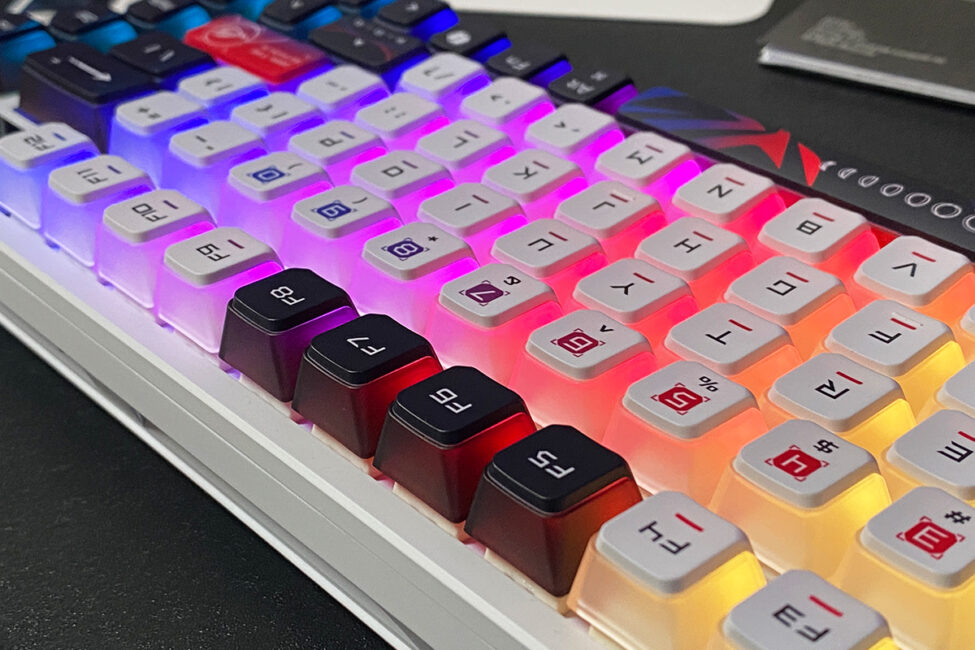
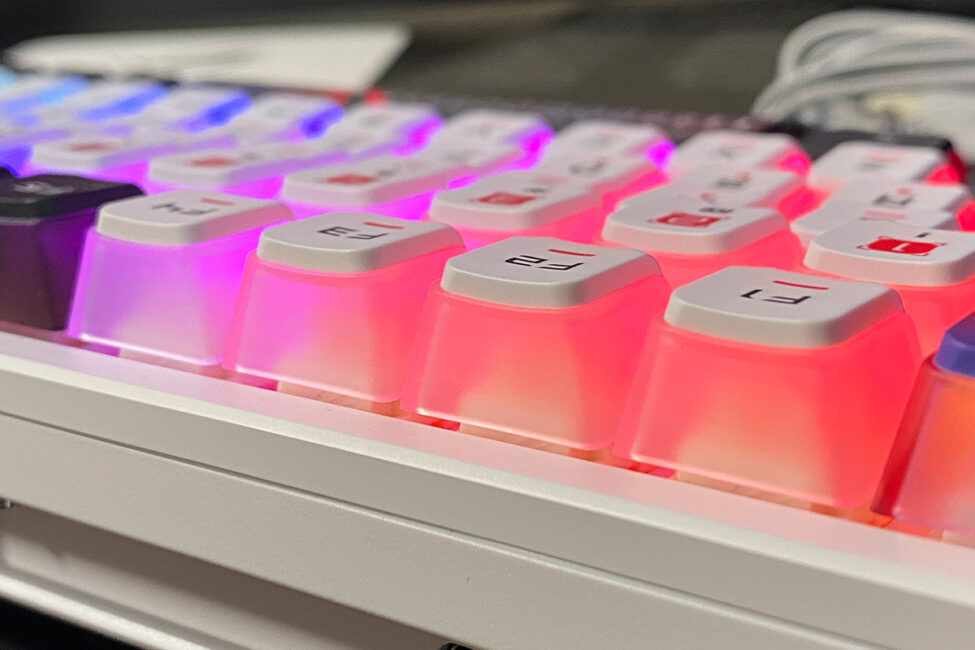
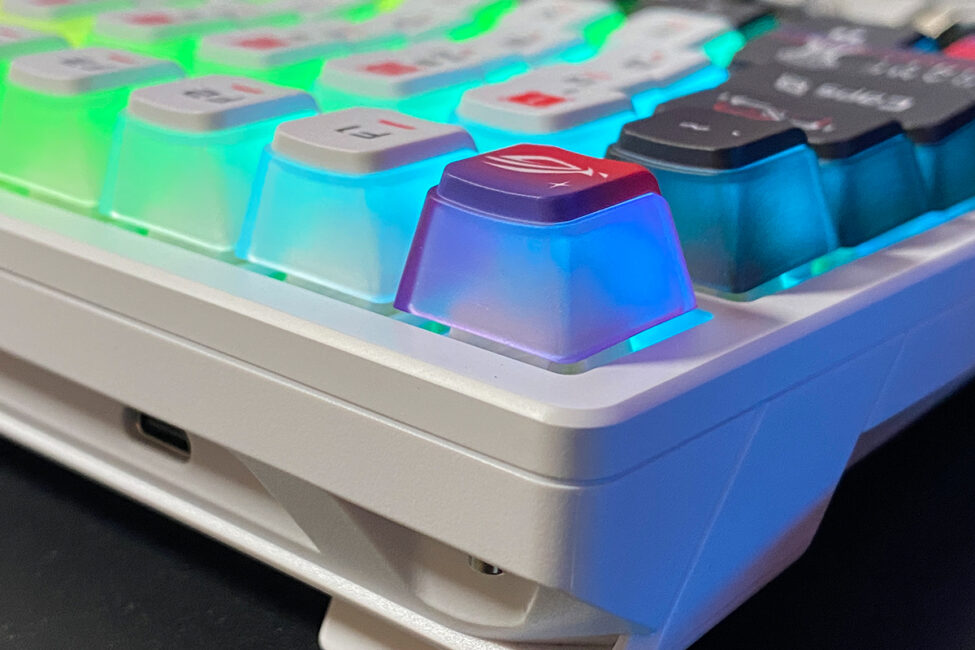
Yes, unlike other ASUS models, the legends on the keycaps in this keyboard are not backlit. However, this appears to be an intentional design choice. Overall, the effect works well and looks quite impressive.

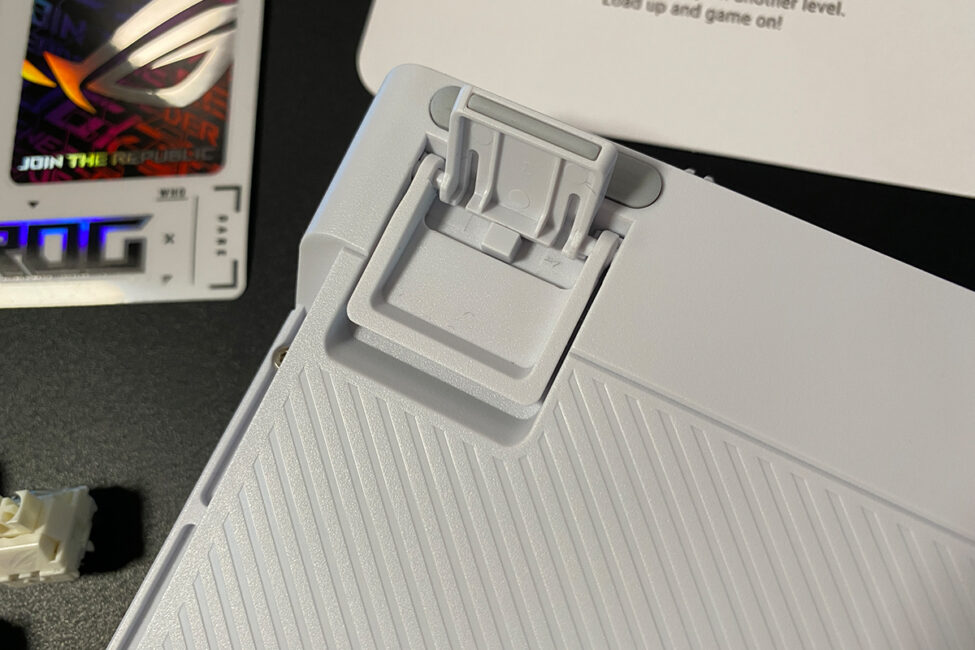
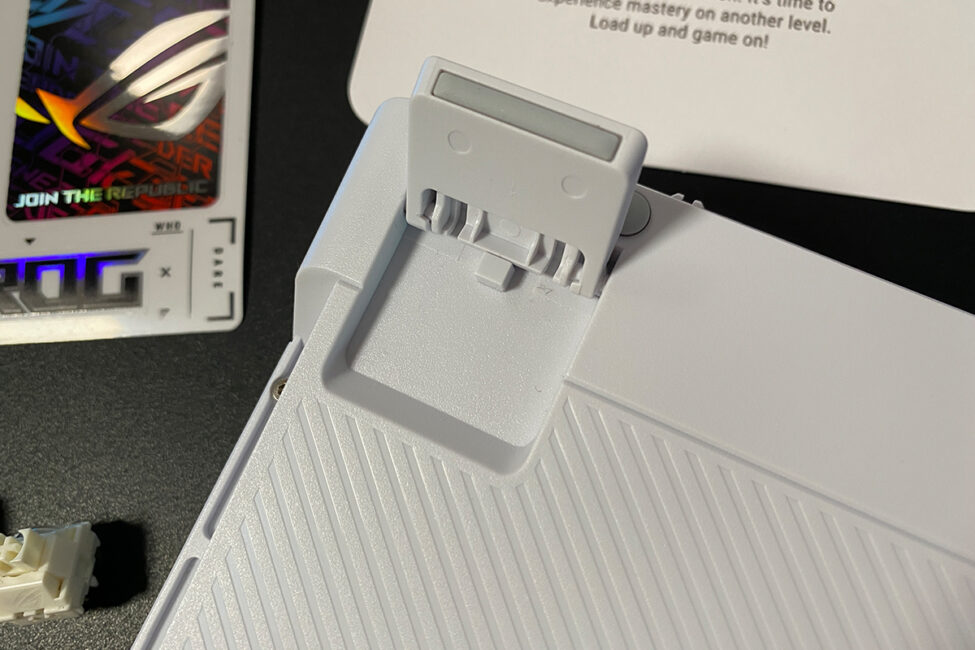
The keyboard’s bottom is made of plastic and features four rubberized feet around the edges for improved stability on surfaces. Like the original ROG Azoth, the feet are double-layered, with rubber pads also covering their ends for added grip.
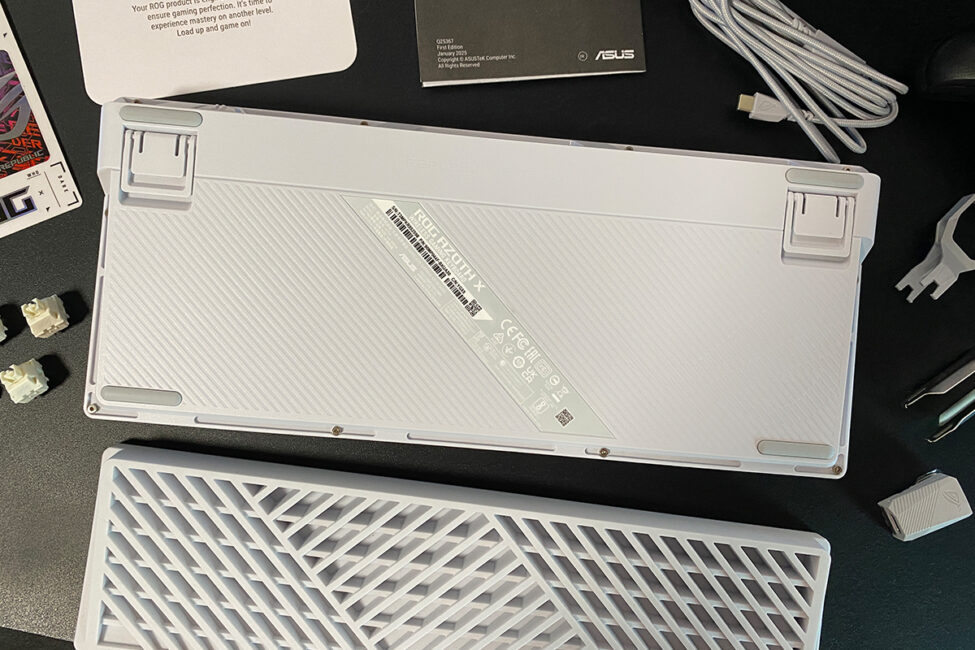
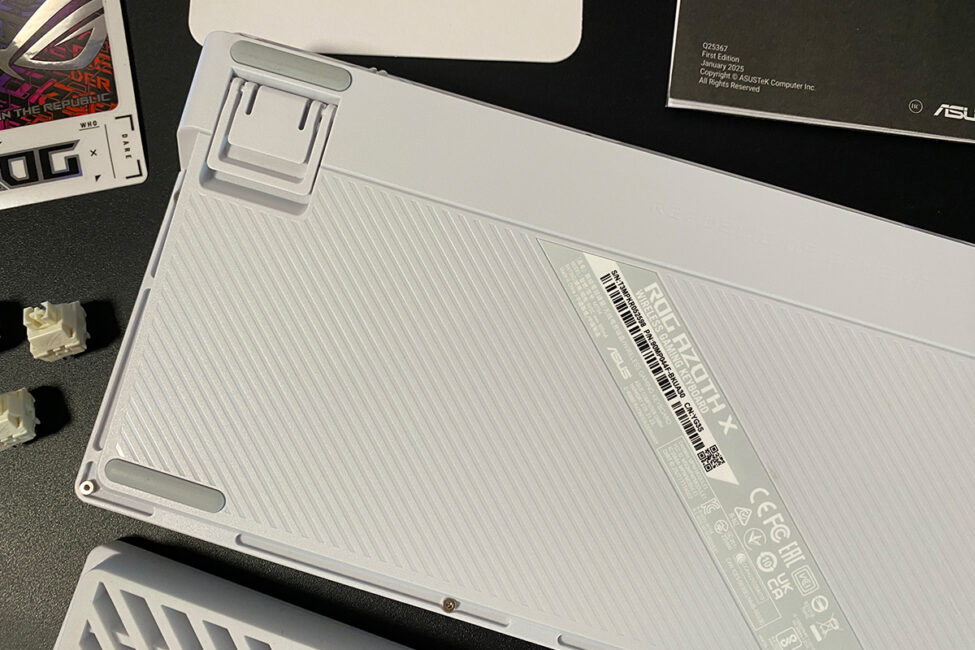
The cable connection port and connection mode switch are located on the front edge of the keyboard, following a familiar layout. On the left is a standard USB Type-C port, while on the right is a three-position switch for Bluetooth, USB, and RF modes.
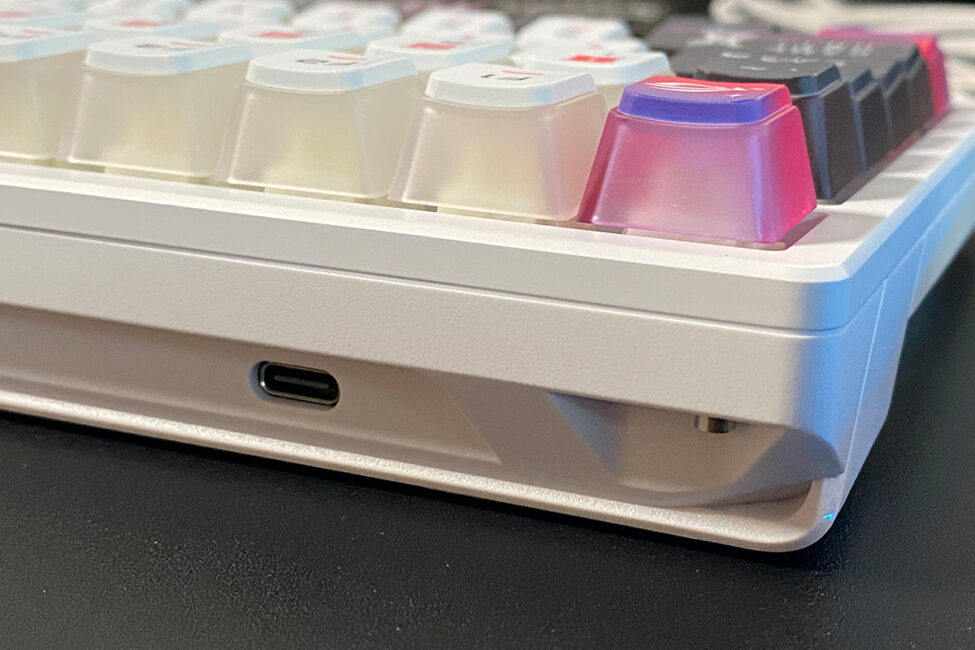
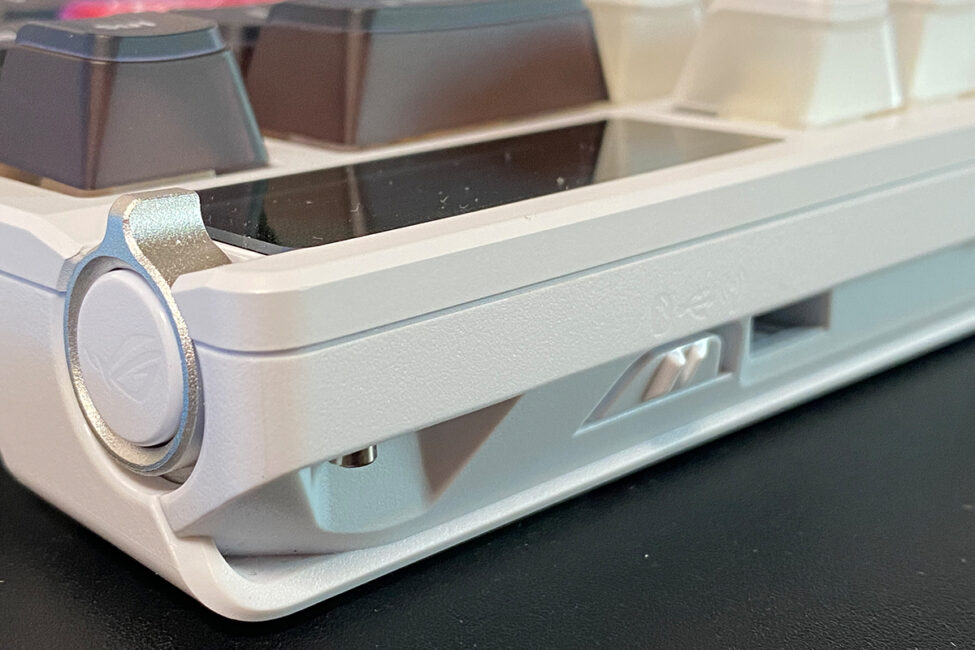
Build quality is solid. Despite the partly plastic construction, there’s no creaking, wobbling, flexing, or twisting in the keyboard. That said, to be fair, ASUS could have gone with a fully metal chassis. Some Chinese brands offer keyboards in fully aluminum bodies for $70 to $100, so it’s reasonable to think ASUS might be able to do the same.
Ergonomics on the ROG Azoth X are also strong. The layout and size strike a good balance, and the keyboard’s height and tilt are adjustable thanks to dual rear feet. The included wrist rest adds to the comfort, making the overall typing experience comfortable and pleasant.
Read also:
- ASUS ROG Keris II Origin Wireless Gaming Mouse Review: Sleek and Affordable
- ASUS ROG Harpe Ace Mini Wireless Gaming Mouse Review
OLED display and three-position switch
Like previous models in the series, the ROG Azoth X features a built-in OLED display. While the Extreme version had a color touchscreen, the Azoth X uses a simpler display – the same type found in the original ROG Azoth.
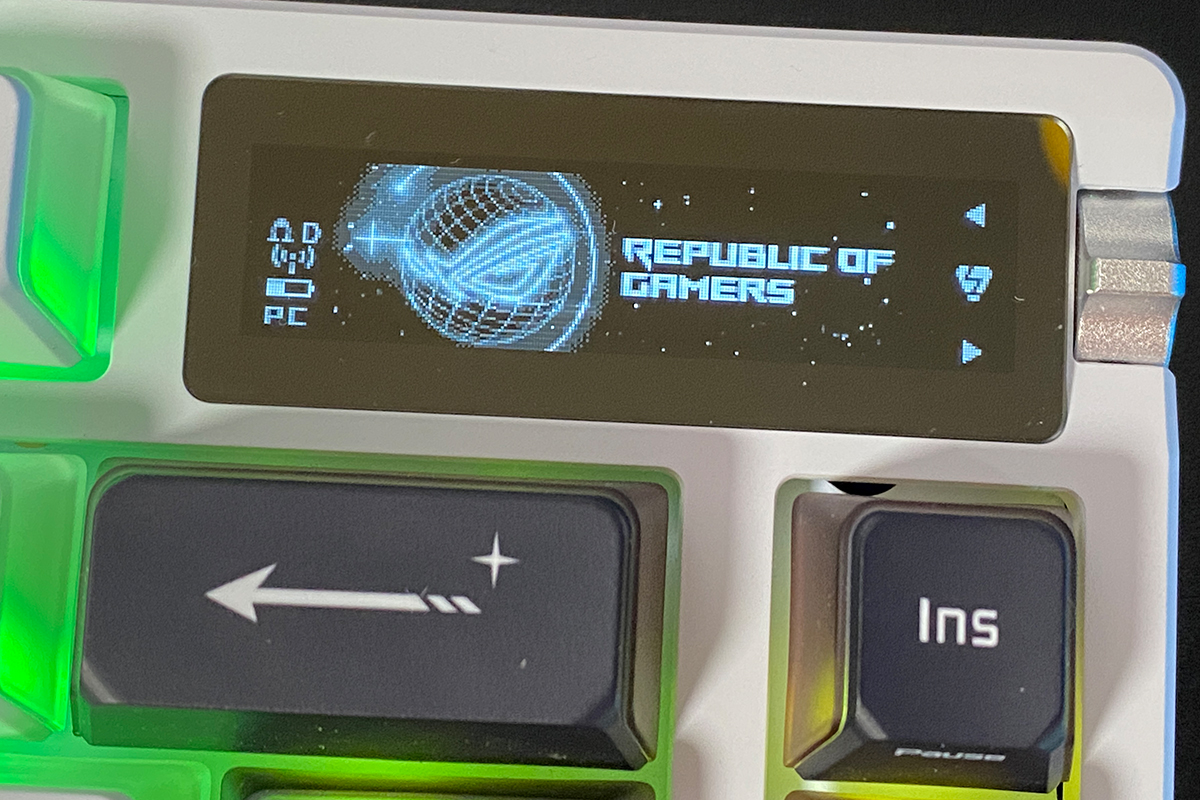
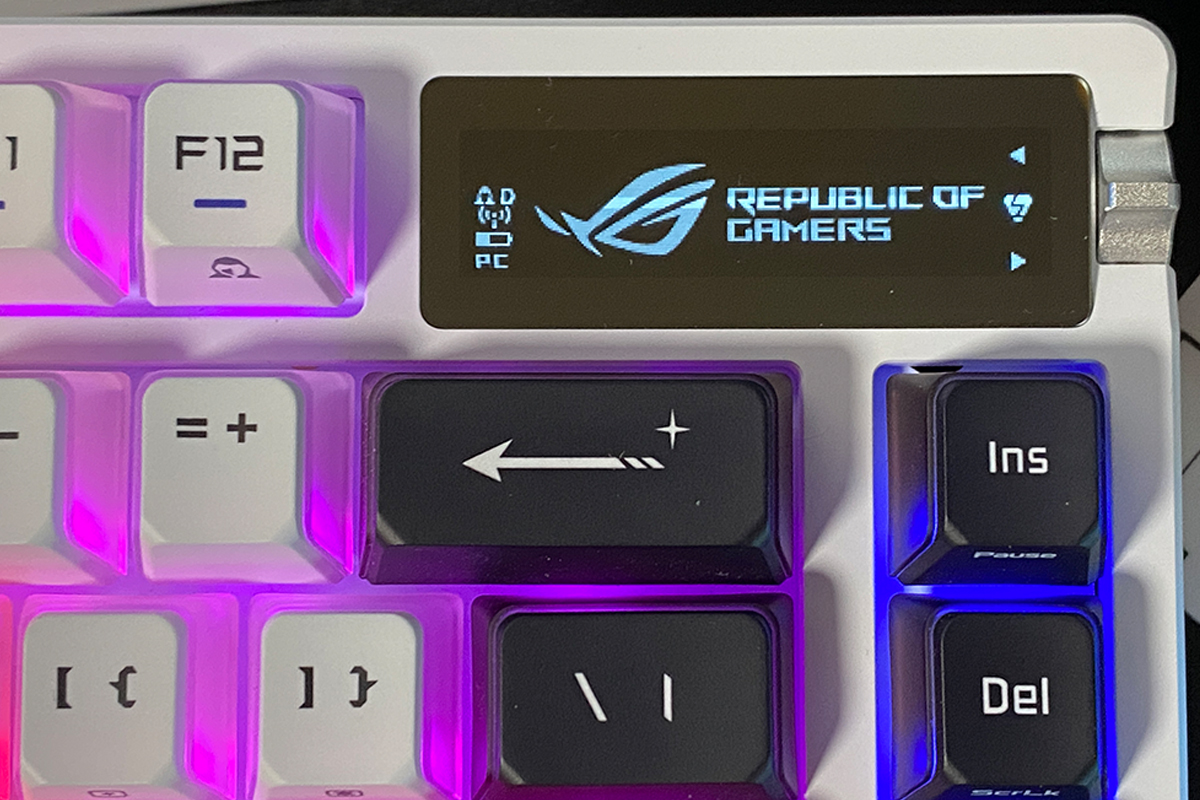
The display can show various animations, custom text, keyboard parameter indicators, audio visualizations, and system monitoring information. All of this can be configured through ASUS’s Armoury Crate software or via the Gear Link web interface in a browser. We’ll take a detailed look at the app and web settings in a separate section. For now, here are some photos to give you an idea of how it looks in practice.



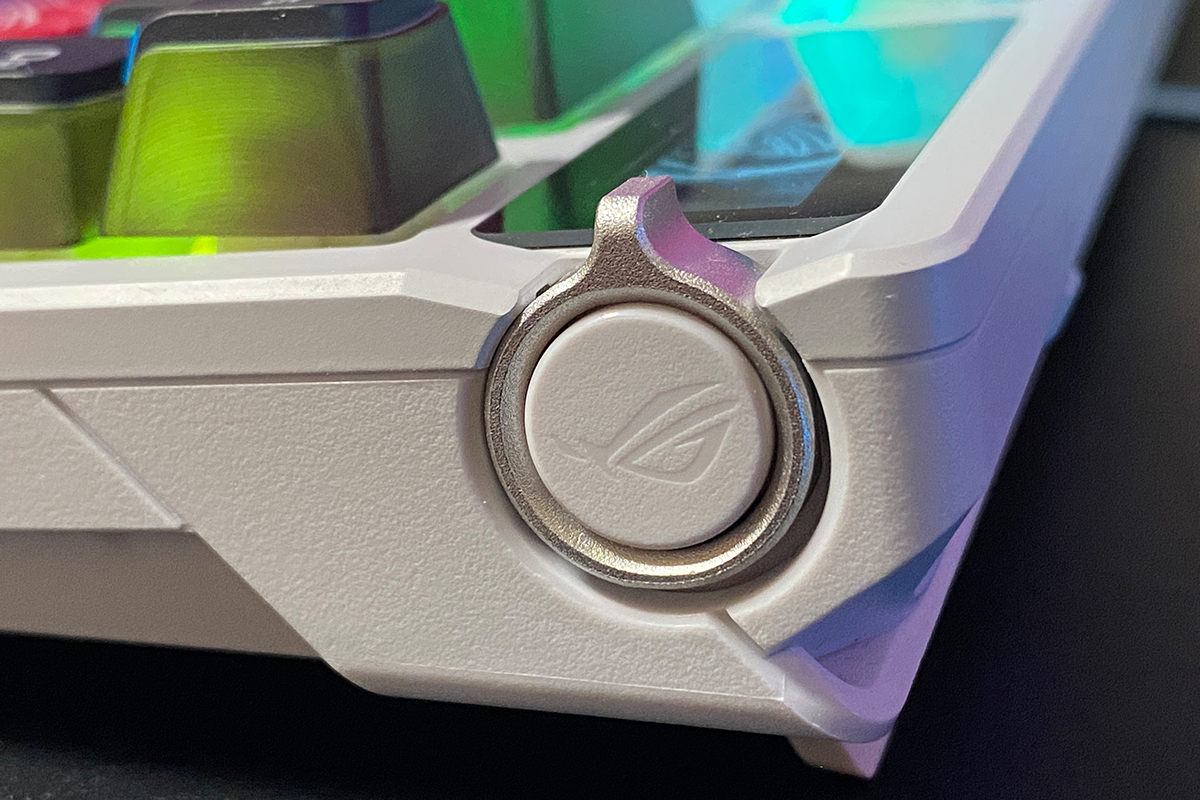
The three-position switch and side button let you control various keyboard settings and functions: adjusting volume, managing media playback, changing RGB brightness and effects, and setting the brightness of the built-in OLED display. There’s also a customizable mode where you can assign your own functions. Both the switch with its side button and the OLED display can be configured through ASUS’s Armoury Crate software or the Gear Link web interface.
There are no major complaints about the display itself. It fits well with the overall design, delivering clear and smooth visuals – as much as a monochrome screen can. The animations are fun, and you can even upload custom ones to show on it. That said, I do wish the display were color, like on the Extreme version. It doesn’t have to be touchscreen, but a bright color OLED would suit the ROG Azoth X very well. I’m sure many would agree this addition would enhance the experience.
Switches, stabilisers, typing
The ROG Azoth X uses ASUS’s proprietary ROG NX Snow and ROG NX Storm switches, both in their second revision (V2). These are updated versions of the switches originally found in the Extreme model. The Snow switches are linear, while the Storm switches are tactile with a click. All switches come factory-lubricated and fine-tuned to improve the typing experience right out of the box.
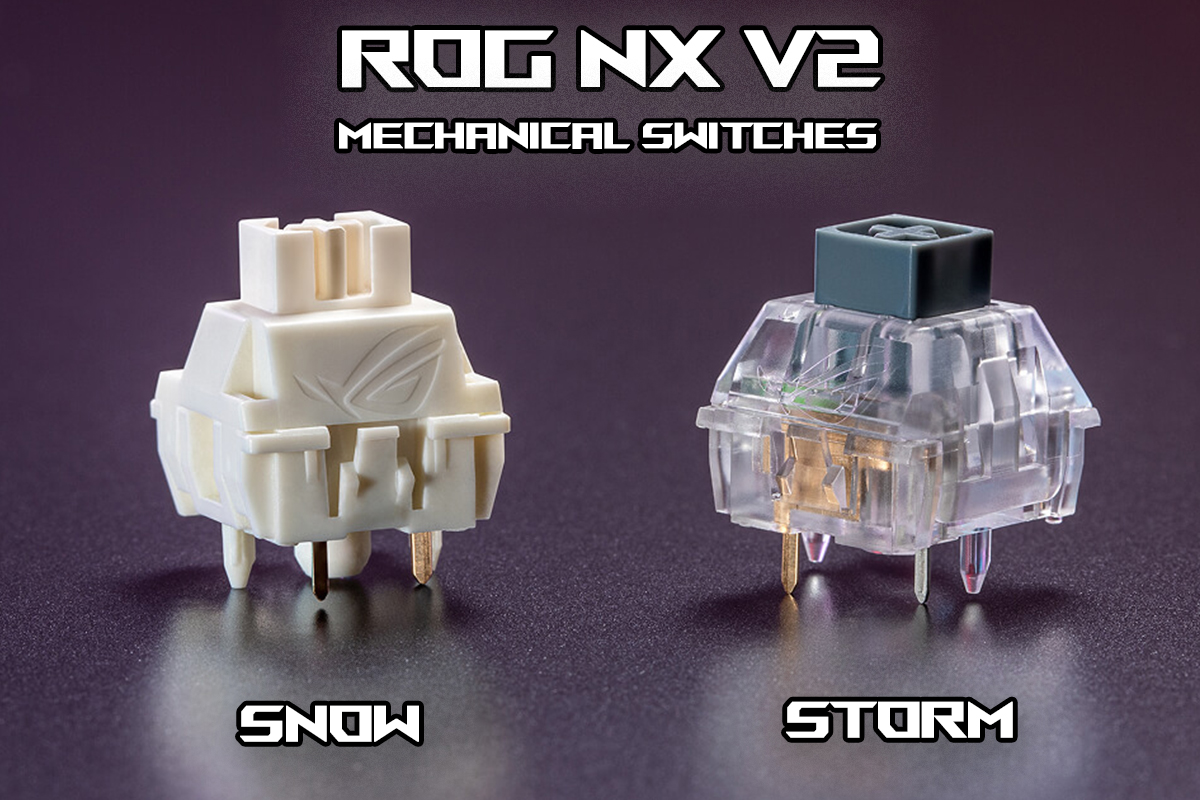
Regarding the switch specifications, you can see them in the screenshots below, which I sourced directly from ASUS’s official website. According to these details, the second revision of the switches is essentially identical to the first.
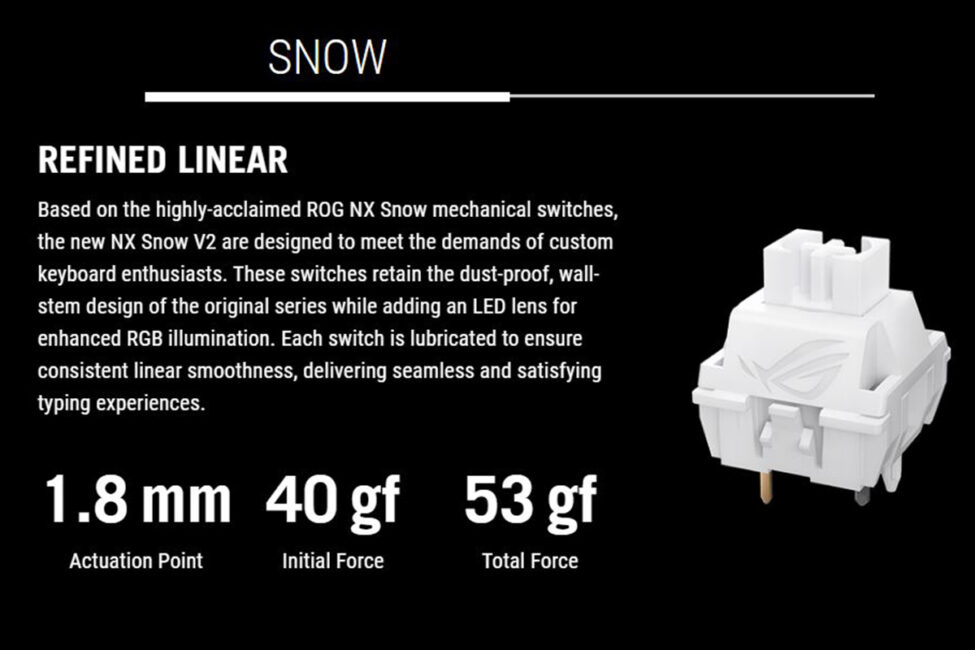
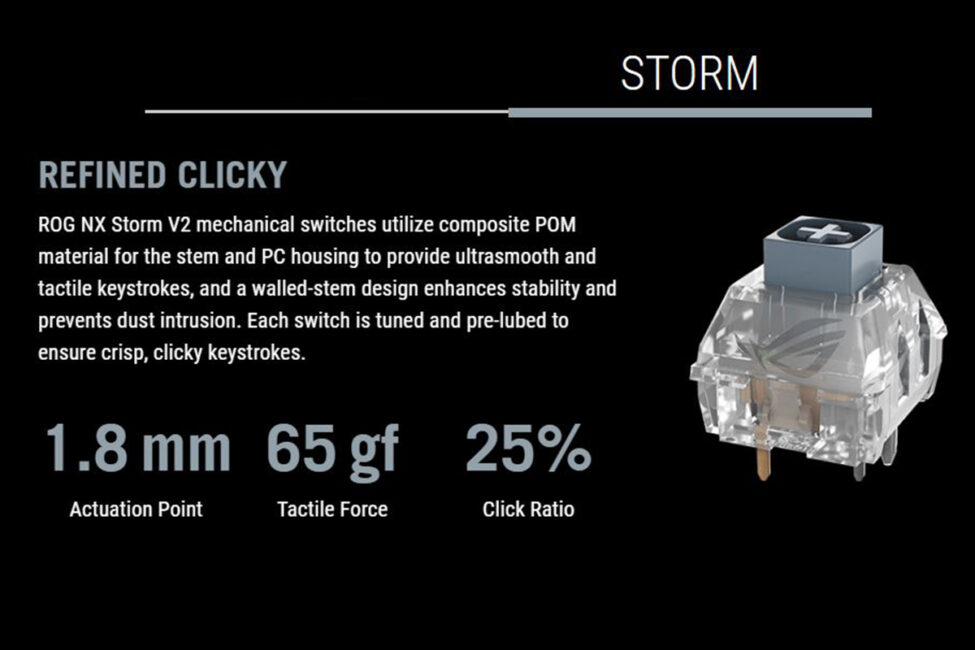
This is quite surprising because the switches on the ROG Azoth X feel noticeably different – especially in terms of typing experience – compared to those on the Extreme model. I’ll go into more detail about typing shortly, but first, a few words about the hot-swap feature and stabilizers.
Like previous models in the series, the Azoth X supports hot-swappable switches, allowing you to replace them without soldering. The switch sockets use a standard 5-pin design, compatible with both 5-pin and 3-pin switches. The keyboard uses south-facing LEDs located beneath the switches. This setup offers better compatibility with a wider range of switches and keycaps, so if you decide to swap either, you shouldn’t encounter any issues with backlighting.
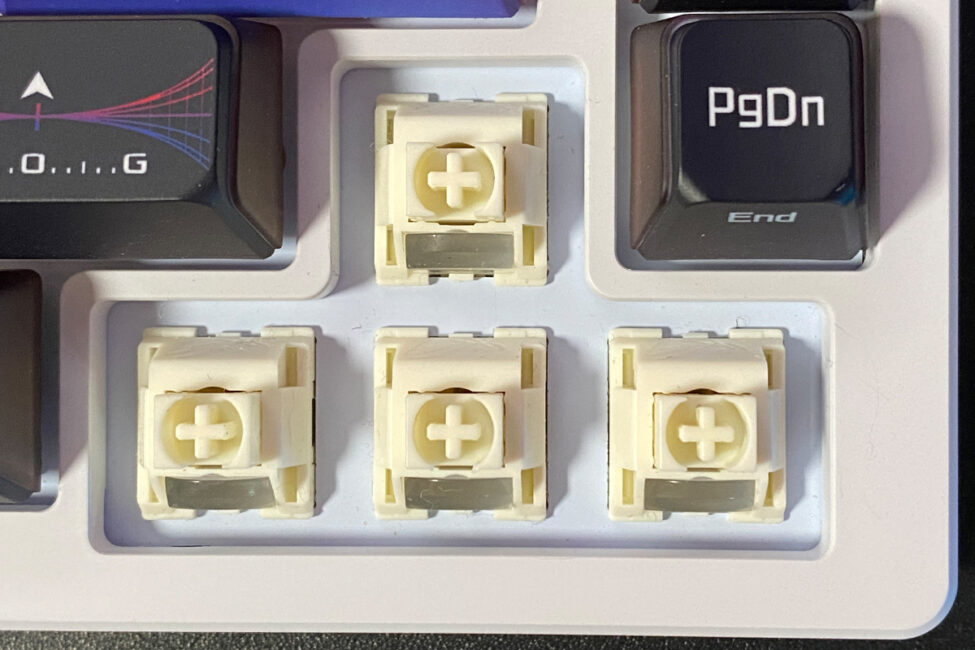
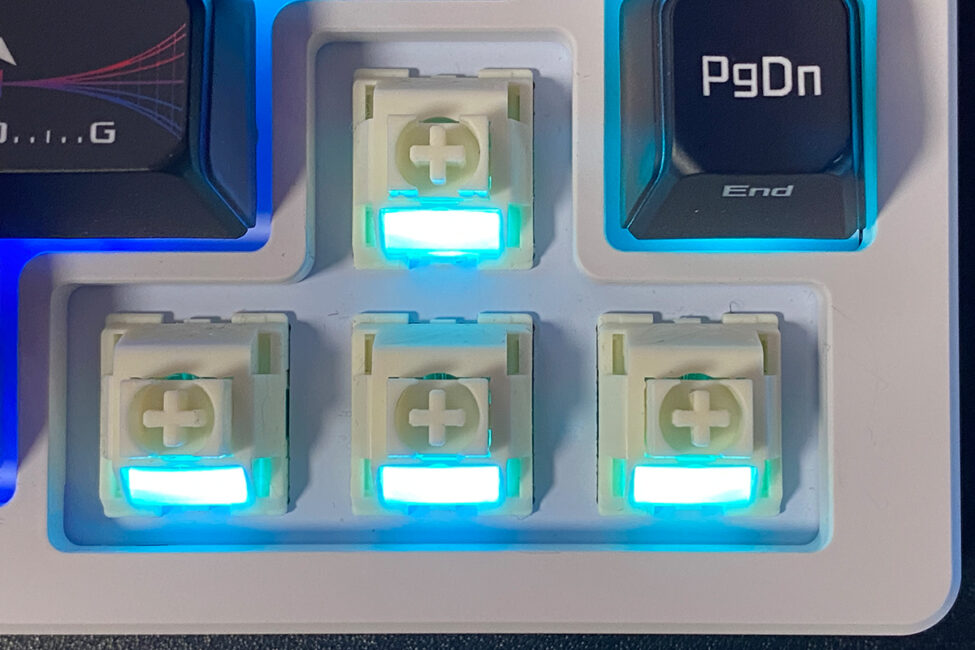
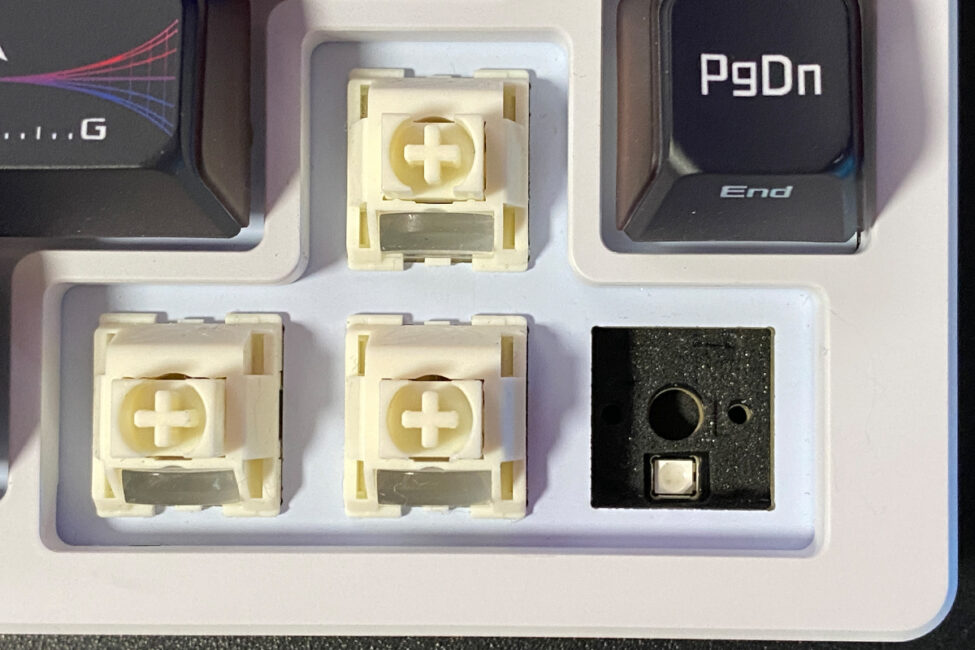
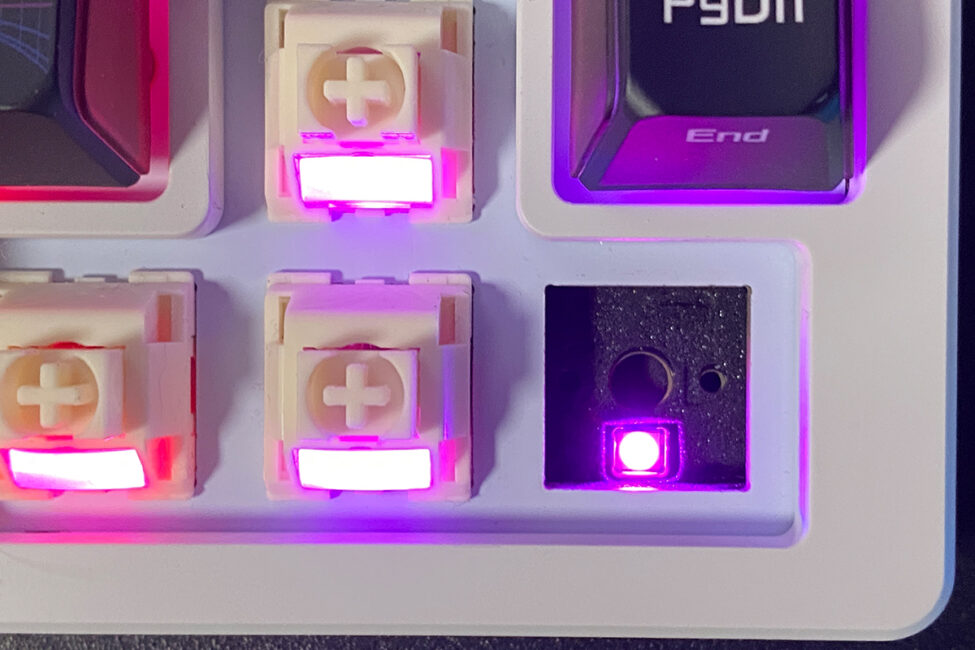
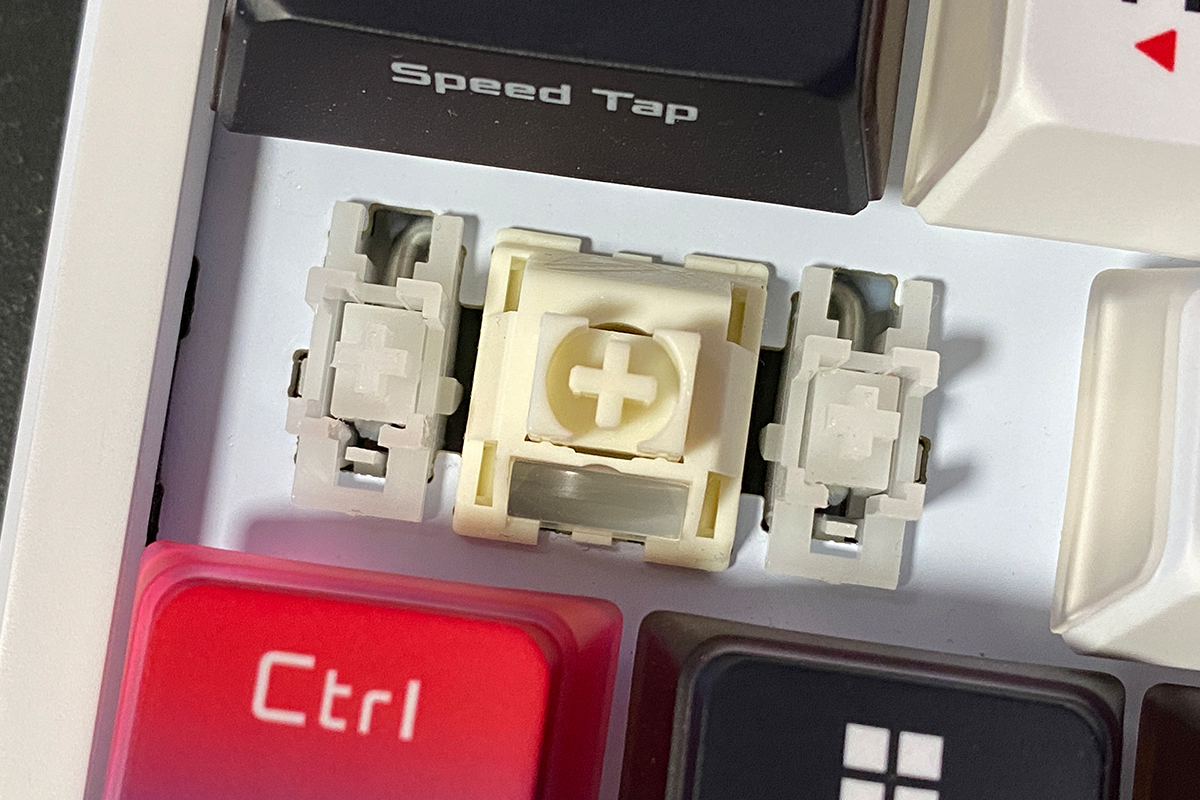
The stabilizers, like the switches, come pre-lubricated – something you can actually spot in close-up photos. Overall, they perform adequately: the longer keys feel well stabilized and offer a smooth, linear press. That said, the spacebar isn’t exactly quiet. I’ll share a typing video a bit later so you can hear it for yourself.

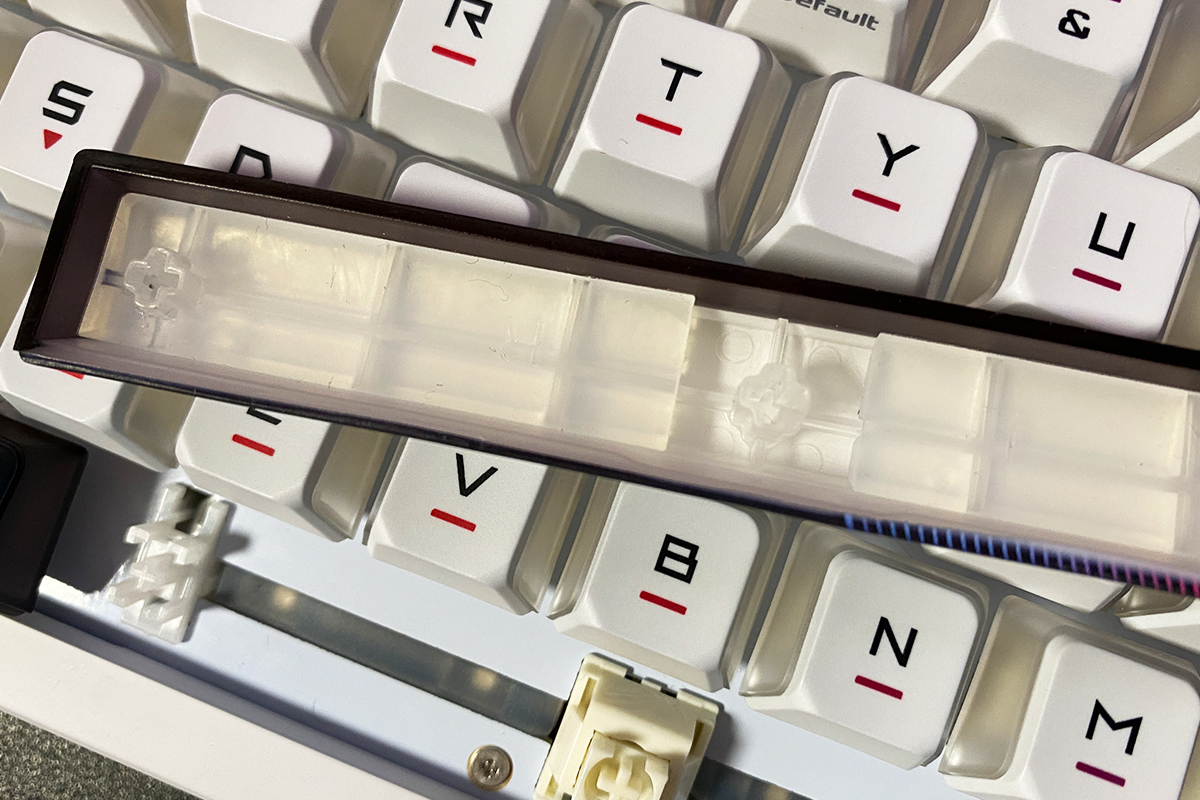
Now, onto the main topic – typing. The review unit I received came equipped with ROG NX Snow V2 switches, and after extended use, I’d say the typing experience is somewhat niche.
It’s not bad, just distinctive – better suited for those who prefer a slightly firmer tactile feel. The keys still offer a linear travel but feel a bit stiffer compared to what you might expect. The original ROG Azoth and Azoth Extreme delivered a softer, quieter linear typing experience, whereas the Azoth X feels noticeably different in that regard. The sound profile is also louder overall, with the spacebar standing out as particularly noisy. I’ve included a typing video below so you can hear the difference for yourself and make your own comparison.
ROG Azoth X
ROG Azoth Extreme
Read also:
- ASUS ROG Rapture GT-BE19000 Review: Tri-Band Gaming Router
- ASUS ROG Azoth Extreme Wireless Gaming Keyboard Review
Proprietary software and technologies
The keyboard can be configured using ASUS’s Armoury Crate software, which needs to be downloaded and installed on a PC, or through a browser interface on the Gear Link website. As far as I know, the ROG Azoth X is the first ASUS device to support online configuration.
Let’s start with Armoury Crate, where the experience is fairly standard. When you first connect the keyboard and the 2.4 GHz RF wireless receiver to a PC, the software automatically initializes the devices, and they then appear in the device list.


The settings for the ROG Omni Receiver are quite limited – you can only connect additional compatible wireless devices (like a mouse) to it and update its firmware.


As for the keyboard settings themselves, they offer the familiar menu we saw in the Extreme version. The main new feature is Gear Link. The interface opens with the “Keys” menu, where you can customize the keyboard’s keys. You can disable keys, remap them, or assign recorded macros and other available functions from the list.


In this section, you can also view the list of key combinations (hotkeys) and configure the Speed Tap mode.


For those unfamiliar, Speed Tap is a special gaming mode in ASUS keyboards that prioritizes the most recently pressed key in a sequence – even if you haven’t yet released the previous key.
Here’s a simple example of how Speed Tap works: Imagine you’re moving forward in a game by holding down the W key. Suddenly, you encounter enemies and quickly want to move backward by pressing S, but for some reason, you don’t release W – maybe your finger slipped or you got confused.
With Speed Tap enabled, the keyboard will prioritize the most recently pressed key – in this case, S – regardless of whether W is still held down. This helps reduce missed inputs and improves control during gameplay. It’s especially useful for strafing and other quick directional changes. You can customize which keys are affected by Speed Tap and adjust the settings to your preference.


Next is the menu for the three-position switch. Here, you can edit the preset modes and create your own custom mode.


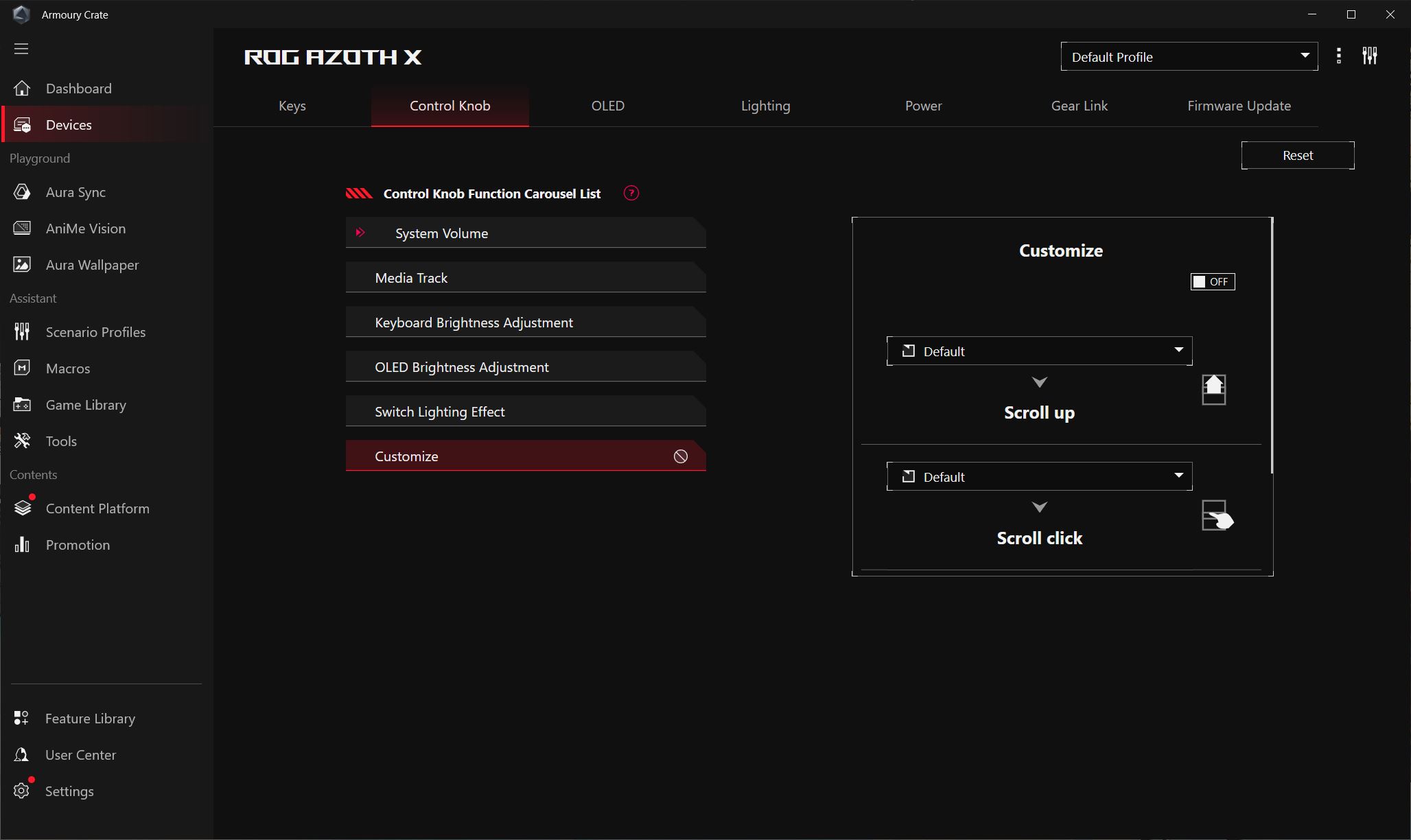

In the OLED menu, you can choose animations for the built-in display, set a static banner, enter custom text, enable audio visualization mode, or display a system status overview (such as temperature and CPU usage).


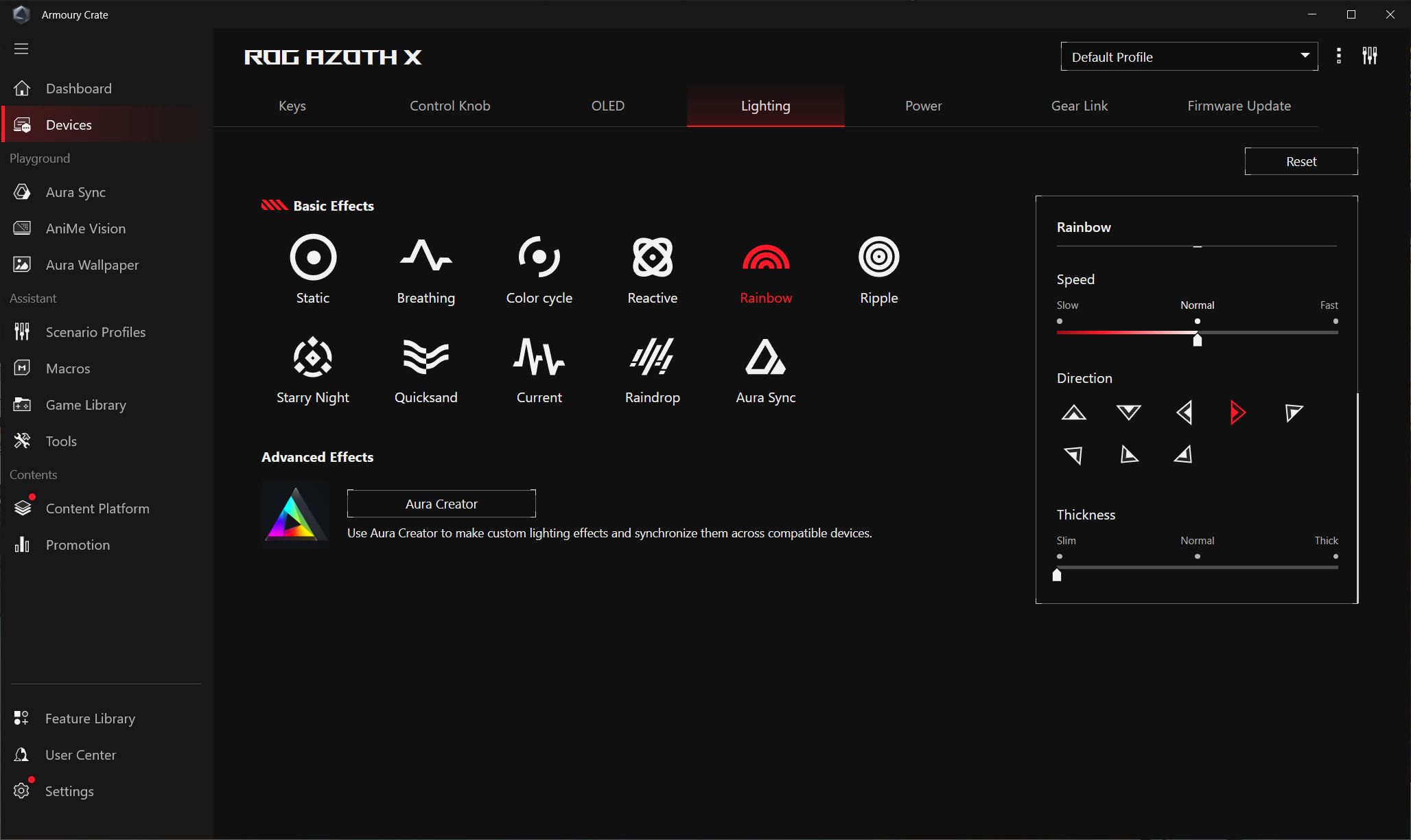
The next menu is for lighting customization. Here, you can choose from 10 preset effects, sync the keyboard’s lighting with other ASUS devices via Aura Sync, or create your own custom effects using Aura Creator. For the preset effects, you can further adjust colors, brightness, speed, and direction of the lighting.

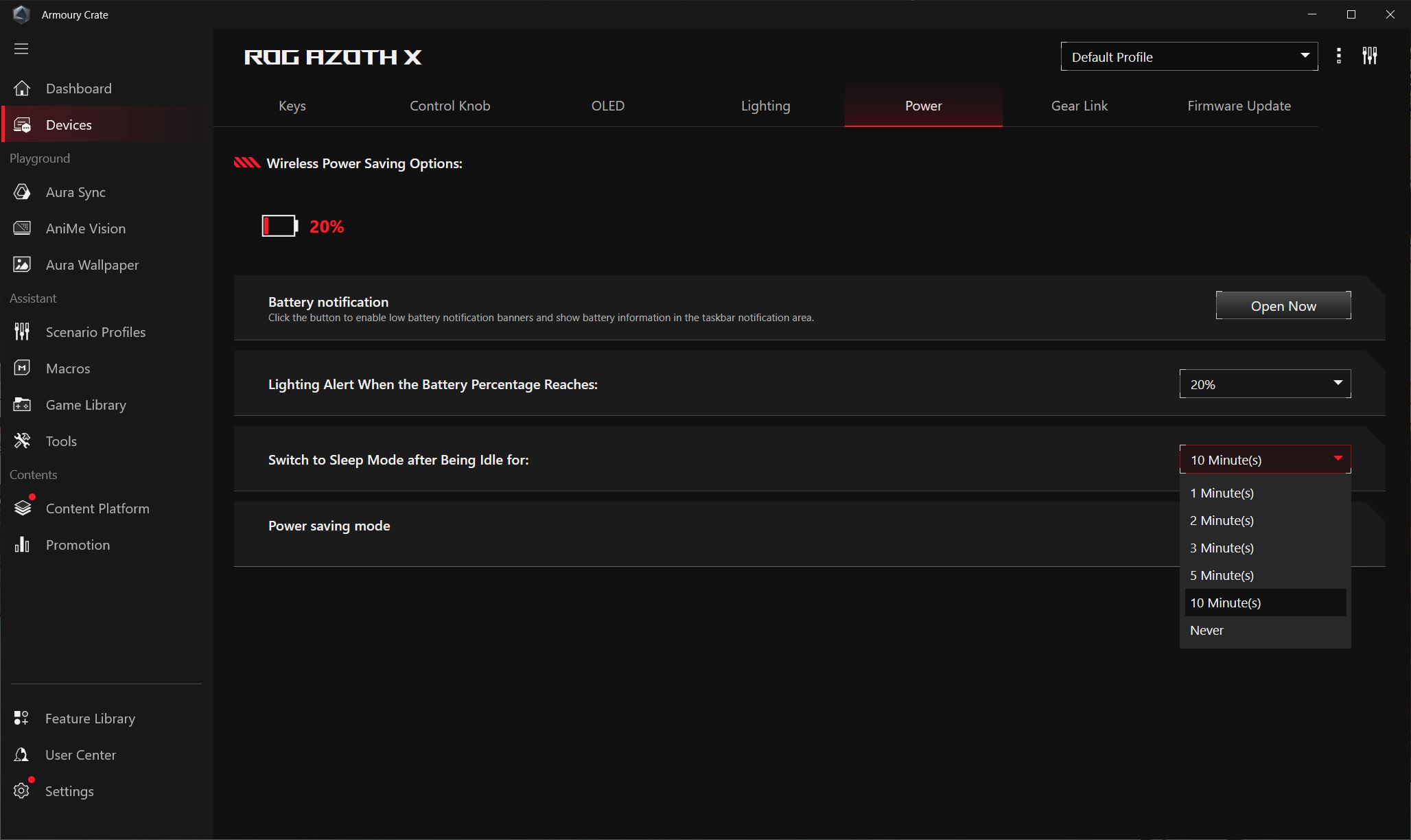
The Power menu lets you check the battery level, set the time before the keyboard enters sleep mode, enable power-saving mode, and configure the low battery warning threshold.



The Gear Link menu contains only a link to the website, which we’ll cover separately shortly.
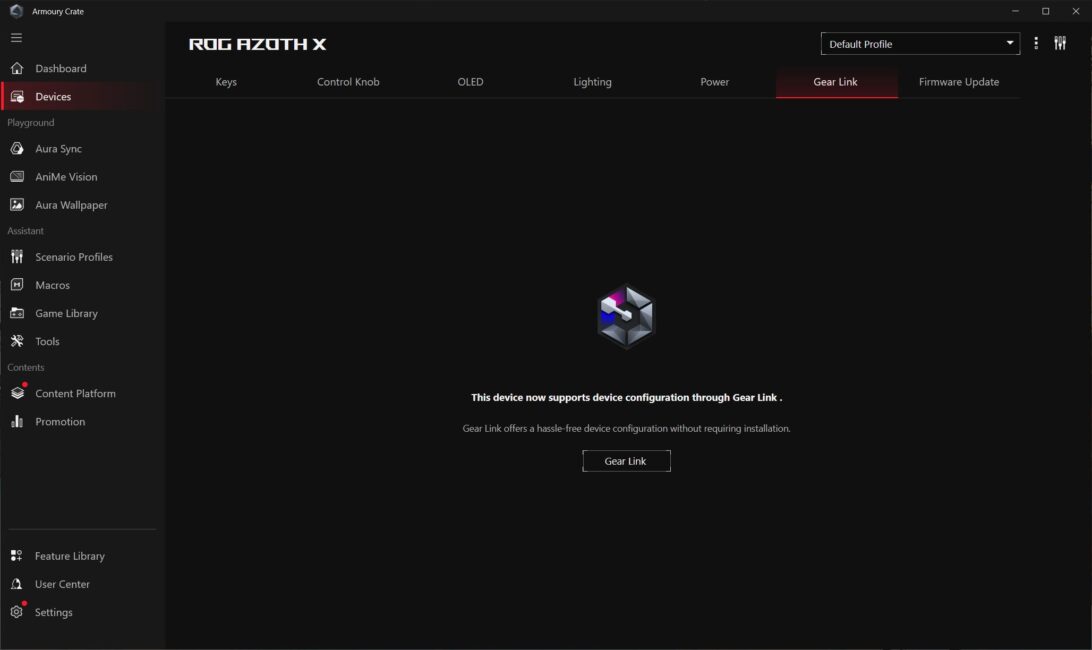
The final menu is for firmware updates. Here, you can check if a new firmware version is available for the keyboard. If an update is found, the software will automatically direct you to a dedicated update center to download and install it.


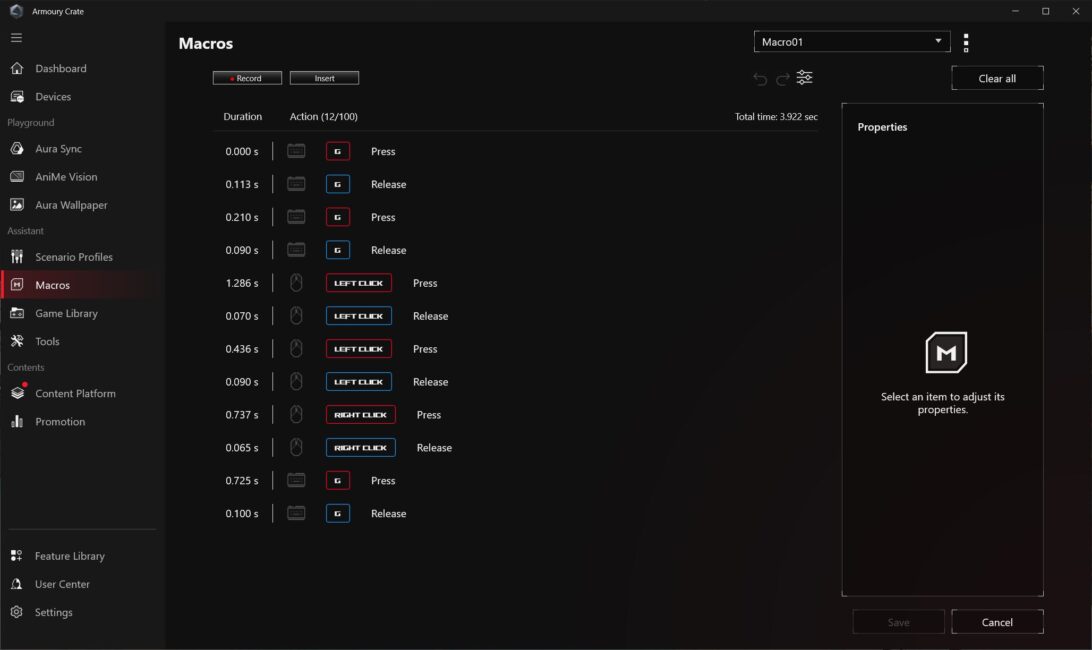
Macros are recorded in a separate menu, which is easy to find and navigate. Once created, you assign these macros within the primary key customization menu where you configure the keyboard’s keys.
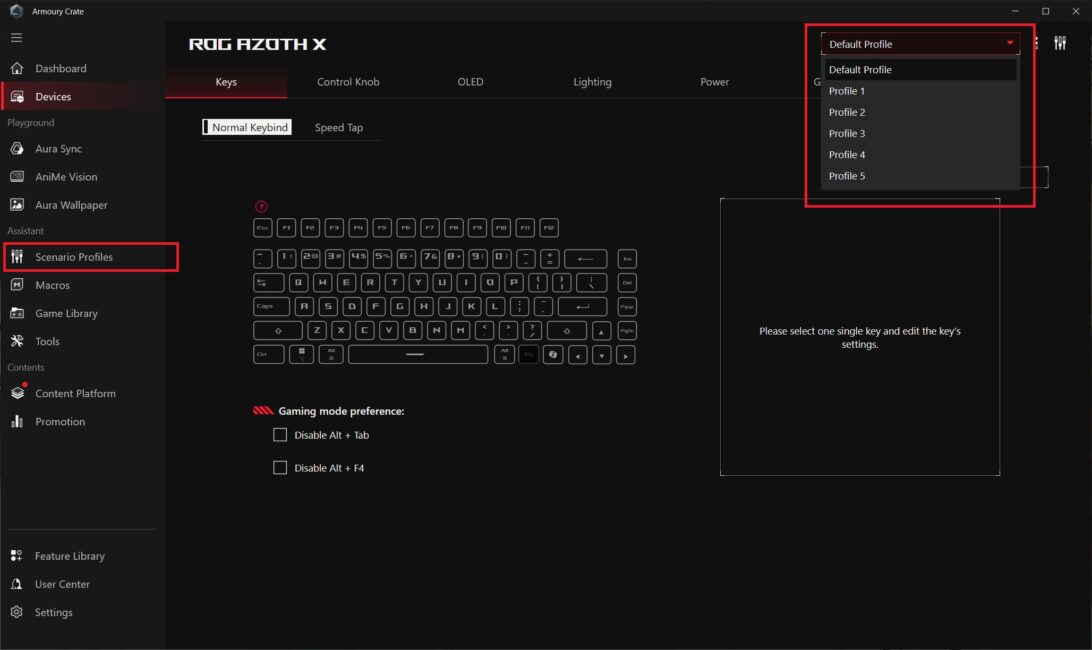
The keyboard features built-in memory with five independent, fully customizable profiles that you can switch between on the fly. You can also set these profiles to launch automatically when specific applications (like games) start. This auto-launch feature is managed through the Scenario Profiles menu.
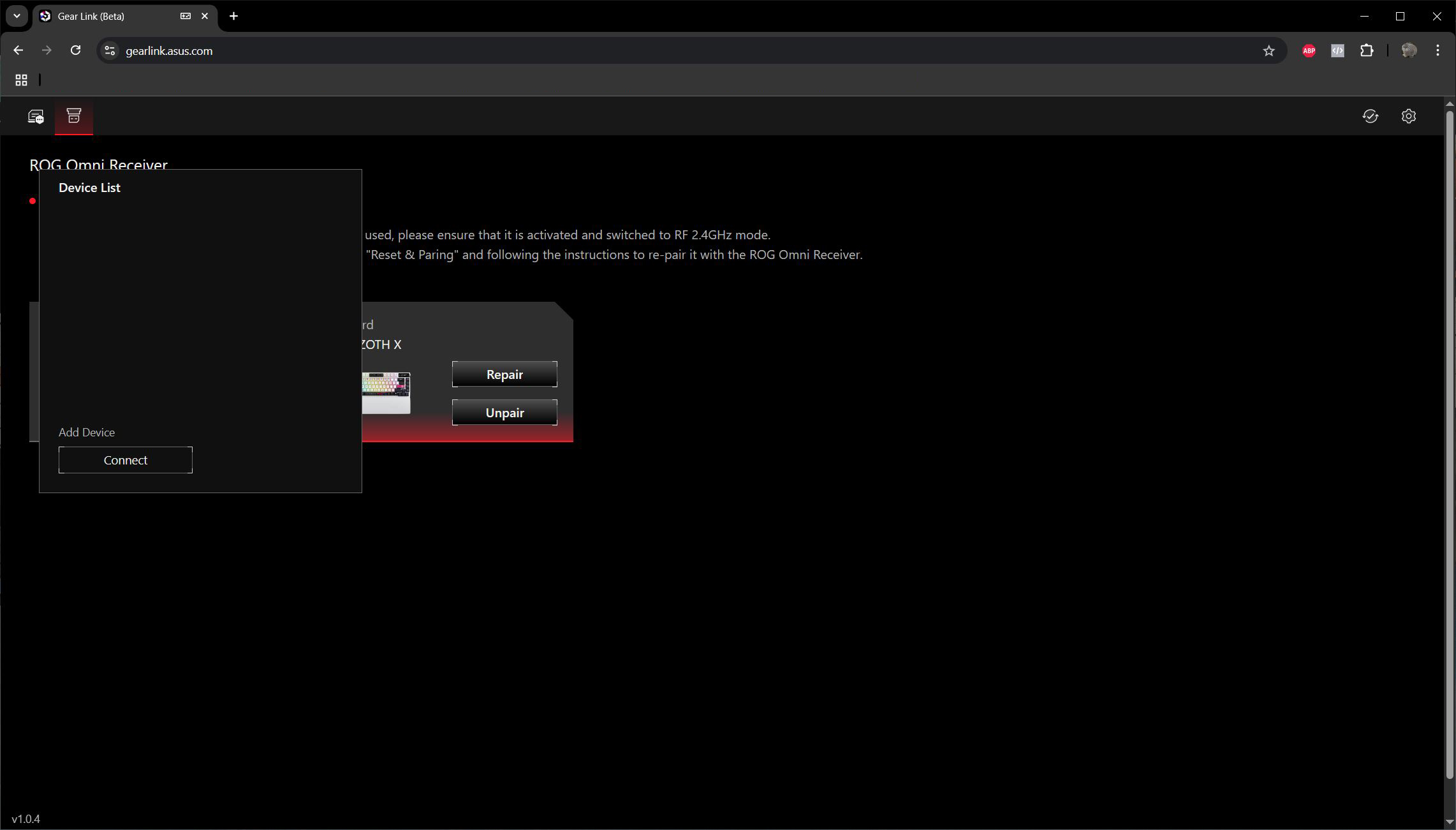
Thanks to its onboard memory, the keyboard can save all the settings made in the software and continue working with them even without the app, including on other PCs. I know many users criticize Armoury Crate for being bulky and problematic, especially after recent updates, so this feature offers a practical alternative. There’s an even better option – Gear Link. To set up the ROG Azoth X via browser, you need to visit gearlink.asus.com and allow the site to connect to your keyboard. Once connected, both the keyboard and its wireless receiver will appear in the device list.
Notably, the keyboard doesn’t have to be connected to the PC via cable or switched to wired mode. You can manage connection and settings directly through the web interface while in wireless RF 2.4 GHz mode, which is quite convenient.


The settings for the wireless ROG Omni Receiver in the web interface are the same as in the full application: you can connect an additional supported device (in this case, a mouse) and update its firmware via a dedicated menu.


The keyboard settings in the web interface largely mirror those available in the app, though some differences do exist.
The first menu you encounter is Keys, where you customize the keyboard’s keys. Functionality here is essentially the same as in the app, though the list of available functions appears slightly more limited. However, the Speed Tap mode is still present, which is a positive.


The next menu is Control Knob, where you can configure the three-way switch. I didn’t notice any significant differences here compared to the full Armoury Crate app.


The OLED menu contains settings for the built-in display. The differences here are immediately noticeable – the only available option is displaying preset animations. There are no options to upload custom animations, display text, indicators, or system info summaries.
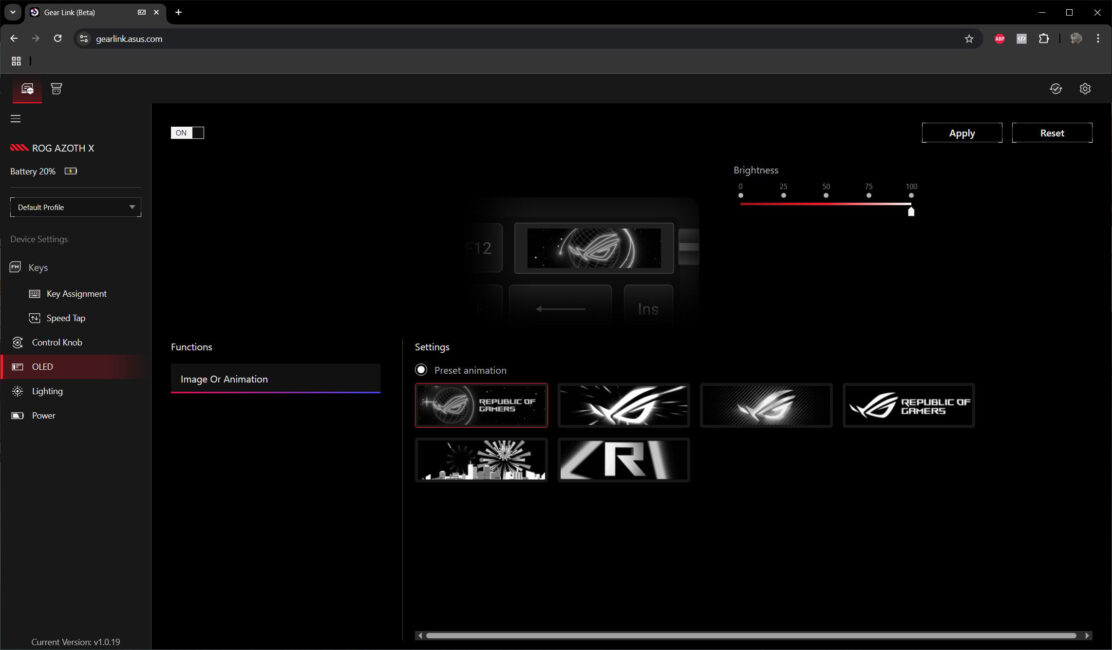
The Lighting menu allows you to configure the keyboard backlighting. As expected, there’s no synchronization with other devices via Aura Sync, nor are there options to create custom effects using Aura Creator.


The Power menu contains everything related to the battery. I didn’t notice any major differences from the companion app here either.
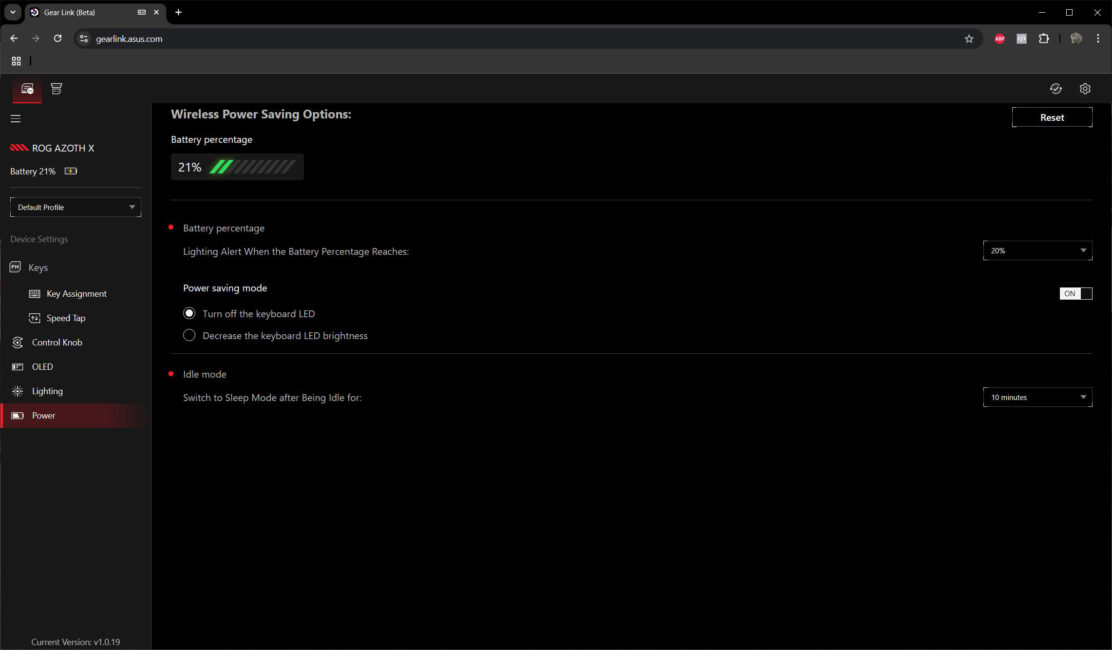
Independent configuration profiles are also available in Gear Link, just like in the full-featured desktop application. As the screenshots show, Gear Link is still in beta. However, it already works well enough for basic keyboard settings. In fact, if you’re only looking to adjust core parameters, the web interface can effectively replace Armoury Crate – something many users will likely appreciate.
Finally, it’s worth briefly mentioning a few proprietary ASUS technologies that now appear in nearly all of the company’s devices: ROG Polling Rate Booster, ROG Omni Receiver, and ROG SpeedNova.
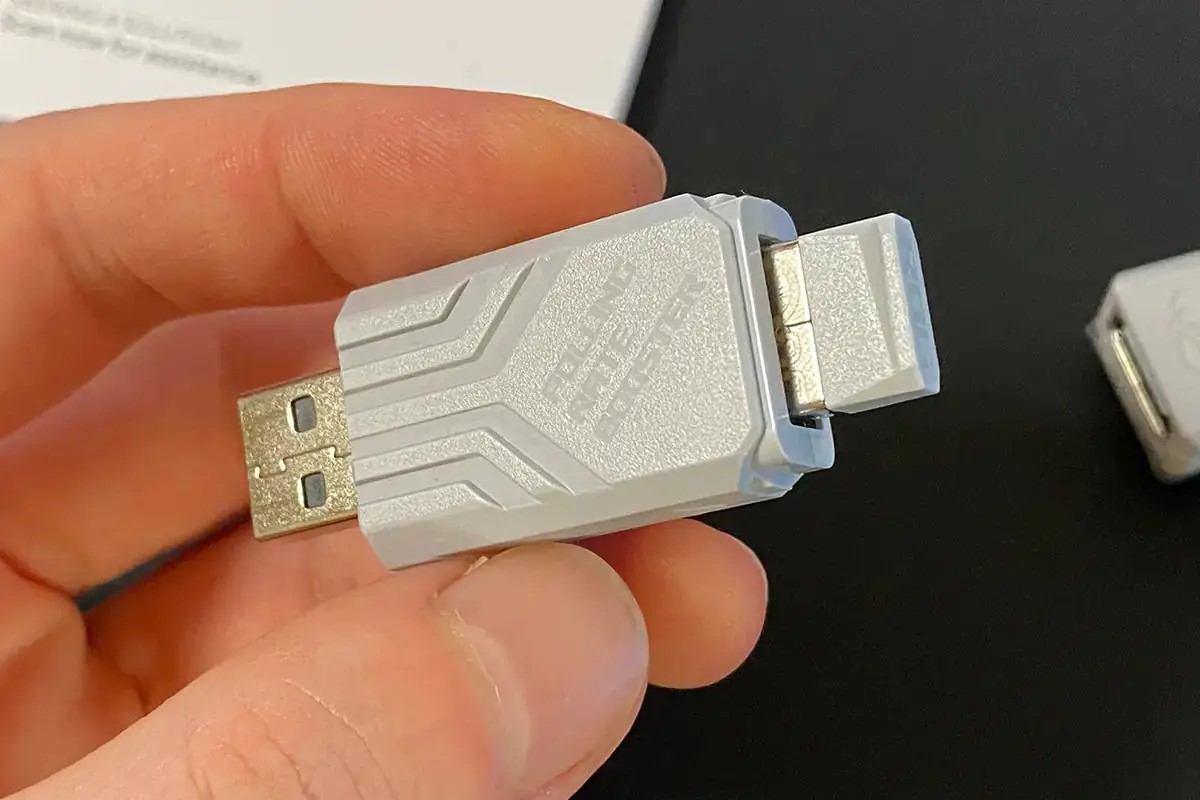
ROG Polling Rate Booster is a dedicated adapter that allows a keyboard to operate at an 8000 Hz polling rate, whether connected wirelessly or via cable. The setup is straightforward: plug the adapter into your PC, then connect either the 2.4 GHz RF dongle or the keyboard’s USB cable into the adapter. That’s it – the keyboard runs at 8000 Hz.
As previously noted, this accessory is sold separately and is not included with the ROG Azoth X.
ROG Omni Receiver is ASUS’s proprietary technology that allows two supported wireless devices to connect through a single receiver. It’s a practical solution that helps free up USB ports on your PC, eliminating the need for a separate dongle for each device – like a keyboard and mouse. However, there is a trade-off. When using the Omni Receiver, the polling rate for connected devices drops to the standard 1000 Hz, even if the receiver itself is plugged in through the Polling Rate Booster.
ROG SpeedNova is ASUS’s proprietary wireless communication technology designed to improve connection stability, reduce input latency, and optimize the device’s power consumption.

Read also:
- ASUS ROG Harpe Ace Extreme Wireless Gaming Mouse Review
- ASUS ROG NUC 970 Mini-PC Review: Power in Compact Form
ROG Azoth X battery life
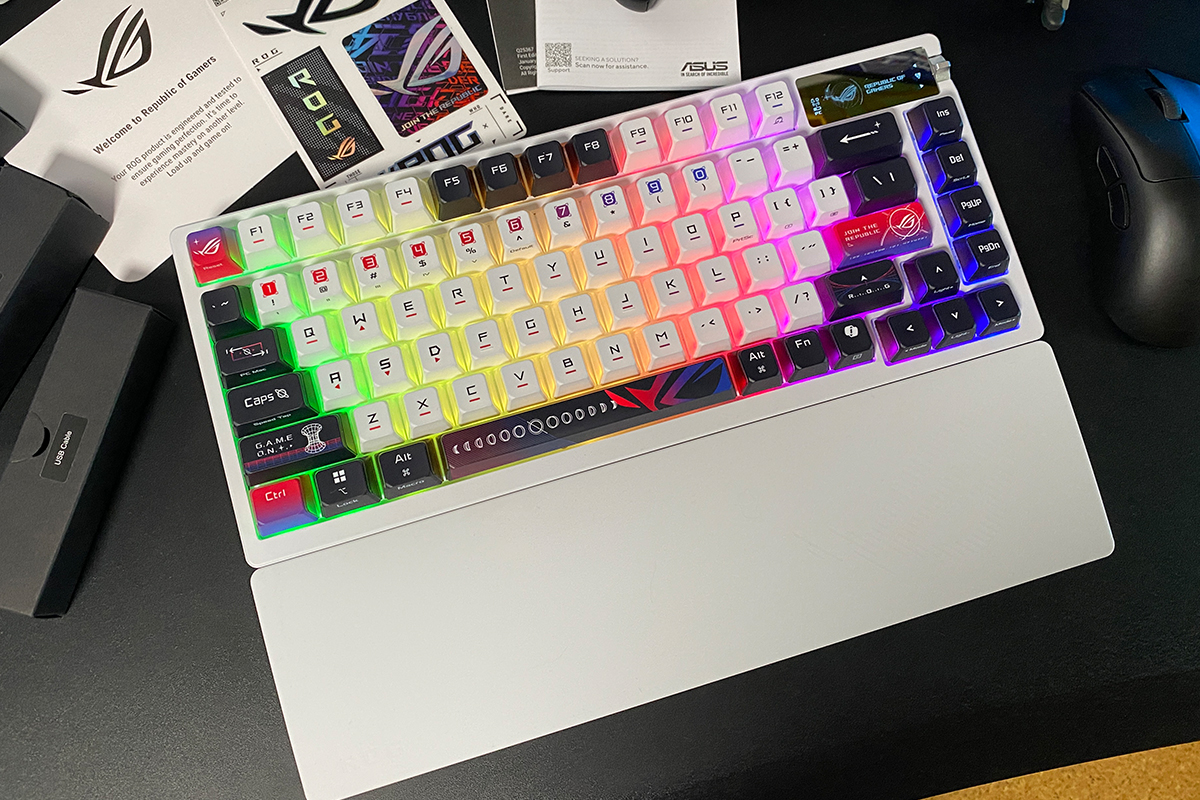
According to ASUS’s official website, the battery life is up to 1600 hours in 2.4 GHz RF mode with both the backlight and OLED display turned off. If memory serves, the ROG Azoth X offers roughly the same battery performance as the higher-end ROG Azoth Extreme. From my experience, a full charge comfortably lasts over a week with the backlight set at 50%, the OLED display active, and the sleep timer set to engage after 5 minutes of inactivity. In summary, the ROG Azoth X delivers solid battery life, consistent with what you can expect from other high-end ROG devices.
Conclusions
In conclusion, the new ROG Azoth X is an interesting update that will likely appeal to many gamers. Its key strengths include a bright, stylish, and distinctive design; unique “space-themed” keycaps that stand out and could be appealing for collectors; solid build quality with good materials; impressive battery life; support for an 8000 Hz polling rate; and the ability to configure settings online without needing to install software on a PC. The addition of a small OLED display is a nice extra feature. The price is roughly the same as the original ROG Azoth, which makes it reasonable within the context of ROG’s product lineup.
Is it perfect? Not quite. There are a few areas that could be improved. For example, the keyboard could benefit from a fully metal case. The OLED display might be more appealing if it were in color. As for the typing experience, it’s definitely an acquired taste. Honestly, I didn’t like it at first. However, after using the keyboard for a few weeks, I came to understand its particular appeal. While this typing feel won’t suit everyone, it does have its own unique character. I’m aware there are users who will appreciate this style. Overall, the ROG Azoth X is a solid device and a worthy addition to the ROG lineup.
Read also:
- Rare Earth Metal Situation: Whoever Controls the Resources, Rules the World
- Razer Joro Review: Ultra-Compact Gaming Keyboard
- How to Spot Fake Photos: New Challenges of the Digital Age
Where to buy