





© ROOT-NATION.com - Use of content is permitted with a backlink.
Last year, I reviewed the ROG Falchion Ace HFX – ASUS’s ultra-compact 65% keyboard with magnetic switches. Not much time has passed, and now I have its conceptual successor in front of me – the ROG Falchion Ace 75 HE. At first glance, the new model may look like just a slightly larger version of the previous one. However, after spending more time with the Ace 75 HE, it quickly becomes clear that this is not the case.
In the new model, ASUS has not only expanded the form factor but also significantly upgraded it: the switches have been updated, a dedicated roller for quick actuation point adjustment has been added, more metal has been used in the construction, and configuration is now handled via a new web-based application called Gear Link instead of Armoury Crate. And these are far from all of its notable features. Back when I tested the ROG Azoth, it became my favorite mechanical keyboard from the brand. The new ROG Falchion Ace 75 HE delivers a similarly strong impression, and I can confidently say it is ASUS’s best magnetic keyboard to date. Why? I will explain in detail in this review.
Read also: All gaming keyboard reviews
TABLE OF CONTENTS:
Specifications
- Model: ROG Falchion Ace 75 HE
- Form factor: 75%
- Connection: wired (USB-C to USB-A)
- Switches: ROG HFX V2 Magnetic Switch, ROG HFX V2X Magnetic Switch
- Maximum polling rate: 8000 Hz
- Anti-ghosting: Full (N-Key Rollover)
- Construction: 6-layer damping (3 layers of PORON + 3 layers of silicone)
- Keycaps: ROG Doubleshot PBT
- Backlighting: RGB compatible with Aura Sync
- Proprietary software: Gear Link, Armoury Crate
- Onboard memory: 5 fully customisable independent profiles
- Switches and controls on the chassis: multifunction button, touch panel, Rapid Trigger switch, adjustment roller
- Hot-swap: yes (currently compatible with ASUS switches only)
- Cable: detachable L-shaped USB-C to USB-A (1.8 m)
- Chassis material: metal, plastic
- Dimensions: 320×145×35 mm
- Colours: black, white
- Features and technologies: magnetic switches, 8000 Hz polling rate, multifunction button and touch panel, Rapid Trigger switch, adjustment roller, Speed Tap mode, on-the-fly macro recording, pre-lubricated switches and stabilisers, 6-layer damping, browser-based customisation via Gear Link
- Package contents: keyboard, carrying and storage case, branded keycap puller, USB-C to USB-A cable, branded ROG stickers, alternative Ctrl key, user manual, warranty booklet

Positioning and Price
In my review of the ROG Falchion Ace HFX, I already covered the Falchion keyboard lineup and the models it includes in detail, so I will not repeat that here. Instead, I will briefly outline the positioning of this new release. The ROG Falchion Ace 75 HE is essentially an enlarged 75% version of the Falchion Ace HFX, improved in several areas, and can fairly be considered the new magnetic flagship of the series. The keyboard is priced accordingly at $249 / €214, although in some stores it can currently be found for around $23 / €20 less.
ASUS ROG Falchion Ace 75 HE Package Contents
The previous Ace HFX already came with a solid standard package. With the new model, ASUS has slightly expanded it by adding a branded carrying case. In practice, this replaces the protective plastic cover from the previous version, which could be used either as a base or as a cover for the keyboard. The cable design has also been slightly revised – it now features an L-shaped connector.


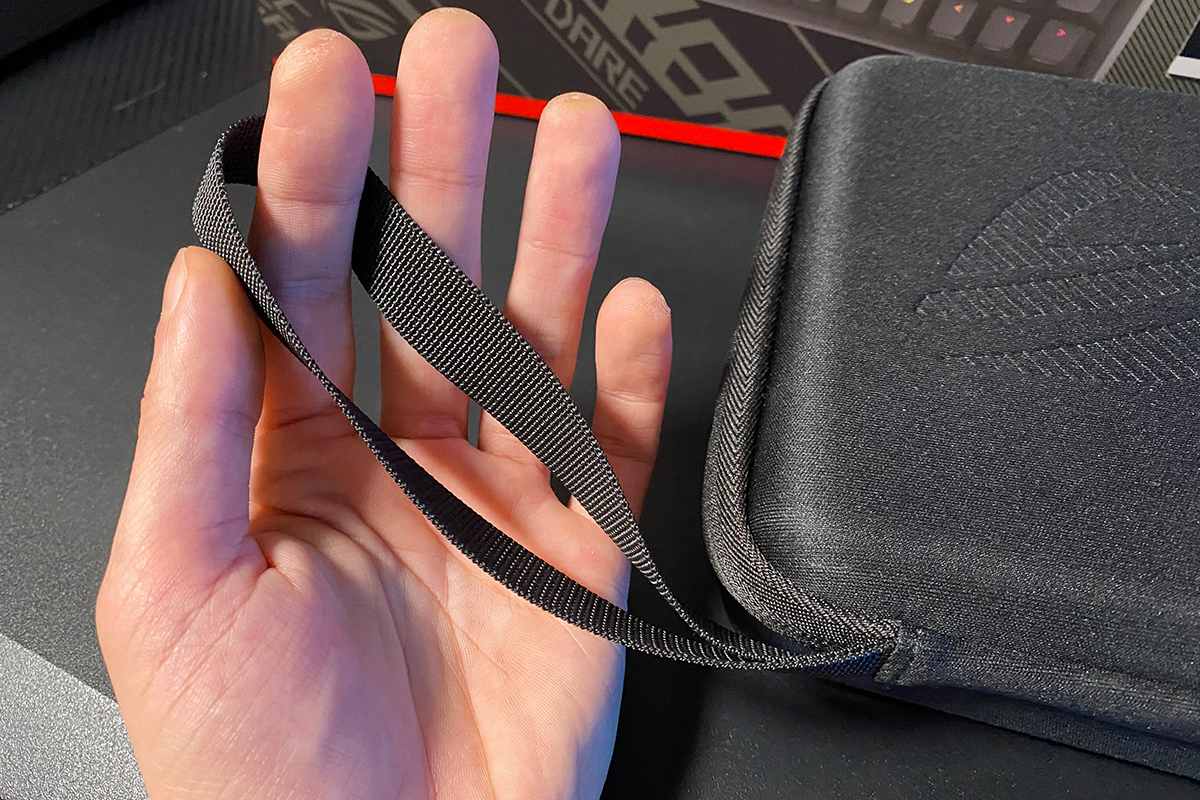
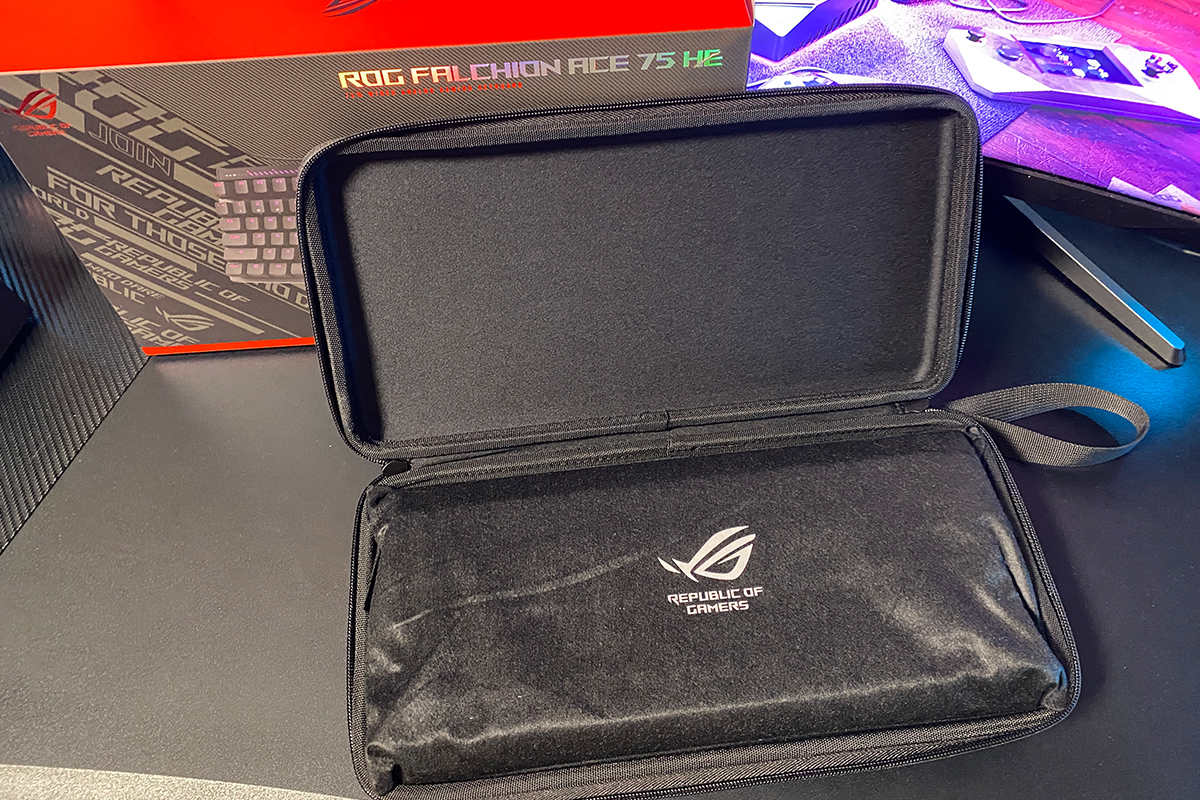
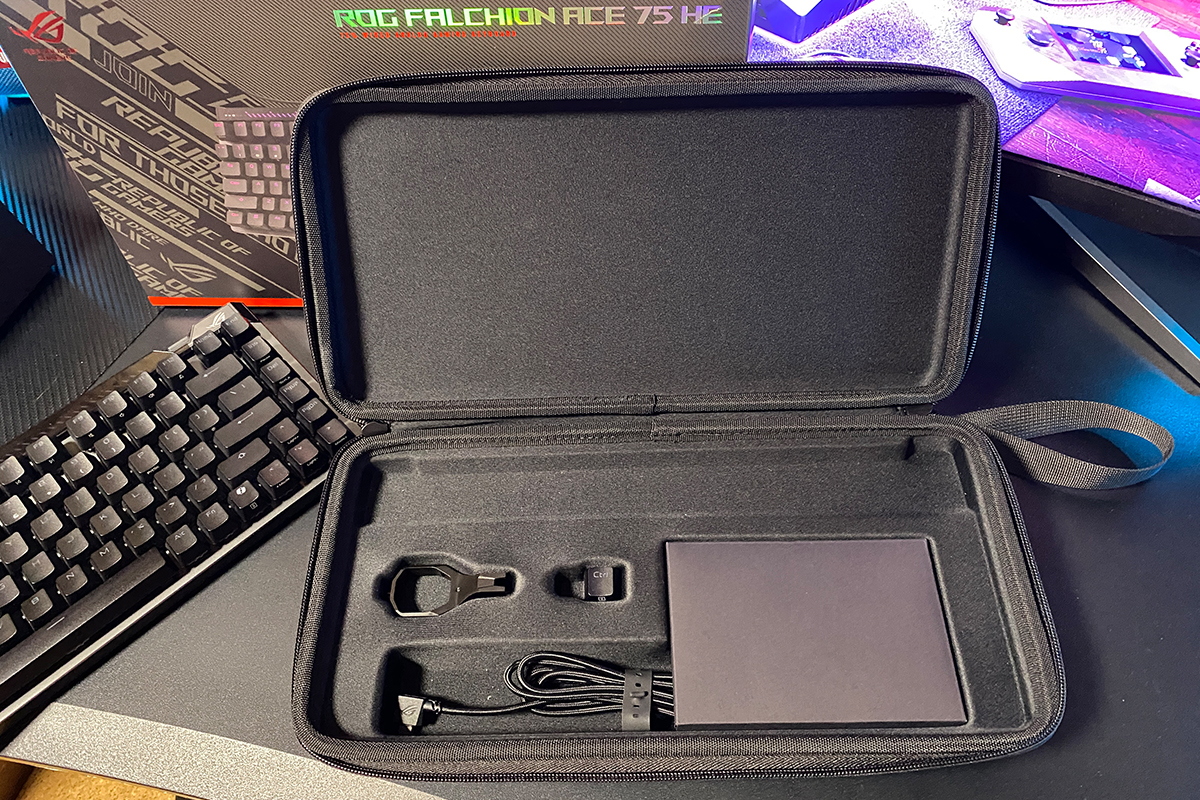
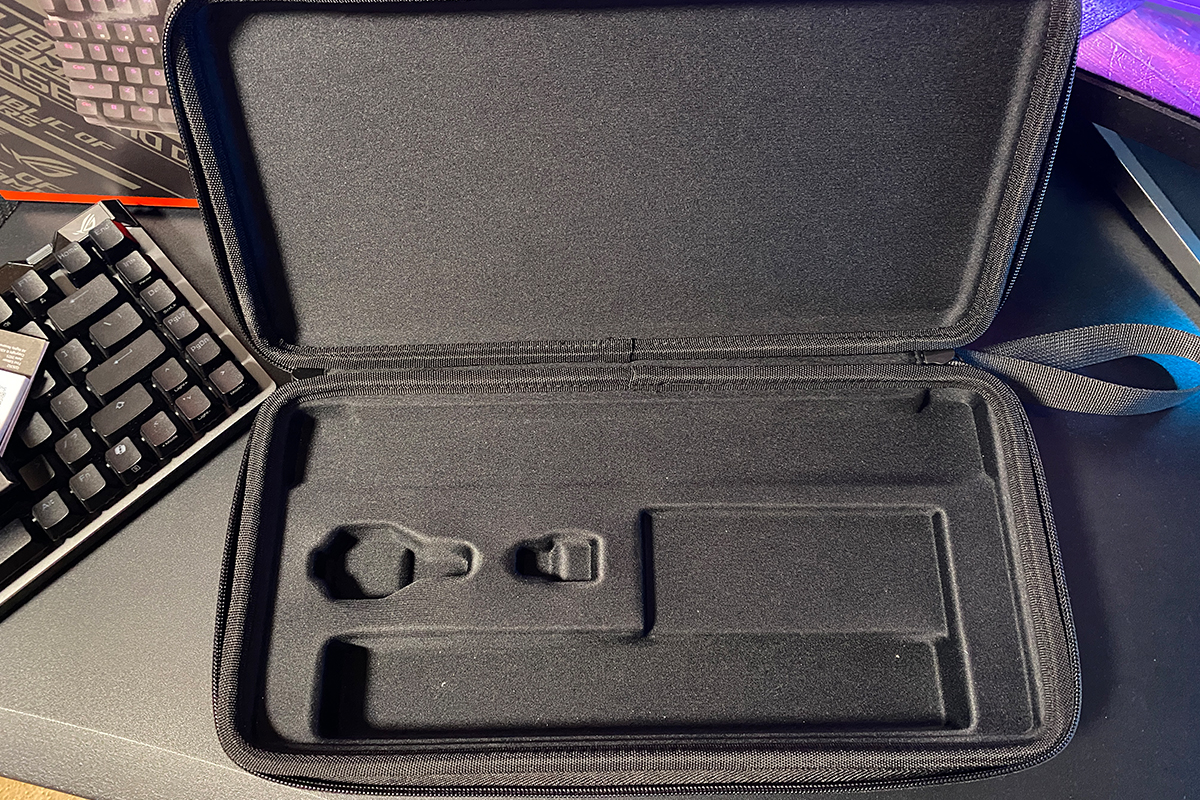
The case has a rigid frame, a pleasant fabric exterior, and a solid dual zipper. For portability, there is a carrying strap located on the right corner. Inside, there are dedicated compartments that securely hold the keyboard and all included accessories (puller, cable, replacement keycaps, and documentation).
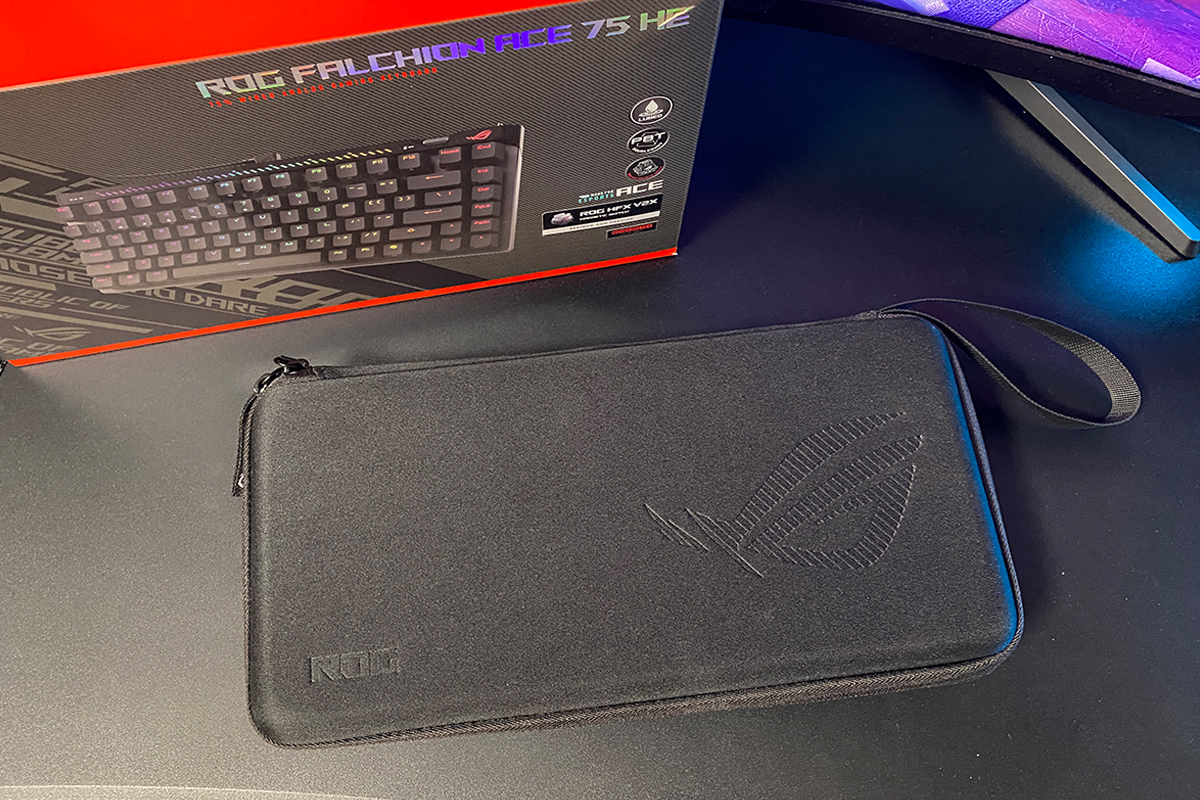
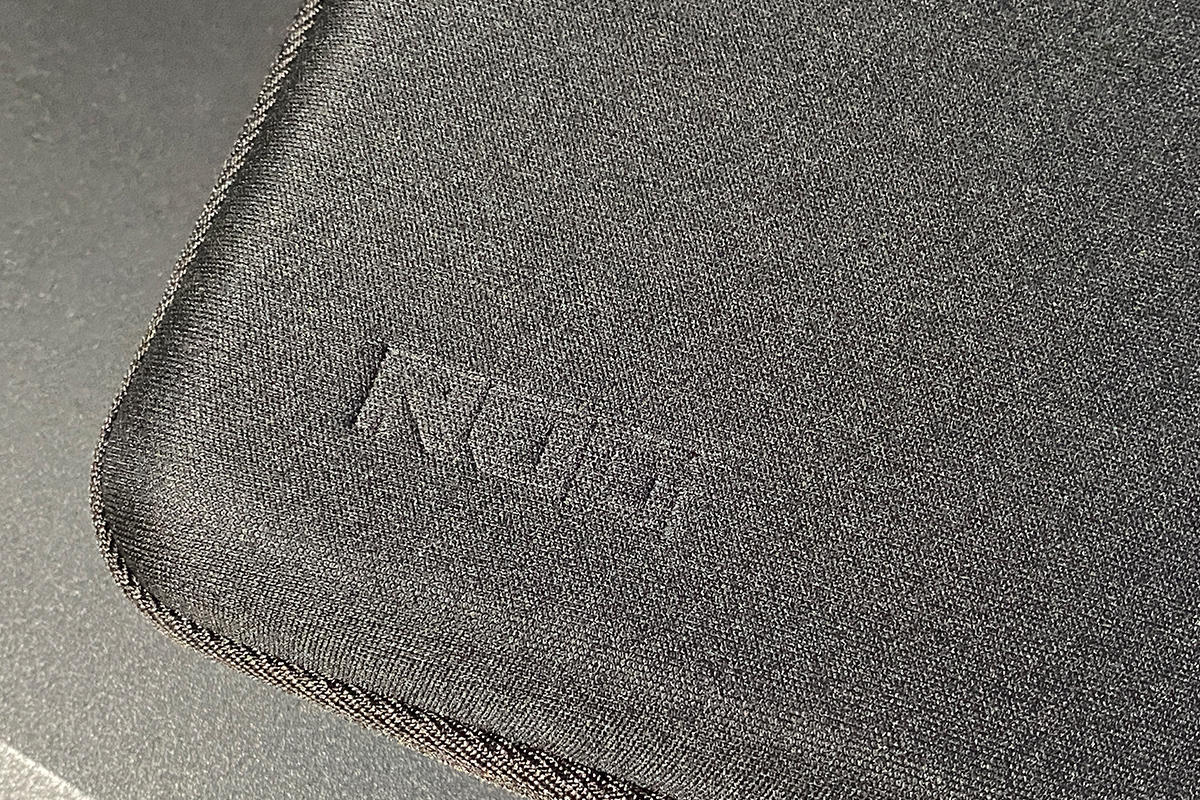
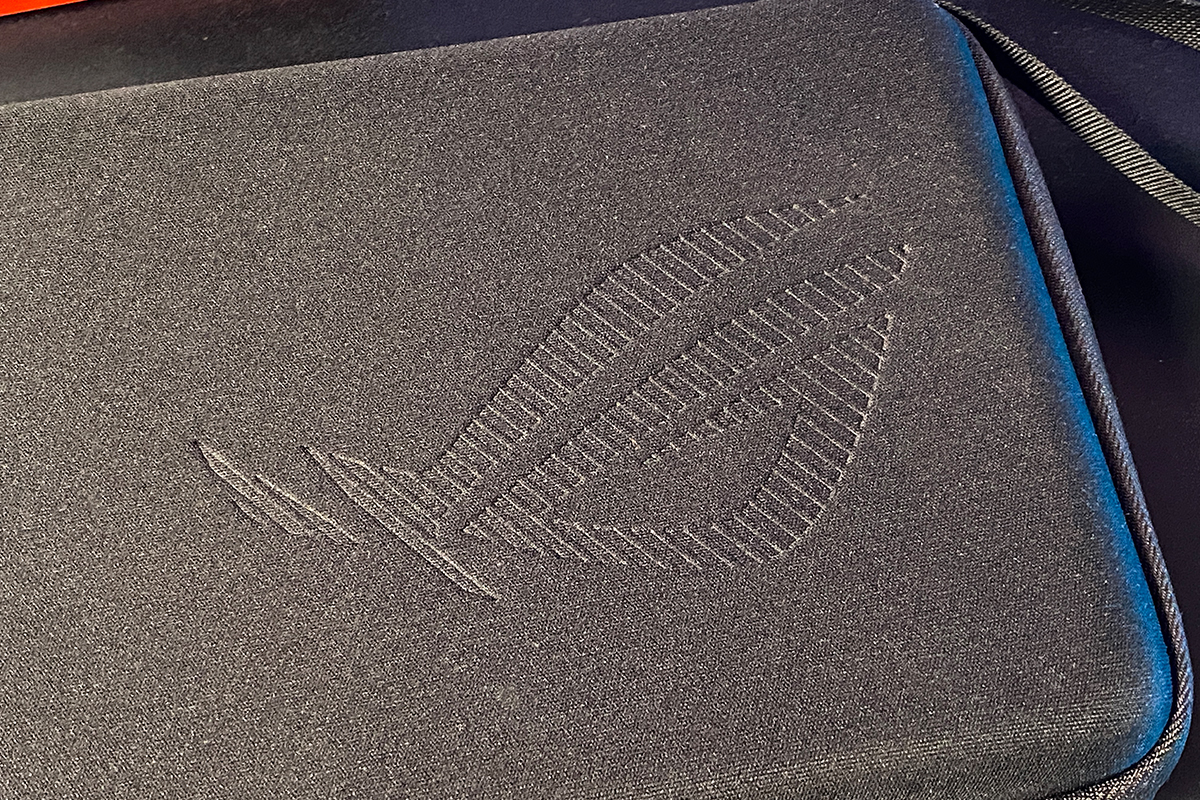
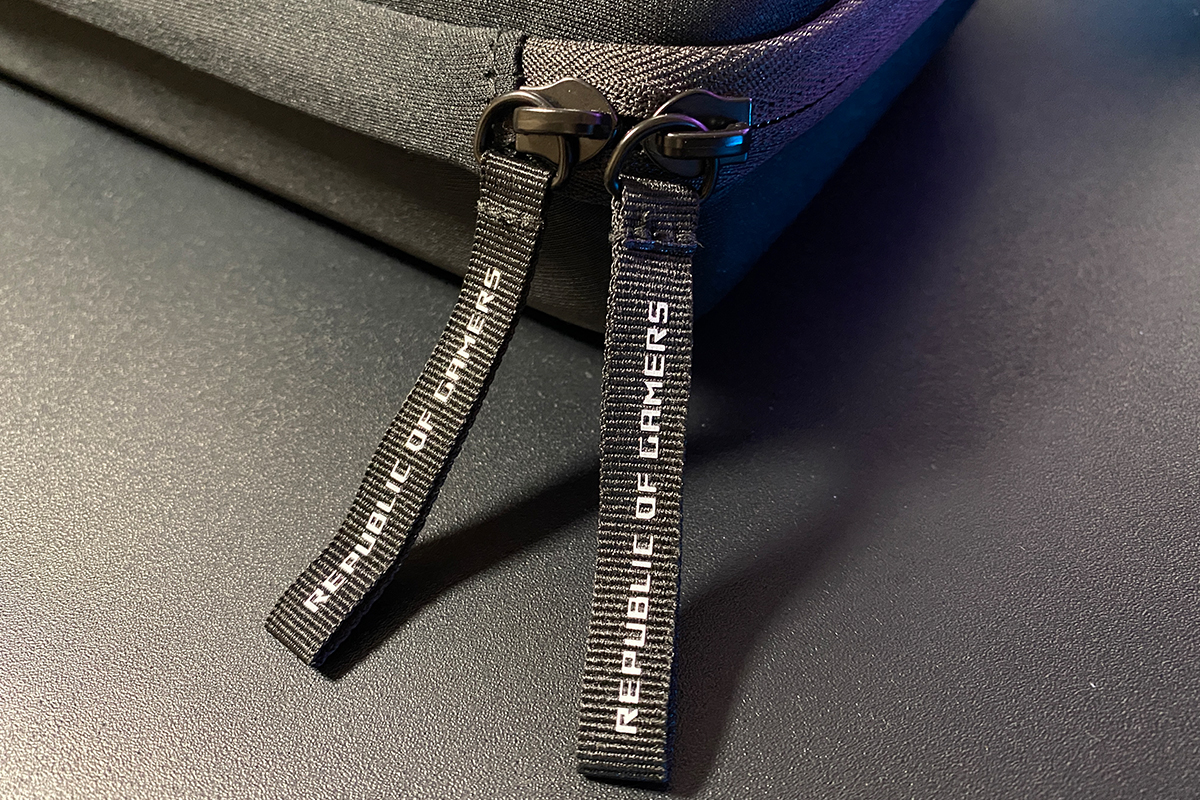

The detachable USB-C to USB-A cable features a more compact and convenient L-shaped connector. The length remains standard at 1.8 meters. The cable uses a high-quality braided sleeve and is moderately flexible – it bends easily and straightens out without difficulty.


The rest of the package is identical to the previous model: a plastic keycap puller, ROG stickers, a standard Ctrl keycap to replace the Copilot key, a user manual, and a thick warranty booklet.
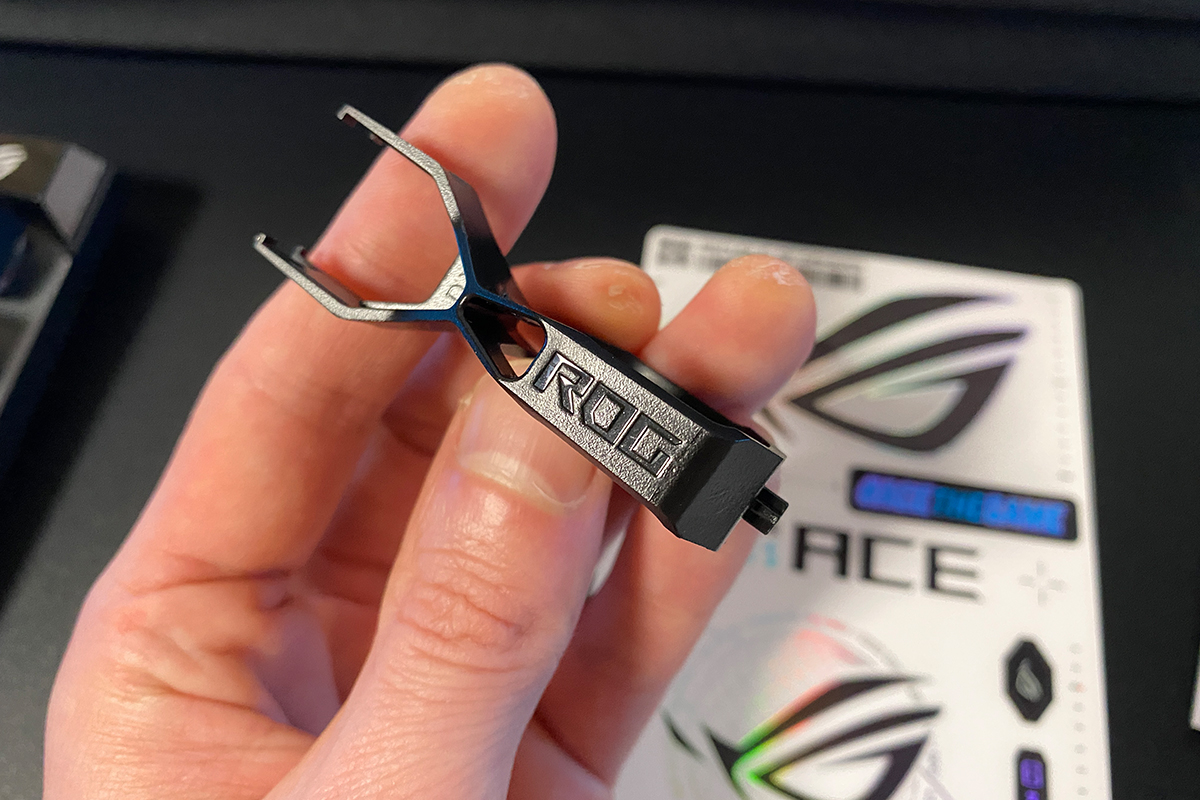
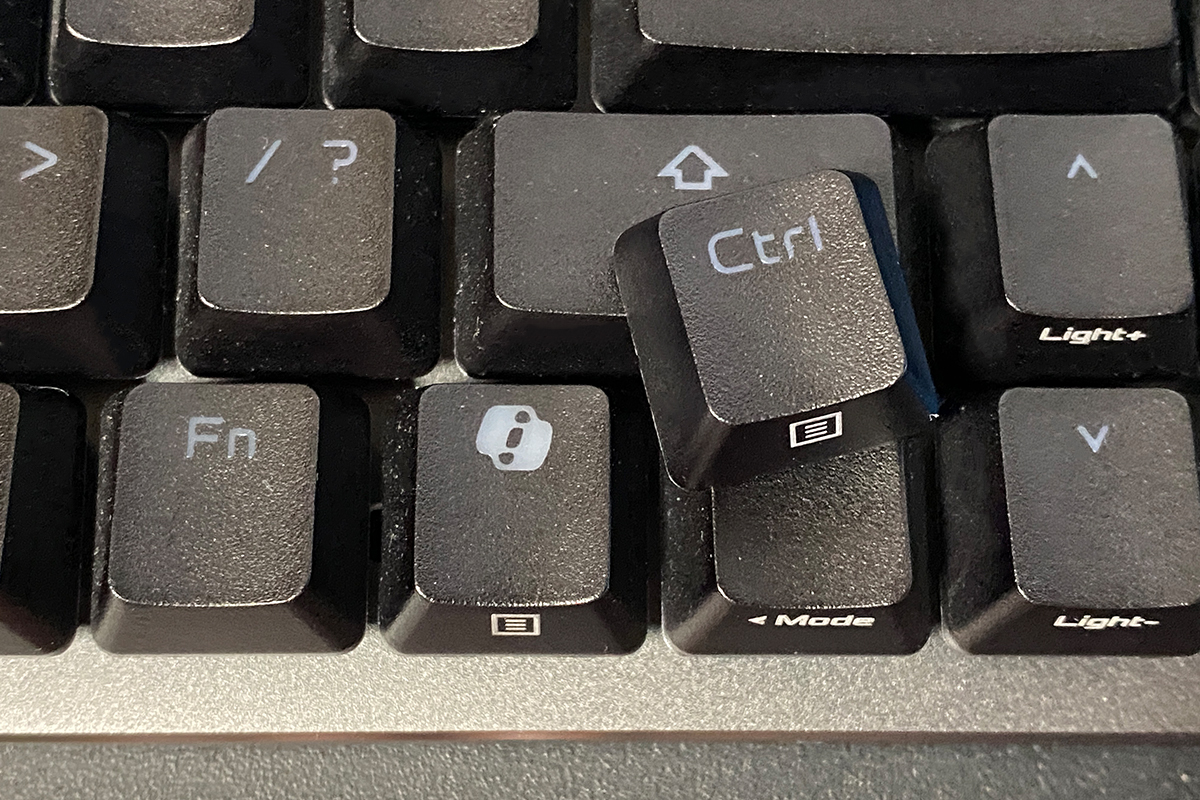
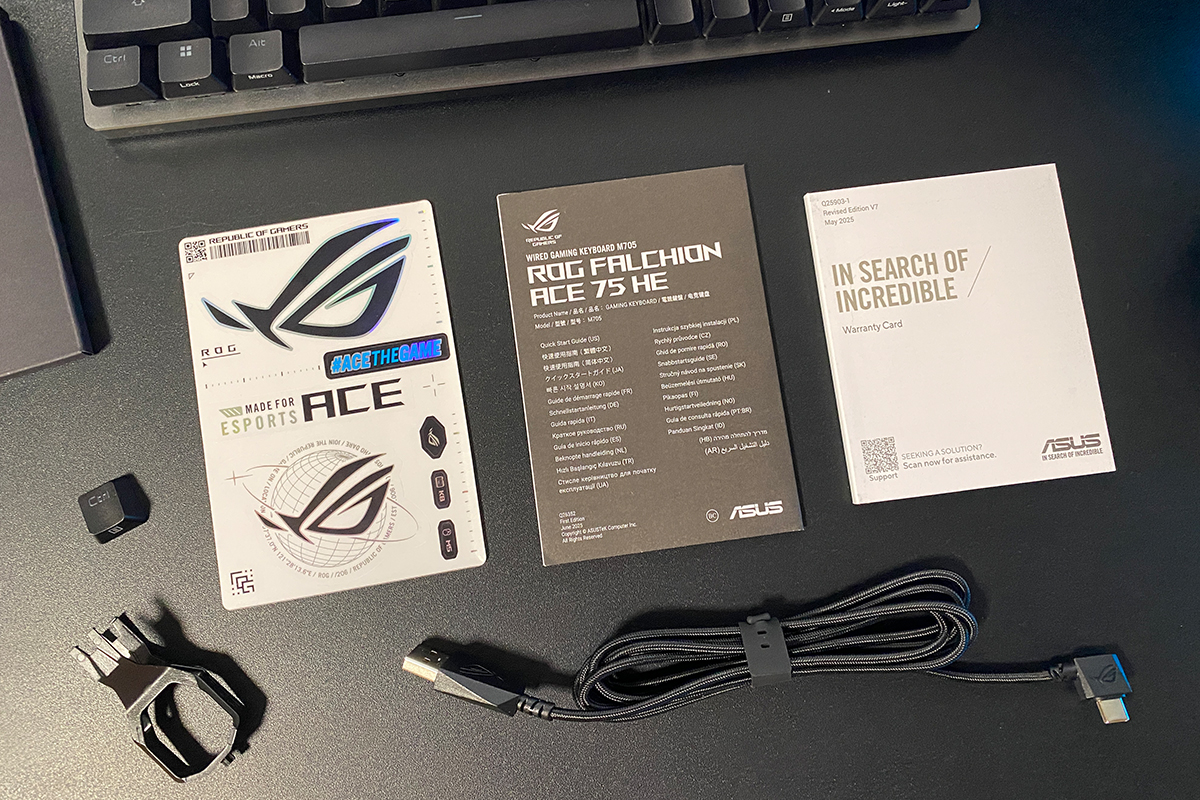
Overall, this is an excellent package. Especially the case, which allows the keyboard to be easily transported. In fact, it already gives a strong hint about the target audience ASUS had in mind when designing the new ROG Falchion Ace 75 HE – esports players who frequently attend tournaments with their own gear, as well as advanced competitive gamers.
The “ACE Esports” label in the name is there for a reason. For context, the ROG Ace Esports Collection is a separate lineup of uncompromising gaming peripherals developed by ASUS in close collaboration with esports professionals. Within this collection, ASUS often partners with teams such as Team Vitality, NRG, and players like Mathieu ‘ZywOo’ Herbaut.

The package is excellent overall, but it still feels like something is missing, doesn’t it? Once we get to the switches section, it will become clear what that “missing piece” is.
Read also:
- ASUS ROG Raikiri II Xbox Wireless Gamepad Review: TMR Sensors, Microswitches, and 1000 Hz Polling on PC
- ASUS ROG Cetra Open Wireless Review: Open-Ear Design, Hybrid Multipoint, and Strong Battery Life
Design and Ergonomics
Visually, the new keyboard looks like a simply enlarged version of the previous Ace HFX. And, broadly speaking, that is essentially true. However, upon closer inspection, the differences become immediately apparent. Beyond the increased 75% form factor, ASUS has added a dedicated roller on the chassis, allowing users to adjust the actuation point of the magnetic switches on the fly. In addition, the top case is now fully made of metal. But let’s go through everything step by step.


As already mentioned, the new ROG Falchion Ace 75 HE is built in a classic 75% form factor – ideal for users who felt the previous HFX lacked dedicated function keys. The layout has not been changed and remains a standard ANSI (QWERTY) configuration with elongated Shift keys and a single-row Enter key.

The keyboard’s dimensions have increased accordingly, from 315×115×35 mm to 320×145×35 mm. One thing that immediately stands out is the angle and overall height – even without extending the feet, the keyboard sits relatively low on its own. In terms of feel, it sits somewhere between a low-profile keyboard and standard Cherry-profile keycaps. Combined with the typing experience of the new switches, it delivers a very satisfying feel. Users who prefer lower-profile keyboards will likely appreciate the new Ace 75.


As I mentioned earlier, there is now more metal in the construction. In the previous model, only the plate directly under the switches was made of metal, while the sides and bottom remained plastic. In the new Ace 75, however, the entire top case (the upper part of the chassis) has been made fully out of metal.


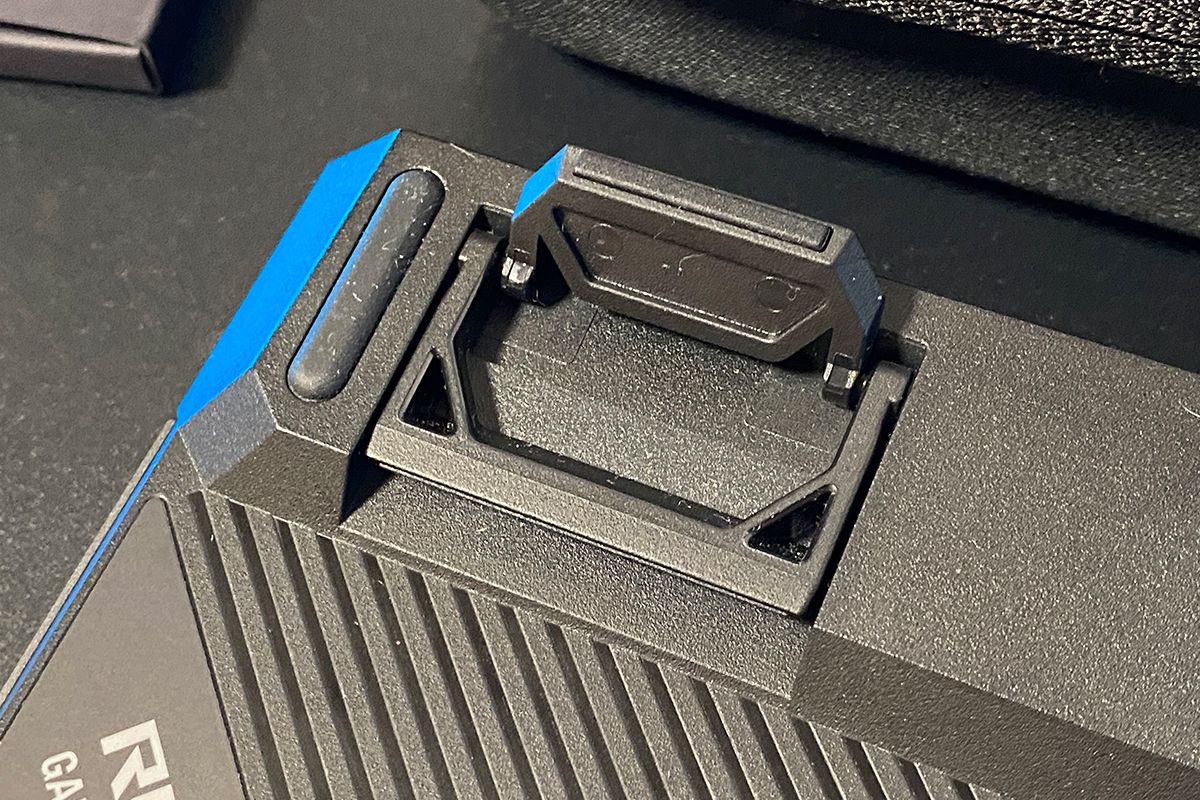
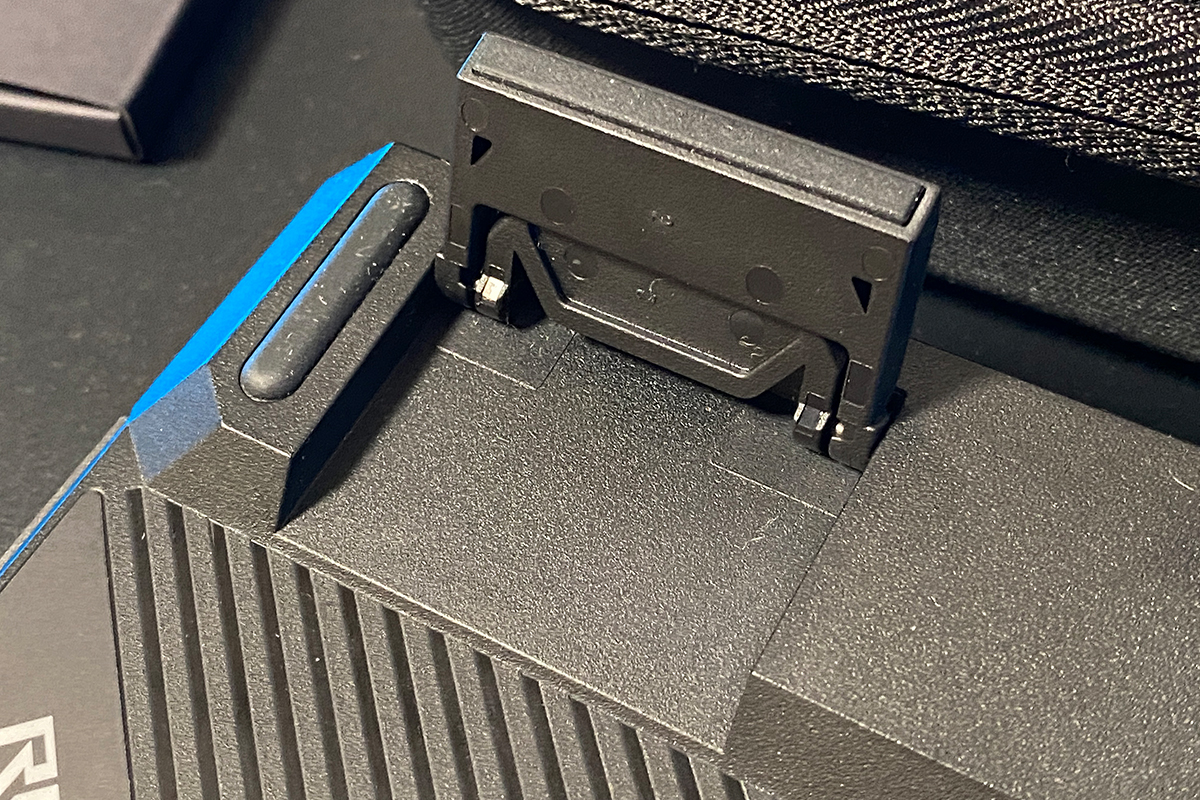
On the top of the chassis, as with the previous model, there is a plastic lighting panel. The only difference is the addition of a roller on the new version, which by default adjusts the key actuation point on the fly. However, in the proprietary web application Gear Link, this roller can also be reassigned to other functions.


The top edge of this panel remains largely unchanged – it still features a multifunction button and a touch strip. The button switches modes, while the touch strip itself is used for adjustment. In other words, you swipe your finger across it to adjust volume or RGB brightness. During adjustment, the lighting on the panel also acts as a visual indicator bar. It’s a fairly convenient and original solution that I already had the chance to appreciate in the ROG Falchion RX Low Profile model.


In the far right corner of the panel, as in the previous model, there is a Rapid Trigger switch. This toggle allows users to instantly enable a pre-configured Rapid Trigger mode whenever needed. It is also a surprisingly convenient feature in practice.

The previous Ace HFX featured two Type-C ports, simply to allow users to choose whichever side was more convenient for cable routing. In the new model, this feature has been removed, leaving a single classic connector located at the center of the top edge. The only related change is the updated L-shaped cable connector, which I already covered in the package contents section.

There were also changes to the internal construction of the keyboard. The previous model featured a 5-layer dampening system. The new version has been improved by adding an additional layer. As a result, the ROG Falchion Ace 75 HE now uses the following structure: 3 PORON layers + 3 silicone layers. I will show the full keyboard architecture in the screenshot below.

The keycaps in the new model feel essentially identical to those in the previous version. They are high-quality ROG doubleshot PBT keycaps with a noticeably grippy textured surface and translucent legends. They are thick and overall very well made – there is not much more to add here.


The bottom of the keyboard, as with the previous model, is made of plastic, featuring the ROG logo on the right side and a linear textured pattern across the entire surface.


On the top side, there are two dual-stage feet with additional rubber pads at the ends. Overall, it can be said that the underside of the device has remained almost unchanged compared to the previous model.
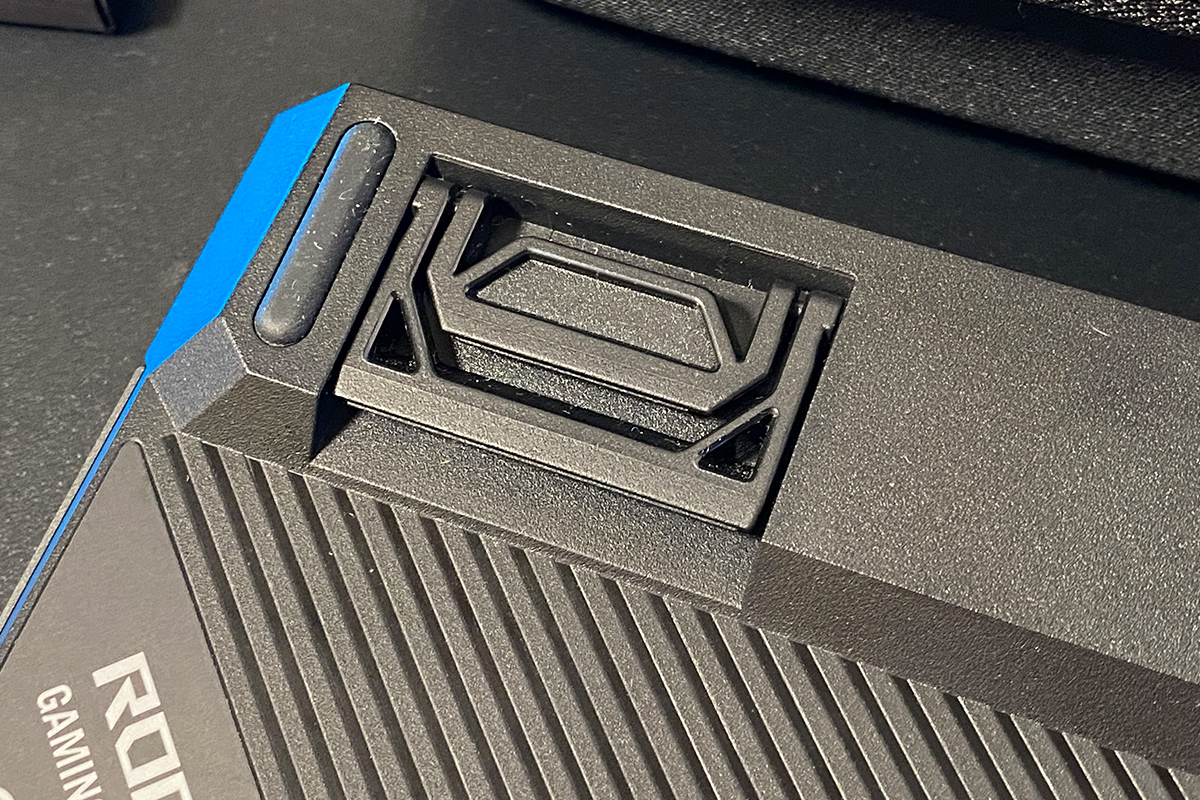
The keyboard is built to a very high standard. Thanks to the fully metal top case, the device feels even more solid and monolithic. There is no creaking or flex anywhere, and even with deliberate effort, it’s impossible to twist it enough to produce any noticeable noise or structural give.
In terms of ergonomics, the new ROG Falchion Ace 75 HE is, for me personally, close to perfect. As mentioned earlier, the keyboard is naturally low-profile, which creates an interesting hybrid feel – somewhere between a low-profile design and more traditional keycap profiles. Combined with the new switches and overall typing experience, it feels genuinely excellent.
You know, when it comes to keyboards, I personally care less about specs like polling rate or various magnetic switch features, and much more about the overall feel and typing experience. And in that regard, I am absolutely blown away by the new ROG Falchion Ace 75 HE. That is exactly why I said at the beginning: this is ASUS’s best magnetic keyboard.

Read also:
- ASUS ROG KJP Accessories Review: Original Collaboration with Kojima Productions
- ASUS ROG Gladius III Core Mouse Review: Asymmetric Design, Hot-Swap Switches, New Switch Technology, and Gear Link
Features, Switches, Hotswap, and Typing
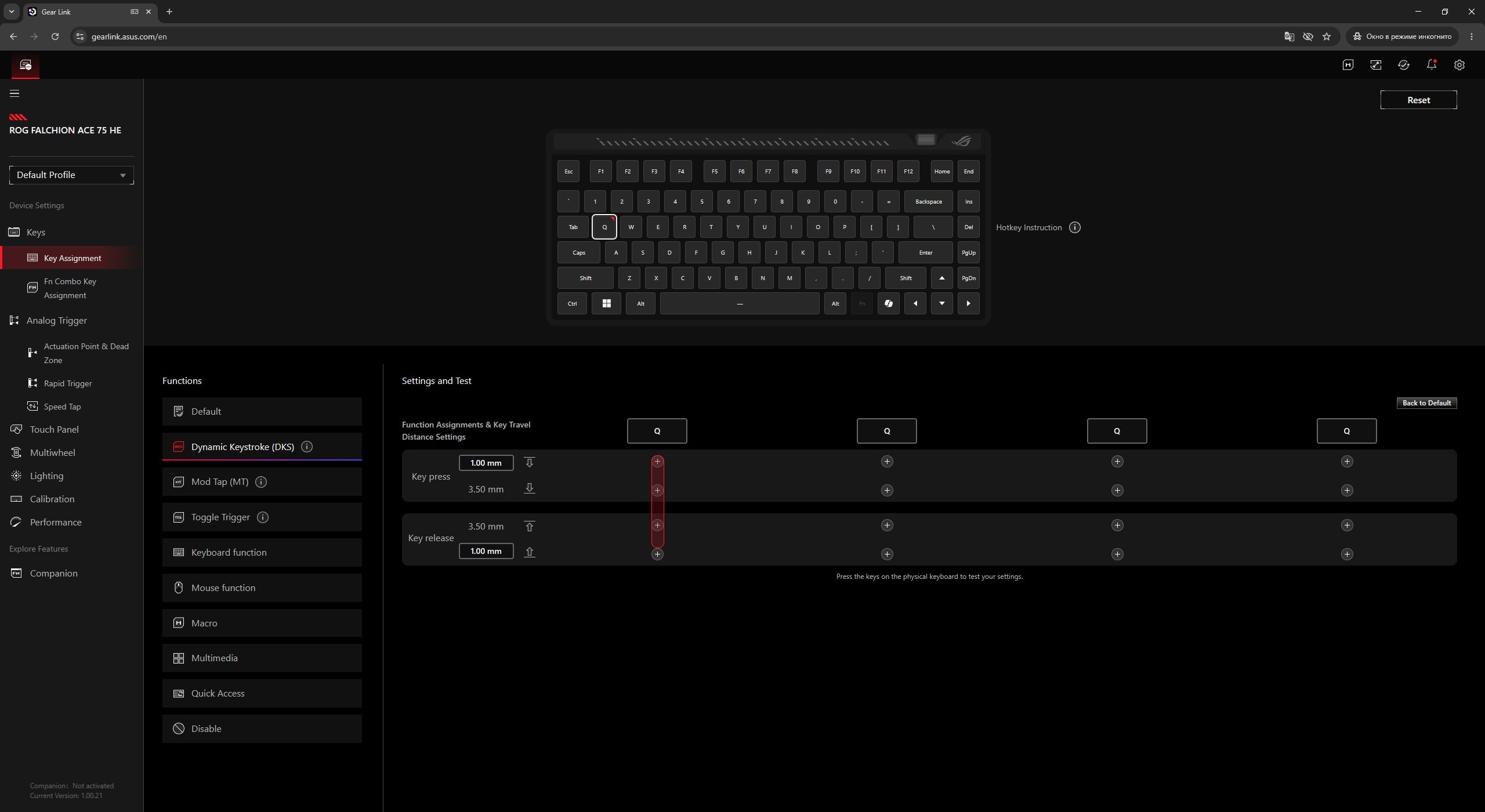
Like the previous model, the new ROG Falchion Ace 75 HE is a magnetic keyboard equipped with high-sensitivity sensors, an 8000 Hz polling rate, and extremely low input latency. As expected, the new version retains all the core capabilities of its predecessor: adjustable actuation points, configurable dead zones, Rapid Trigger and Speed Tap modes, as well as the ability to assign multiple functions to a single key depending on press depth (Dynamic Keystrokes / DKS). I already covered all of these features in detail in my review of the previous model, so I won’t repeat them here. Simply put – everything is still present in the new ROG Falchion Ace 75 HE.

The previous model came equipped with proprietary ROG HFX switches, which I also covered in detail in my earlier review. In the new model, the switches have been updated and improved – it now features the new ROG HFX V2 and ROG HFX V2X Magnetic Switches.

These are linear magnetic switches that allow users to adjust the actuation point within a range from 0.1 to 3.5 mm. Their detailed specifications can be seen in the screenshot below.

I received a keyboard for review equipped with ROG HFX V2X switches, and I can say they feel absolutely excellent: soft, smooth, quiet keystrokes with a slightly cushioned, “rubbery” feel and very solid key stabilization. ASUS managed to reduce key wobble (stem play) to a minimum thanks to an additional internal stabilizing mechanism inside the switch itself. The cross-like structure visible inside the switch in the photo is exactly this mechanism.

I should also note another important feature of the ROG Falchion Ace 75 HE – it now supports hotswap, which was not available in the previous model. However, its usefulness is currently somewhat limited, since due to the specific magnet layout, the sockets are only compatible with ASUS switches for now. That said, the manufacturer claims that third-party brands will soon release switches compatible with the new Ace 75 HE as well.
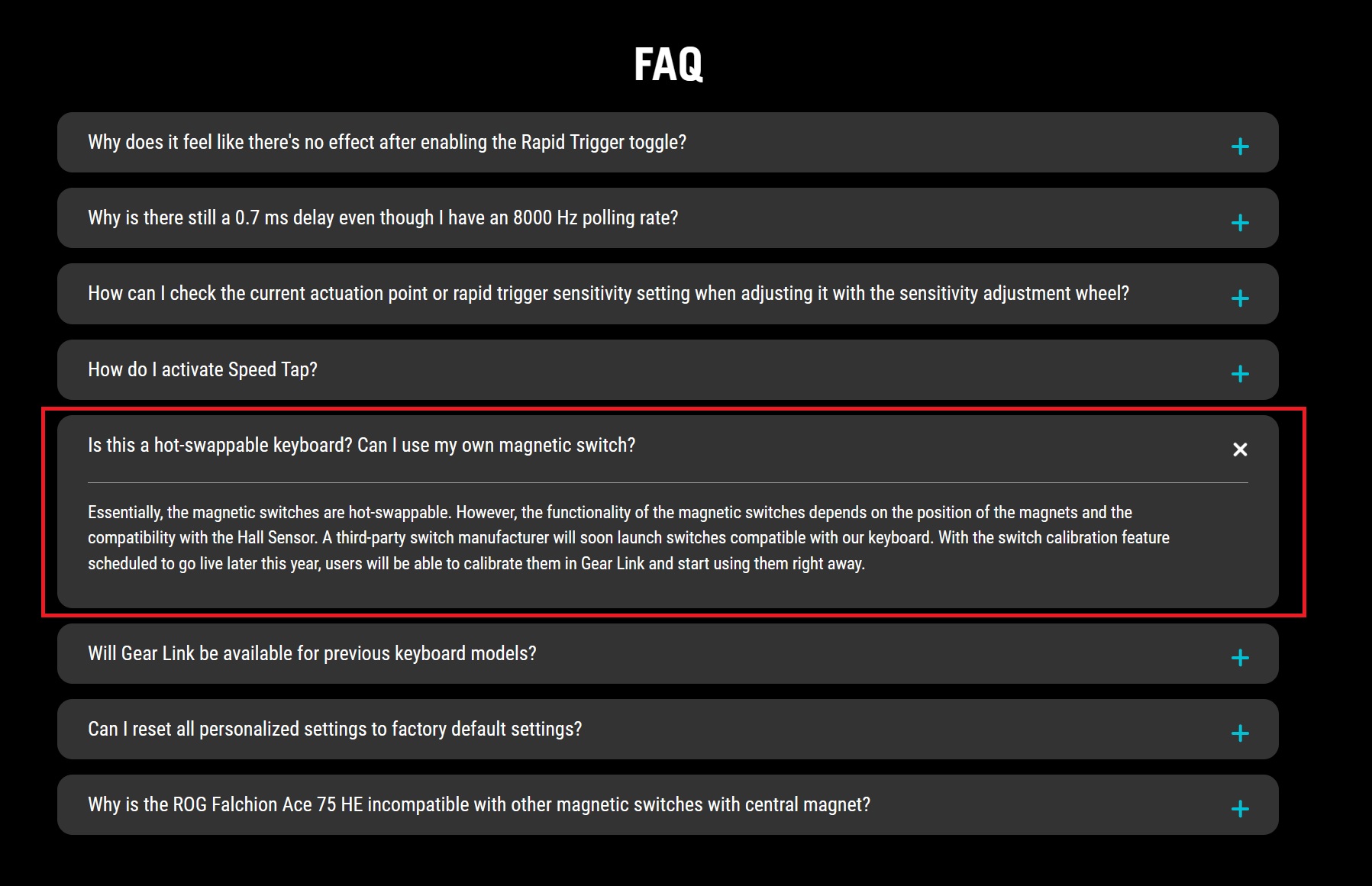
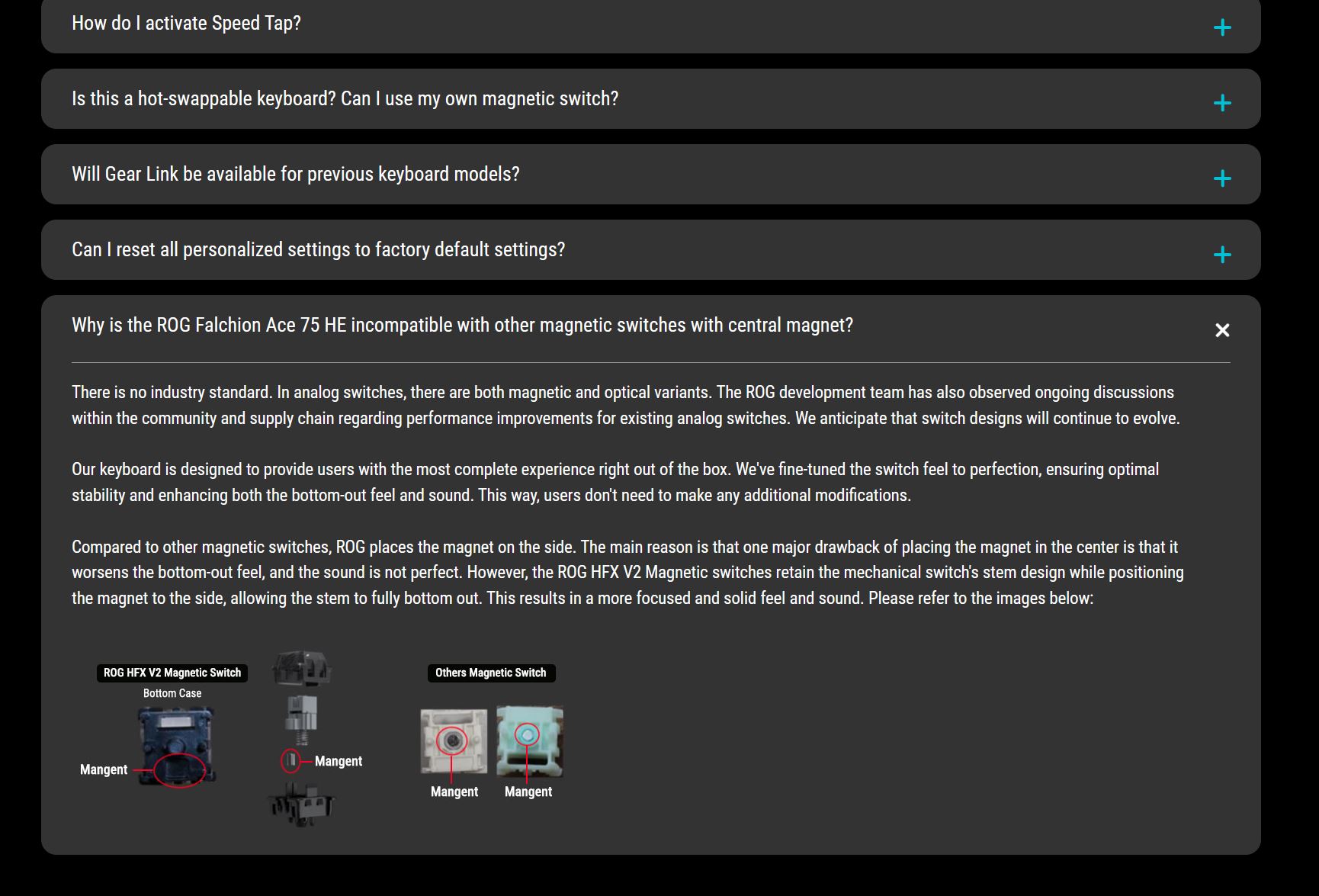
When pulling switches out of the keyboard, I noticed two important things. First, the package does not include a switch puller – only a branded plastic keycap puller. Second, the switches themselves sit extremely firmly in the sockets. So firmly, in fact, that I briefly started doubting whether the keyboard actually supports hotswap or if it was a mistake on the product page. To clarify both for you and myself: yes, it does have hotswap support, but you simply need to apply a bit more force when removing the switches. At the same time, you should be careful – don’t yank them out with full force. Instead, remove them slowly and steadily.

The stabilizers on this keyboard are excellent. Long keys have the same soft, smooth, and stable travel as the single keys. It’s also clearly noticeable that they come pre-lubed from the factory – there are no rattling sounds or other unwanted noise at all.
The only downside is that long keycaps can sometimes come off together with the stabilizer inserts. They sit very tightly inside the keycaps. I’ve seen a similar situation with the ROG Strix Scope II X as well. However, this is not a real issue – even if a key comes off with the inserts attached, they can be easily snapped back into place during reinstallation.


Typing on the ROG Falchion Ace 75 HE is not just excellent – in my opinion, it’s perfect. As I already mentioned, the soft, smooth, and at the same time highly stable keystrokes, combined with the low-profile body and monolithic metal construction, deliver an incredibly satisfying typing experience. You feel it immediately the moment you pick up the keyboard. In fact, it’s precisely this outstanding typing feel and overall tactile experience that led me to say right away: the new ROG Falchion Ace 75 HE is ASUS’s best magnetic keyboard. And as a bonus, the keyboard also sounds very solid and pleasant acoustically.
Software: Gear Link
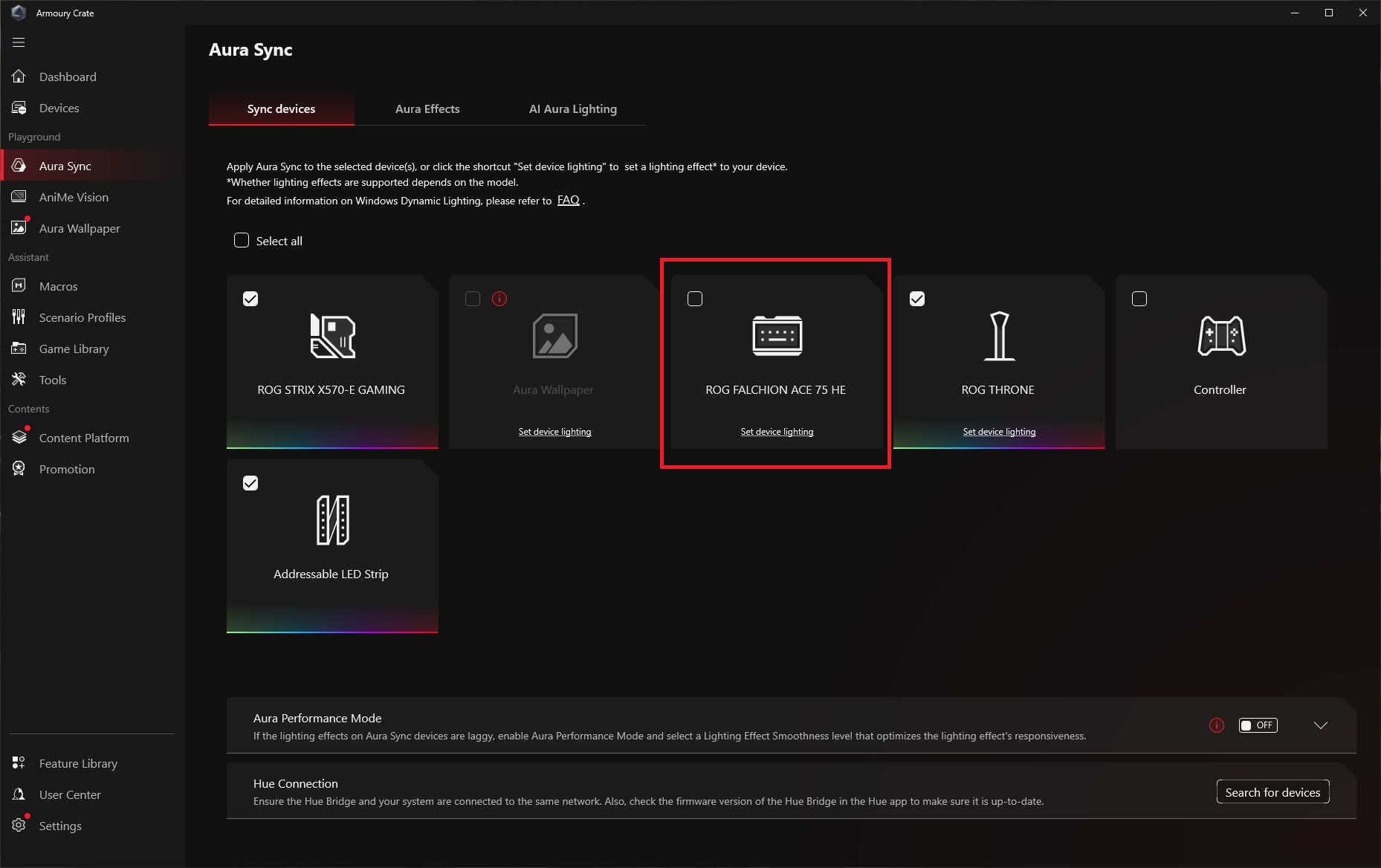
The previous Ace HFX was configured through Armoury Crate. The new model, like all recent ASUS devices, has been decoupled from it and now fully supports the web-based application Gear Link. Armoury Crate is now only used for synchronizing keyboard lighting with other ASUS devices via Aura Sync. Everything else is handled directly in the browser through Gear Link.
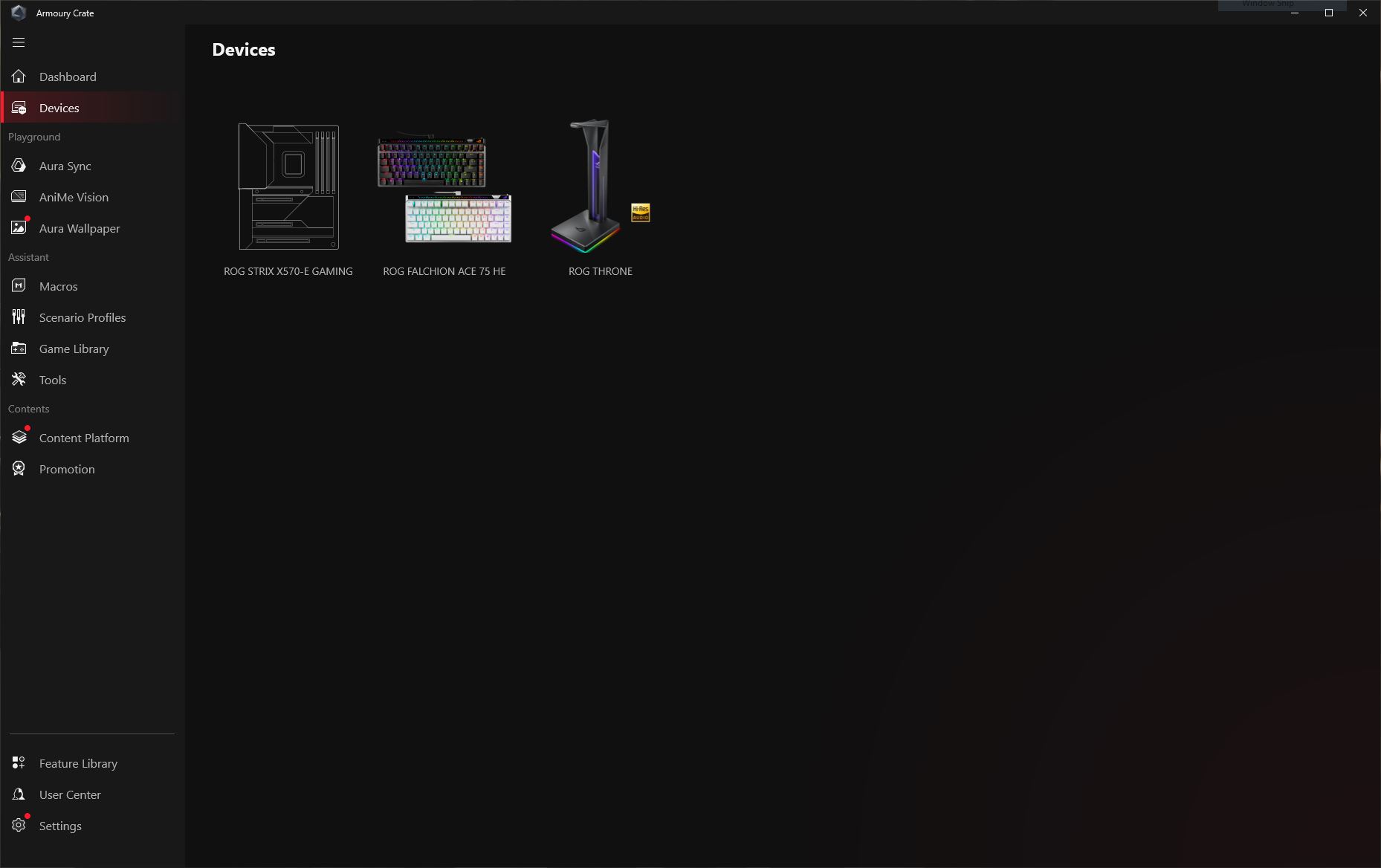
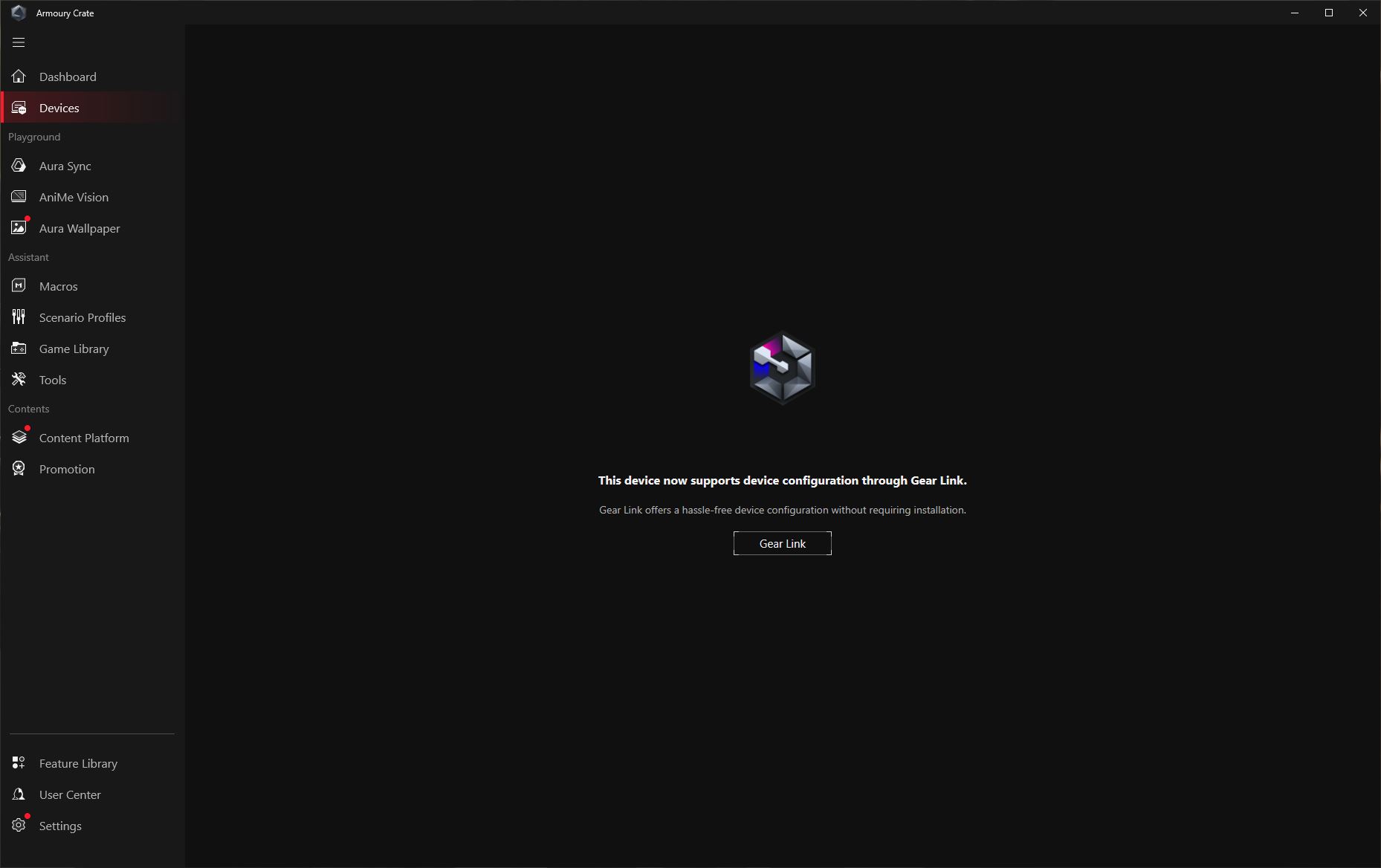
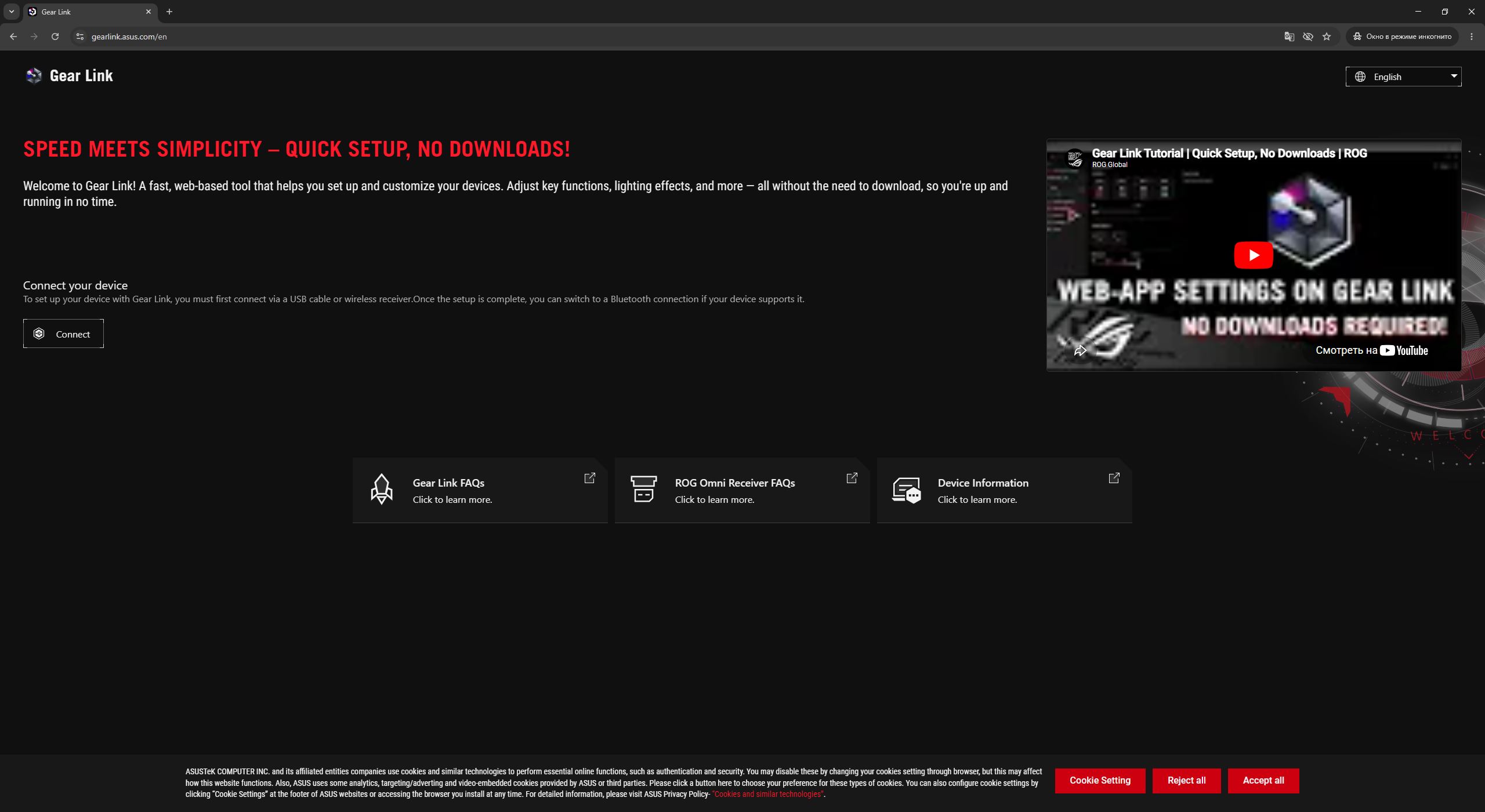
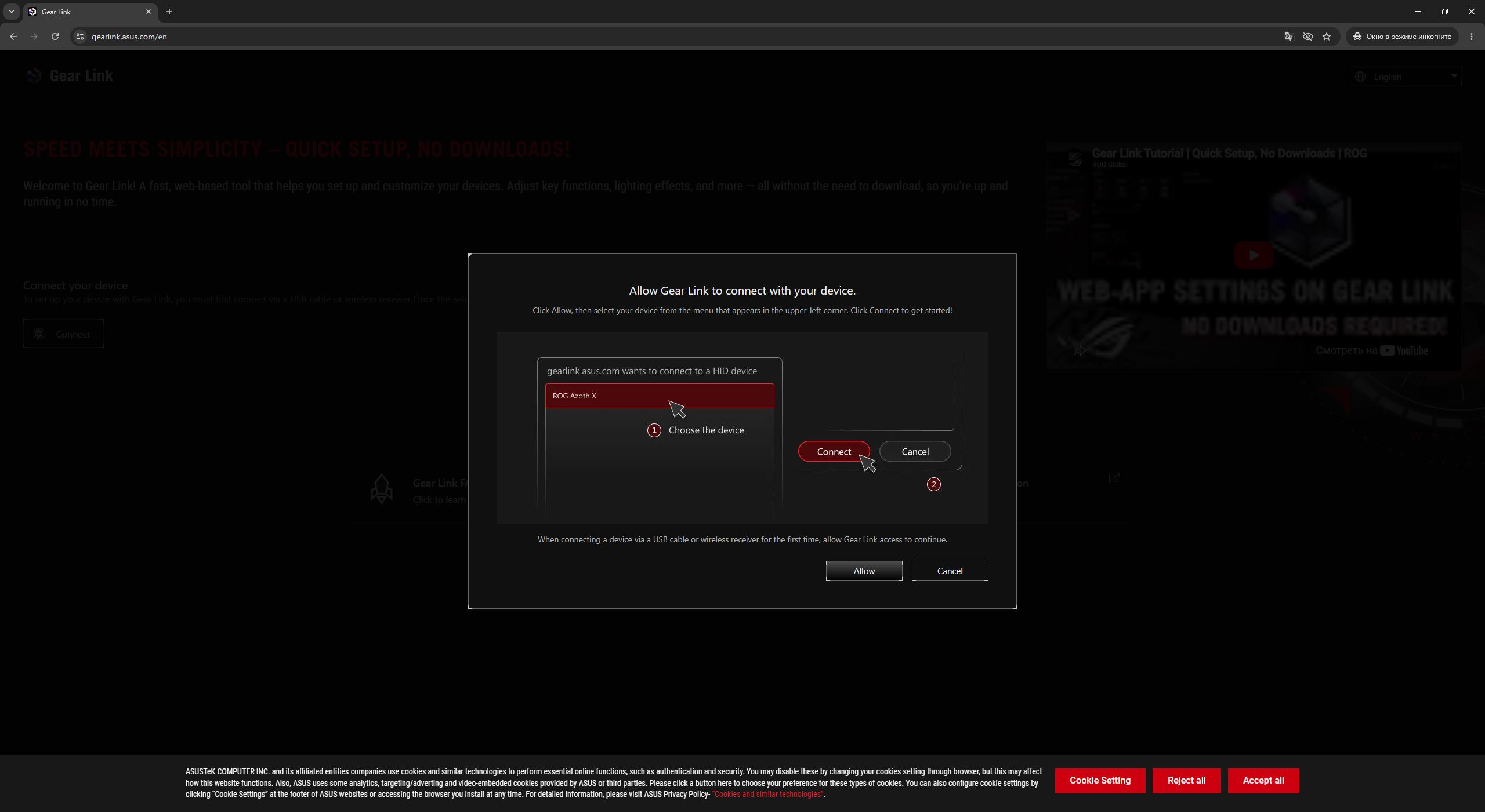
To access the Gear Link settings, you simply need to go to the website gearlink.asus.com and allow your browser to connect to the device.
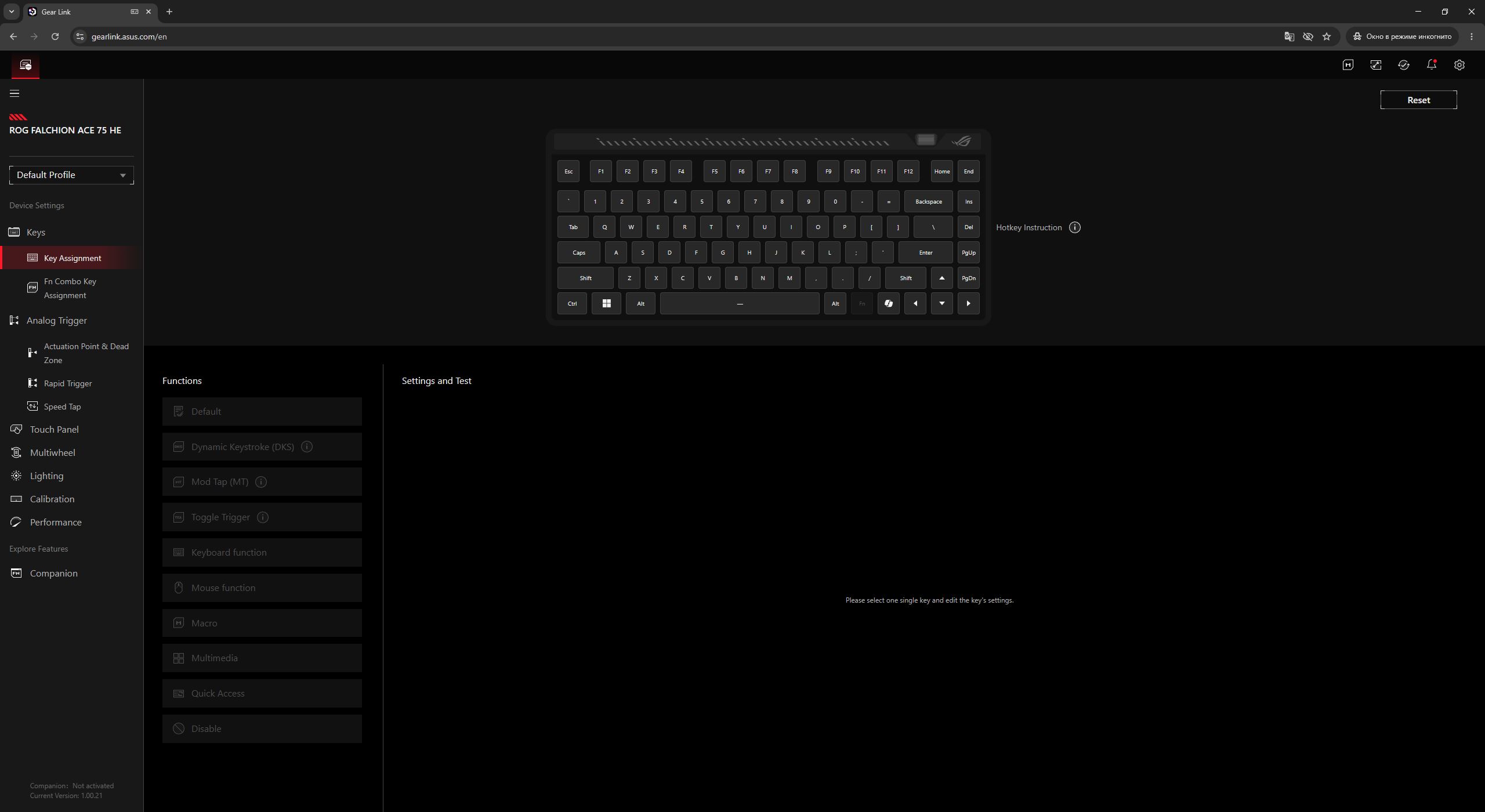
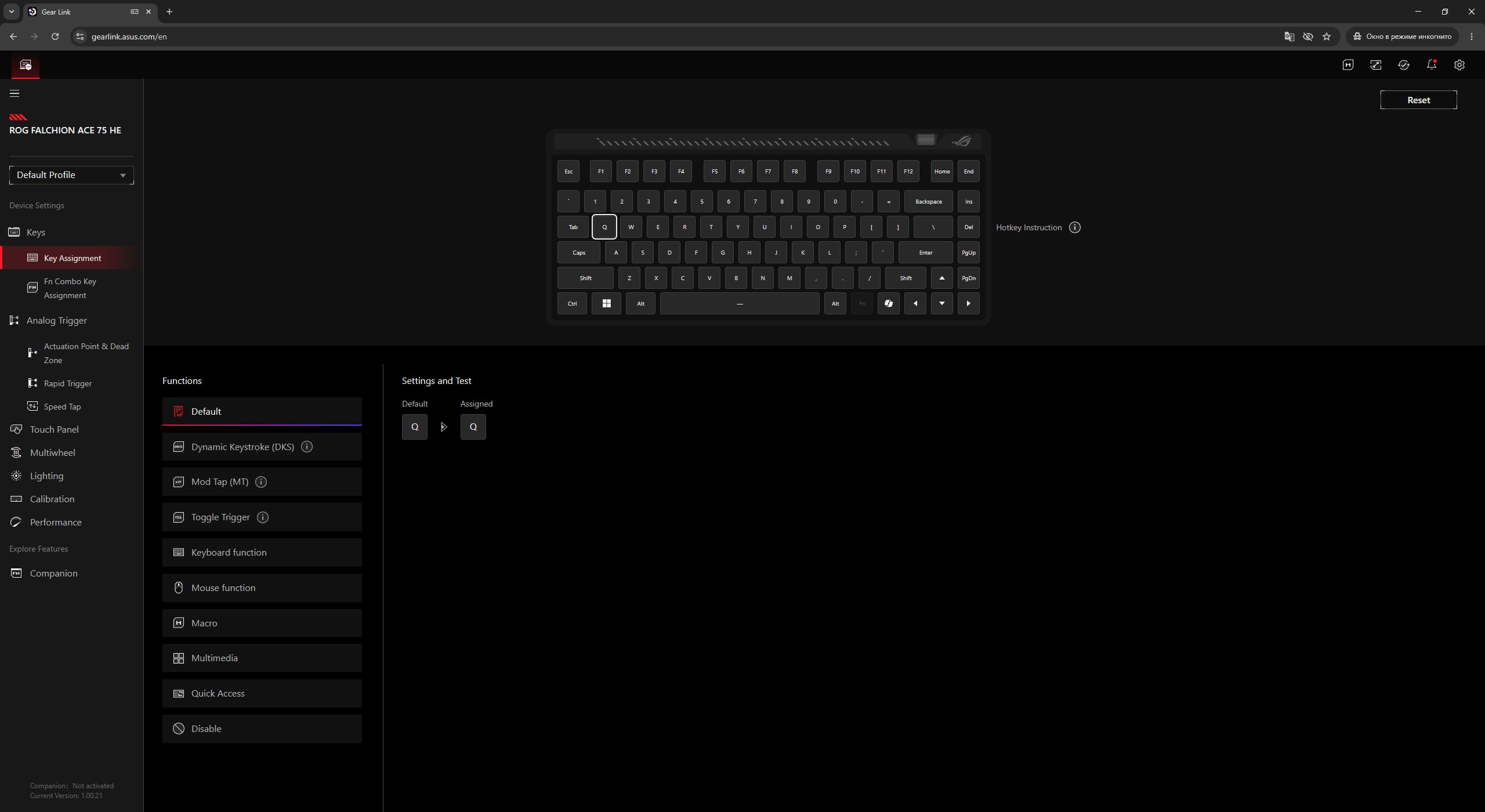
After connecting, you are immediately taken to the Key Assignment settings. Here you can remap keys, configure Dynamic Keystrokes (DKS), Mod Tap (MT), and Toggle Trigger (TT) modes, as well as assign various quick functions and macros to keys. Advanced features like DKS, MT, and TT are accompanied by short explanations, which is quite convenient. This section also lets you view all keyboard hotkeys and functional key combinations.
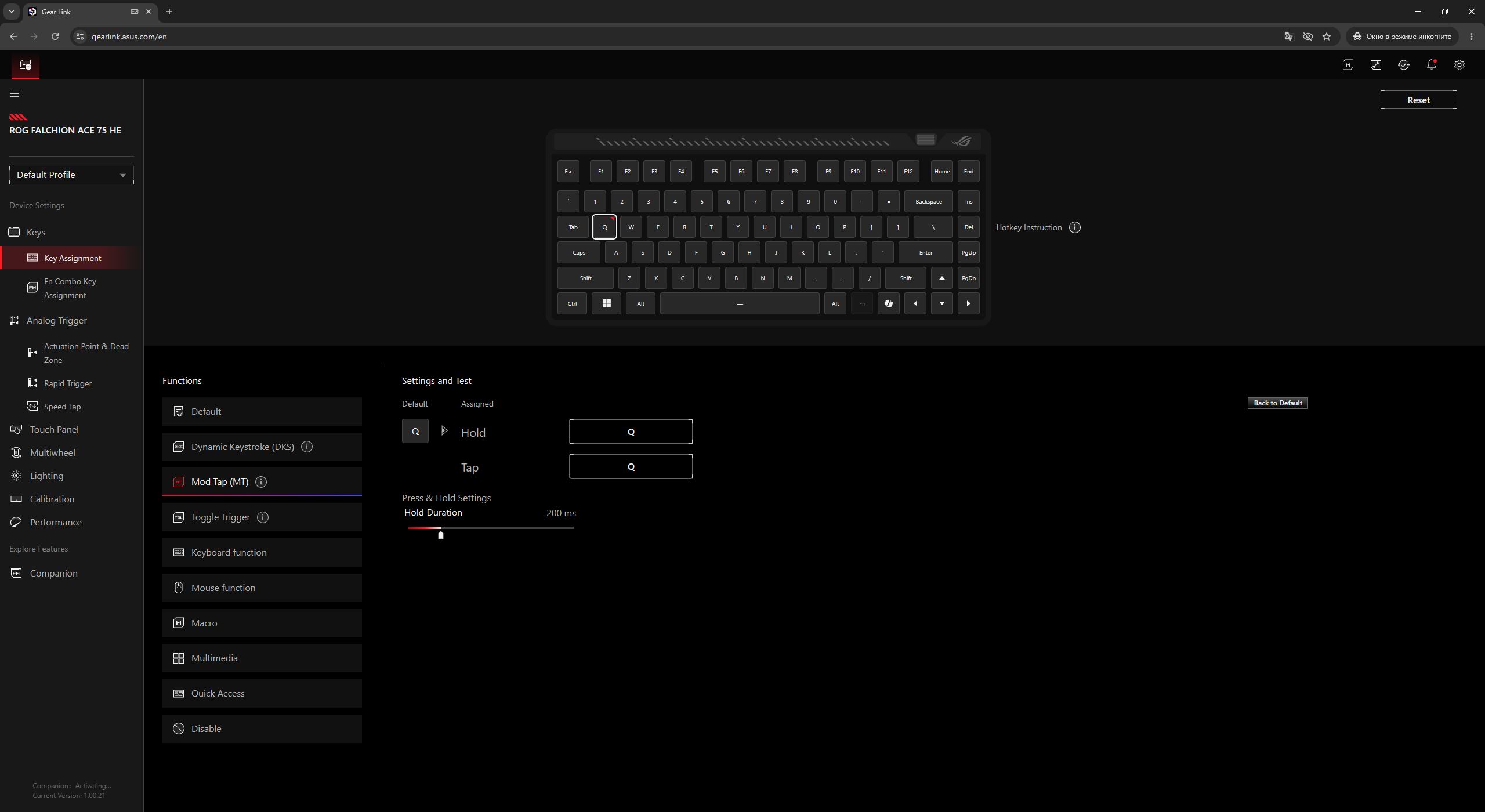
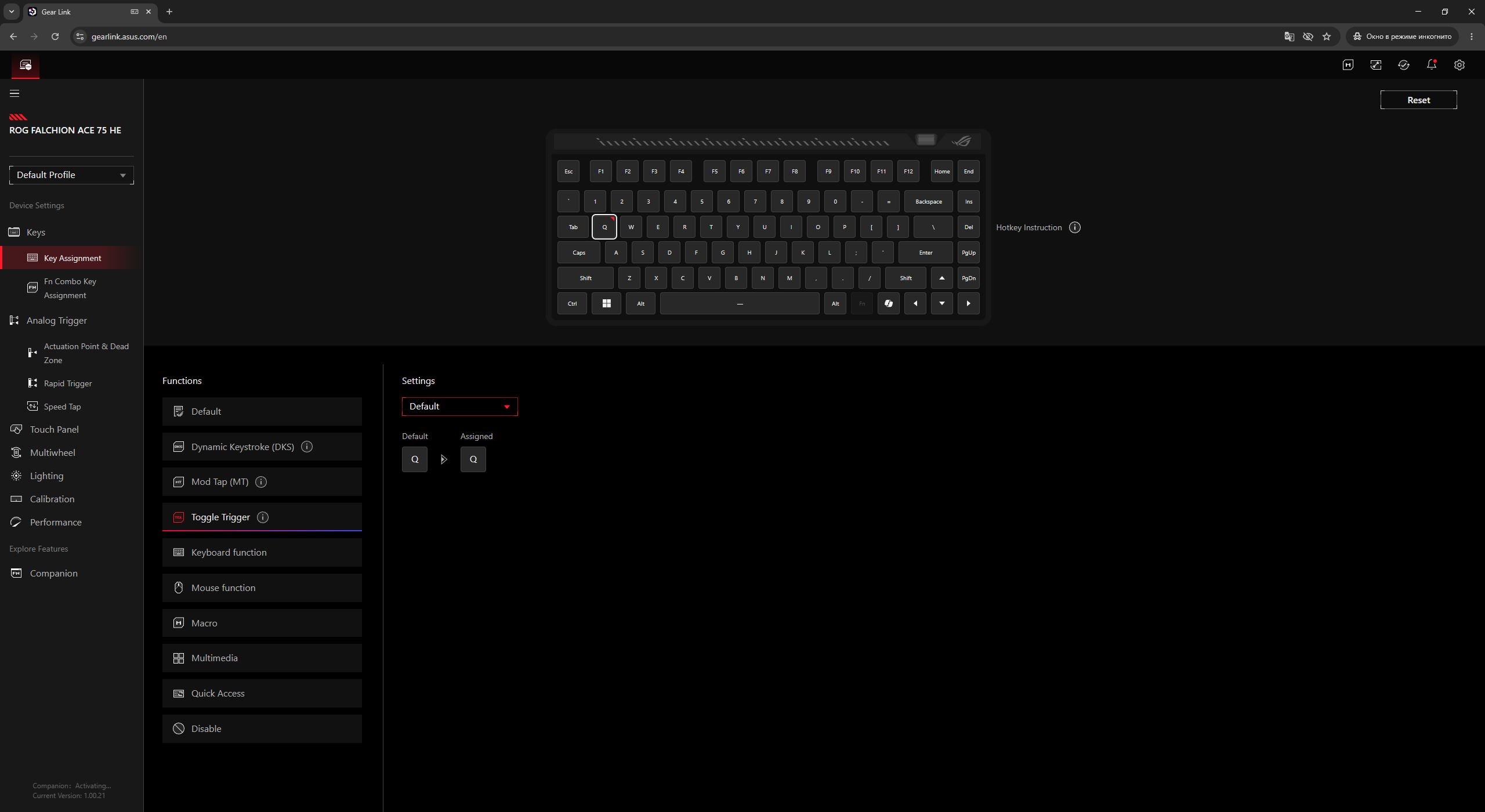
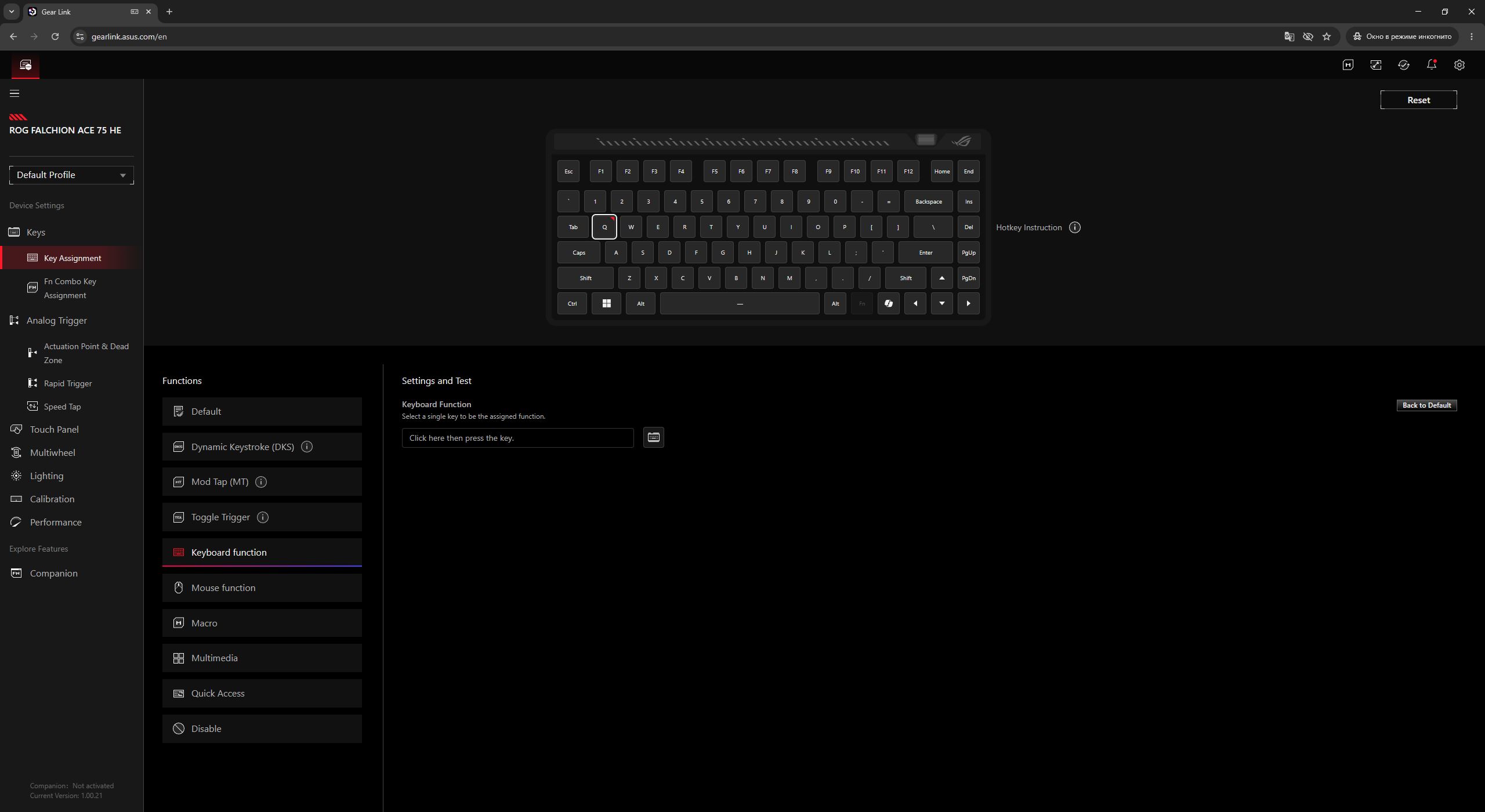
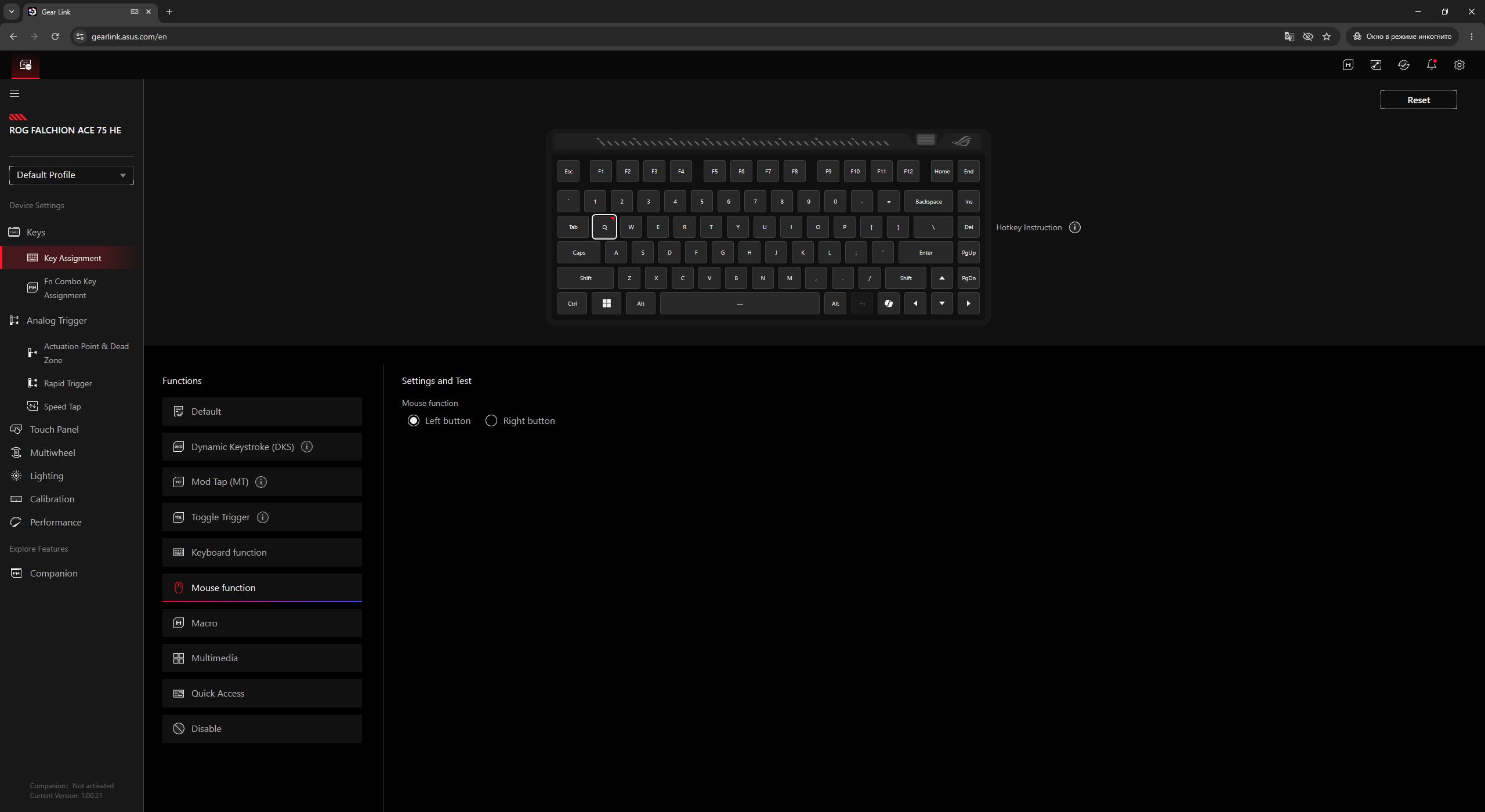
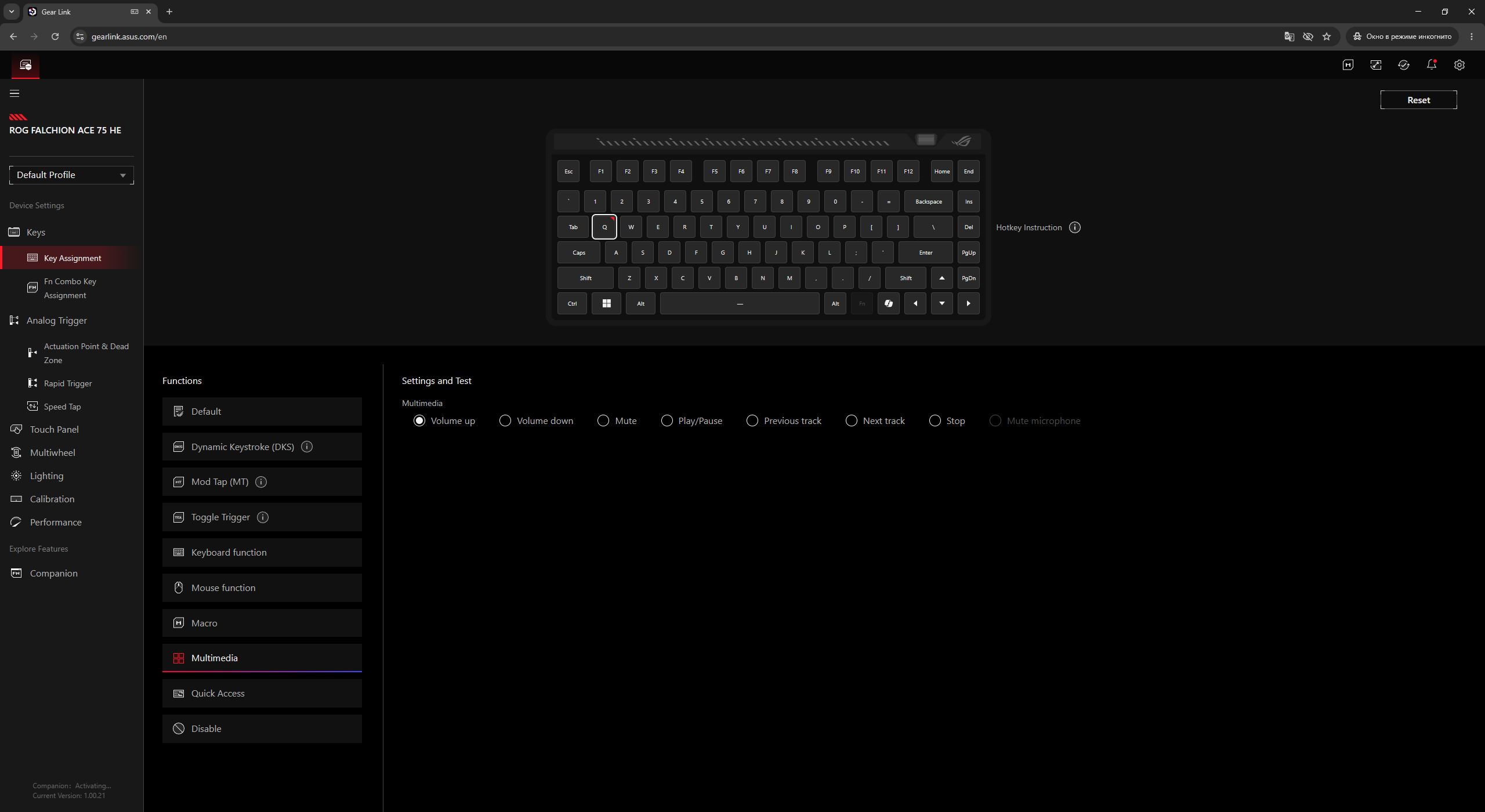
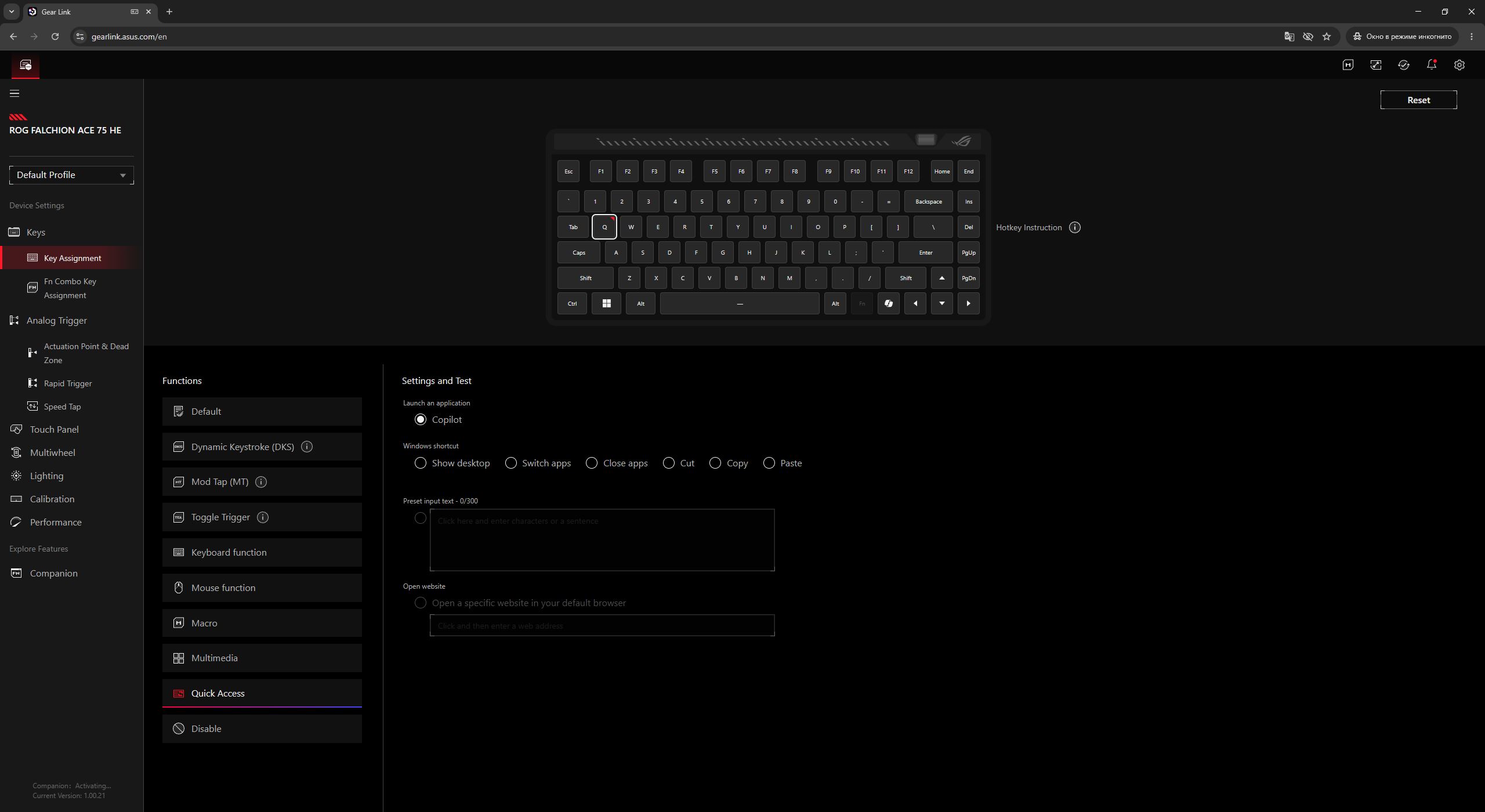
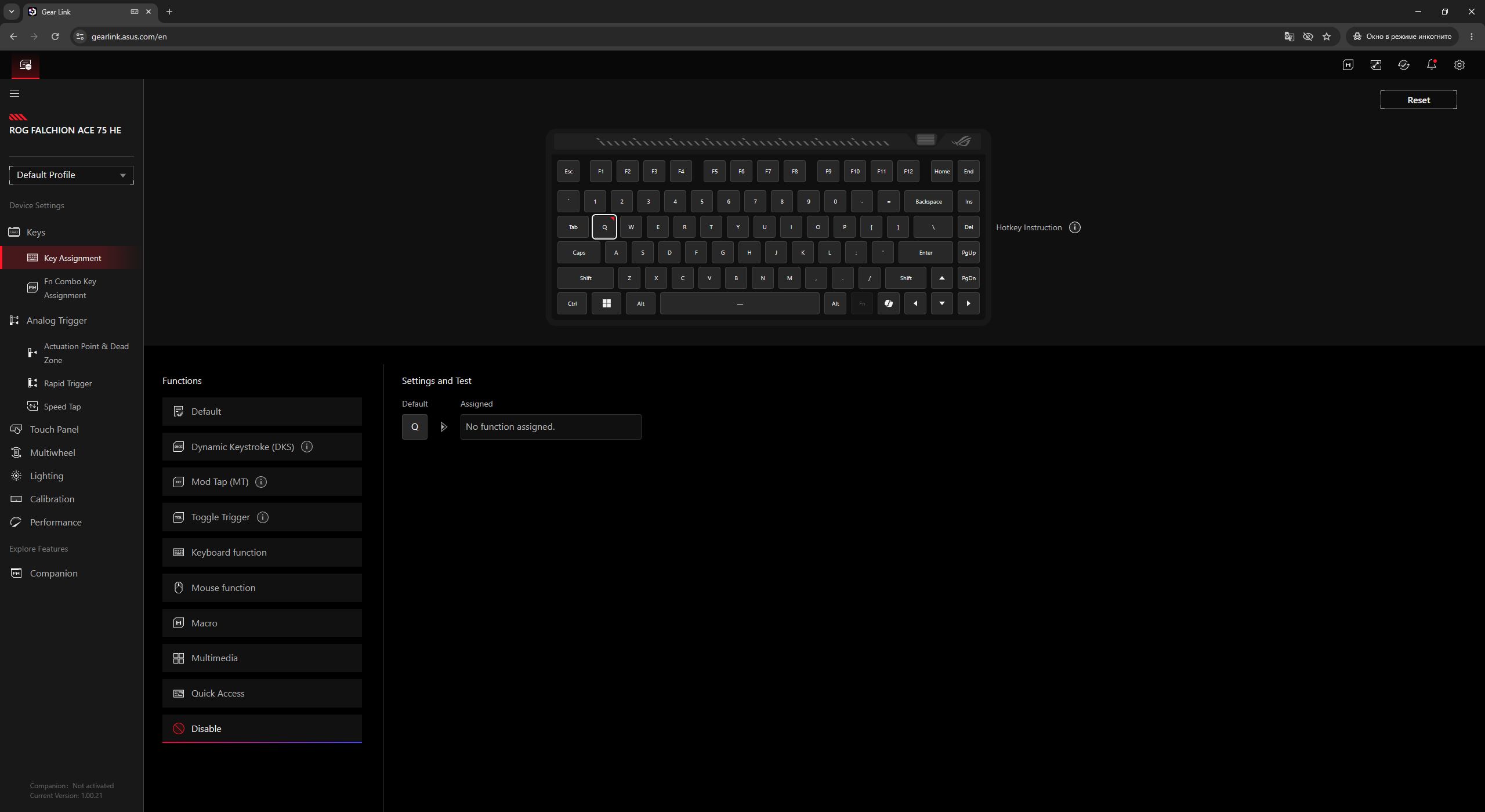
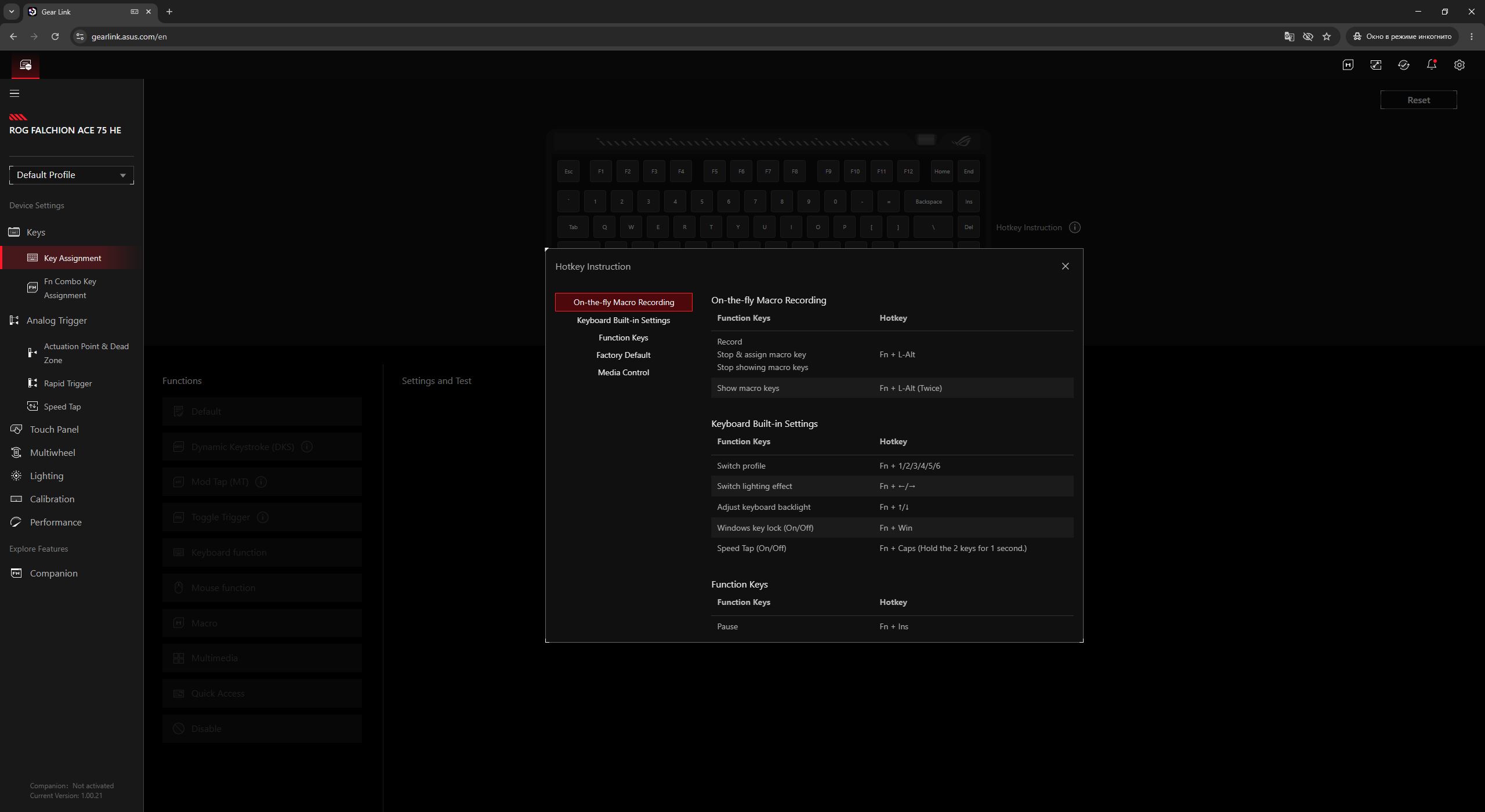
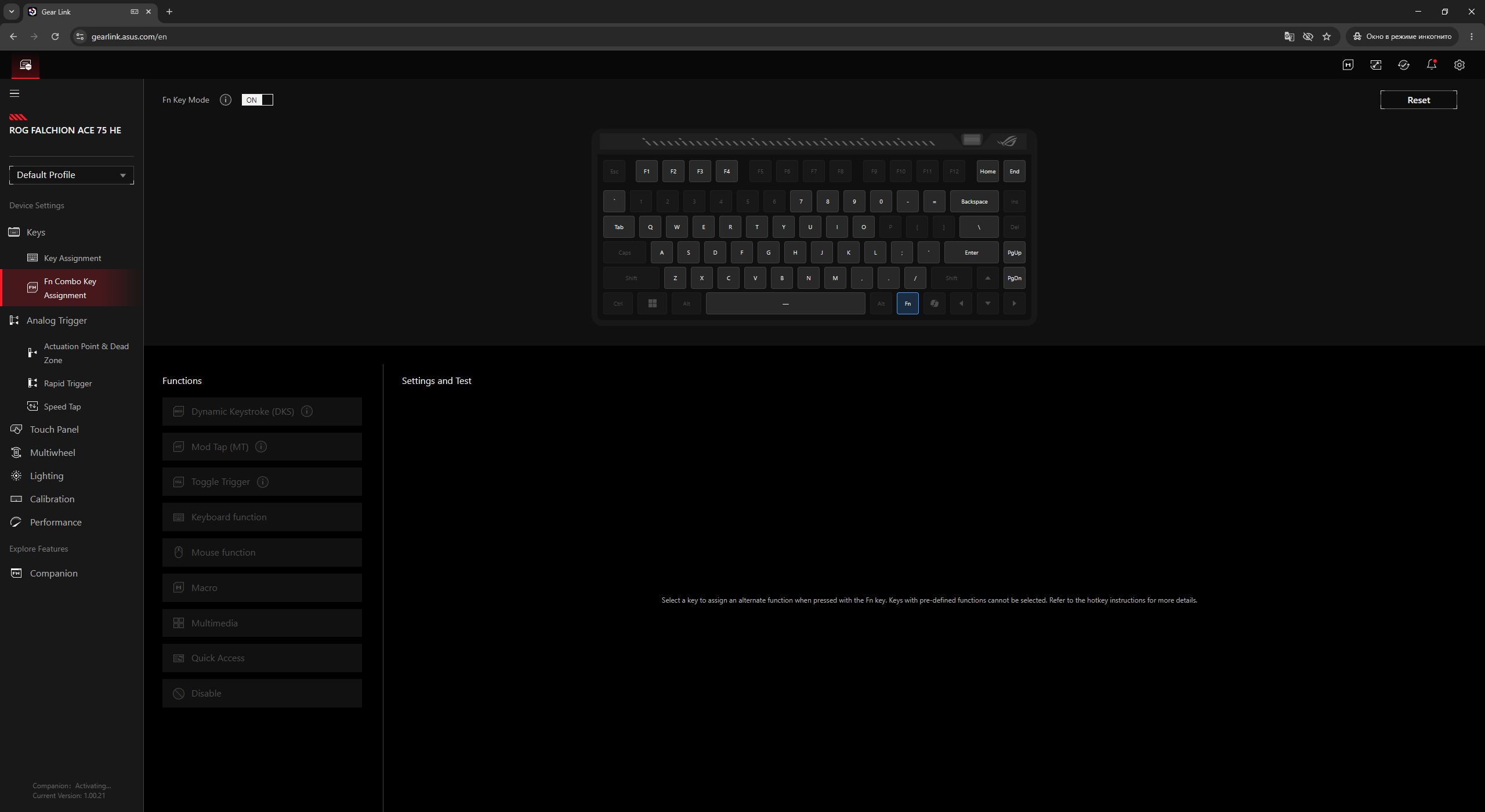
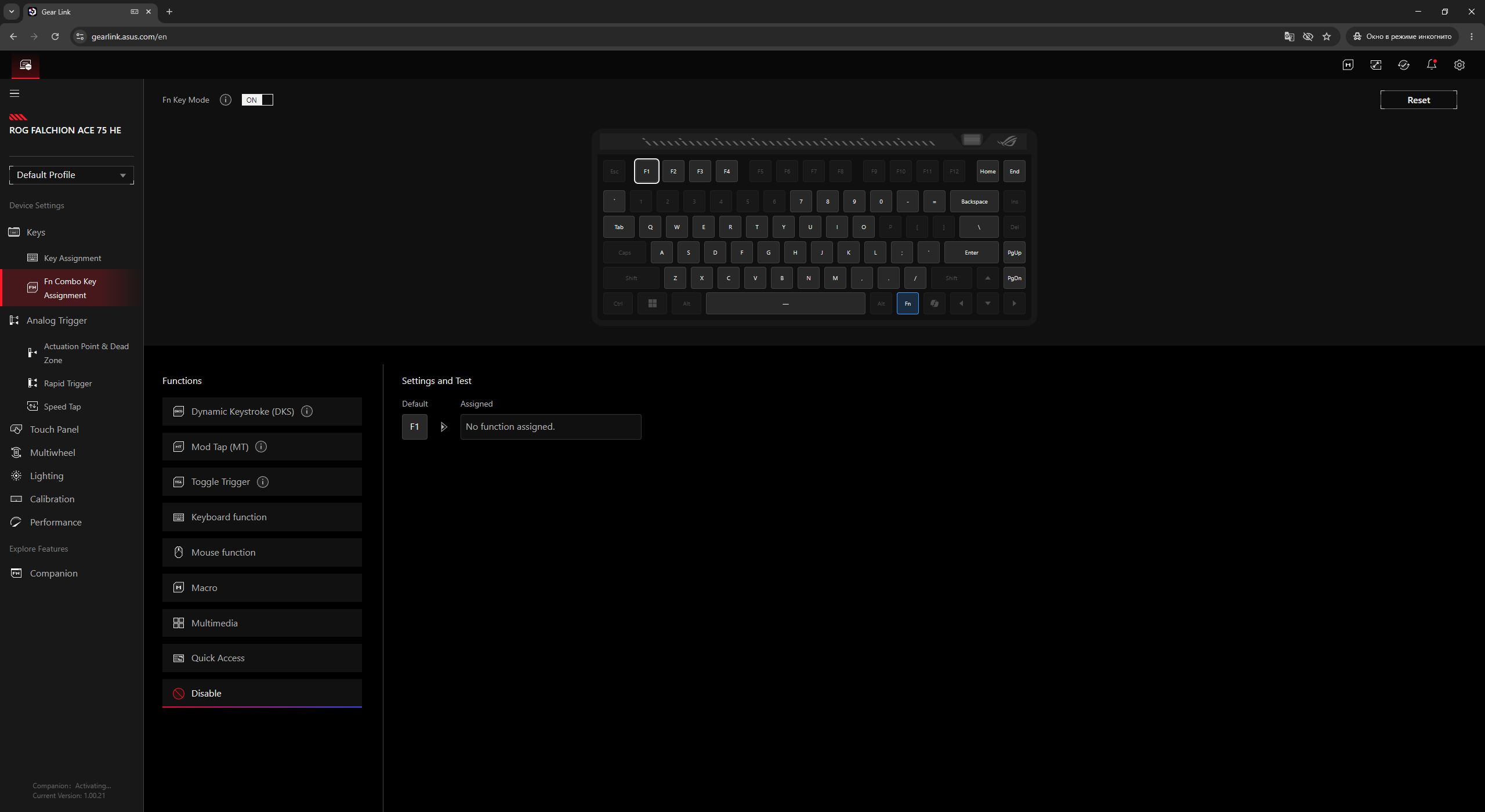
In the next menu, Fn Combo Key allows you to configure combinations with the multifunction FN key. Keys shown as inactive on the layout represent default functions and cannot be changed. The remaining available keys can be freely assigned to custom actions.
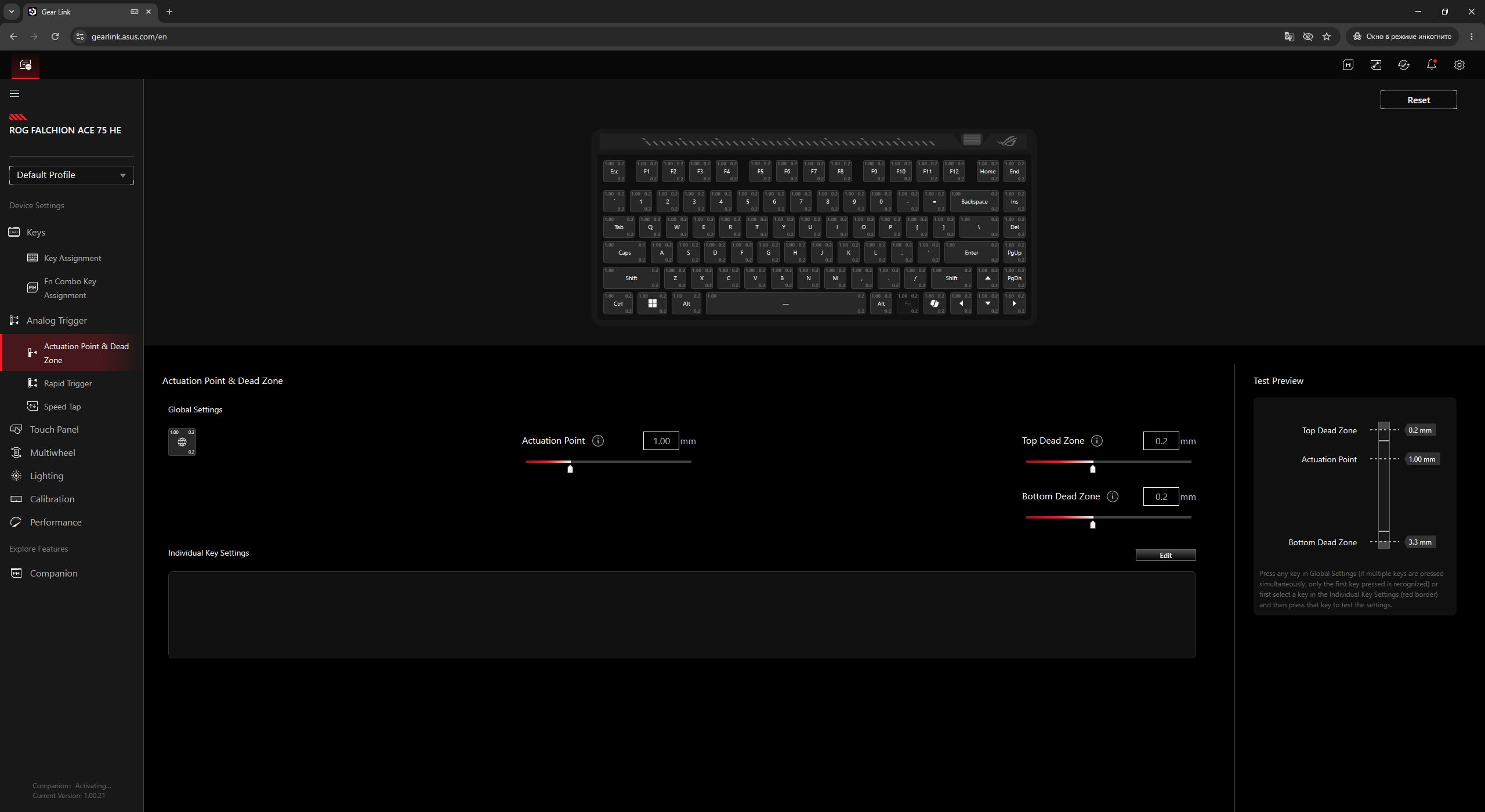
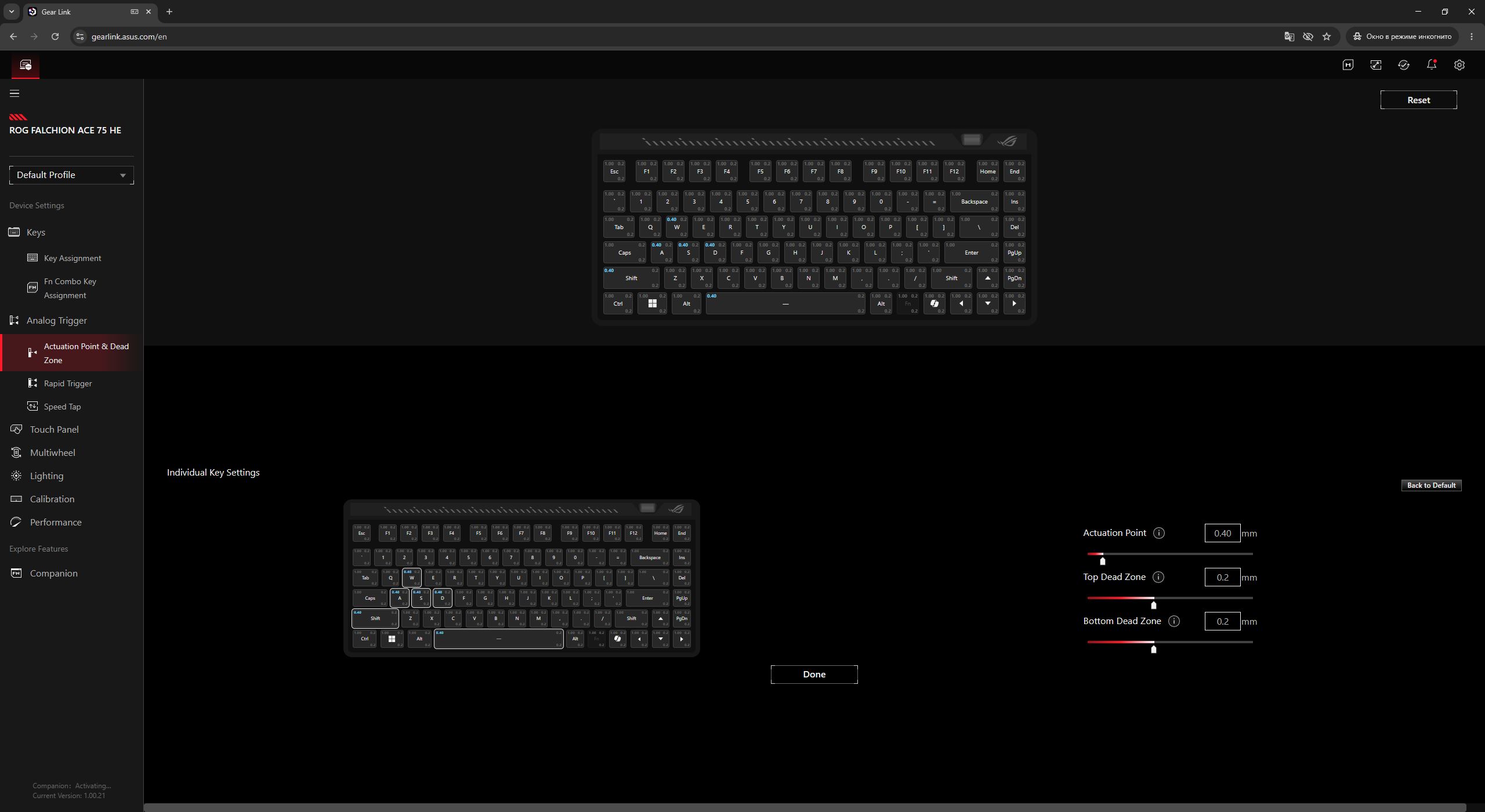
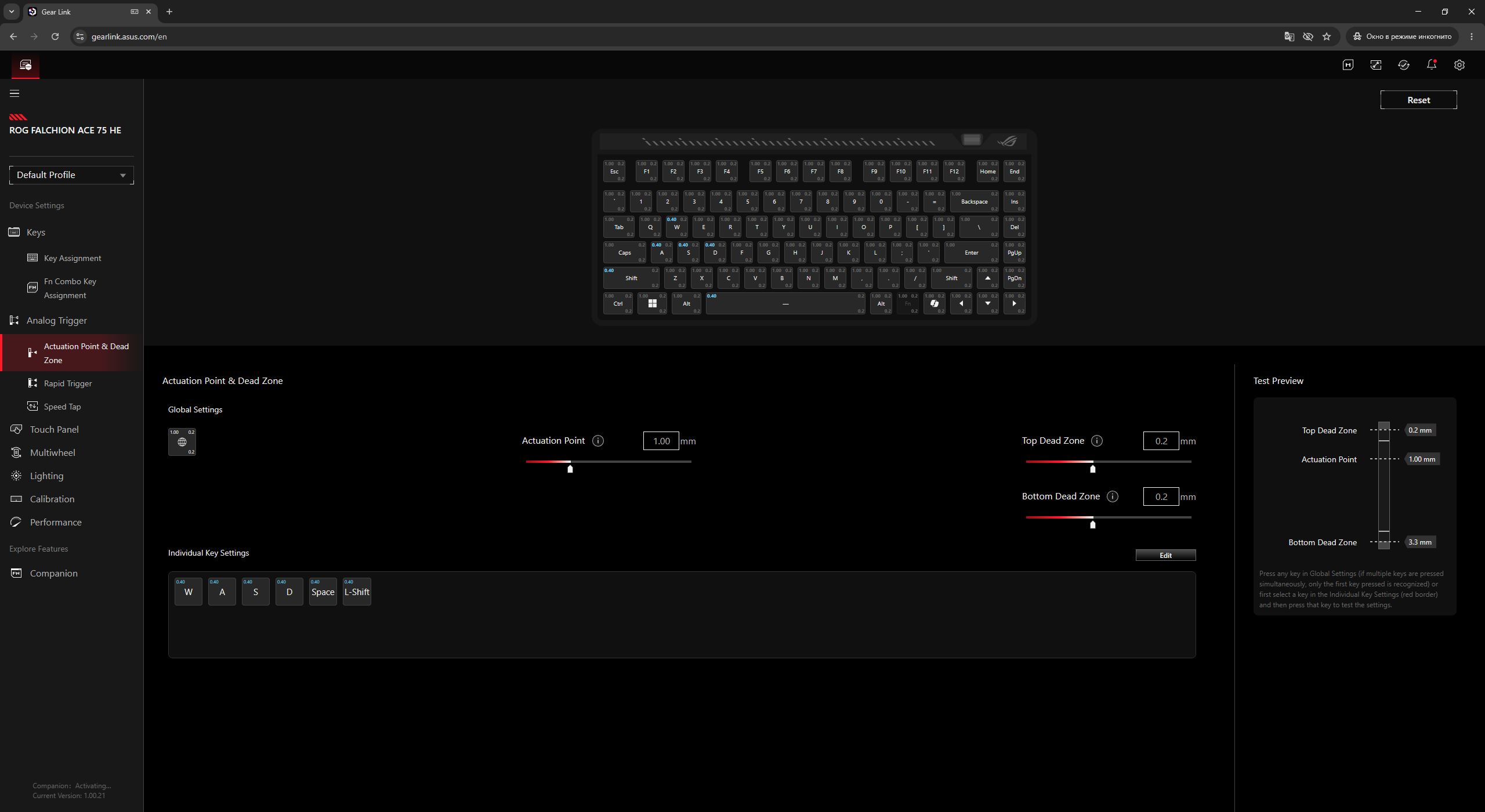
In the Actuation Point & Dead Zone menu, you can adjust both the actuation point and the dead zones of the magnetic switches. These values can be configured either globally for all keys or individually for each key. As mentioned earlier, the actuation range for the new switches can be set from 0.1 to 3.5 mm.

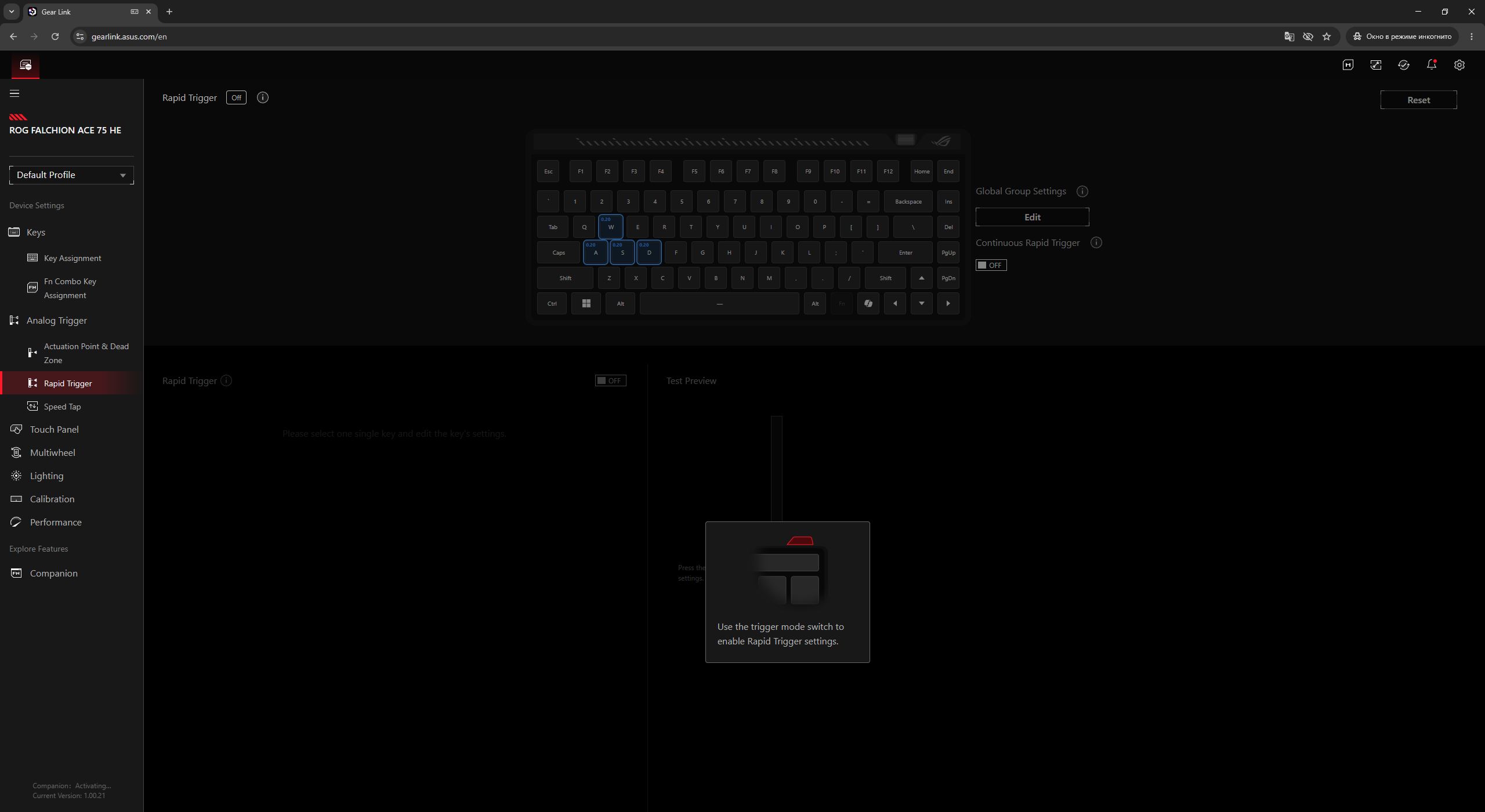
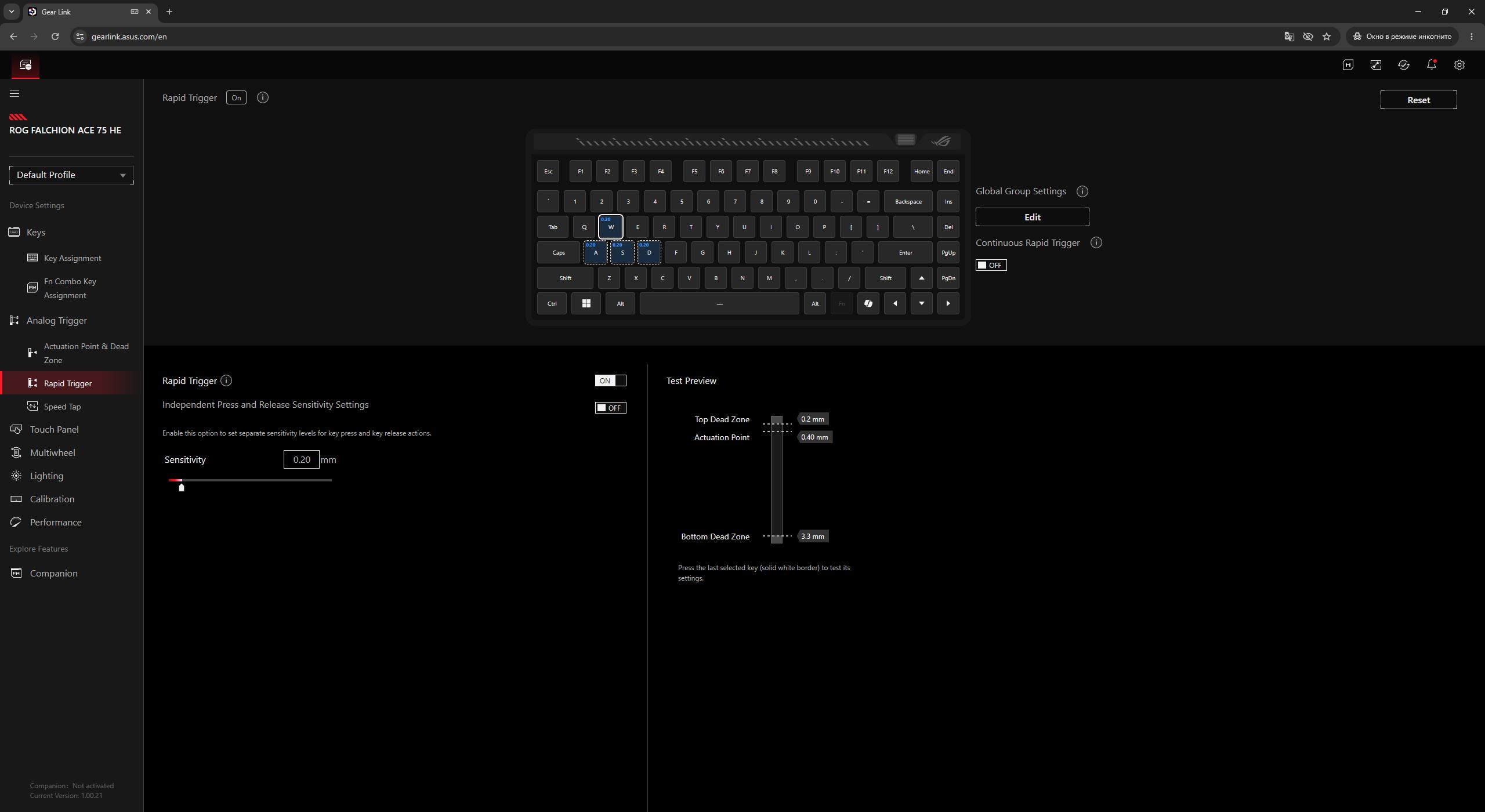
The Rapid Trigger menu is used to configure the mode itself. Just to clarify: in order for the settings to take effect, you need to enable the physical RT toggle on the keyboard body (switch it upward). By default, RT is assigned to the W, A, S, D keys. However, here you can change both the set of affected keys and their sensitivity values.
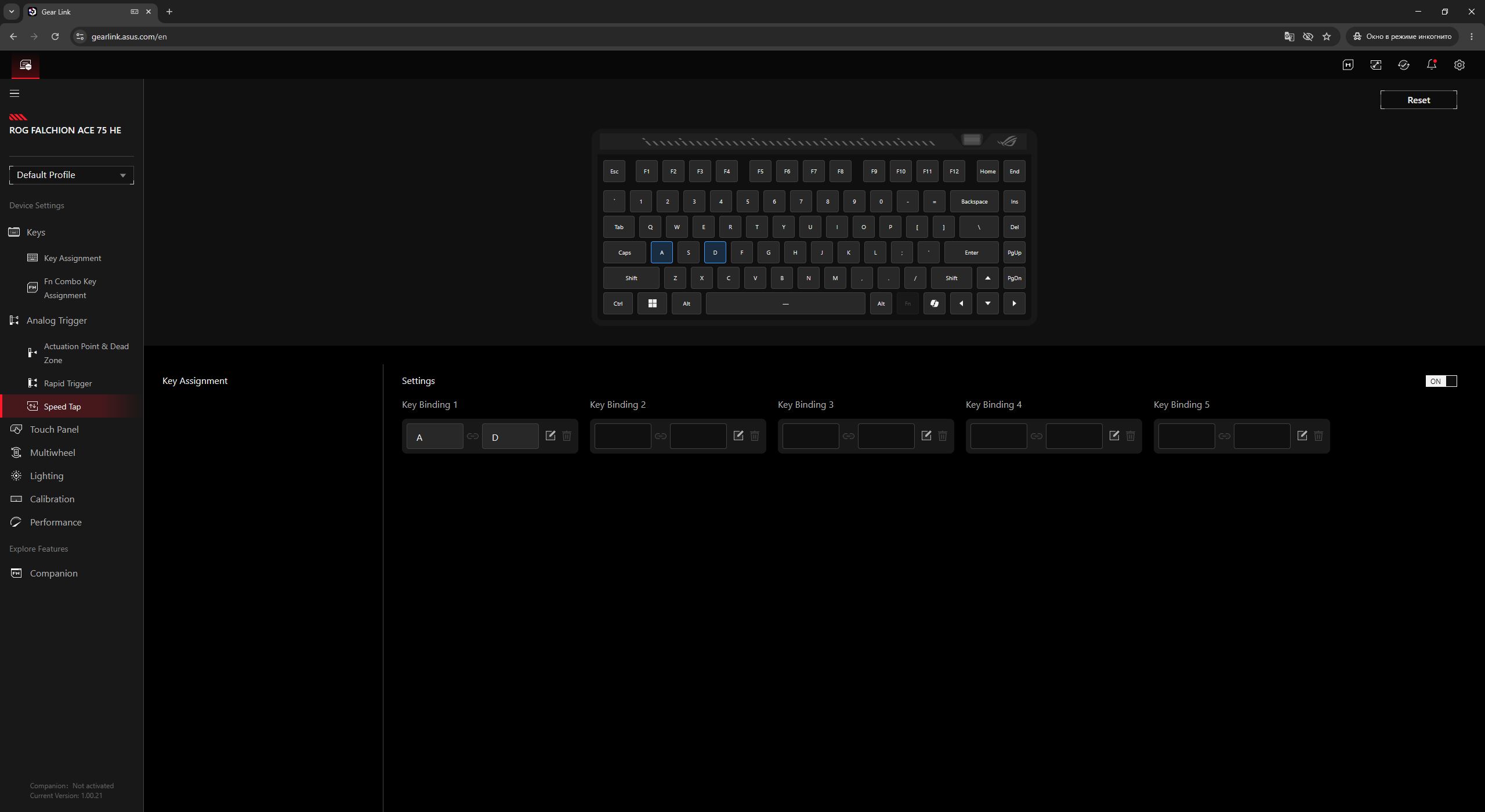
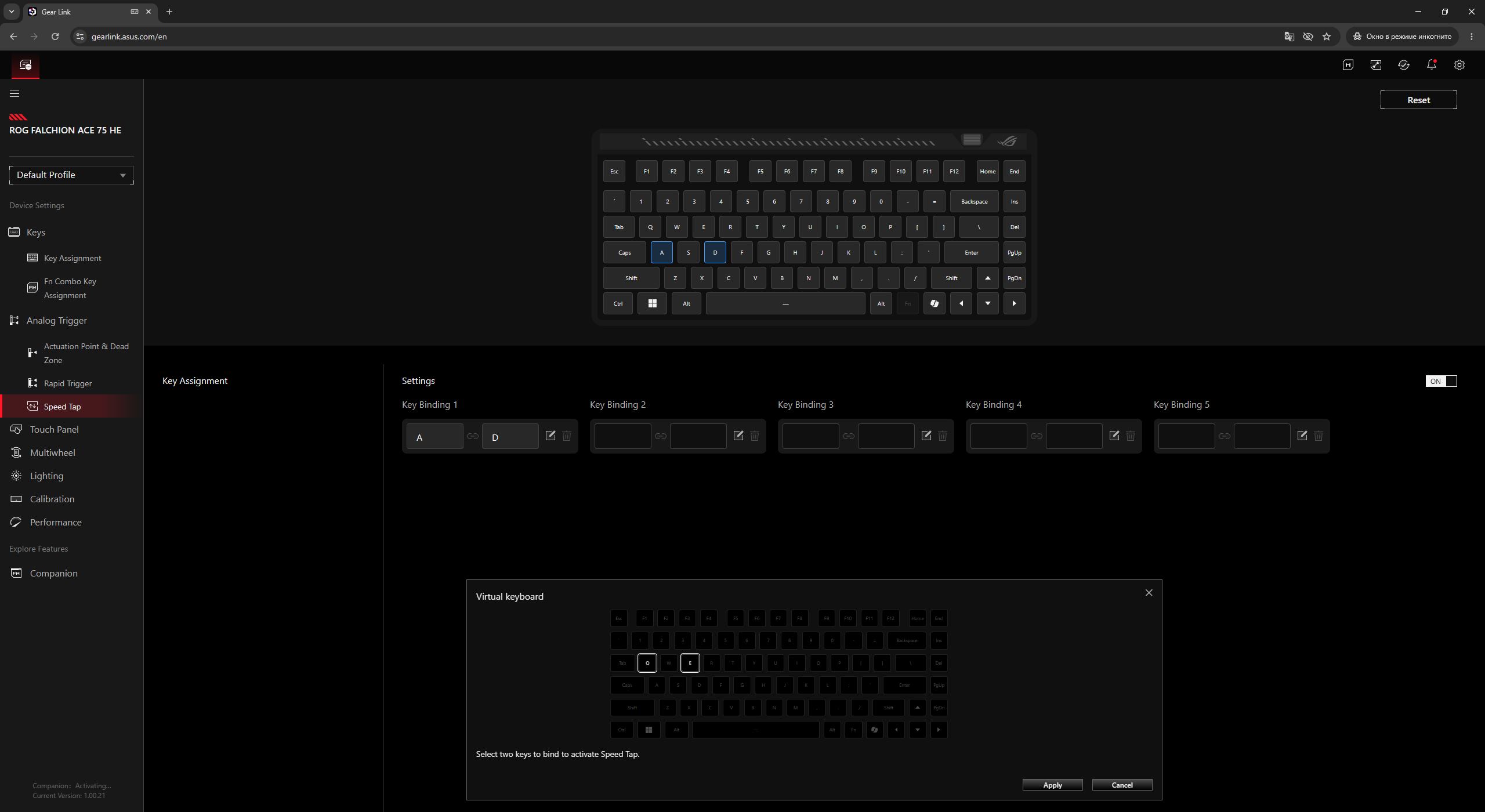
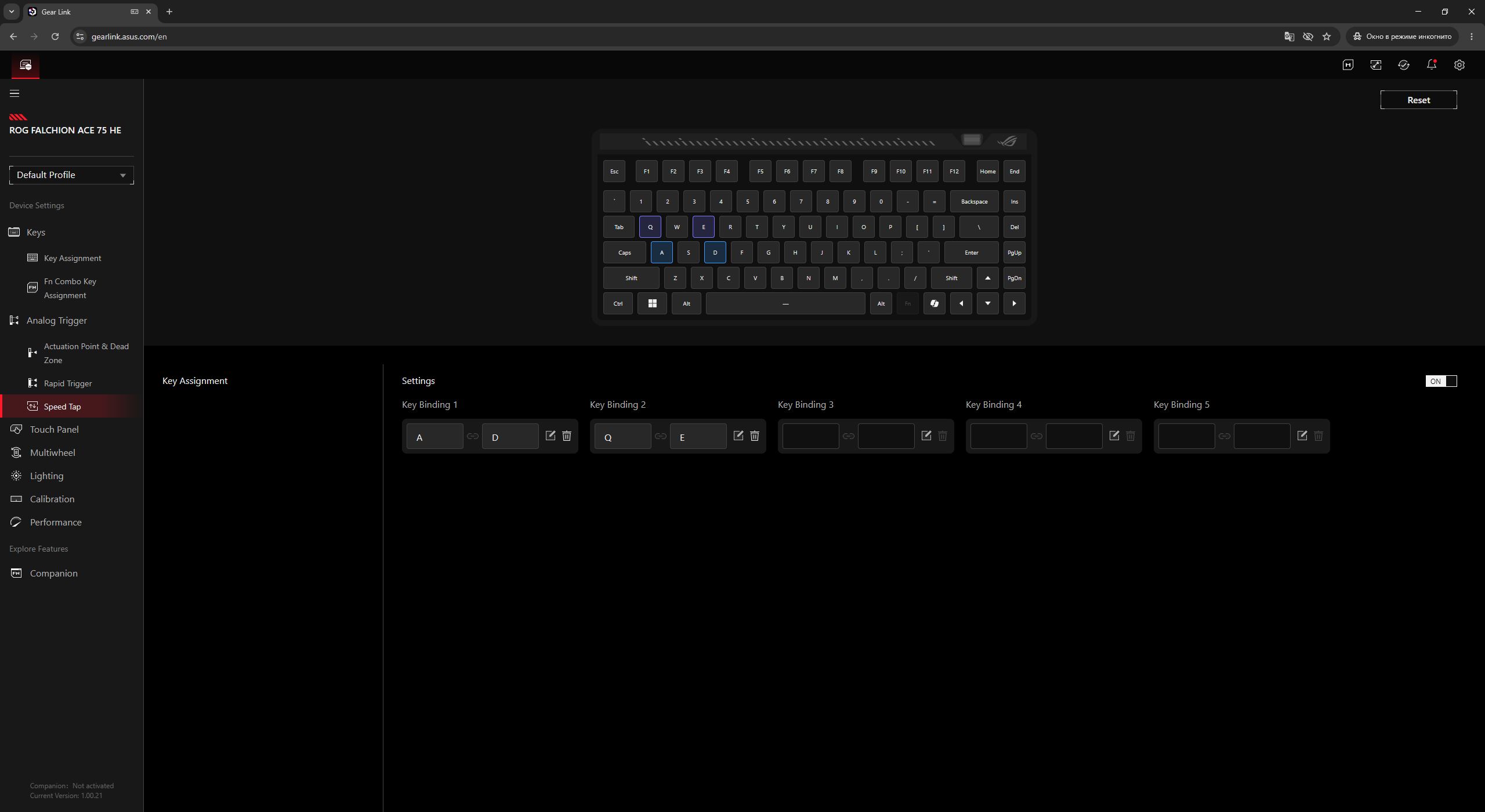
In the next menu, as the name suggests, the Speed Tap mode is configured. By default, it is assigned to the main movement keys – A and D. However, you can easily create your own custom key pairs if needed.
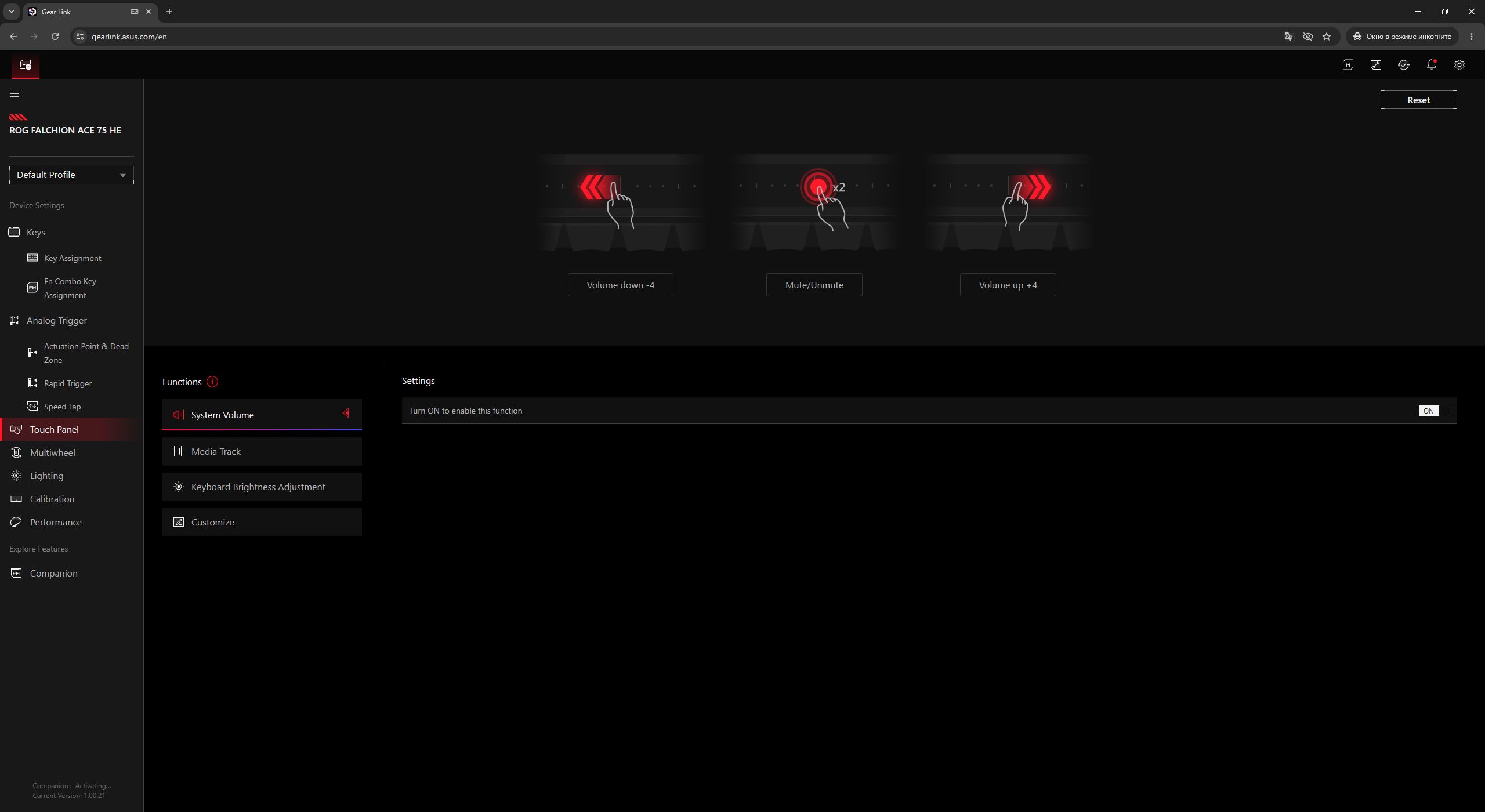
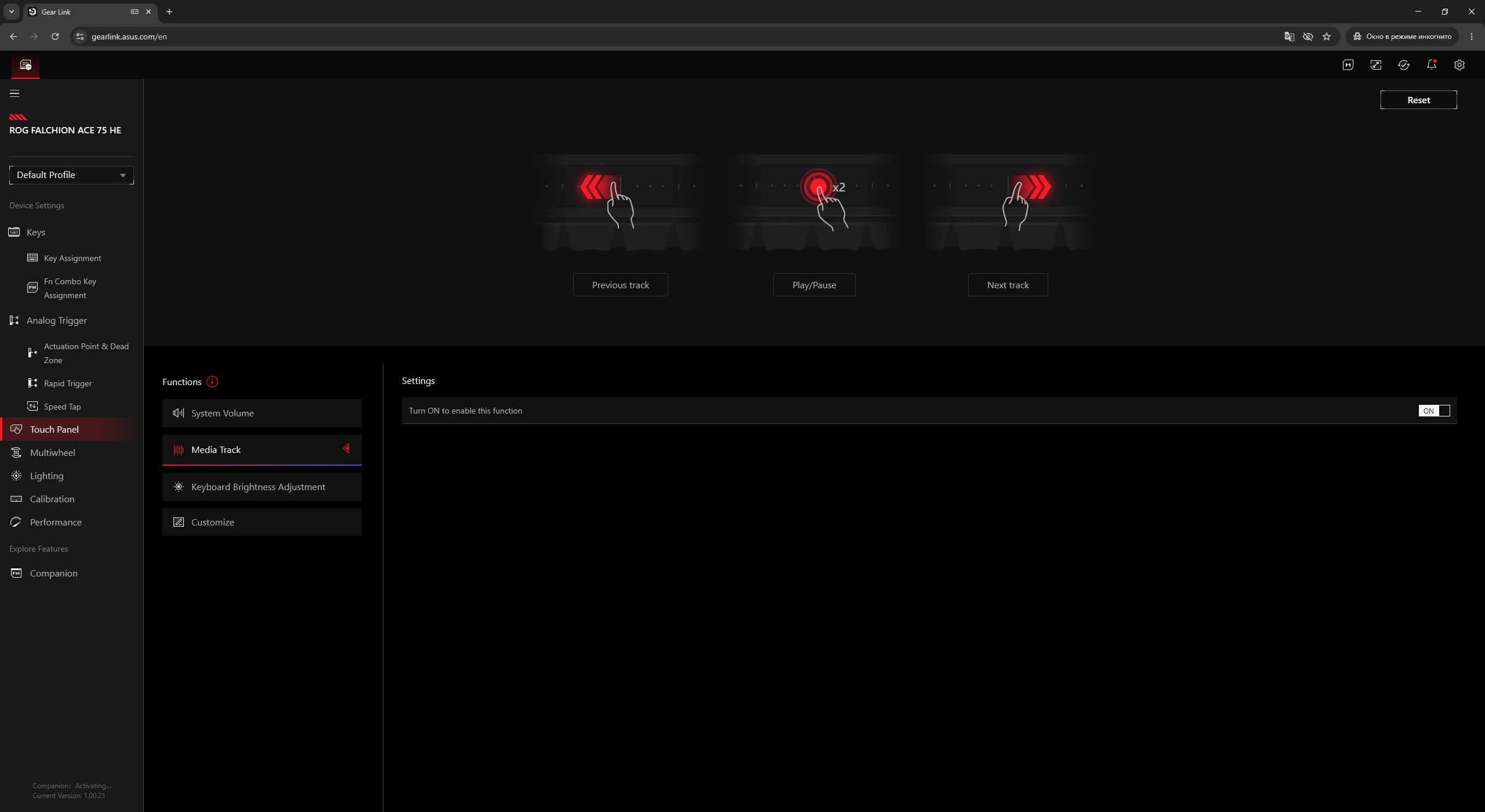
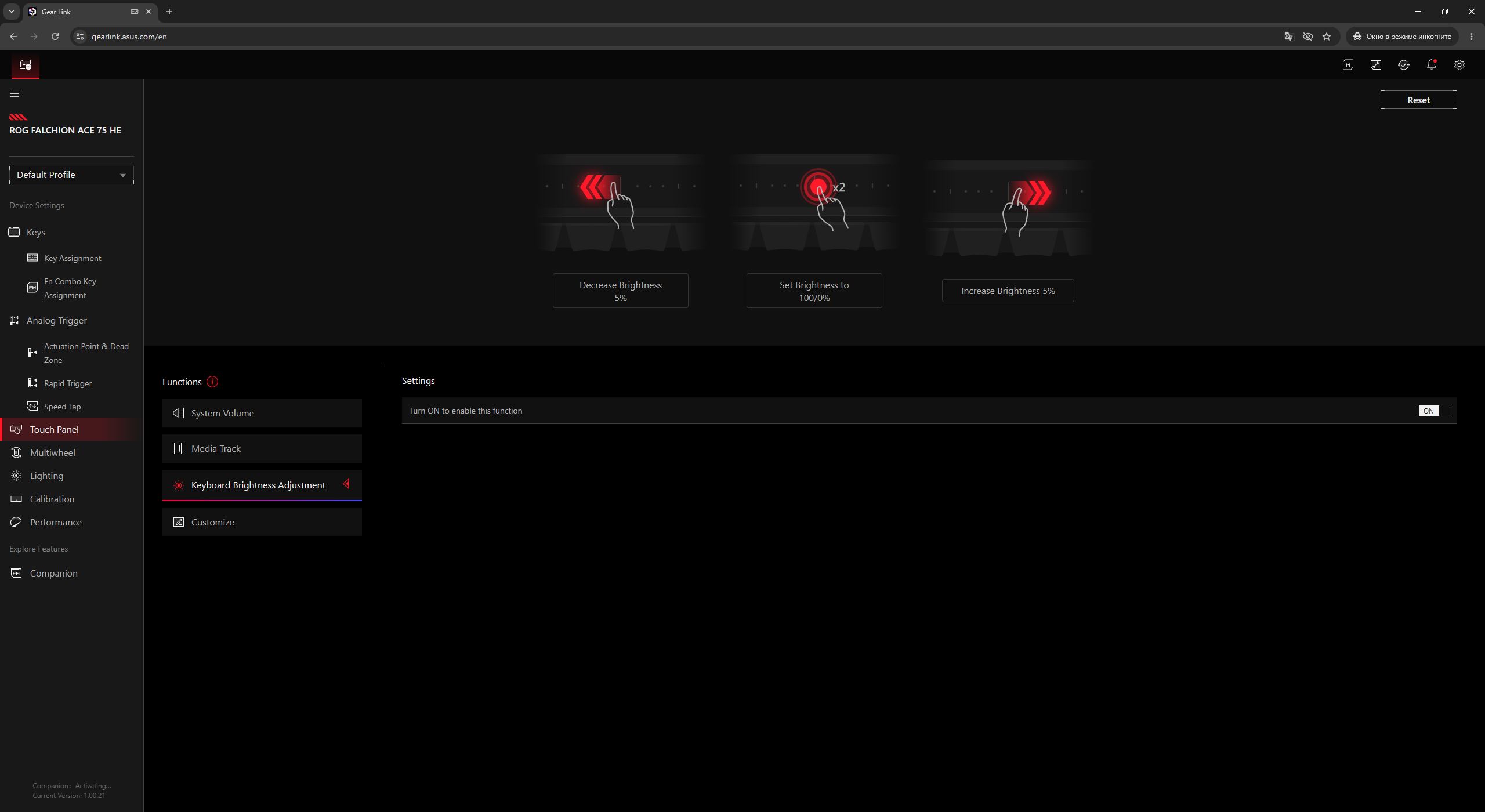
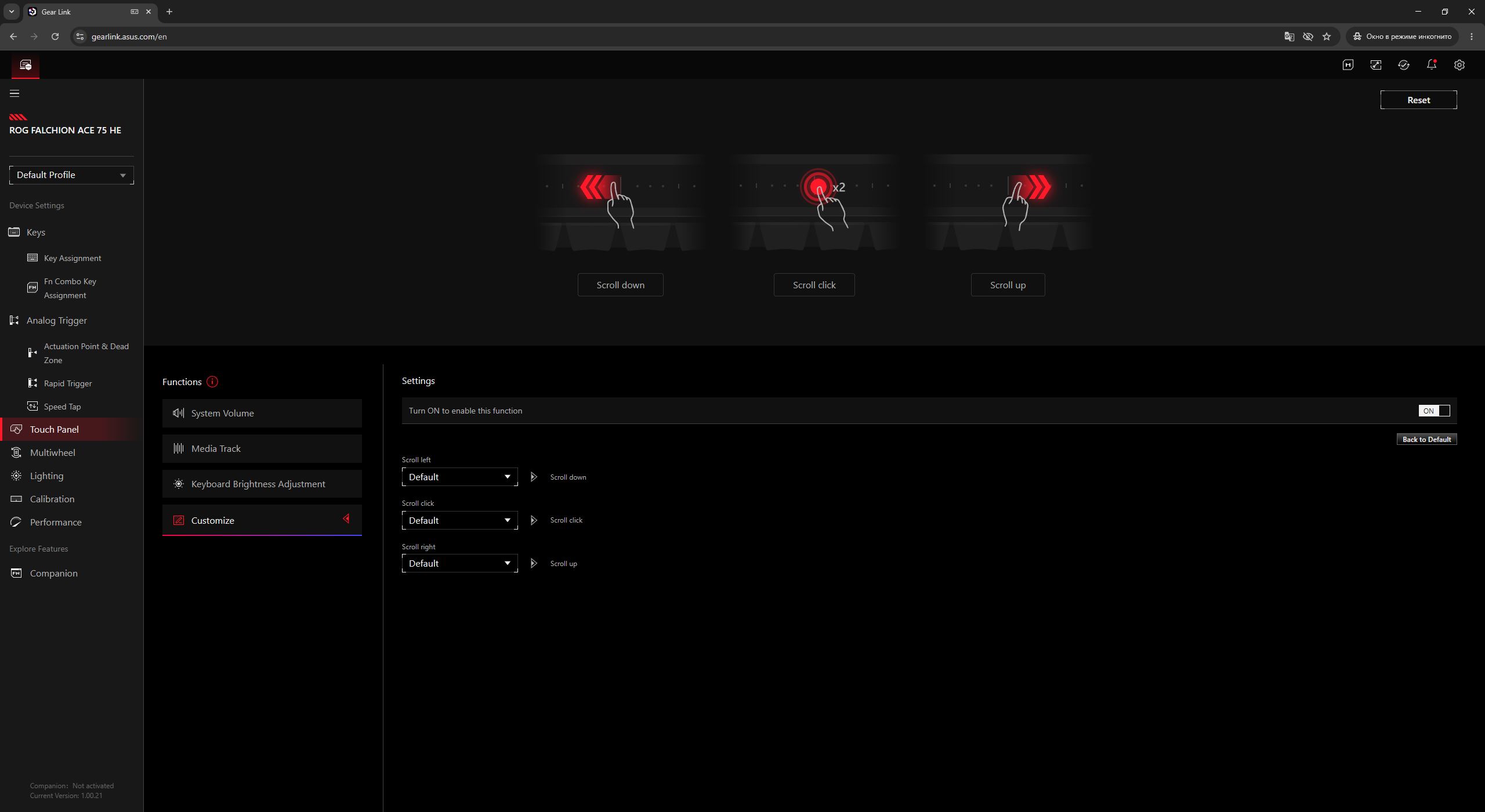
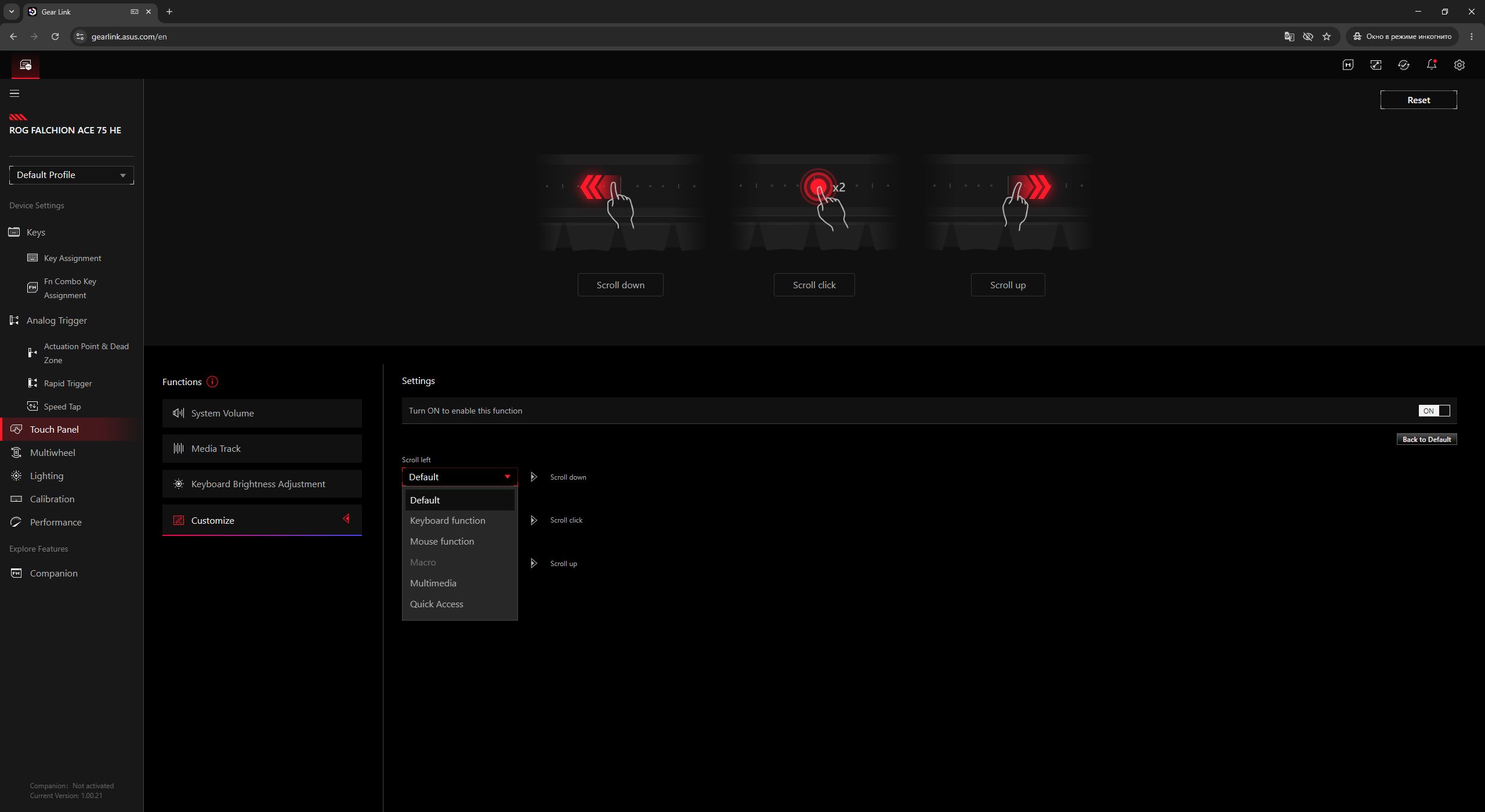
In the Touch Panel menu, you can configure the keyboard’s touch strip. There are three preset modes (volume control, media control, and backlight brightness), all of which can be disabled if desired. The fourth mode is custom, allowing you to assign your own functions from a list of available options.
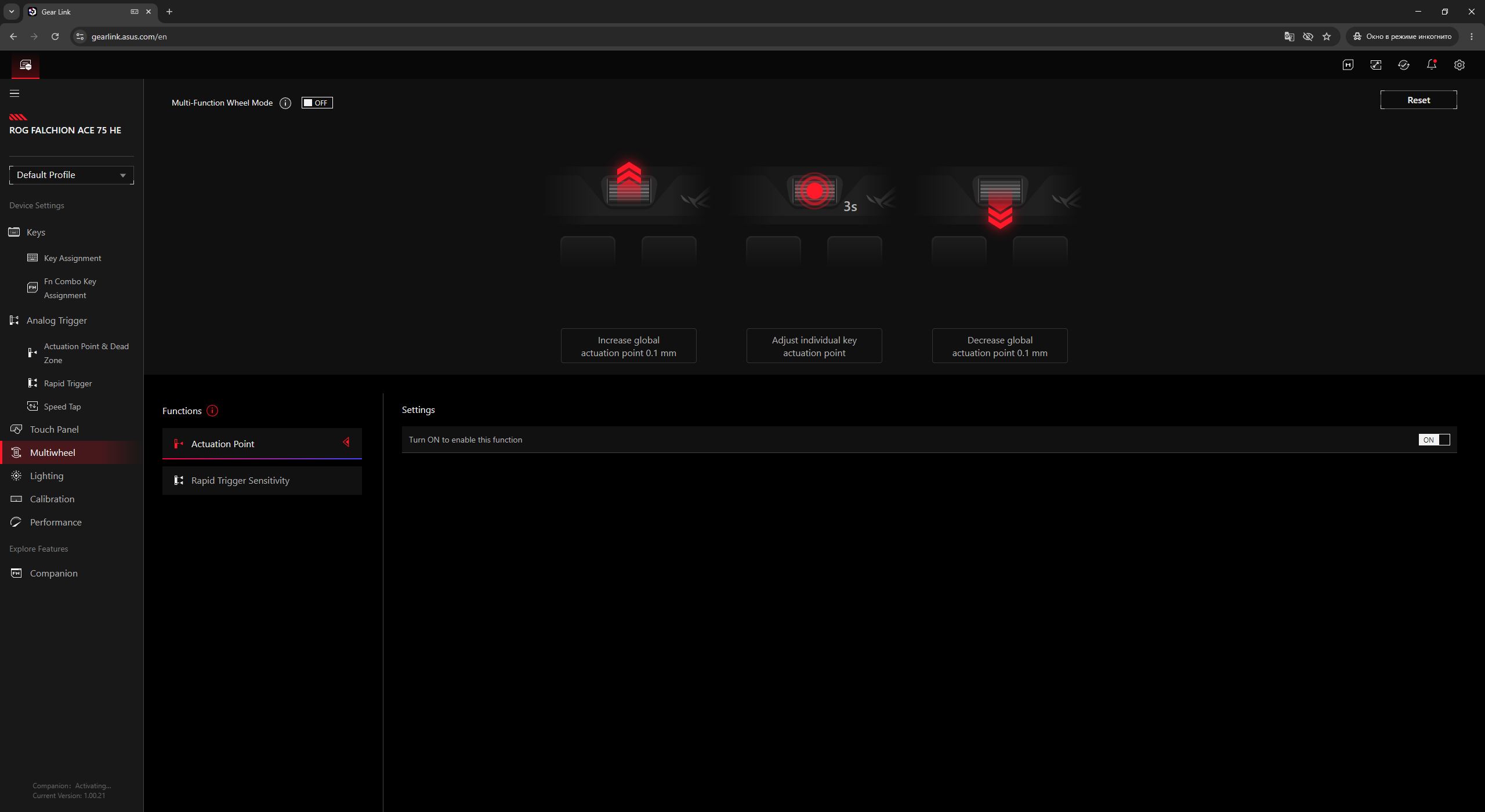
Next comes the Multiwheel menu, where the keyboard’s roller is configured. By default, it adjusts the key actuation point in 0.1 mm steps. Here, you can also assign it to control Rapid Trigger sensitivity instead. If you enable the Multi-Function Wheel Mode toggle, the wheel gains additional functions such as volume control, backlight brightness adjustment, and media playback control. And if desired, the roller can also be completely disabled.
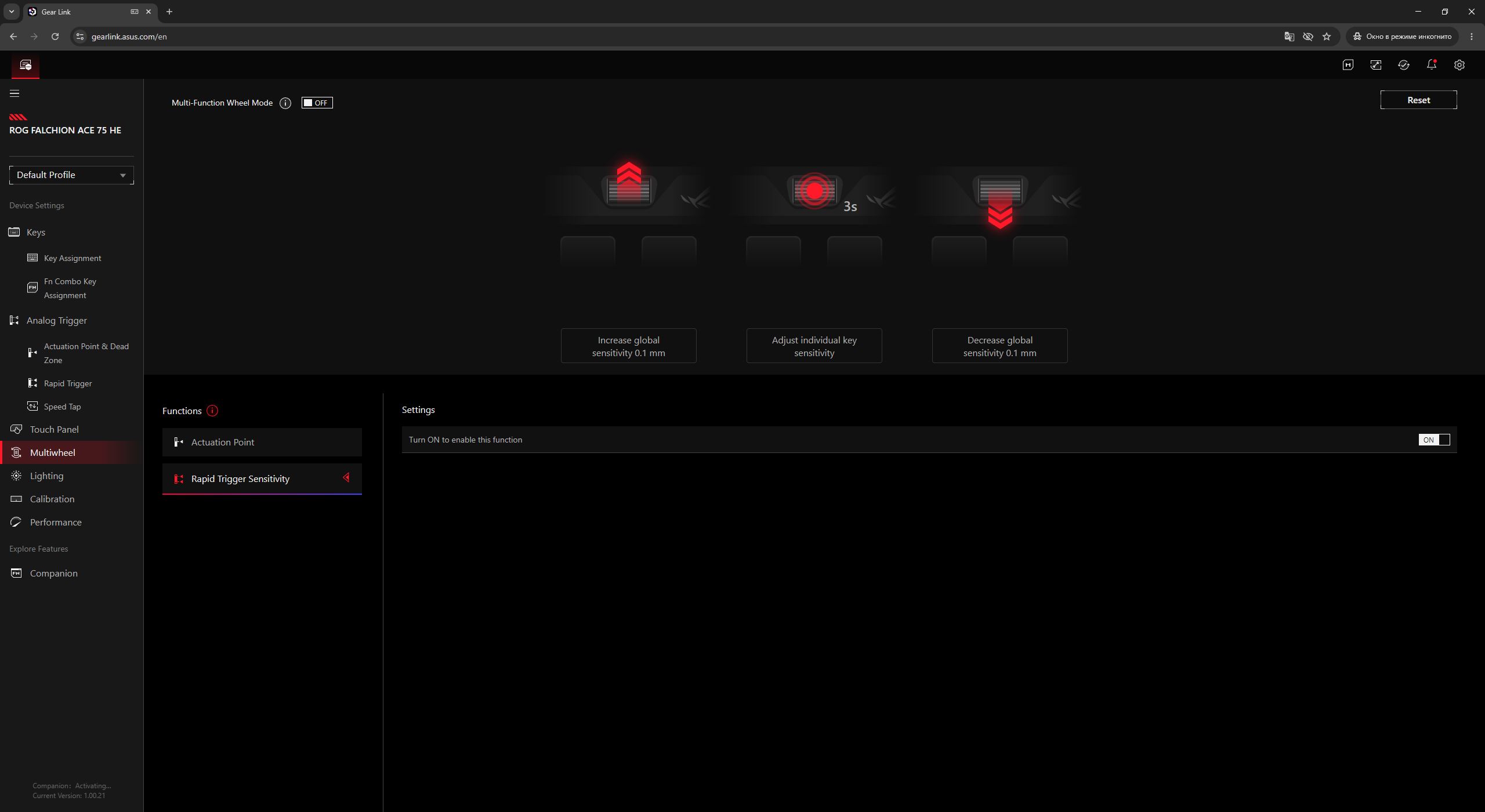
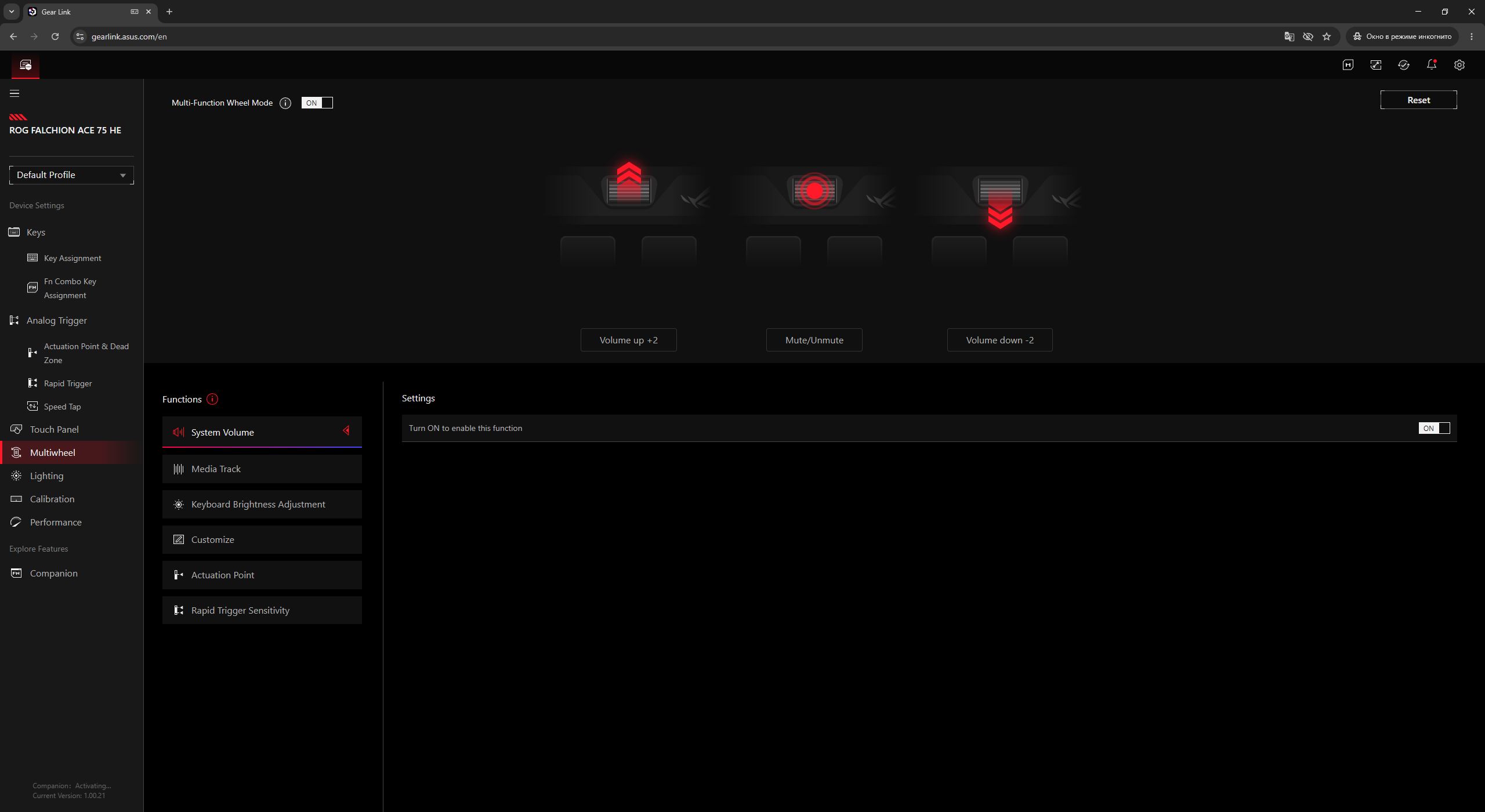
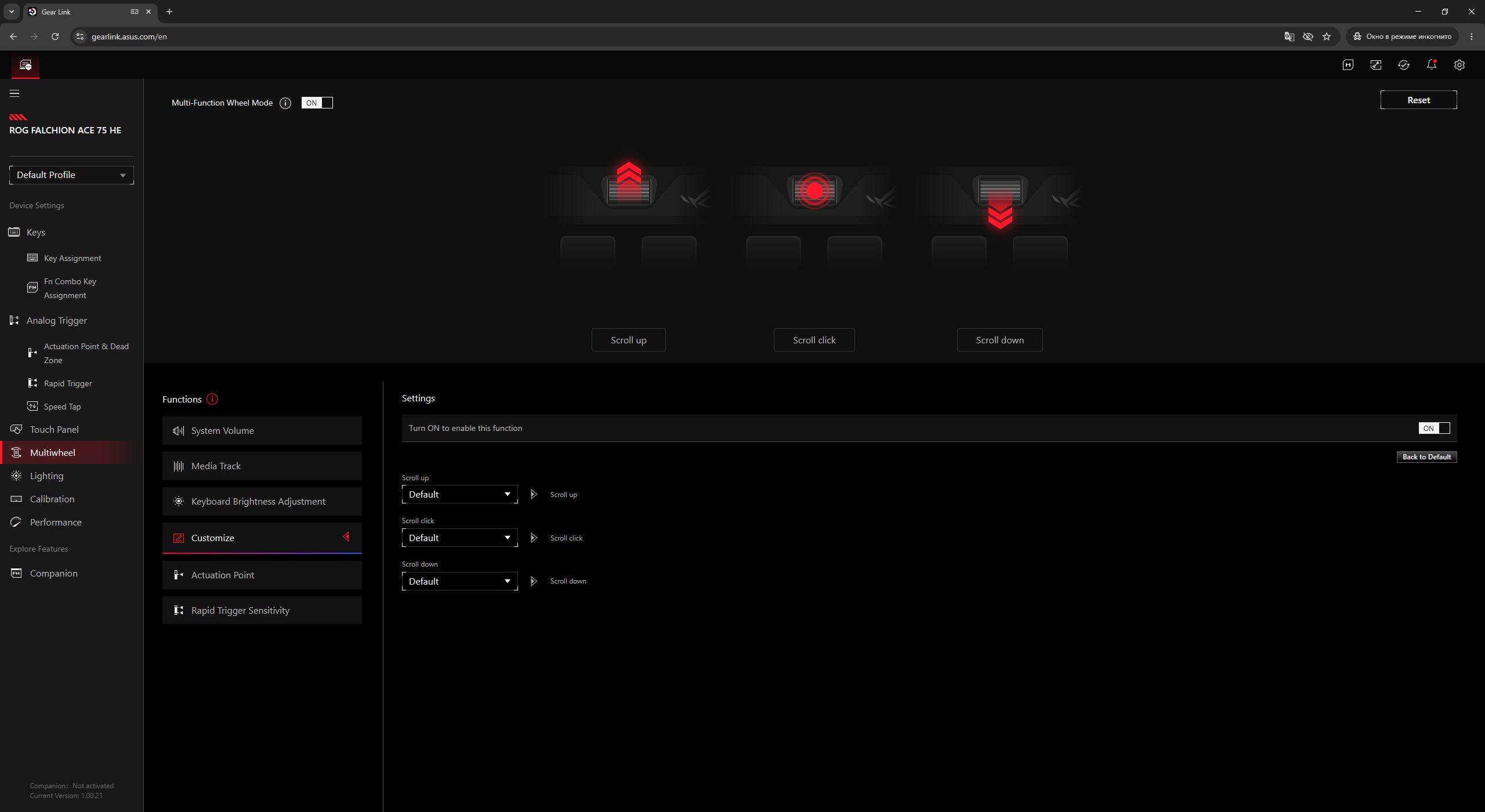
In the Lighting menu, you can configure the backlighting of both the keys and the touch panel. Here, they are treated as a single unified zone, meaning they cannot be adjusted separately from one another.

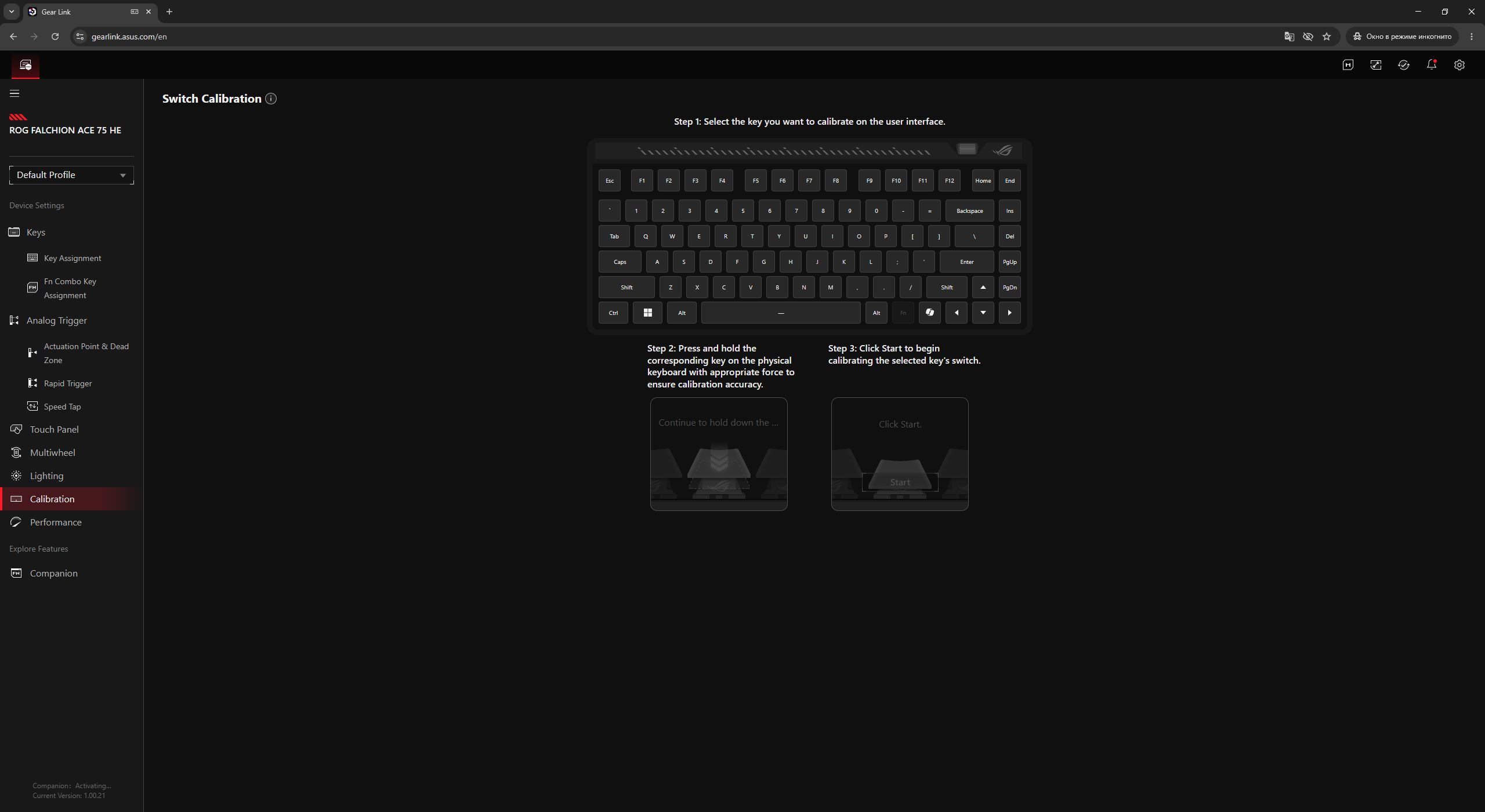
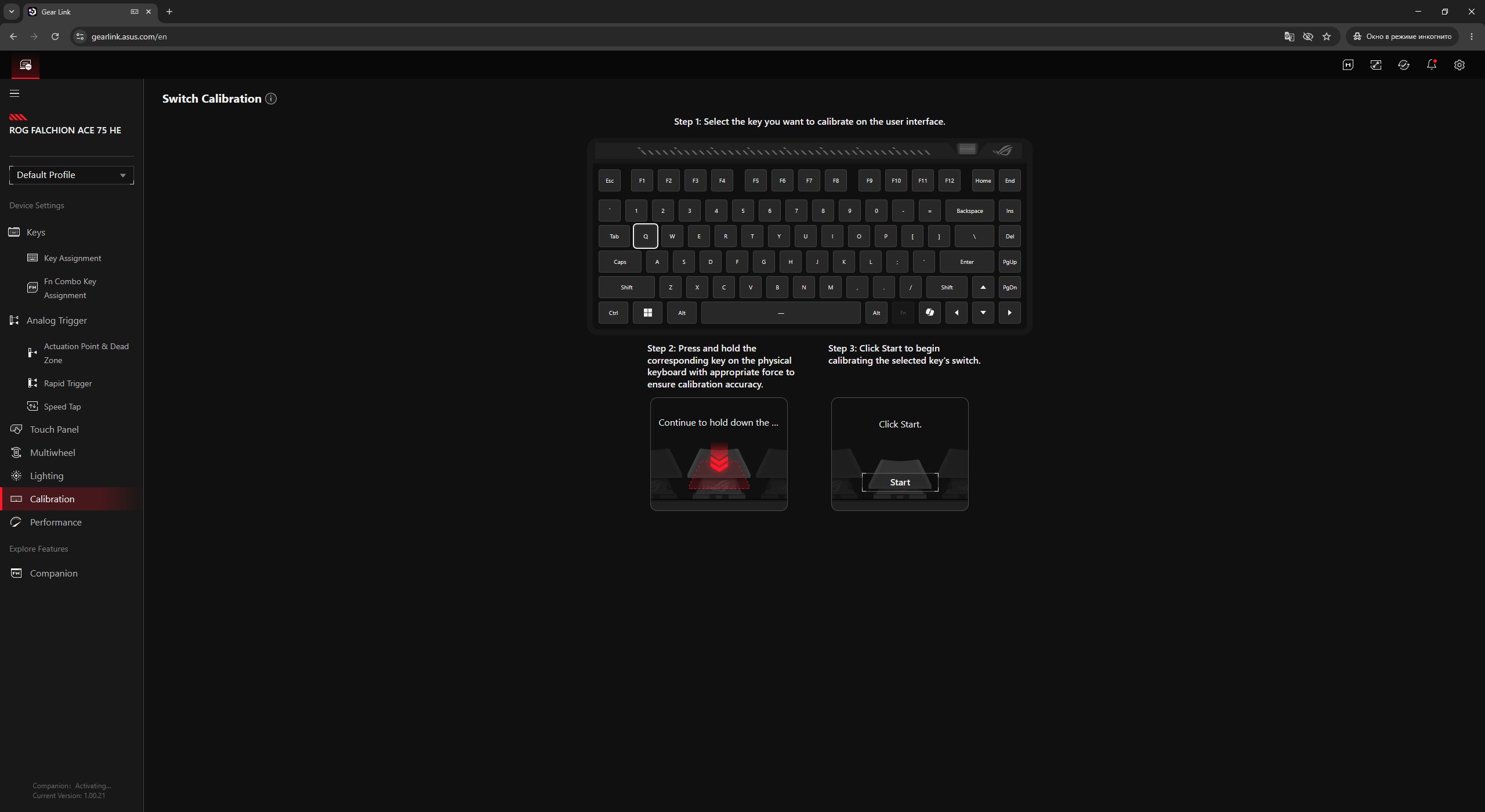
In the Calibration menu, you can perform switch calibration after replacing them or if any issues occur in their operation. An interesting detail appears in a tooltip: the keyboard, in addition to ASUS proprietary switches, also supports TTC Golden Magnetic Switches. This is notable because the official ASUS website does not mention this compatibility, stating instead that the keyboard is currently only compatible with ASUS switches.
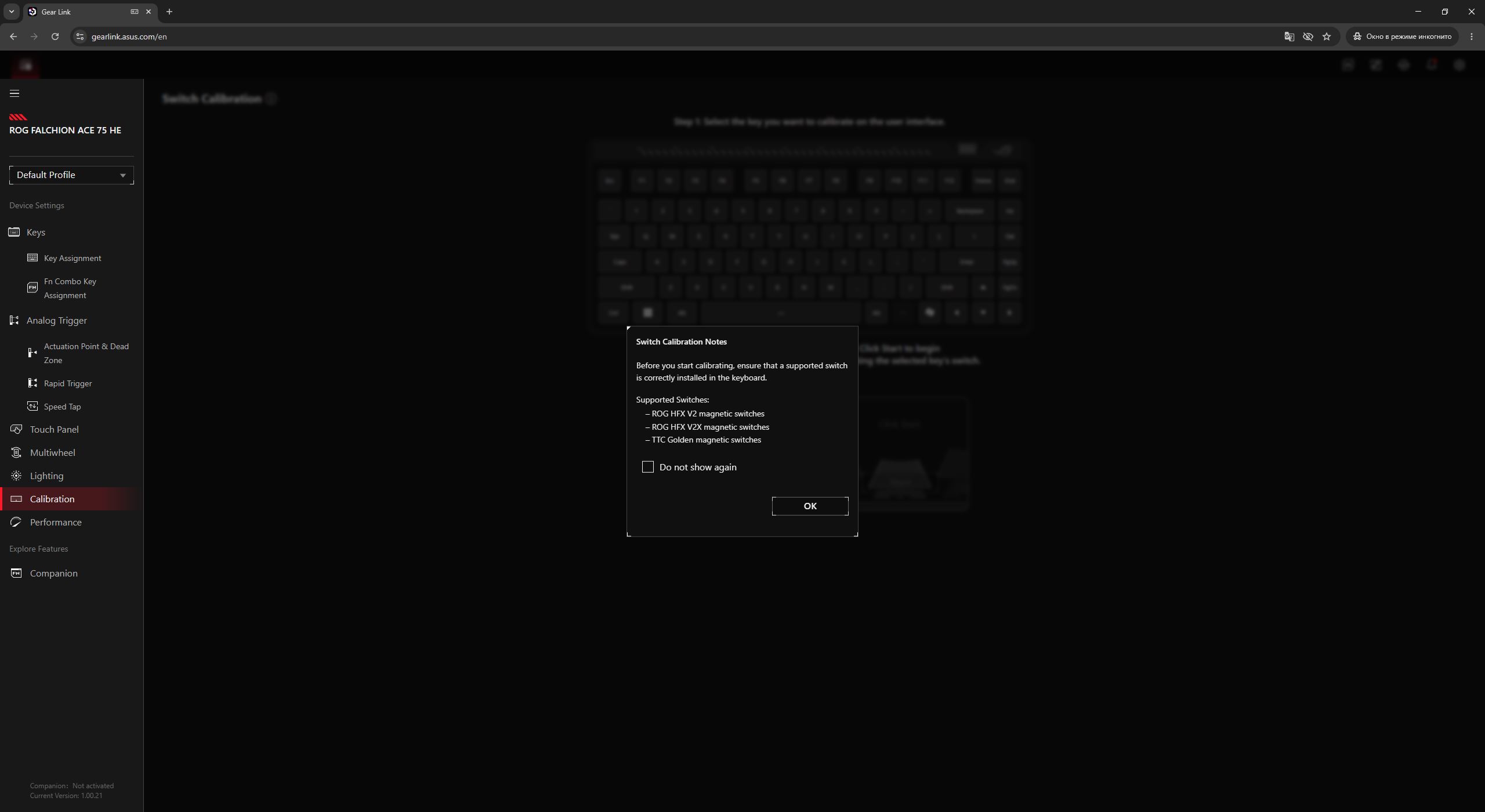
In the Performance menu, you can set the keyboard’s polling rate. By default, it is set to 8000 Hz. Given that the keyboard is wired anyway, there is essentially no practical reason to lower this value.

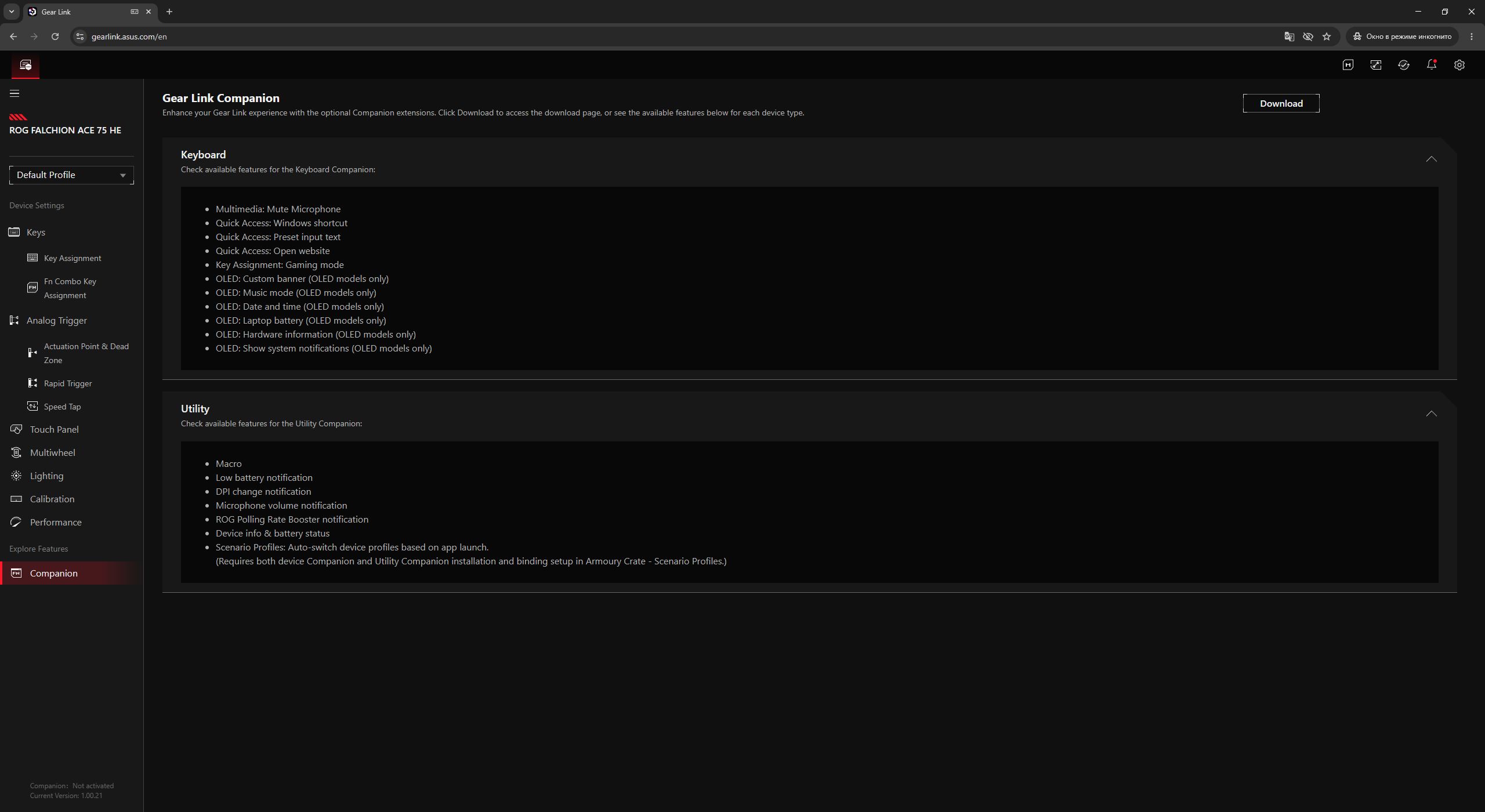
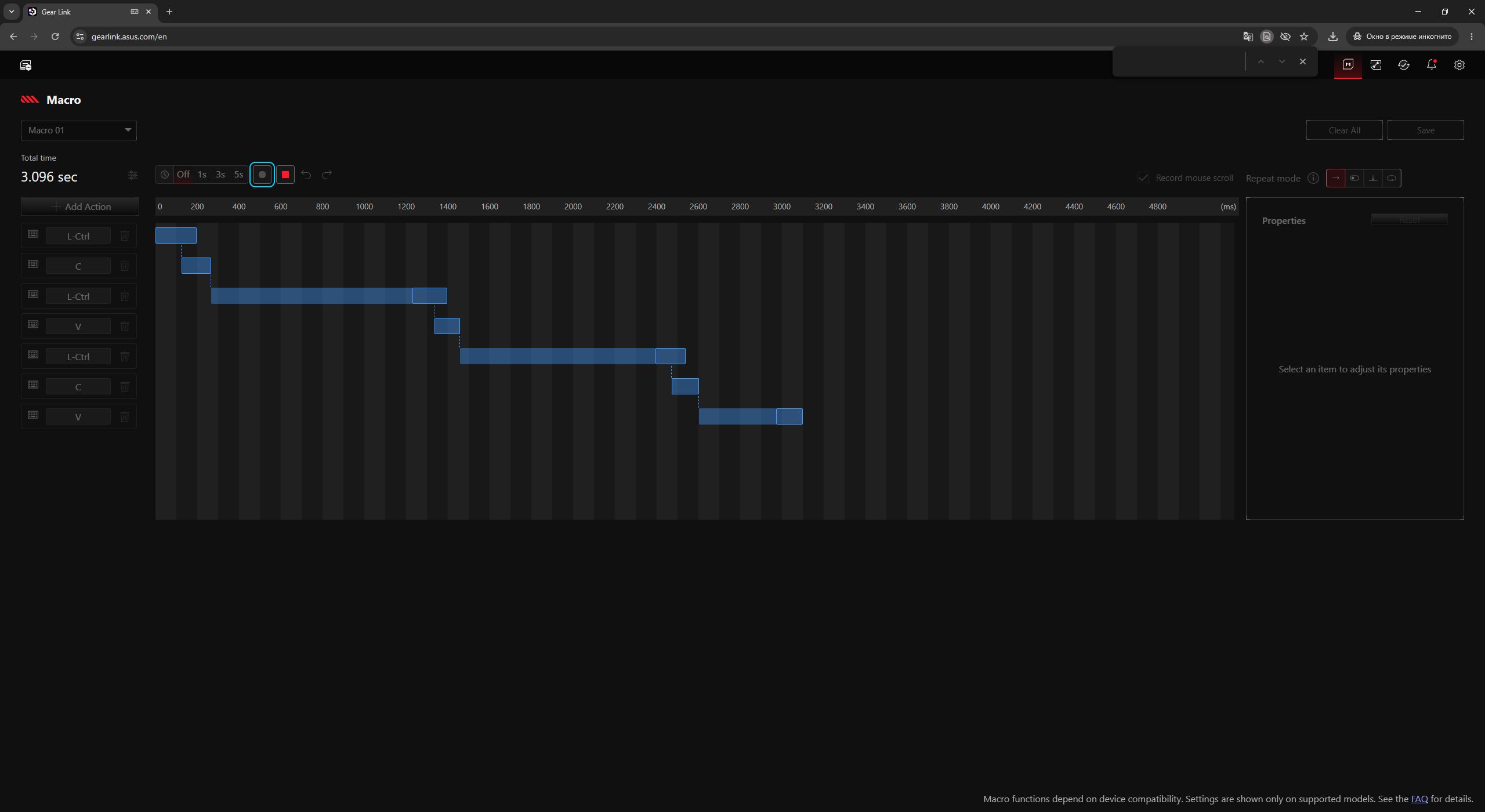
The next menu, Companion, allows you to download and install extensions that enable additional keyboard settings and features. Most importantly, this is required for macro functionality – without the Companion package installed, the macro menu in the browser simply will not work.




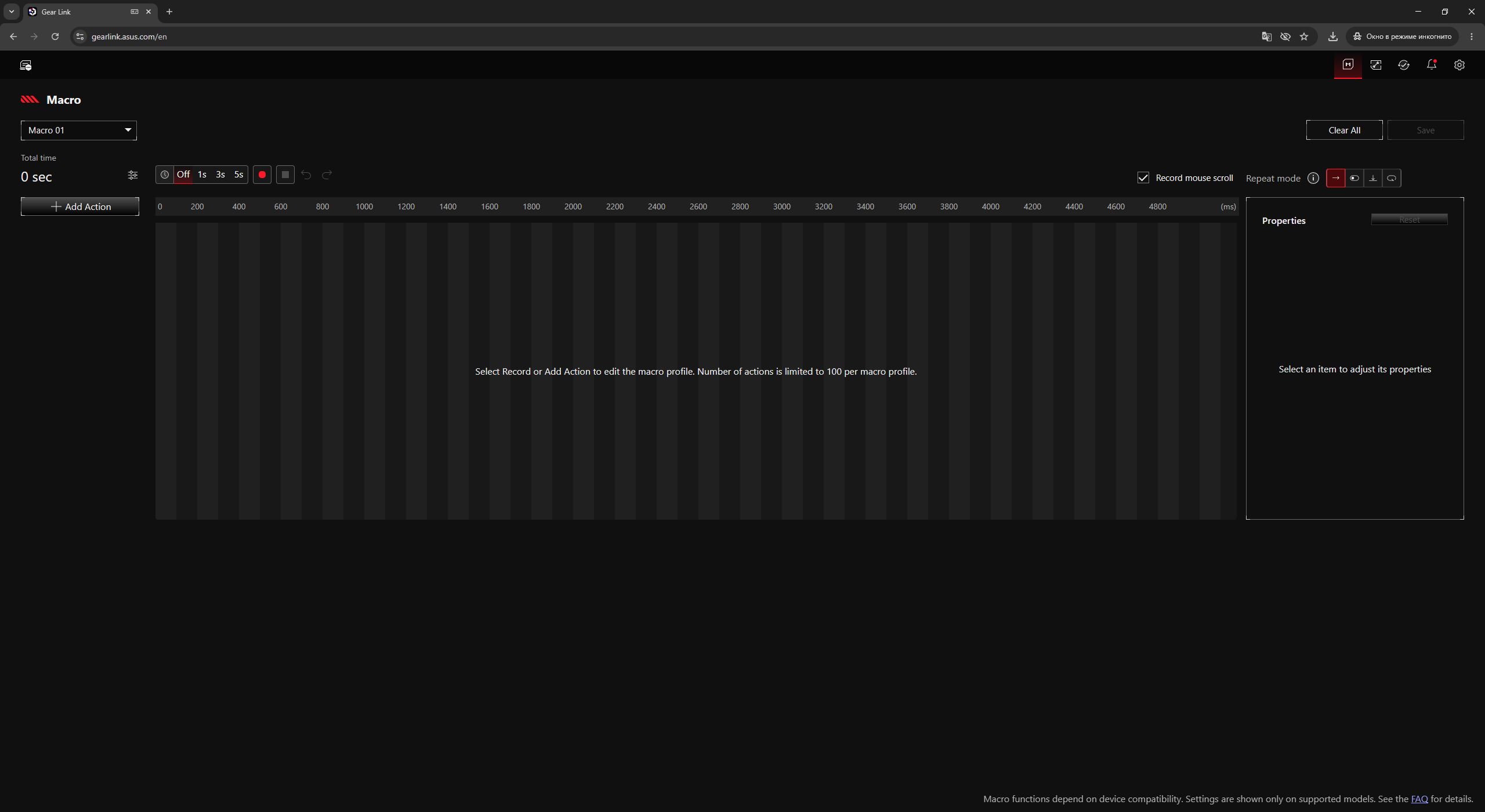
In the Macros menu, you can create and edit macros. These macros can then be assigned to keys and key combinations in the Key Assignment and Fn Combo Key menus. They can also be assigned to the keyboard’s roller in the Multiwheel menu.
In the Firmware Update menu, you can download the software and firmware required to update the keyboard. You simply download the tool, run the .exe file, and wait for the process to complete. However, it is also worth noting that the keyboard firmware can still be updated via the older Armoury Crate software, where the process is, so to speak, more automated.

All changes made in Gear Link are applied on the fly by the keyboard. In addition, the device includes built-in memory with 5 independent, fully customizable profiles that can be switched on the go. This allows you to configure the keyboard once in Gear Link and then use it comfortably without any software, even on other PCs.

Read also:
- Review of ASUS ROG Harpe II Ace and ROG Sheath II XXL: An Esports Mouse and Gaming Mat with Cooling Surface
- ASUS ROG Strix Scope II X Keyboard Review: Hot-Swap Support, Clean Design, and an Accessible Price
Conclusion
To wrap up this review, I can only repeat what I said at the very beginning: in my opinion, the ROG Falchion Ace 75 HE is ASUS’s best magnetic keyboard. It combines a popular 75% layout, signature ROG design, excellent build quality in a slim metal chassis, magnetic switches with their full range of features, an 8000 Hz polling rate, and convenient software that allows full configuration directly in the browser.
I would also like to highlight the outstanding new switches with their additional stabilization mechanism and the exceptionally pleasant typing experience they deliver in combination with the rest of the design choices. In short, the ROG Falchion Ace 75 HE is a strong evolution of the series, the best magnetic keyboard in ASUS’s lineup, and quite possibly one of the best premium magnetic keyboards available on the market today.

From everything mentioned above, it might seem like the new model is close to perfect. However, there are still some controversial aspects. First – the price. Despite all its advantages, the keyboard is, frankly, quite expensive. If the device were slightly cheaper, it would be close to ideal.
Second – the package contents, specifically the absence of a dedicated switch puller and a couple of spare switches in the box. At this price point, the lack of such basic accessories feels at least questionable.
Third – incompatibility with third-party switches. Yes, ASUS claims that switch manufacturers will soon release compatible models. But for now, they are not available, and this should be taken into account. Especially considering that there are already quite a few magnetic keyboards on the market that support a wide range of third-party switches. There are even hybrid models capable of working with both magnetic and traditional mechanical switches.
Fourth – the keyboard is strictly wired. While there are already many magnetic models with hybrid connectivity options (USB, RF, BT), this limitation may seem noticeable. However, this point is somewhat overblown. As mentioned earlier, the ROG Falchion Ace 75 HE is primarily designed for esports players and advanced gamers who aim for maximum performance. For such users, speed and stability matter far more than how the keyboard is connected to the PC, making this last point largely irrelevant.

Read also:
- Logitech G512 X 75 Hybrid Keyboard Review: A Strong Evolution of Magnetic Switch Technology
- SUNRA K6 electric scooter review: Quieter than water, faster than the wind
- The Ukrainian “Tryzub” Laser System: From Testing Grounds to the Front Line

