© ROOT-NATION.com - Use of content is permitted with a backlink.
Five years ago, ASUS released the ROG Gladius III, which at the time was the latest model in one of its established product lines. The mouse was noted for its recognizable design, three-zone lighting, a comfortable asymmetric shape that appealed to many users, a distinctive hot-swappable switch mechanism, and a relatively accessible price.
Now, five years later, the updated ROG Gladius III Core is under review. In essence, it is a simplified version of the original. Some aspects have been streamlined compared to the earlier model, while others have been refined or updated. This review takes a closer look at how the Core version differs from the standard Gladius III, what has been removed or added, and what trade-offs this results in. As usual, the discussion begins with a brief comparison and an overview of the key technical specifications.
TABLE OF CONTENTS:
Gladius III vs. Gladius III Core: Comparison
To begin, it is useful to outline how the Gladius III Core differs from the base Gladius III model. In short, the differences concern the sensor, weight, switches, switch sockets, lighting zones, and software support.


In the base version, the mouse used a modified PAW3370 sensor with a resolution of 19,000 DPI (boosted up to 26,000 DPI), a maximum tracking speed of 400 IPS, and acceleration of 50 G. The new model employs a simpler PAW3311 sensor with a resolution of 12,000 DPI, a tracking speed of 300 IPS, and acceleration of 35 G. Despite the more modest specifications, this sensor remains more than sufficient for modern gaming, including use with 4K monitors.
In terms of weight, the mouse retains the original shape but has become lighter – 71 g instead of 79 g. On paper, the 8 g reduction may seem minor, but in regular use the difference is noticeable almost immediately.

The switches have been updated to a second revision. The mouse now uses the new proprietary ROG Micro Switch II, rated for 100 million clicks instead of the 70 million of the first generation. Changes also affect the switch sockets themselves.
The original model used Push-Fit II sockets, which were universal and supported both standard mechanical switches (3-pin) and 5-pin Omron optical switches. In the new version, standard Push-Fit sockets are used instead. These support only 3-pin switches, whether mechanical or optical. As a result, backward compatibility with 5-pin switches, present in the previous model, is no longer available.

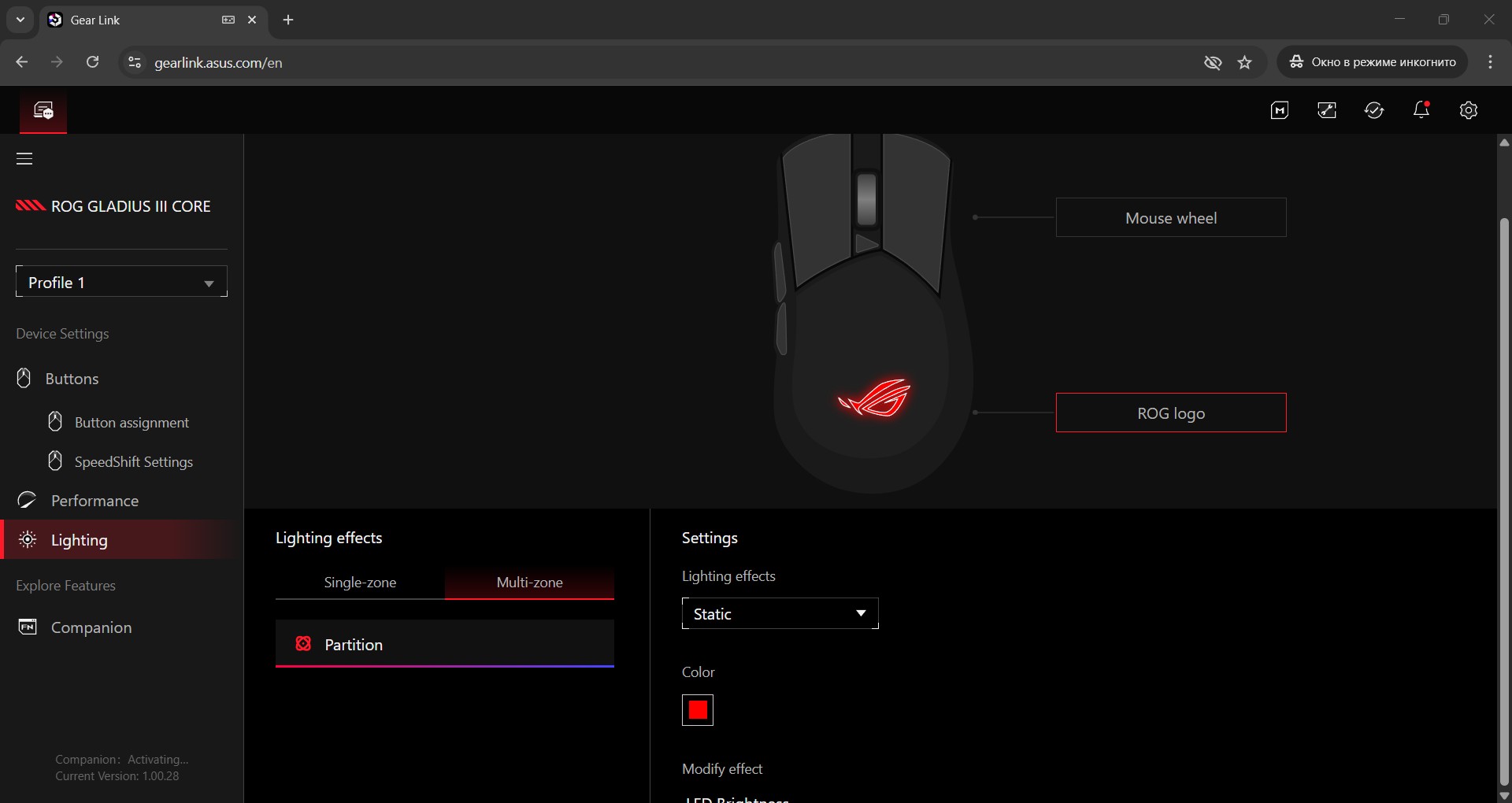
Lighting on the Gladius III Core has been reduced. The original model featured three lighting zones: the scroll wheel, the logo, and a side engraving on the left. In the new version, only the scroll wheel and the logo are illuminated.
The software approach has changed significantly as well. The base model was configured exclusively through Armoury Crate. In contrast, the new version drops support for Armoury Crate and replaces it with Gear Link, which allows the mouse to be configured directly through a web browser without installing any software on the PC.
The final difference concerns pricing: the new model is, on average, about $23 / €19 cheaper. This positions the mouse as one of the more affordable devices in the ROG lineup and makes it a practical option for users working within a limited budget.

Next, I will give a brief technical description of the heroine of today’s review – the new Gladius III Core.
ROG Gladius III Core Specifications
- Connection: wired (USB-A)
- Sensor: PAW3311
- Maximum sensor resolution: 12,000 DPI
- Maximum speed: 300 IPS
- Maximum acceleration: 35 G
- Polling rate: 1000 Hz
- Switches: ROG Micro Switch II (100 million clicks)
- Hot-swap switches: supported (Push-Fit Switch Socket / 3-pin)
- Number of buttons: 7 buttons
- Backlighting: wheel and logo (RGB compatible with Aura Sync)
- Configuration software: Gear Link
- Built-in memory: 5 programmable profiles
- Shape: asymmetrical (for right-handed users)
- Grip type: claw, fingertip, palm, hybrid
- Glides: Teflon
- Cable: ROG Paracord (2 m)
- Dimensions: 123×68×44 mm
- Weight: 71 g
- Package contents: mouse, user manual, warranty documentation

Read also:
- Review of ASUS ROG Harpe II Ace and ROG Sheath II XXL: An Esports Mouse and Gaming Mat with Cooling Surface
- ASUS ROG Keris II Origin Wireless Gaming Mouse Review: Sleek and Affordable
Positioning and pricing
There is little need to further explain the positioning of the Republic of Gamers series. Most gamers are already familiar with it as ASUS’s premium gaming lineup, which includes not only uncompromising flagship products but also entry-level and mid-range models with somewhat simplified specifications.
The Gladius III Core fits squarely into this category. It is a simplified version of the standard Gladius III and currently one of the most affordable mice in the ROG lineup. At the time of writing, its average price is around $50 / €47, making it a reasonably accessible entry point into the brand’s ecosystem.
Package contents
The mouse is shipped in a compact cardboard box with the familiar ROG design. The back of the packaging lists the main technical specifications. The contents themselves are minimal. The box includes only:
- ROG Gladius III Core mouse
- User manual
- Warranty documentation
There are no spare feet or additional accessories, which is consistent with the model’s budget-oriented positioning.


Design, ergonomics, and build quality
In terms of design, the new Core model is essentially the same as the original Gladius III. The only notable changes are the side engraving present on the previous model, the material of the side panels, and the overall weight. Everything else – including the shape, main buttons, back panel material, side buttons, cable, and logo lighting with the scroll wheel – remains unchanged.


The mouse’s dimensions remain unchanged from the original model: 123×68×44 mm. The shape is also retained, keeping the proven right-handed asymmetric design. However, the mouse is 8 g lighter (71 g versus 79 g in the original), which noticeably improves its maneuverability.

Regarding the mouse’s materials, only the side panels have changed. In the base version, the left side was rubberized with RGB-accented engraving, while the right featured textured lines. In the Core version, these have been replaced with plain, grippy matte plastic panels. The back panel and main buttons remain unchanged – smooth, just like on the original Gladius III.


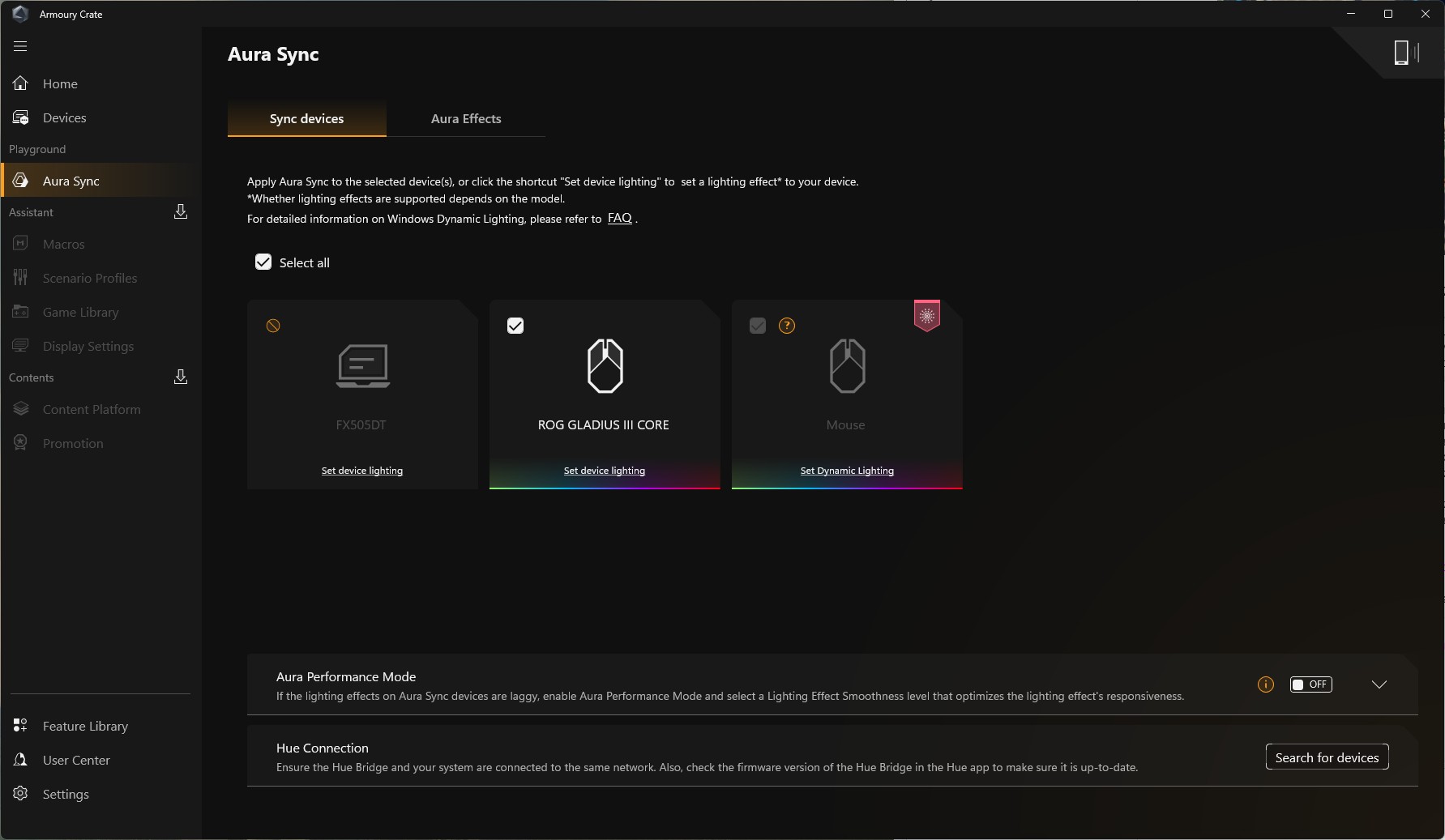
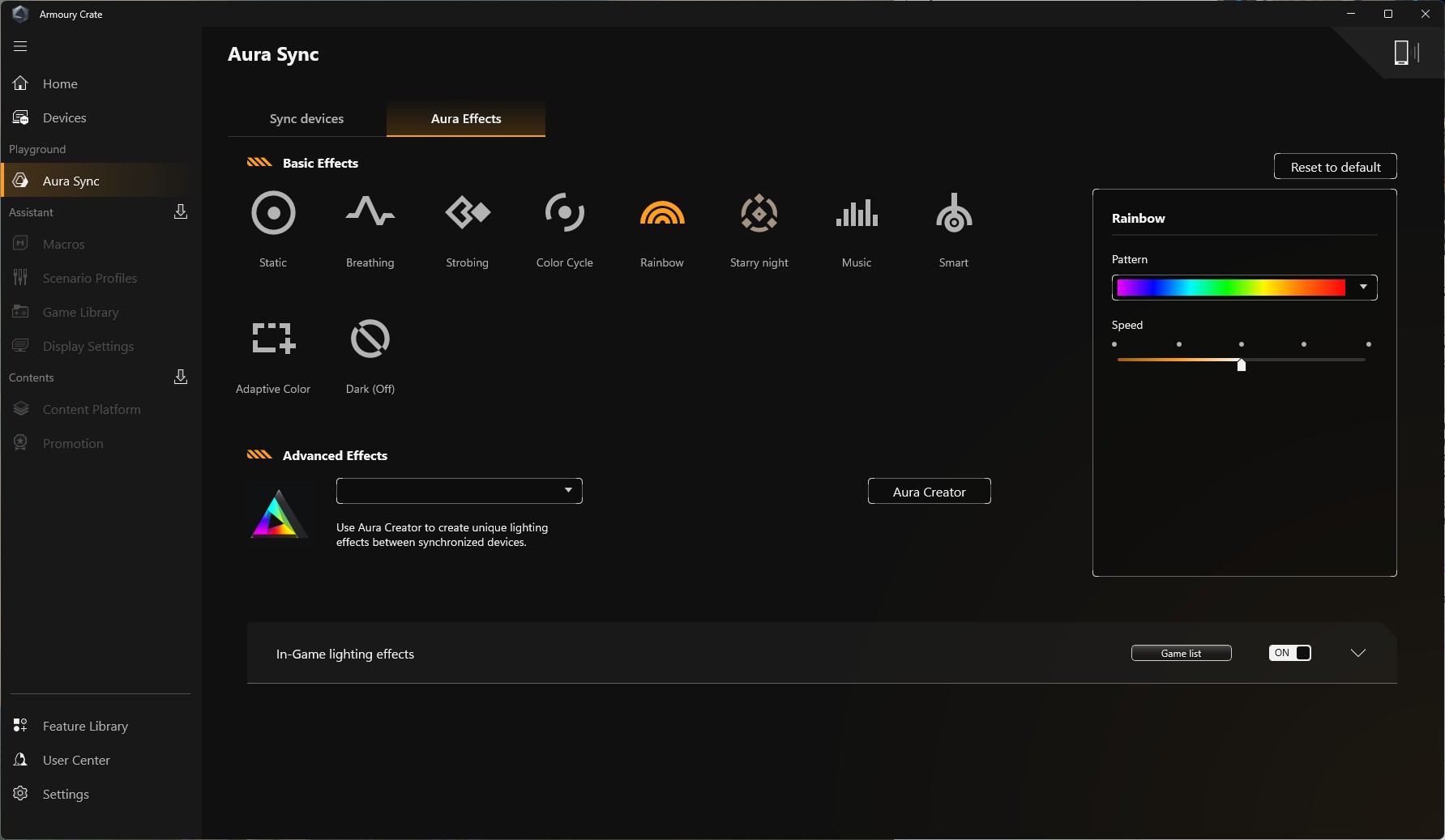
The logo on the back panel and the scroll wheel, as in the base model, feature RGB lighting. These are two independent zones that can be configured either together or separately. Colors and effects can be synchronized with other ASUS devices via Aura Sync. There is, however, a minor peculiarity with synchronization, which will be discussed in detail in the software section.


The scroll wheel follows the same design used in recent ASUS mice: it features a grippy, pleasant-to-touch surface, a quiet yet slightly “clicky” scroll with distinct detents, and a clear, responsive click.

The main button design has also remained unchanged. The Core version uses the same large, separated panels with ergonomic finger grooves. Like the previous model, the buttons feature ASUS’s ROG Pivot Button technology, which employs a special spring mechanism to minimize the distance between the button and the switch. This effectively eliminates free travel, resulting in an immediate, precise click with a very tactile response. It also helps reduce any unwanted button rattle.


The buttons feature a barely noticeable pre-travel – a slight initial movement that helps prevent accidental clicks when fingers are simply resting on the mouse. There is also a small post-travel, which softens the press and eliminates the feeling of plastic hitting plastic. Additionally, there is minimal side-travel, though during typical use it is neither noticeable nor disruptive.

As for the main button clicks, their sound, and tactile feedback – I can say without exaggeration that they are excellent: crisp, smooth, quiet, with a pleasant “clicky” feel, and very informative. A video is included below so you can hear them for yourself.
Between the main buttons is a small DPI switch. The DPI levels themselves can be configured in Gear Link. The button protrudes only slightly above the mouse body, making it easy to locate by touch, while accidental presses during gameplay are practically impossible.

The side buttons on the left are the same as on the base model. They are medium-sized, protrude only slightly from the body, and feature characteristic pre- and post-travel. The presses are soft, quiet, and crisp, providing clear tactile feedback. Their placement is very convenient – directly under the thumb – making them easy to locate without looking. The shape allows for activation both with a standard click and a simple swipe of the thumb.

On the underside, the mouse, like the previous model, features four Teflon feet and a small Teflon frame around the sensor. These use ASUS’s exclusive ROG Omni feet made from 100% Teflon, with rounded edges that ensure smooth, unobstructed gliding. The underside also houses the Profile button, allowing on-the-fly switching between configuration profiles.


On either side of the Profile button, there are two rubber covers. They can be easily lifted with a thin tool, such as a screwdriver, revealing screws underneath. Removing these screws allows the mouse to be disassembled.

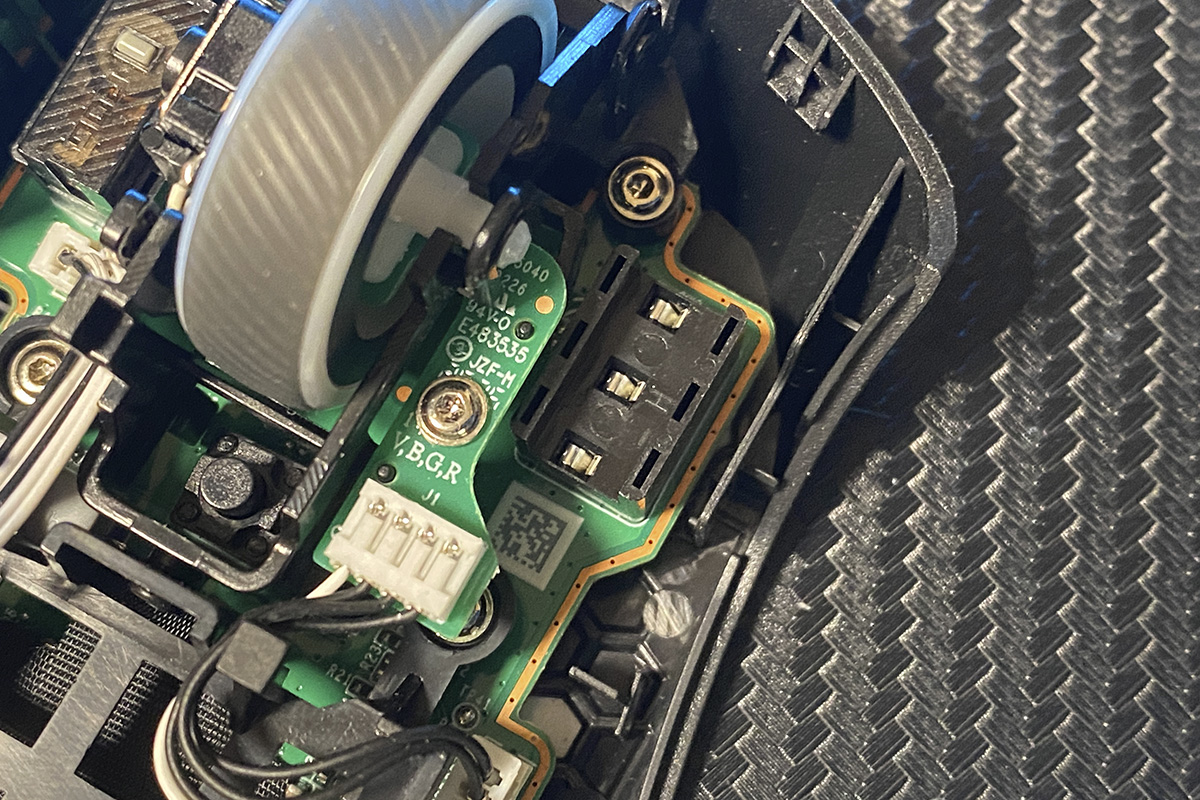
Disassembling the mouse is straightforward: lift the rubber covers, unscrew the two screws, then carefully hold the back panel and gently pull it upward and slightly toward yourself.
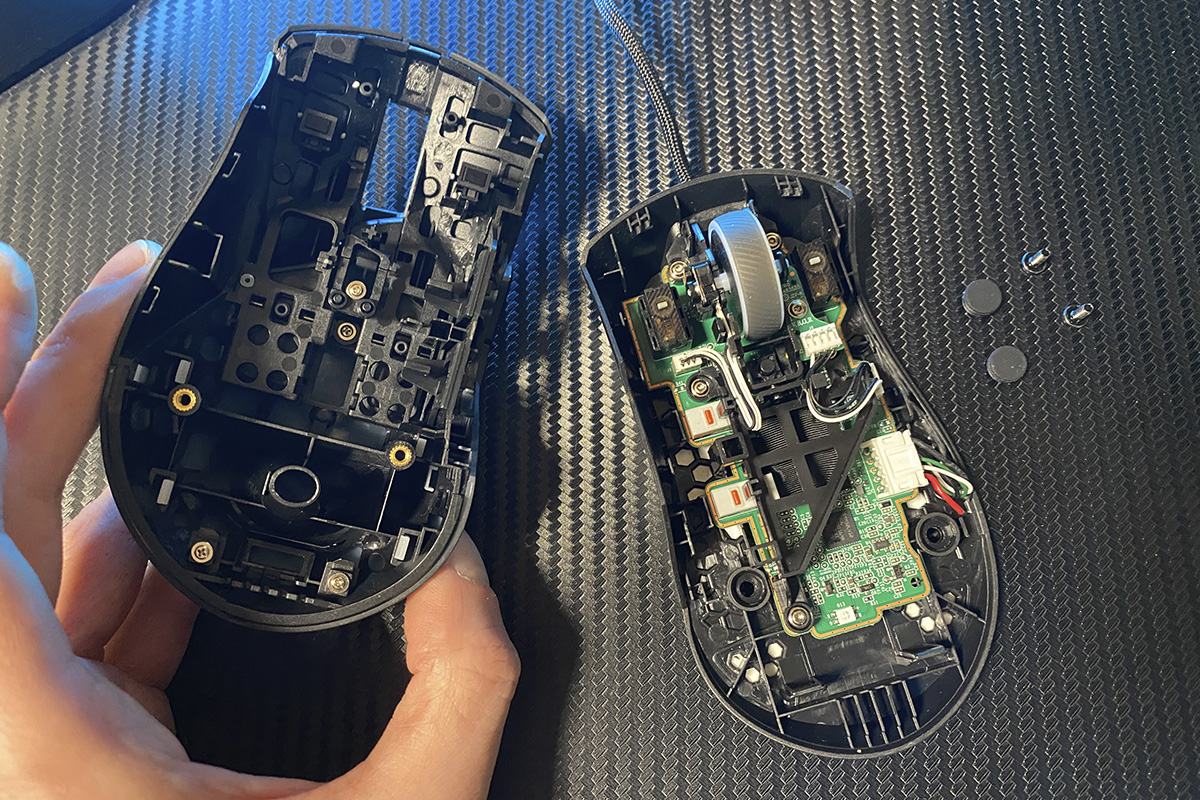
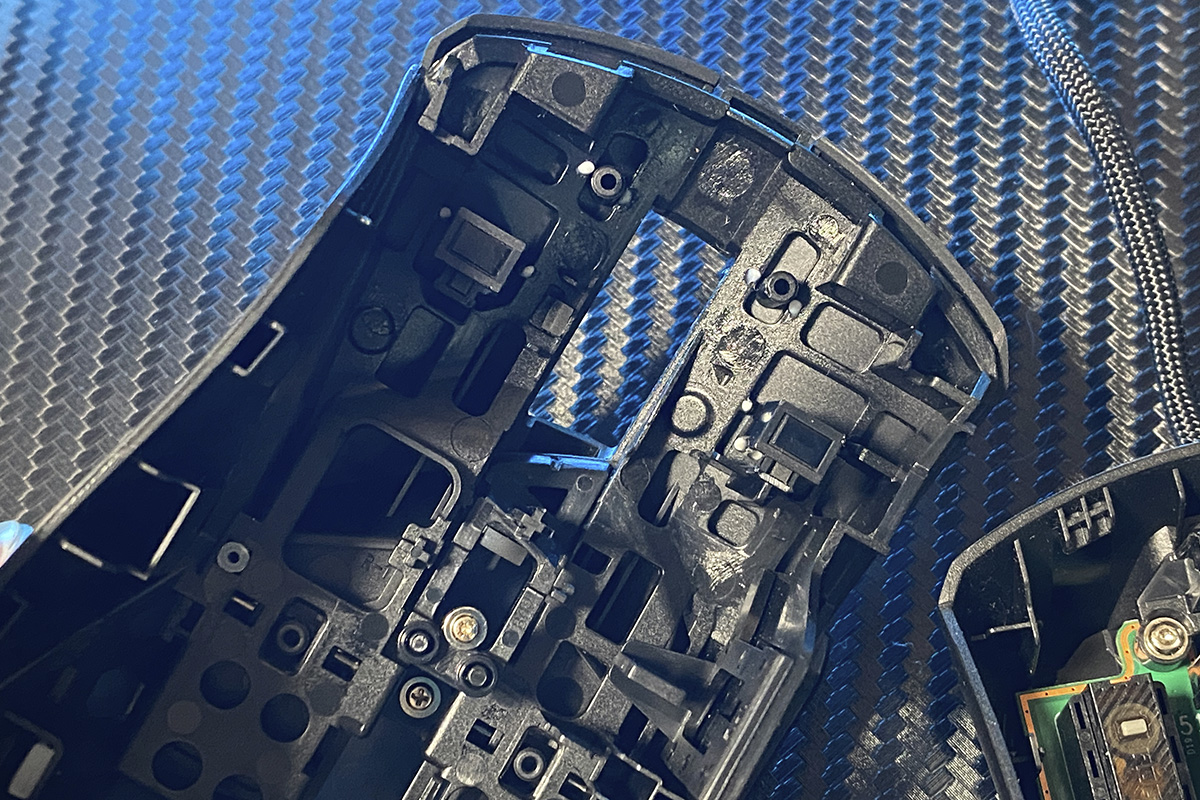
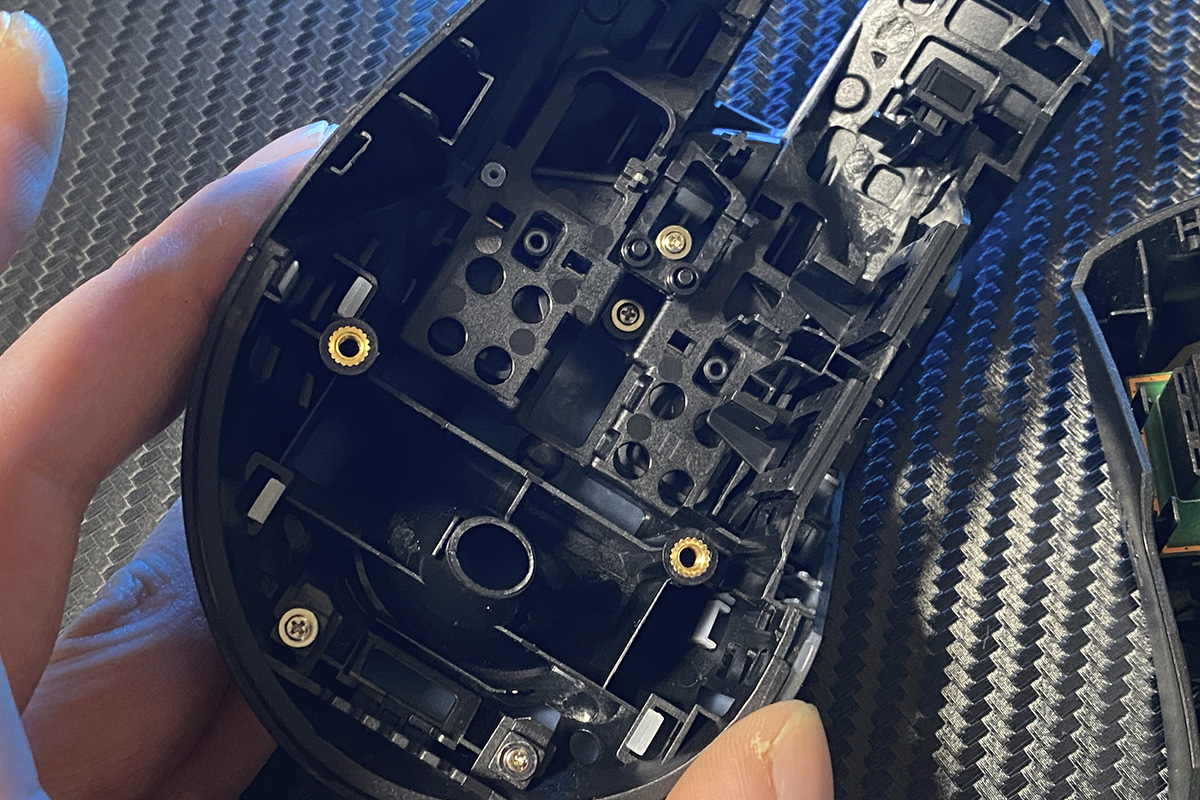
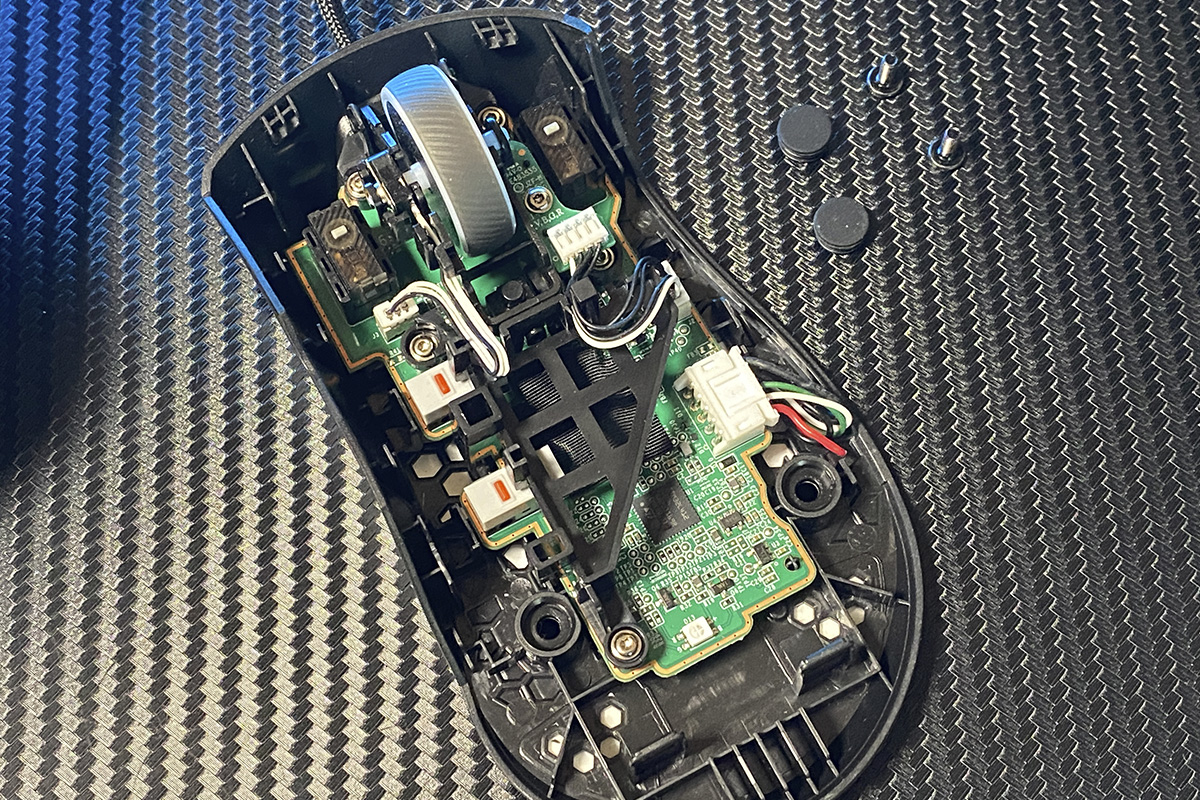
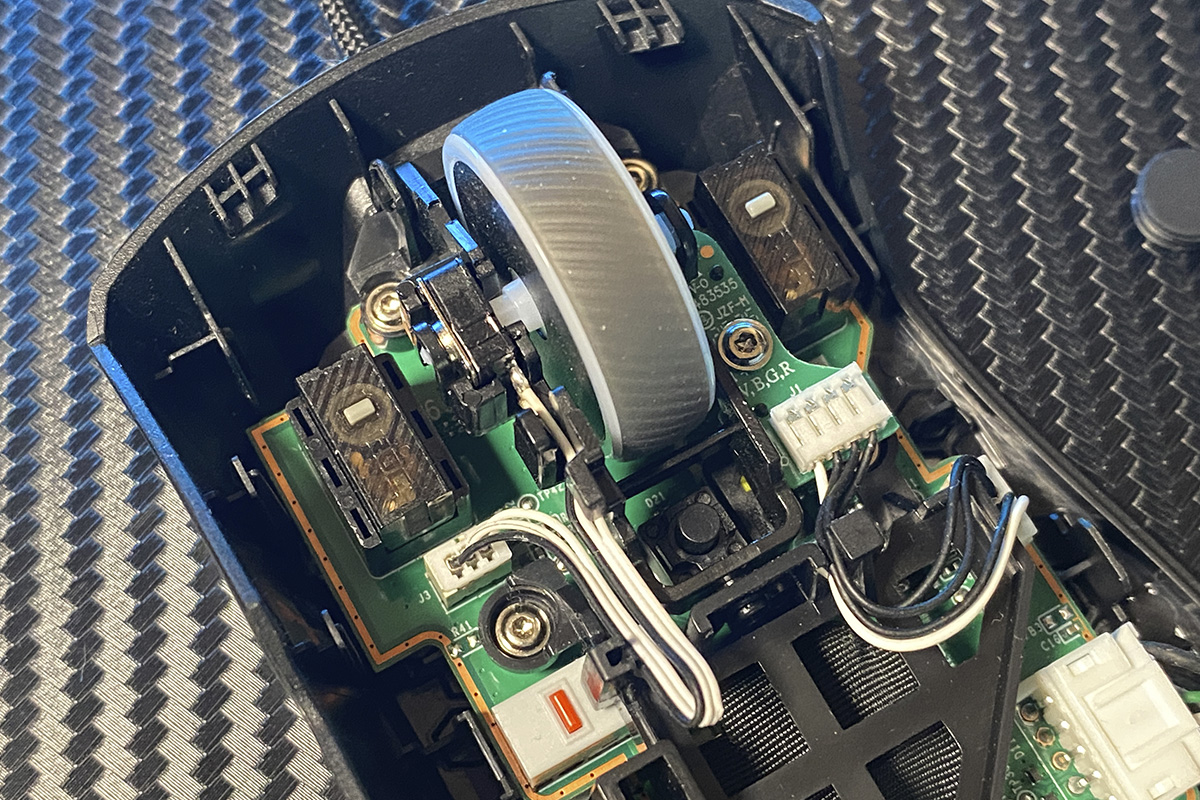
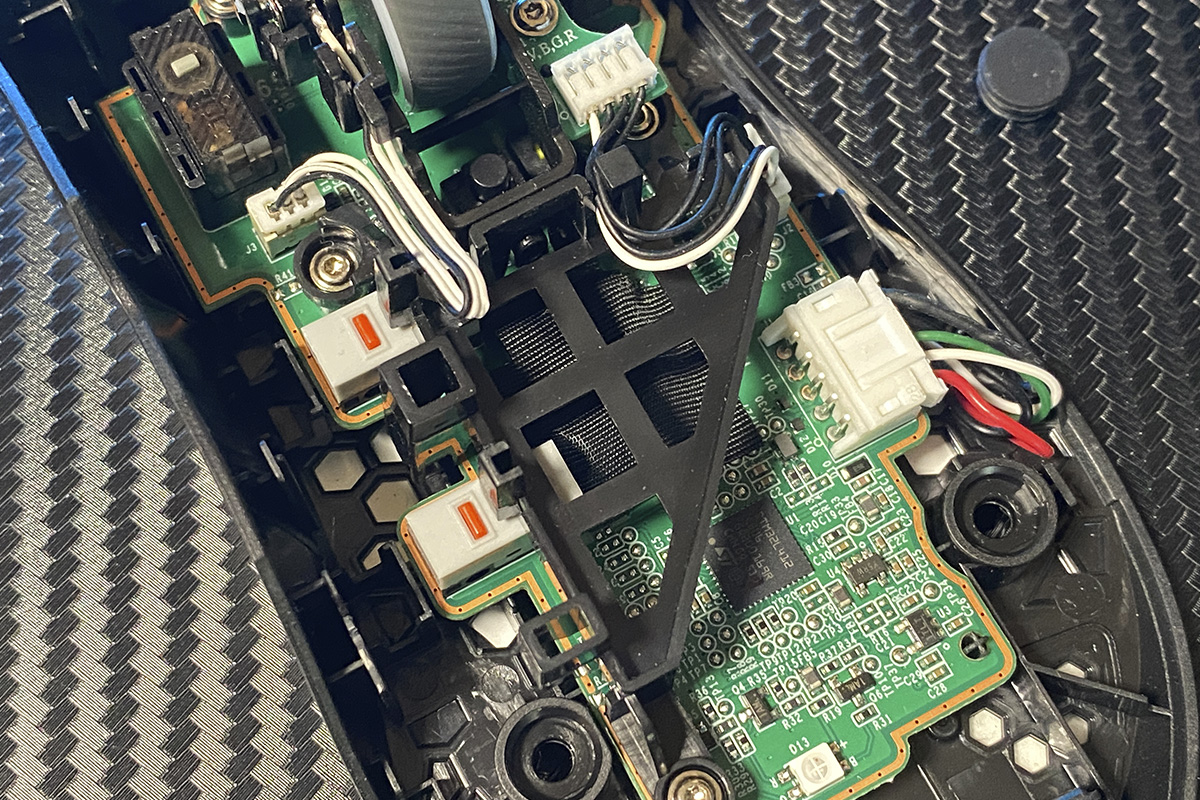
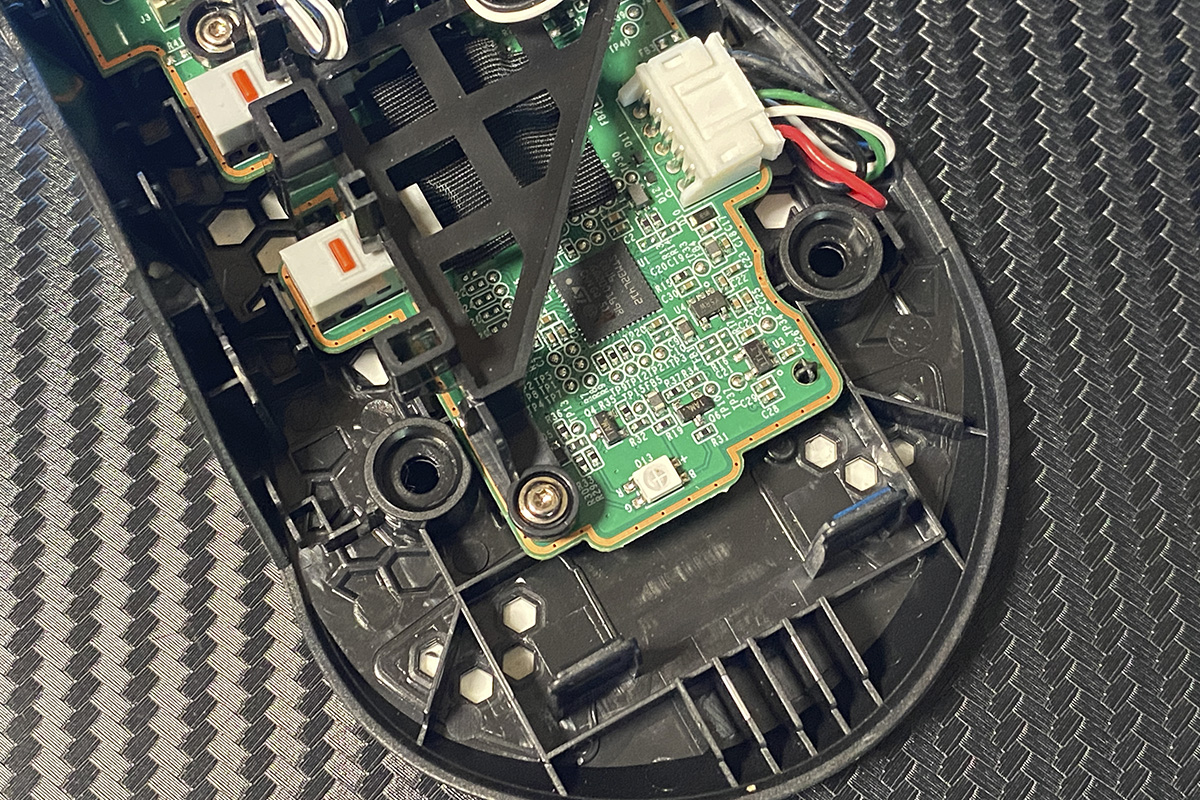
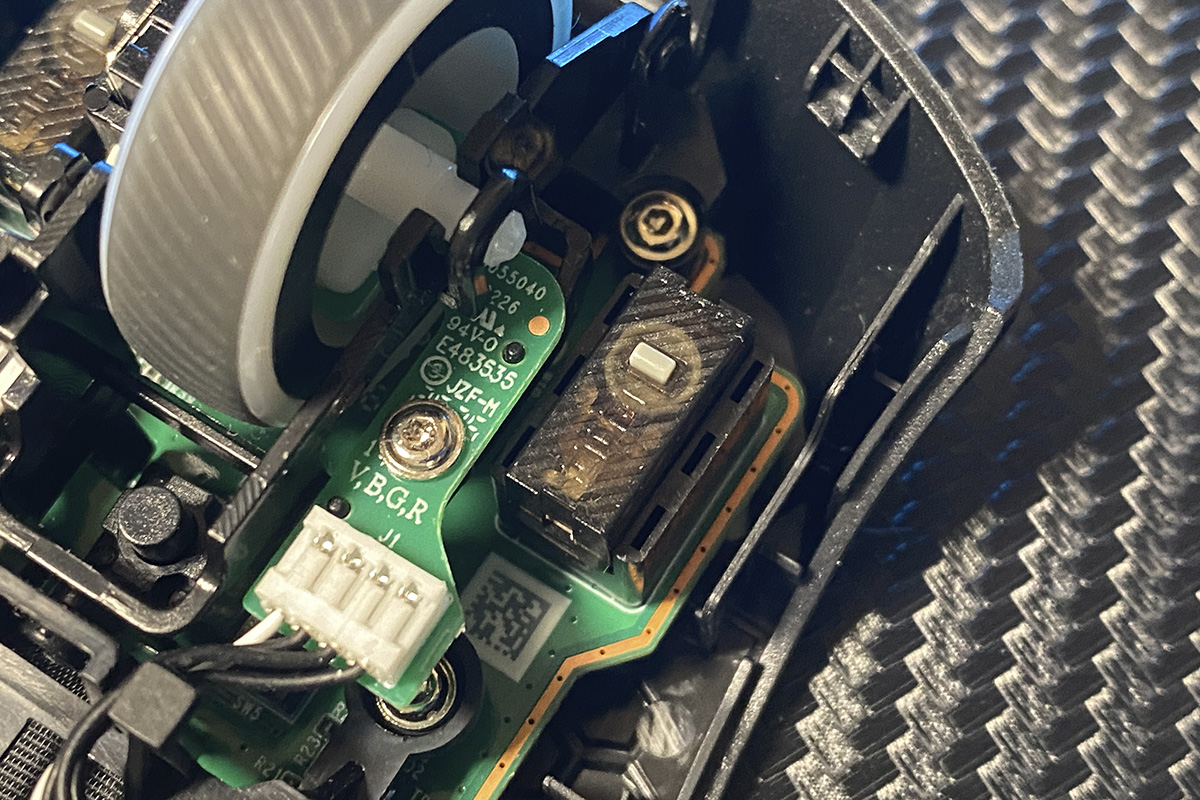
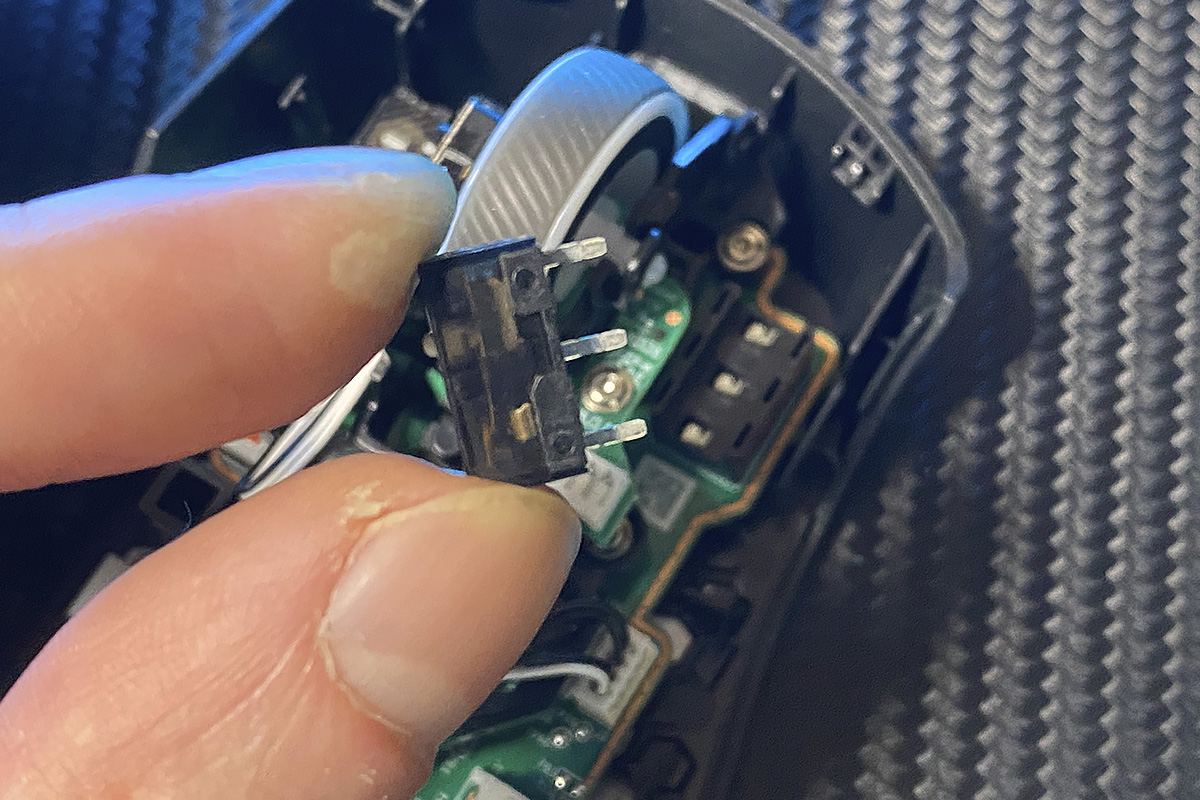
The main switches are just as easy to remove – simply grip them with two fingers and pull upward. Beneath the switches, you’ll find the same proprietary 3-pin Push-Fit Switch Socket.
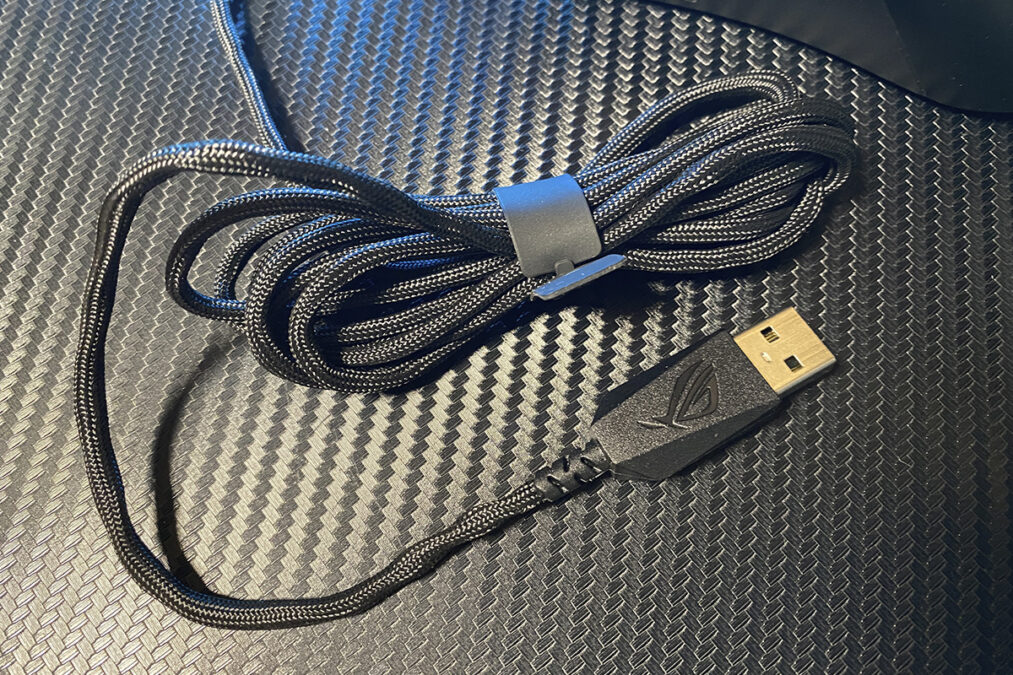
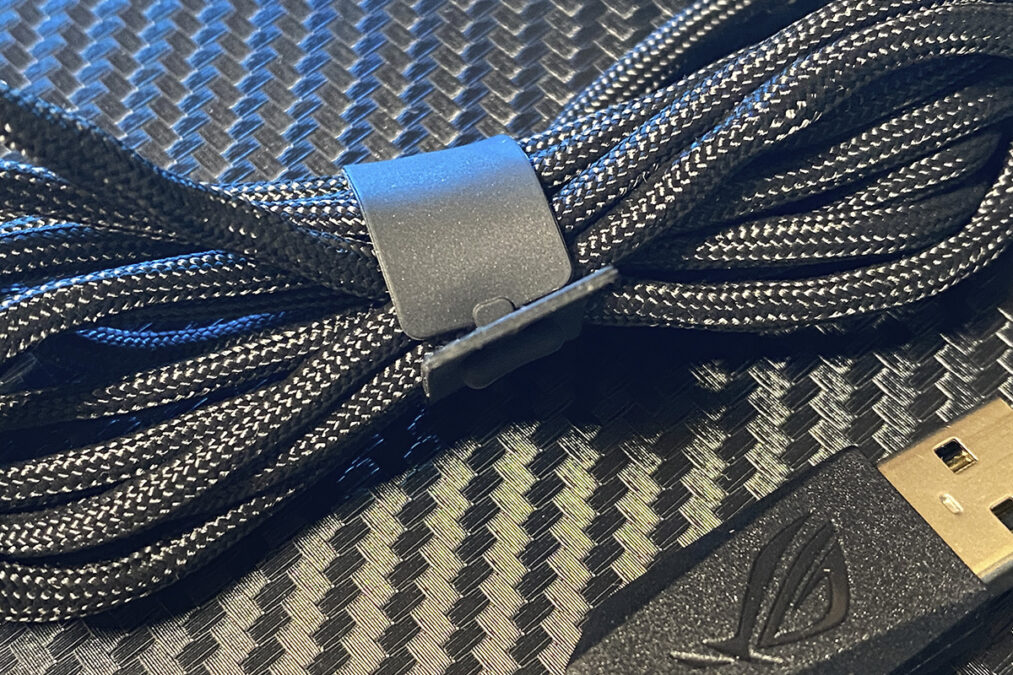
Like the base model, the new Core version is wired, so the cable is non-detachable. The cable itself is excellent: it uses ASUS’s proprietary lightweight ROG Paracord with a durable fabric braid, just like the original version. It’s highly flexible, doesn’t retain bends, and is almost weightless. The length is about 2 meters, which is more than sufficient, and any excess can be neatly coiled and secured using the included rubber strap.
Build quality on the new Gladius III Core is excellent. Despite the slight reduction in weight, it retains the same solid, monolithic construction that does not creak, wobble, or flex, even under active use. The buttons deliver crisp, informative clicks while remaining quiet and pleasant.

The ergonomics of the mouse are also praiseworthy. Like the previous model, it feels fairly large in hand, making it especially appealing to fans of medium to large mice. Personally, it feels slightly big for me, but thanks to its shape and ergonomic grooves, even after a couple of hours of use it remained quite comfortable.
The only aspect I can truly critique is the weight. At 71 g, it’s heavier than I’m used to – my preference is for “ultralight” mice around 55 g. That said, this is entirely a matter of personal taste. For those who prefer to feel some weight in their hand, the new Core version is likely to be very satisfying.

Read also:
- ASUS ROG Harpe Ace Mini Wireless Gaming Mouse Review
- ASUS ROG Harpe Ace Extreme Wireless Gaming Mouse Review
Sensor and switches
ASUS does not specify the exact sensor used in the new Core version on its official site, providing only general specifications: 12,000 DPI, 300 IPS speed, and 35 G acceleration. However, detailed teardowns reveal that the mouse uses the PixArt PAW3311 – a reliable, energy-efficient mid-range sensor that is more than capable of handling any gaming task.

As for the switches, the mouse uses ASUS’s proprietary ROG Micro Switch II, rated for 100 million clicks. They deliver the same crisp, informative feedback mentioned earlier. Thanks to the Push-Fit sockets, the switches can be quickly replaced in just a few minutes without any soldering.

The only caveat, as mentioned earlier, is that the Core version uses 3-pin sockets. This means they are compatible only with 3-pin mechanical or optical switches. Support for 5-pin optical switches, as found on the original Gladius III with Push-Fit II sockets, is not available.

Proprietary software: ASUS Gear Link
Nowadays, ASUS is integrating support for its new web-based configuration tool, Gear Link, into almost all of its new devices. At the same time, some devices have partially or fully lost support for the older Armoury Crate software. This is a logical move from the manufacturer, especially considering that Armoury Crate itself is neither particularly fast nor lightweight.
The new Gladius III Core follows this trend. Key assignments, lighting, macros, and sensor calibration are all handled through Gear Link. Armoury Crate now only retains the ability to synchronize the mouse’s lighting with other ASUS devices. Given this, it makes sense to briefly review Armoury Crate settings first, then take a closer look at Gear Link.
When the mouse is first connected to a PC, Armoury Crate automatically initializes the device and prompts you to install any updates. Once completed, the mouse appears immediately in the device list.

However, if you go directly into the mouse settings within Armoury Crate, you’ll see only that the device now supports Gear Link, along with a link to access it.

This means that in Armoury Crate you can only synchronize the mouse’s lighting with other ASUS devices via Aura Sync. If you don’t have other ASUS devices or don’t need Aura synchronization, you can safely skip Armoury Crate and go straight to Gear Link – which is exactly what we’ll cover next.
Again, when you first connect the mouse to your PC (Windows 11 in my case), the system will automatically notify you of a new device and prompt you to open Gear Link in your browser for configuration. If this doesn’t happen or you miss the notification, simply open gearlink.asus.com in your browser and accept the connection request for the device.


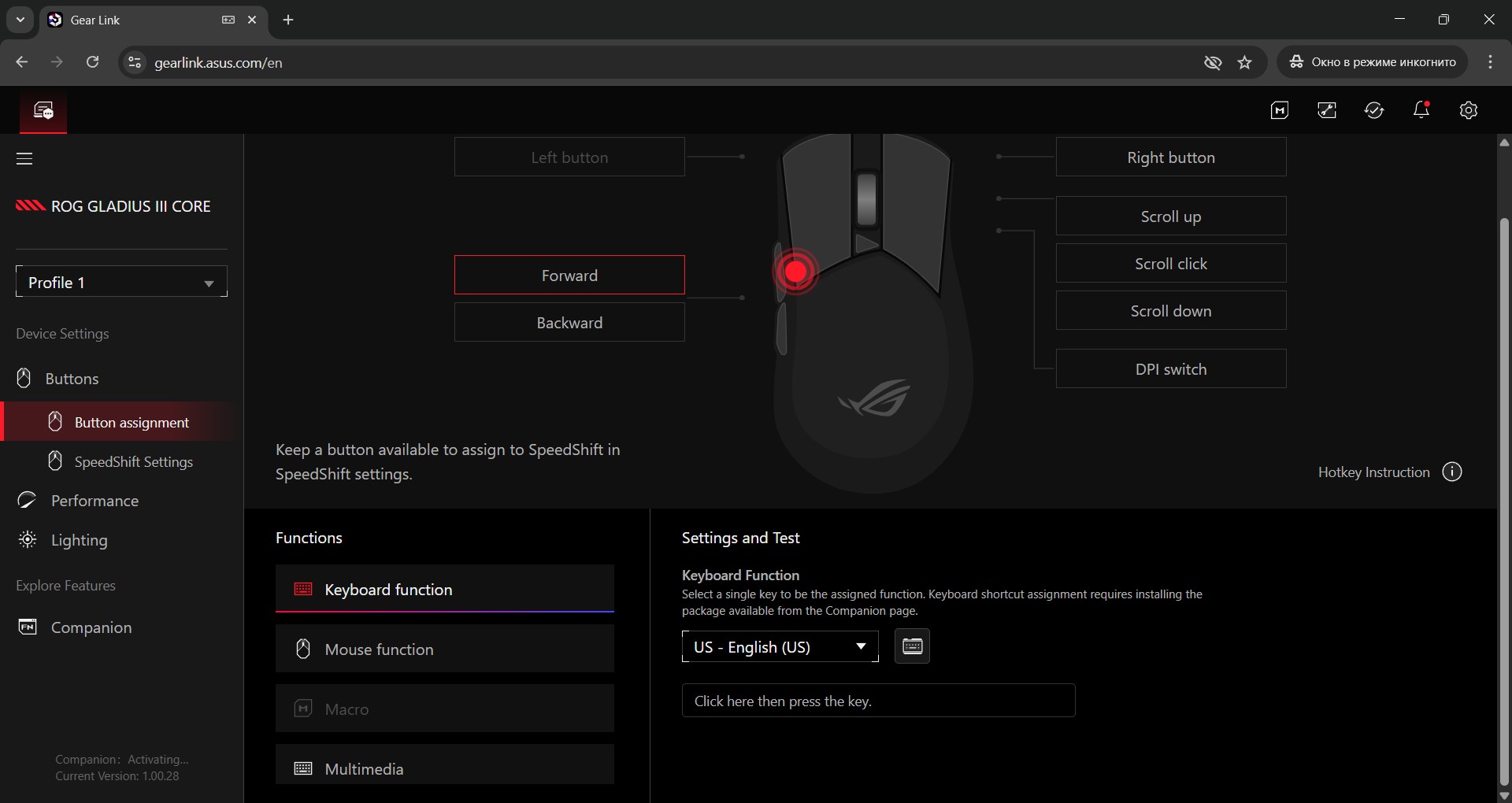
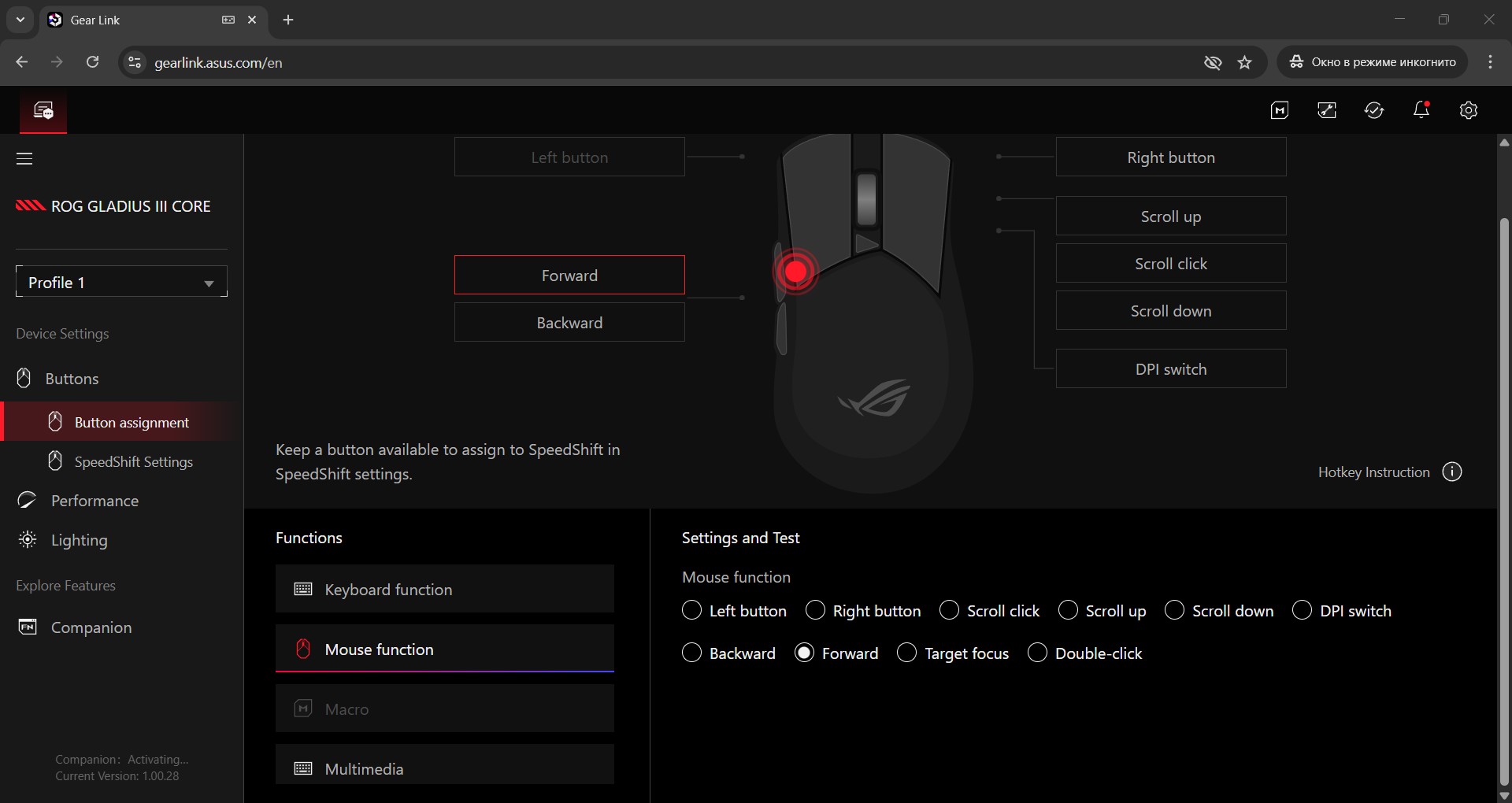
Once the mouse is connected, you’re taken directly to the settings, starting with the button configuration menu. This menu is divided into two sections: Button Assignment and SpeedShift.

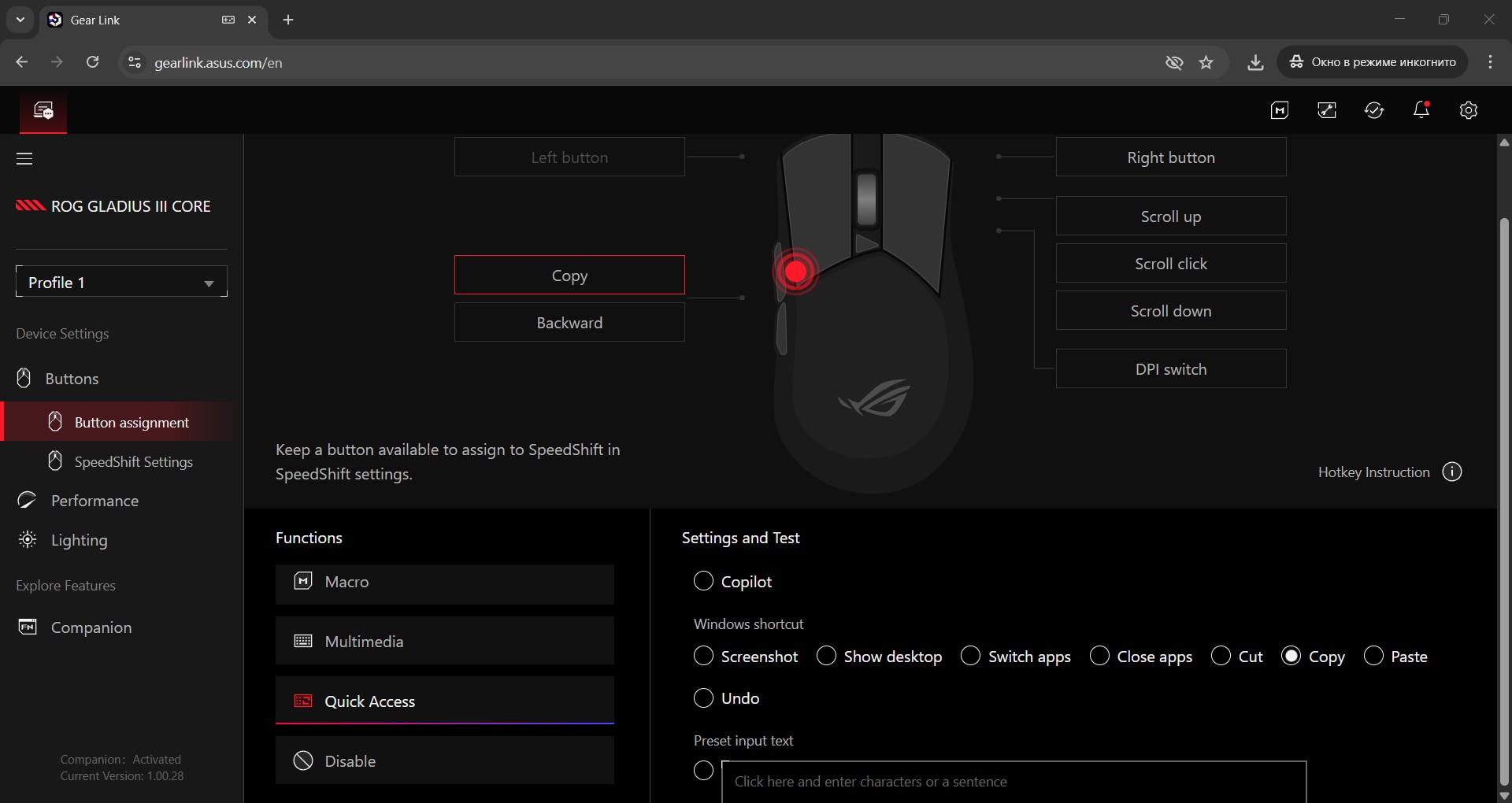
In the first section, you can reassign the main and side buttons, as well as the scroll wheel functions. The second section is for configuring SpeedShift – a feature that lets you assign a second layer of commands to the buttons.
If the first menu is fairly straightforward, SpeedShift deserves a closer look, as ASUS provides no in-app guidance. Essentially, SpeedShift works like the Shift key on a keyboard. You designate one mouse button as the activator; while it’s held, all other buttons can perform alternative functions. This allows you to assign additional commands on top of the primary ones, effectively giving the mouse a “second layer” of input.
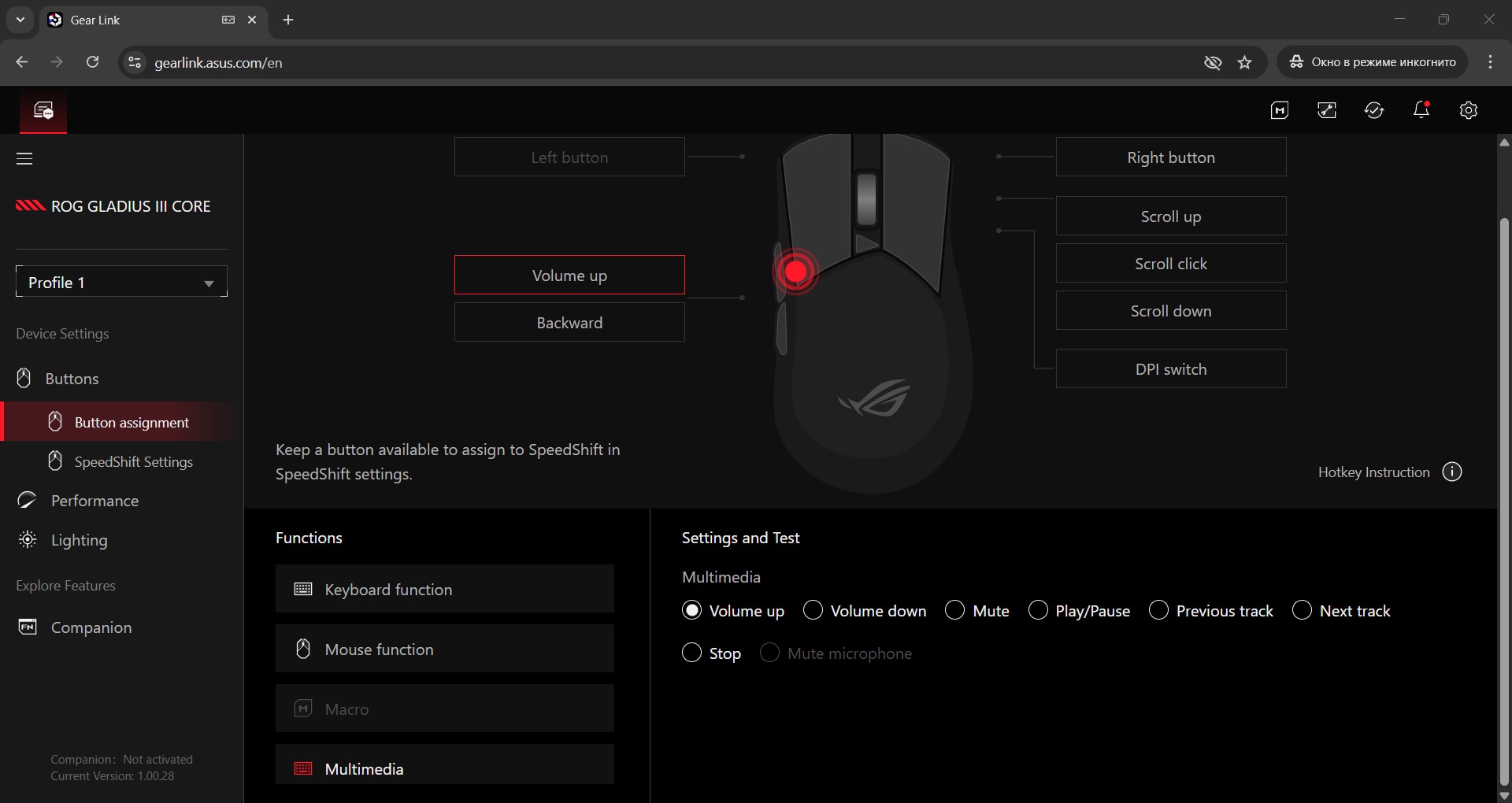
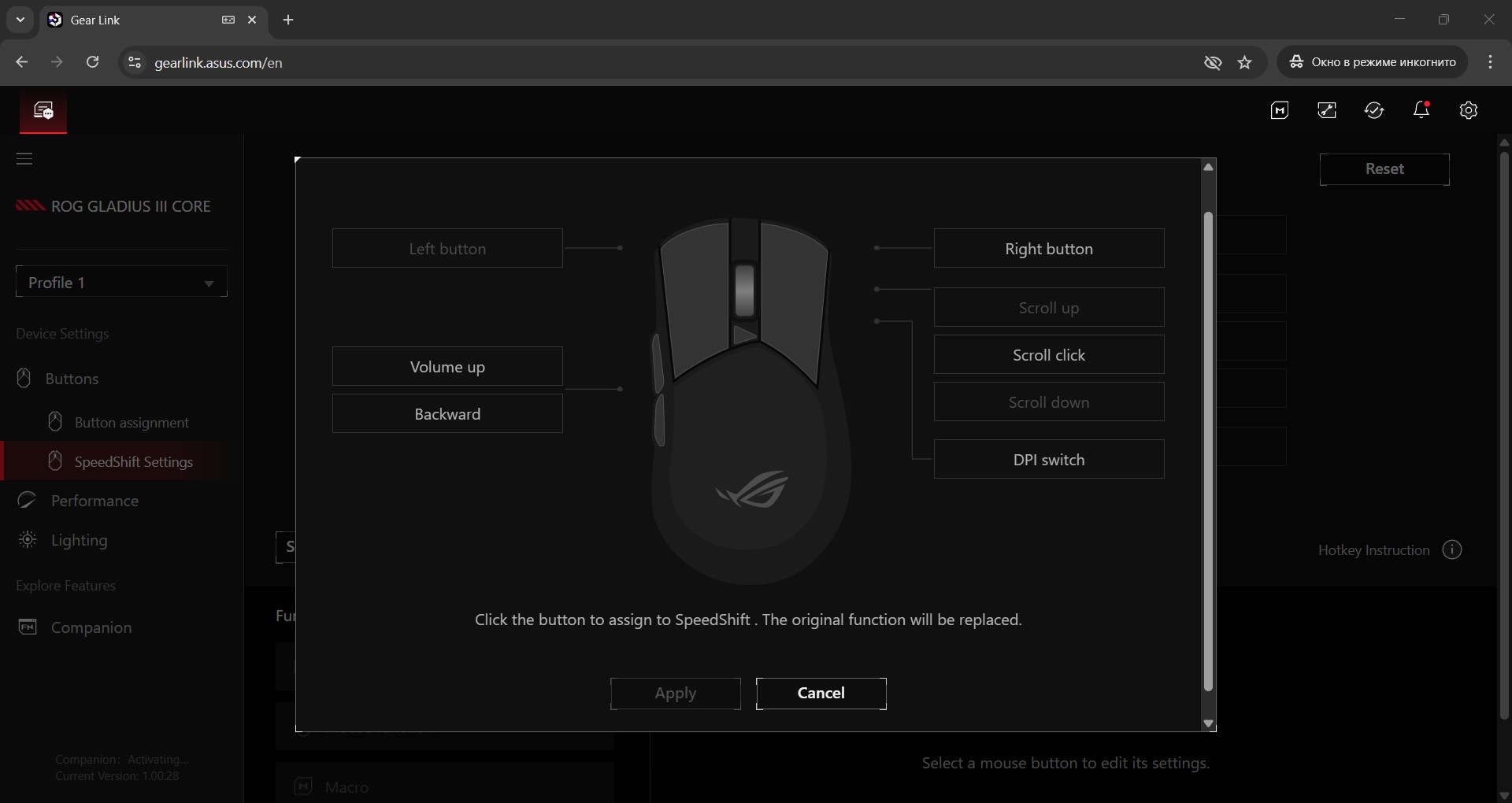
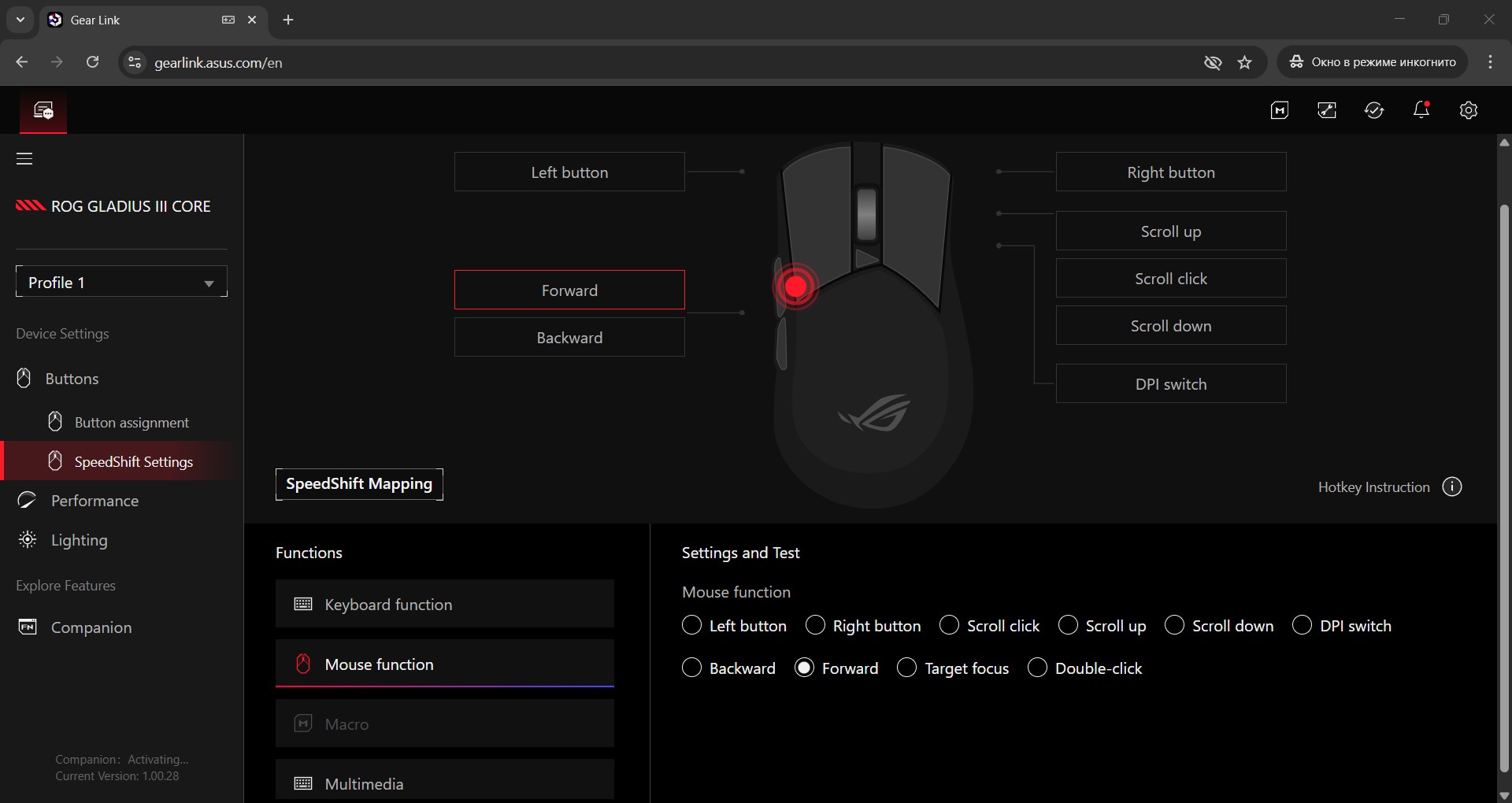
Next is the Performance menu, where you can configure DPI levels, angle snapping, and the mouse polling rate.

The next menu is Lighting, where you configure the RGB for the scroll wheel and logo. As mentioned earlier, these are two separate zones that can be adjusted together or independently. Also, as noted before, there’s no Aura Sync integration here – only local settings for the mouse itself.
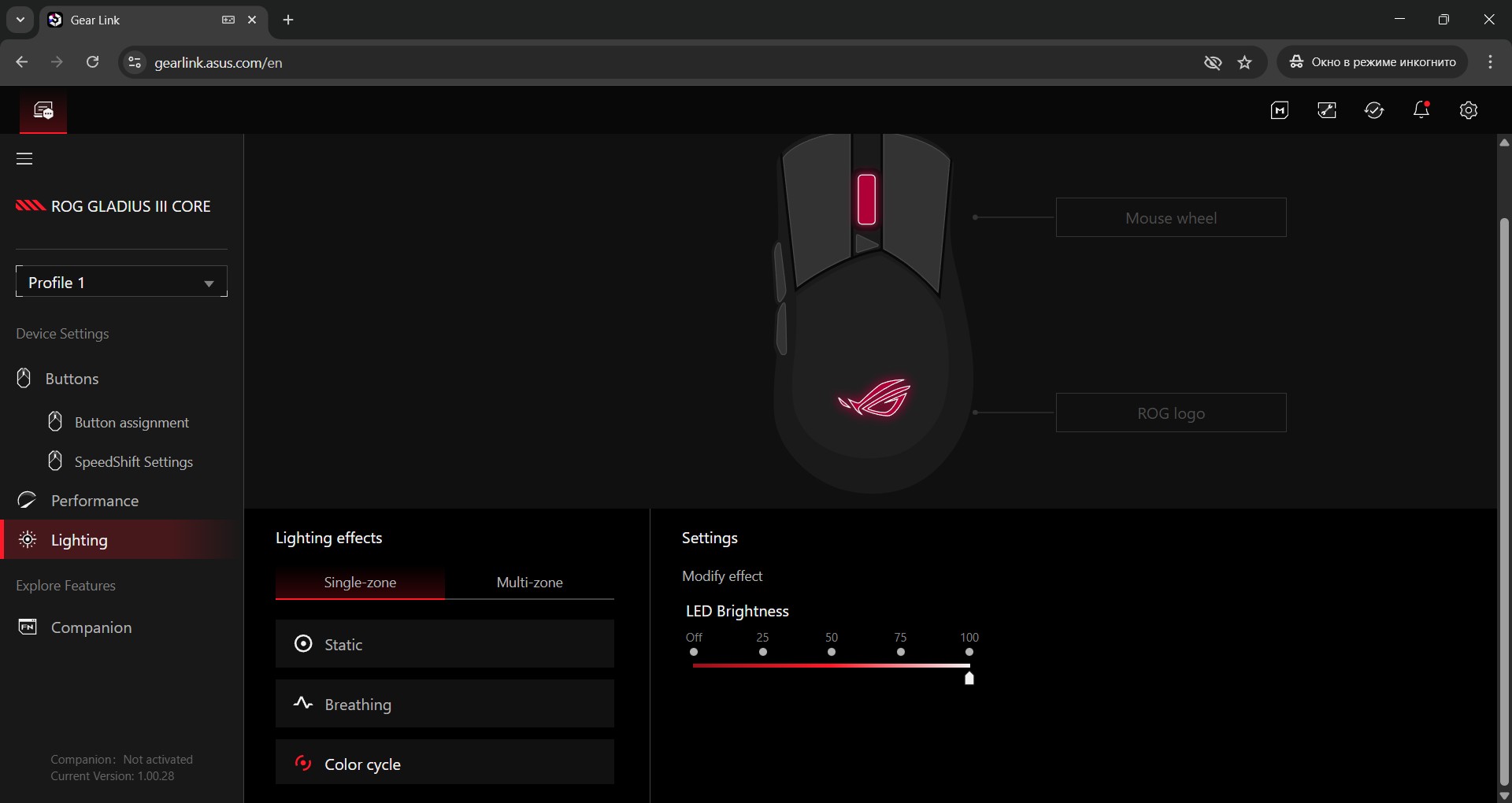
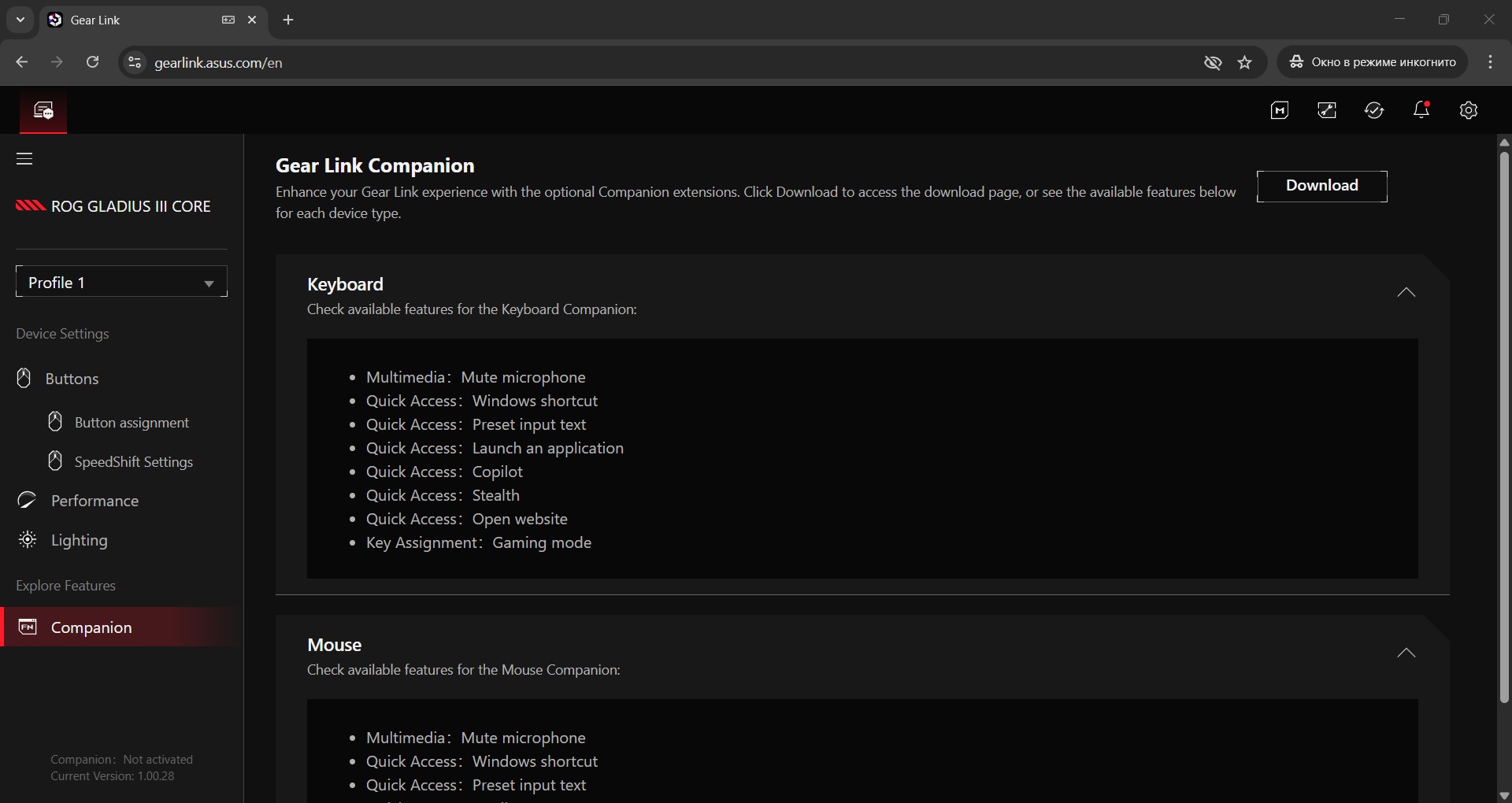
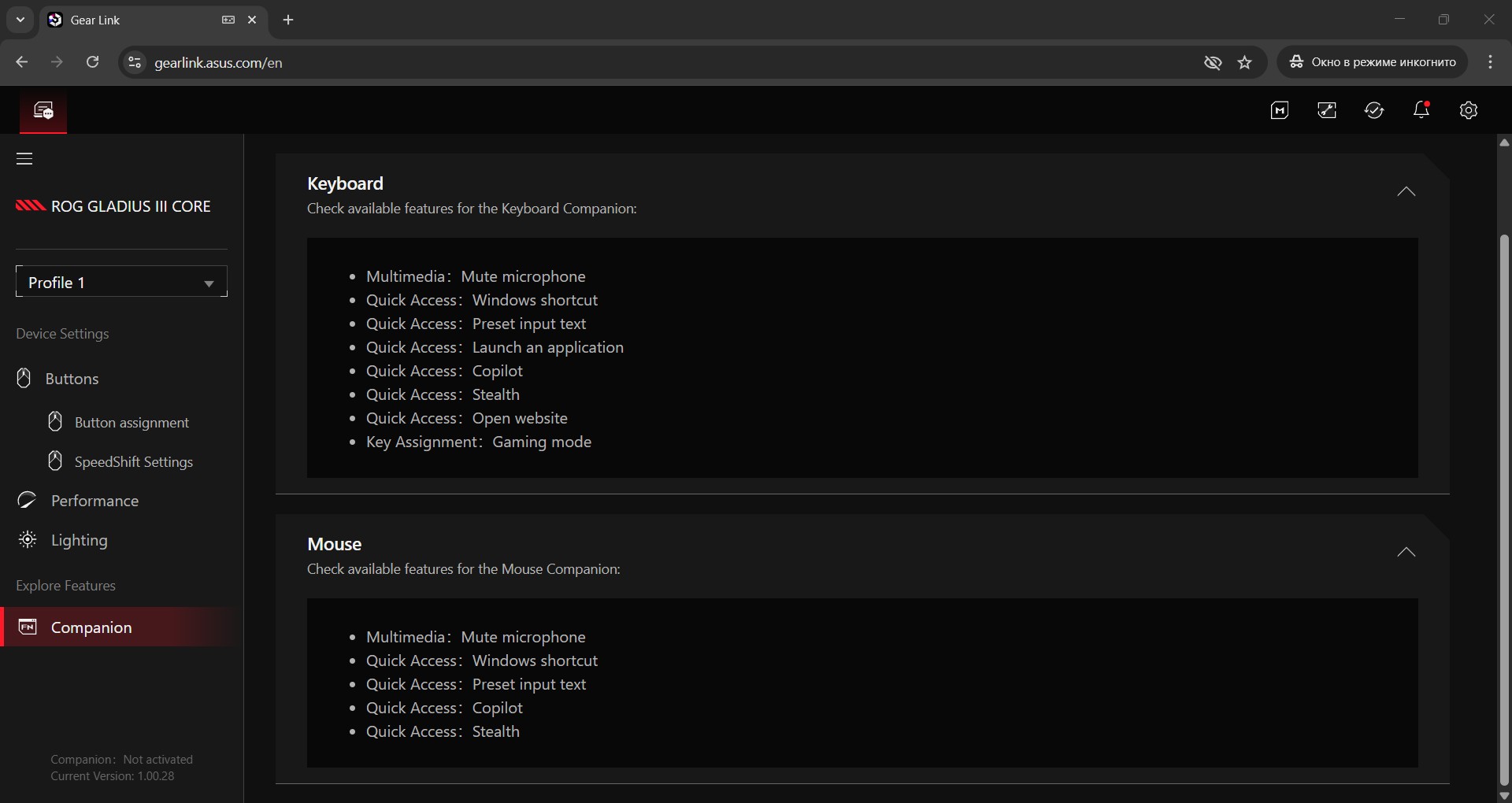
The last menu is Companion, where you can download and install an extension pack that adds extra functions for the buttons. For example, I often use the side buttons for copy/paste in my workflow. To make these functions available in the button assignment menu, you need to install the extension pack. Similarly, macros also require their own separate extension pack.

Macros are recorded and edited in a dedicated menu, accessible via the “M” icon in the upper-right corner. As mentioned earlier, this menu only becomes active after installing the additional Companion extension package.

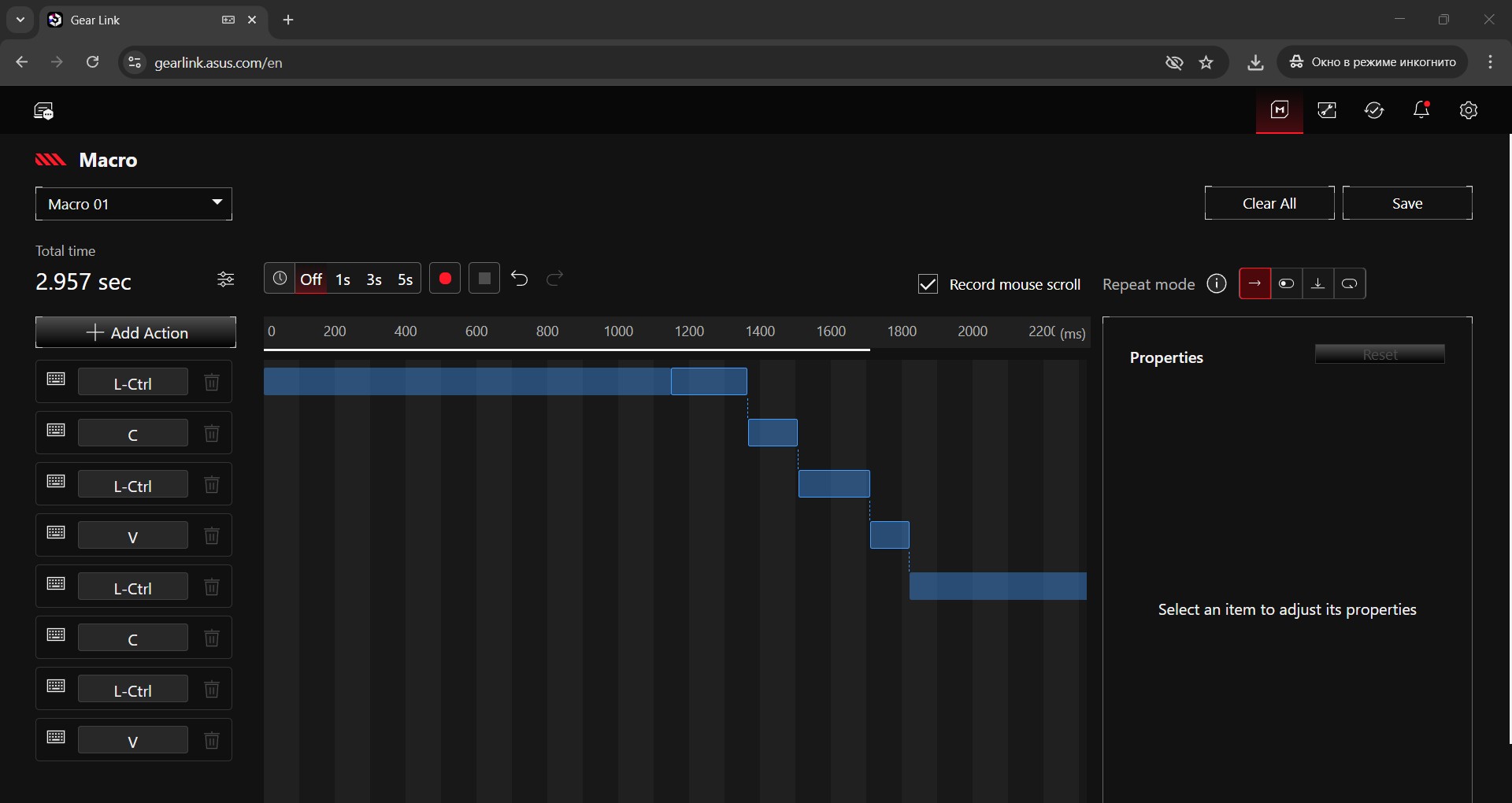
Next to the macros section is the menu for directly downloading Companion extensions. From here, you can also check both the current and latest available versions of each extension.


Right next to it is the firmware update menu for the mouse.

The last menu is Global Settings. Aside from changing the interface language, there’s nothing particularly noteworthy here. I won’t go into detailed descriptions – screenshots will illustrate everything in this menu.

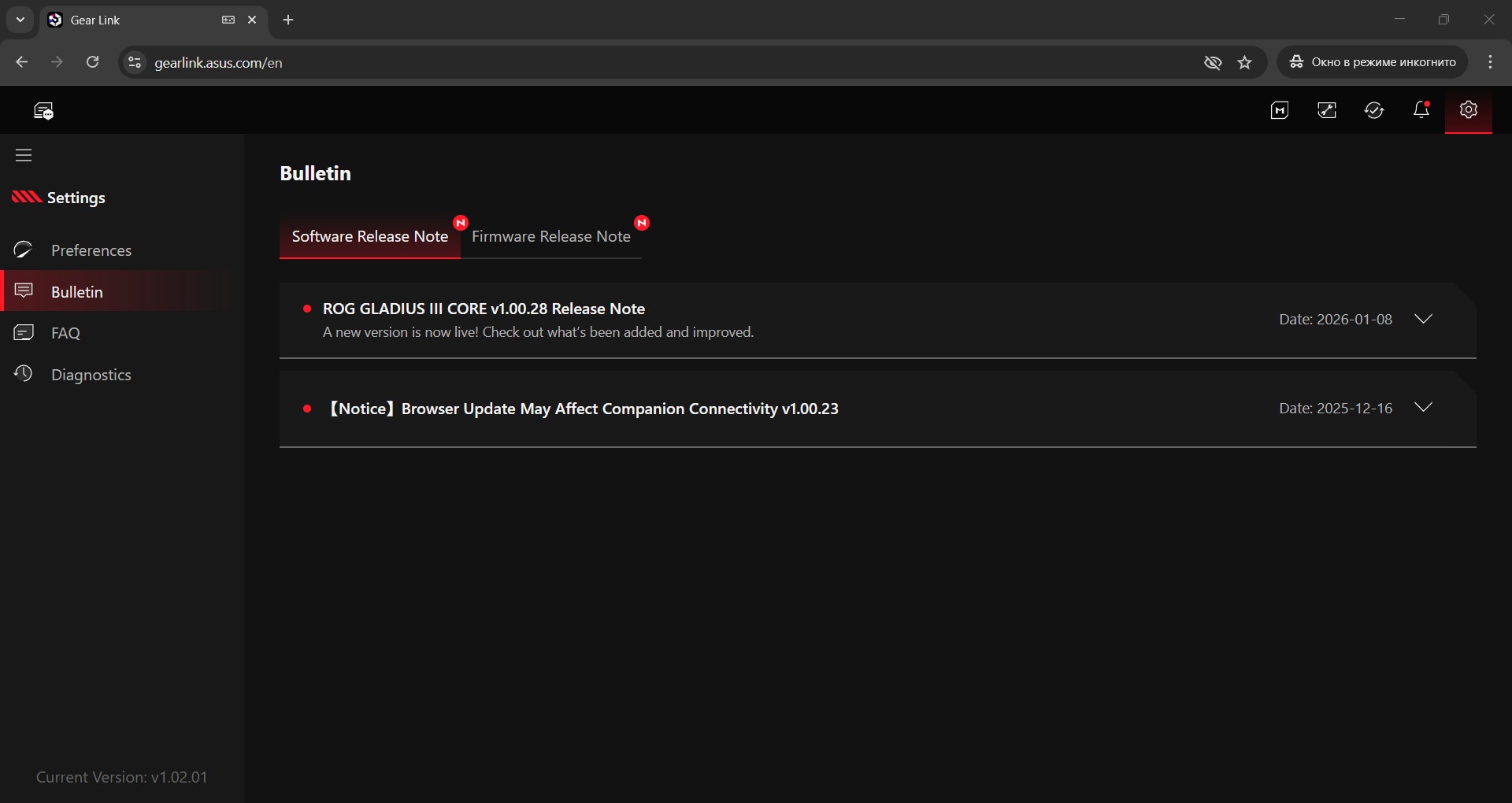
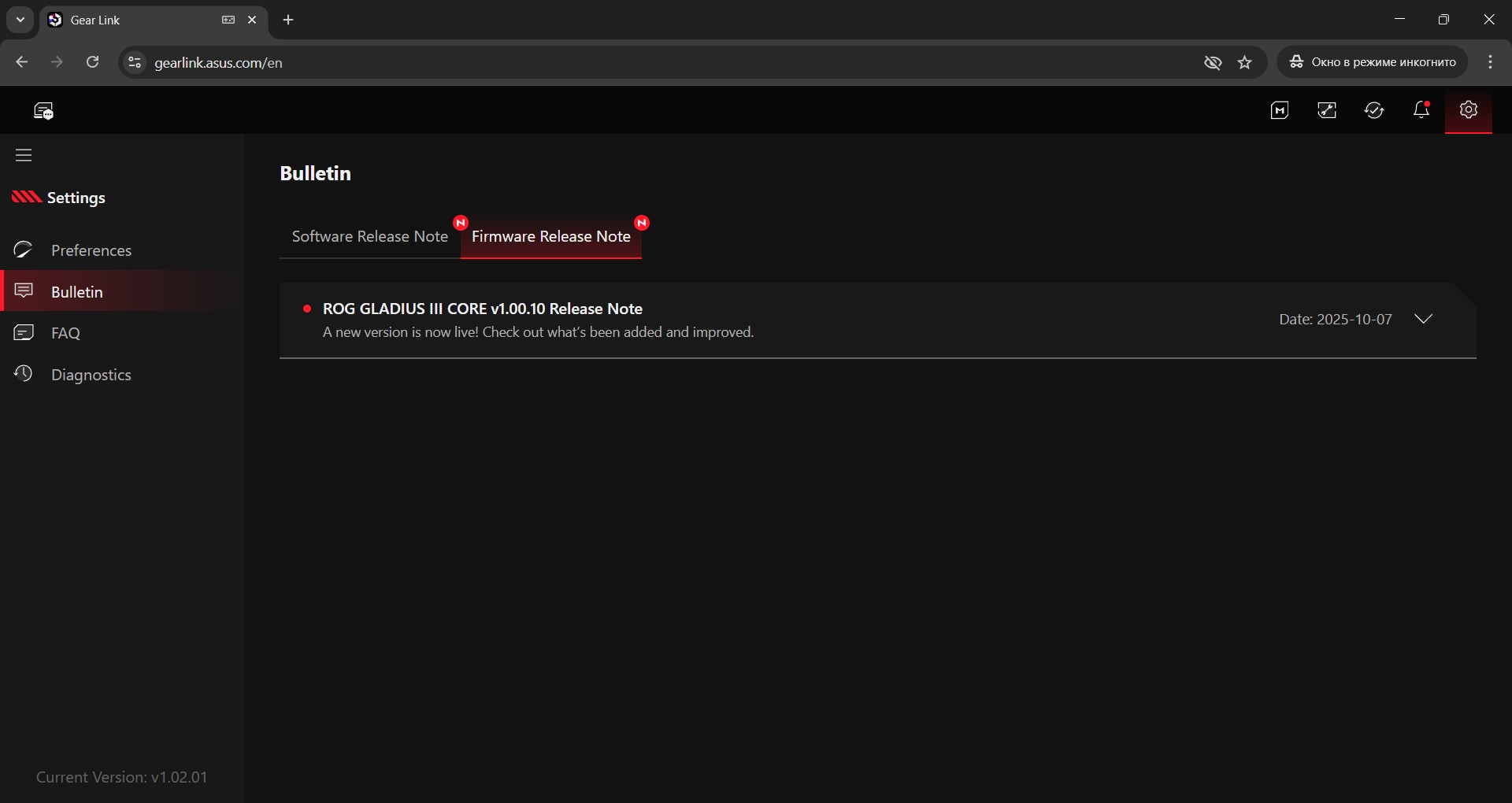


All changes in Gear Link are applied instantly. The mouse also has built-in memory for five independent profiles, which you can switch between on the fly. This means you only need to configure the device once – after that, the settings will work on any other PC without needing the software.
As for Gear Link itself, it seems to have moved beyond the beta stage. It runs quickly and reliably, providing a smooth and convenient experience. It effectively replaces Armoury Crate and is genuinely pleasant to use.
Read also:
- ASUS ROG Azoth X Keyboard Review: Futuristic Design, Hot-Swap Support, and OLED Display
- ASUS ROG Strix Scope II X Keyboard Review: Hot-Swap Support, Clean Design, and an Accessible Price
Summary
Overall, the streamlined ROG Gladius III Core is a successful update. It retains the signature Gladius shape, which will be a key factor for fans of the series, while becoming slightly lighter. The switches have been improved, and Gear Link support allows you to configure the mouse directly in a browser without installing extra software. The price has also become more attractive.
At the same time, the Core version sacrifices some sensor specifications (mainly on paper) and the switch socket is now compatible only with 3-pin models. Are these compromises critical? In my view – not at all. Even with these changes, the Gladius III Core is more than capable of handling any gaming task.

This is a solid and affordable gaming mouse that comes highly recommended: for those who liked previous Gladius models; for anyone looking for a comfortable mid-to-large-sized mouse; for MMO players (SpeedShift is perfect for you); or simply for gamers on a tighter budget. As mentioned, for the latter group, it’s an excellent entry point into the ROG ecosystem.
For those who prefer wireless mice, the advice is simply to wait a little. Besides the standard Gladius III, there’s also the Gladius III Wireless, and it wouldn’t be surprising if ASUS releases an updated Core version for it in the foreseeable future.

Read also:
- Bigme HiBreak S Color review: Smartphone with E ink screen – antidepressant for age of digital overload
- Xiaomi TV S Pro Mini LED 55 (2026) Review: Capabilities of a Modern 4K QLED Television
- Five Mistakes to Avoid When Working with Windows 11