© ROOT-NATION.com - Use of content is permitted with a backlink.
Last year, I reviewed the YUNZII YZ75 PRO – a decent mechanical keyboard with wireless connectivity, hot-swap support, case lighting, and an overall pleasant typing feel. Today, I have what could be considered its sibling: the YUNZII RT80. The model keeps the same design and most of the features of its predecessor, but this time introduces magnetic Hall-effect switches and an 8000 Hz polling rate in wired mode.
This is where the RT80 sets itself apart: magnetic switches with all their advanced features, an 8000 Hz polling rate in wired mode with just 0.125 ms latency, support for a QMK-based web app for customization, plus wireless connectivity via RF and Bluetooth at the standard 1000 Hz. On top of that, the keyboard delivers a surprisingly unique and satisfying typing feel – all at a very accessible price point.
Read also: Gaming Keyboard Reviews
TABLE OF CONTENTS:
Specifications YUZNII RT80
- Format: 75%
- Number of keys: 82 keys
- Connectivity: RF 2.4 GHz, Bluetooth, USB
- Switches: Gateron White Hall Switch
- Polling rate: 8000 Hz in wired mode; 1000 Hz in wireless mode RF 2.4 GHz / Bluetooth
- Response time: 0.125 ms
- Anti-Ghosting: yes
- #KRO: N-KRO
- Hot swap: yes
- Design: Gasket Mount
- Body material: plastic
- Keycaps: Double-Shot PBT Cherry Profile
- Backlighting: RGB keys (south-facing LEDs); body backlighting
- Proprietary app: Windows/iOS app; QMK web app
- Supported platforms: Windows, MAC
- Adjustment roller: no
- Battery: 5000 mAh
- Cable: detachable USB-C to USB-A, 1.8 m long
- Available colors: White, Black, White Line
- Dimensions: 330×135×32 mm
- Weight: 940 g
- Advanced features: DKS, MT, TGL, SOCD
- Contents: keyboard, 2.4 GHz RF wireless adapter, detachable USB-C to USB-A cable, double puller, two spare switches, set of alternative keycaps, acrylic decorative badge, blister dust cover, user manual
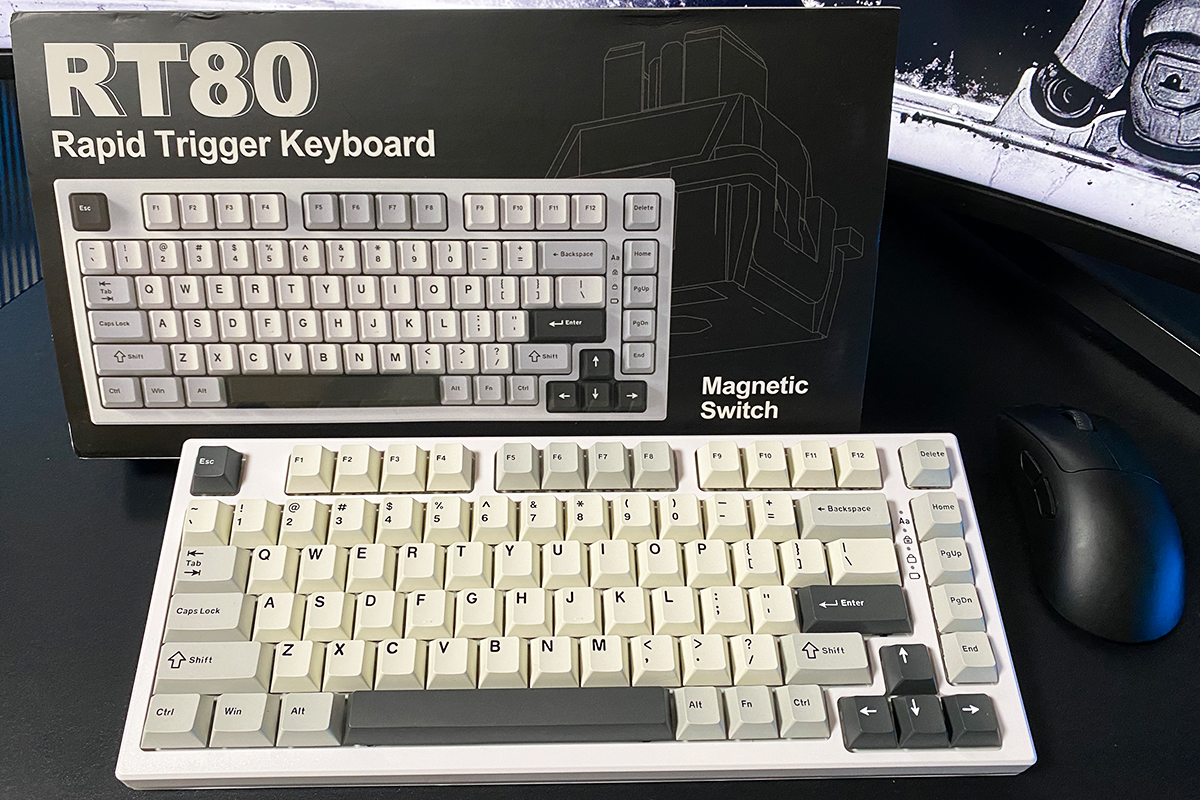
Positioning and price
In terms of positioning, the YUNZII RT80 comes across as a modern, well-built, and highly affordable keyboard. It offers the full feature set of magnetic switches with 8000 Hz polling for gamers, while also serving as a solid wireless mechanical option for everyday use.
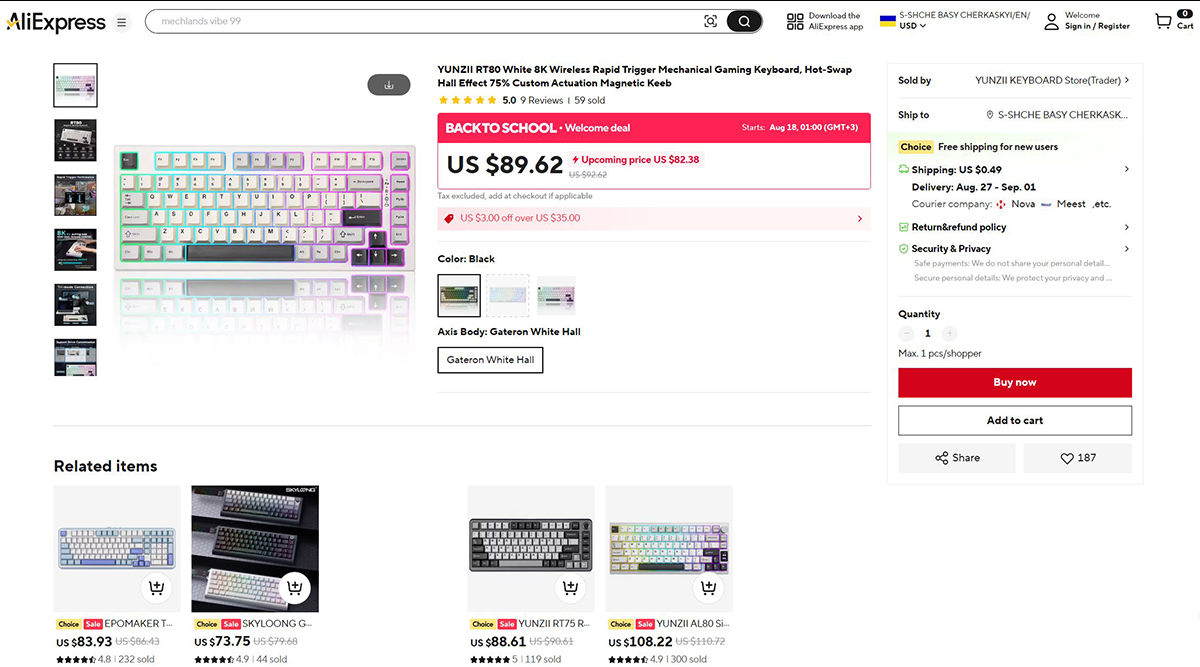
The official YUNZII website lists the keyboard at $72 / €62. On AliExpress, interestingly enough, it’s a bit more expensive – around $90 / €77. Yes, those numbers already include the “discounts,” but based on my observations, YUNZII keyboards almost always sell with such “discounts” applied. So it’s safe to say the real-world price is roughly $90 / €77. In my opinion, that’s a pretty attractive deal for a device of this level.

Package contents
The keyboard comes in a relatively compact branded cardboard box with the typical YUNZII design style. The packaging is split into two parts: a decorative sleeve and an inner cardboard box containing the accessories.
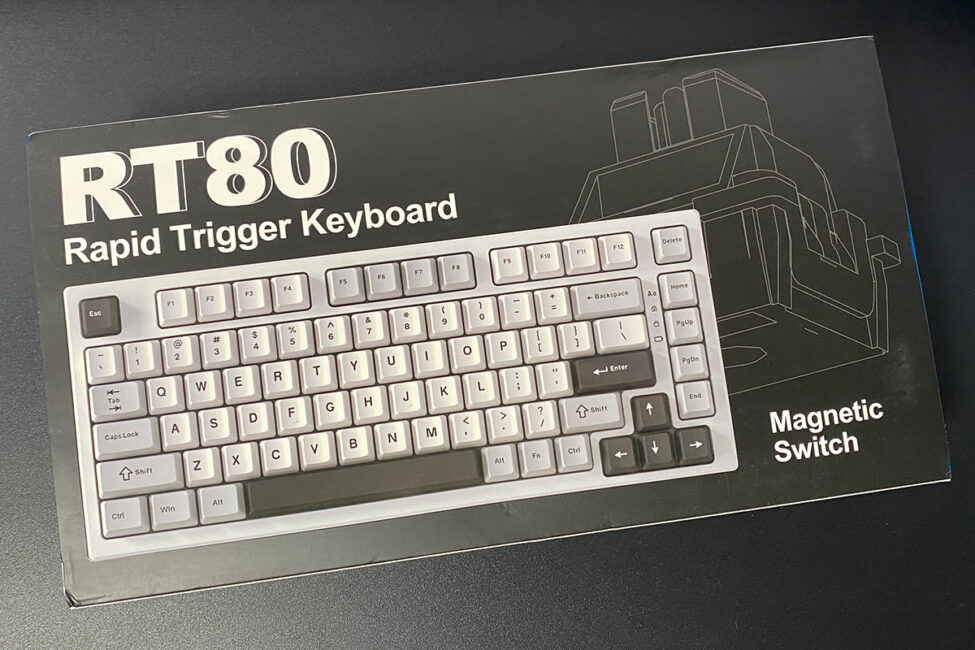
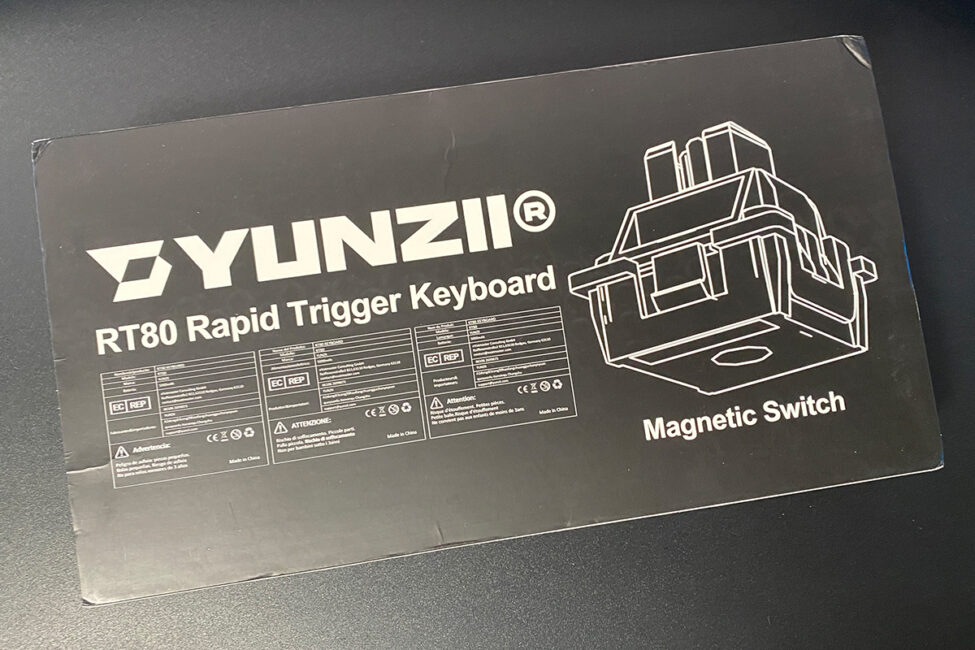
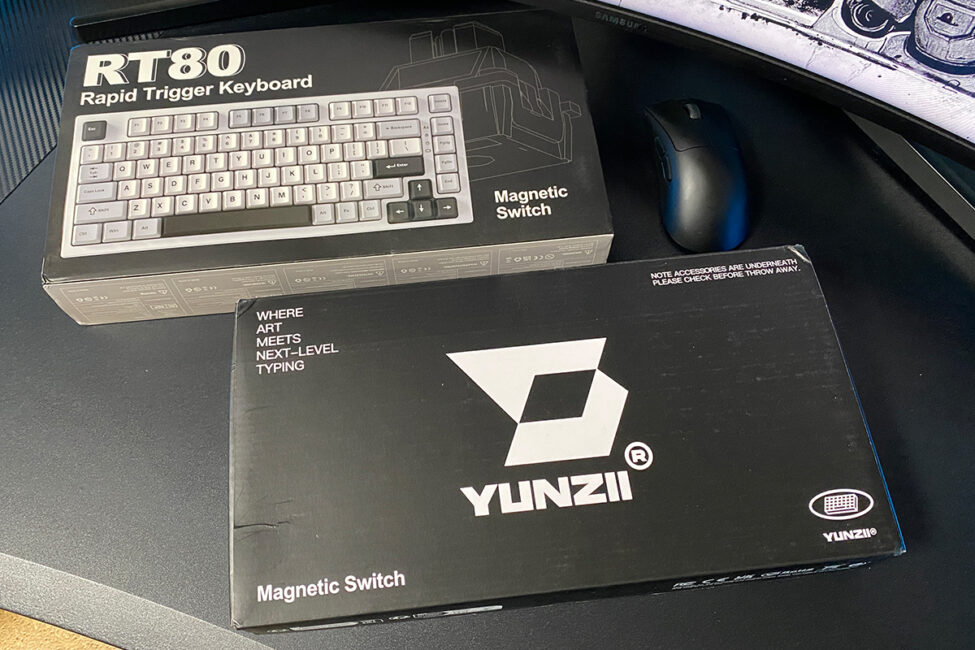
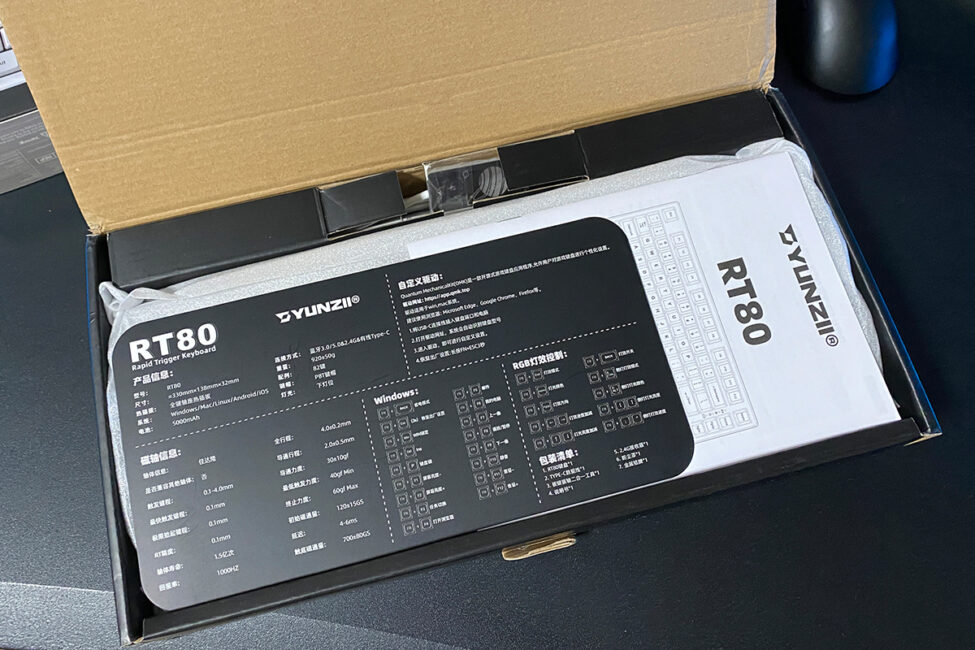
The YUNZII RT80 includes the same extensive accessory set as its predecessor. Along with the keyboard itself, the package contains:
- 2.4 GHz RF wireless adapter
- 1.8 m detachable USB-C to USB-A cable
- Dual puller for keycaps and switches
- two spare Gateron White Hall Switches
- set of alternative keycaps
- decorative acrylic badge
- blister dust cover
- user manual (book + cardboard spread)


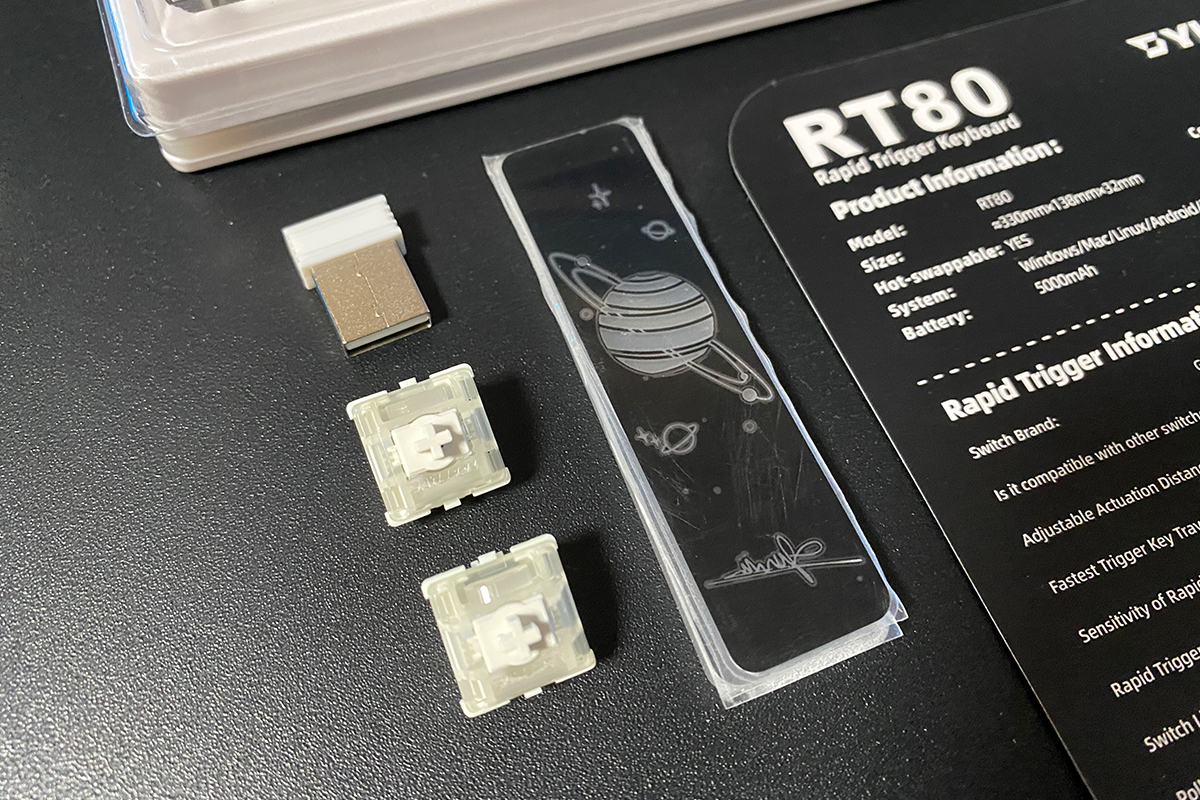

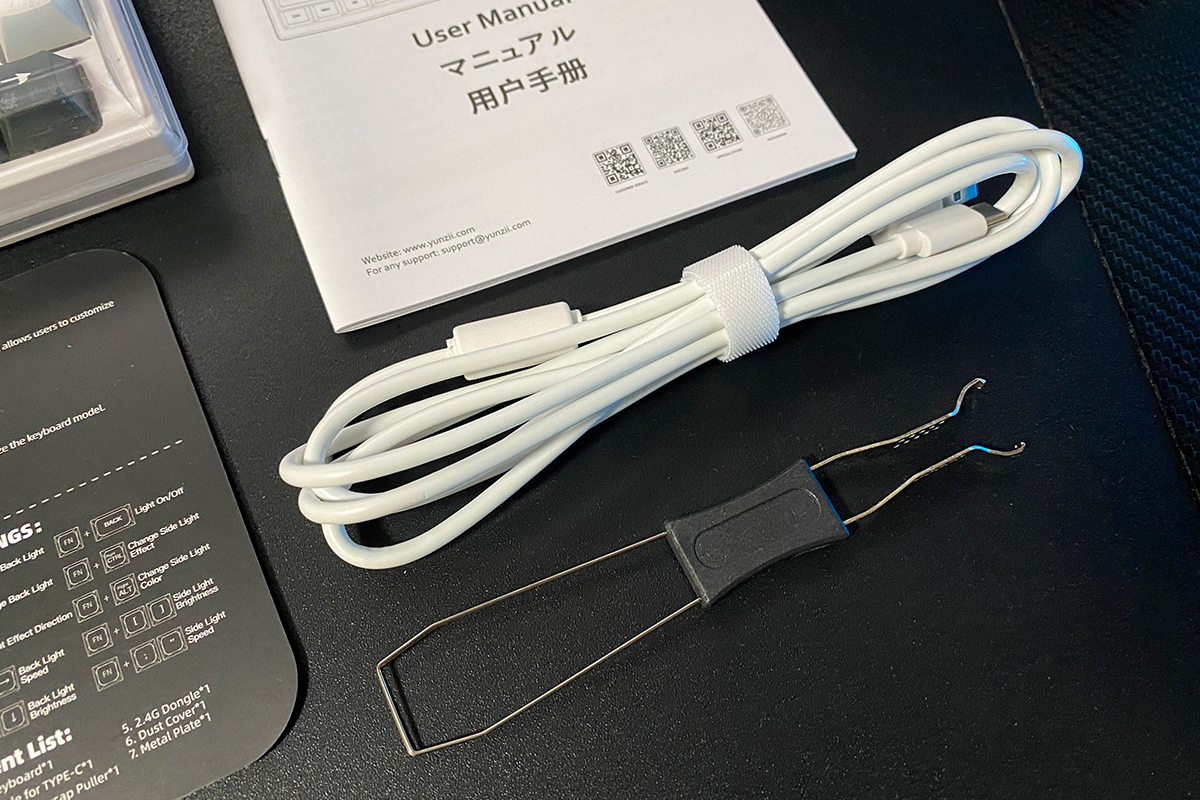

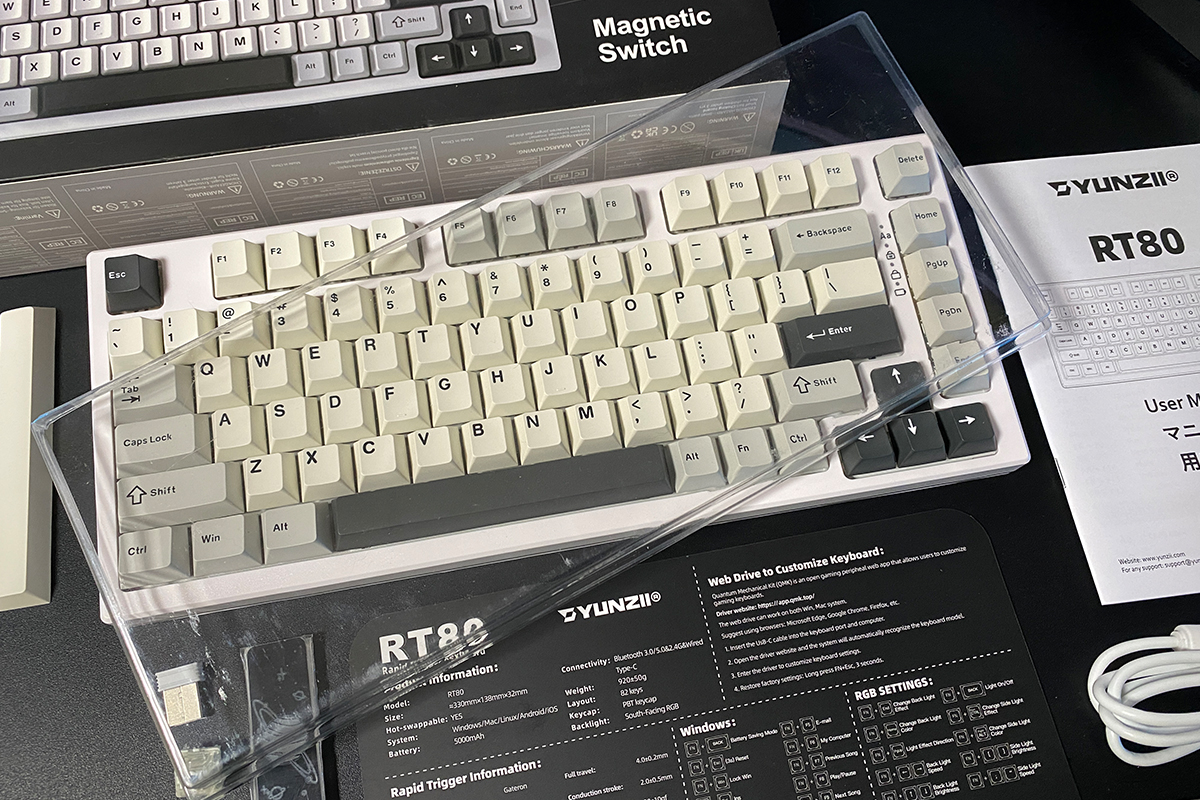
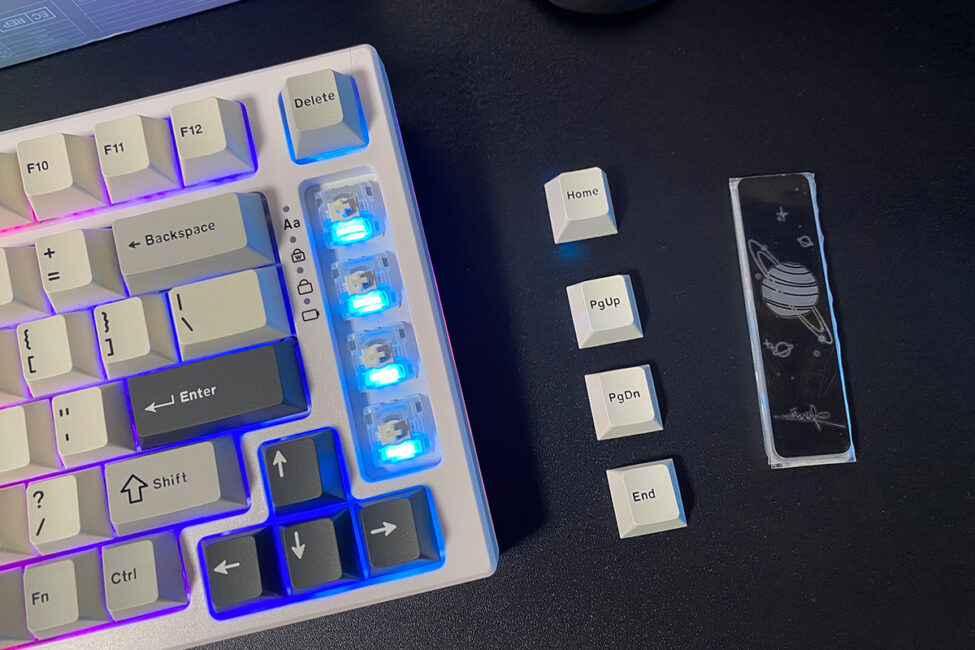
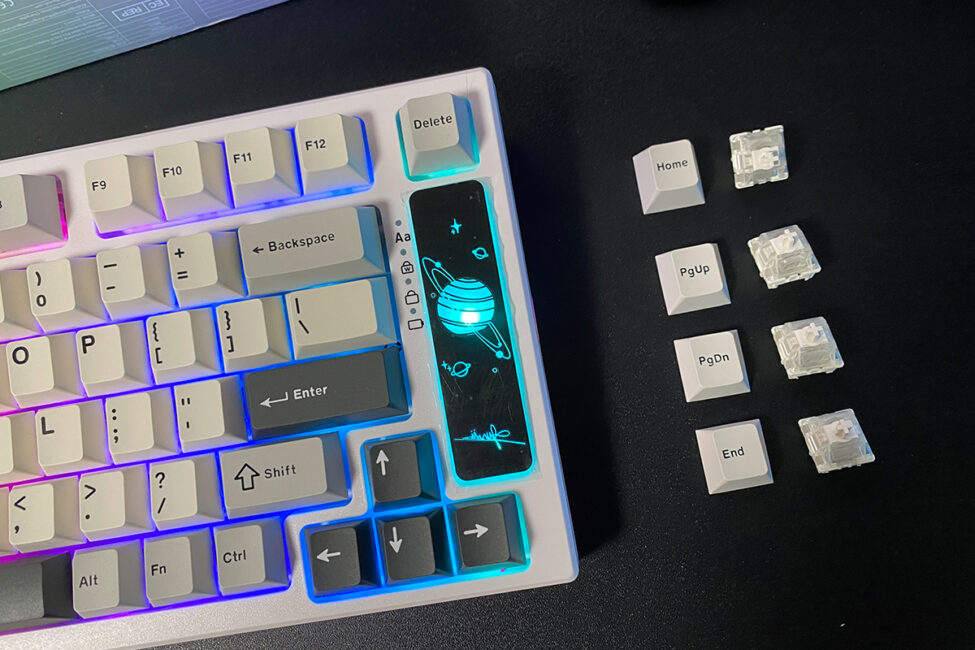
In my view, the package is well thought out, and it’s hard to say what else could reasonably be added. For anyone unsure about the purpose of the included badge, here’s a photo showing how it’s meant to be used.
Read also:
- YUNZII AL66 (V1) Keyboard Review: Metal Build, Creamy Typing Feel, and Affordable Price
- YUNZII AL68 Review: Solid, Affordable Keyboard with Aluminum Сase
YUZNII RT80 design, ergonomics
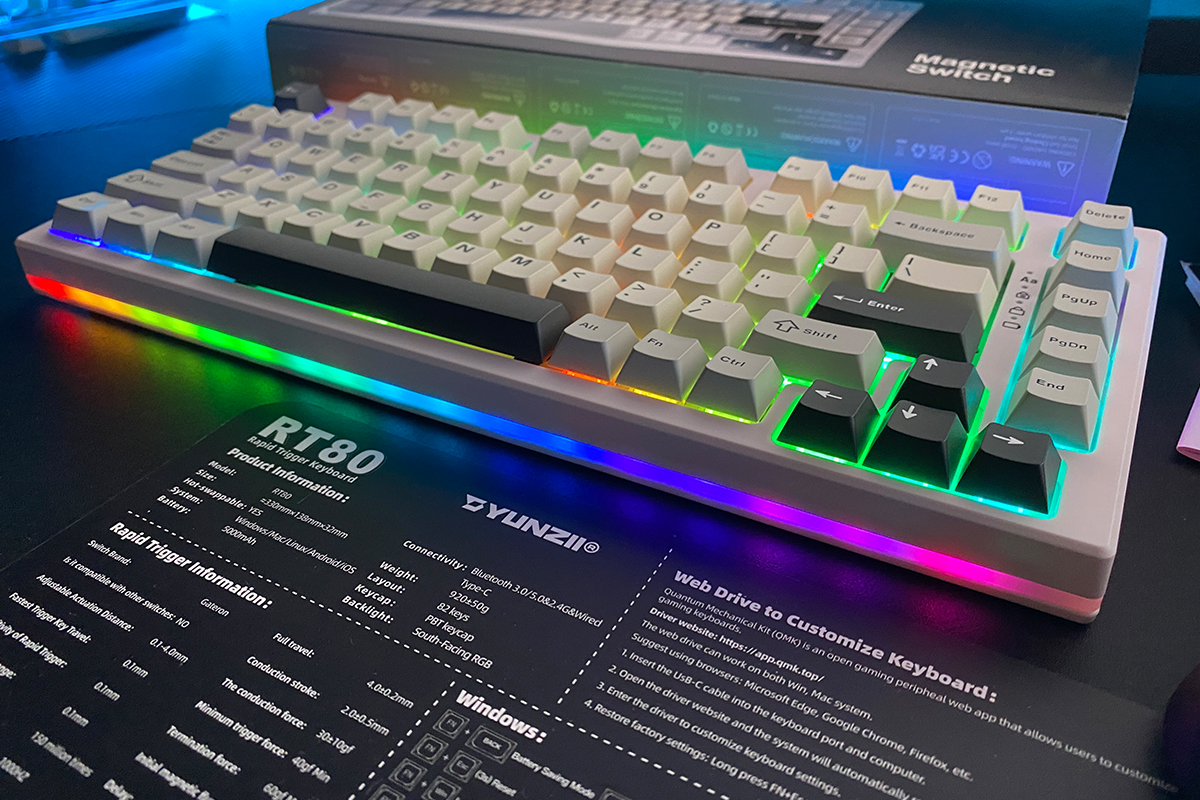
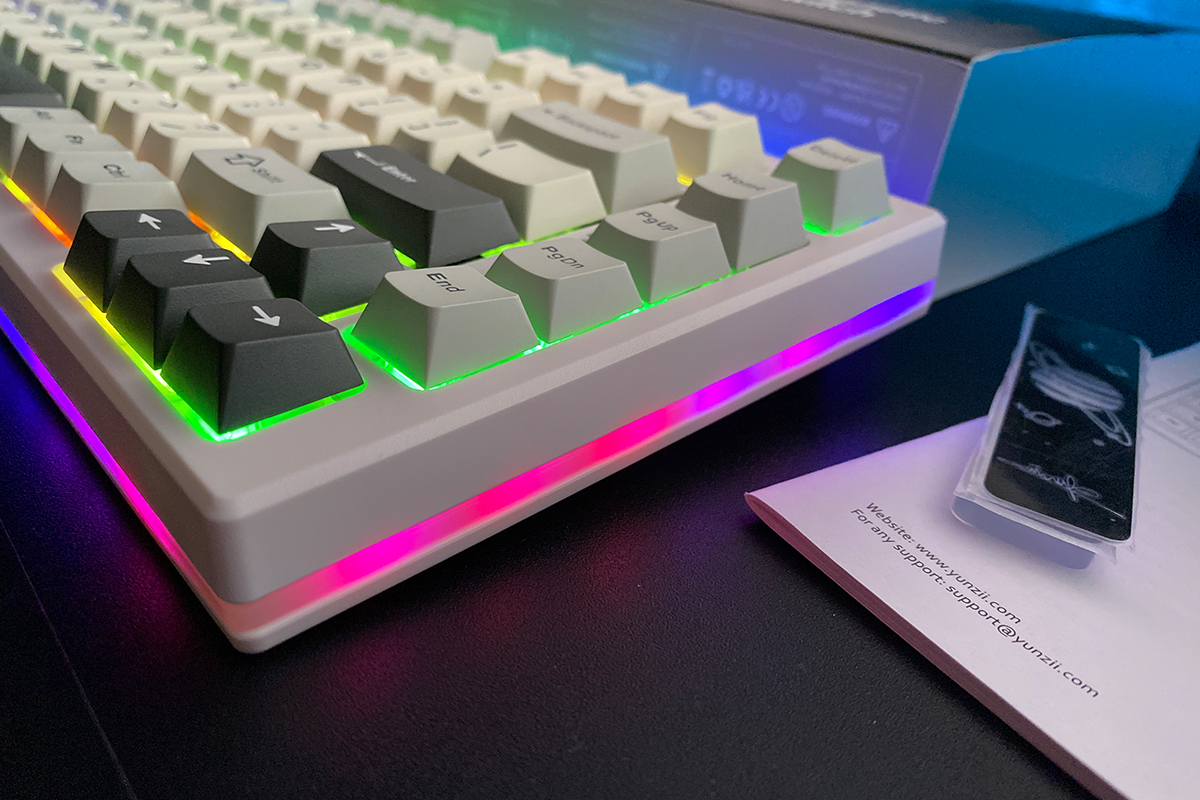
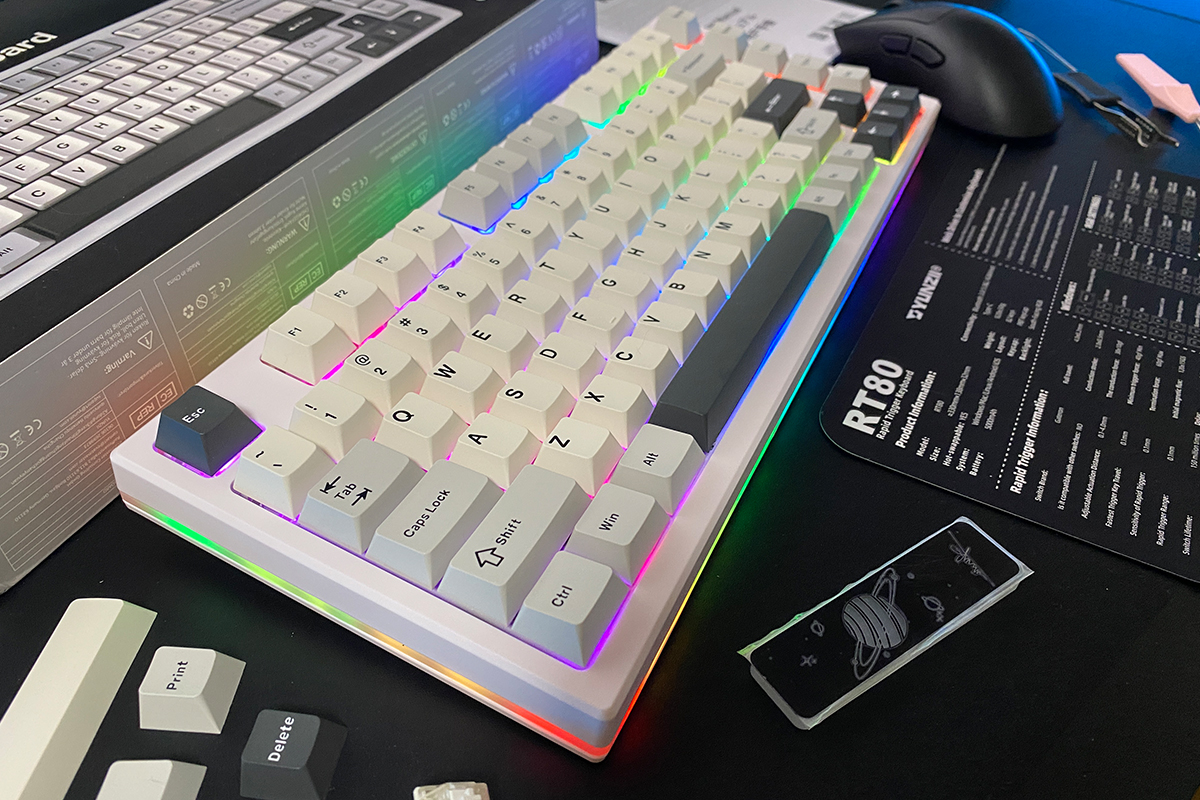
As mentioned earlier, the keyboard’s design is essentially carried over from the previous YUNZII YZ75 PRO. It features a 75% layout, ANSI (QWERTY) key arrangement, the same placement of elements, a continuous light strip along the case, and identical materials and build quality. For that reason, there’s little point in going over the design in detail again – a brief overview should be enough.
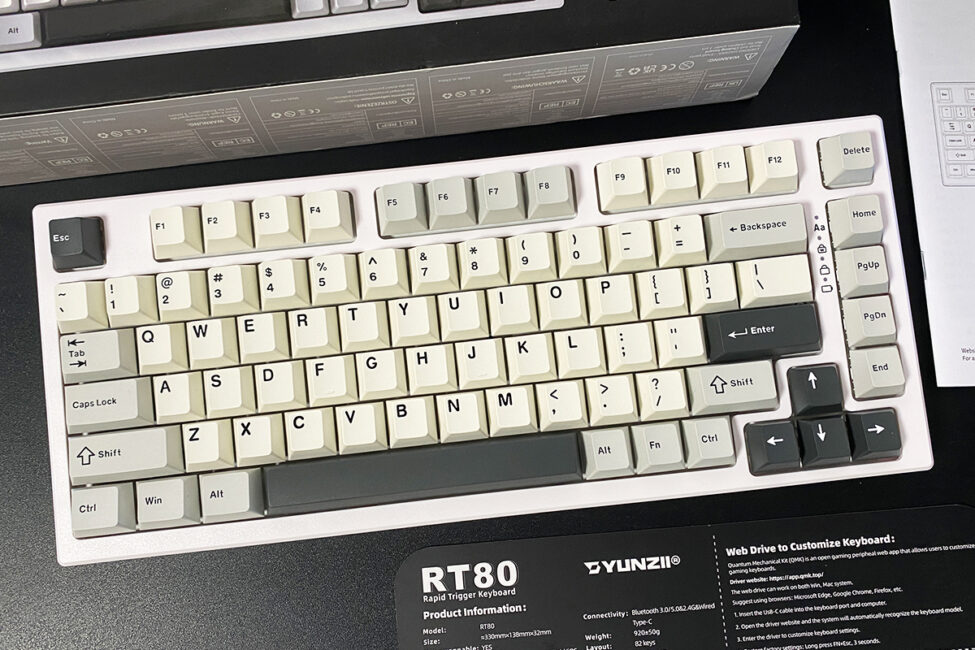
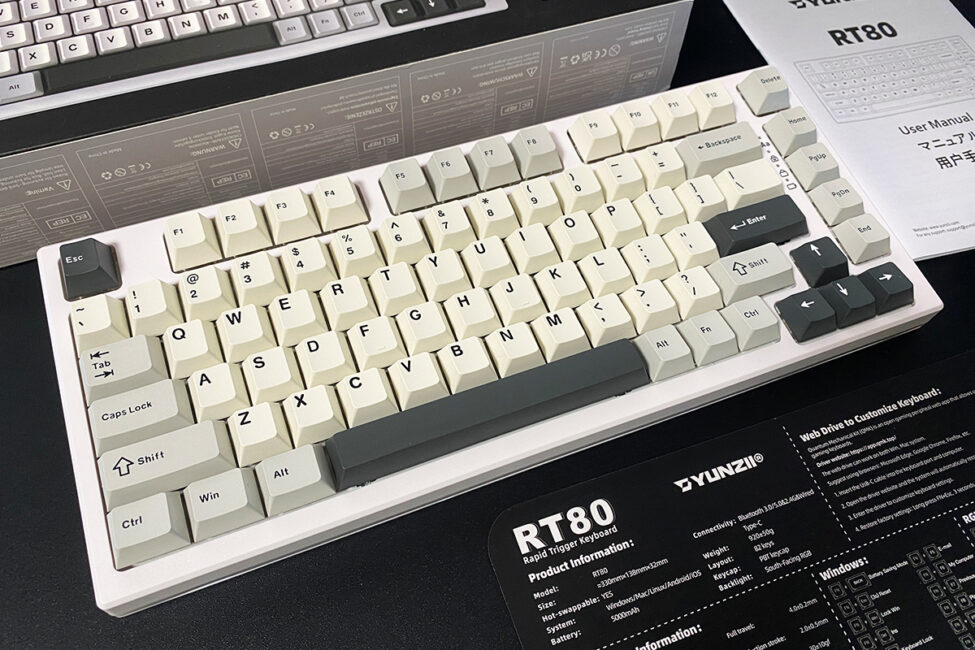
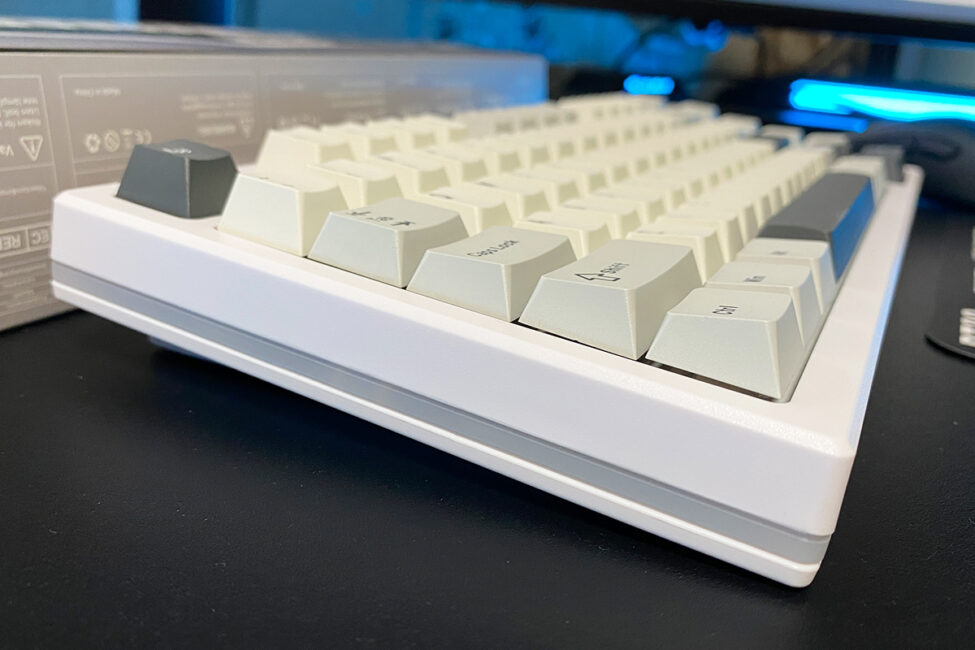
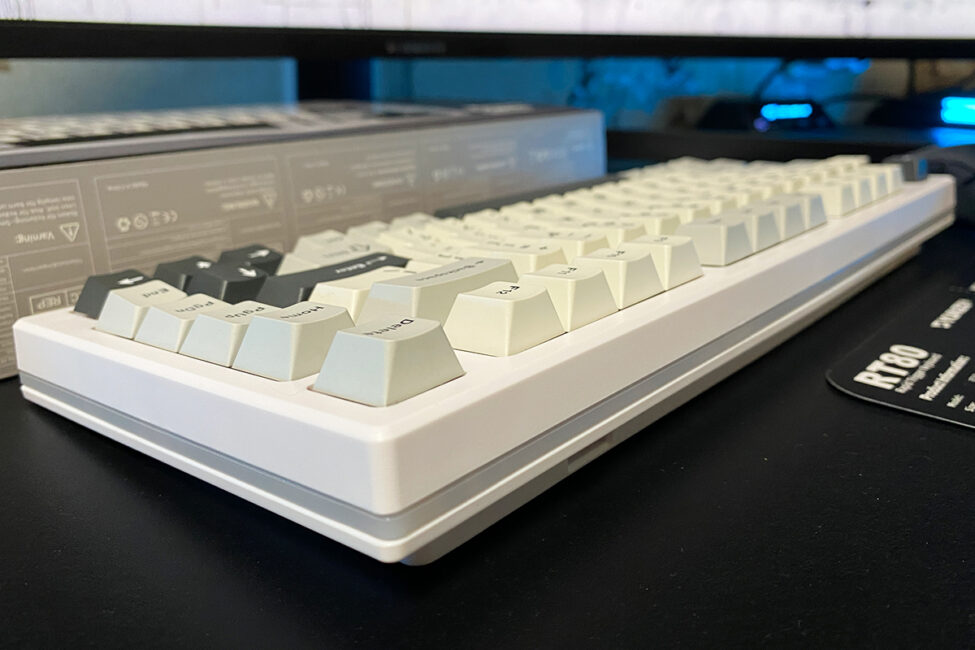
The case is the same as in the previous model – made of plastic. The material itself feels decent, but the keyboard doesn’t give off a sense of solidity or a monolithic build. Tapping on different parts of the case reveals some hollow spots. This seems to be due to the continuous light strip running across the entire body. Without it, the keyboard would likely feel sturdier and more solid.
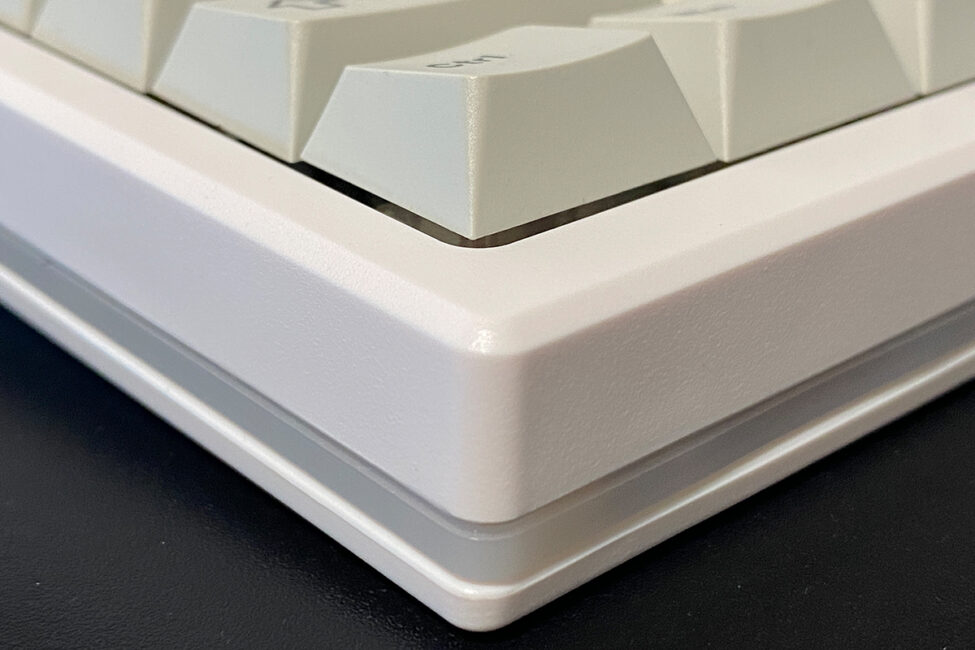
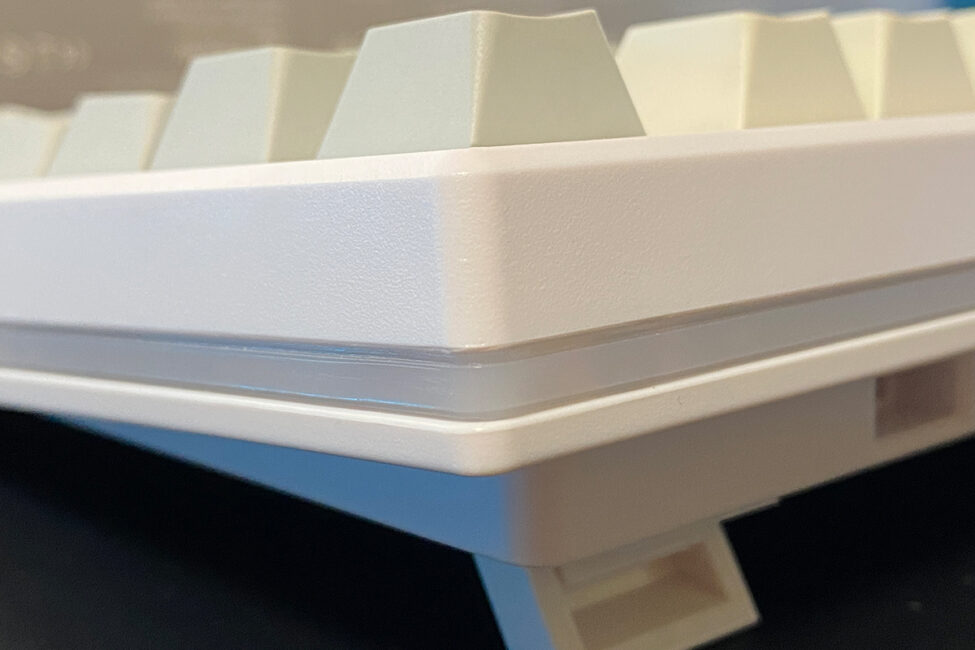
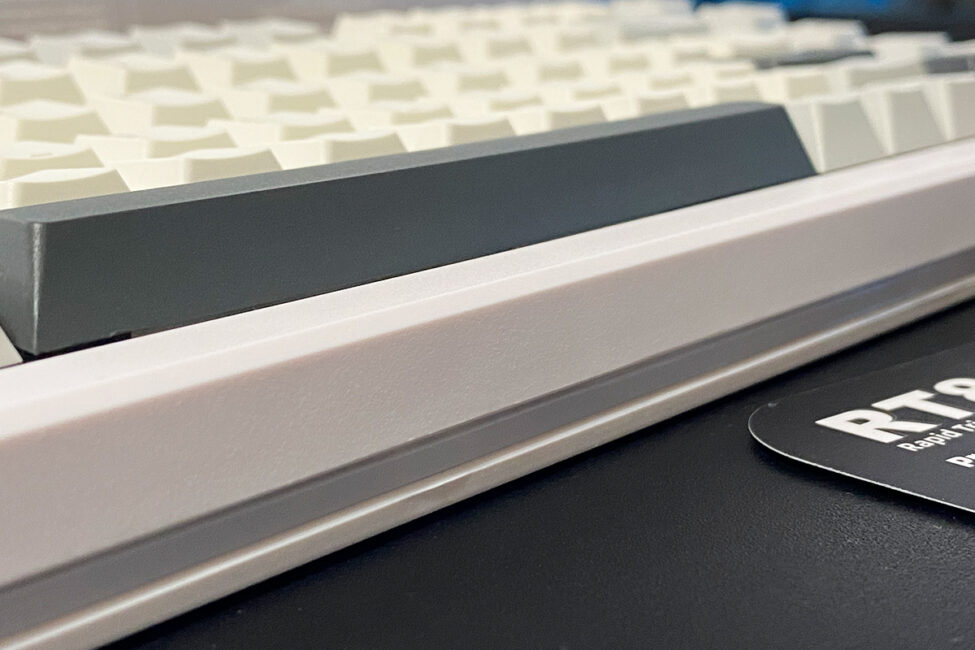
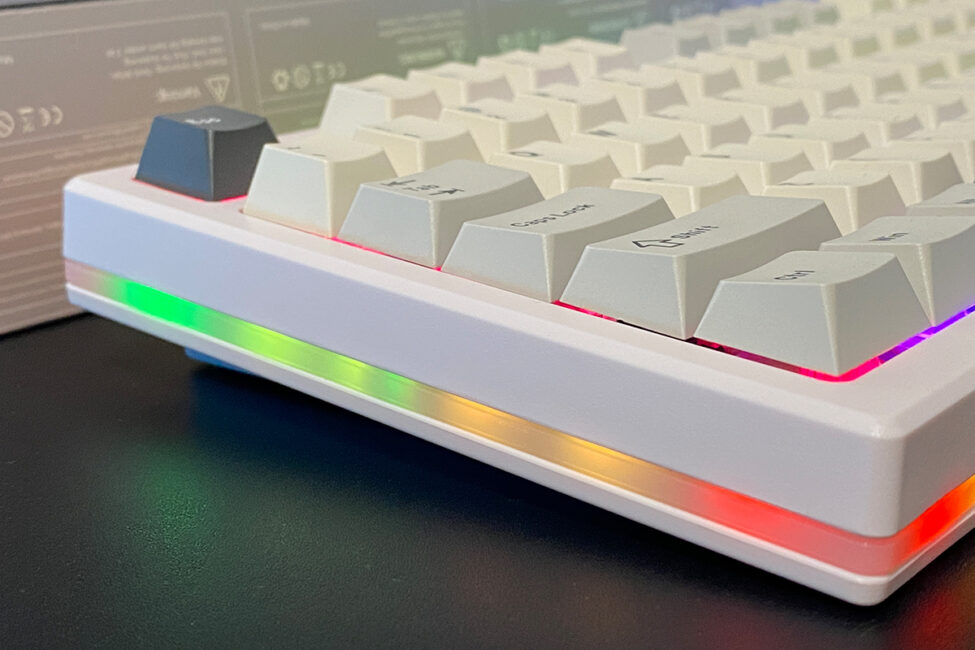
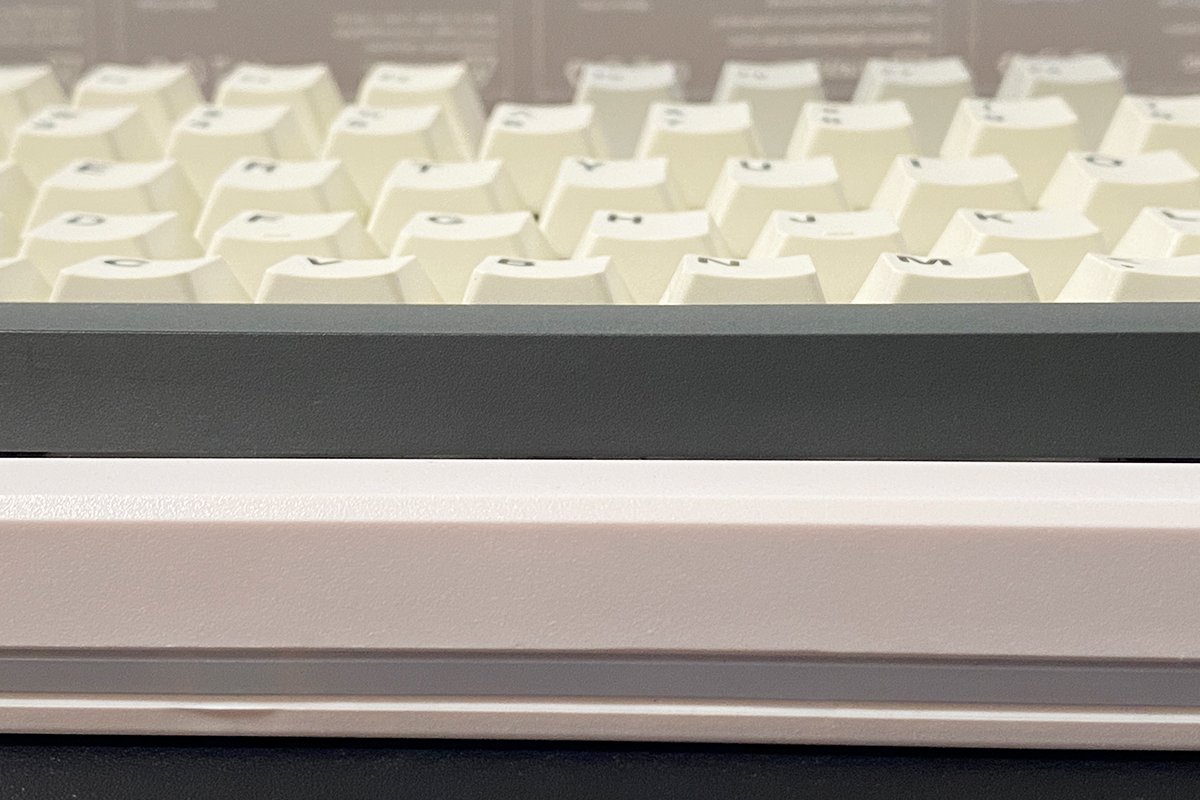
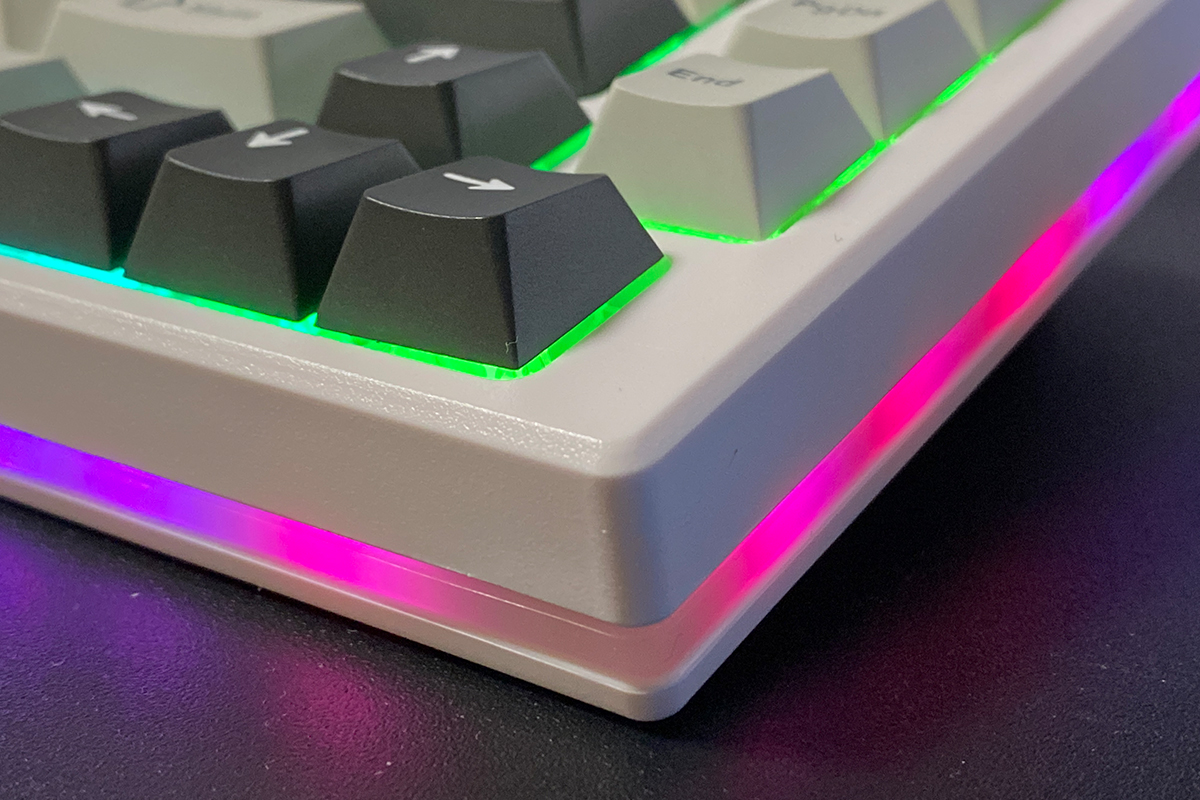
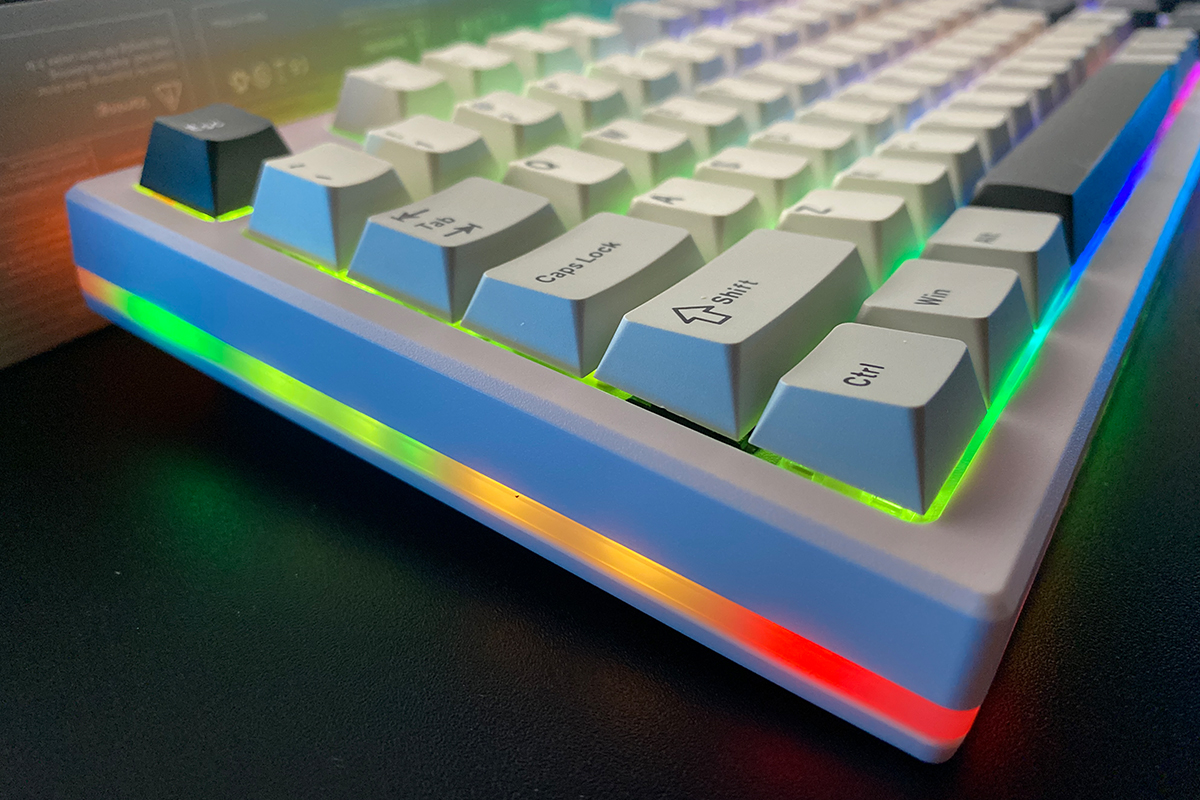
As for the light strip itself, it feels more like a drawback than an advantage. The brightness is underwhelming, and the gaps between the LEDs are clearly visible, leaving dark sections along the length of the strip, especially near the edges – even at maximum brightness. Fortunately, the case lighting can be turned off independently if it becomes distracting.
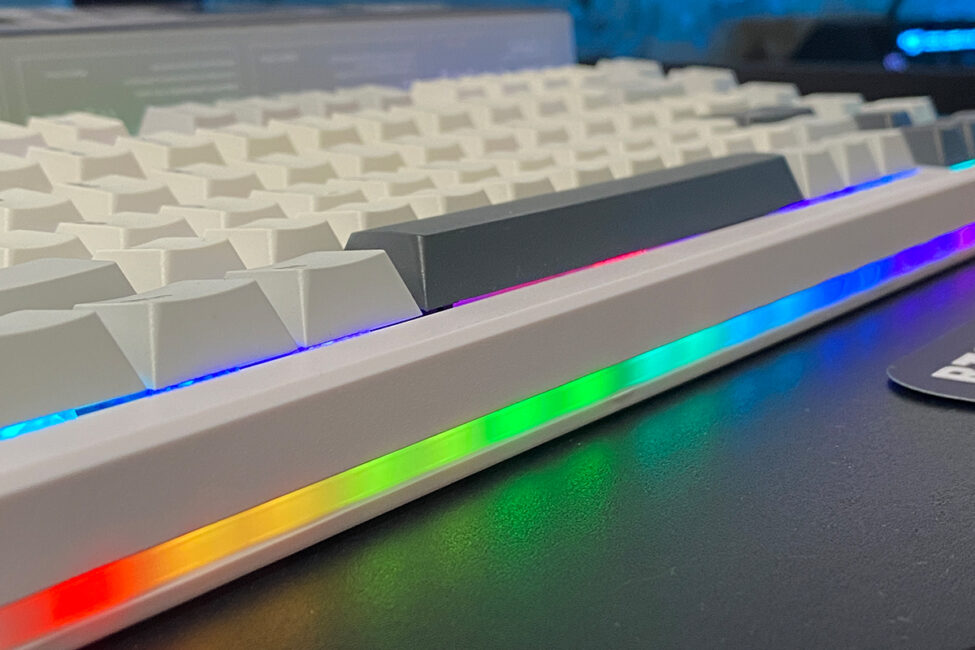
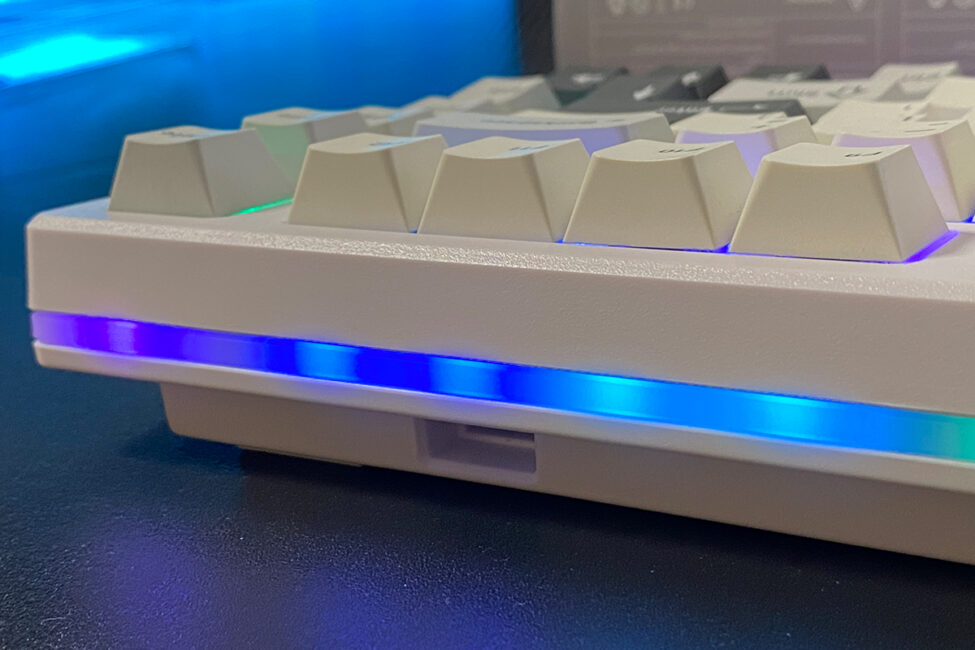
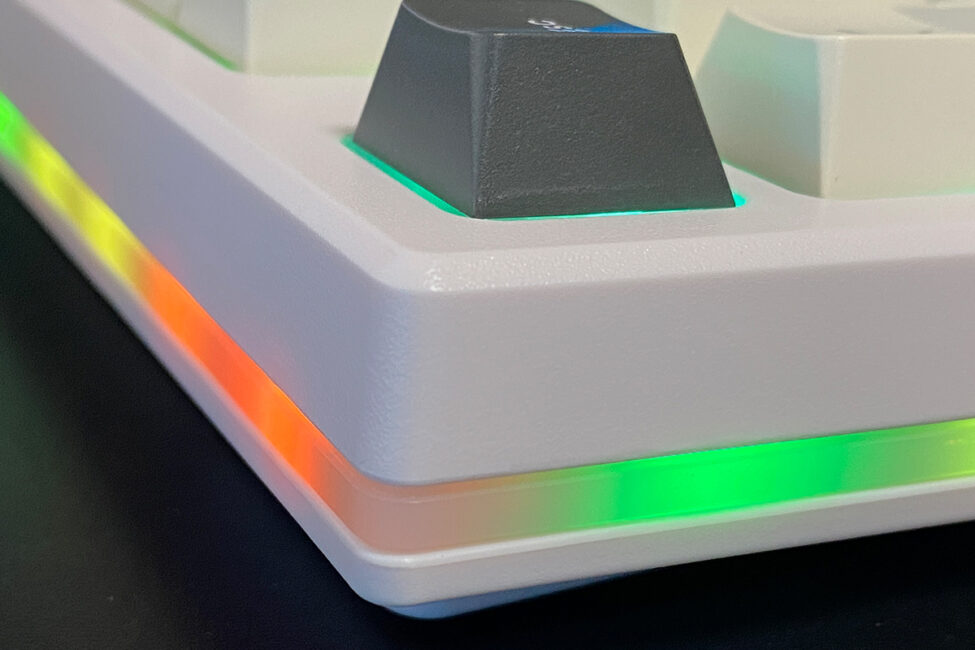
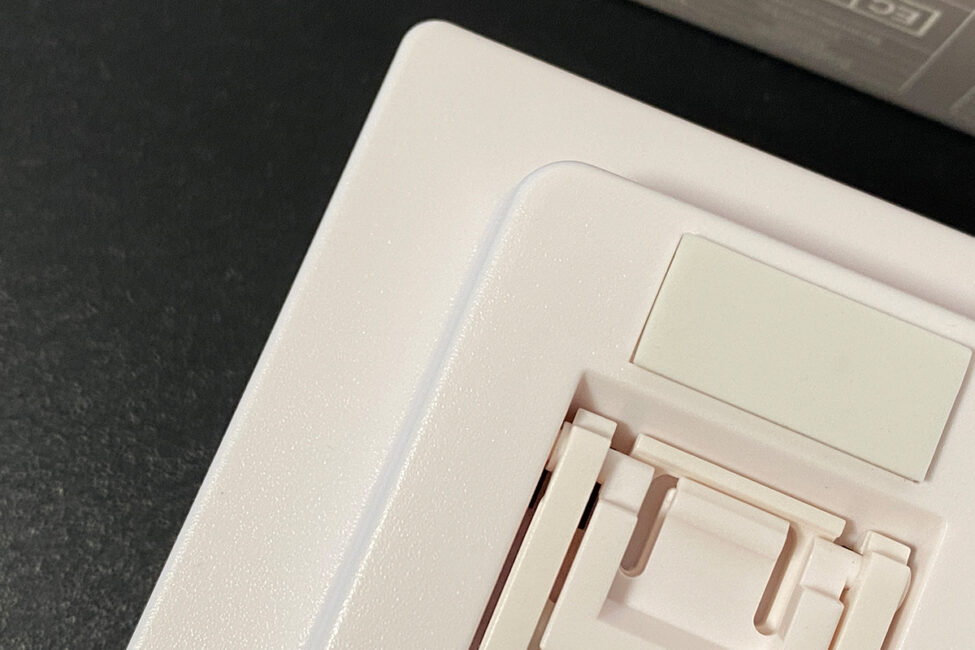
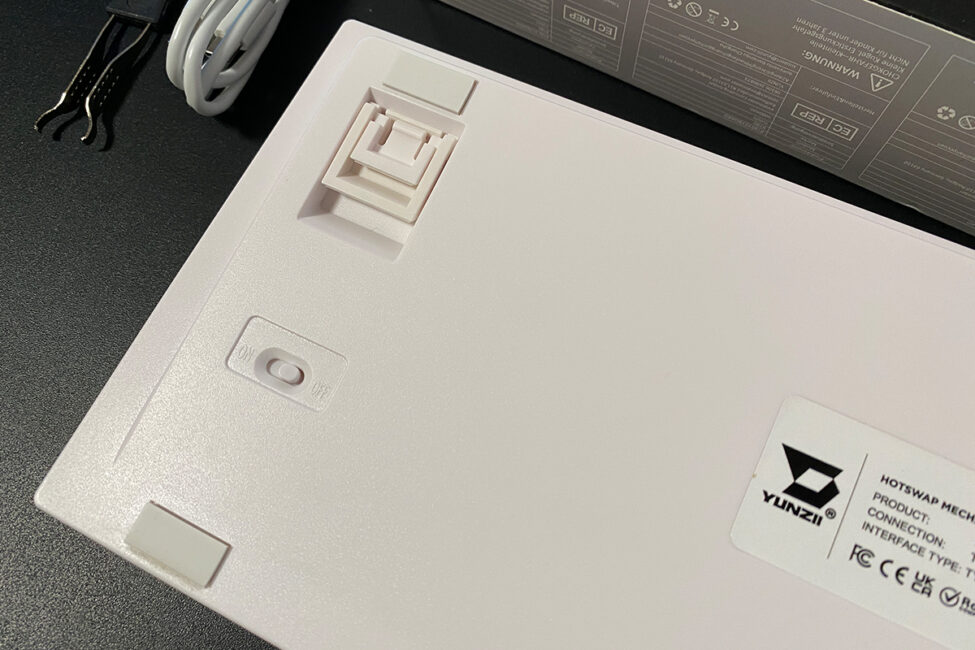
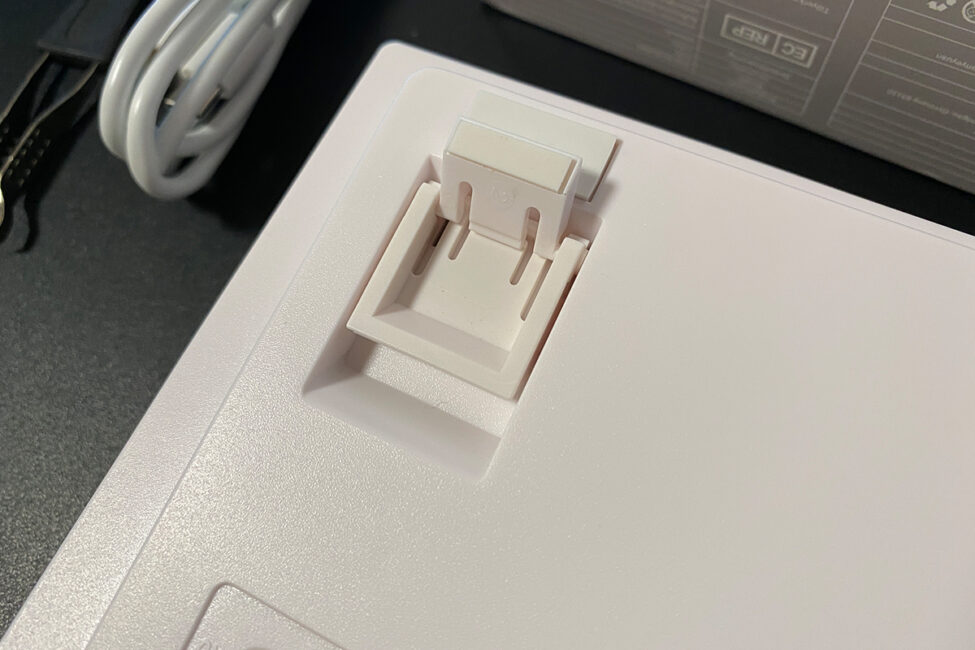
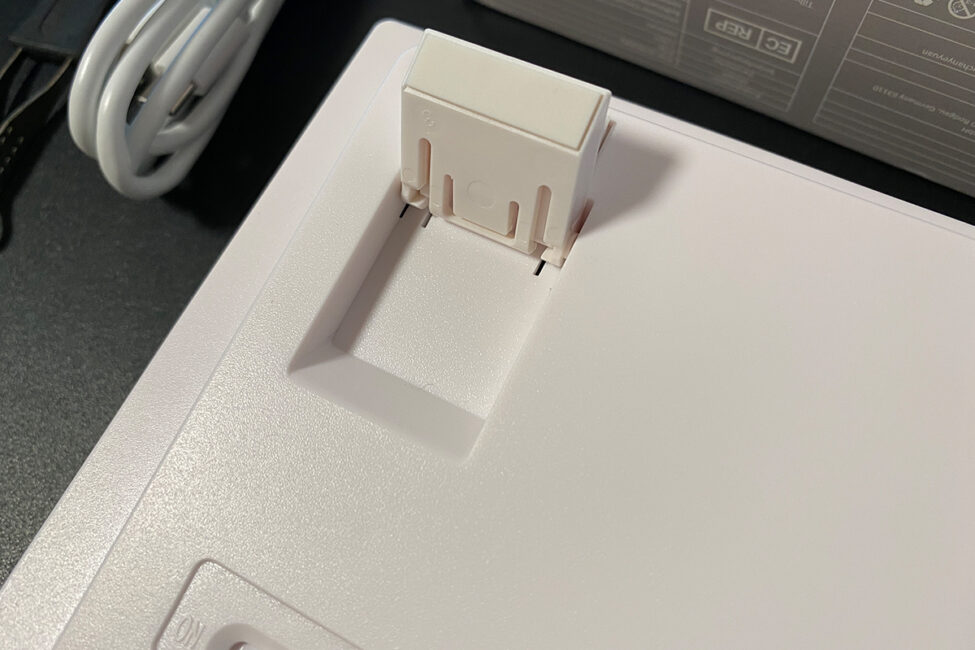
The bottom of the keyboard, like the rest of the case, is plastic. The feet are the same as in the previous model – dual-stage, but flimsy and prone to wobbling side to side. For that reason, I’d strongly advise against using them if you tend to hit the keyboard in frustration after a game loss. A couple of solid knocks would likely be enough to break them.
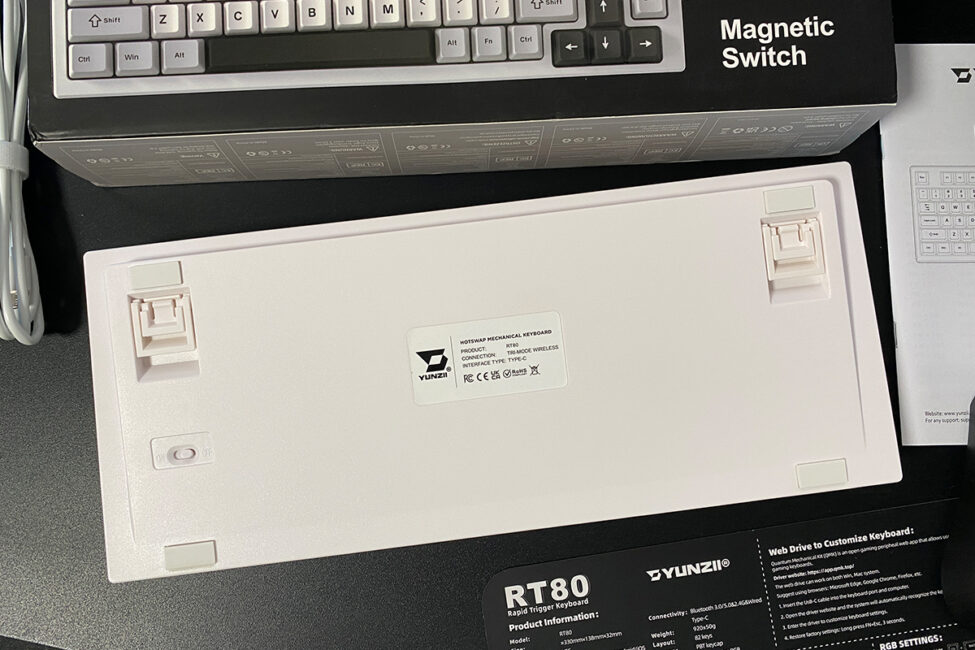
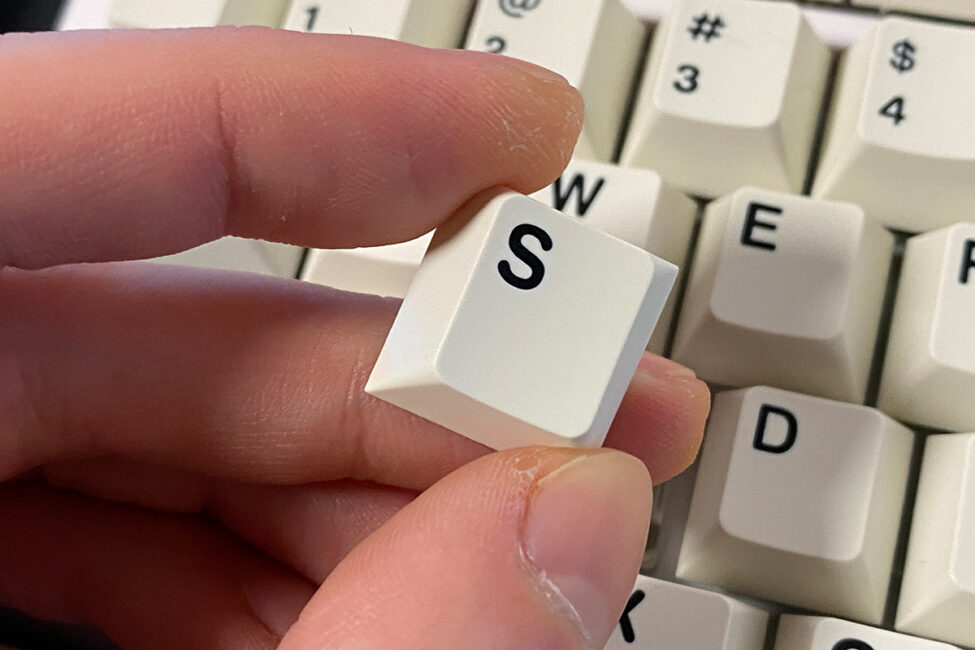
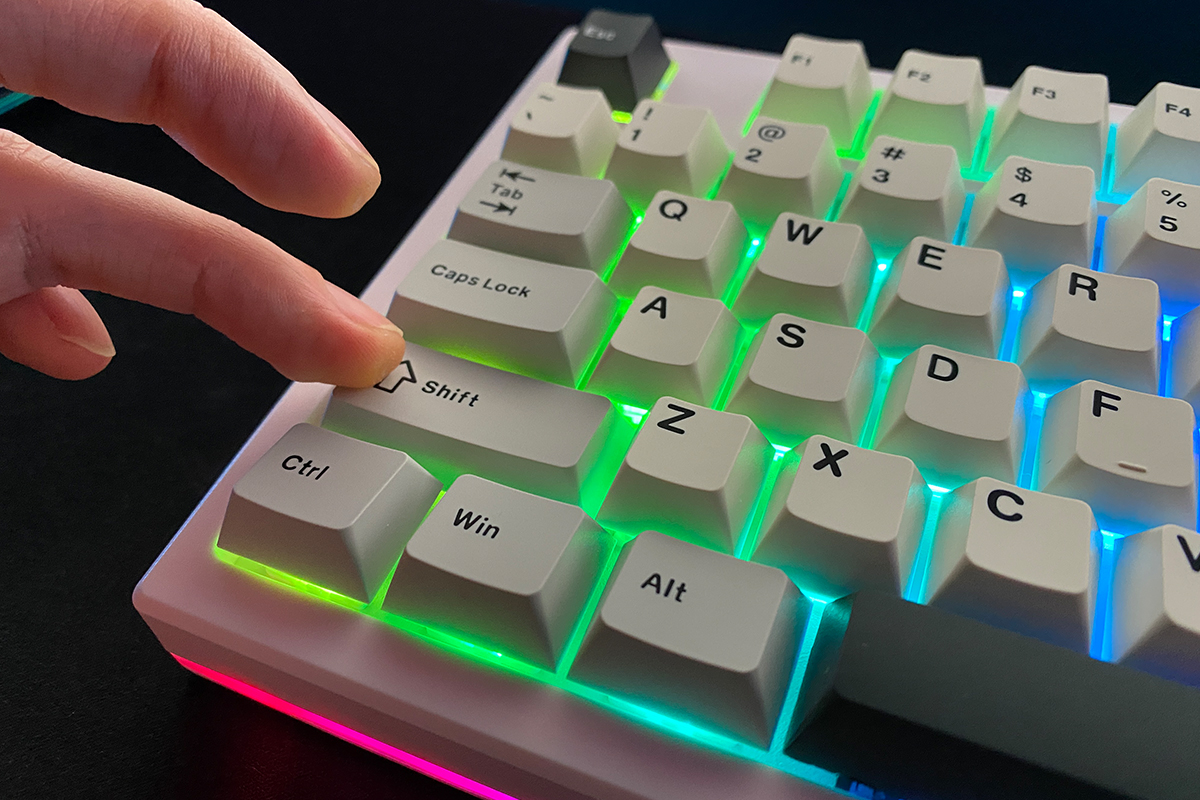
I started with the negatives, but that’s about all of them. Now let’s move on to the positives, beginning with the keycaps. As with the previous model, the keyboard comes with double-shot PBT keycaps in a Cherry profile. They’re well-made and pleasant to the touch. That said, the plastic could have been a bit thicker, but this doesn’t really take away from the typing experience. In fact, the overall feel of typing on this keyboard is quite good.
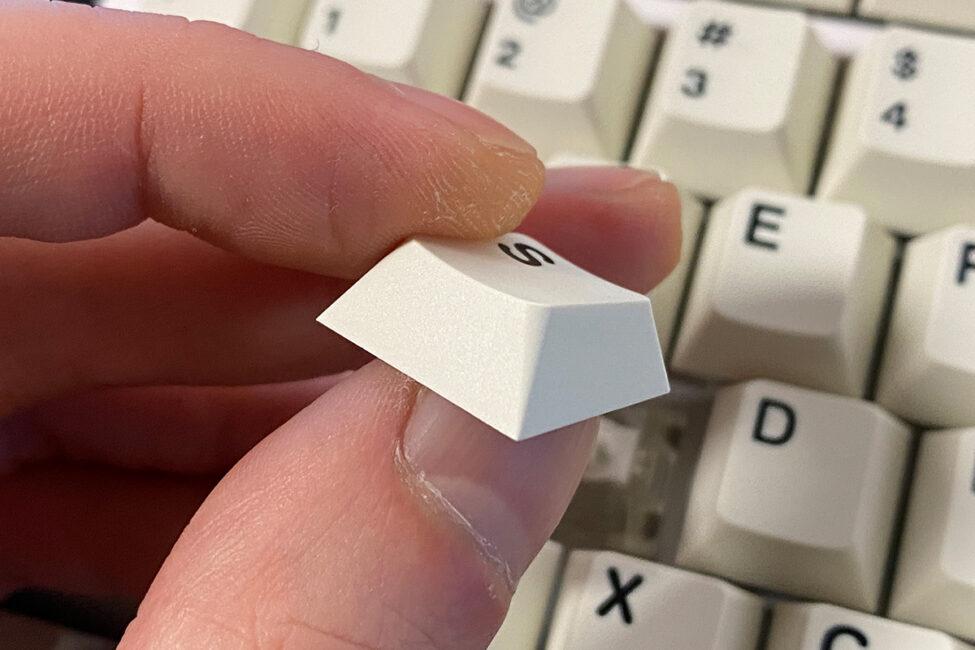
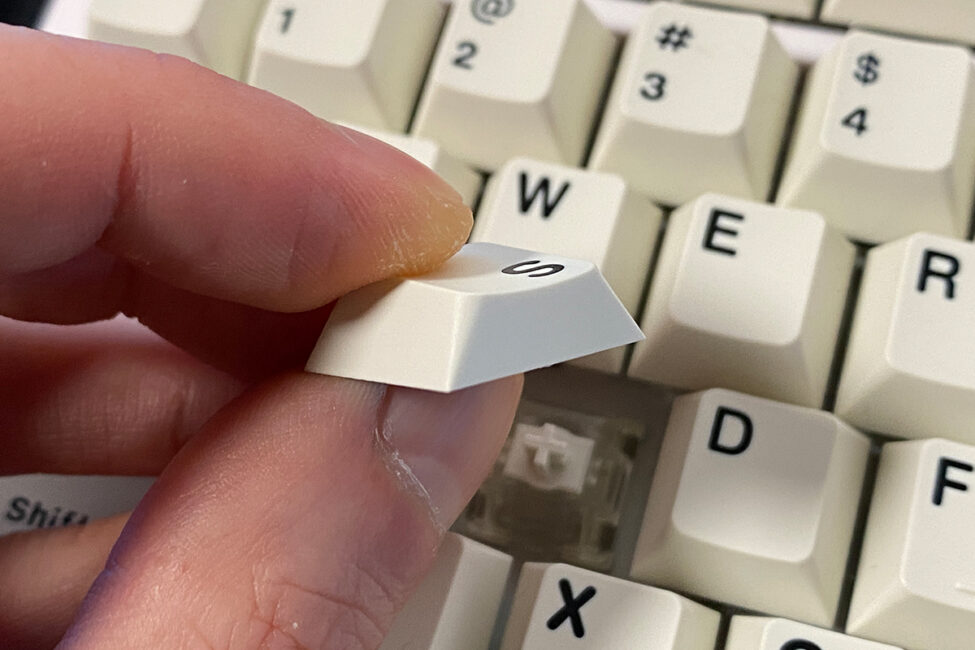
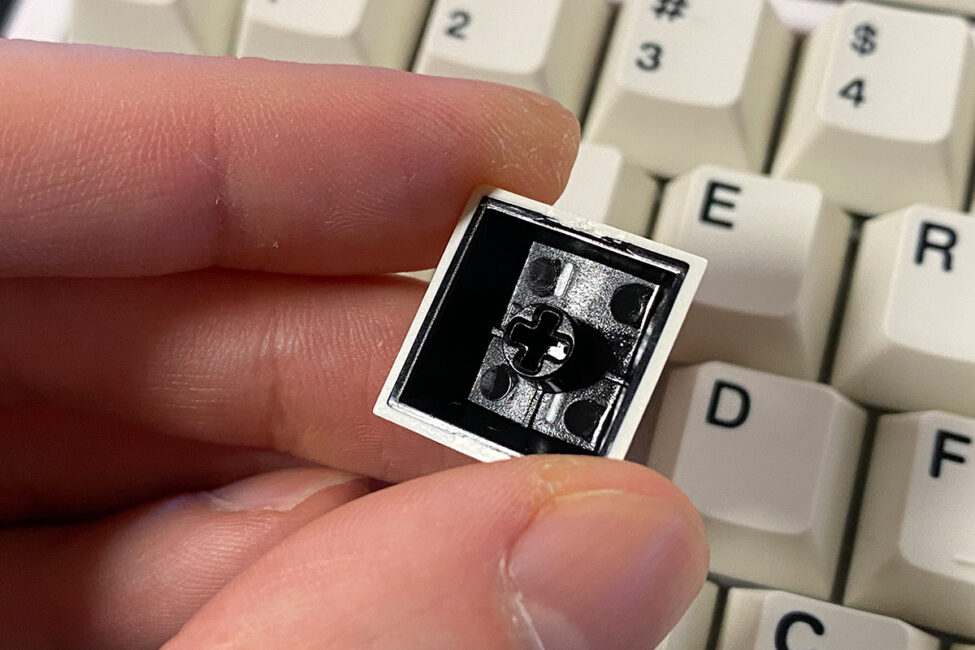
The RT80’s size, height, and typing angle feel well balanced. Its compact layout doesn’t take up much desk space, and it sits comfortably under the hands even without extending the feet or using a wrist rest.
Like its predecessor, the keyboard supports three connection modes: RF, Bluetooth, and USB, and is compatible with macOS. It can also connect to Android and iOS devices, as well as consoles, without issues. Bluetooth allows pairing with up to three devices simultaneously. In total, the keyboard can connect to five devices: three via Bluetooth, one via the 2.4 GHz RF channel, and one via USB.
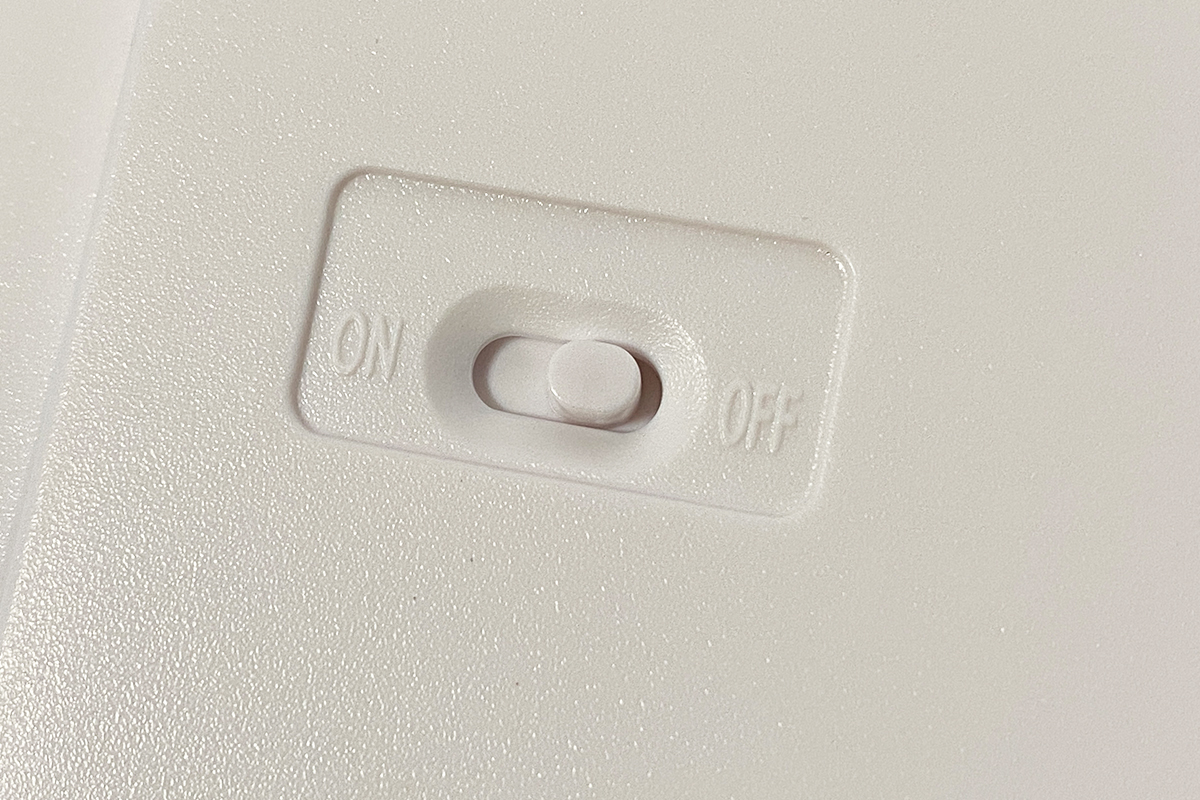
Switching between connected devices and platforms is done through key combinations: FN + 1, 2, or 3 for Bluetooth devices, FN + 4 for the RF connection, and FN + S to switch to macOS mode. As for physical controls, the only switch on the keyboard is an ON/OFF toggle on the bottom, which enables or disables wireless operation.
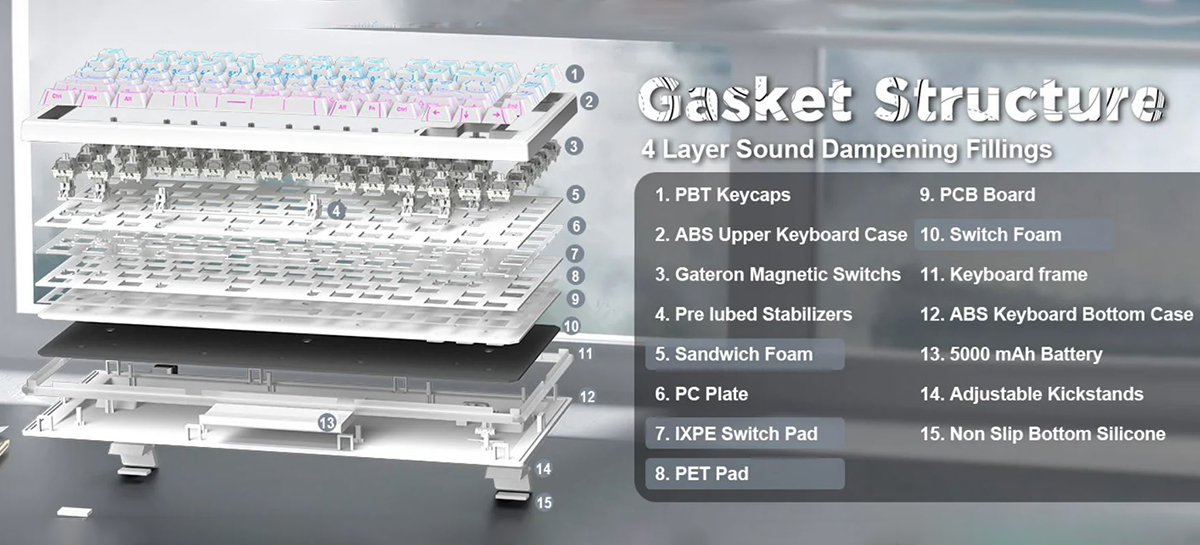
Internally, the keyboard uses a Gasket Mount design with various pads and damping layers to provide a soft, quiet, and comfortable typing experience. The detailed internal structure is illustrated in the screenshot below.
The RT80 features full key backlighting, implemented using south-facing LEDs.
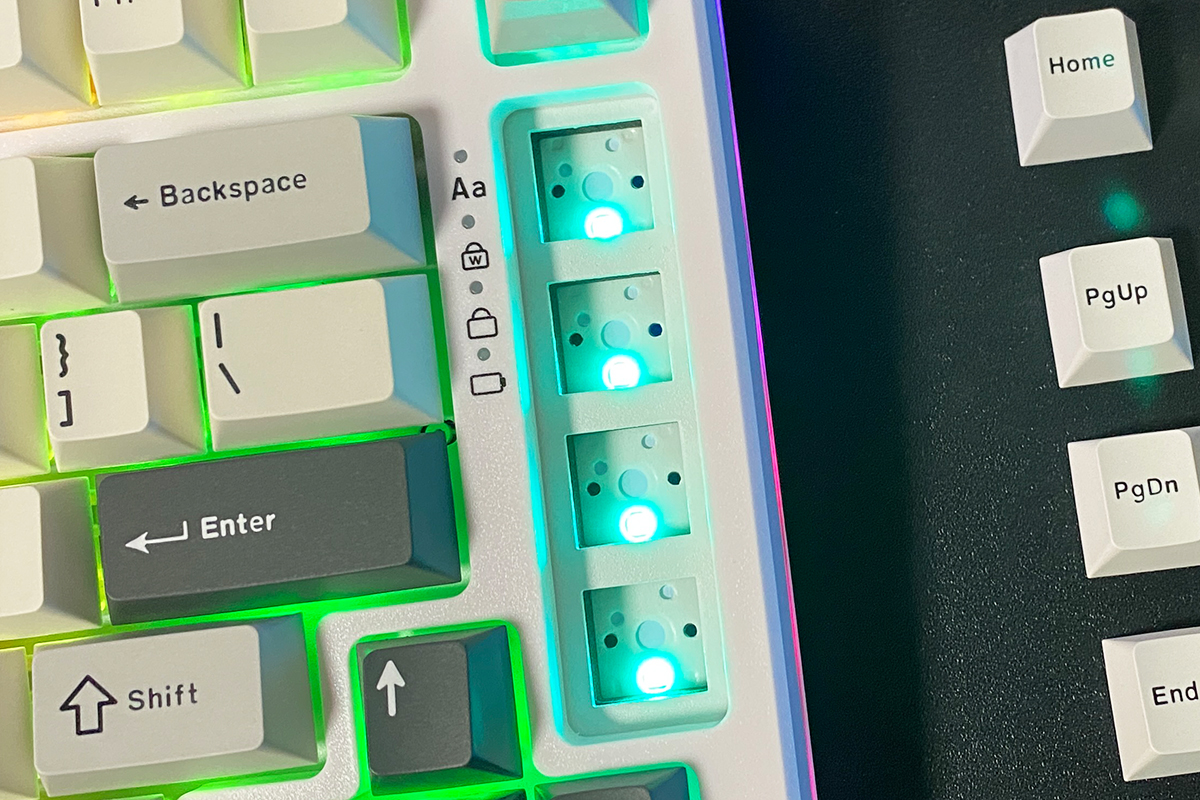
Unlike the case lighting, the key backlighting is much better – bright, smooth, rich, and even. Below is a video demonstrating the lighting and the available effects.
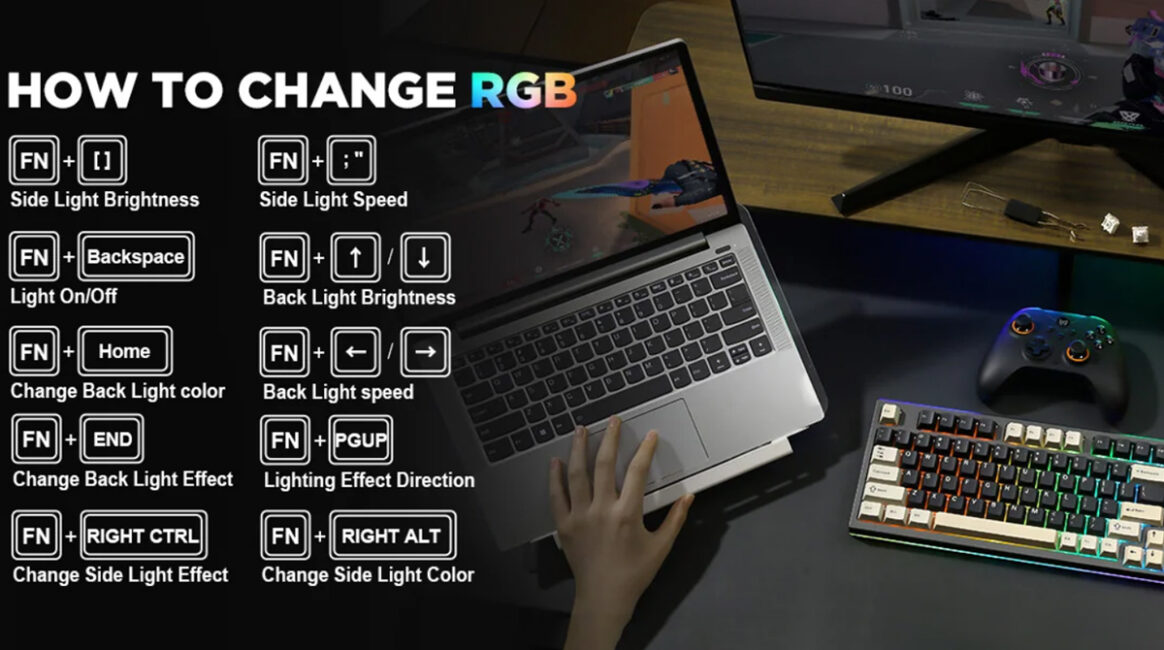
The key and case lighting are two independent zones that can be configured separately. Lighting settings can be adjusted through the official app, online via the QMK website, or directly on the keyboard itself. The apps will be covered in detail in a separate section, but the main RGB control hotkeys for on-keyboard adjustments are listed below.
The YZ75 PRO was available in five color options, while the RT80 offers slightly fewer – just three: white, black, and “white line.” The first two are fairly standard, but the third is unique and stands out visually. It’s an eye-catching design. Unfortunately, the unit I received wasn’t in this version; otherwise, I would have definitely kept it for my collection.
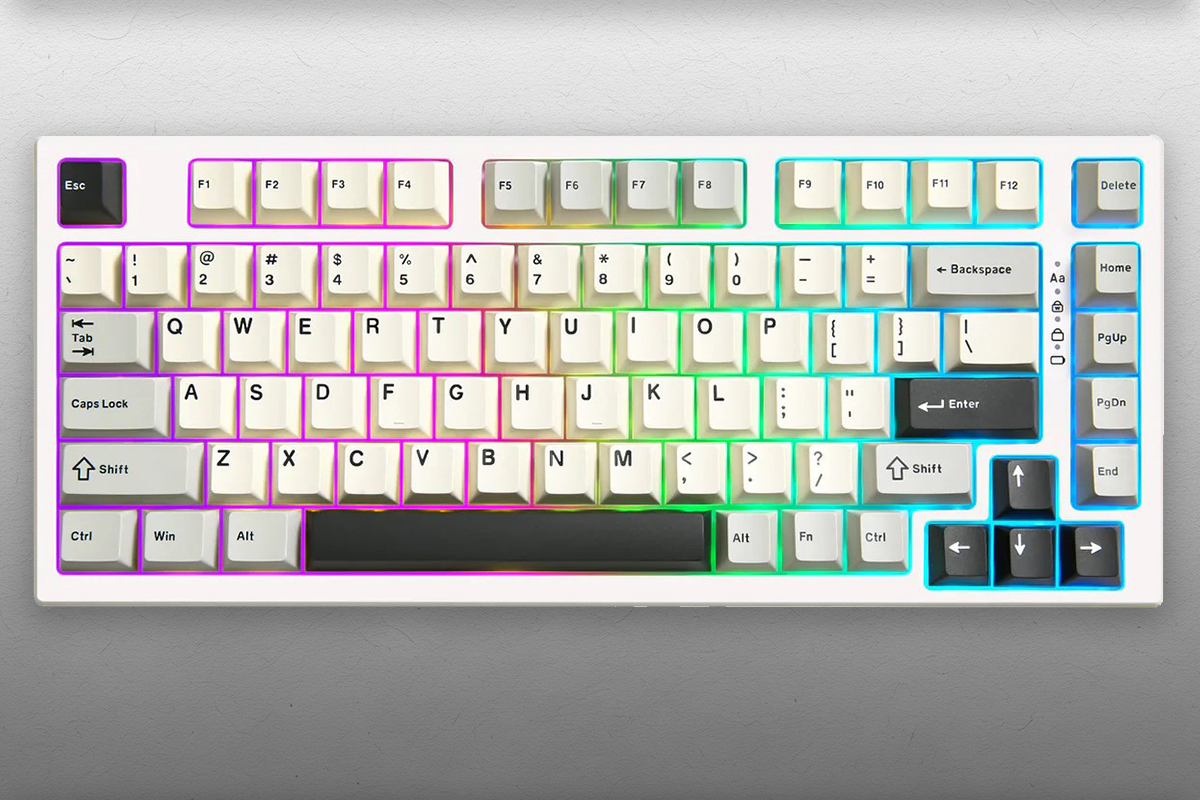
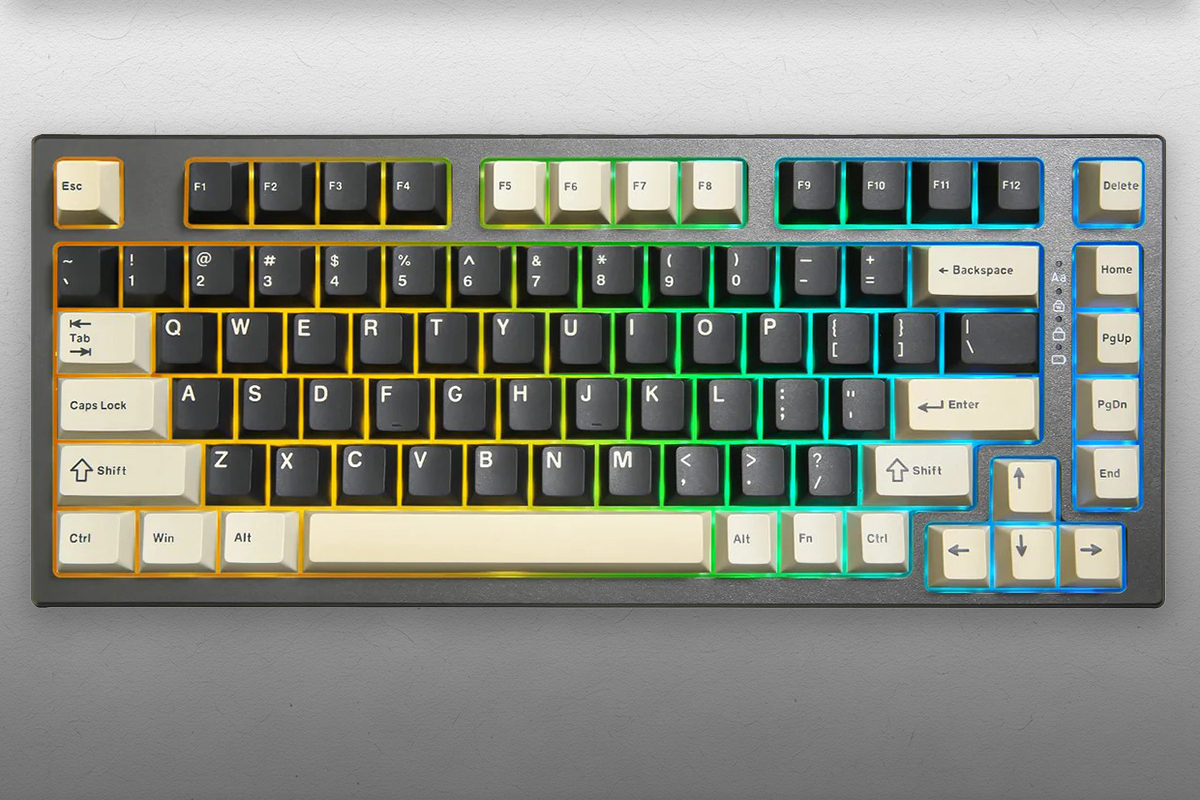
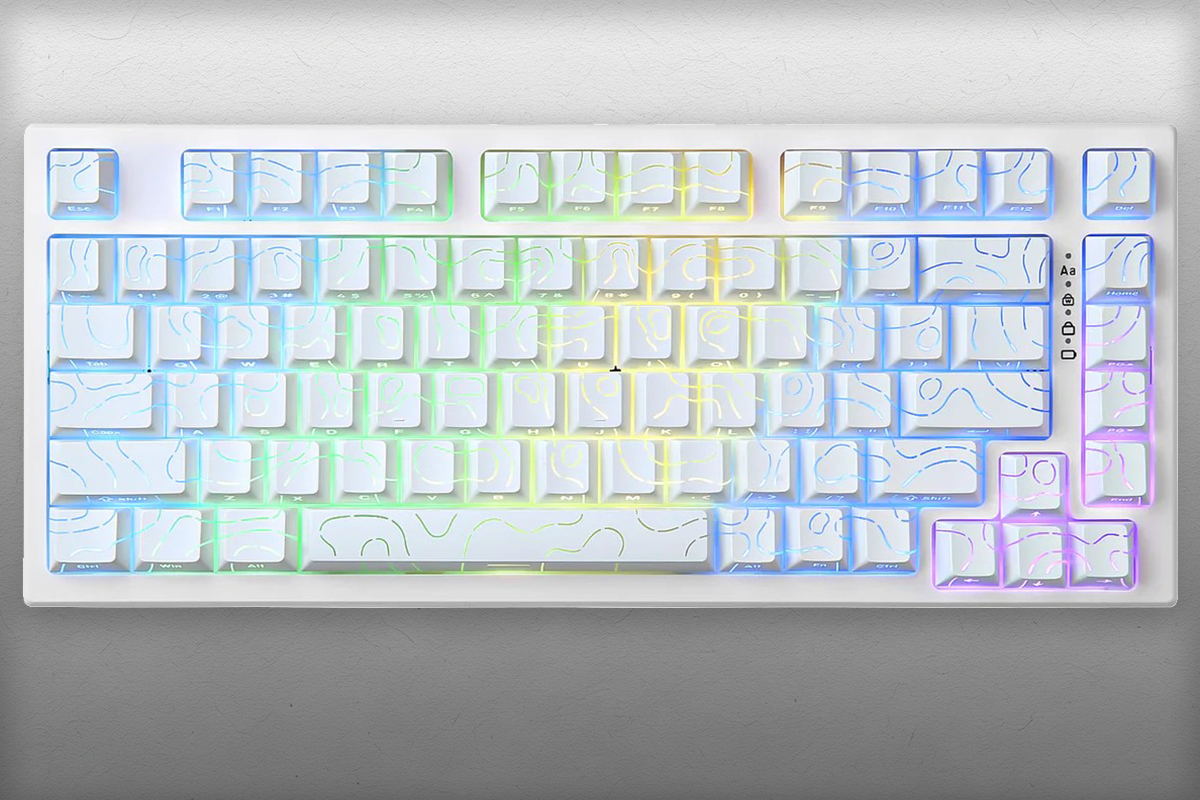
Overall, the keyboard’s design is decent. It becomes particularly interesting if you replace the right-side keys with the included acrylic badge – a simple but quite original touch.
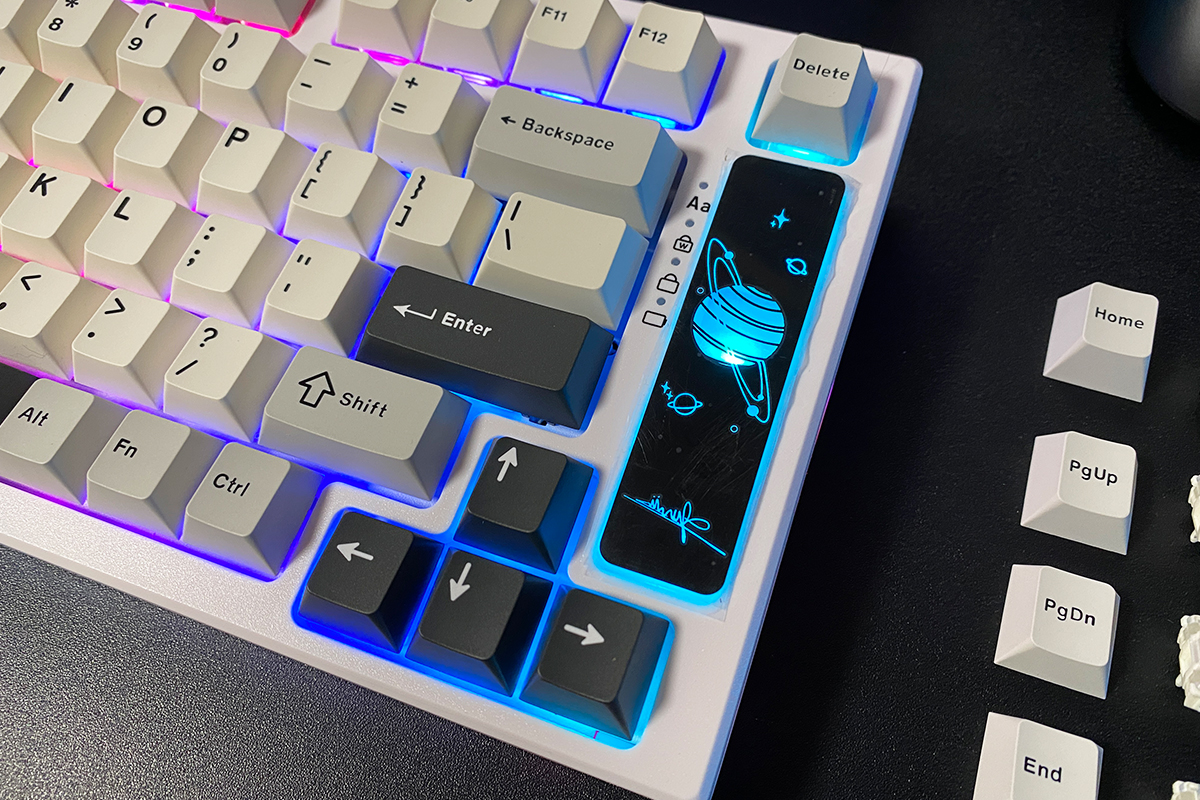
Ergonomically, the keyboard performs well – it’s comfortable and generally pleasant to use. It sits steadily on the desk, even when the somewhat flimsy feet are extended.
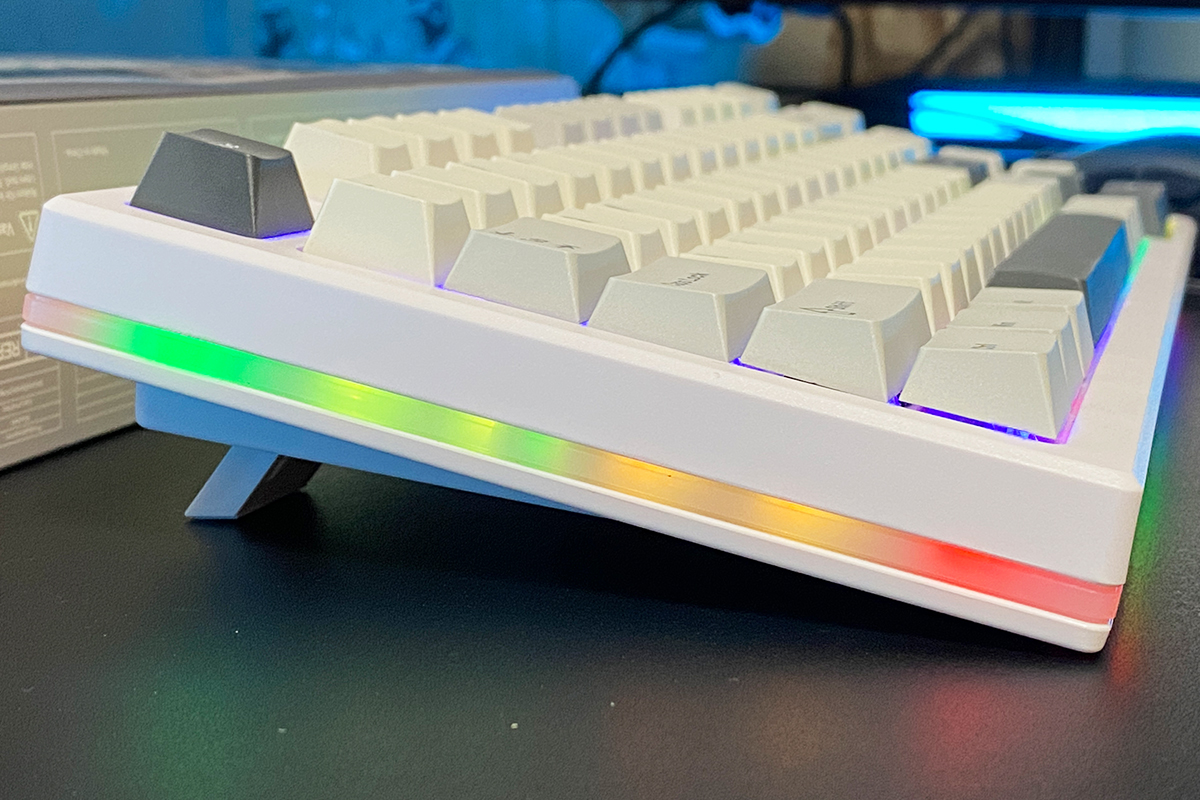
The overall build quality, including the case, is decent, but considering YUNZII’s other devices, it’s clear the assembly could have been much better. The case lighting, in particular, is underwhelming. The photos illustrate this well, so no further explanation is really needed.
Read also:
- YUNZII AL80 Review: Wireless Aluminum Keyboard with Display
- YUNZII AL65 Review: Aluminum Wireless RGB Keyboard
Switches, stabilizers, typing
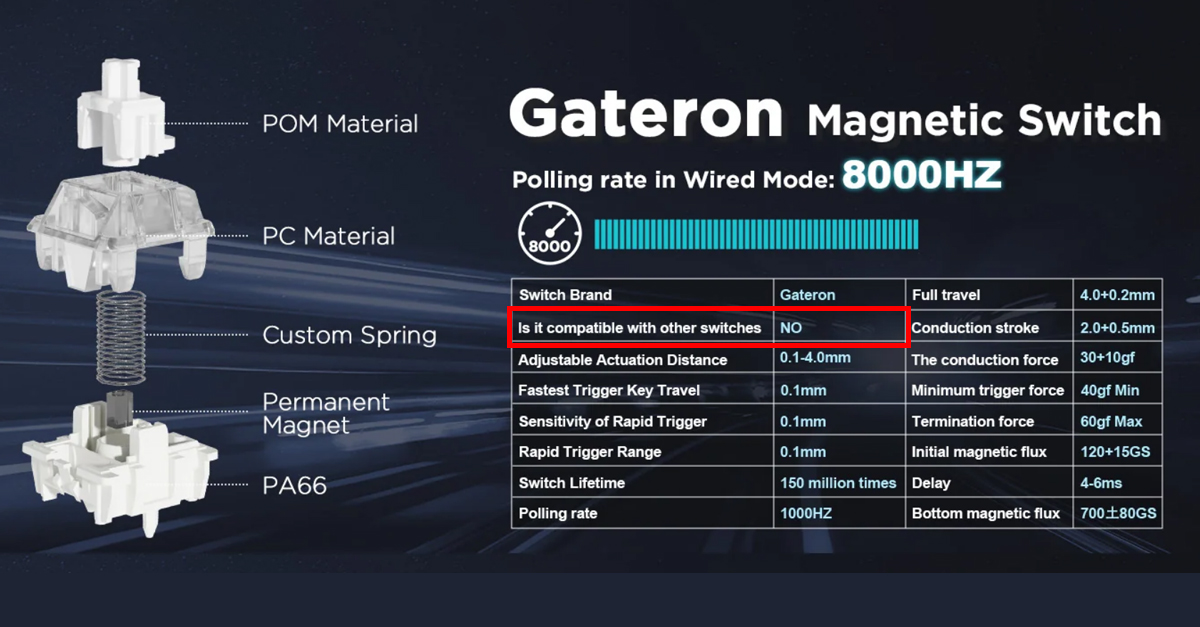
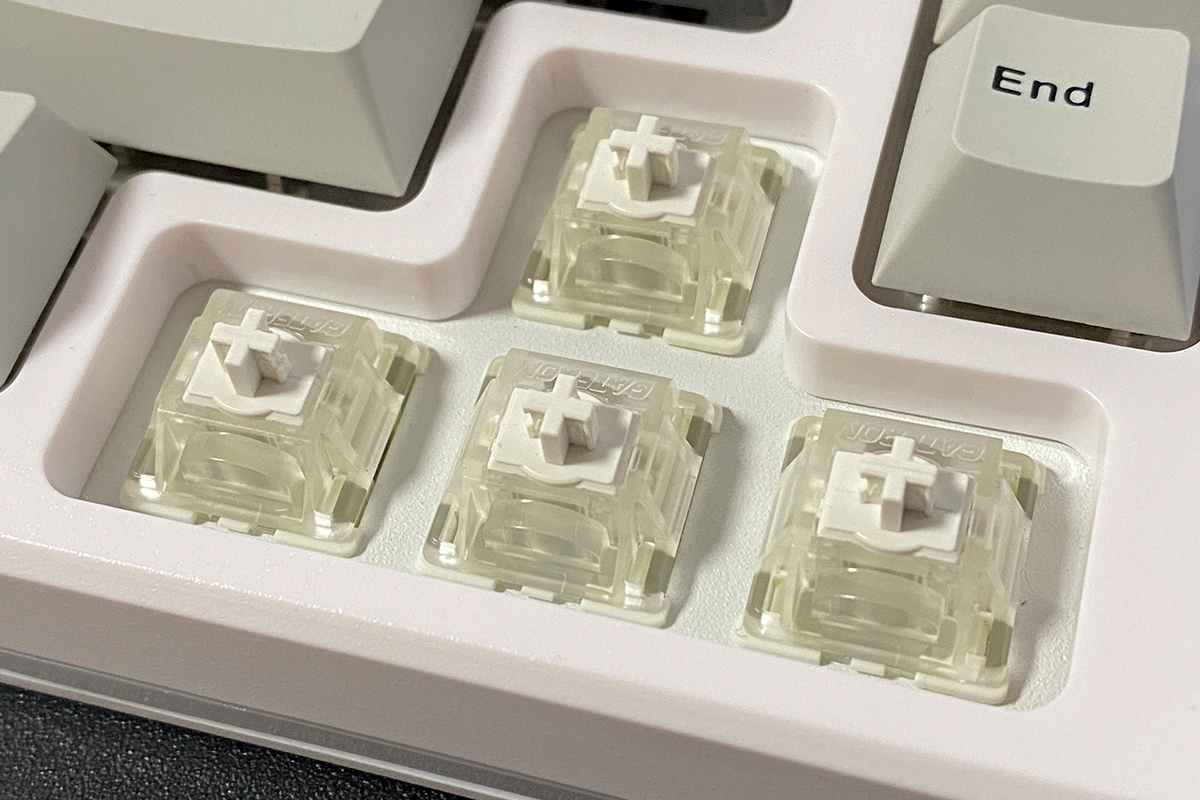
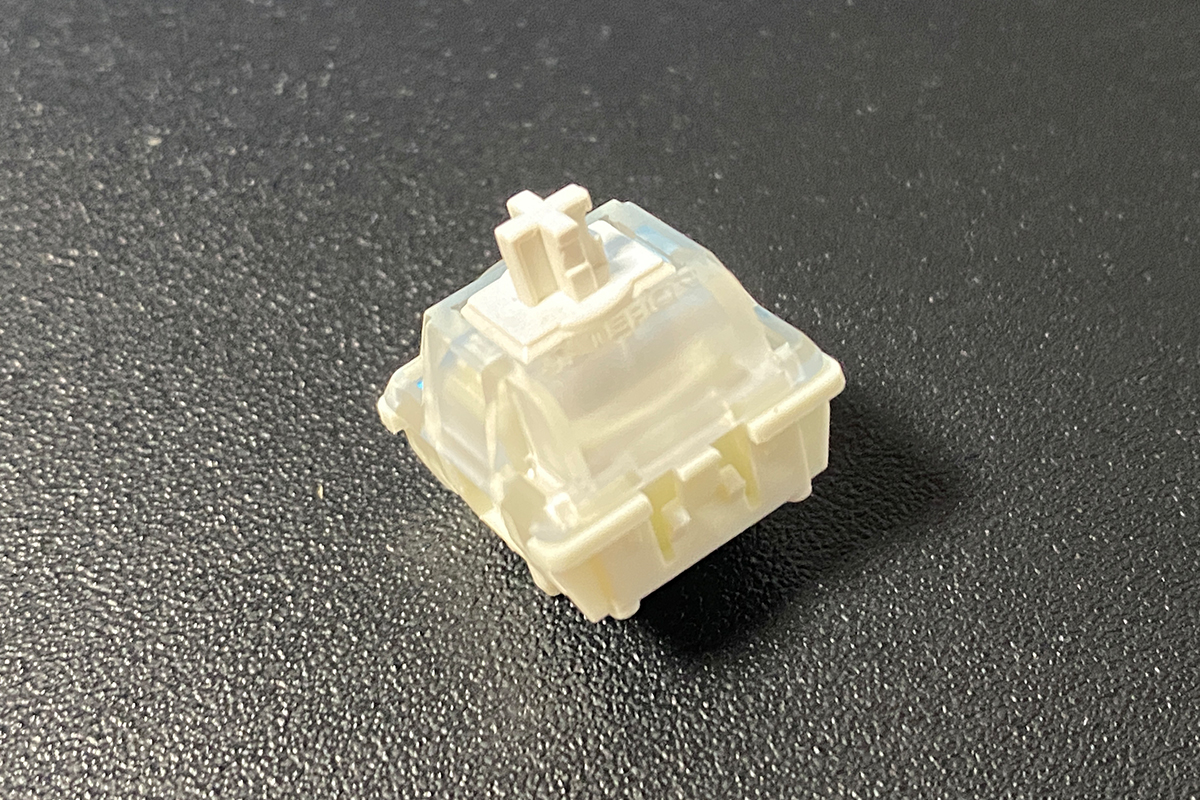
The keyboard comes with Gateron White Hall magnetic switches. In the next section, I’ll explain what makes magnetic switches unique and the exclusive features they offer to users. For now, here are their detailed specifications.
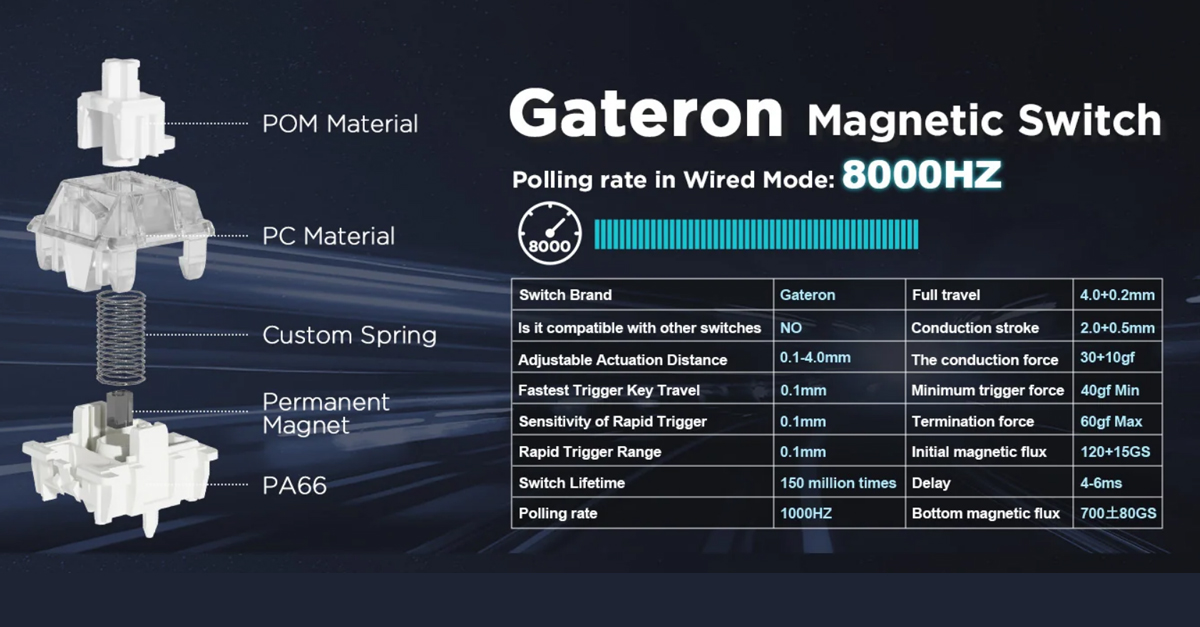
I can also add that the switches are incredibly enjoyable for typing. They deliver a very smooth and quiet linear travel, which feels extremely satisfying to the touch. For me, the Gateron White Hall switches are definitely among the most pleasant and interesting switches I’ve ever tried, especially among magnetic models. In this regard, YUNZII made a solid choice for their keyboard.
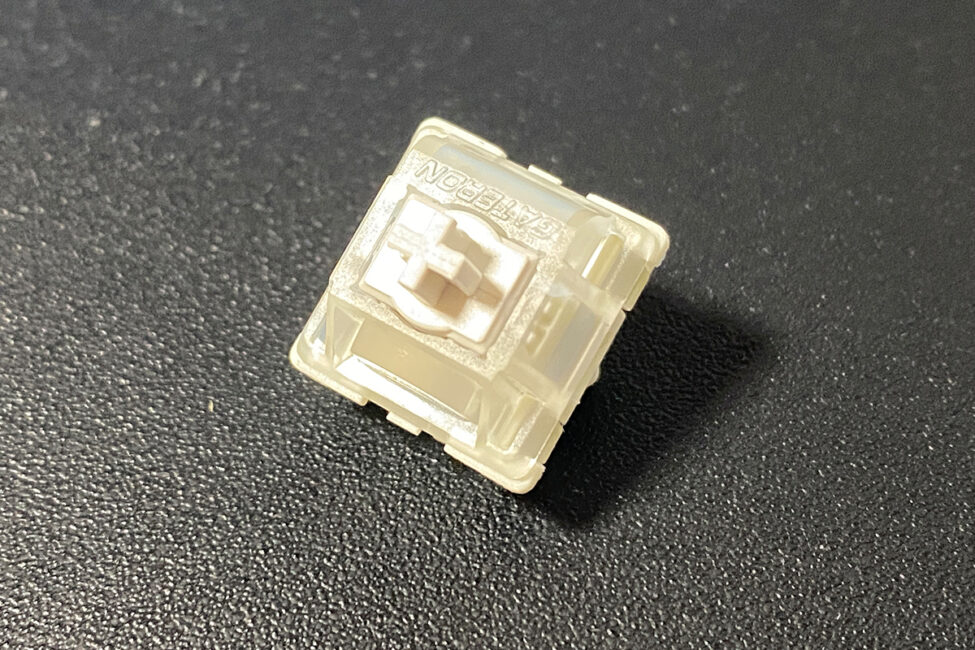
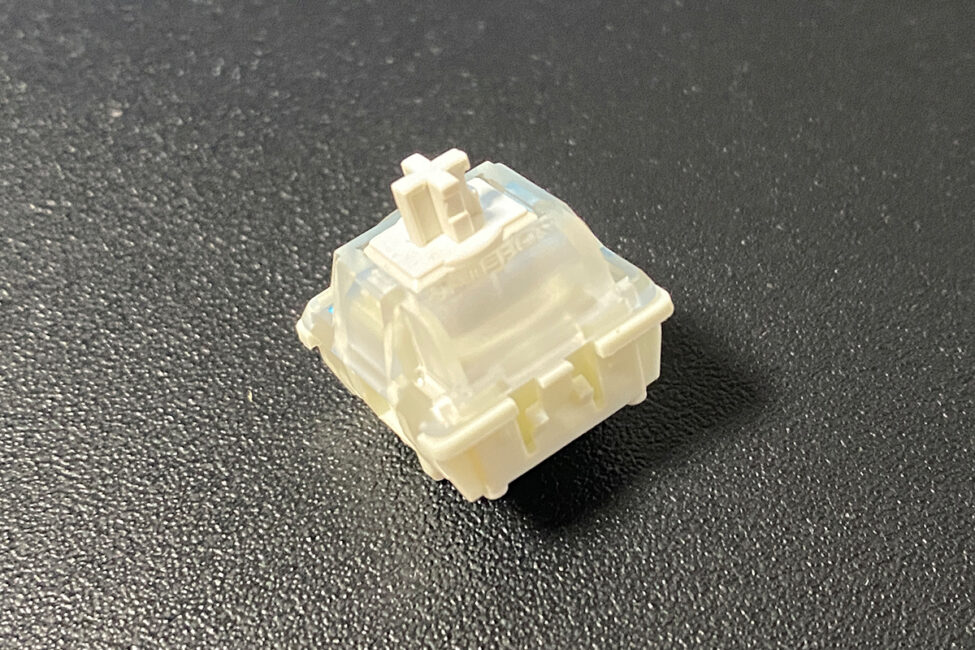
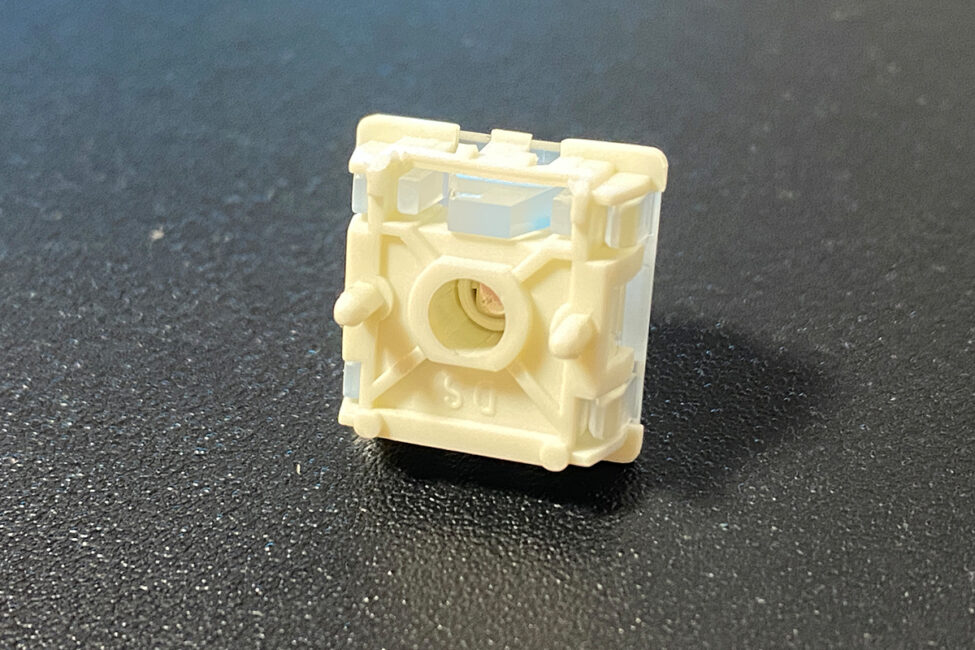
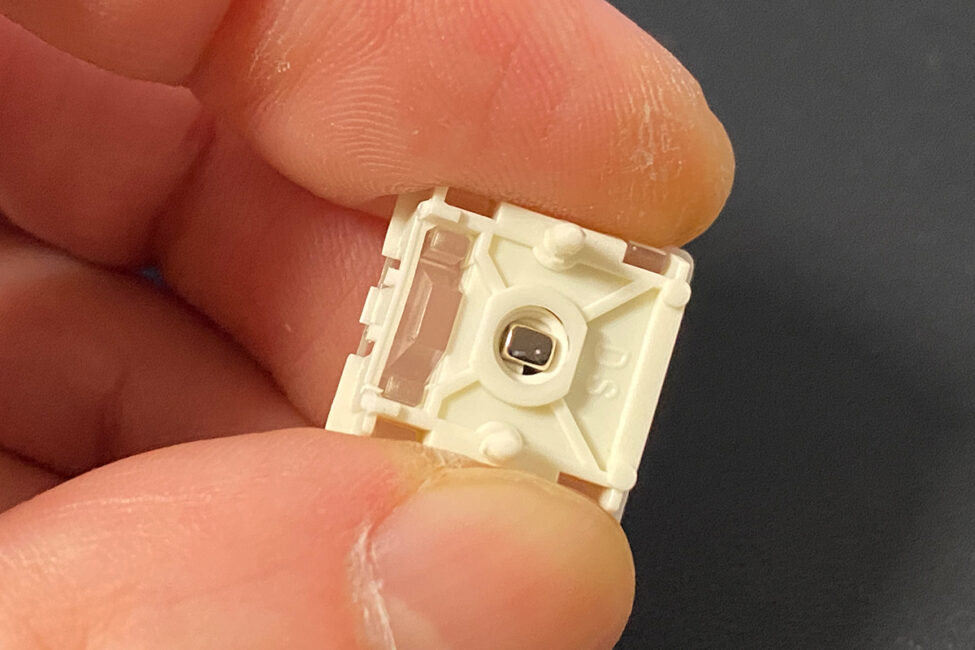
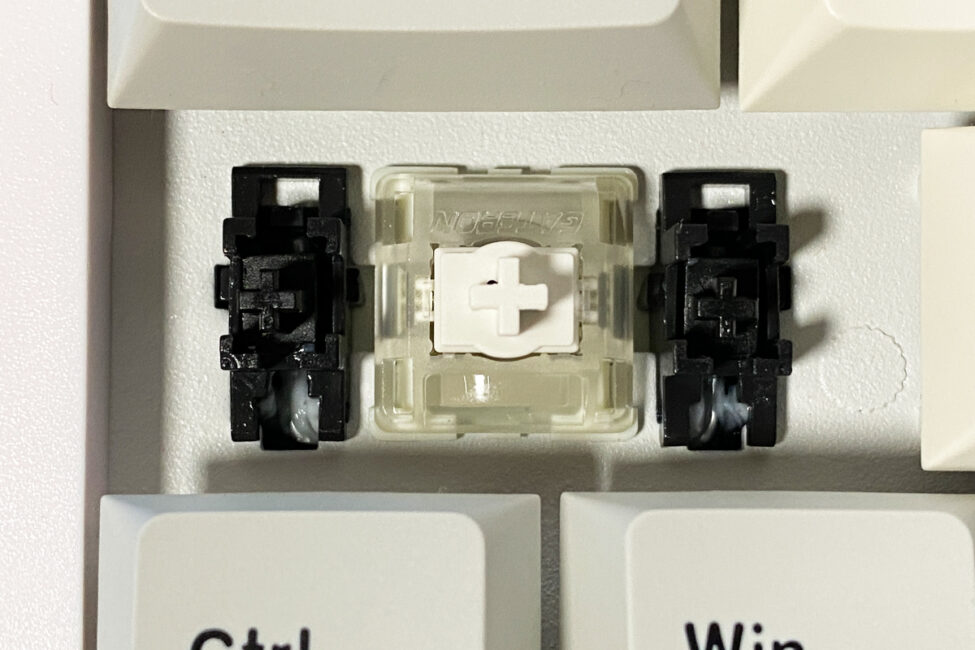
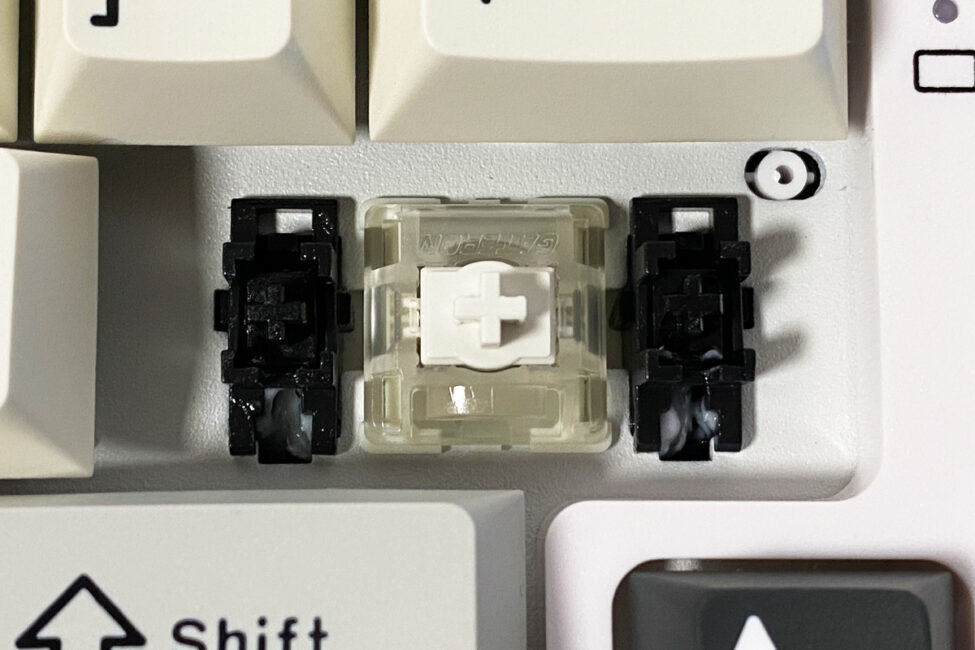
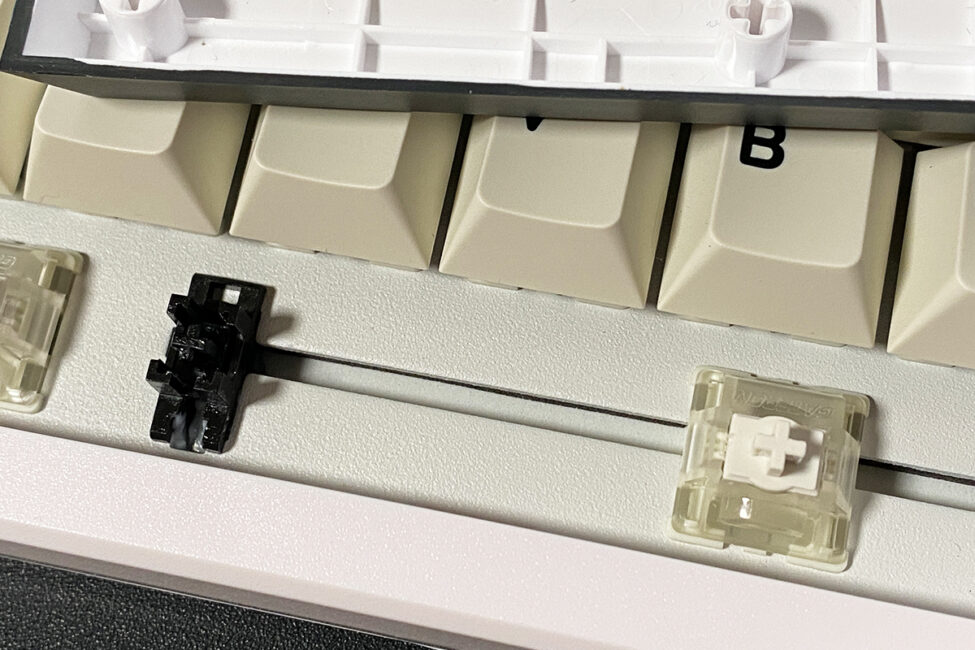
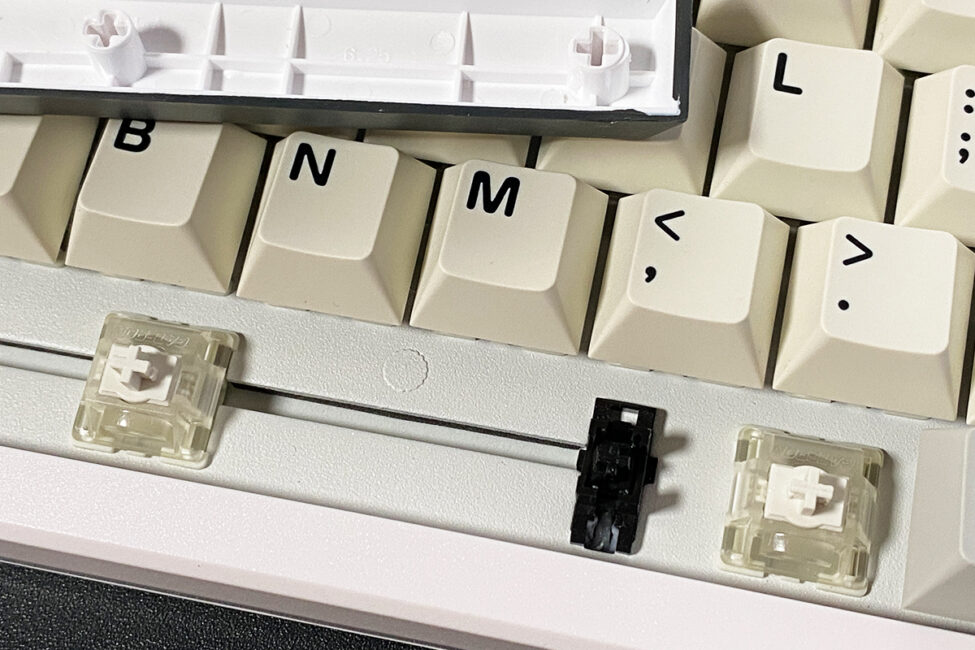
Like the previous version, the RT80 supports hot-swappable switches, allowing them to be replaced without soldering. The switch sockets are two-pin.
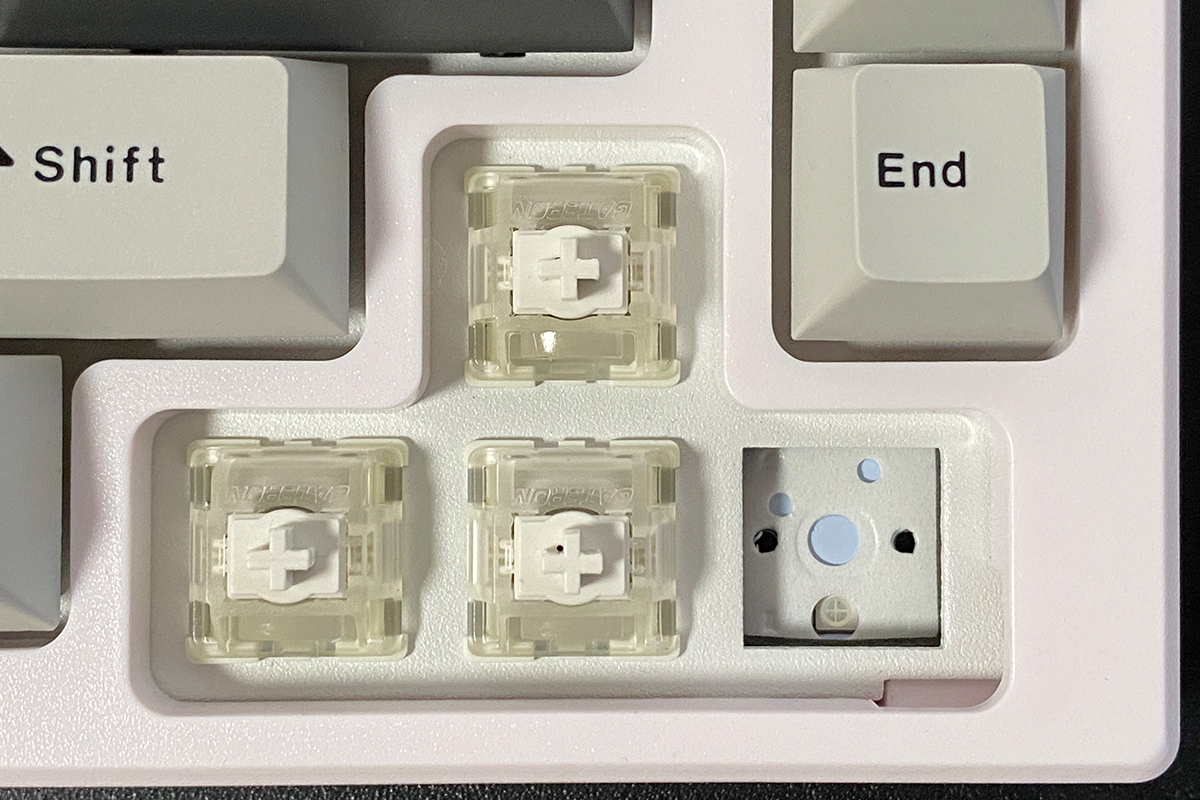
However, if I understand correctly, the keyboard can’t actually be used with other switches, as it only supports the included Gateron White Hall switches. On one hand, this could be seen as a drawback. On the other hand, it’s unlikely you’d want to swap them anyway, since, as mentioned earlier, they’re exceptionally good.
The YUNZII RT80 comes with pre-lubricated stabilizers, which makes a noticeable difference when typing on longer keys. These keys are well stabilized and deliver the same smooth, quiet linear feel as the other keys, without any of the unpleasant noises often associated with lower-quality mechanical keyboards.
Typing on the RT80 is a standout experience. The keyboard impressed me so much in this regard that I’m willing to overlook its other minor drawbacks. It’s definitely one of the best typing experiences I’ve had on a mechanical keyboard, particularly among those with magnetic switches. I’ve included a video below to demonstrate it – you can hear for yourself. That said, hearing it is one thing, but trying it in person is entirely different. If you enjoy smooth, quiet, creamy keypresses, the YUNZII RT80 is likely a perfect fit. As an added bonus, the keyboard’s magnetic switches further enhance the experience.
Key features of YUZNII RT80
Before diving into the apps for customizing the keyboard, let’s briefly review its key features and advanced capabilities. This is useful, especially for those who aren’t familiar with what makes magnetic switches unique.
Magnetic switches, also known as Hall effect switches, offer several unique advantages compared to traditional mechanical switches. They allow the actuation point to be adjusted anywhere from 0.1 to 4 mm, with precision up to 0.01 mm. They also support a range of features that are particularly useful for gamers, including dynamic key travel (DKS / Rapid Trigger), multi-tap inputs, toggle keys, and simultaneous opposite direction presses (SOCD). Additional benefits include increased durability and smoother key travel. Let’s briefly go through each of these features.
Adjustable actuation points allow you to set the trigger point for each key individually. For example, in gaming, you can configure the keys to register at the very start of the press for faster response. For typing or work, you might prefer keys to actuate in the middle or at the end of the key travel for more deliberate input. You can also create mixed setups – for instance, setting W/A/S/D keys to actuate early while keeping Shift and Space at the end of their travel. Some gamers use this approach to optimize their magnetic keyboards for different competitive shooters.
Dynamic Key Travel (DKS or Rapid Trigger) allows a key to activate or deactivate instantly as you press or release it, without needing to reach a specific actuation or reset point. Essentially, keys respond to even the smallest movements, independent of fixed trigger points. This feature can be particularly useful in fast-paced competitive games, where reaction speed – including character movement – is critical. In practice, DKS (Rapid Trigger) can significantly improve response times and overall control.
Multi-Tap allows a single key to perform different actions depending on the depth of the press or how long it is held. In other words, the keyboard can be programmed to trigger multiple commands at different points along a key’s travel. A simple gaming example: a light press of the W key results in normal walking, a medium press triggers a standard sprint, and a full press initiates an accelerated tactical run. Similarly, you can assign actions based on how long a key is held rather than just the press itself. While it doesn’t fully replicate an analog stick like on a gamepad, Multi-Tap can achieve a similar effect directly on the keyboard.
The Toggle Key feature allows a key to function like a switch. For example, in some games, you need to hold Shift or Ctrl for a character to keep running or crouching. With Toggle Key, these keys can be configured so that a single press changes the movement mode, eliminating the need to hold the key continuously.
Simultaneous Opposite Cardinal Directions (SOCD) is another feature geared toward gamers, designed to prevent conflicting inputs and improve control. It offers several modes: last input priority, first input priority, neutral reset, and up input priority. In last input priority mode, the keyboard prioritizes the most recently pressed key in a sequence, even if the previous key is still held. For example, in a game, you might be moving forward by holding W. If an enemy appears and you quickly press S to move backward without releasing W, the keyboard will register S as the active input. The other SOCD modes work similarly but apply different rules for prioritizing key presses and actions.

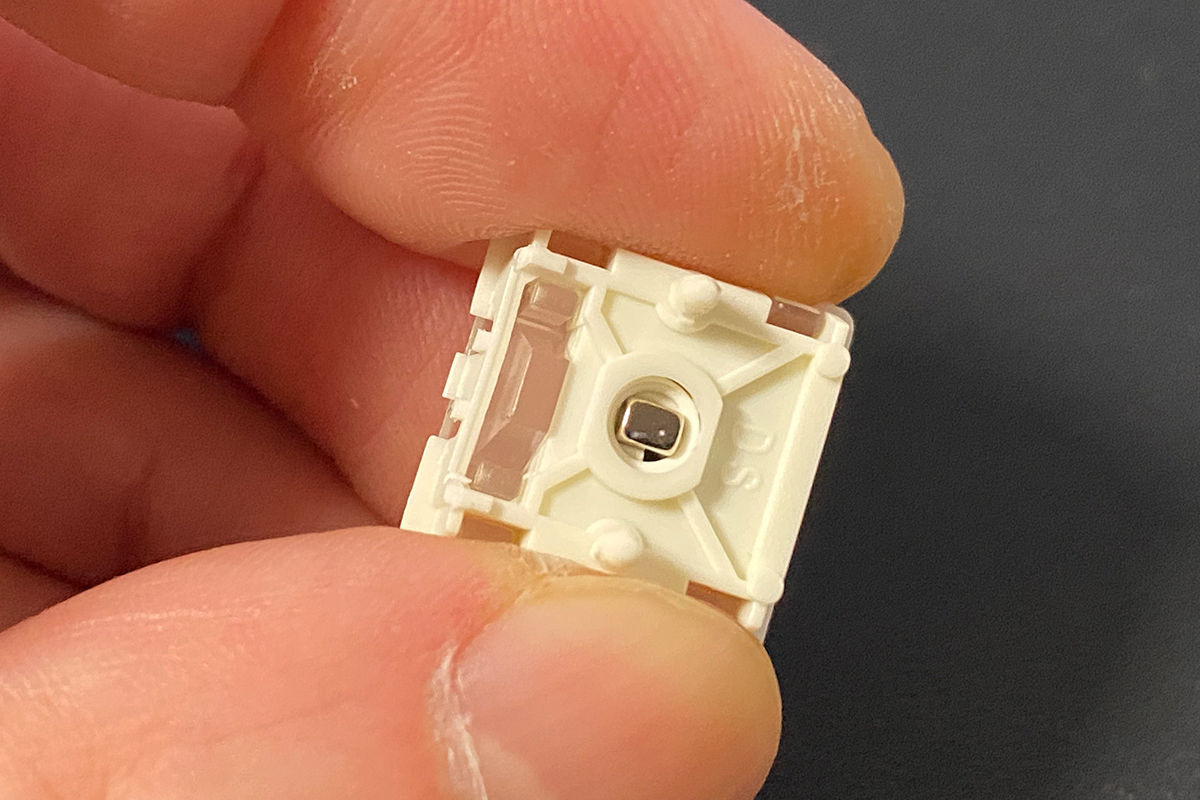
Reliability of magnetic switches – Magnetic switches don’t use physical metal contacts to register key presses. Instead, they rely on a Hall effect sensor that detects changes in the magnetic field. With no mechanical contacts to wear out, these switches are generally considered more durable and long-lasting than traditional mechanical switches.
Smoothness of magnetic switches – Without metal contacts, magnetic switches provide a more consistent and fluid key travel compared to traditional mechanical switches. Before trying the YUNZII RT80 with Gateron White Hall switches, I considered this advantage somewhat subjective. Now, I can confidently say that these magnetic switches feel significantly better than most mechanical switches in terms of smoothness, quietness, and overall typing experience.
Another notable advantage of magnetic keyboards is the high polling rate of 8,000 Hz in wired mode. At this rate, the keyboard sends data to the PC every 0.125 ms, which is eight times faster than a standard 1,000 Hz keyboard. The YUNZII RT80 operates at this 8,000 Hz polling rate when wired. In wireless modes (RF and Bluetooth), the polling rate drops to the standard 1,000 Hz.
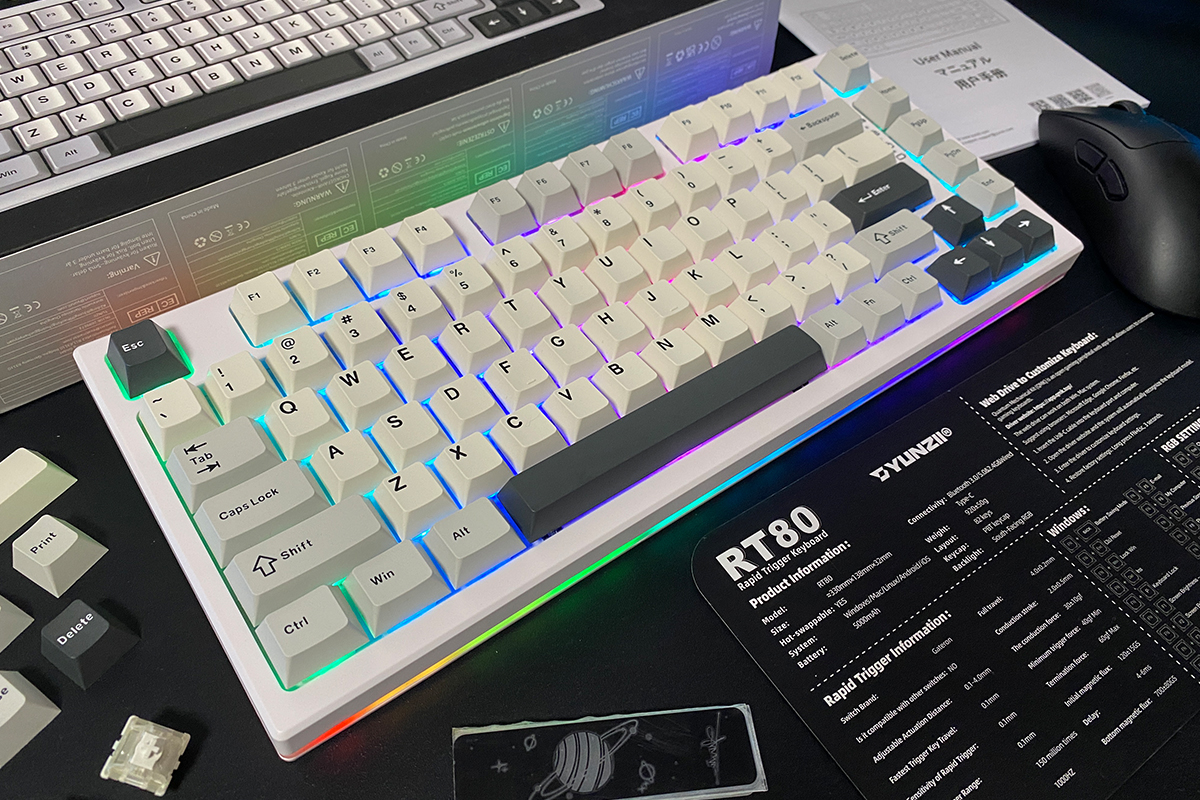
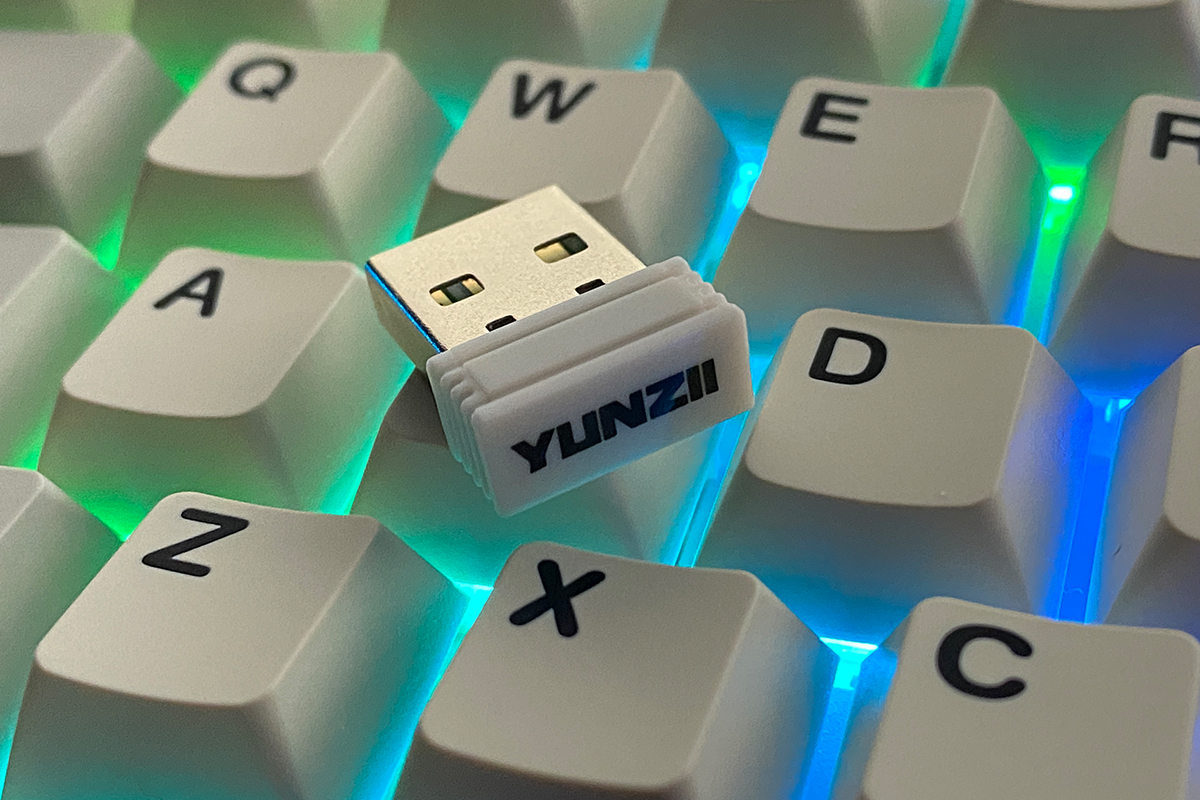
The fact that the RT80 combines its magnetic switch features with wireless connectivity is another major plus. Many magnetic keyboards are wired only, but here you get the best of both worlds – high-speed 8,000 Hz wired performance for gaming and convenient wireless operation with the ability to connect multiple devices simultaneously.
Read also:
- Review of YUNZII RT75 – Mechanical Keyboard with Magnetic Switches
- YUNZII B75 PRO Review: Wireless Mechanical Keyboard
Proprietary application
The keyboard can be configured using the official Windows/Mac app or the online QMK web app. First, we’ll look at the desktop application, then the QMK web app. Both can be accessed from the official YUNZII website, which also provides a link to the web app.
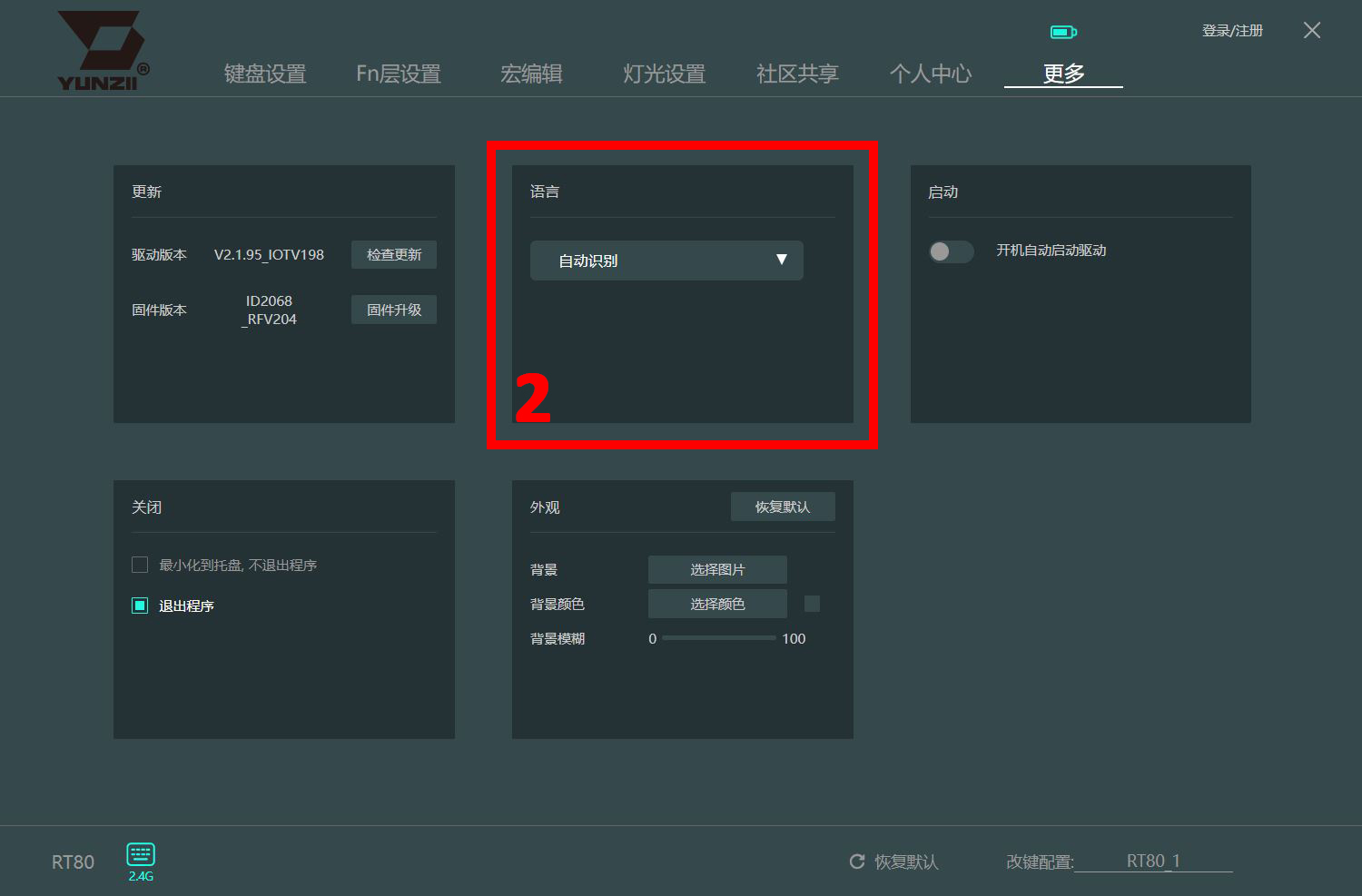
When you launch the program for the first time, it reads the current keyboard settings. Notably, it’s not necessary to connect the keyboard via cable or switch it to wired mode – you can configure it in RF mode, which is convenient. On my first launch, the software was in Chinese, so I’ve included a visual guide showing how to switch the language to English.
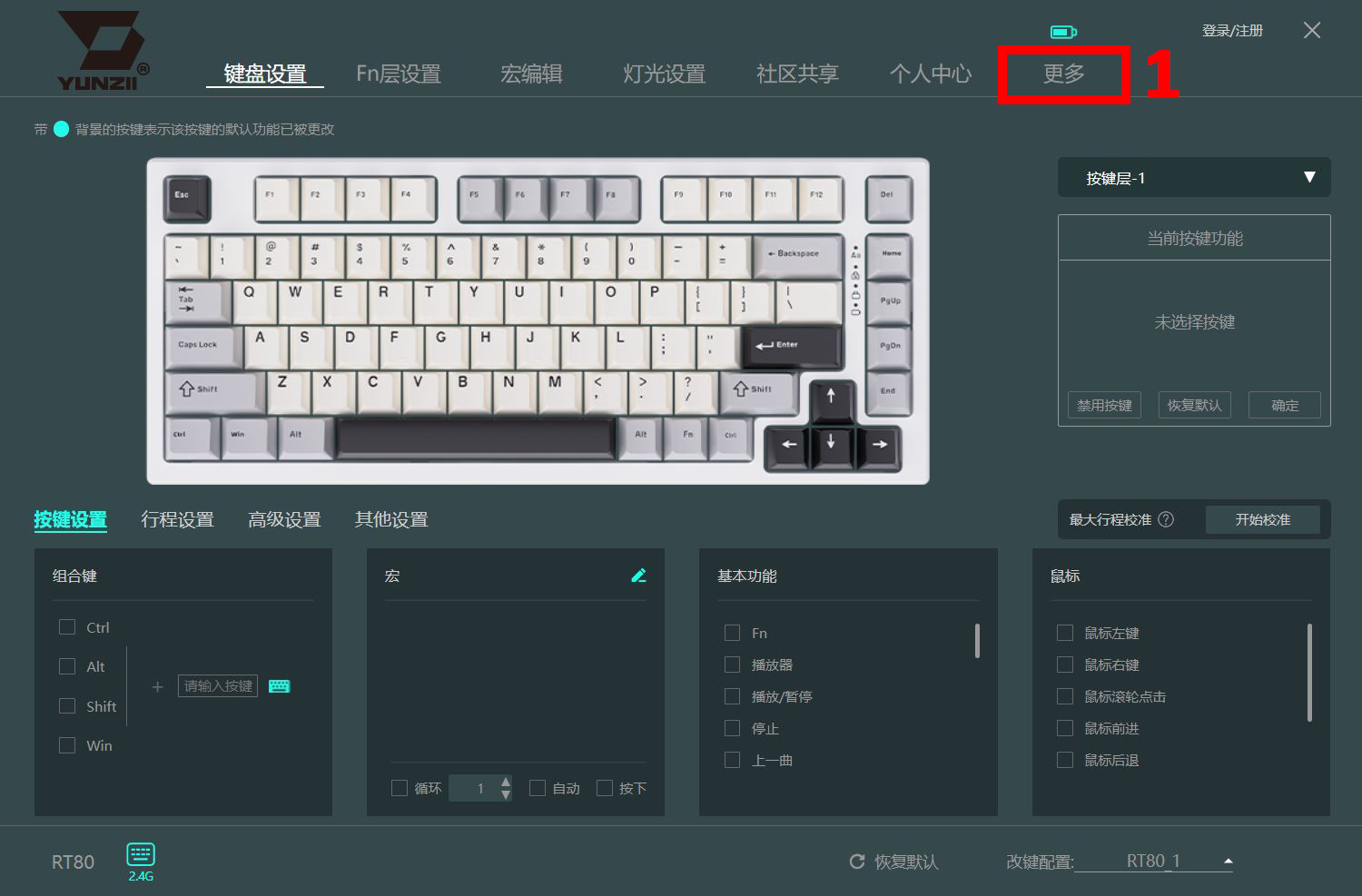
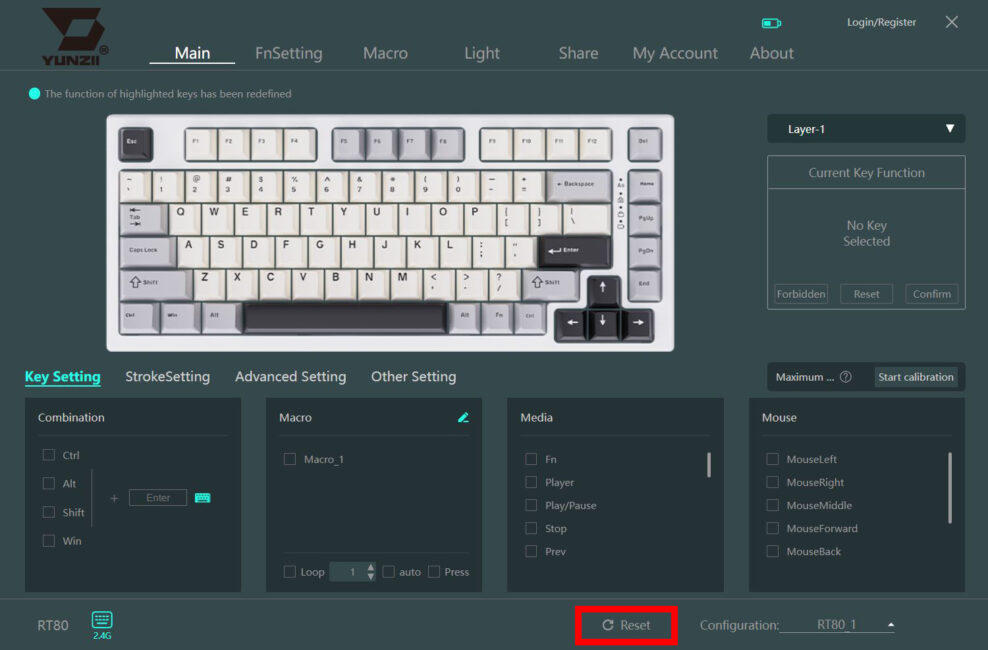
The first screen is the Main menu, which includes standard key settings (Key Setting) and advanced magnetic switch functions (Stroke Setting, Advanced Setting).
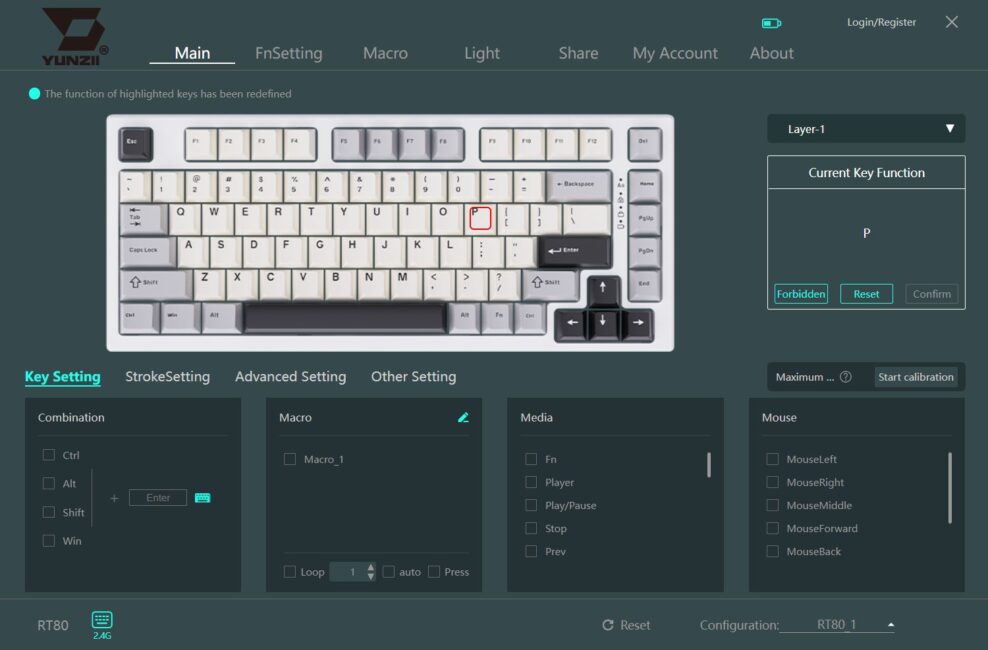
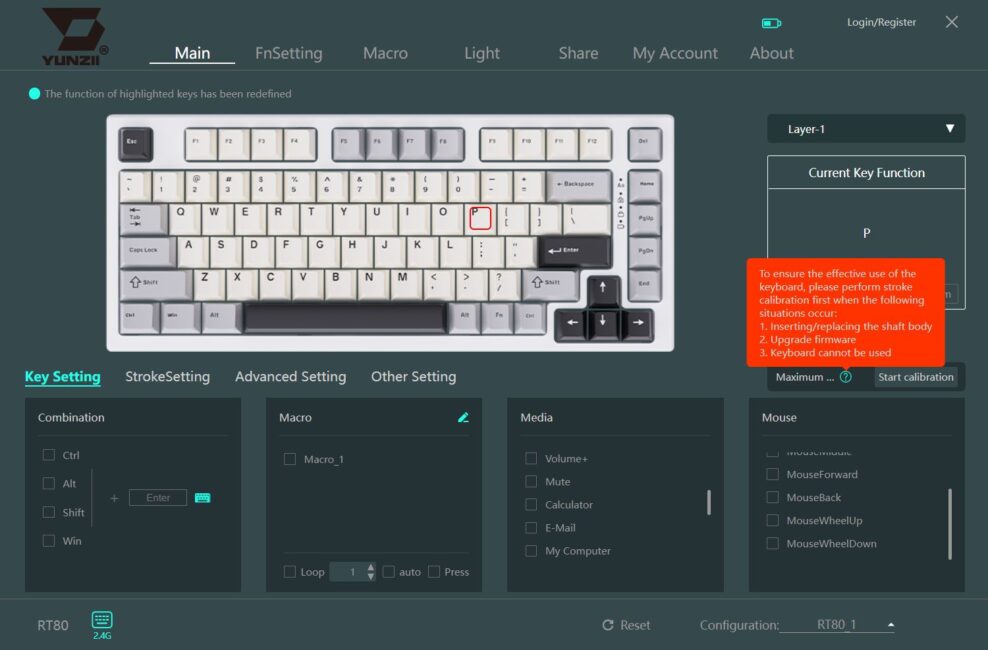
In the Key Setting menu, you can configure key combinations, assign macros, and set multimedia functions. The layout at the top allows you to disable or remap individual keys and edit keyboard layers. You can also calibrate the keyboard here, which is useful after a firmware update or if any issues arise.
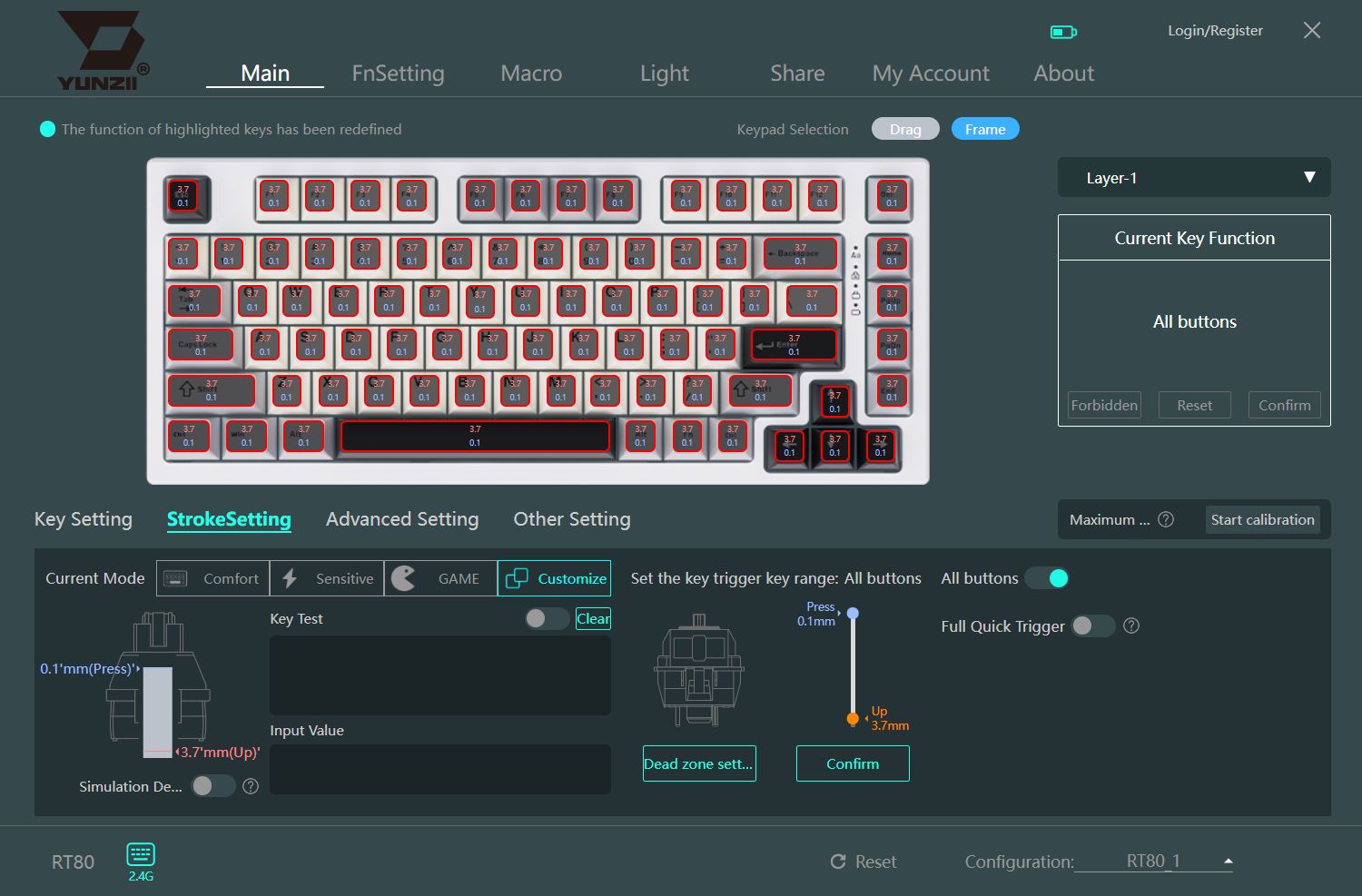
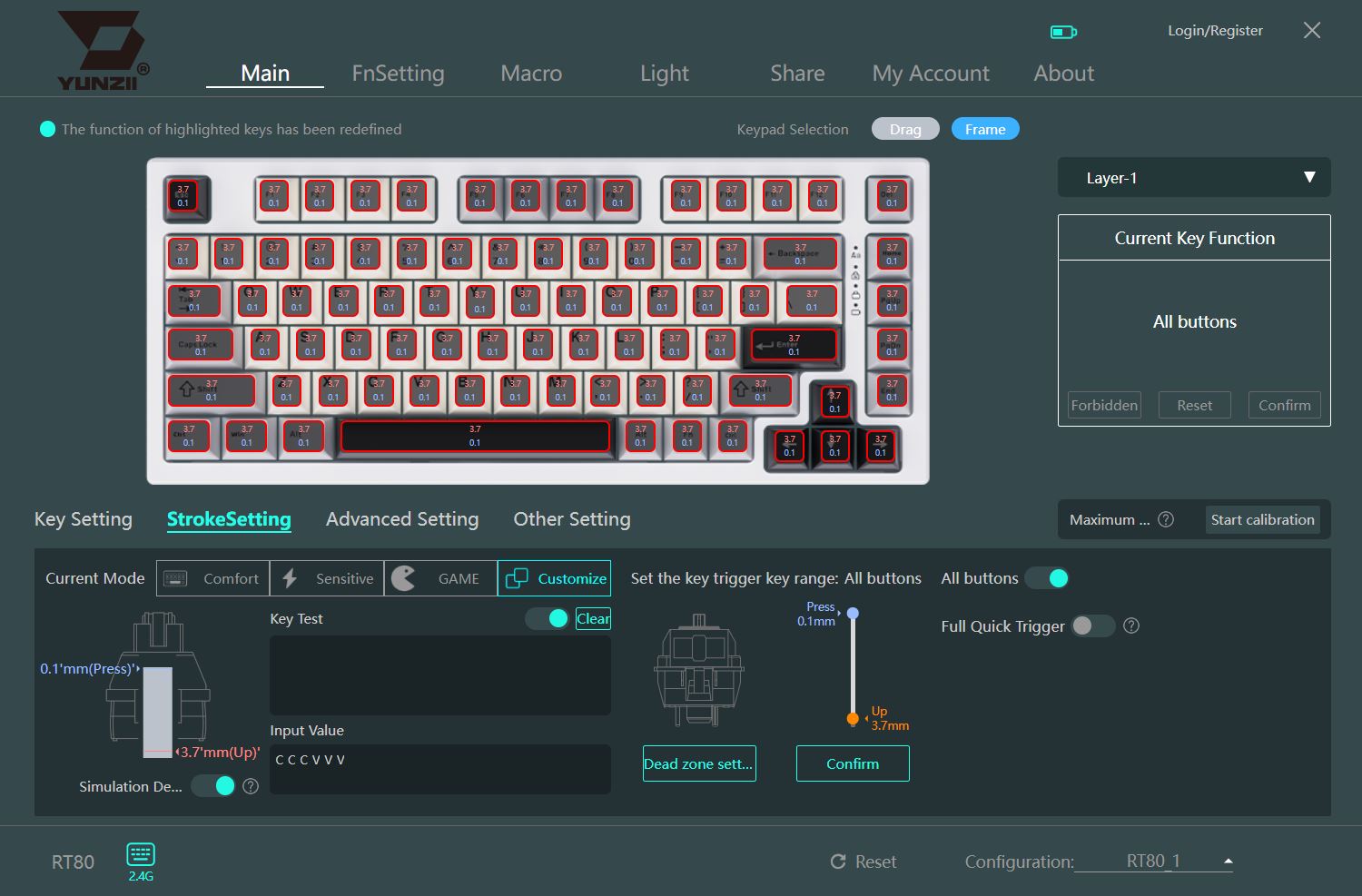
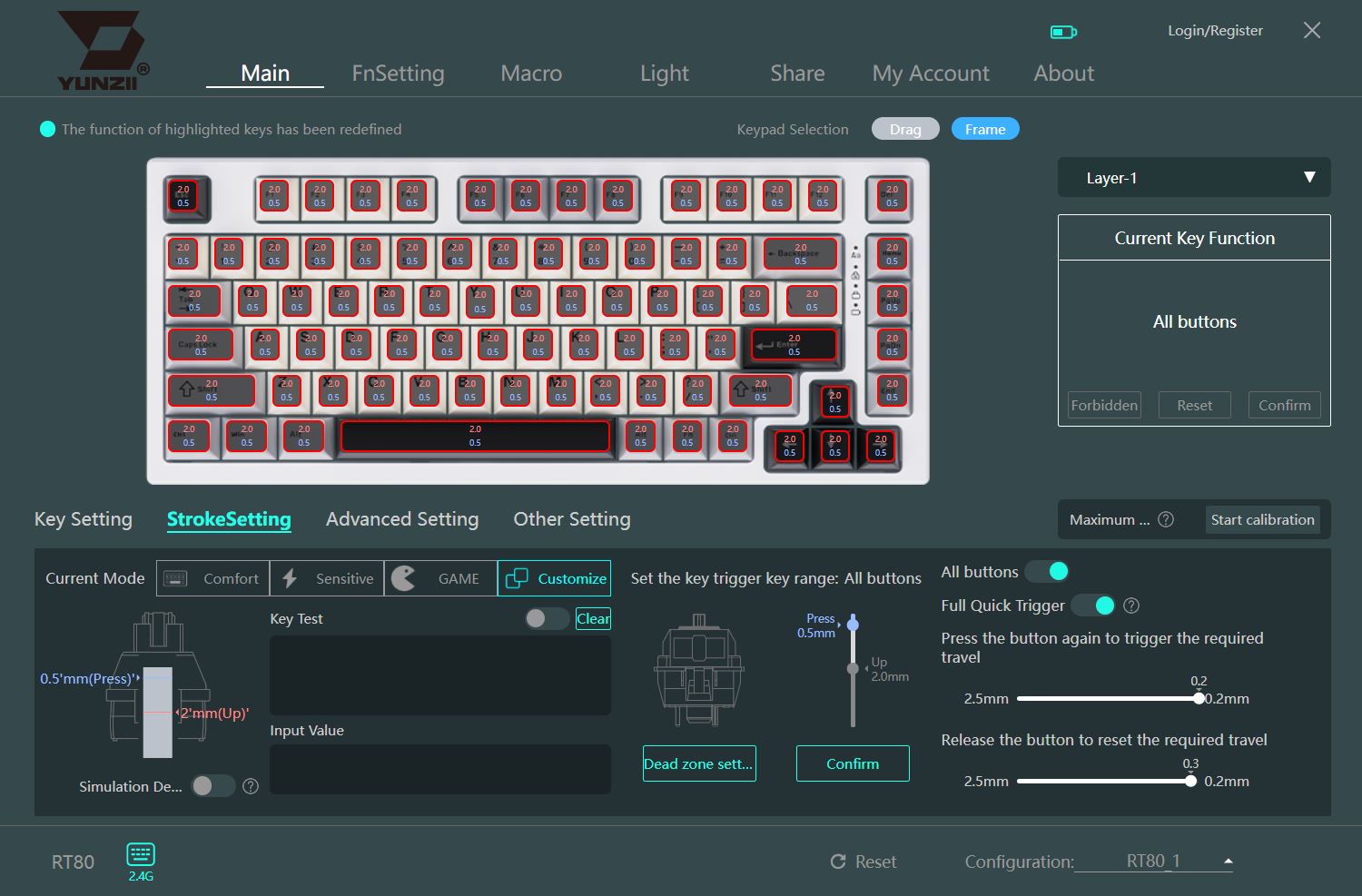
In the Stroke Setting menu, you can adjust the switches’ actuation points and test them immediately, set dead zones, and enable the Full Quick Trigger function. The keyboard and app allow you to configure all keys at once or customize each key individually.

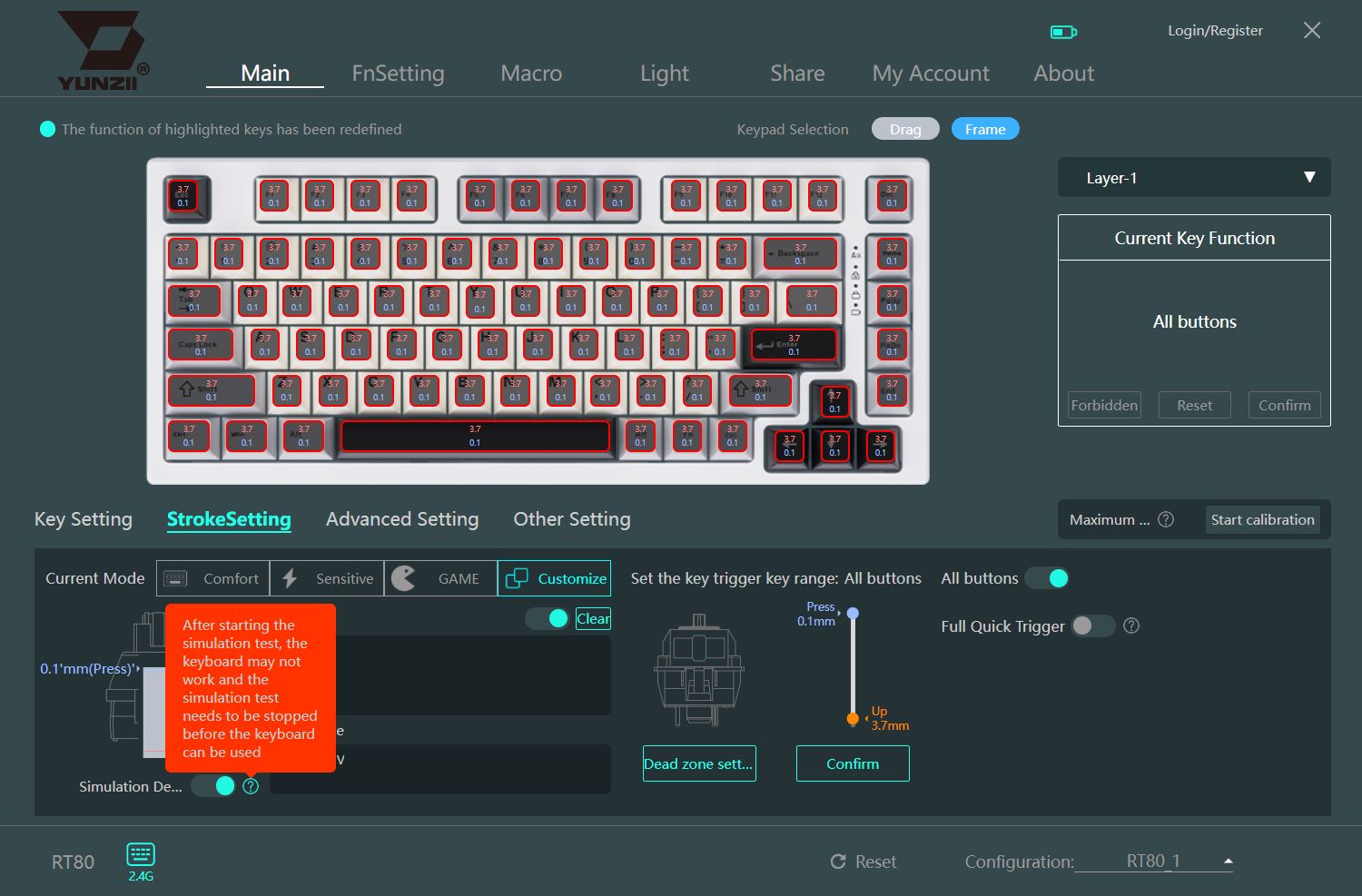
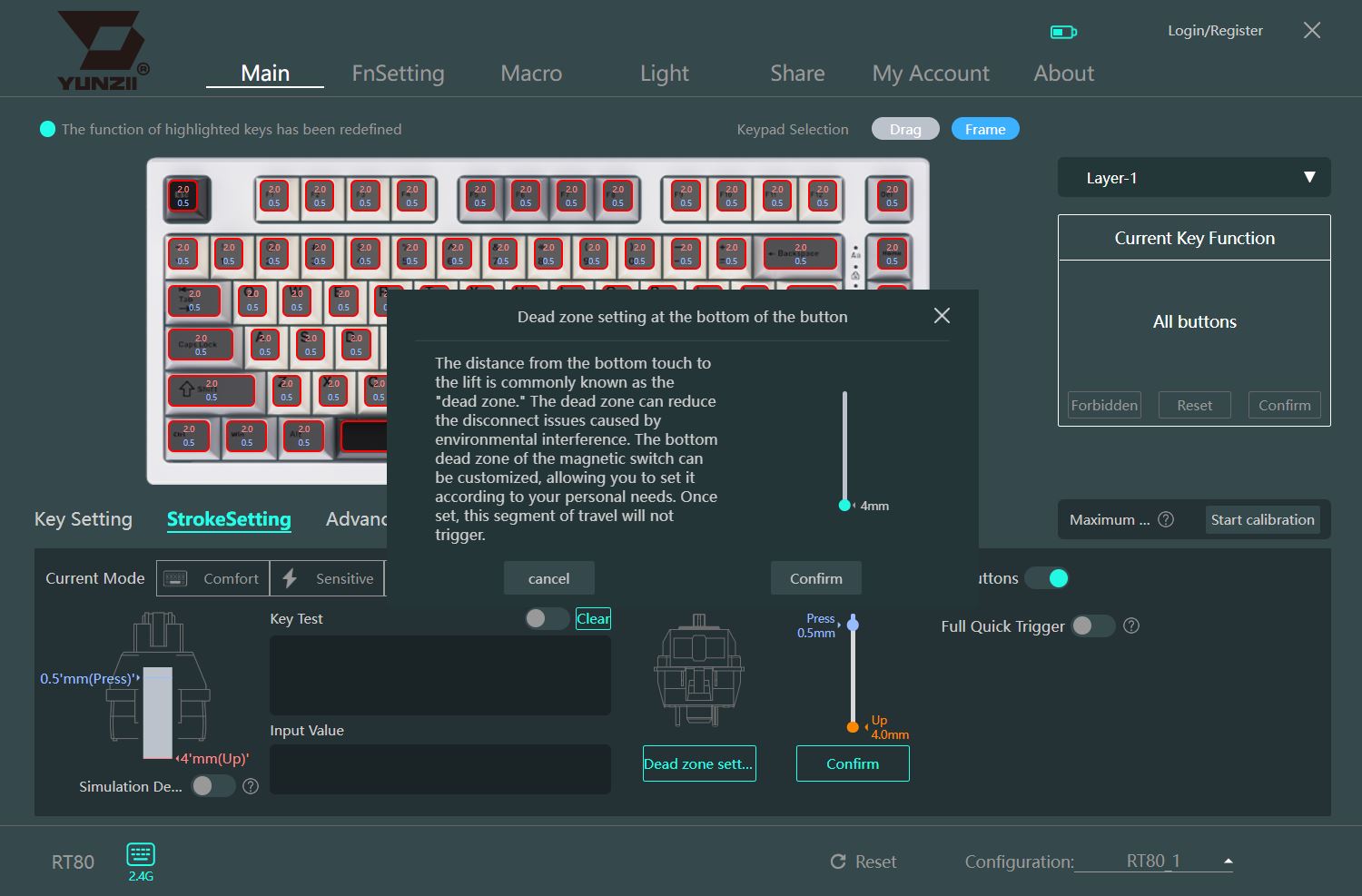
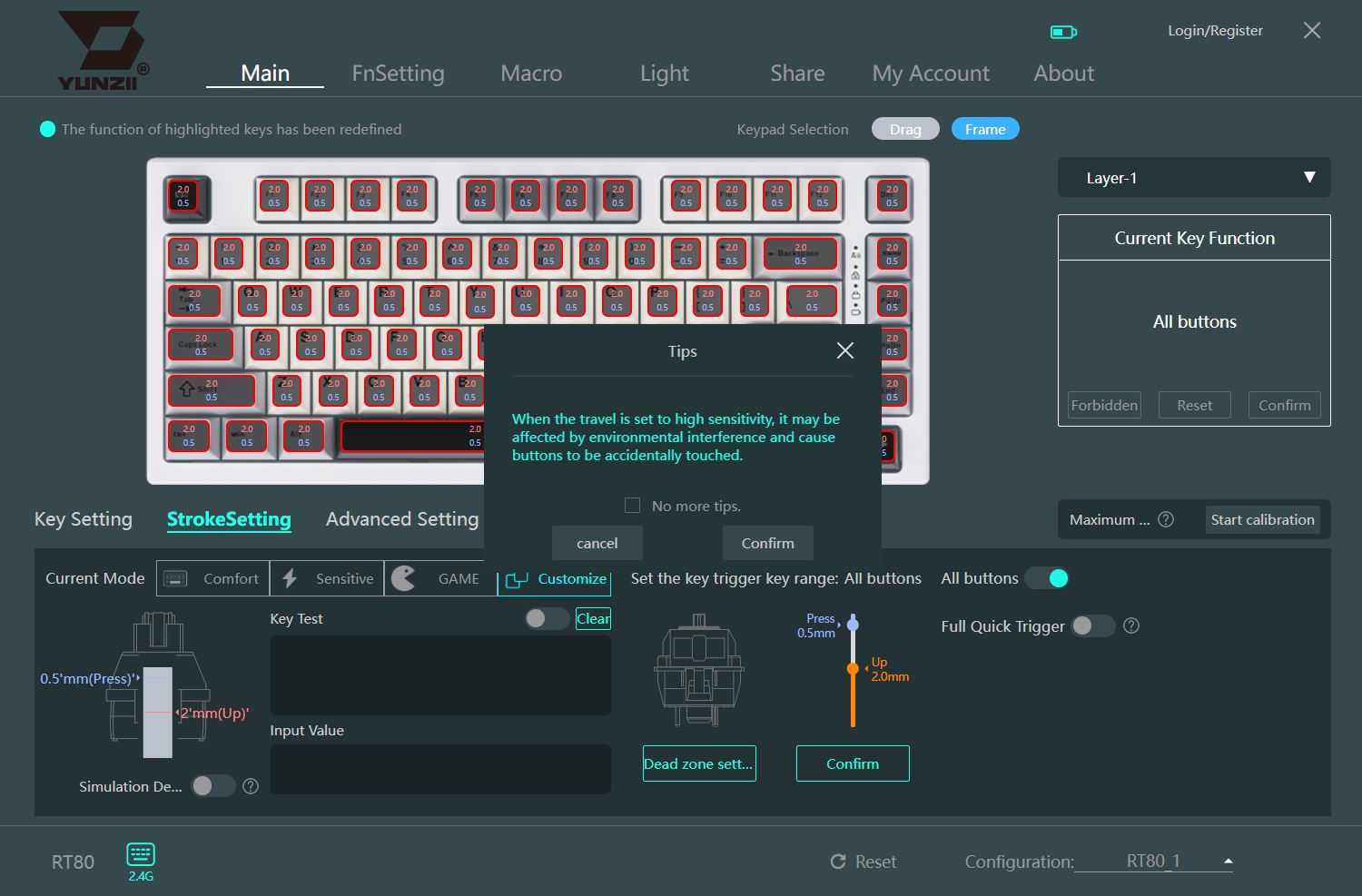
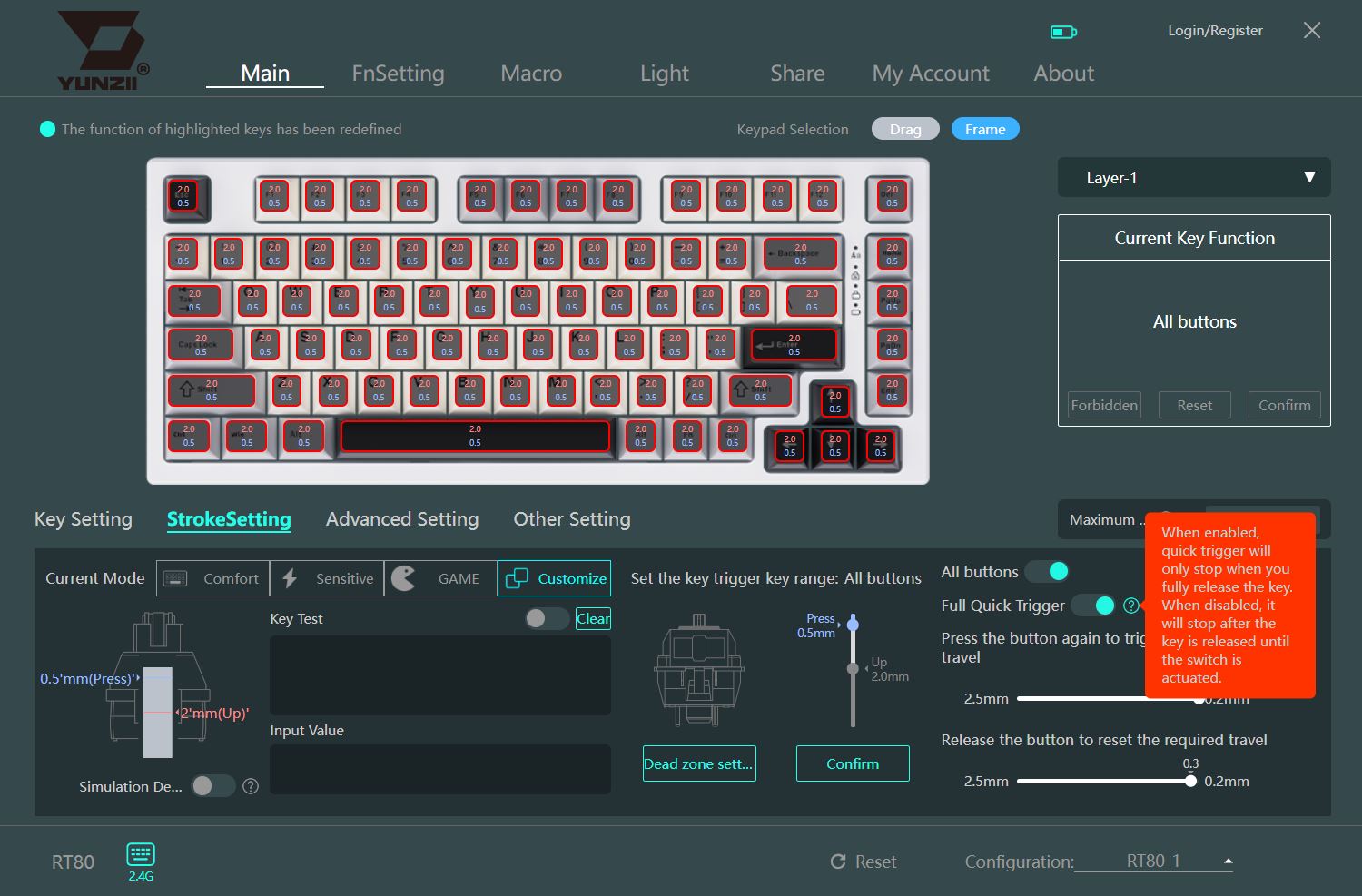
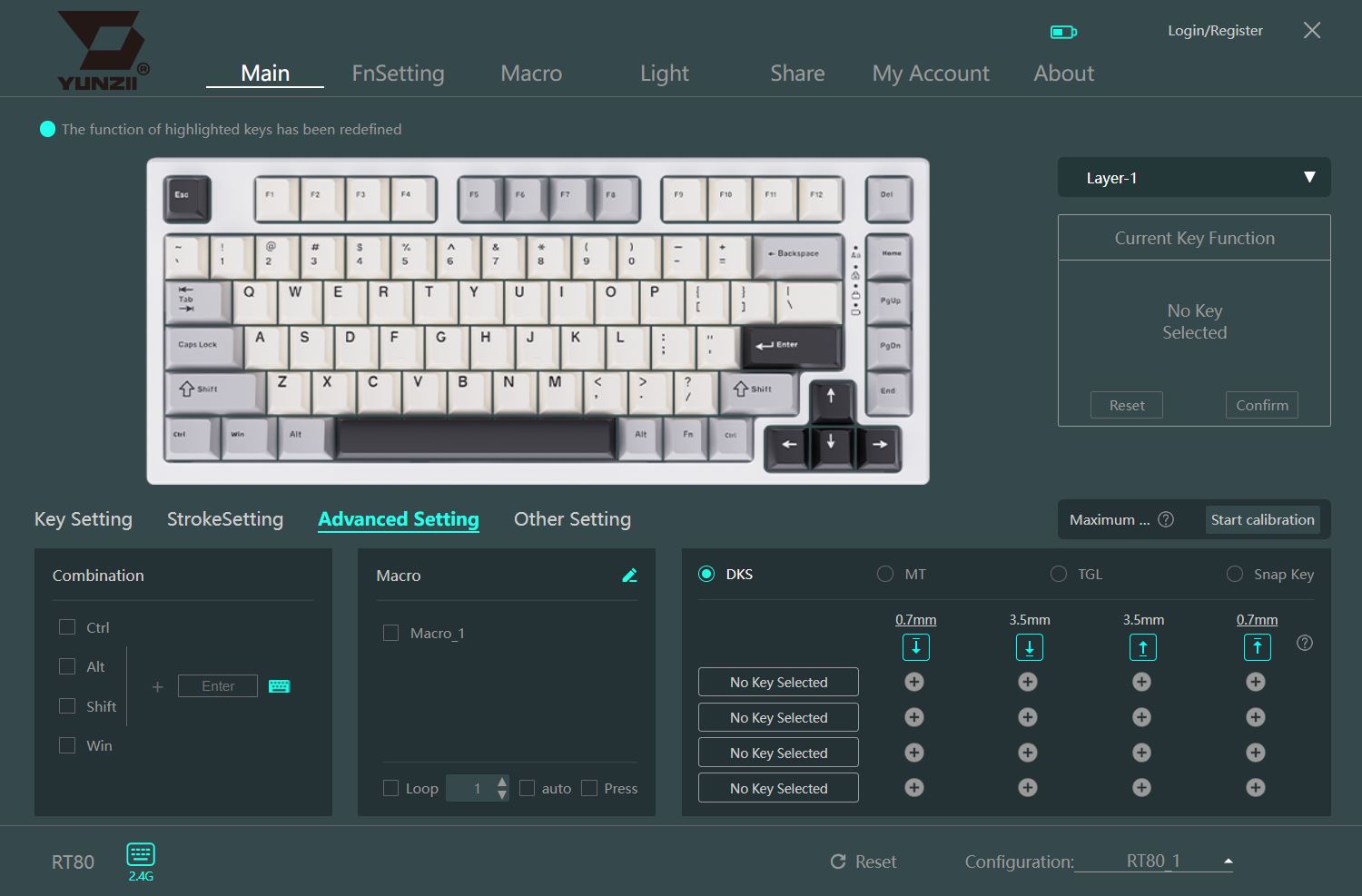
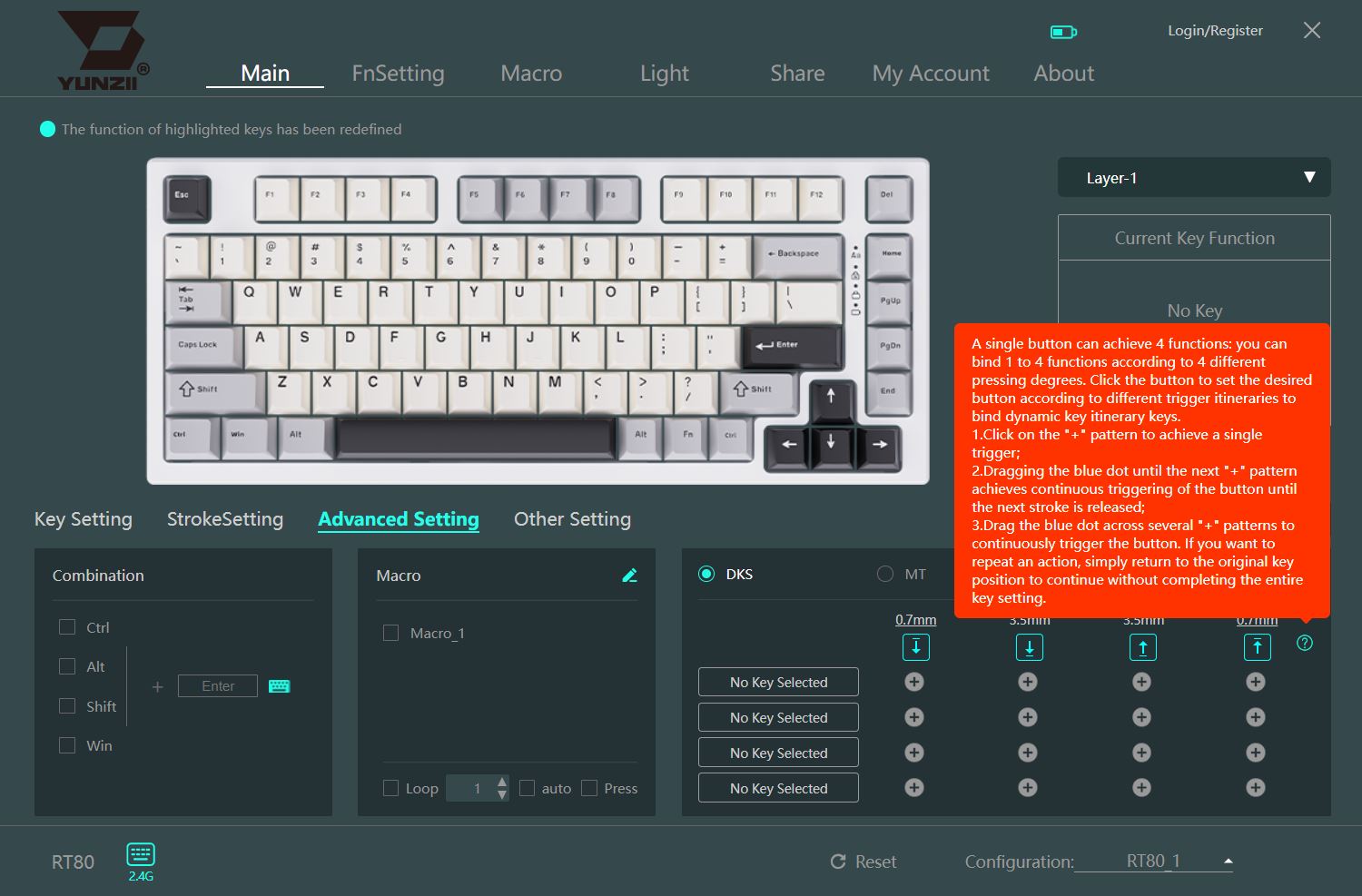
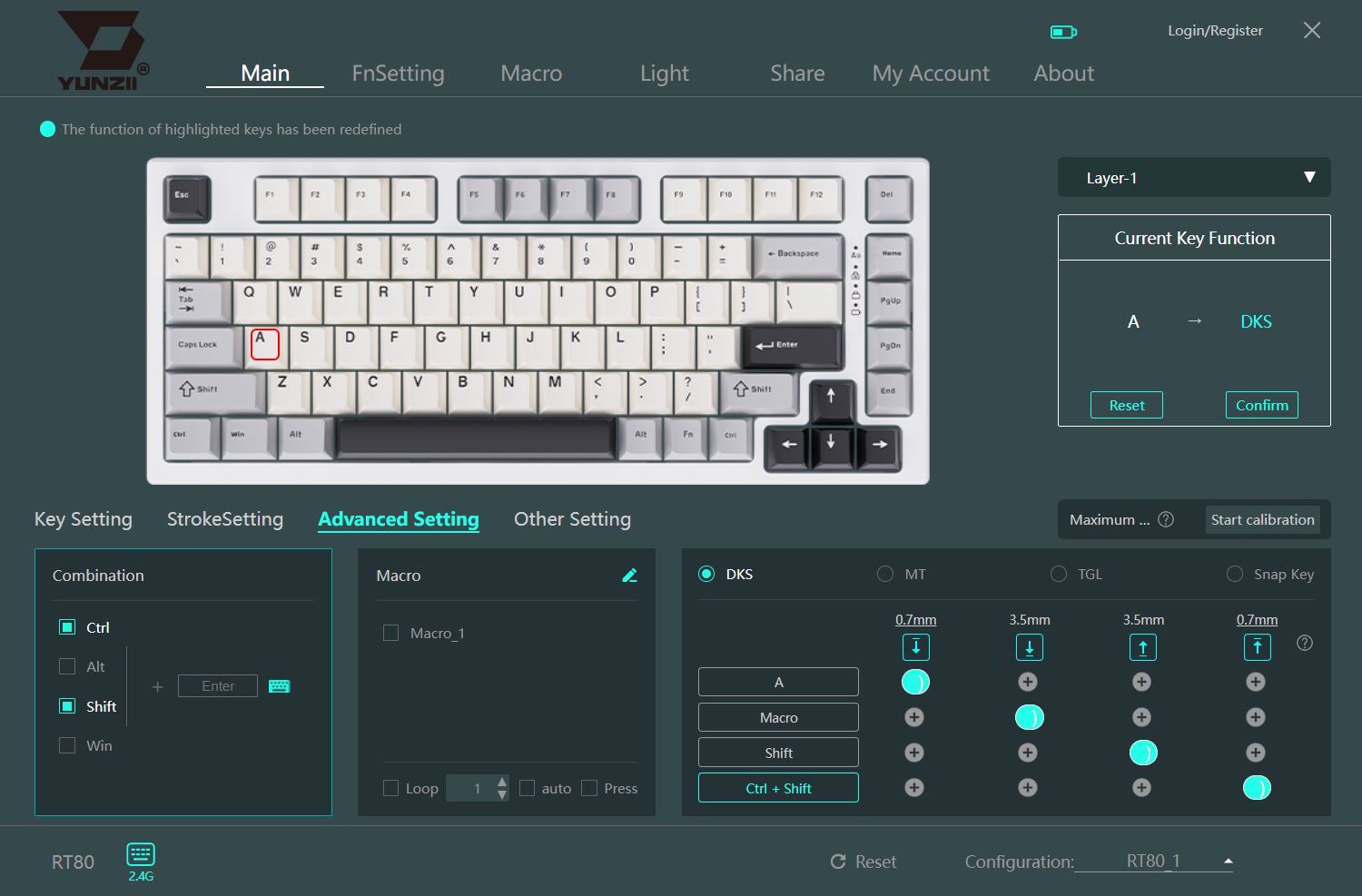
The Advanced Setting menu lets you configure features such as Dynamic Key Travel (DKS or Rapid Trigger), Multi-Tap (MT), Toggle Key (TGL), and Snap Key for instant actuation and reset.
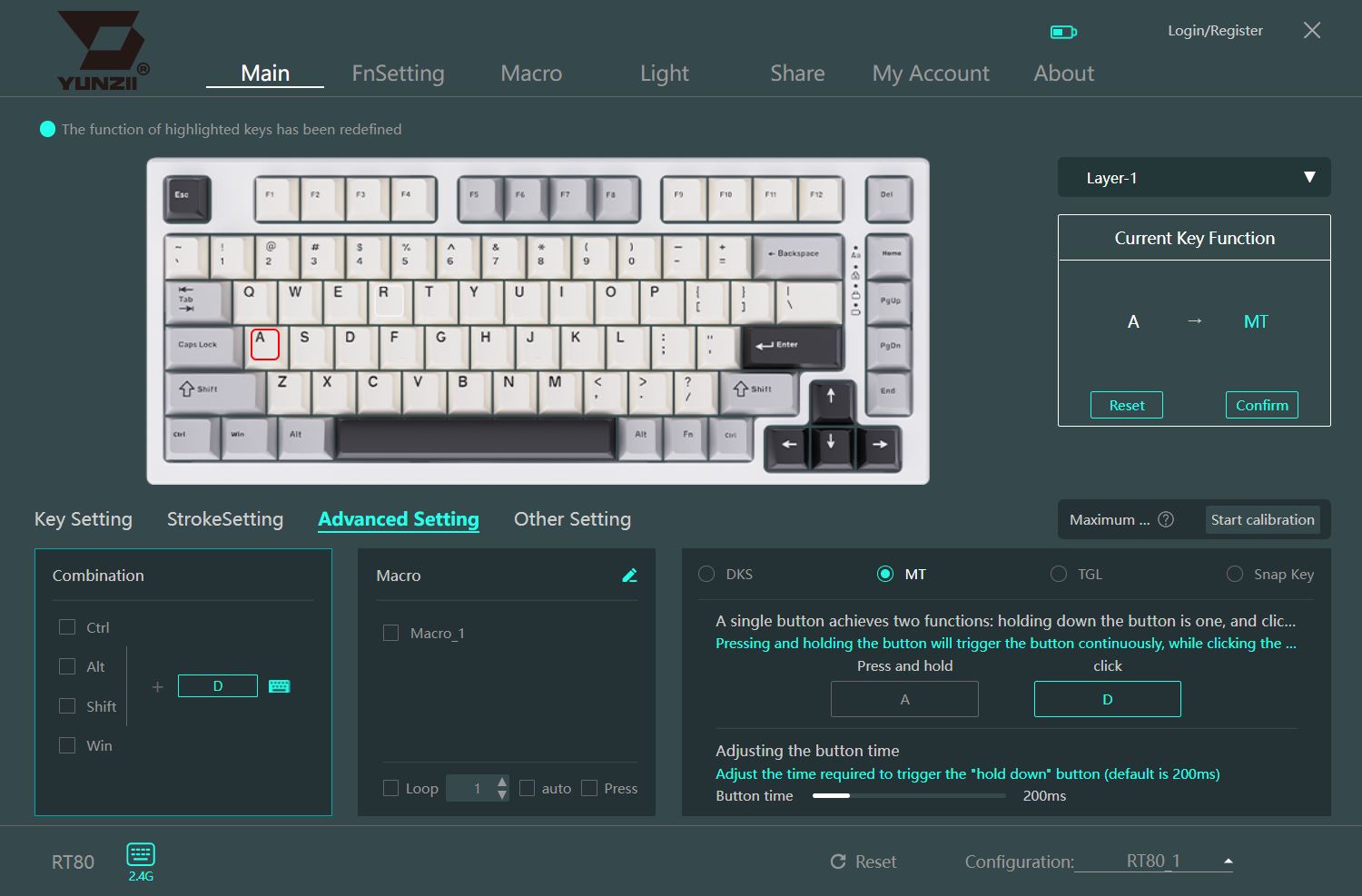
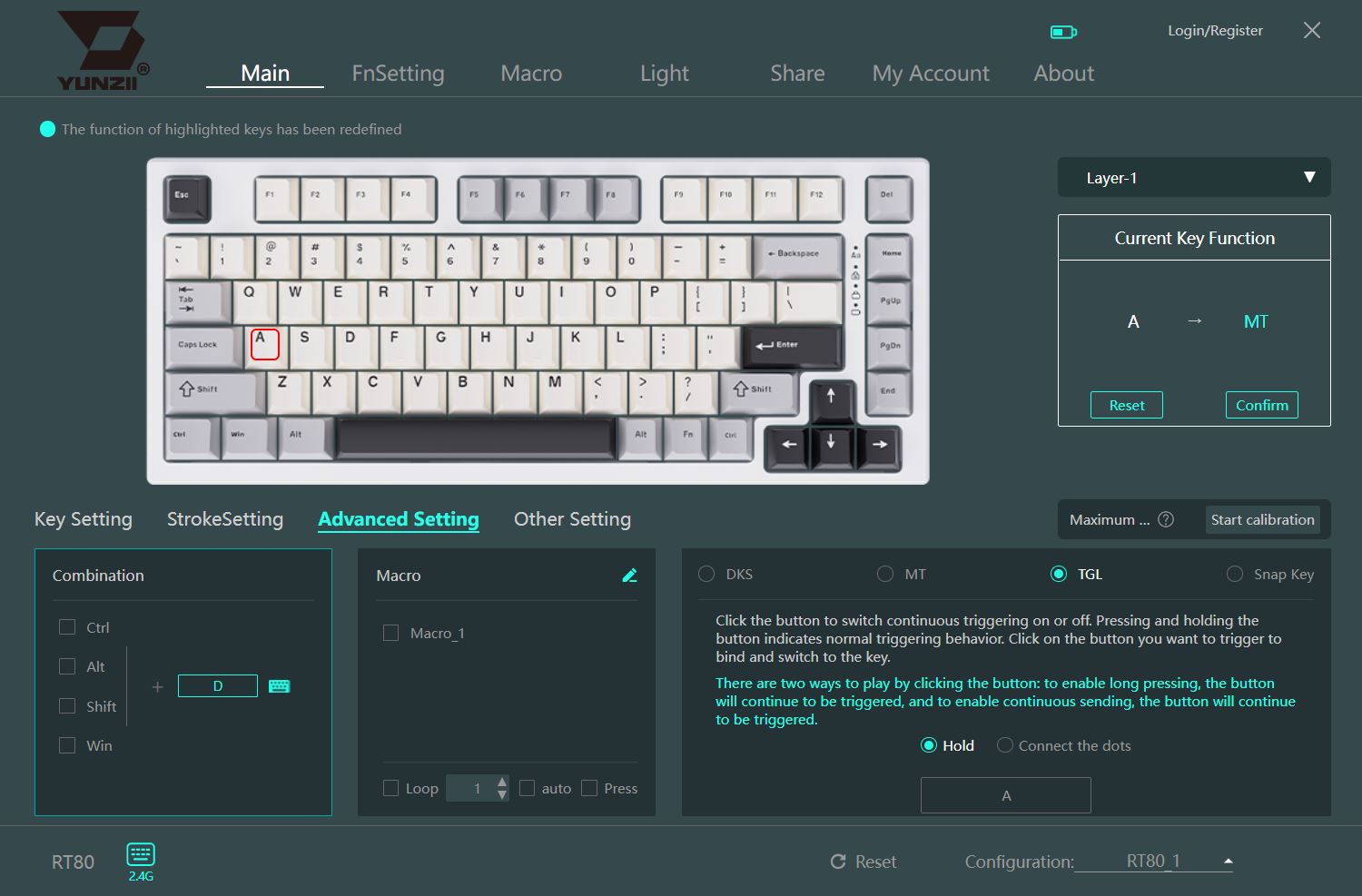

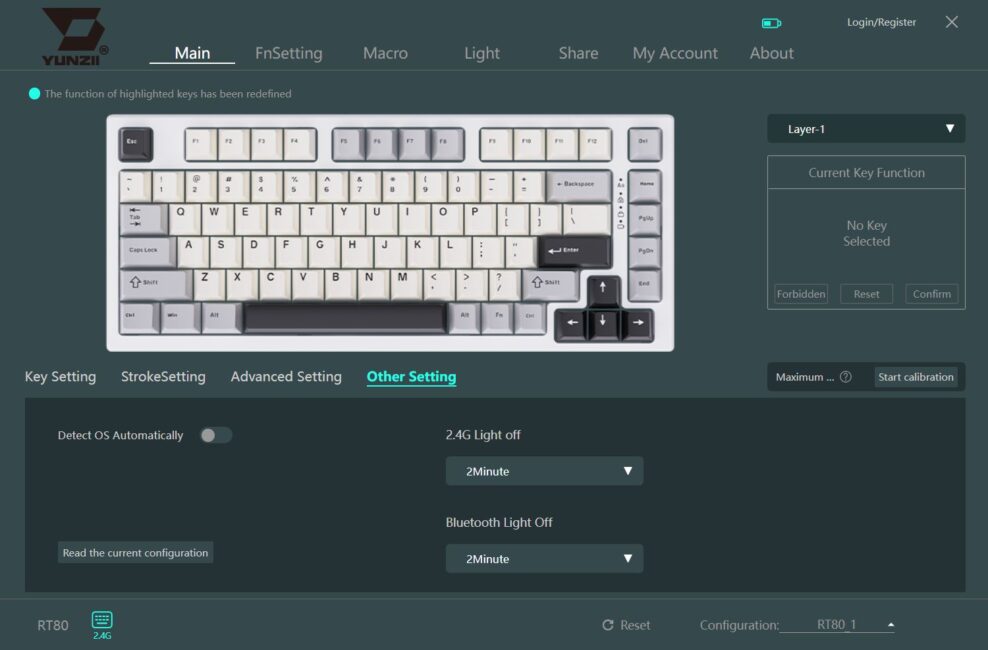
In the Other Setting menu, you can read the current keyboard configuration and set the backlight timeout separately for RF and Bluetooth connections. You can also enable automatic operating system detection.
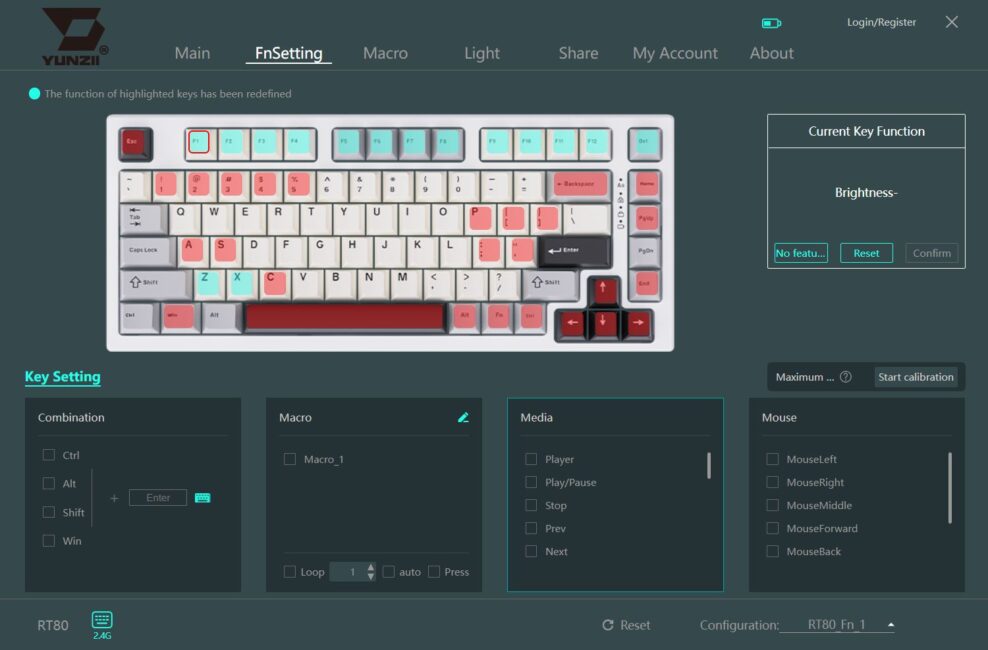
The FnSetting menu allows you to configure FN+ key functions and combinations. On the layout at the top, the keys are color-coded: red for system keys that cannot be changed, green for active keys that can be reassigned, and uncolored keys for free slots where new functions can be assigned.
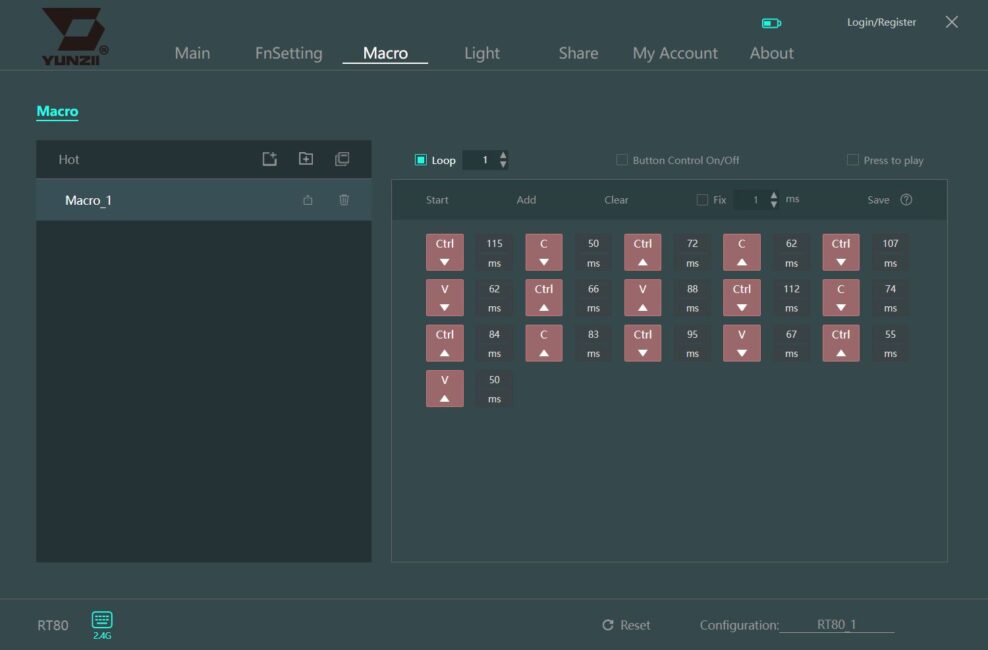
The Macro menu is used to record and edit macros. You can assign custom macros to keys and FN combinations in the previous two menus (Main and FnSetting).
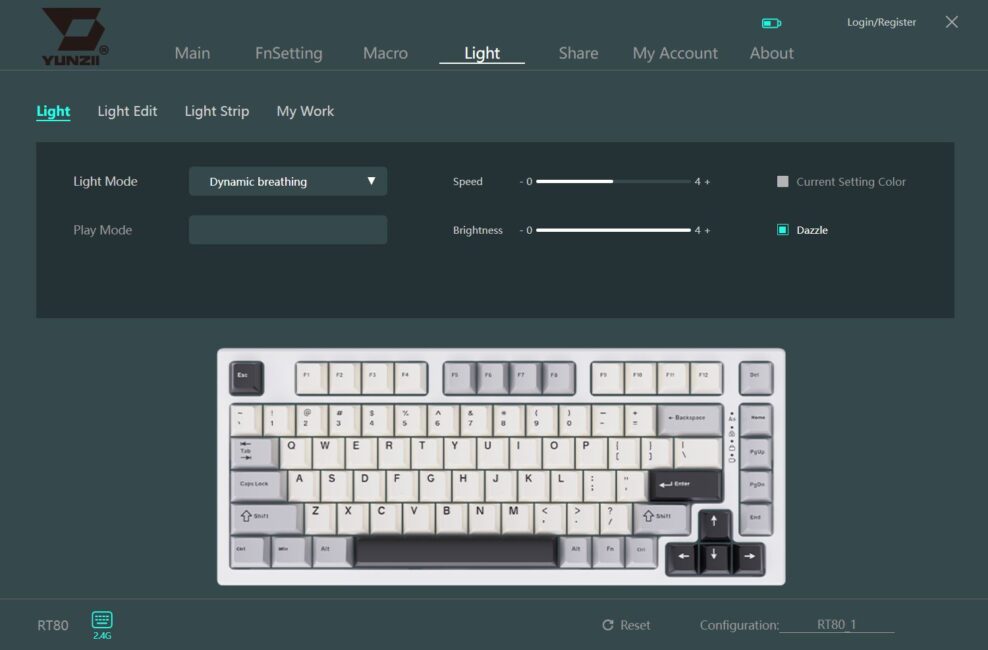
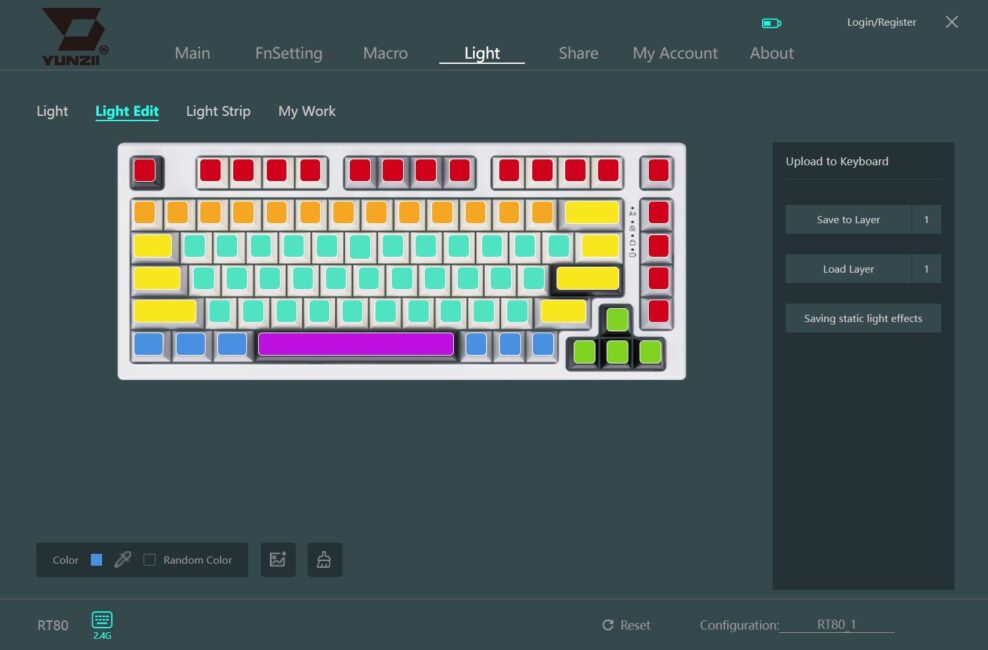
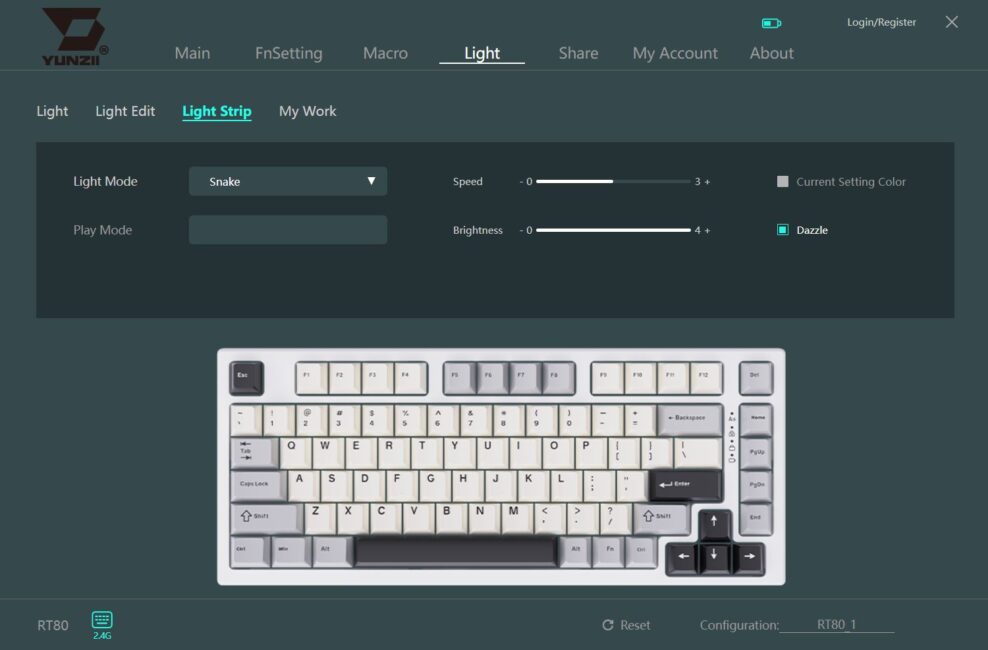
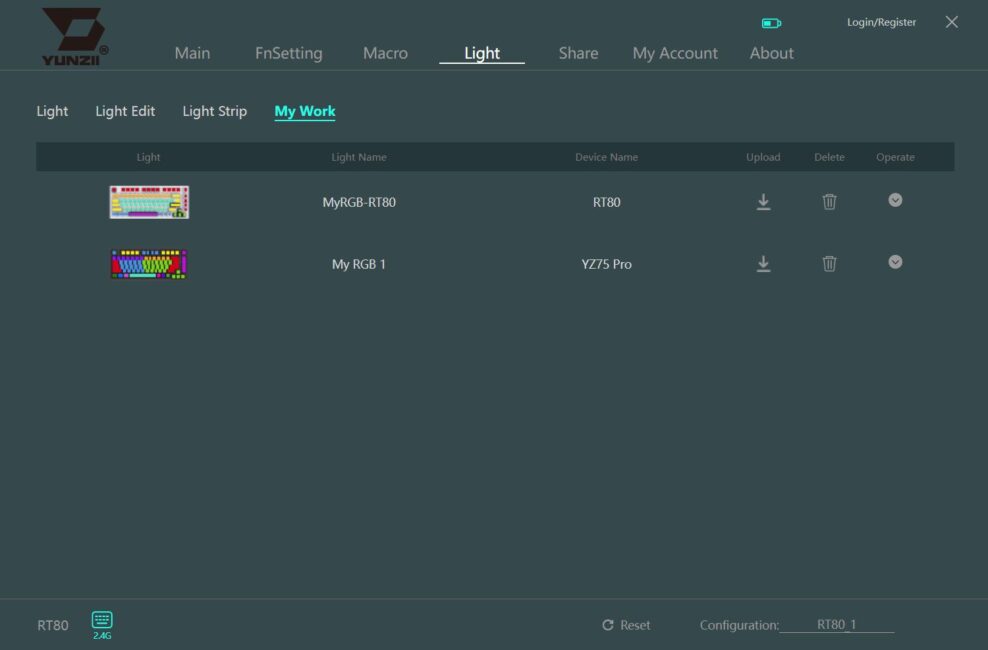
The Light menu lets you configure the keyboard’s backlighting – you can choose a preset effect or create your own static design in the Light Edit tab. Custom lighting setups are saved under the My Work tab. The Light Strip menu is used to configure the backlight strip on the keyboard’s case.
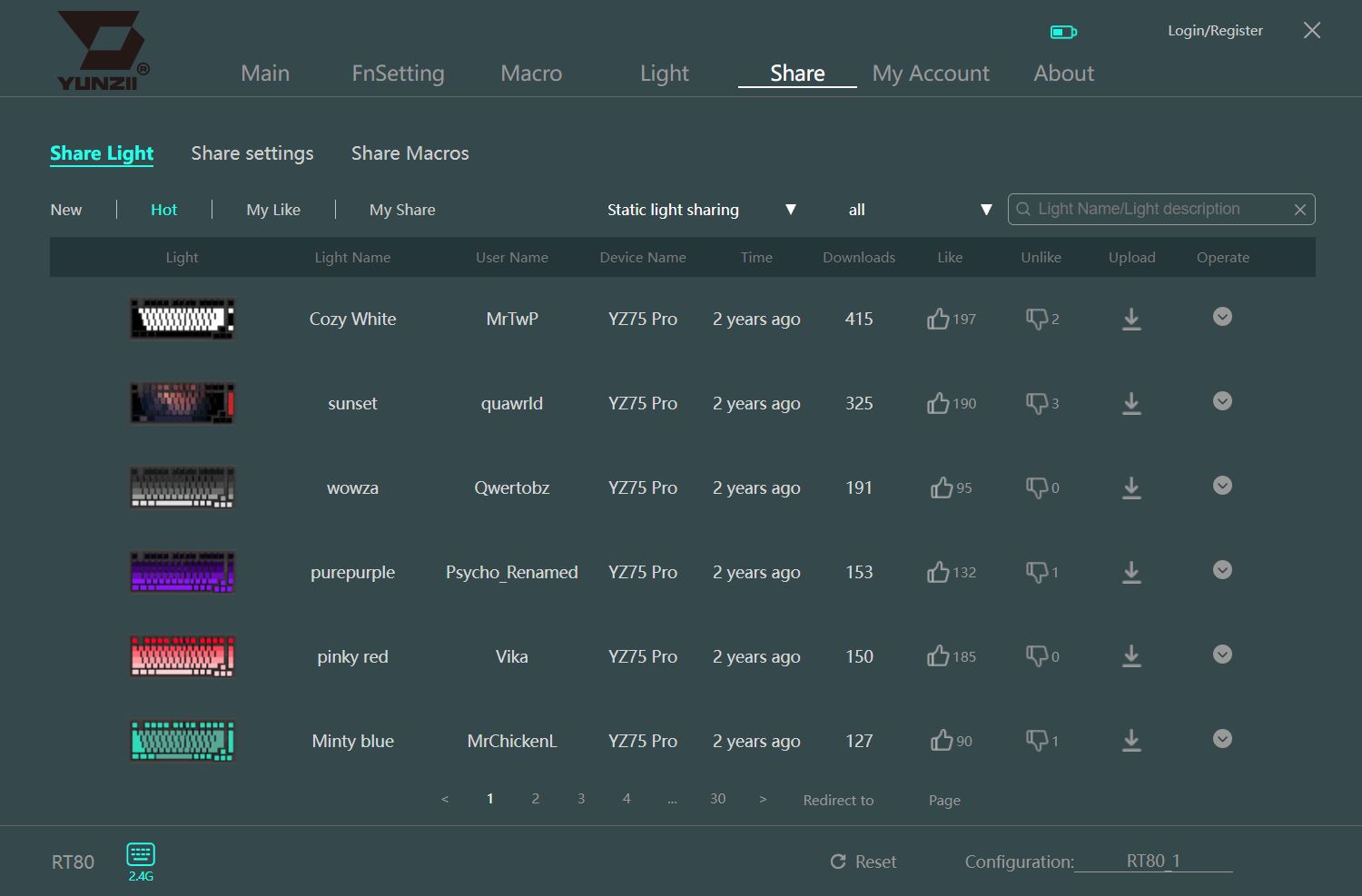
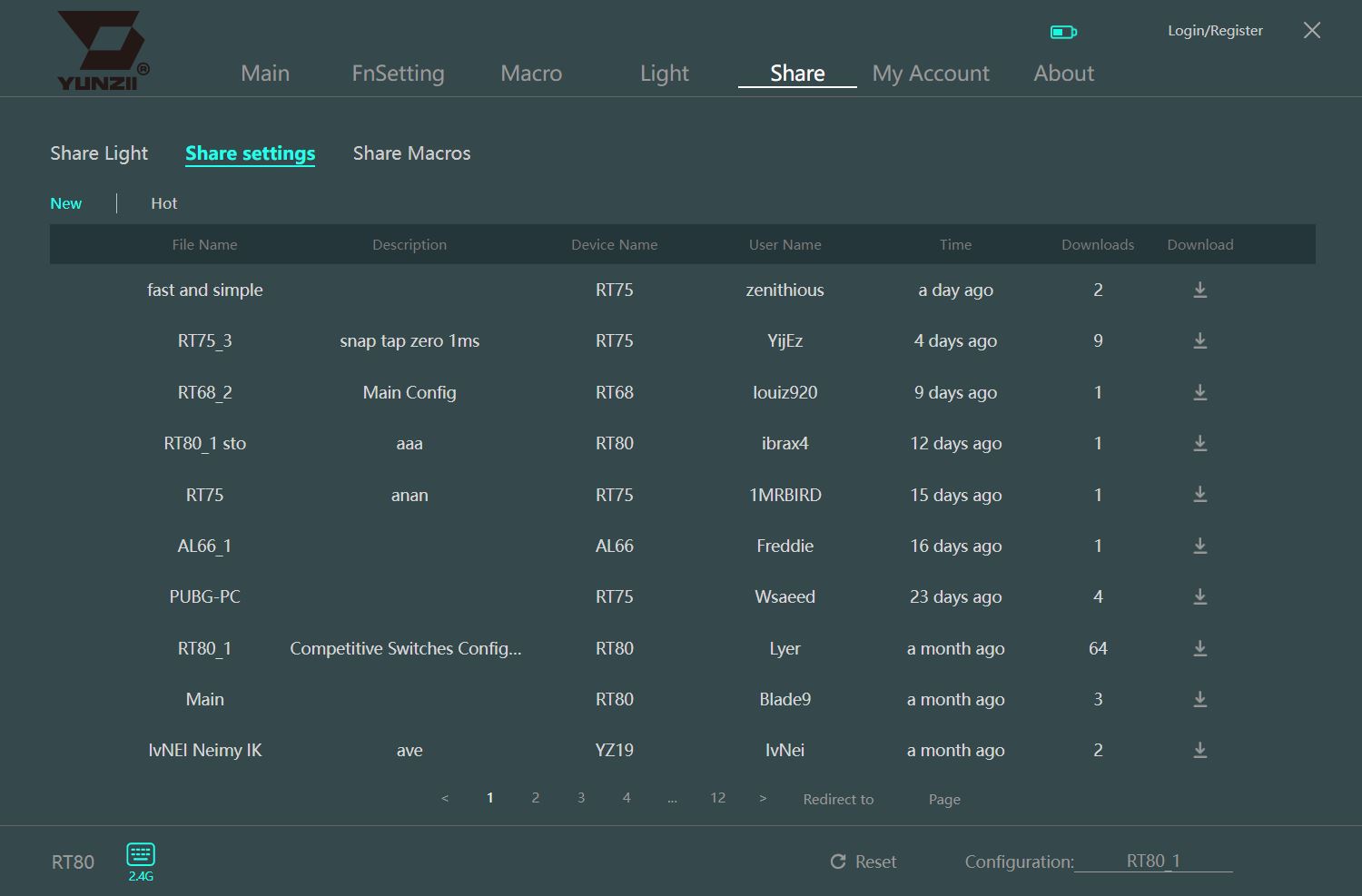
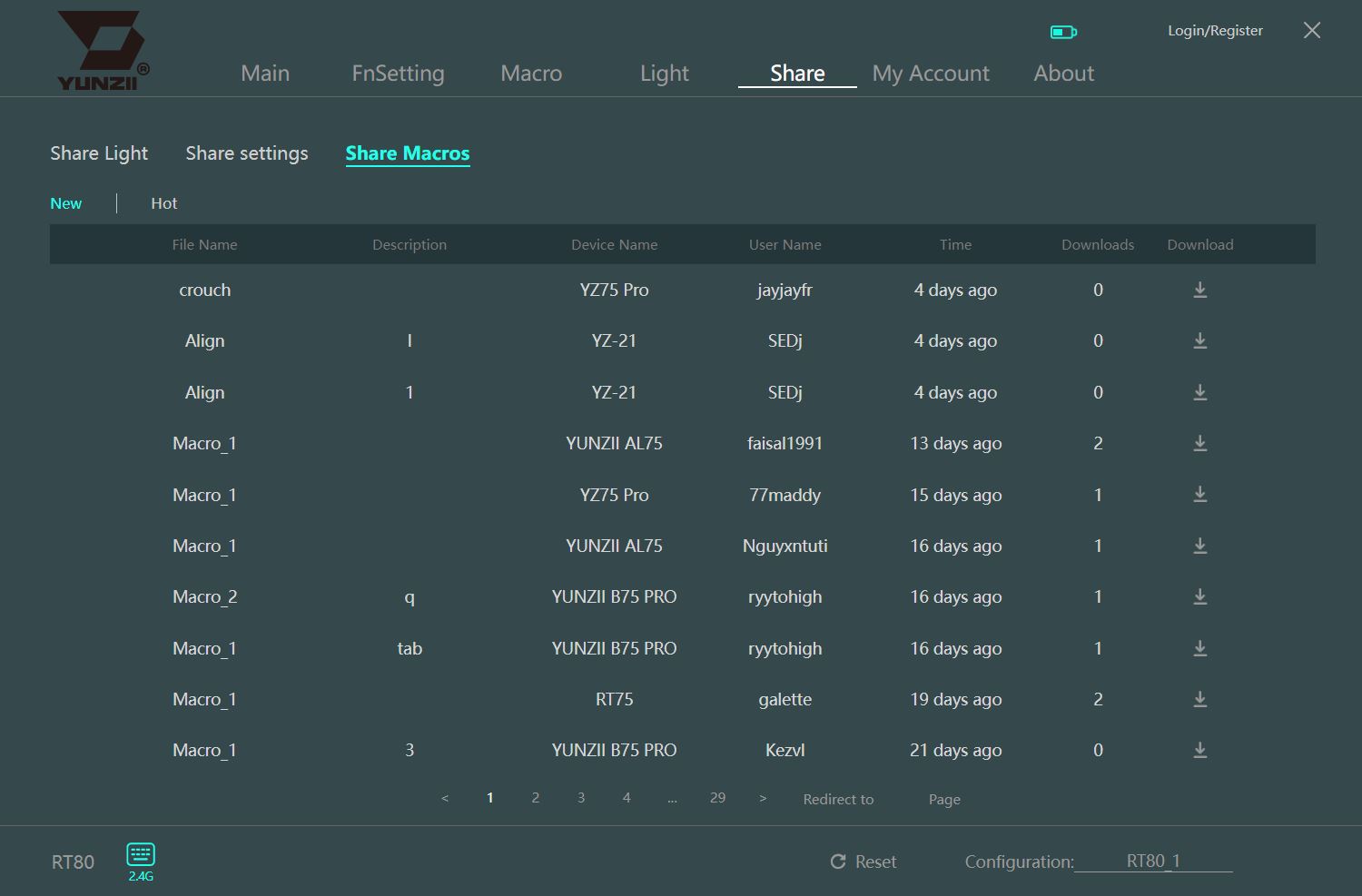
The Share menu lets you download preset lighting effects, custom macros, and keyboard configurations (including switch settings) from other users. You can also share your own lighting setups, macros, and configurations, though this requires creating an account.
The My Account menu allows you to register a new account or log into an existing one.
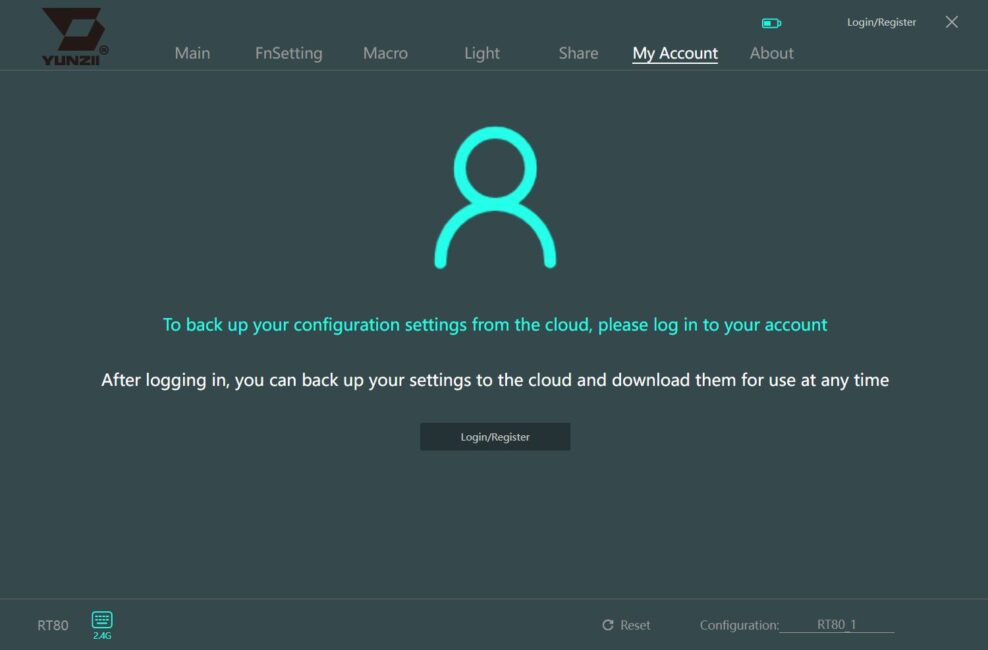
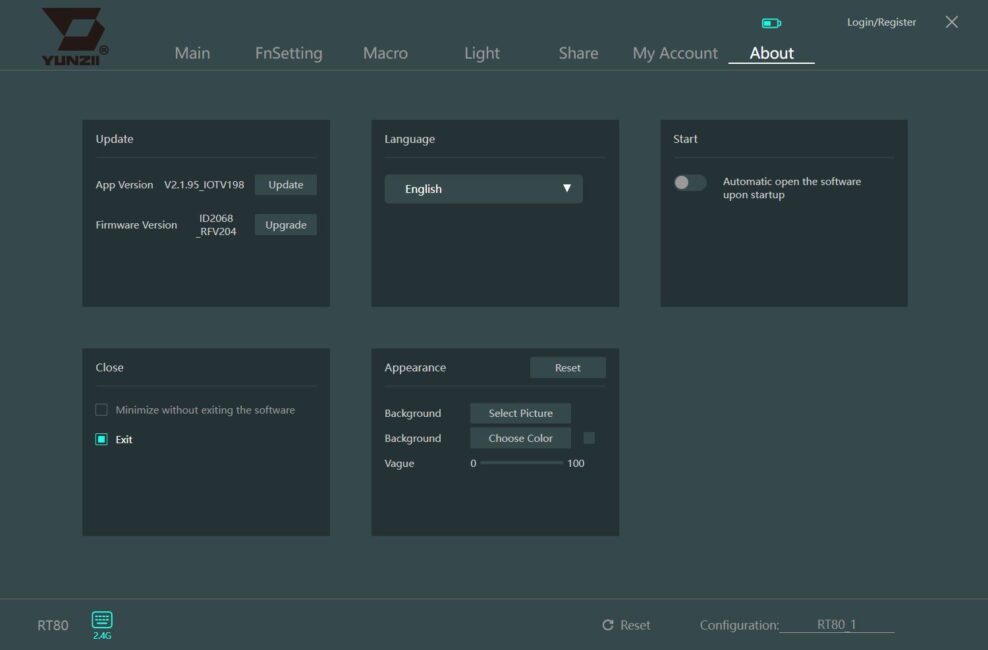
The final menu, About, lets you view and update the keyboard firmware, update the application itself, change the interface language, enable auto-start for the app, and adjust its background.
You can reset the keyboard settings using the Reset button located on the bottom panel of the application.
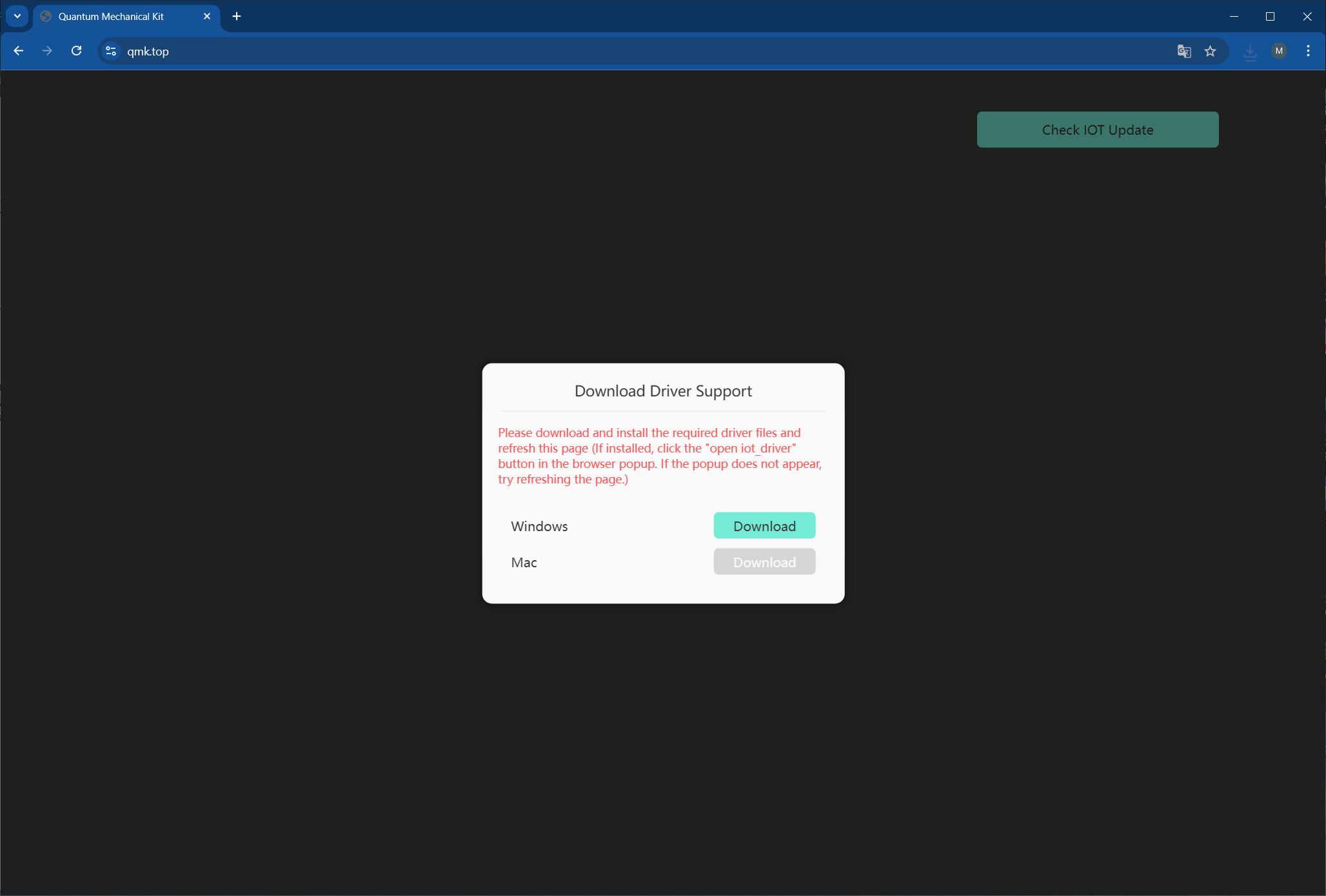
Now let’s look at the QMK web app. To access keyboard settings in a browser, go to qmk.top and download/install the IOT driver. As with the desktop app, it’s not necessary to connect the keyboard via cable or switch to wired mode – all settings can be adjusted in wireless RF mode.
The available settings are identical to those in the Windows app. The difference is that everything is done online in a browser without installing software on your PC. There’s no need to list everything again, so the screenshots below illustrate the interface and options.
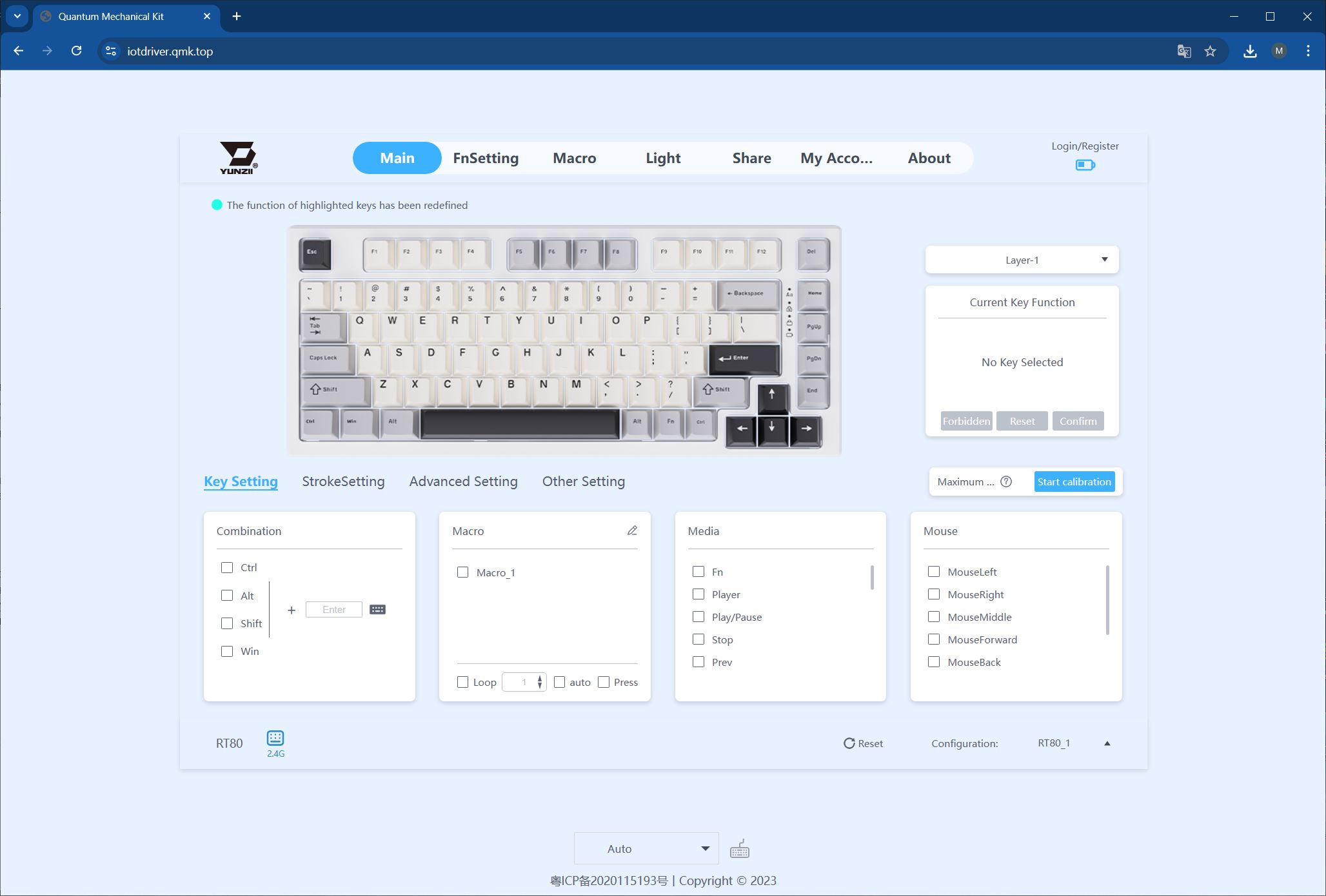
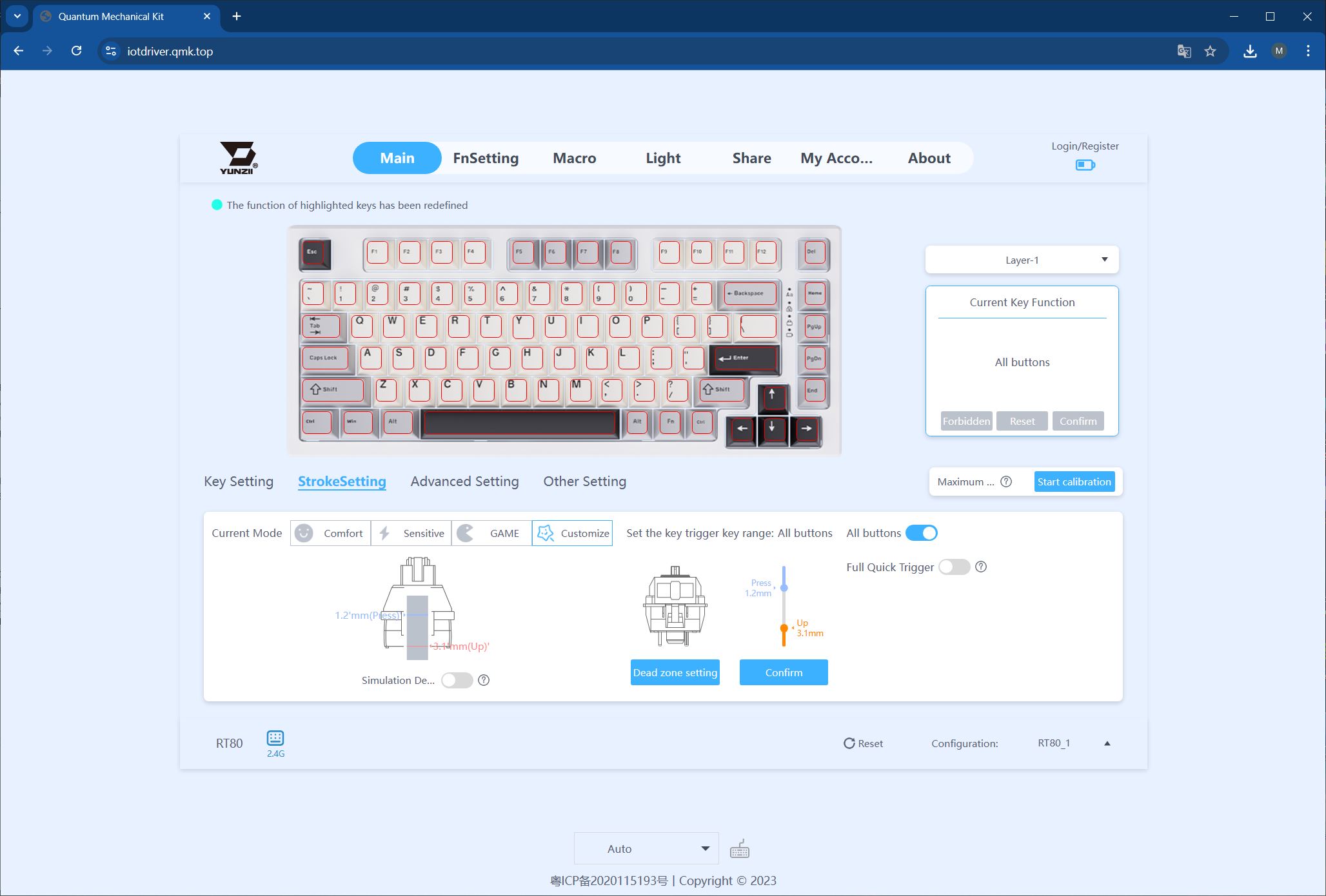
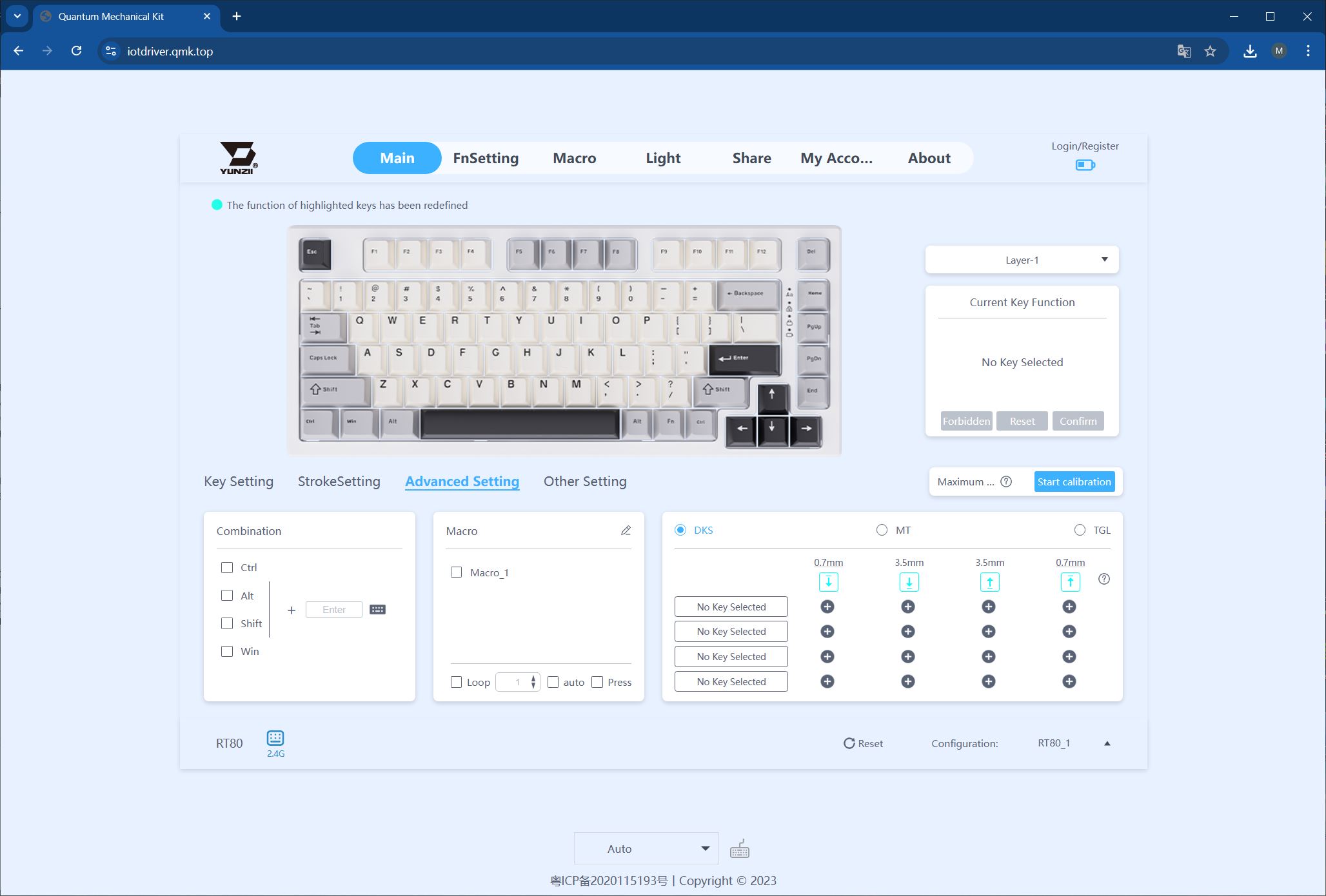


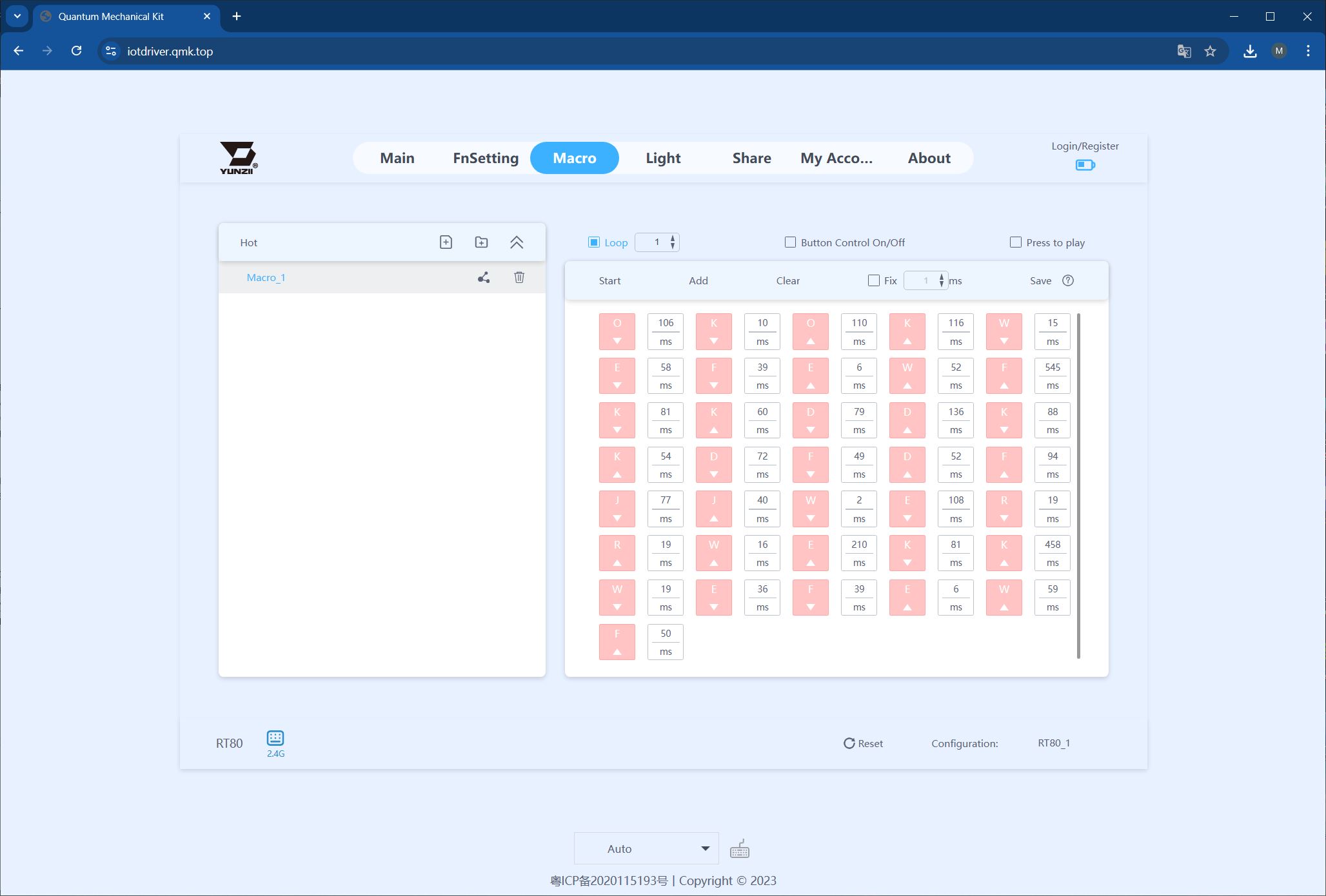
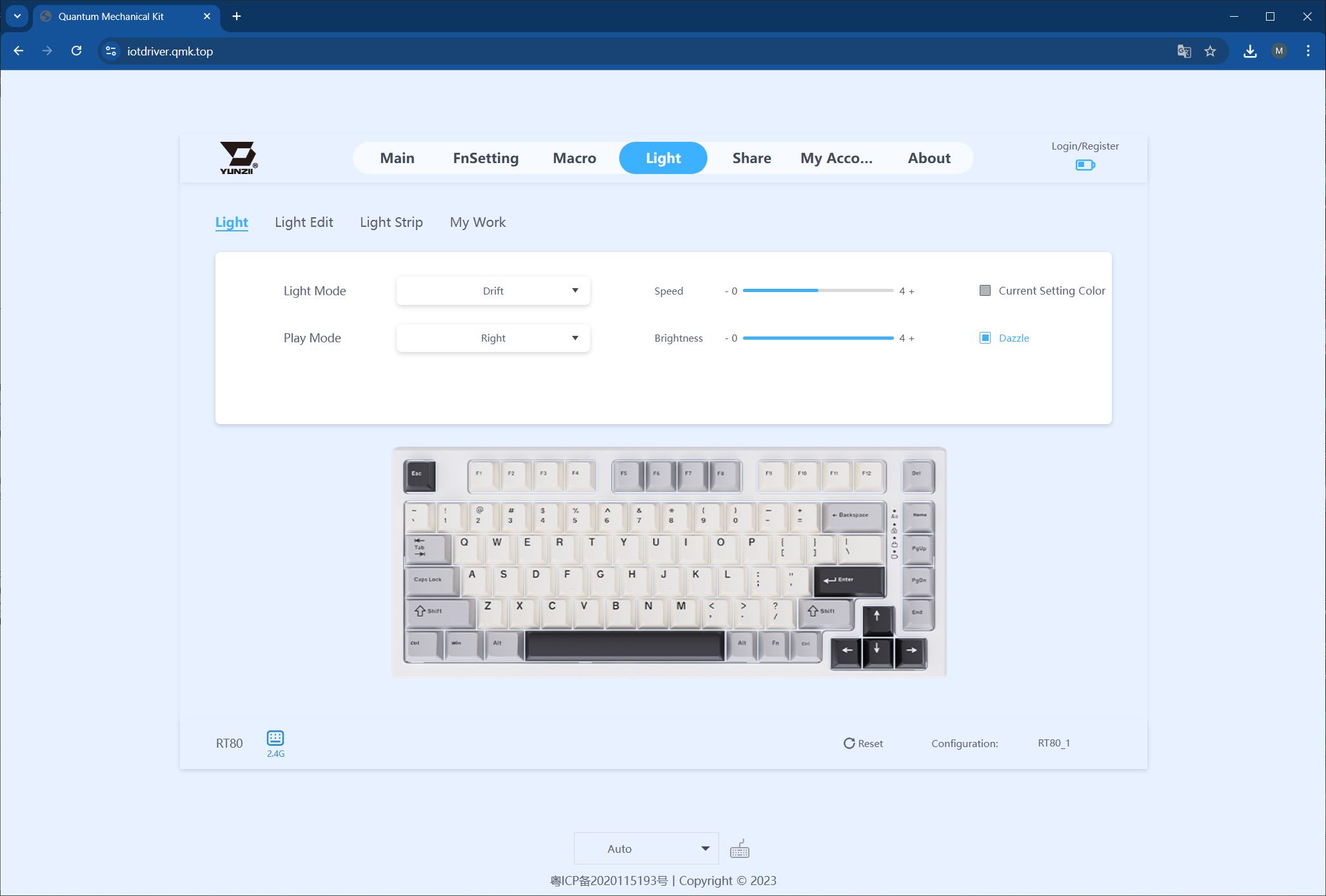
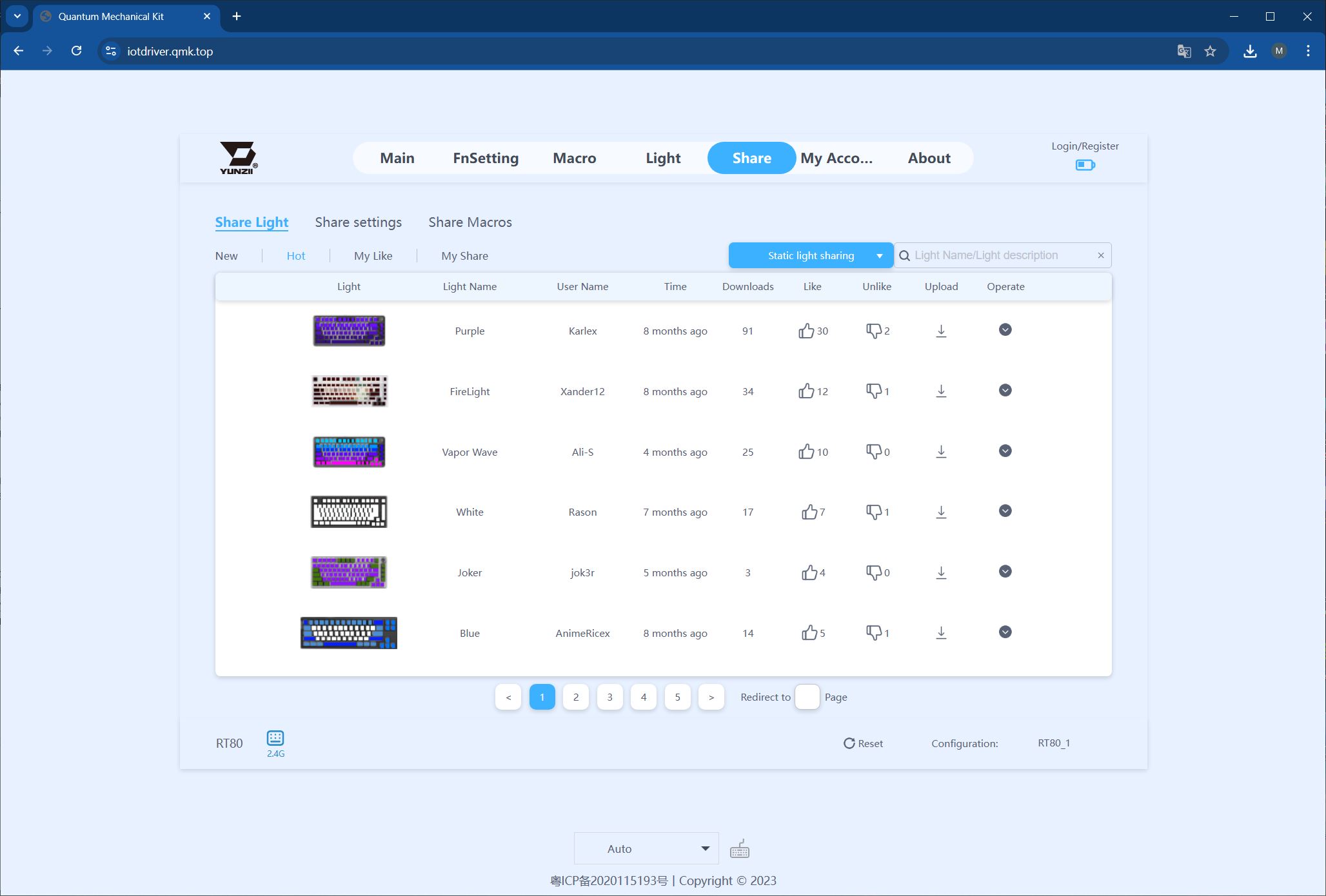
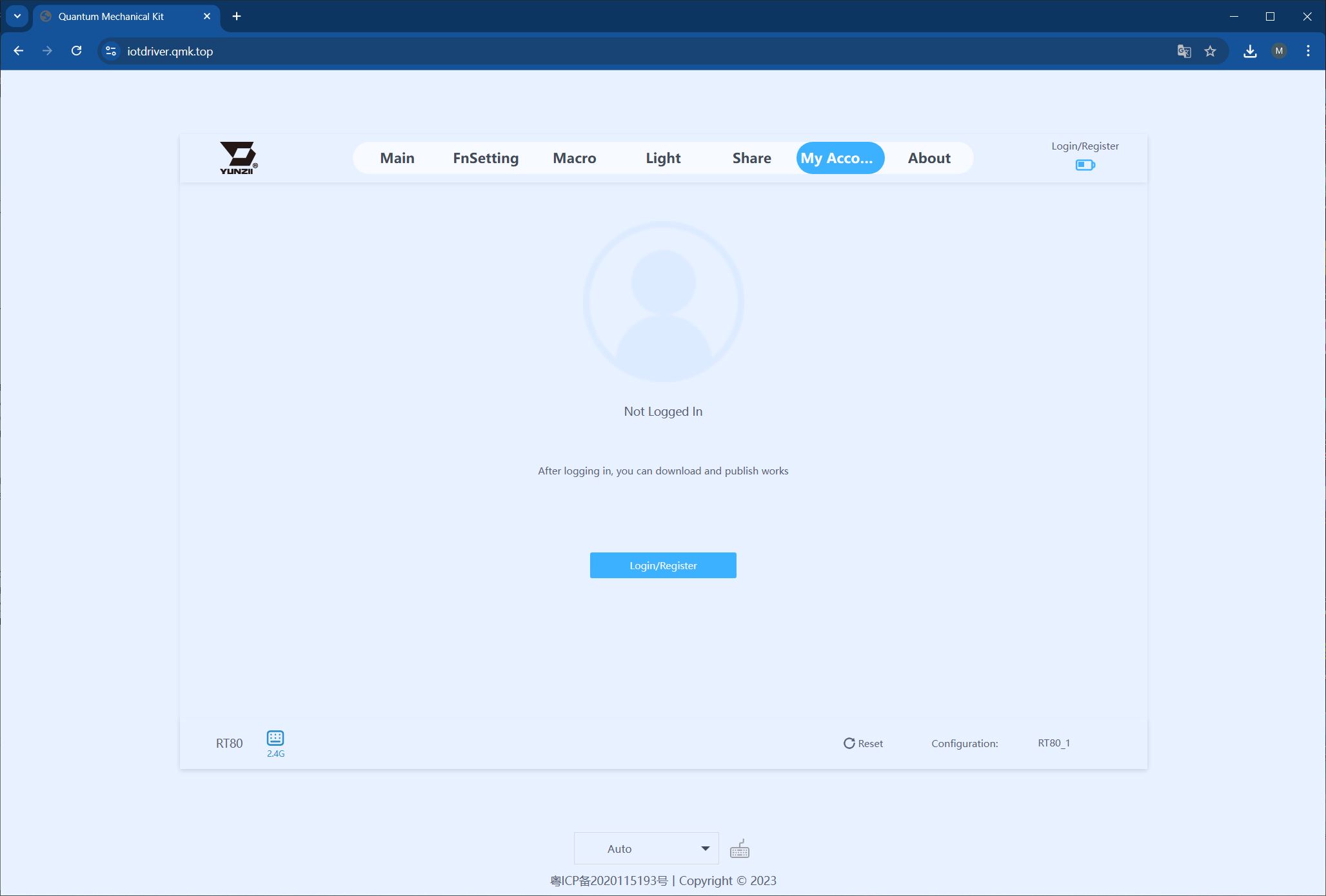
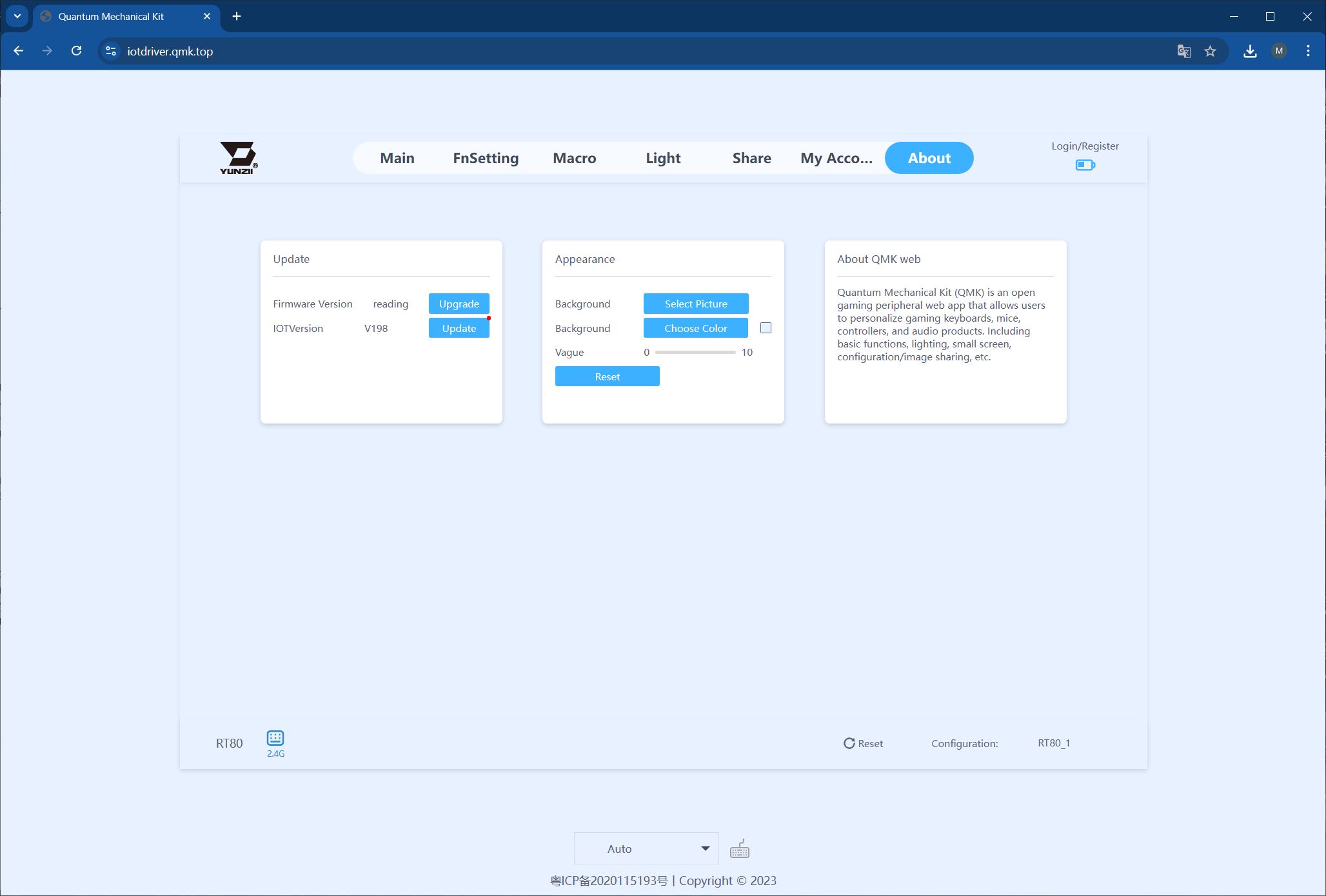
The only issue I noticed is that settings configured in the desktop app and on the QMK website do not sync with each other. It’s best to pick the method you find most convenient and stick with it. The keyboard also has onboard memory, so once configured, it retains all your settings and can be used on other devices without the app.
Read also:
- MechLands Vibe99 Review: Full-Size Layout, Hot-Swap Support, and Mini Display
- MechLands Vibe75 V2 Review: Solid Typing, Hot-Swap, and a Display at Affordable Price
Battery life
Like its predecessor, the keyboard features a 5000 mAh battery. In my experience, after two days of fairly active use, the charge dropped from 100% to 40%. Based on this, a full charge should last roughly three days, depending on usage and settings. The previous model had the same battery capacity and typically ran about 30 hours per charge, and the RT80 delivers similar performance. For reference, I tested the keyboard with both the key and case backlighting at maximum brightness. Reducing or turning off the lighting will, of course, extend battery life.
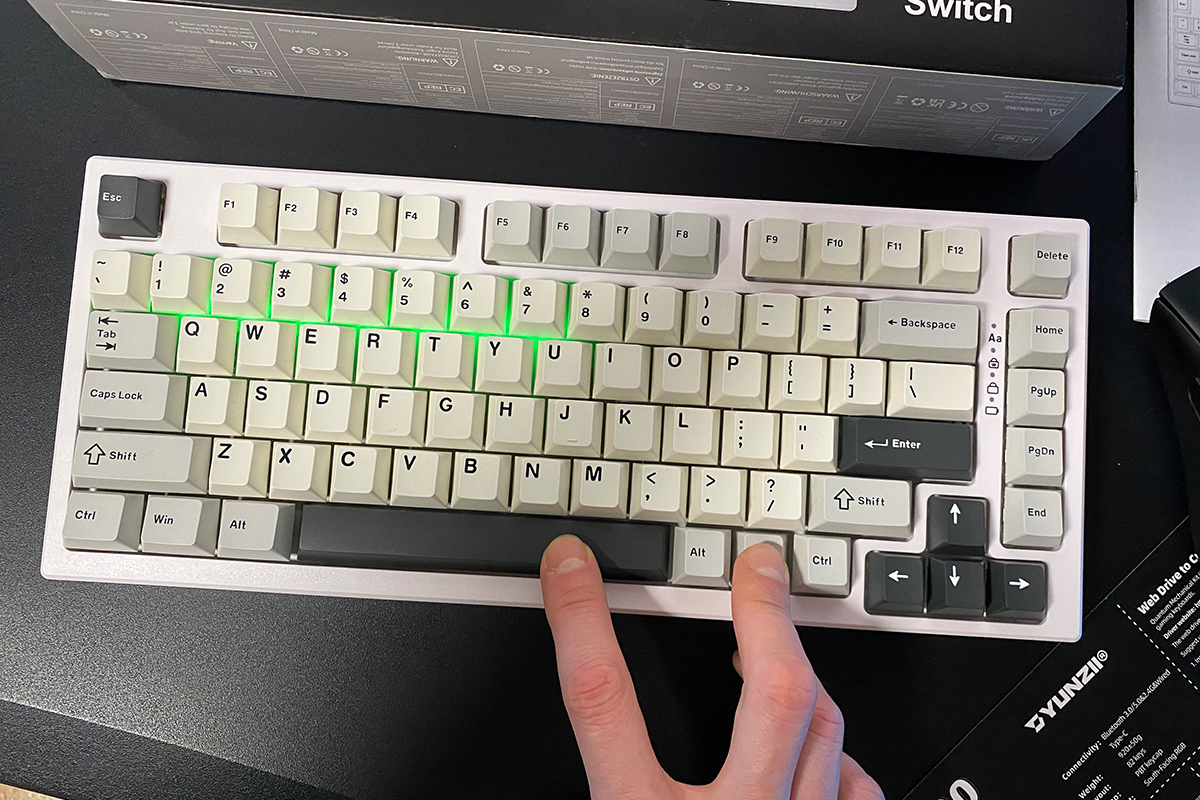
You can check the battery level using the key combination FN + Space. When pressed, the number row lights up to indicate the remaining charge. For example, in the photo below, numbers 1–7 are illuminated, showing that roughly 70% of the battery remains.
Another interesting detail: when the keyboard’s battery is completely drained, it stops responding to key presses in wireless mode, but the backlighting continues to glow for a short while. Honestly, this is the first time I’ve encountered this behavior. The first time my keyboard fully discharged, I didn’t immediately realize what had happened. However, once I gave it a brief charge via cable, it returned to normal operation.
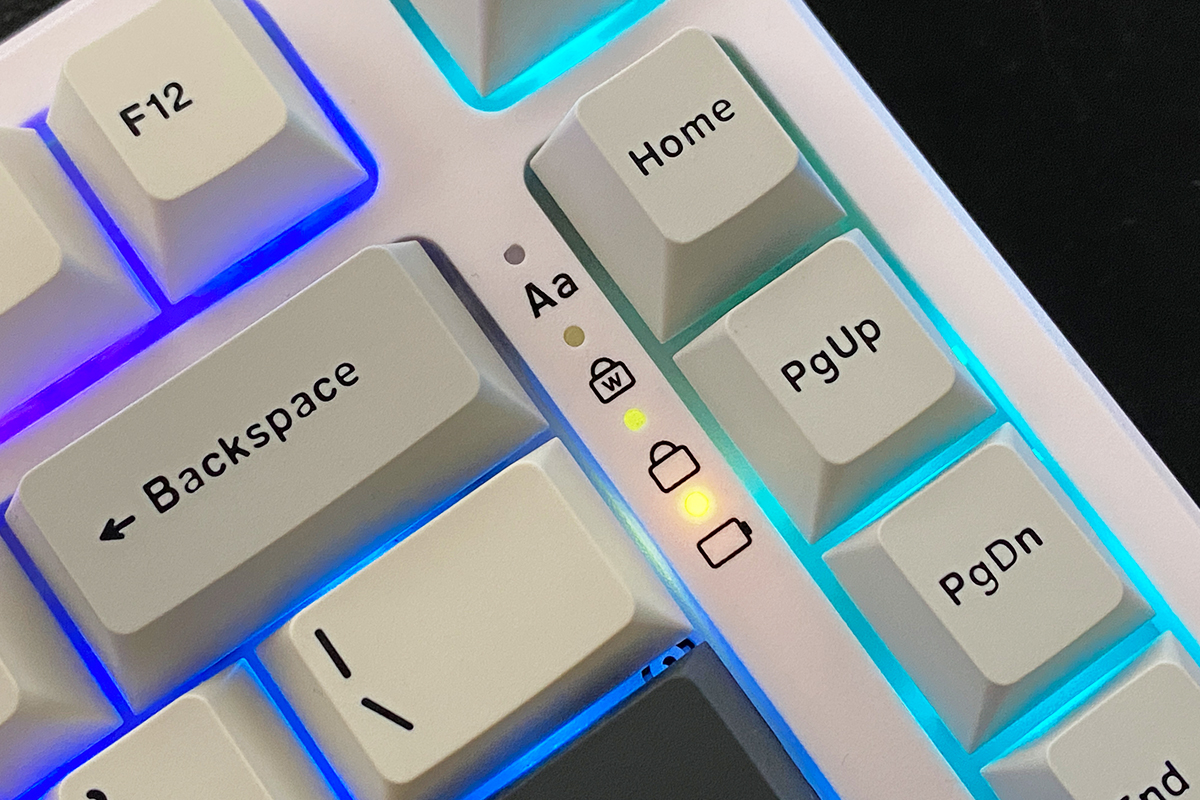
You can also check the battery status via the indicator located to the left of the PgUp/PgDn keys. When the battery is nearly depleted, the indicator lights up red. While charging, it glows yellow, and once the keyboard is fully charged, the indicator turns off completely.
Conclusions
In summary, the new YUNZII RT80 is generally a successful update. It combines an accessible price point, magnetic switches, an 8000 Hz polling rate, wireless connectivity, and, most notably, an exceptional typing experience. The typing feel, in particular, stands out – it’s unlike anything I’ve encountered on other keyboards. Personally, the typing experience alone is enough for me to overlook the keyboard’s few shortcomings. Ideally, I’d love to see this same keyboard, with the same switches and typing feel, housed in a solid metal frame. If YUNZII placed it in an aluminum case like the AL80 – without needing a built-in screen or case lighting – that would be my personal “magnetic” ideal.
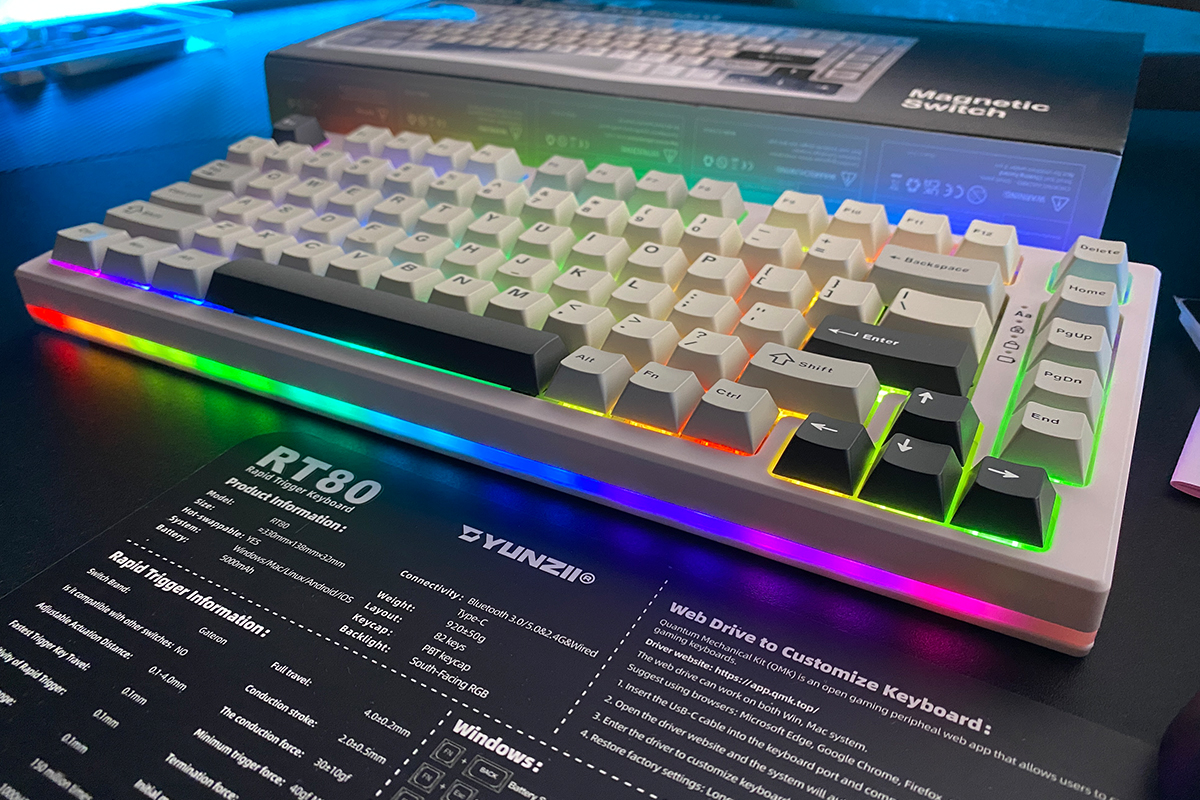
As for the less successful aspects, two points stand out: build quality and the case lighting. The build quality, especially of the case, is generally decent, but knowing YUNZII’s track record with other devices, it could have been better – the AL series and models like the B75 PRO and RT75 are good examples. The case lighting, frankly, is underwhelming: there are visible gaps in the LED strip, particularly along the edges, and the overall brightness and saturation are lacking. Again, considering how YUNZII has handled case lighting on models like the AL65, it’s clear this could have been executed more effectively. Otherwise, the RT80 is a solid keyboard that can be confidently recommended if you’re looking for an affordable magnetic switch option.
Read also:
- Unihertz 8849 Tank 4 Review: Rugged Smartphone with Built-In Projector and Flashlight
- Sony A7C Camera Review: The Smallest and Lightest Full-Frame Camera in the World
- Kiwi Ears Ardor Review: Versatile Over-Ear Headphones Focused on Sound Quality
Where to buy YUZNII RT80